

 Deutsch
 Español
 Français
 Hrvatski
 Italiano
 Polski
 Português (BR)
Create & Edit Ticket Report Templates with AI
Overview
The AI Template Builder creates a ready-to-edit advanced ticket report template from a PDF, Word, or Excel file you upload or a description you write. It detects the report's structure and applies matching settings, so you start from a working layout instead of building one from scratch.
The AI can do the following:
| Structure | Detects the cover page, the repeating per-ticket content, any appendix sections, and mirrors the source layout. |
| Layout | Reproduces the typography, spacing, sections, and tables from the source. |
| Settings | Sets the report name, page orientation, page numbers, header and footer, and table of contents. You can change any of these afterwards. |
| Fields | Adds your form's predefined fields to the template, so their values appear in the report. |
Not supported in the current version:
- File formats other than PDF, Word, and Excel (for example, images or plain-text files).
- Custom fields — these aren't added automatically; add them to the template manually.
Access & Permissions
How to Access Ticket Report Templates
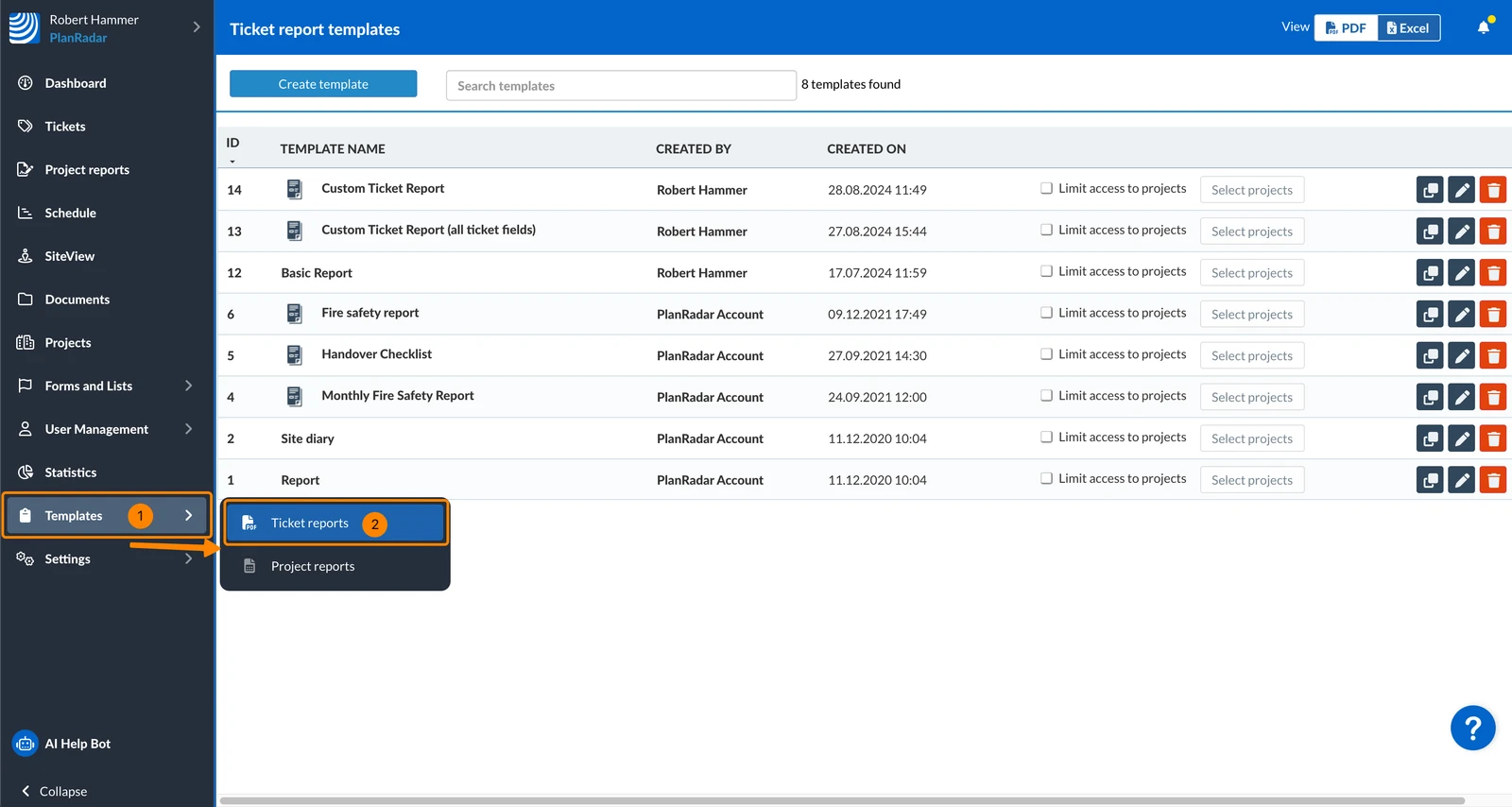
- Hover over Templates
- Click Ticket Reports
Create Ticket Report Templates with AI
Start as you normally would, by creating an advanced ticket report template:
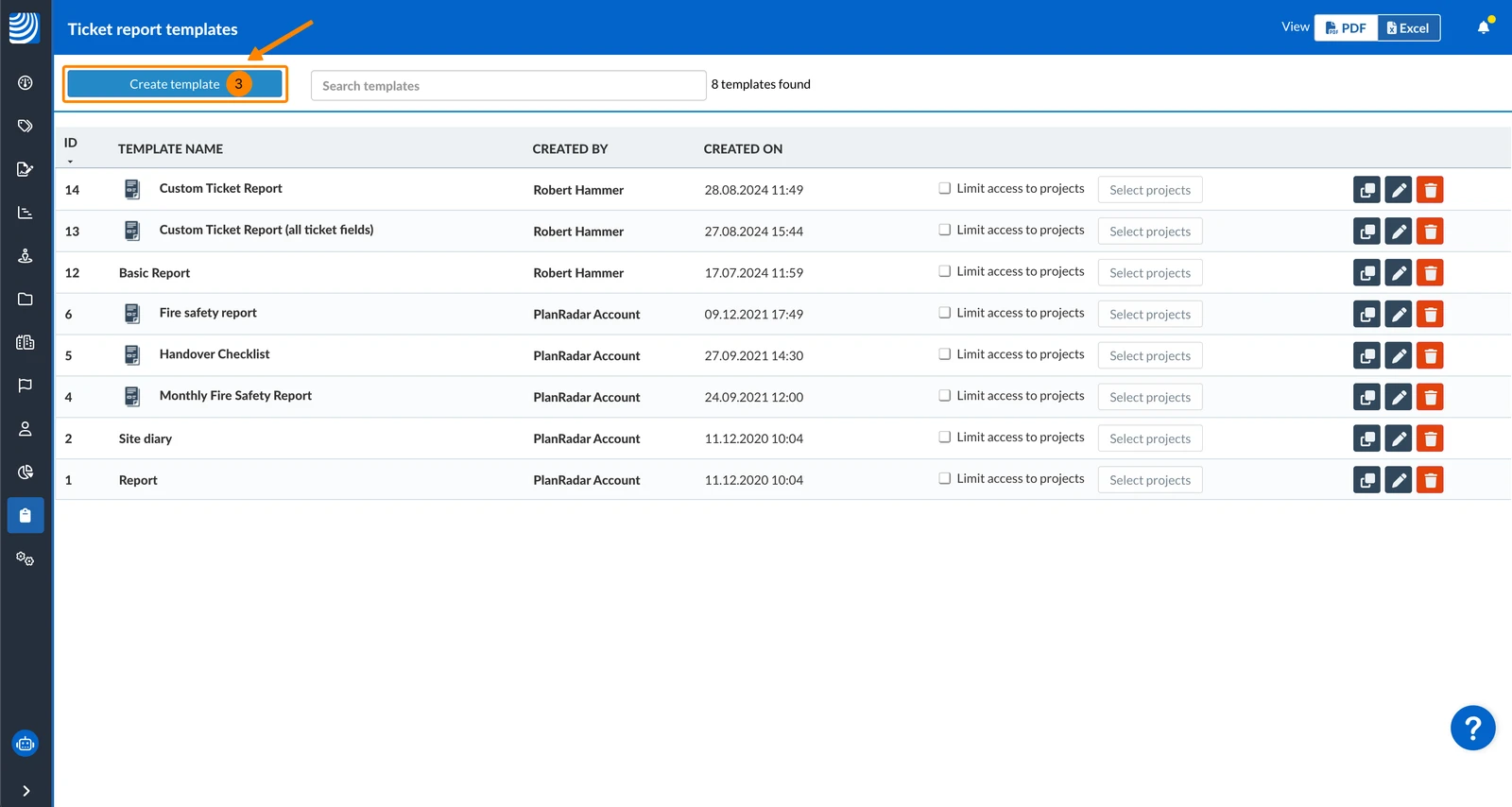
- Click Create template
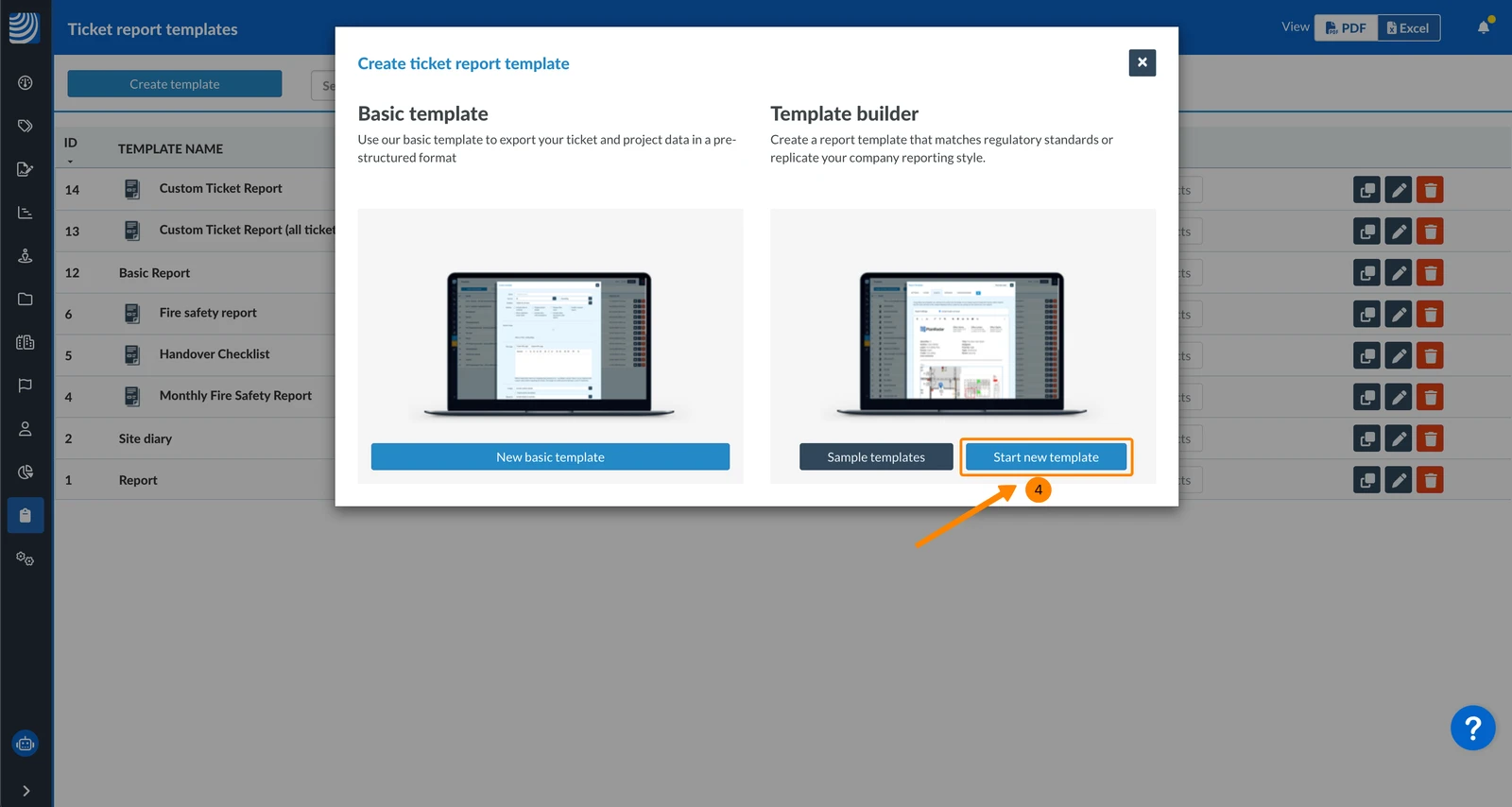
- Click Start new template
Then you continue either:
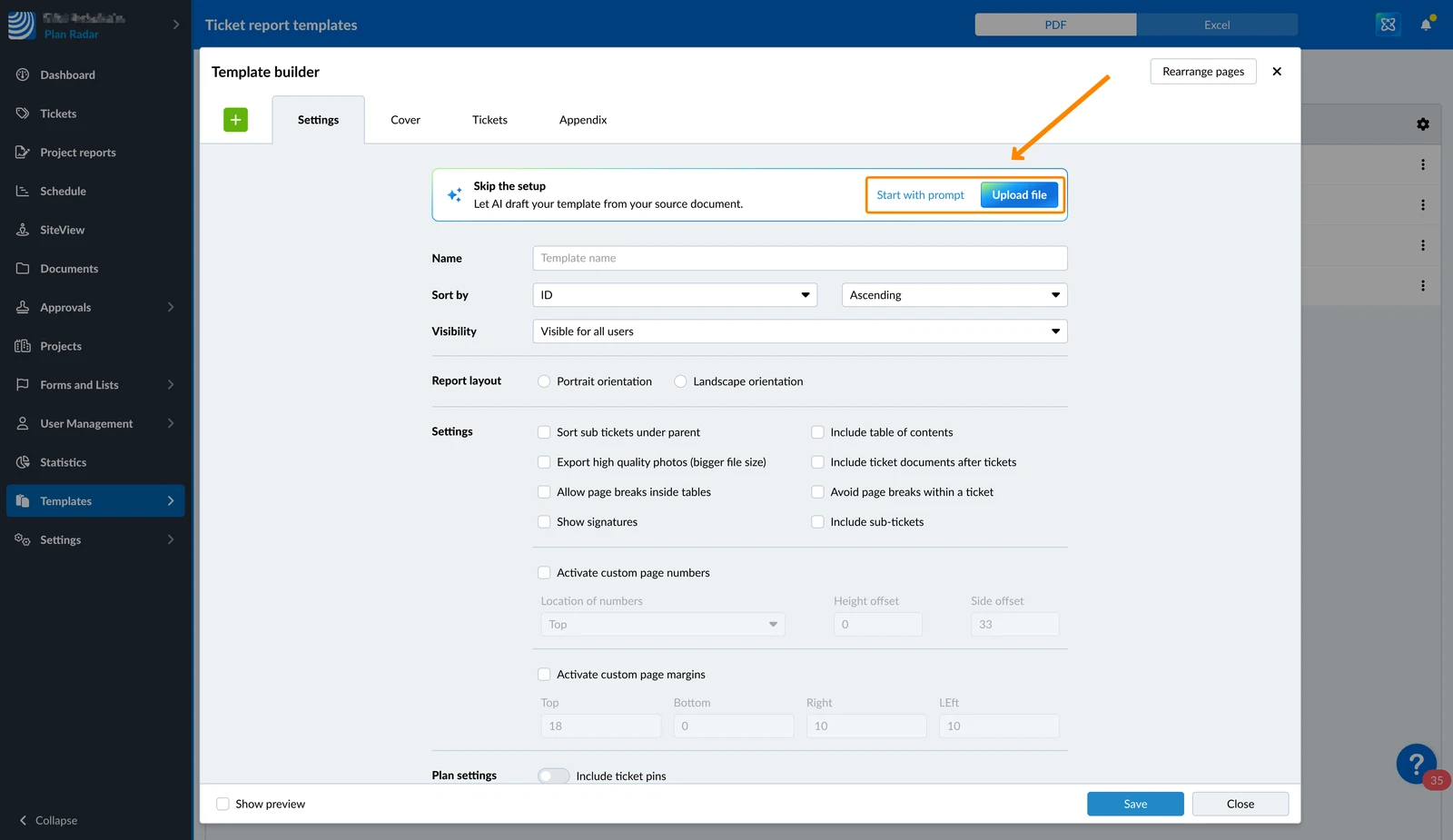
By Uploading a File
To create a template based on an uploaded PDF:
- Click Upload file
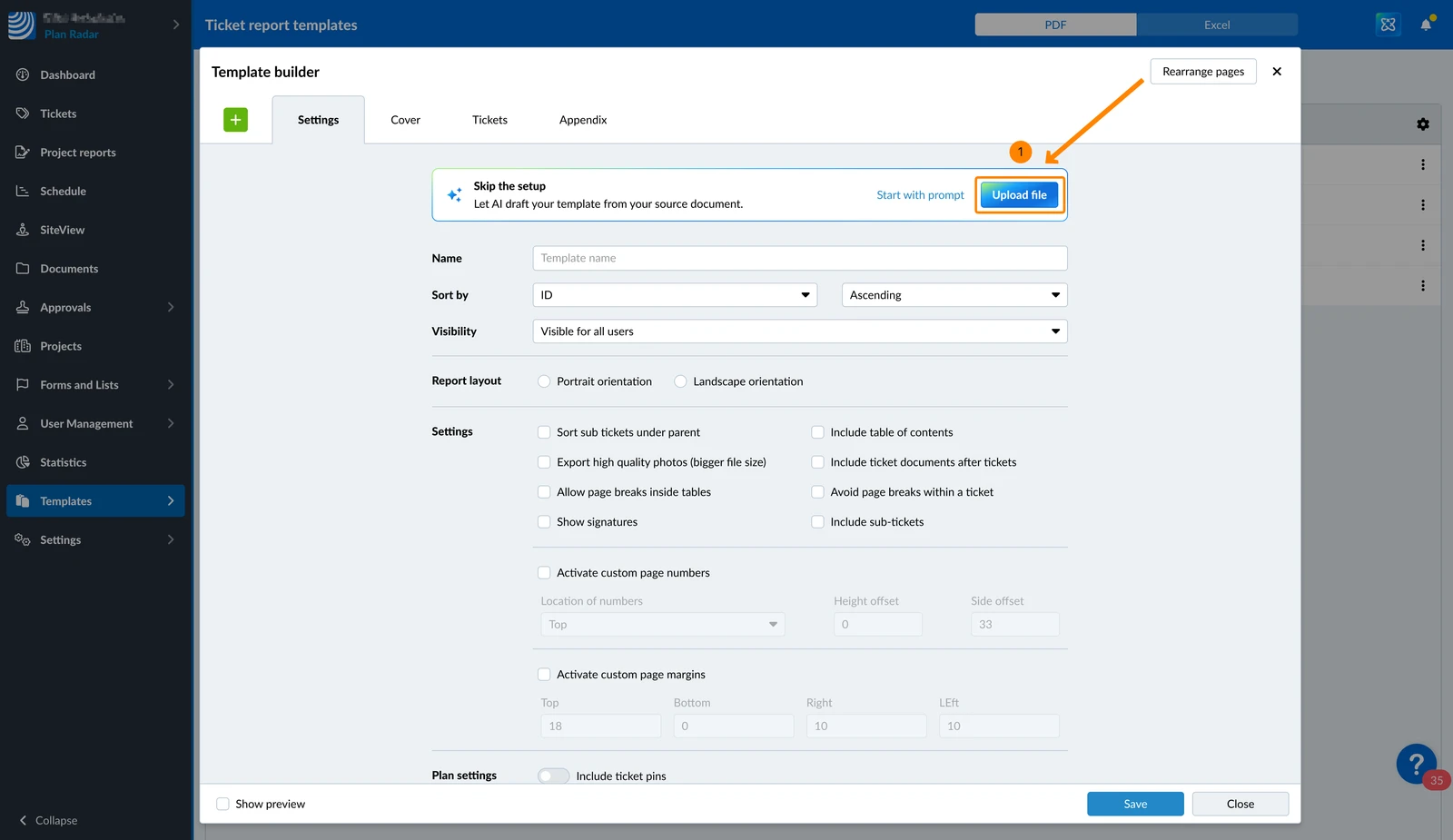
- Select the file in your computer's file browser
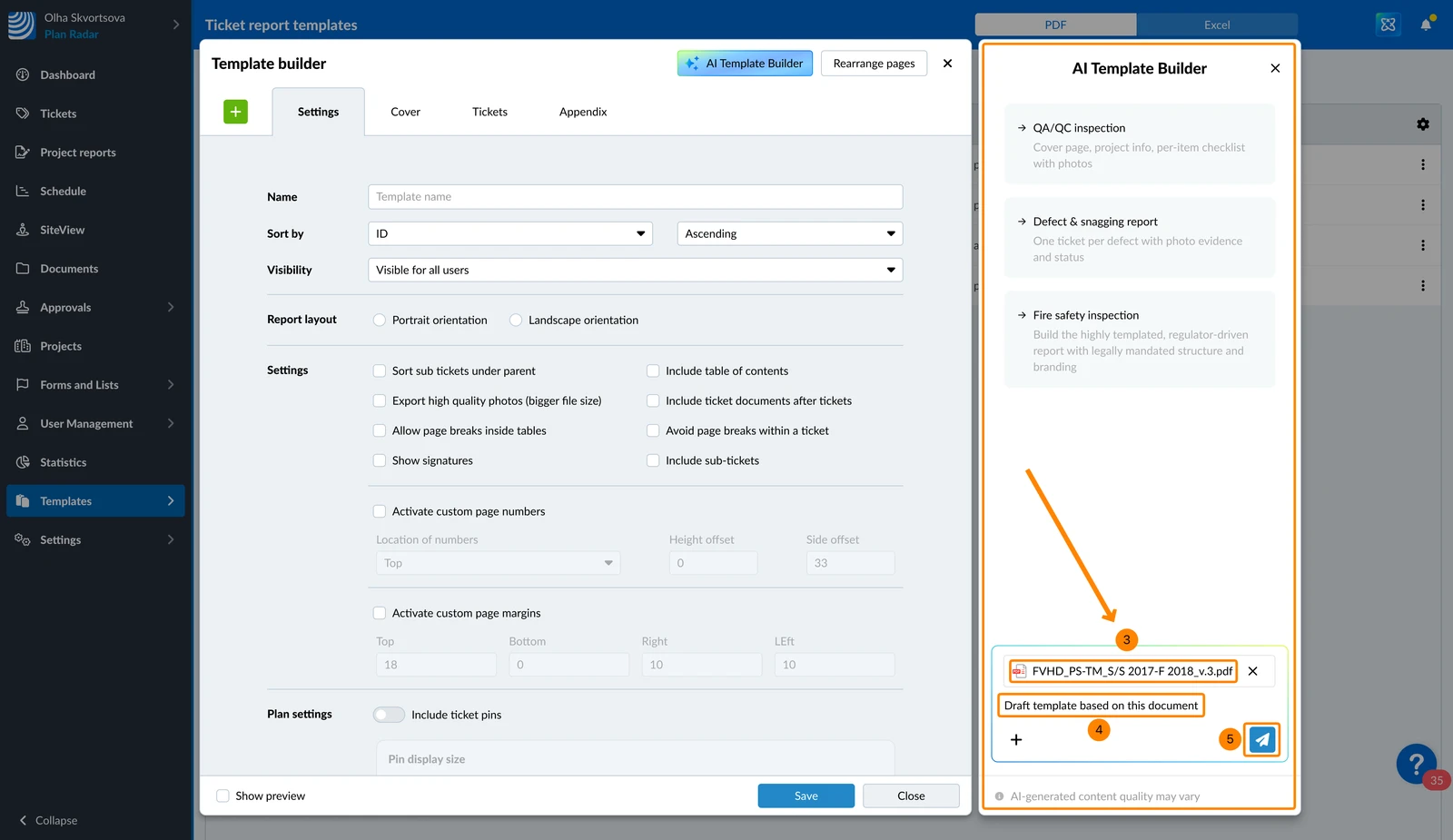
- You see the file attached in the AI Template Builder chat
- Optional: Adjust the prompt (e.g. "Draft template based on this document")
- Click the Send icon to start the generation by AI
By Starting with a Prompt
To create a template by describing what you need:
- Click Start with prompt
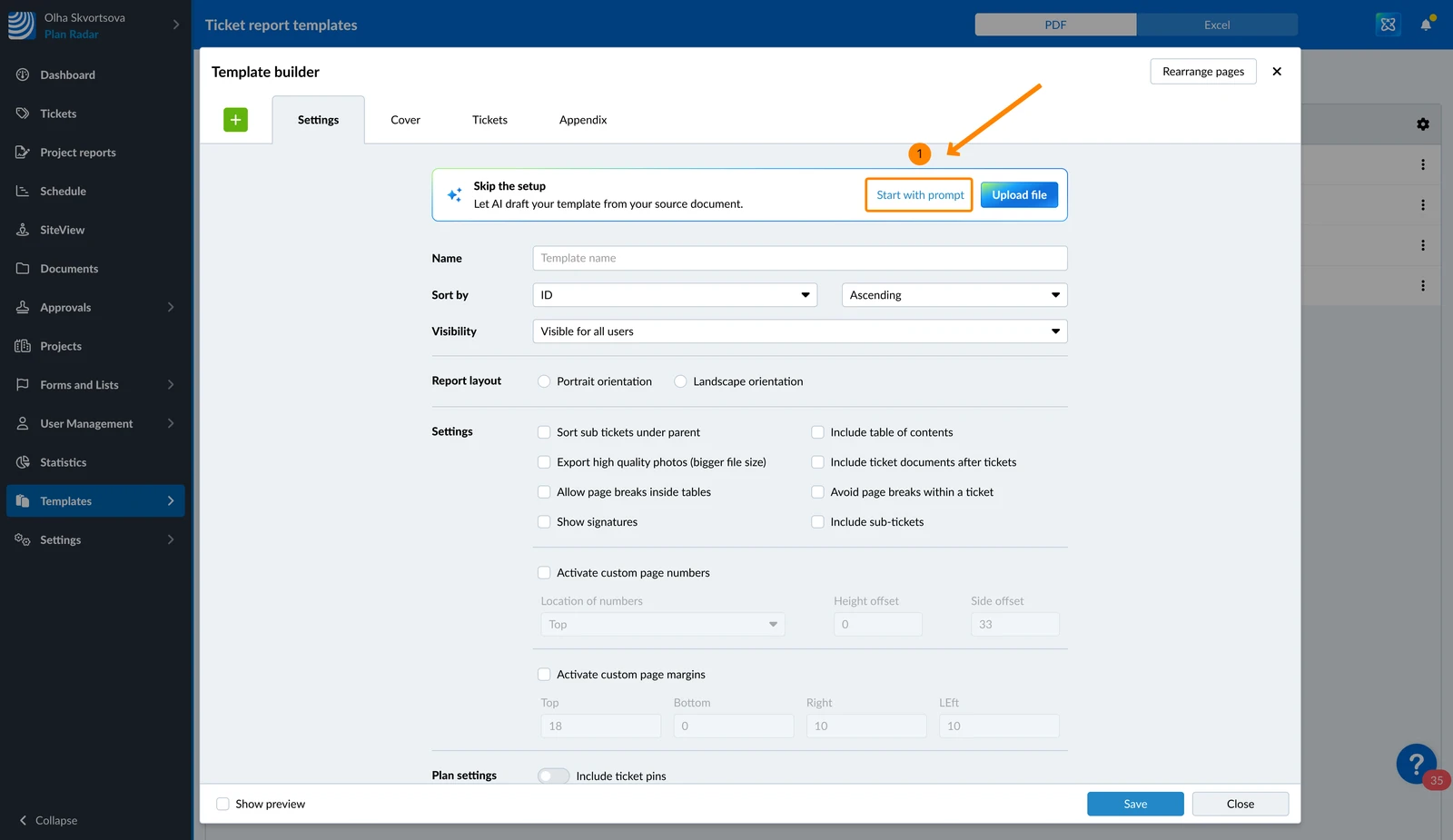
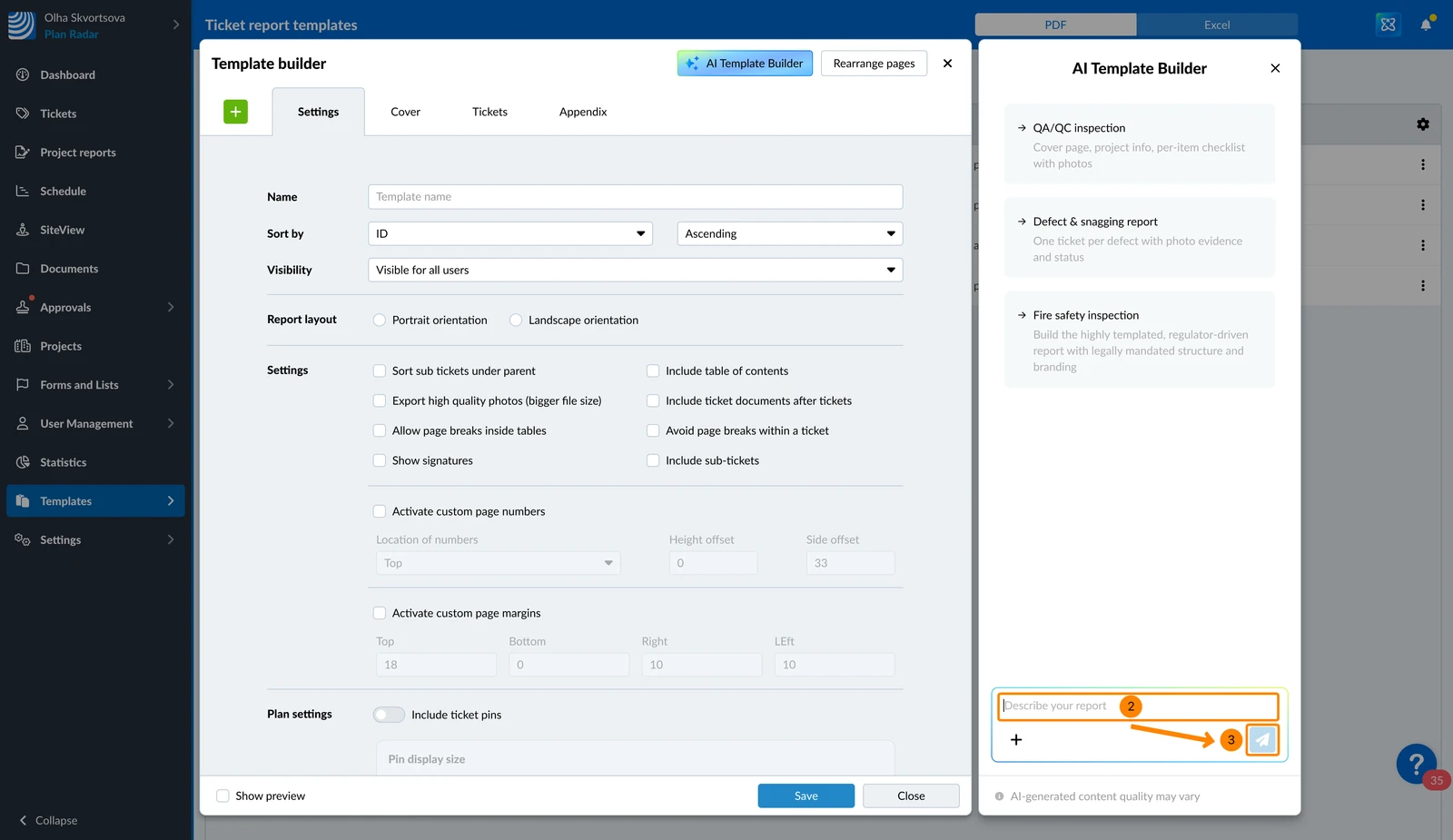
- Describe your report
- Click the Send icon to start the generation by AI
Edit Ticket Report Templates with AI
To edit an advanced ticket report template with the AI template builder:
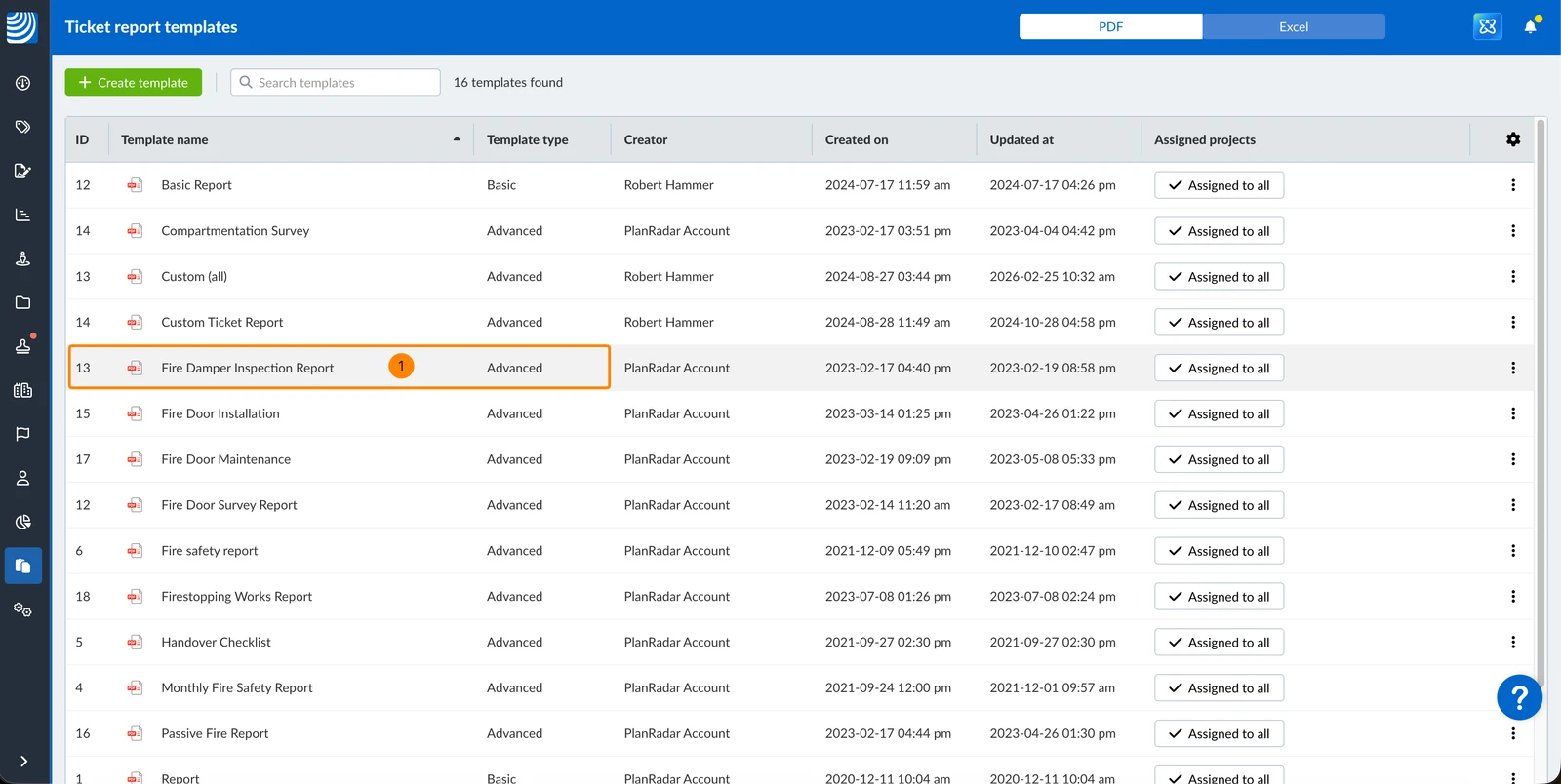
- Click on an advanced ticket report template
- Click AI Template Builder to view the chat panel
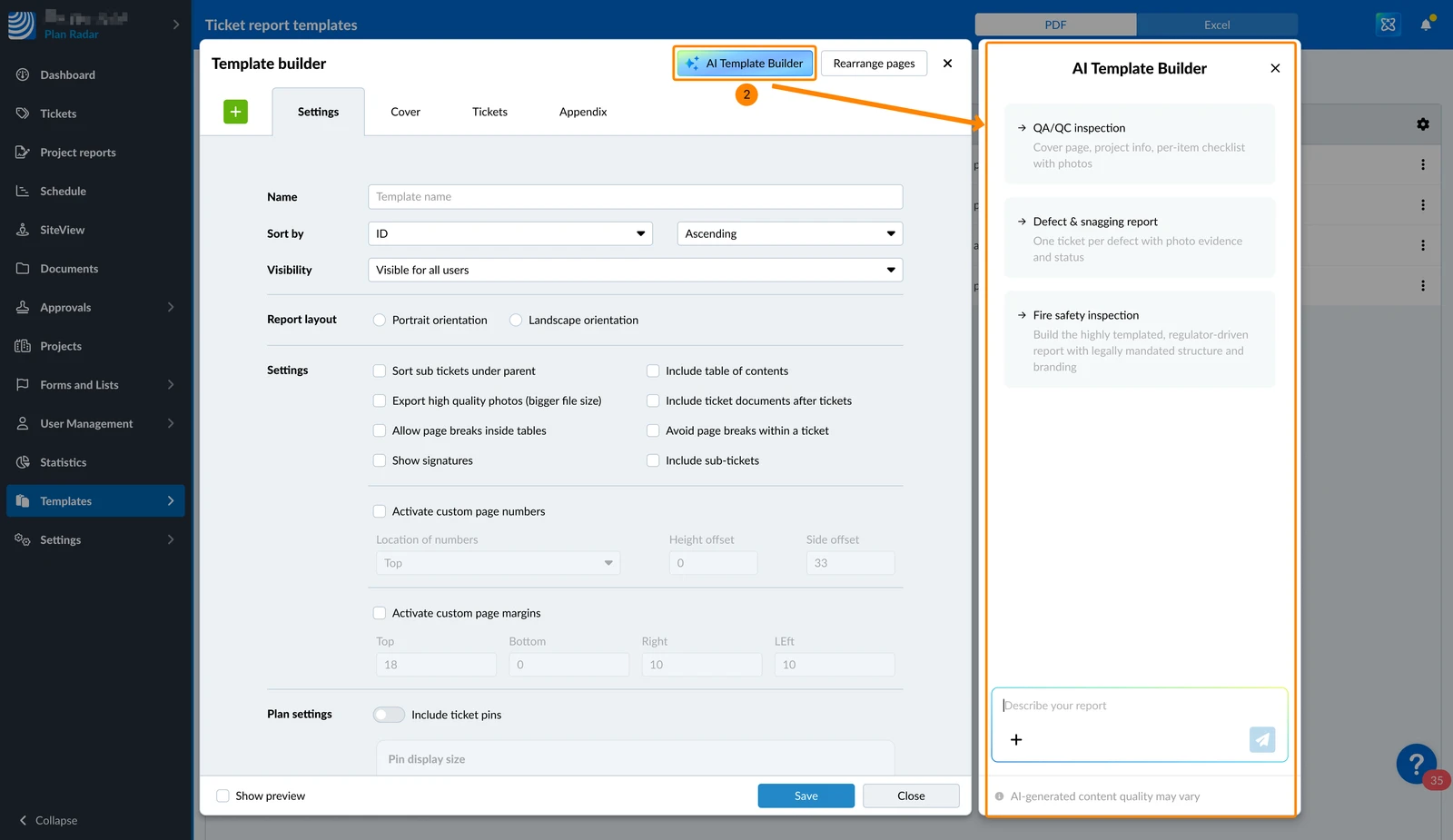
Working with the AI Template Builder
Review & Apply Changes
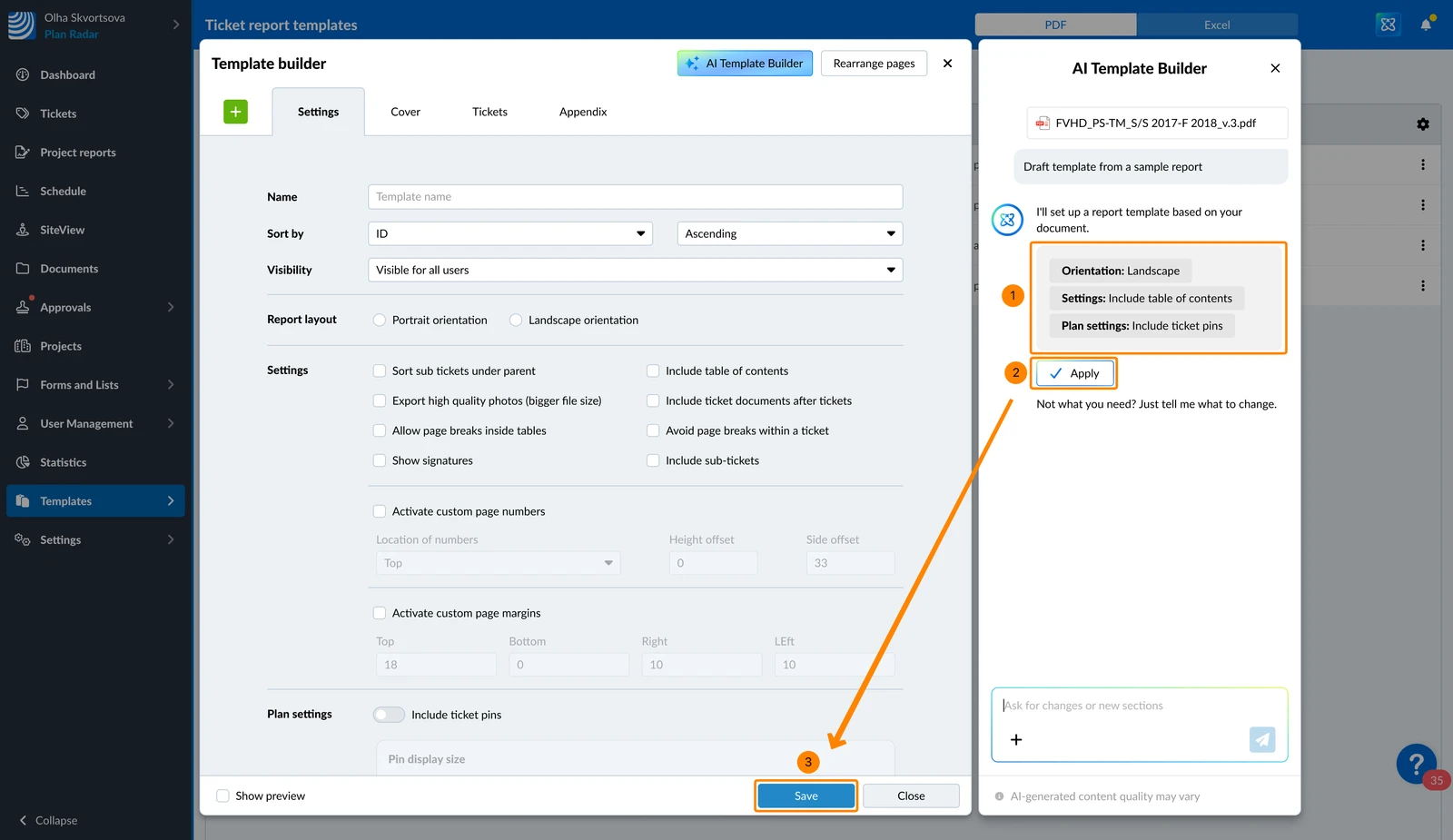
- Whenever you send a message (with a file and/or a prompt) the AI will generate a draft and show you a preview about the suggested changes in the chat.
- Nothing gets applied automatically.
- You can give feedback to adjust the draft before applying.
- When you click Apply in the chat, the changes are applied in the template builder.
- Changes made by the AI are signposted for you: changed elements show an AI Highlight border, tabs you have not opened show a badge until you view them, and you can hover a change to preview it.
- In the template builder you can still make manual changes without AI.
- The changes are saved to the template only when you click Save, as always in the template builder.
To apply changes and save them in the template:
- Check the suggested changes
- Click Apply
- Click Save
Chat History & Uploads
- Your chat is saved per template. When you close and reopen the AI Template Builder, your conversation is restored.
- Upload up to 3 files per message with up to 10 MB per file. There is a processing limit of 100 pages for all 3 files combined. For best performance, it is recommended to keep the total page count below 60.
- You could also chat first and then upload a file with the + icon like in the AI Assistant.
Also see Get Document Insights with AI Assistant > Ask AI by Uploading Temporary Files in the Chat.
Updated June 12, 2026