

 Deutsch
 Español
 Français
 Hrvatski
 Italiano
 Polski
 Português (BR)
Connect Apps with PlanRadar Connect
Overview
PlanRadar Connect provides automated workflows, called recipes, that integrate your PlanRadar account with other applications. In order for these recipes to run, the connection must be configured correctly. Otherwise the workflow will not run.
Access & Permissions
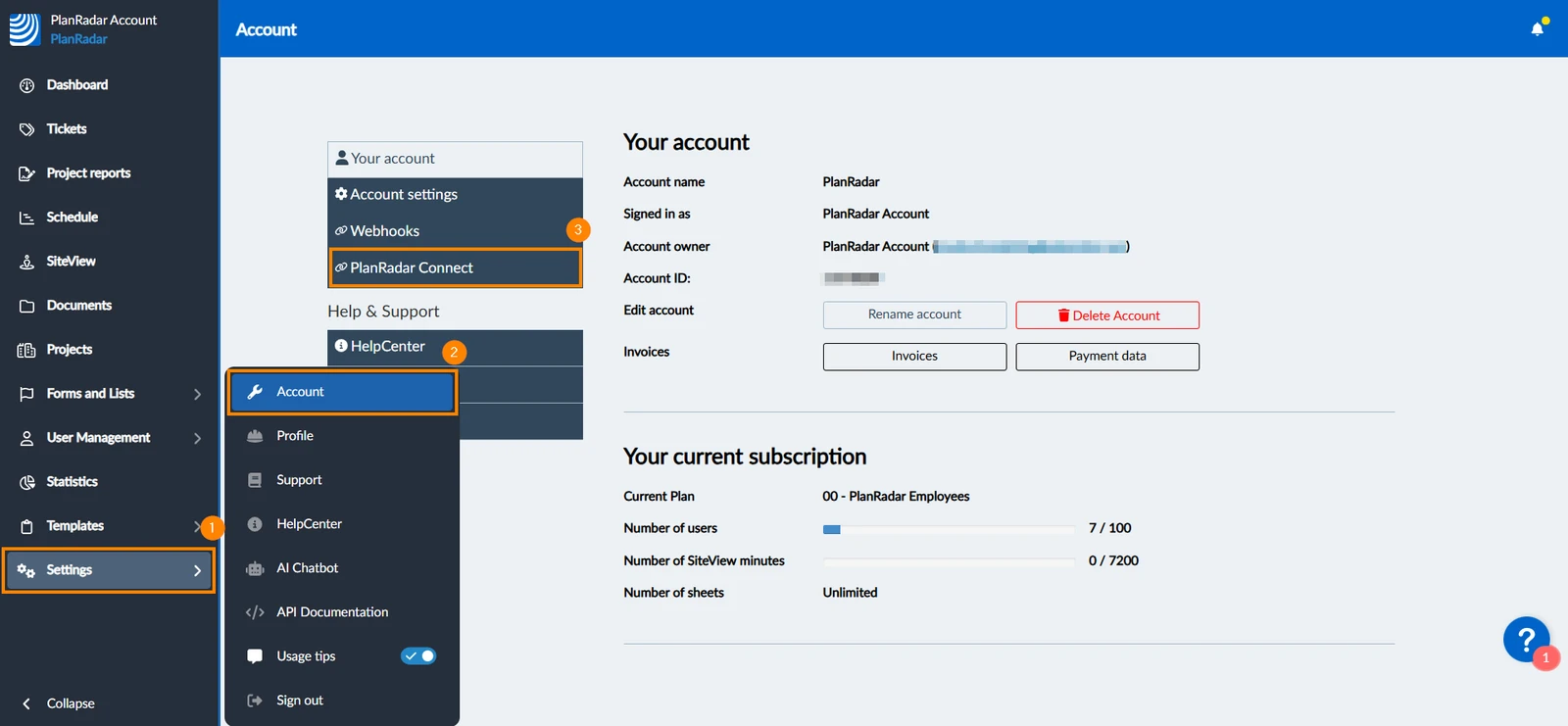
How to access PlanRadar Connect connections
- Hover over Settings
- Click Account
- Click PlanRadar Connect
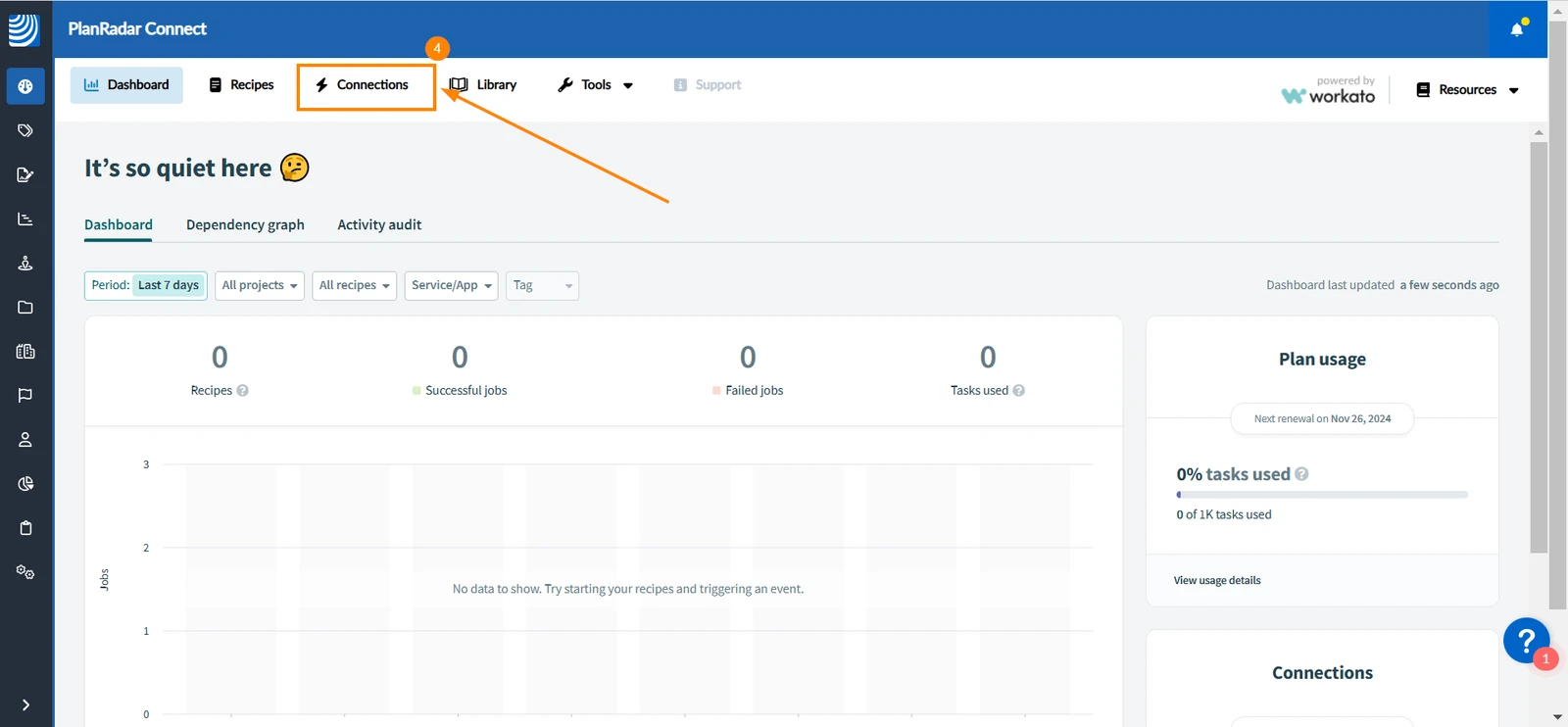
- Click Connections
Connect PlanRadar
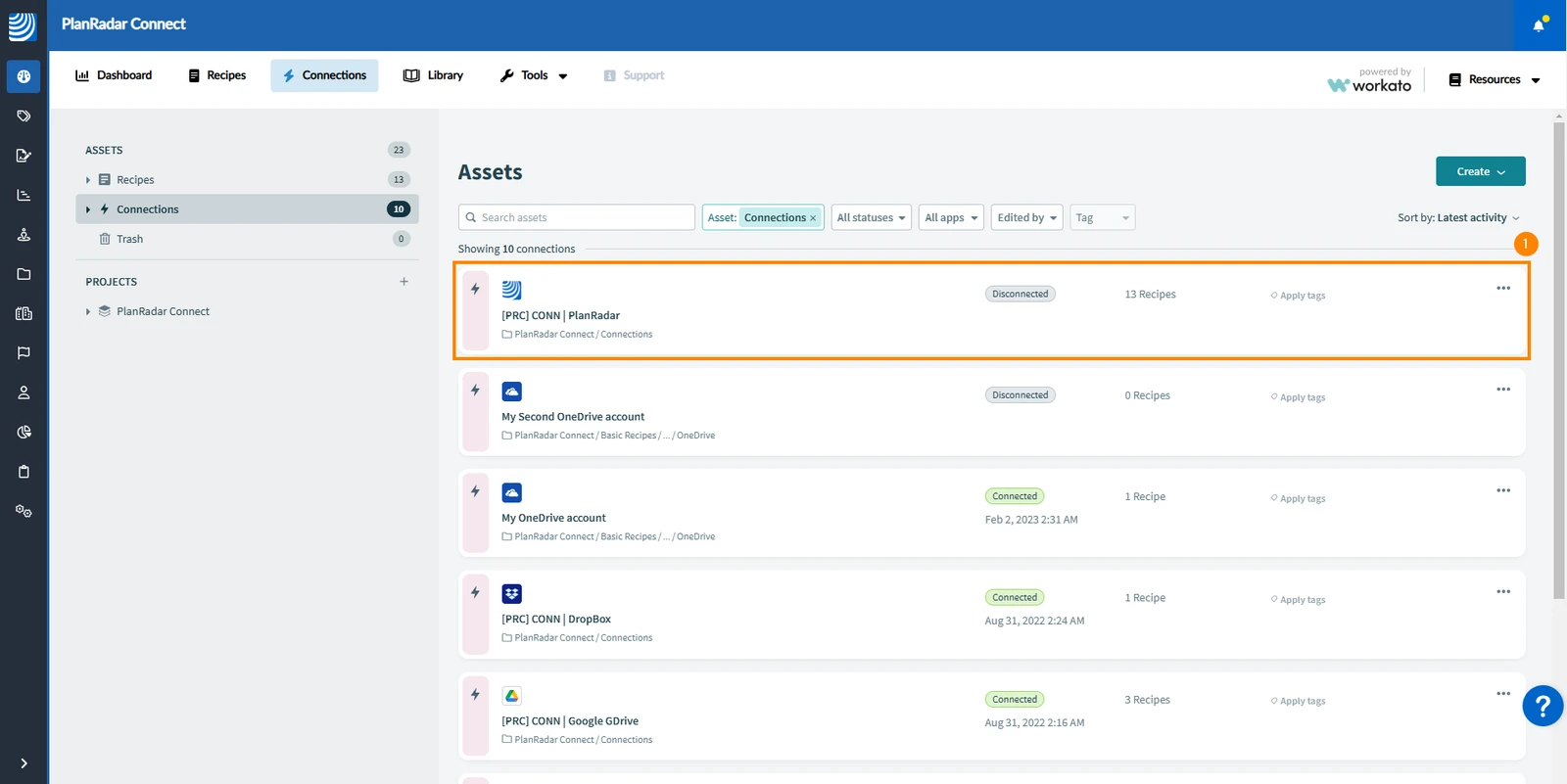
To connect your PlanRadar account with PlanRadar Connect:
-
Click PlanRadar
-
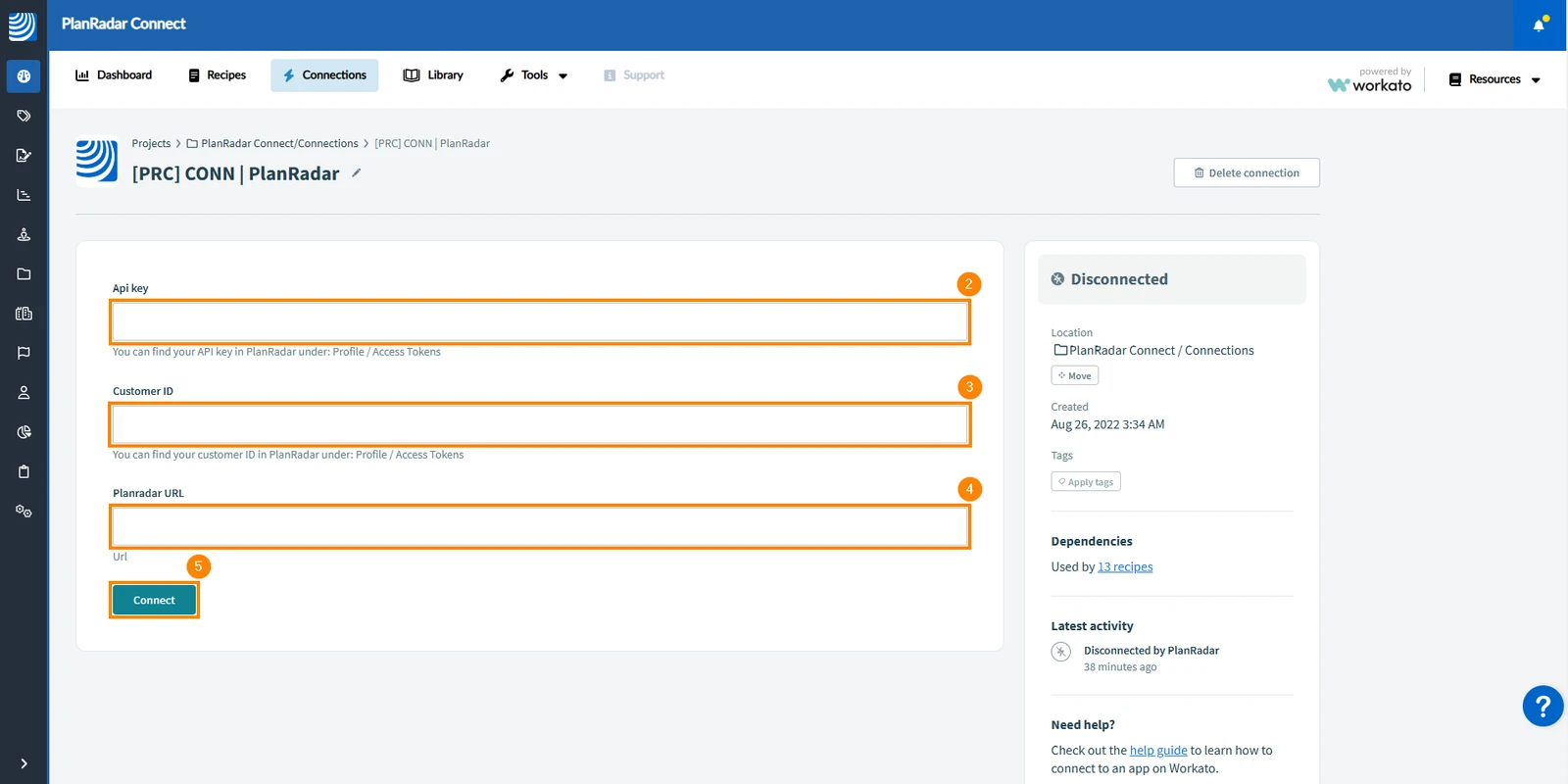
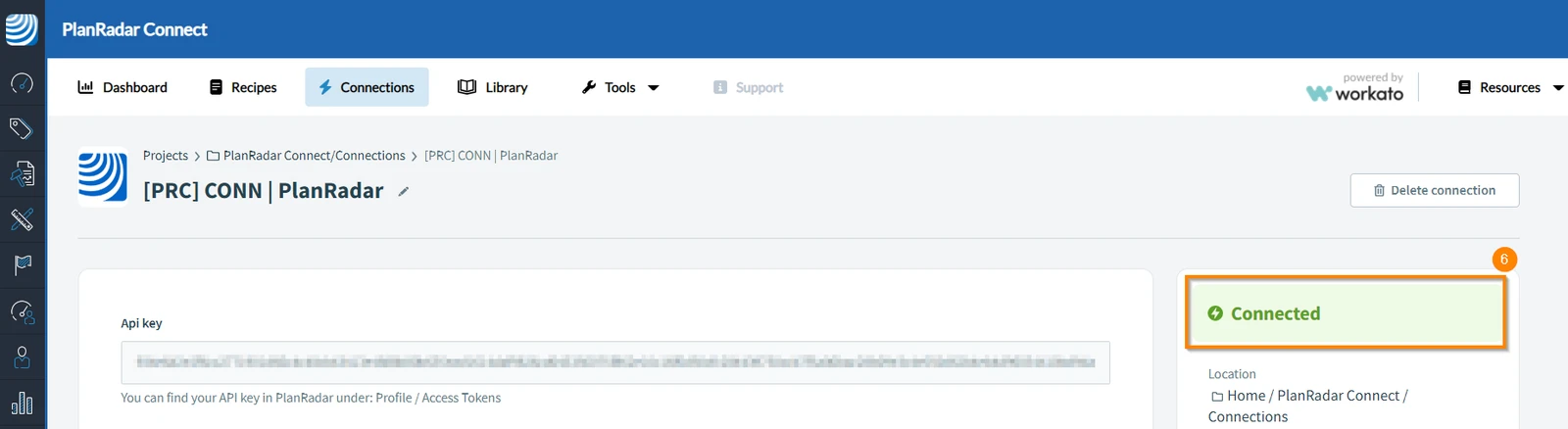
Enter your API Key
-
Enter your Customer ID
-
Enter your PlanRadar URL e.g. https://www.planradar.com
(NOT the full URL with account ID and so on)

-
Click Connect
-
The application will show a message in green, confirming the connection of PlanRadar with PlanRadar Connect
Connect Ready Applications
PlanRadar provides several sample recipes to help automate workflows. To use these recipes, you must first connect the third-party applications they require. The applications featured in these recipes are already listed under the Connections tab.
Here's how to connect them:
Outlook
To connect Outlook with PlanRadar Connect:
-
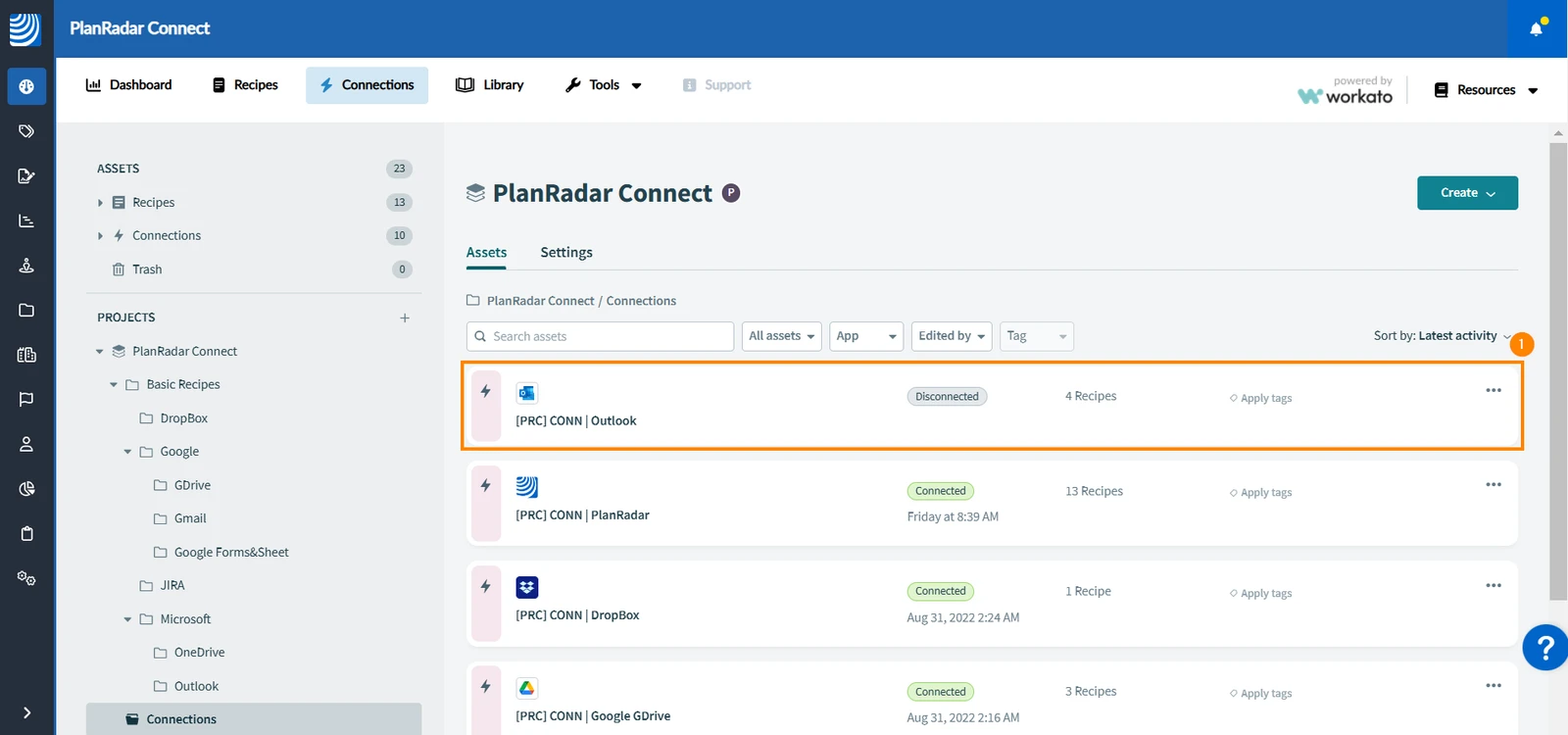
Click Outlook
-
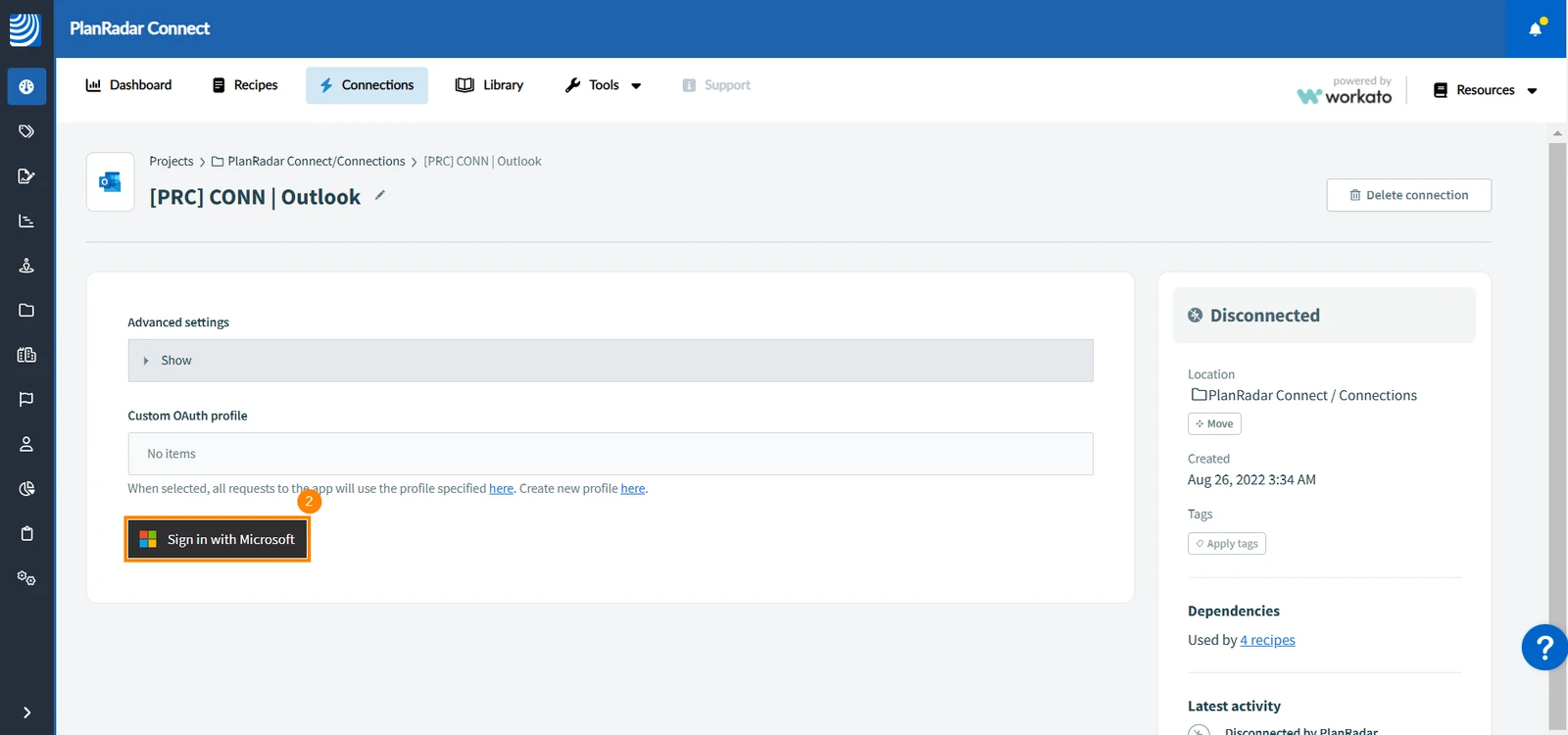
Click Sign in with Microsoft
-
A new window opens to allow you to sign in to your Microsoft account
-
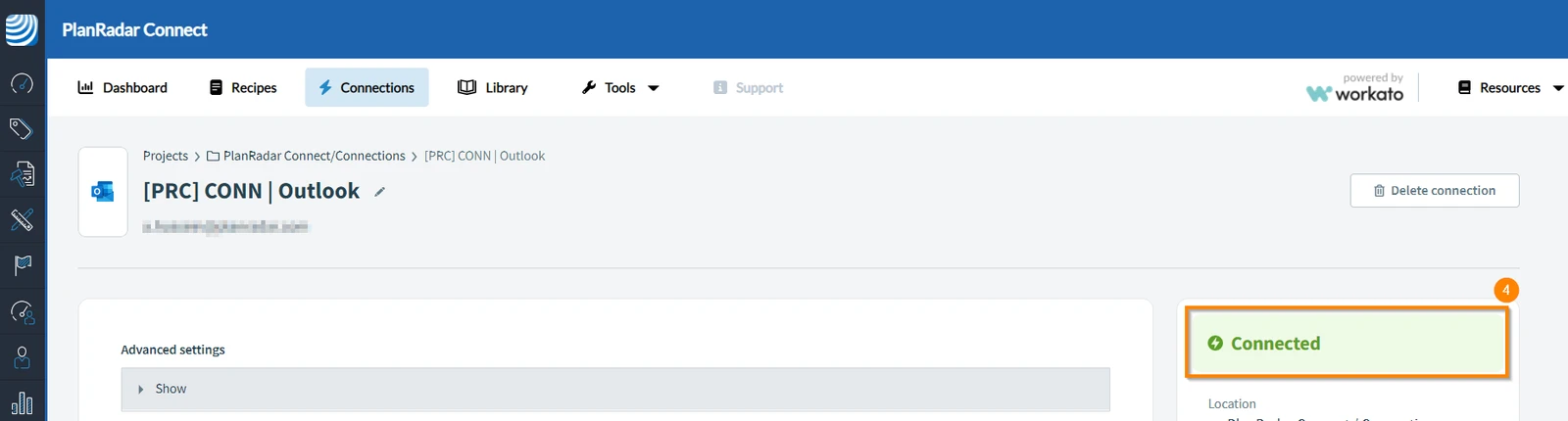
Once you sign in to your Microsoft account, the application will show a message in green, confirming the connection of Microsoft Outlook with PlanRadar Connect
OneDrive
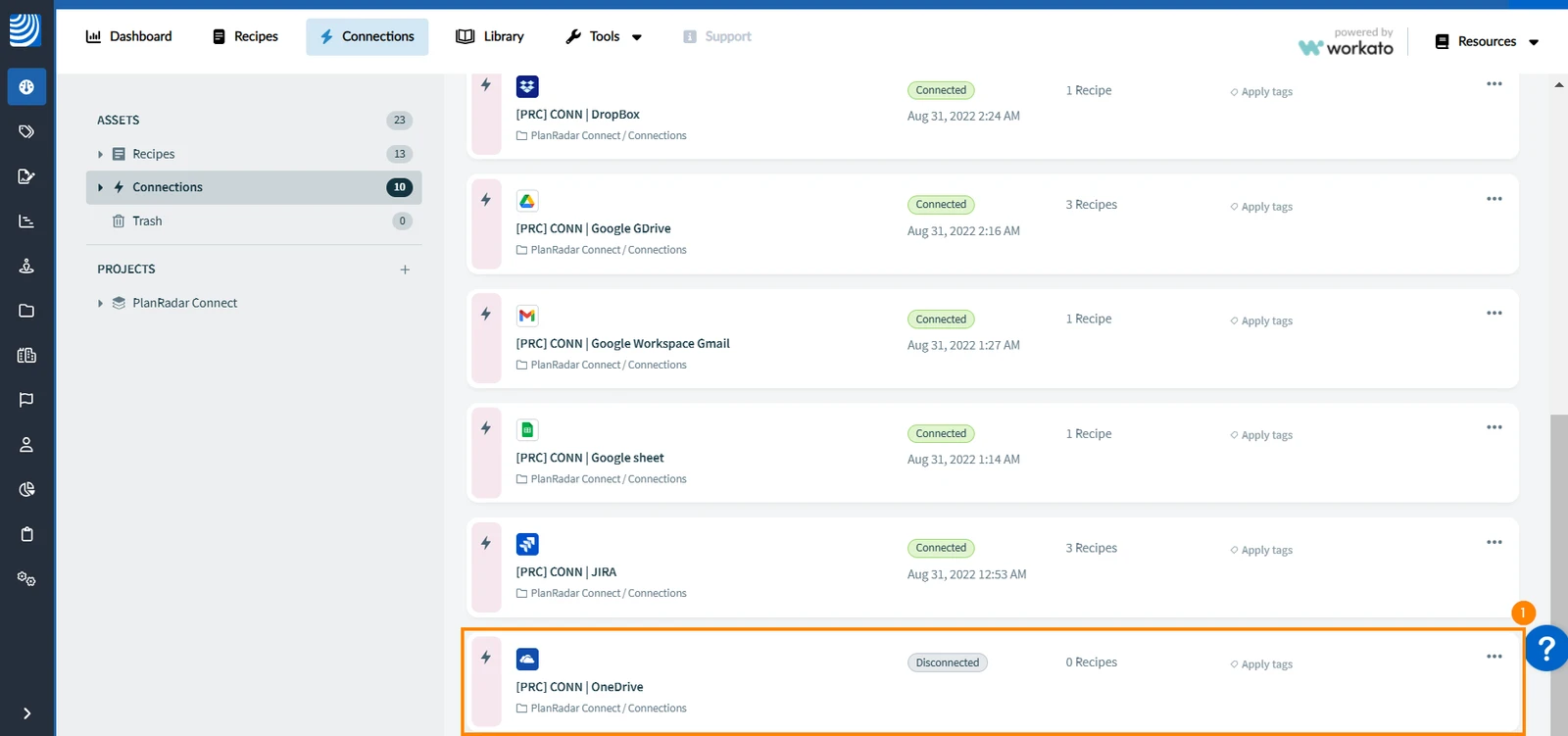
To connect OneDrive with PlanRadar Connect:
-
Click OneDrive
-
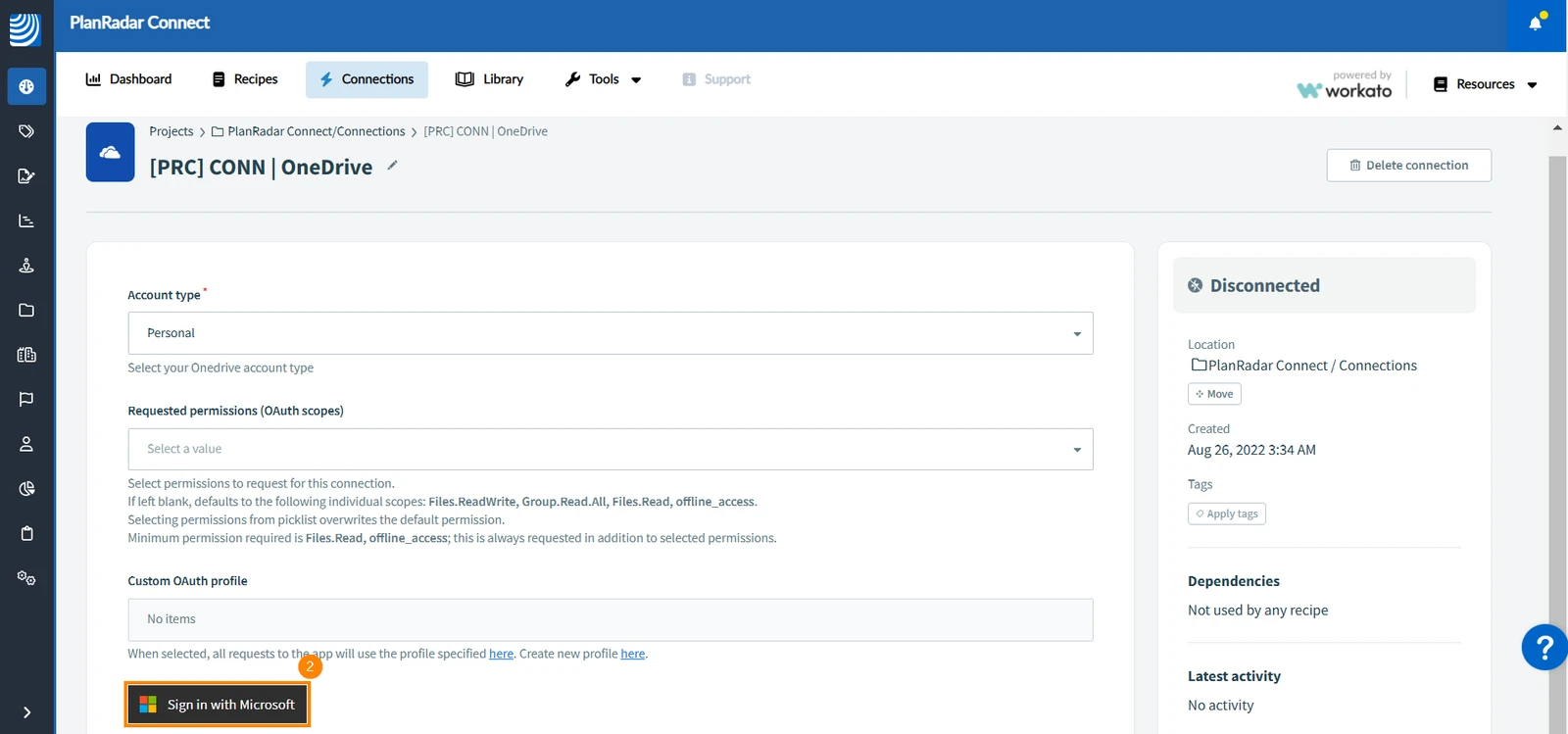
Click Sign in with Microsoft
-
A new window opens to allow you to sign in to your Microsoft account
-
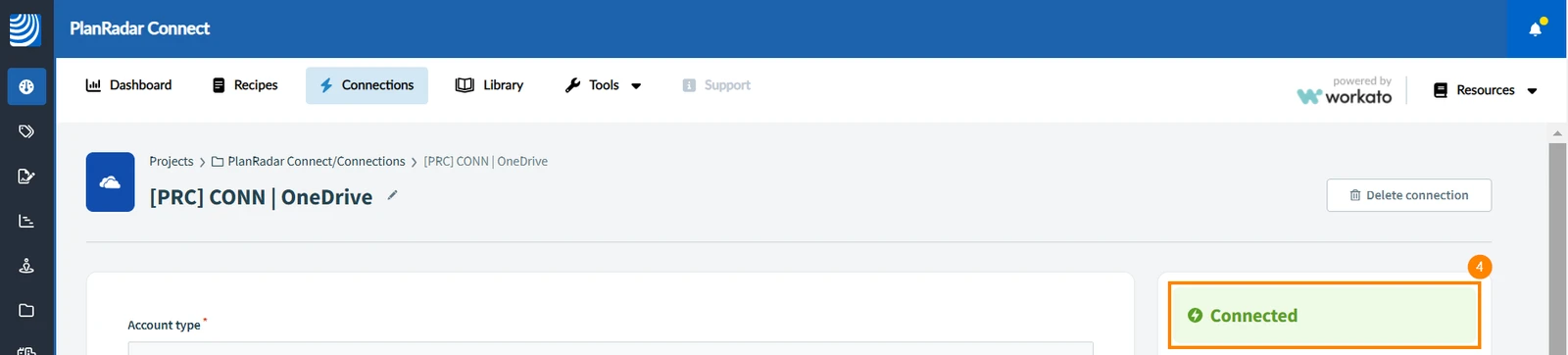
Once you sign in to your Microsoft account, the application will show a message in green, confirming the connection of Microsoft OneDrive with PlanRadar Connect
Google Sheets
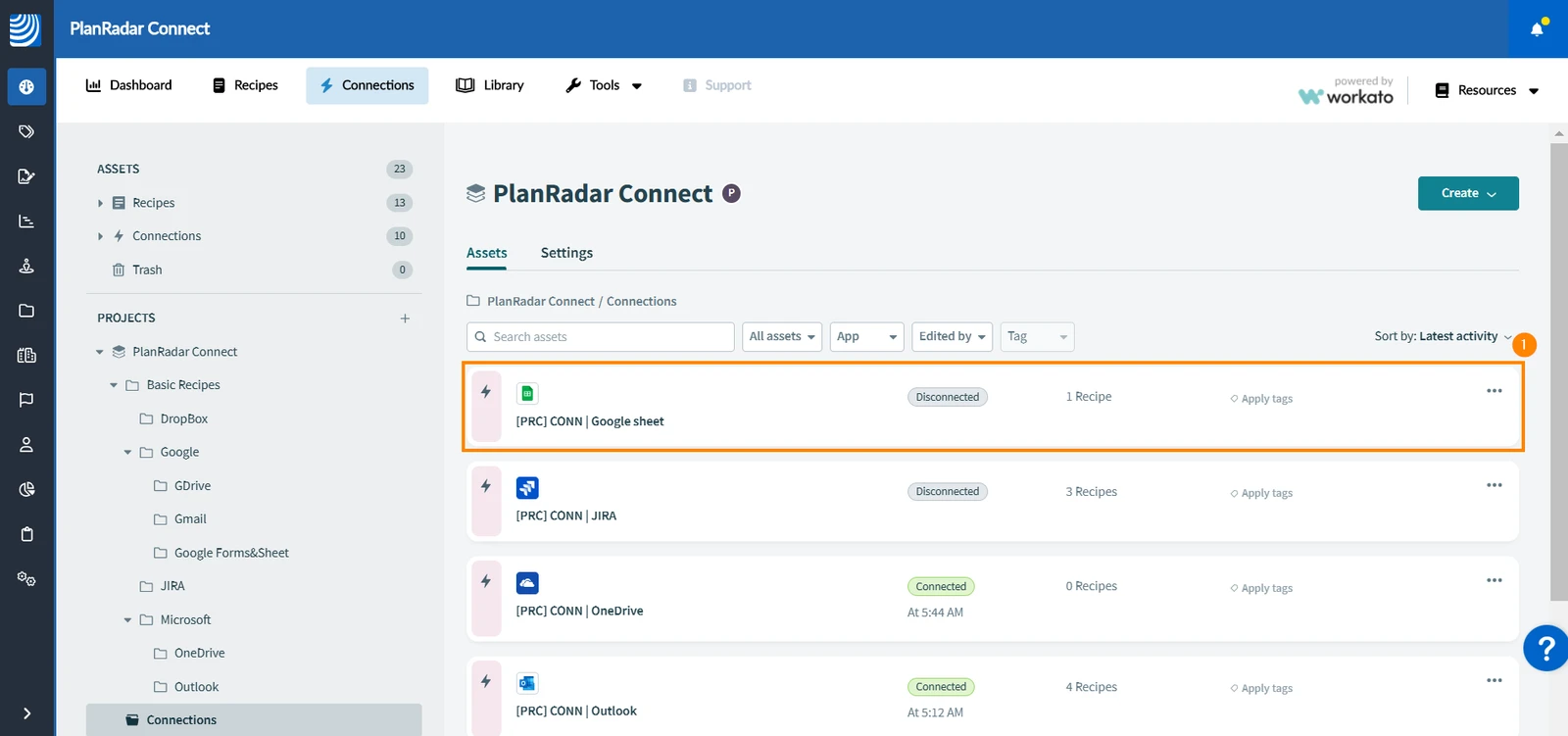
To connect Google Sheets with PlanRadar Connect:
- Click Google Sheet
- Click Sign in with Google
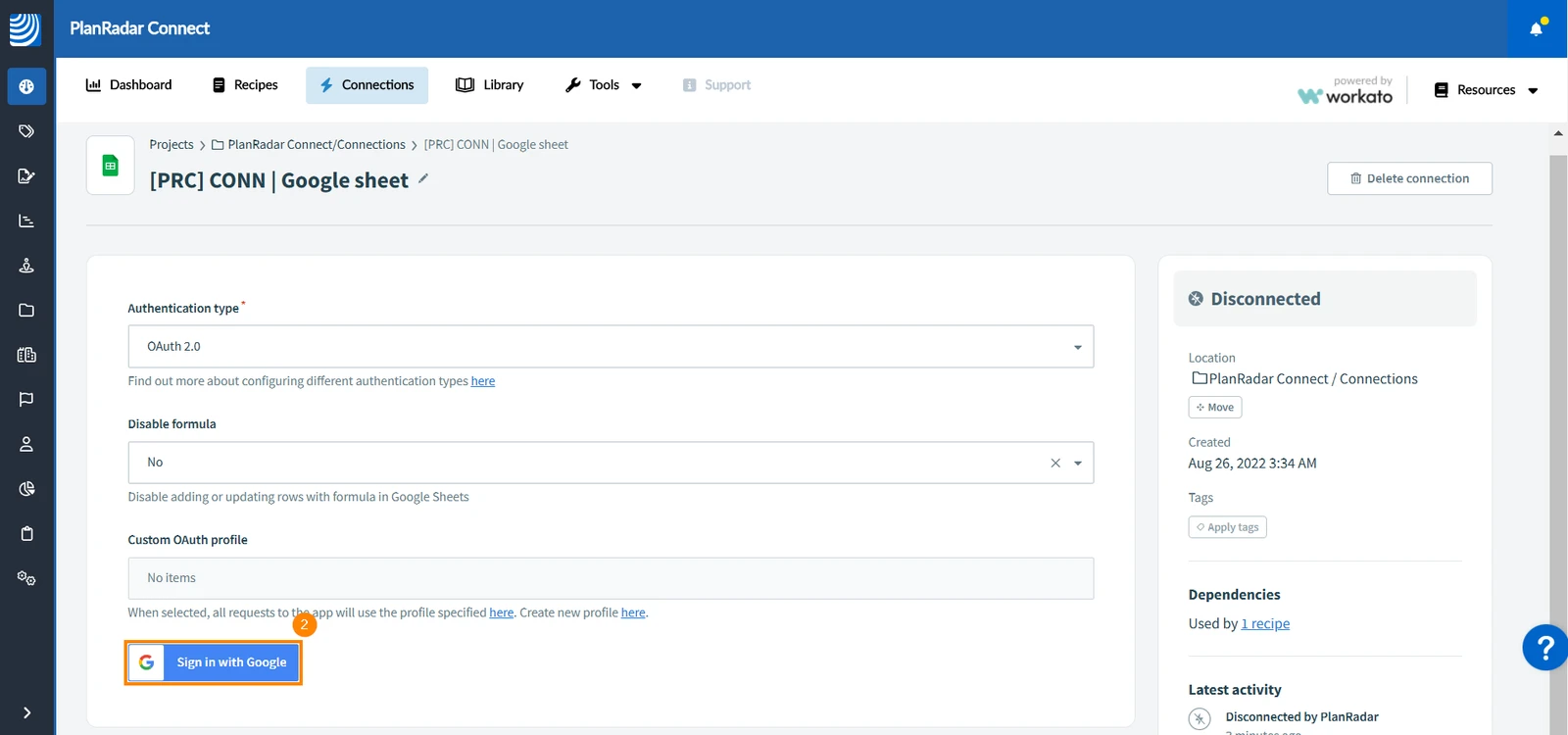
- A new window opens to allow you to sign in to your Google account
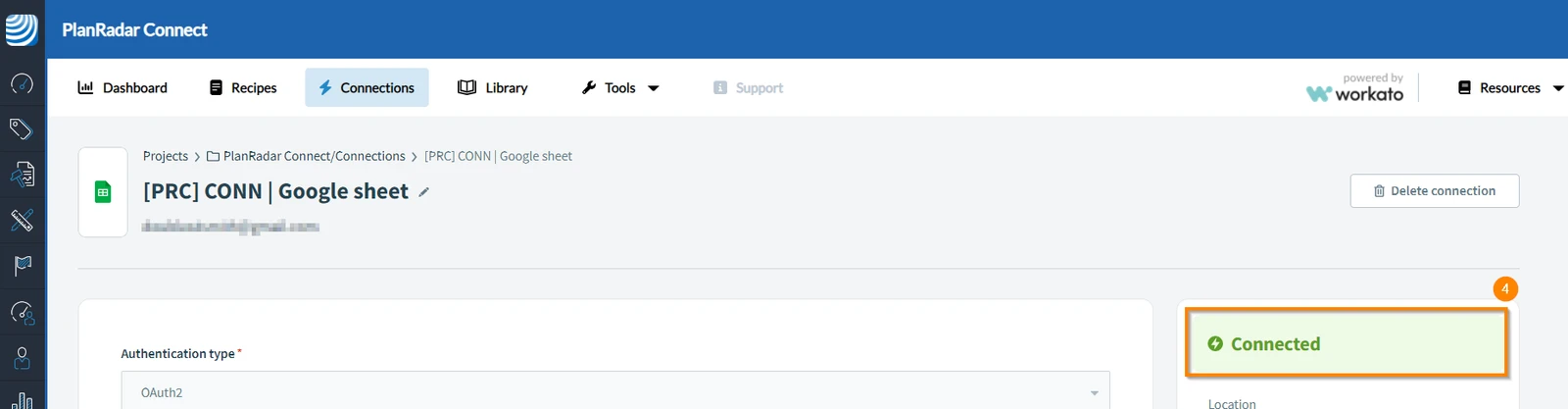
- Once you sign in to your Google account, the application will show a message in green, confirming the connection of Google Sheet with PlanRadar Connect
Google Workspace Gmail
To connect Google Workspace Gmail with PlanRadar Connect:
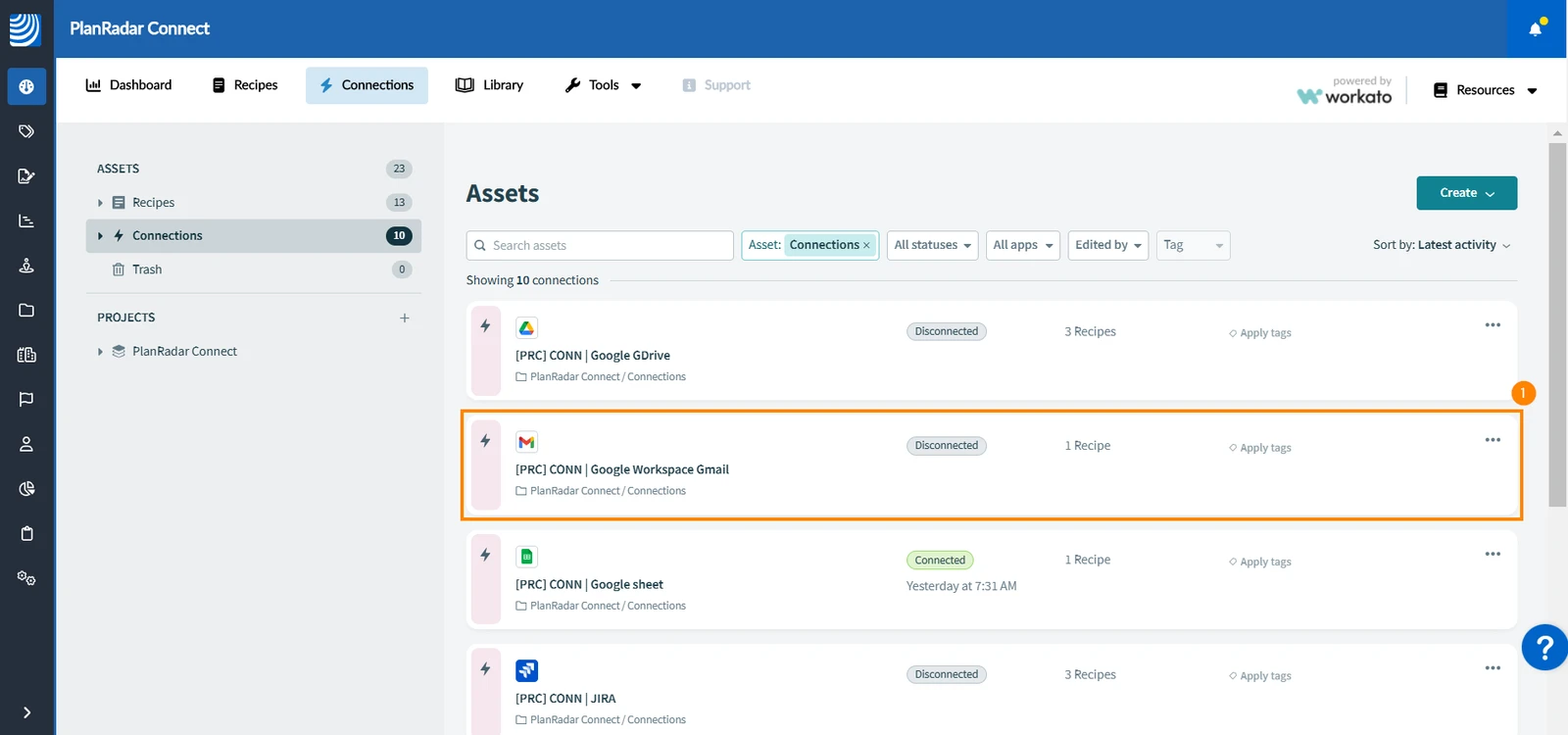
- Click Google Workspace Gmail
- Click Sign in with Google
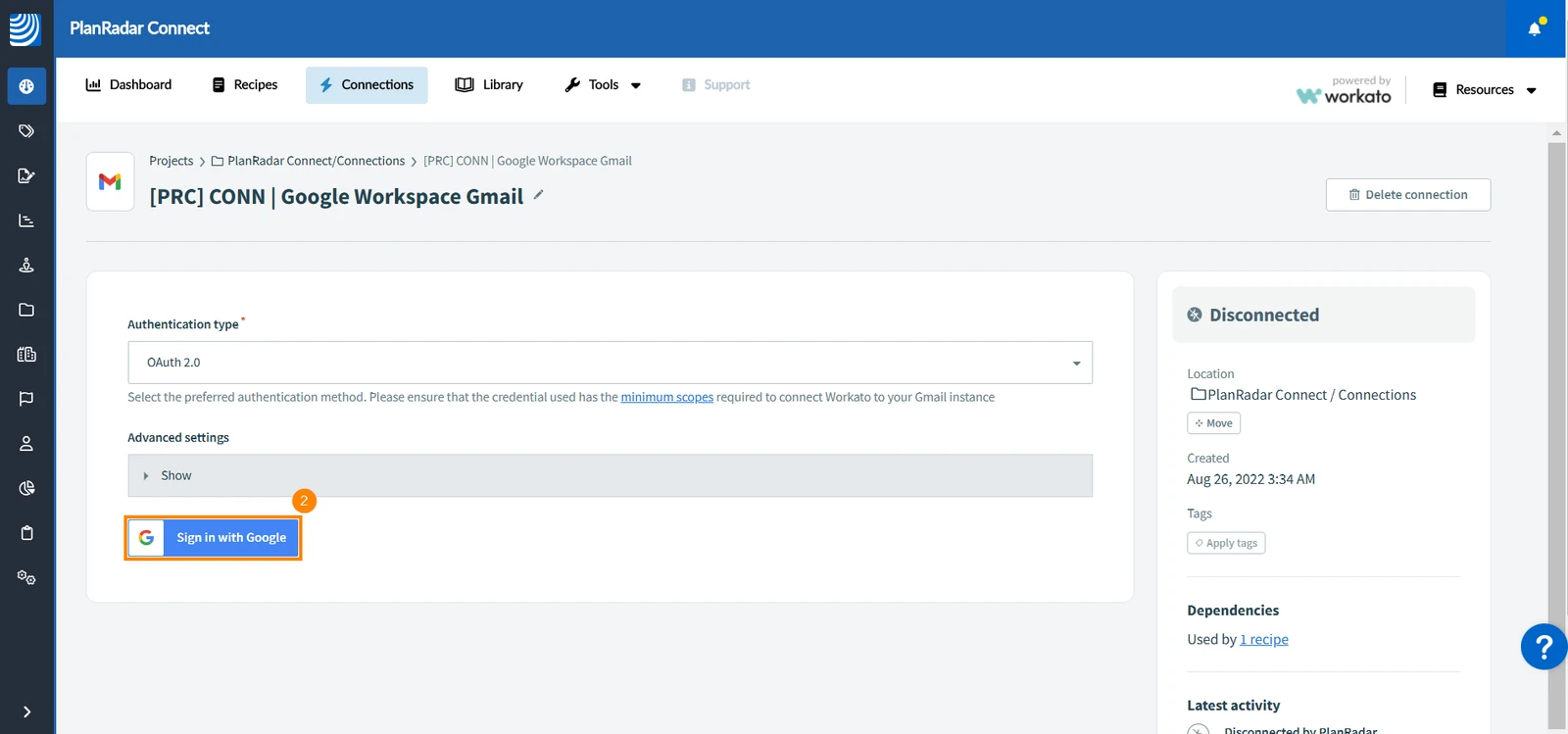
- A new window opens to allow you to sign in to your Google account
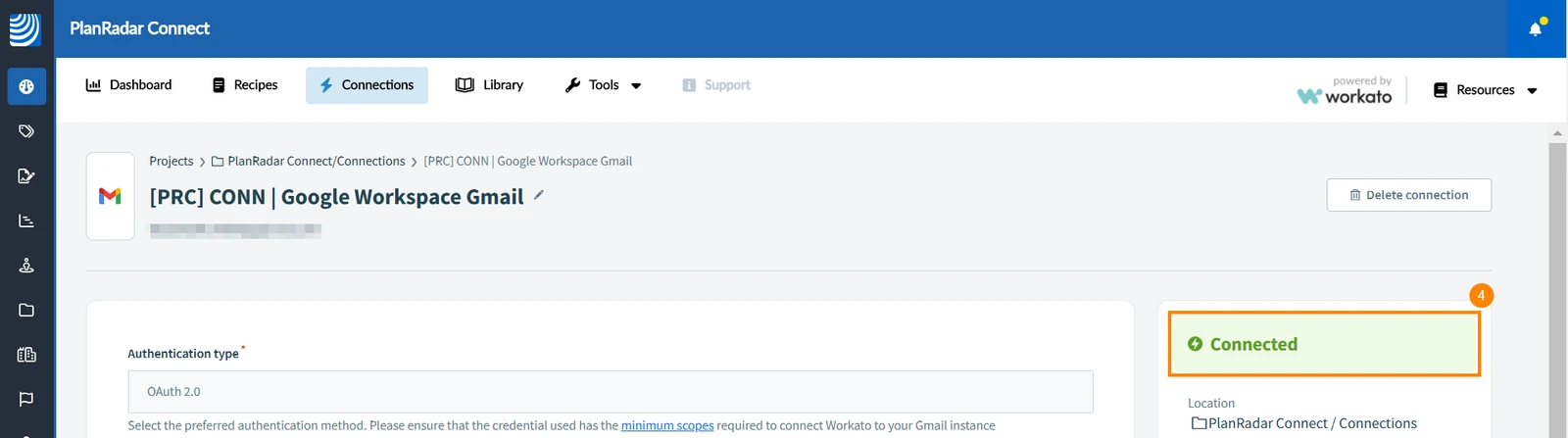
- Once you sign in to your Google account, the application will show a message in green, confirming the connection of Google Workspace with PlanRadar Connect
Google Drive
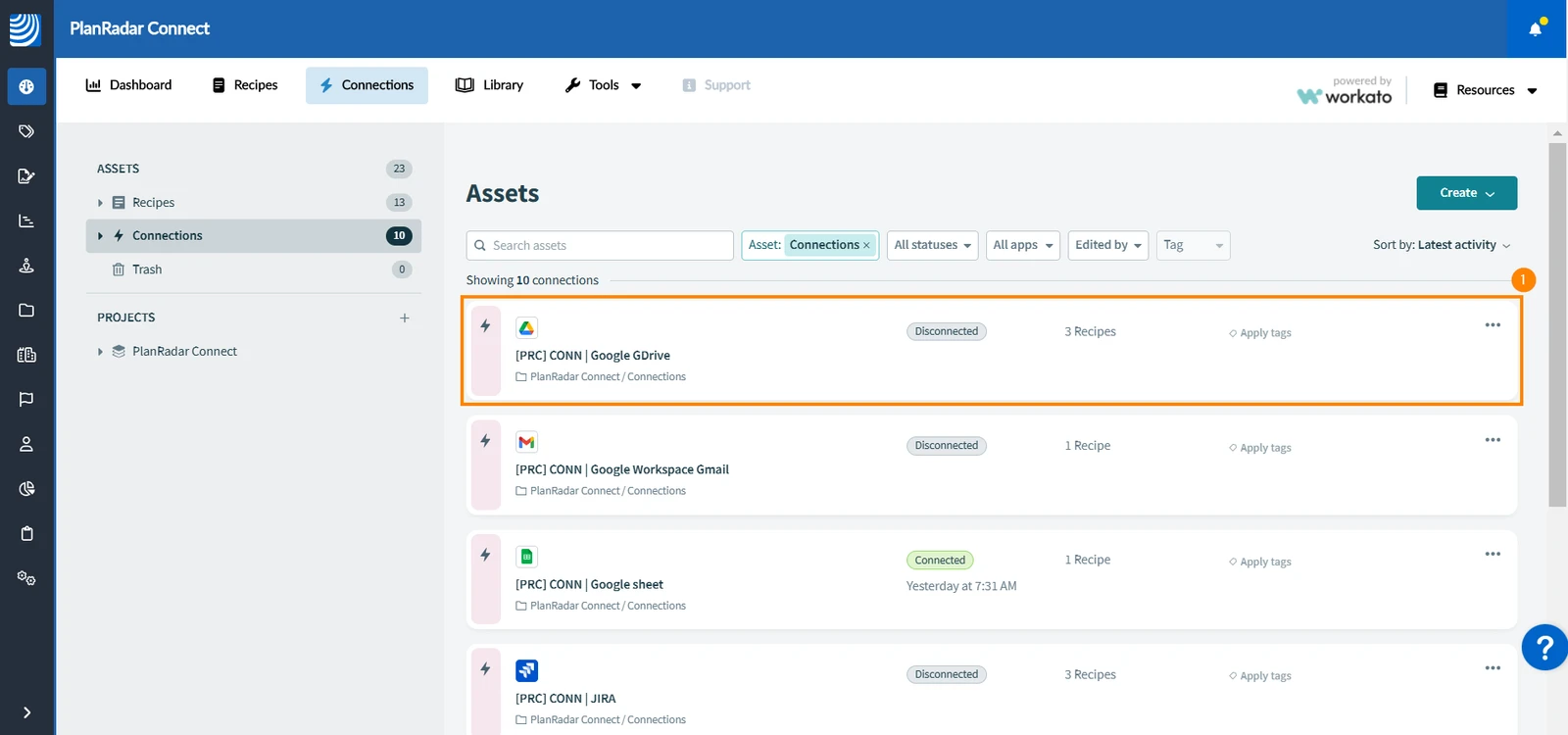
To connect Google Drive with PlanRadar Connect:
- Click Google Drive
- Click Sign in with Google
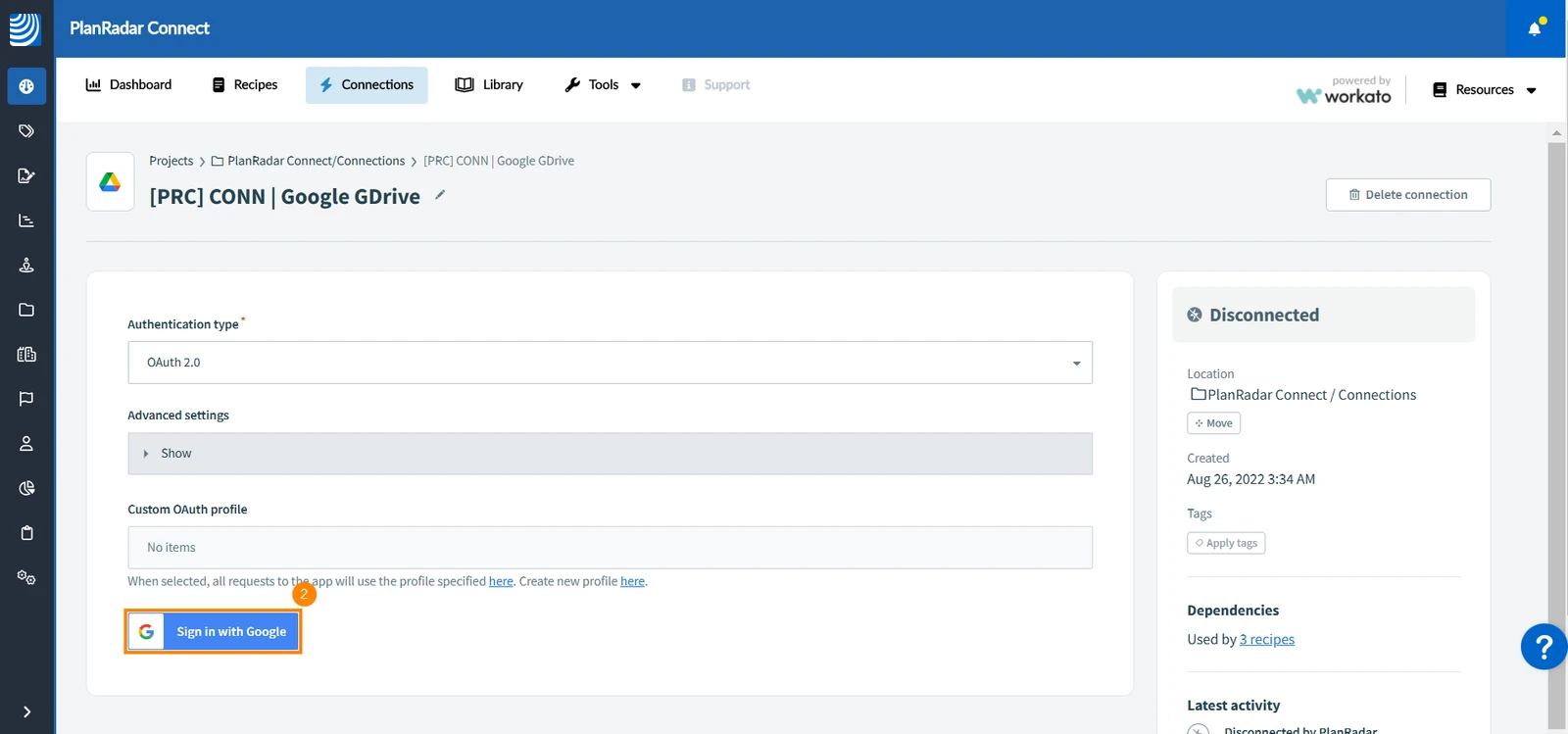
- A new window opens to allow you to sign in to your Google account
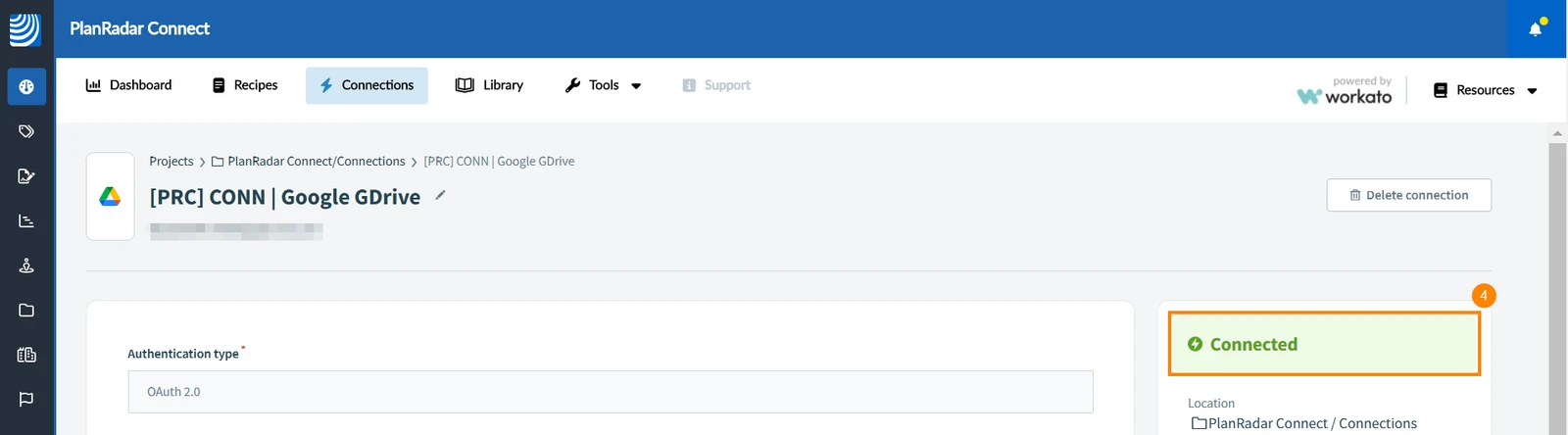
- Once you sign in to your Google account, the application will show a message in green, confirming the connection of Google Drive with PlanRadar Connect
Dropbox
To connect Dropbox with PlanRadar Connect:
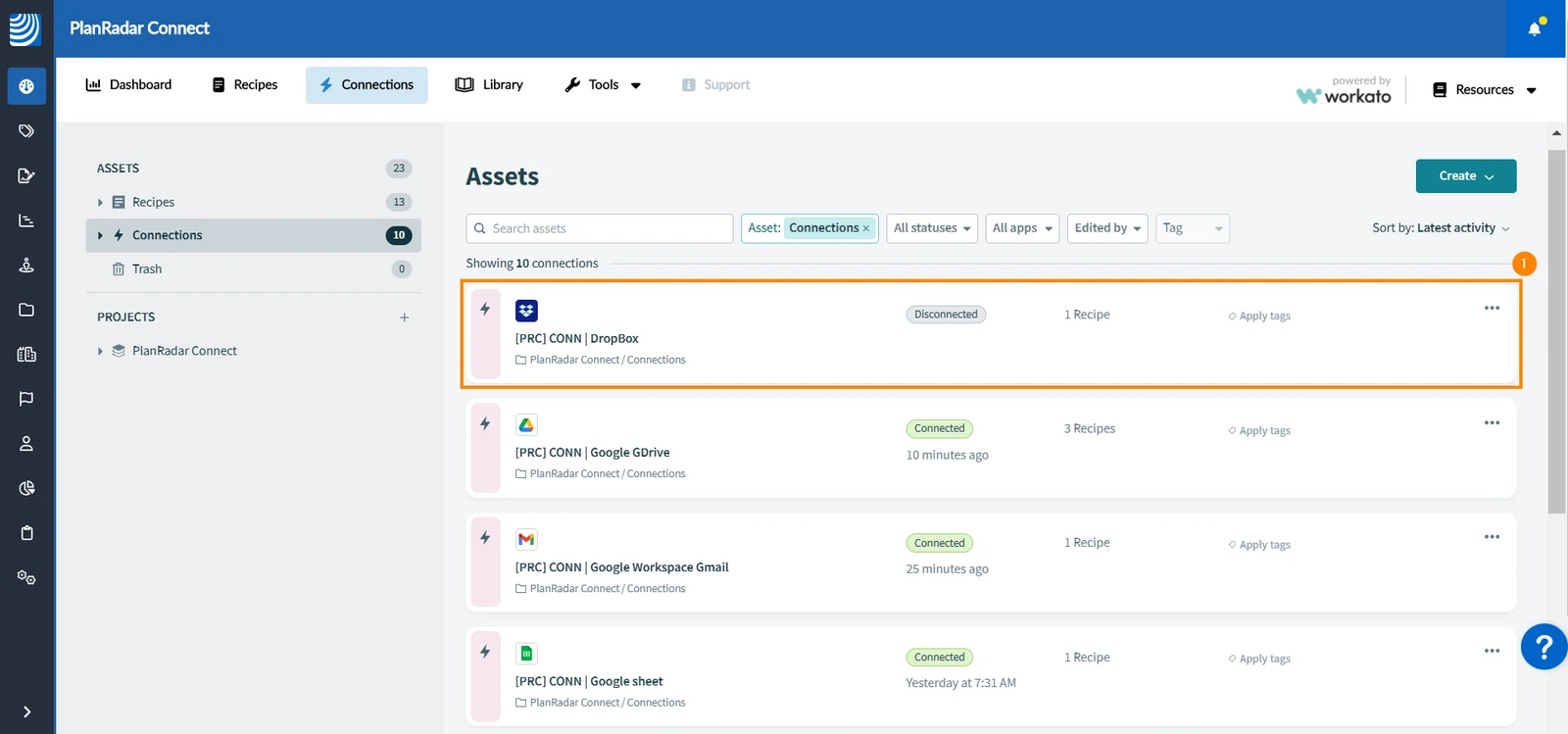
- Click Dropbox
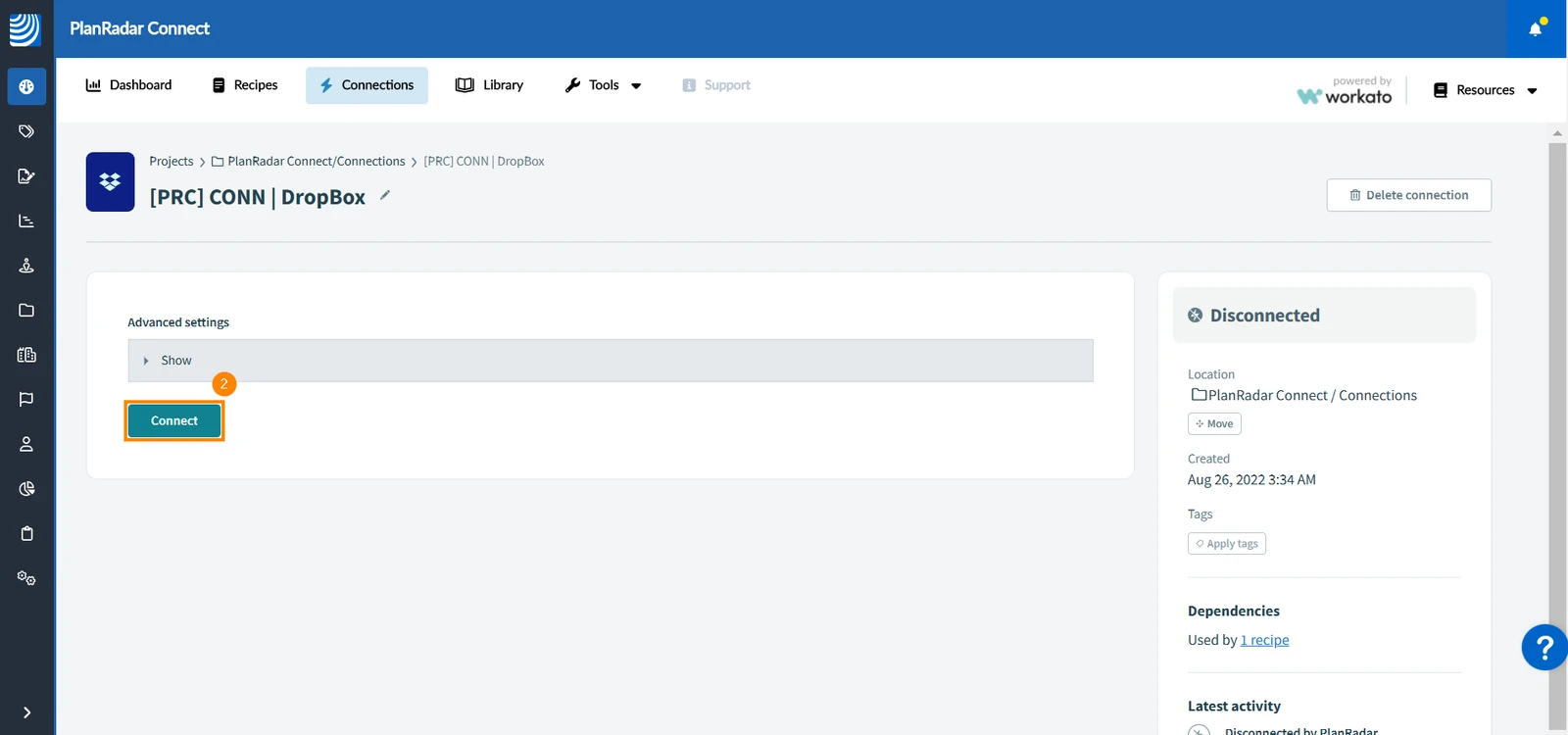
- Click Connect
- A new window opens to allow you to sign in to your Dropbox account
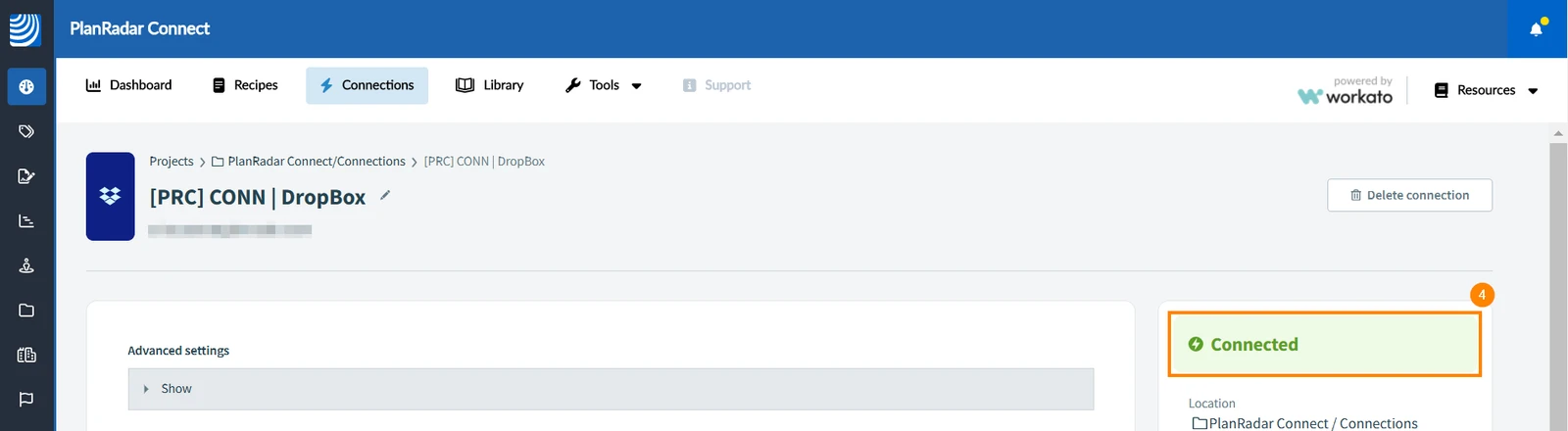
- Once you sign in to your Dropbox account, the application will show a message in green, confirming the connection of Dropbox with PlanRadar Connect
Connect New Applications
If you want to connect apps with PlanRadar Connect that are not listed in the Connections tab:
-
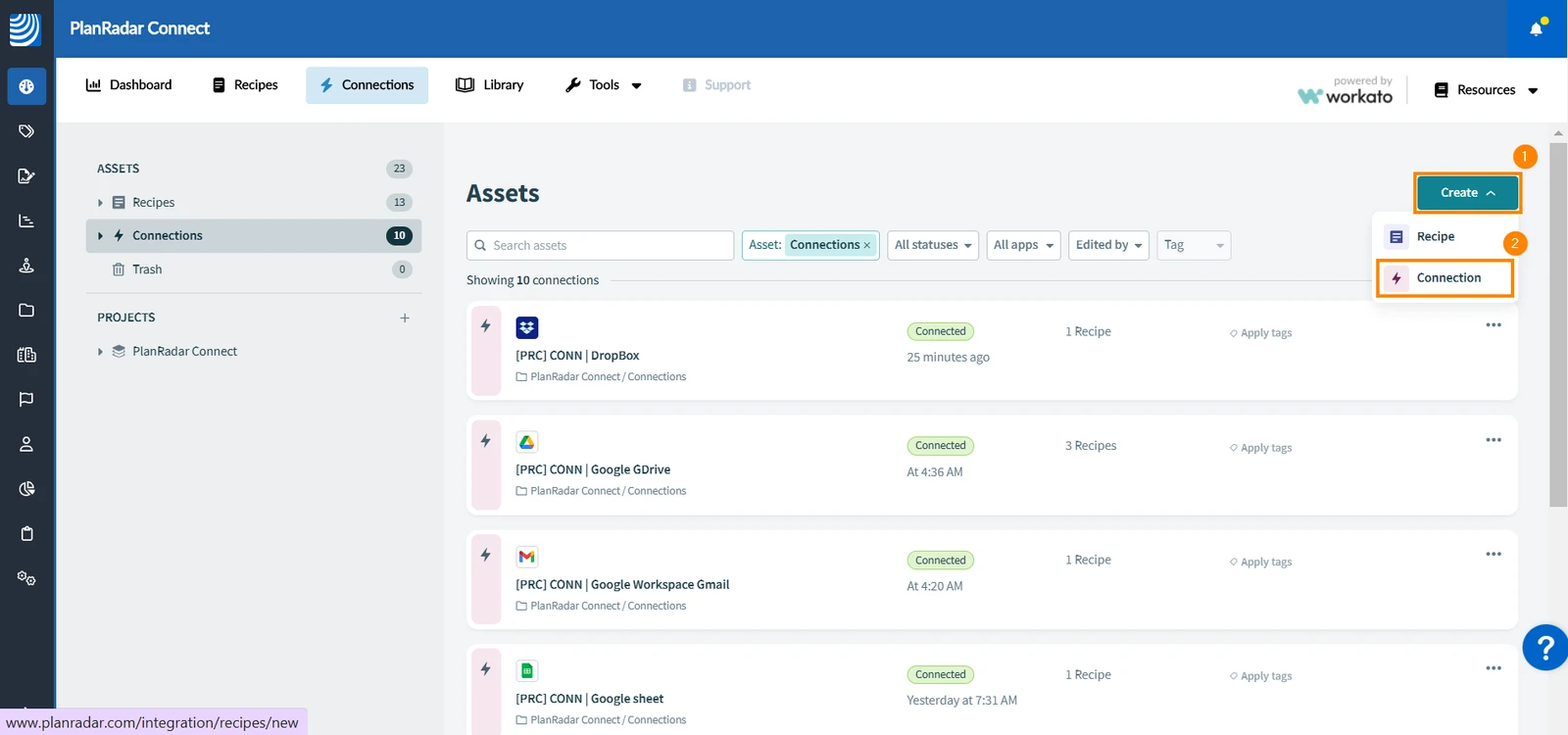
Click Create
-
Click Connection
-
Type the name of the application in the search bar
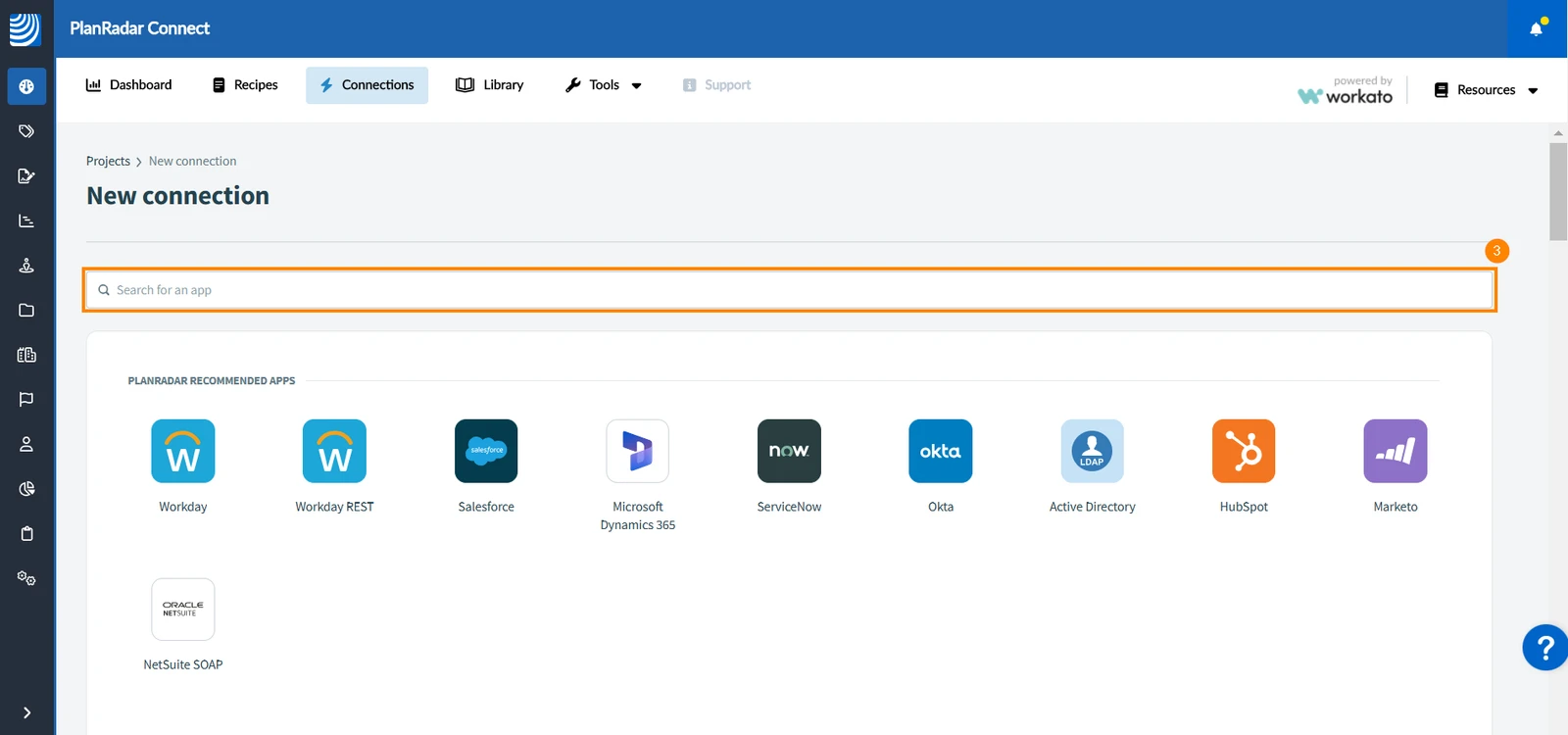
-
Click the app you want to connection, for example: Confluence
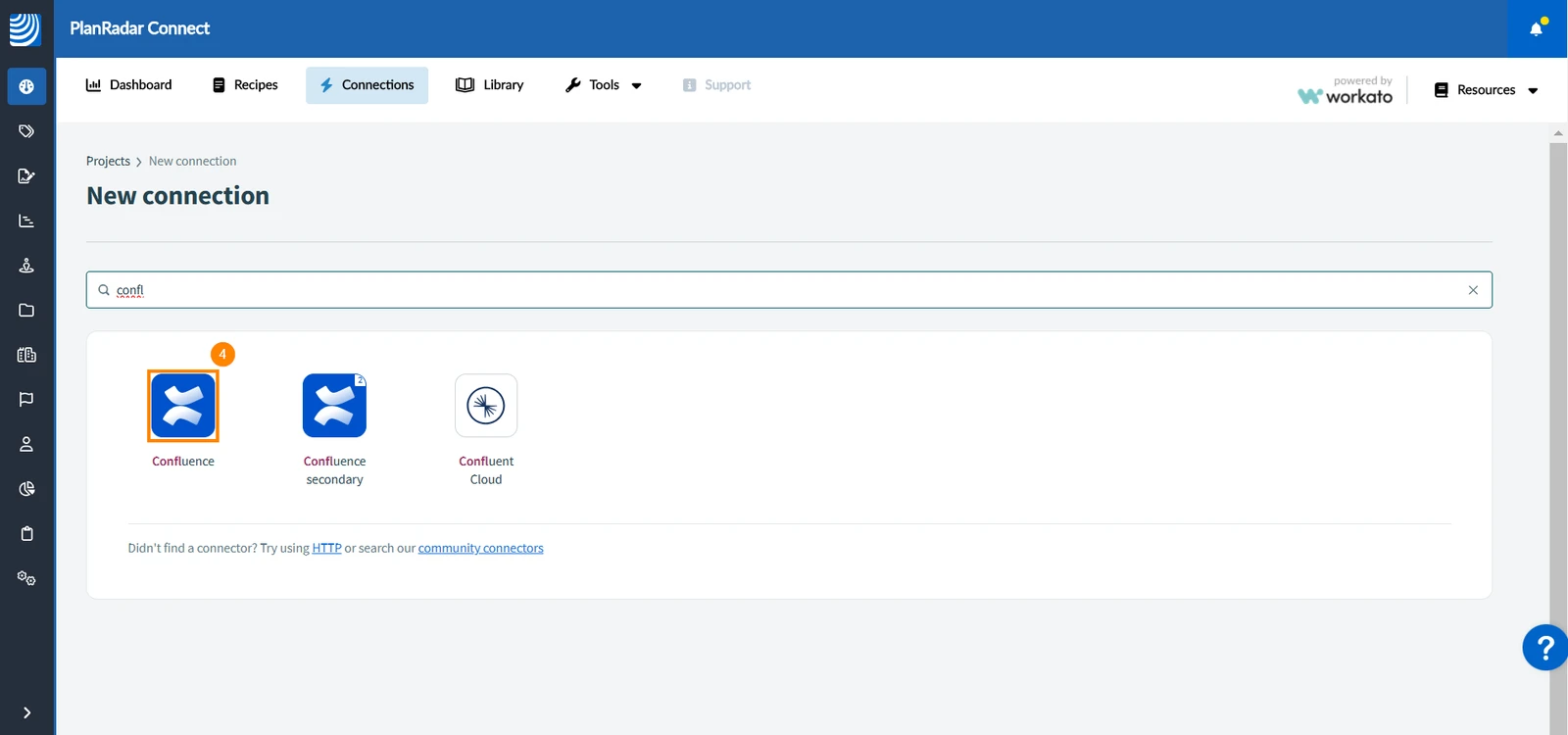
-
Continue with connecting the app
Updated November 26, 2024