

 Deutsch
 Español
 Français
 Hrvatski
 Italiano
 Polski
 Português (BR)
Add a Voice Recording to Tickets in the Mobile App
Overview
Add an audio recording when creating or editing tickets.
Access & Permissions
Add an Audio Recording
Continue here after you Create a Ticket or View & Edit a Ticket.
To add an audio recording:
- Tap +
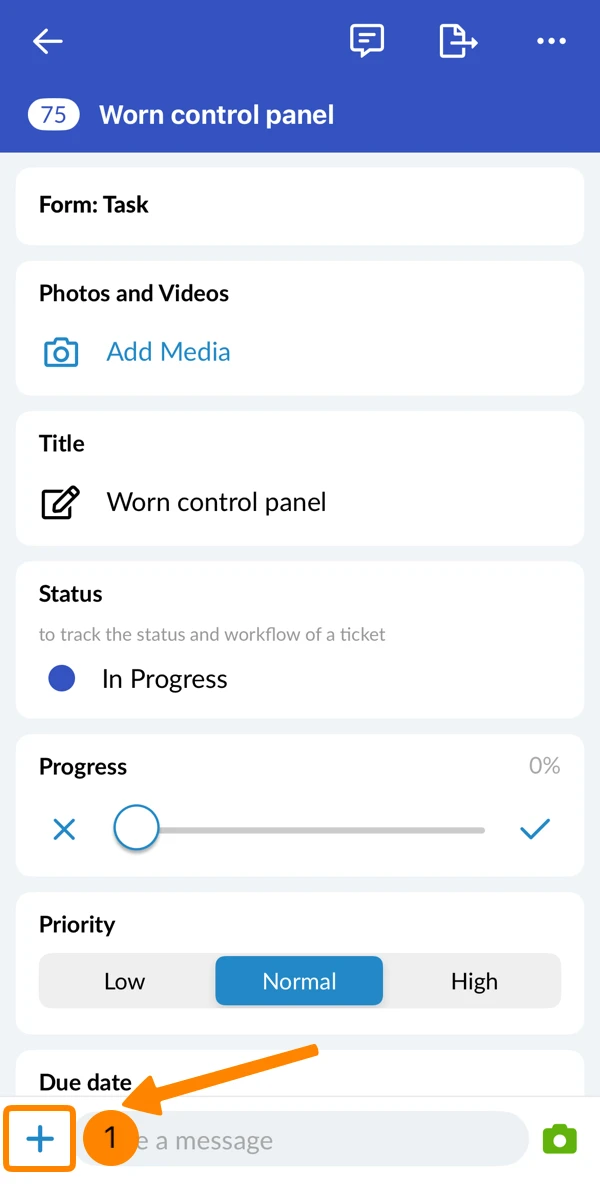
- Tap Add audio recording
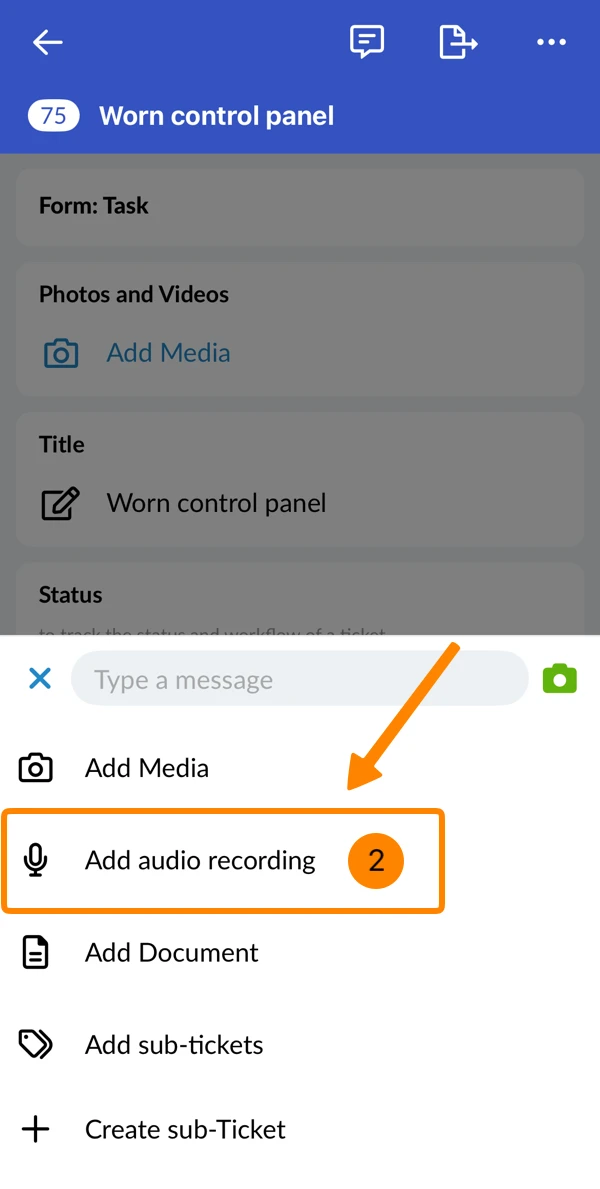
- Tap Start recording and talk
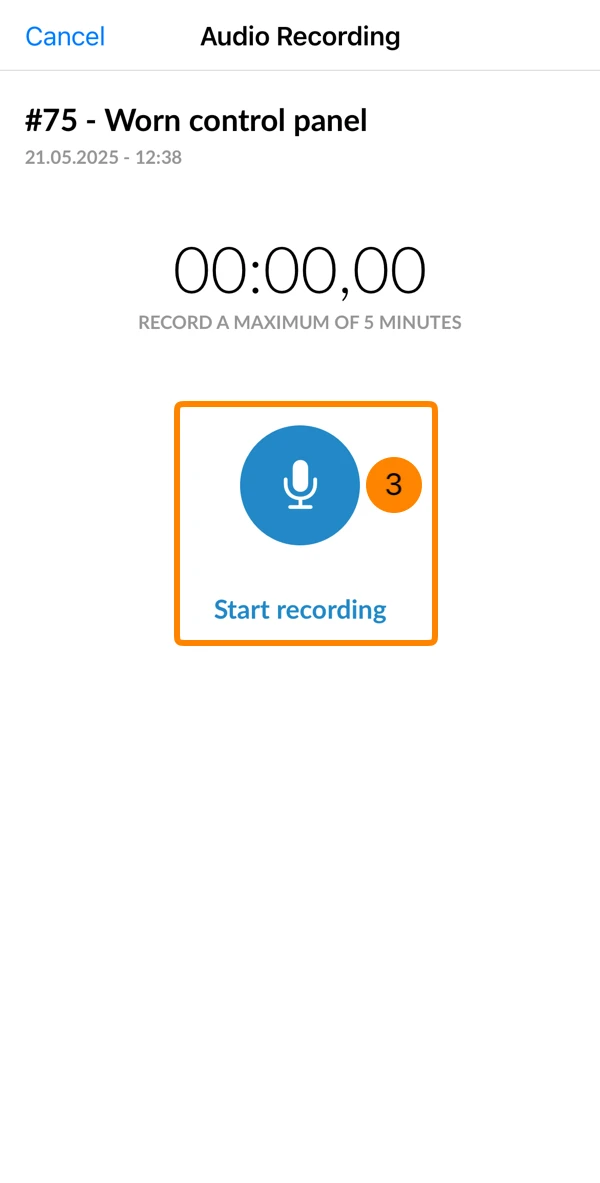
- Tap Finish recording
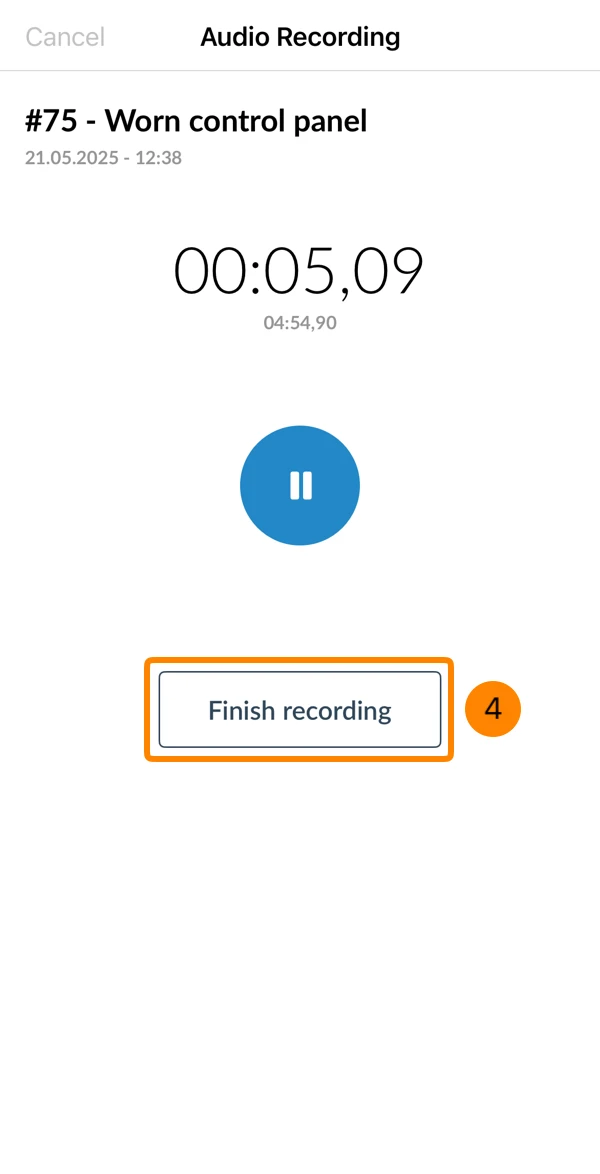
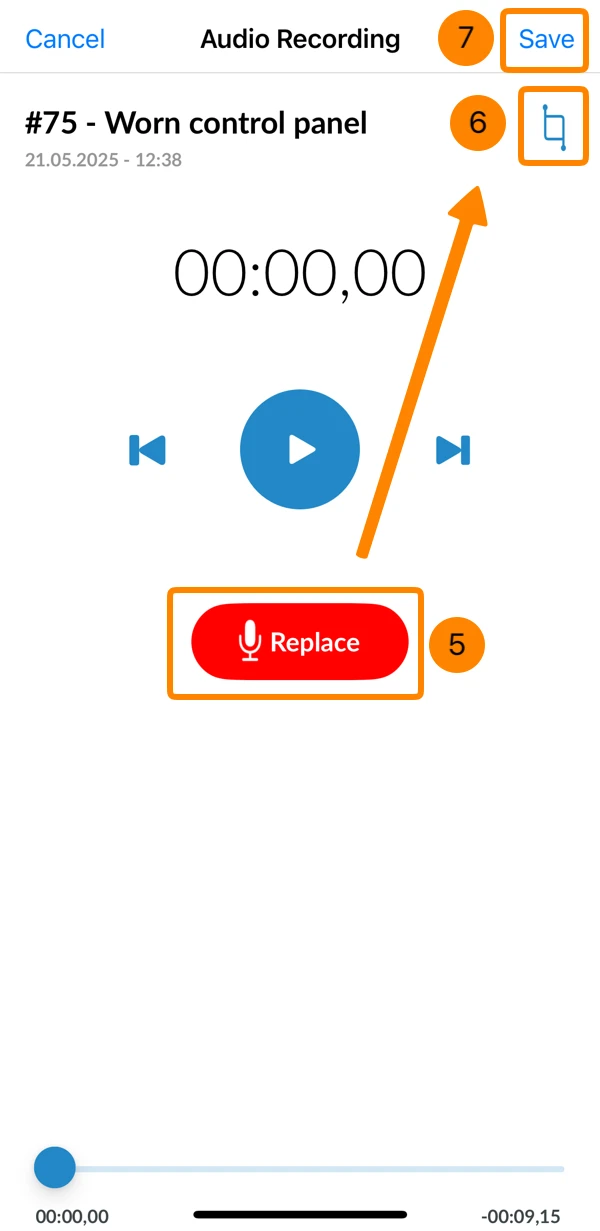
- Optional: Tap Replace if you want to delete the recording and start again.
- Optional: Tap the Trim icon to cut the beginning or end of the recording.
- Tap Save
Updated February 13, 2026