

 Deutsch
 Español
 Français
 Hrvatski
 Italiano
 Polski
 Português (BR)
View & Edit a Ticket
Overview
Open a ticket to view details or make changes.
Access & Permissions
Open a Ticket
Open a ticket in Tickets Plan View, Tickets List View or Tickets Calendar View.
View a Ticket
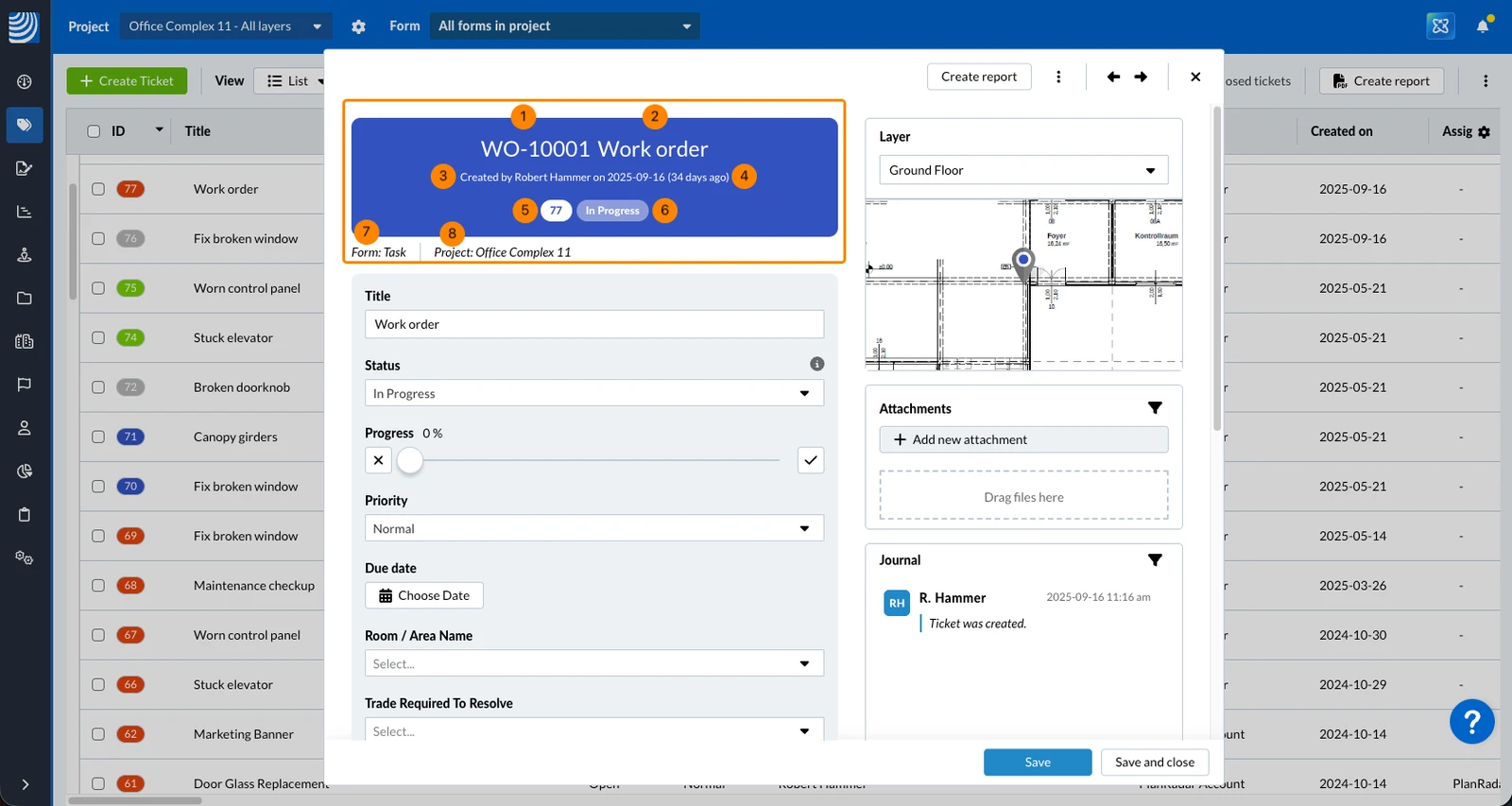
The ticket header shows some key information:
- Numbering sequence - read more in Form Options > Numbering sequence
- Ticket title
- User who created it and creation date
- A closed ticket shows how many days it took until it got closed (from creation to status closed).
An open ticket shows how many days ago it was created. - Ticket ID
- Status (background colour also matches the status) - read more in Status Colours & Ticket Pins
- Form name (selected when ticket was created)
- Project name
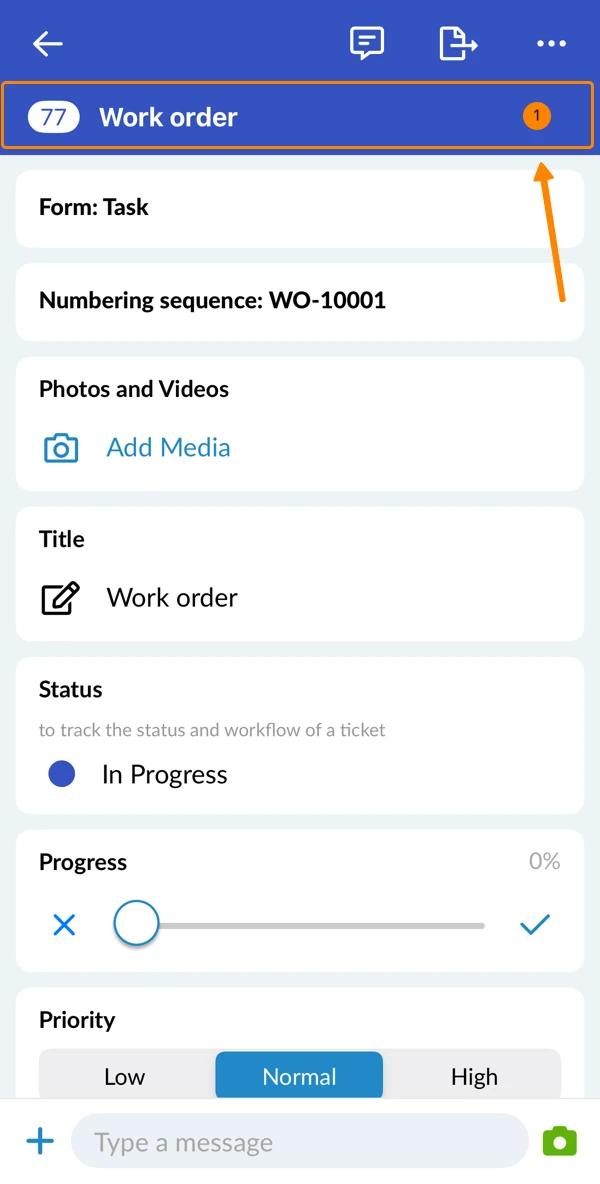
- Initially after opening a ticket the ticket header is slim and shows only ticket ID and title.
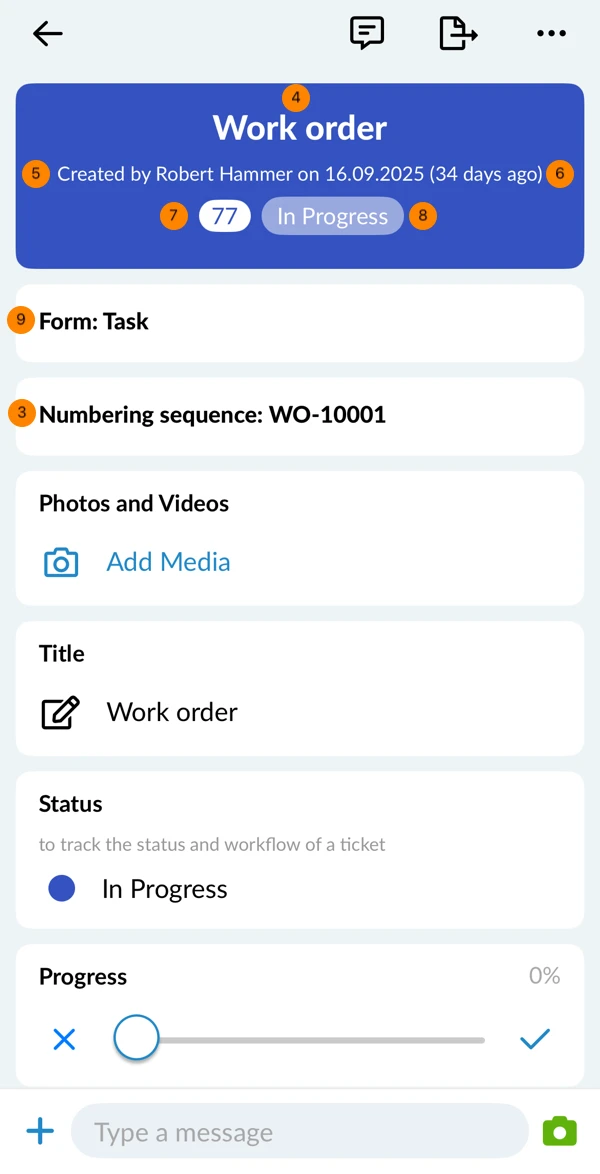
- Scroll up to show the full header with the following key information:
- Numbering sequence - read more in Form Options > Numbering sequence
- Ticket title
- User who created it and creation date
- A closed ticket shows how many days it took until it got closed (from creation to status closed).
An open ticket shows how many days ago it was created. - Ticket ID
- Status (background colour also matches the status) - read more in Status Colours & Ticket Pins.
- Form name (selected when ticket was created)
Fill out Ticket Fields
Fill out the ticket fields as they are defined in the selected form. This might include a title, assignee, due date and more.
Save a Ticket
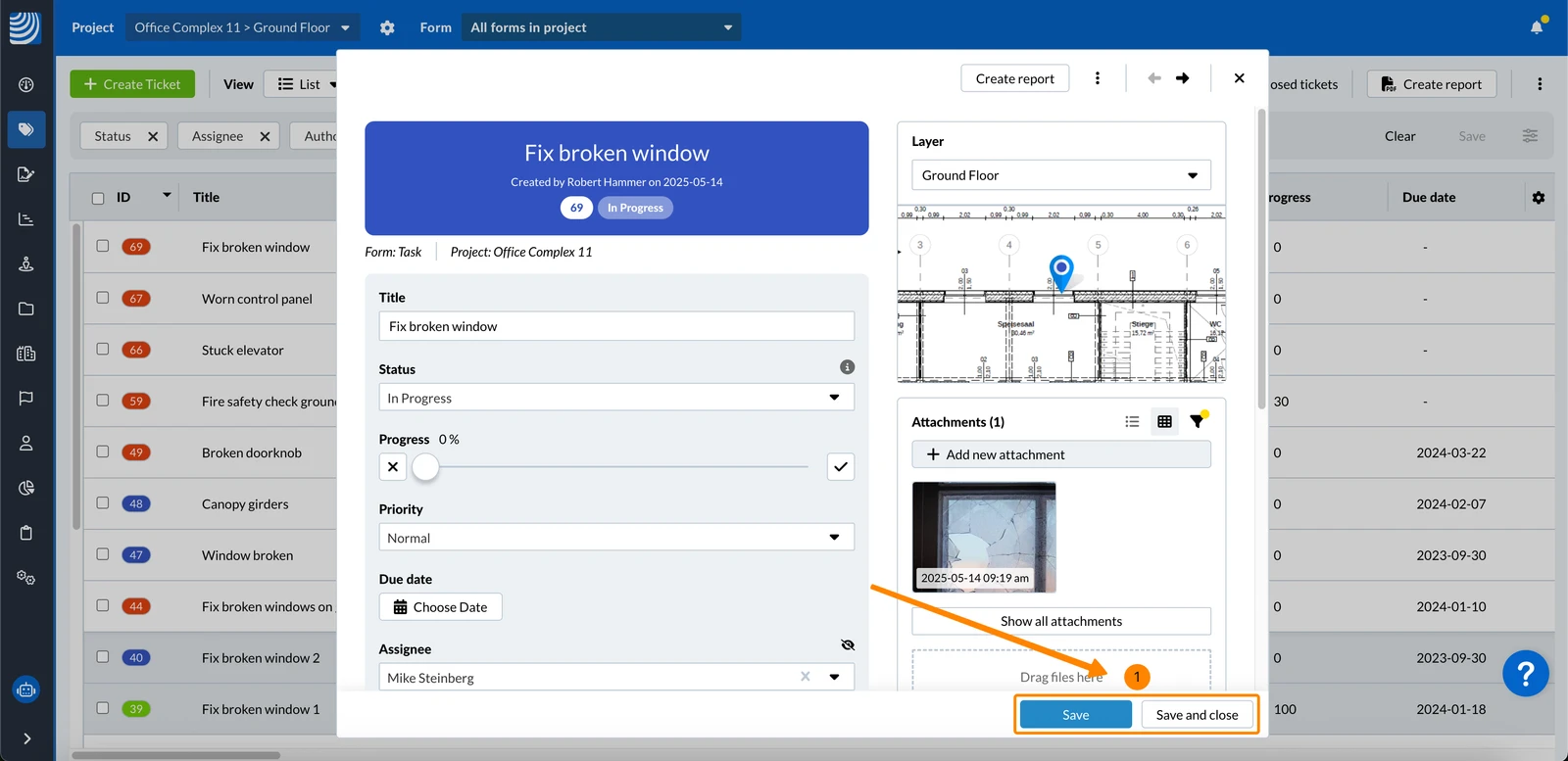
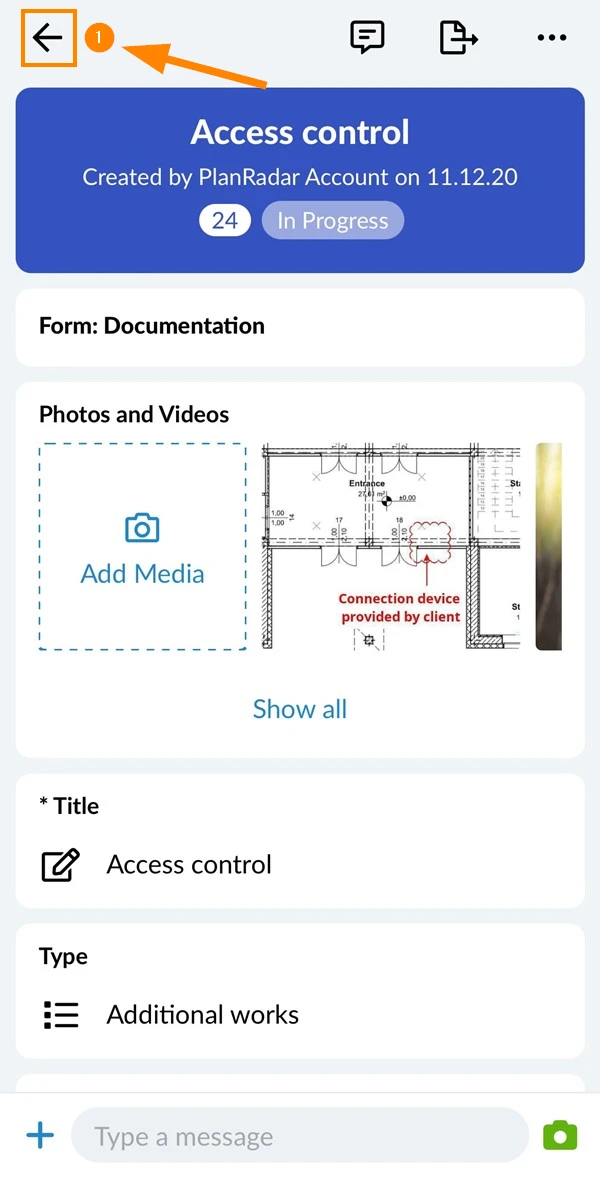
When you have finished editing your ticket (e.g. set the status to "In Progress"), you must save the changes to the ticket fields:
- Click Save or Save and close
- Tap back to save your changes
Attachments & more
There is more you can do in a ticket, which is described in the following articles:
Updated June 8, 2026