

 Deutsch
 Español
 Français
 Hrvatski
 Italiano
 Polski
 Português (BR)
Add Plan Annotations to Tickets in Mobile App
Overview
Take a screenshot of a plan, add annotations and attach it to a ticket — ideal for notes or visuals relevant to just one issue.
Access & Permissions
Add Plan Annotations
To add a plan annotation:
- Scroll down to Plan position and tap the plan preview.
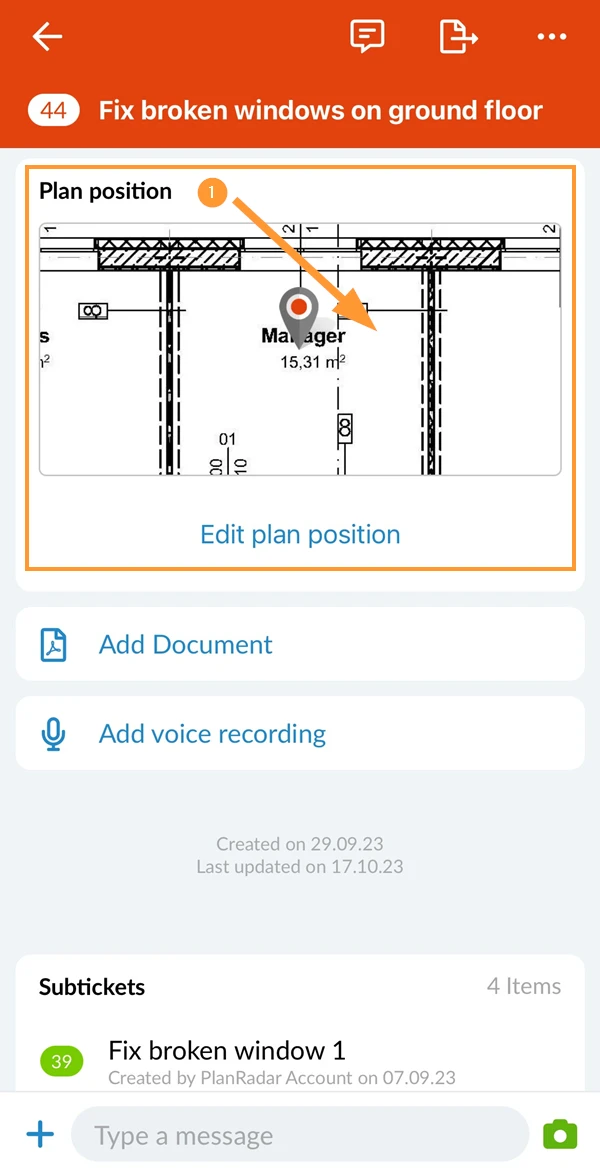
- Tap the camera icon.
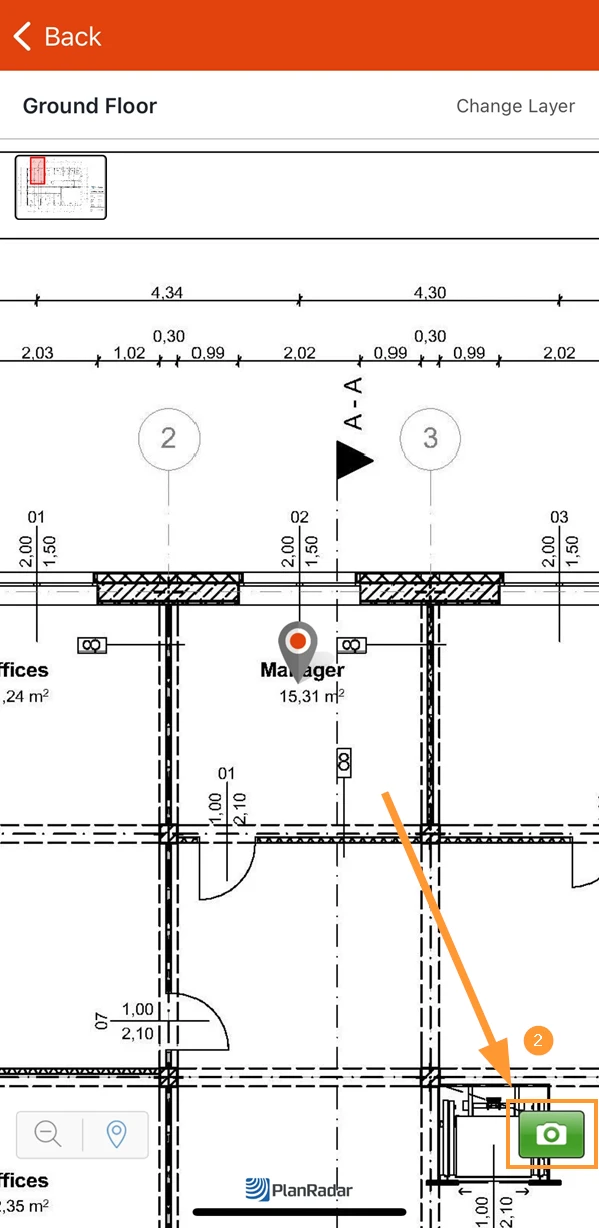
- Use panning and zooming to define the relevant section of the plan.
- Tap ✔ to confirm the area for the screenshot.
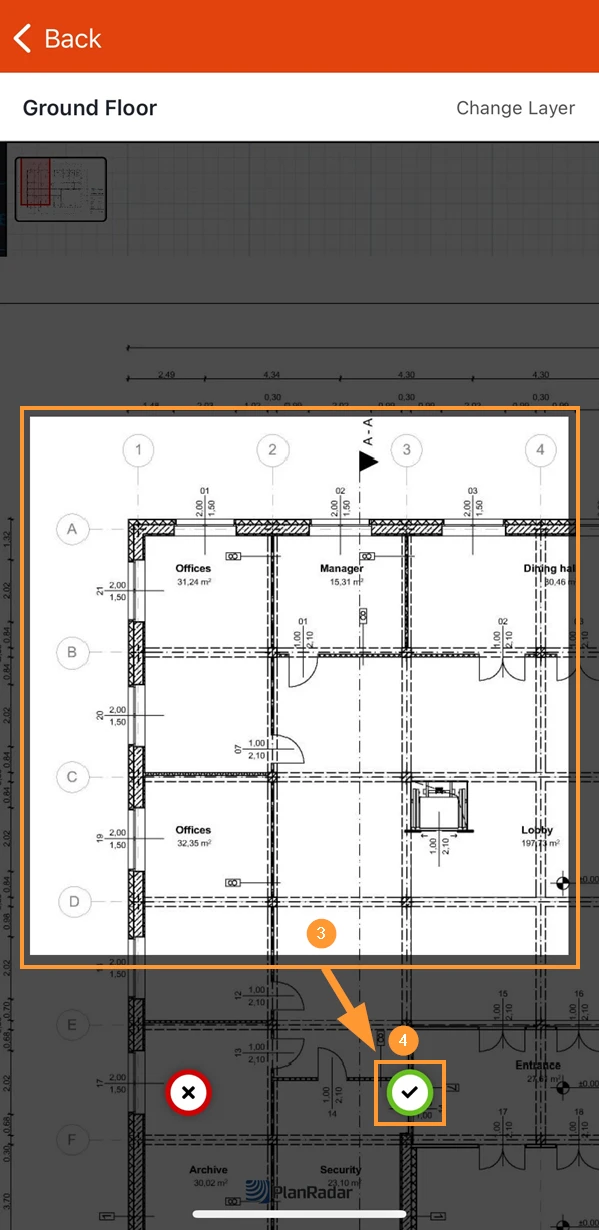
- Add your annotations as described in Photo Editor.
- Attach the plan annotation picture to the ticket and close the photo editor.
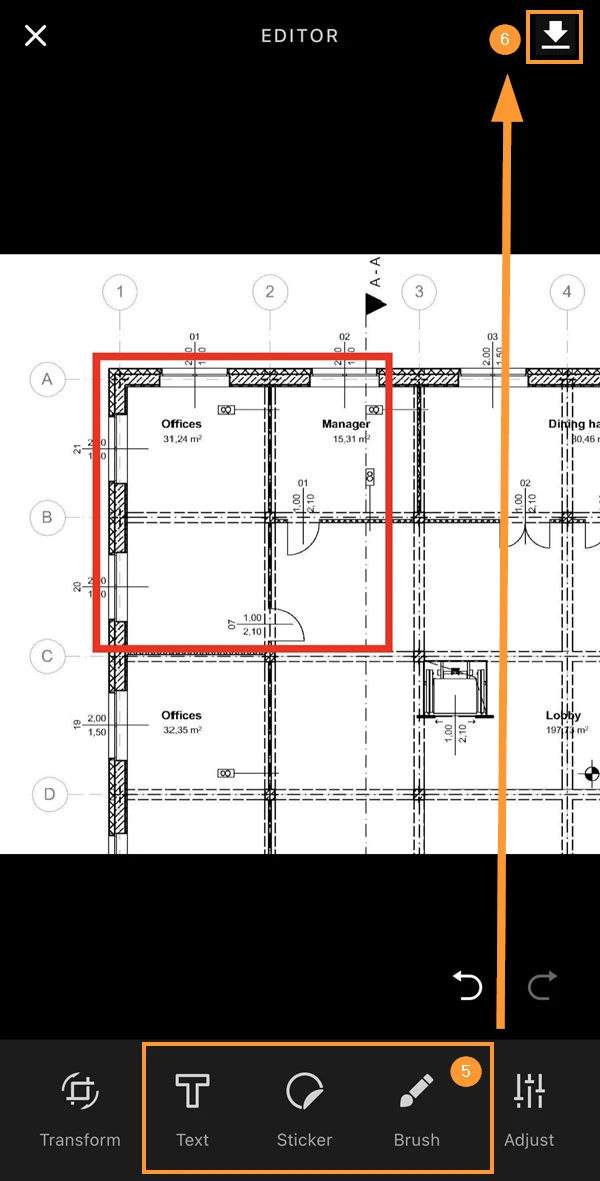
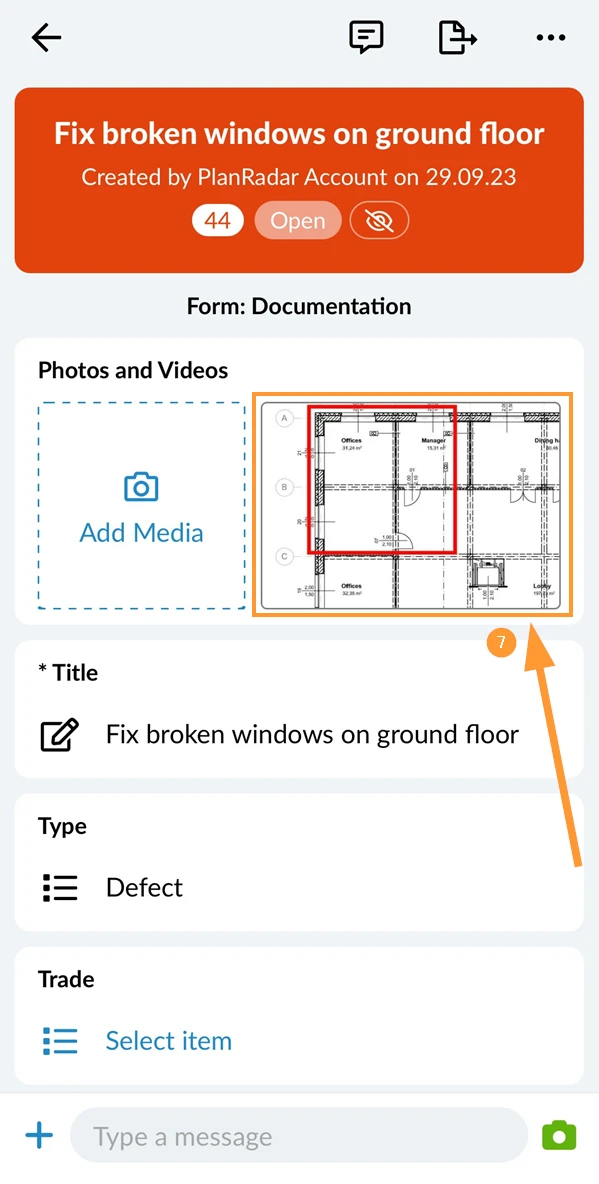
- The picture with your annotations get attached to the ticket.
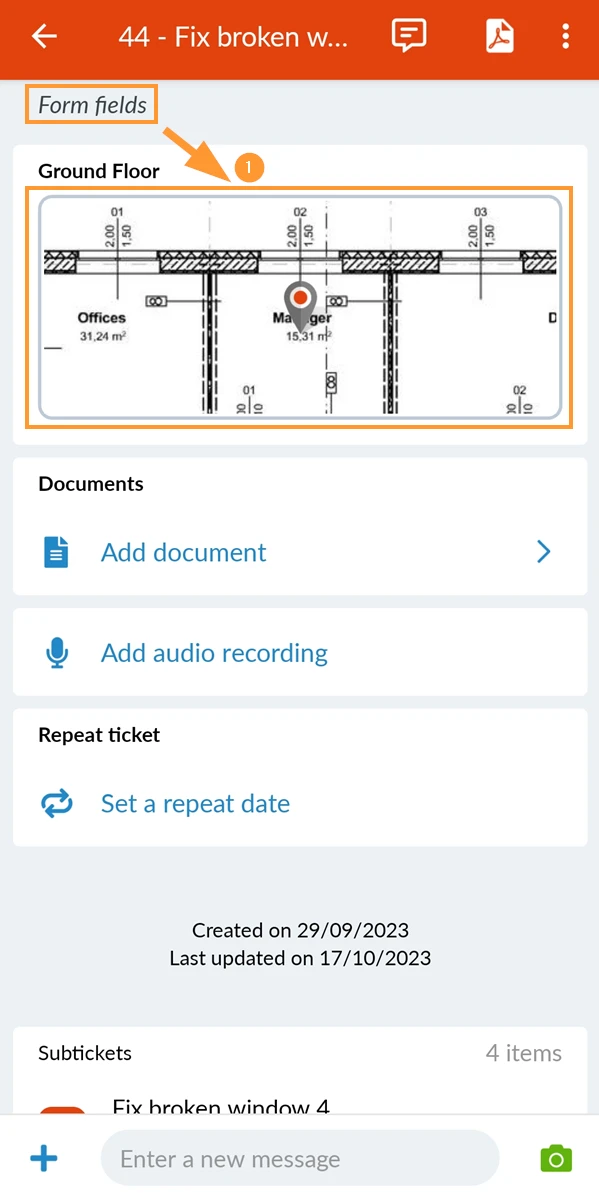
- Scroll down to Form fields and tap the plan preview
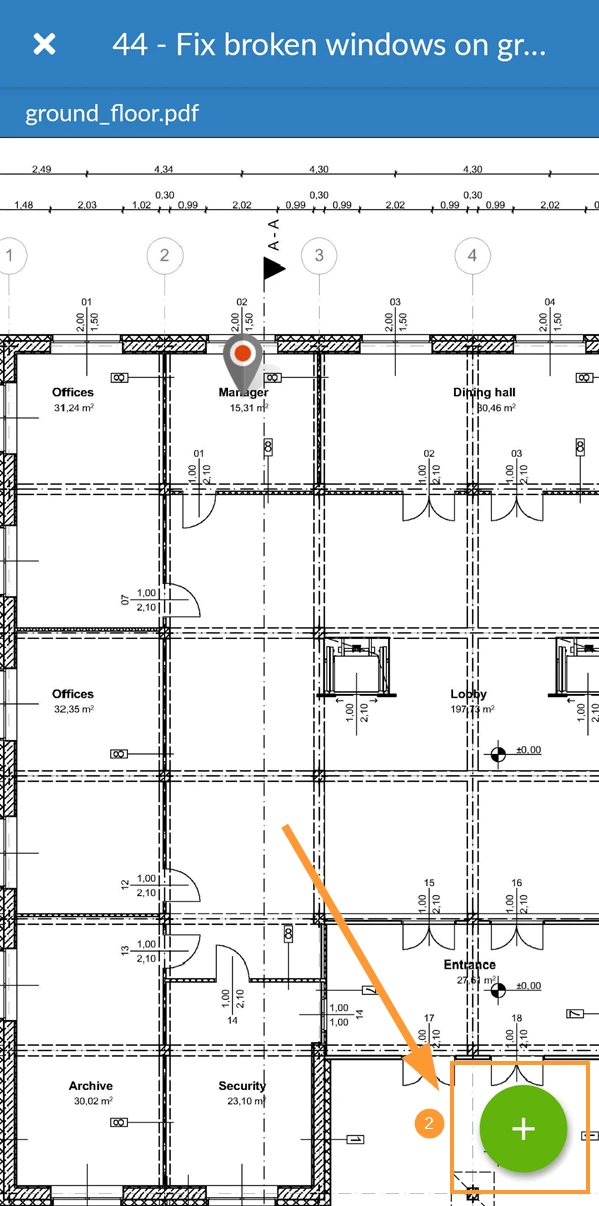
- Tap + to open the sub menu.
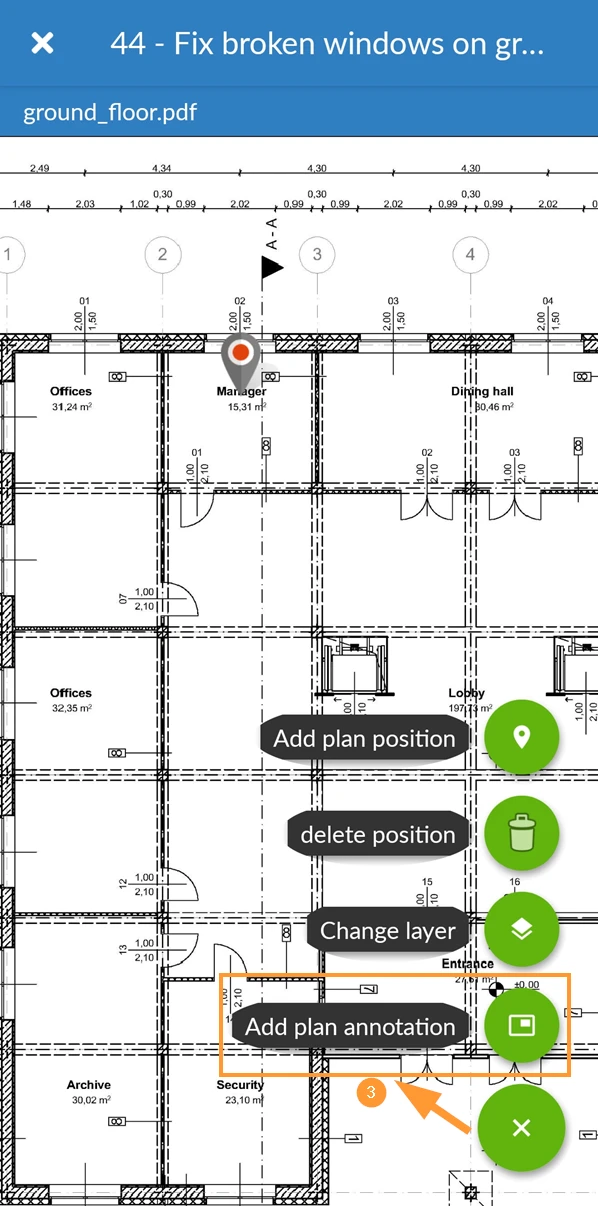
- Tap Add plan annotation
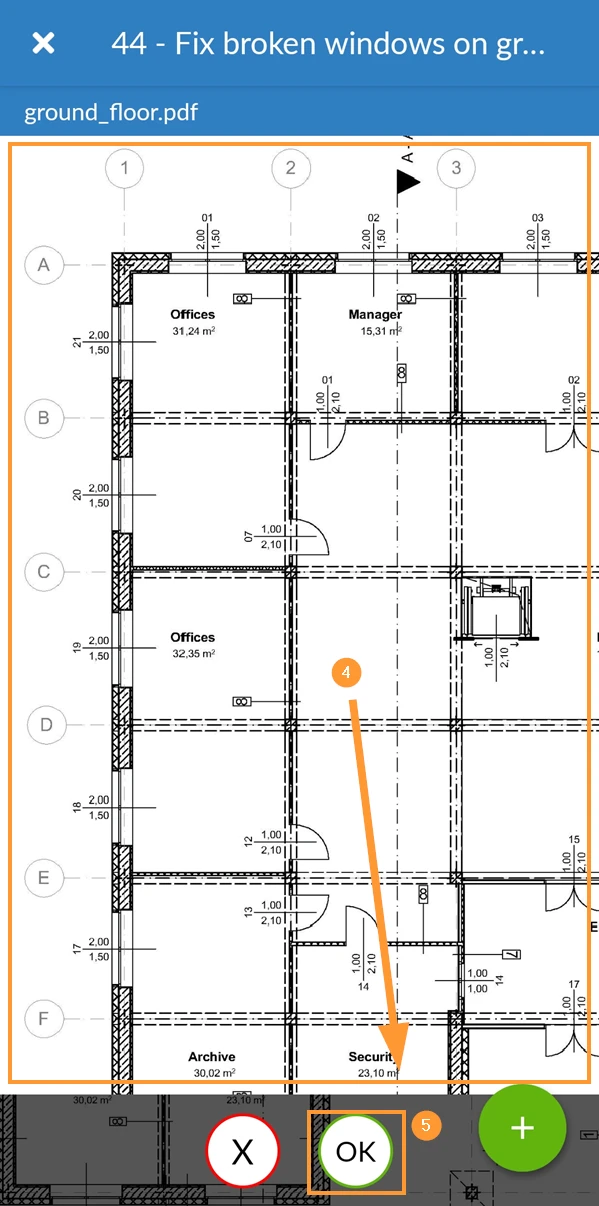
- Use panning and zooming to define the relevant section of the plan.
- Tap OK to confirm the area for the screenshot.
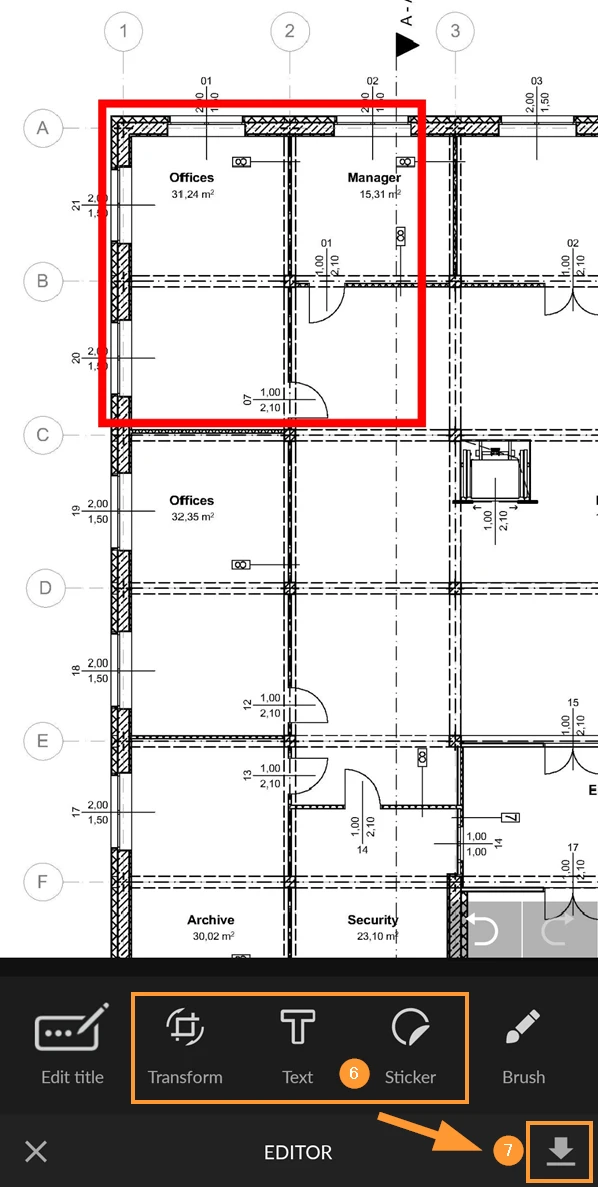
- Add your annotations as described in Photo Editor.
- Attach the plan annotation picture to the ticket and close the photo editor.
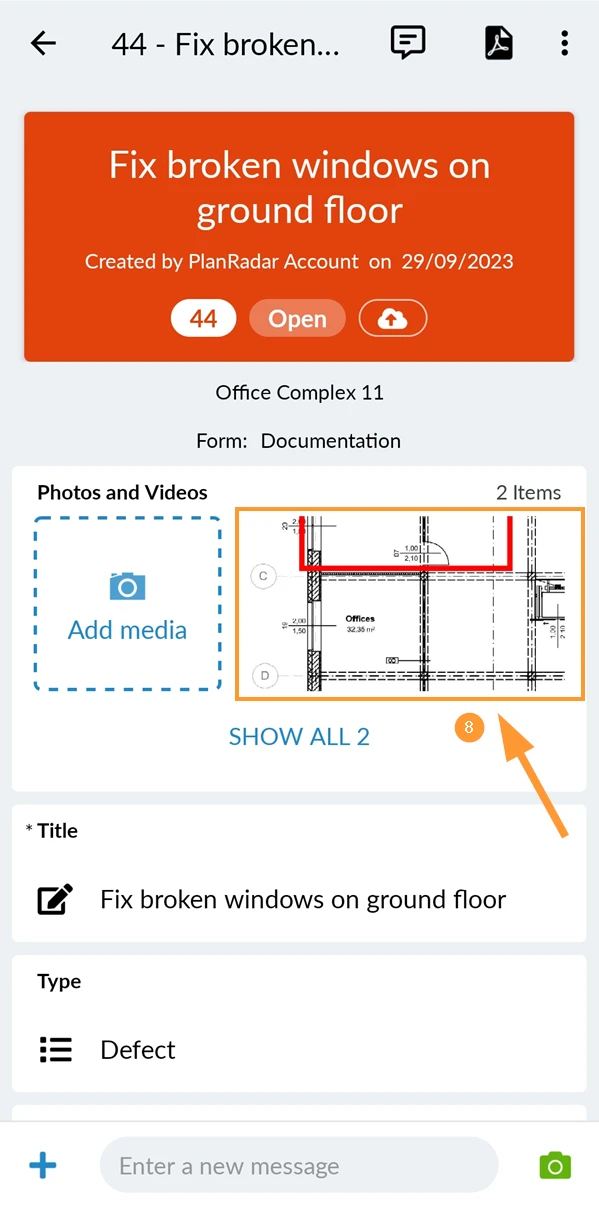
- The picture with your annotations is attached to the ticket.
Updated February 6, 2026