

 Deutsch
 Español
 Français
 Hrvatski
 Italiano
 Polski
 Português (BR)
View Ticket Attachments
Overview
When you View & Edit a Ticket, you can quickly view attachments by clicking on the thumbnails to open the attachment viewer for media (photos and videos) or for PDFs. You can view all field attachments or general attachments in separate galleries.
Access & Permissions
To view any ticket attachment you need access to the ticket — also see View & Edit a Ticket.
To view general attachments there are no additional permissions required.
Field permissions control whether your role can view or edit individual fields. Read more in Edit Field Permissions.
Attachment Types
There can be two types of attachments in a ticket:
- General attachments are attached to the ticket as a whole rather than to a specific field.
They are enabled in the form settings. Read more in Edit Form Settings. - Field attachments are attached to a specific field in the ticket form — either an attachment field or a checklist field.
Read more in Field Types > Attachment Field and Field Types > Checklist Field.
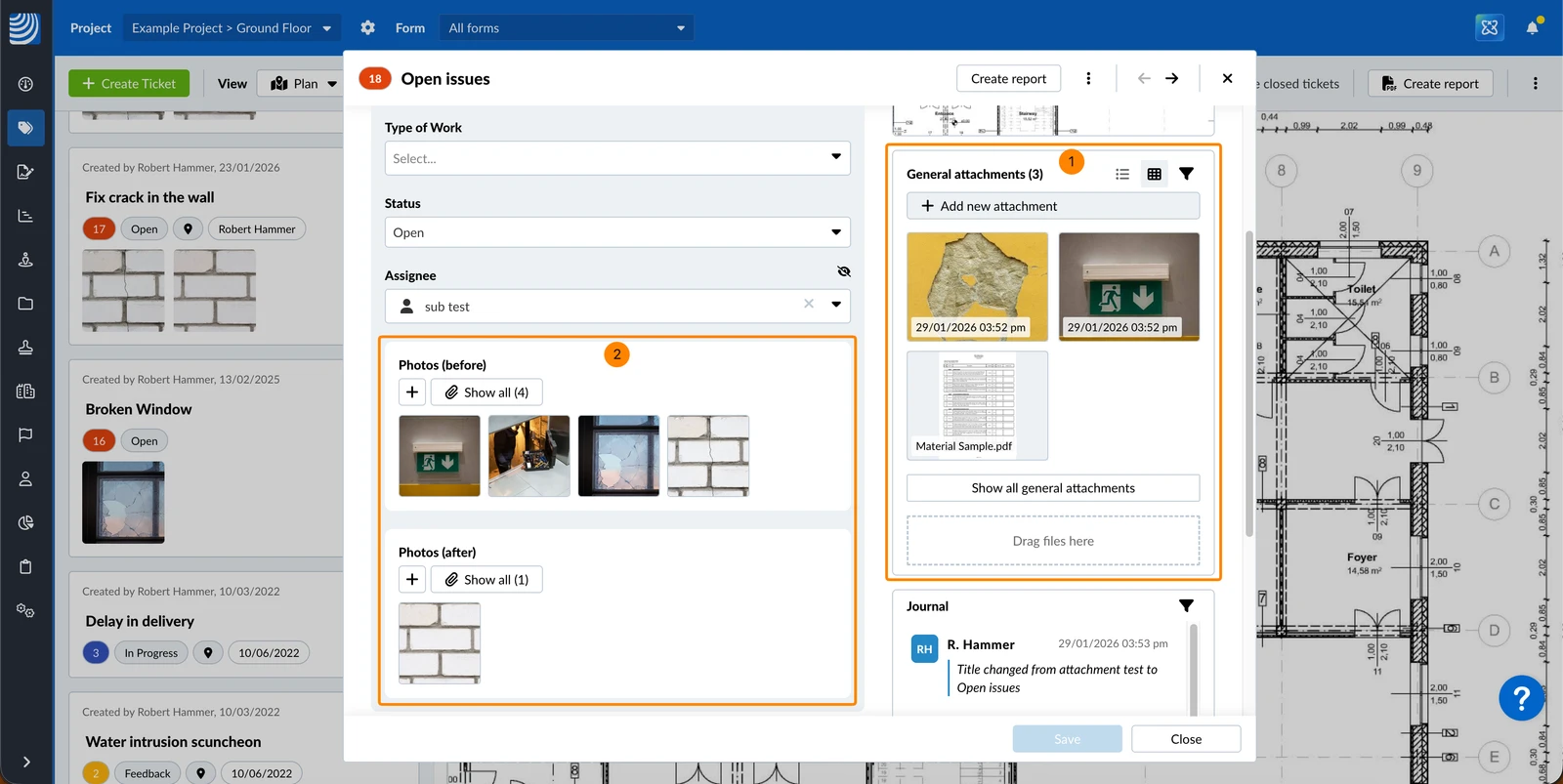
View General Attachments
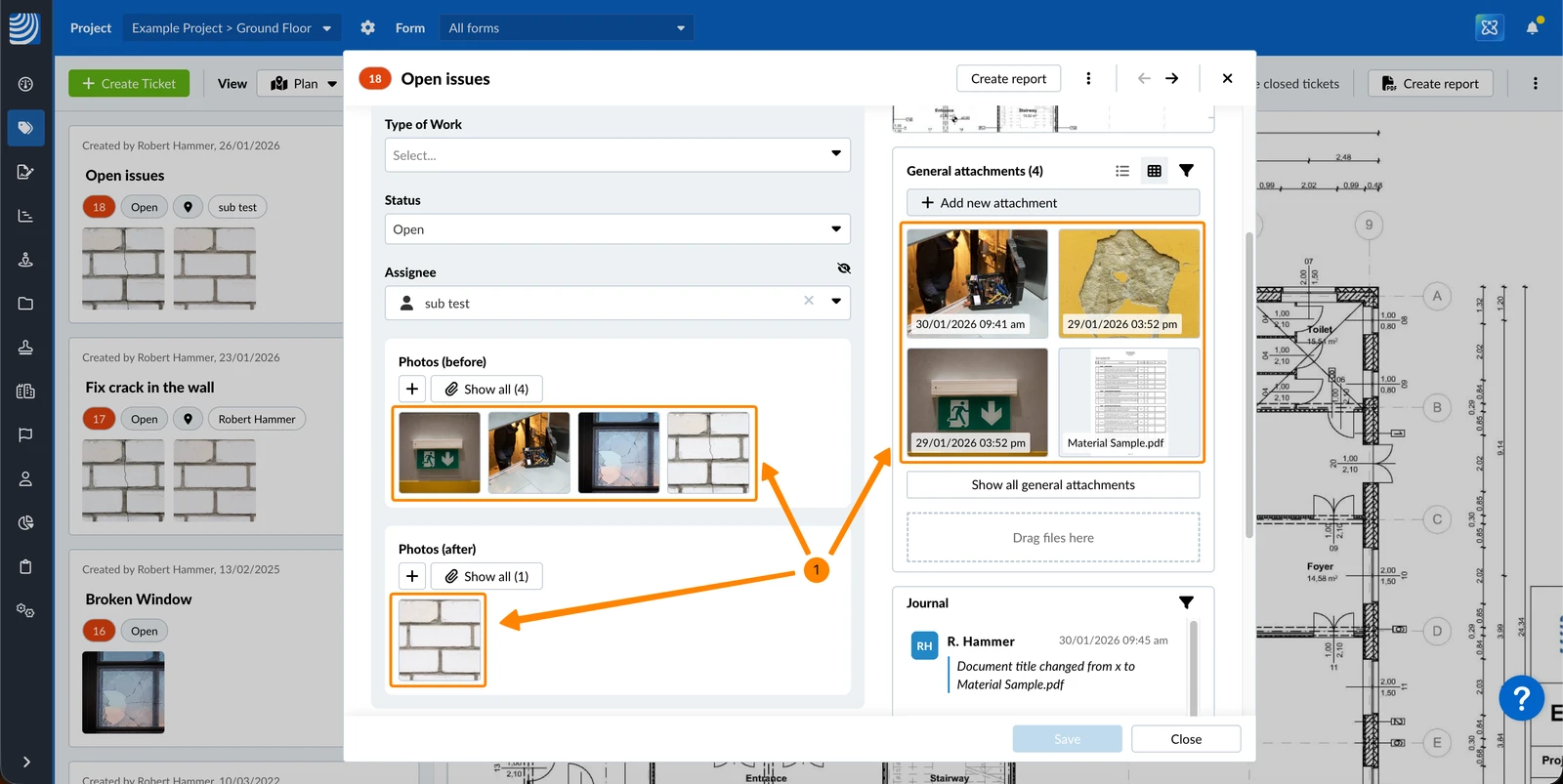
The general attachments view shows the 4 most recently added attachments by default.
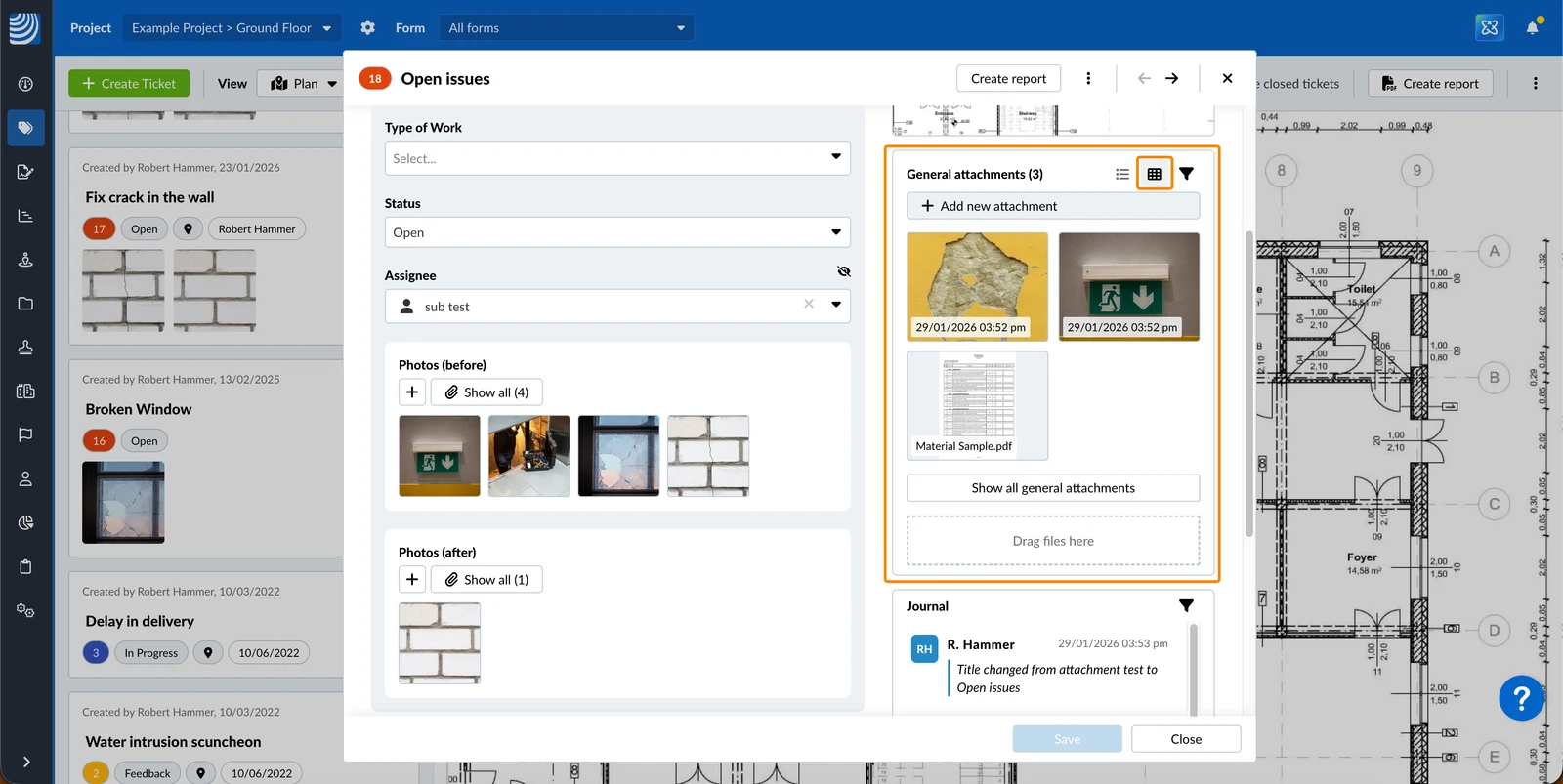
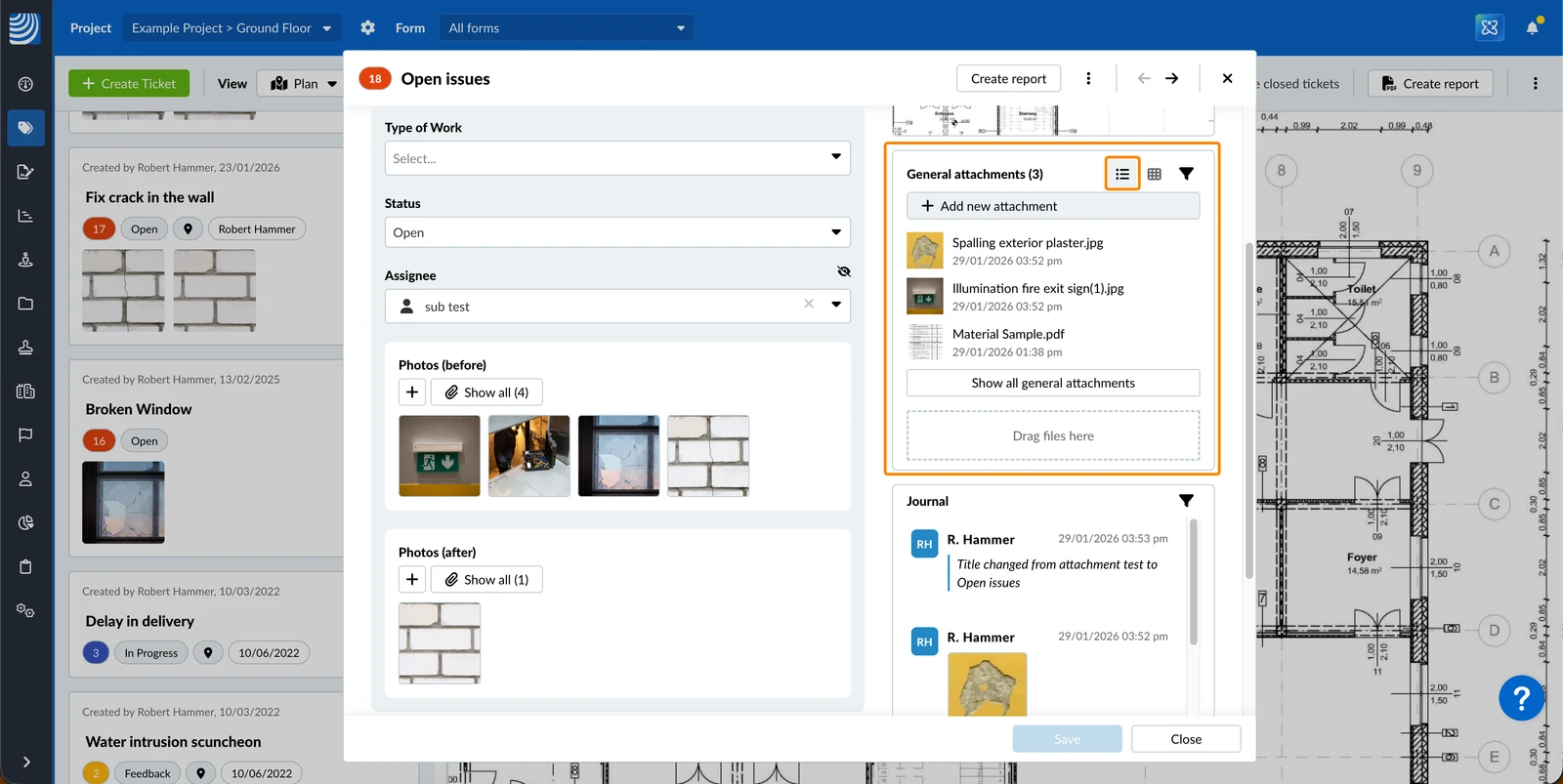
It offers the same view options as galleries including grid view, list view, filter, and sort. Read more below in Attachment Galleries > View Options.
General attachments grid view:
General attachments list view:
View Field Attachments
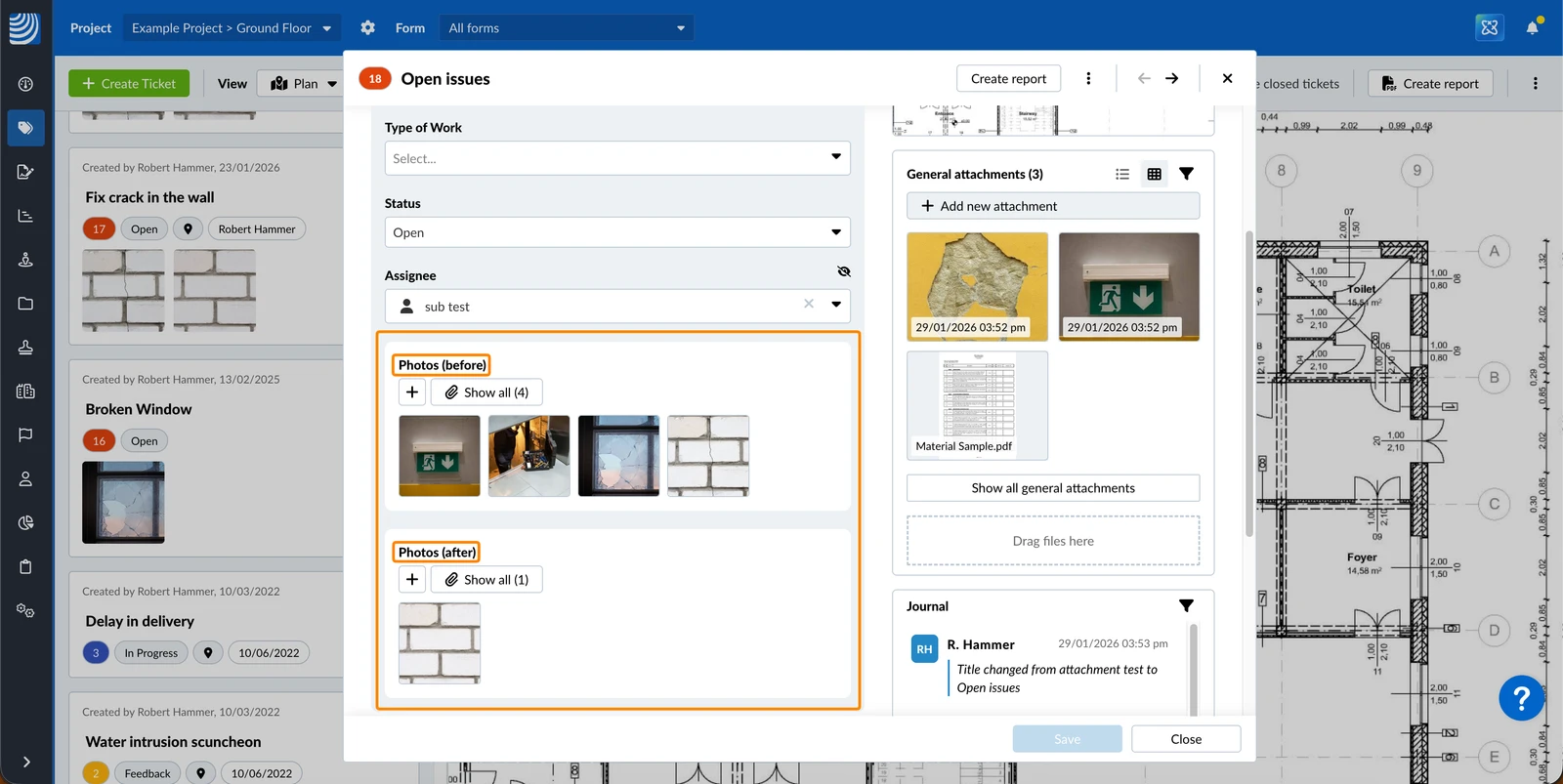
Each attachment field can have up to 50 attachments. Thumbnails of the newest 5 are displayed directly in the field.
In this example we have two attachment fields with the titles Photos (before) and Photos (after):
Attachment Galleries
You can view all field attachments or general attachments in separate galleries.
Show All Attachments
To show all general attachments :
- Click Show all general attachments
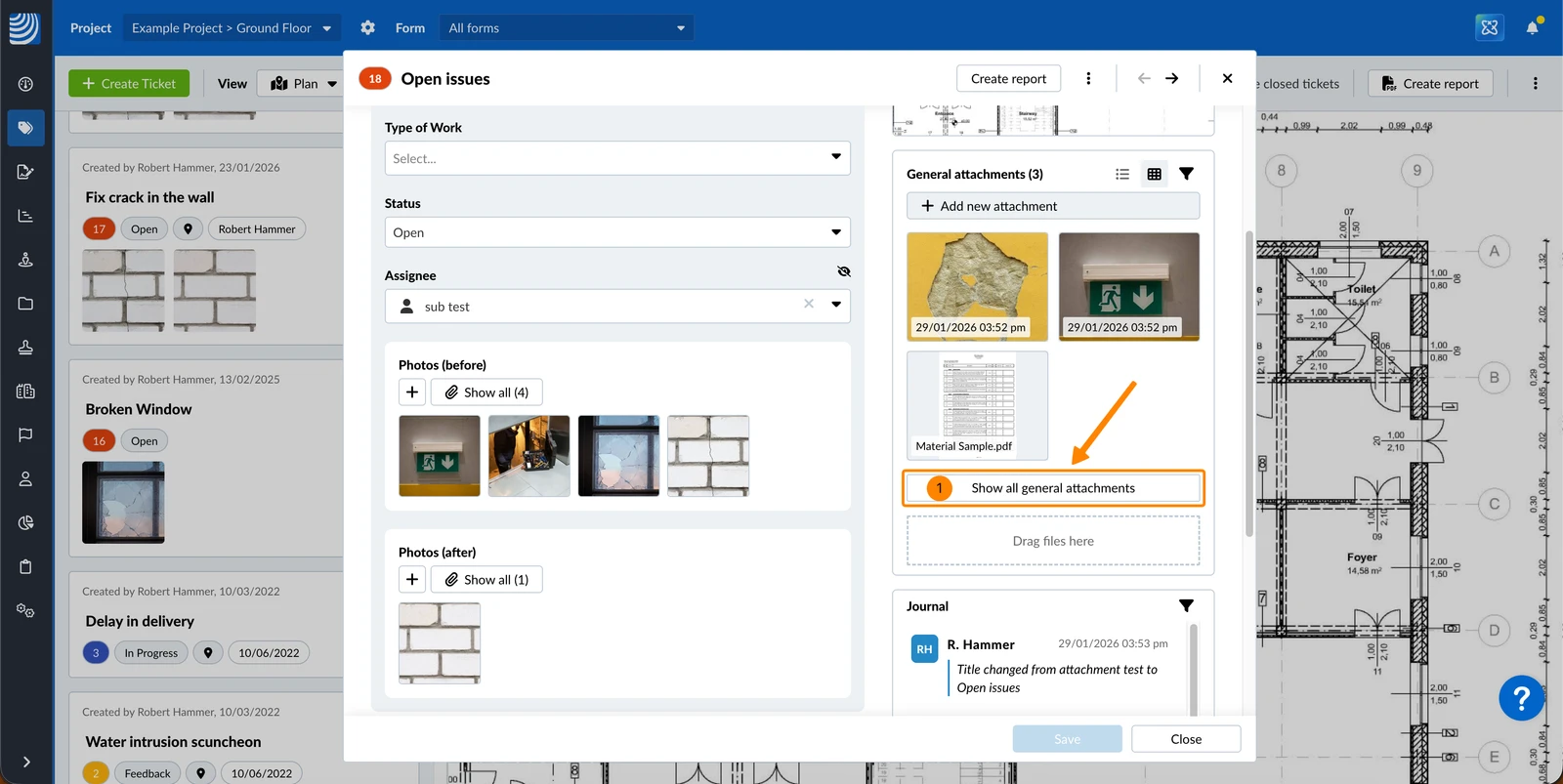
- You see the general attachments gallery
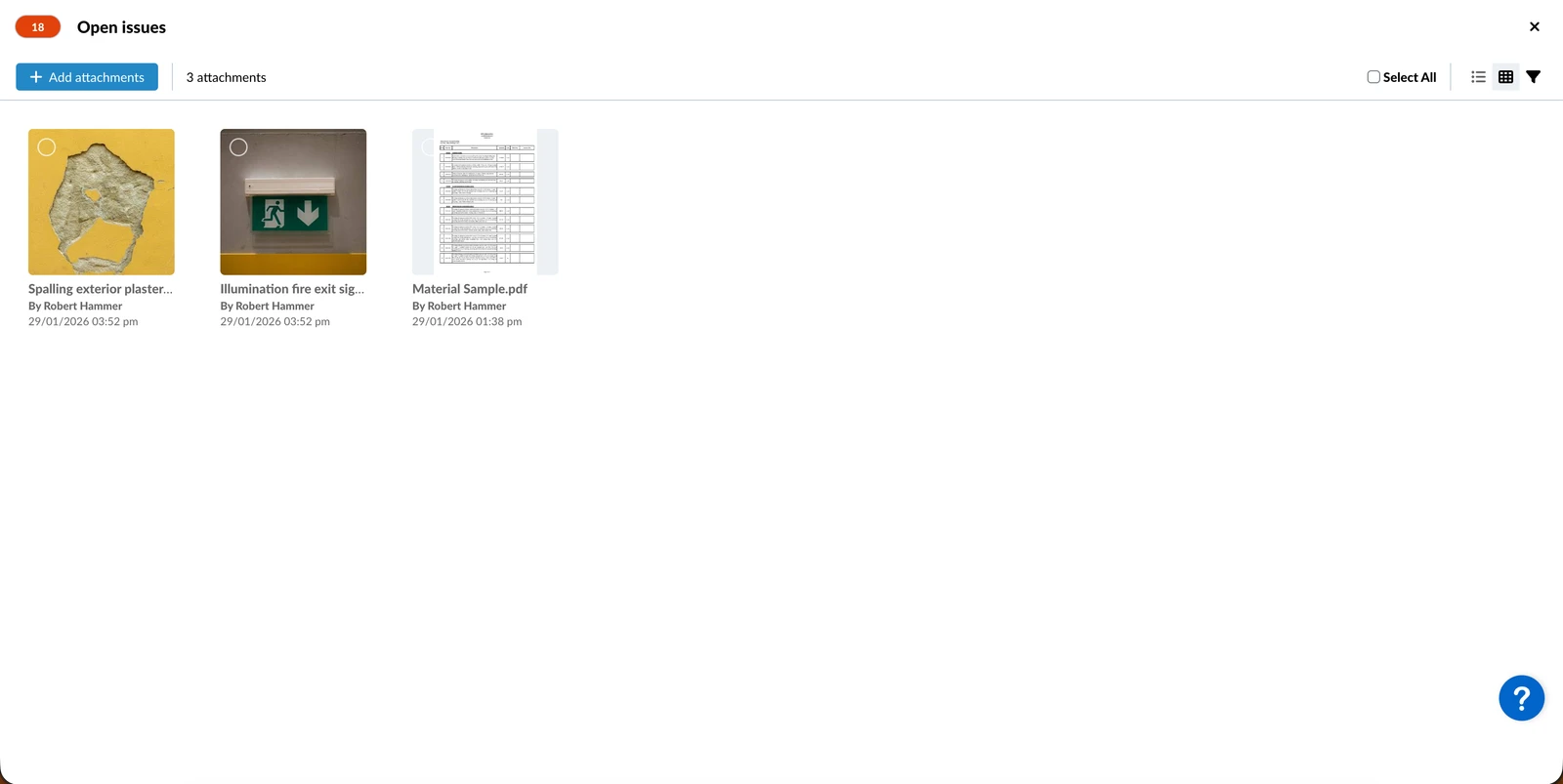
To show all attachments of a field:
- Click Show all
The button shows the number of total attachments, in this case (4).
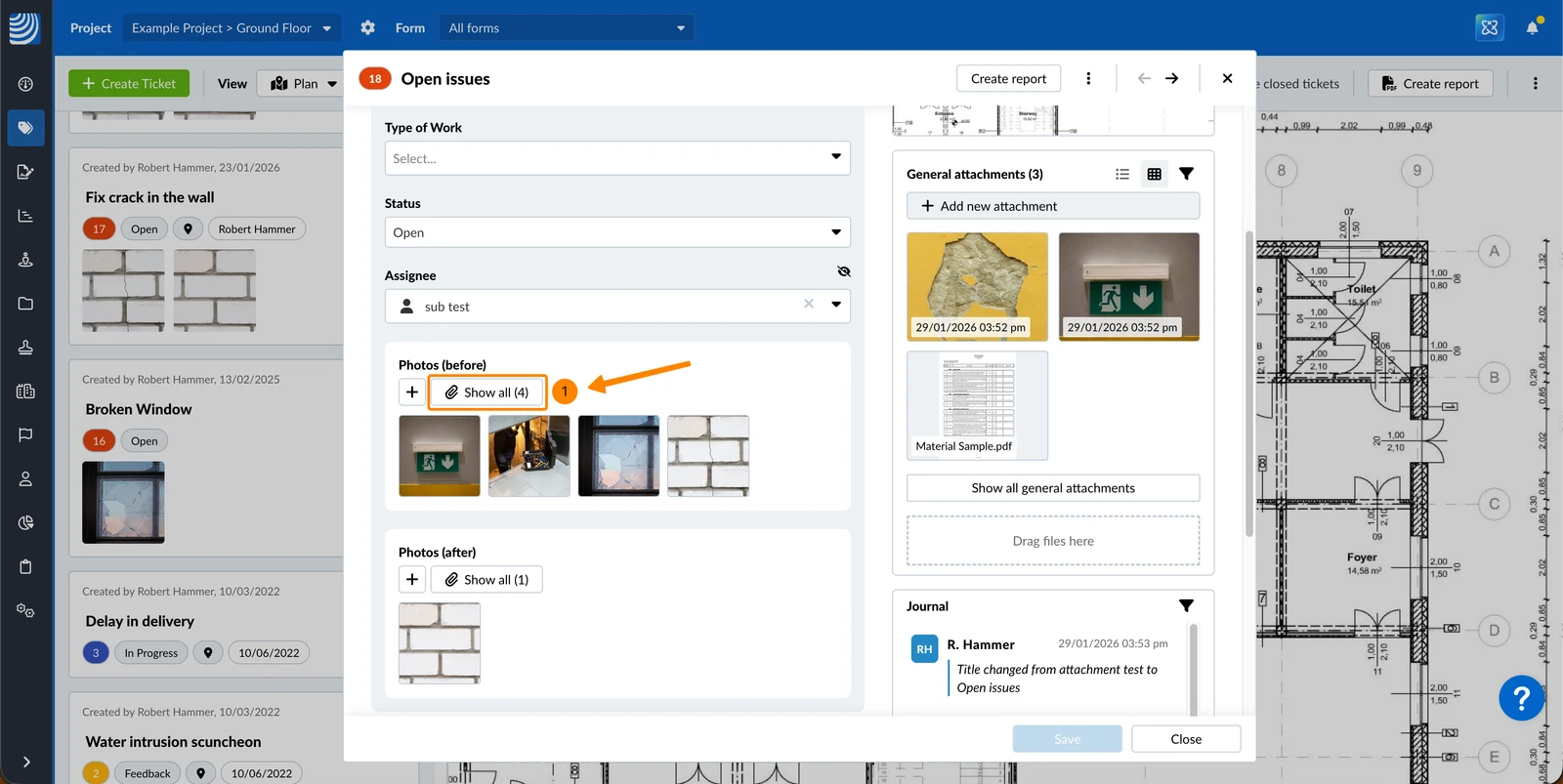
- You see the attachment gallery of the respective field
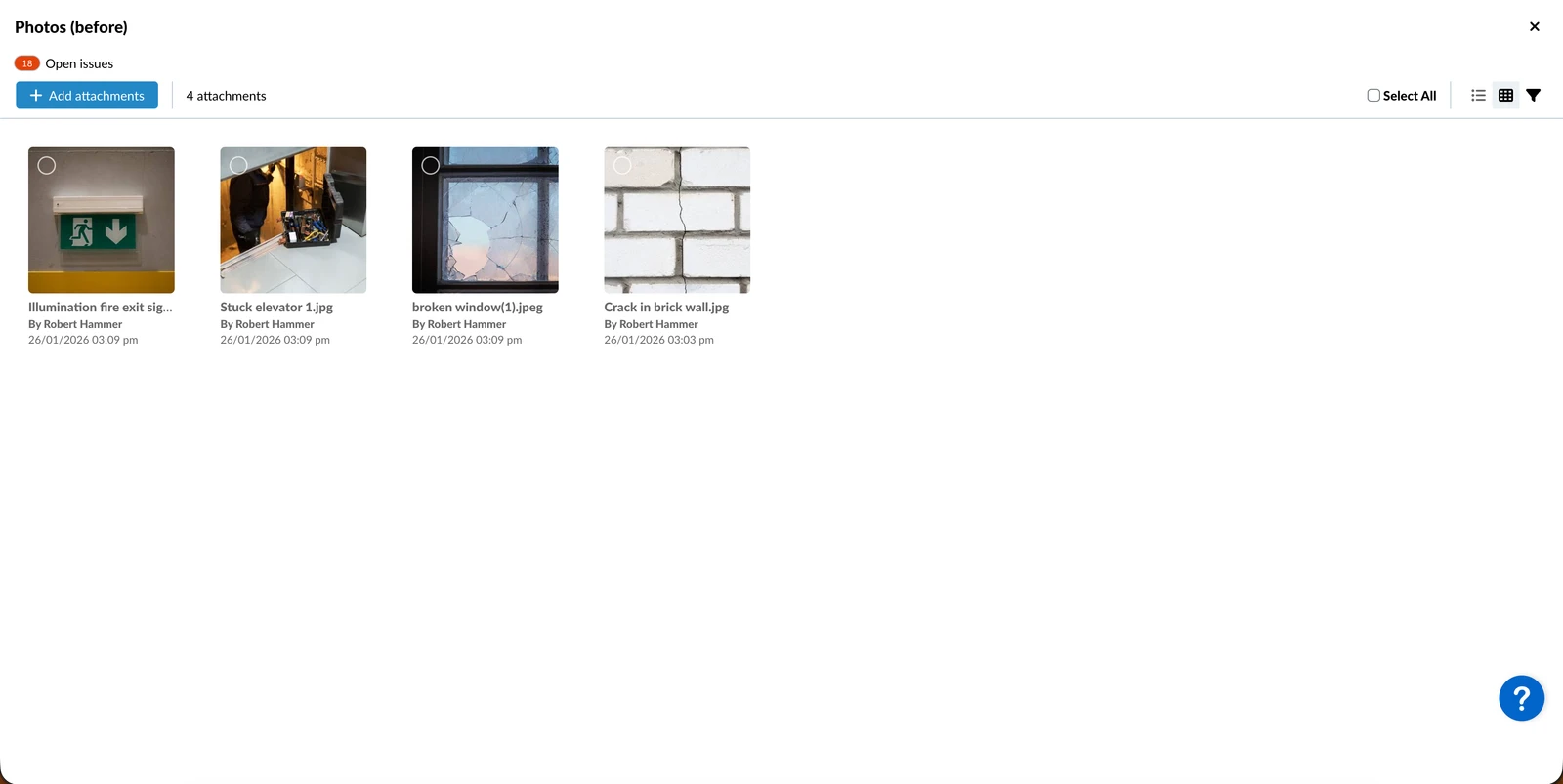
View Options
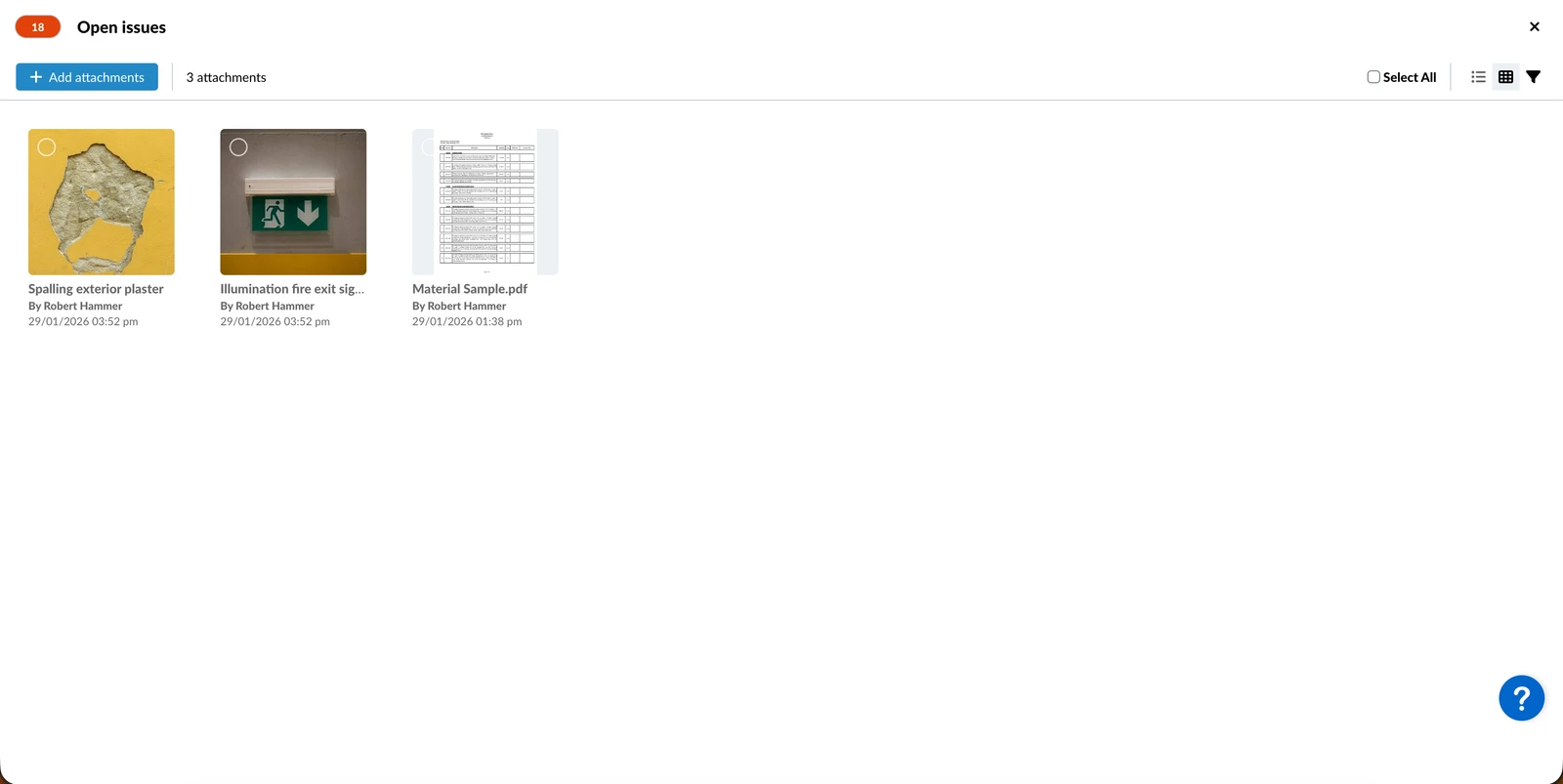
By default you see attachments in the grid view, including all file types, and sorted descending by 'Added on' timestamp.
The thumbnails of images show the 'Added on' timestamp or if available in the photo's metadata the 'Taken on' timestamp instead. The thumbnails of other files show the filename.
List View vs. Grid View
To switch to list view:
- Click the Switch to list view icon
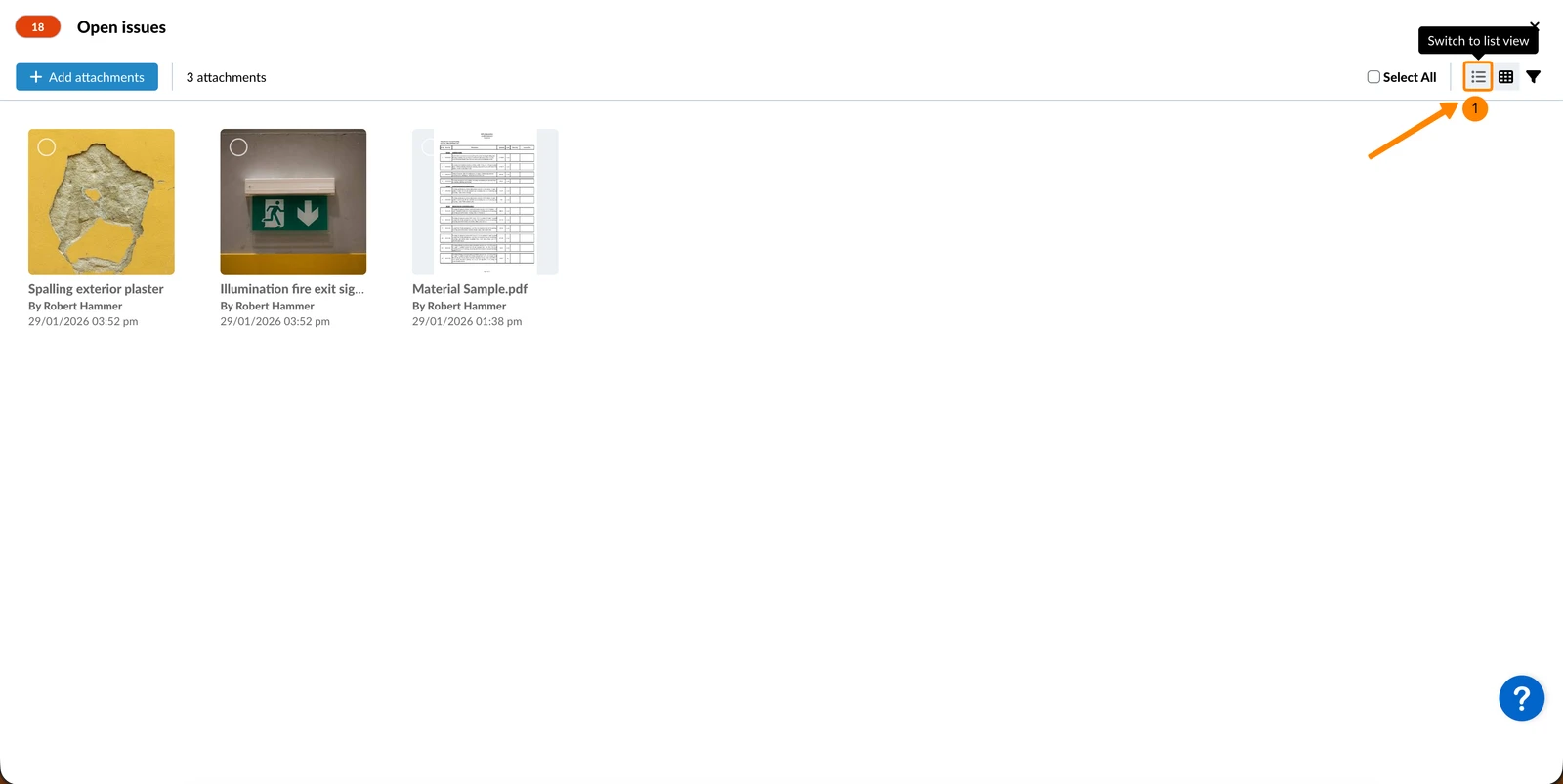
- You see the gallery in list view (table)
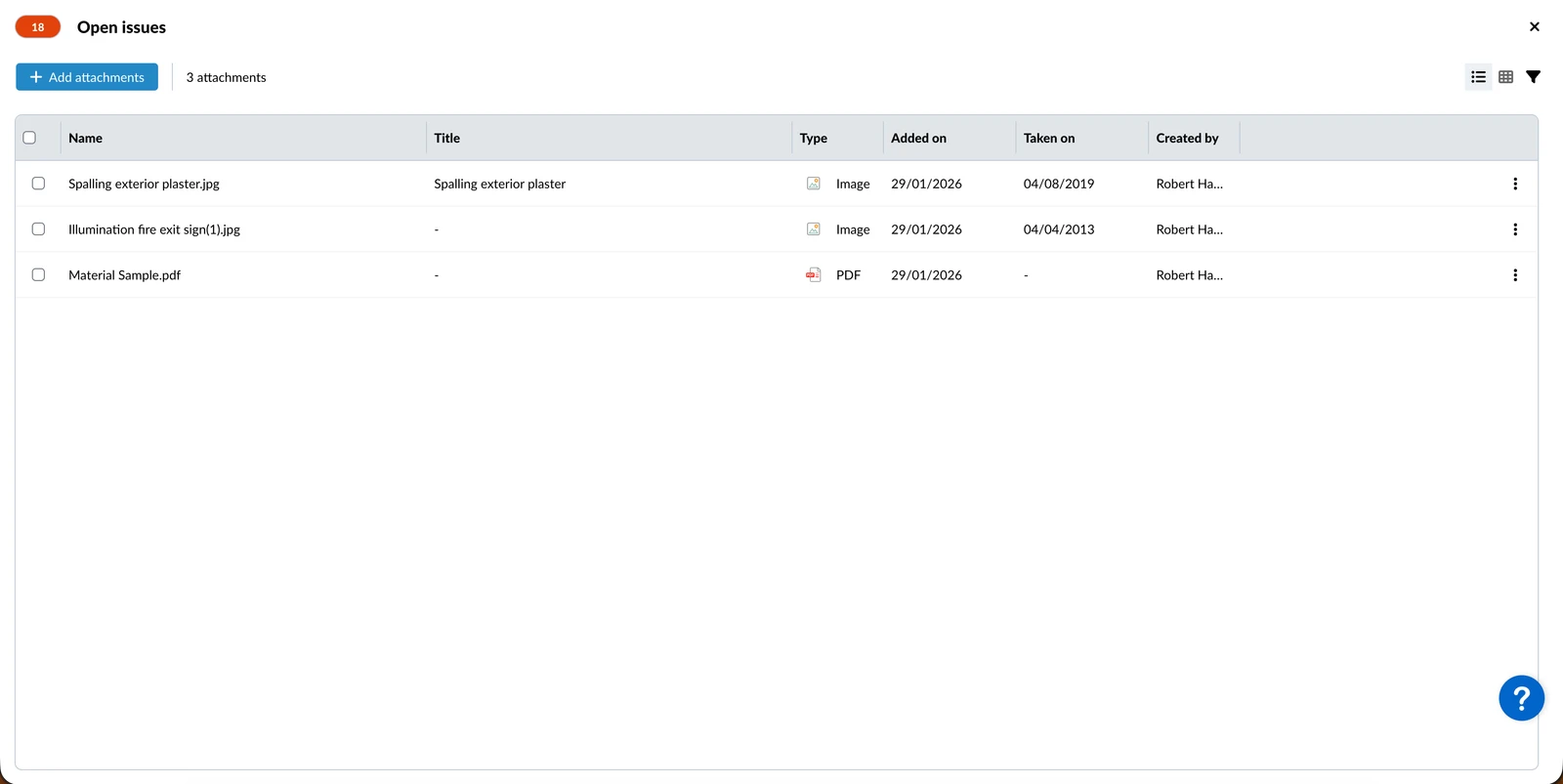
To switch to grid view:
- Click the Switch to grid view icon
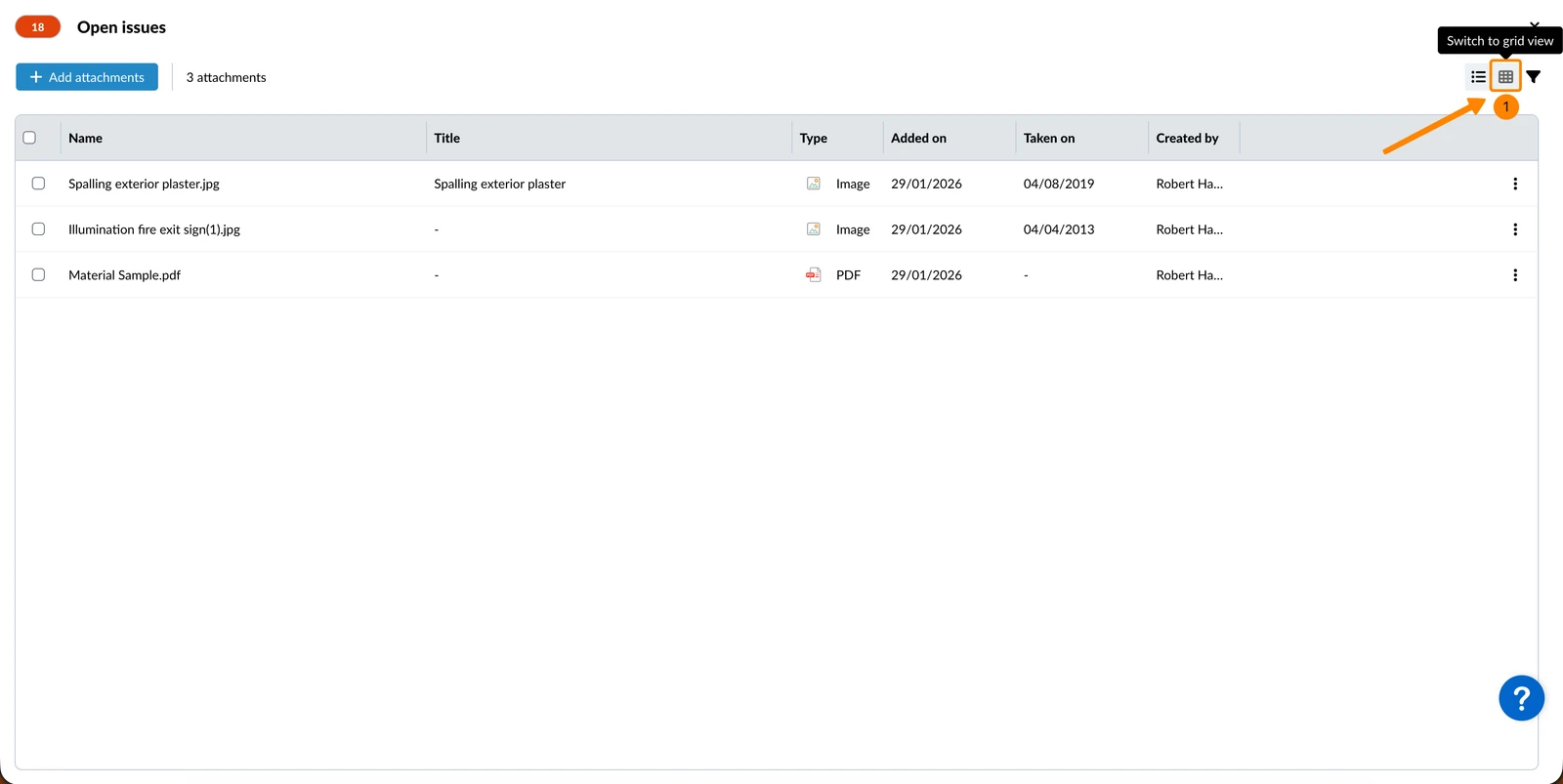
- You see the gallery in grid view
Filter
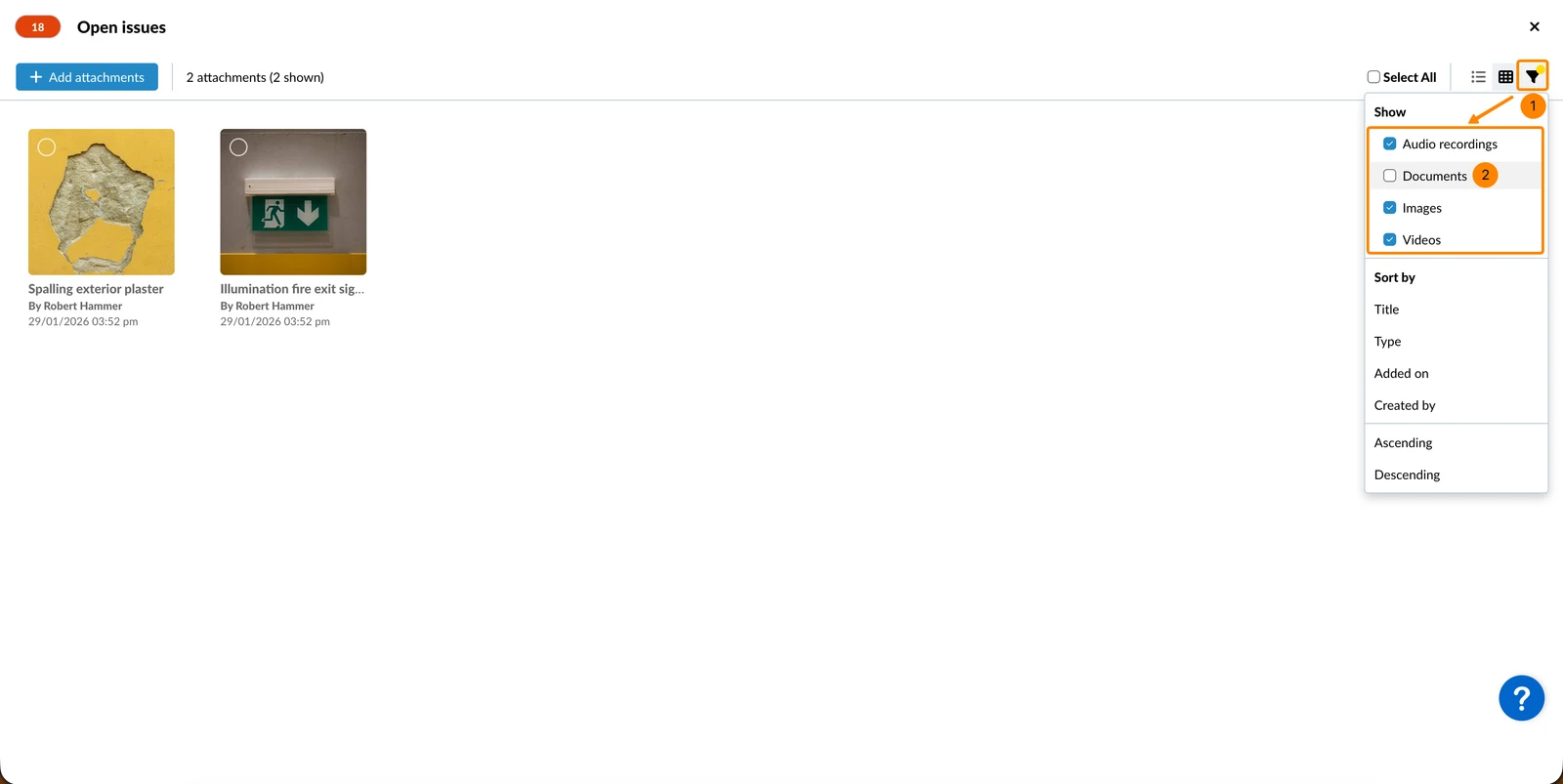
To show only attachments of a certain file type:
- Click the filter icon
- Select/clear the checkboxes of the attachment types that you want to view/hide in the preview/gallery.
Sort
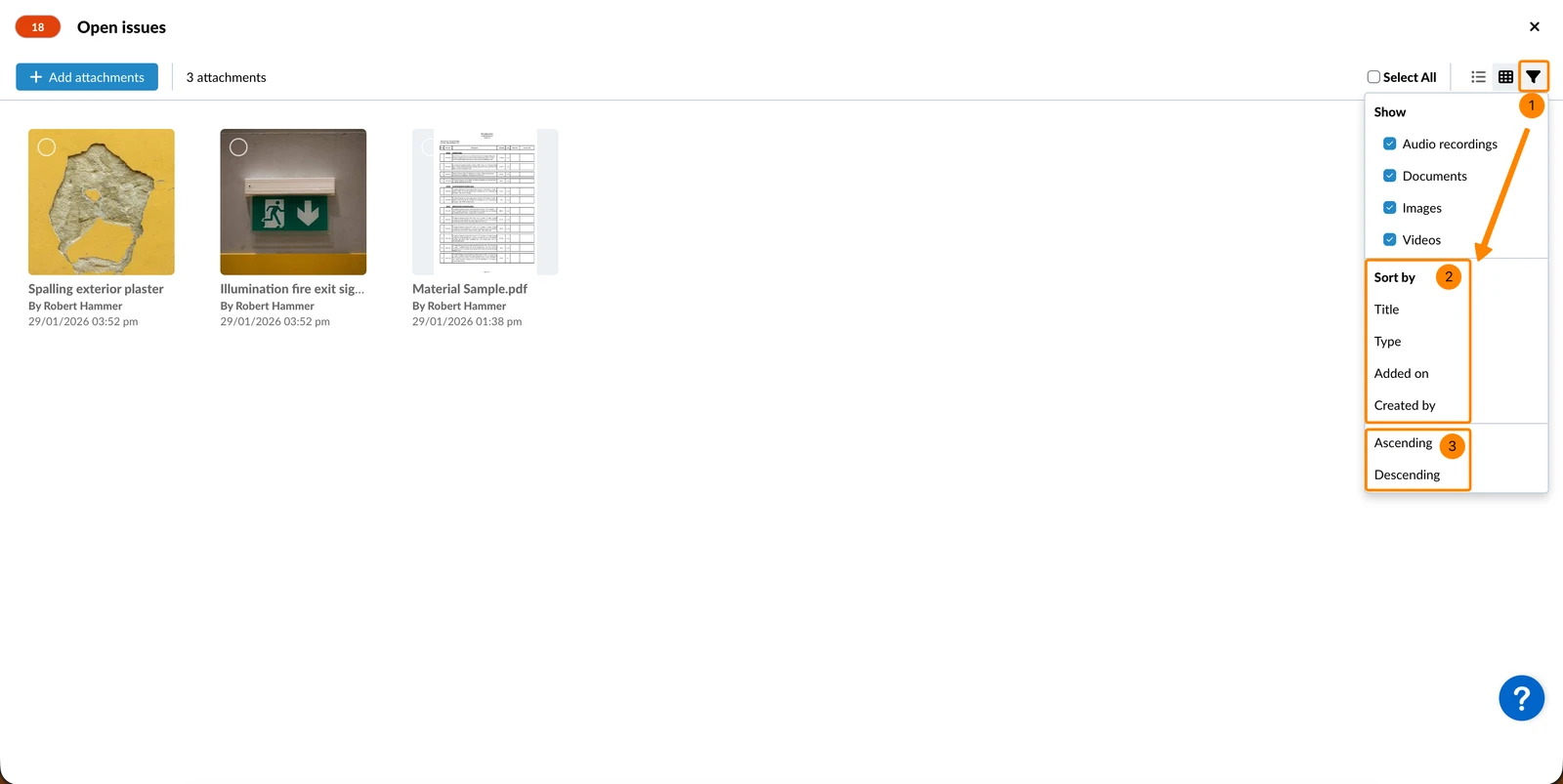
To change the sorting options:
- Click the filter icon
- Select the field that you want to Sort by: Title, Type, Added on, Created by.
- Select between Ascending or Descending order.
Select Attachments
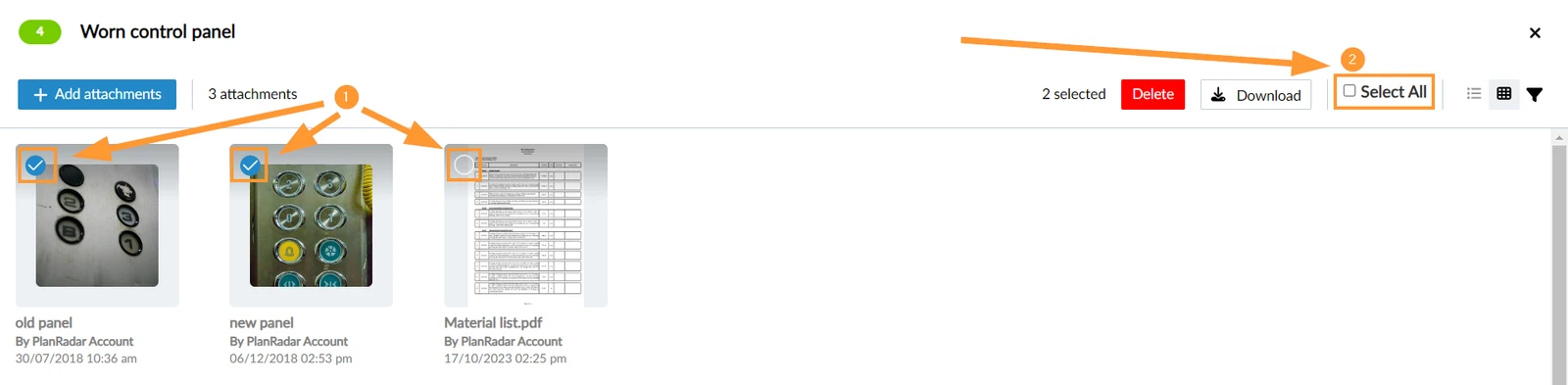
To apply bulk actions, select attachments in the grid view:
- Select or clear the checkboxes on the thumbnails
- Optional: Click Select all
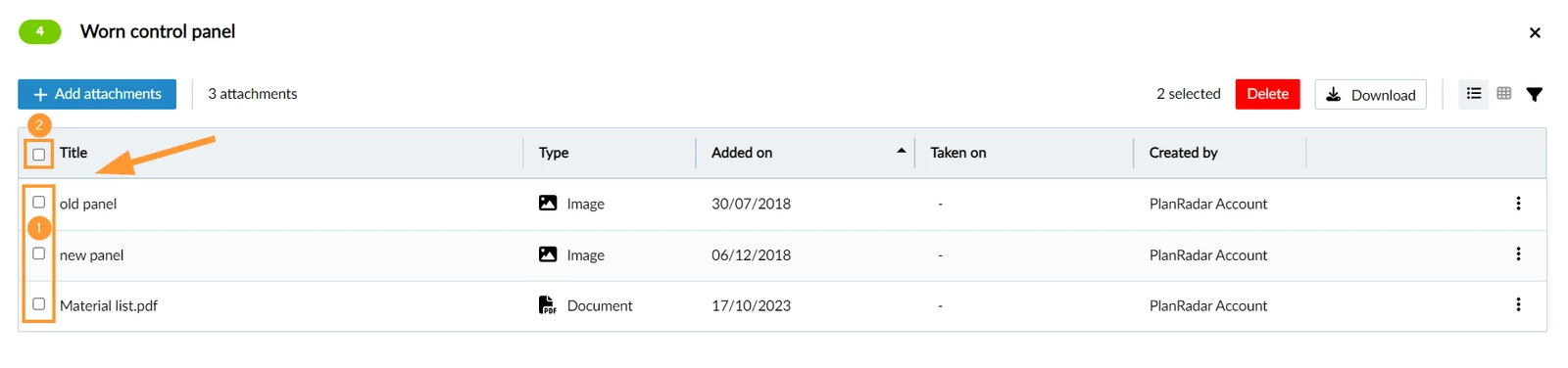
To select attachments in the list view:
- Select or clear the checkboxes in the first column
- Optional: Click Select all
Download Attachments
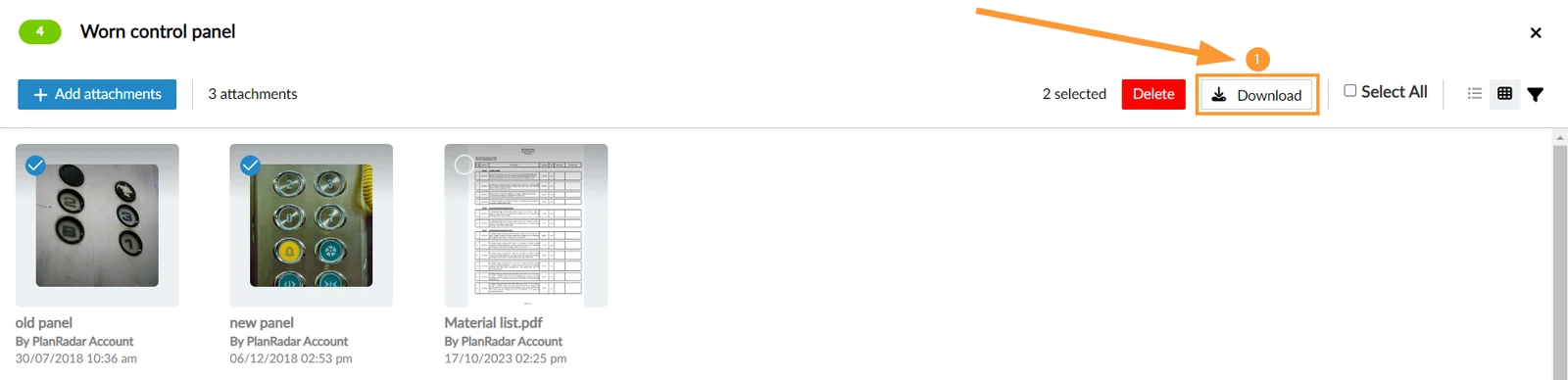
To download attachments that you selected as described above:
- Click Download
Delete Attachments
Who can delete attachments?

Only in-house users can delete general attachments, not subcontractors.
However, field attachments can be deleted by anyone with edit permission for the respective field, including subcontractors.
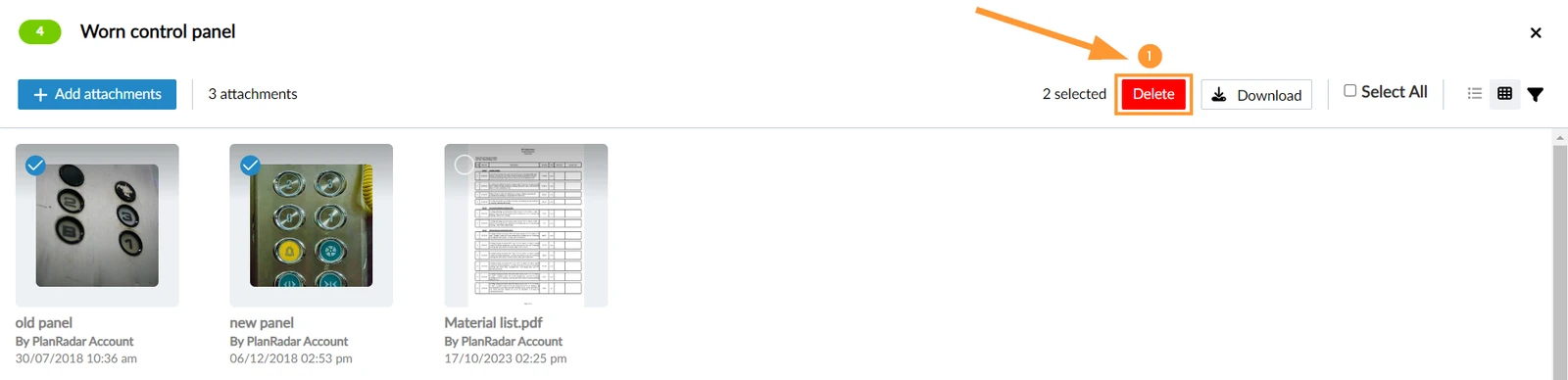
To delete attachments that you selected as described above:
- Click Delete
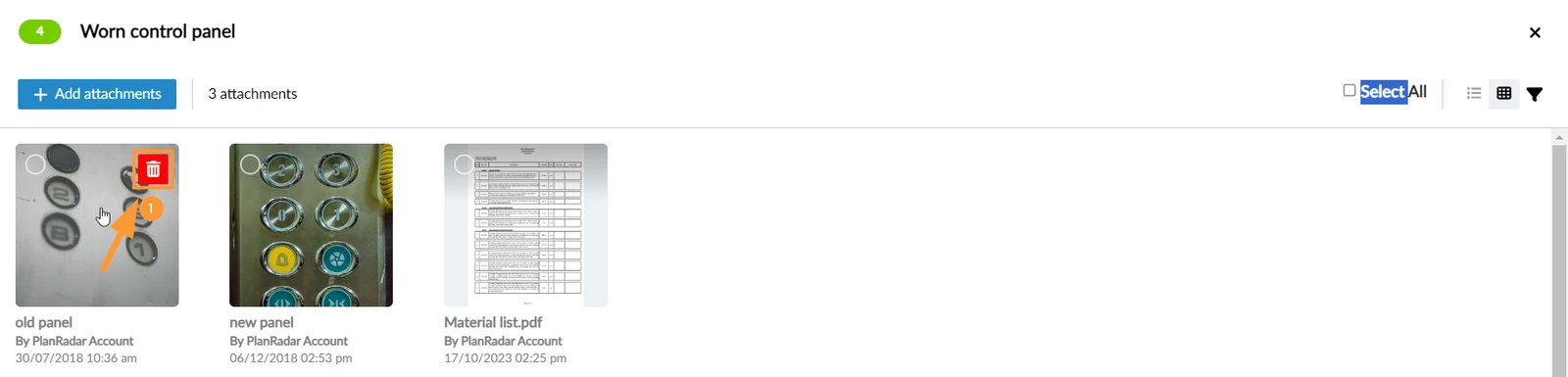
To quickly delete a single attachment:
- Hover over the thumbnail and click the Delete icon
Save Attachments to Documents
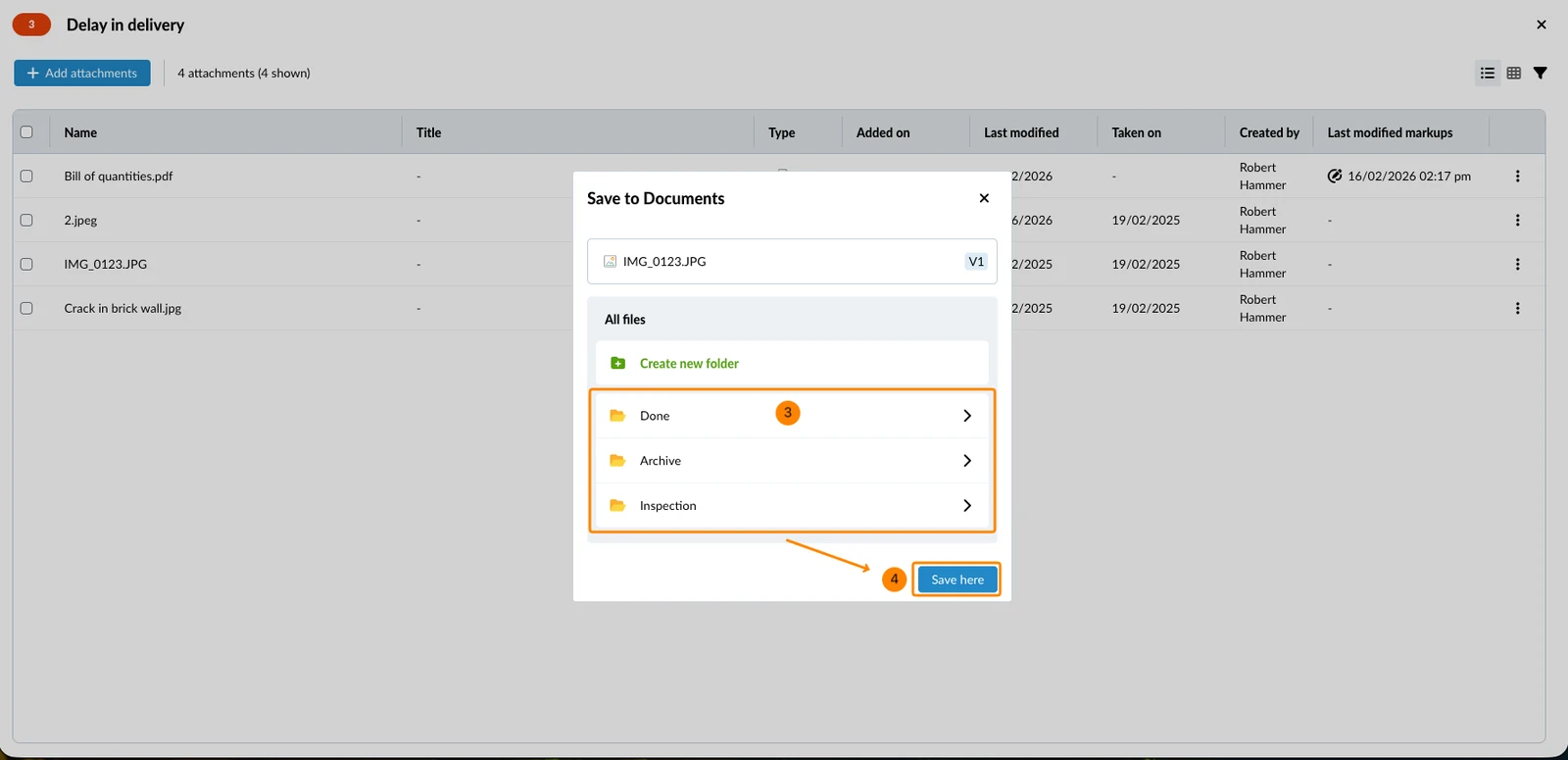
You can save a copy of an attachment to a folder in Document Management. This works the same for general attachments, attachment field attachments, and checklist field attachments.
The original file stays attached to its ticket, and changes to the copy in Document Management will not affect the ticket attachment. The copy keeps the original file’s details: name, format, size, Added on, and Created by.
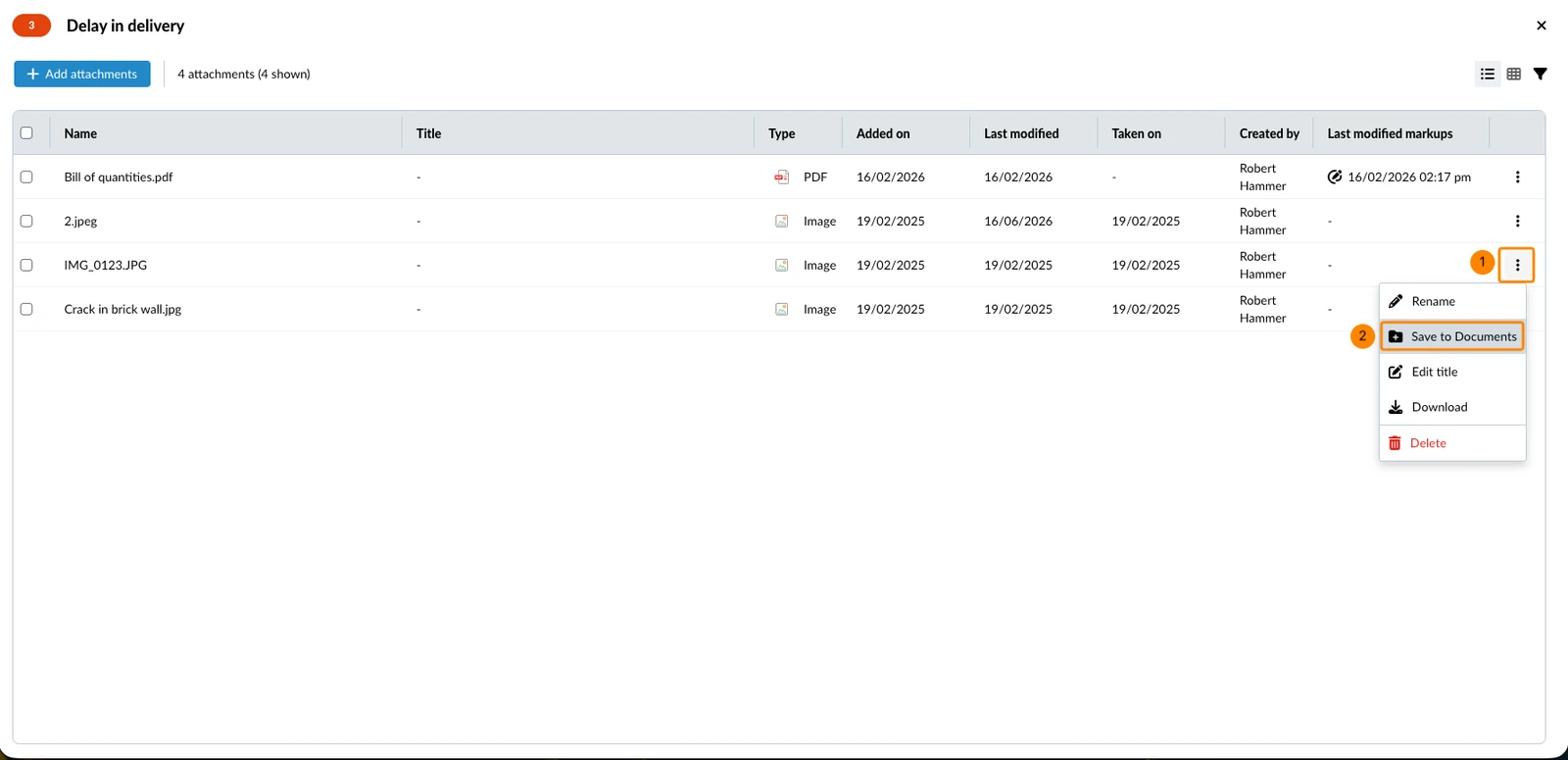
To save a single attachment:
- Open the More menu of the attachment
- Click Save to Documents
- Navigate to the target folder
- Click Save here
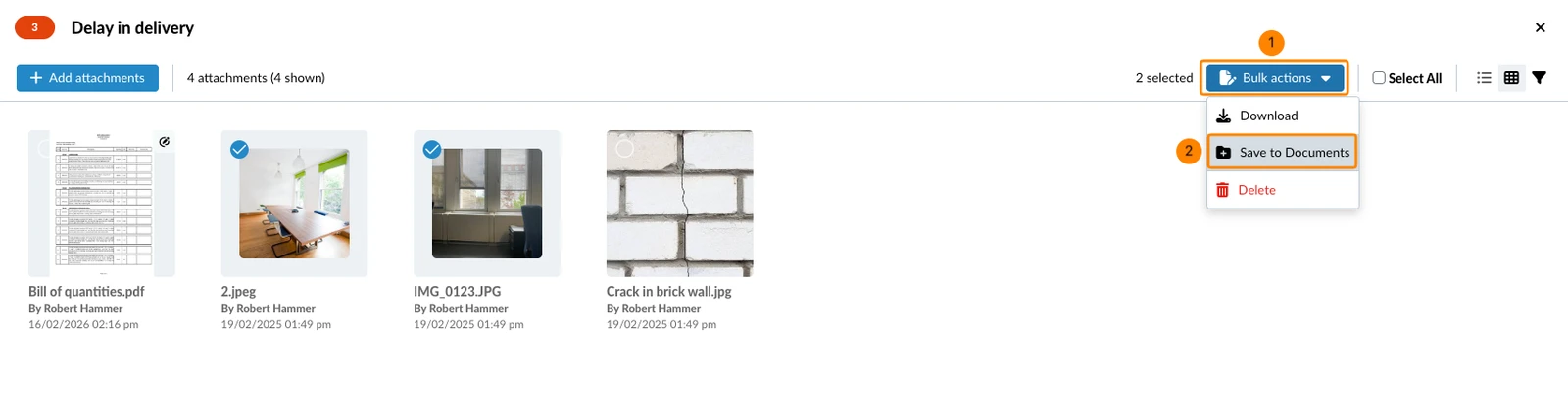
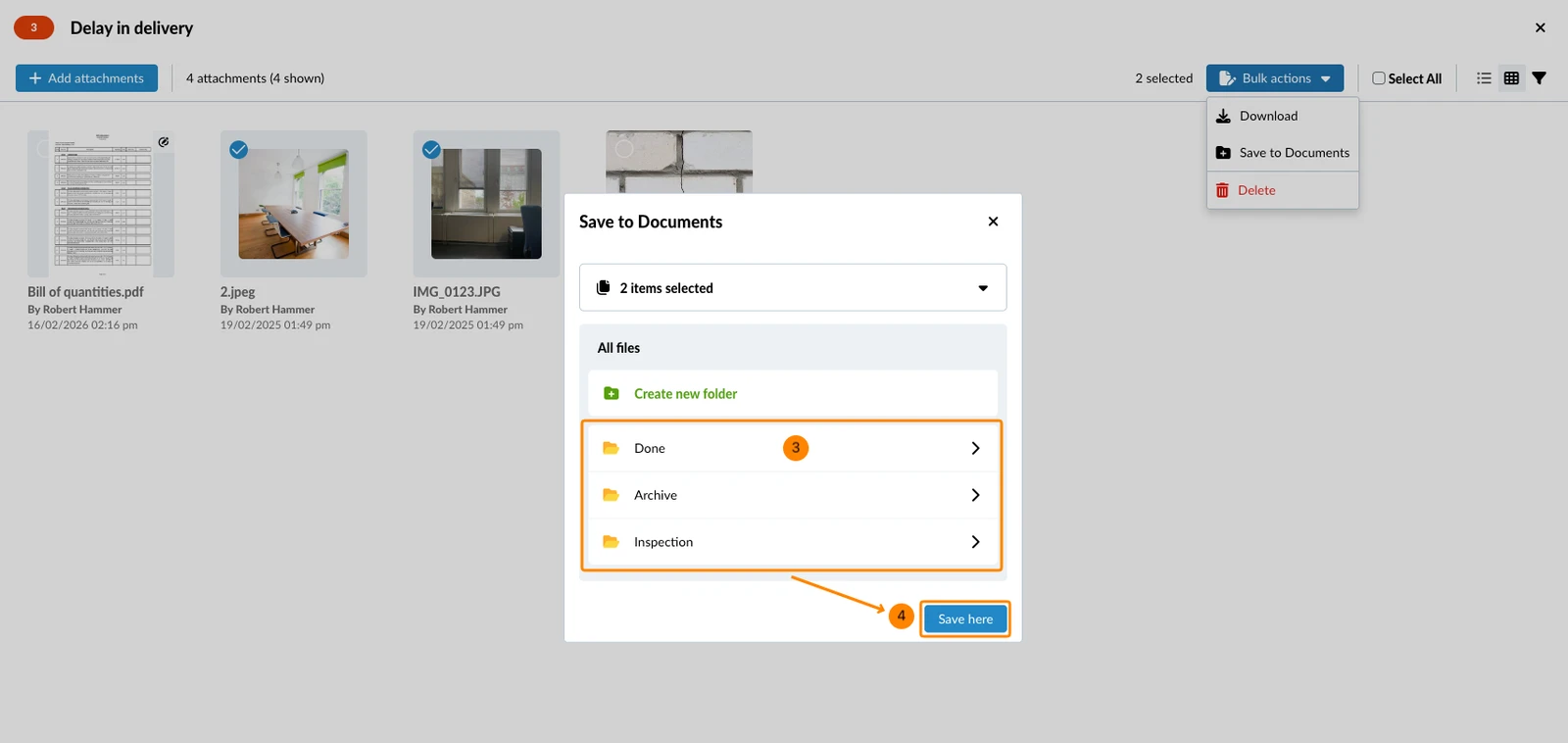
To save several attachments that you selected as described above:
- Click Bulk actions
- Click Save to Documents
- Navigate to the target folder
- Click Save here
Attachment Viewer
Supported File Types & Preview
Photos, videos, voice recordings and PDFs can be viewed/played directly in PlanRadar.
Also see PDF Viewer.
You can also attach the following file types, but you will need to download them first to view: xls, xlsx, ods, csv, doc, docx, odt, dwg, dxf, eml, msg, zip, and rar.
View an Attachment
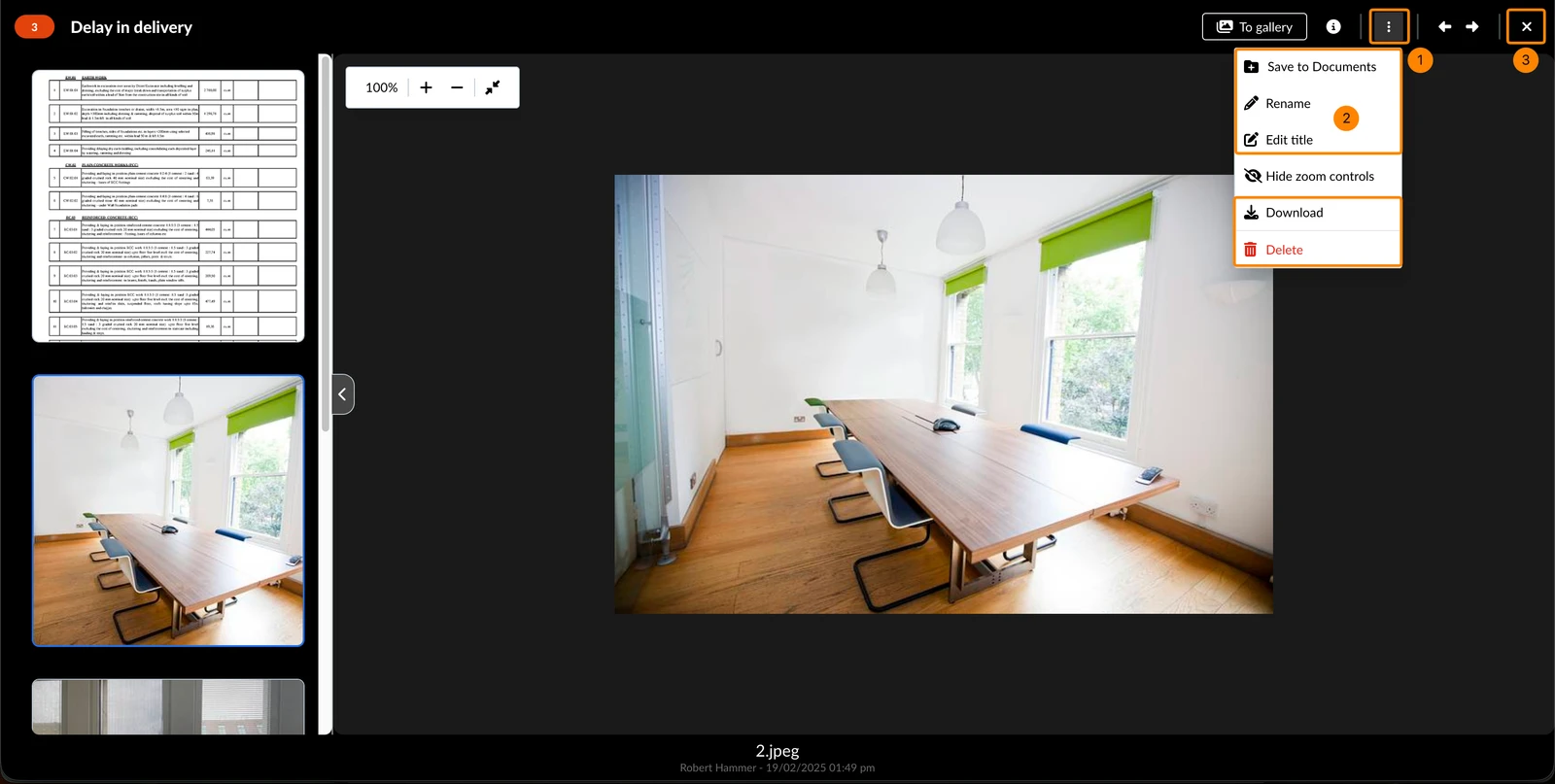
To view an attachment in the image or PDF viewer:
- Click on the thumbnail
- You see the image or PDF and ticket ID and title for general attachments or the attachment field name instead.
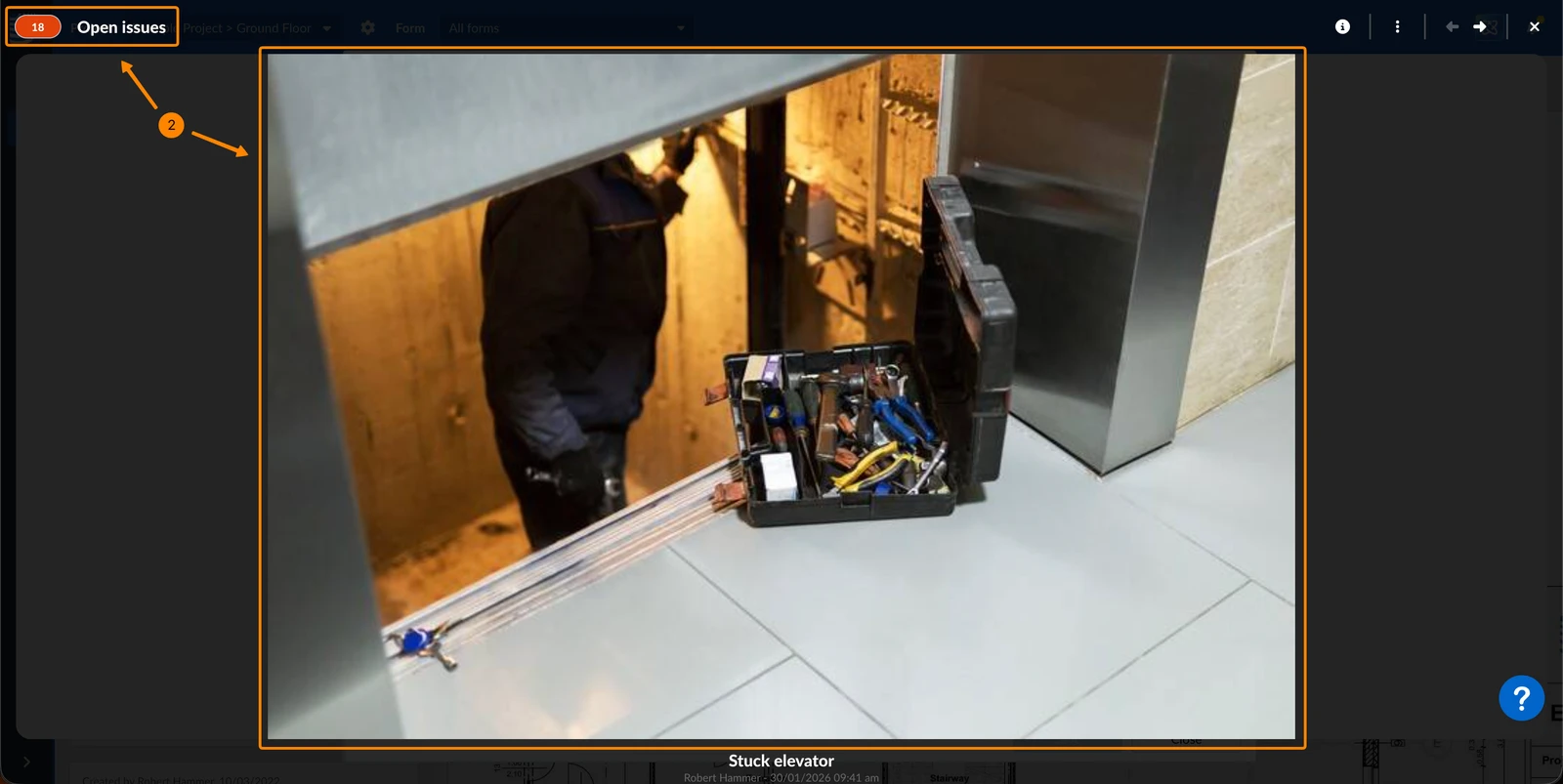
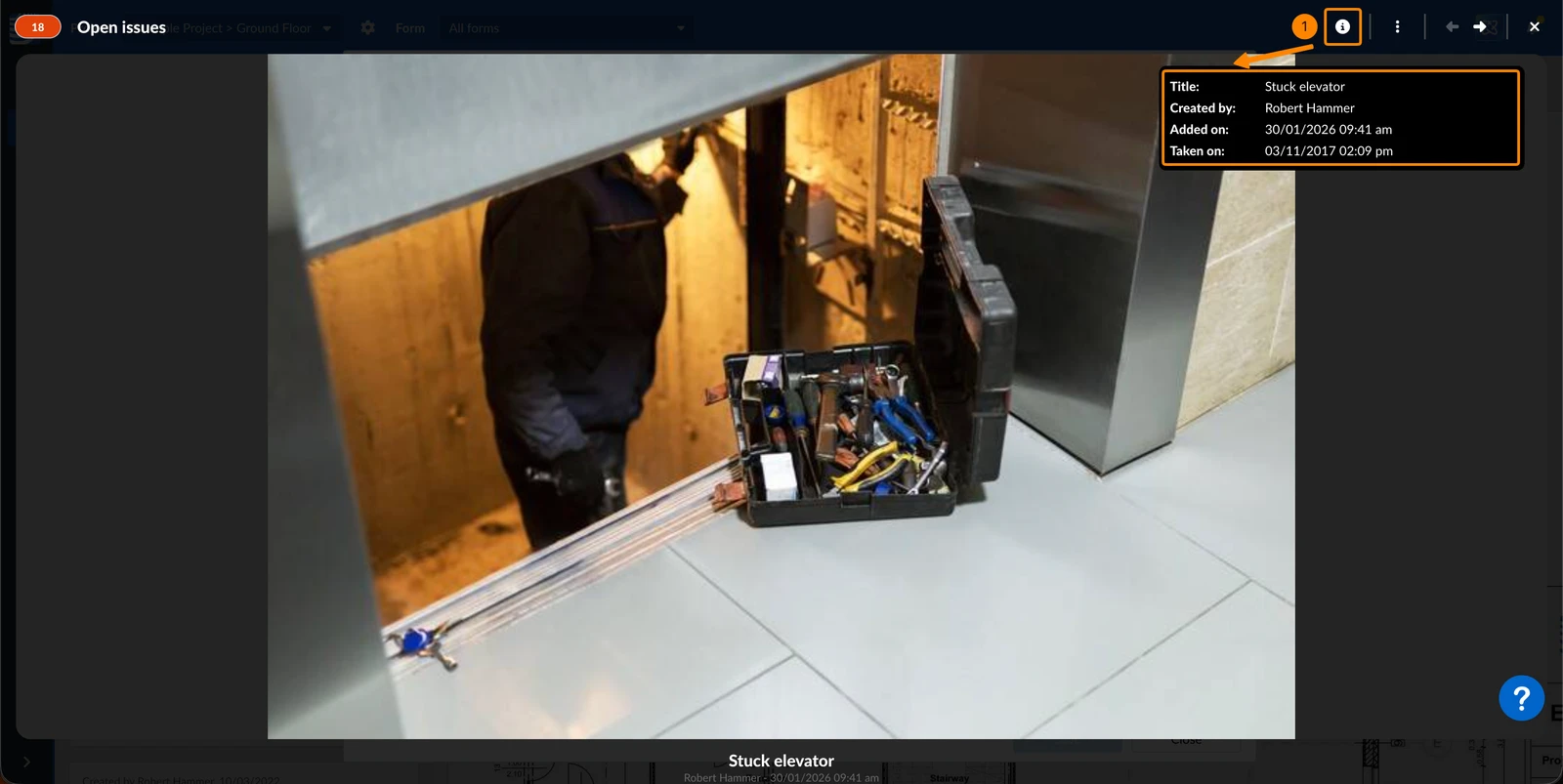
To show/hide the meta data of the image:
- Click the i icon
Navigate Between Attachments
When viewing an image or PDF, you can quickly switch to other attachments using the sidebar with thumbnails.
To do so:
- Scroll through the thumbnails in the sidebar.
- Click on an image or PDF to open it in the viewer.
- Alternatively, use the arrow buttons to view the next or previous attachment.
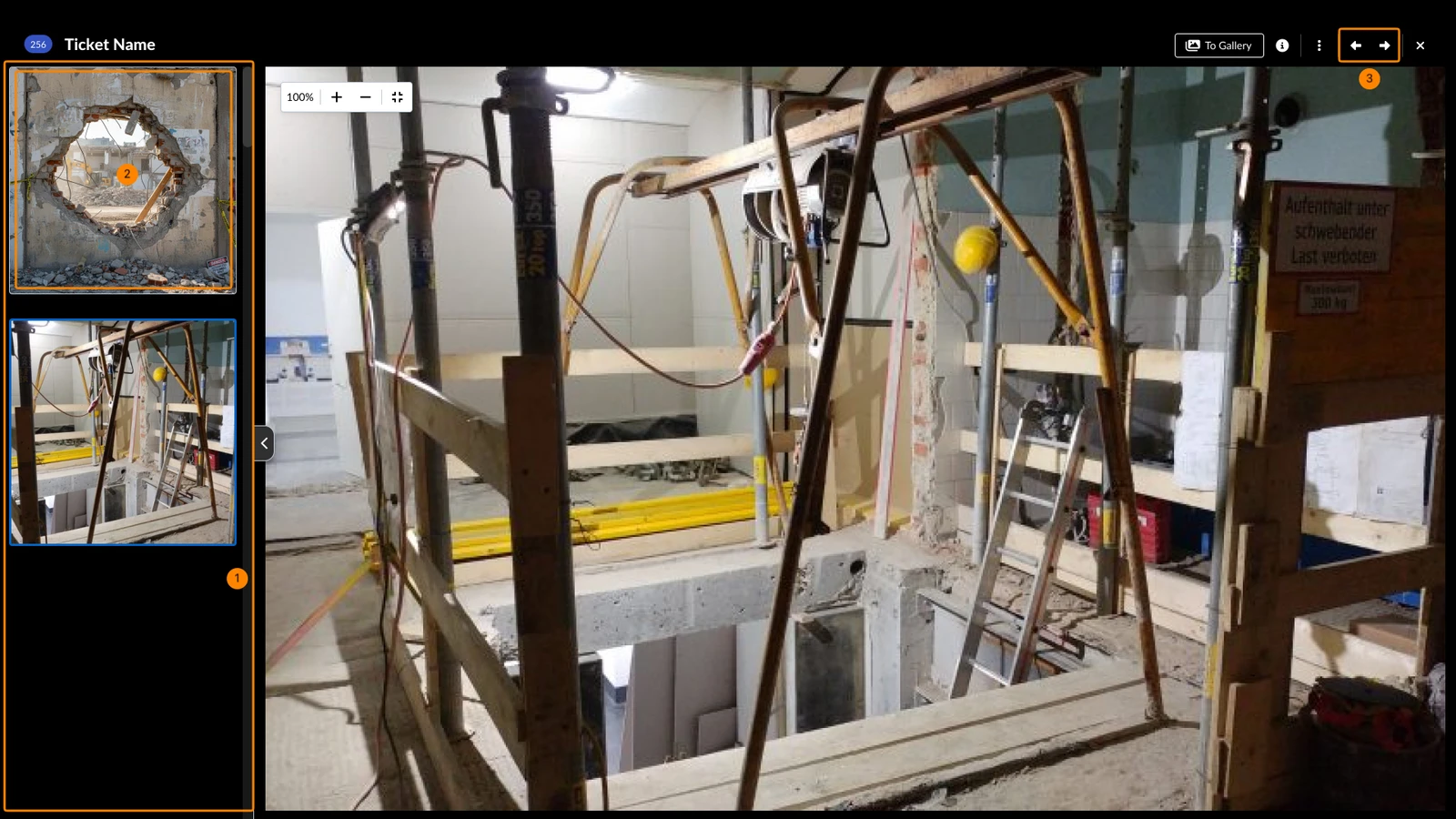
To hide the sidebar:
- Click the Hide sidebar button
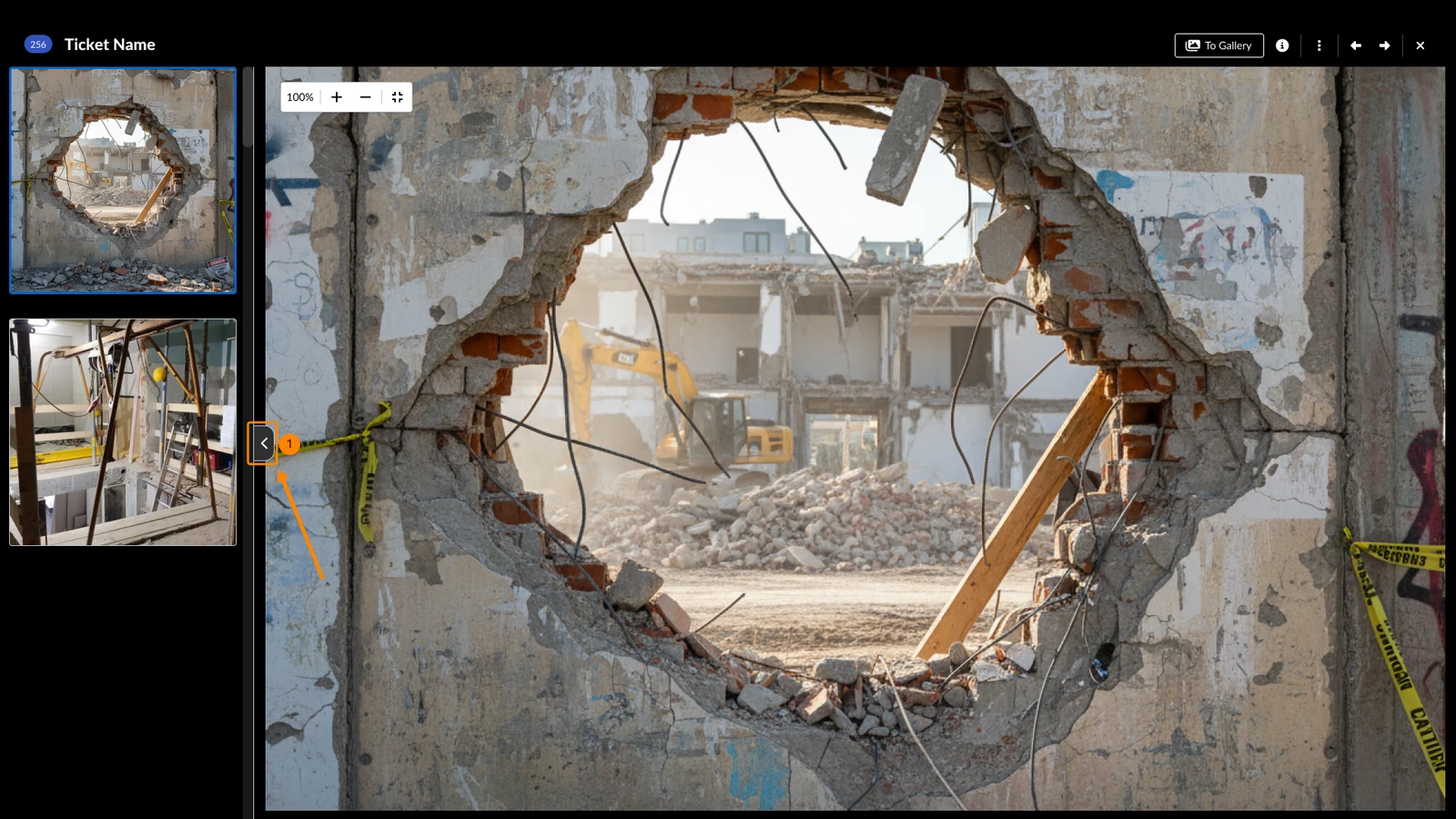
To show the sidebar:
- Click the Show sidebar button
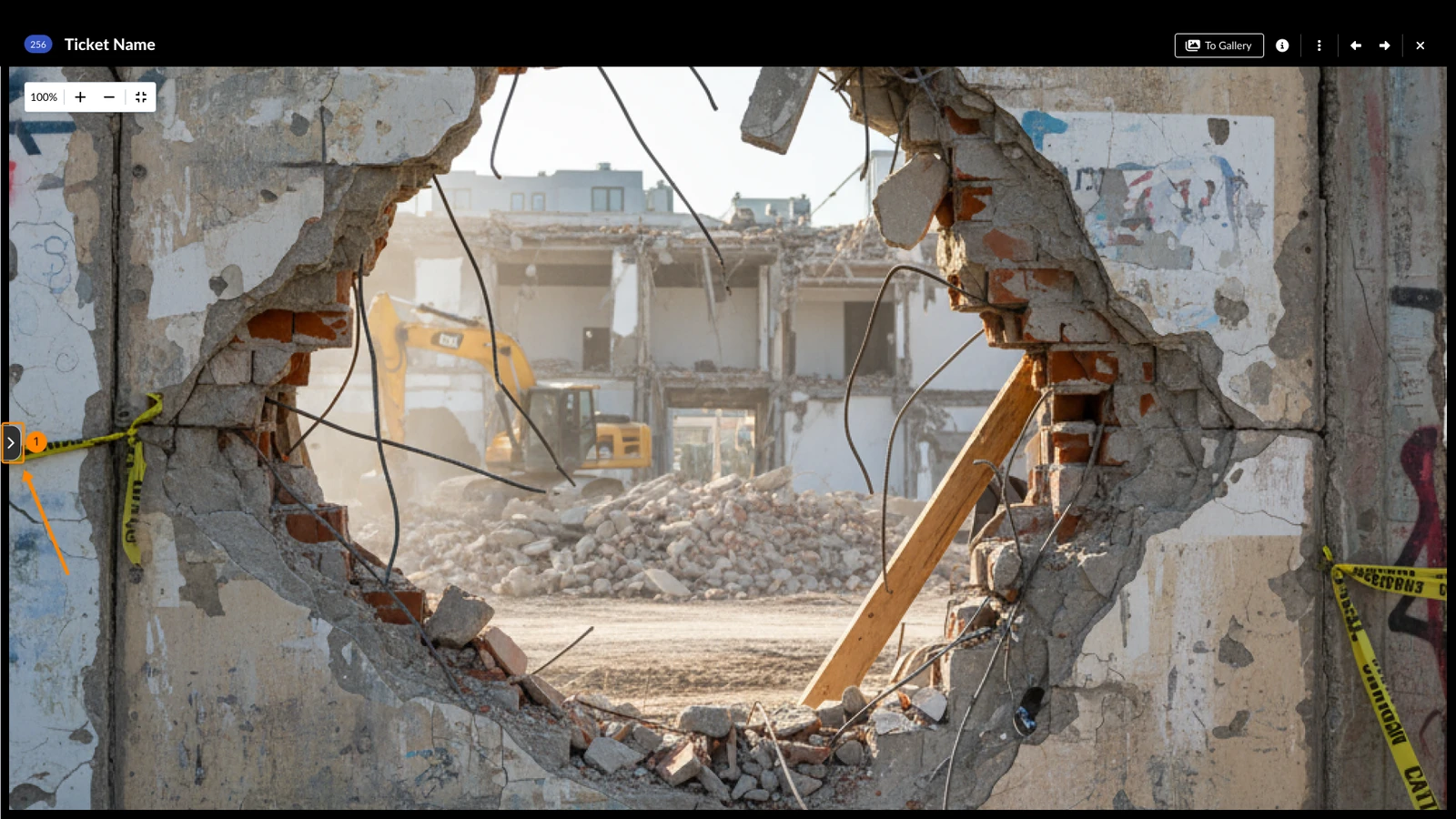
Zoom Images
Images are automatically zoomed to fit-your-screen.
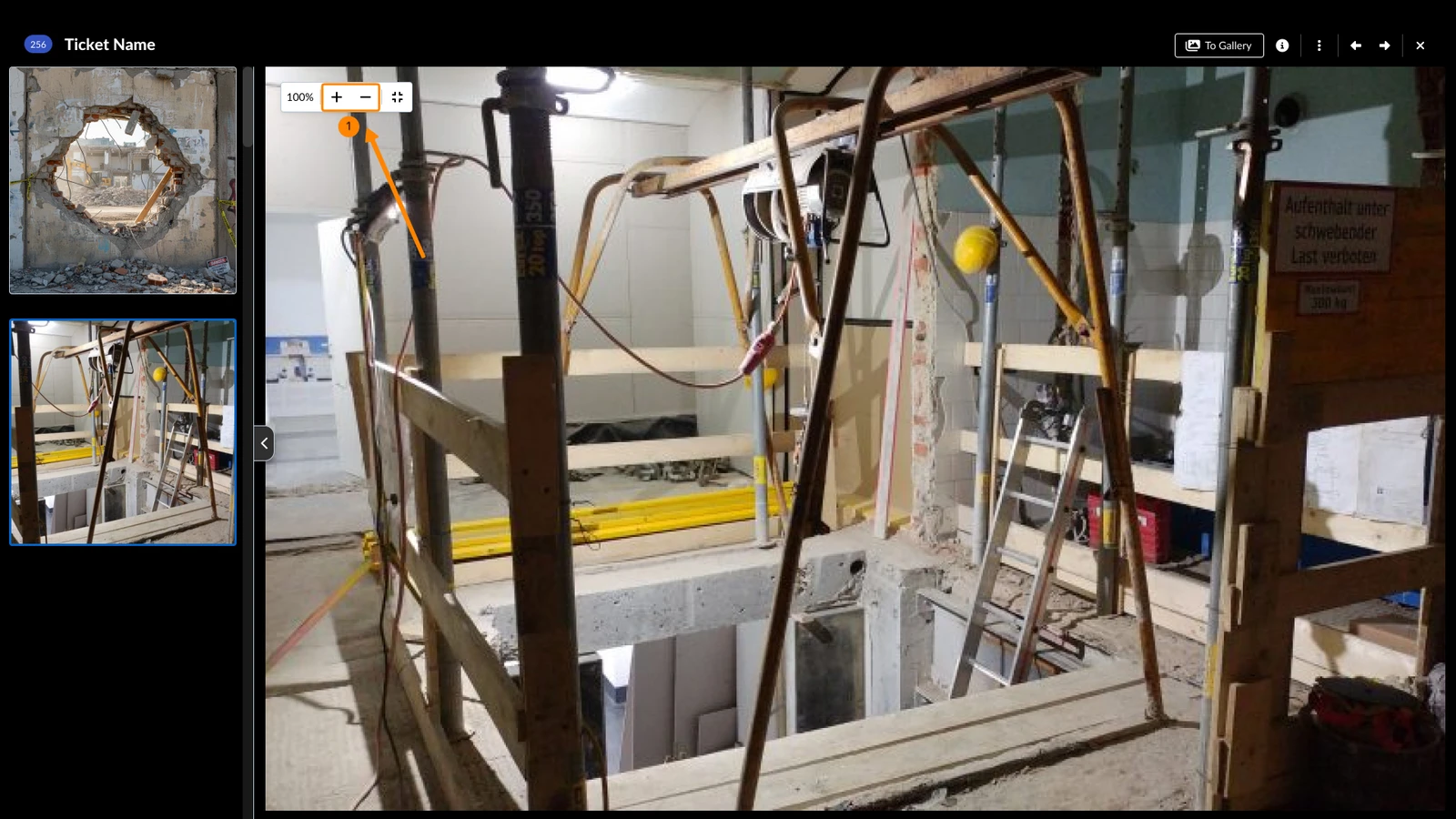
To zoom in and out:
- Click the + or - buttons.
Alternatively, use your mouse wheel with the cursor on the image.
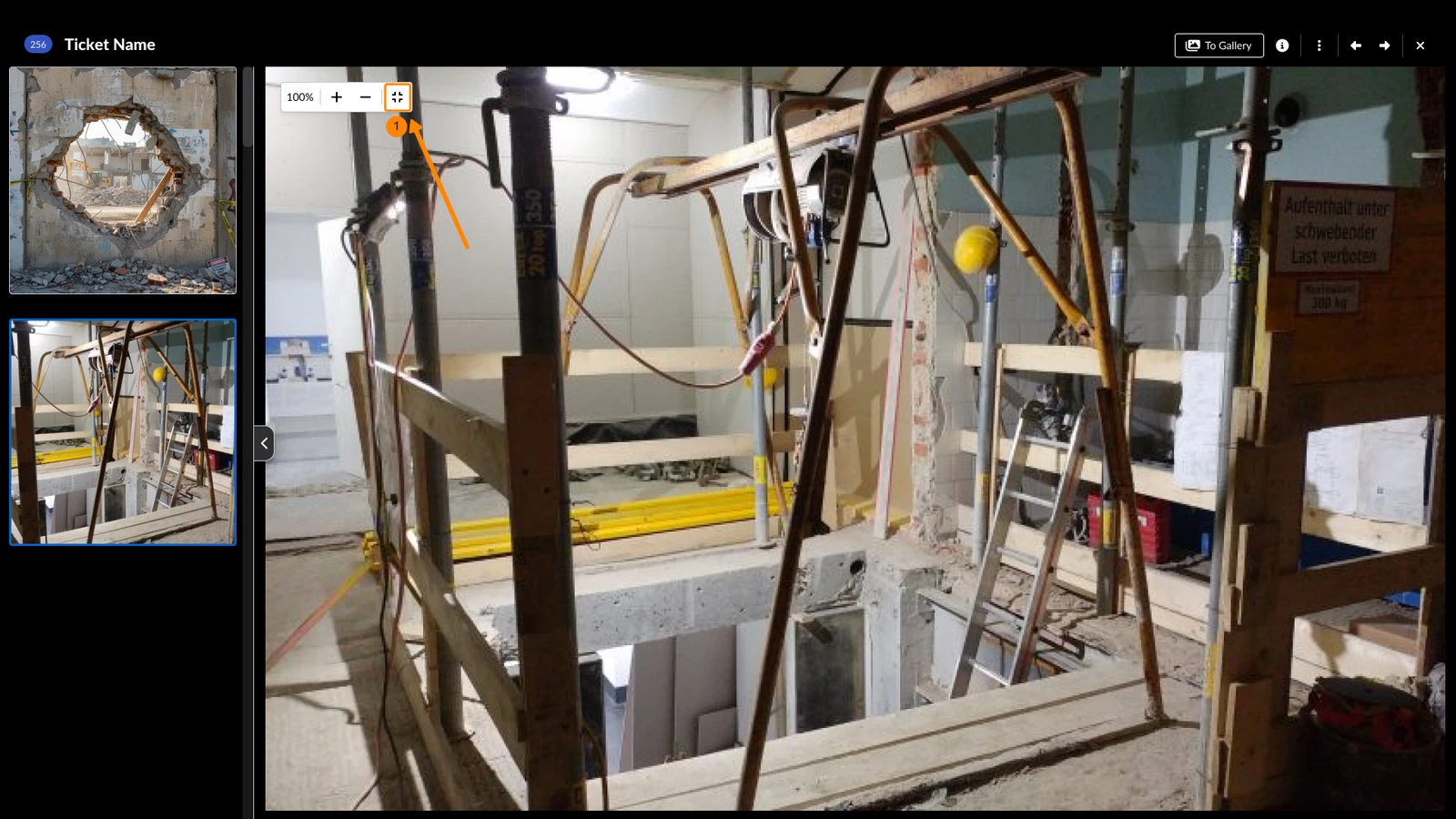
To reset your zoom and fit-to-screen again:
- Click the fit-to-screen icon
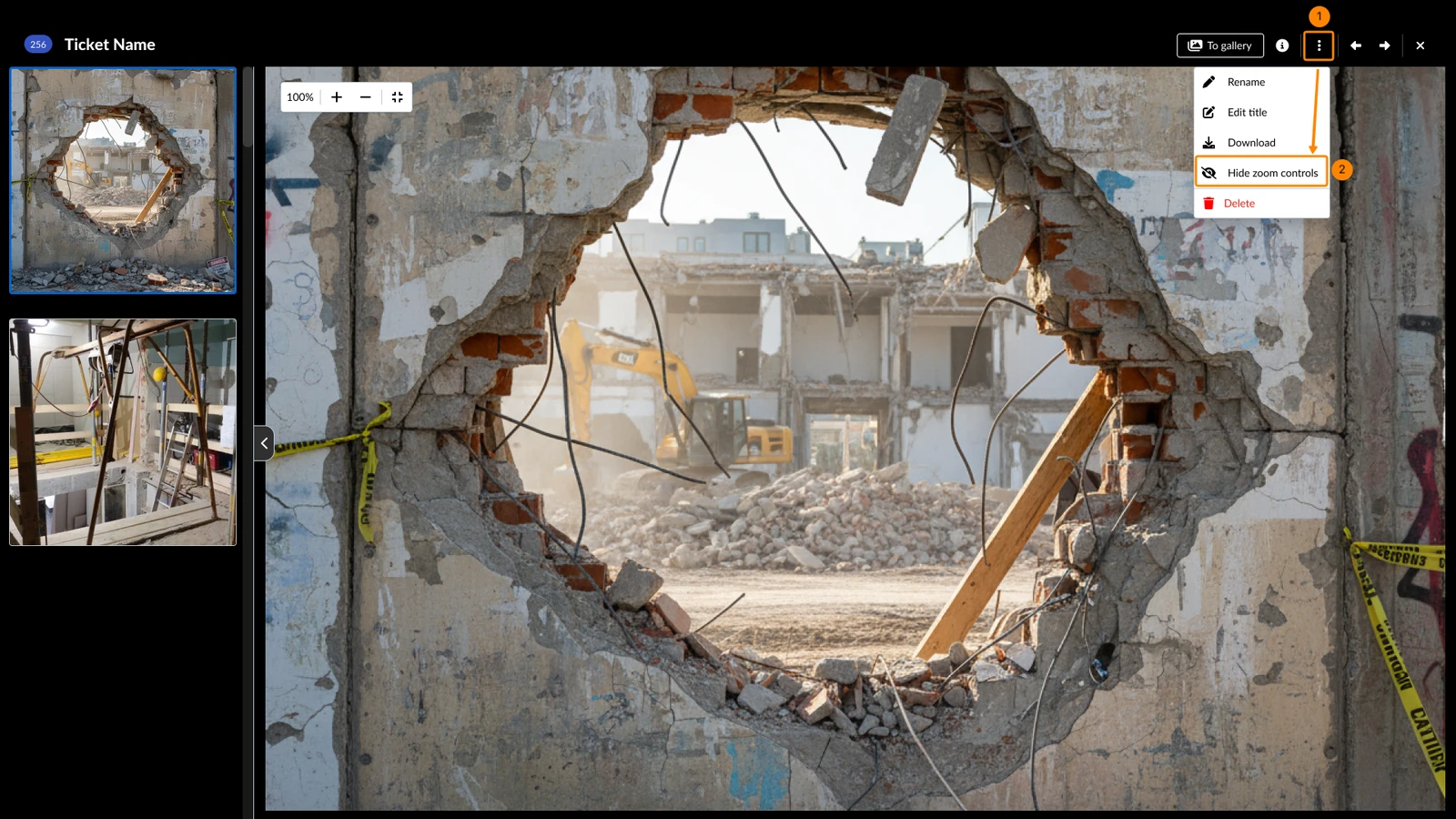
To hide the zoom controls:
- Open the More menu
- Click Hide zoom controls
Rename, Download or Delete an Attachment
In the viewer you can also:
- Open the more menu to:
- Save to Documents, Rename (the file name), Edit title, Download or Delete the attachment
- Click X to close the viewer
View General Attachments
Photos and Videos (Media)
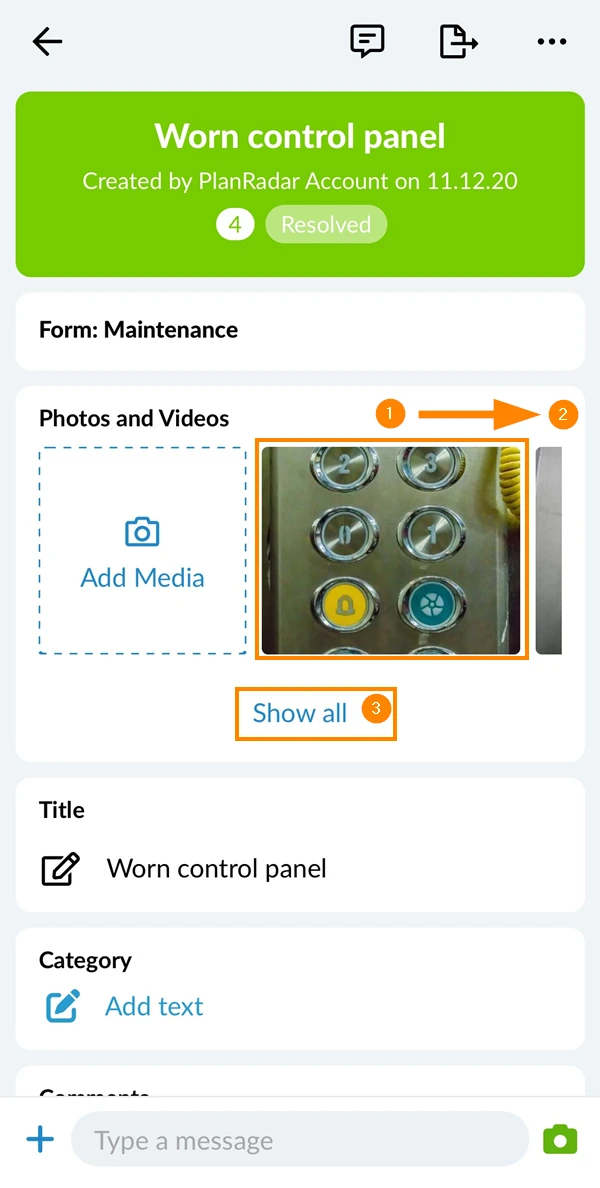
- Tap on a thumbnail to open the photo or video.
- Optional: Scroll to the right to see more thumbnails.
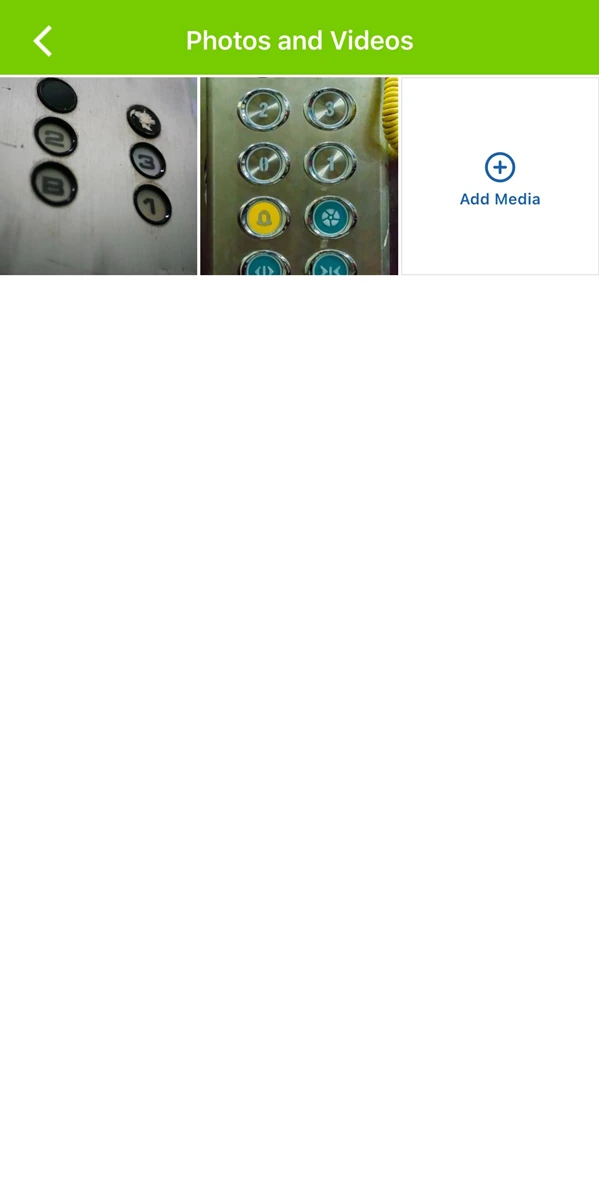
- Optional: Tap Show all to show a gallery with all attached photos and videos.
The show all button is hidden if there is only one attachment.
- See the gallery after tapping Show all.
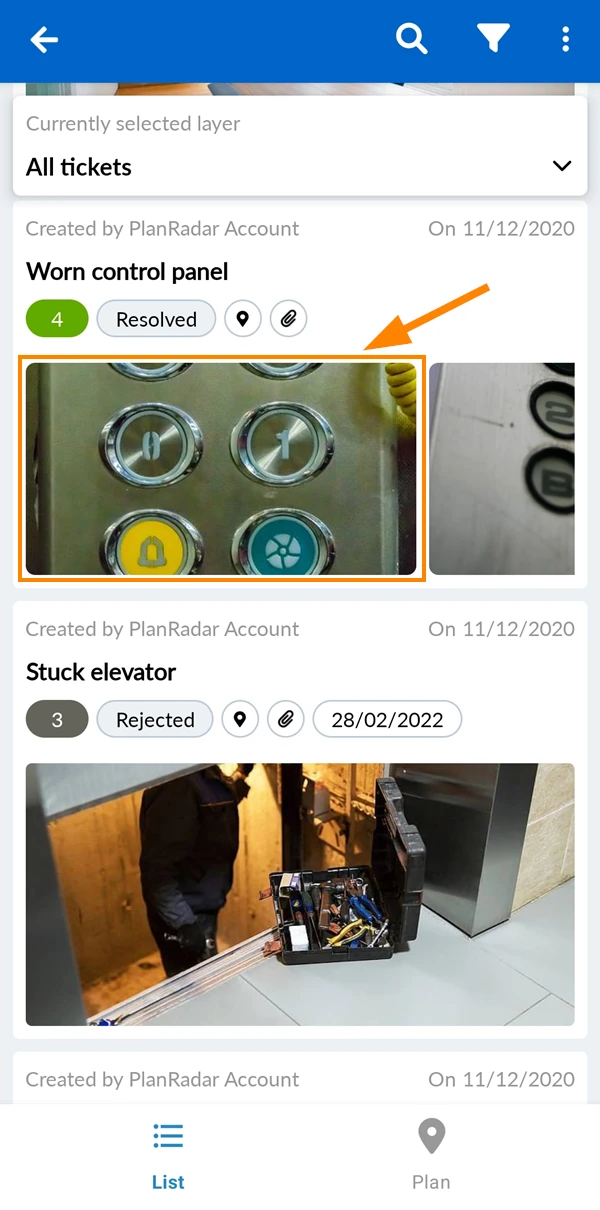
On Android you can open attached photos or videos directly from the ticket list by tapping the thumbnail:
Documents
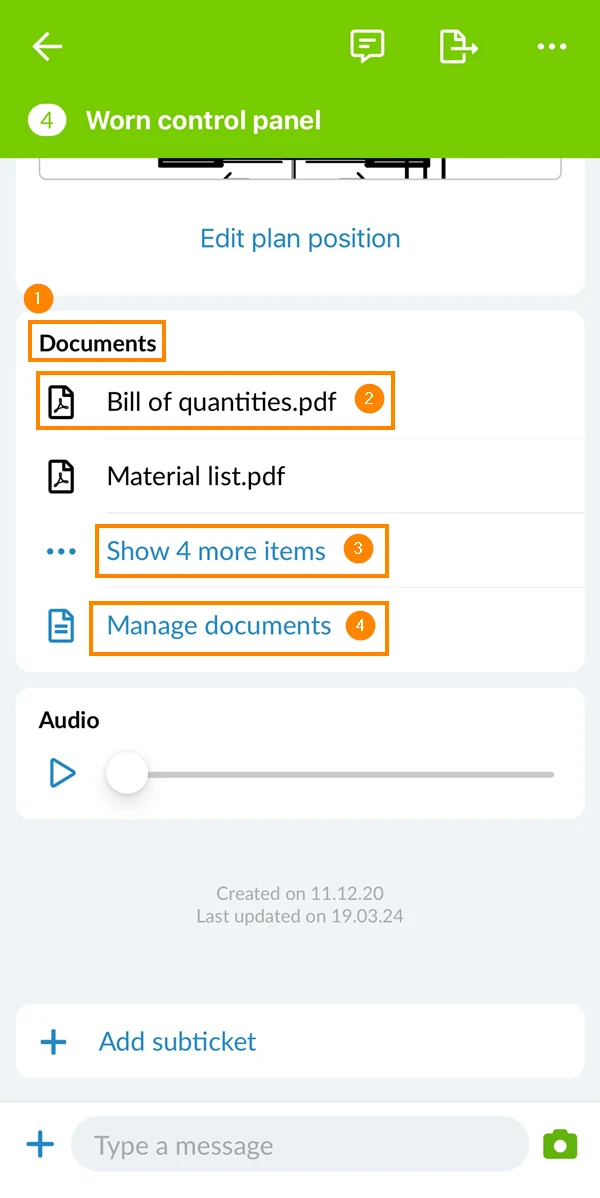
To see the documents and other files attached to a ticket:
- Scroll down to the Documents section
- Tap on a document to open it e.g. Bill of quantities.pdf
- Optional: Tap Show 4 more items to show all attached documents in the list.
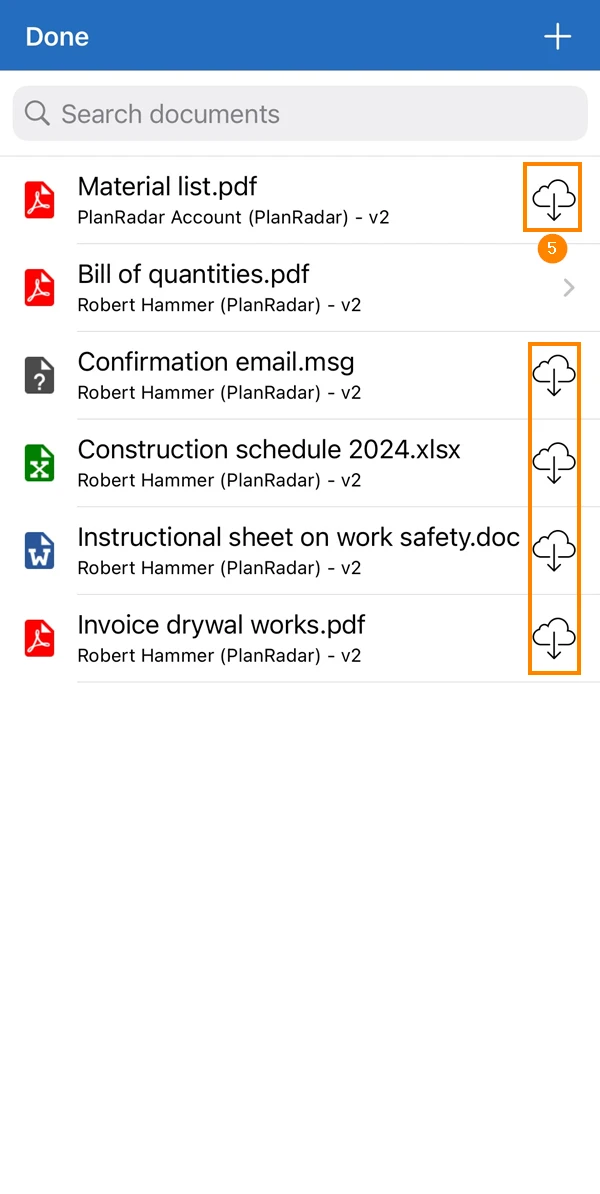
- Optional: Tap Manage documents to open the list of all attached documents
- See which attachments are not yet downloaded indicated by the cloud icon.
Audio Recording
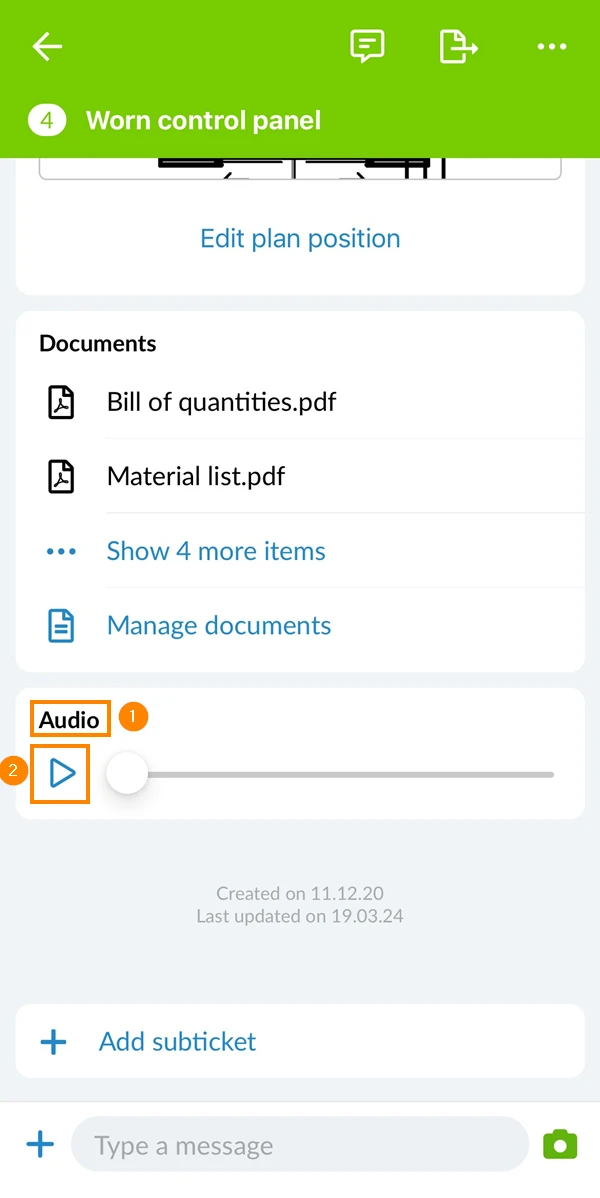
- Scroll down to the Audio section
- Tap the play icon to play the voice recording
View Field Attachments
Each attachment field can have up to 50 attachments. Thumbnails of all field attachments are displayed directly in the field.
To view an attachment:
- Tap on the thumbnail
- Optional: Swipe to the left to see the older ones.
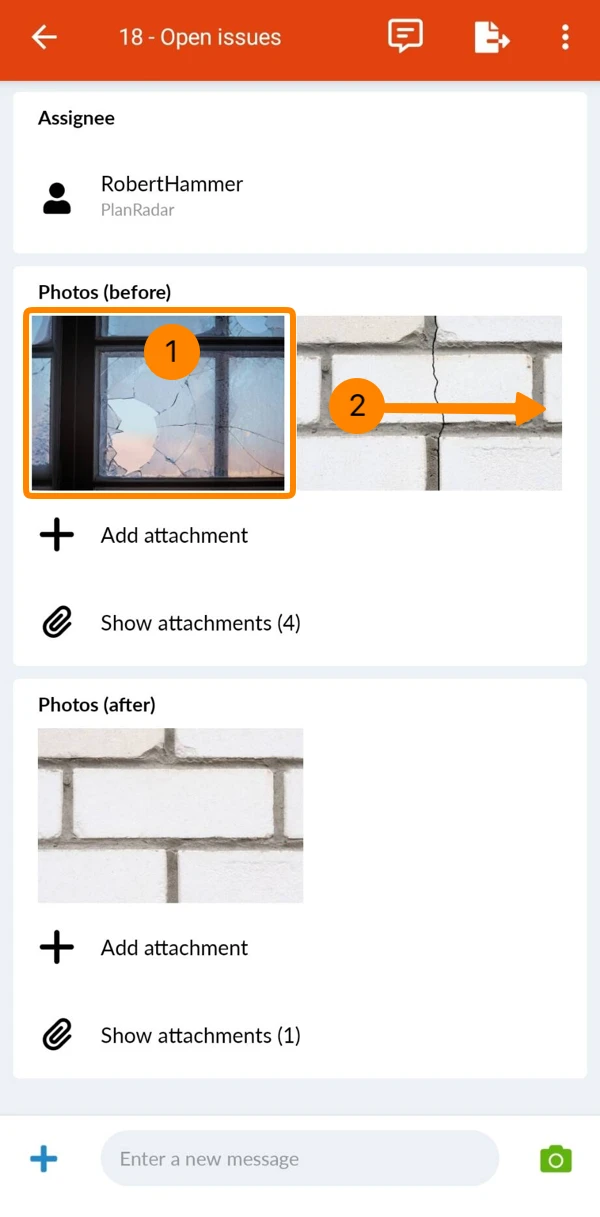
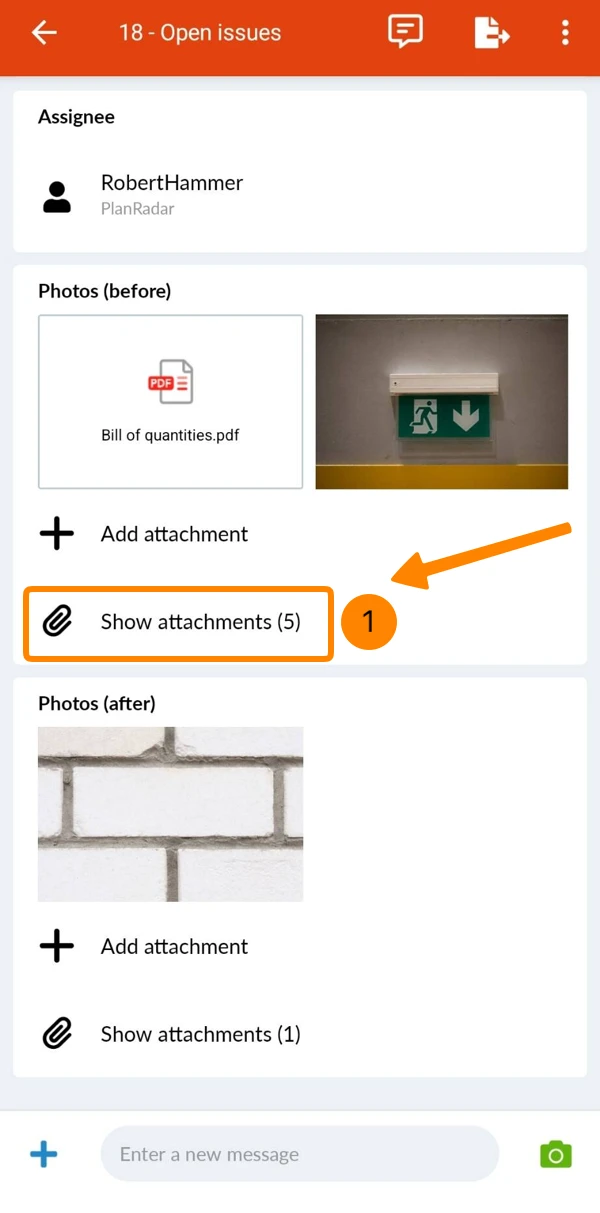
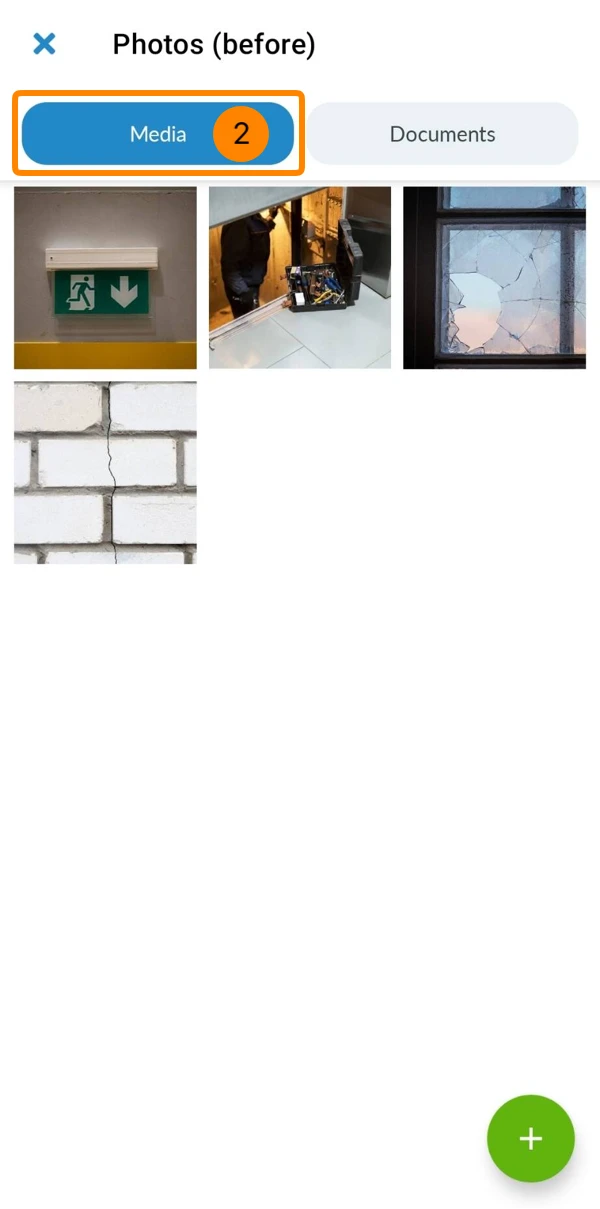
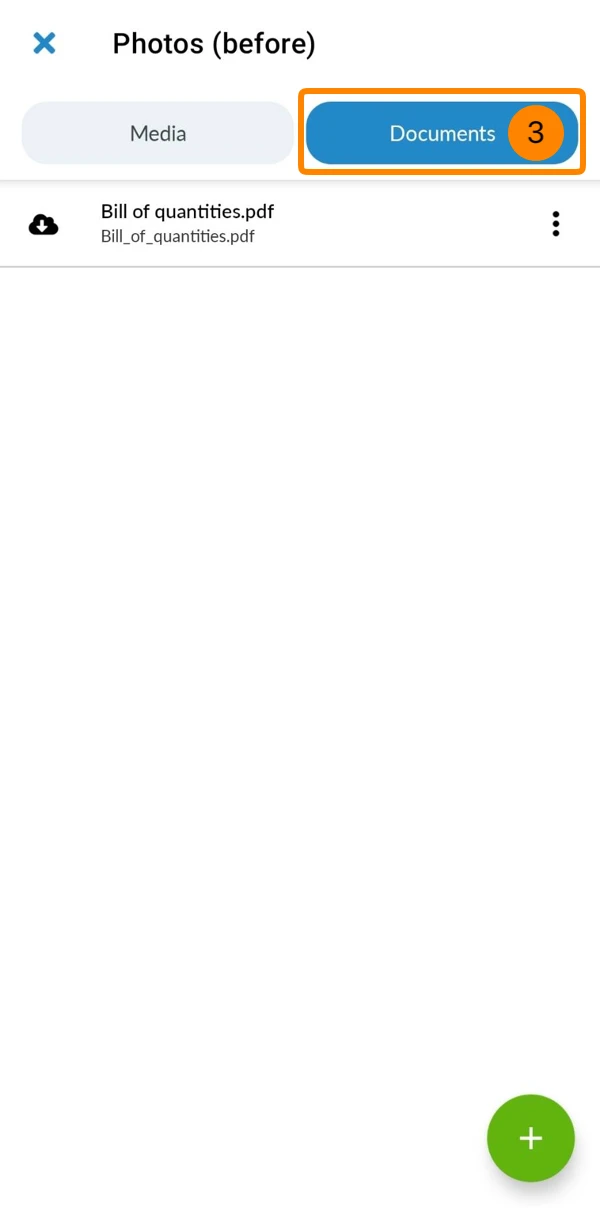
To show all attachments of the field in a gallery:
- Tap Show attachments
The button shows the number of total attachments, in this case (5).
- You see all Media attachments (images and videos)
- Tap Documents to view all other attachments (PDFs for example)
Updated June 19, 2026