

 Deutsch
 Español
 Français
 Hrvatski
 Italiano
 Polski
 Português (BR)
Create & Edit Dynamic Fields in Project Report Templates
Overview
Automatically fill project reports with project details, as well as the date and time when the report is created.
You can also map lists to restrict item selection to predefined list entries when creating project. Dropdowns can also be created for project members, including their name, company, and email address associated with the project.
Access & Permissions
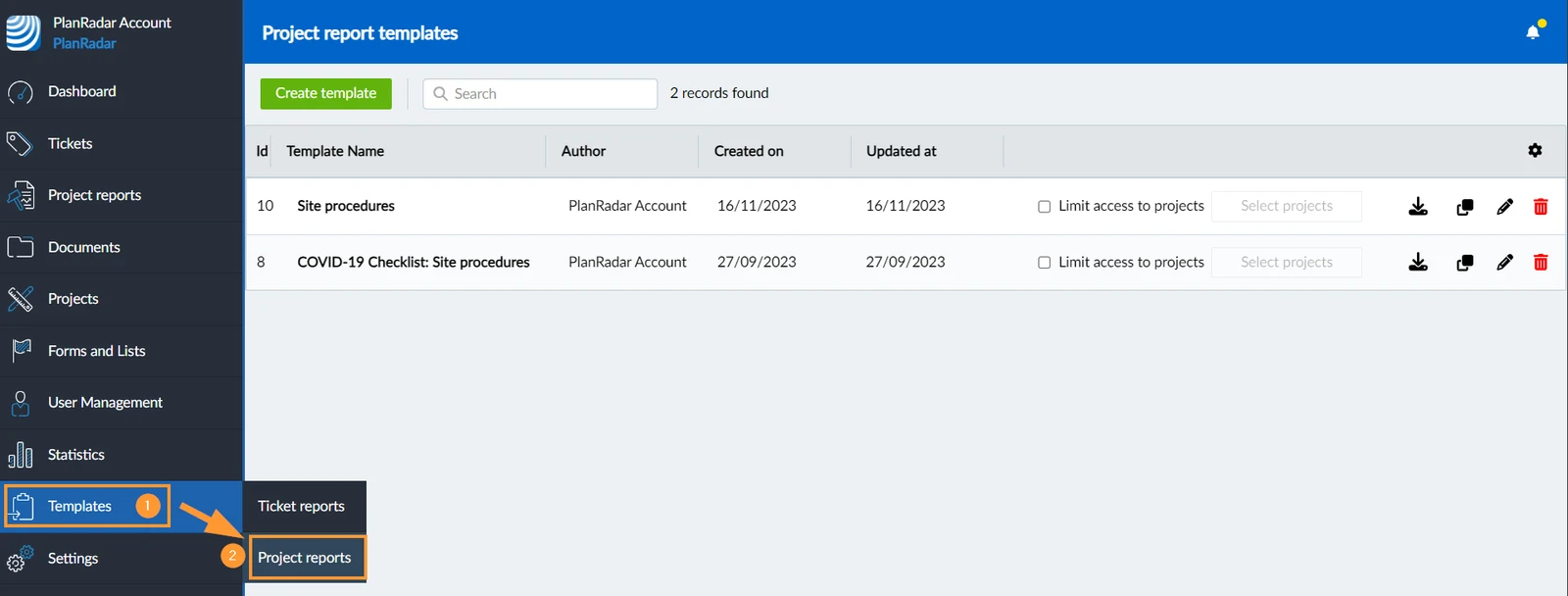
How to access Project Report Templates
- Hover over Templates
- Click Project Reports
Map Fields or Lists
Continue here when you Create & Edit Project Report Templates.
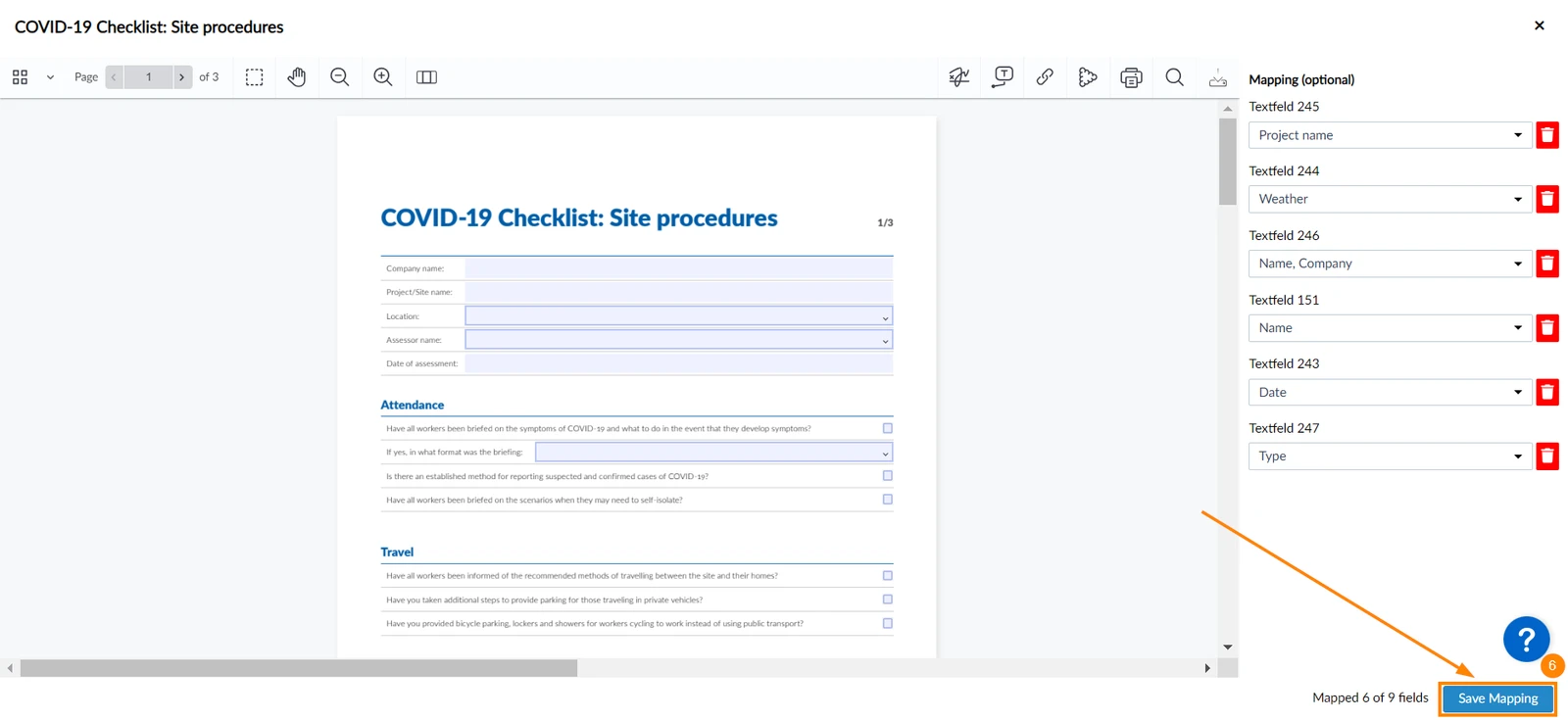
To map fields or lists:
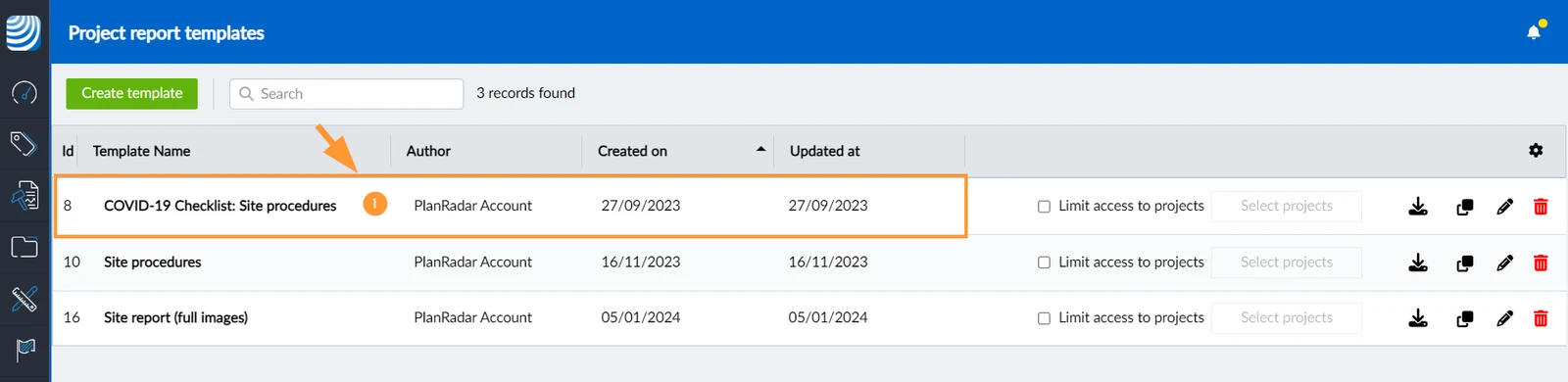
- Open the project report template whose fields you want to map.
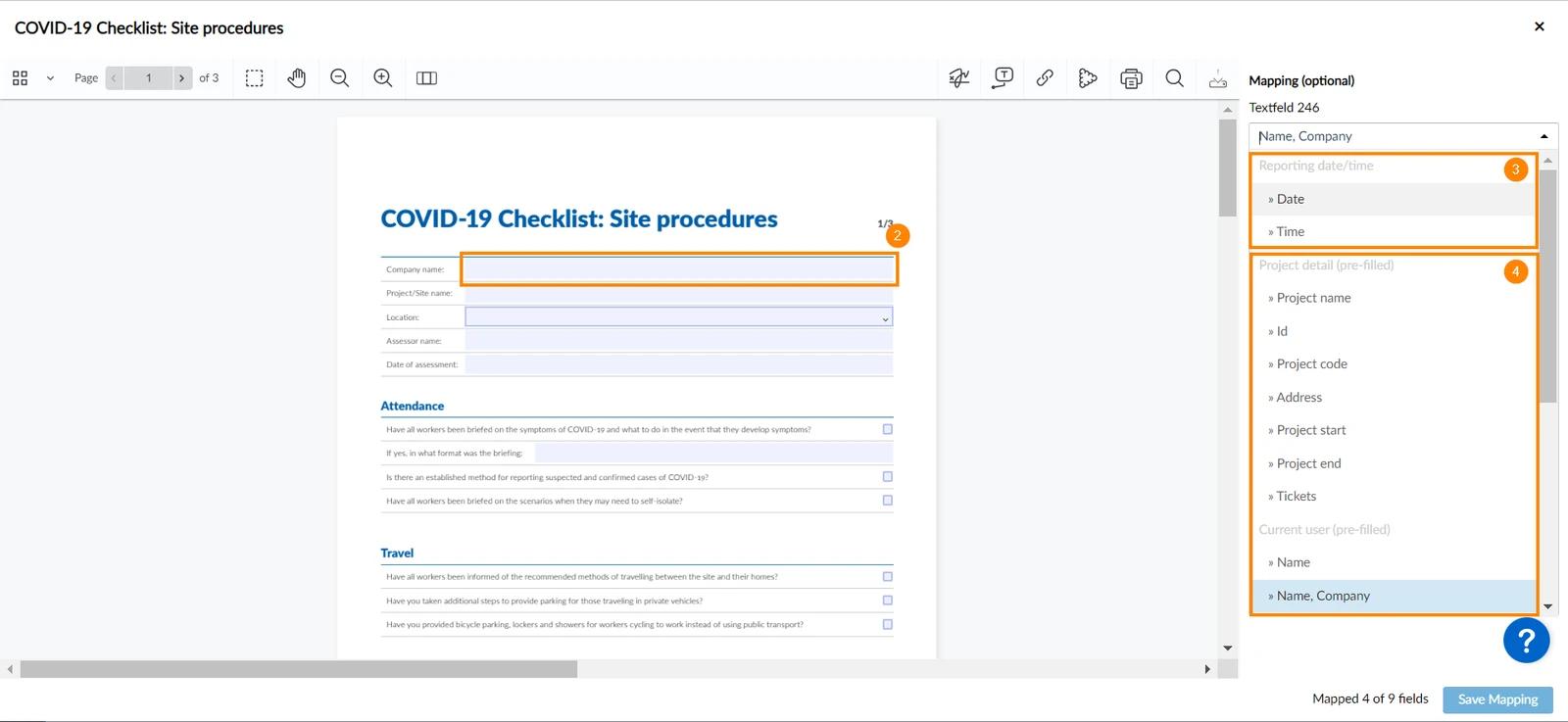
- Click the field you want to fill automatically or assign a list to.
- Select the field or list from the drop-down menu on the right to map it.
Multilevel lists are also supported, but only one item can be selected per field when filling in the report. Also see Lists > Multilevel lists.
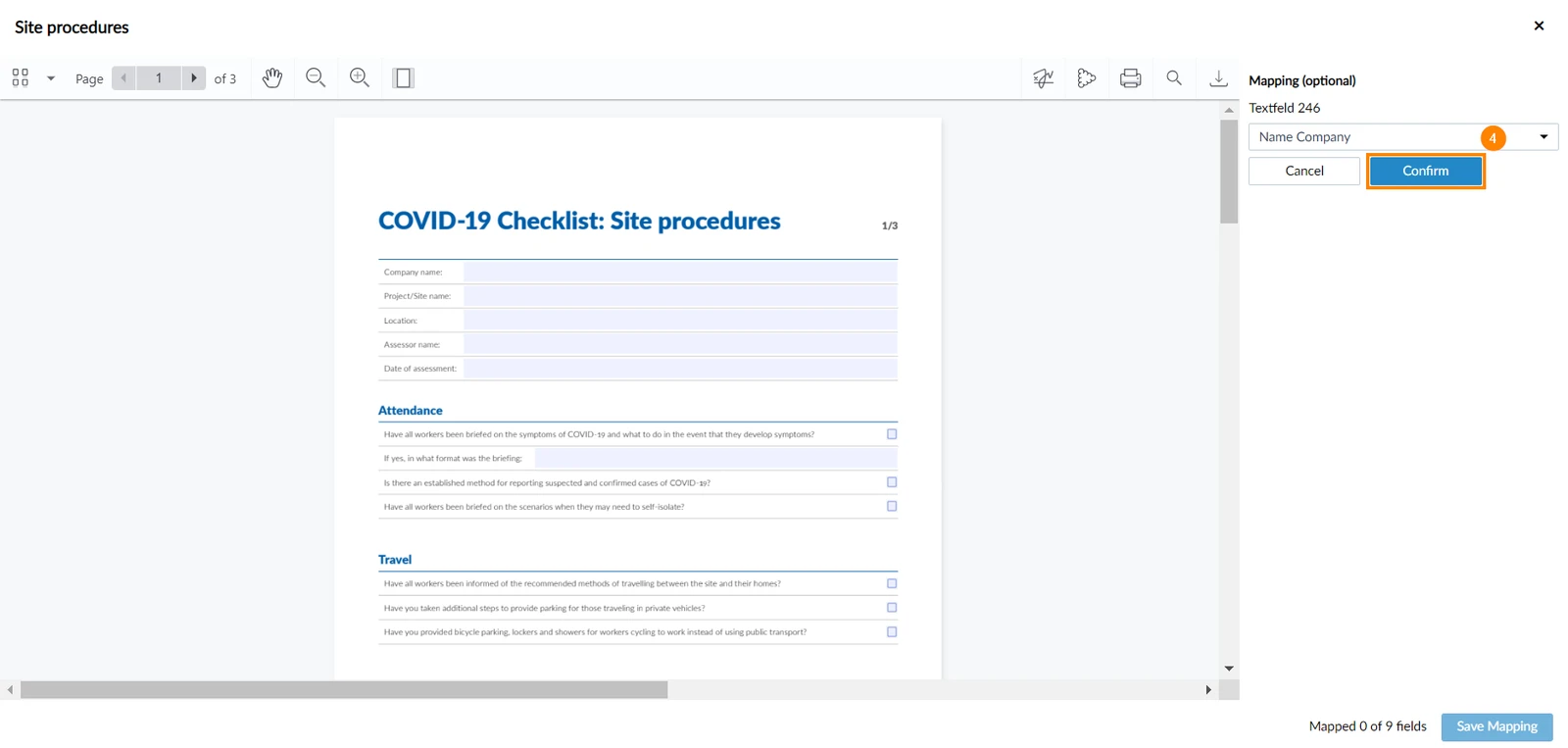
- Click Confirm
- Repeat these steps for each field you want to map.
- Click Save mapping
Related Articles
Updated March 5, 2026