

 Deutsch
 Español
 Français
 Hrvatski
 Italiano
 Polski
 Português (BR)
Manage Project Report Templates
Overview
You can manage the project report templates that you and others have created – also see Create & Edit Project Report Templates. Specifically, you can view/edit, download, duplicate and delete project reports.
Access & Permissions
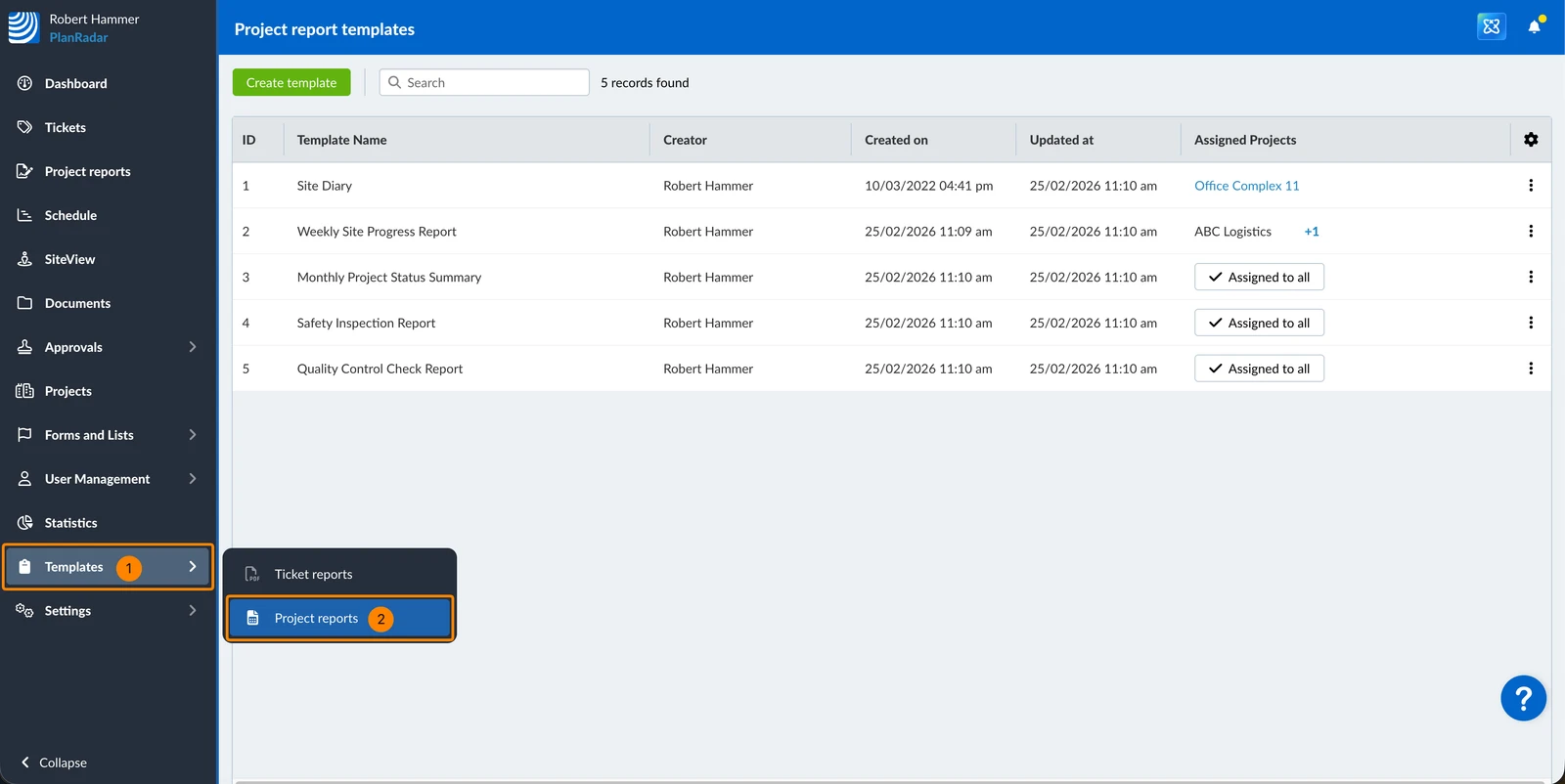
How to access Project Report Templates
- Click Templates
- Click Project Reports
View and Edit Field Mappings
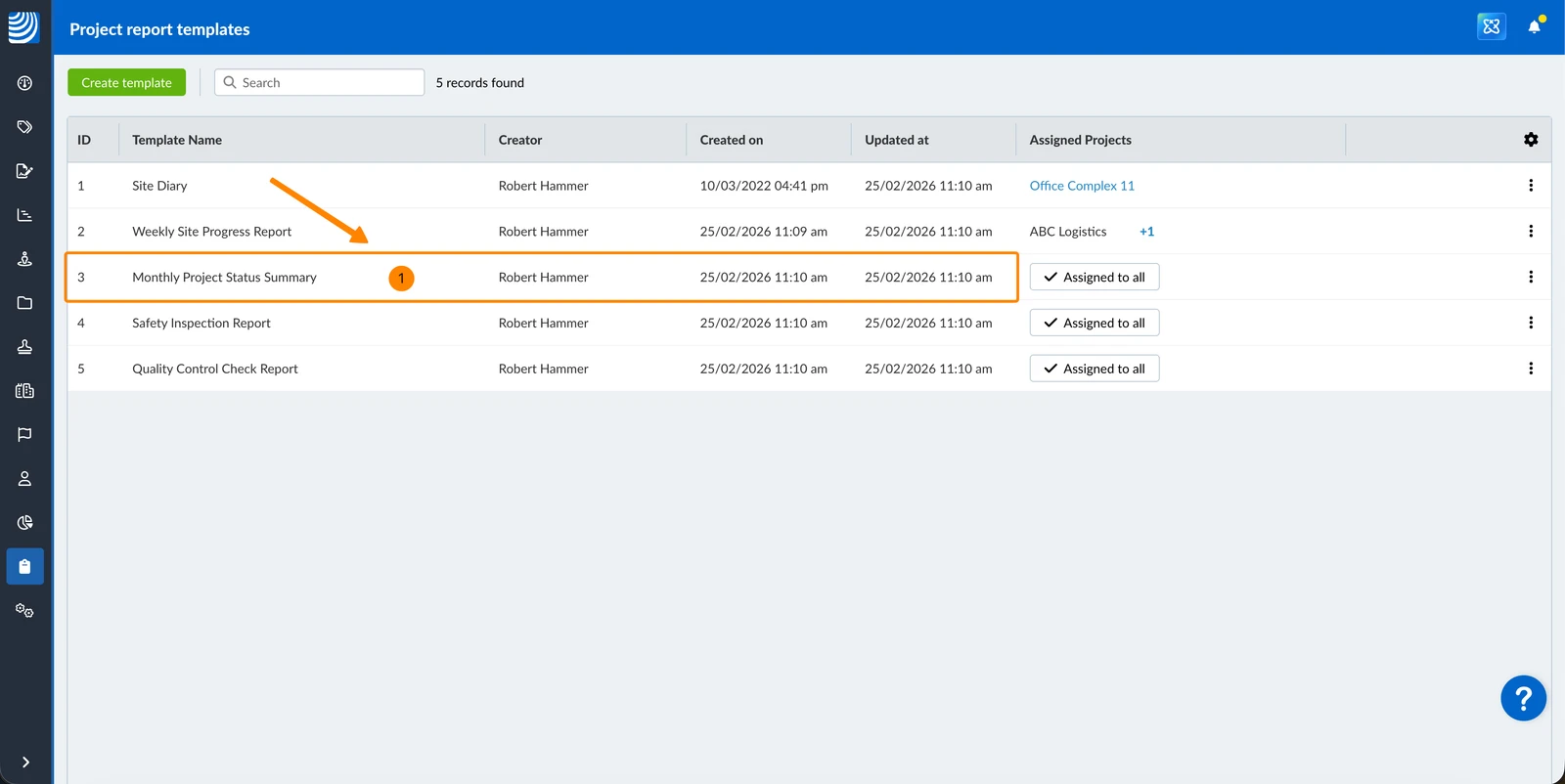
To open a template in the PDF viewer (where you can also change the field mappings – see Create & Edit Dynamic Fields in Project Report Templates):
- Click on the project report template
Filter
Filters work in the same way as described in Filter Tickets.
The following filter criteria are available for the project report template table:
-
Added by default:
- Creator
- Created on
-
Not added by default:
- ID
- Template name
- Updated at
- Assigned projects
- Assigned projects count
Edit Template Settings
To edit settings of the template:
- Open the More menu next to the template
- Click Edit
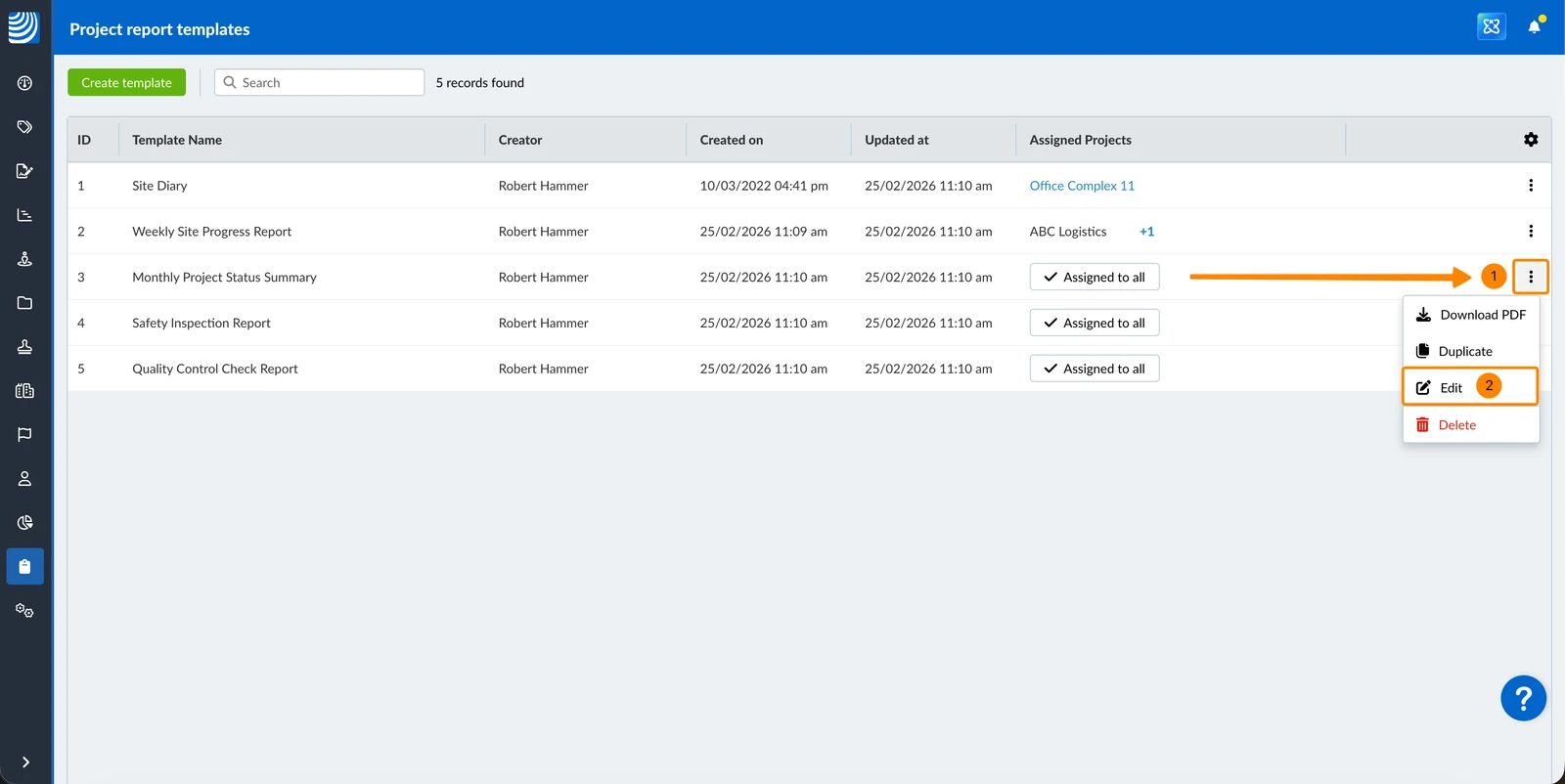
- Change the settings as described in Create a Project Report Template.
Download
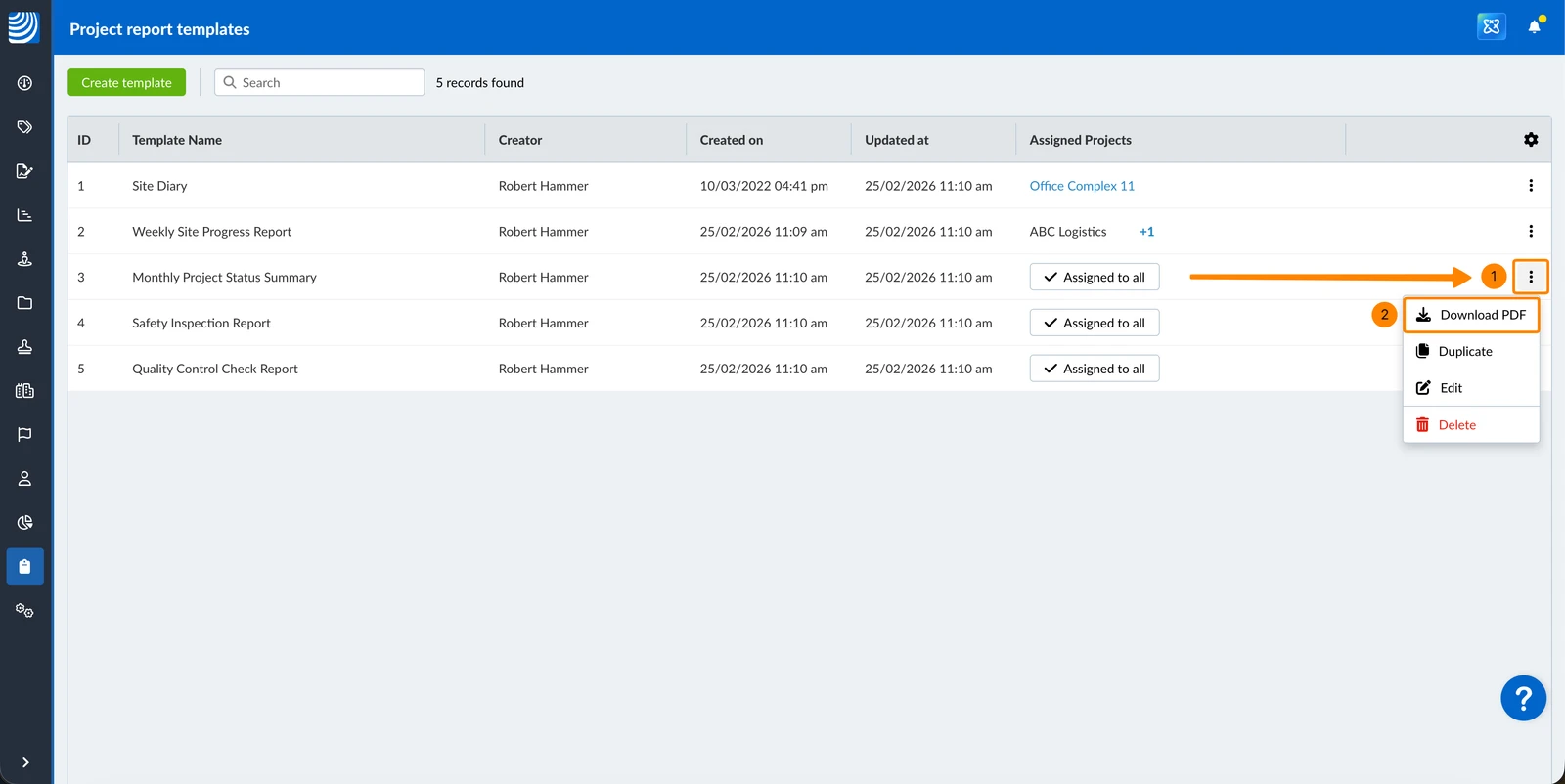
To download the PDF file of a project report template:
- Open the More menu next to the template
- Click Download PDF
Duplicate
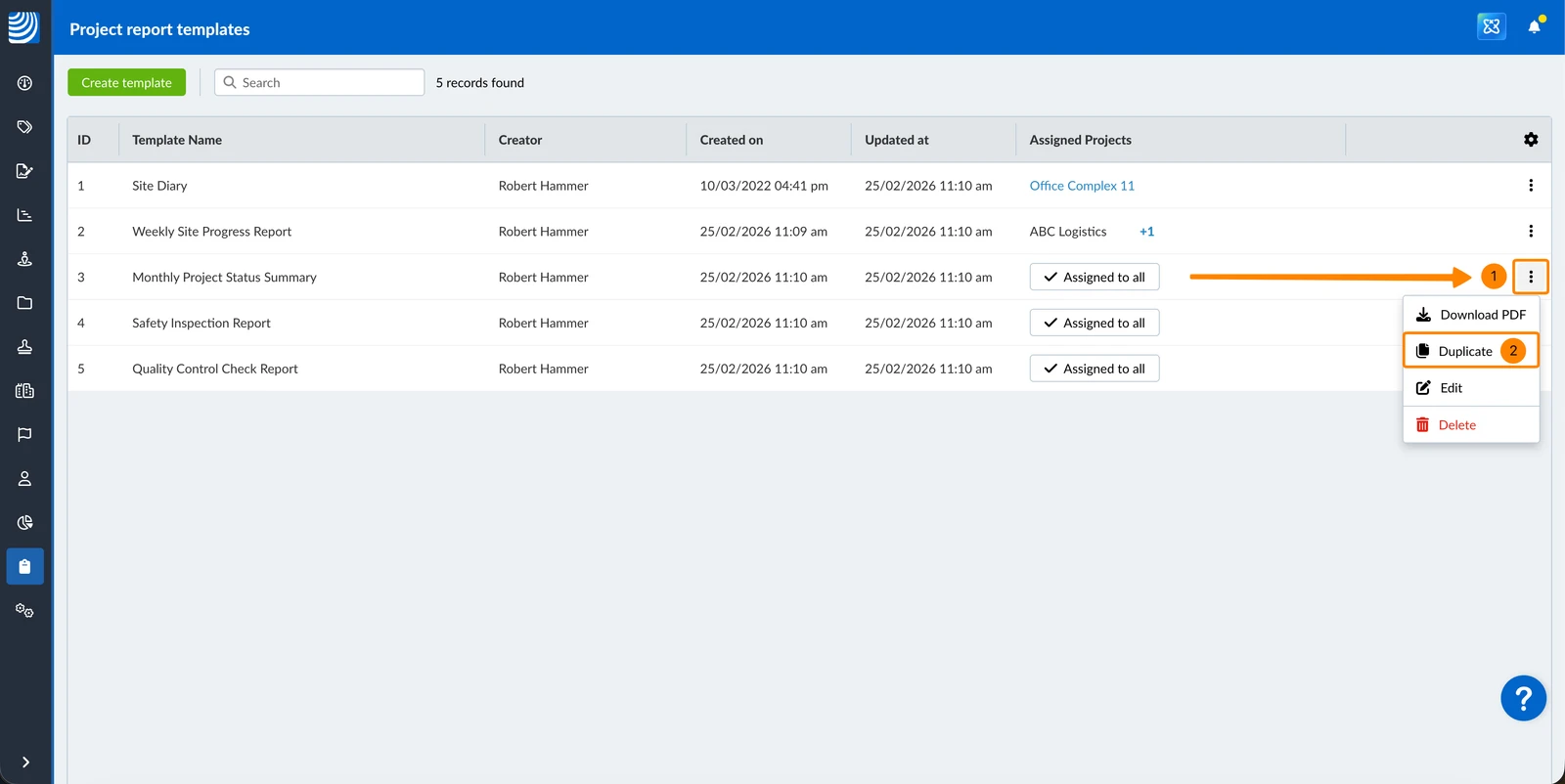
To duplicate a project report template:
- Open the More menu next to the template
- Click Duplicate
Delete
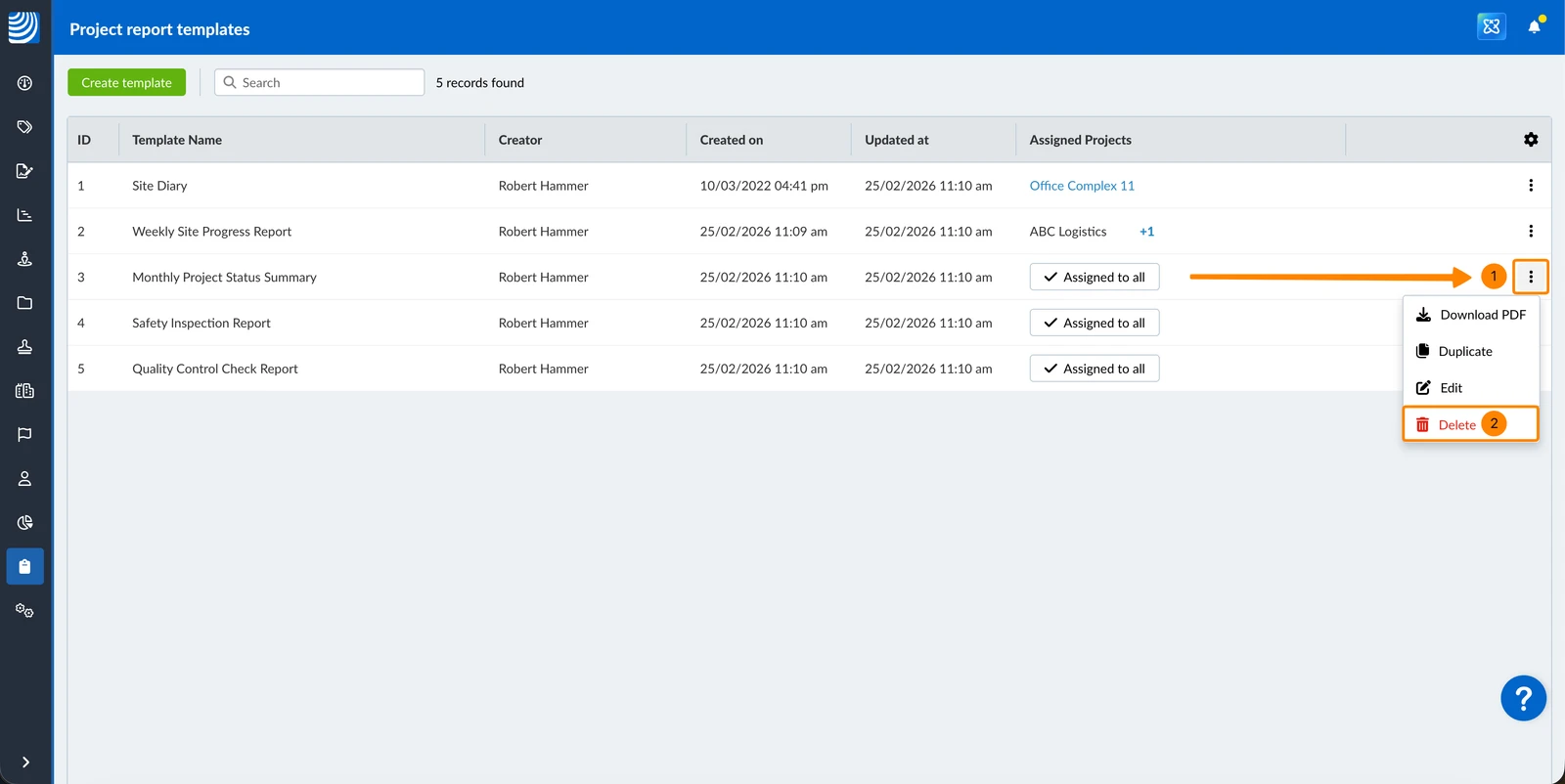
To delete a project report template:
- Open the More menu next to the template
- Click Delete
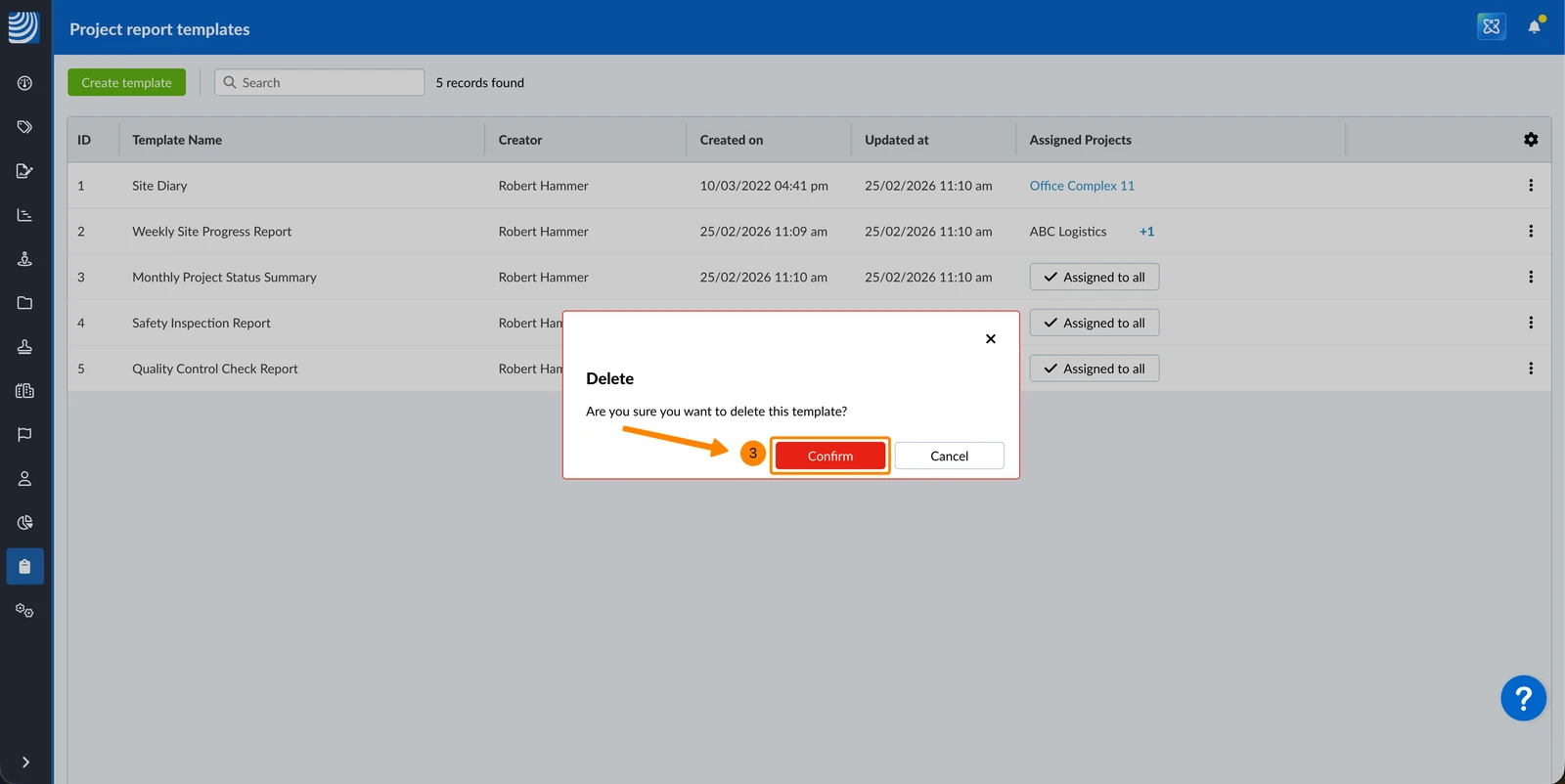
- Click Confirm
Updated June 22, 2026