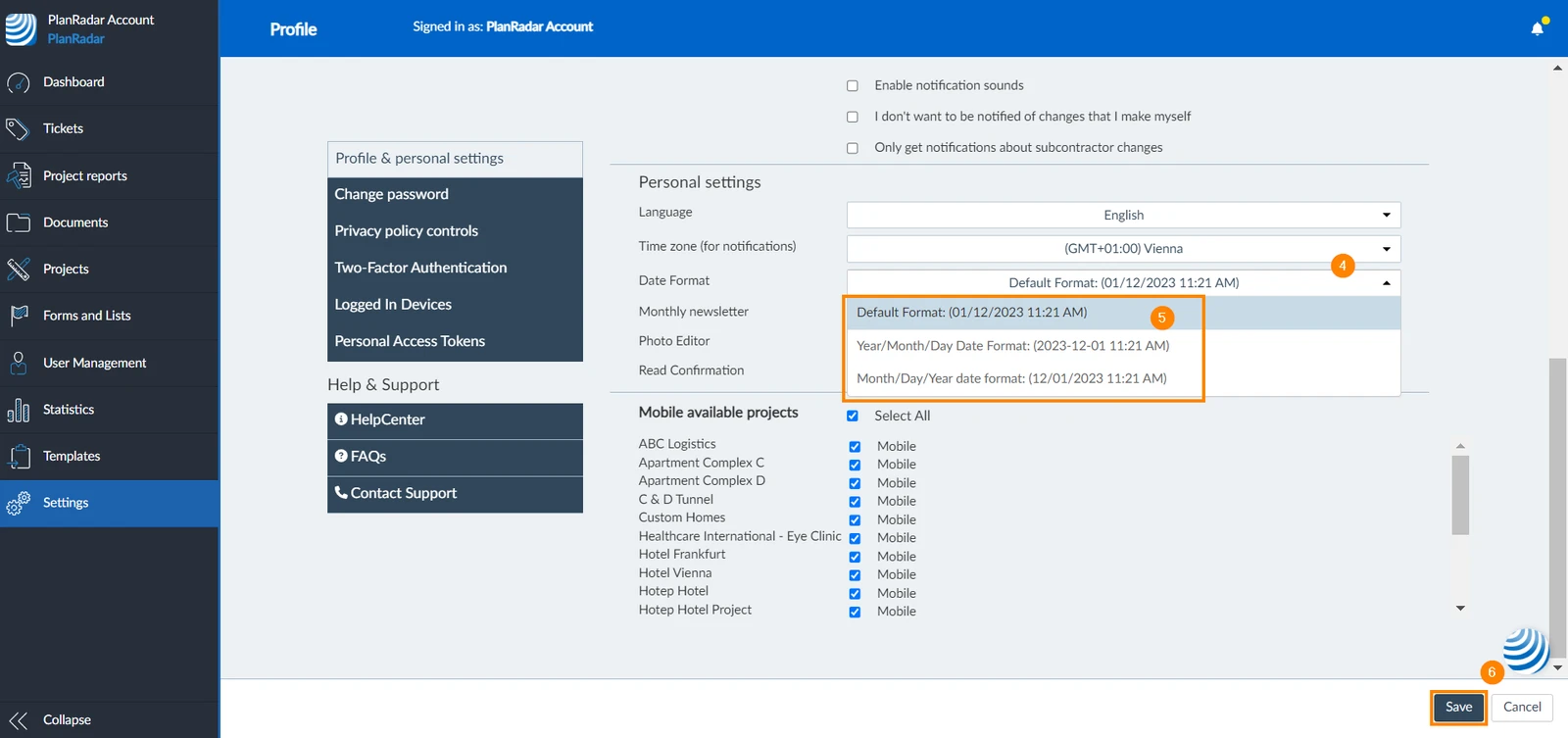
Select your preferred language, time zone, and date format.
Set Preferred Webapp Language
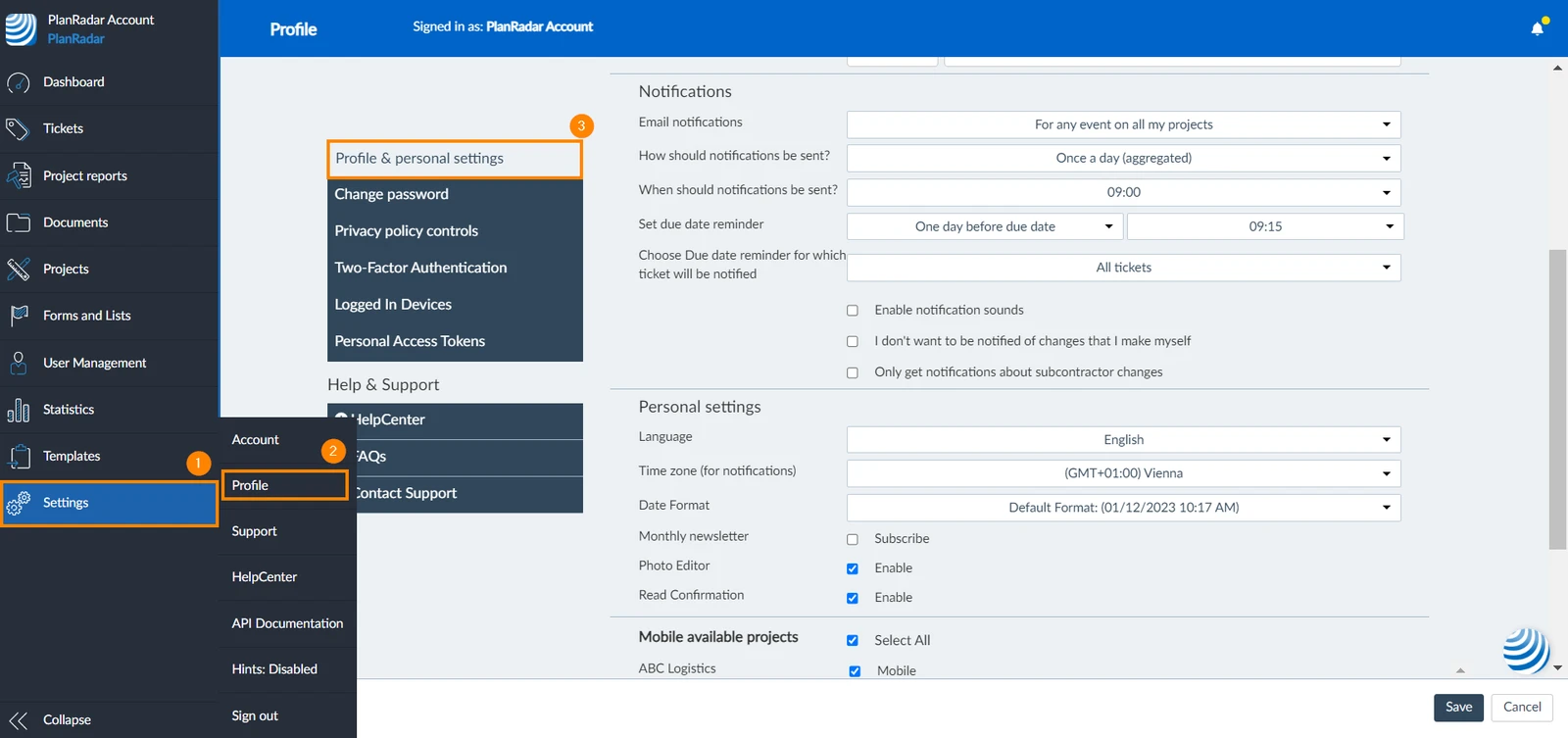
To select your preferred language for the webapp:
Click Settings
Click Profile
Click Profile & personalsettings
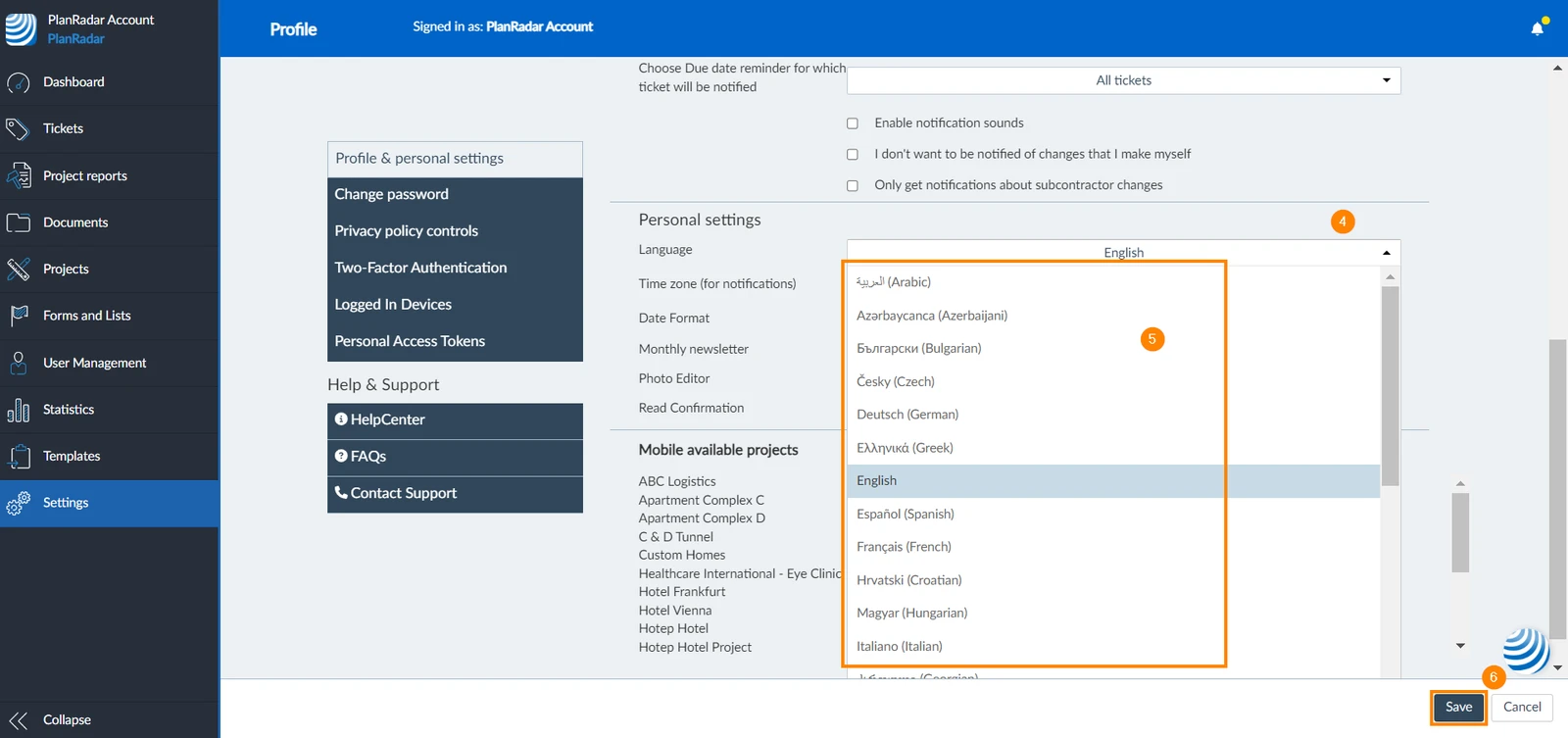
Open the Language drop-down menu
Select your preferred language
Click Save 

Set Time Zone for the Webapp and E-Mail Notifications
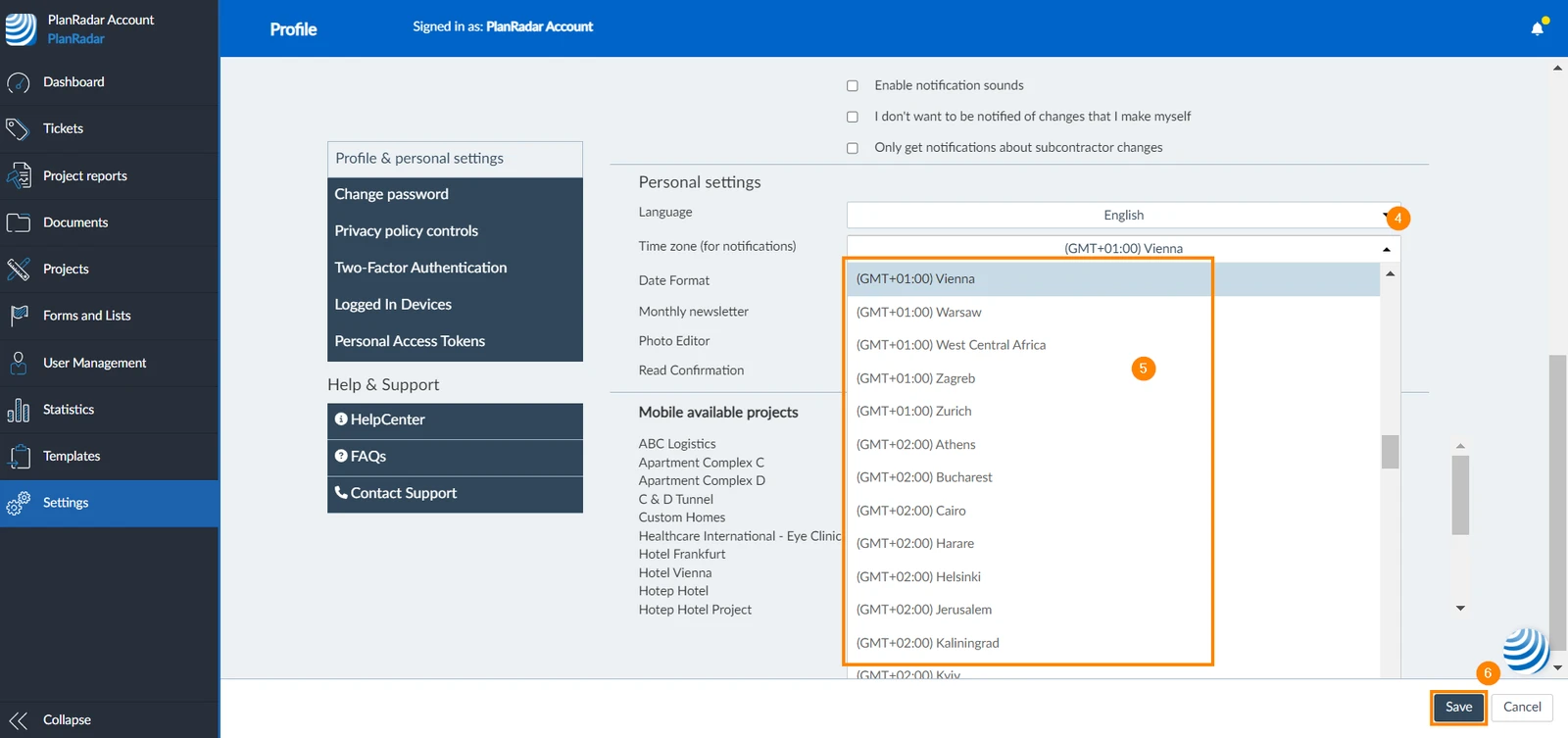
The selected time zone in the Webapp is applied to any dates but also e-mail notifications if you configure a specific time for daily notification e-mails. To configure your time zone:


 Deutsch
 Español
 Français
 Hrvatski
 Italiano
 Polski
 Português (BR)