

 Deutsch
 Español
 Français
 Hrvatski
 Italiano
 Polski
 Português (BR)
Configure E-Mail Notifications
Overview
PlanRadar sends e-mail notifications for various events related to projects, user management and tickets. There are several options to control ticket notifications explained in this article.
Notification Settings
To access notification settings:
- Click Settings
- Click Profile
- Click Profile & personal settings
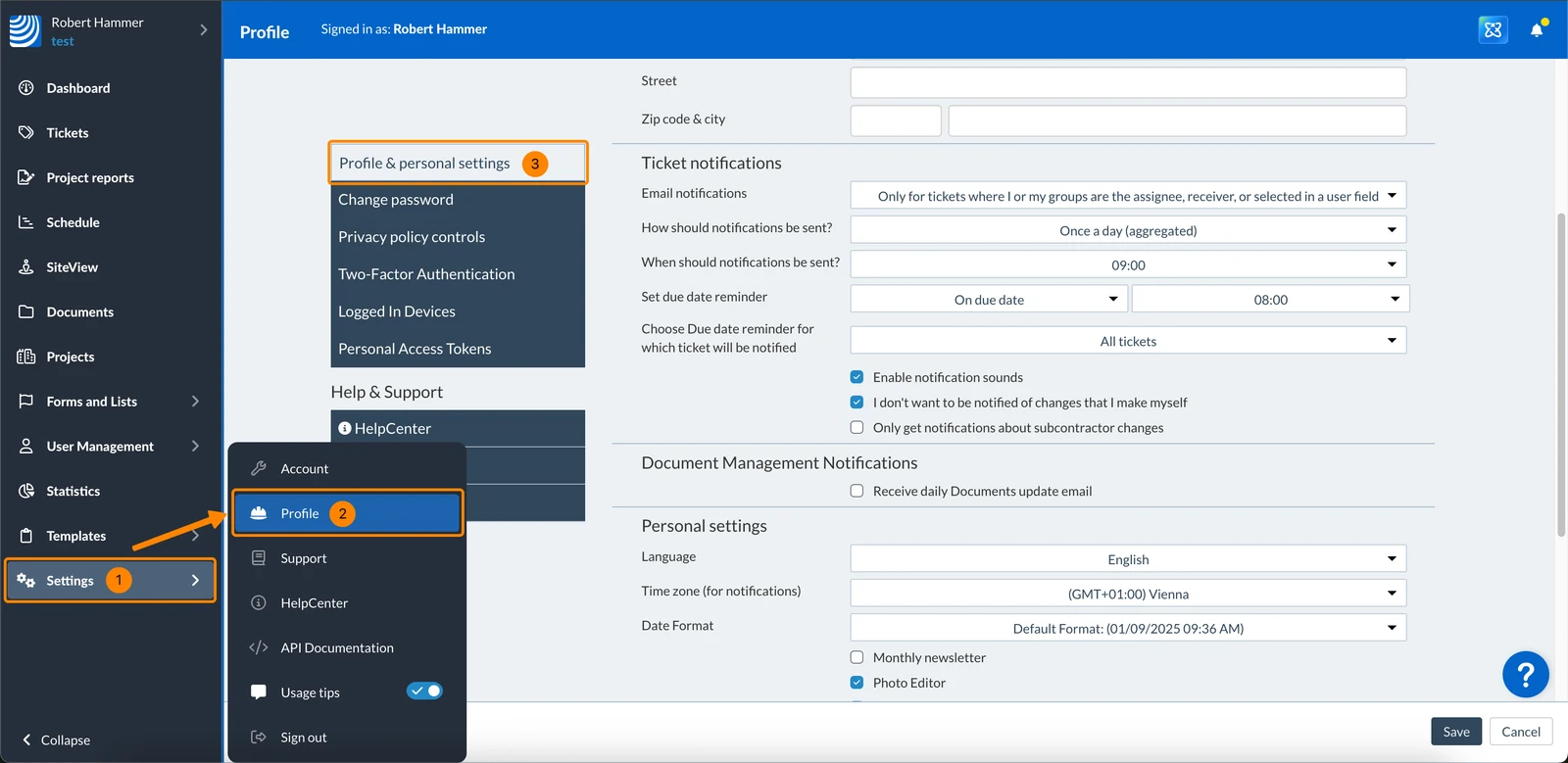
- Configure Notification Settings as explained below.
- Click Save
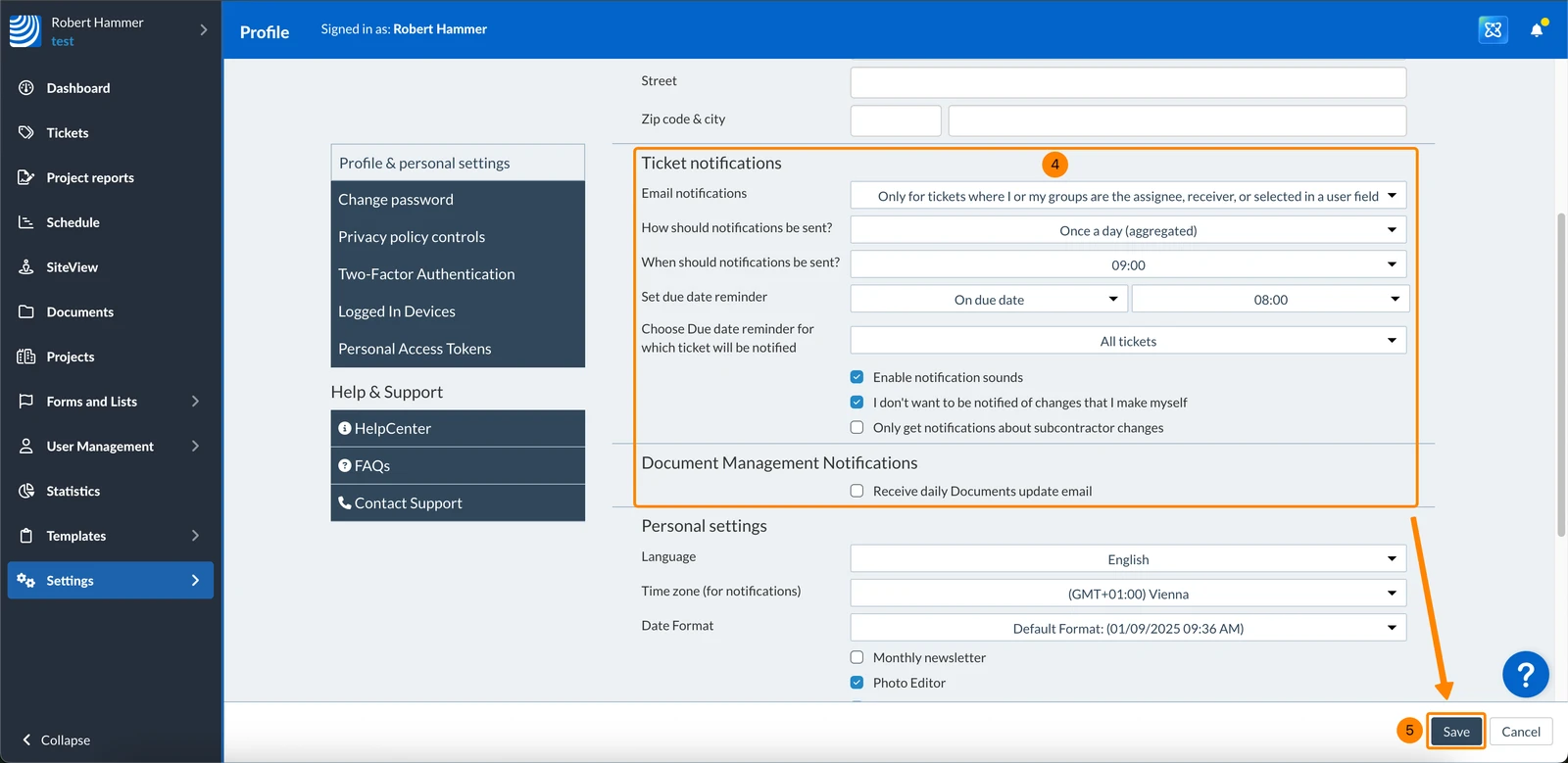
Configure E-Mail Notifications
You can configure notifications for ticket updates and ticket due date reminders.
Ticket Update Notifications
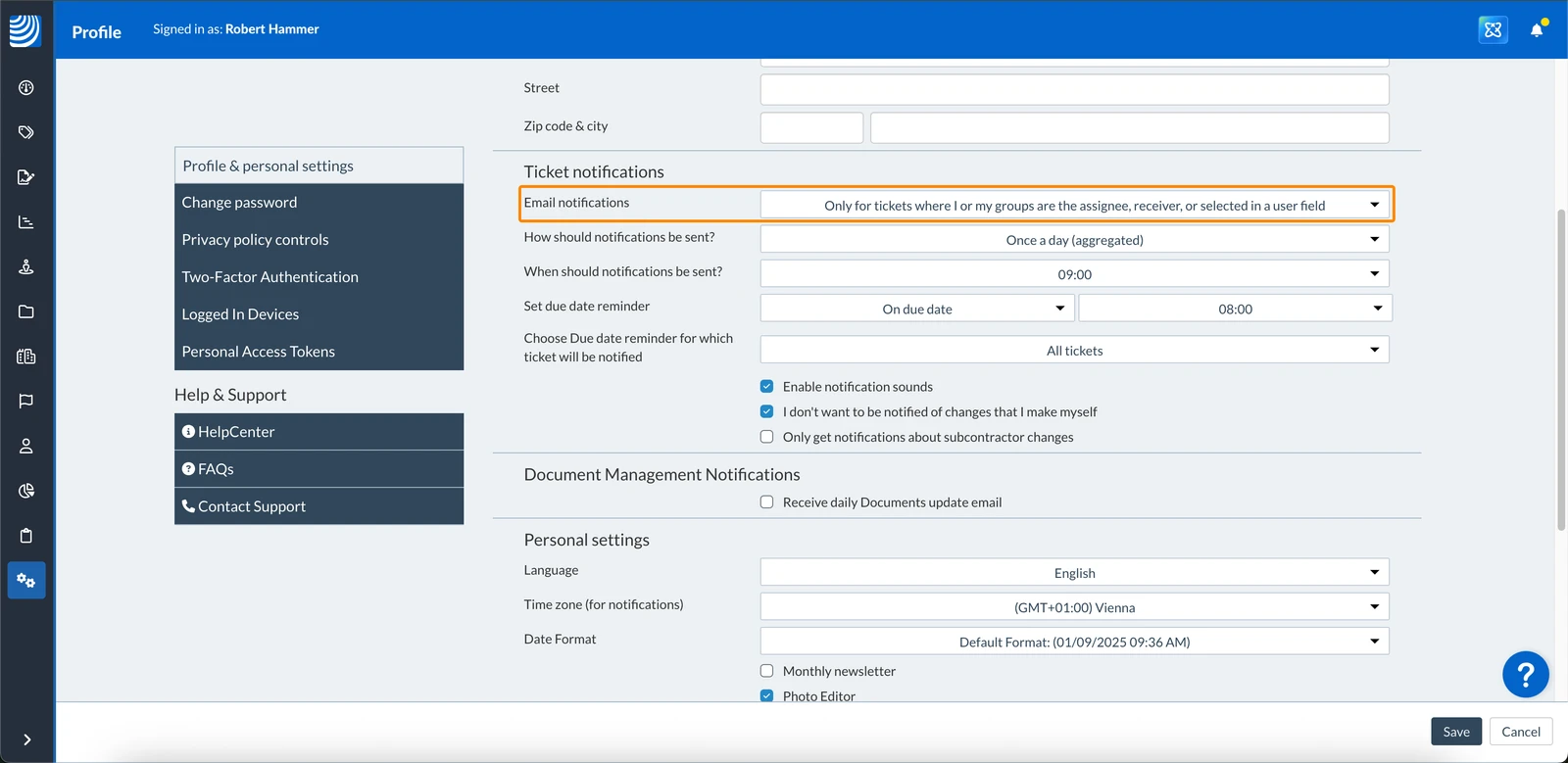
In the notification settings, you can select the events about which you would like to be notified by email from the Email Notifications drop-down list:
- For any event in all my projects
- Only for tickets where I’m the assignee, receiver, or selected in a user field
- Only for tickets where I or my groups are the assignee, receiver, or selected in a user field
- No events
Furthermore, you can select to either receive one e-mail a day with all the notifications, or get an e-mail immediately for each ticket update:
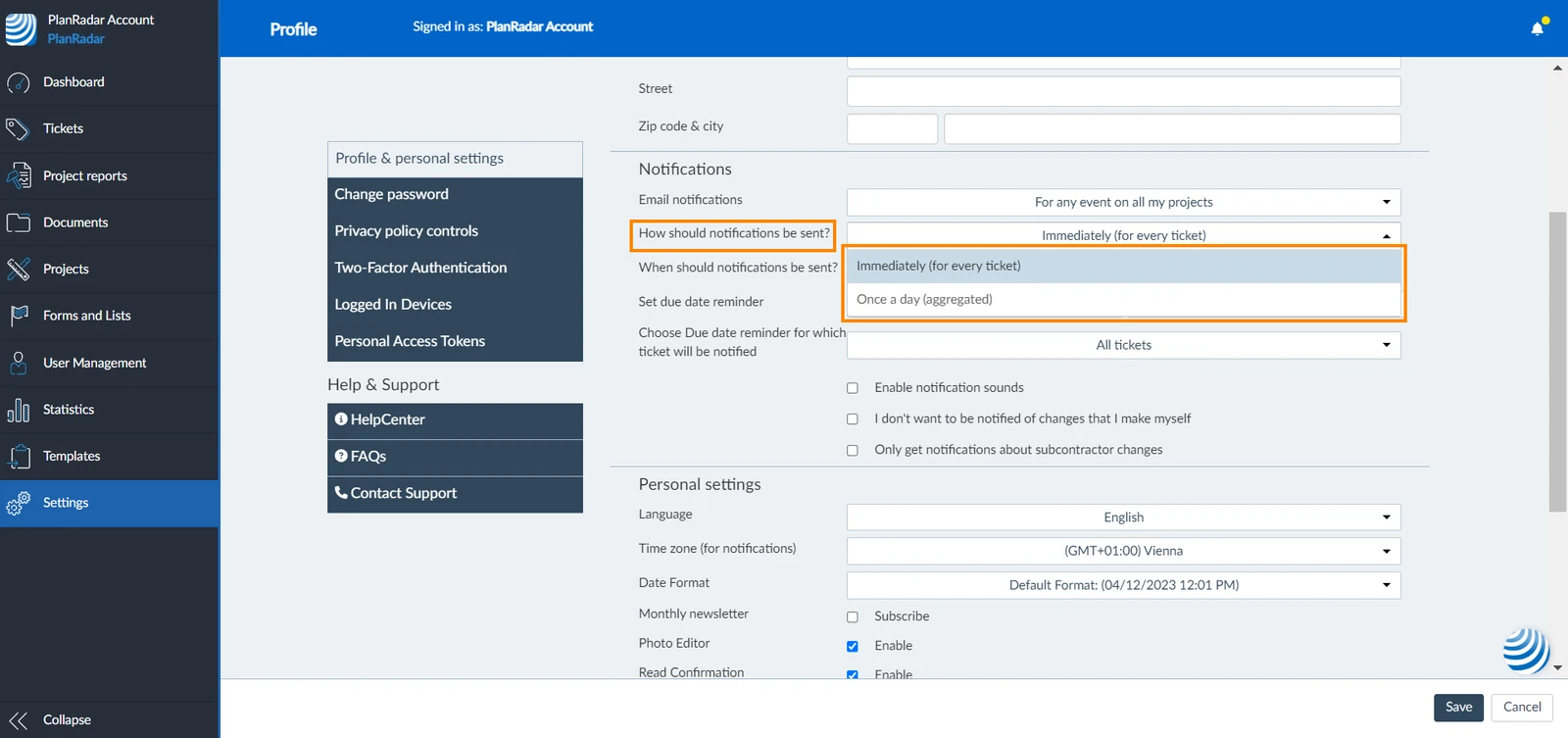
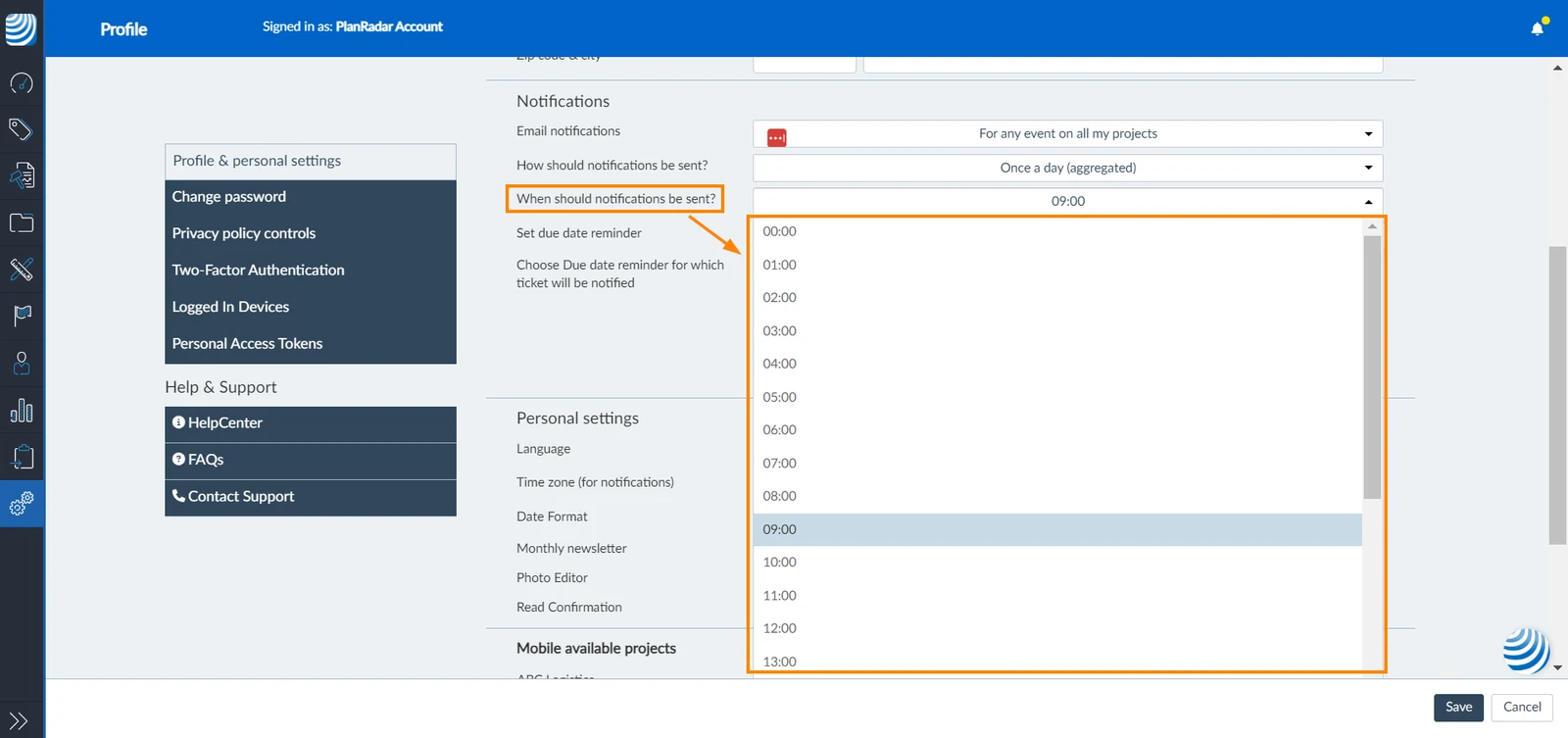
When you select to receive only one e-mail a day with all the ticket updates, you need to choose a time at which you would like to receive the e-mail:
Ticket Due Date Reminders
Ticket due date reminders are sent by e-mail a few dates before the specified due date.
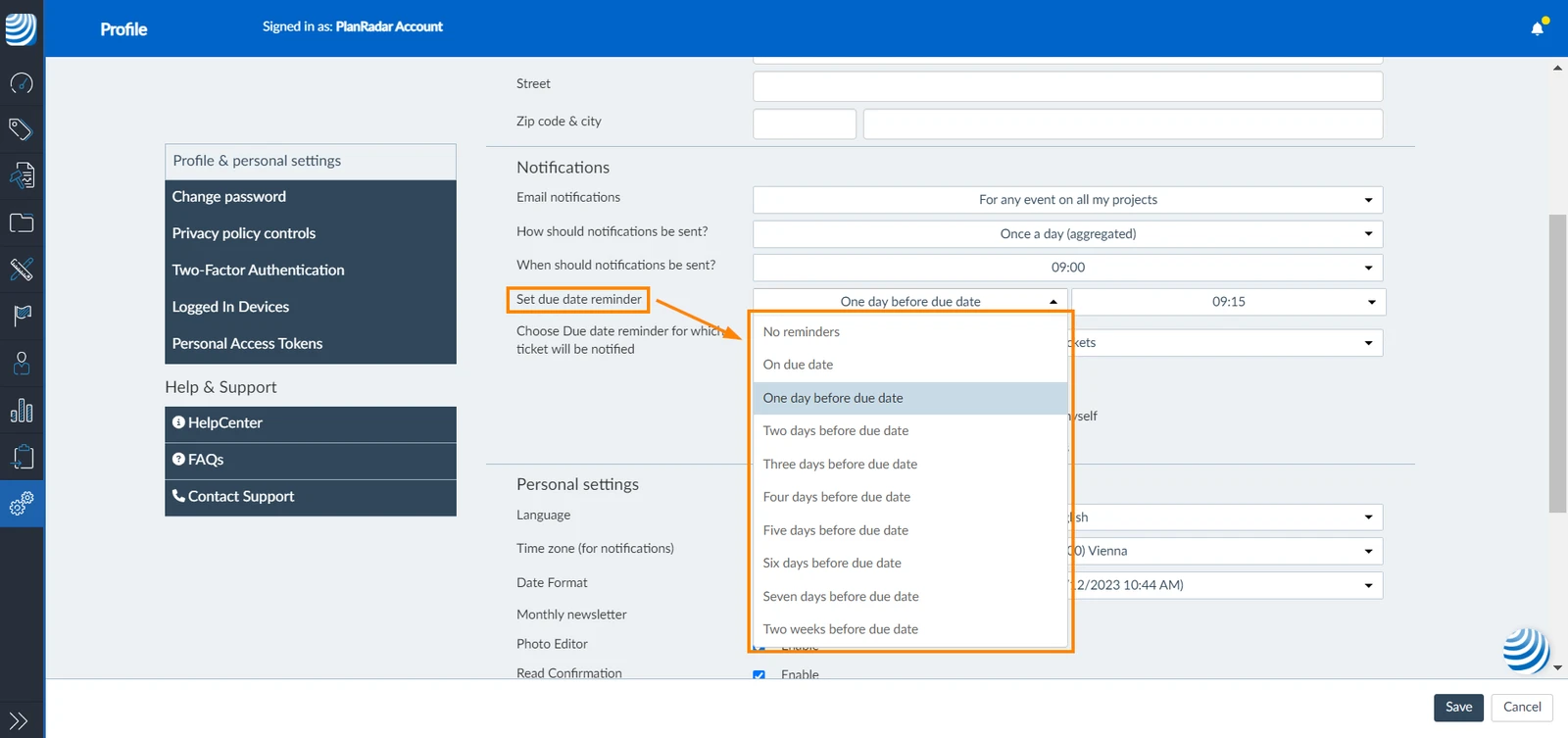
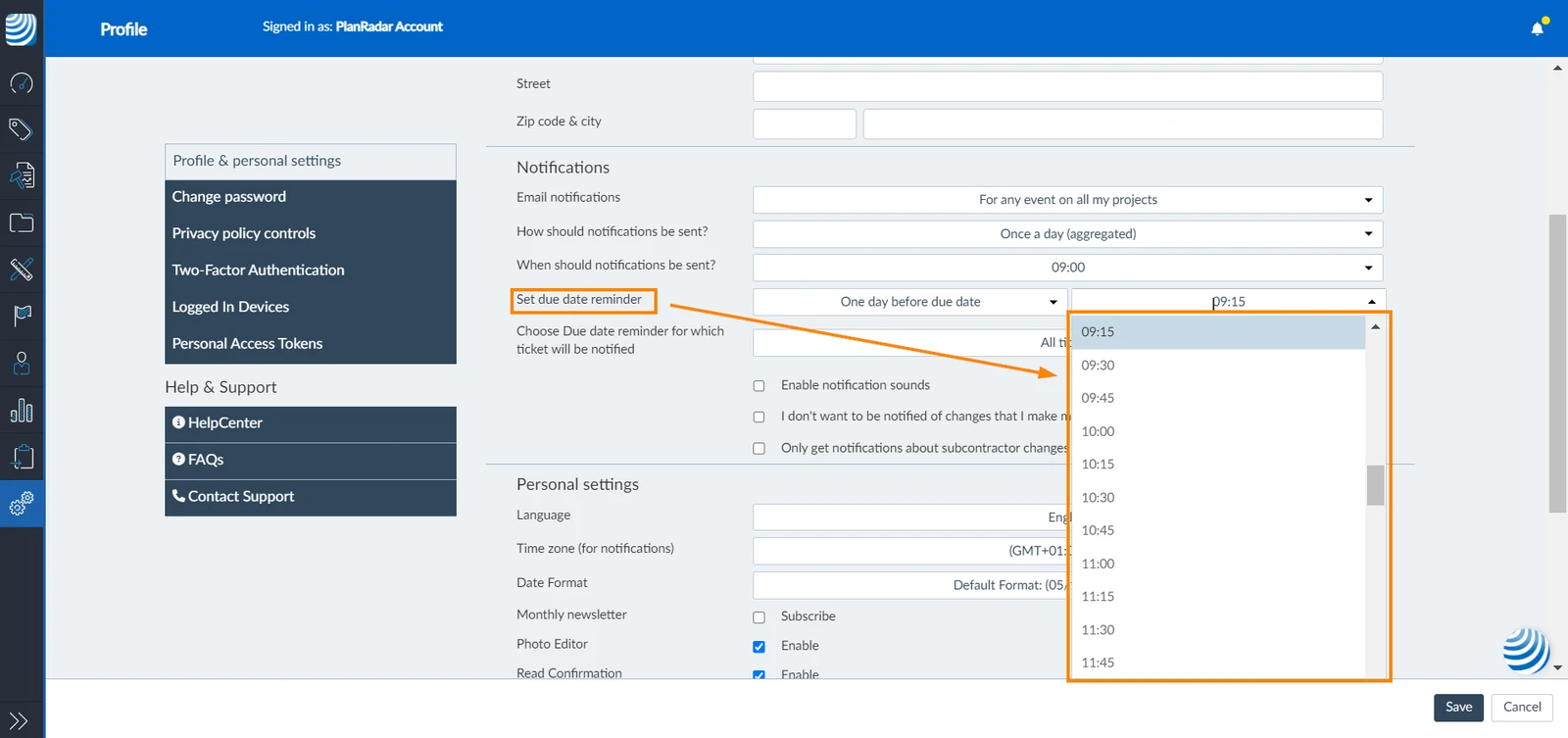
Use the Set due date reminder drop-downs to select the day and time for due date reminders:
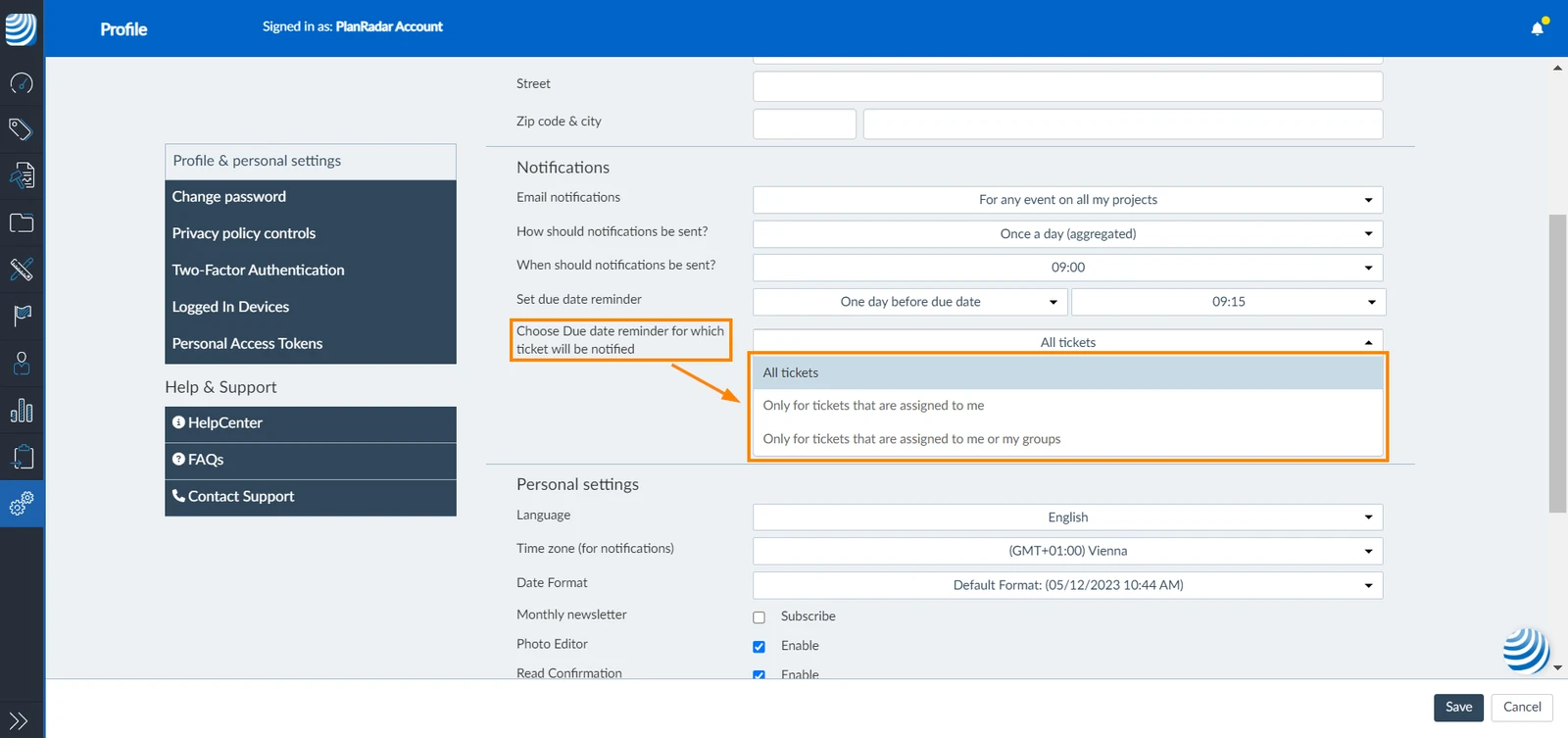
Then select which tickets you would like to be notified about:
More Options
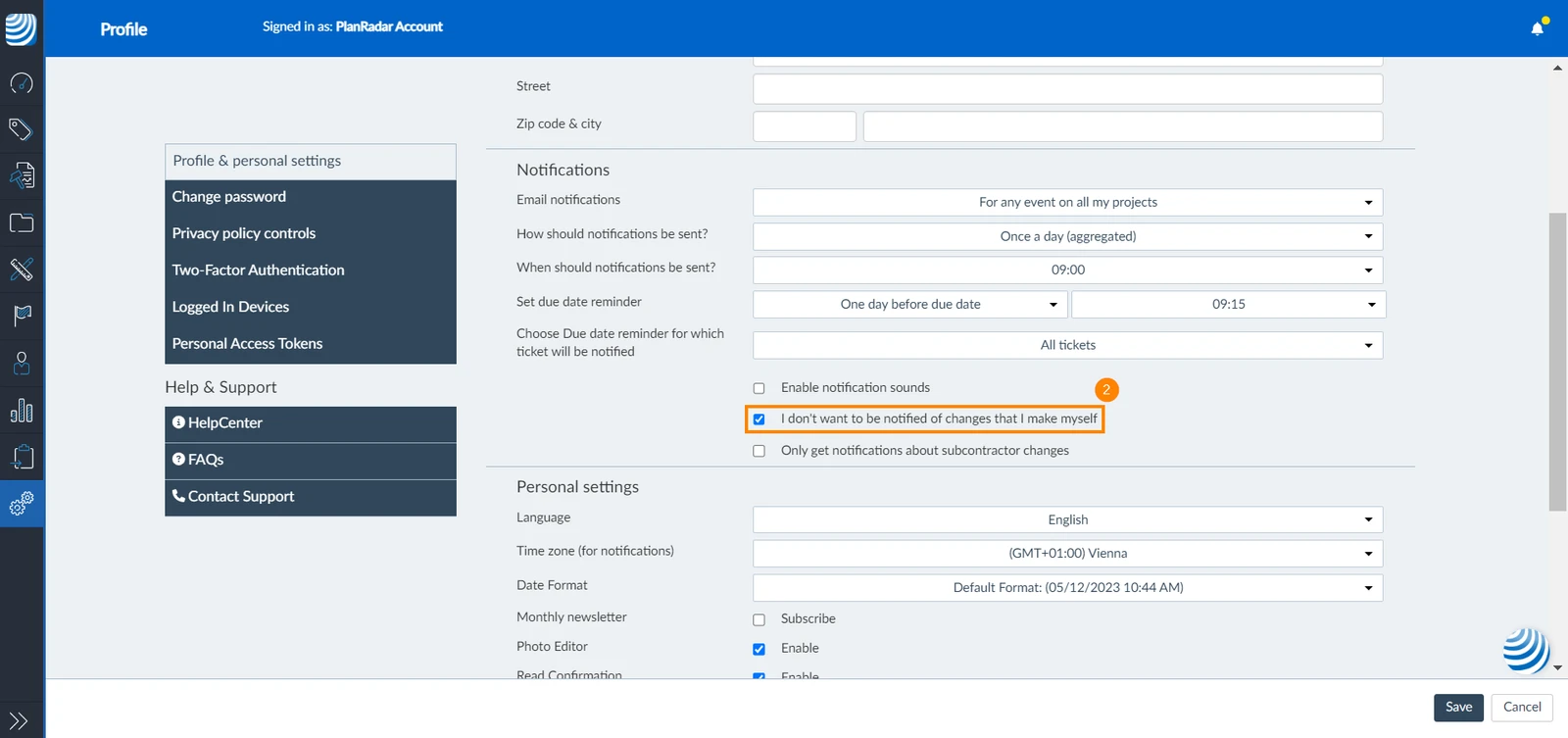
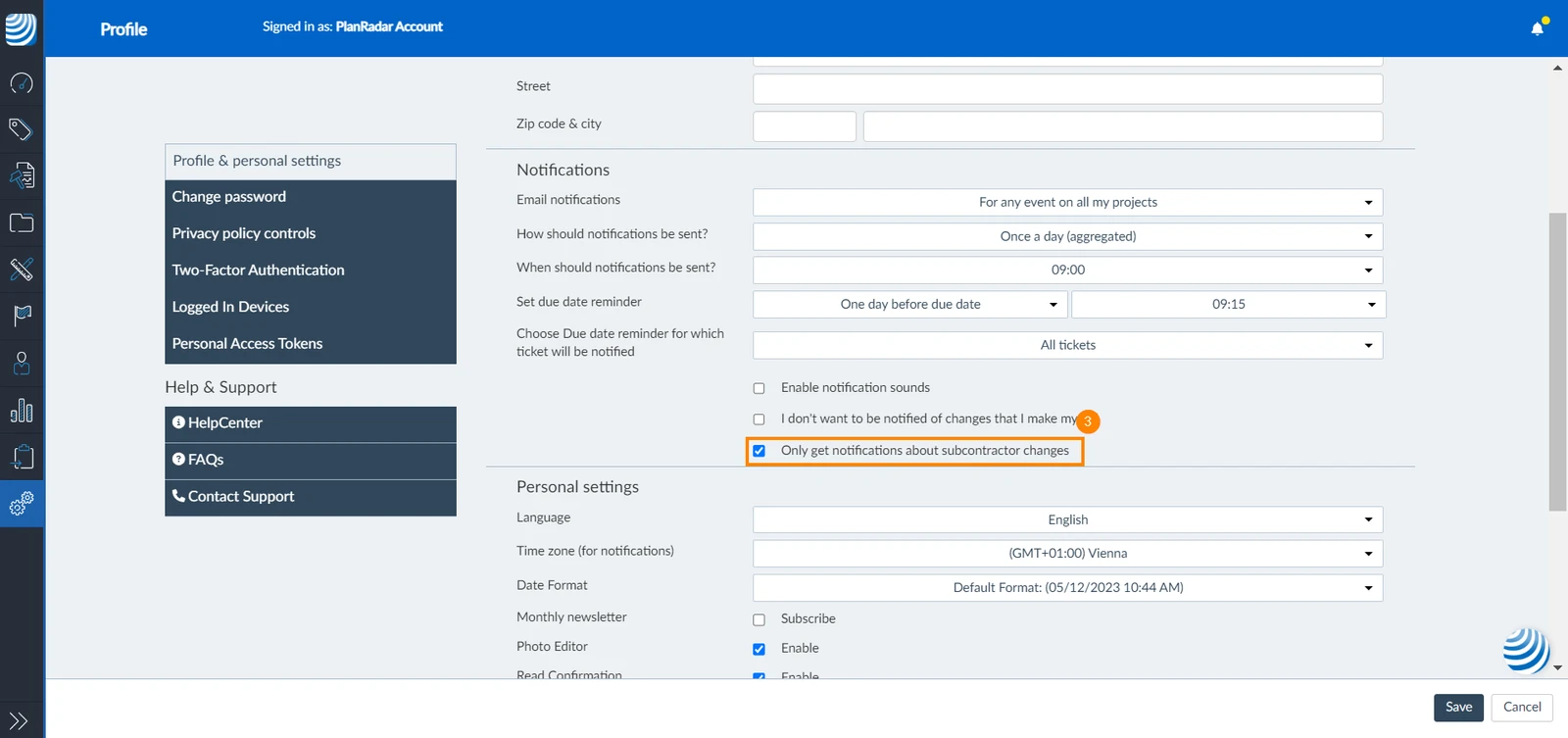
Select or clear checkboxes to choose other notification settings:
- Disable notifications for changes done by yourself
- Limit notifications to be only about changes done by subcontractors and not other in-house users
Document Management Notifications
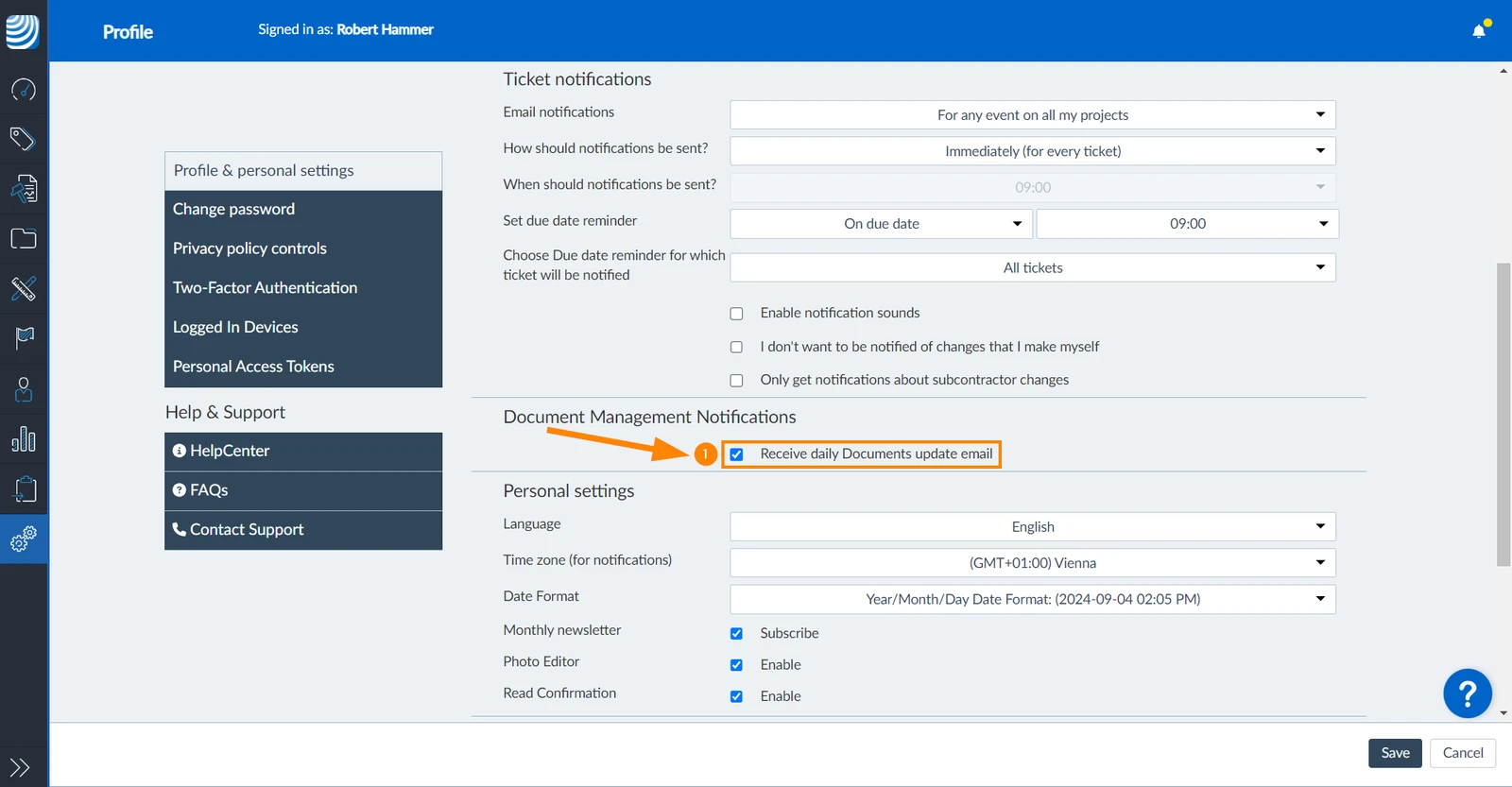
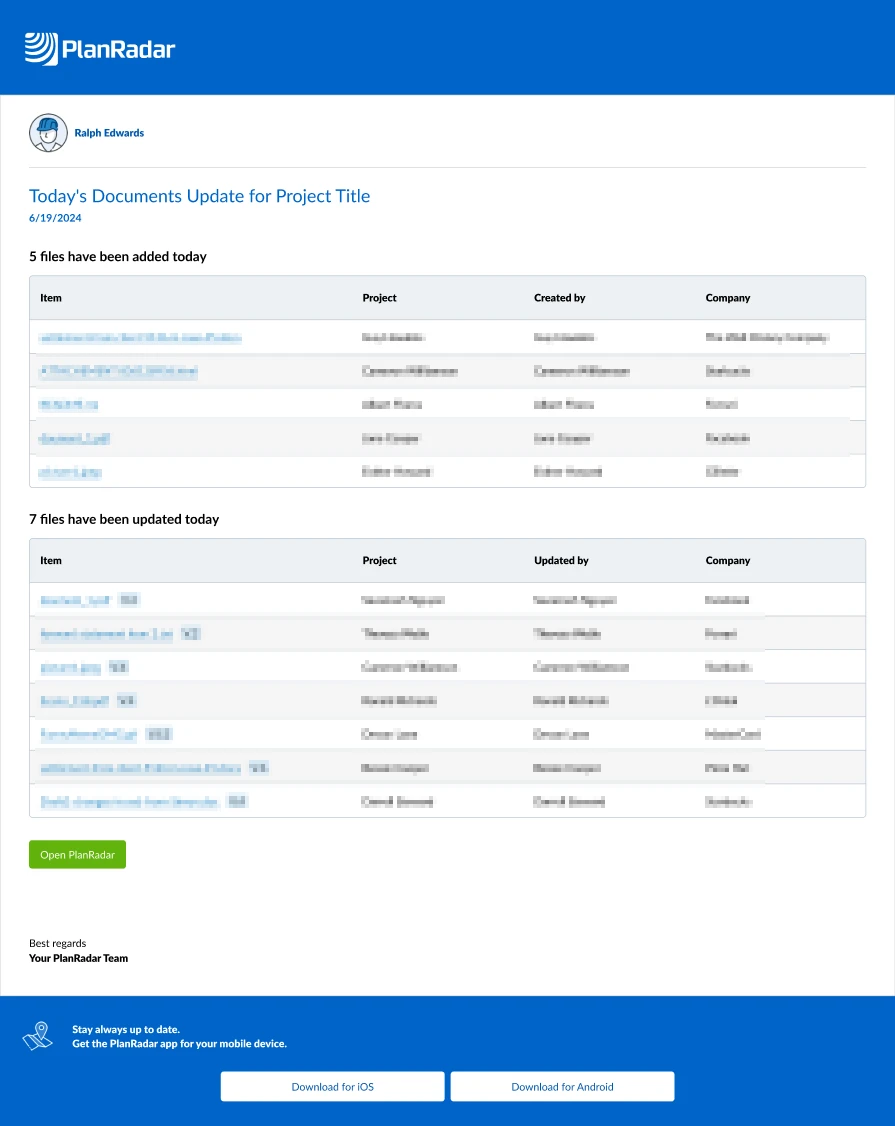
To receive a daily update email about which files were uploaded or updated in Documents in all your projects:
- Select the Receive daily Documents update email checkbox
- The email contains the following information:
Updated June 12, 2026