

 Deutsch
 Español
 Français
 Hrvatski
 Italiano
 Polski
 Português (BR)
Manage Forms
Overview
Learn how to duplicate, deactivate and delete forms. Also see Create & Edit Forms.
Access & Permissions
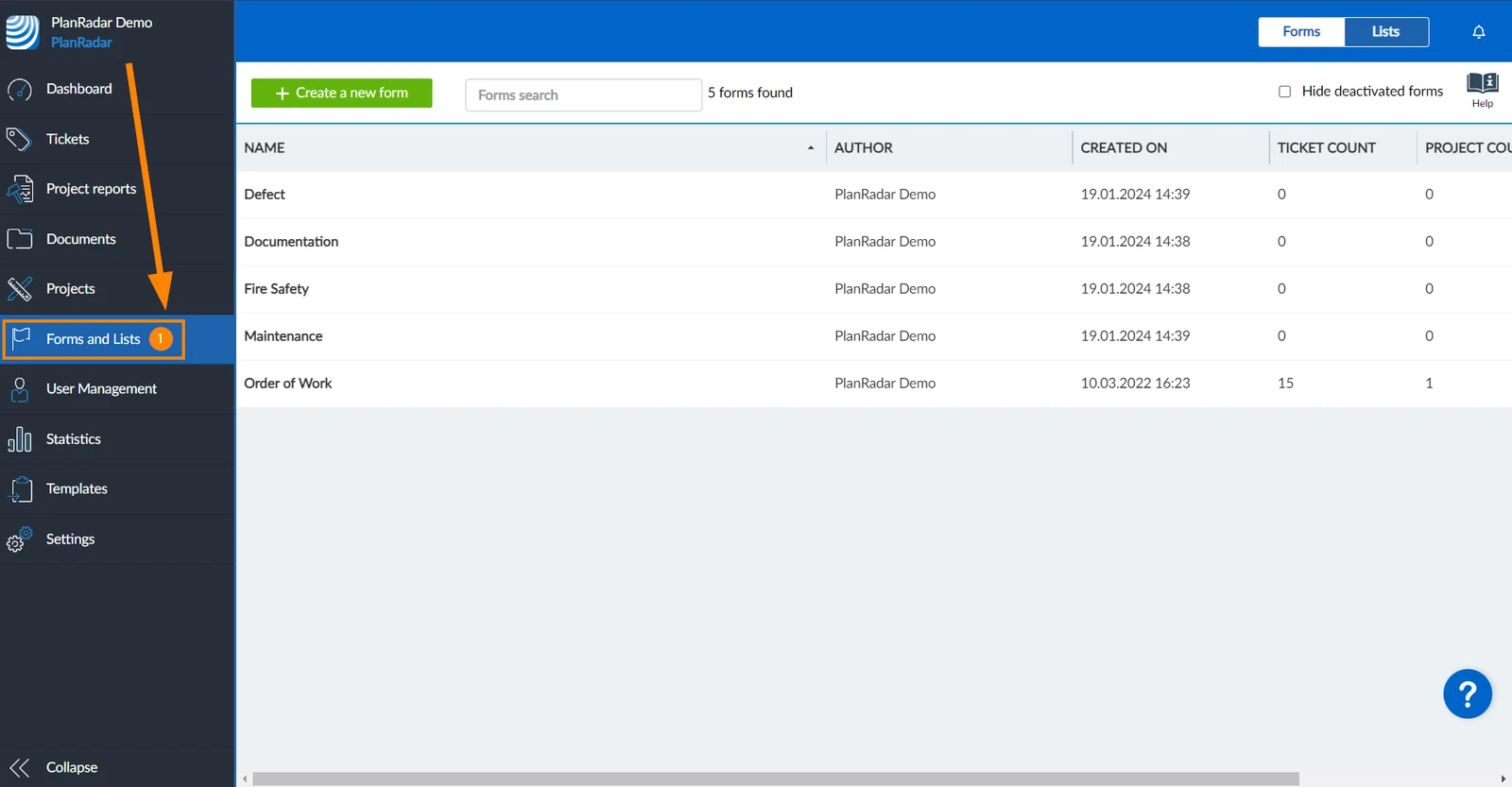
How to access Forms
- Click Forms and Lists
View and Filter Forms
To view a form:
- Click on the form
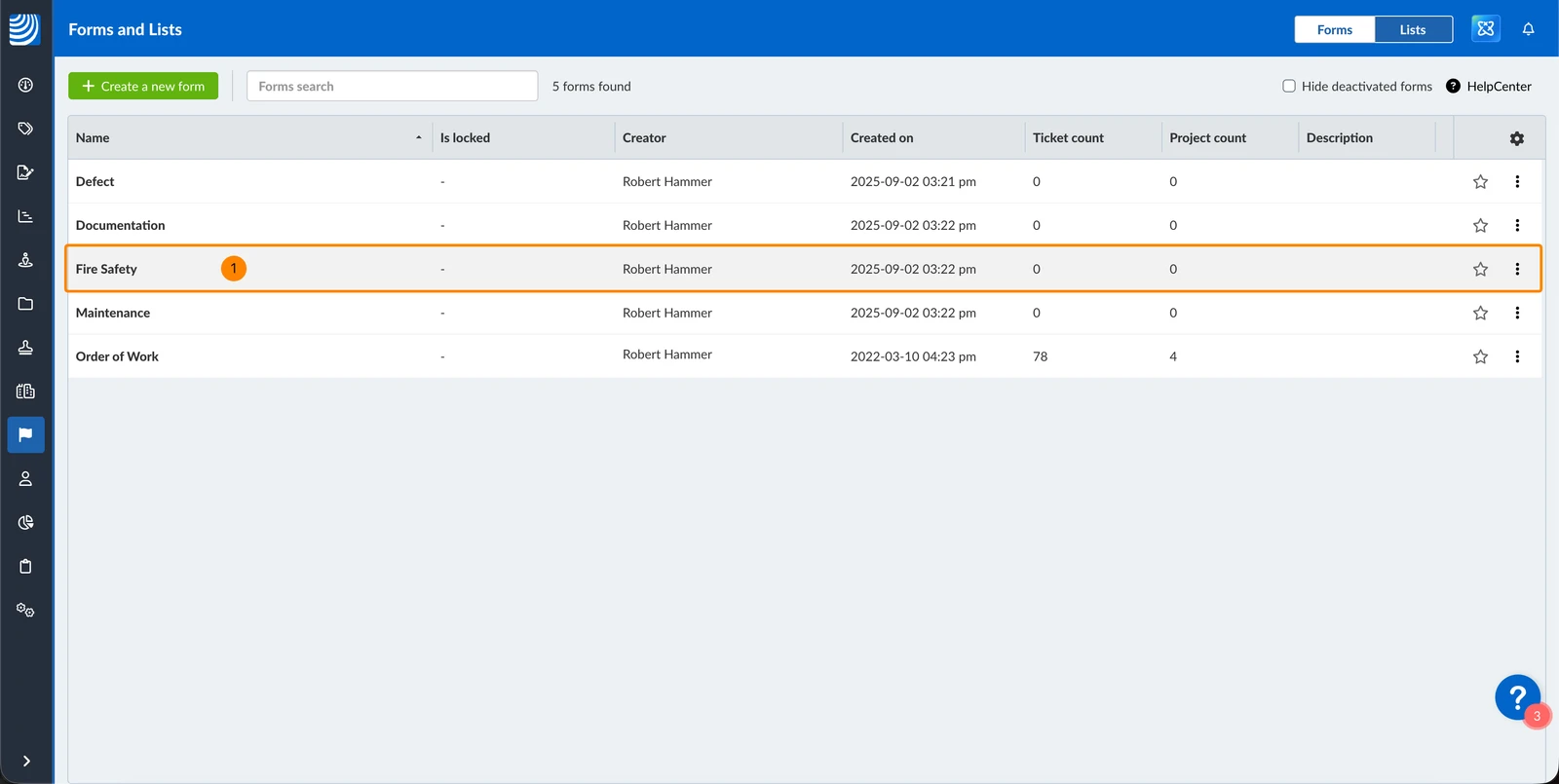
Filters work in the same way as described in Filter Tickets.
The following filter criteria are available for the forms table:
-
Added by default:
- Creator
- Created on
- Ticket count
-
Not added by default:
- Name
- Is locked
- Project count
- Selected favorite
- Deactivated
Duplicate
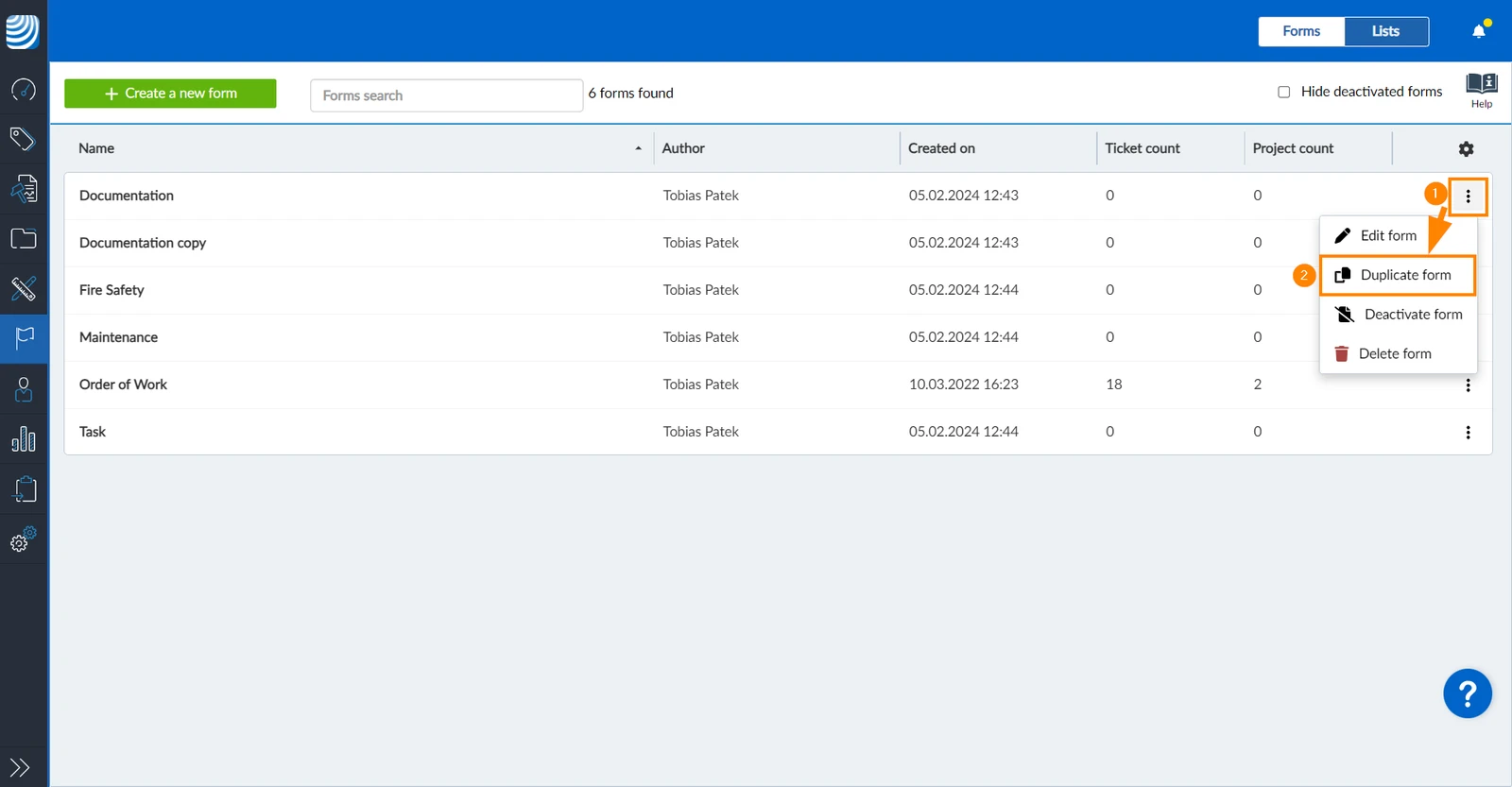
To create a similar form, you can duplicate an existing one. The duplicate will have the same name with 'copy' at the end and will not be assigned to any projects.
To duplicate a form:
- Open the more menu next to the desired form
- Click Duplicate form
Deactivate
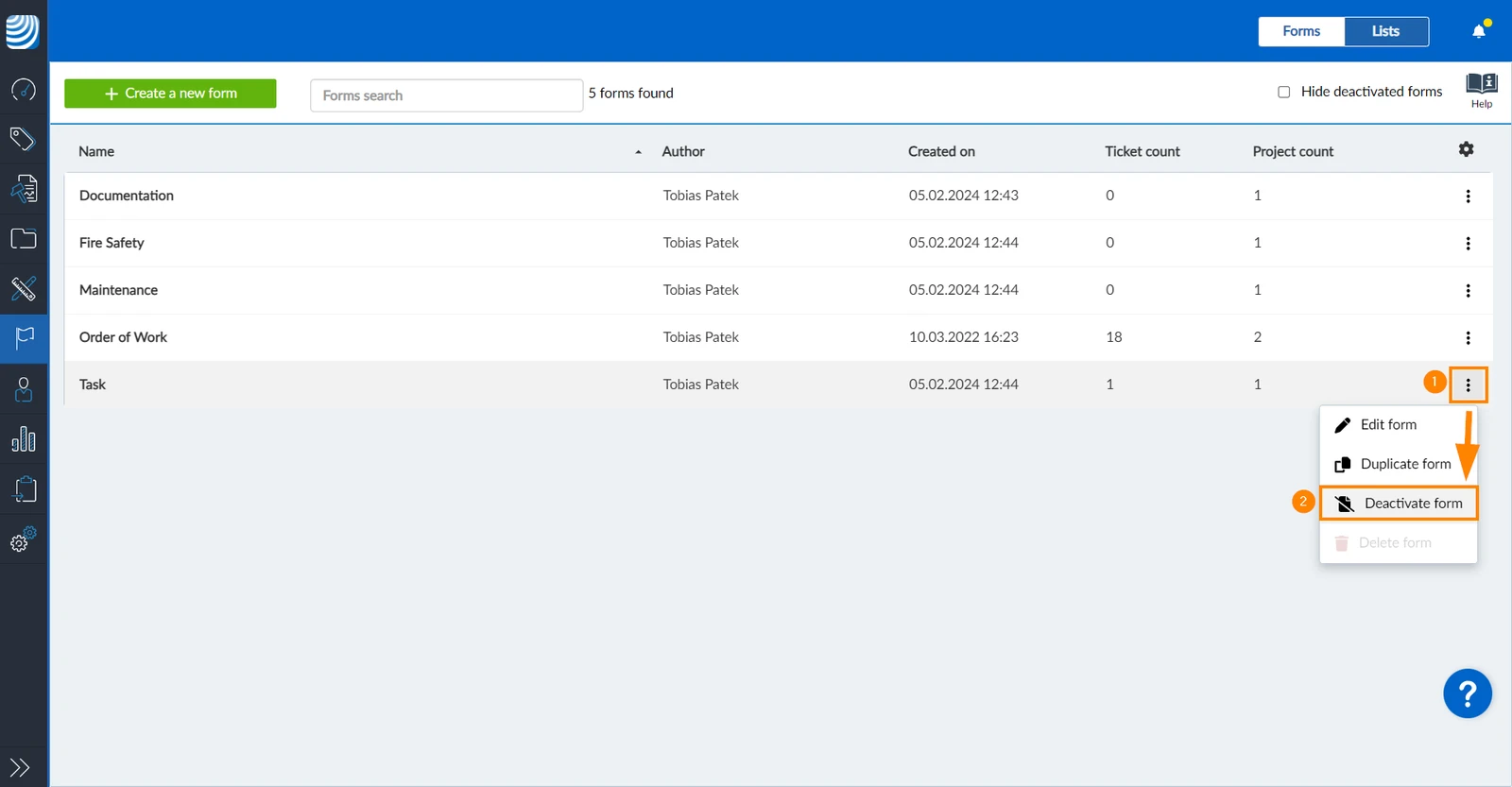
Deactivate a form to prevent users from creating new tickets with it. Existing tickets that use a deactivated form will not be affected.
To deactivate a form:
- Open the more menu next to the desired form
- Click Deactivate form
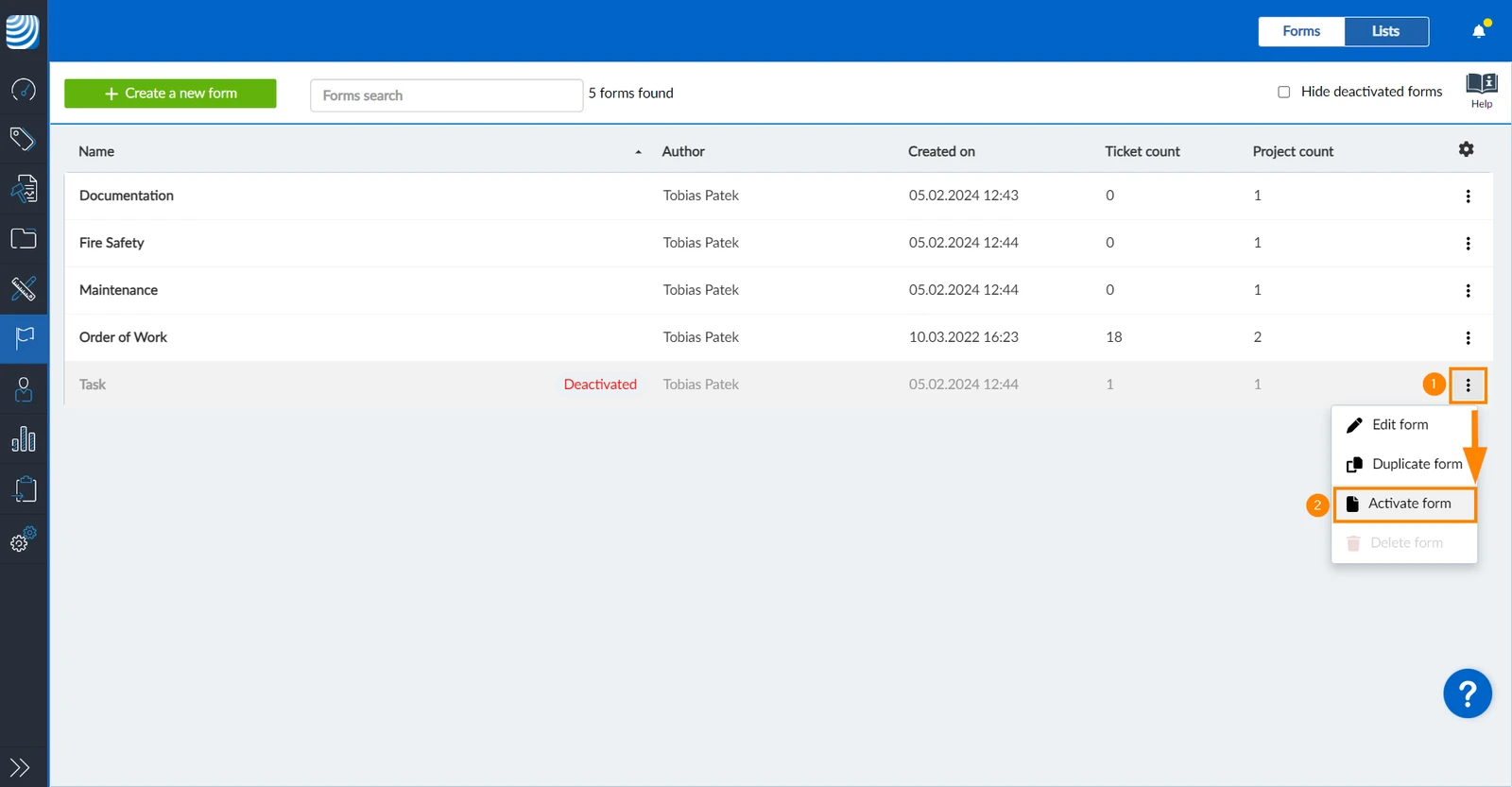
To activate a form again that was previously deactivated:
- Open the more menu next to the desired form
- Click Activate form
Delete
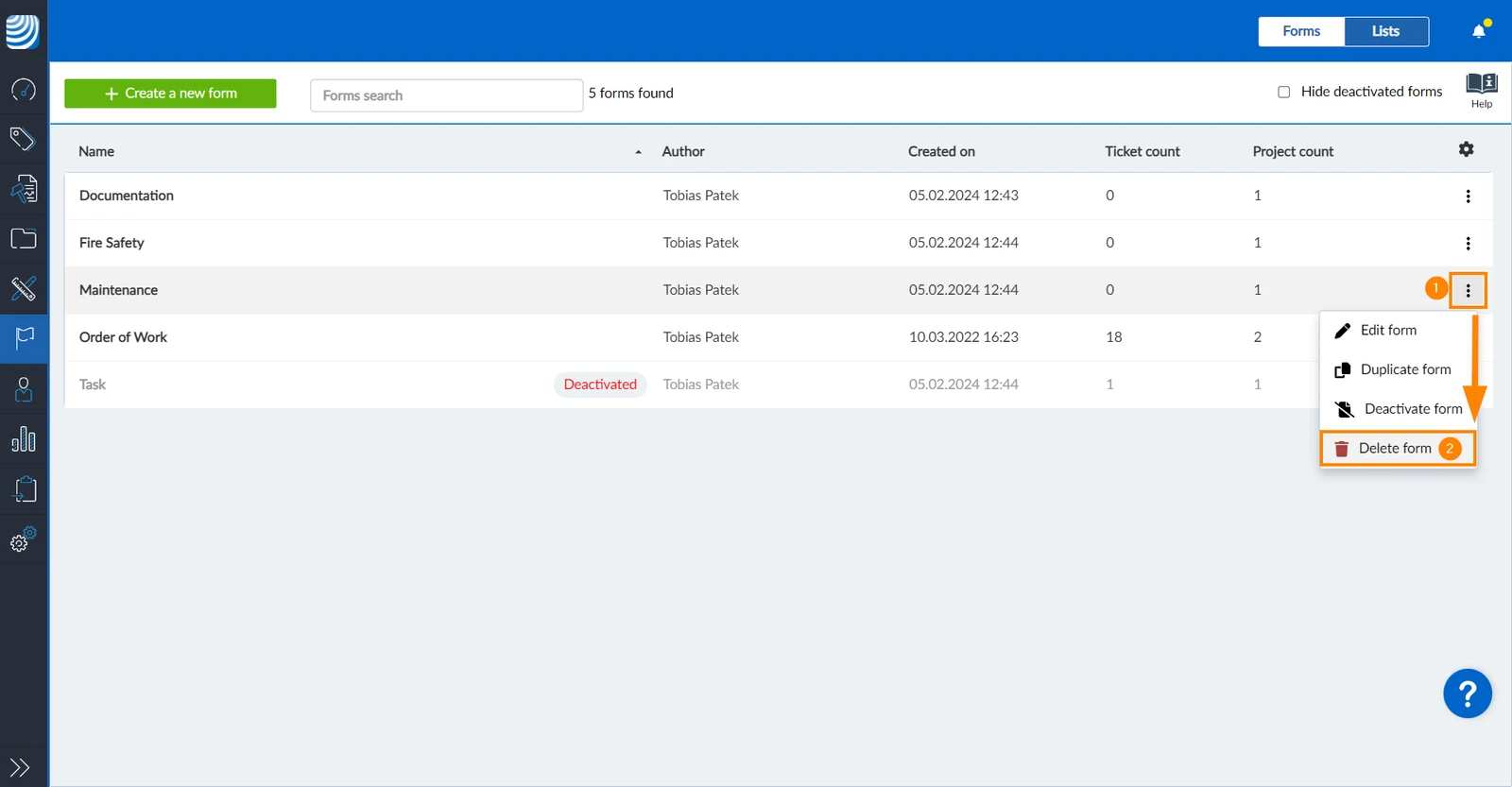
To delete a form:
- Open the more menu next to the desired form
- Click Delete form
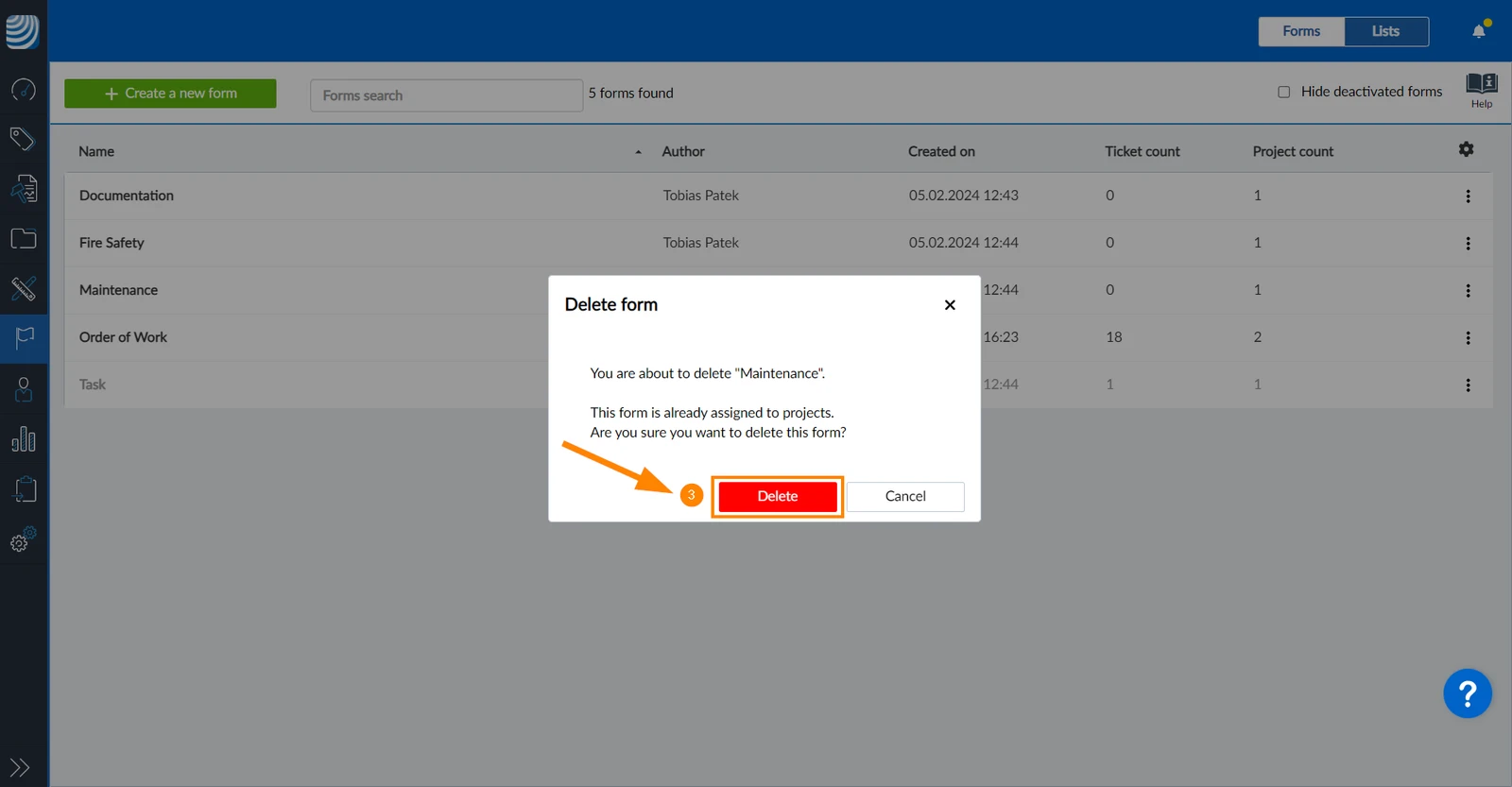
- Click Delete
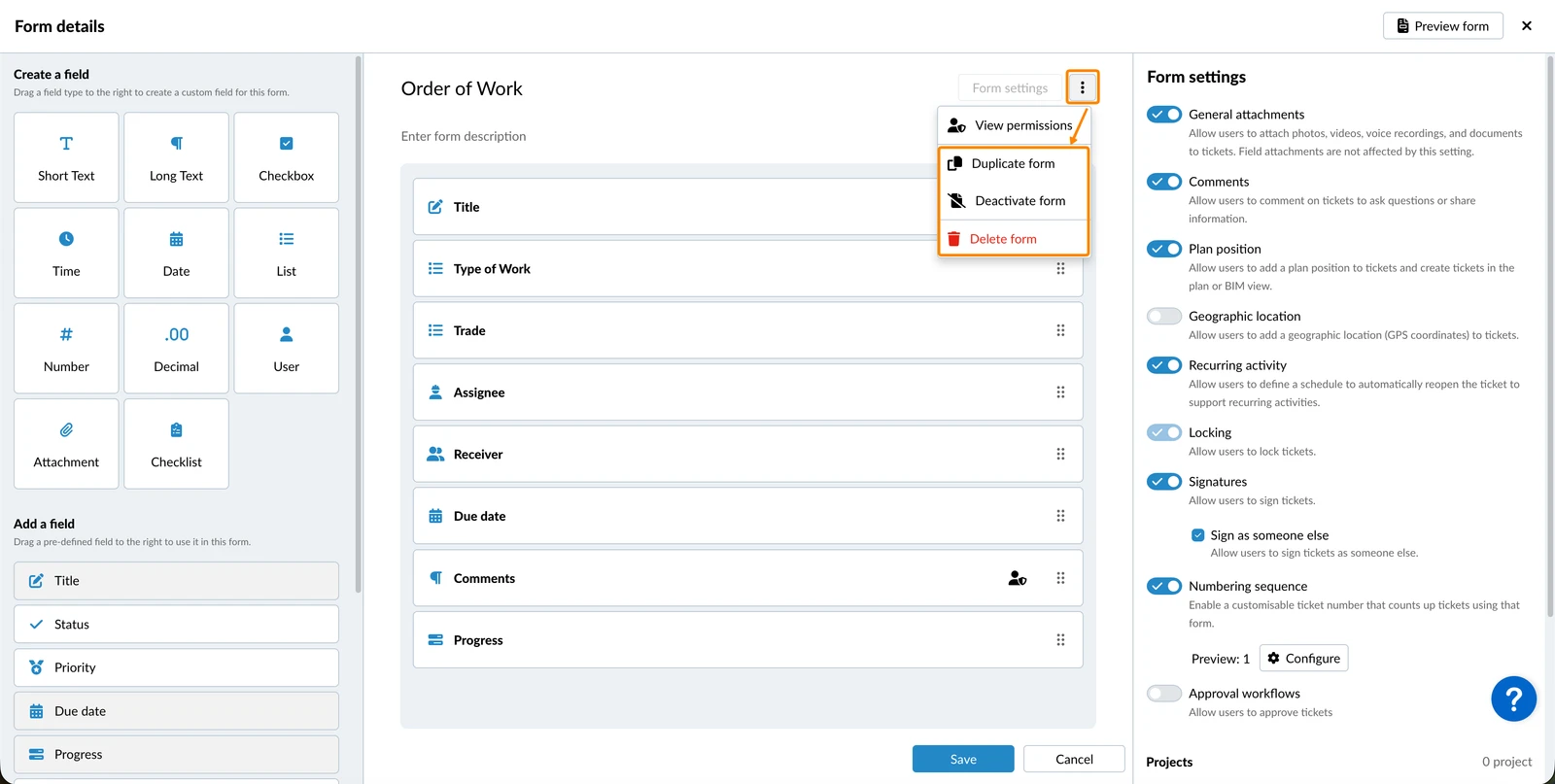
It is also possible to duplicate, deactivate or delete a form through the more menu in the Form Builder:
Updated June 22, 2026