

 Deutsch
 Español
 Français
 Hrvatski
 Italiano
 Polski
 Português (BR)
Edit Form Settings
Overview
When you Create & Edit Forms you can edit form settings to define which additional functionality is available for tickets created with that form.
Under form settings there are also Ticket permissions to define which roles can create tickets with this form or view tickets which use this form.
Access & Permissions
Edit Form Settings
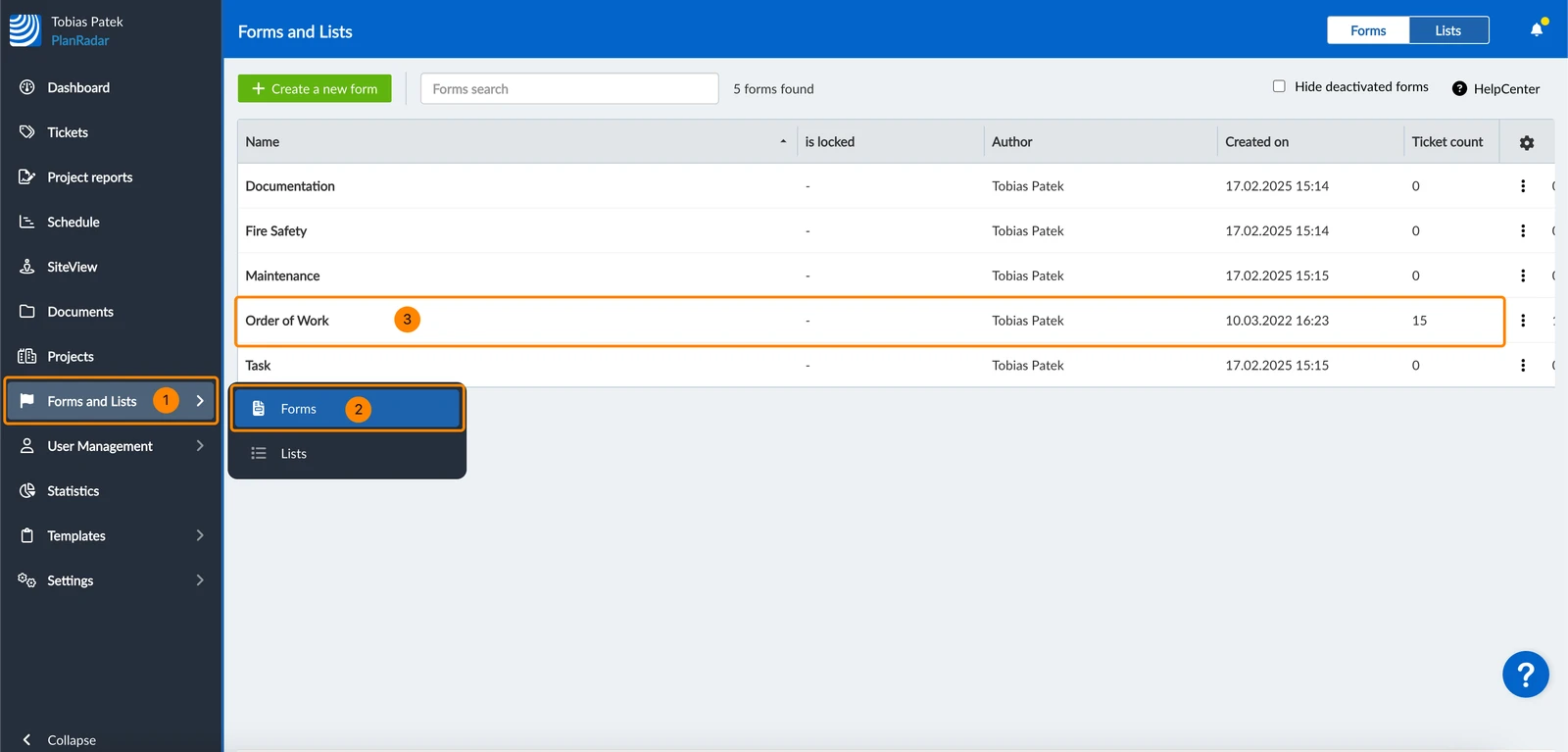
- Click Forms and Lists
- Click Forms
- Click on the form in the list e.g. Order of Work
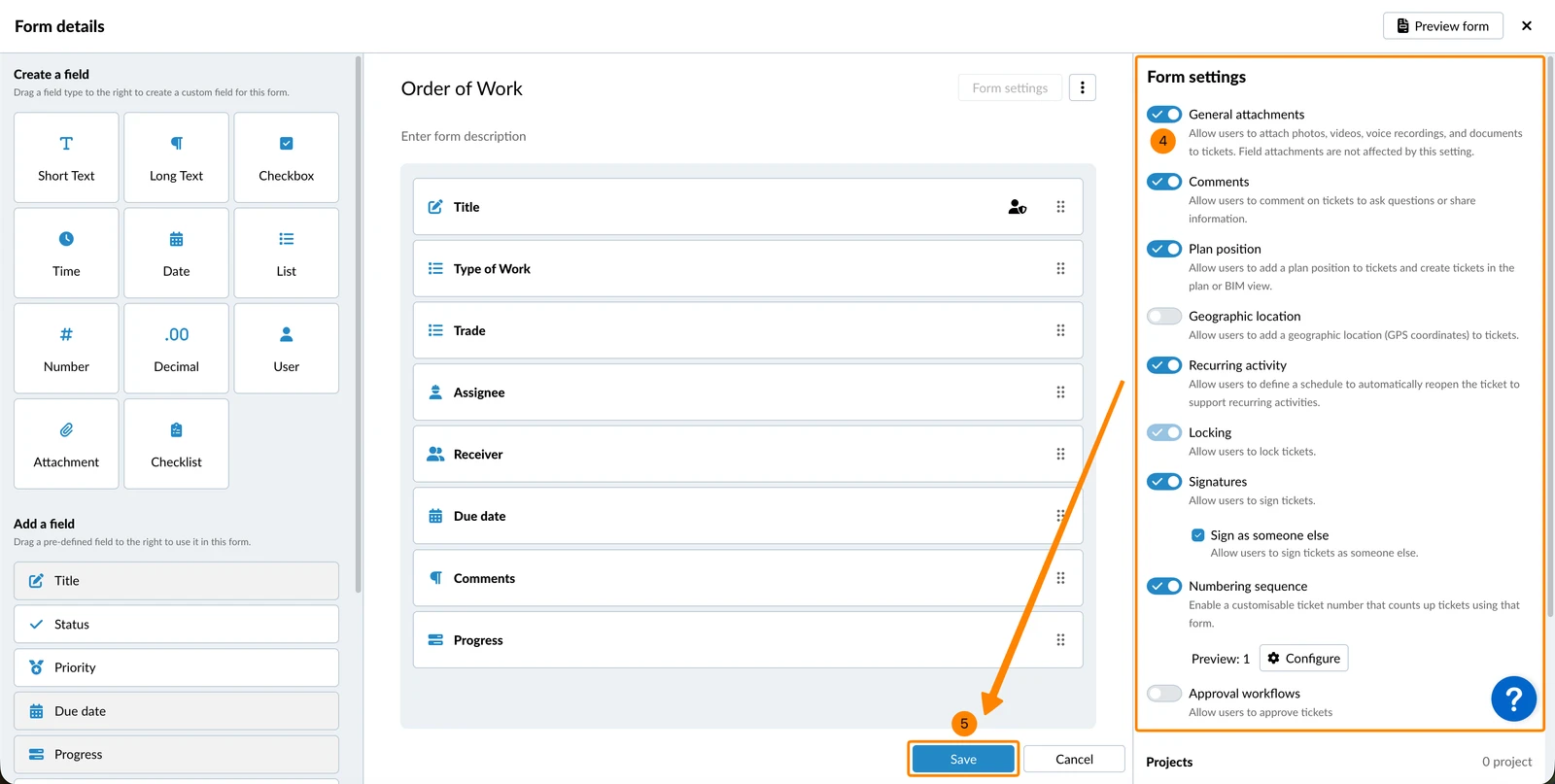
- Activate or deactivate the toggles for the available form settings
- Click Save
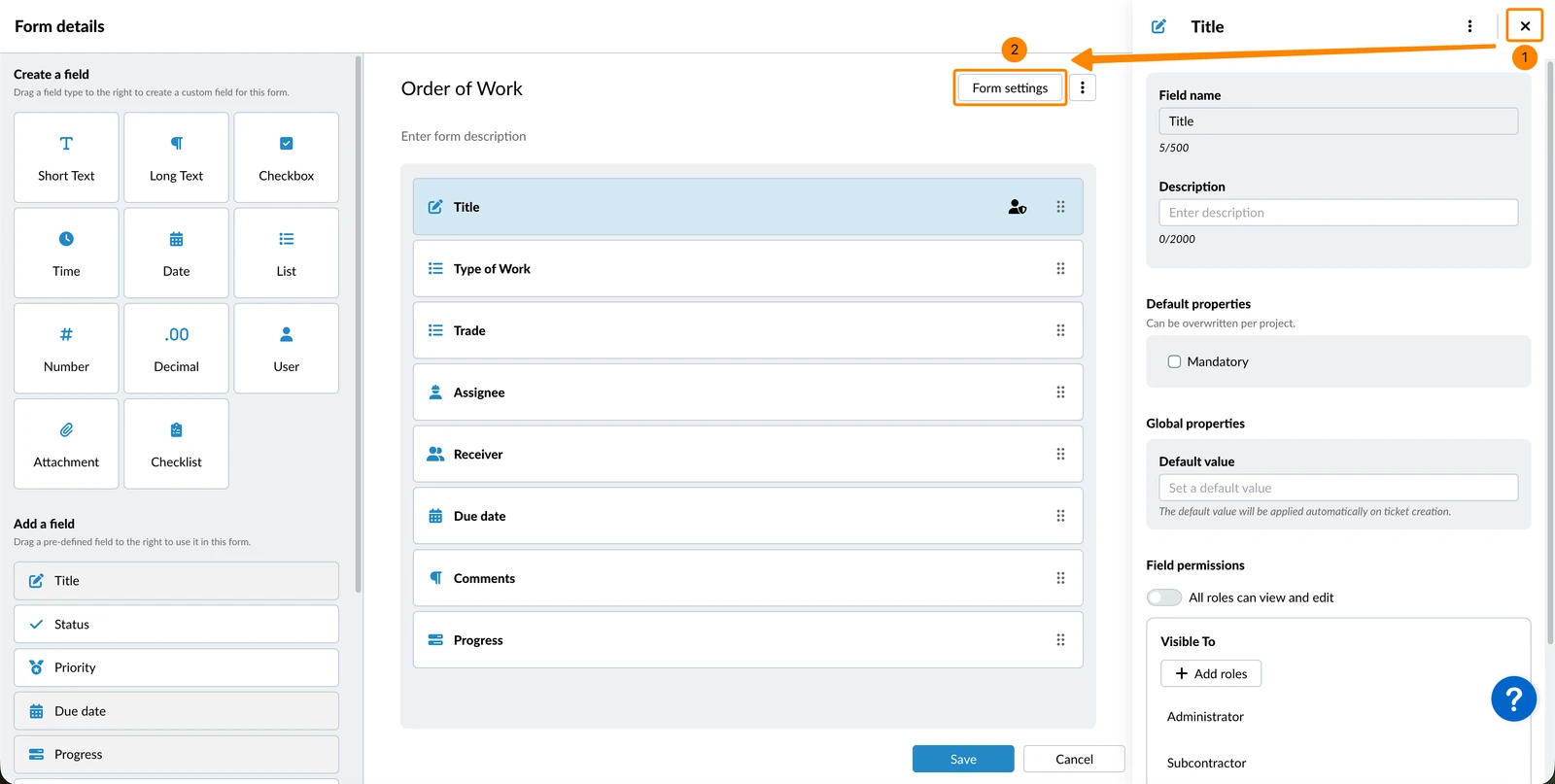
If you don't see the form settings because the field properties panel is open:
- Click X to close the field properties
- Click Form settings
Available Form Settings
Attachments
Allow users to attach photos, videos, voice recordings, and documents to tickets.
Comments
Allow users to comment on tickets to ask questions or share information.
Plan position
Allow users to add a plan position to tickets and create tickets in the plan or BIM view.
Geographic location
Allow users to add a geographic location (GPS coordinates) to tickets.
Recurring activity
Allow users to define a schedule to automatically reopen tickets to support recurring activities.
Locking
Allow users to lock tickets. For locked tickets you can still edit the assignee, receiver, progress, status and write comments. This allows to collect signatures from multiple users.
When you enable Signatures or Approval workflows, locking will be enabled automatically. It cannot be disabled, because it is required for those two features.
Signatures
Allow users to sign locked tickets, as a final approval or handover for completed tickets.
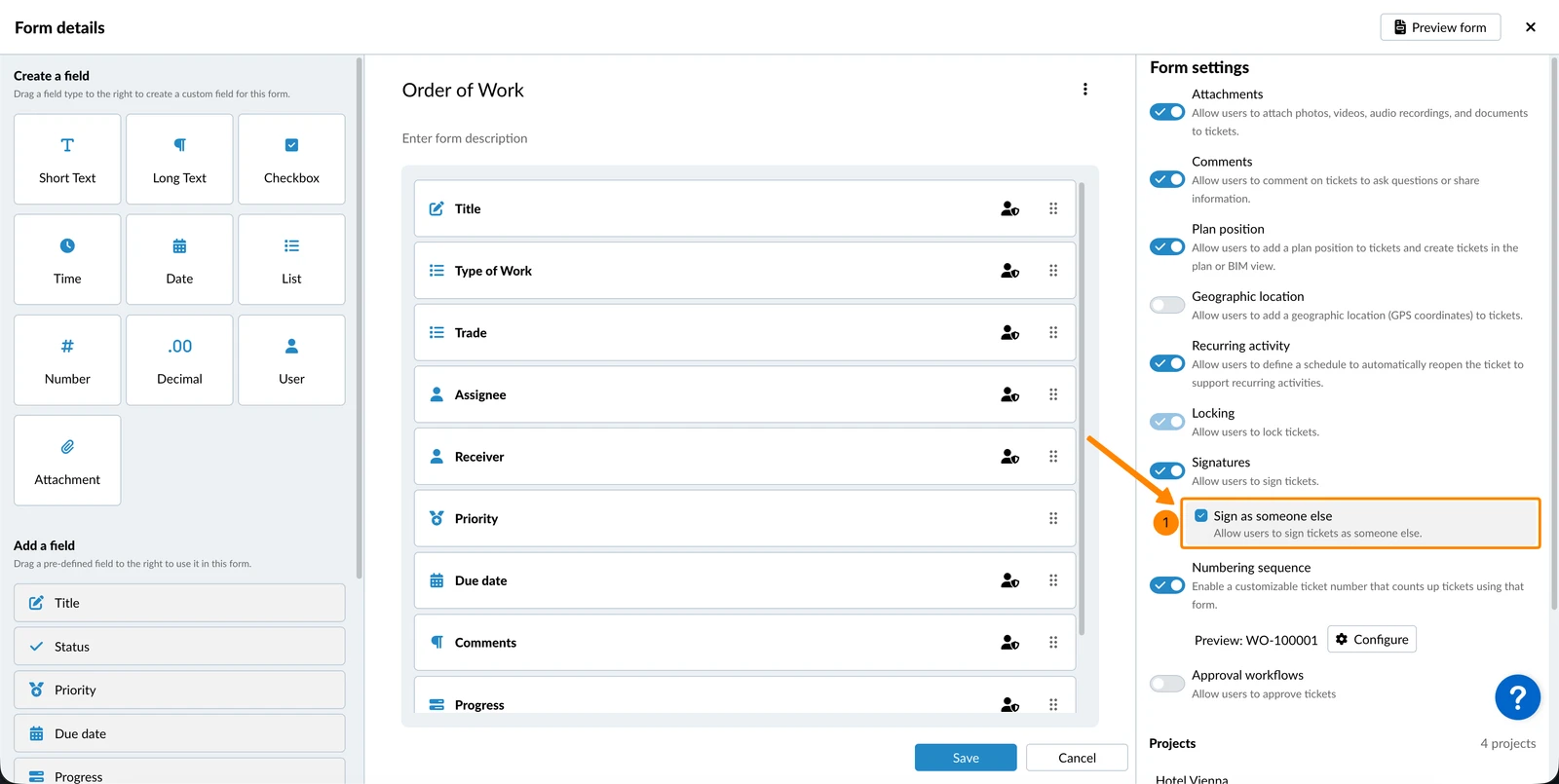
When you enable Signatures, the 'Sign as someone else' checkbox is selected by default.
To prevent users from signing as someone else than the logged-in user:
- Clear the Sign as someone else checkbox
Numbering Sequence
The numbering sequence option lets you add a customizable ticket number that automatically counts up with each new ticket created with this form.
-
Prefix (optional): Add up to 10 alphanumeric characters (letters and numbers only). Special characters and spaces are not allowed.
- If you use a prefix, it will always be separated from the number with a dash (-).
- Example: RFI-10001
-
Starting number: The sequence begins at 1 by default. You can set a higher starting number (e.g., 10001) if needed. Numbers with leading zeros (e.g., 0001) are not supported.
To enable the numbering sequence:
- Activate the Numbering sequence toggle
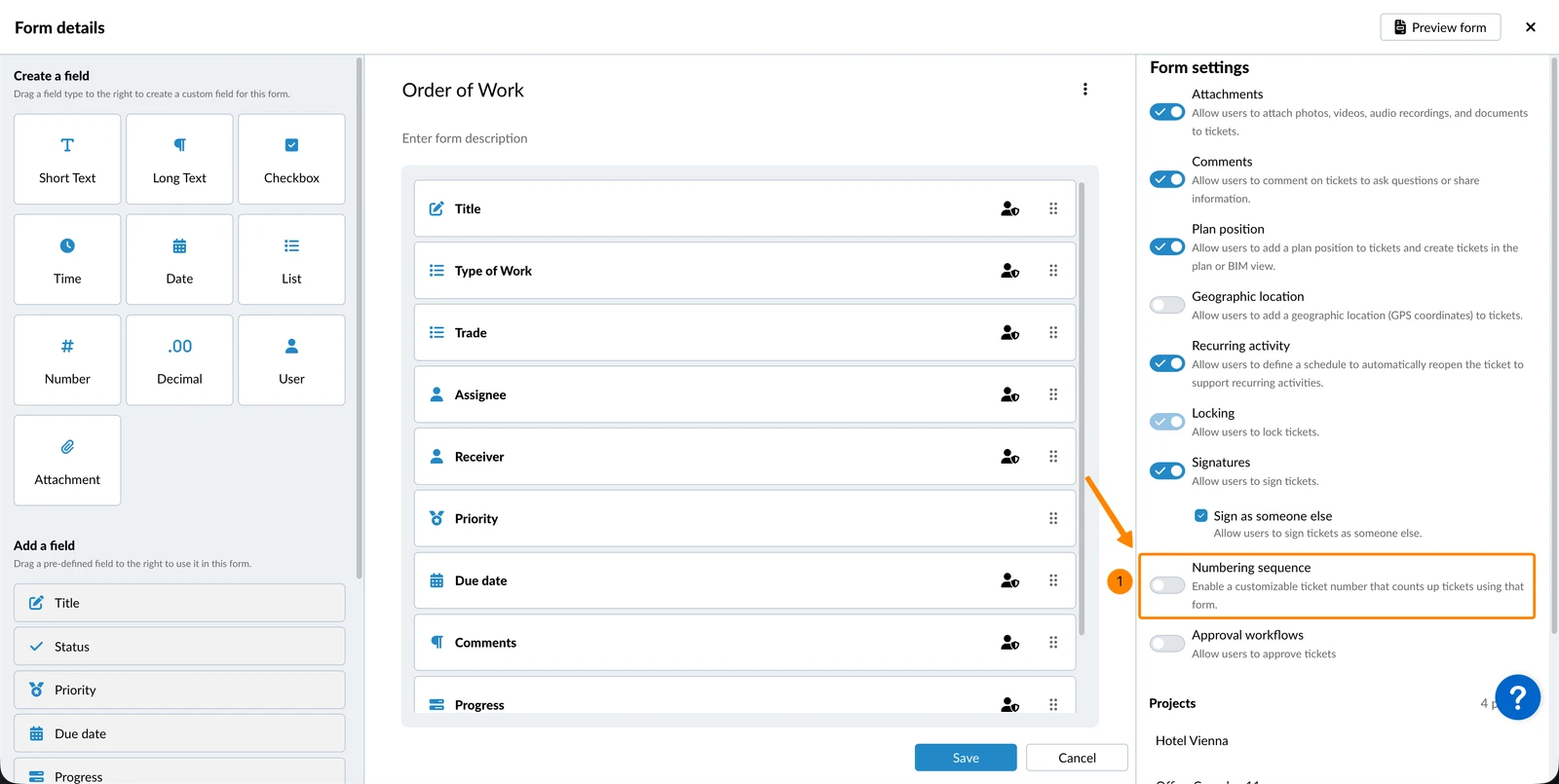
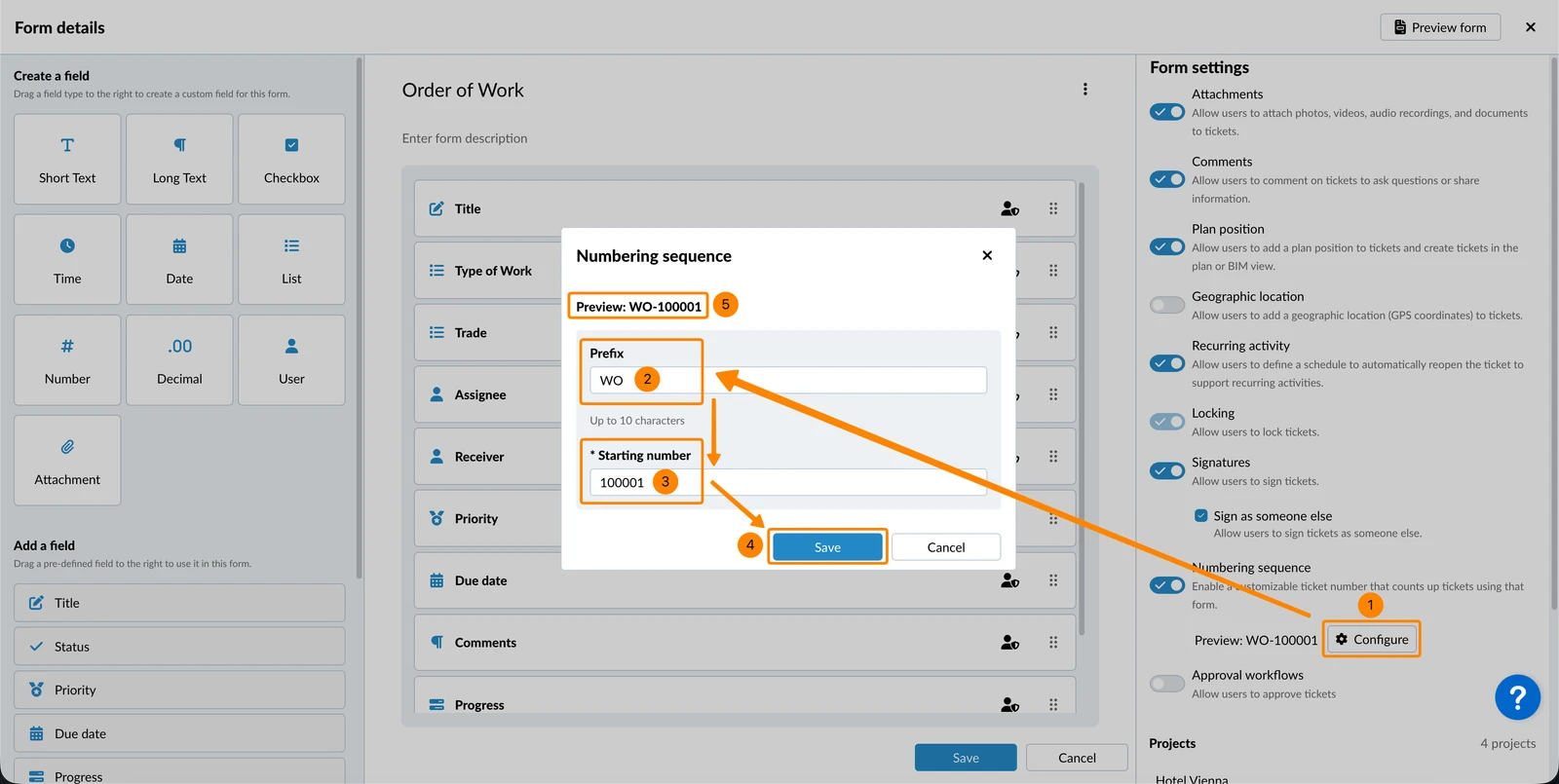
To configure the numbering sequence:
- Click Configure
- Enter a Prefix
- Enter a Starting number
- Click Save
- You can see the Preview of the first number that will be used in a ticket.
Approval Workflows
Allow users to request approval for tickets. Read more in Approvals.
Ticket Permissions
Ticket permissions for forms work the same way as field permissions.
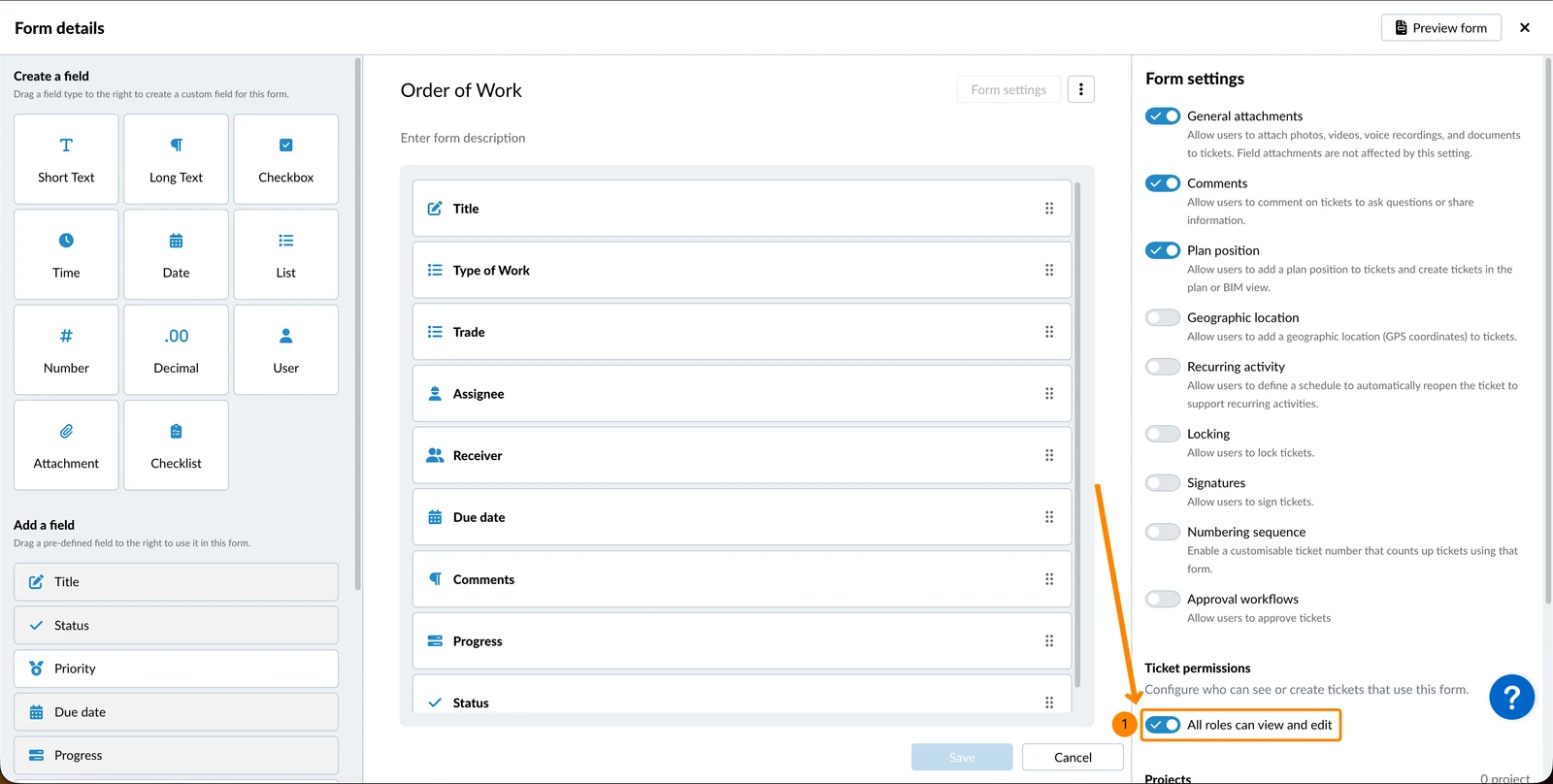
By default all roles can create and view tickets using this form.
To restrict creating and viewing to certain roles:
- Disable the All roles can view and edit toggle
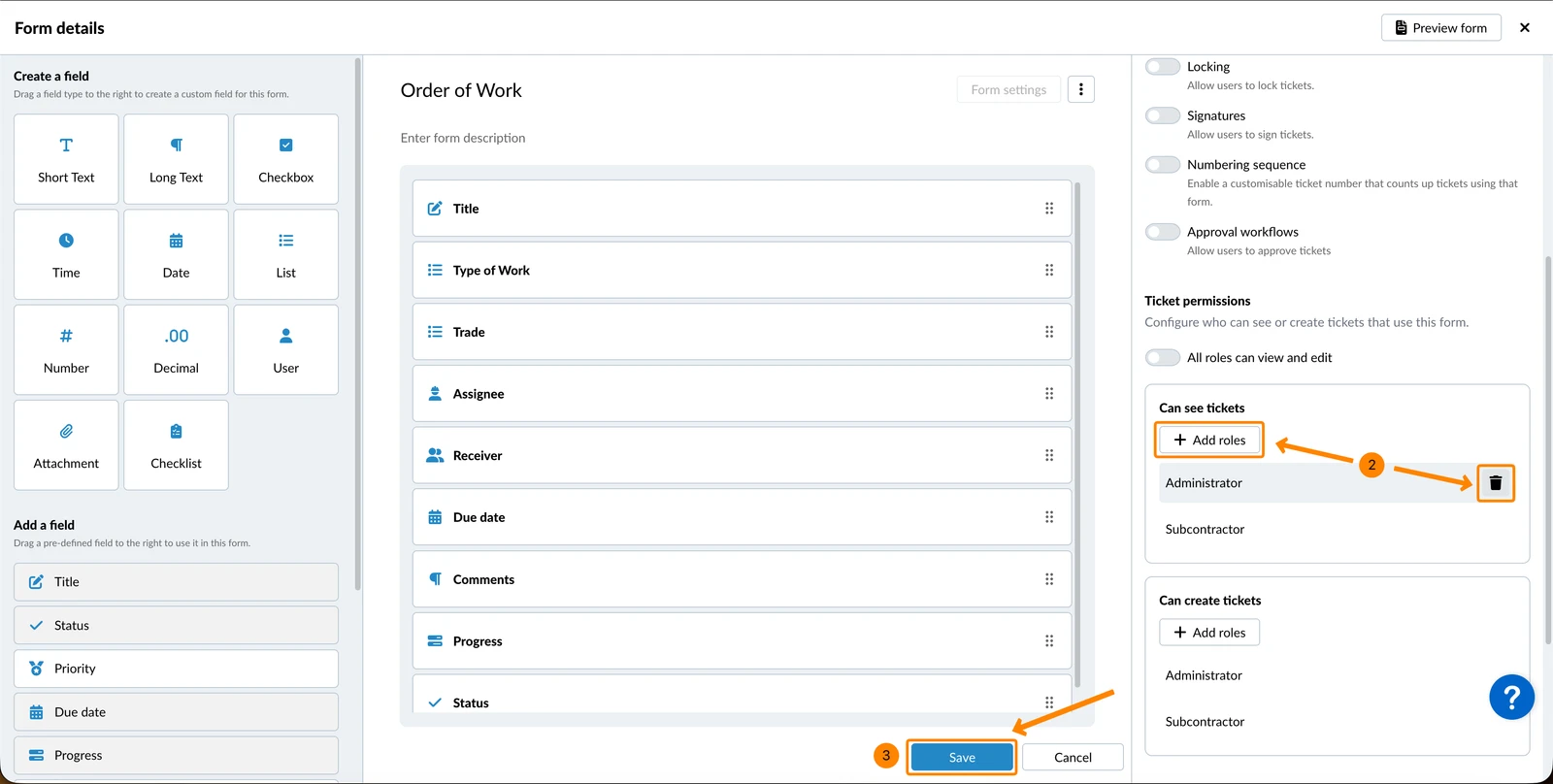
- Remove or add roles under Can see tickets and Can create tickets
- Click Save
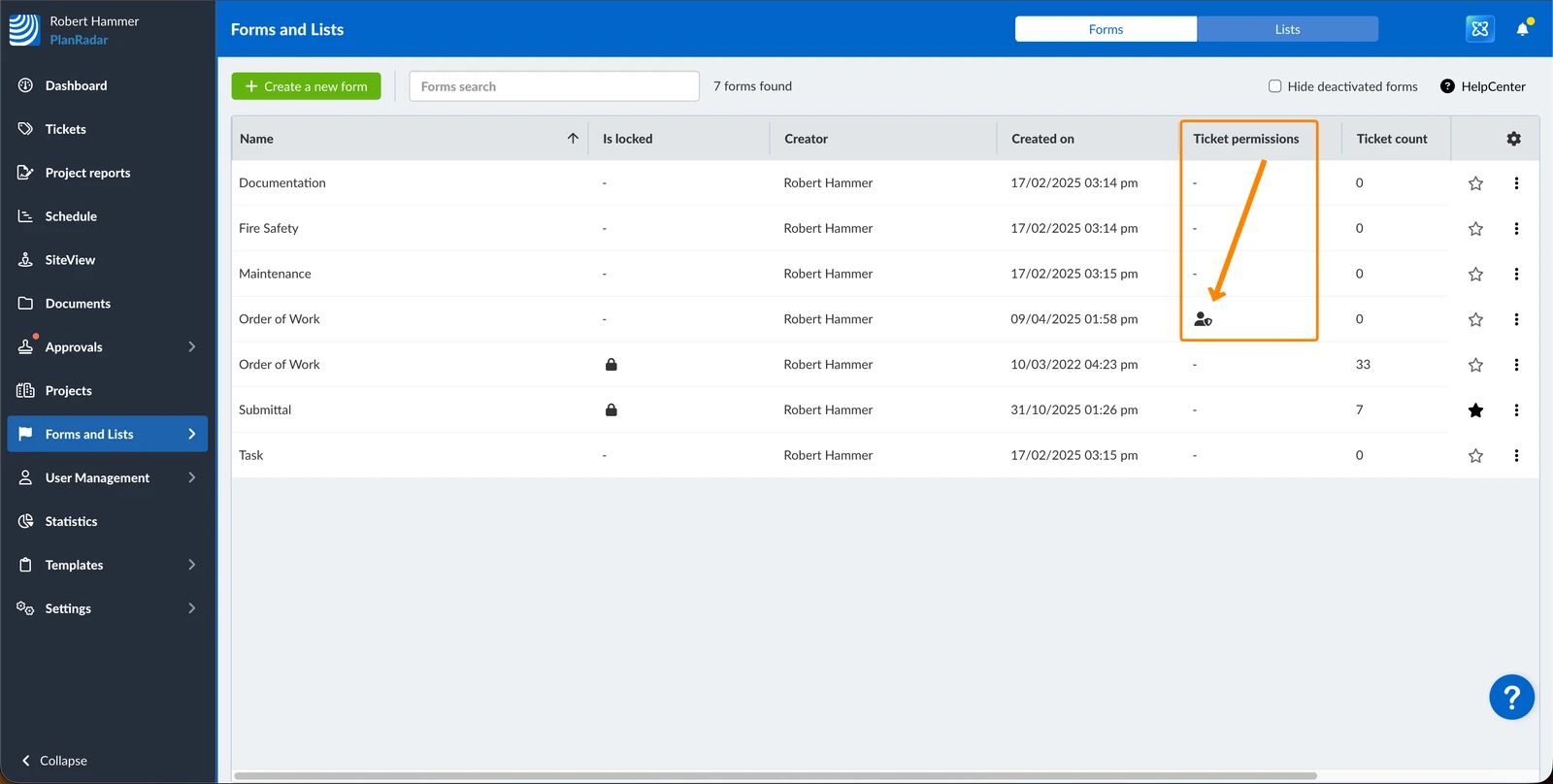
You can see if a form has ticket permissions restricted to certain roles by the icon in the ticket permissions column:
Updated June 22, 2026