

 Deutsch
 Español
 Français
 Hrvatski
 Italiano
 Polski
 Português (BR)
Augmented Reality View Mode for Mobile BIM Viewer
Overview
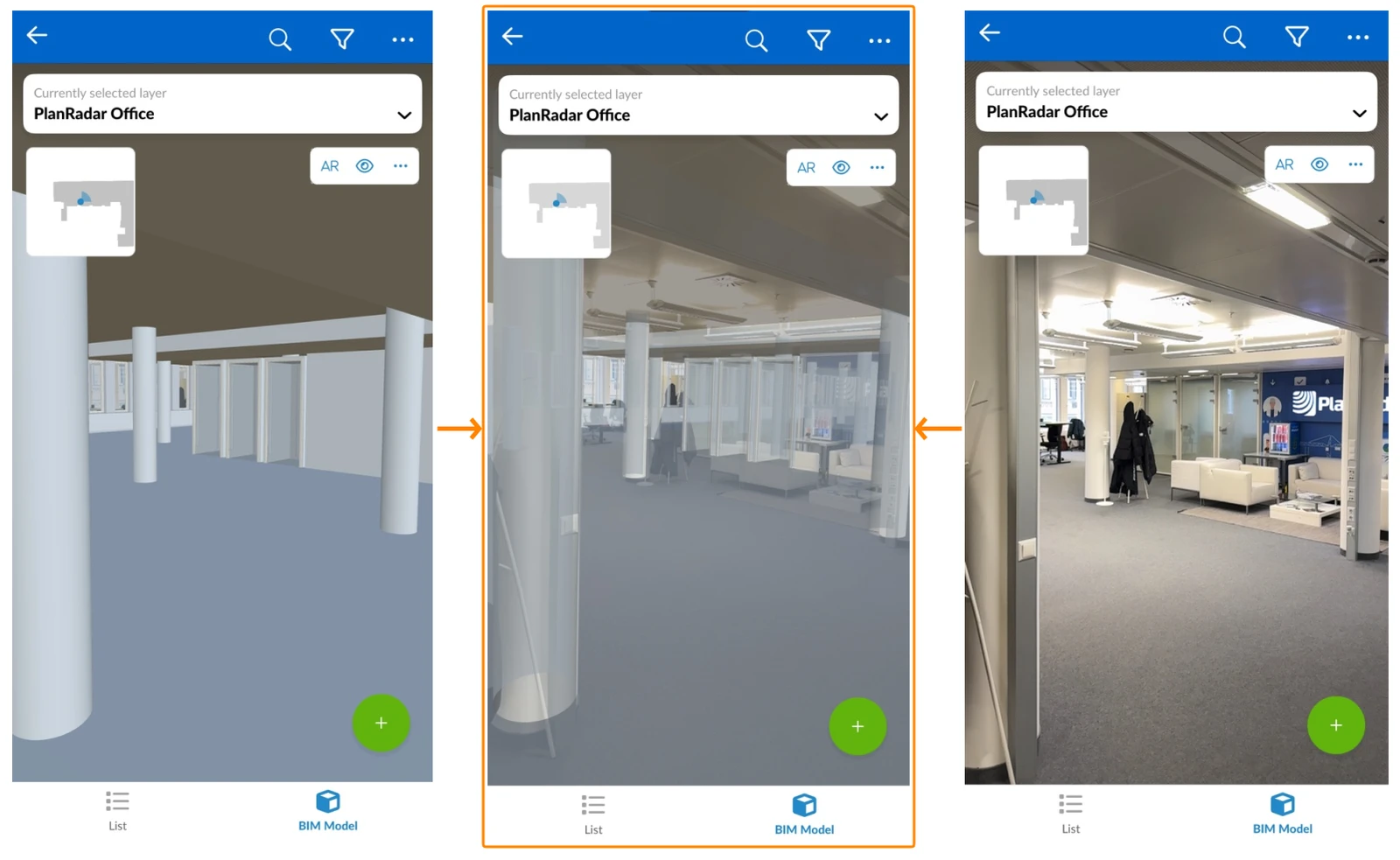
Switch to Augmented Reality (AR) view mode in the BIM viewer in the mobile app to compare your plan with the actual build, look behind walls, verify technical building equipment is installed correctly, etc.
You simultaneously see what your mobile device camera captures live and an overlay of the BIM model.
Read about the BIM Viewer.
Access & Permissions
How to access the BIM Viewer
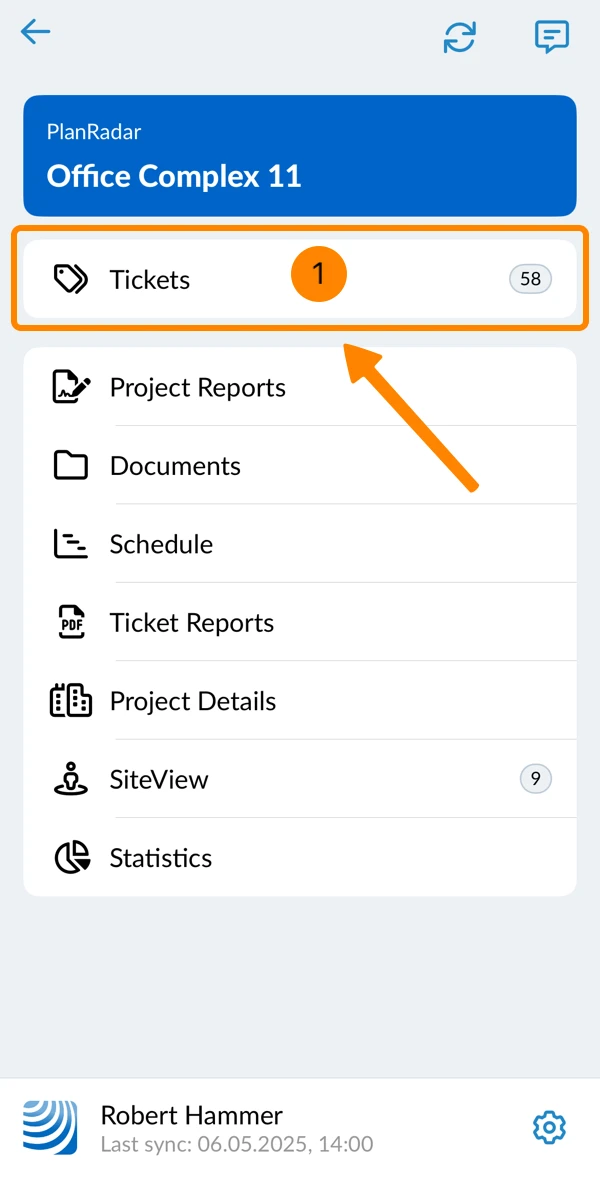
- Tap Tickets
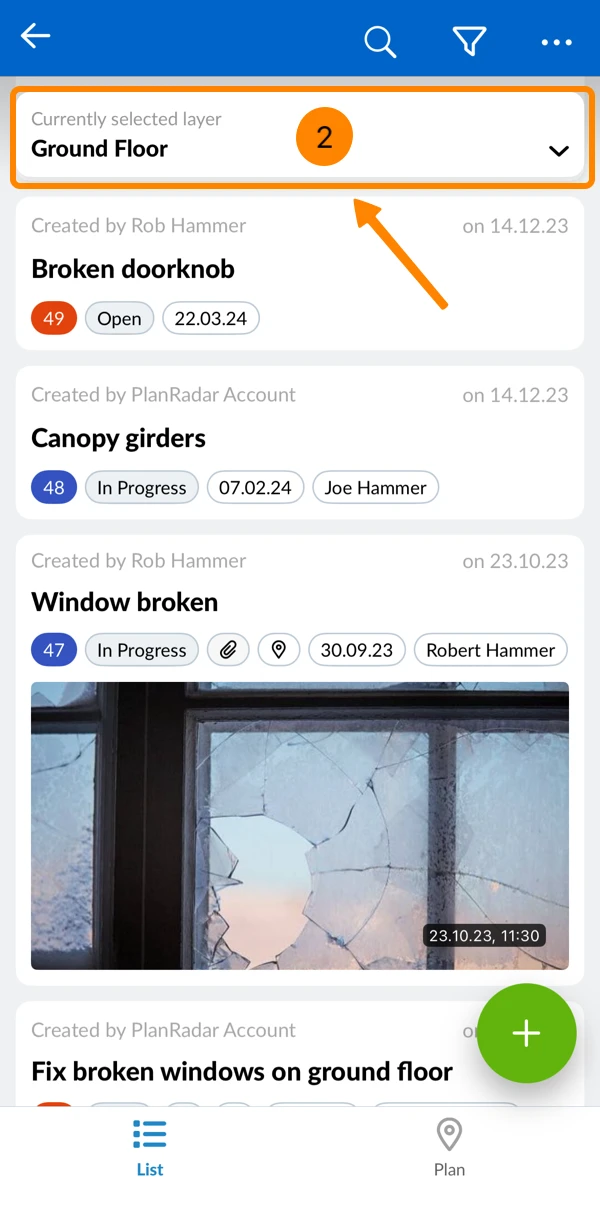
- Open the layer selector
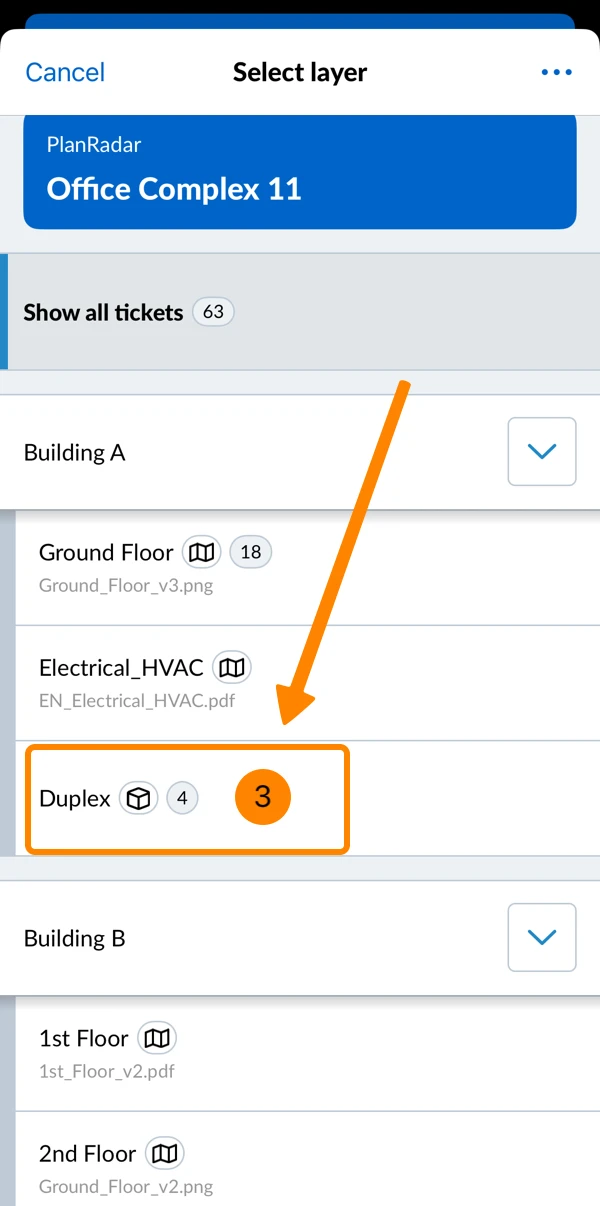
- Tap on a layer with a BIM model (marked by a cube icon)
- Tap BIM Model
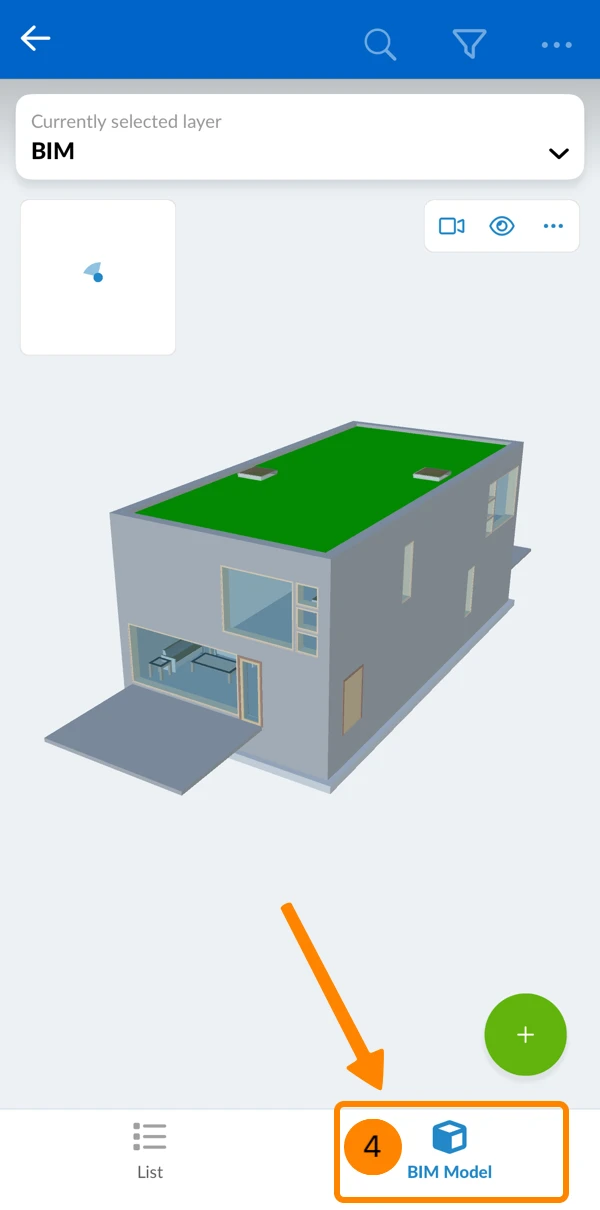
Enter AR Mode
To enter AR mode:
- Open the More menu
- Tap Augmented Reality
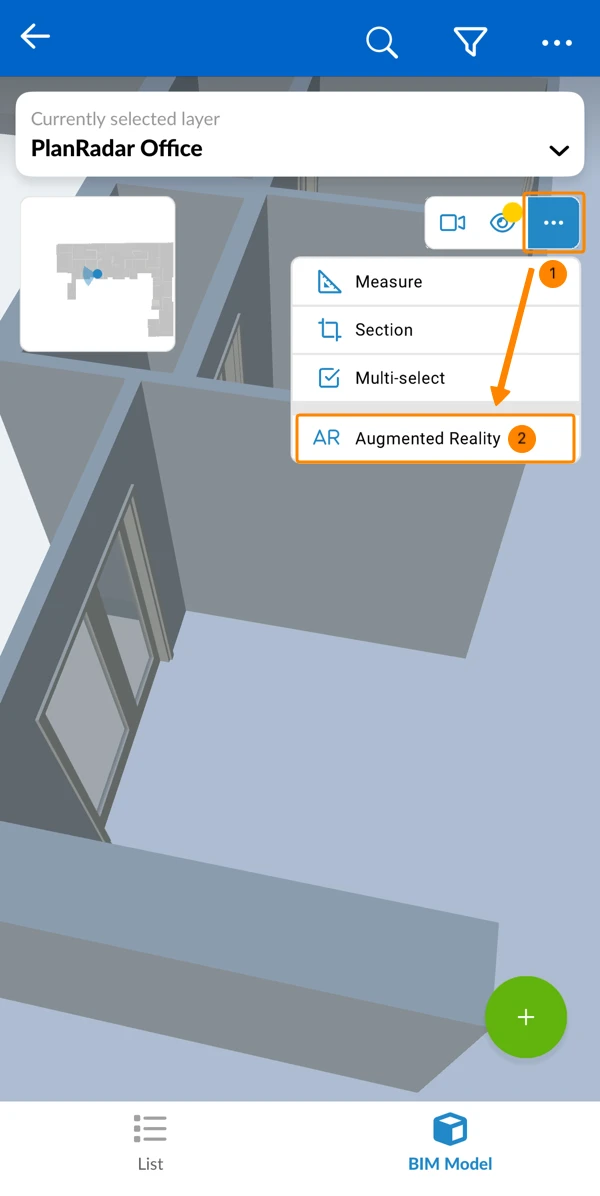
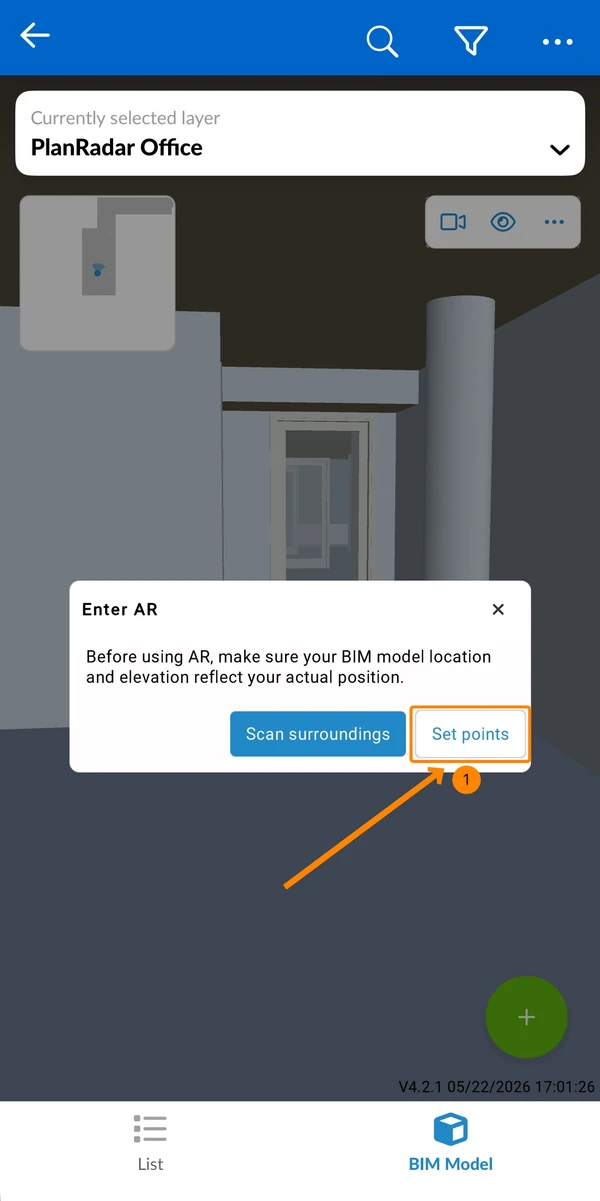
The Enter AR screen opens with two ways to align the BIM model with your surroundings:
- Align automatically (Scan surroundings) — the app aligns the model automatically as you scan the room with your camera.
- Align manually (Set points) — you align the model manually by placing two reference points.
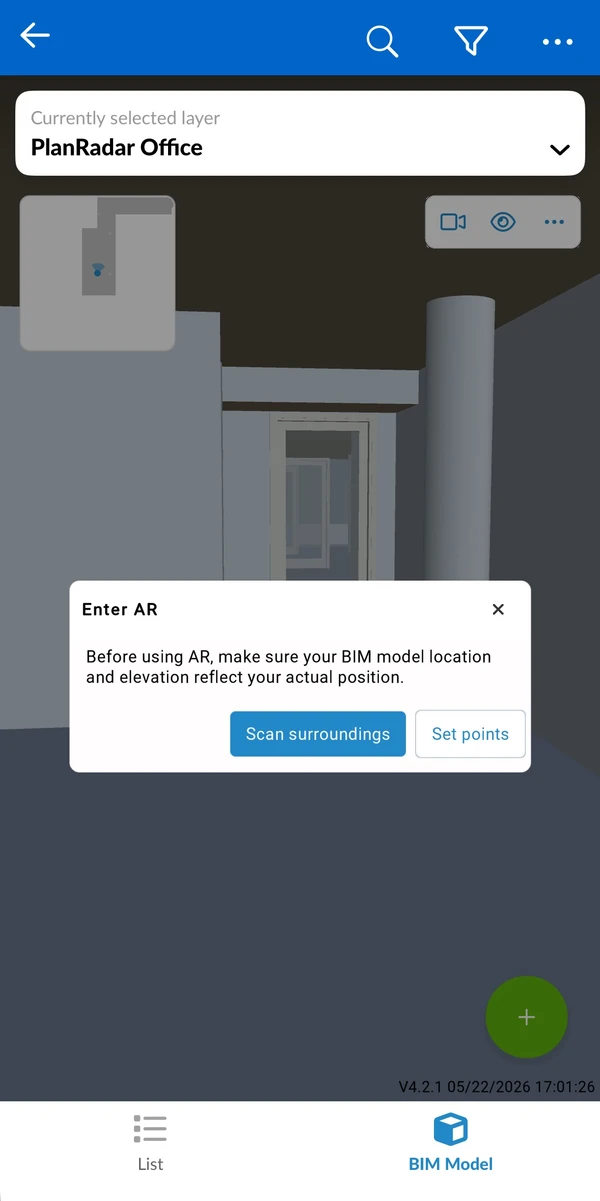
Align automatically (Scan surroundings)
To align automatically:
- Tap Scan surroundings.
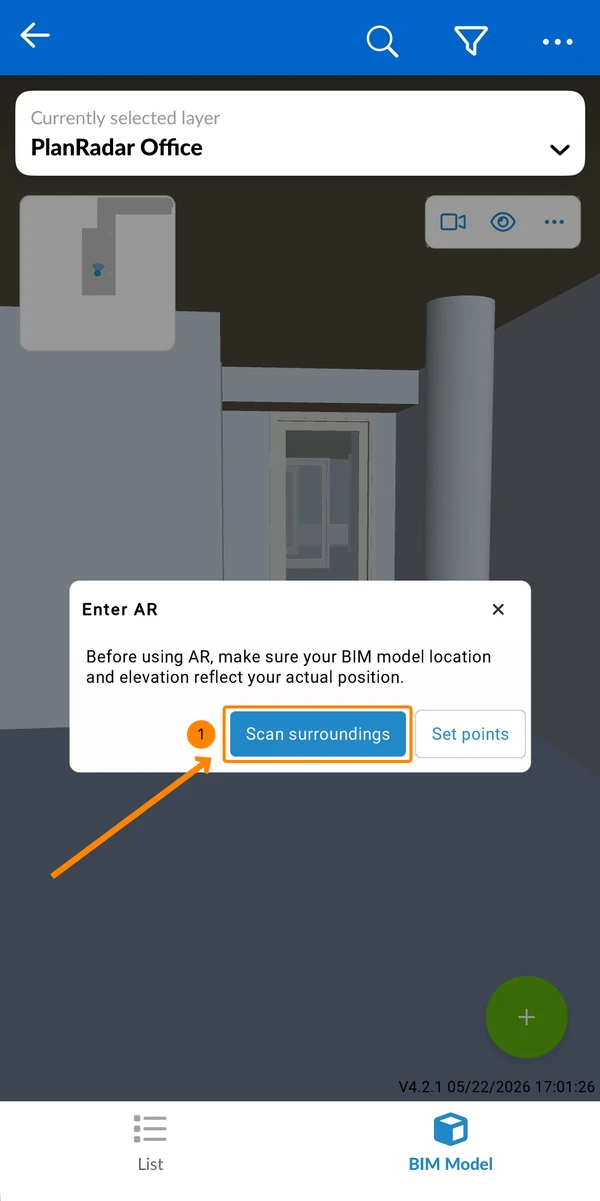
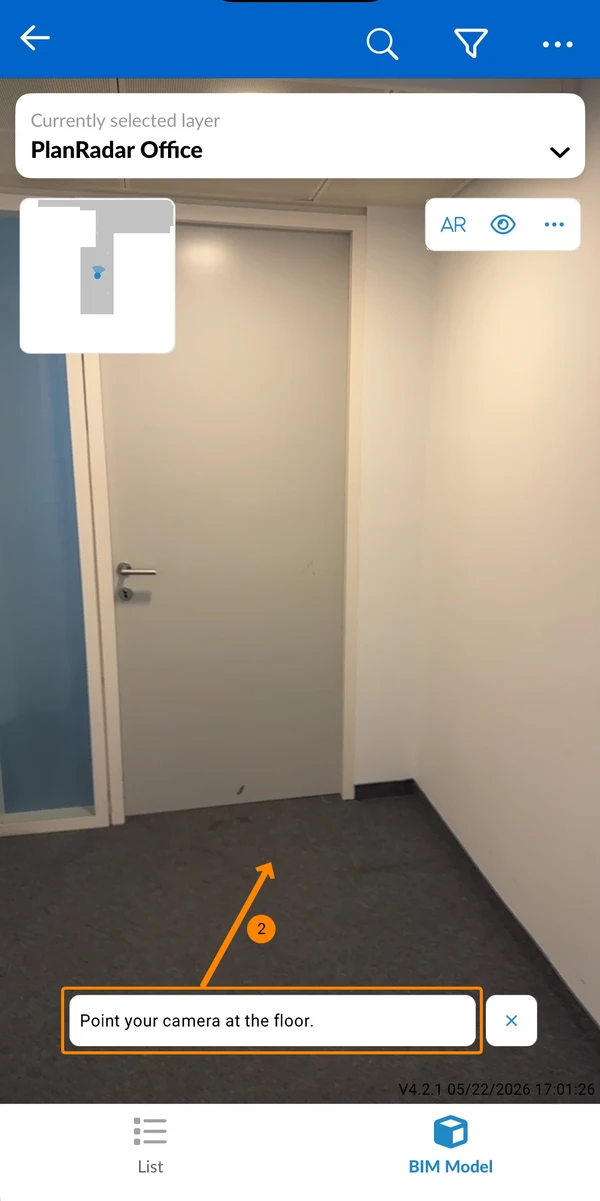
- Point your camera at the floor until it is detected.
- Hold your device at eye level and slowly turn in a full circle to scan the surrounding walls and objects.
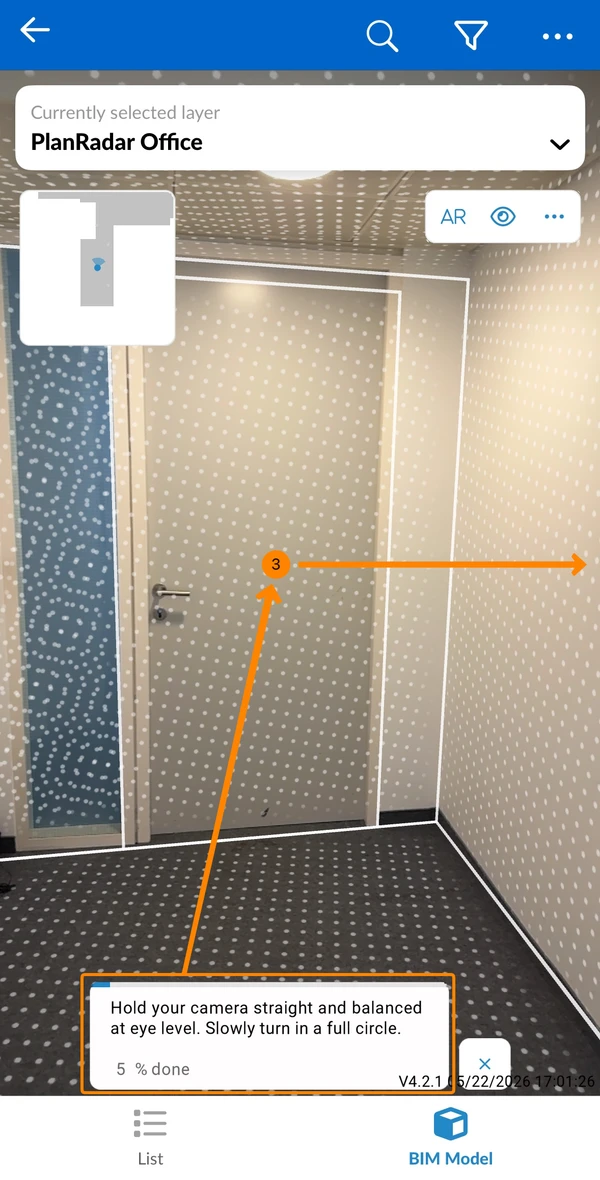
When the scan is complete, AR mode opens automatically with the BIM model aligned.
Align manually (Set points)
To align the BIM model manually:
- Tap Set points to start the alignment process.
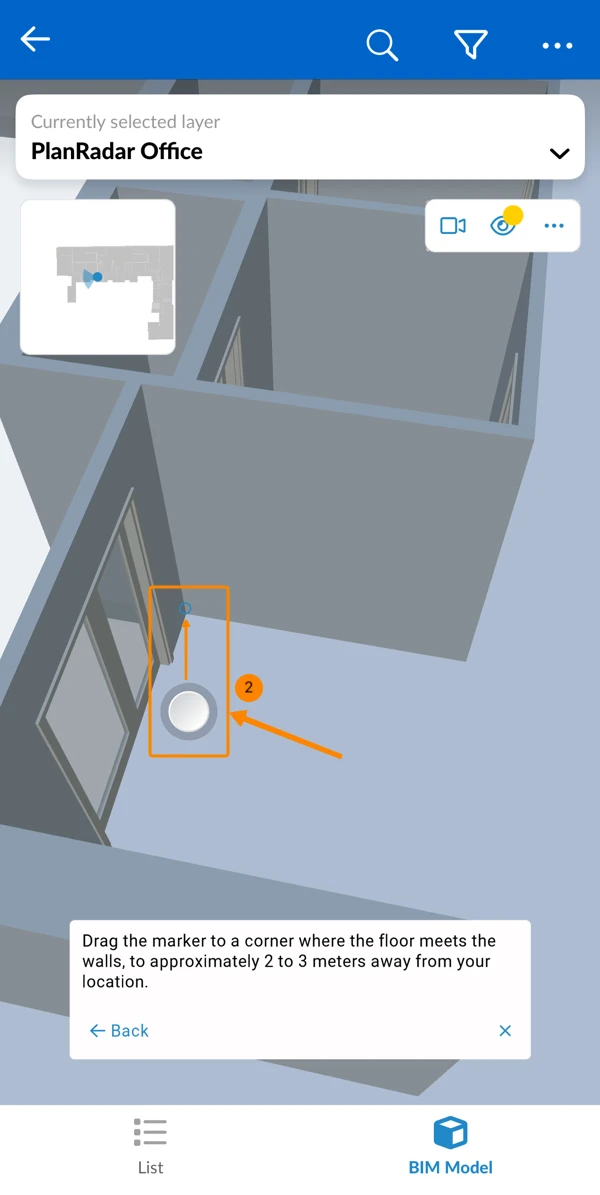
- Set the first point in the BIM model
Drag the marker to a clearly visible corner where the floor meets the wall, approximately 2–3 meters away from your current position.
- Set the second point in the BIM model
Drag the marker along the same floor–wall edge as the first point, at a different position.
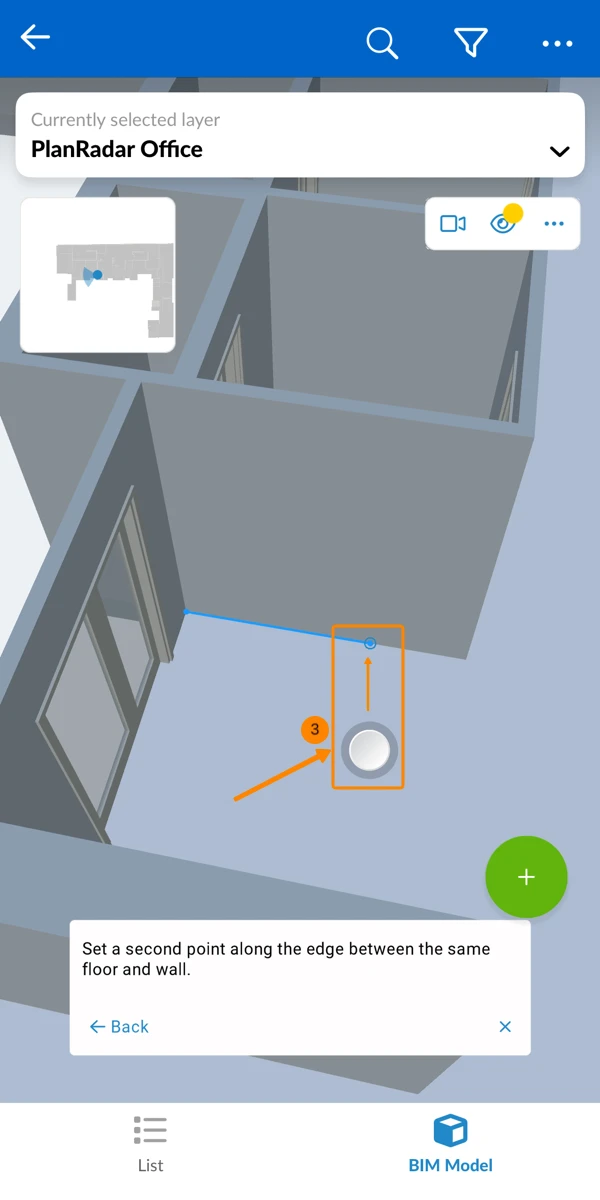
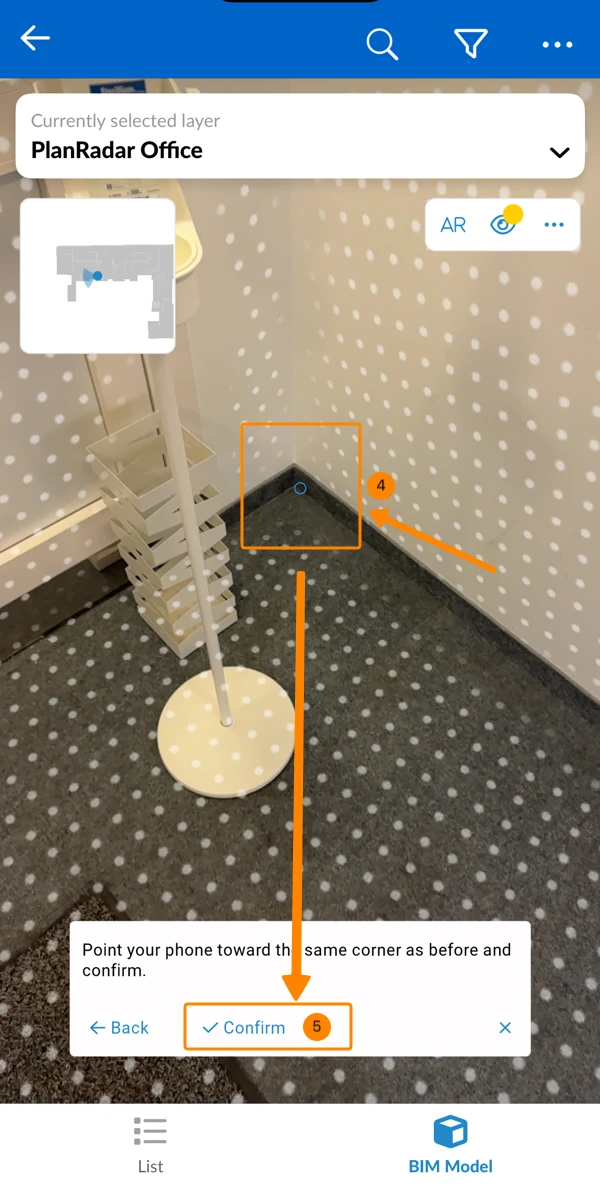
- Align the camera with the first point
Point your mobile device toward the same physical corner you selected as the first point. - Tap Confirm
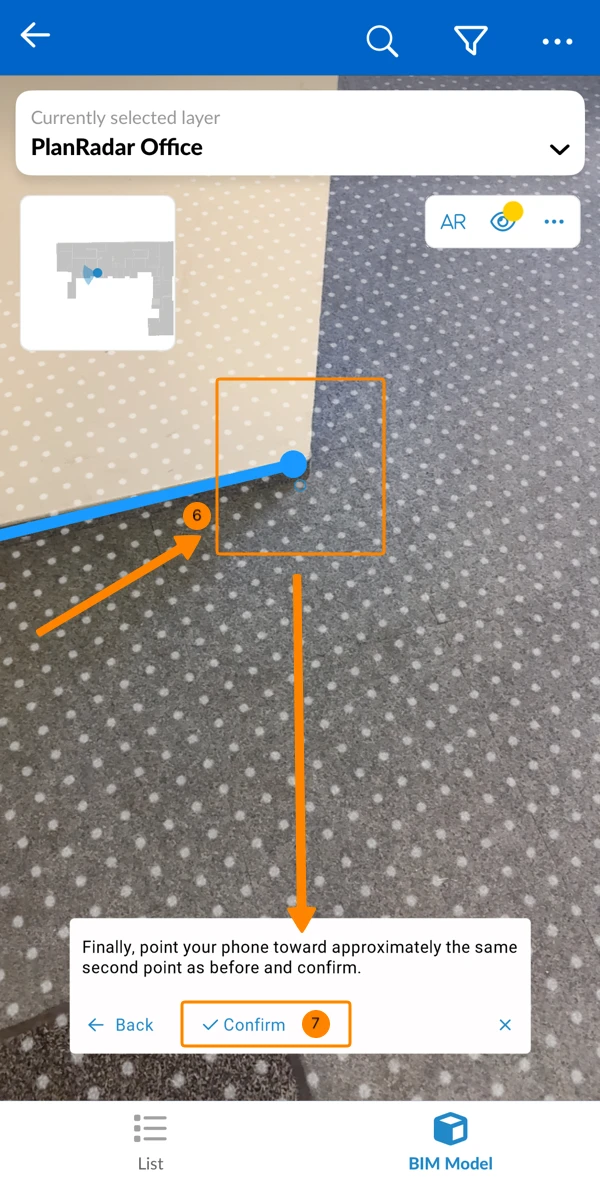
- Align the camera with the second point
Point your mobile device toward the physical location corresponding to the second point. - Tap Confirm
Once completed, the BIM model should align with your real-world view.
If the alignment is slightly off, you can fine-tune it manually using the adjustment controls as described below in Manually Adjust Alignment.
Look Around in AR Mode
Now you are in AR mode and can look around just by moving your mobile device as if you were taking a photo or video. The BIM model will automatically stay aligned.
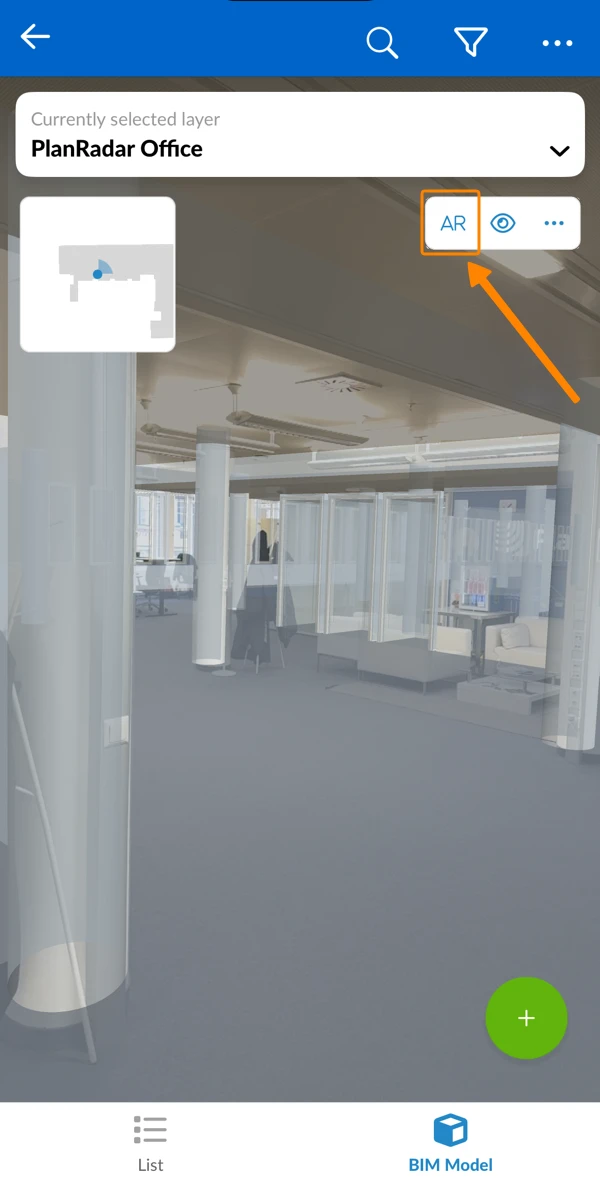
Adjust Transparency
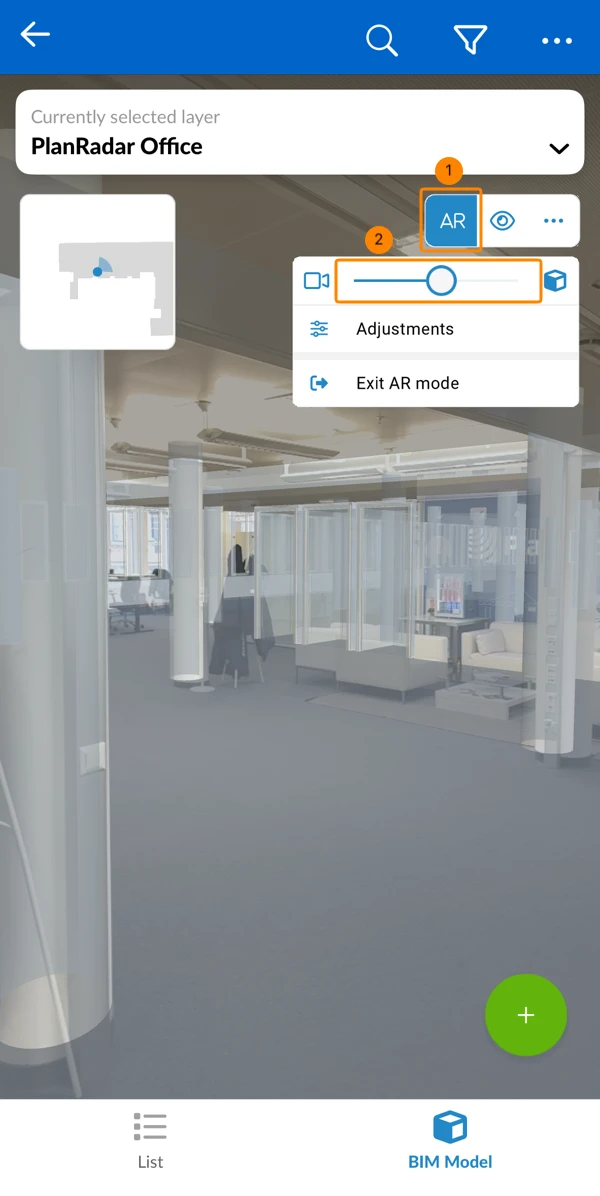
You simultaneously see what your mobile device camera captures live and an overlay of the BIM model. You can adjust the transparency to focus more on either the camera view or the BIM model.
To do so:
- Tap AR
- Drag the slider.
Move it to the left to see more from the camera and less of the BIM model.
Move it to the right to see more of the BIM model and less from the camera.
Manually Adjust Alignment
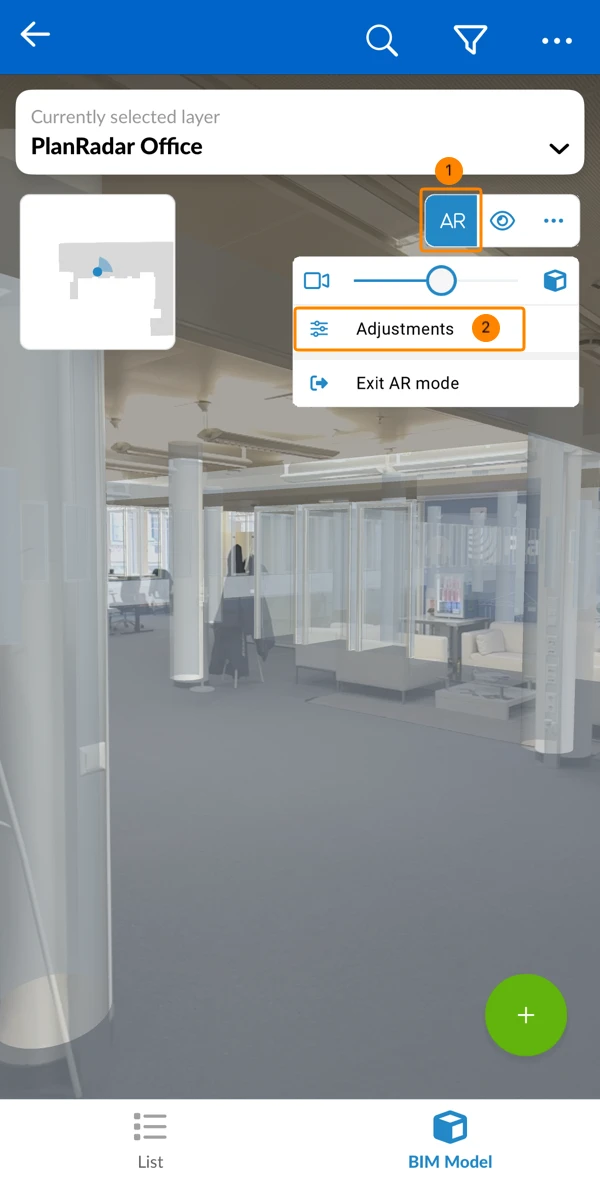
You can optionally adjust the placement of the BIM model on your camera feed on X, Y, and Z axis and by rotation. This is only necessary in case the automatically aligned positions are a bit off.
To do so:
- Tap AR
- Tap Adjustments
- Tap + or - to move the BIM model on the corresponding axis or to rotate it
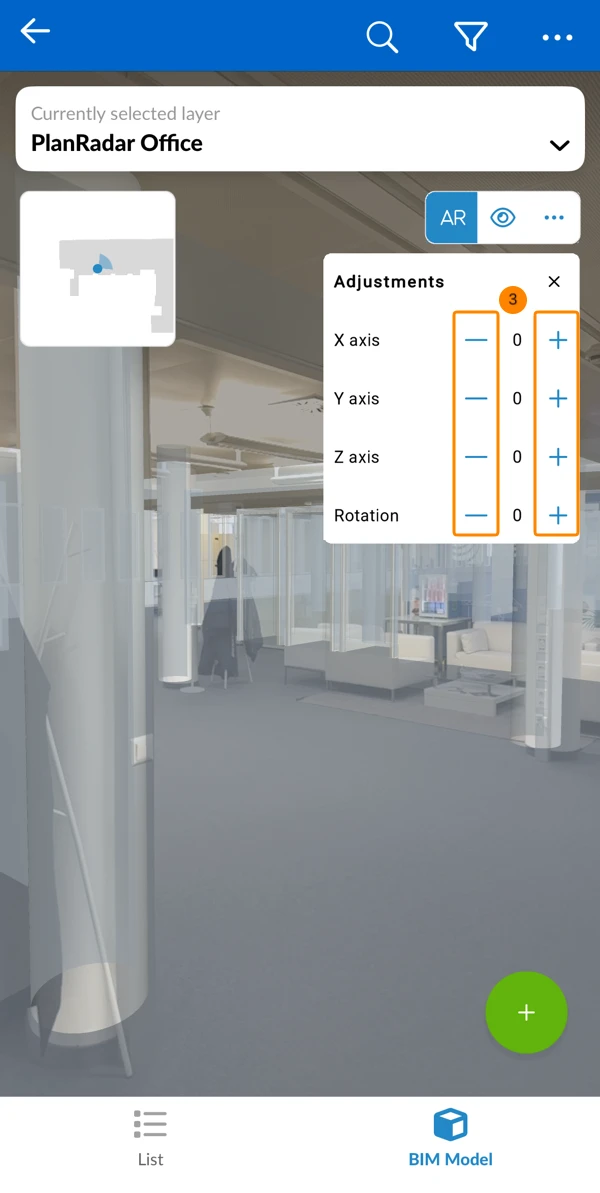
- Optional: To set a precise rotation, tap the rotation value and enter the number of degrees.
Create a Ticket in AR Mode
Exit AR Mode
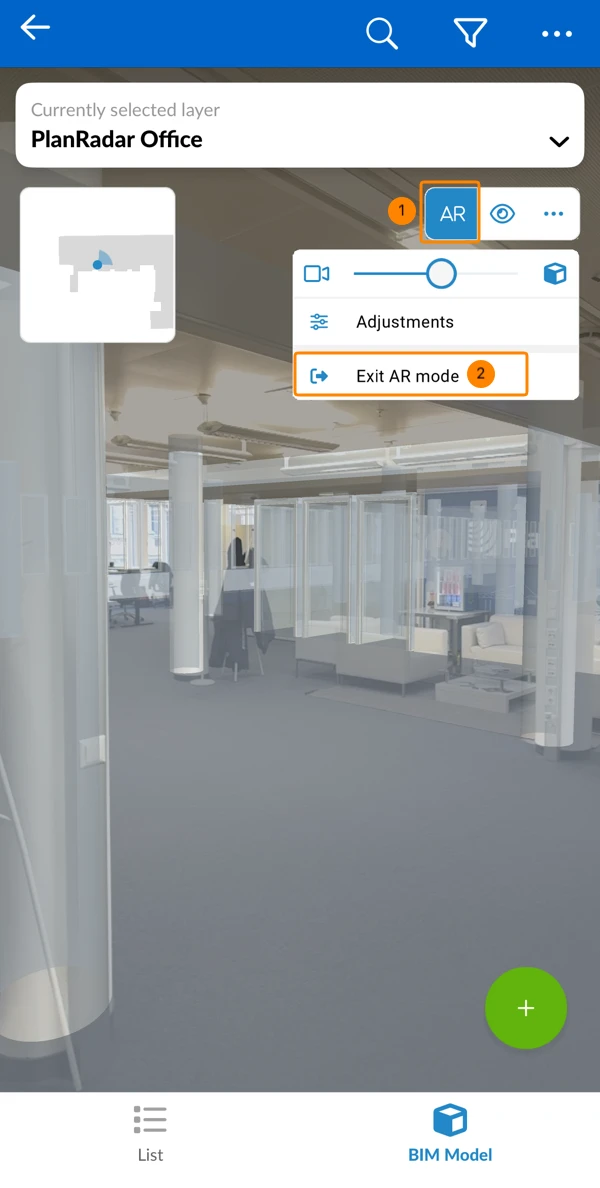
Exiting AR will not save the alignment. If you re-enter AR mode, you will need to align the BIM model again. Leaving the BIM viewer or switching model/layer will automatically exit AR mode.
To exit AR mode:
- Tap AR
- Tap Exit AR mode
Updated June 18, 2026