

 Deutsch
 Español
 Français
 Hrvatski
 Italiano
 Polski
 Português (BR)
Work with the Measuring Tool
Overview
The measuring tool allows you to accurately measure arbitrary distances, areas, angles and also dimensions of IFC elements with a single click. Use this tool to verify any dimensions as specified.
First, read about the BIM Viewer.
Access & Permissions
How to Access the Measuring Tool
- Click Tickets
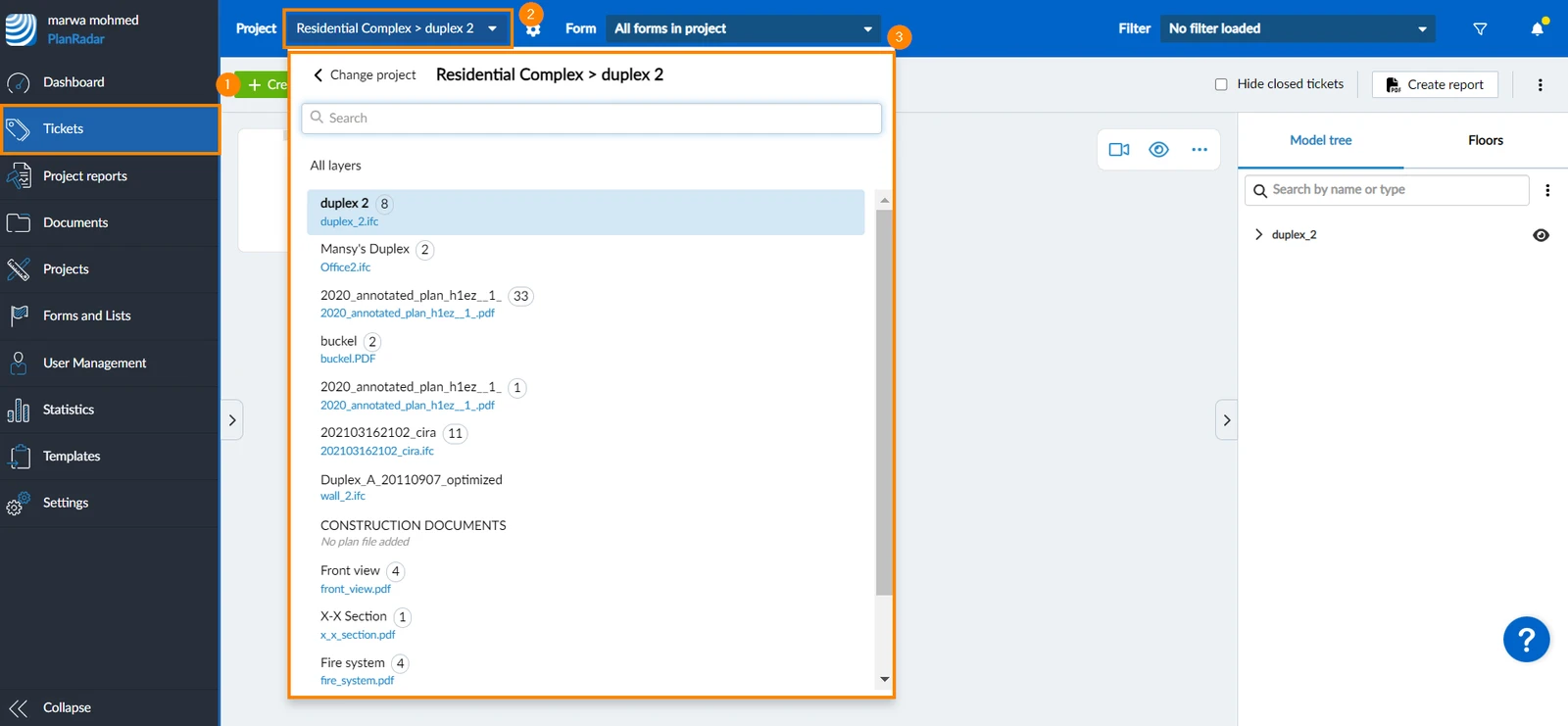
- Open the project drop-down
- Select the project and layer.
The BIM view is not available while All layers is selected.
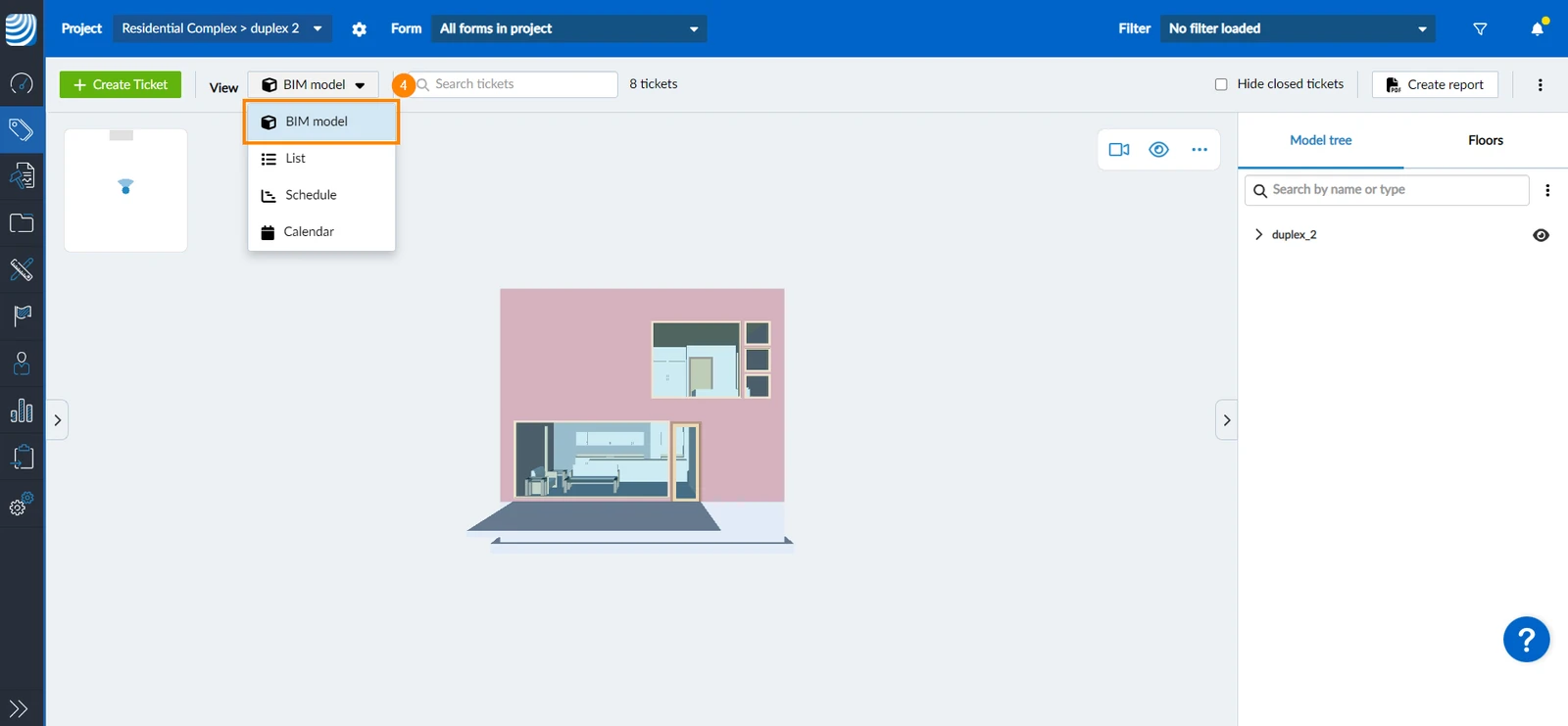
- Click BIM model in the View drop-down
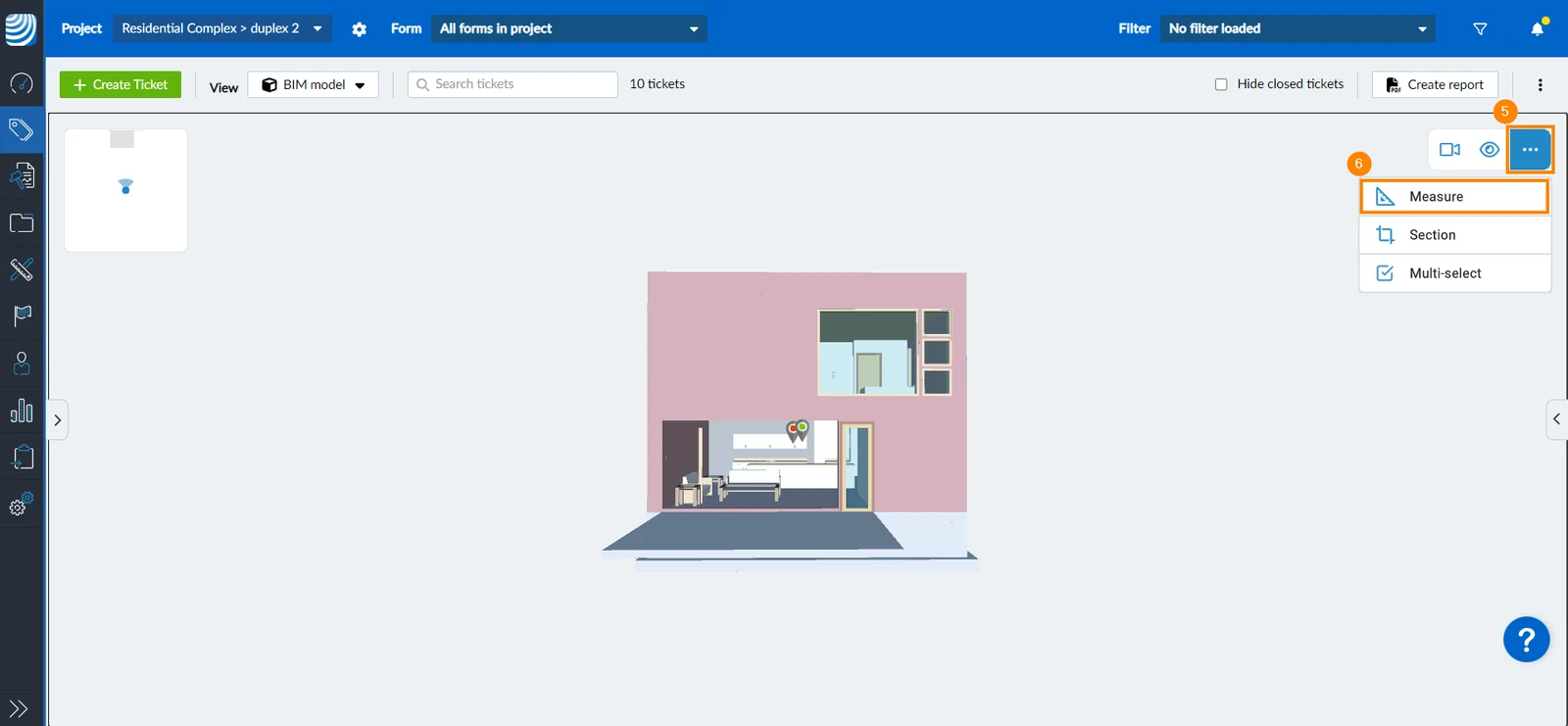
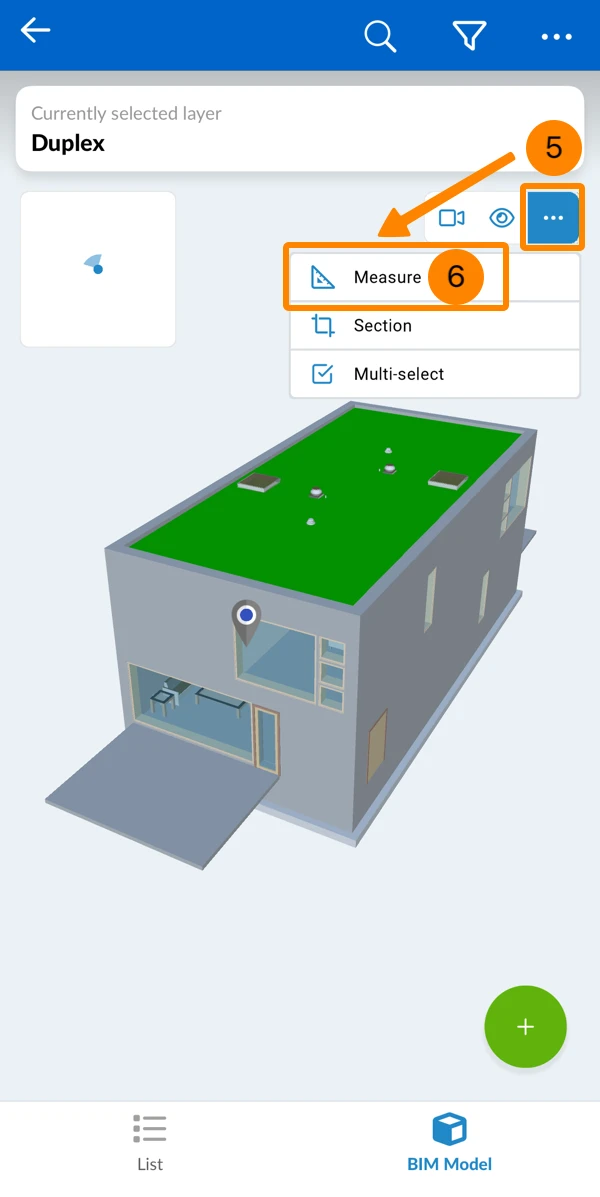
- Open the More menu
- Click Measure
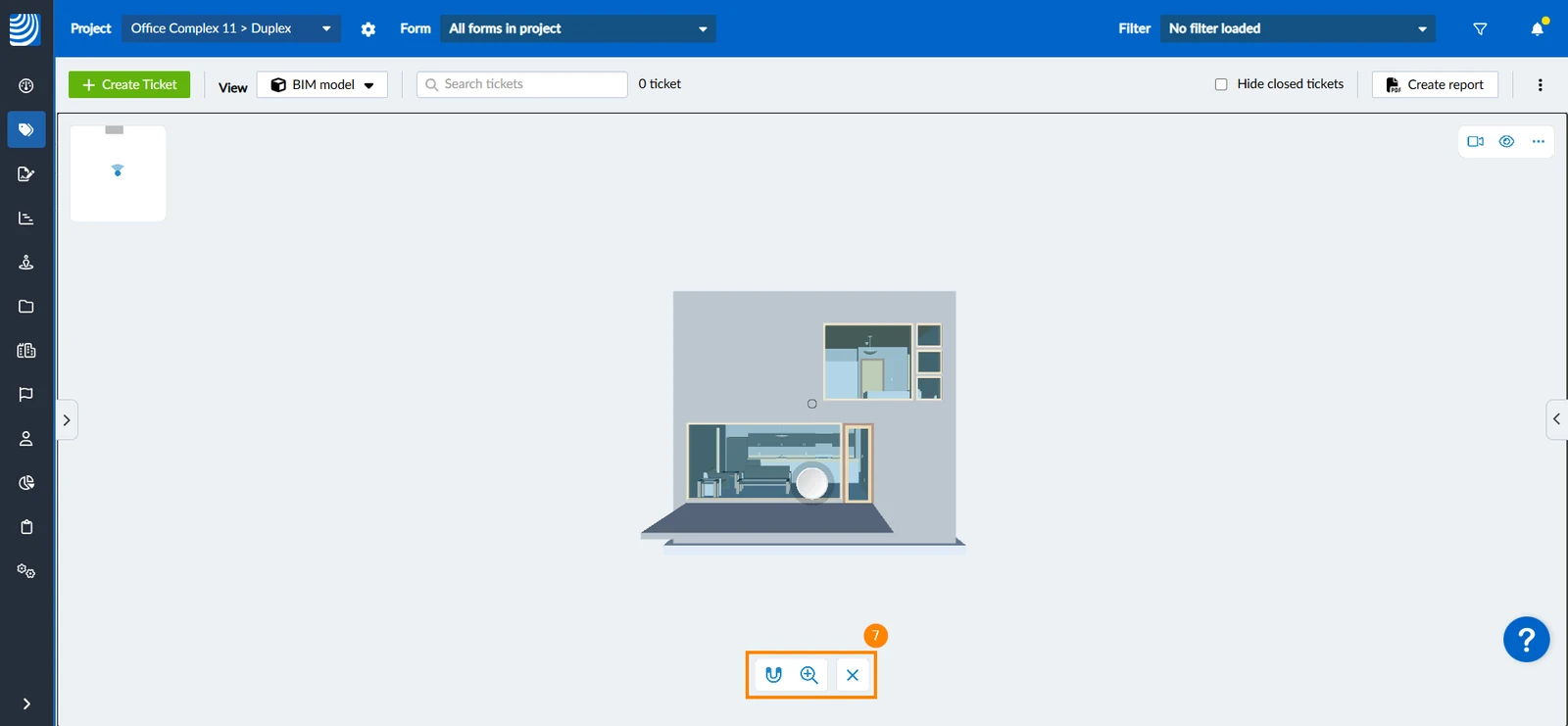
- The measurement tool dialog, along with all its options, appears at the bottom of the viewer
- Tap Tickets in the main menu
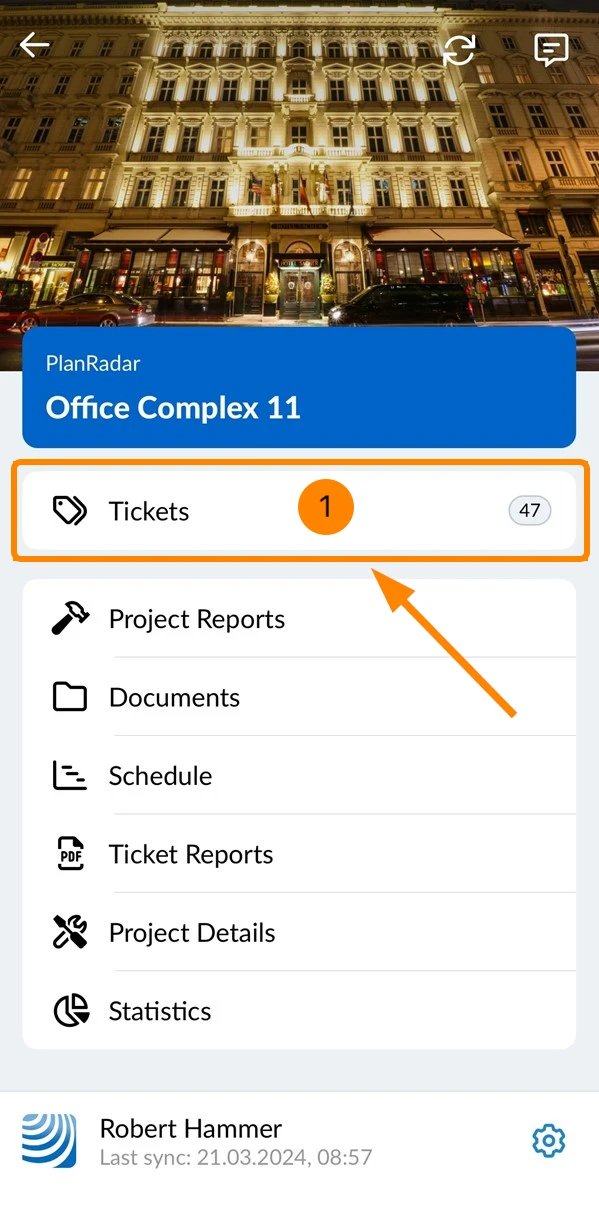
- Open the layer selector
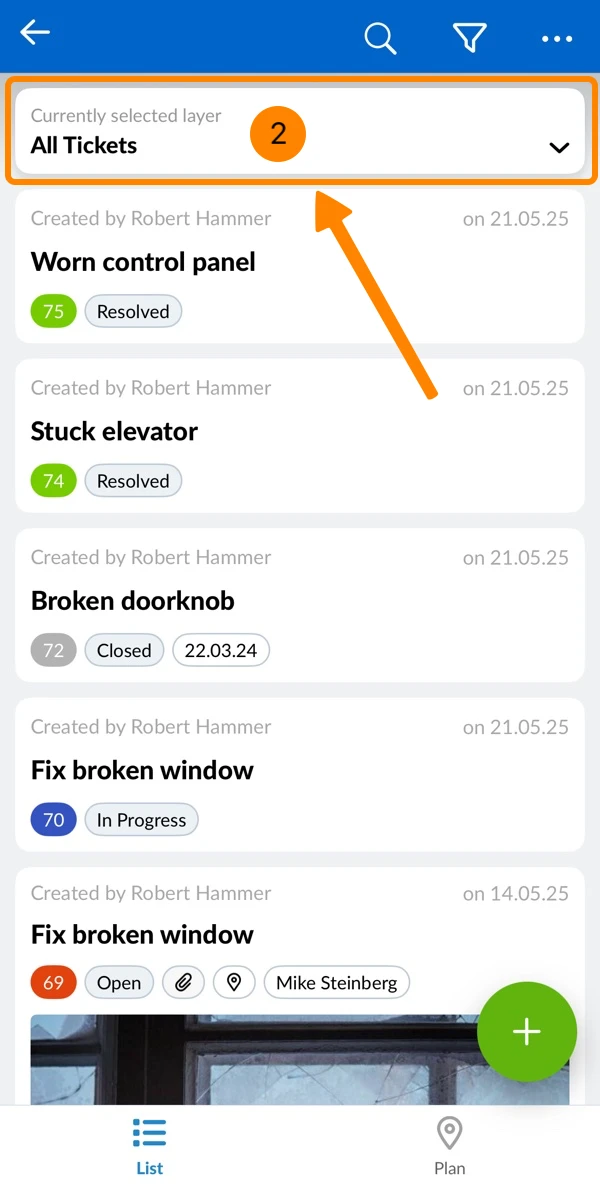
- Tap on a layer with a BIM model (marked by a cube icon)
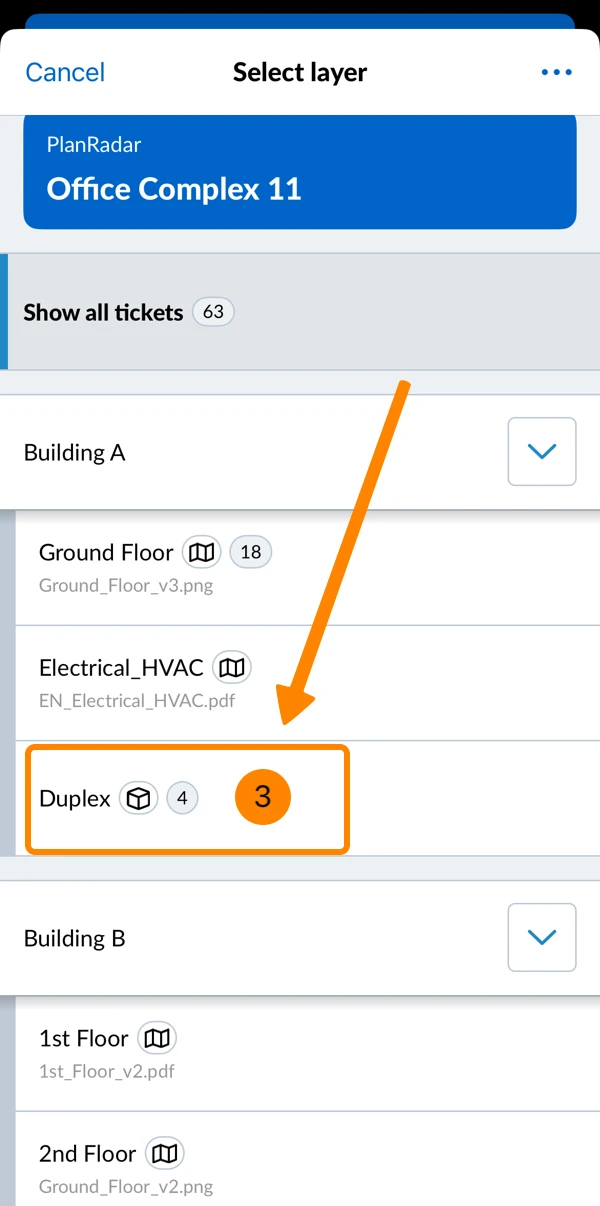
- Tap BIM Model
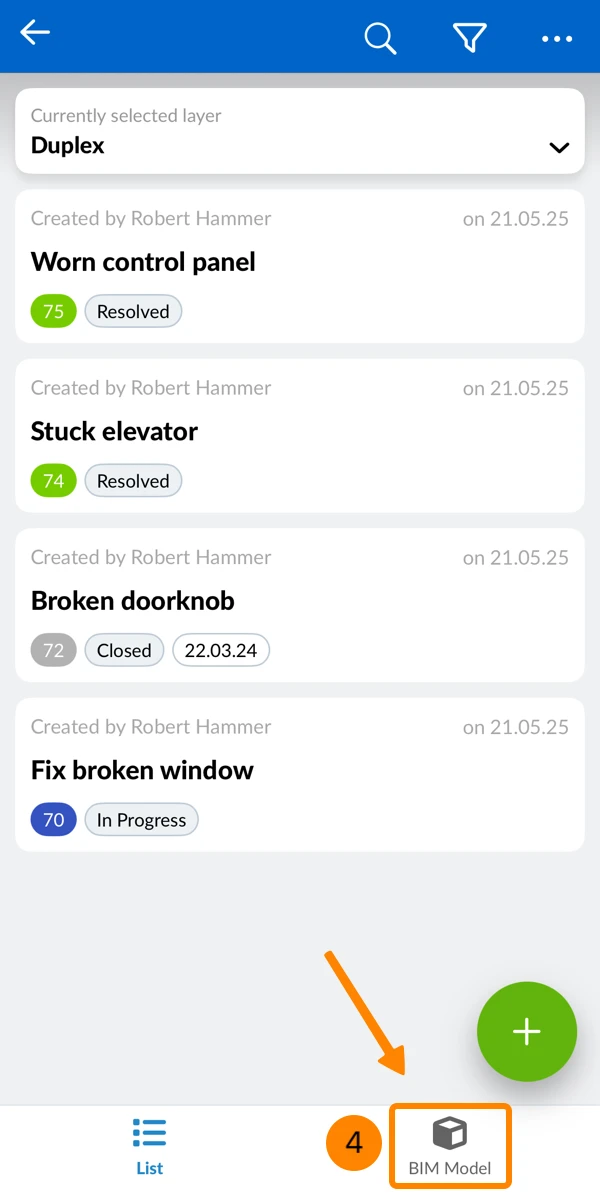
- Open the More menu
- Tap Measure
Show Element Dimensions
The measuring tool allows you to quickly show the dimensions of elements in the BIM model.
To show or hide the dimensions of an element:
- Click/tap the element in the 3D view
- OR Click/tap the element in the model tree
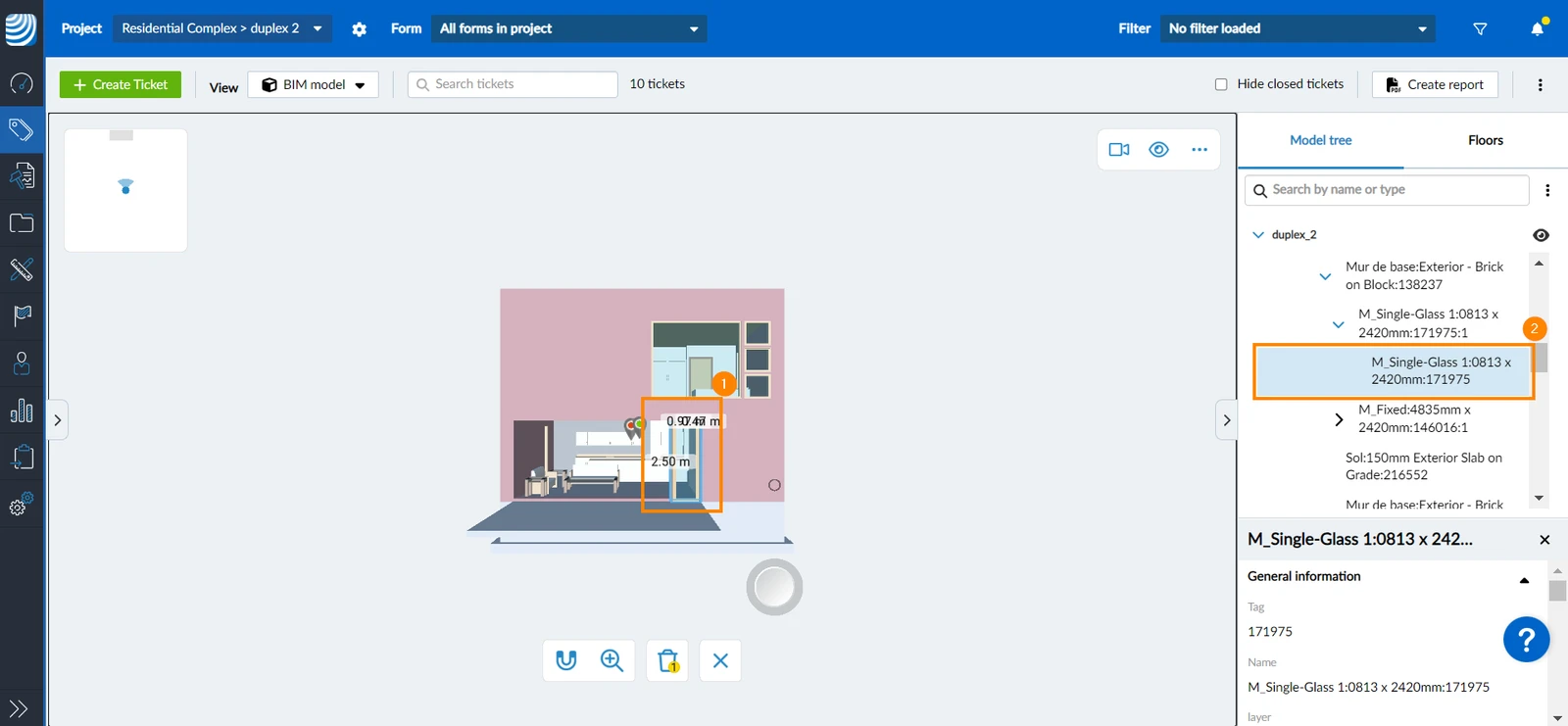
- The dimensions of the element are displayed in the 3D model
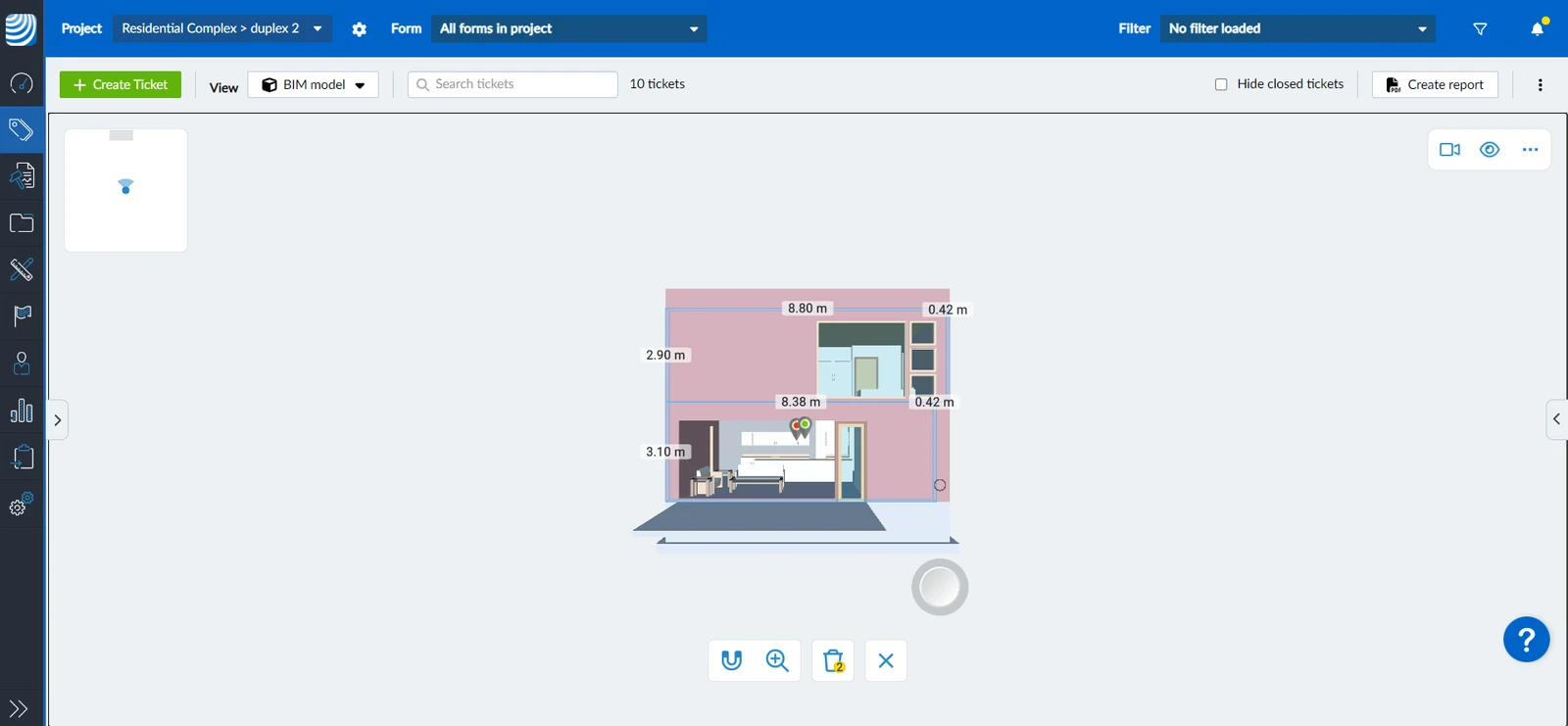
- Clicking/taping on an element again hides its dimensions
Measure a Certain Area
You can place two or more points to measure distances and areas. To do so:
- Click/tap on the measuring tool handle and drag it
- Position the measuring head at the starting point where you want to begin measuring
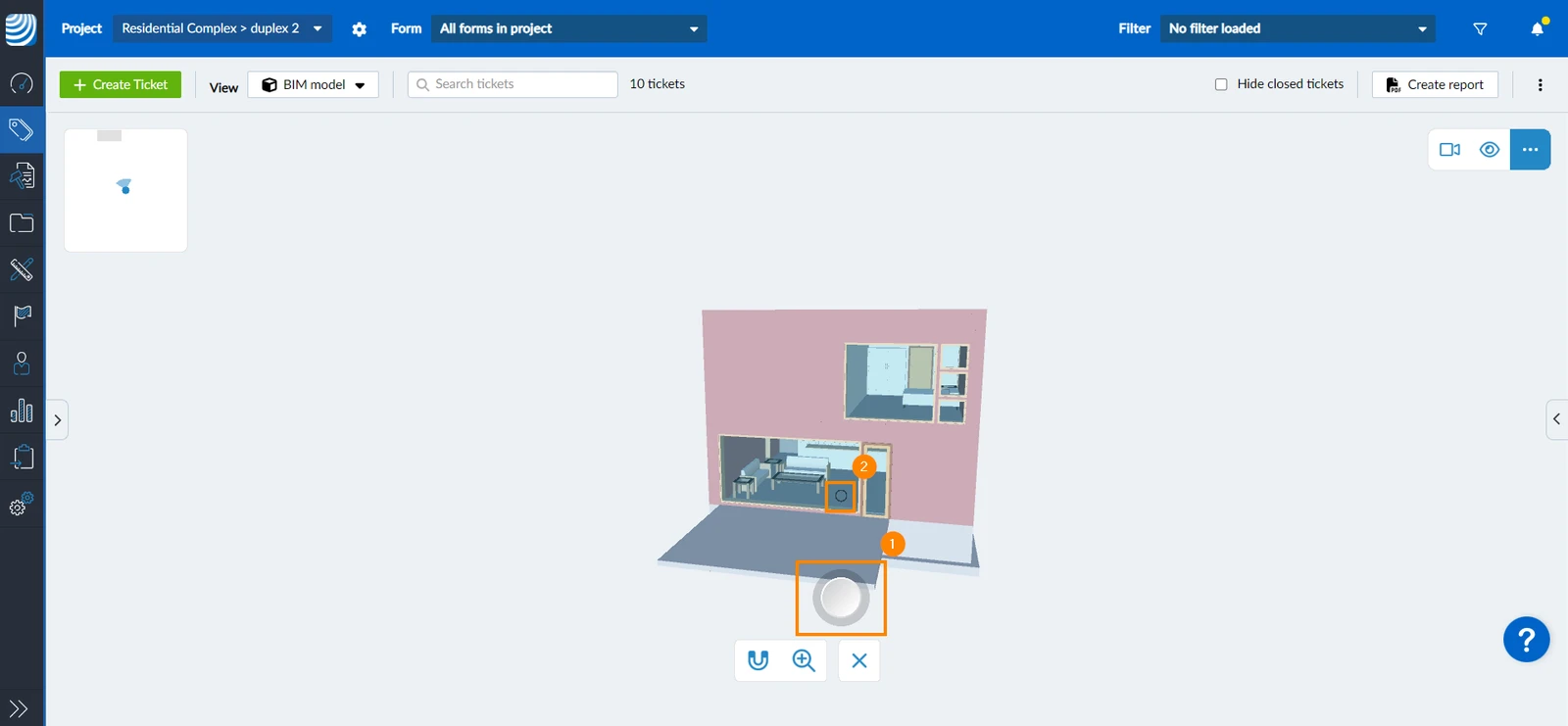
- Click/tap the measuring tool handle again and drag it to move the measuring head from the starting point to another point, measuring the distance in-between
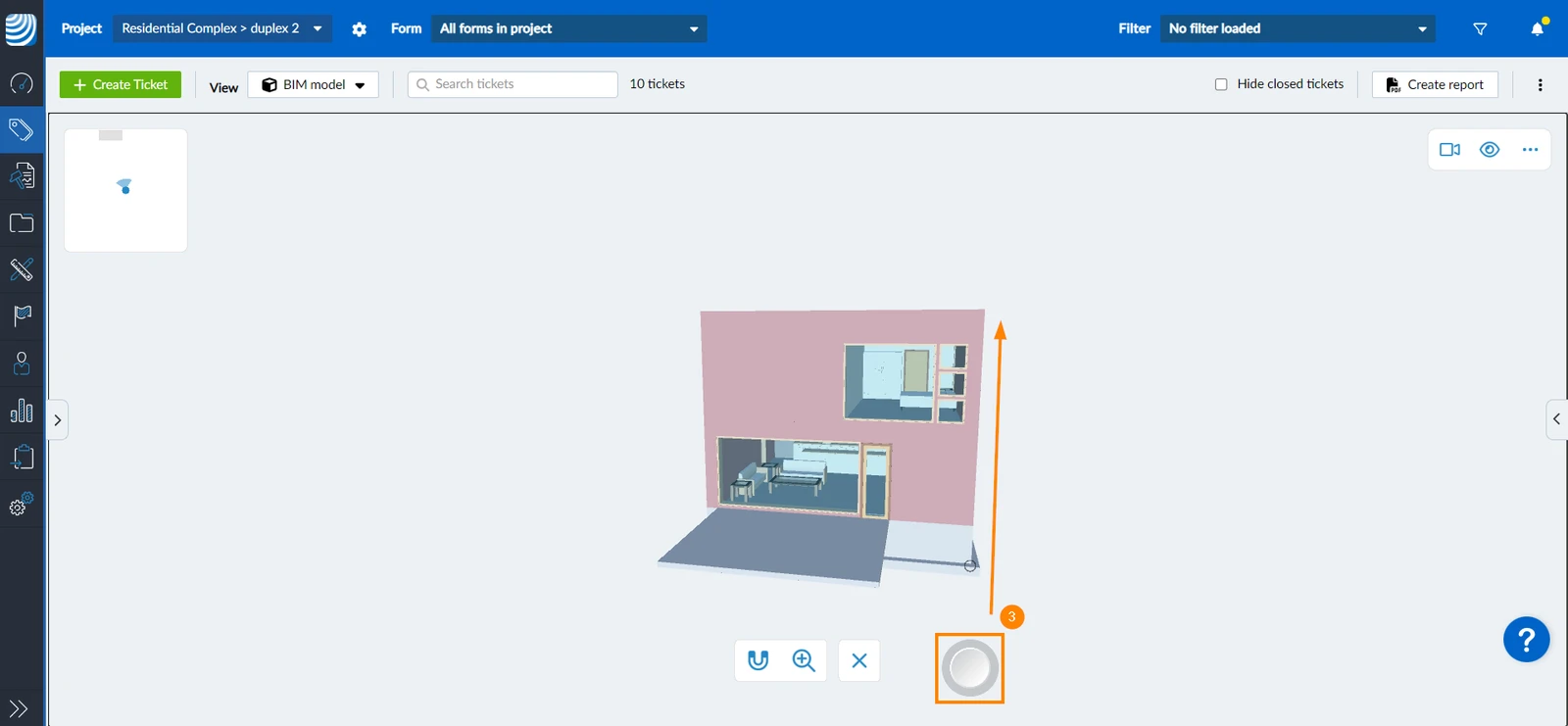
- The measurements for the area you selected are displayed on the 3D model
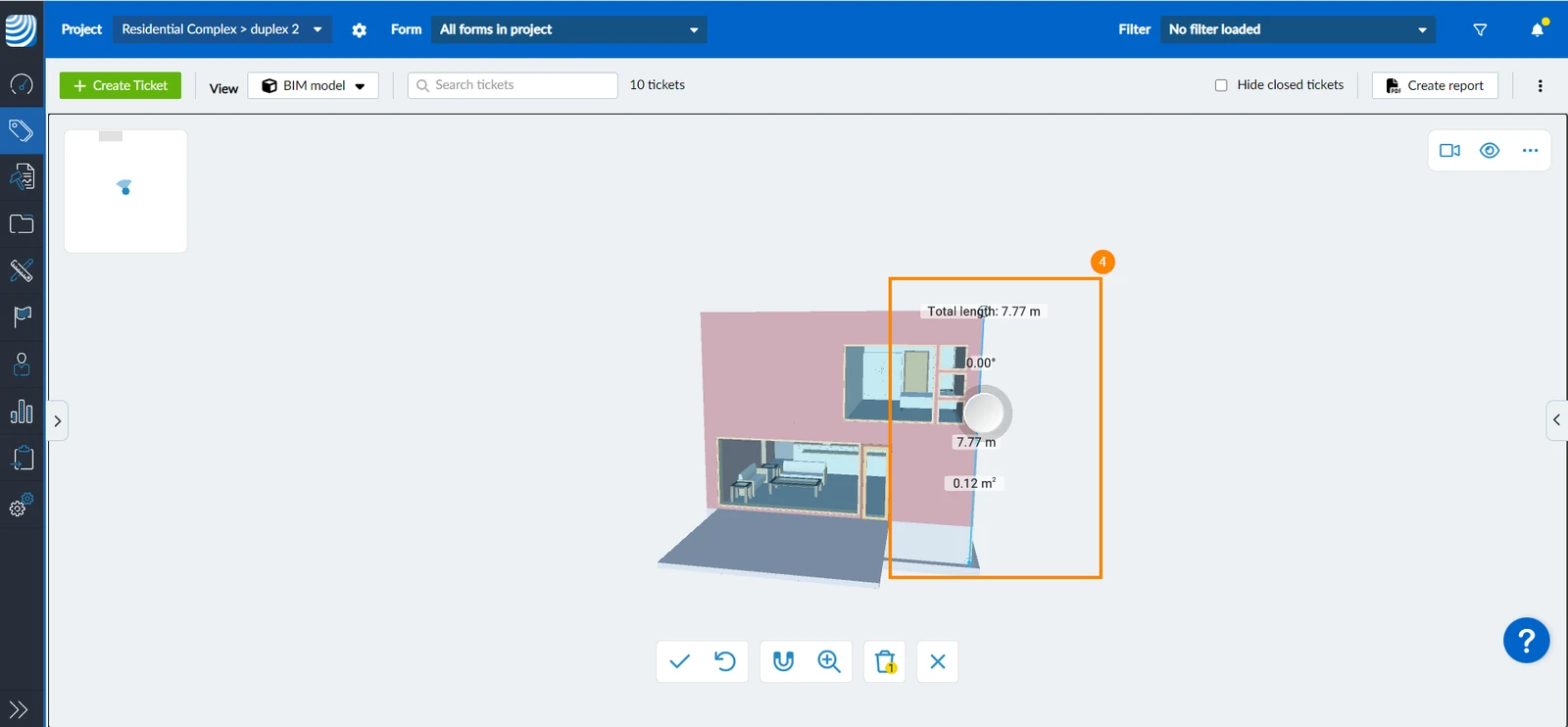
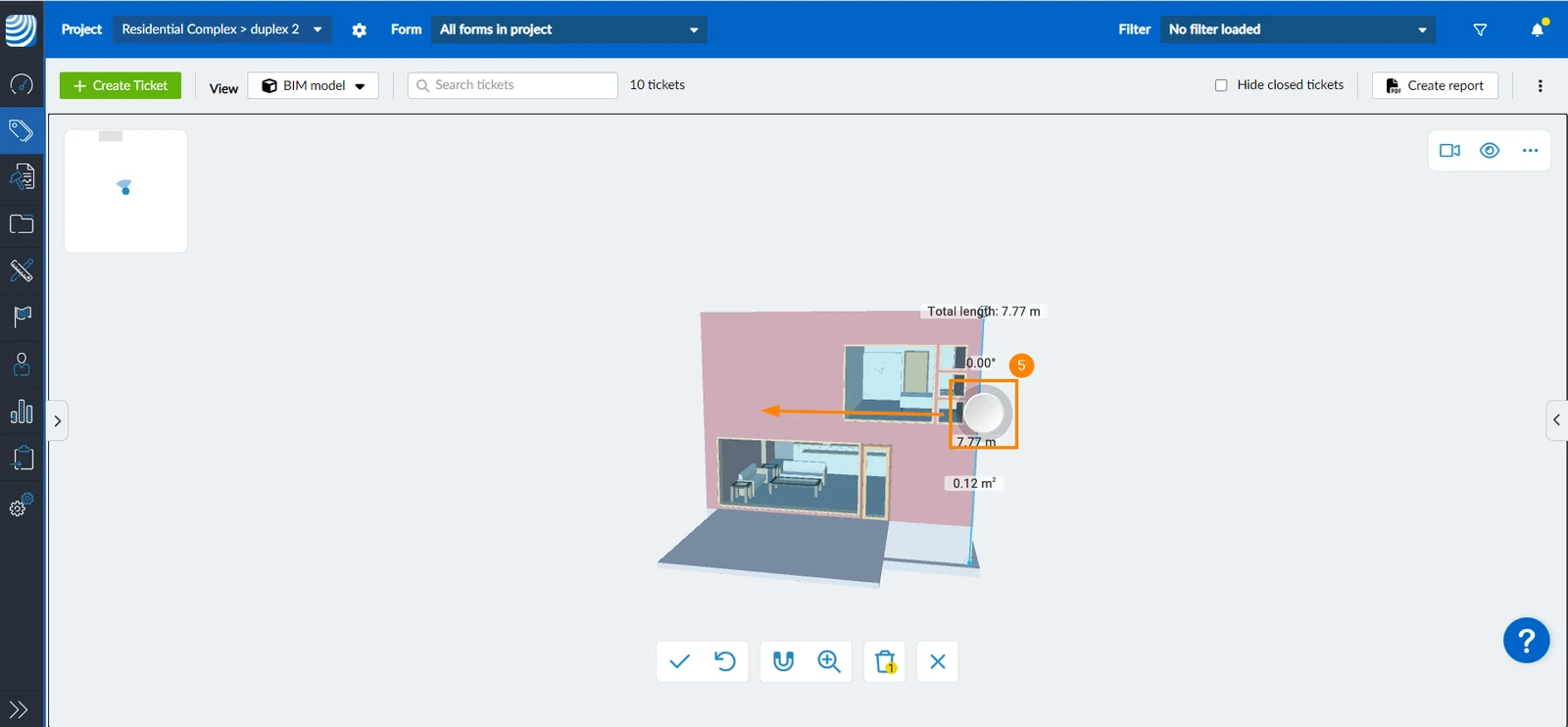
- Optional: Drag the measuring tool handle to reposition the measuring head and measure additional areas
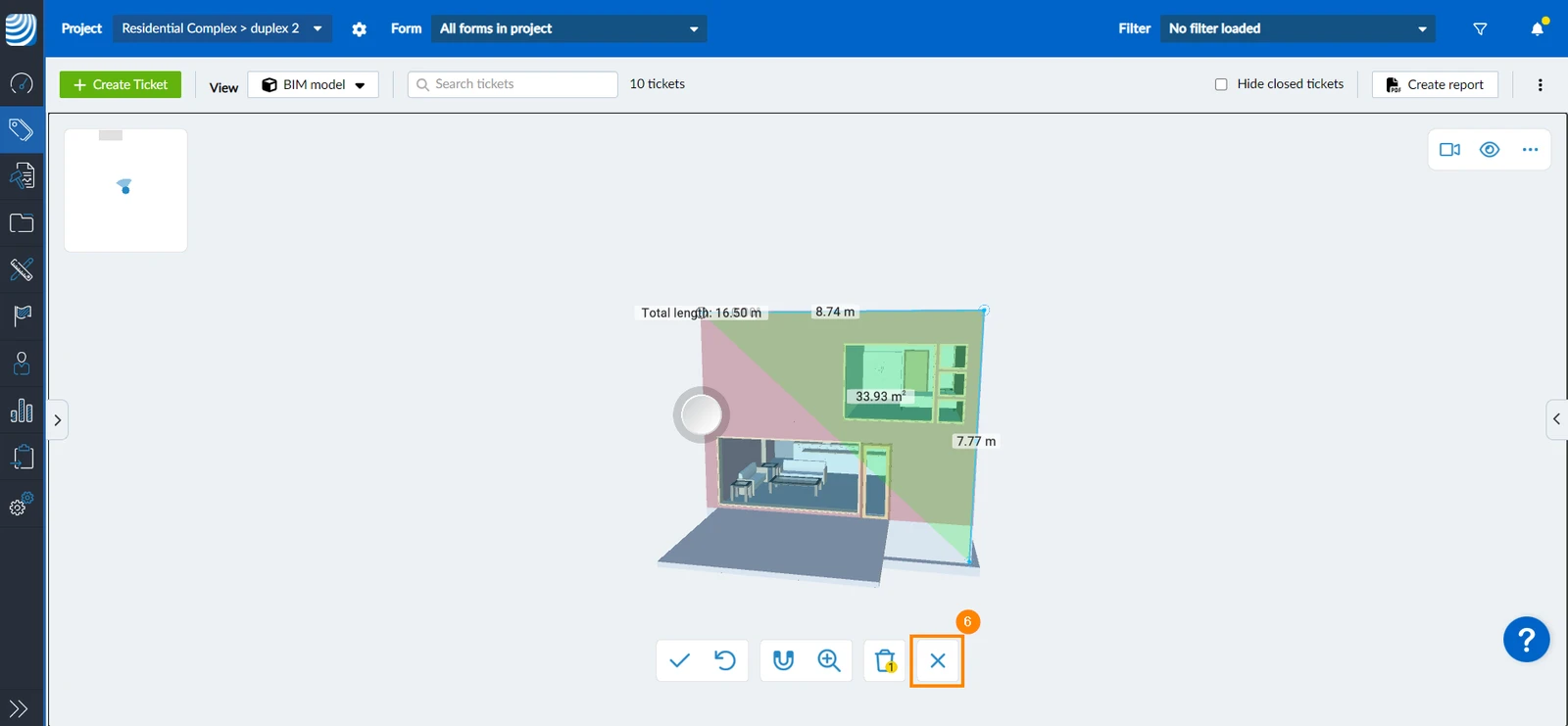
- Optional: Click/tap X to close the measuring tool, making the handle and head disappear for a clearer view of the measurements
Add Additional Measurements
Adding additional measurements allows you to start a new measurement with its own starting point without affecting other measurements. To do so:
- After you are done with the previous measurement, Click/tap ✔
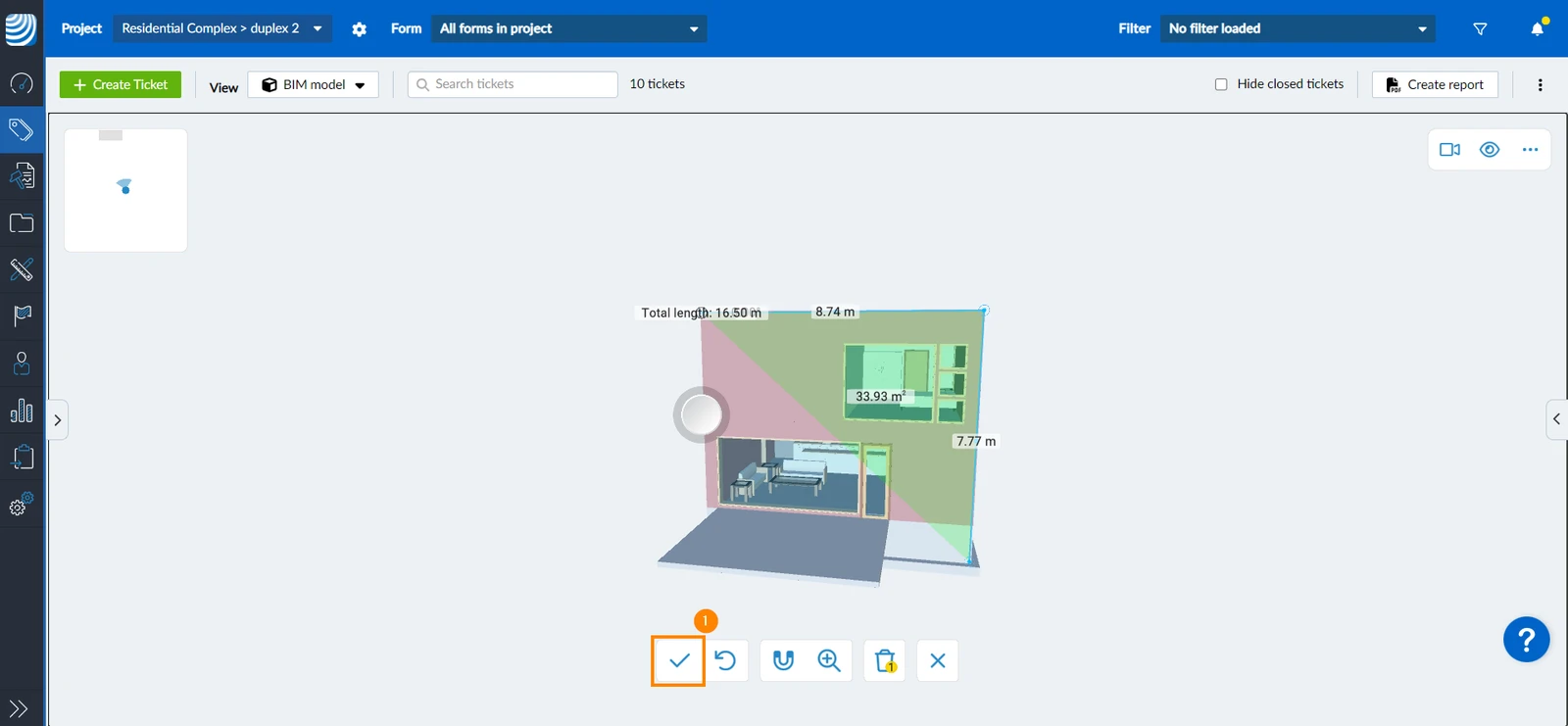
- Click/tap on the measuring tool handle and drag it
- Position the measuring head at the new starting point where you want to begin measuring
- Continue as explained above in Measure a Certain Area starting from step 5
Undo Measurement
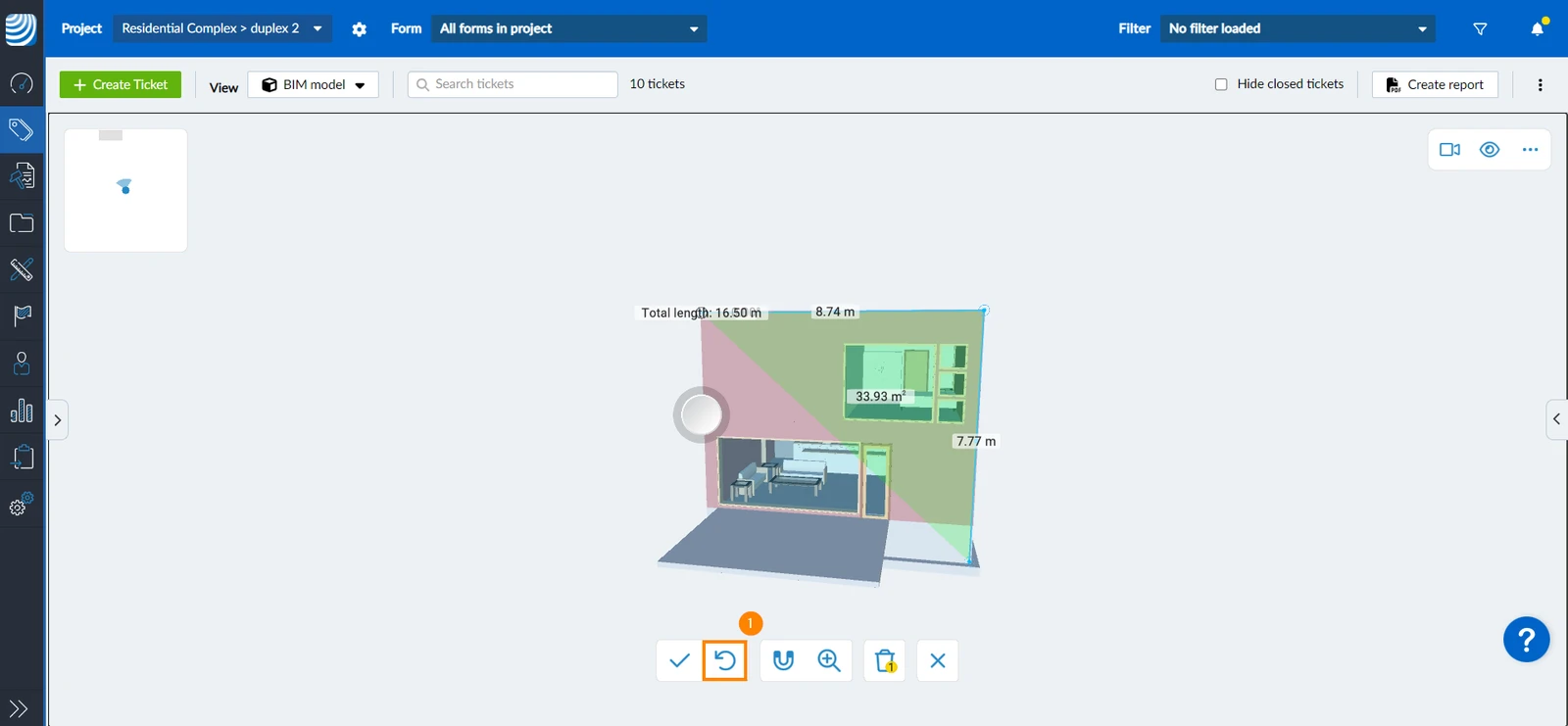
To undo one measurement without the need to clear all measurements:
- Click/tap the undo icon
Use Magnets
The magnets option simplifies measuring by allowing the measuring tool to snap to the corners and midpoints of elements. To use magnets:
- Continue while you are Measuring a Certain Area
- Click/tap the magnet icon
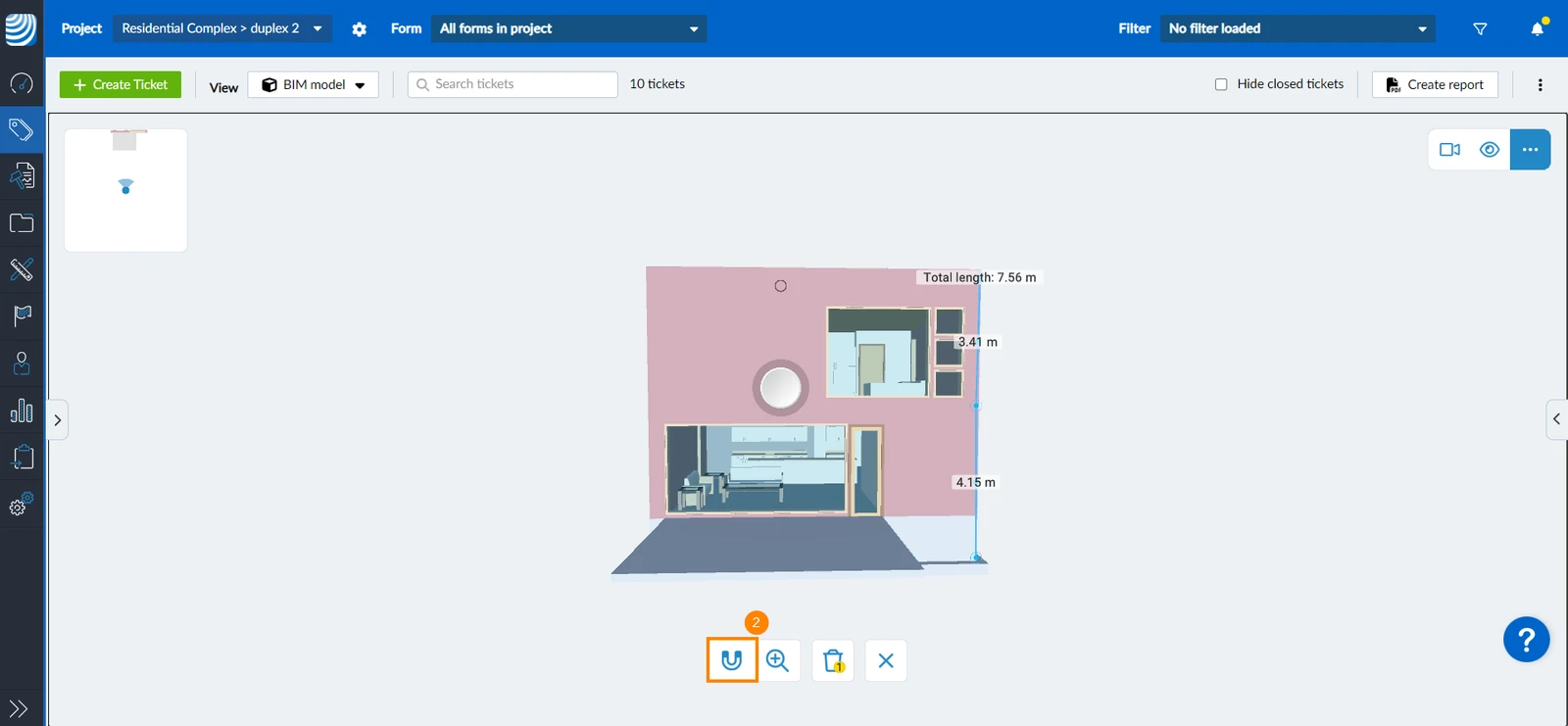
- Place the measuring head on the start point of the edge you want to measure
- Once a corner is detected the measuring head will be in square shape
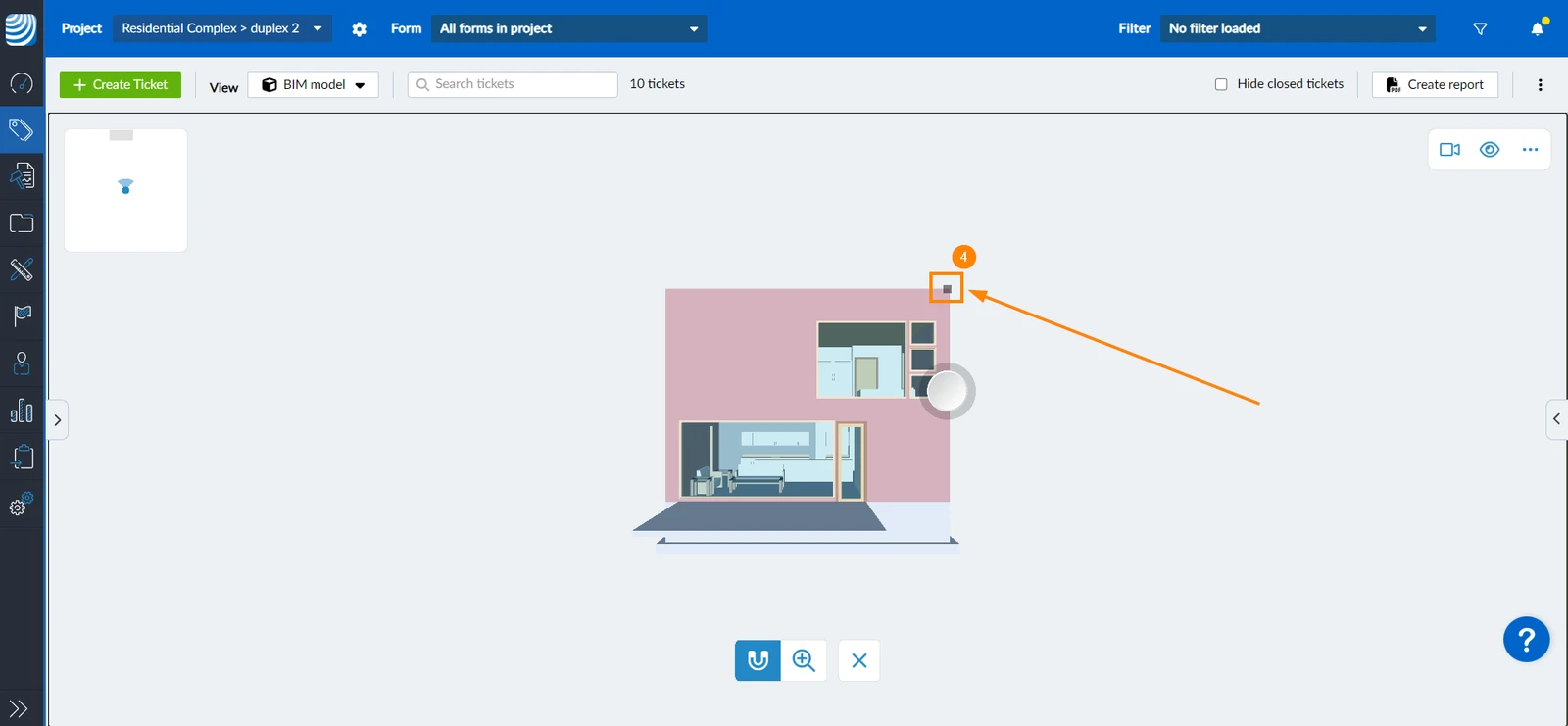
- Click/tap the measuring tool handle and drag it to move the measuring head from the starting point to another point
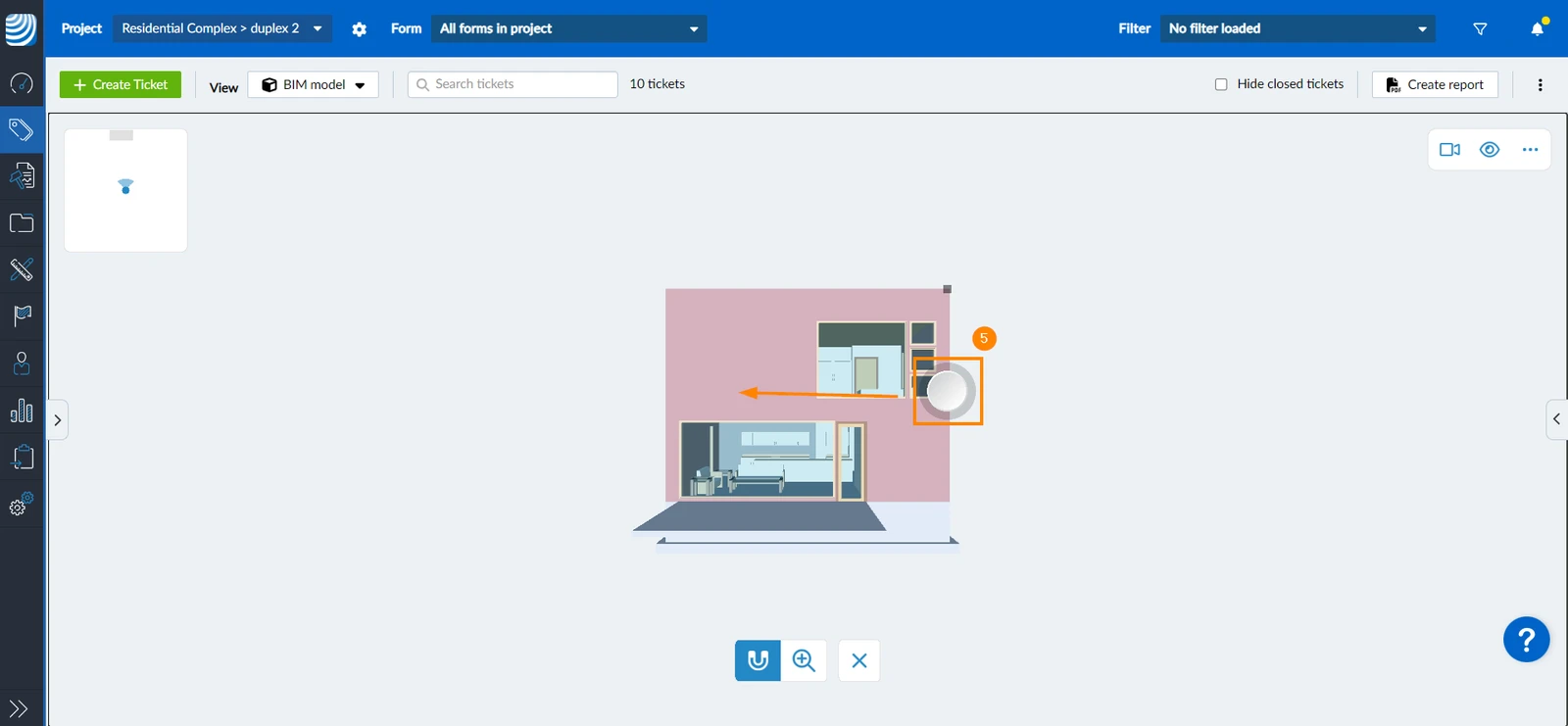
- Once you reach a corner or mid point, the measuring head will adhere to it until you move on.
Use Magnifier
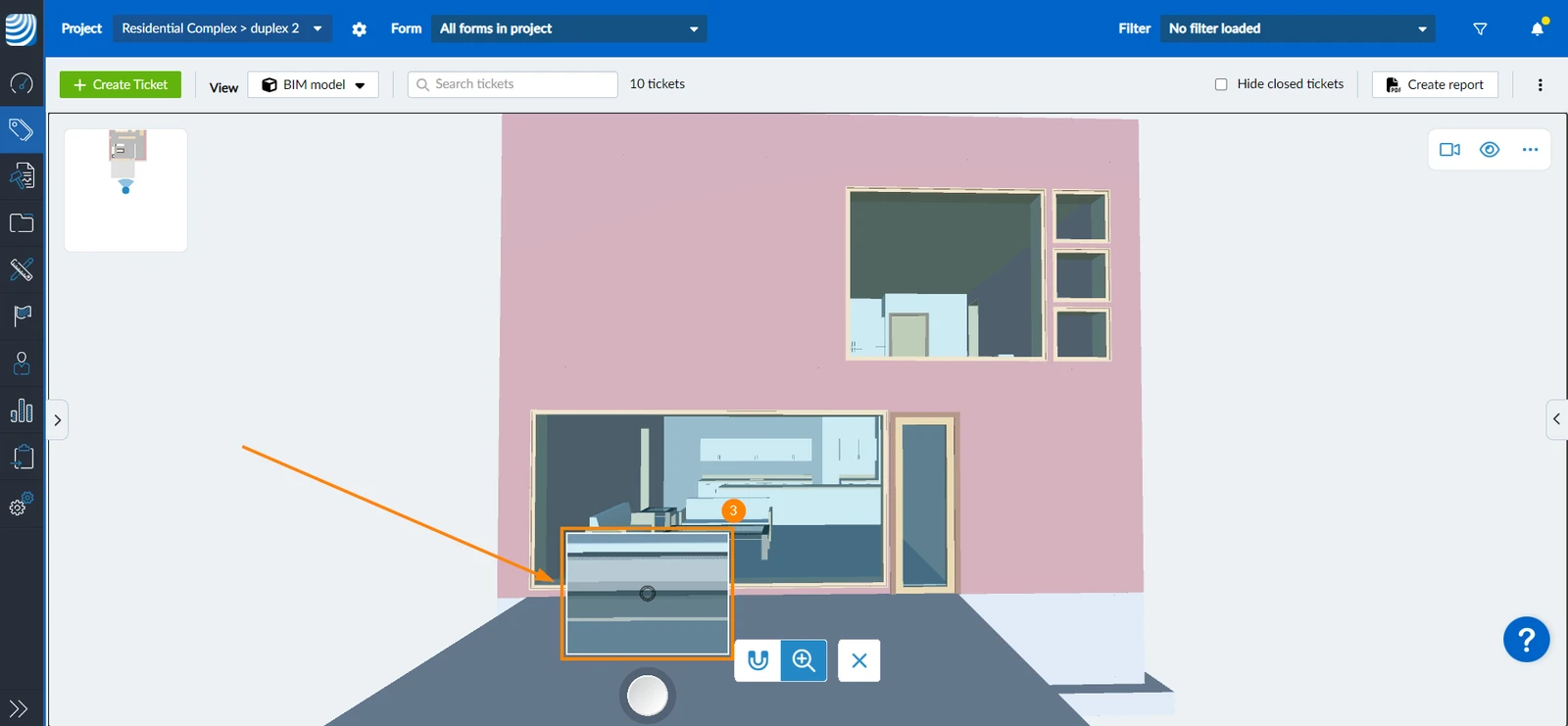
The magnifier option enlarges the area around the measurement head, allowing you to position your measurement line precisely where needed. To enable the magnifier:
- Continue while you are Measuring a Certain Area
- Click/tap the magnifying glass icon
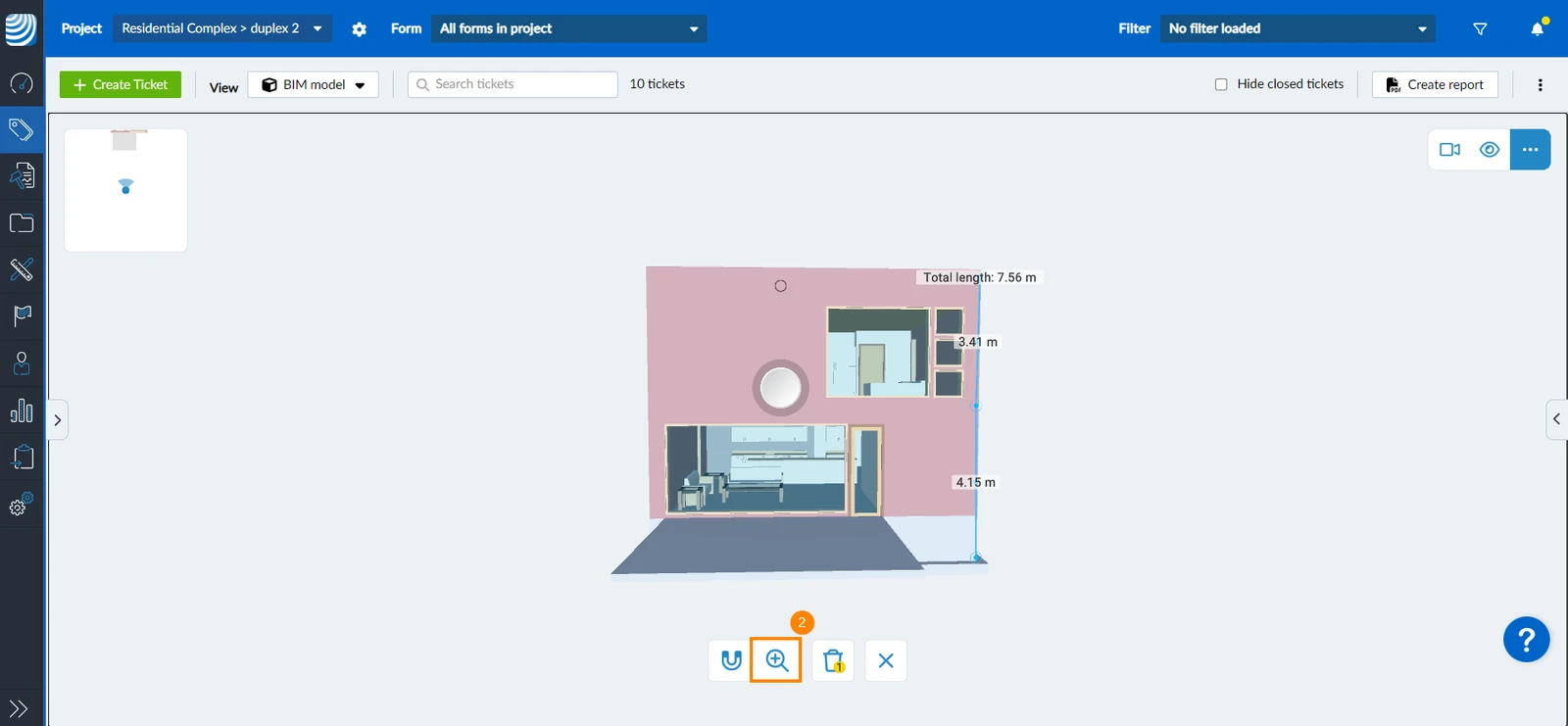
- The area around your measuring head will be displayed in a magnified view
Clear Measurements
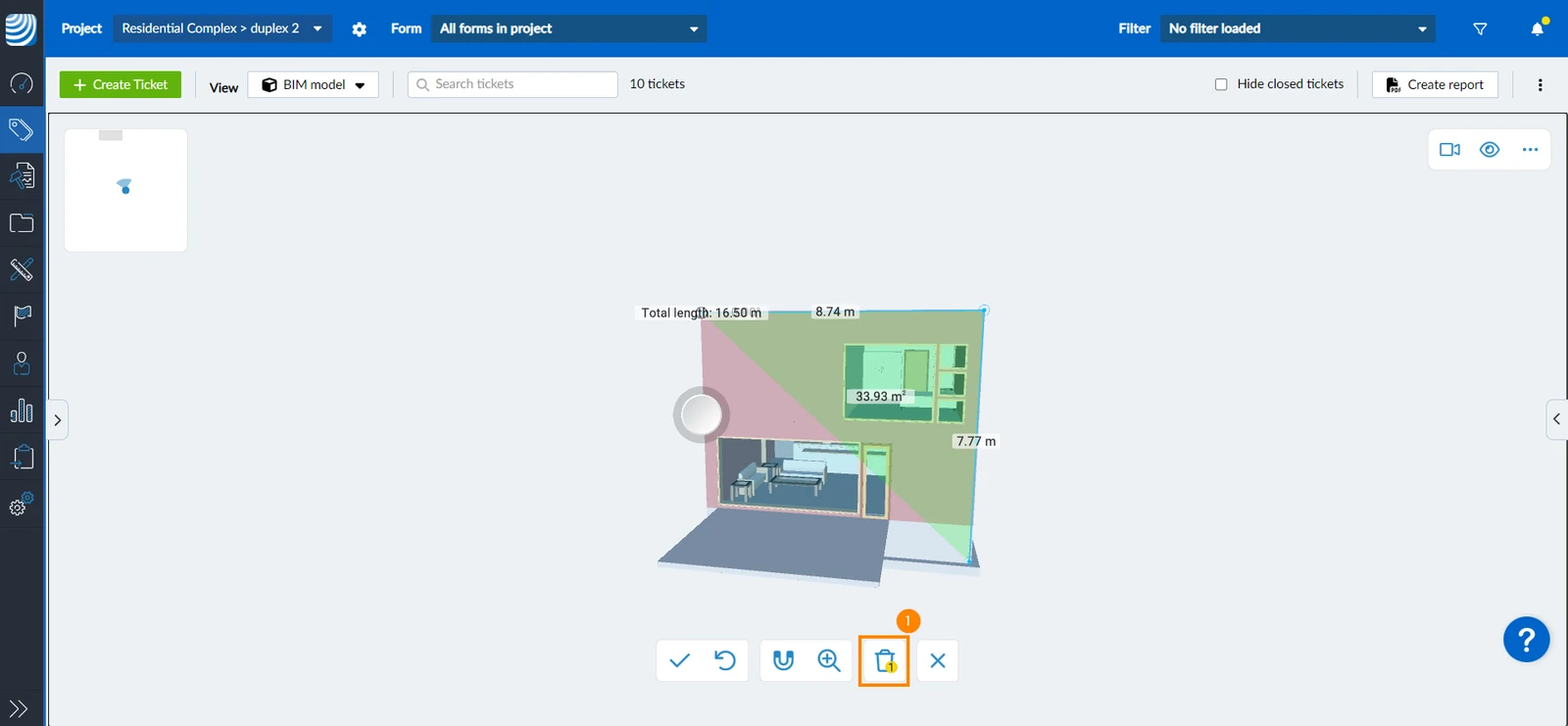
To clear all measurements:
- Click/tap the delete icon (it indicates how many measurements exist that will be cleared)
Updated January 8, 2026