

 Deutsch
 Español
 Français
 Hrvatski
 Italiano
 Polski
 Português (BR)
BIM Support in PlanRadar
Overview
PlanRadar empowers you to easily incorporate BIM models into your projects. You can upload single or federated models which will be synced to mobile apps for offline use. Users can view models wherever they are and create and manage issues in 3D across all our apps.
Access & Permissions
What is a BIM Model
BIM stands for Building Information Modeling. It is a digital representation of a building or infrastructure project. It is a collaborative and data-rich 3D model that encompasses both the physical and functional aspects of the project.
With PlanRadar, you can effortlessly share your BIM models across mobile devices and achieve a great level of accuracy when pinpointing tickets in a 3D environment, exceeding the precision achievable with a 2D plan.
Example of BIM Model uploaded to PlanRadar
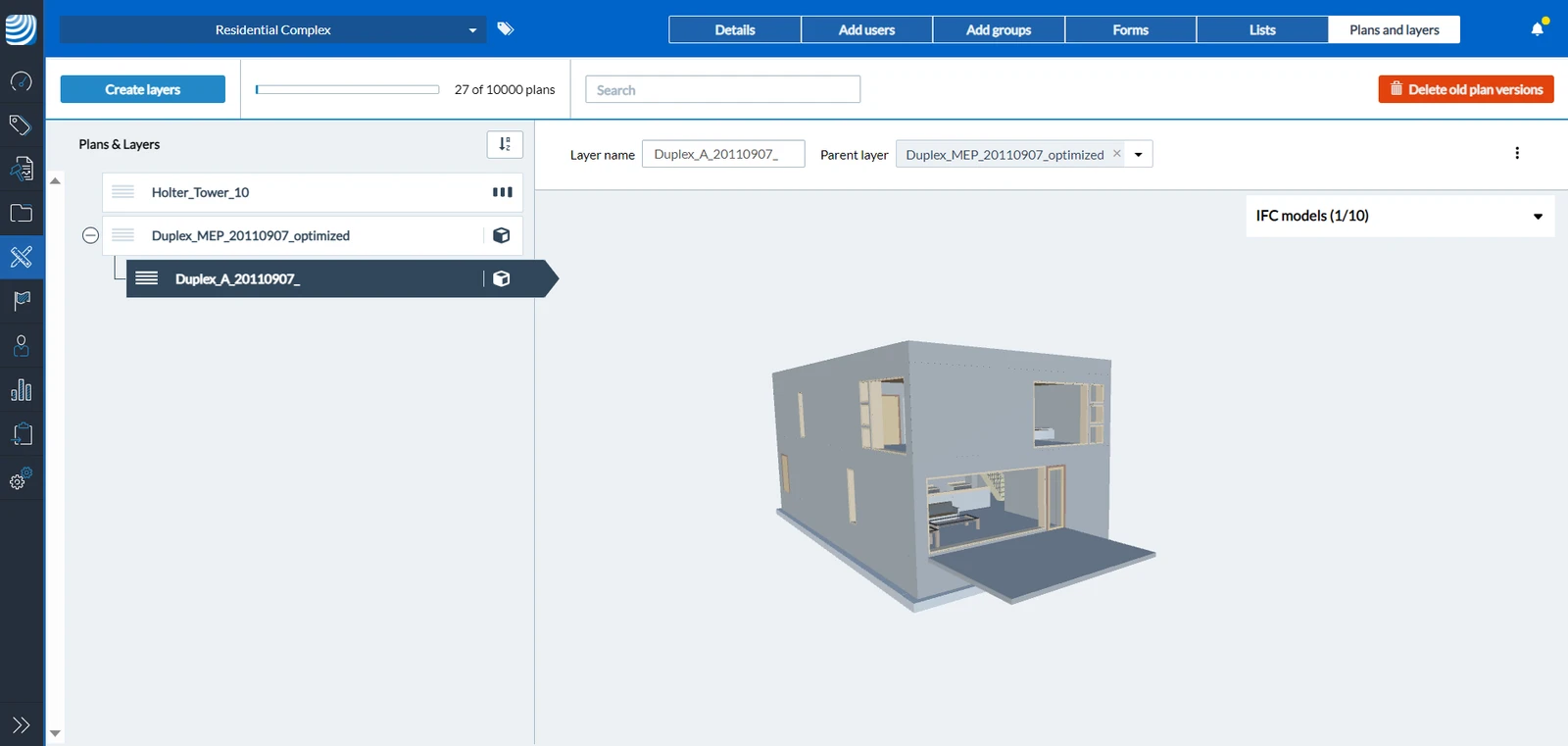
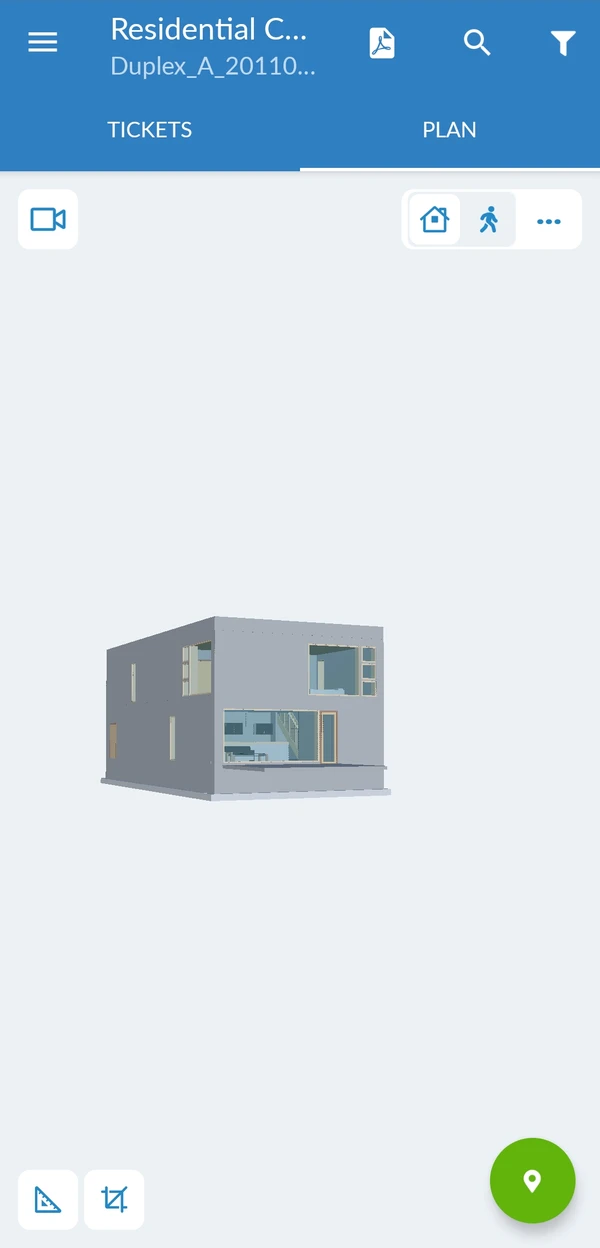
File Formats Supported by PlanRadar
PlanRadar supports the IFC standard (IFC 2x3, IFC 4 and IFC 4.3) for handling models.
BIM Model Requirements
The performance of viewing large BIM models on the Webapp heavily depends on your internet bandwidth, because each model requires loading from PlanRadar servers upon opening.
In contrast, the iOS, and Android apps offer the advantage of storing models locally, negating the need for repeated server loading. For larger models, make sure that you have adequate device memory – particularly on mobile devices – with a minimum of 16 GB RAM or more, to ensure a better experience.
Federated BIM Models
PlanRadar supports federated models in case your project requires to work with multiple models in parallel. You can upload up to 10 IFC files per layer, allowing you to effectively incorporate all relevant plan aspects within one view (e.g. one architectural, electrical and HVAC model).
Apps Supported
Our BIM feature is supported across all applications: iOS, Android, and Webapp.
Upload BIM Models
You can upload BIM models to your account in the same way as 2D plans.
Augmented Reality View Mode
Switch to Augmented Reality (AR) view mode in the BIM viewer in the mobile app to compare your plan with the actual build, look behind walls, verify technical building equipment is installed correctly, etc.
You simultaneously see what your mobile device camera captures live and an overlay of the BIM model.
Updated March 25, 2026