

 Deutsch
 Español
 Français
 Hrvatski
 Italiano
 Polski
 Português (BR)
Tickets BIM View
Overview
Use the tickets BIM view to see where tickets are located on the BIM model.
Access & Permissions
How to access the BIM View
-
Click Tickets
-
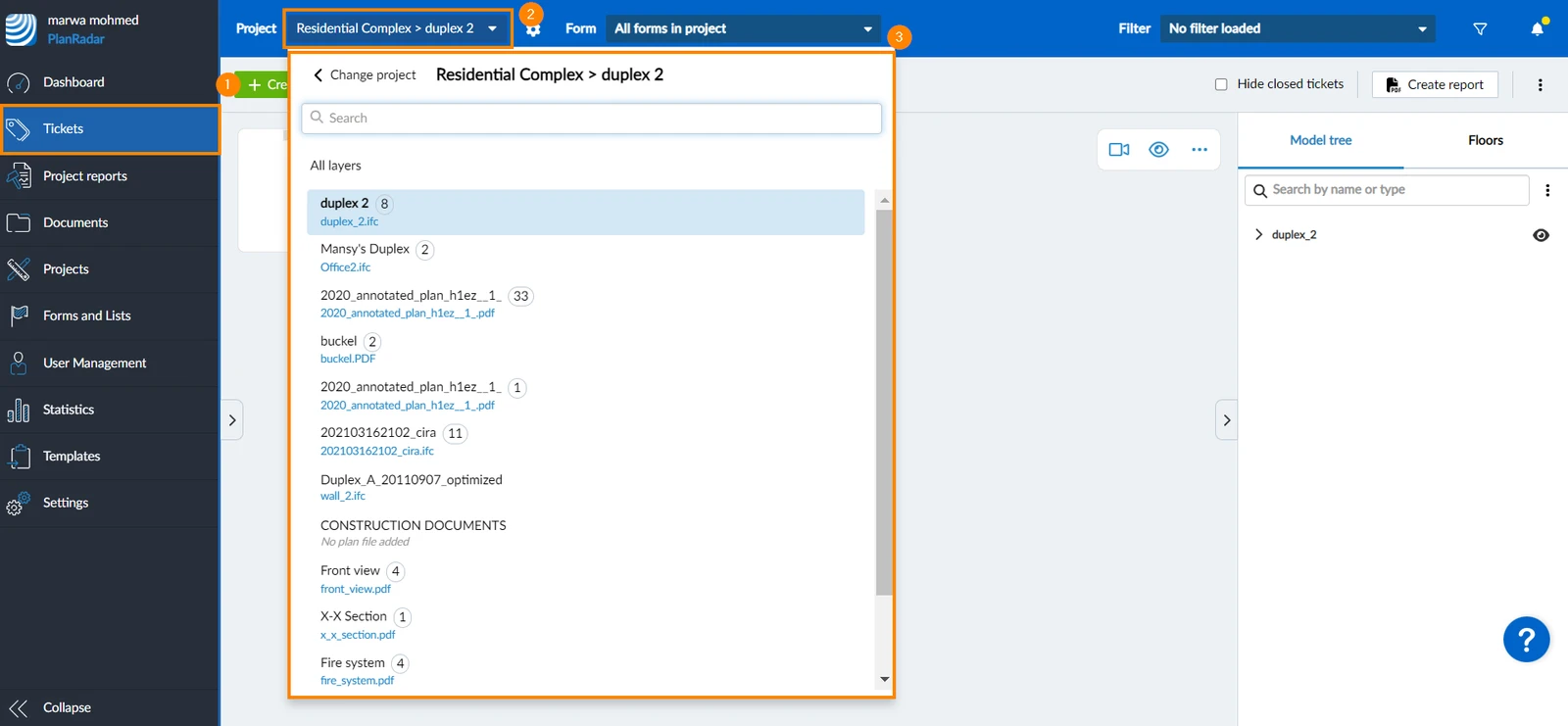
Open the project drop-down
-
Select the project and layer
-
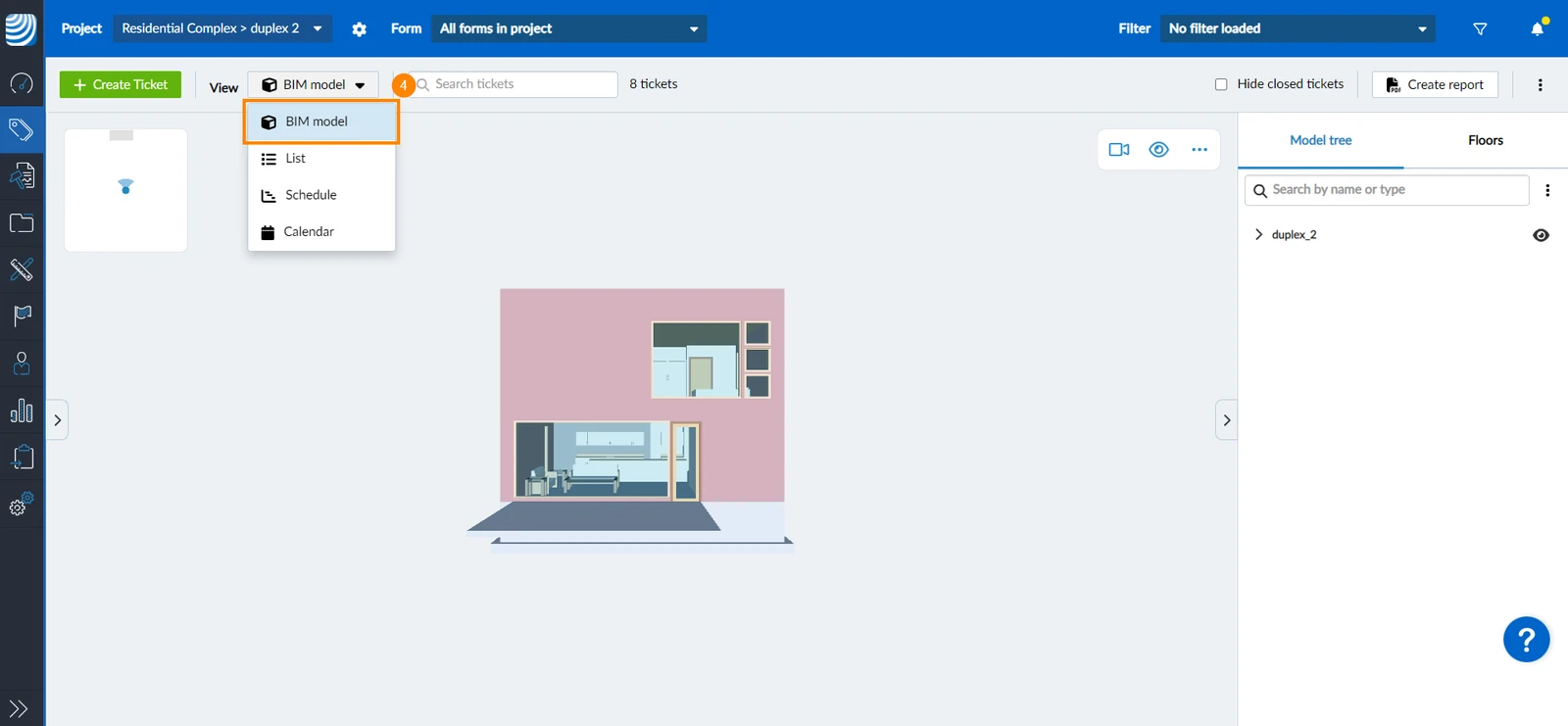
Click BIM model in the View drop-down
Show/Hide Ticket List
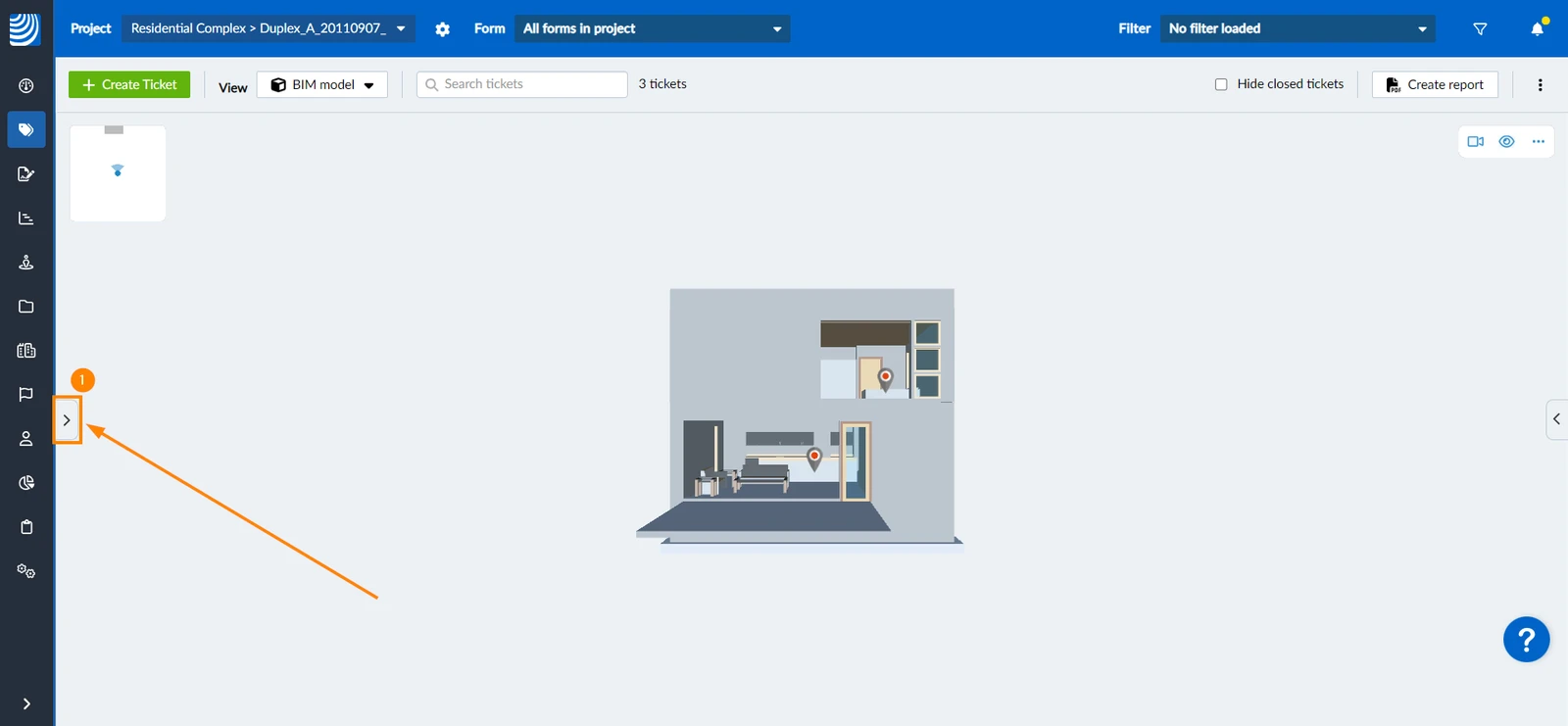
The ticket list is hidden by default. To show the ticket list:
- Click the side arrow
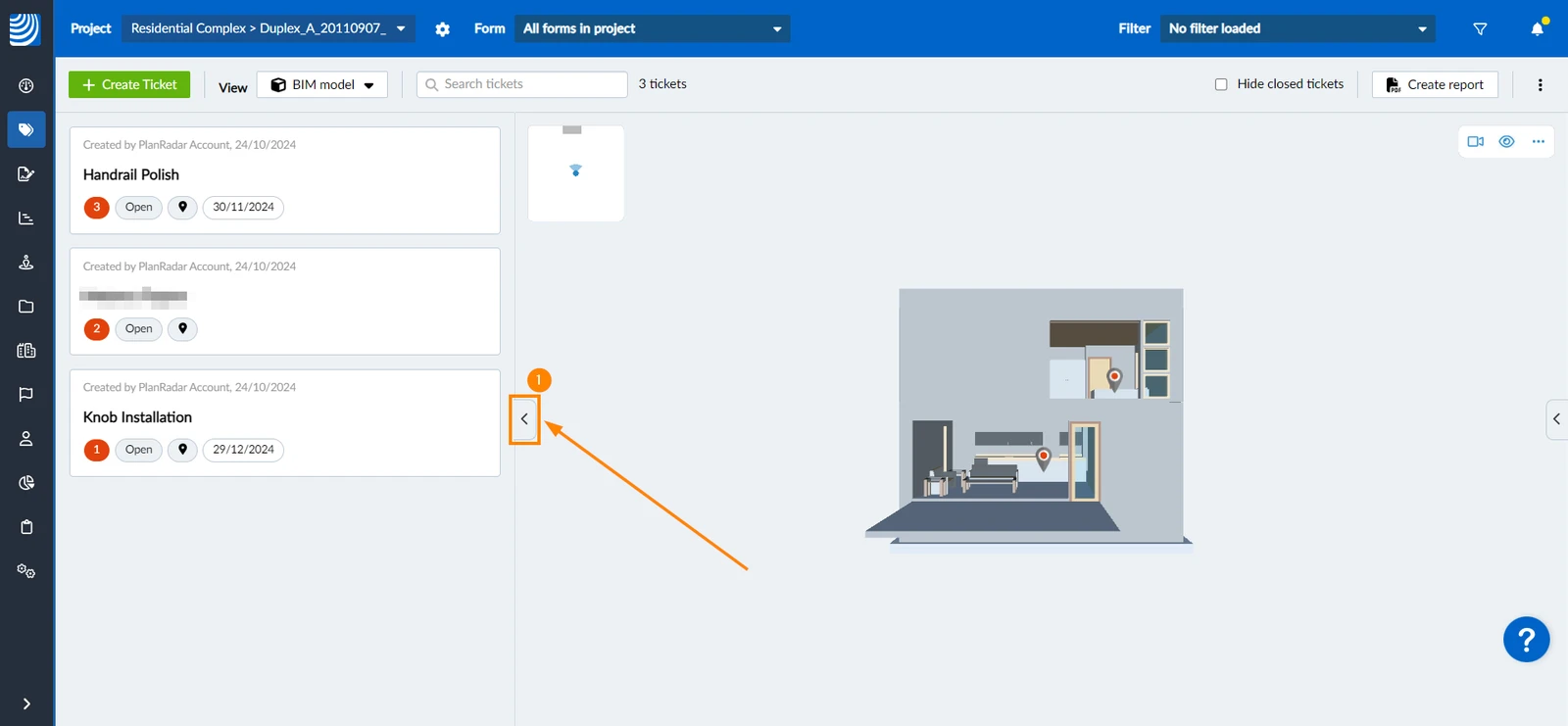
To hide the tickets list:
- Click the side arrow
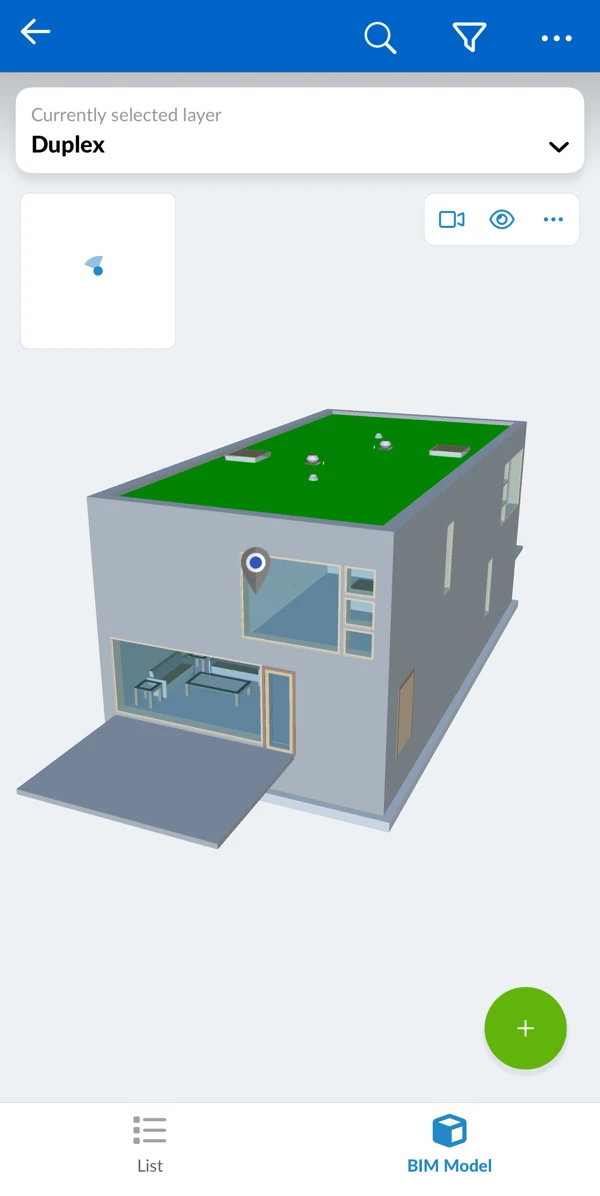
- Tap Tickets in the main menu
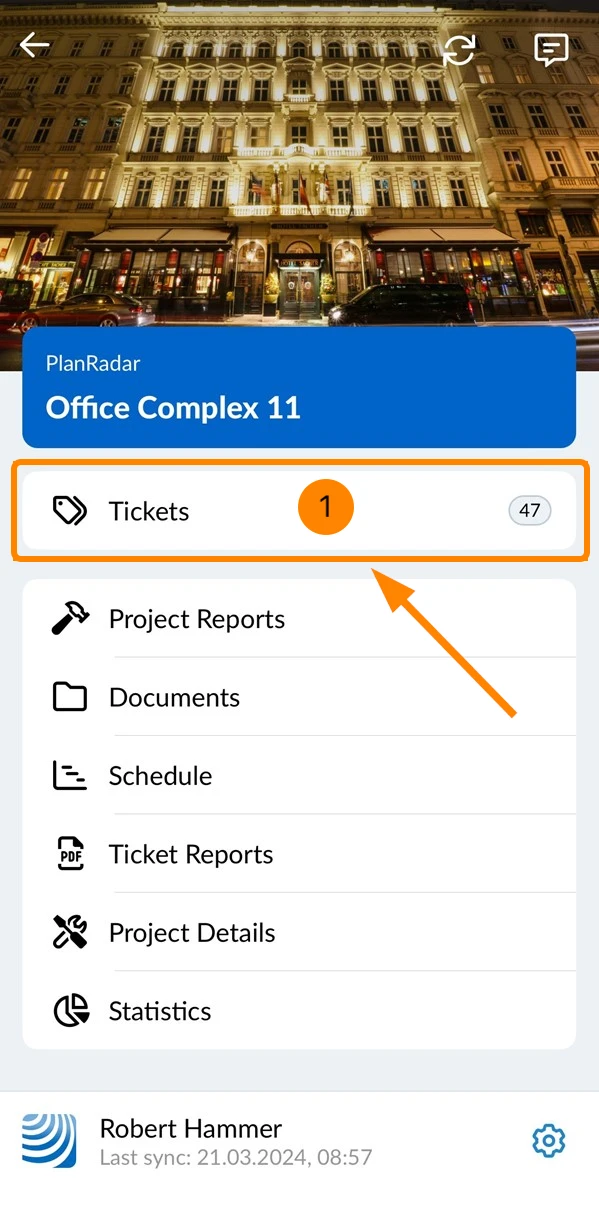
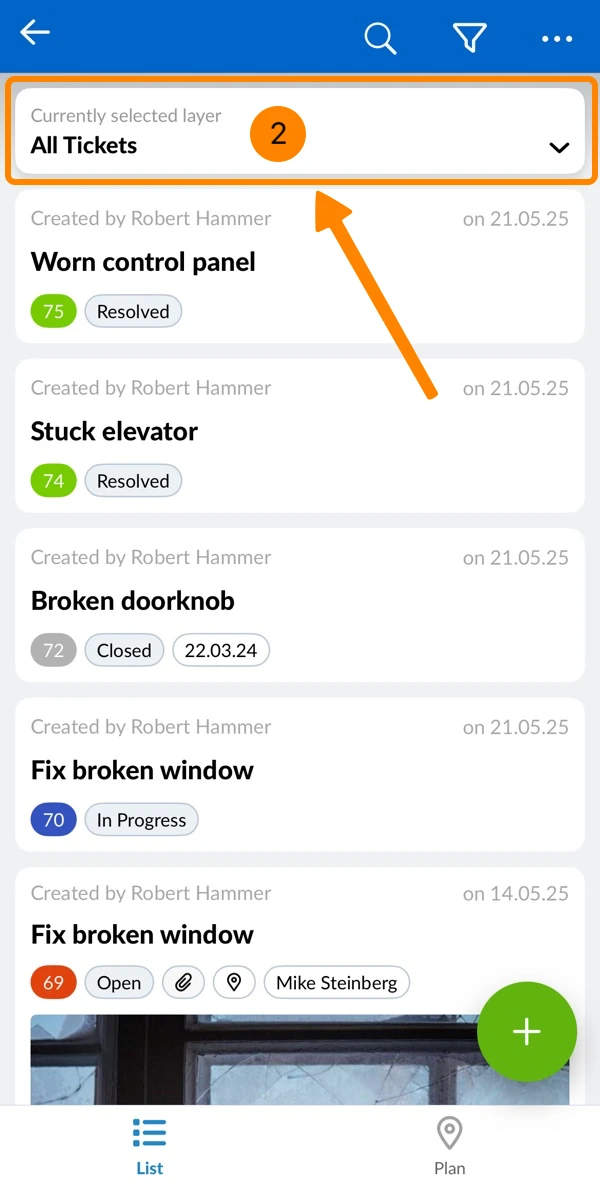
- Open the layer selector
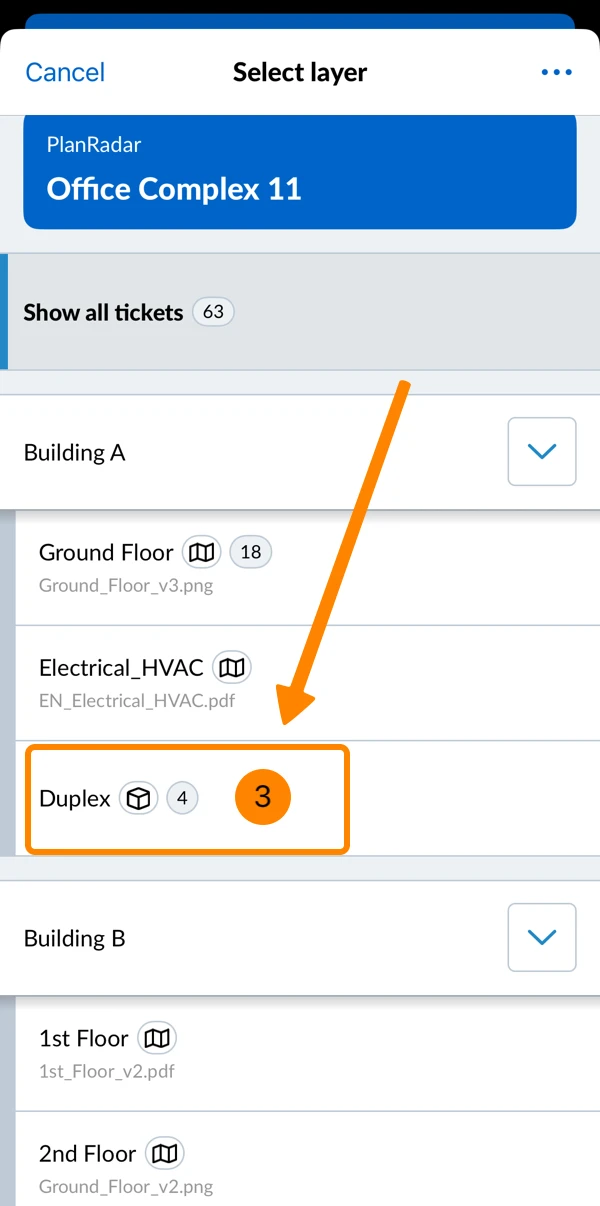
- Tap on a layer with a BIM model (maked by a cube icon)
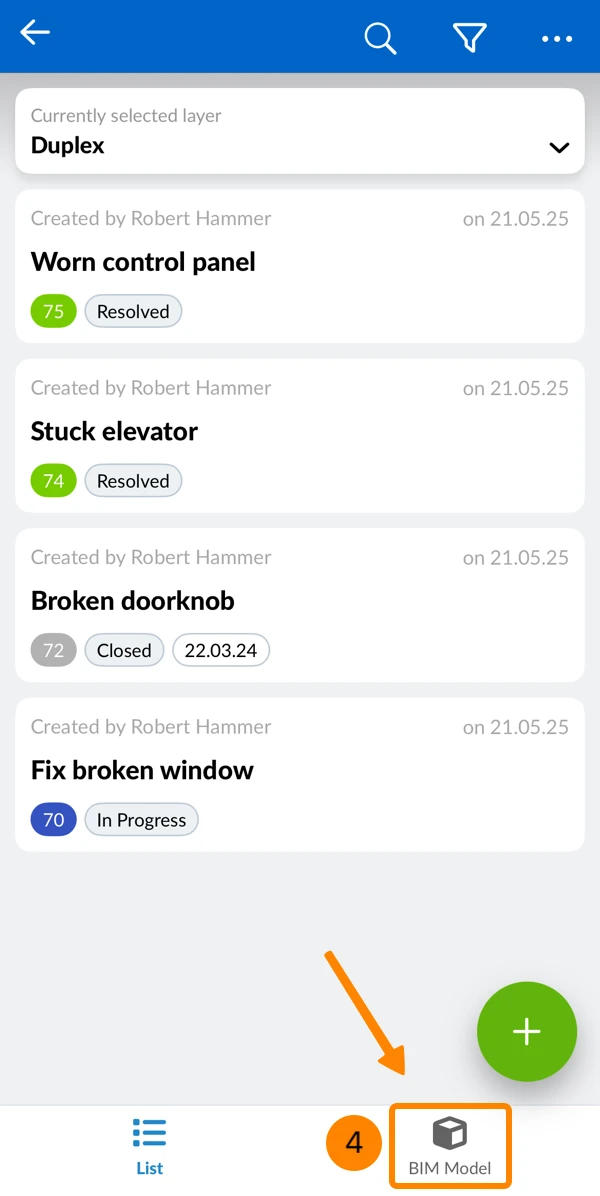
- Tap BIM Model
- You see the BIM model
View a Ticket
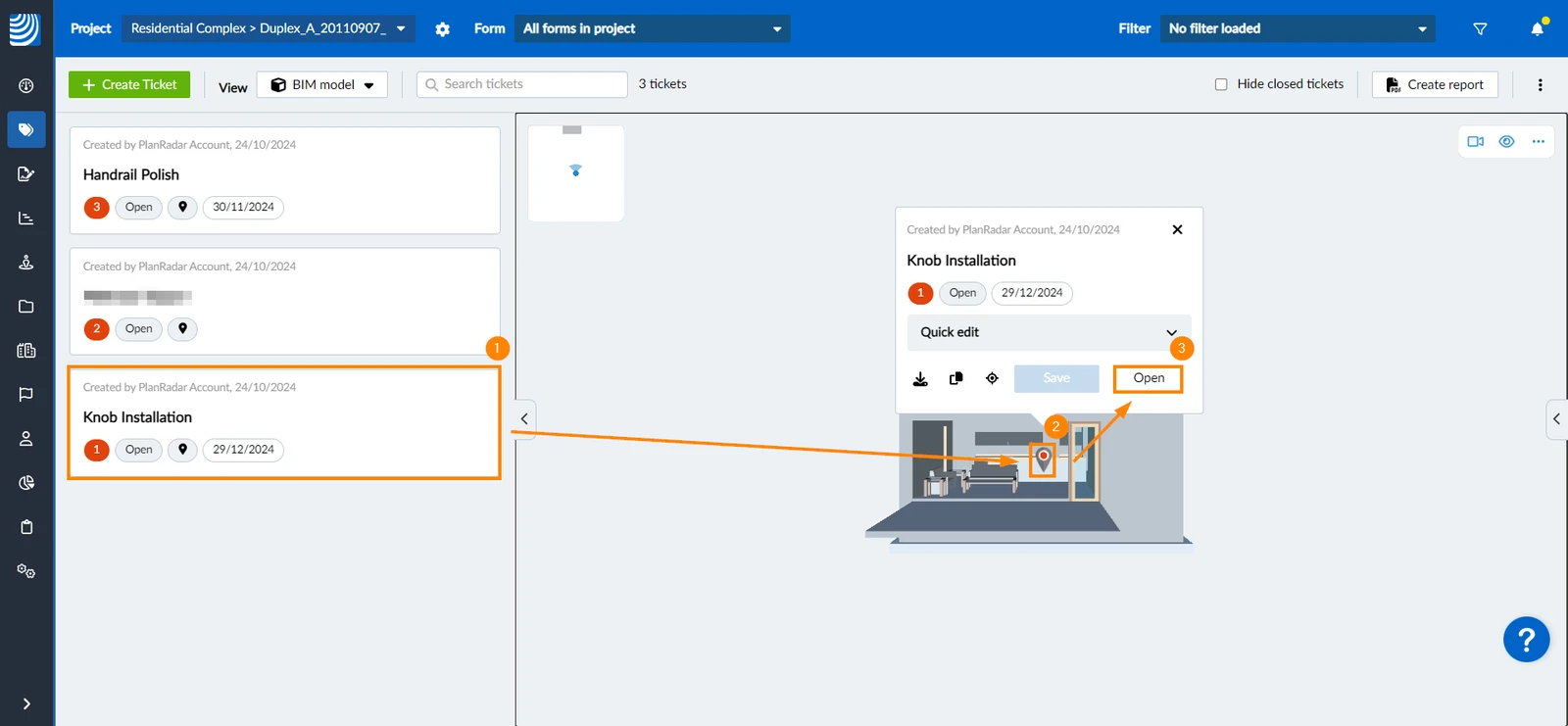
Open a ticket to view it's details or edit it:
- Click on a ticket in the ticket list to zoom to the pin in the BIM model and open the ticket preview
- OR click on the ticket pin on the BIM model to open the ticket preview
- Click Open to view all details of the ticket
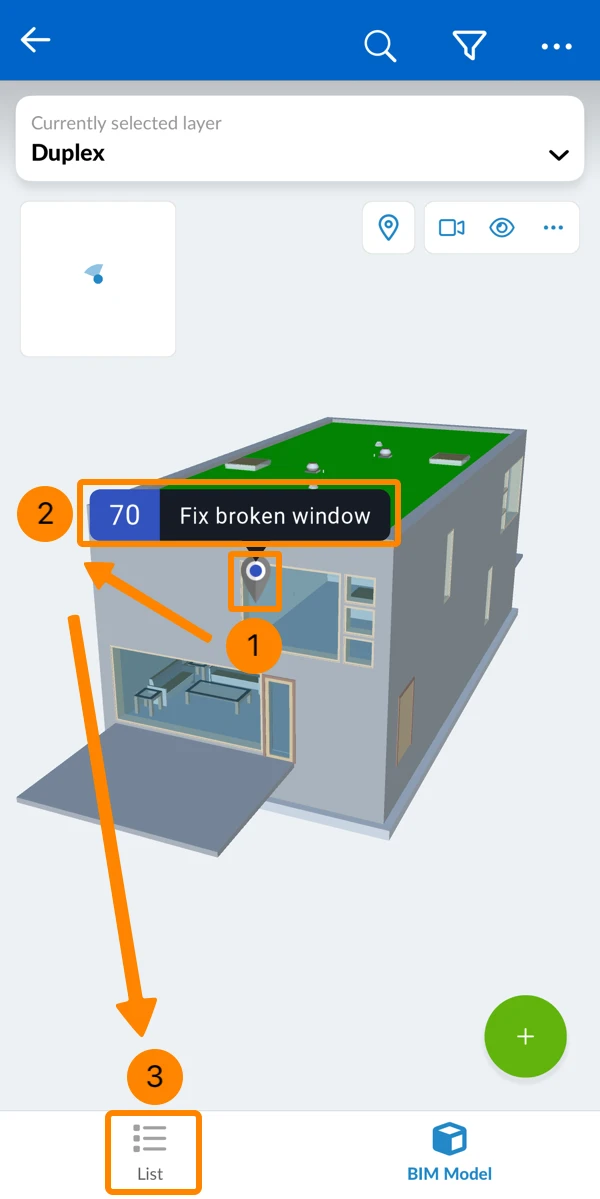
- Tap on the ticket pin
- Tap on the ticket title or ID
- OR Tap List to view the list of tickets
Show/Hide Occluded Pins
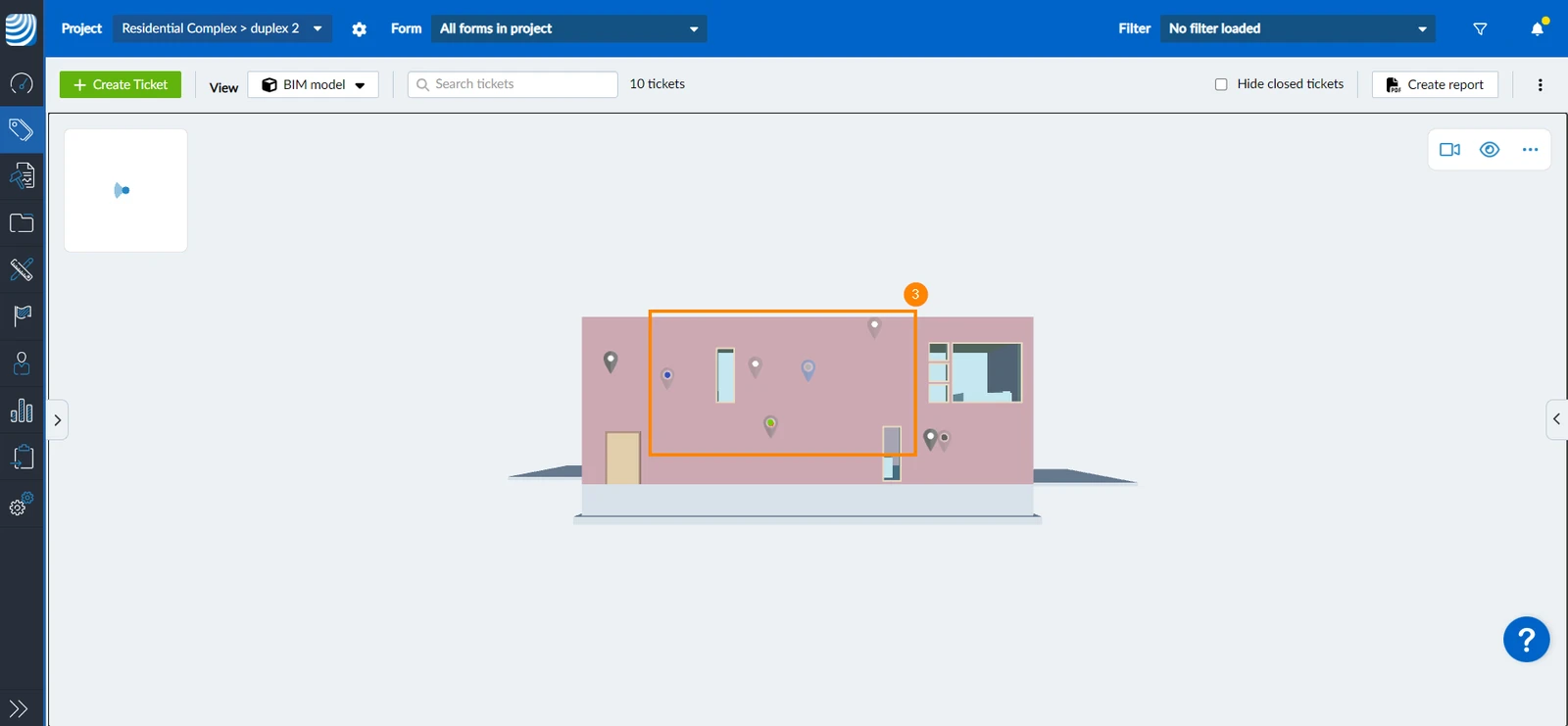
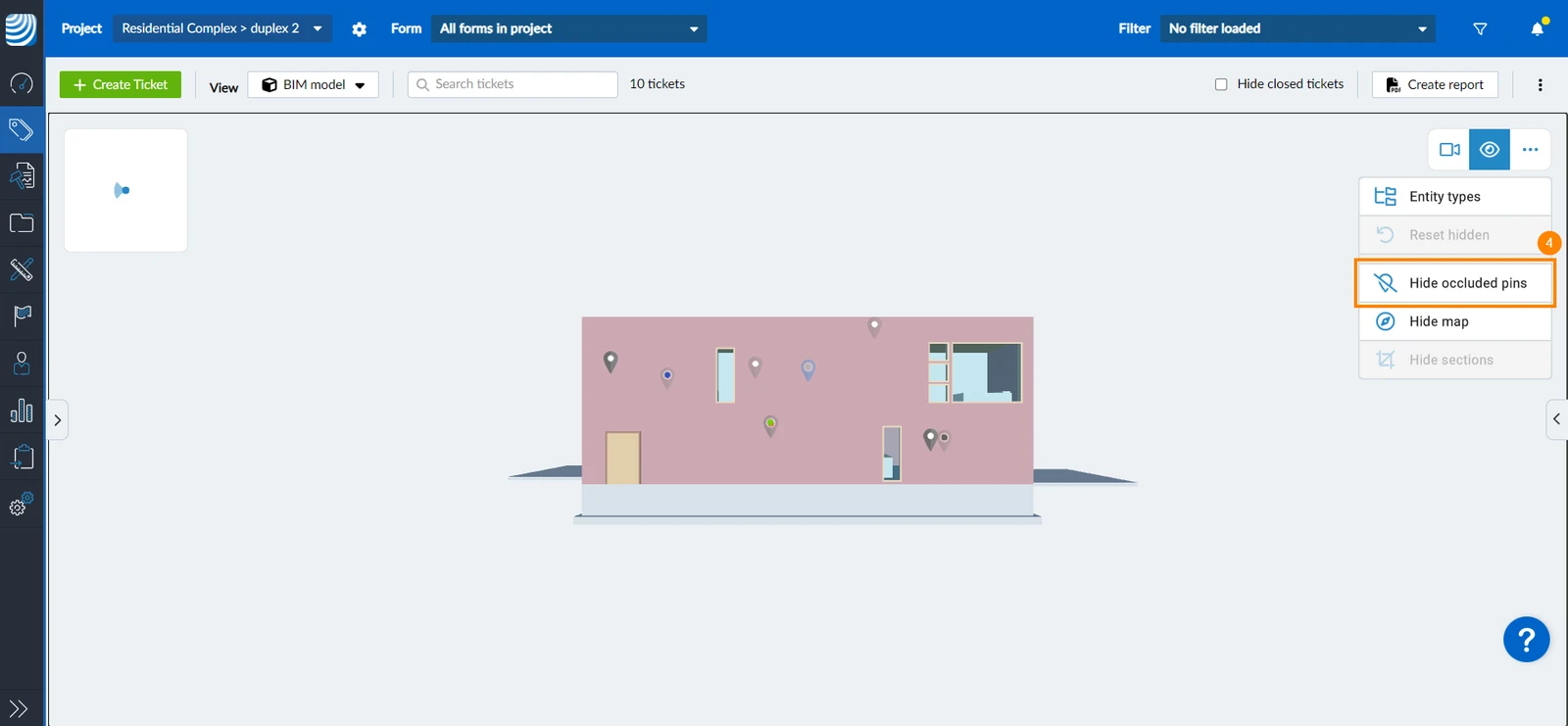
Ticket pins are placed on elements in the model and can be hidden by walls, etc. You can show all occluded ticket pins in your model as well. To do so:
- Click/tap the eye icon
- Click/tap Show occluded pins
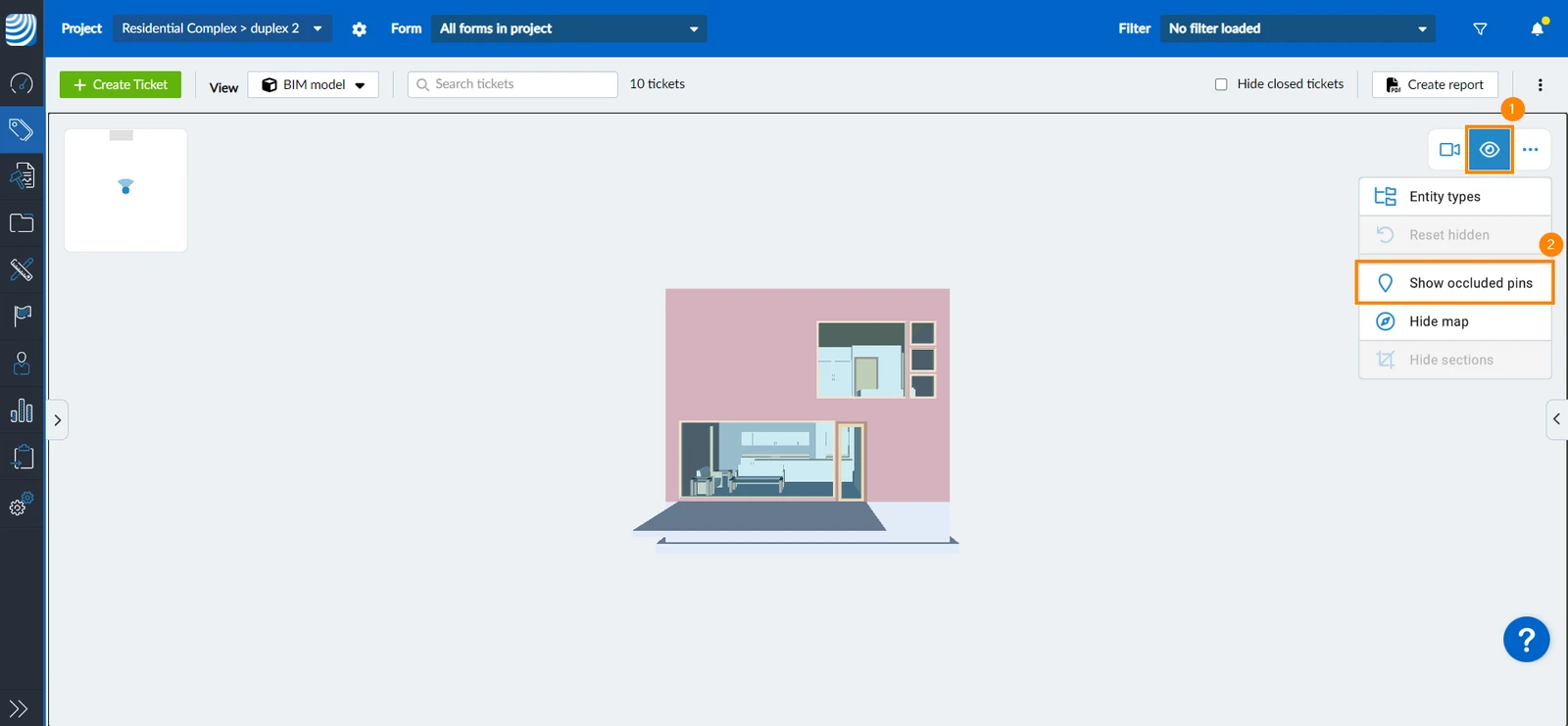
- All ticket pins will be visible, with those occluded by walls, etc. appearing slightly opaque to indicate they are placed on elements that are not visible
- To hide those pins again, click/tap Hide occluded pins
Create a Ticket
To create a ticket in the BIM View:
- Click Create Ticket
- Drag and drop the ticket pin on the element you want to create a ticket for
- OR use the right click to click on the element you want to create a ticket for
- Click the green ✔
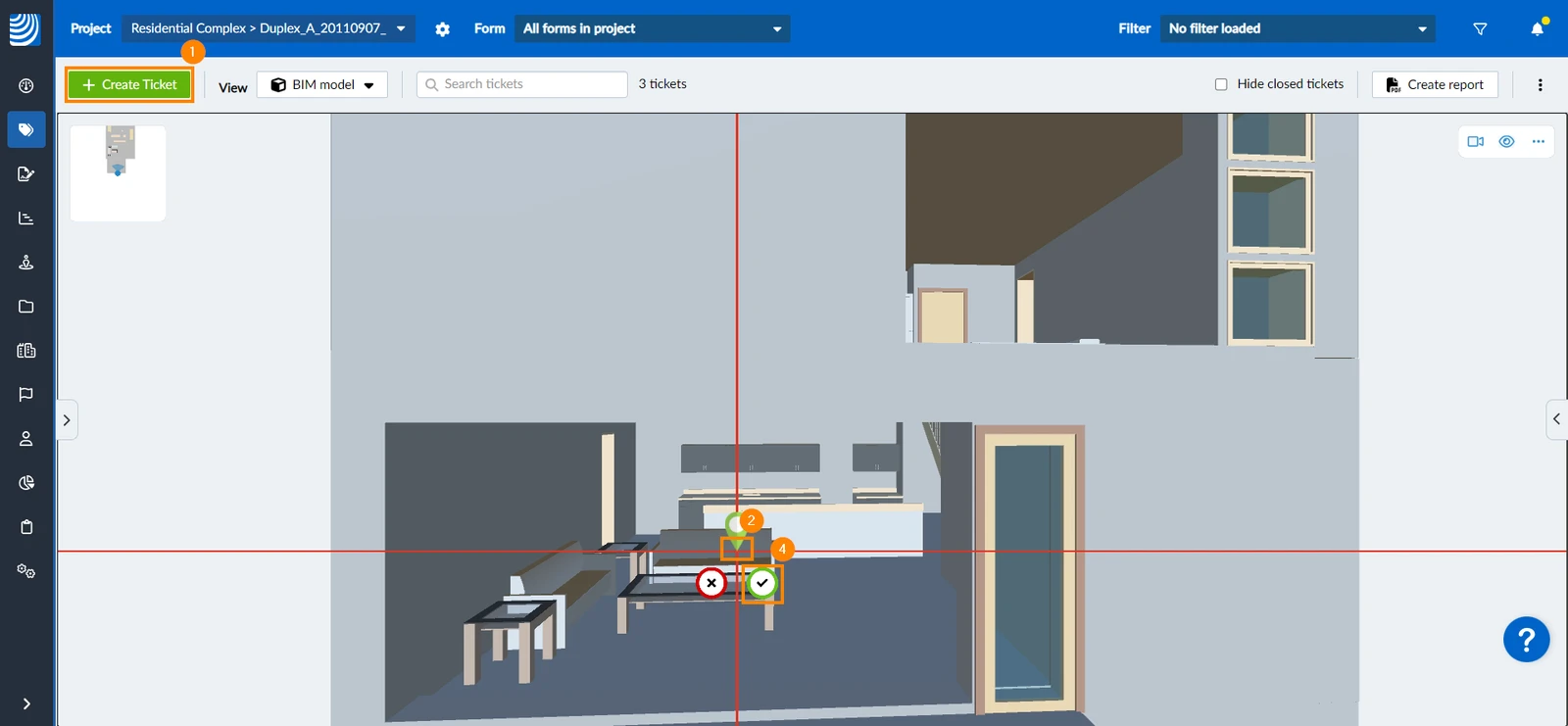
- Continue in the ticket creation form as explained in Create a Ticket > Select a Form.
- Tap the + button
- Drag and drop the pin to the right position
- Tap the green ✔ to confirm the position
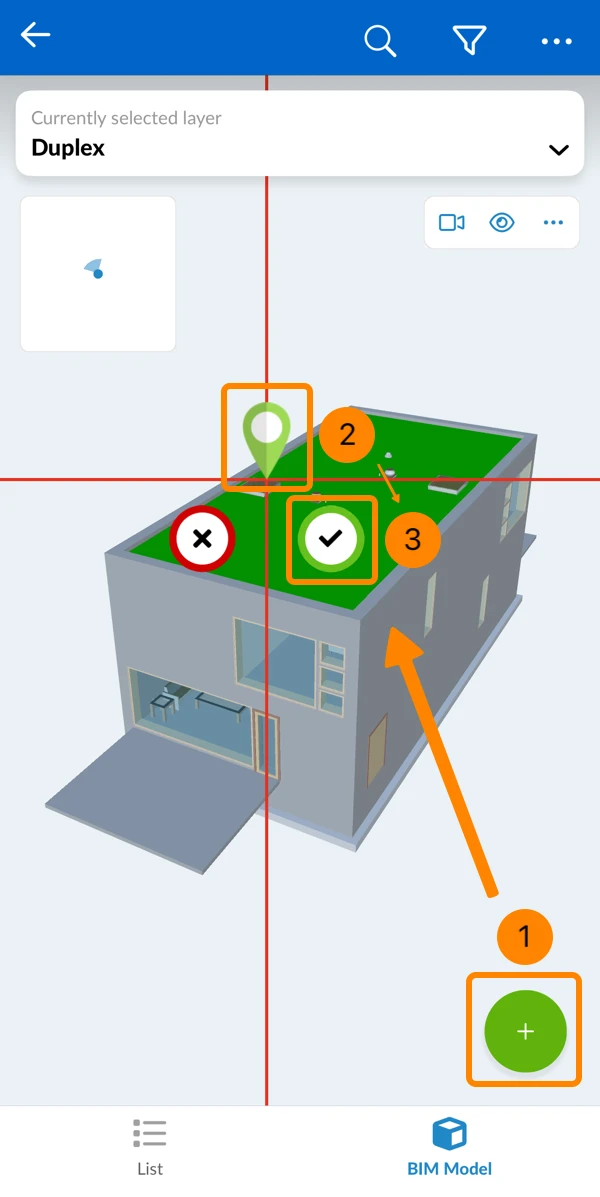
- Continue in the ticket creation form as explained in Create a Ticket > Select a Form.
Updated March 25, 2026