

 Deutsch
 Español
 Français
 Hrvatski
 Italiano
 Polski
 Português (BR)
Download Plan with Ticket Pins
Overview
Download any plan as a PDF to store it on your device or share it outside of PlanRadar. You can optionally include ticket pins and define their size and caption (ticket ID or title) as well as plan metadata (plan version and when it got uploaded).
Access & Permissions
How to access Tickets Plan View
Before you can download a plan you need to navigate to the Tickets Plan View and select the desired project and layer as described in View Tickets of a Project, Layer or Form.
To access the tickets plan view:
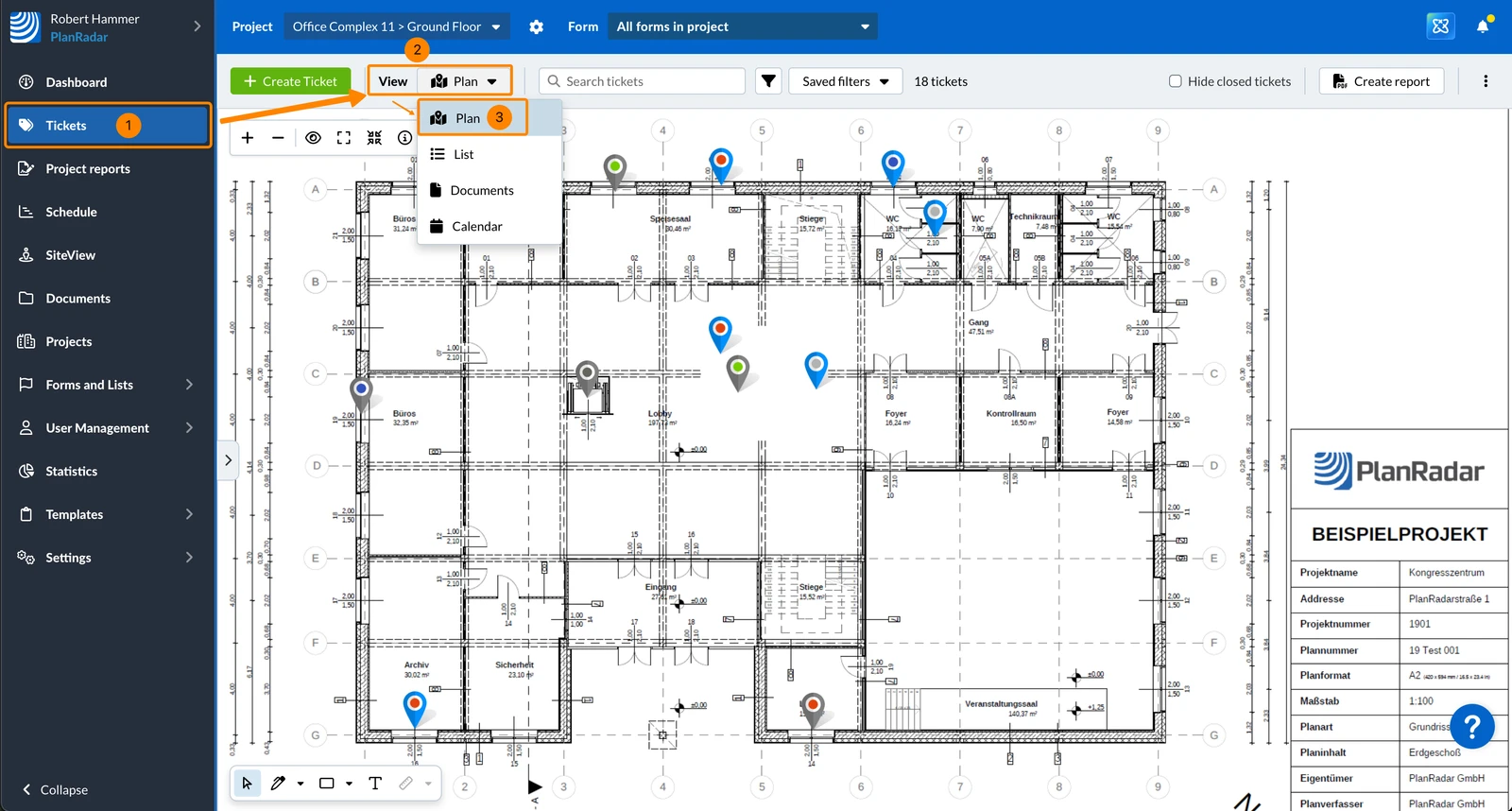
- Click Tickets
- Select Plan in the View drop-down
Download Plan
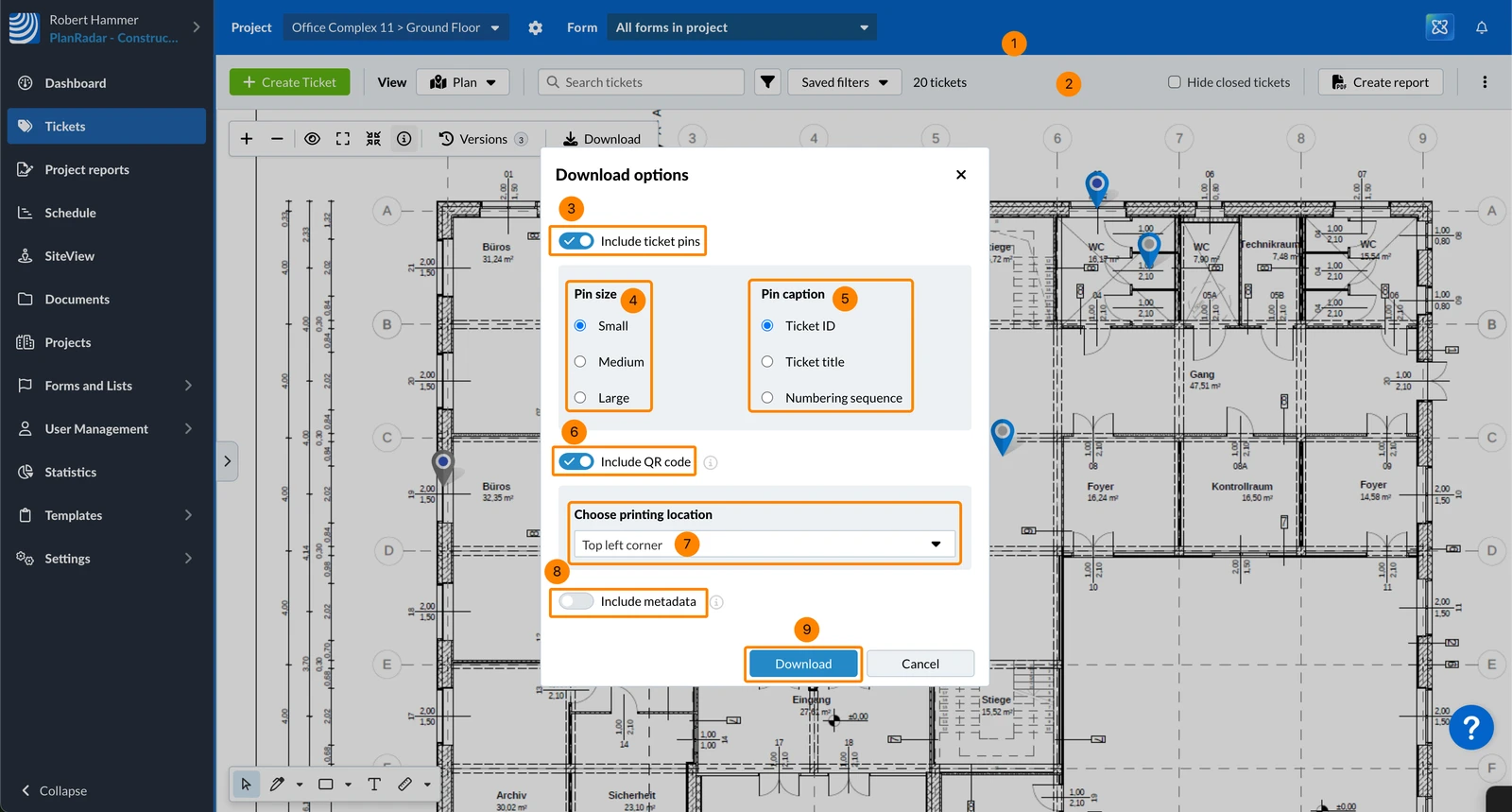
When downloading a plan you can you can optionally include the following:
- Ticket pins - choose pin size and caption (ID or title)
- QR code - read more in Check the Latest Plan Version with a QR Code
- Metadata - plan version and upload date of the plan
To download a plan:
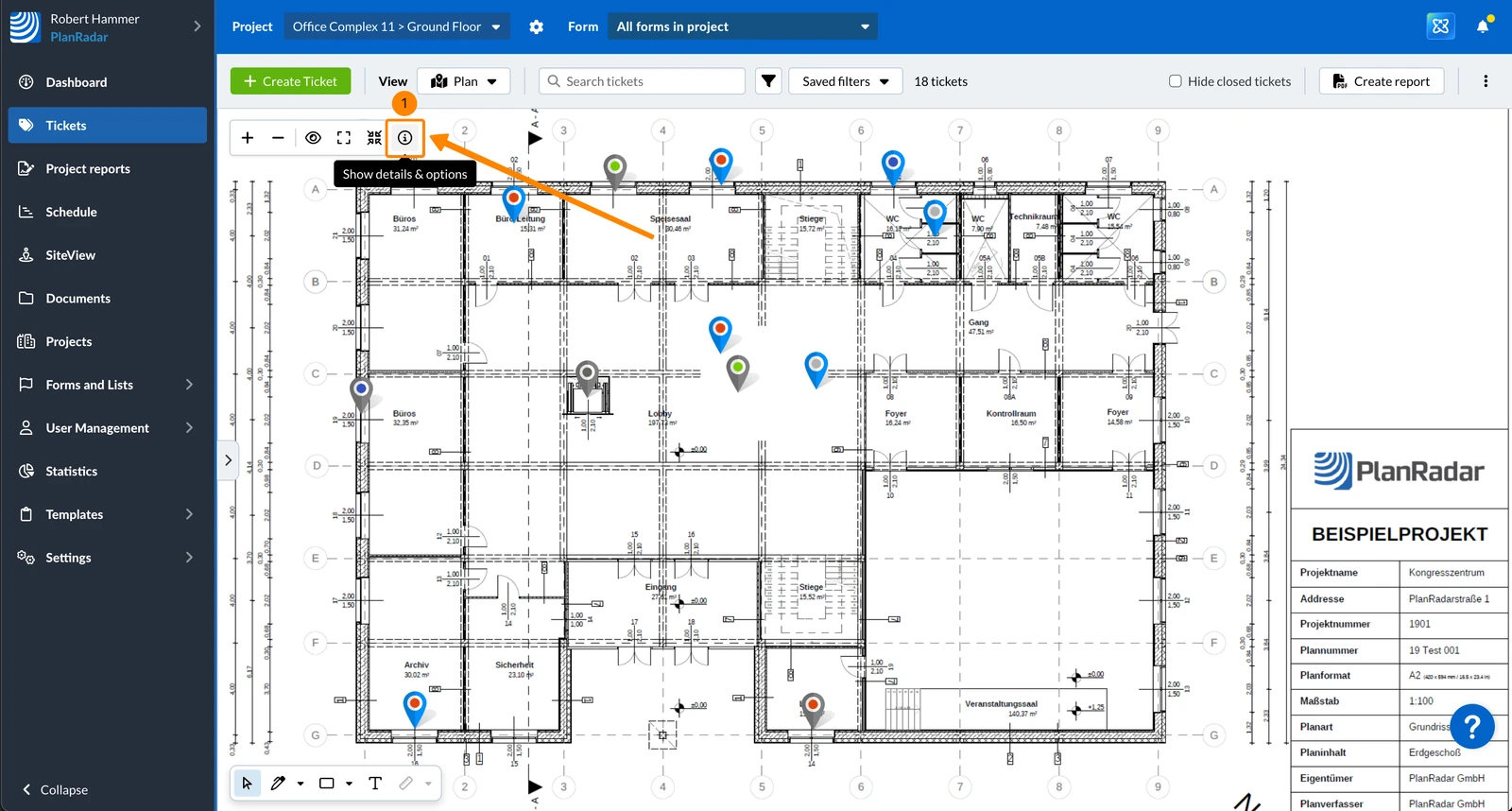
- Click the Show details & options button
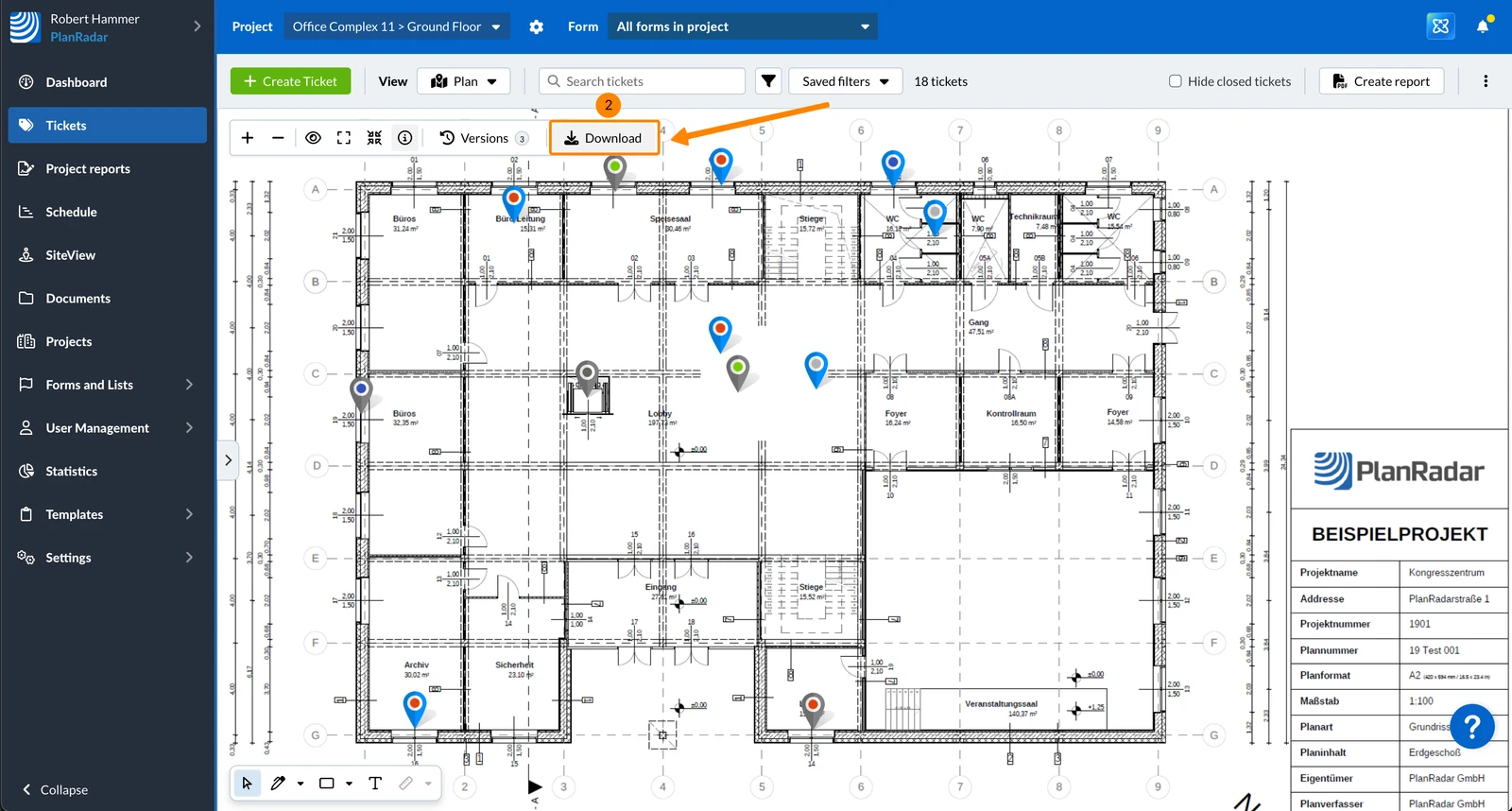
- Click Download
- Activate/deactivate the Include ticket pins toggle
- Optional: Select pin display size: small, medium or large
- Optional: Select pin caption: Ticket ID or Ticket title or Numbering sequence
- Activate/deactivatethe Include QR code toggle
- Optional: Choose printing location: Top left, Top right, Bottom left or Bottom right corner
- Activate/deactivate the Include metadata toggle
- Click Download
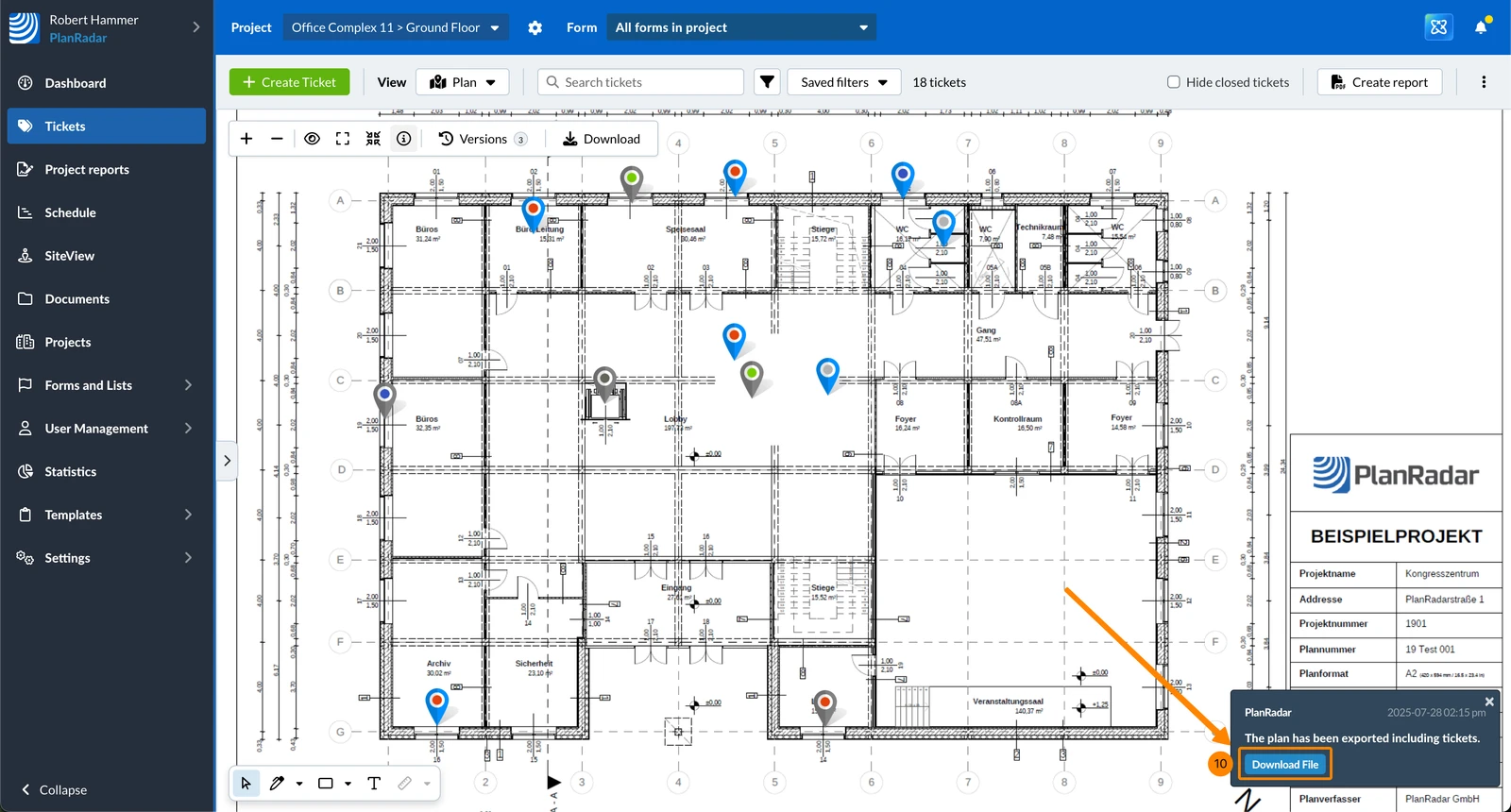
- The PDF gets generated in the background and you receive a notification when it is ready to Download file.
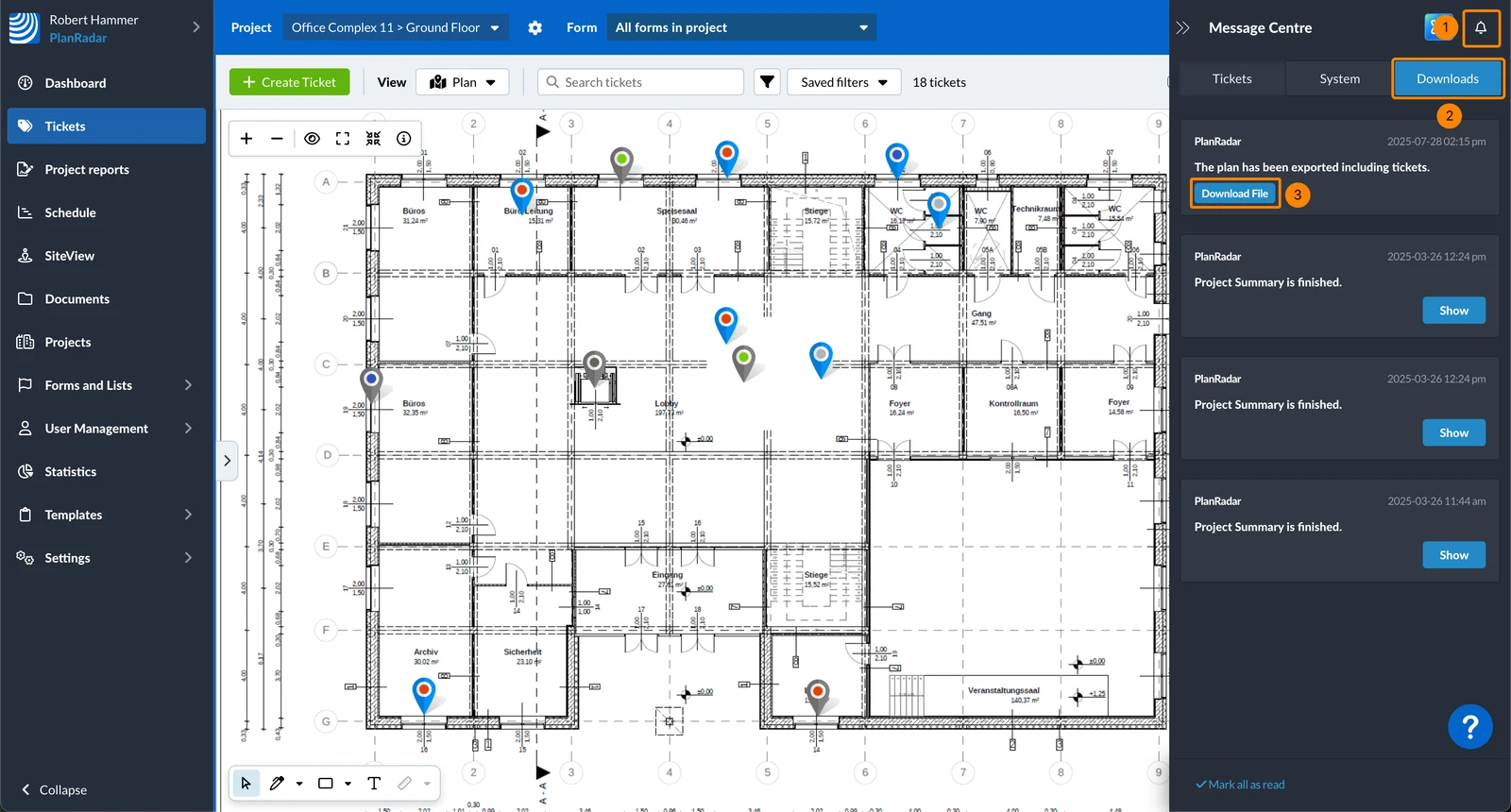
The message will is also be accessible in the Message Center:
- Click Message Center
- Click Downloads
- Click Download File
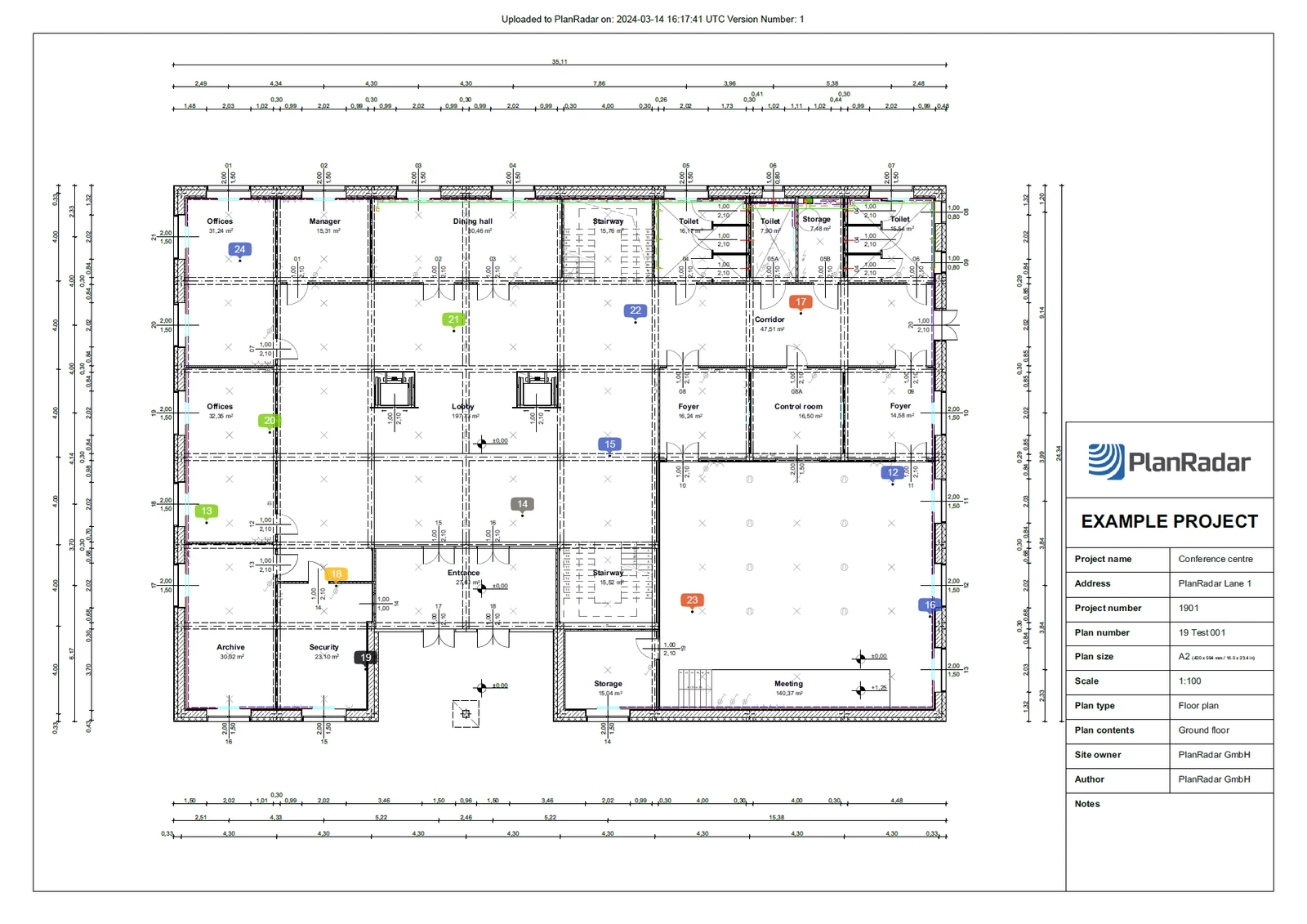
Example of a printed plan with medium sized ticket IDs including metadata on top:
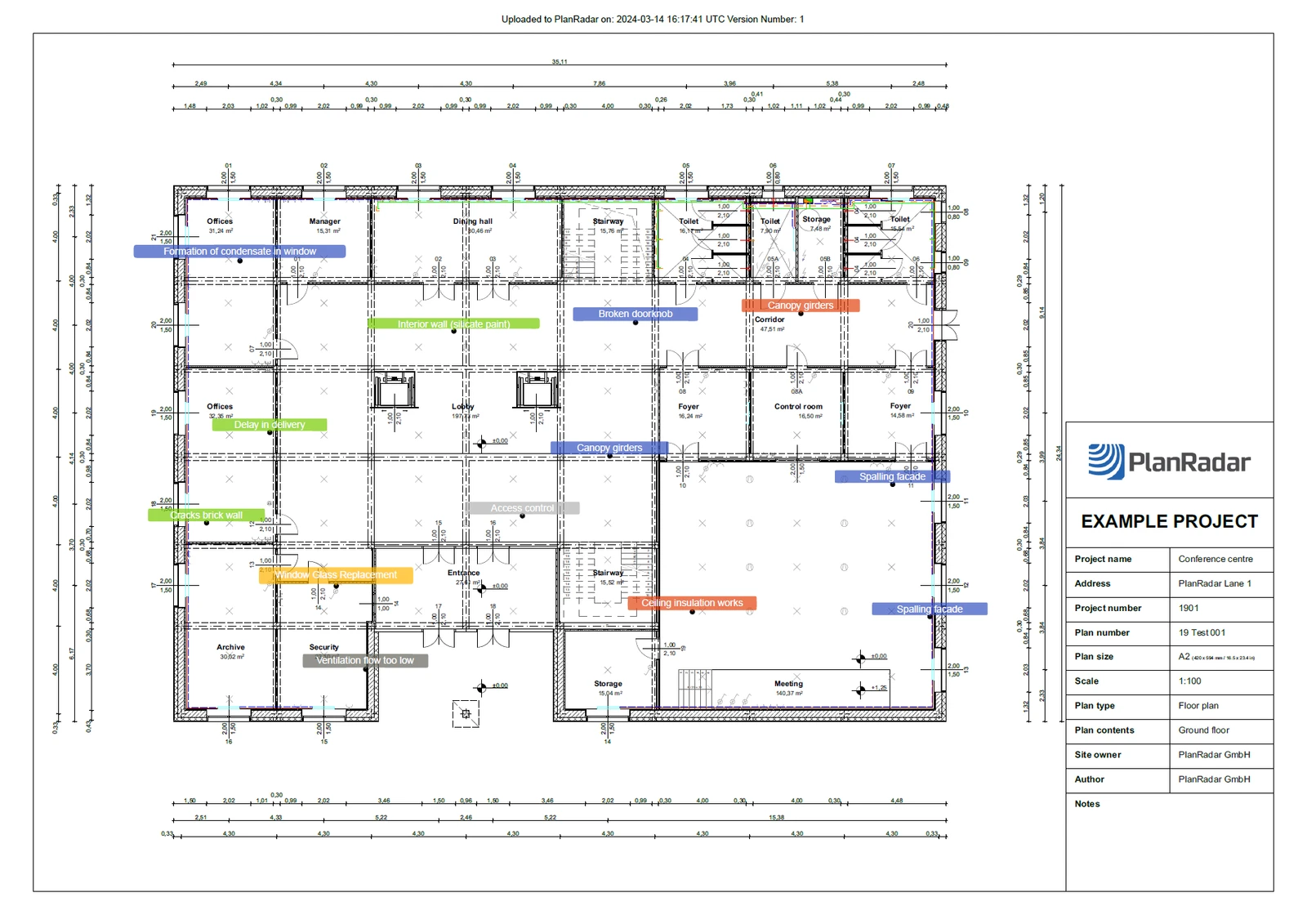
Example of a printed plan with medium sized ticket titles including metadata on top:
Updated October 29, 2025