

 Deutsch
 Español
 Français
 Hrvatski
 Italiano
 Polski
 Português (BR)
Set a Repetition Date for Tickets
Overview
Set a repetition date or interval for recurrent tasks to automatically set the ticket status to 'Open'.
Access & Permissions
Setting a repetition date for a ticket is currently available for the Webapp and Android app.
Set a Repetition Date
To set a repetition date:
Continue here after you Create a Ticket or View & Edit a Ticket.
- Click Configure repeat timing
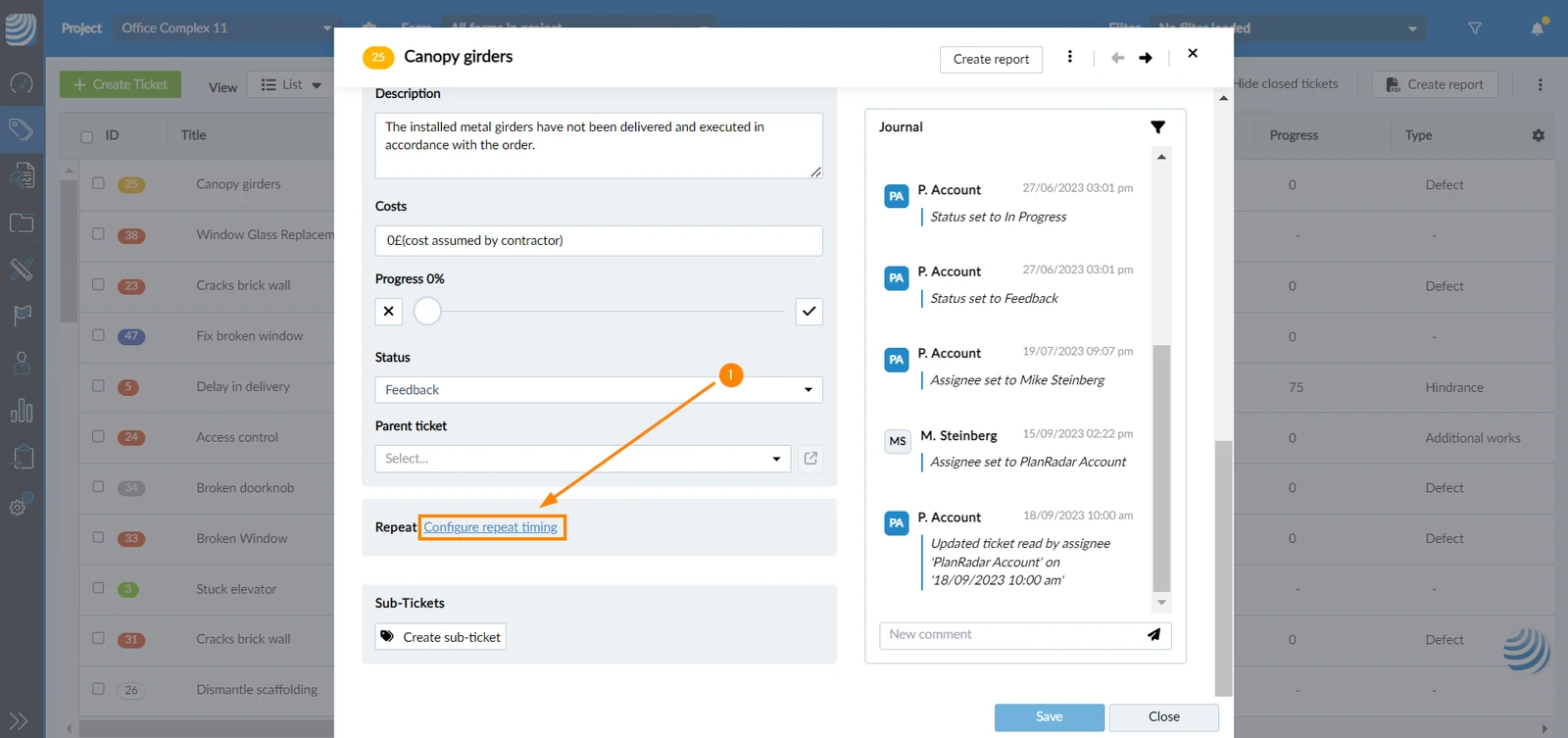
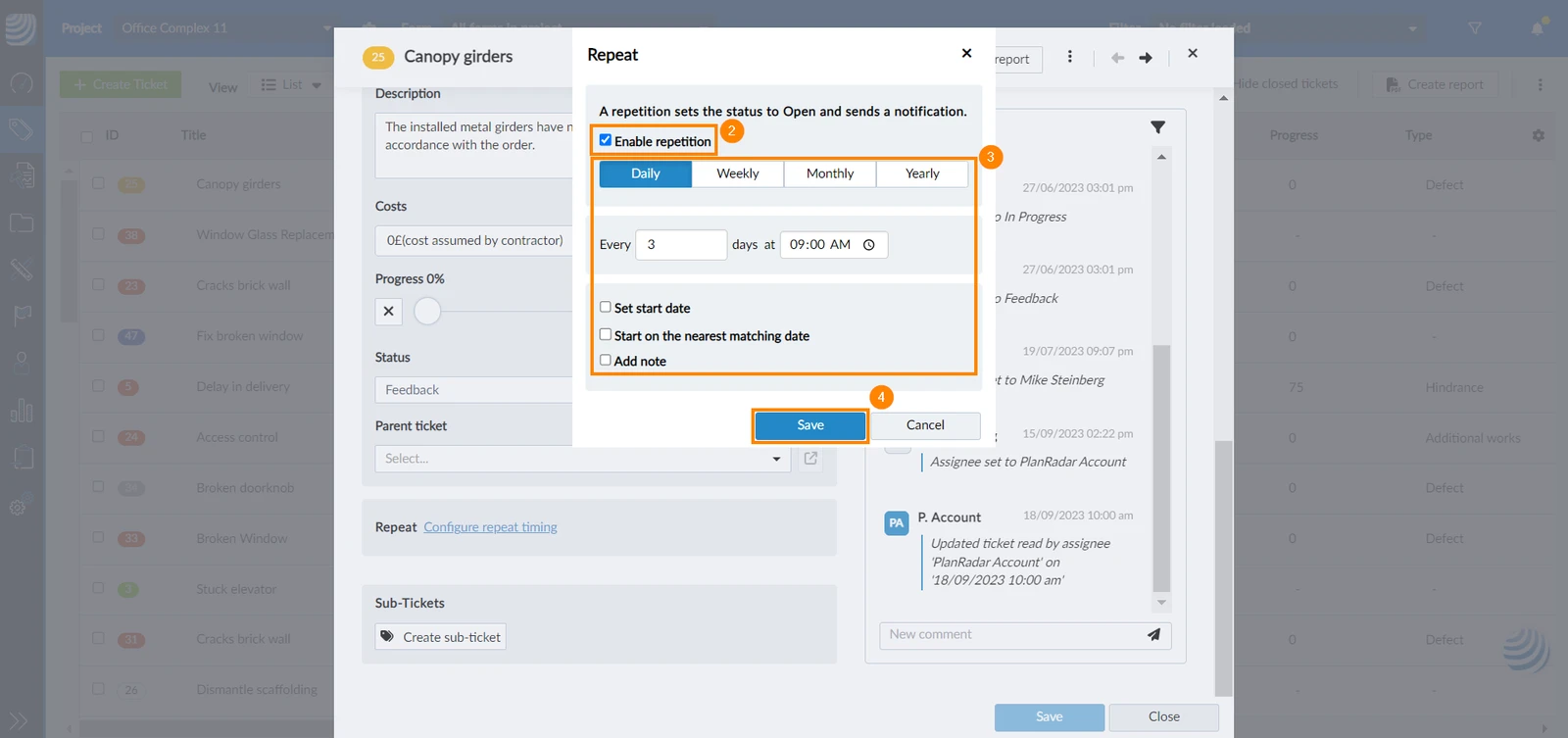
- Select the Enable repetition checkbox
- Configure repetition timing as explained below
- Click Save
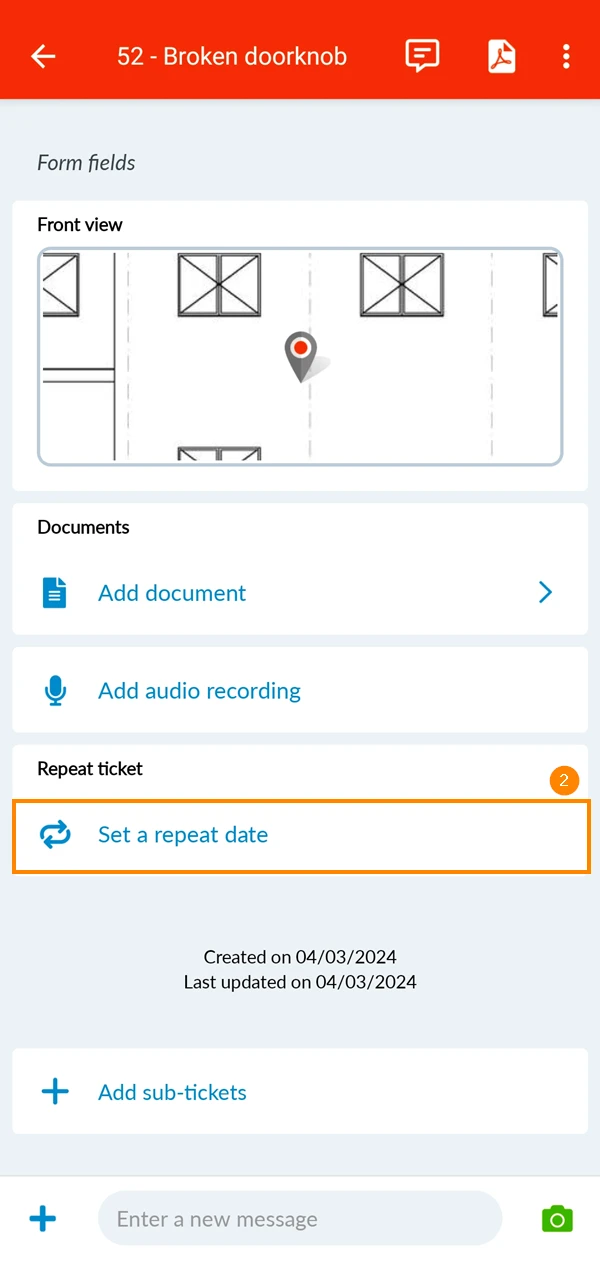
- Open a ticket
- Tap Set a repeat date
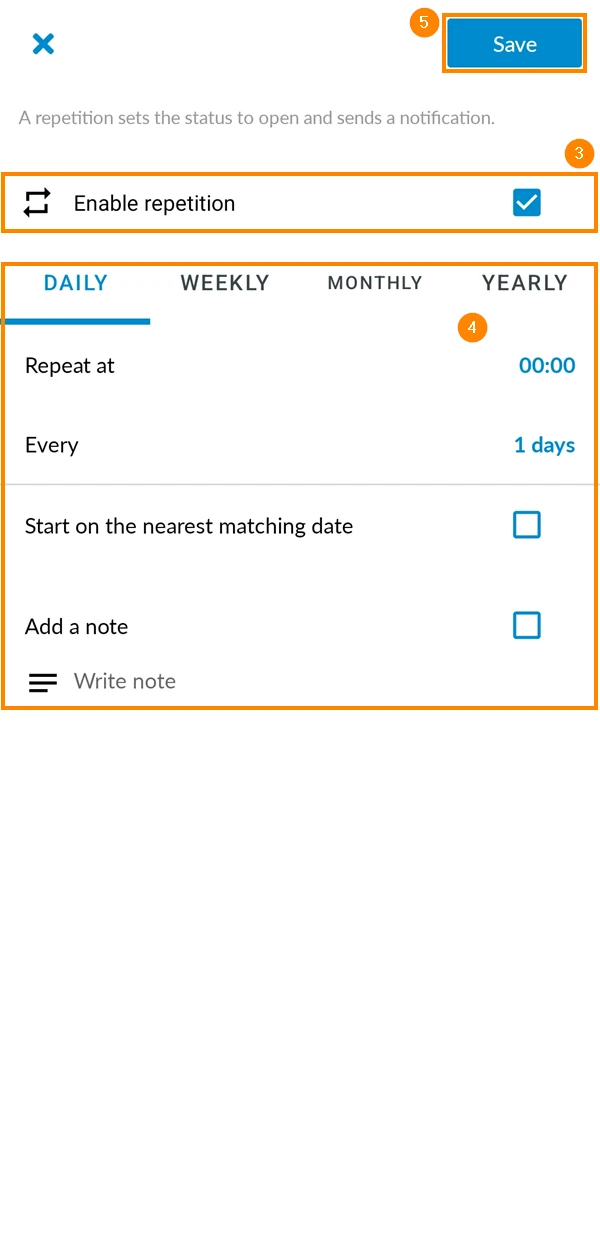
- Select the Enable repetition checkbox
- Configure repetition timing as explained below
- Tap Save
Configure Repetition Timing
When configuring the repetition timing to open a ticket, there are different repetition timings available:
Daily
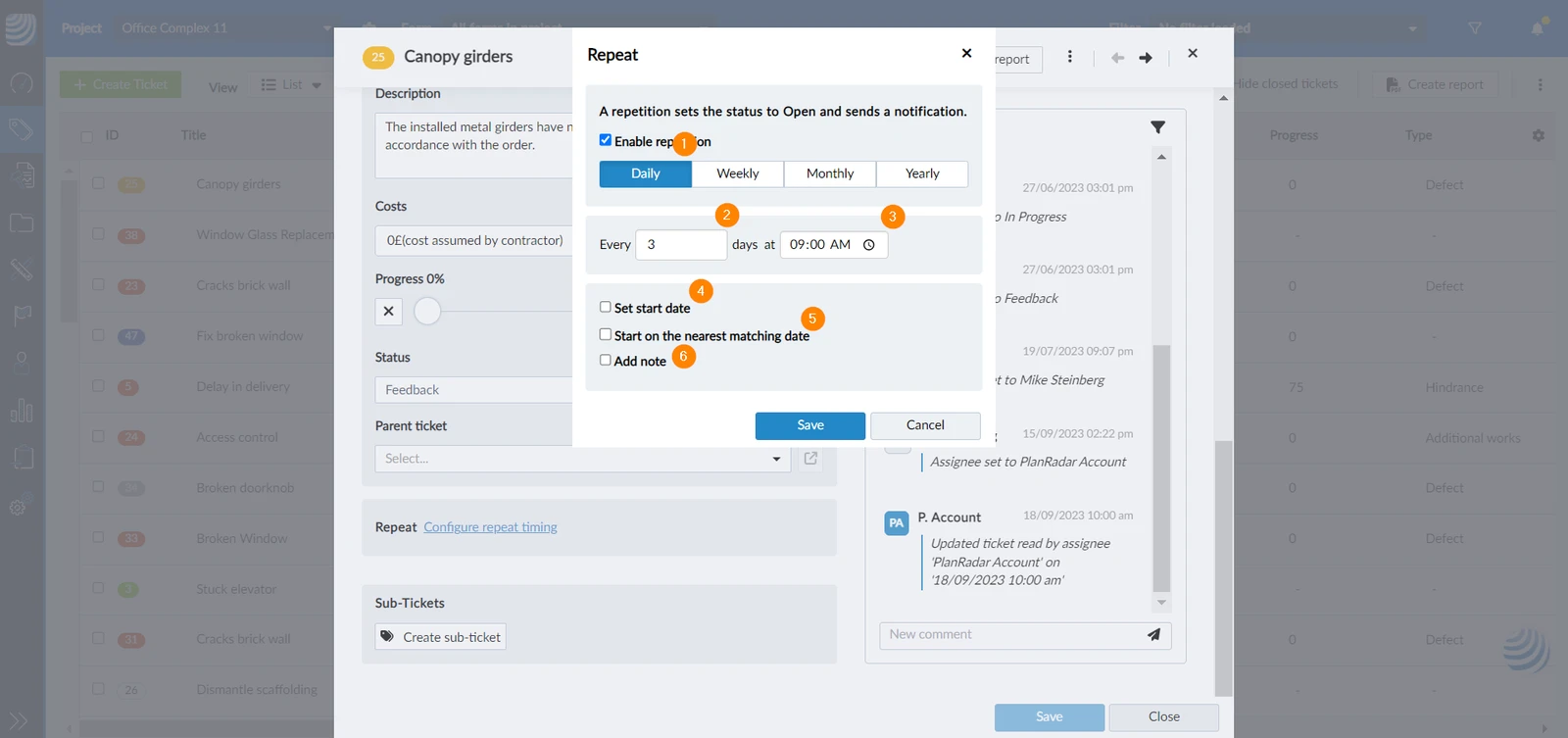
To set the ticket to repeat on daily intervals:
-
Select the repetition to be Daily
-
Enter the number of days for the interval (mandatory)
-
Enter the time at which the ticket should be set to open (mandatory)
-
Select the Set start date checkbox and use the date picker to select the date at which the ticket should start repeating
-
Select the Start on the nearest matching date checkbox to start the repetition on the same day of configuring the settings
-
Select the Add note checkbox to add a note regarding the repetition
-
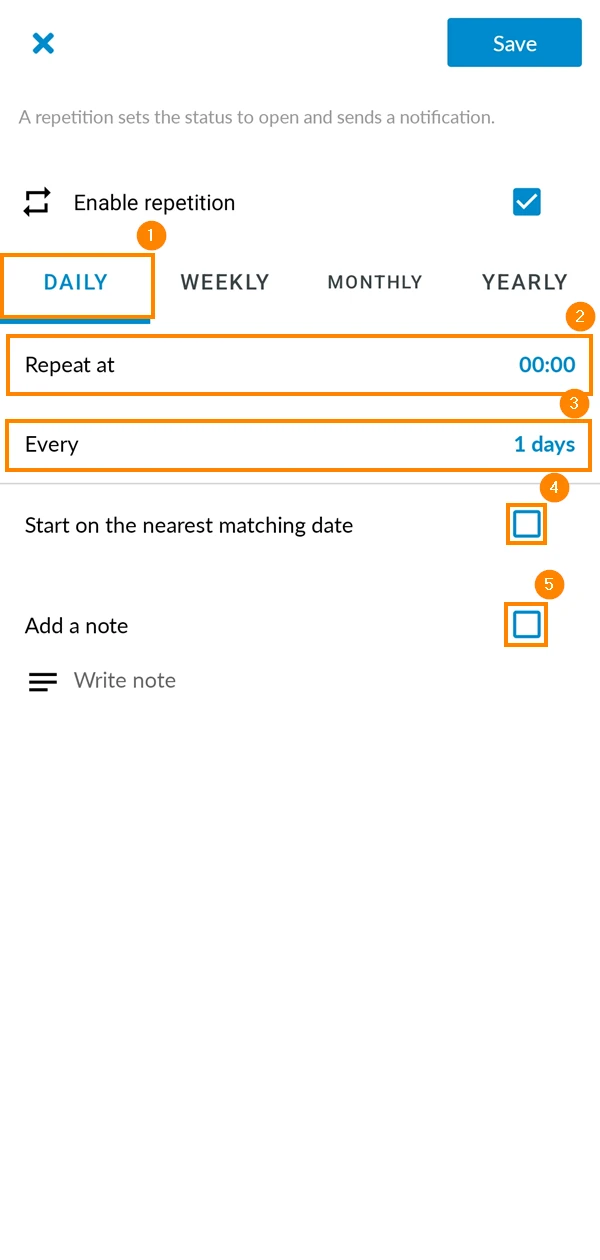
Set the repetition to Daily
-
Tap Repeat at to select the time of the repetition
-
Tap Every to enter the number of days for the interval
-
Select the Start on the nearest matching date checkbox to start the repetition on the same day of configuring the settings.
-
Select the Add note checkbox to add a note regarding the repetition
Weekly
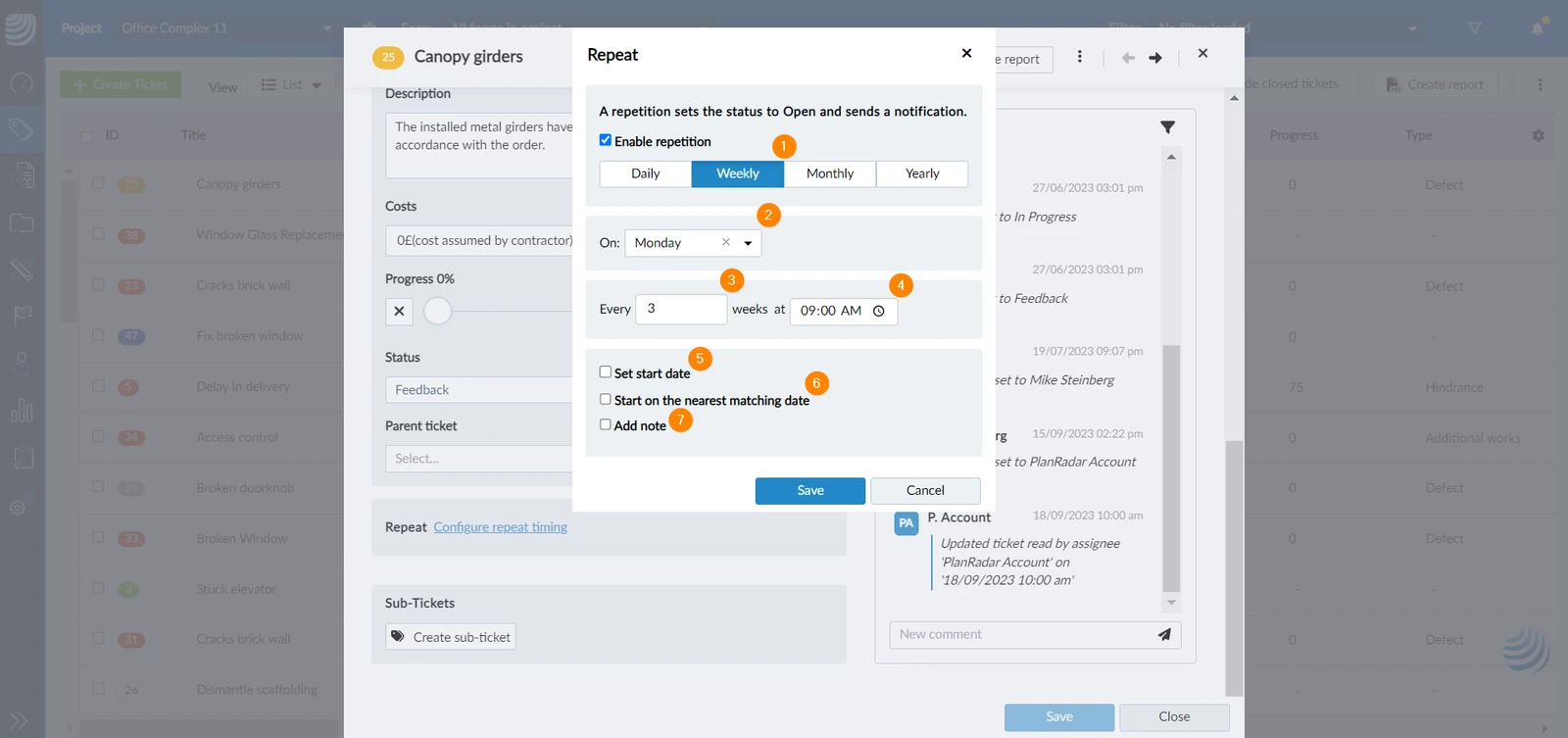
To set the ticket to repeat on weekly intervals:
-
Select the repetition to Weekly
-
Select the day of the week on which the ticket should be reopened from the drop-down (mandatory)
-
Enter the number of weeks between one occurrence and the other (mandatory)
-
Enter the time at which the ticket should be set to open (mandatory)
-
Select the Set start date checkbox and use the date picker to select the date at which the ticket should start repeating
-
Select the Start on the nearest matching date checkbox to start the repetition on the same day of configuring the settings
-
Select the Add note checkbox to add a note regarding the repetition
-
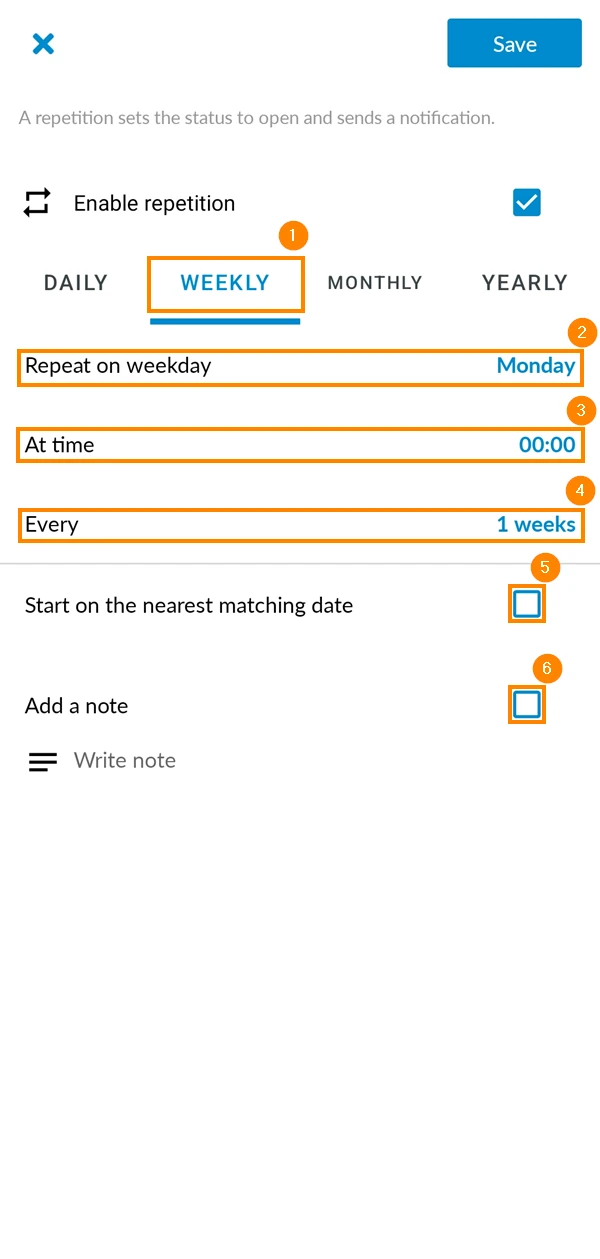
Set the repetition to Weekly
-
Tap Repeat on weekday to select the day on which the ticket gets set to open
-
Tap At time to select the time of the day at which the ticket gets set to open
-
Tap Every to enter the number of weeks between intervals
-
Select the Start on the nearest matching date checkbox to start the repetition on the same day of configuring the settings
-
Select the Add note checkbox to add a note regarding the repetition
Monthly
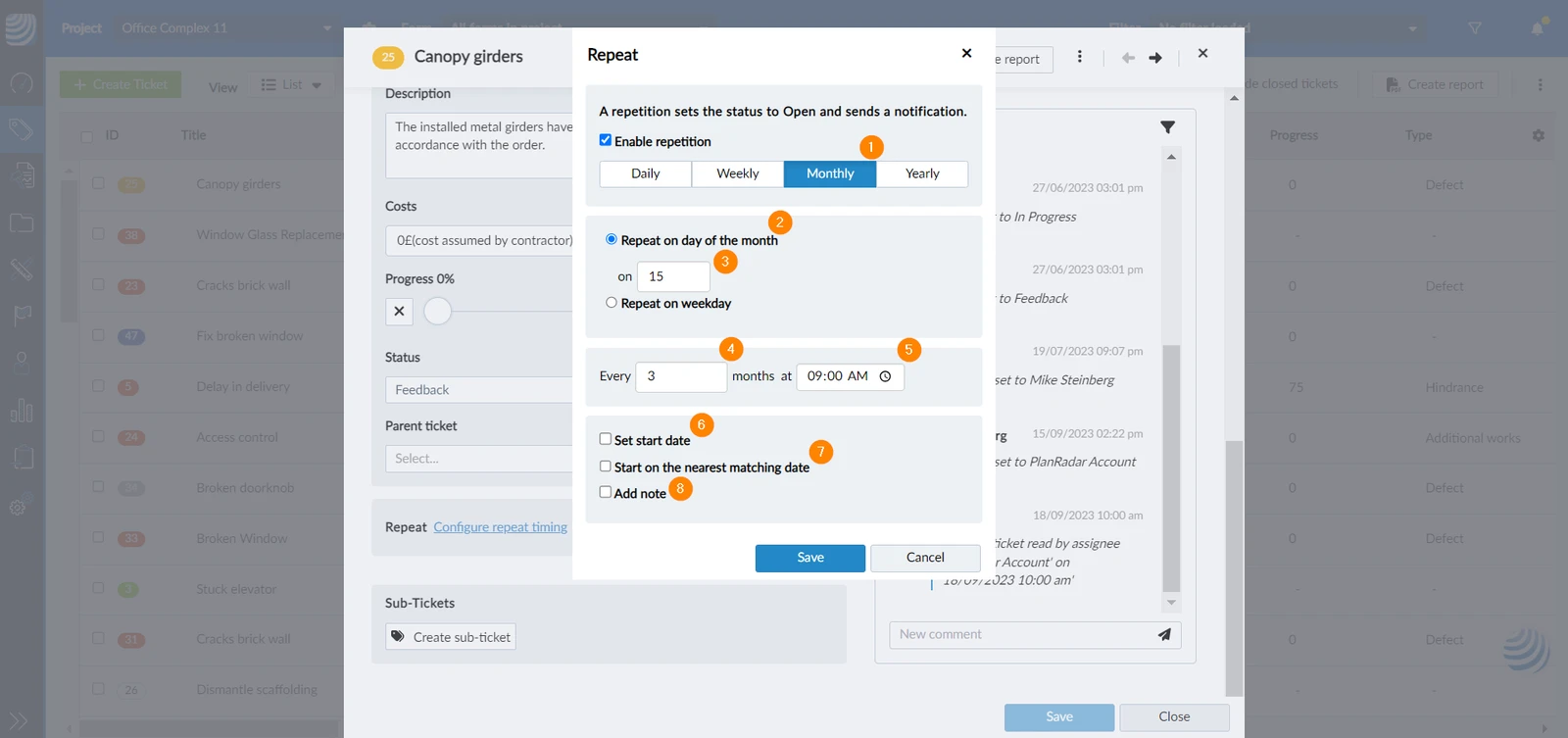
You can repeat your ticket on a monthly basis, either on a specific date or on a specific weekday (for example, every second Monday of the month).
On a specific date of the month
-
Select the repetition as Monthly
-
Select the Repeat on day of the month checkbox
-
Enter the date of the day on which the ticket would be set to open (mandatory)
-
Enter the number of months between one occurrence and the other (mandatory)
-
Enter the time at which the ticket should be set to open (mandatory)
-
Select the Set start date checkbox and use the date picker to select the date at which the ticket should start repeating
-
Select the Start on the nearest matching date checkbox to start the repetition on the same day of configuring the settings
-
Select the Add note checkbox to add a note regarding the repetition
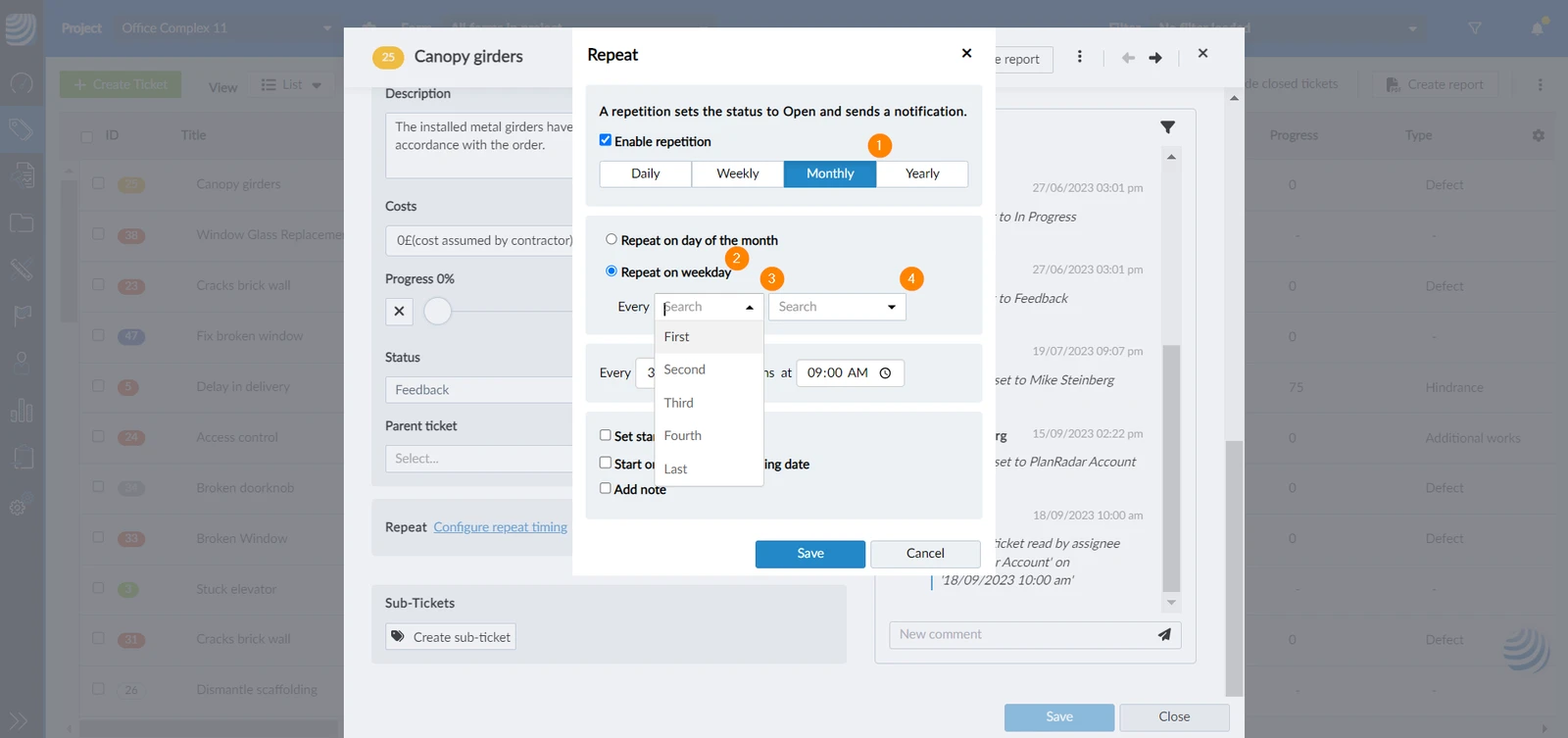
On a specific weekday
- Select the repetition as Monthly
- Select the Repeat on weekday checkbox
- Select the day in the month (first, second, third, etc.) from the drop-down (mandatory)
- Select the weekday (Monday, Tuesday, etc.) from the drop-down (mandatory)
- Continue as explained above
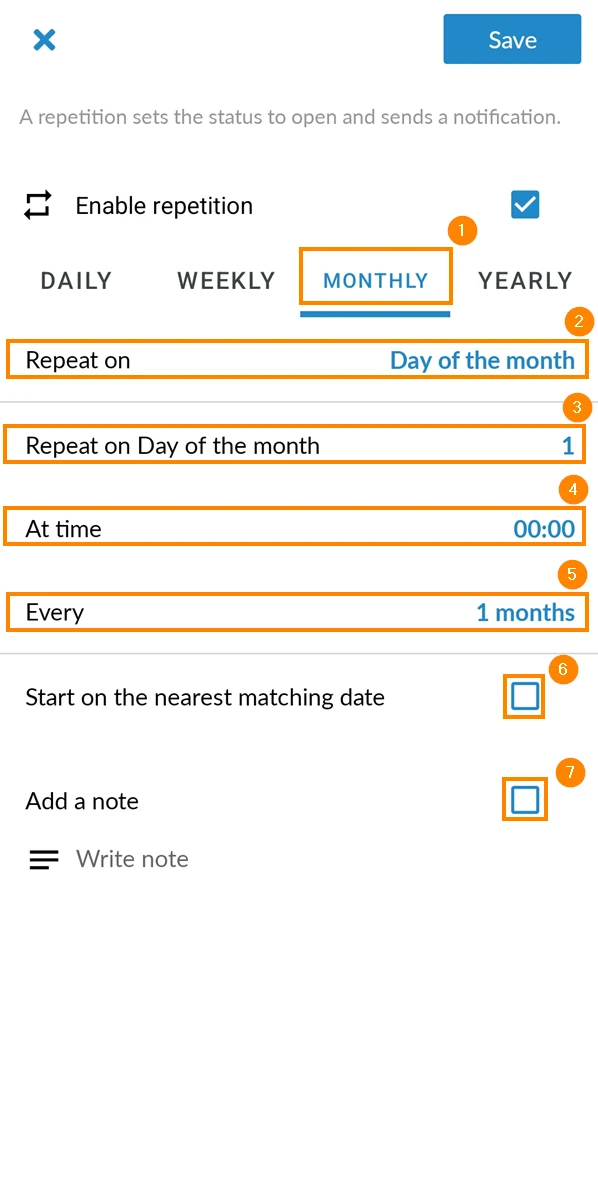
On a specific date of the month
-
Set the repetition to Monthly
-
Tap Repeat on and set it to Day of the month
-
Tap Repeat on Day of the month to select the day of the month on which the ticket gets reopened
-
Tap At time to select the time at which the ticket gets set to open
-
Tap Every to enter the number of months between intervals
-
Select the Start on the nearest matching date checkbox to start the repetition on the same day of configuring the settings
-
Select the Add note checkbox to add a note regarding the repetition
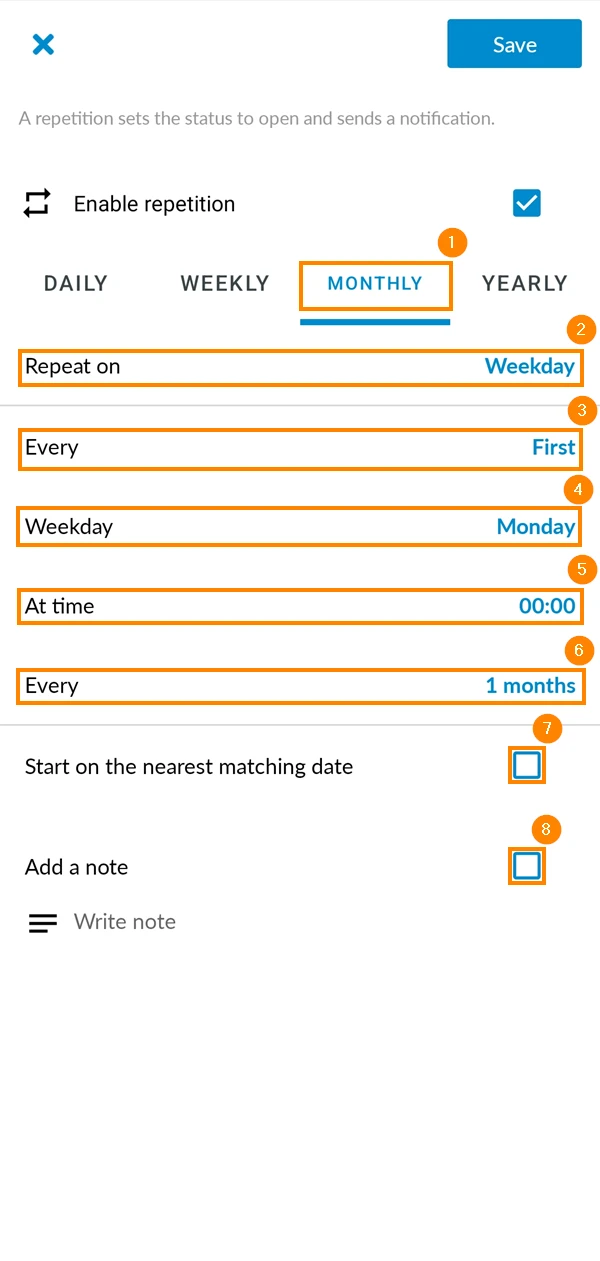
Repeat on Weekday
-
Set the repetition to Monthly
-
Tap Repeat on and set it to Weekday
-
Tap Every to select the place of the day in the month (first, second, third, etc.)
-
Tap Weekday to select the day of the week (Monday, Tuesday, etc.)
-
Tap At time to select the time at which the ticket gets set to open
-
Tap Every to enter the number of months between intervals
-
Select the Start on the nearest matching date checkbox to start the repetition on the same day of configuring the settings
-
Select the Add note checkbox to add a note regarding the repetition
Yearly
-
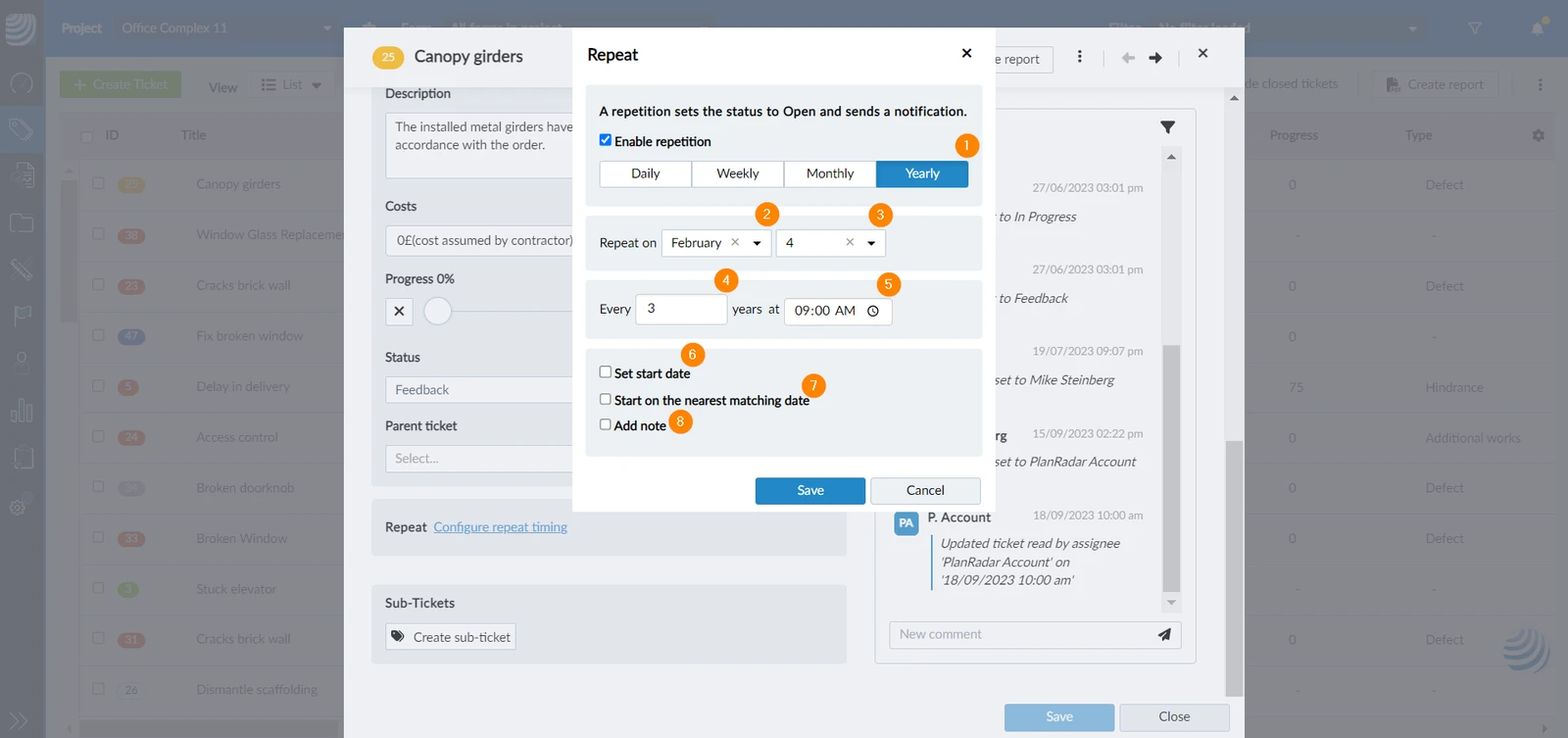
Select the repetition as Yearly
-
Select the Month from the drop-down (mandatory)
-
Select the date of the day on which the ticket would be set to open from the drop-down (mandatory)
-
Enter the number of years between one occurrence and the other (mandatory)
-
Enter the time at which the ticket should be set to open (mandatory)
-
Select the Set start date checkbox and use the date picker to select the date at which the ticket should start repeating
-
Select the Start on the nearest matching date checkbox to start the repetition on the same day of configuring the settings
-
Select the Add note checkbox to add a note regarding the repetition
-
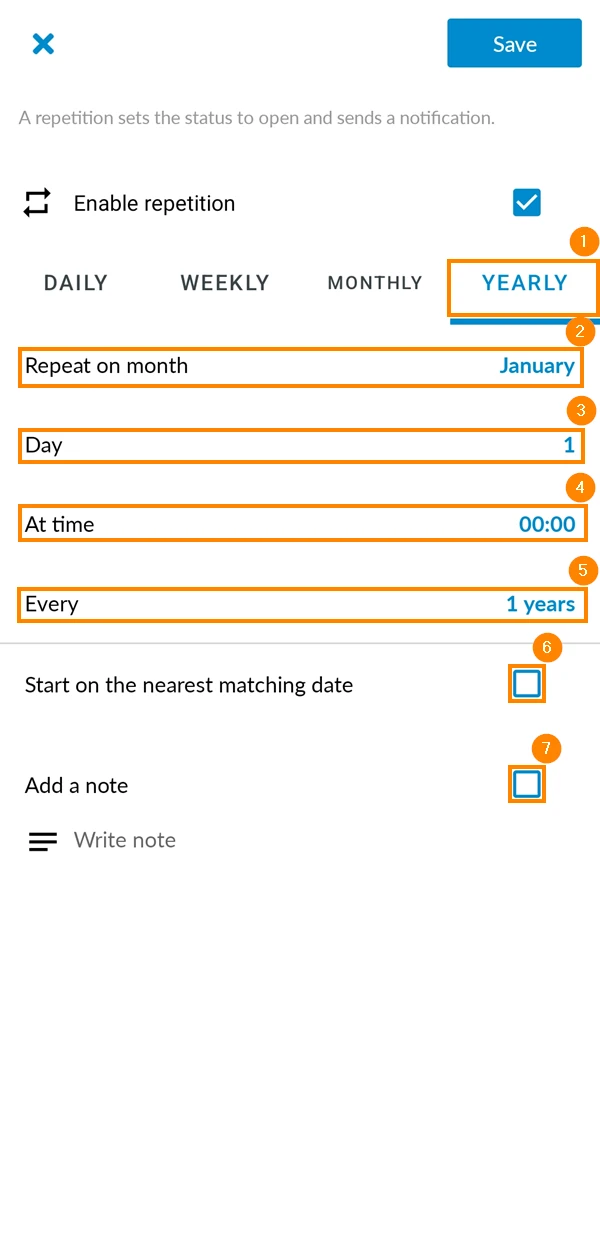
Set the repetition to Yearly
-
Tap Repeat on month to select the month in which the ticket gets reopen
-
Tap Day to select the day of the month on which the ticket gets reopen
-
Tap At time to select the time at which the ticket gets set to open
-
Tap Every to enter the number of years between intervals
-
Select the Start on the nearest matching date checkbox to start the repetition on the same day of configuring the settings
-
Select the Add note checkbox to add a note regarding the repetition
Updated October 29, 2025