

 Deutsch
 Español
 Français
 Hrvatski
 Italiano
 Polski
 Português (BR)
Use QR Codes to Link & Open Tickets
Overview
Link PlanRadar Tickets with QR codes to save time finding the right Ticket when working on-site. Scan the QR code with your camera or PlanRadar mobile app and the linked Ticket will open.
Access & Permissions
How to enable
You need to enable this feature on your mobile device. Once enabled, it will be available for all Tickets.
- Go to the main menu
- Tap Settings
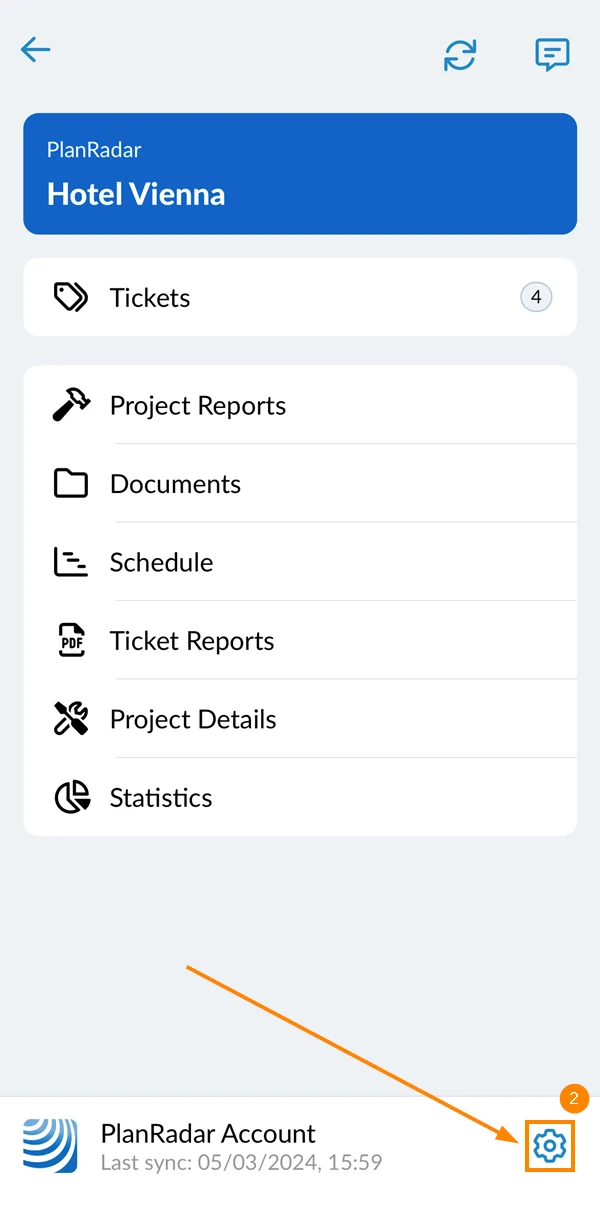
- Activate the Enable QR code feature toggle
- Tap Done
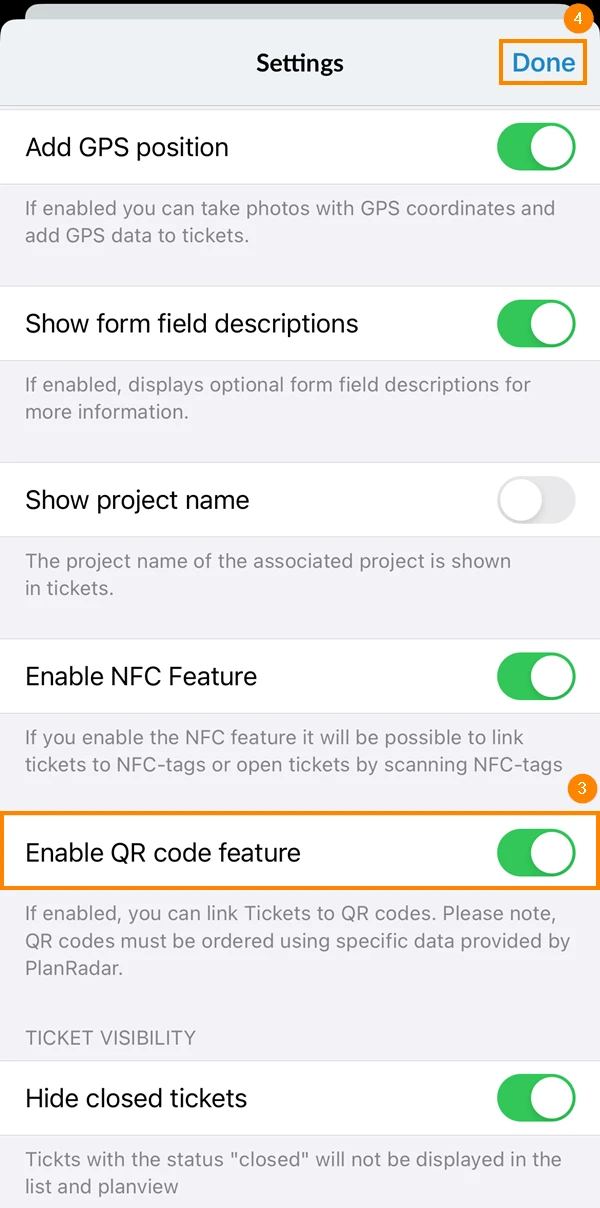
- Go to the main menu
- Tap Settings
- Activate the Enable QR code feature toggle
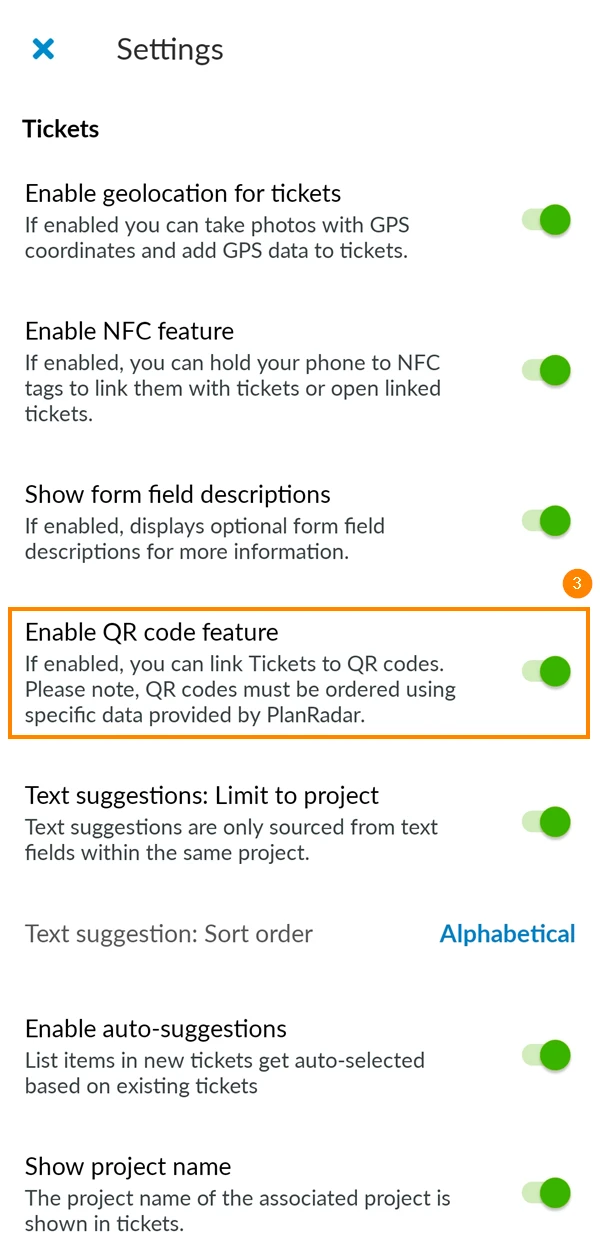
How to order QR codes that work with the PlanRadar app
To obtain this information, please contact [email protected] or your assigned customer success manager.
How to use (link & unlink)
Link a Ticket to a QR code
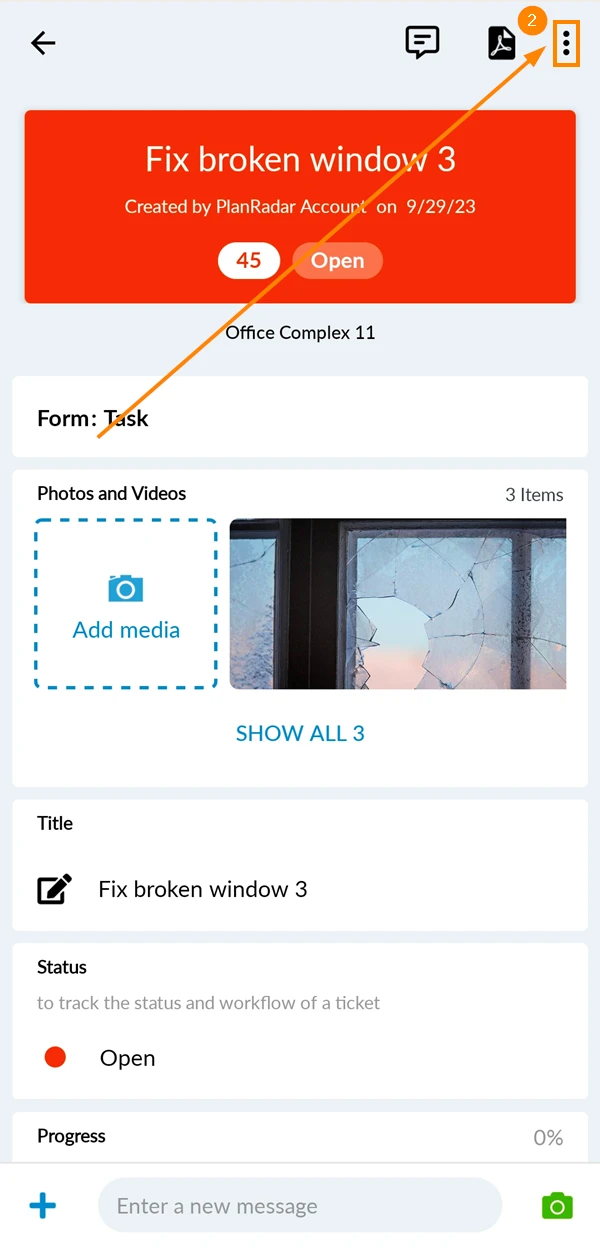
- Open the Ticket you want to link to a QR code
- Tap the more menu in the top right corner
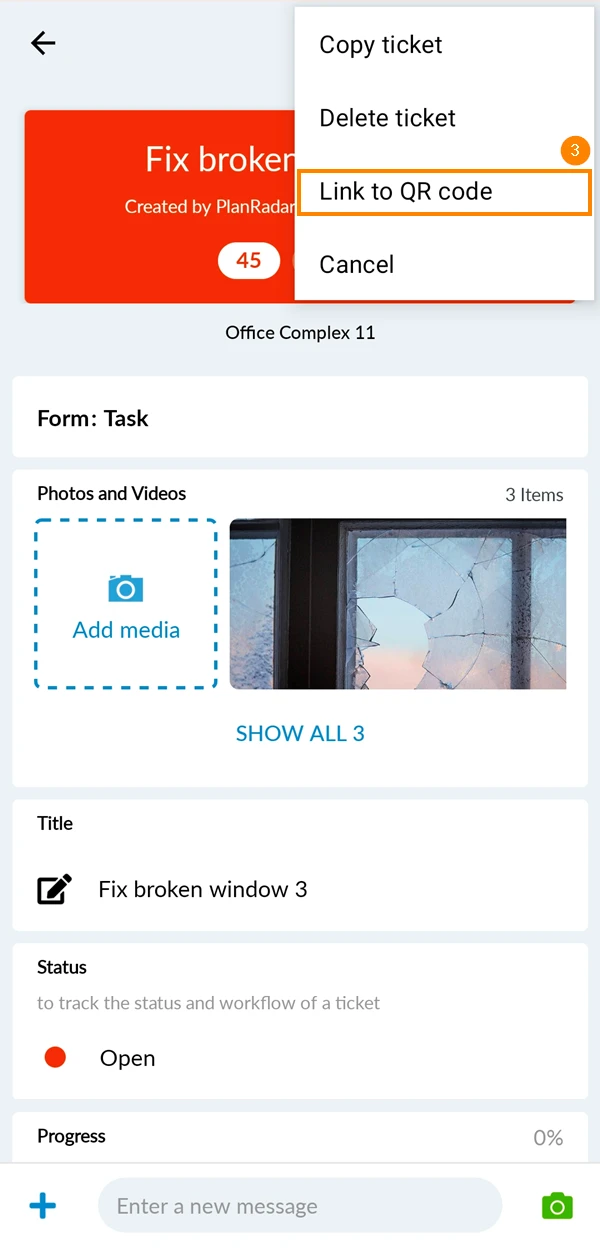
- Tap Link to QR code to open the camera
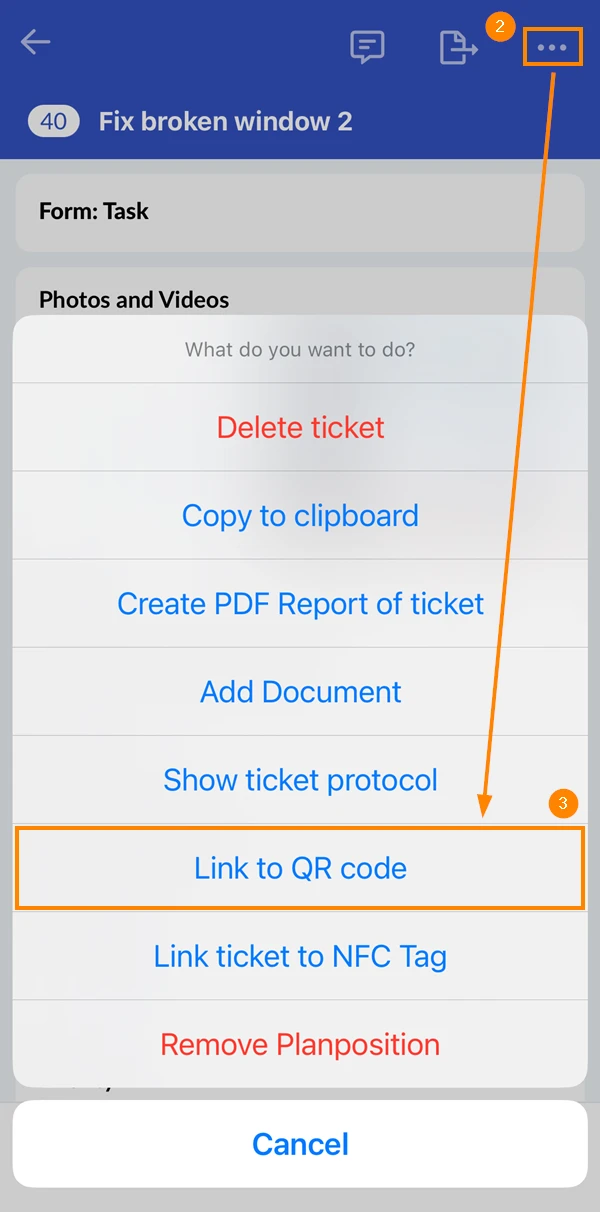
- Scan the QR code
- Open the Ticket you want to link to a QR code
- Tap the more menu in the top right corner
- Tap Link to QR code to open the camera
- Scan the QR code
How to see if a Ticket is linked to a QR code
If a Ticket is linked to a QR code in the Ticket list, a QR code icon will be shown.
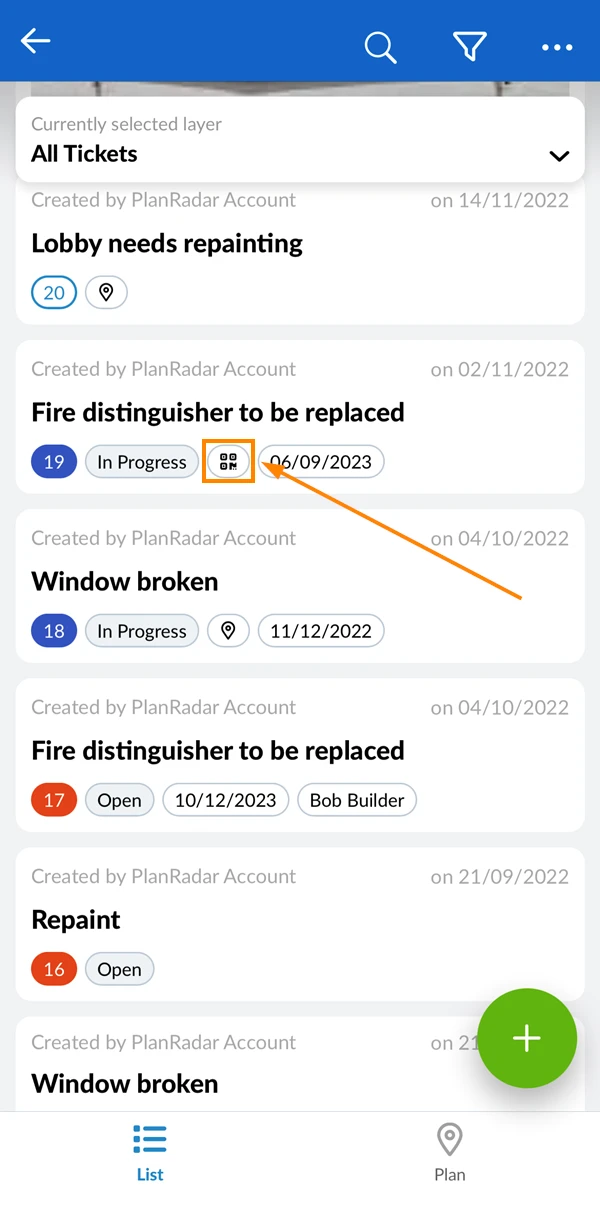
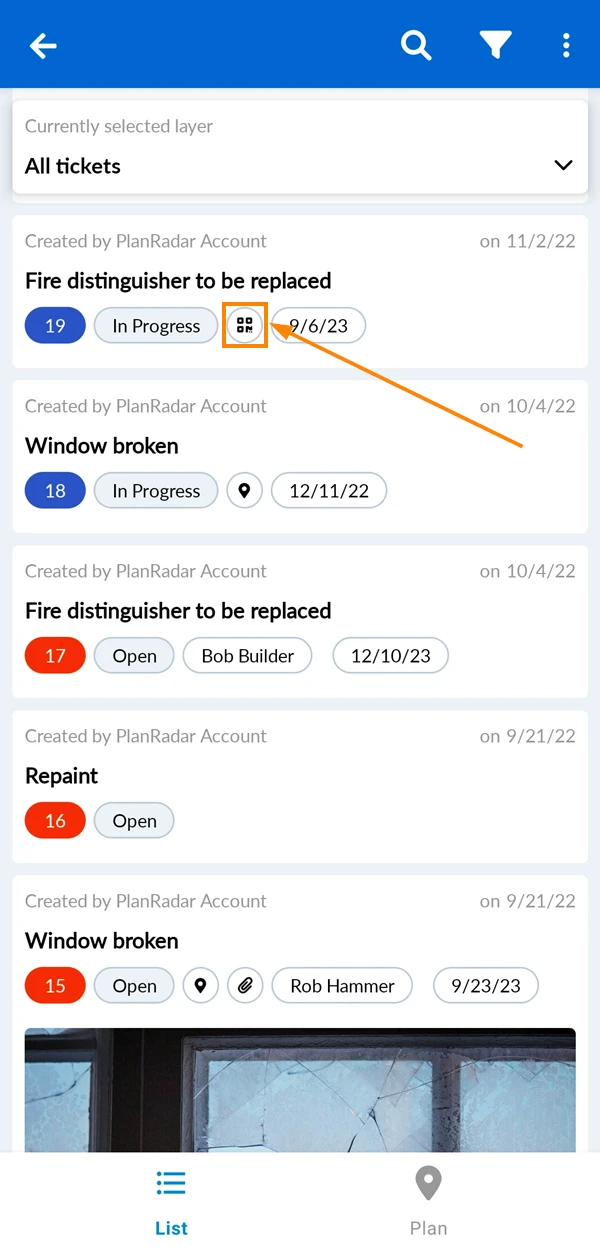
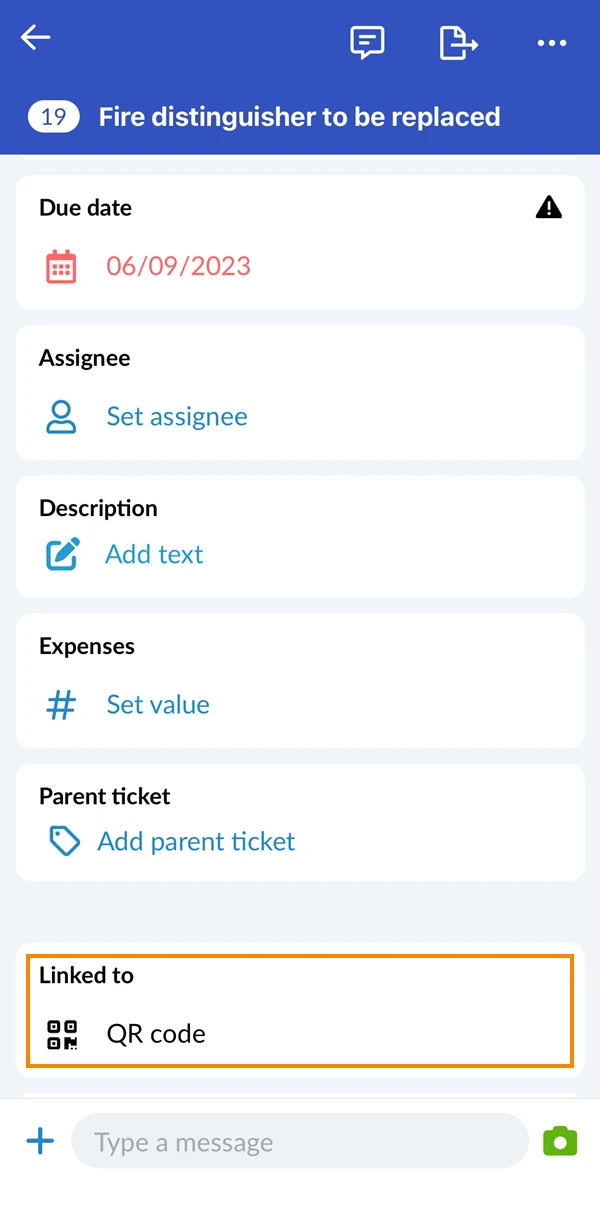
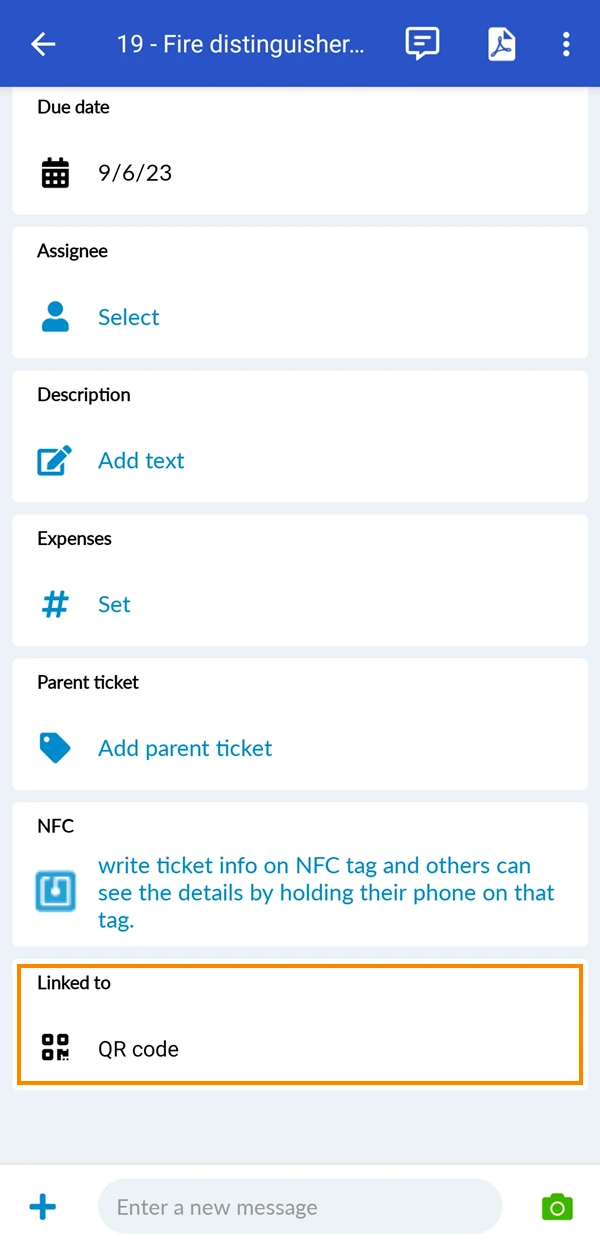
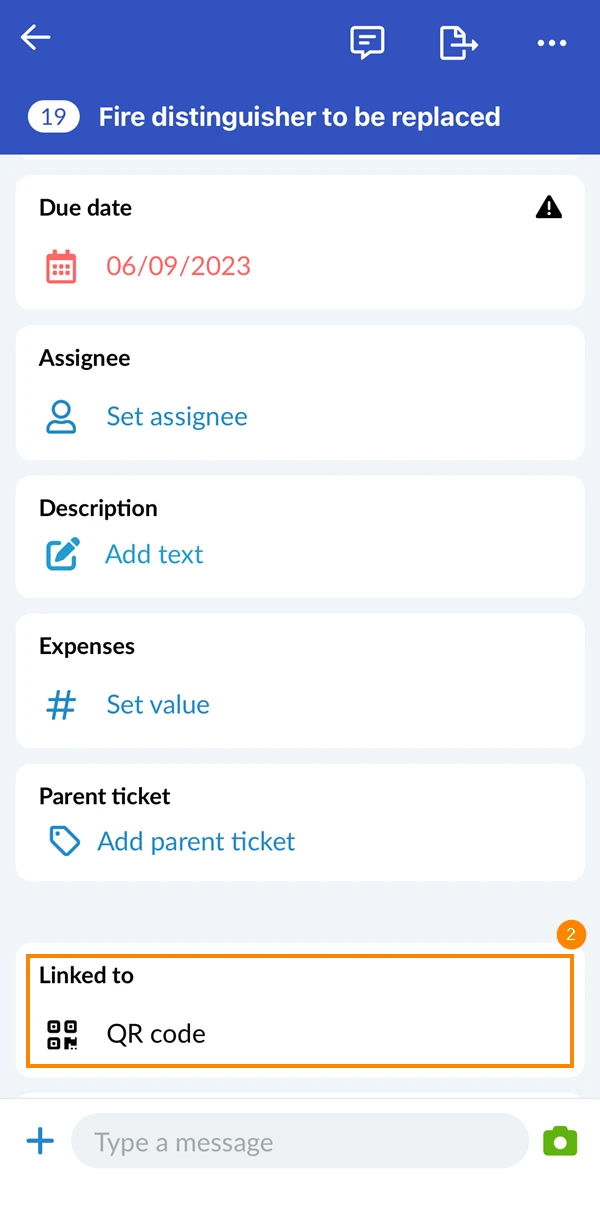
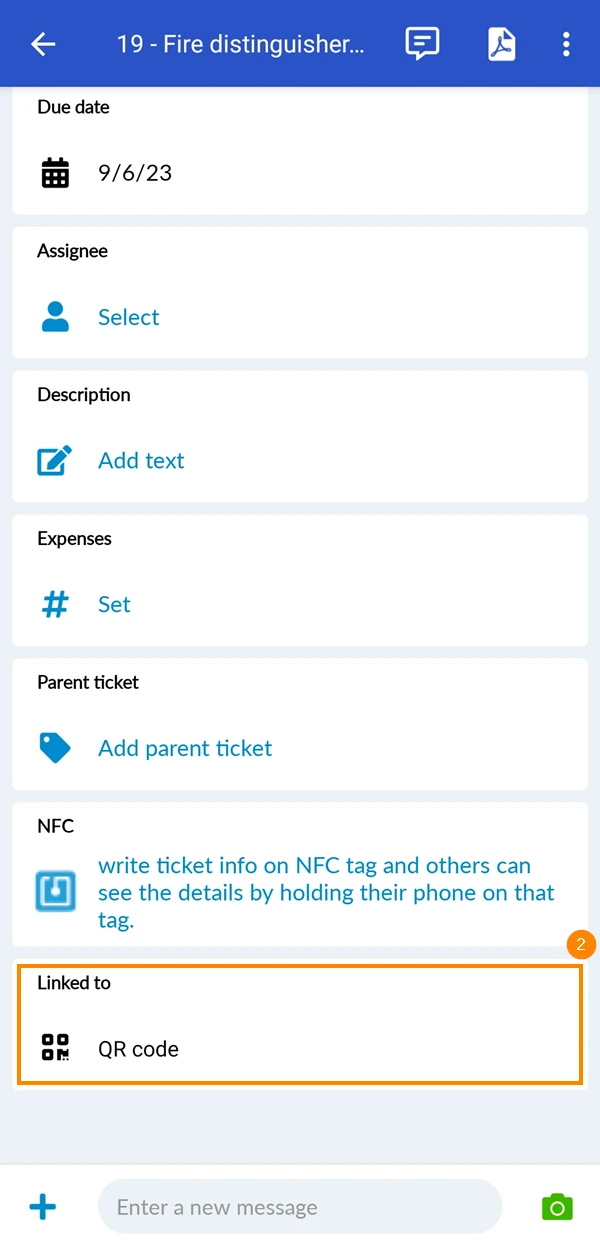
When you open a linked Ticket, there will be a section “Linked to: QR code”.
Unlink a Ticket from a QR Code
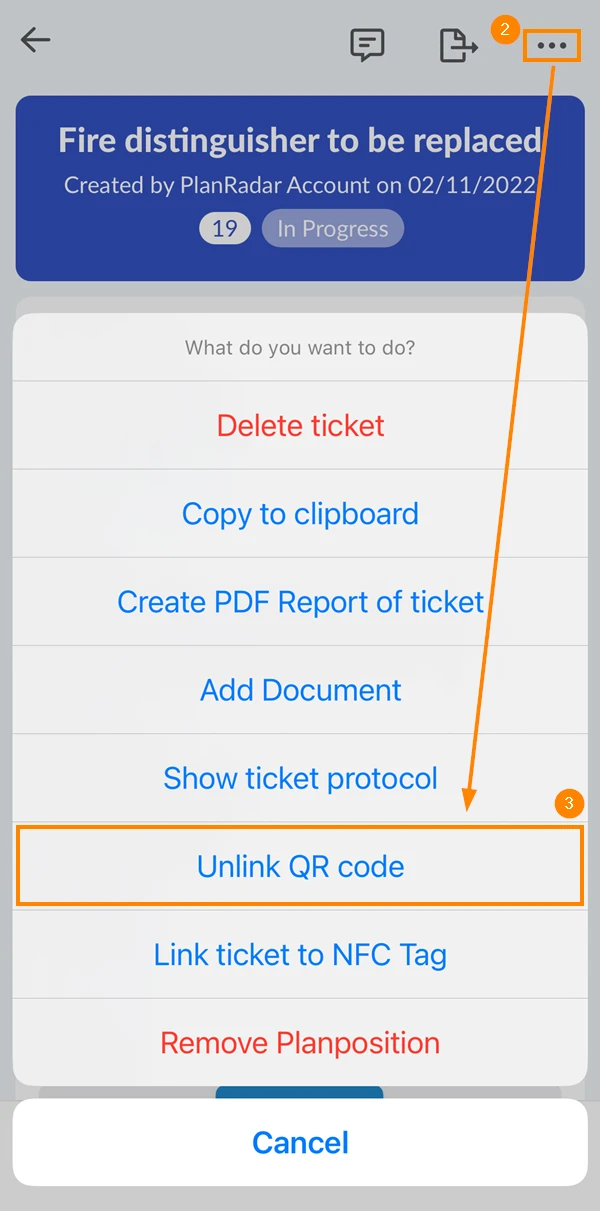
In ticket's more menu:
- Open the Ticket
- Tap the more menu
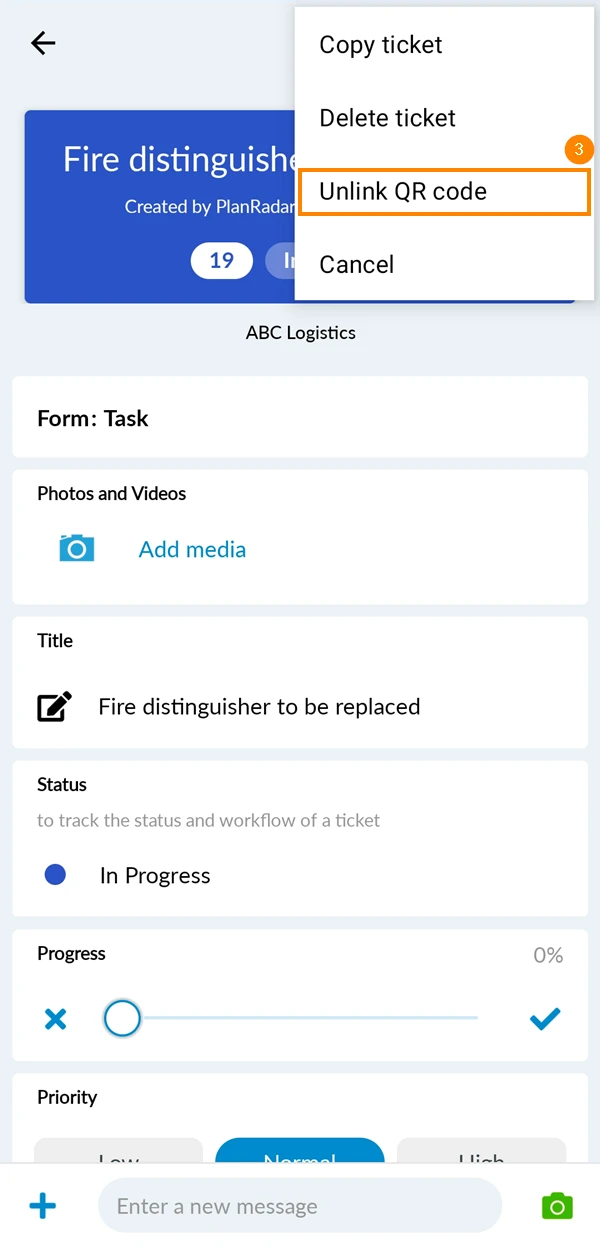
- Tap Unlink QR code
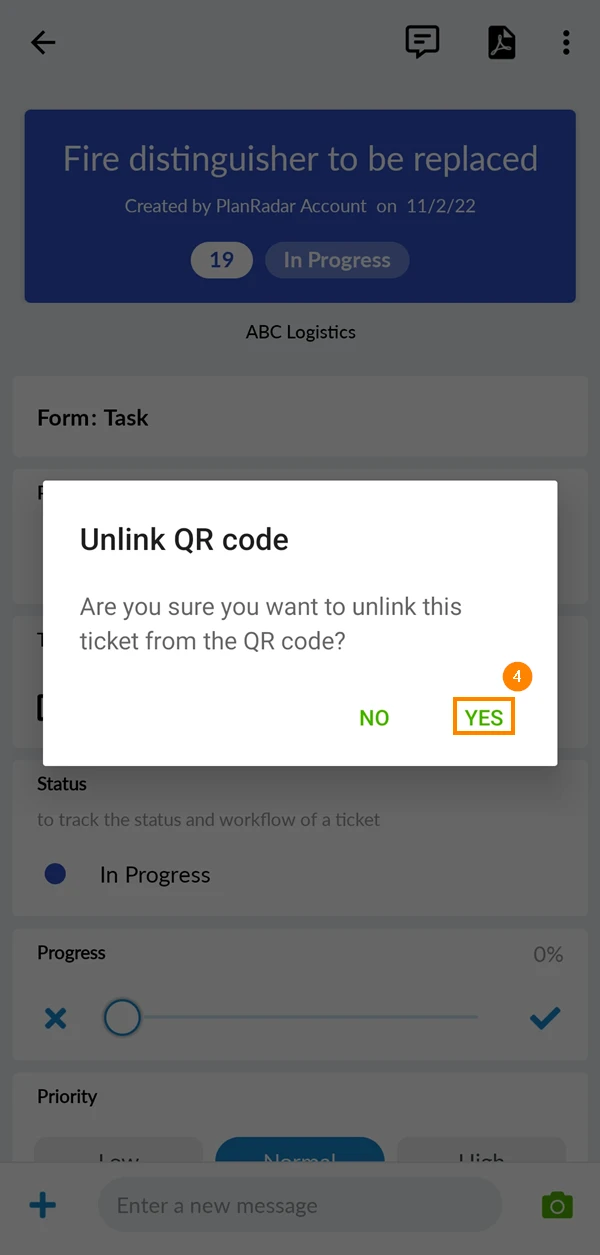
- Tap Unlink QR code to delete the link between this Ticket and the QR code
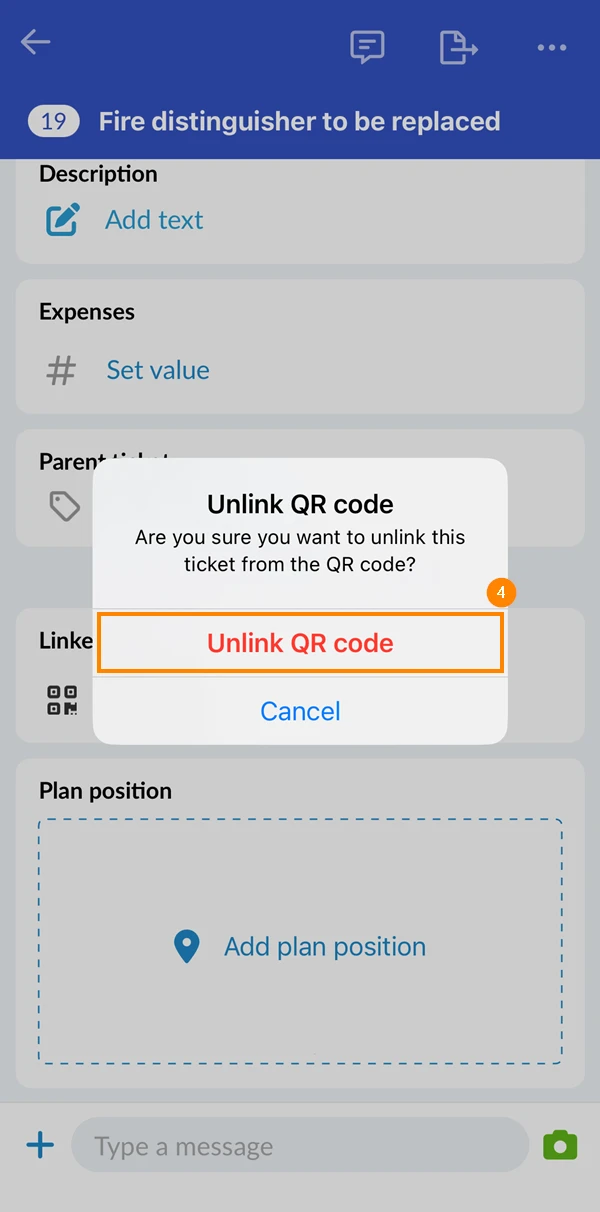
- Open the Ticket
- Tap the more menu
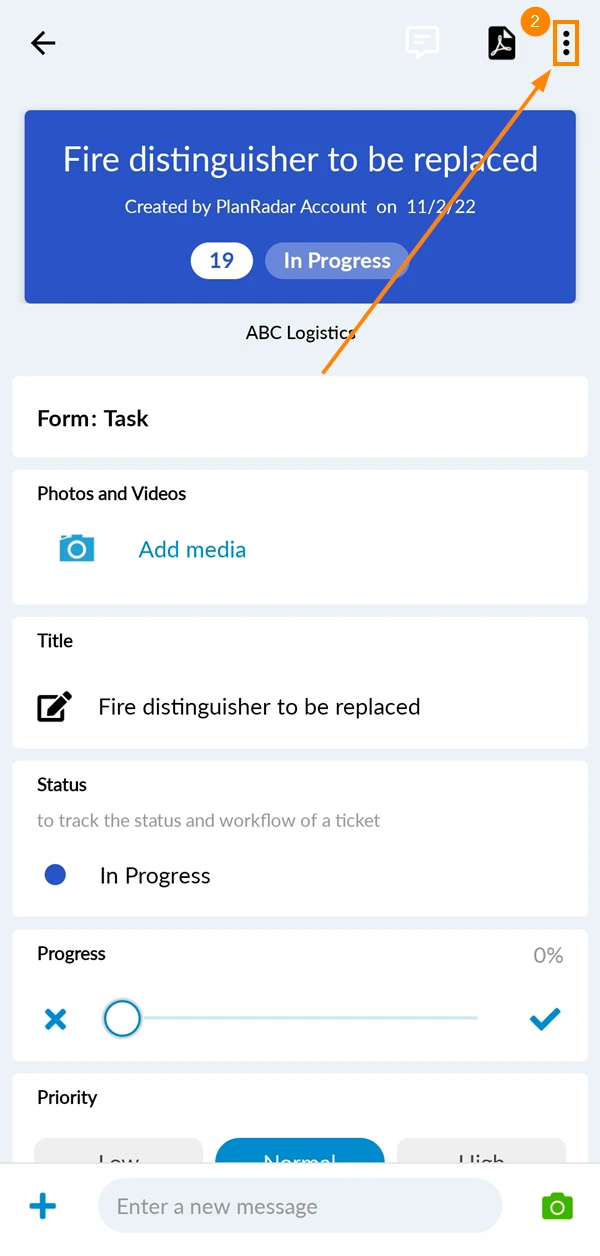
- Tap Unlink QR code
- Tap Yes to delete the link between the QR code and the ticket
In ticket field:
- Open the Ticket
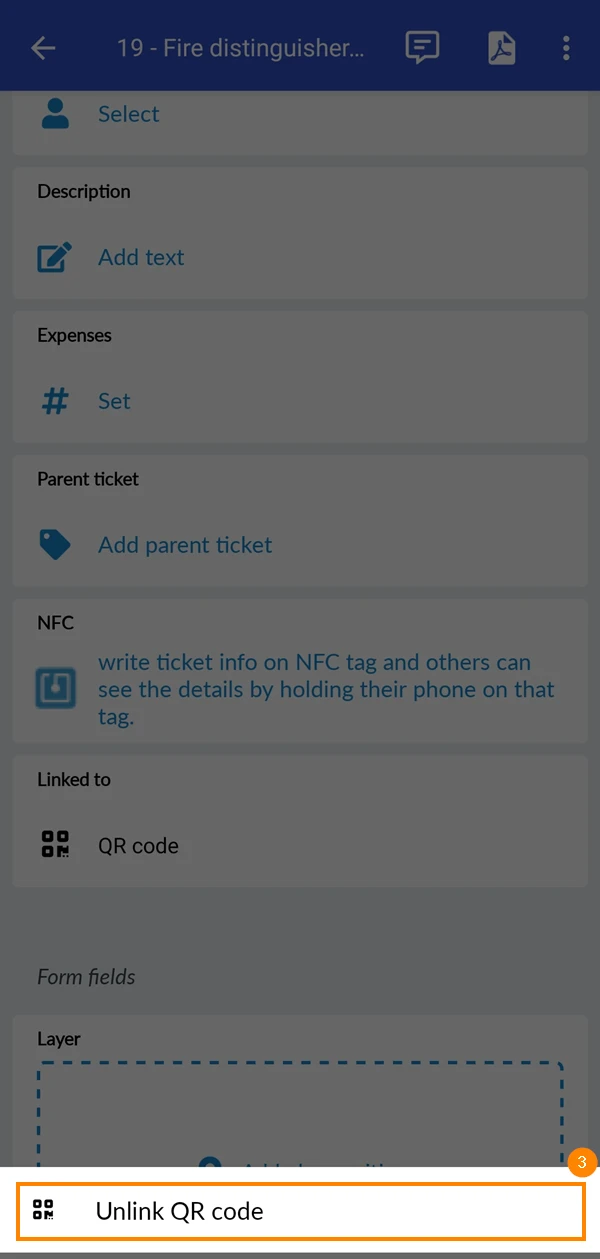
- Scroll in the Ticket to the section called linked to: QR Code and tap it
- Tap Unlink QR code
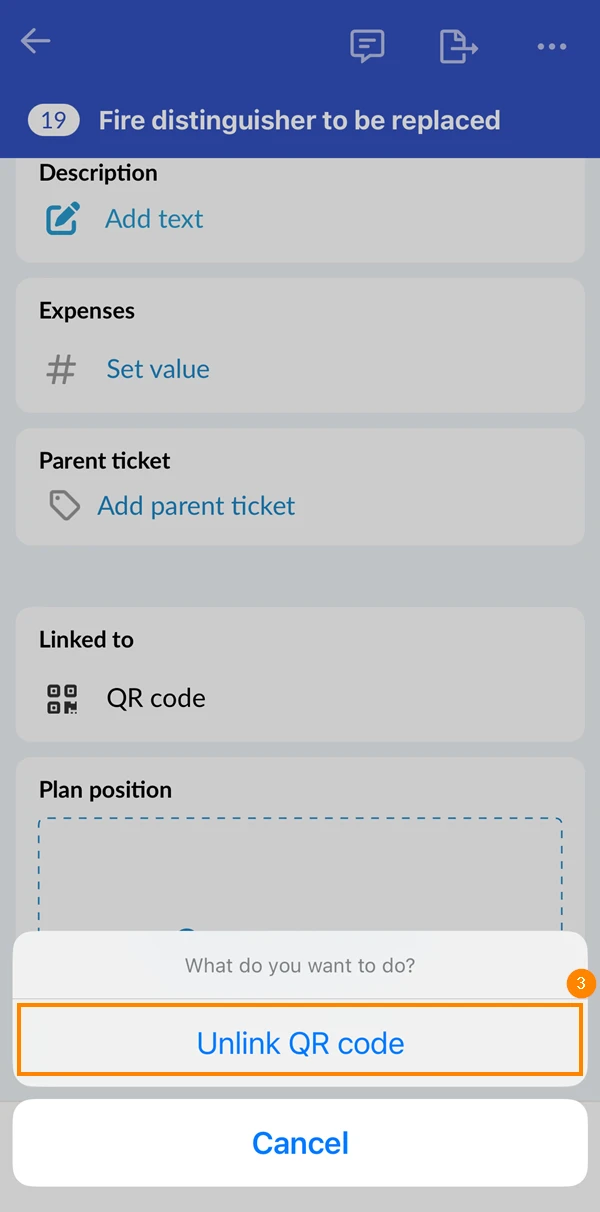
- Tap Unlink QR code to delete the link between this Ticket and the QR code
- Open the Ticket
- Scroll in the Ticket to the section called linked to: QR Code and tap it
- Tap Unlink QR code
- Tap Yes to delete the link between the QR code and the ticket
How to scan a QR Code to open a linked Ticket
There are two ways to open Tickets by scanning QR codes:
From within the PlanRadar App
- Open the Ticket list or plan view
- Tap the search icon
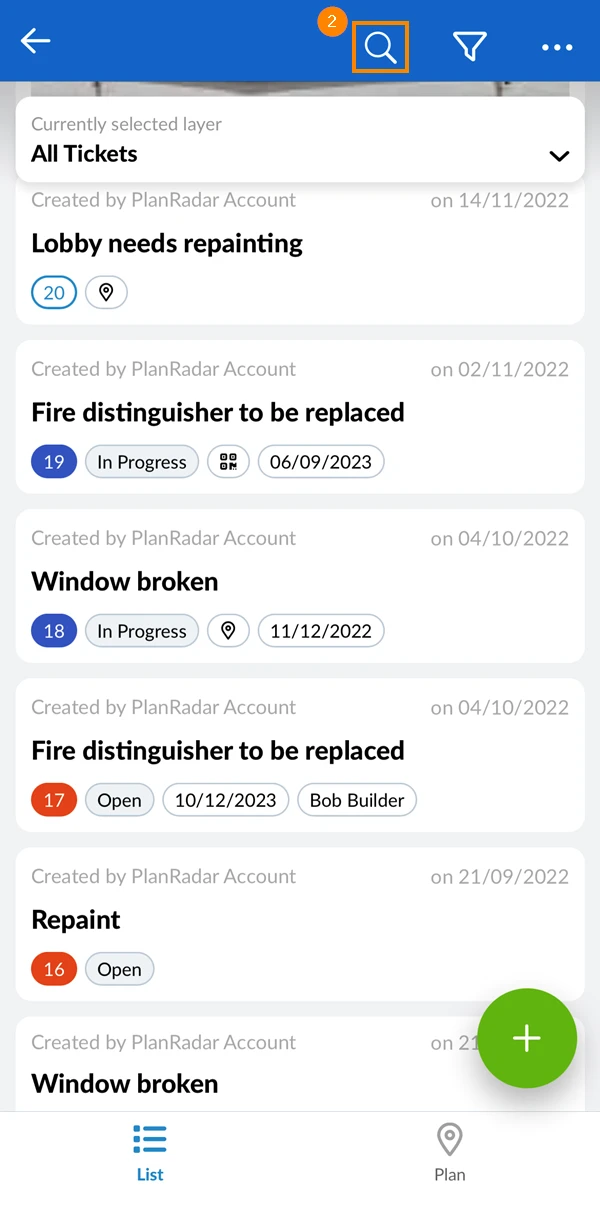
- Tap QR code icon to open the camera
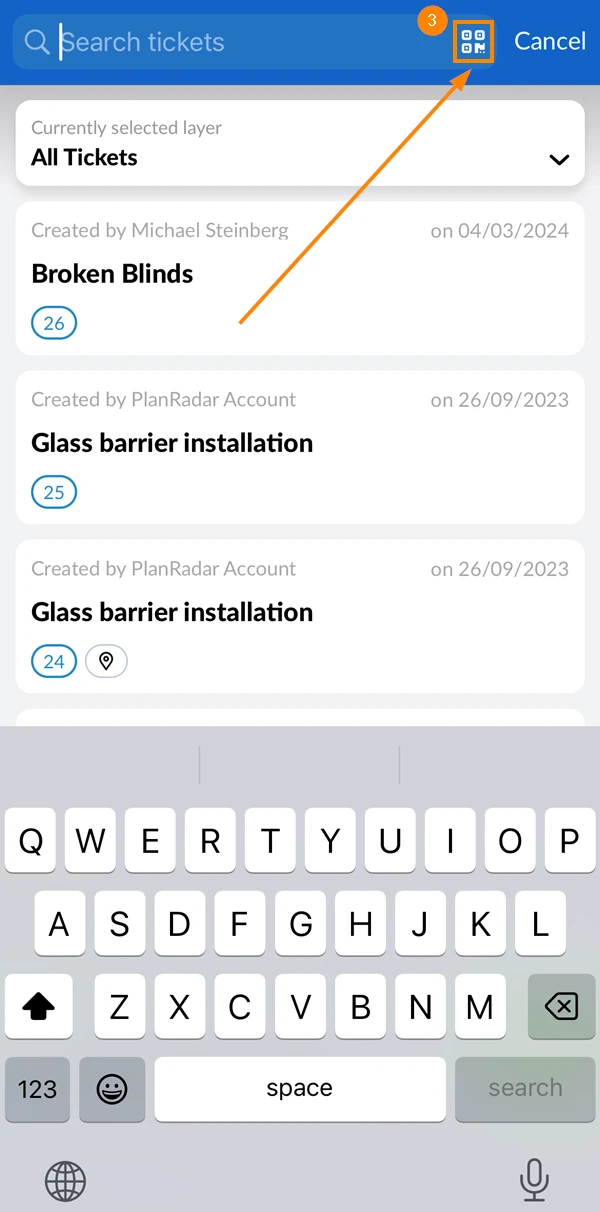
- Scan QR code to open the linked Ticket
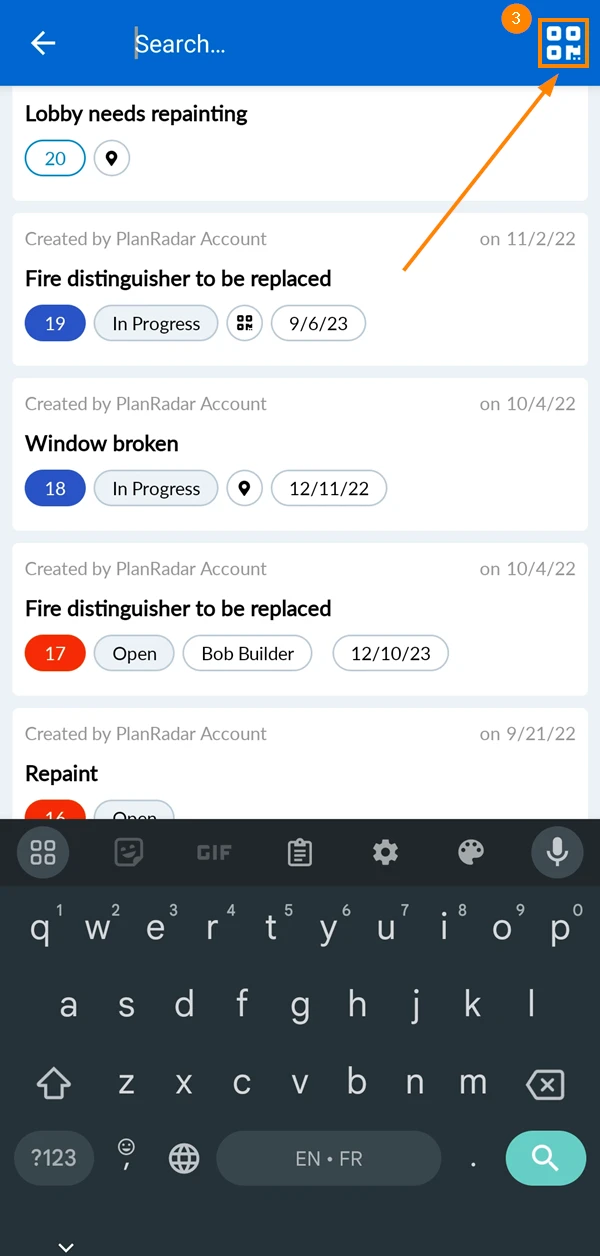
- Open the Ticket list or plan view
- Tap the search icon
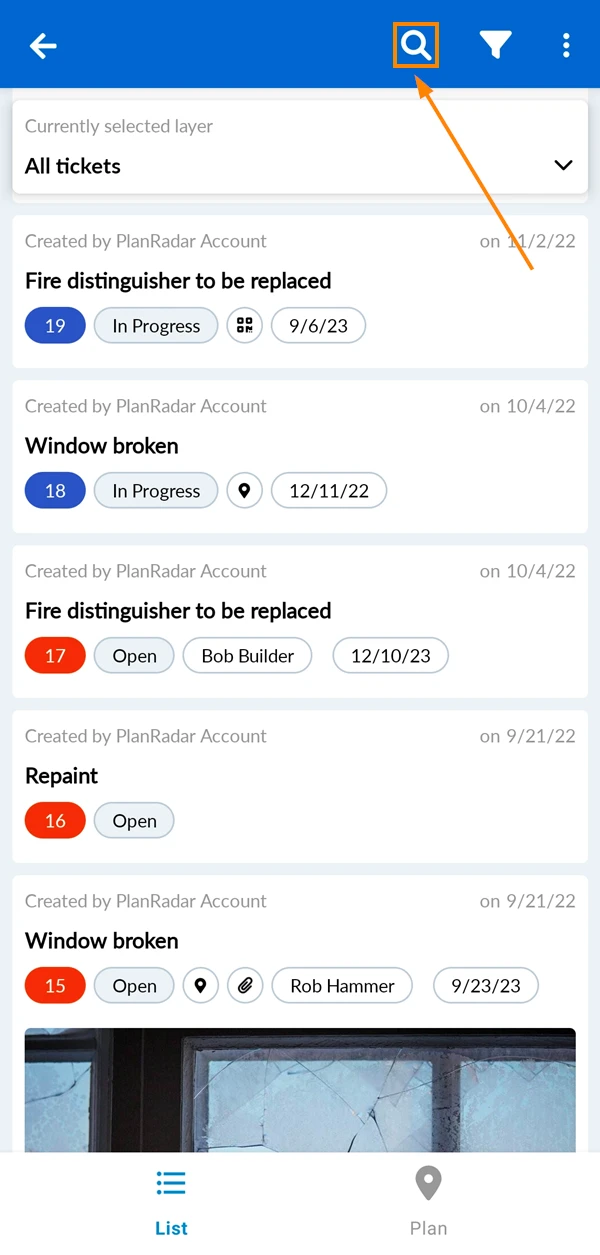
- Tap the QR code icon to open the camera
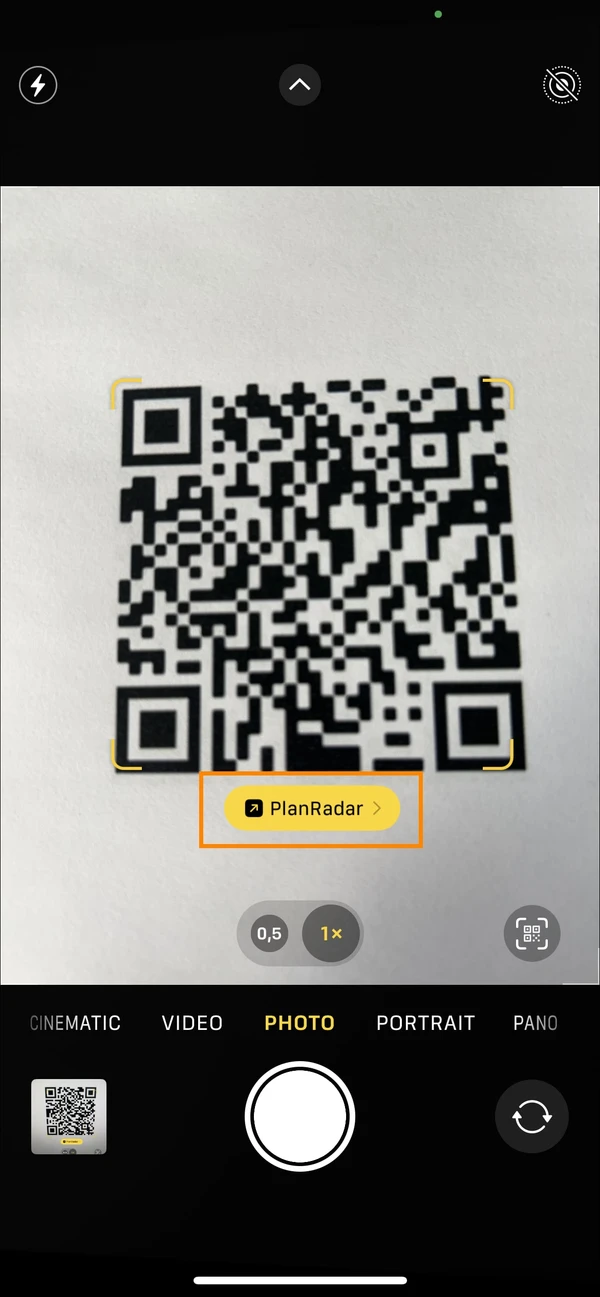
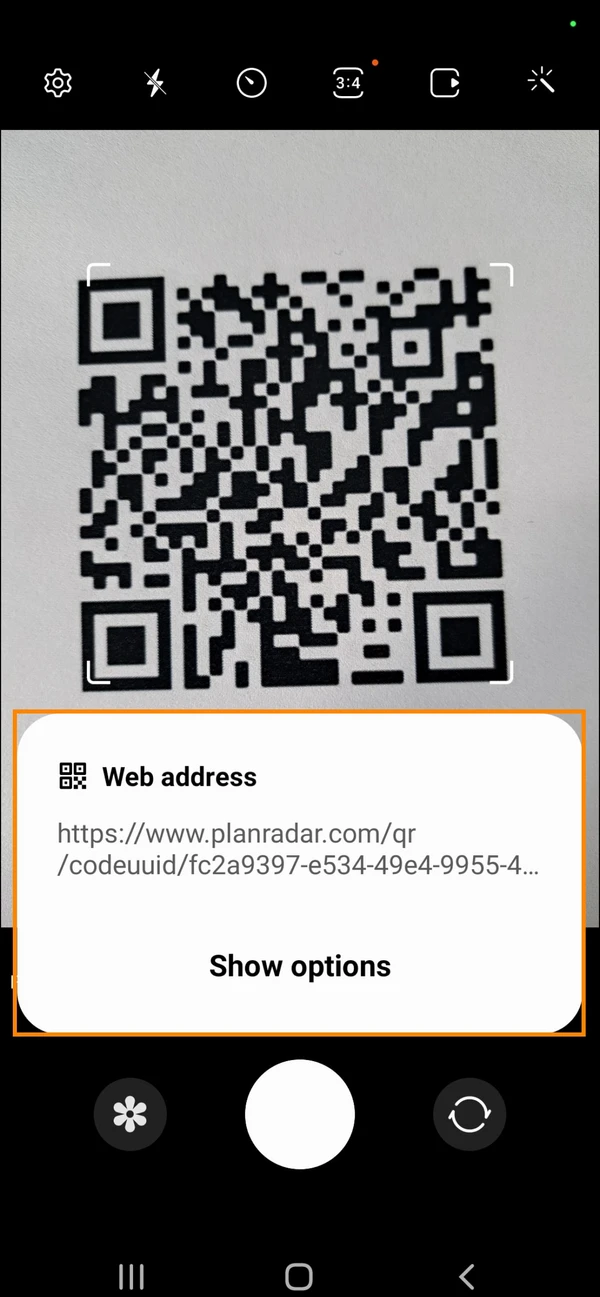
Using your phone’s camera
- Open your camera app
- Scan the QR code
- Tap the PlanRadar button
- Open your camera app
- Scan the QR code
- Tap the URL that appears on your screen
Troubleshooting
Why is it not possible to link a Ticket to a QR code?
Make sure you are using supported QR codes.
There are two possible reasons why you don’t see the “Link to QR code” button:
-
The feature might not be enabled for the device you're using
-
The Ticket might be already linked to another QR Code
How can I link a Ticket to a different QR Code?
If you want to link a Ticket to a different QR code, you have to unlink it first. You can then go ahead and link it to a new QR Code.
Updated March 25, 2026