

 Deutsch
 Español
 Français
 Hrvatski
 Italiano
 Polski
 Português (BR)
View & Manage Favourite Files/Folders
Overview
Add files or folders to your favourites to access them quickly on all your devices.
Access & permissions
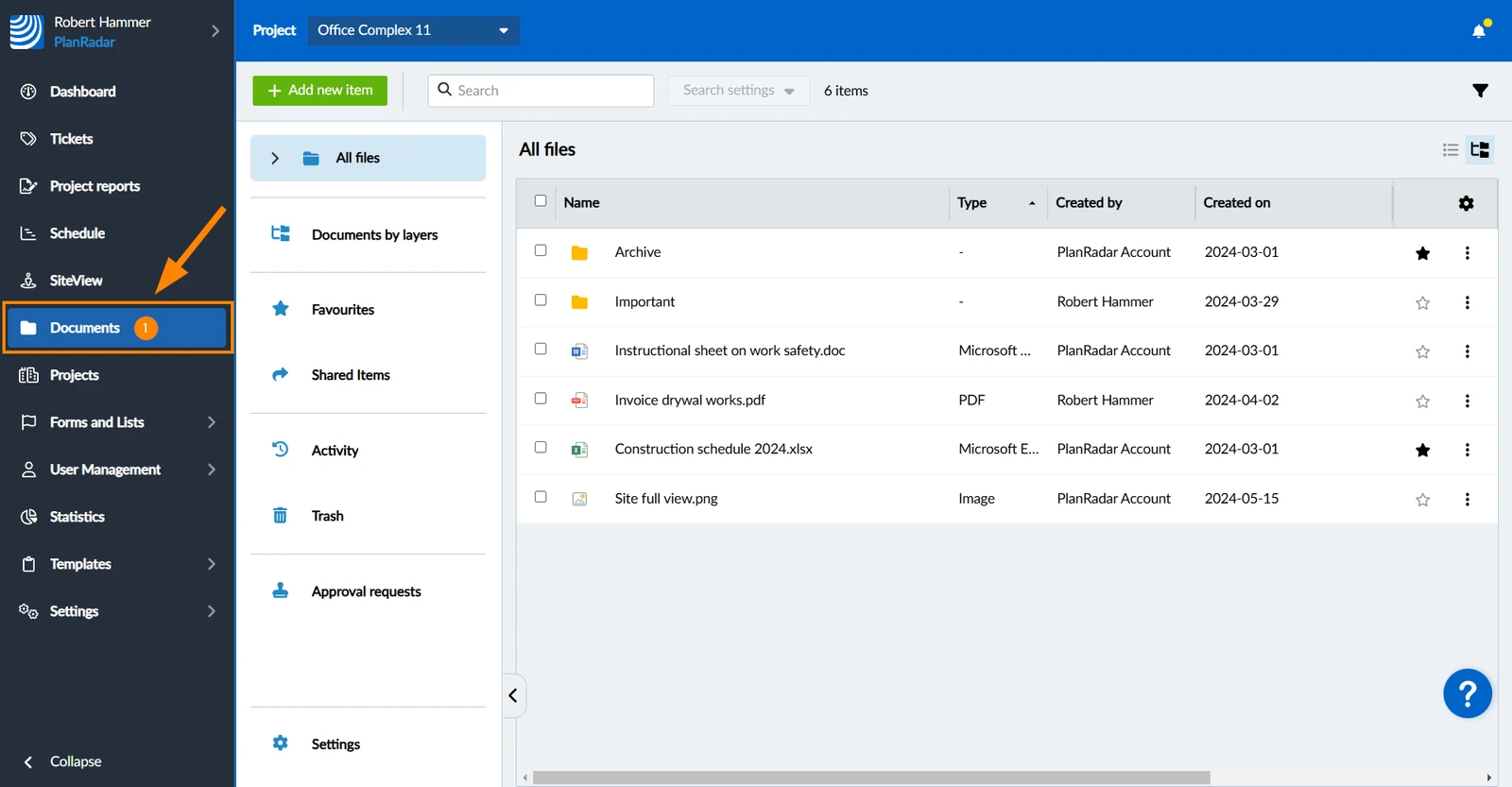
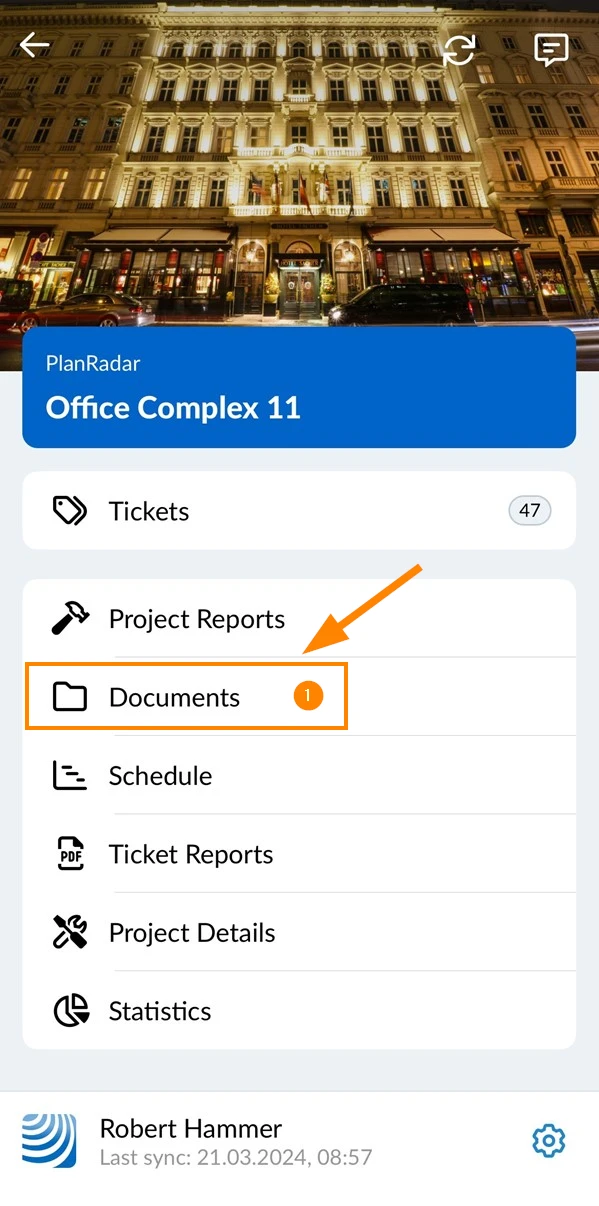
How to access Document Management
- Click Documents
- Tap Documents in the main menu
Add to favourites
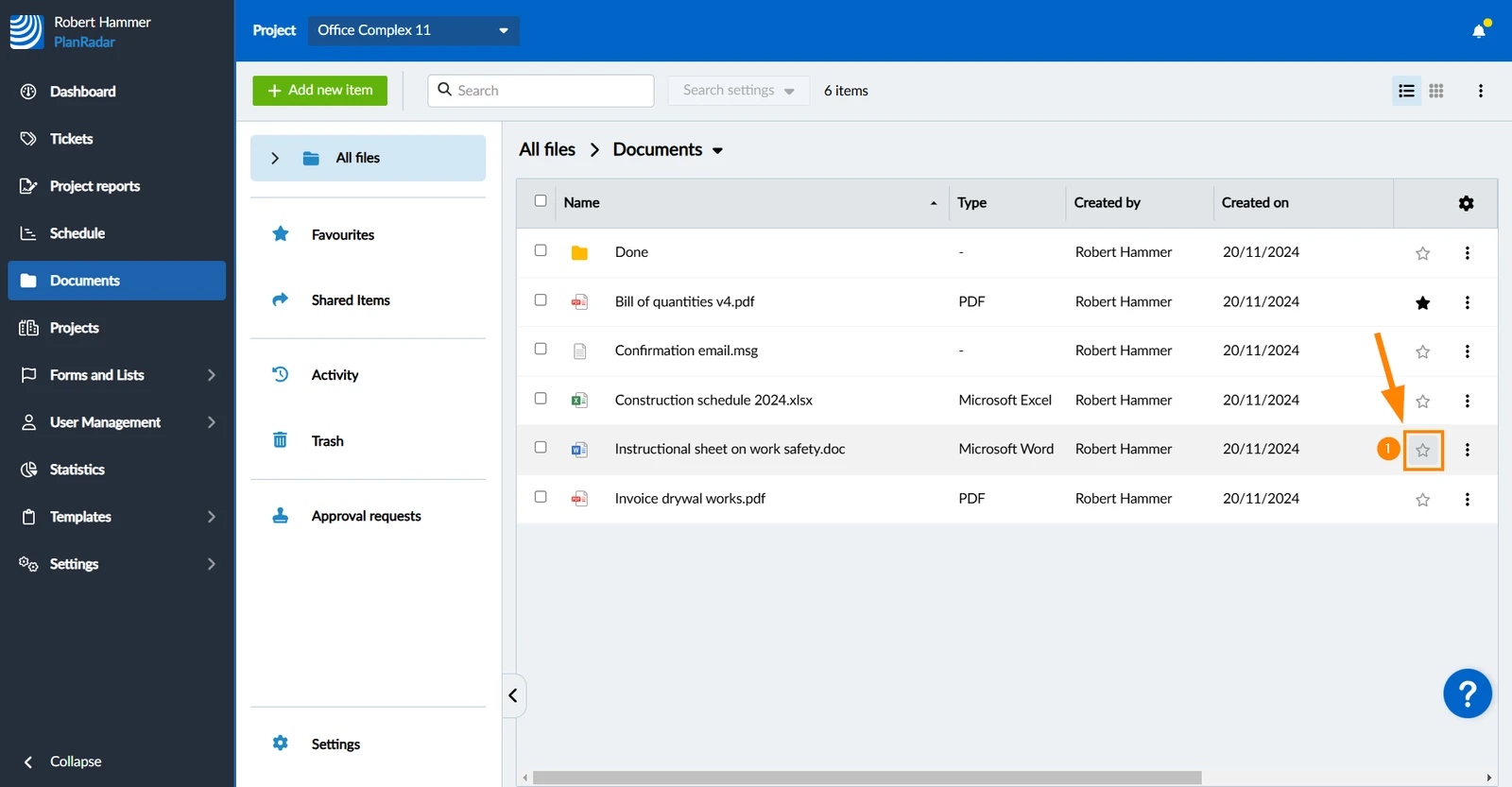
To add a file or folder to your favourites in list view:
- Click the empty star icon
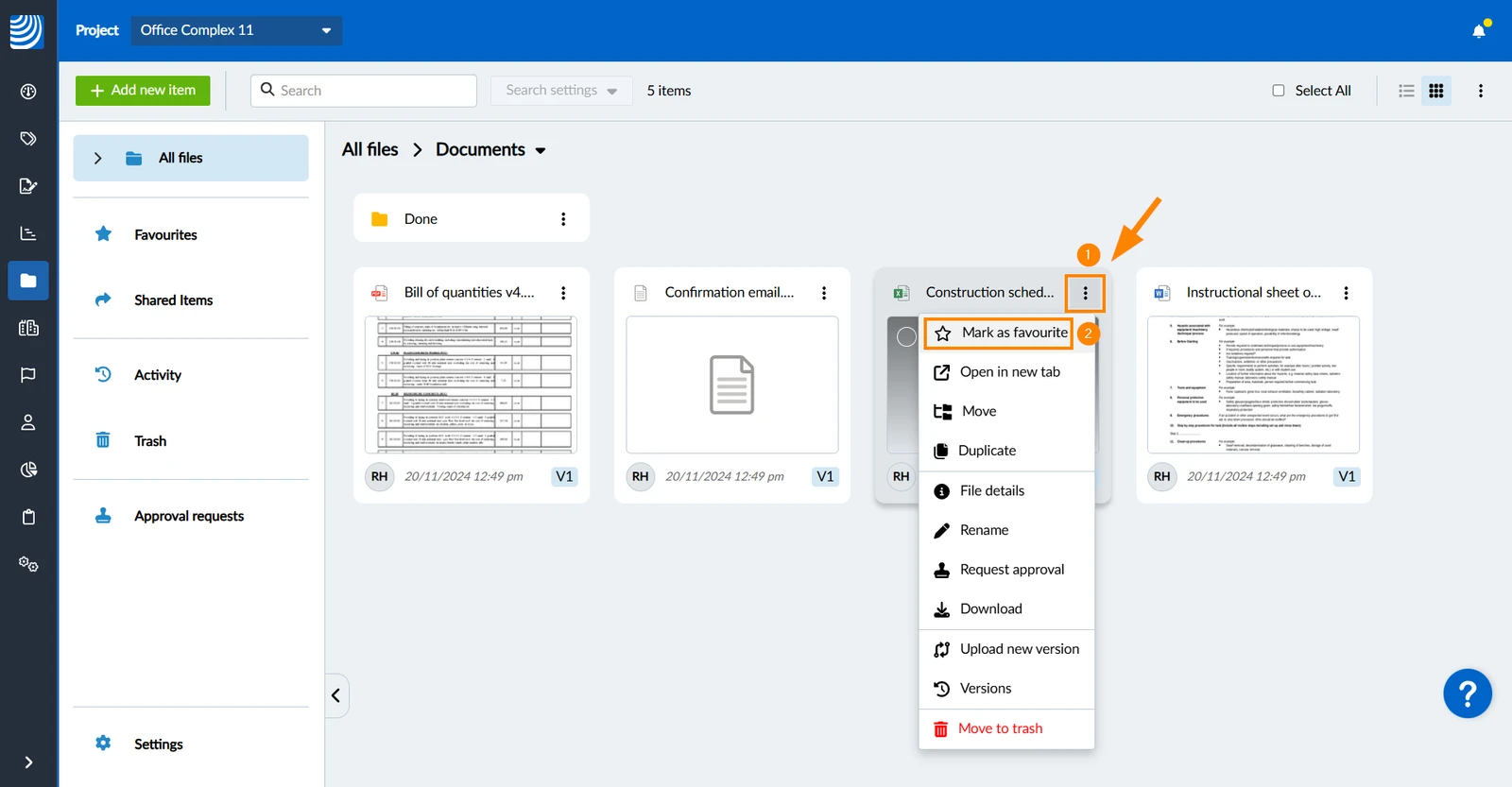
To add a file or folder to your favourites in grid view:
- Open the More menu
- Click Mark as favourite
- Navigate to the file
- Open the More menu
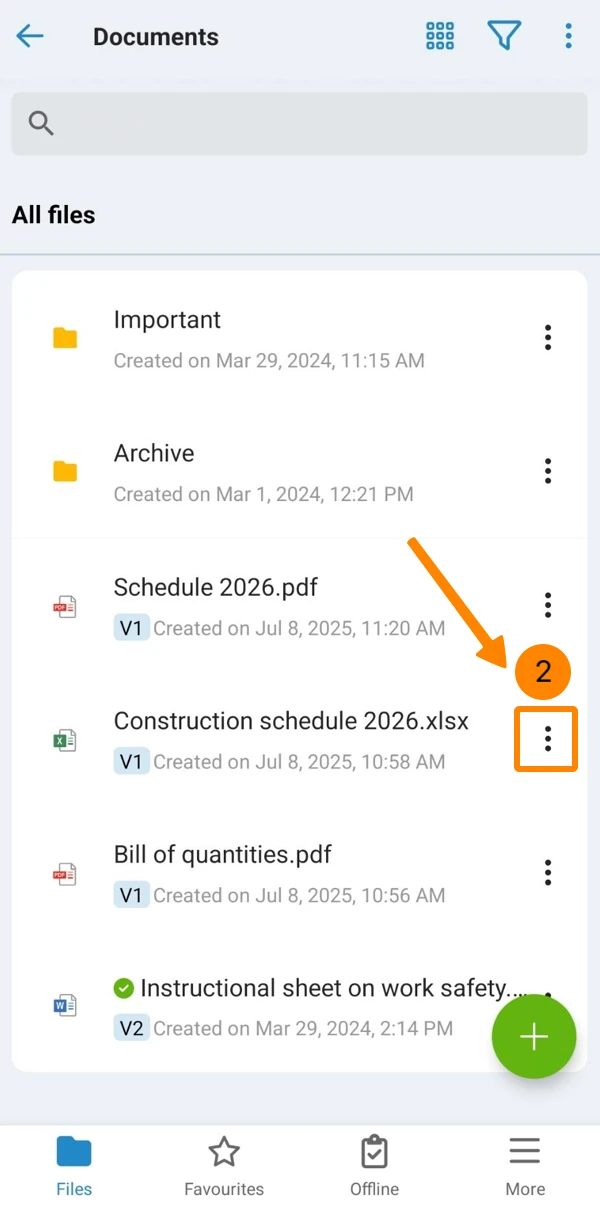
- Tap Mark As Favourite
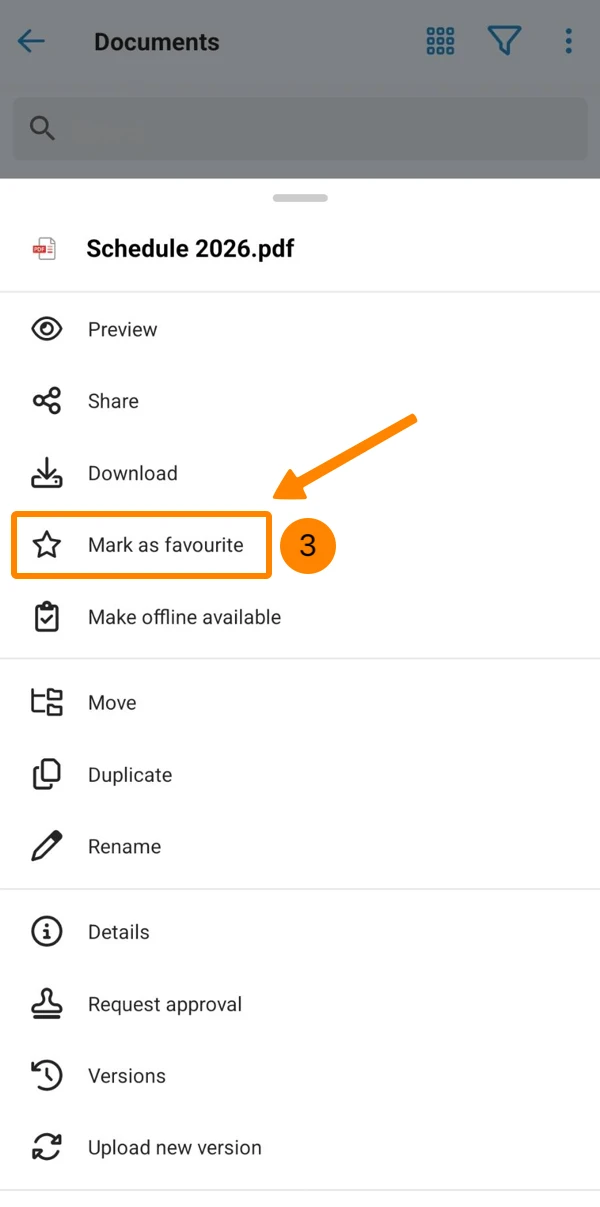
View favourites
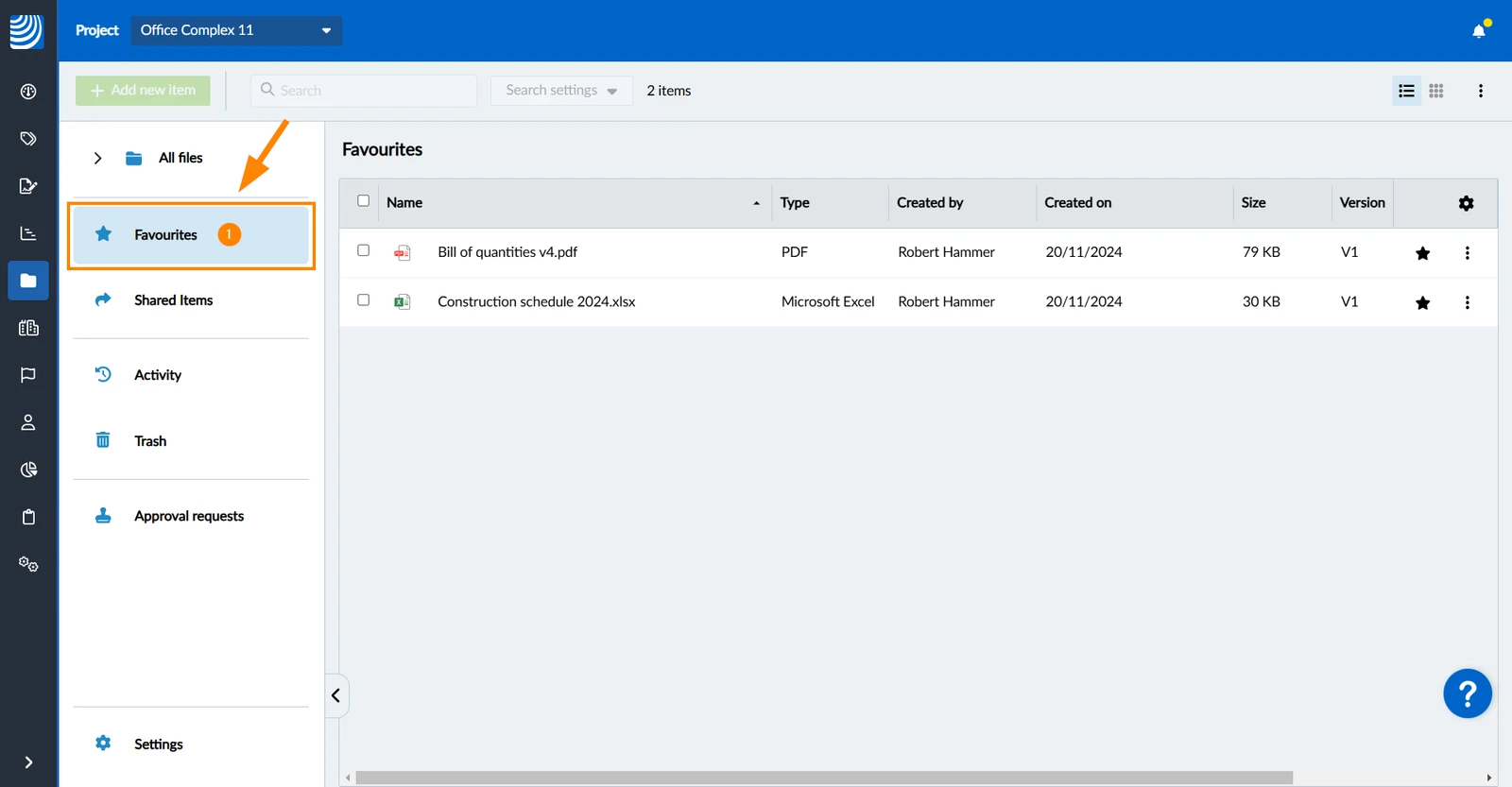
To view all your favourite files and folders:
- Click Favourites
- Tap Favourites
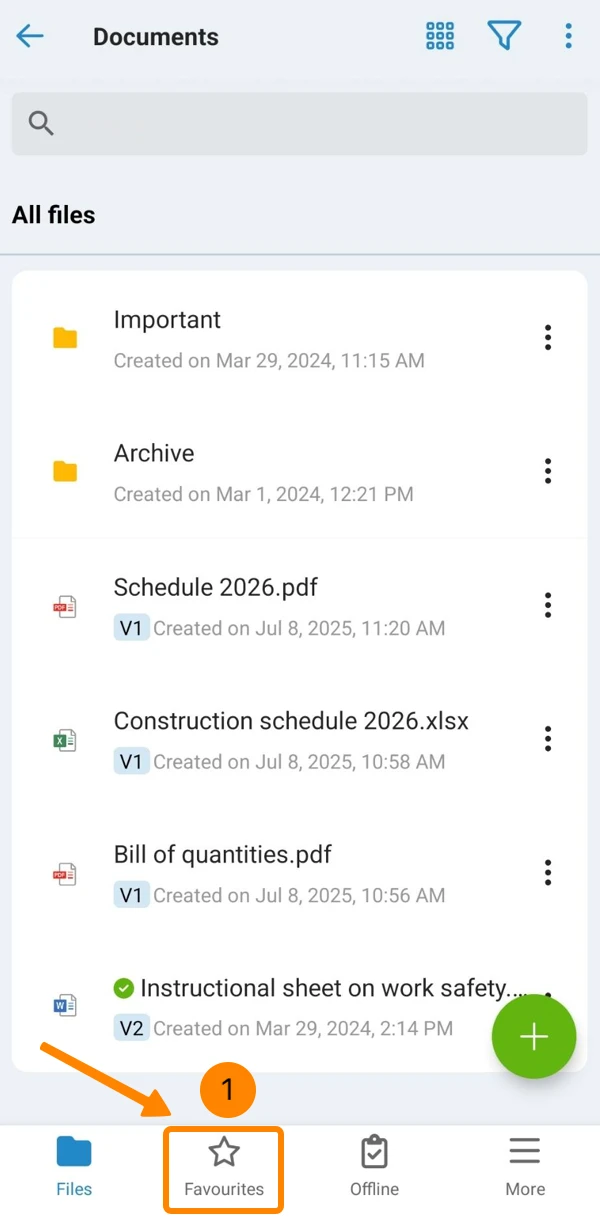
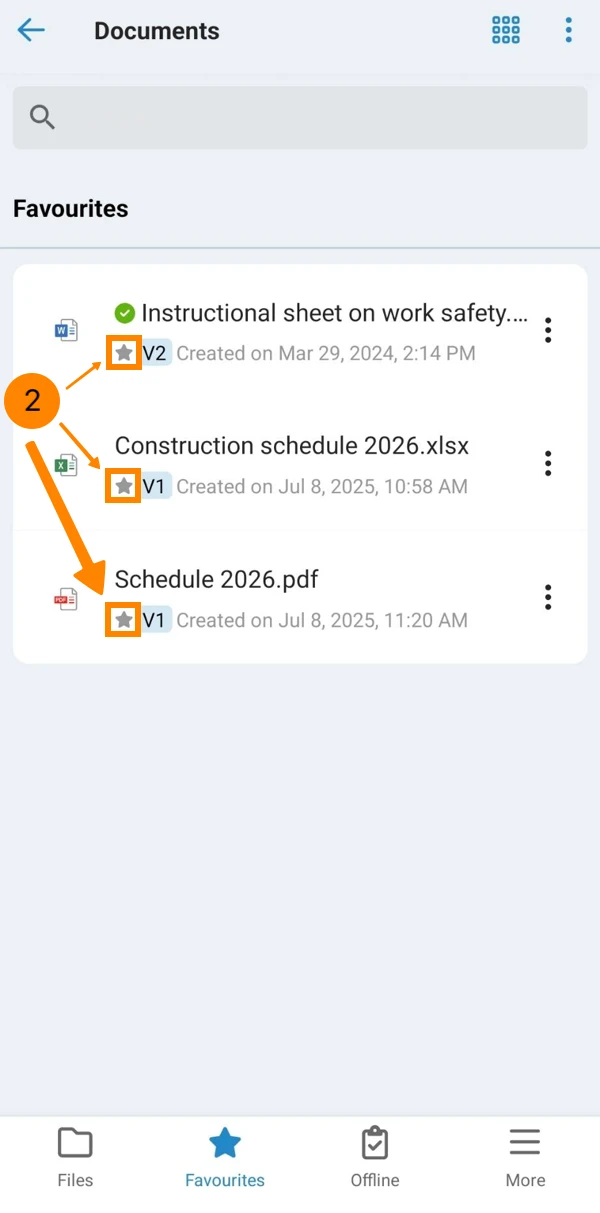
- Recognise favourite files and folders by the star icon
Remove from favourites
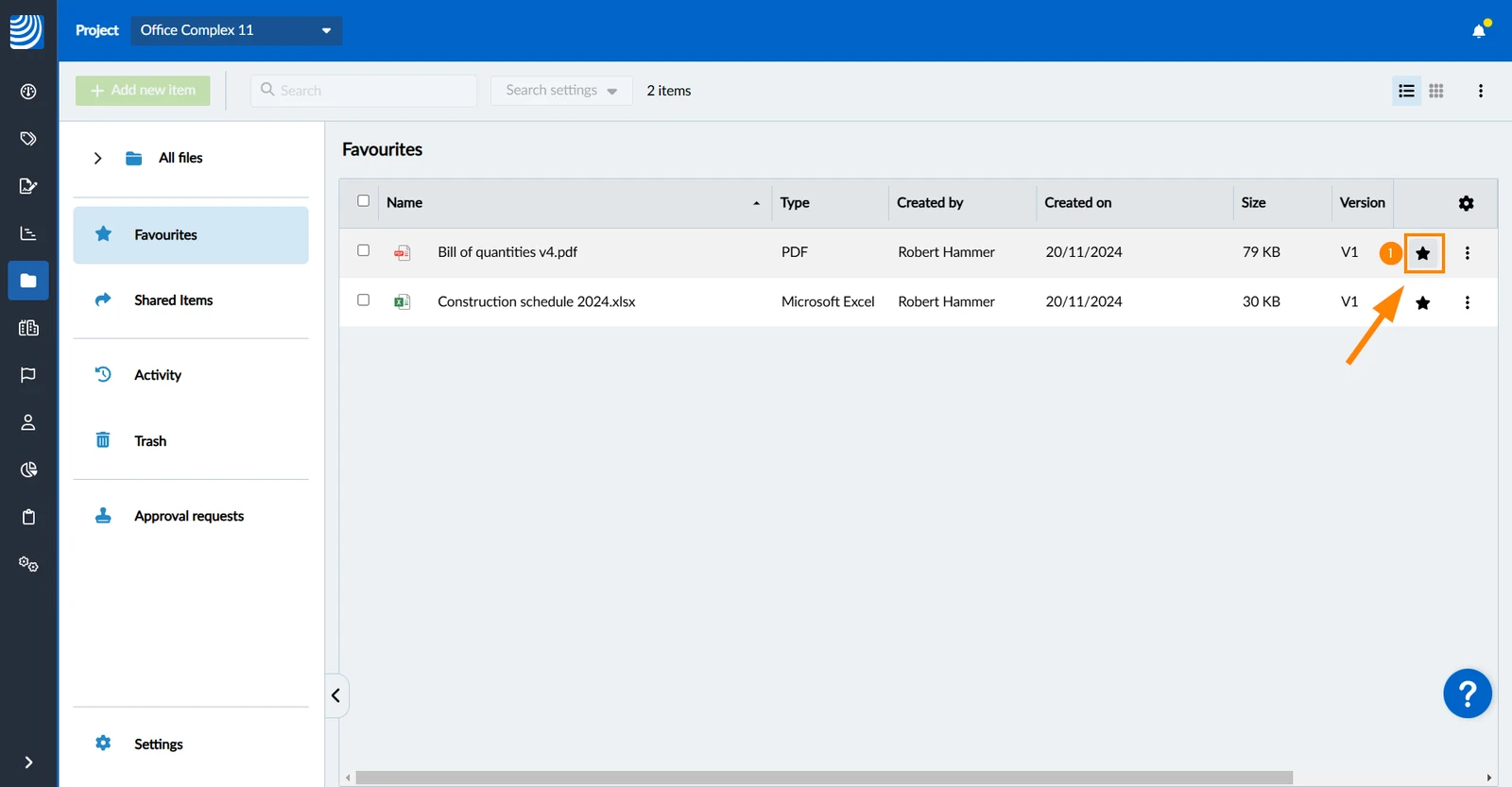
To remove a file or folder from your favourites in list view:
- Click the filled star icon
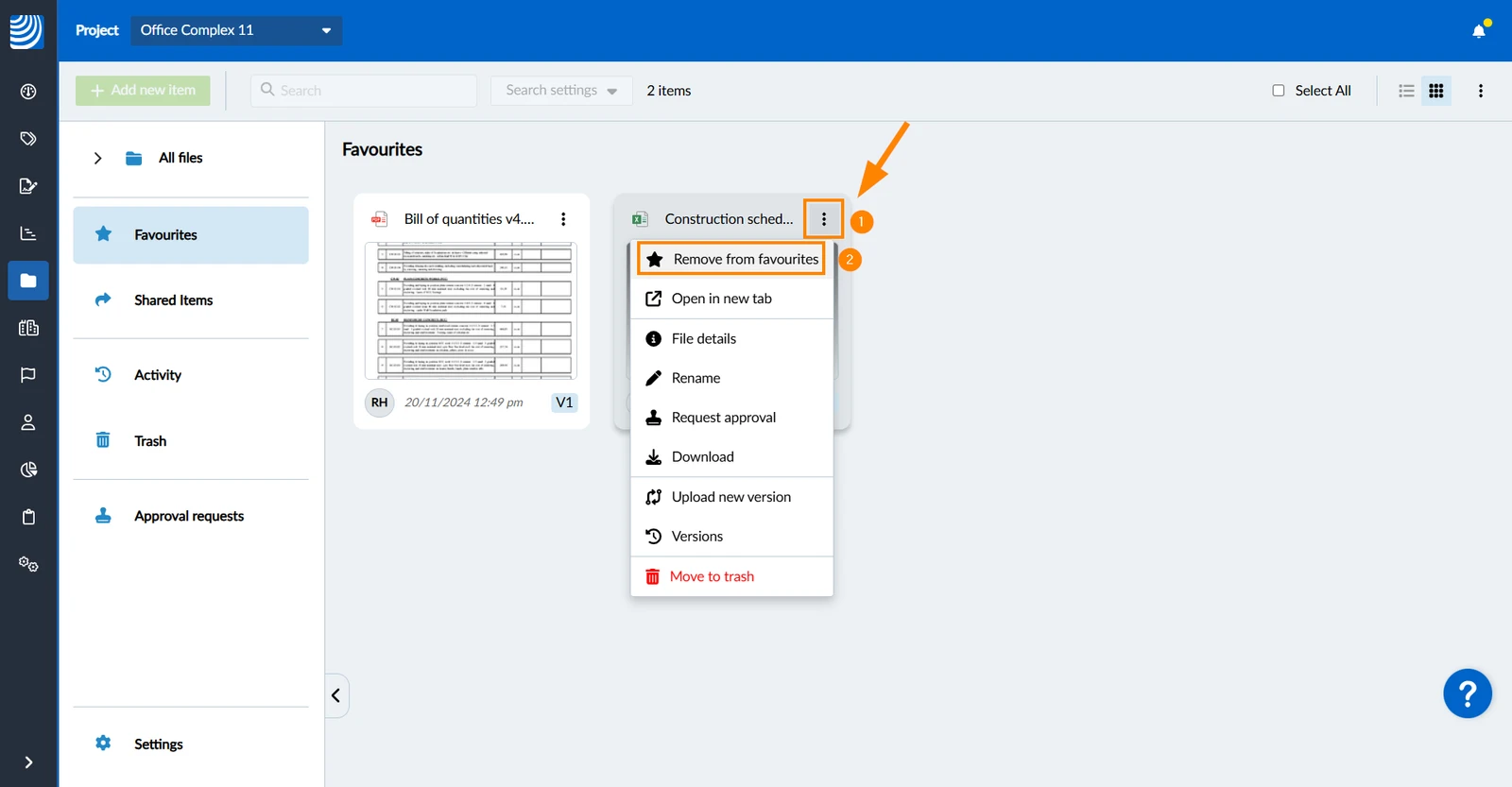
To remove a file or folder from your favourites in grid view:
- Open the More menu
- Click Remove from favourites
- Navigate to the file
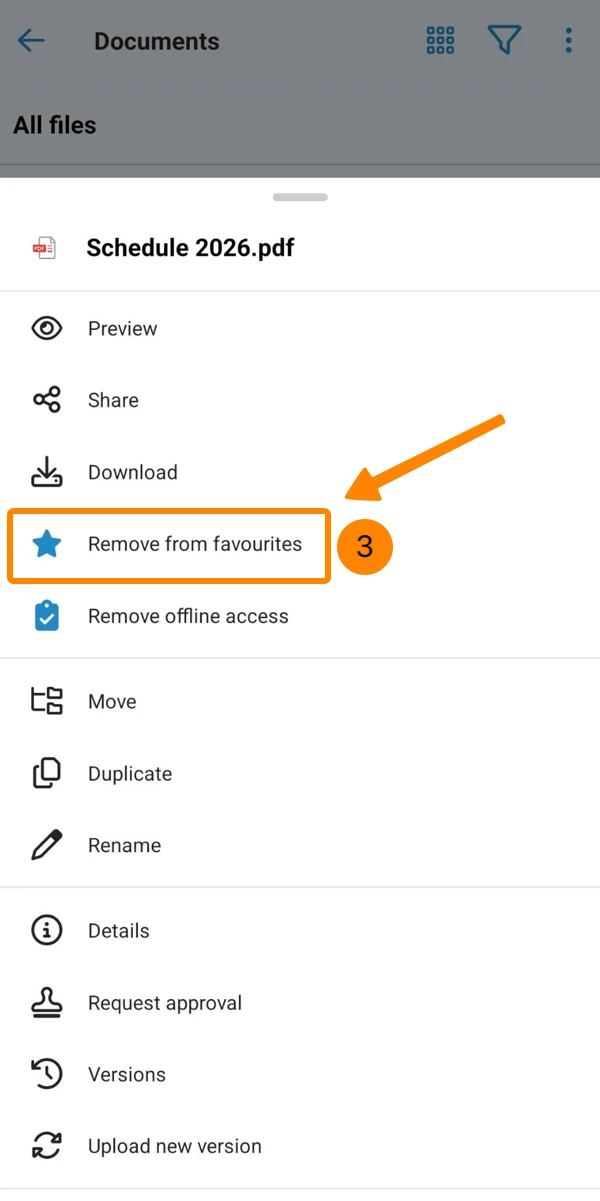
- Open the More menu
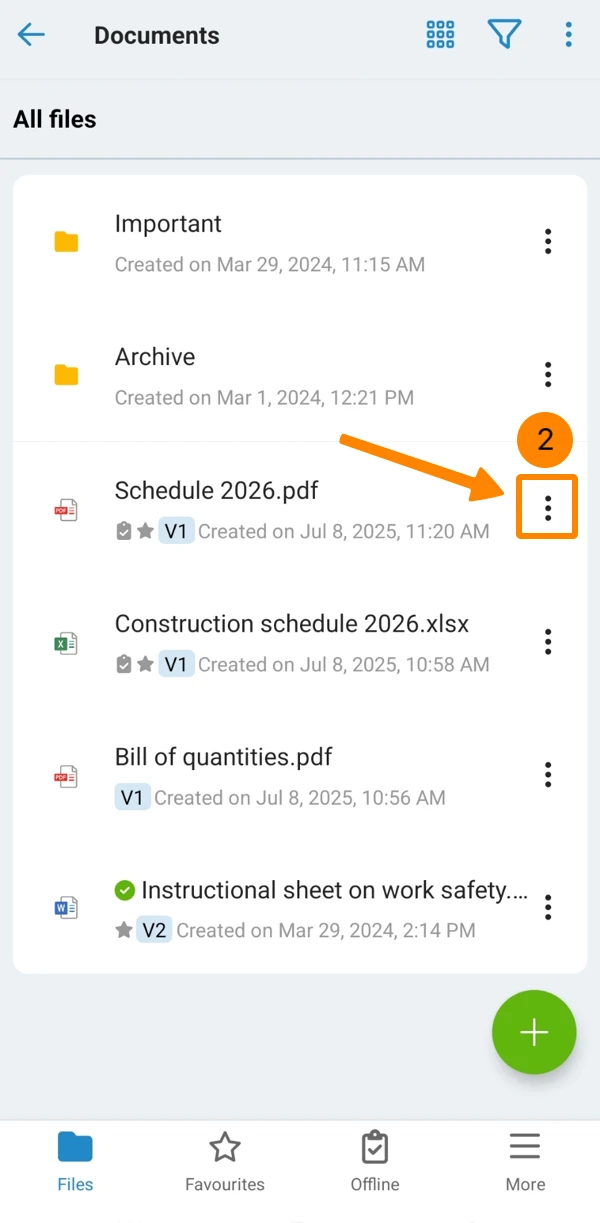
- Tap Remove from Favourites
Updated April 27, 2026