Create & Edit Microsoft Office Documents in the Webapp
Overview
You can view and edit Microsoft Word, Excel, and PowerPoint files directly in the PlanRadar Webapp when signed in with Microsoft Office 365, without the need to download, edit, and re-upload files.
On mobile apps, MS Office files can be viewed (via external apps), but editing files saved in Documents is only available through the Webapp.
Access & permissions
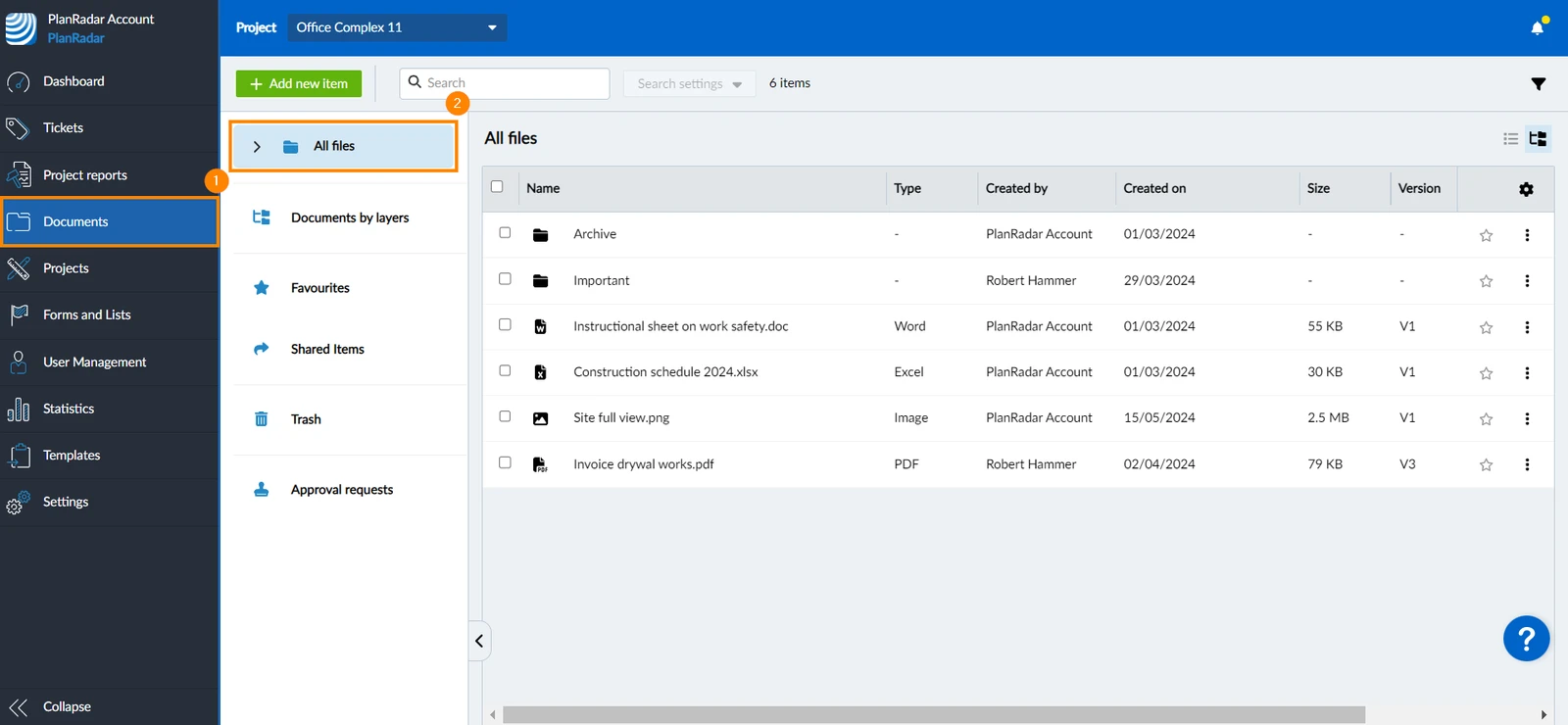
How to access Documents
Click Documents
Click All files
Create a Microsoft Office Document
To create a new Microsoft Office document:
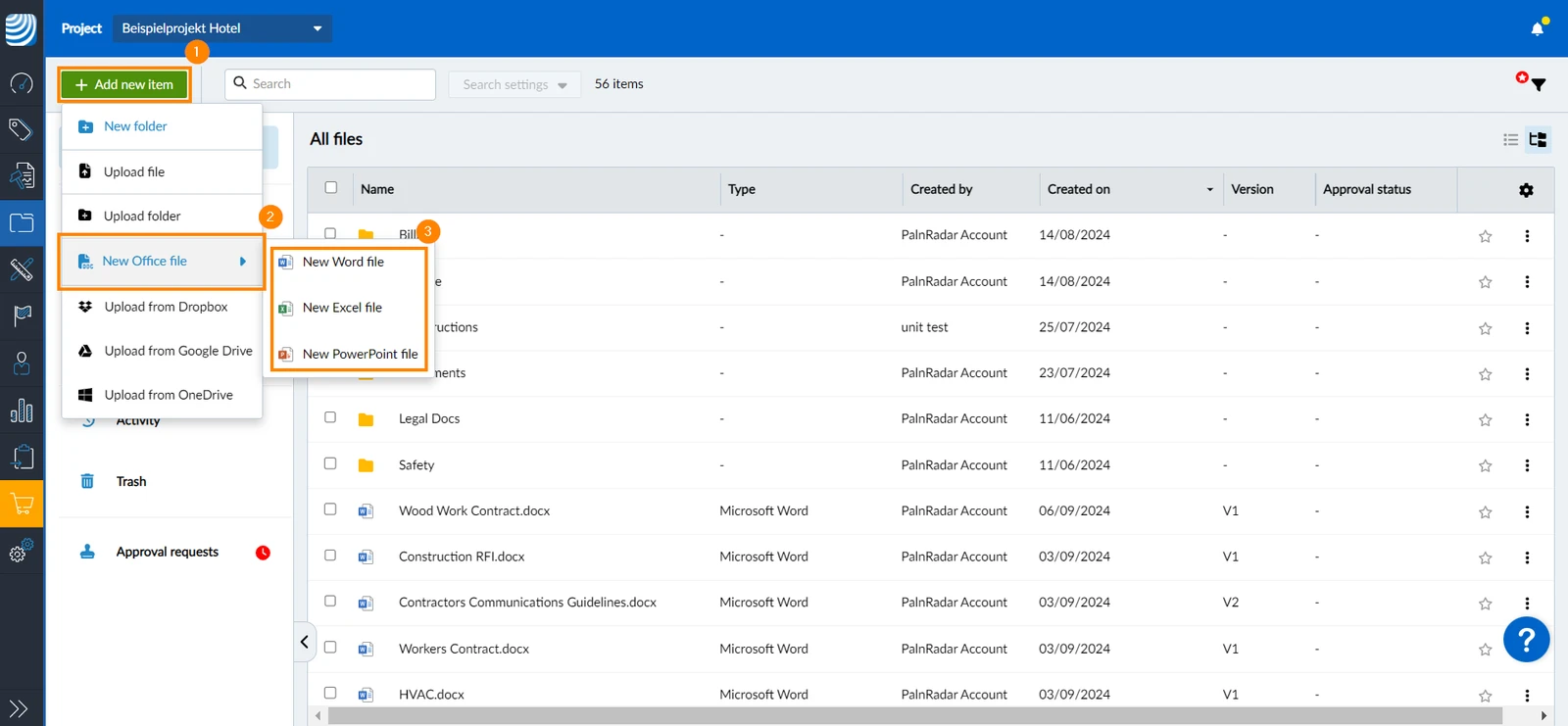
Click + Add new item
Click New Office file
Click New Word file OR New Excel file OR New PowerPoint file
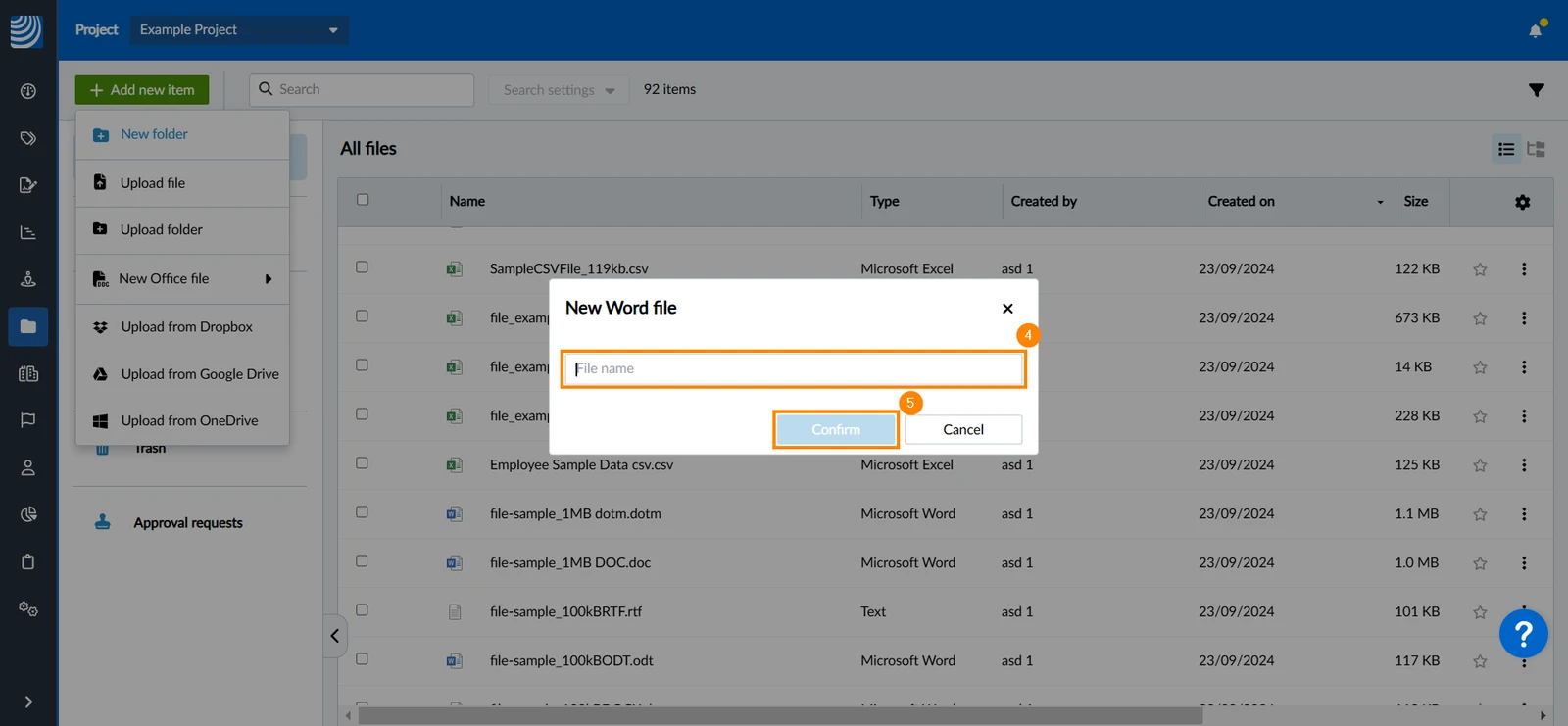
Enter the file name
Click Confirm
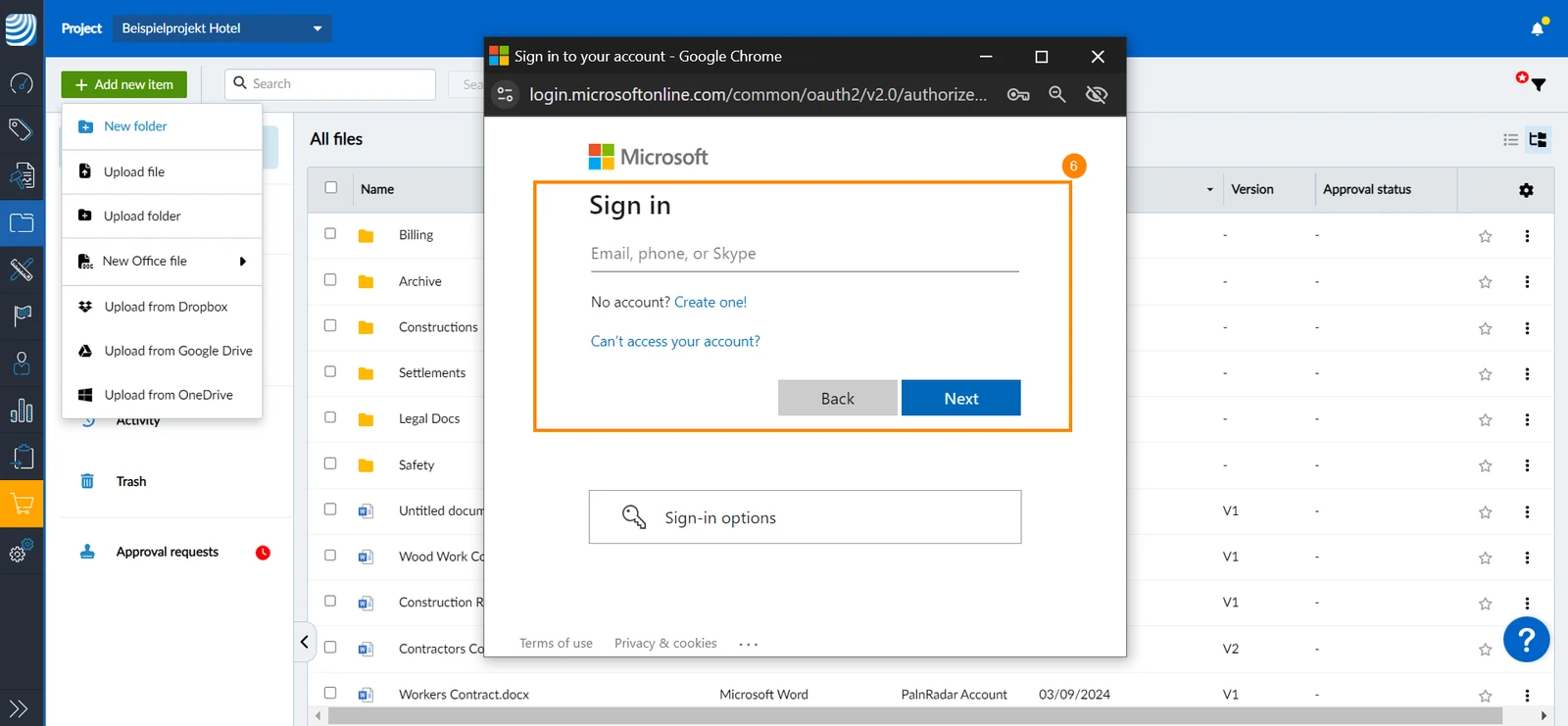
Sign in to your Microsoft 365 account
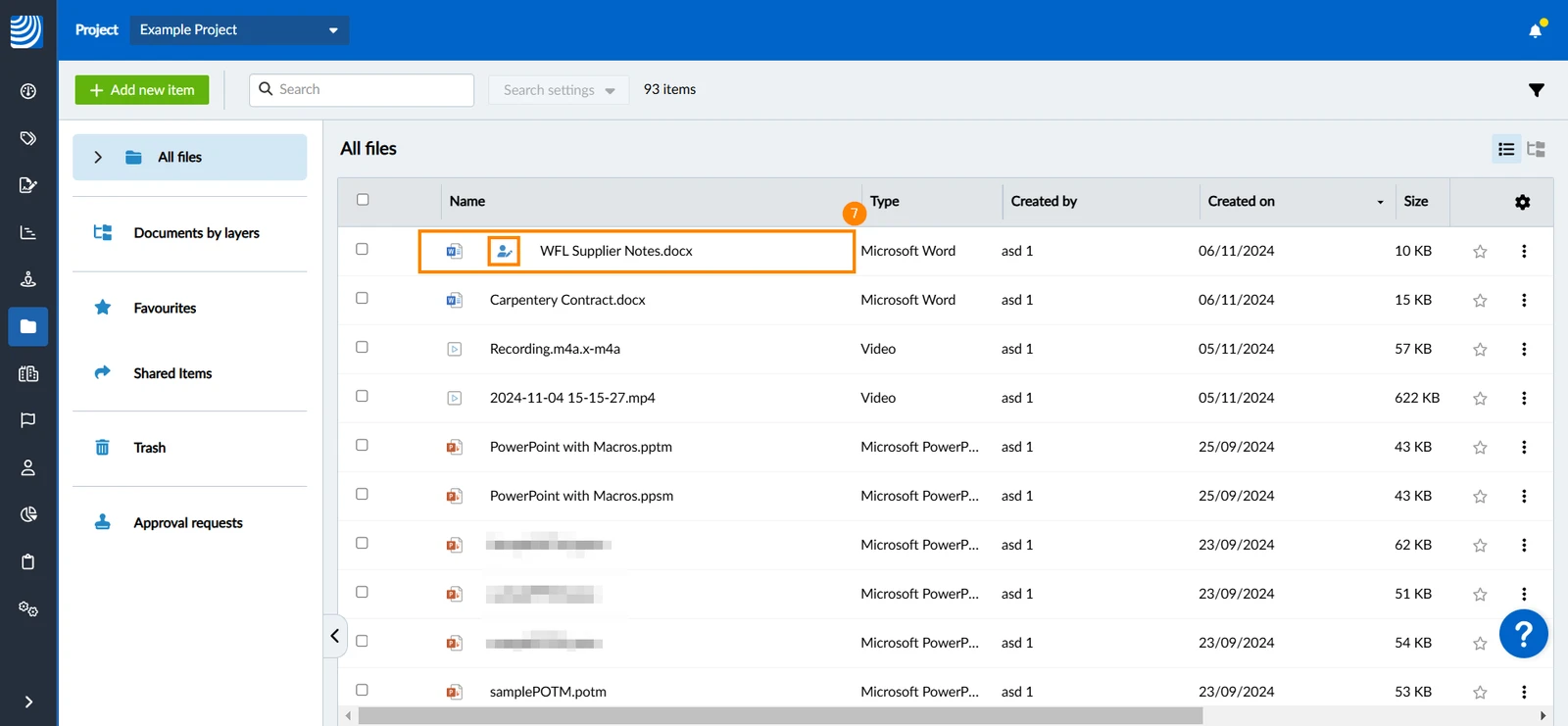
The newly created file will open in a new tab and will also immediately appear in the Documents list, with an edit icon to indicate that a user is currently working on it
Edit a Microsoft Office Document
Pro accounts don't support file versions. Therefore, changes are saved to the same file.
Enterprise accounts do support file versions. This means that a new version is created when an editing session is complete, after all editors have closed the file.
To edit a Microsoft Office document from the Document Management page:
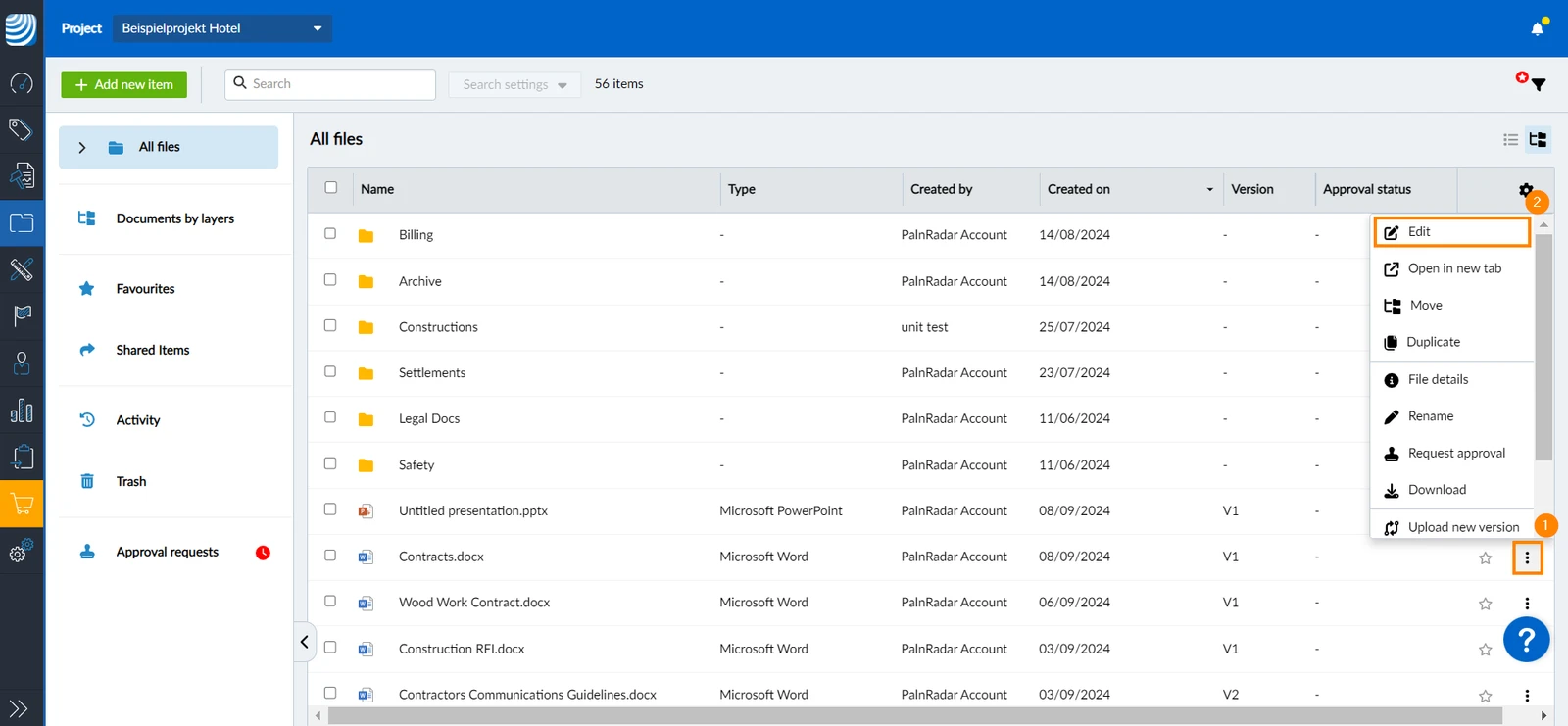
Click the more menu next to the file you want to edit
Click Edit
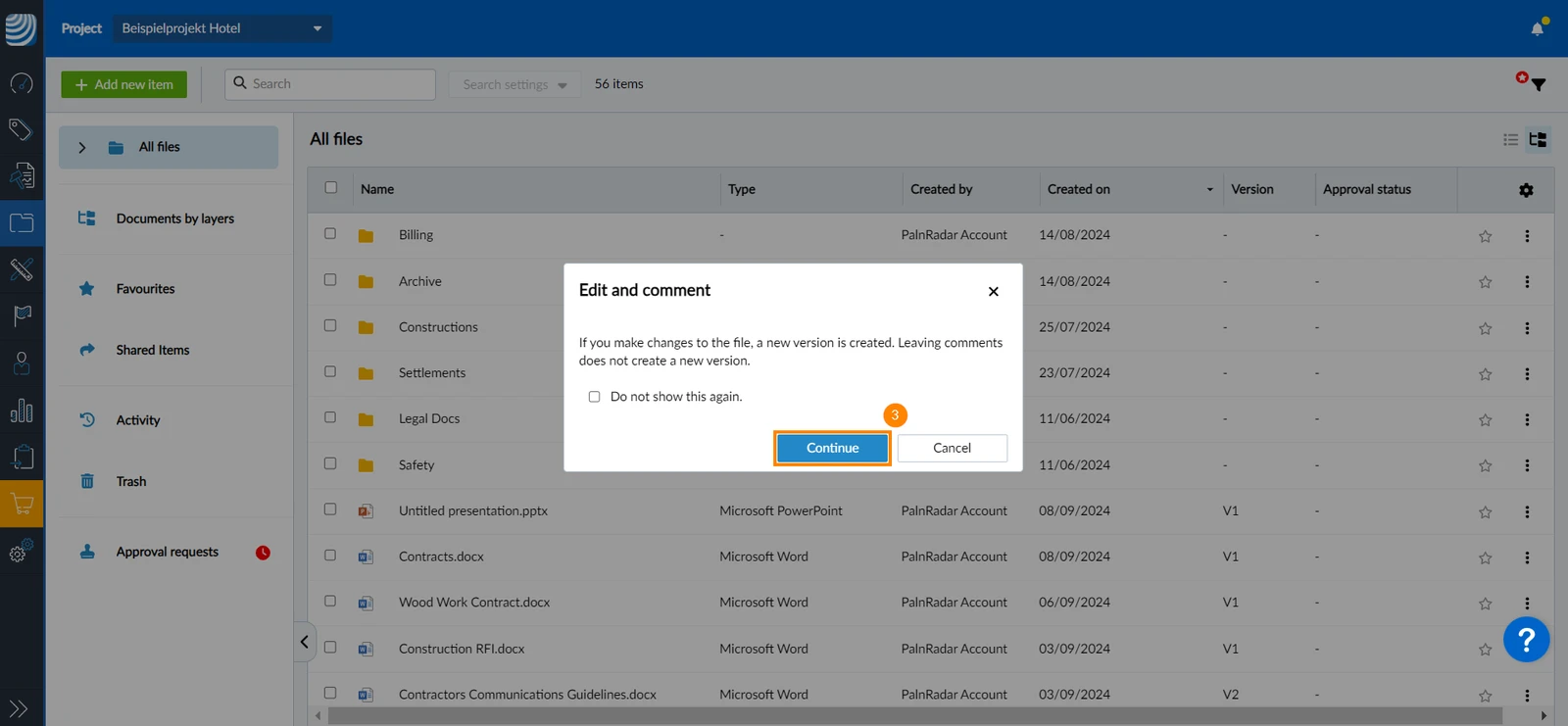
A message informs you that "If you make changes to the file, a new version is created. Leaving comments does not create a new version." Click Continue
The file will open in a new tab
To edit a file you are viewing:
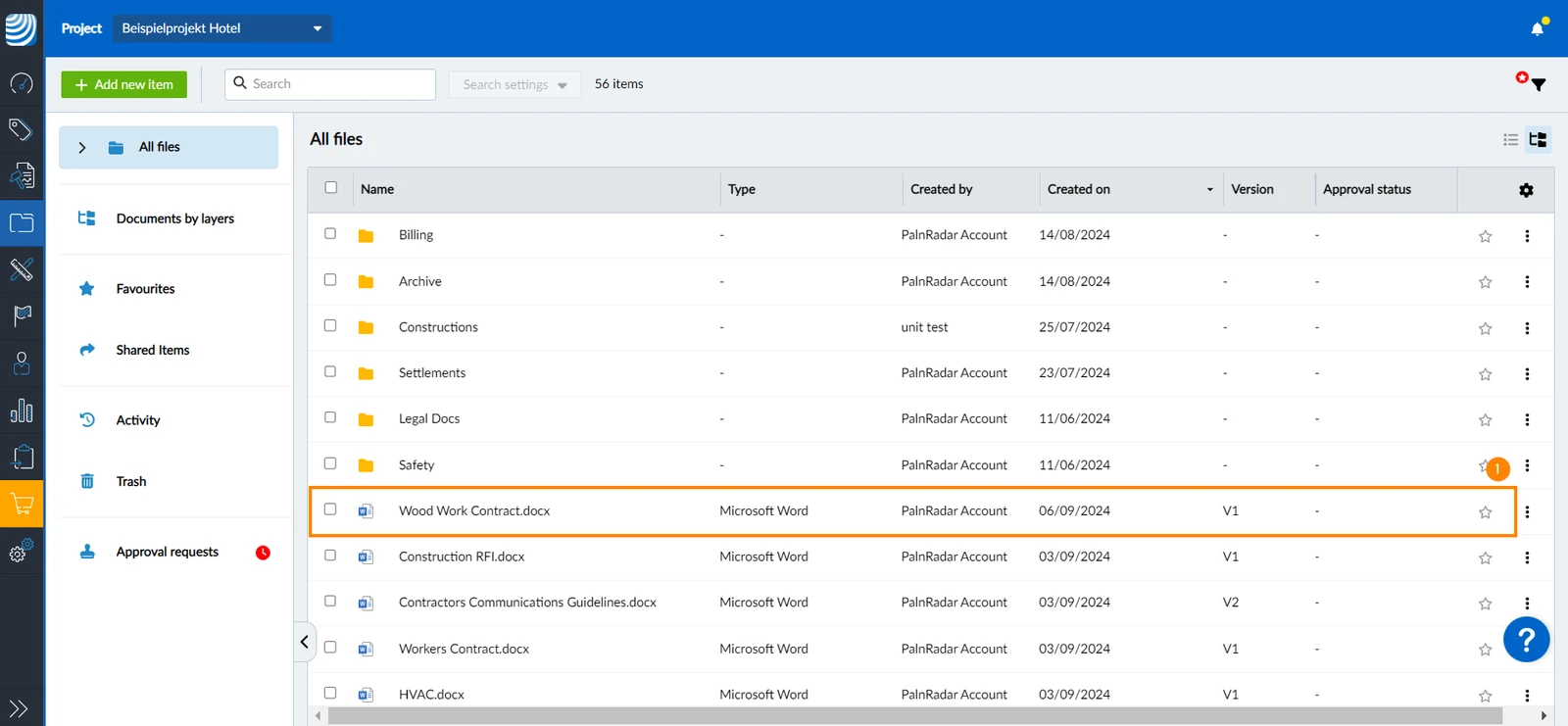
Click on a file to view it
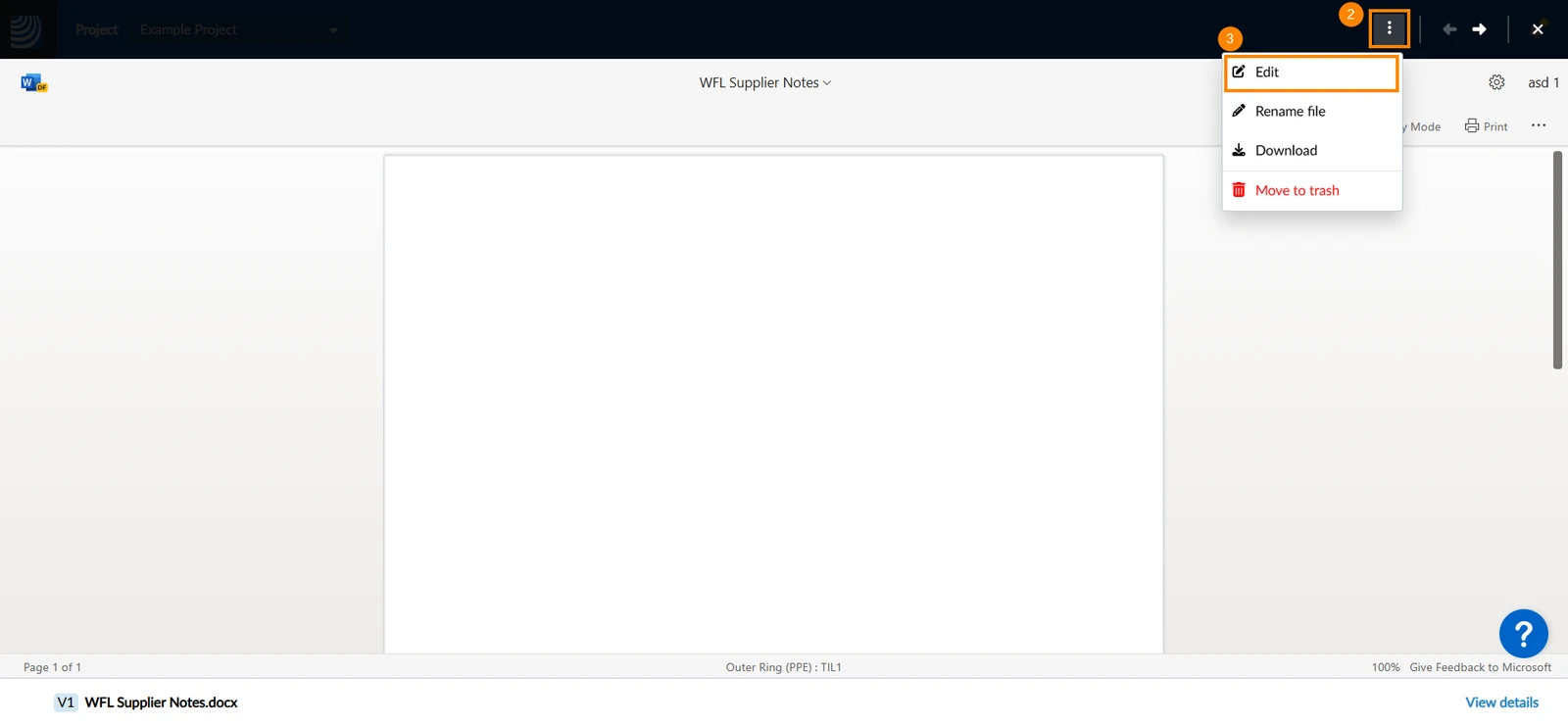
Click the more menu
Click Edit 

Continue as explained above
If the file is being edited by another user and you want to collaborate on it, you can join the session. To do so:
Click the more menu next to the file you want to edit
Click Edit
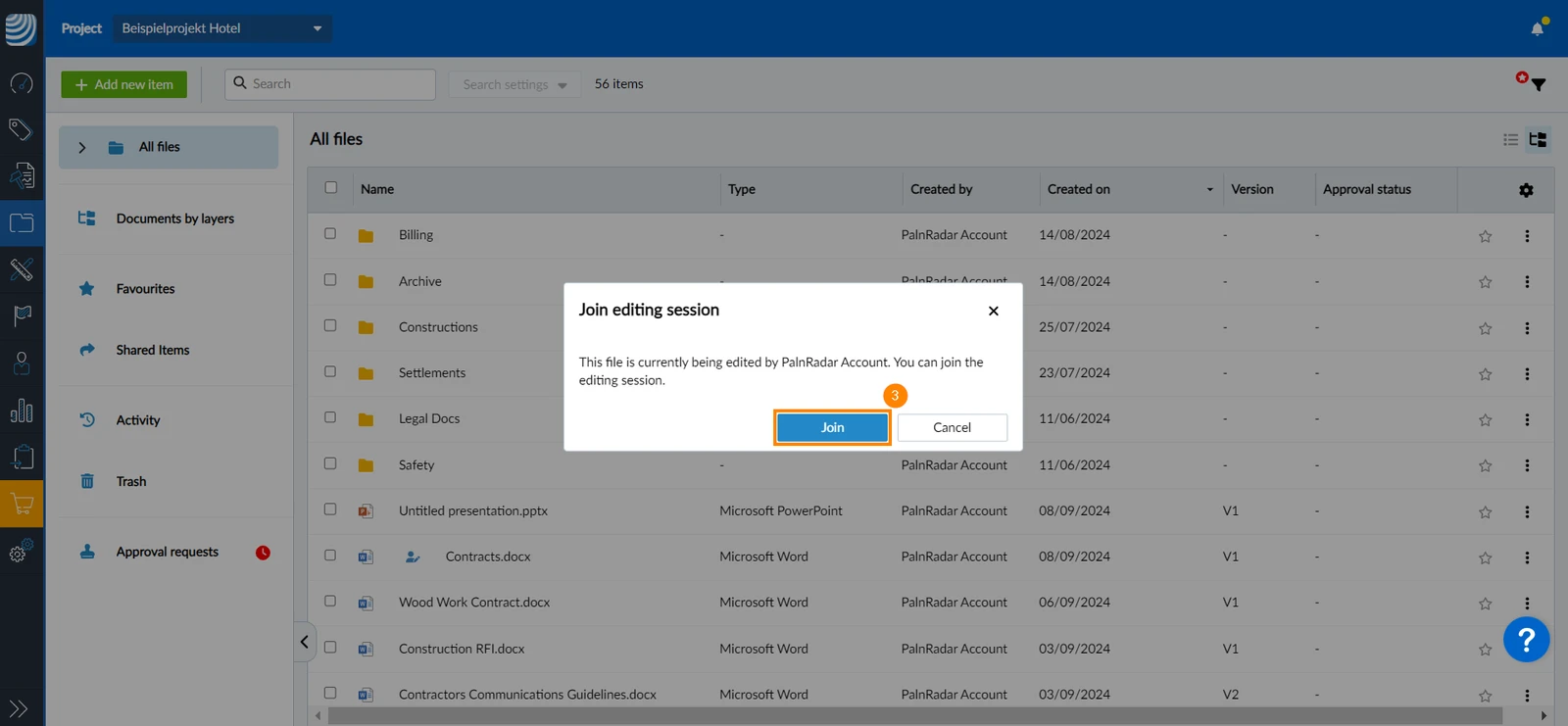
A pop-up message will appear on the screen informing you of who is currently editing the file.
Click Join to participate in the editing session
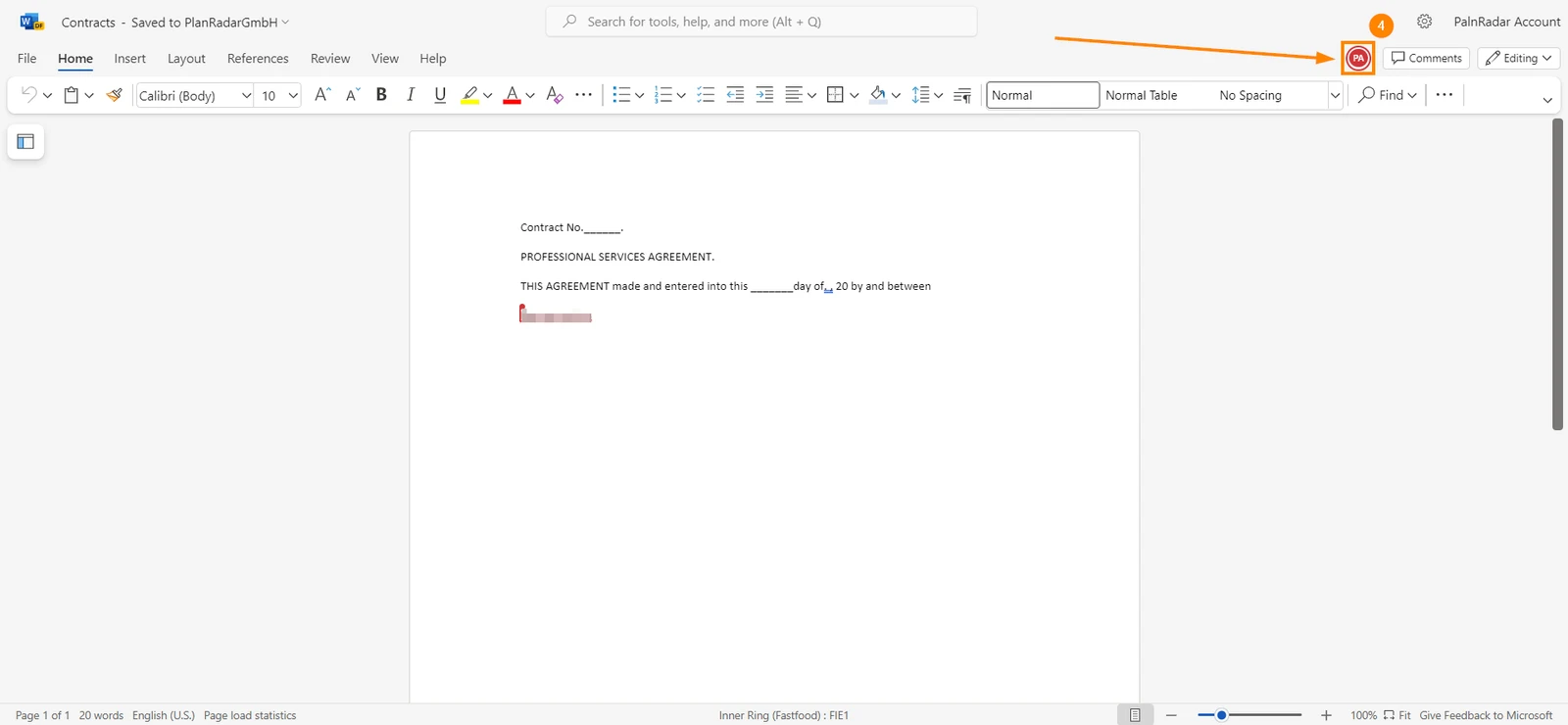
The file will open in a new tab, and the editor's initials will be displayed at the top of the document page
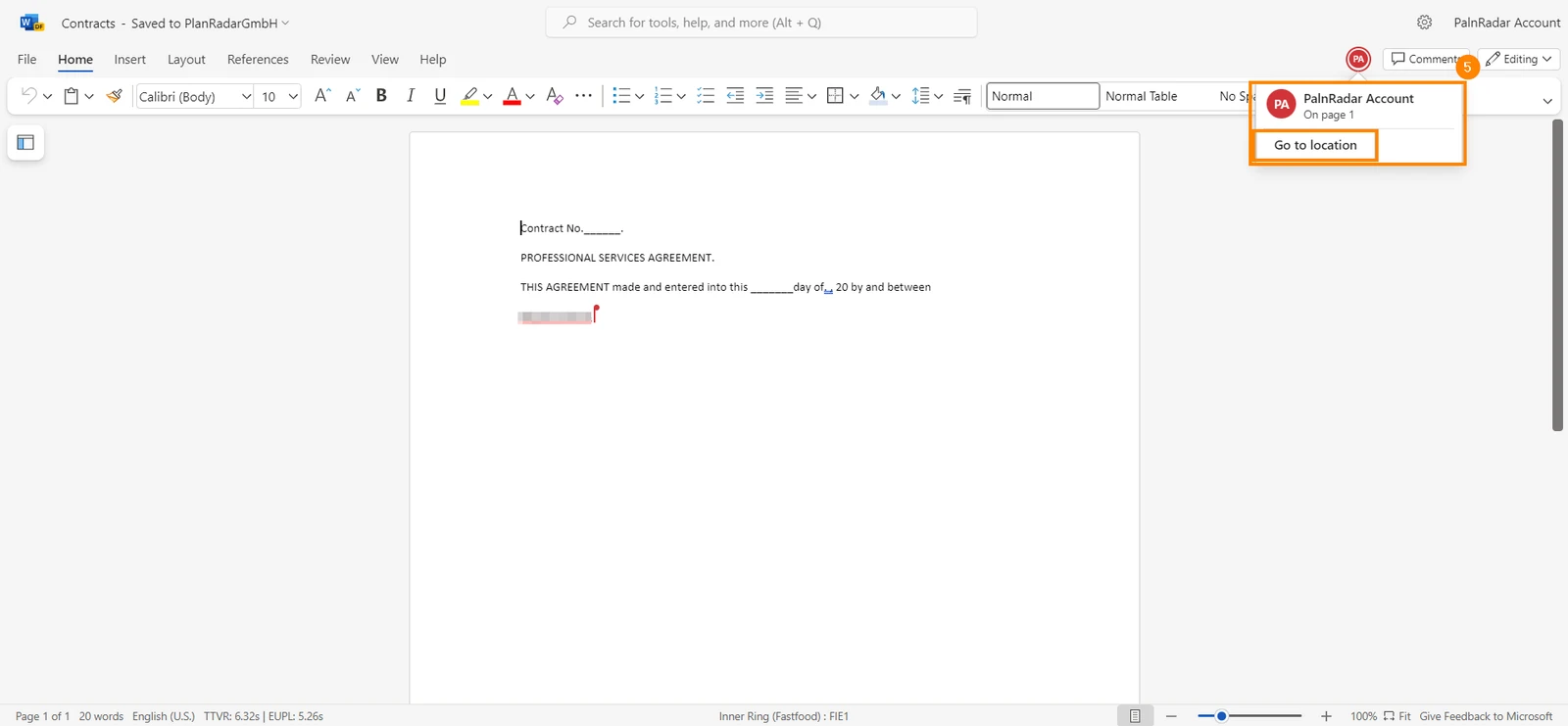
Hover over the editor's initials to reveal their full name and navigate to their location in the document
Add a Comment
If you want to add remarks or suggestions to a file without editing it, you can leave a comment. To leave a comment:
Open the file you want to leave a comment on
Click the more menu
Click Edit
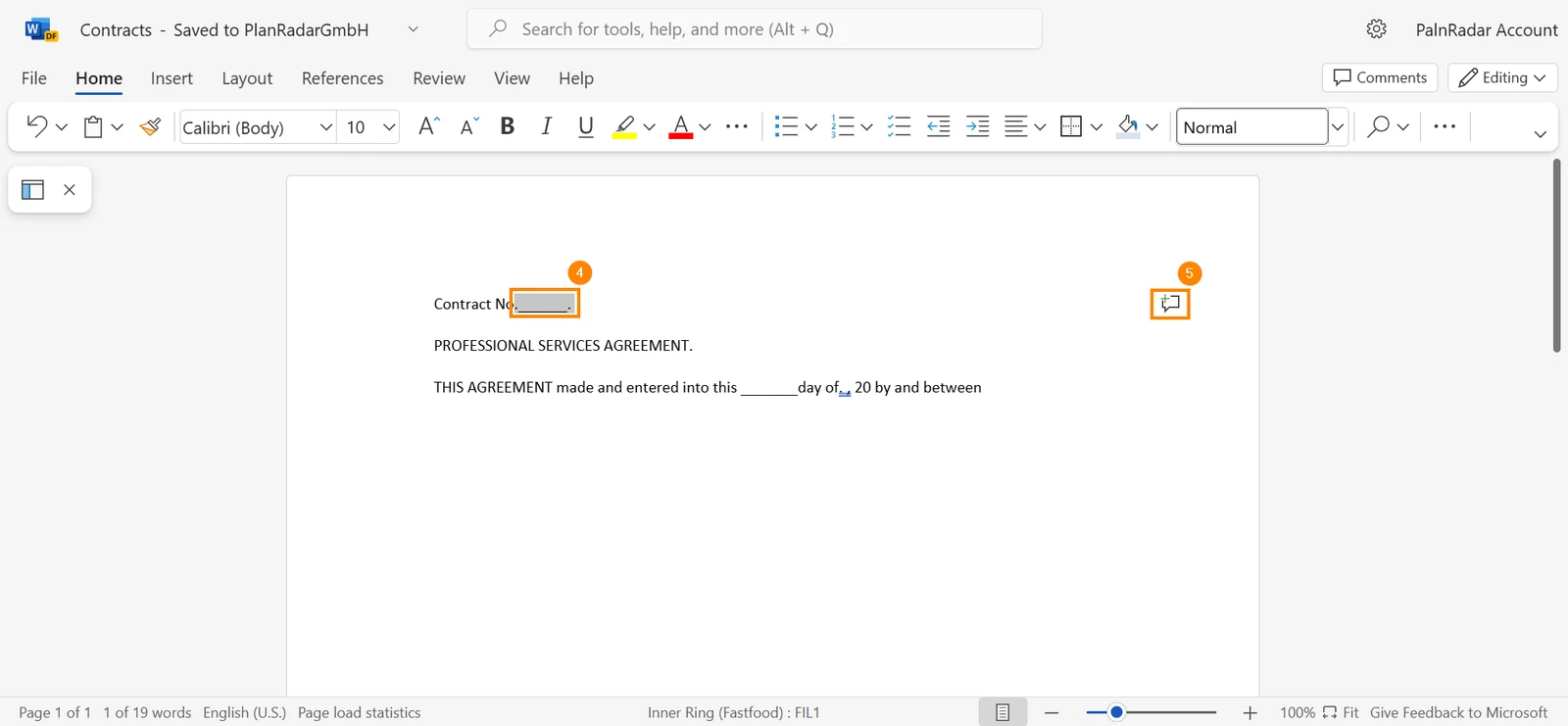
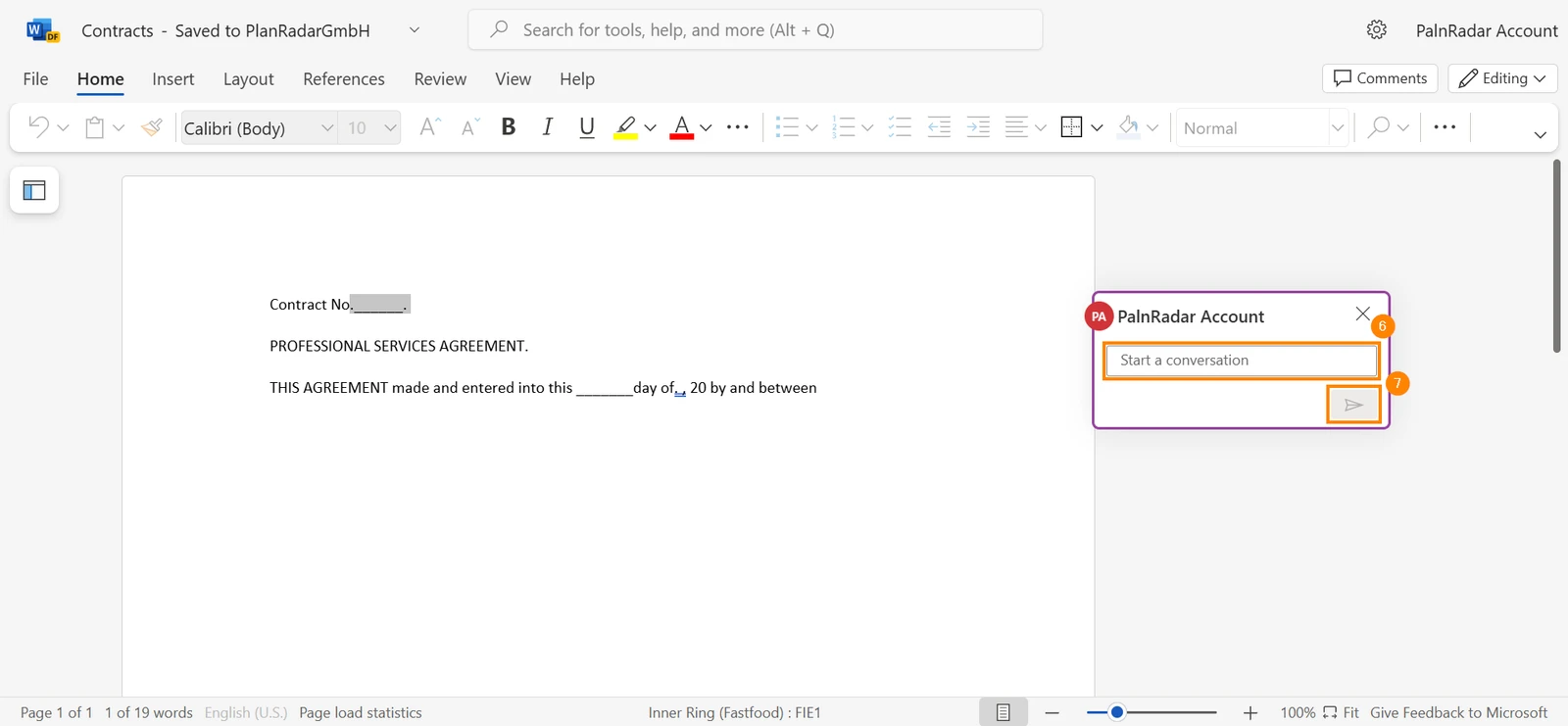
Highlight the part in the document where you want to add a comment
Click the comment icon OR click CTRL + Alt + M to add a comment


 Deutsch
 Español
 Français
 Hrvatski
 Italiano
 Polski
 Português (BR)