

 Deutsch
 Español
 Français
 Hrvatski
 Italiano
 Polski
 Português (BR)
View & Find Files/Folders
Overview
Document Management allows you to manage all the plans and documents that are relevant for your projects within PlanRadar. Also see Document Management.
Access & permissions
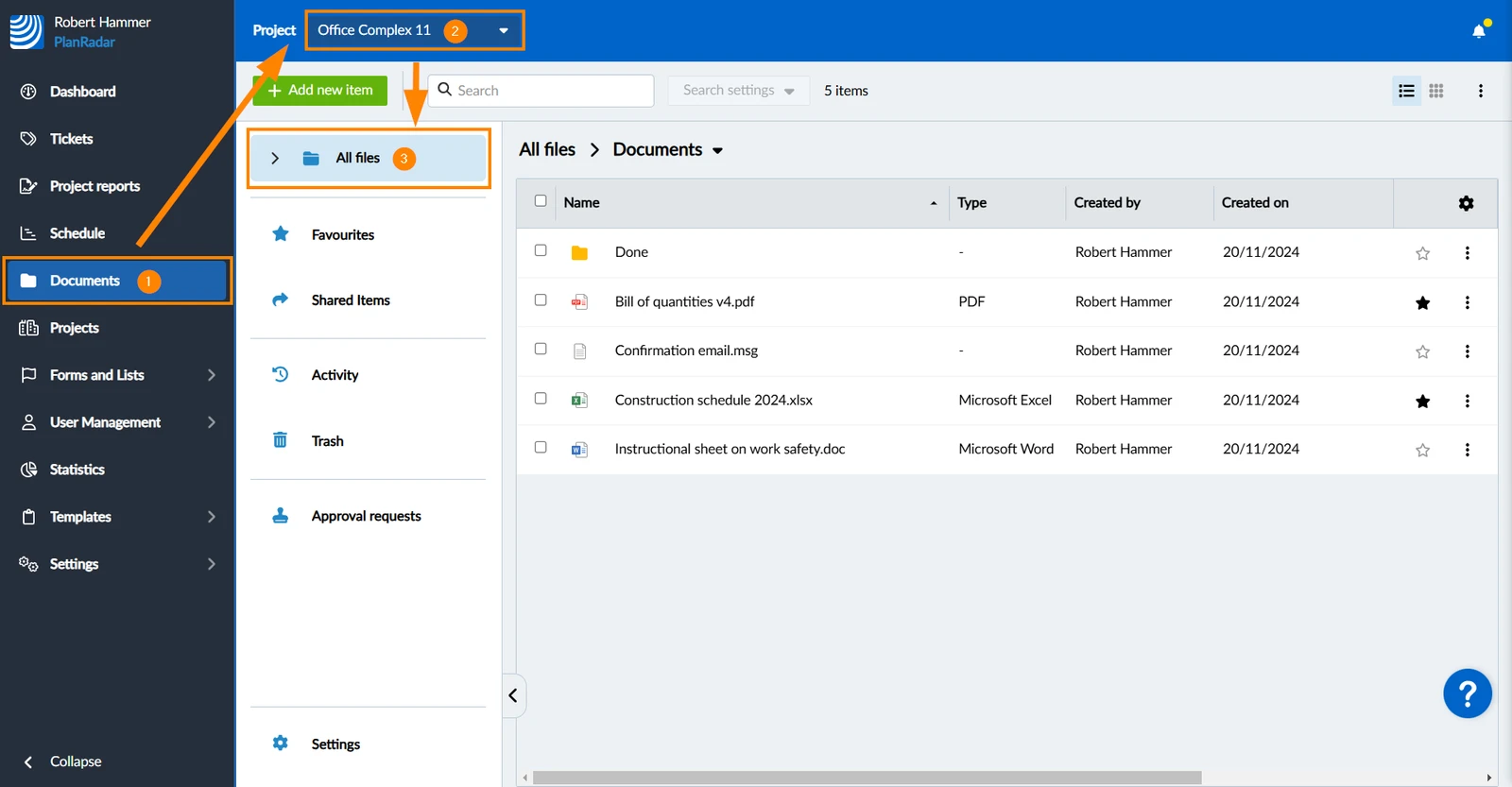
How to access Documents - All Files
- Click Documents
- Select a Project
- Click All files
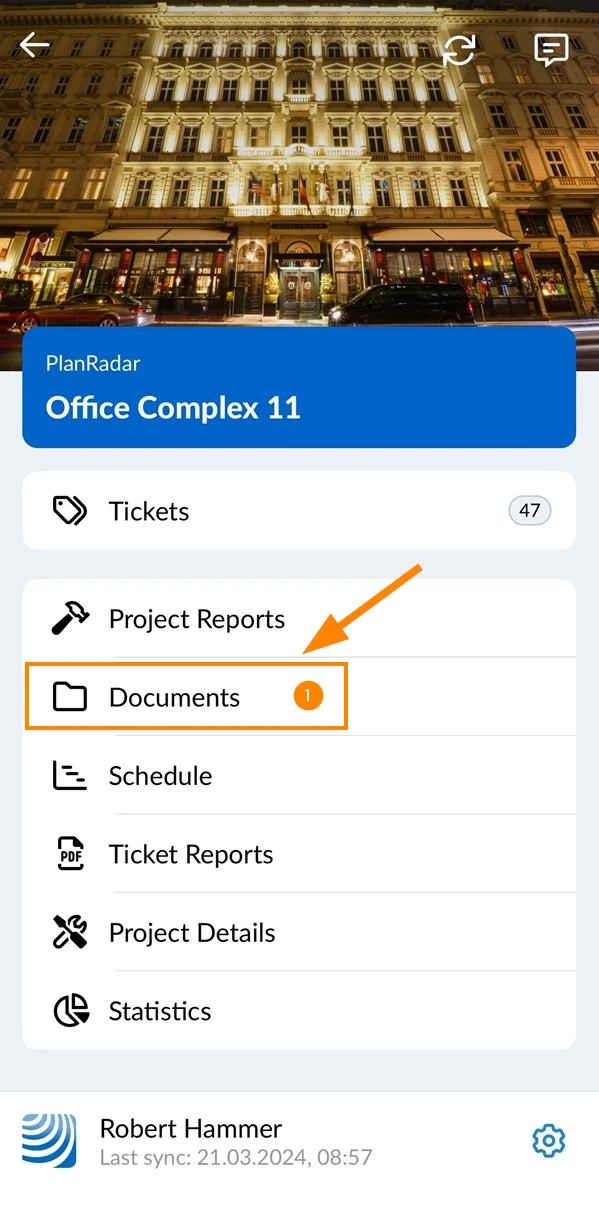
- Tap Documents in the main menu
Folder Tree (Webapp)
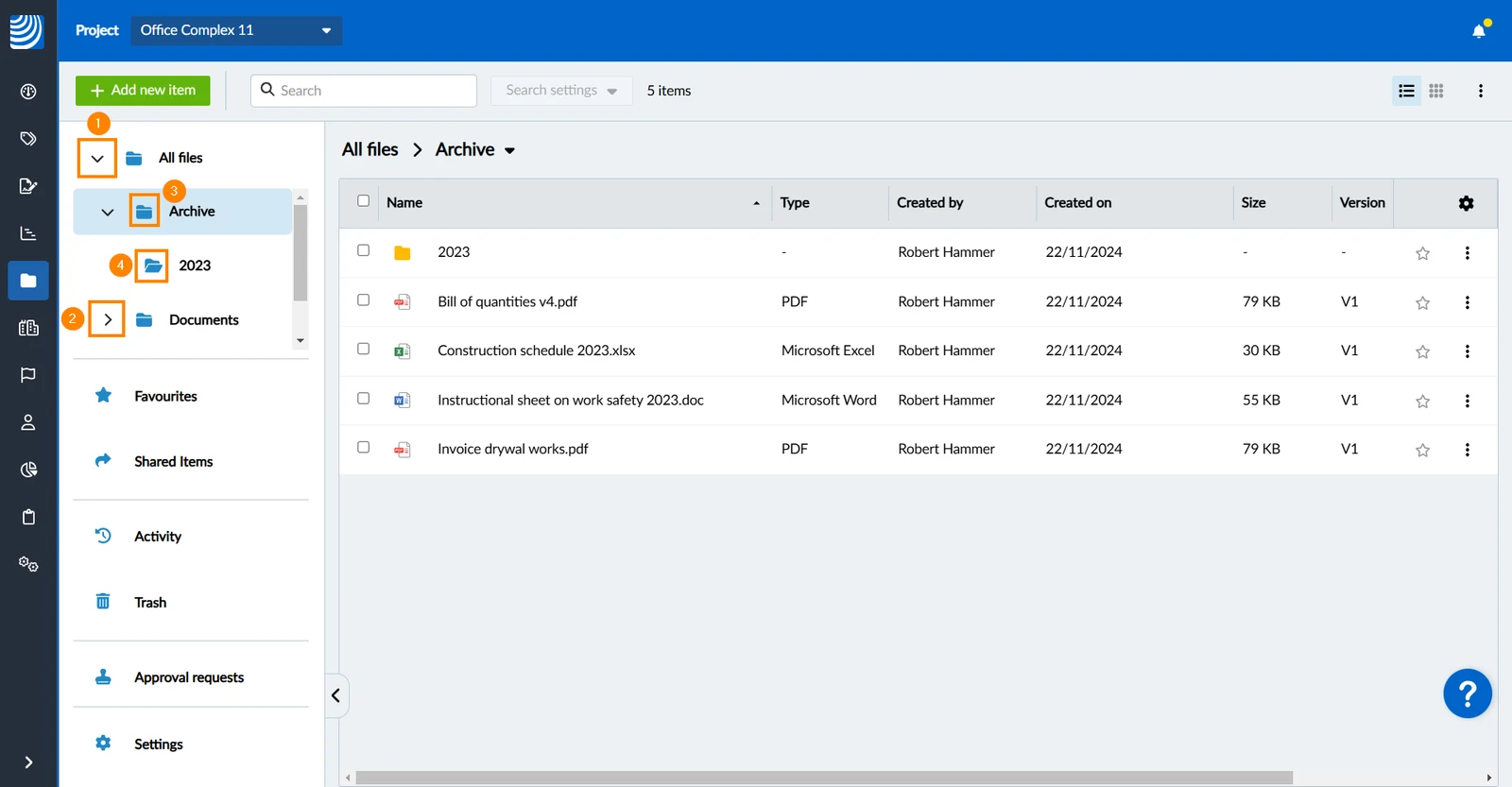
The folder tree allows you to quickly navigate between sub-folders and view the folder structure in the Webapp.
Folder Tree Icons
The icons in the folder tree have the following meaning:
- Expanded folder (sub-folders are displayed below)
- Collapsed folder (sub-folders are not displayed)
- Folder contains files or sub-folders
- Folder is empty
Expand a Folder
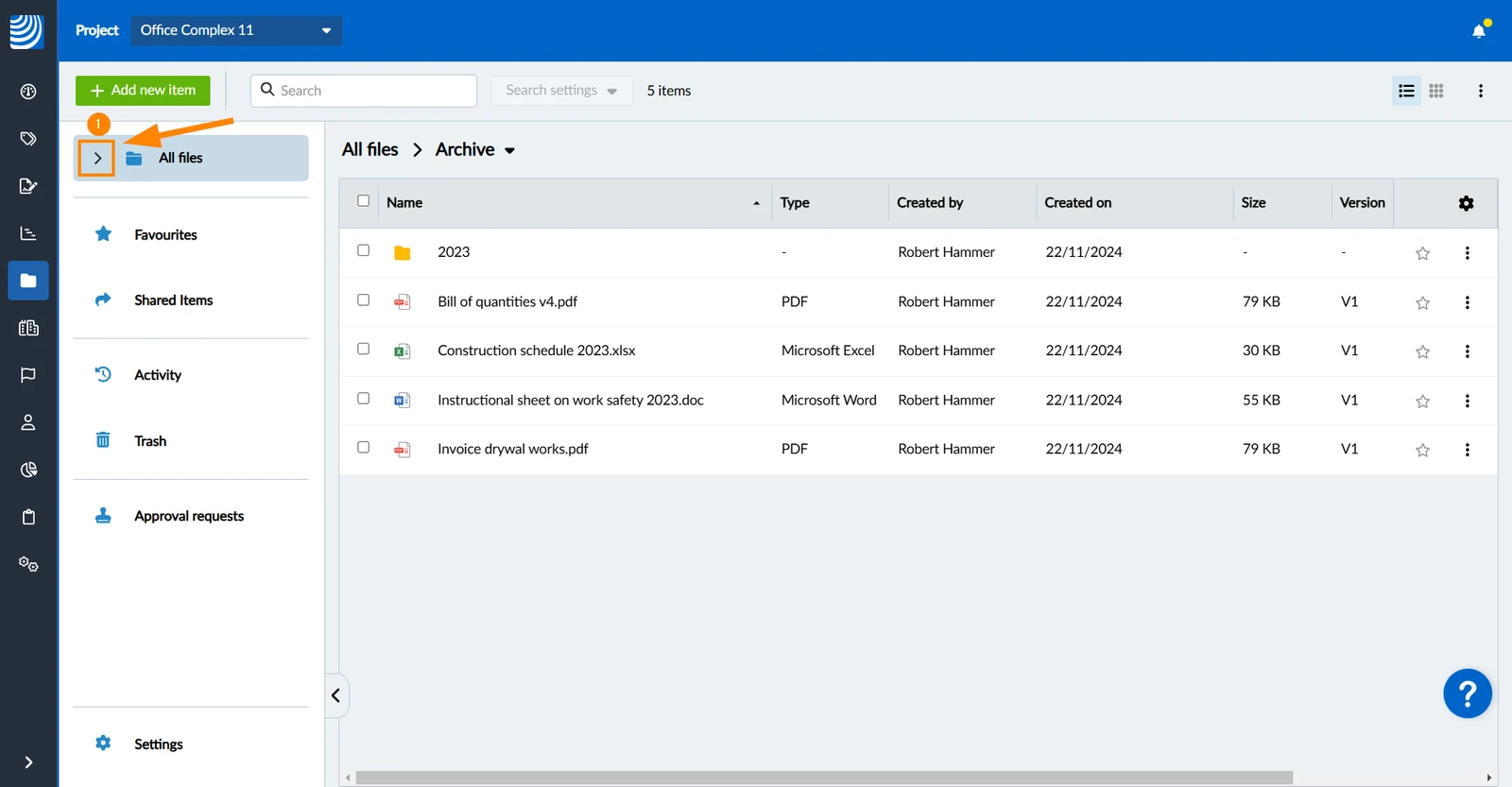
To expand a folder (or All files) and show its sub-folder in the tree:
- Click the arrow icon
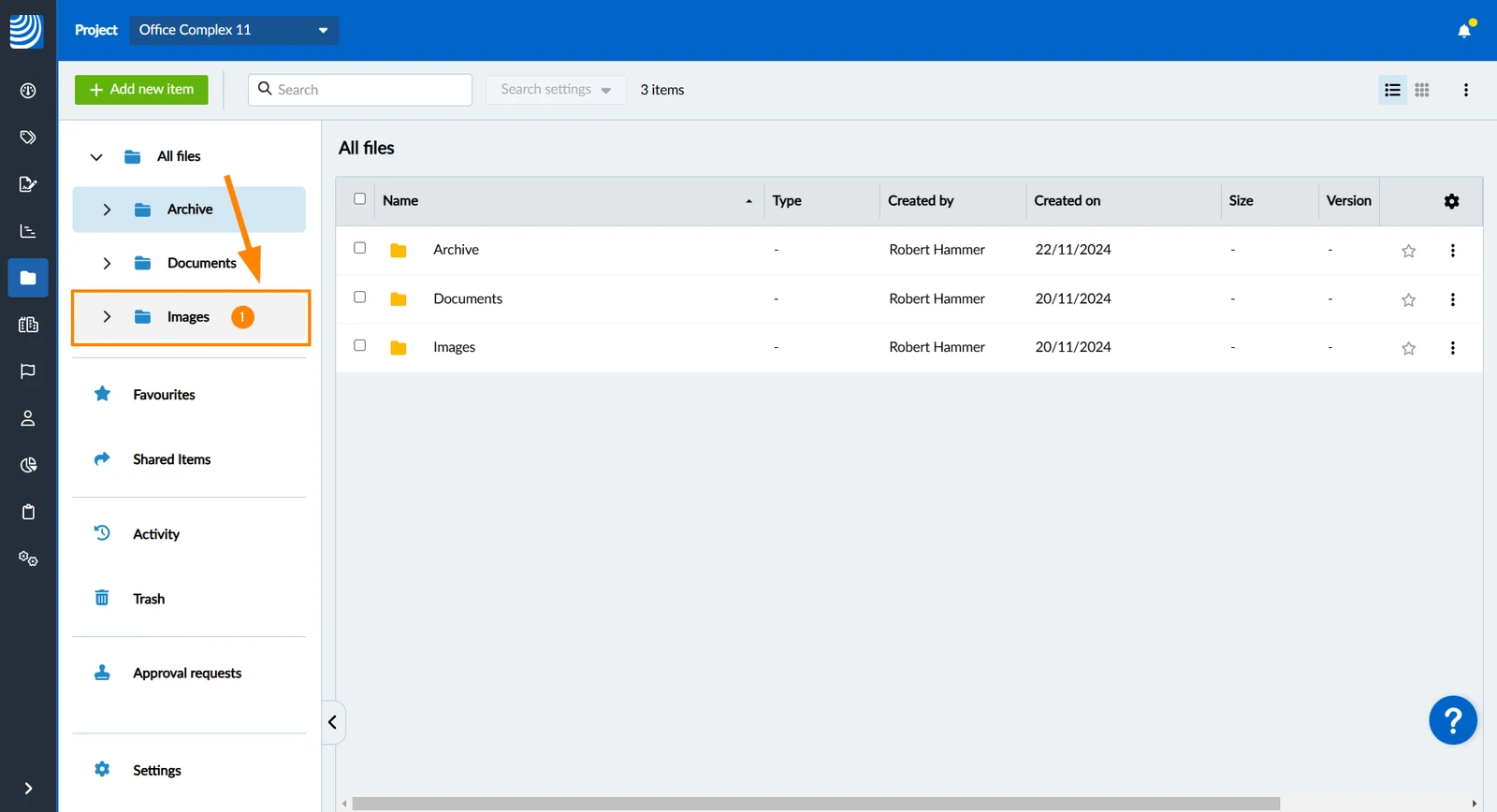
Open a Folder
To open a folder and view its files and sub-folders:
- Click on the folder
Collapse a Folder
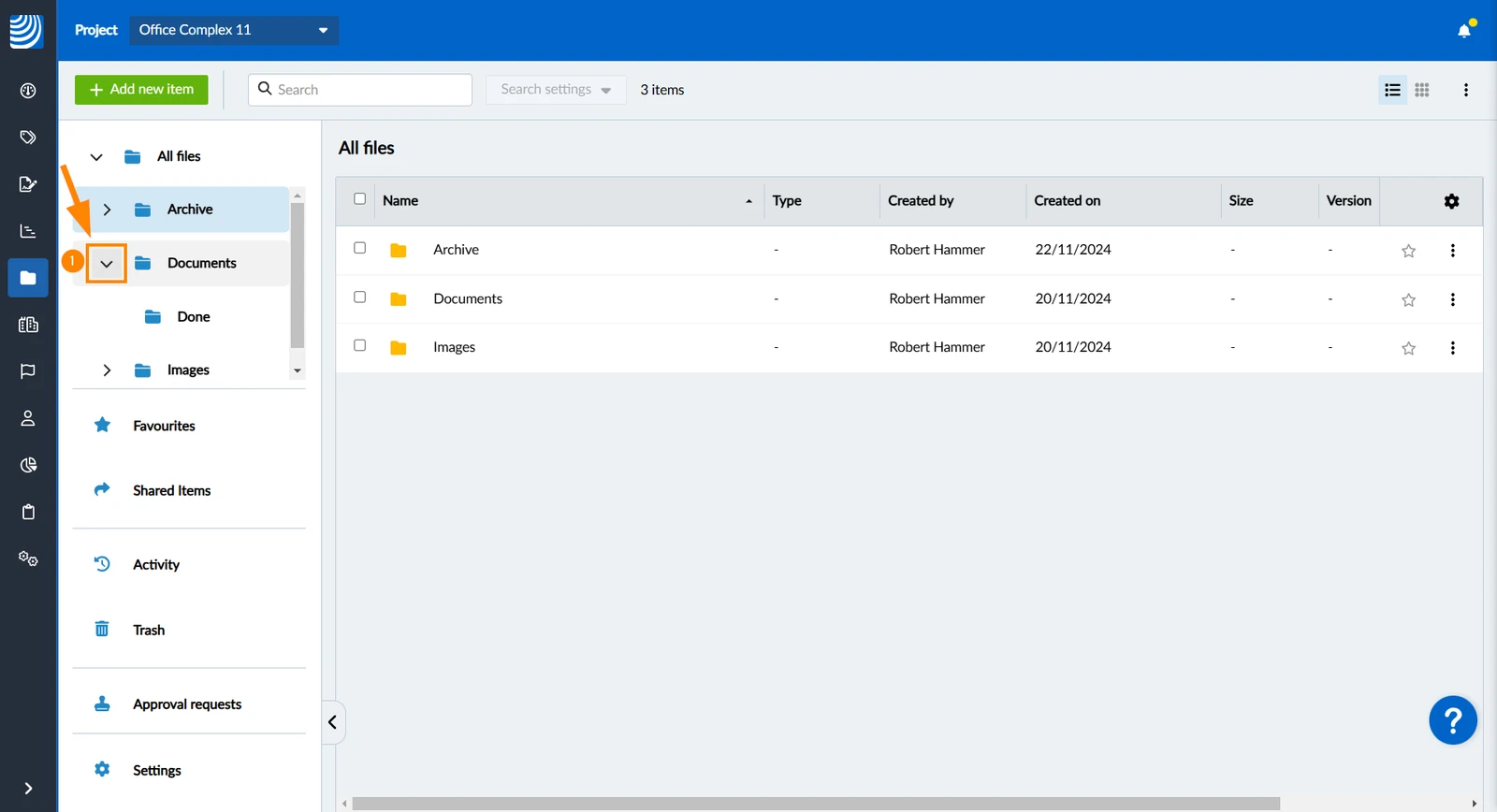
To collapse a folder and not show its sub-folders in the tree anymore:
- Click the arrow icon
Collapse All
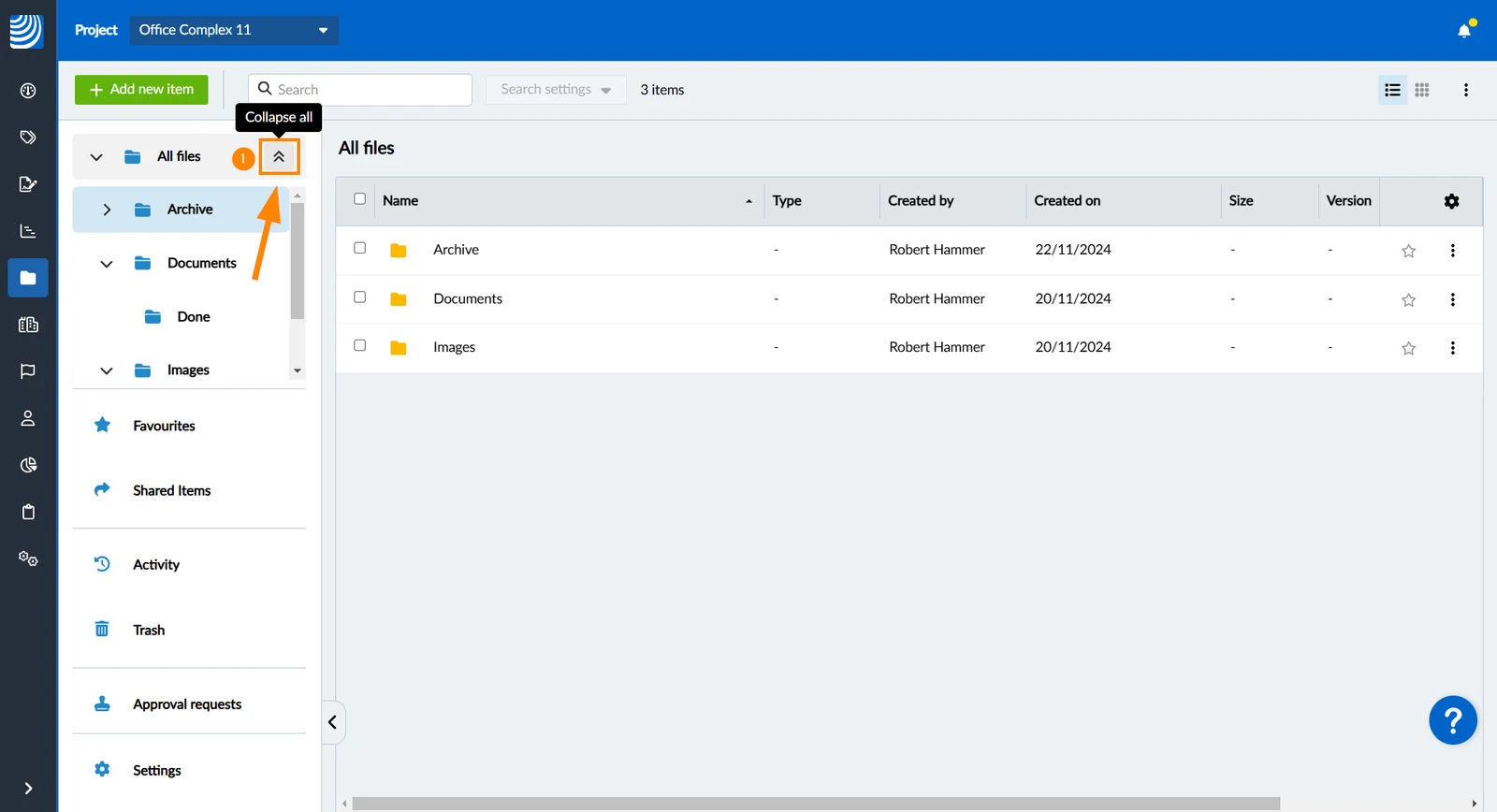
The collapse/expand state of sub-folders is saved if you for example collapse and expand all files.
To collapse all folders in the tree:
- Hover over All files
- Click the Collapse all icon
Grid View
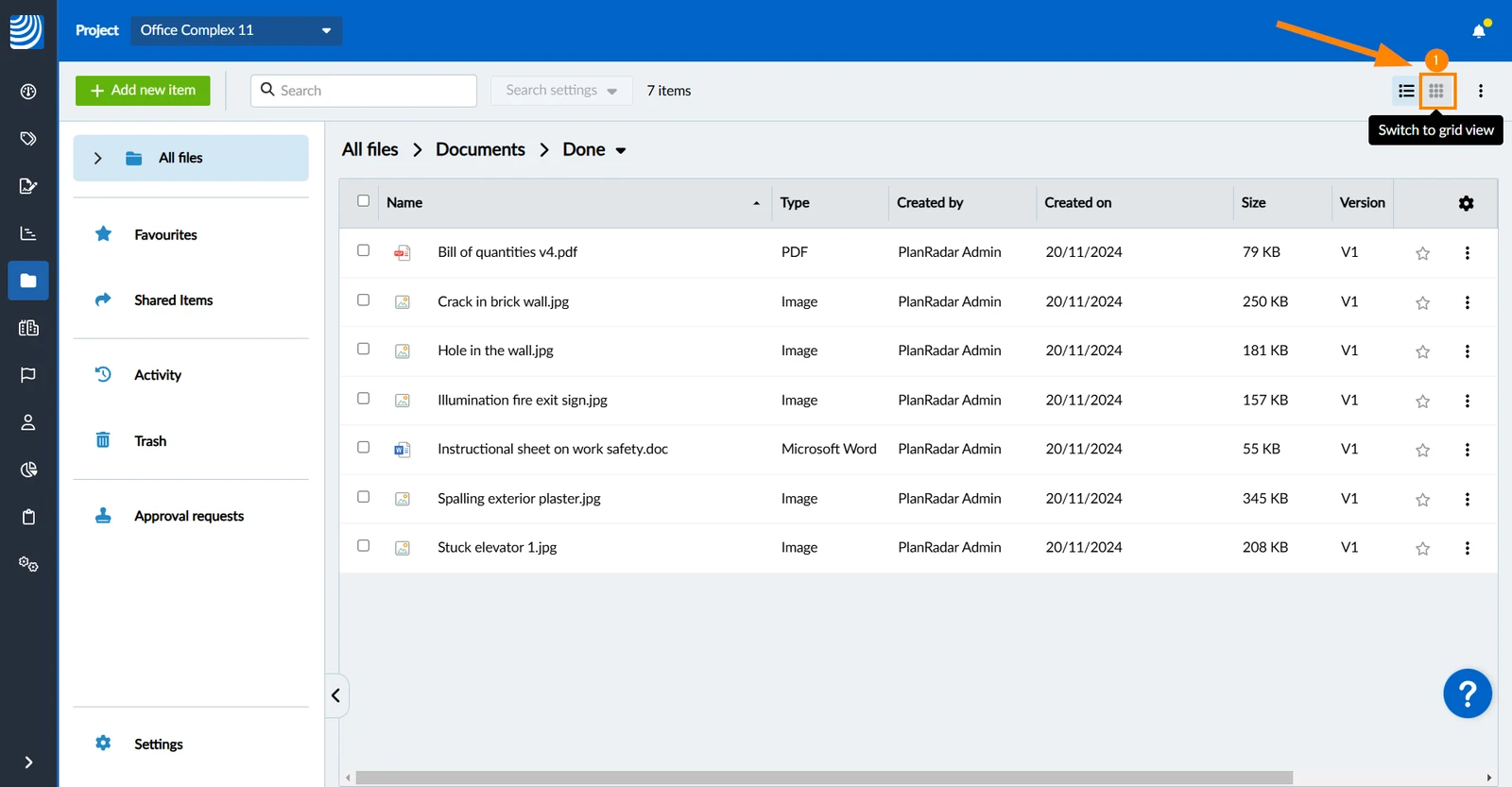
By default, files and folders are displayed in a list view (table).
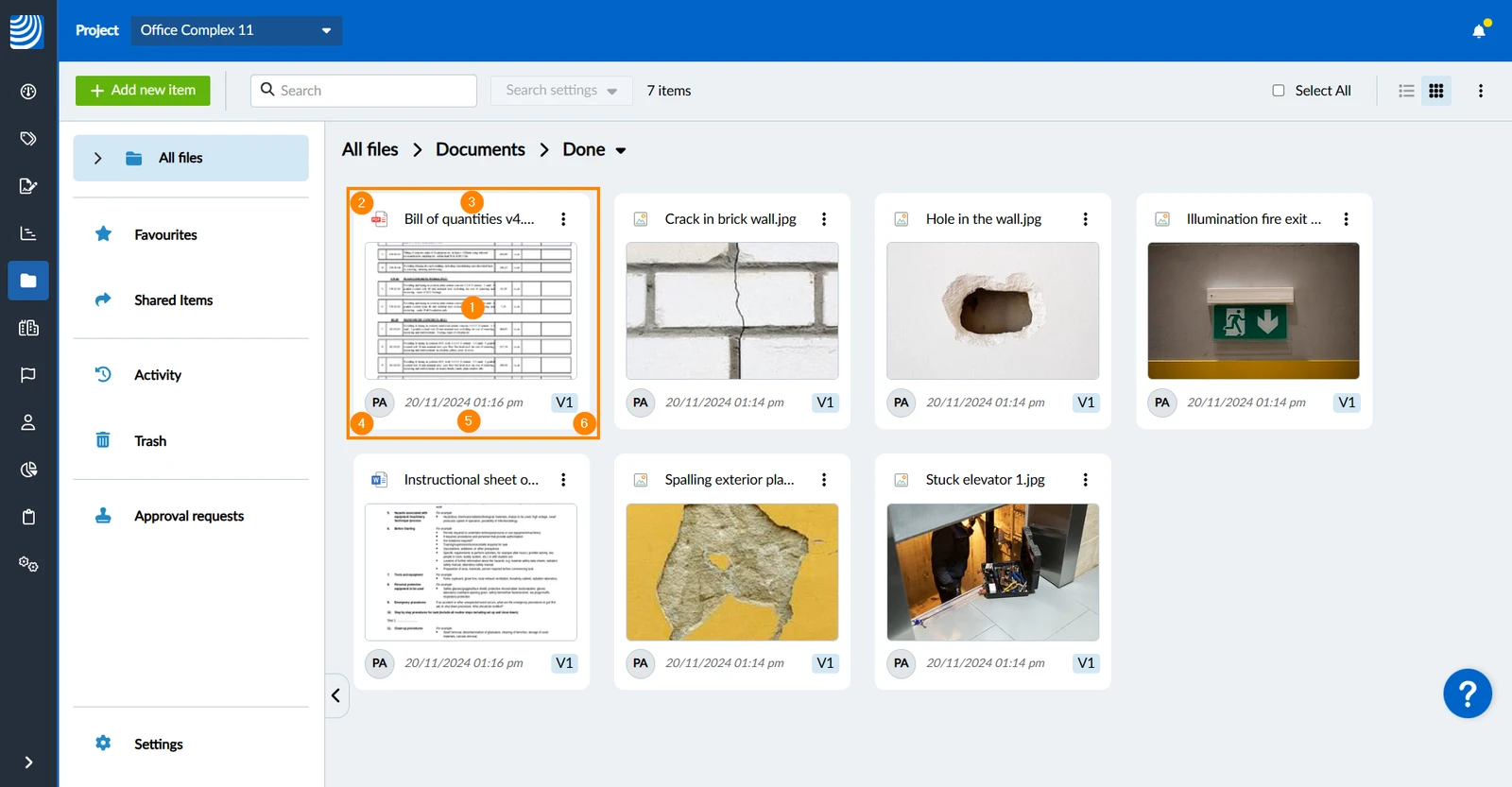
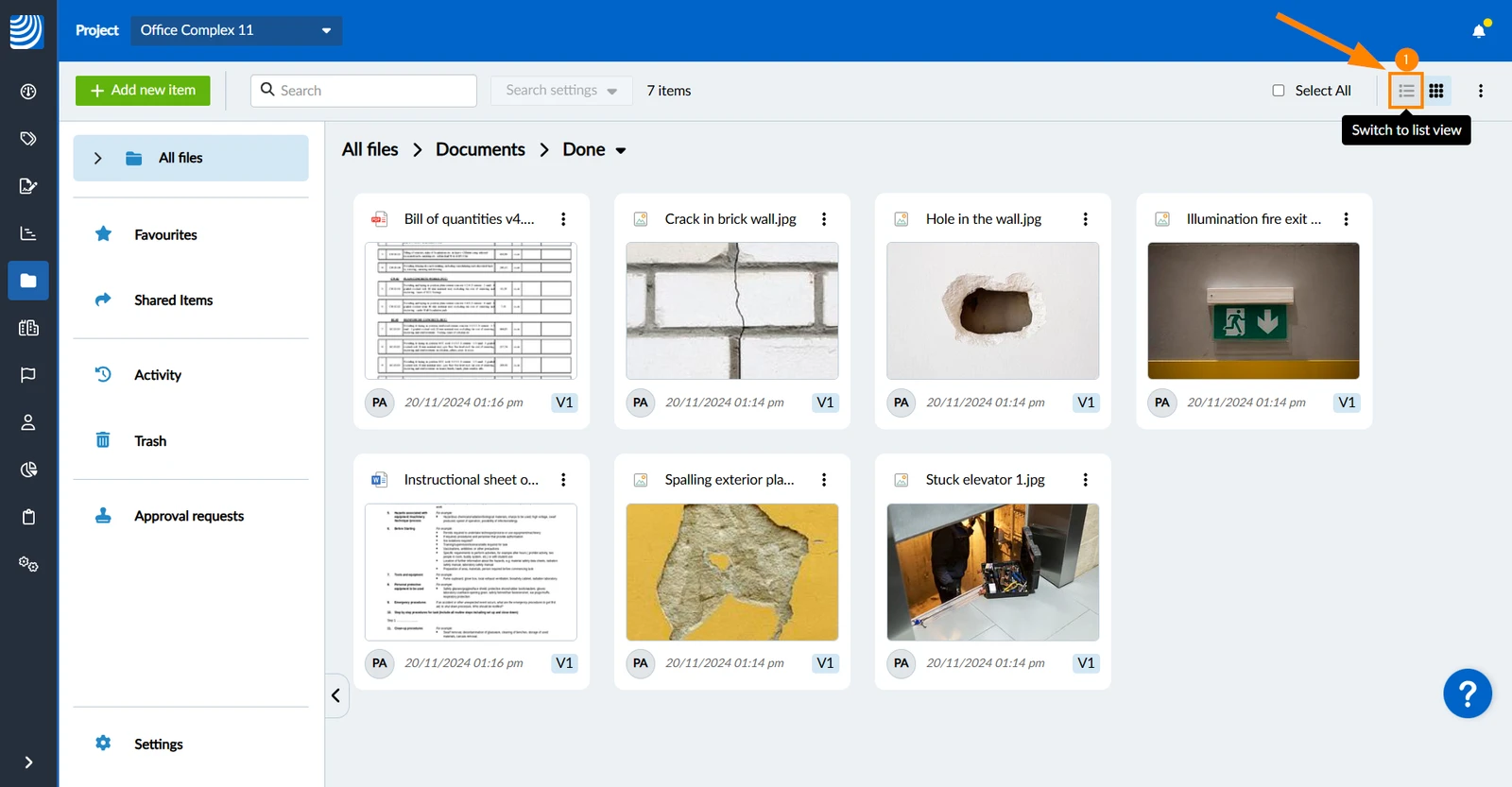
Grid view shows thumbnail previews of photos, PDFs and Microsoft Office documents.
Each file appears as a tile with the following information:
- Thumbnail preview
- File type icon
- File name - long file names display in full on hover
- Creator - hover over user name initials to see the full user name, user type and company (only in the Webapp)
- Date and time the current version was created
- Current version number
Switch between Grid View and List View
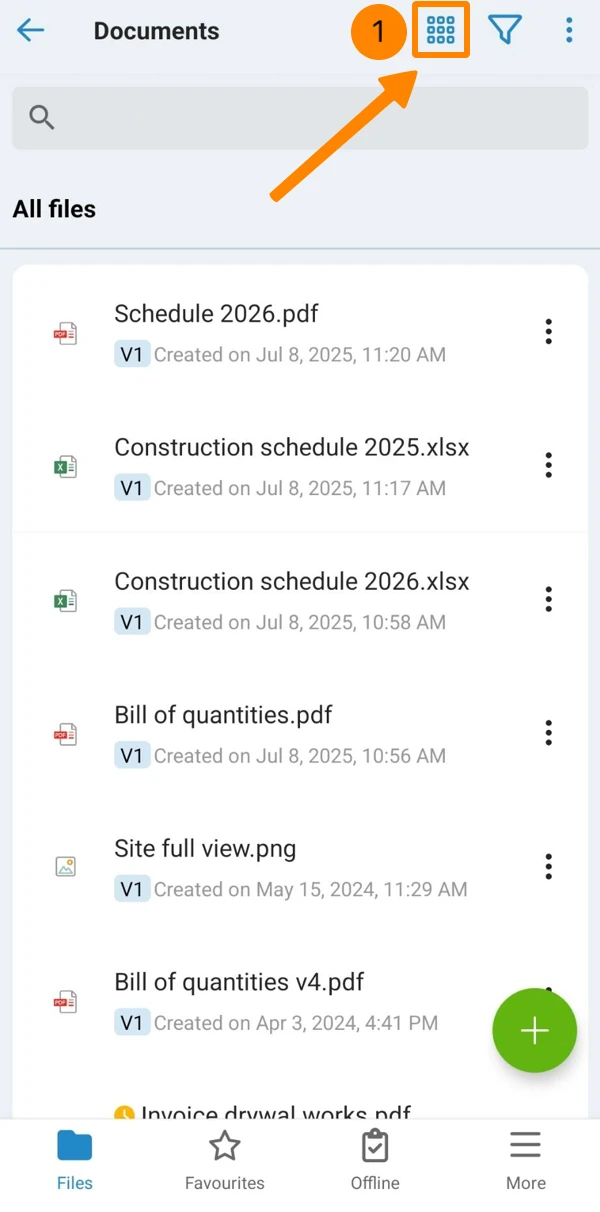
To switch to grid view:
- Click the grid view icon
- Tap the grid view icon
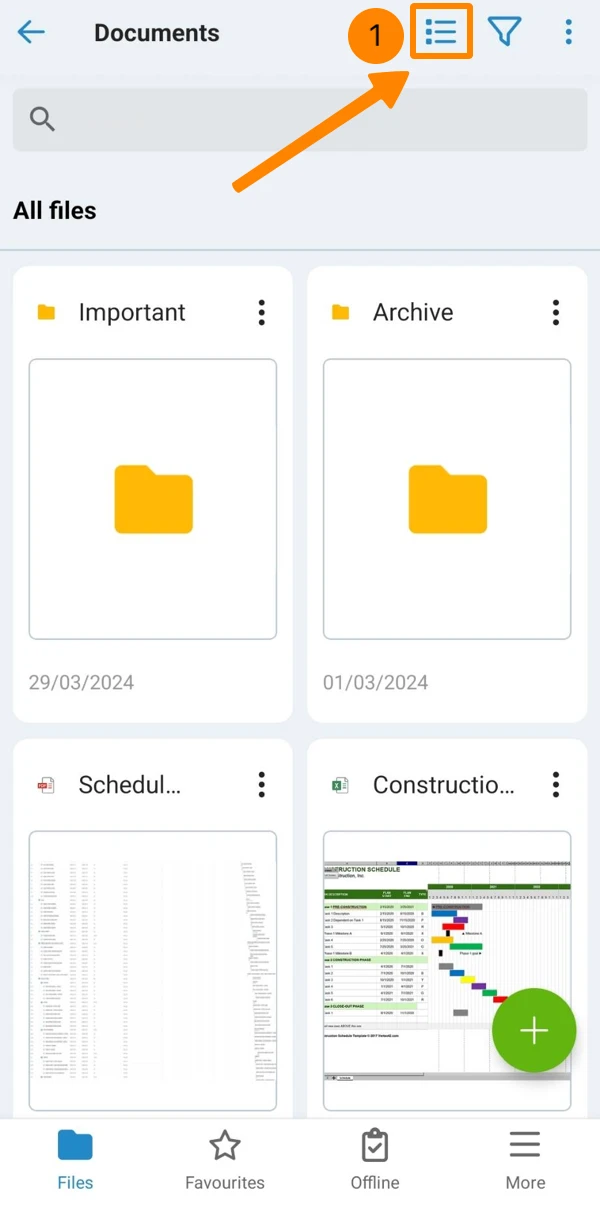
To switch to list view:
- Click the list view icon
- Tap the list view icon
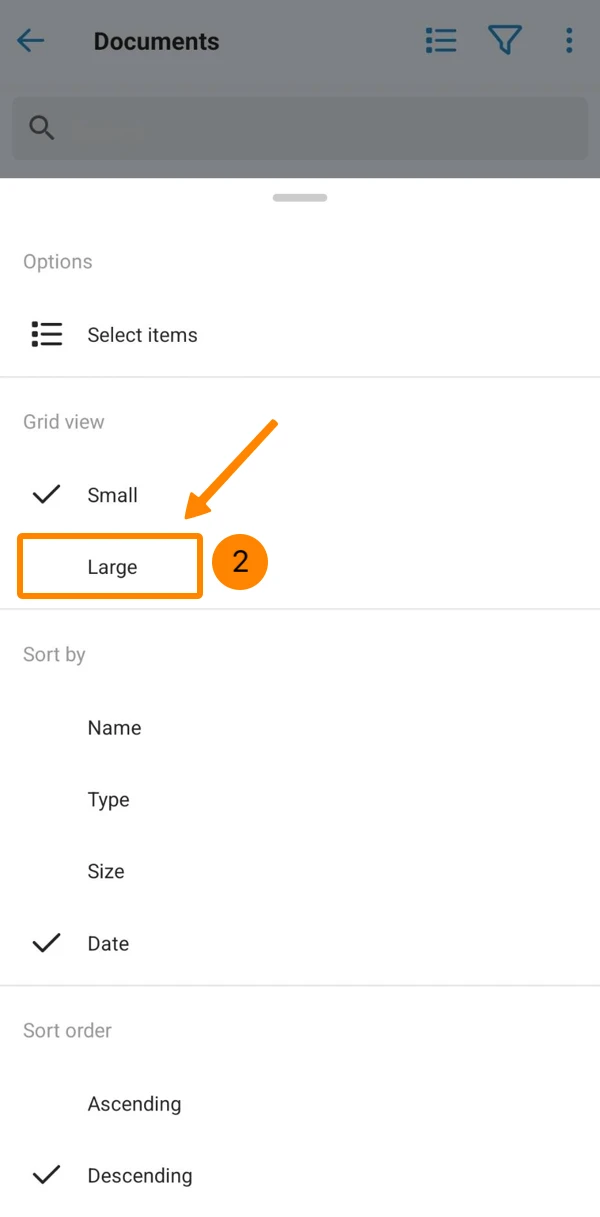
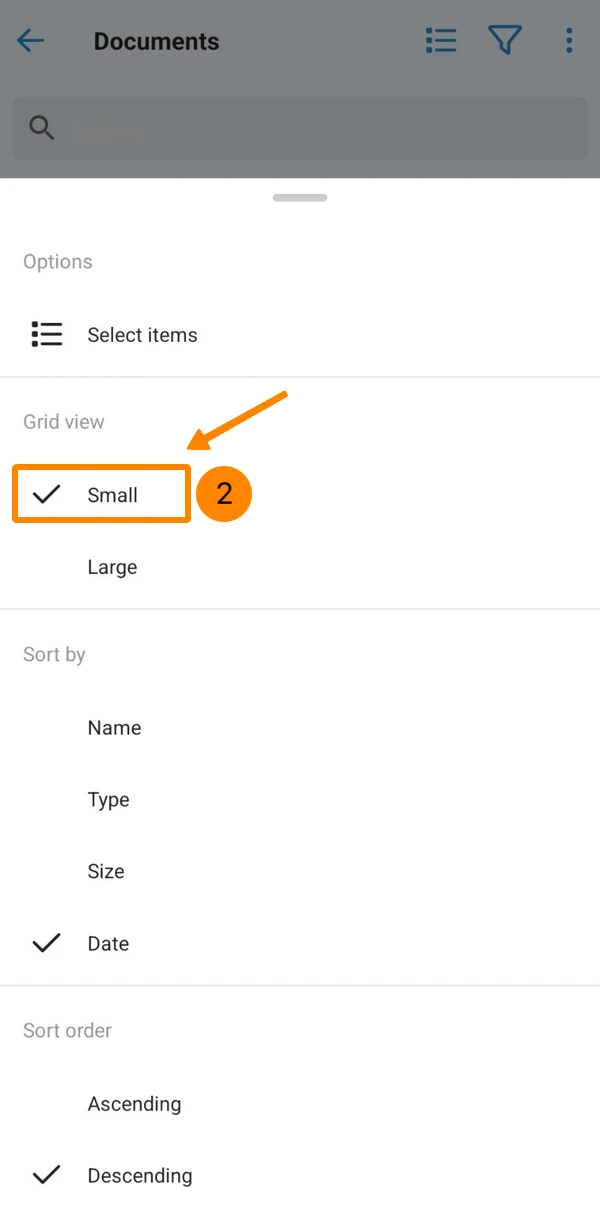
Small or Large Thumbnails (Mobile)
By default, you see small thumbnails that fit two next to each other.
Large thumbnails take up the entire width of the phone screen.
To switch to large thumbnails:
- Open the More menu
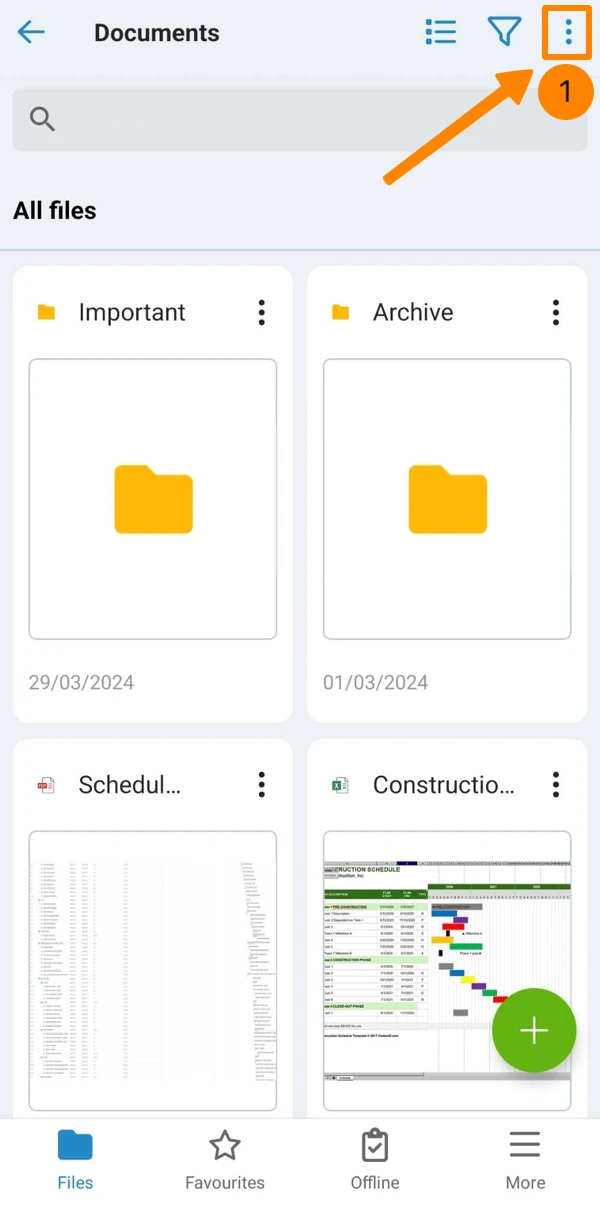
- Tap Large
To switch to small thumbnails:
- Open the More menu
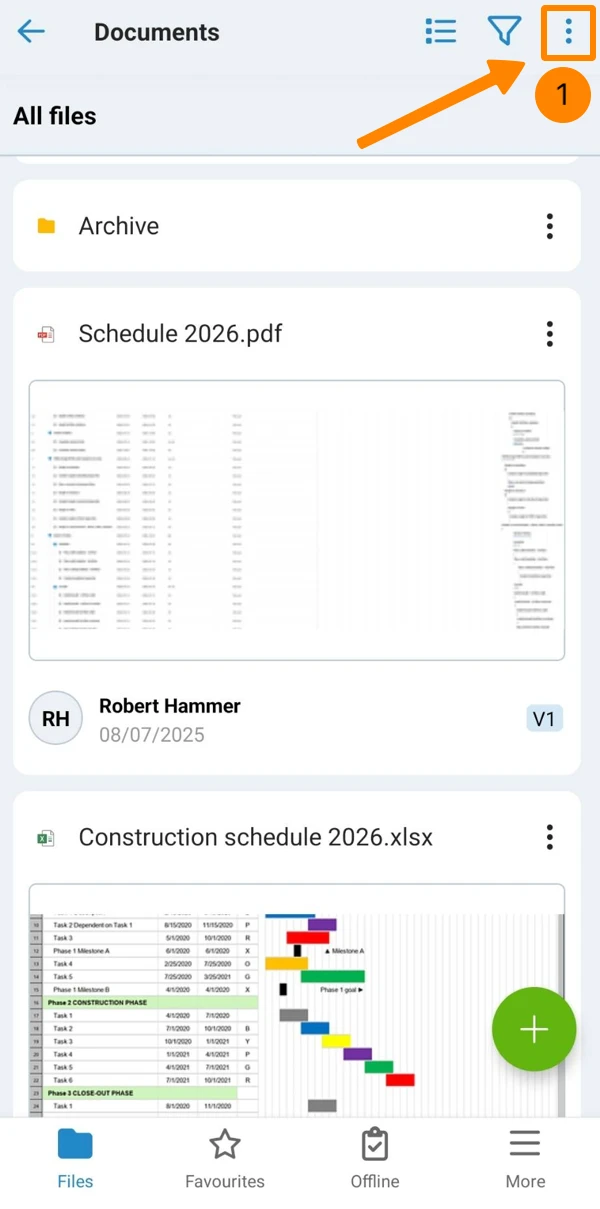
- Tap Small
Select Items in Grid View
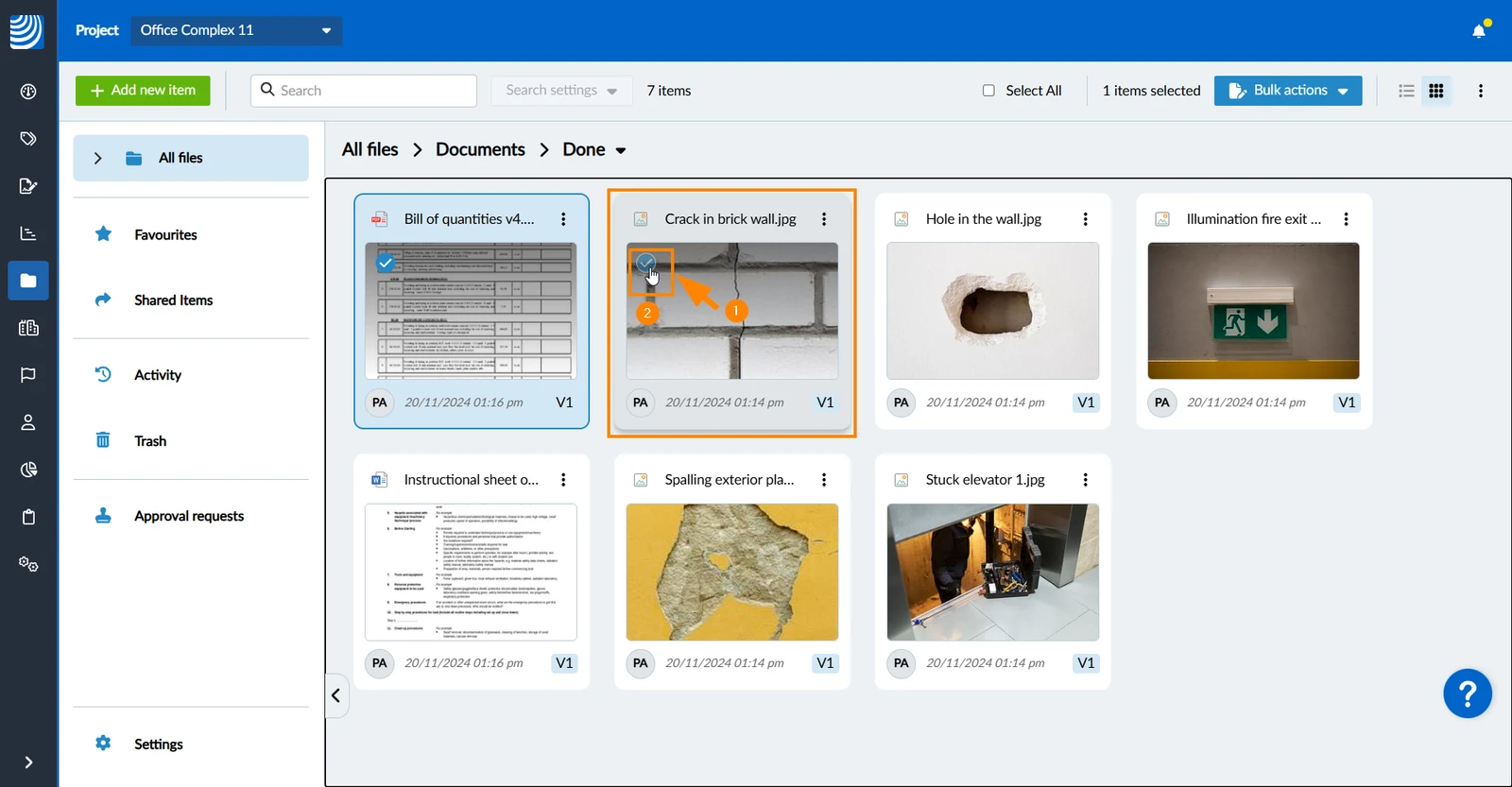
To select one or more items (files or folders) for bulk actions in the grid view:
- Hover over the item to show the selection checkbox
- Select/clear the selection checkbox(es)
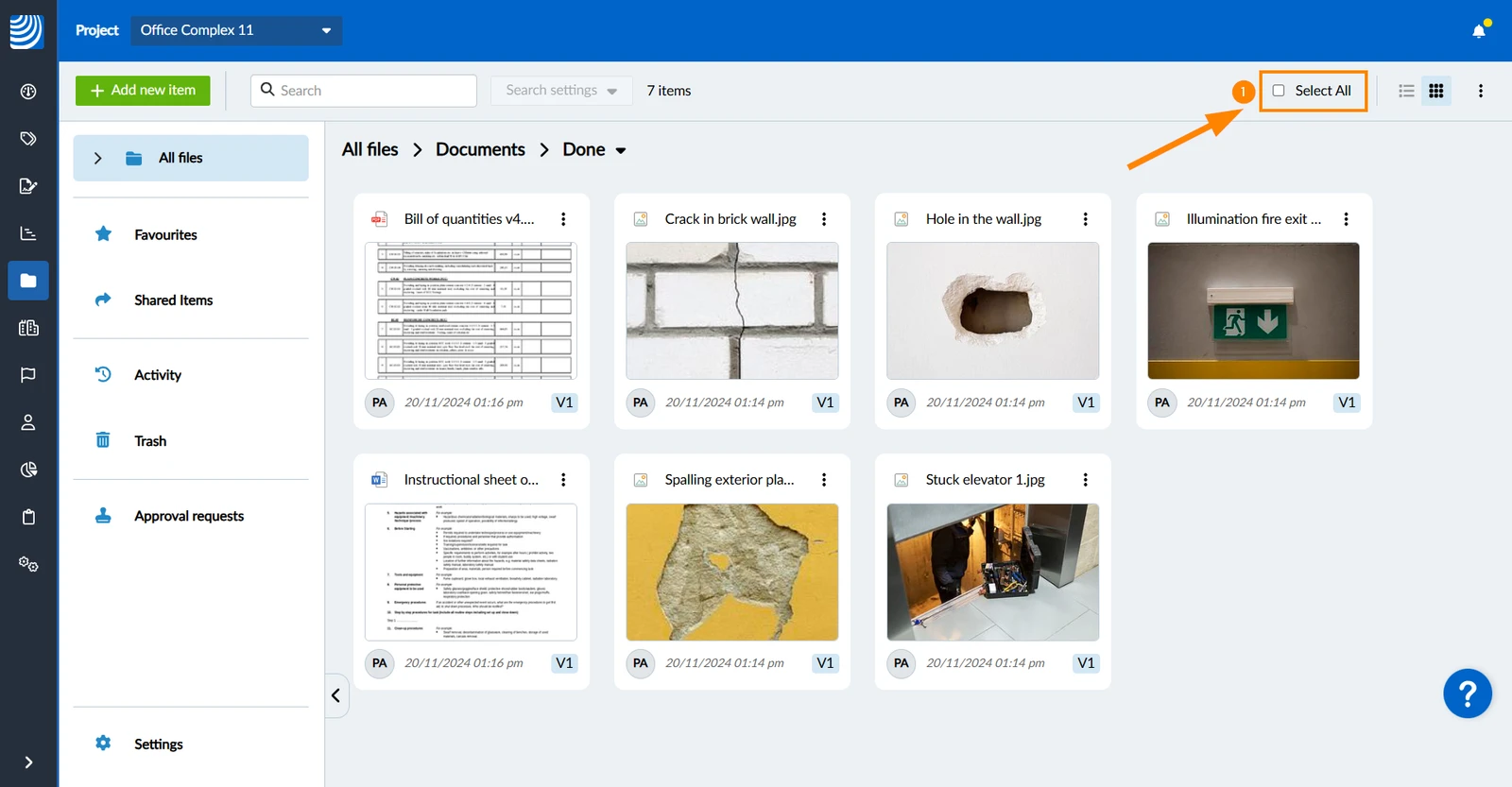
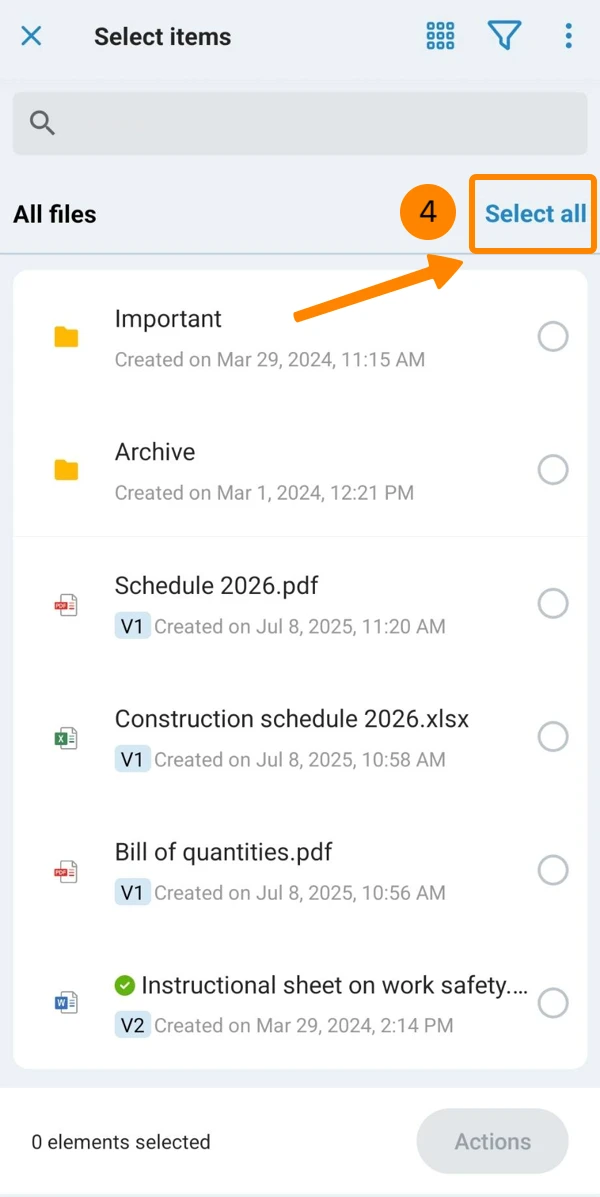
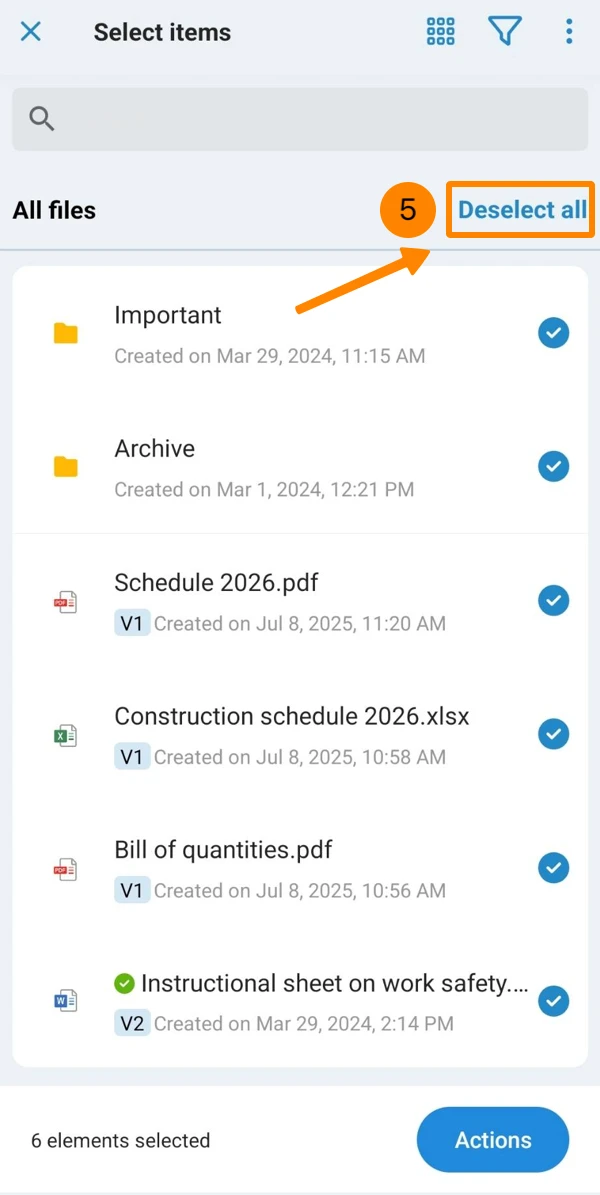
To select/deselect all items in the current folder:
- Select/clear the Select All checkbox
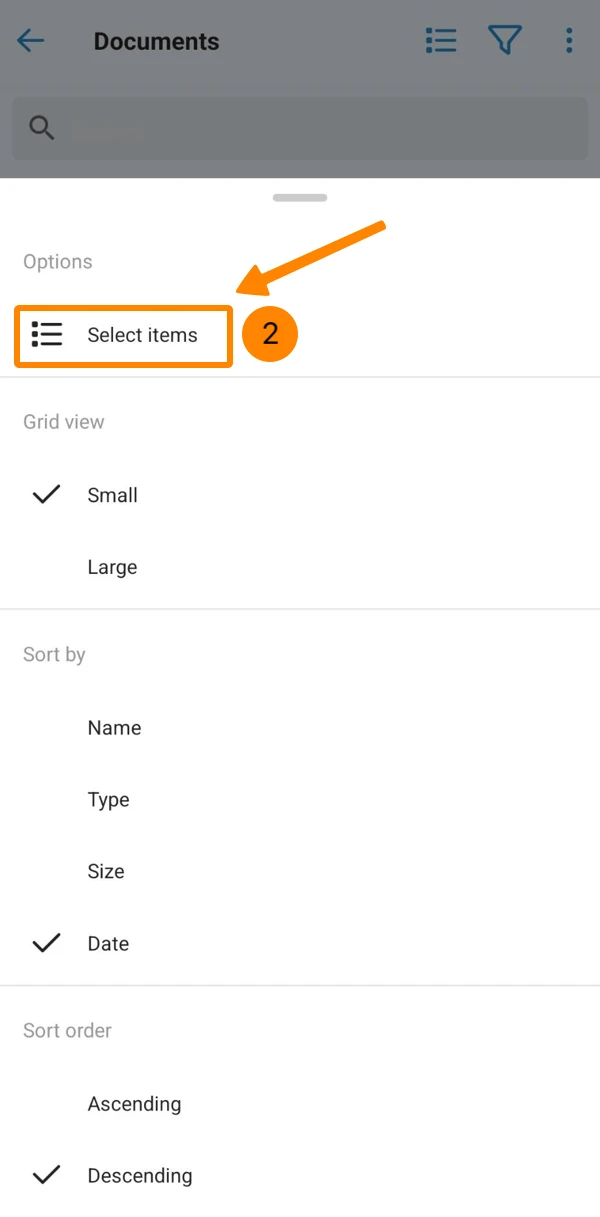
- Open the More menu
- Tap Select items
- Tap the items to select them
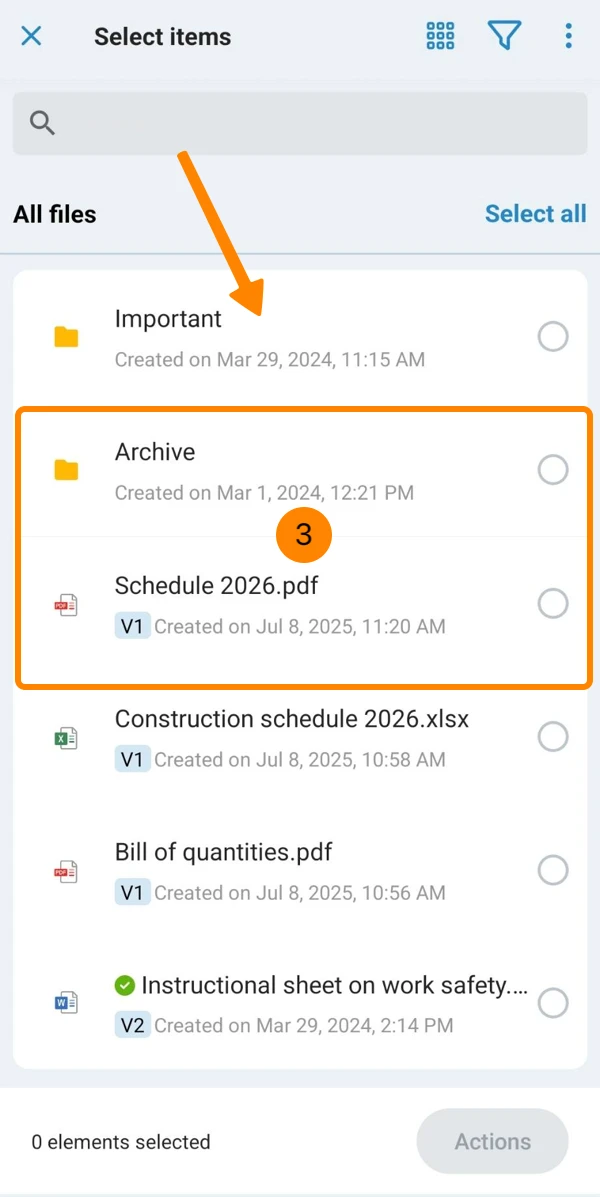
- Optional: Tap Select all
- Optional: Tap Deselect all (if all items are selected)
Bulk Actions
- Tap Actions
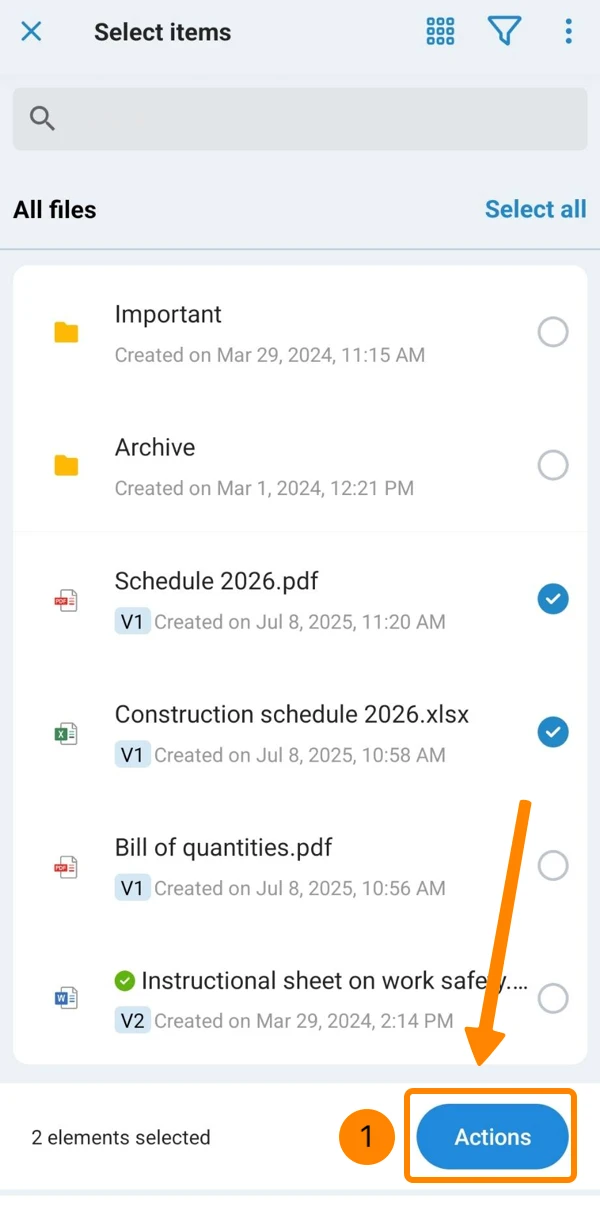
- Tap Download, Make offline available, Move, Move to trash or Request approval.
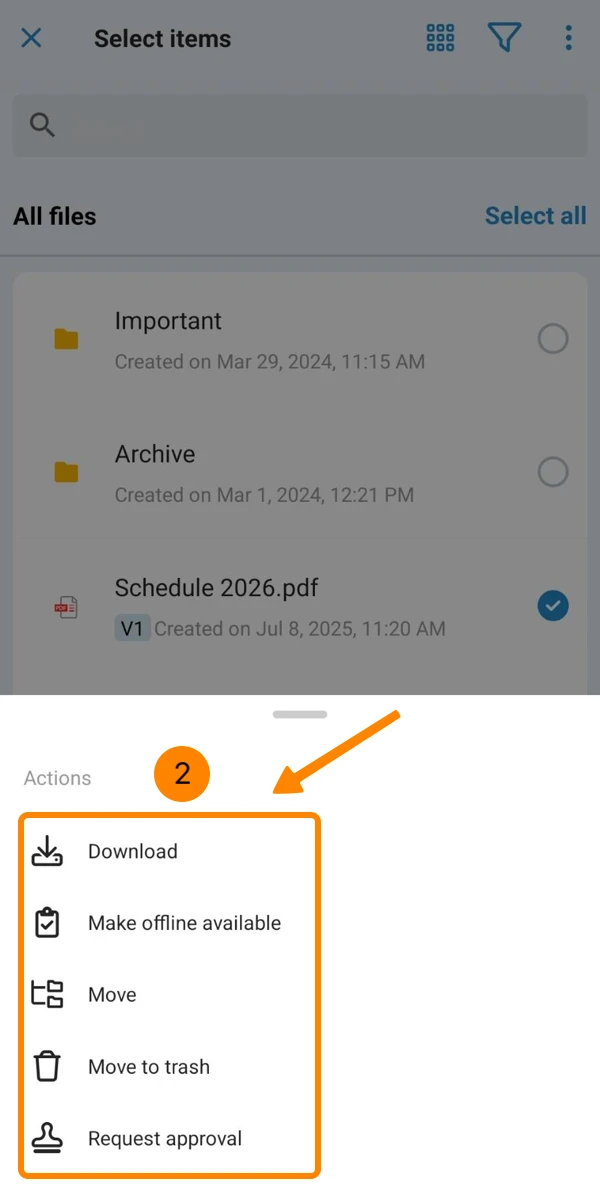
View Options
View By Folders vs. View All Files
You can view files in two ways:
- The 'View by folders' mode shows only the files and sub-folders in the currently selected folder. This mode is active by default as it reflects what you already know from Windows Explorer and similar apps.
- The 'View all files' mode shows all files from all folders in one long list without any folder structure. Use this mode to have a consolidated overview of all files like in a database system.
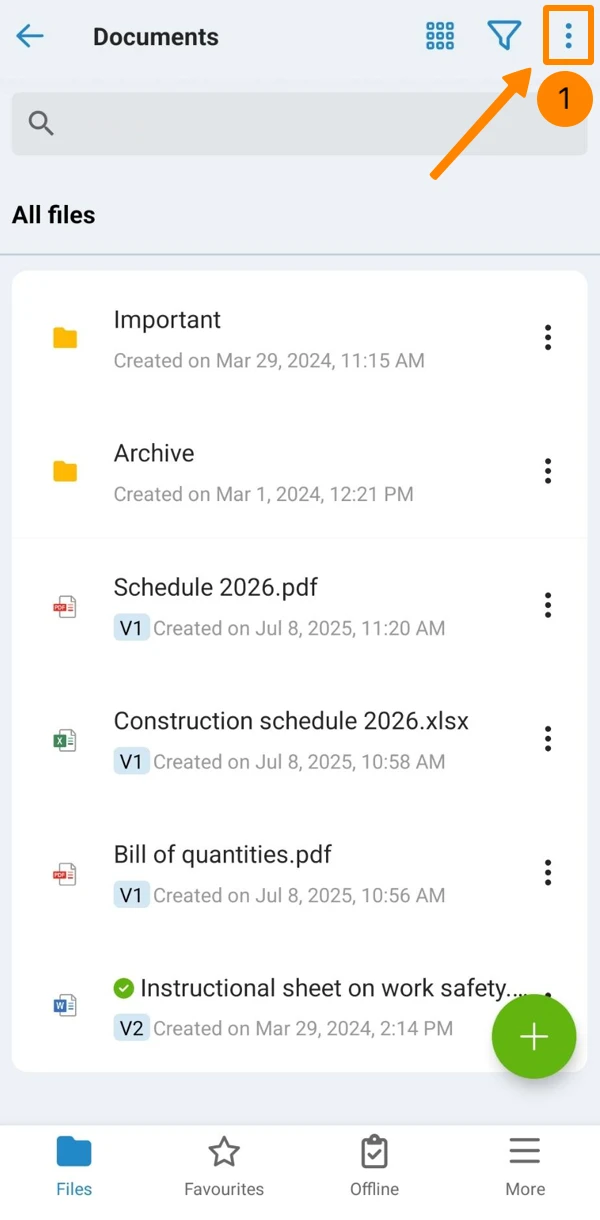
To switch to 'View all files' (without folders):
- Open the More menu
- Click View all files
- Open the More menu
- Scroll down
- Tap View All Files
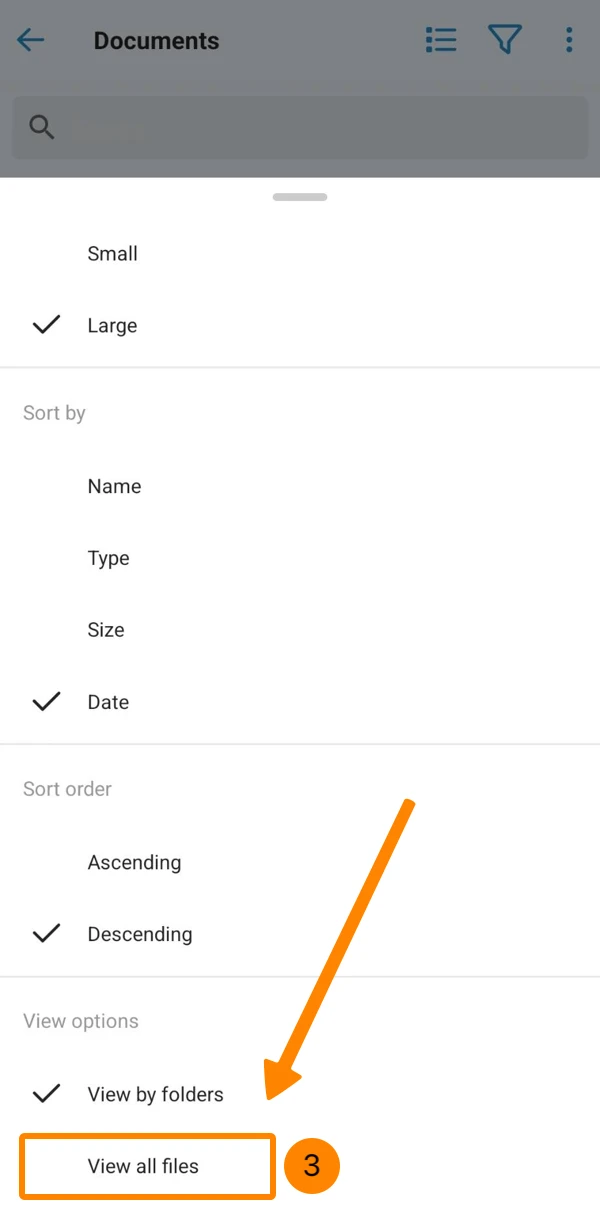
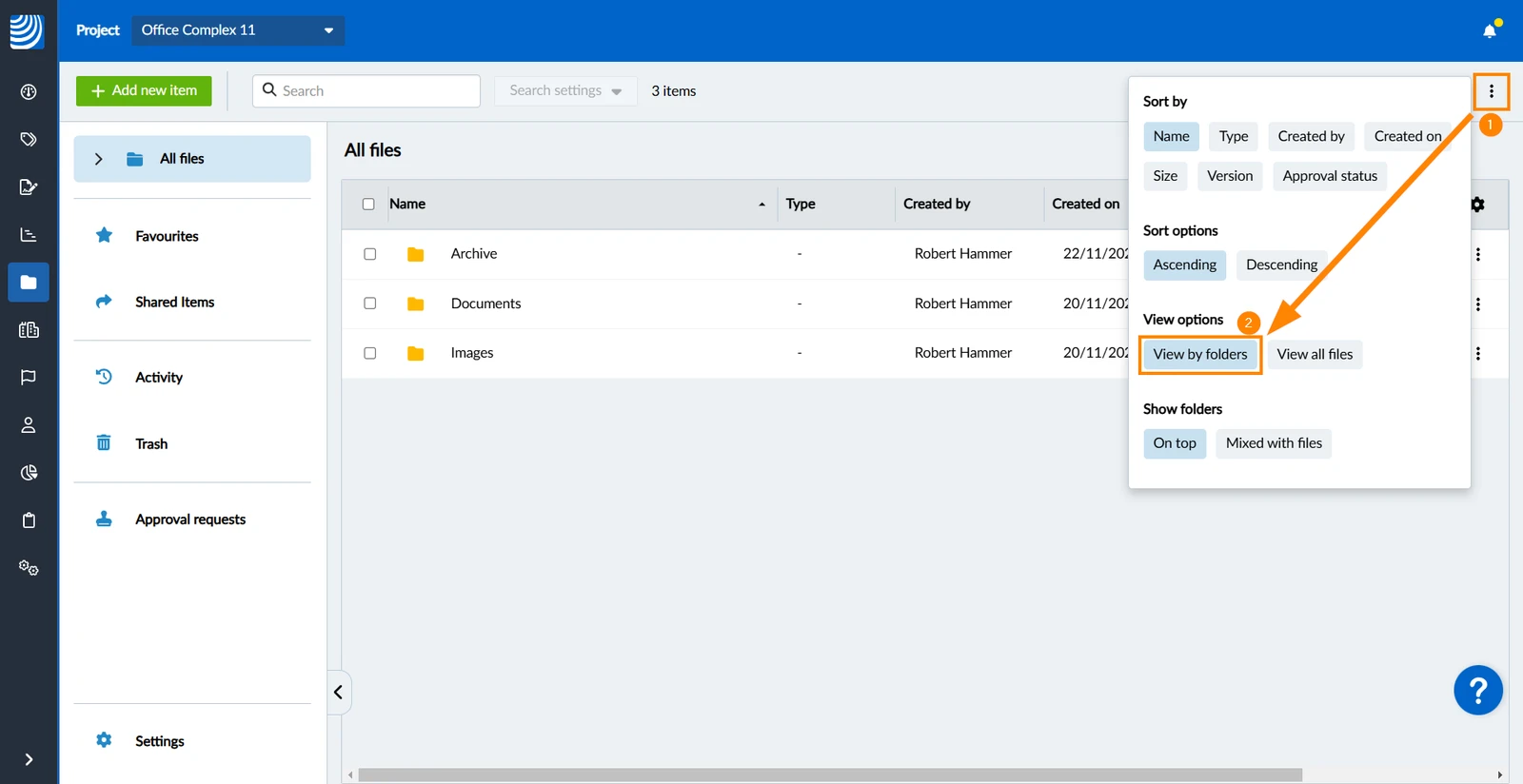
To switch back to the classic 'View by folders':
- Open the More menu
- Click View by folders
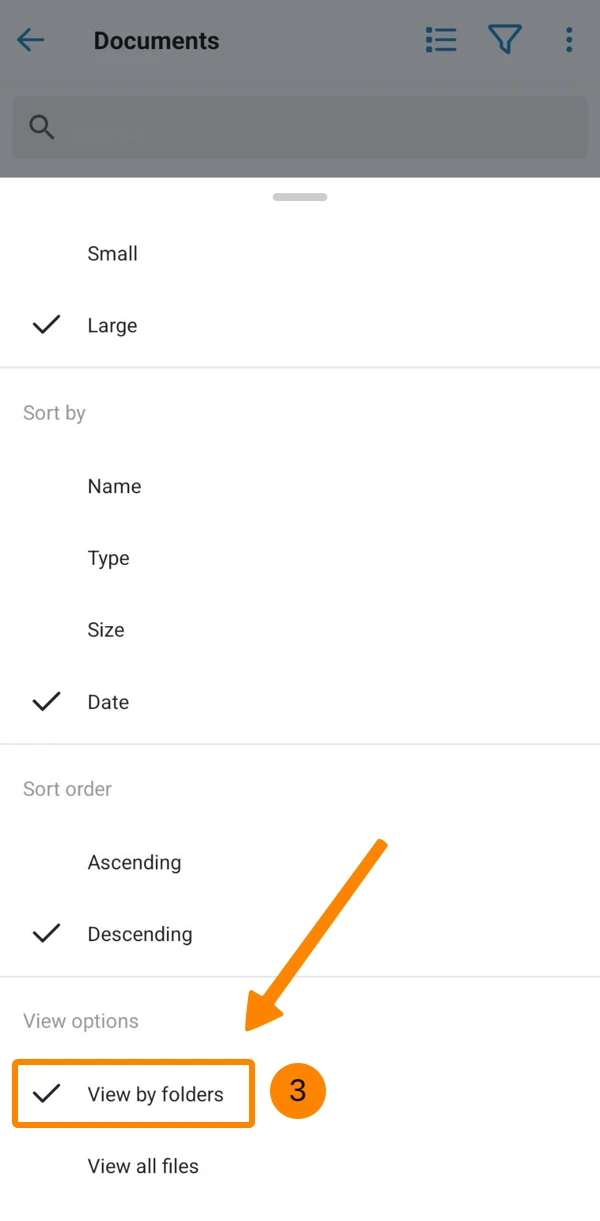
- Open the More menu
- Scroll down
- Tap View All Files
Sort Items
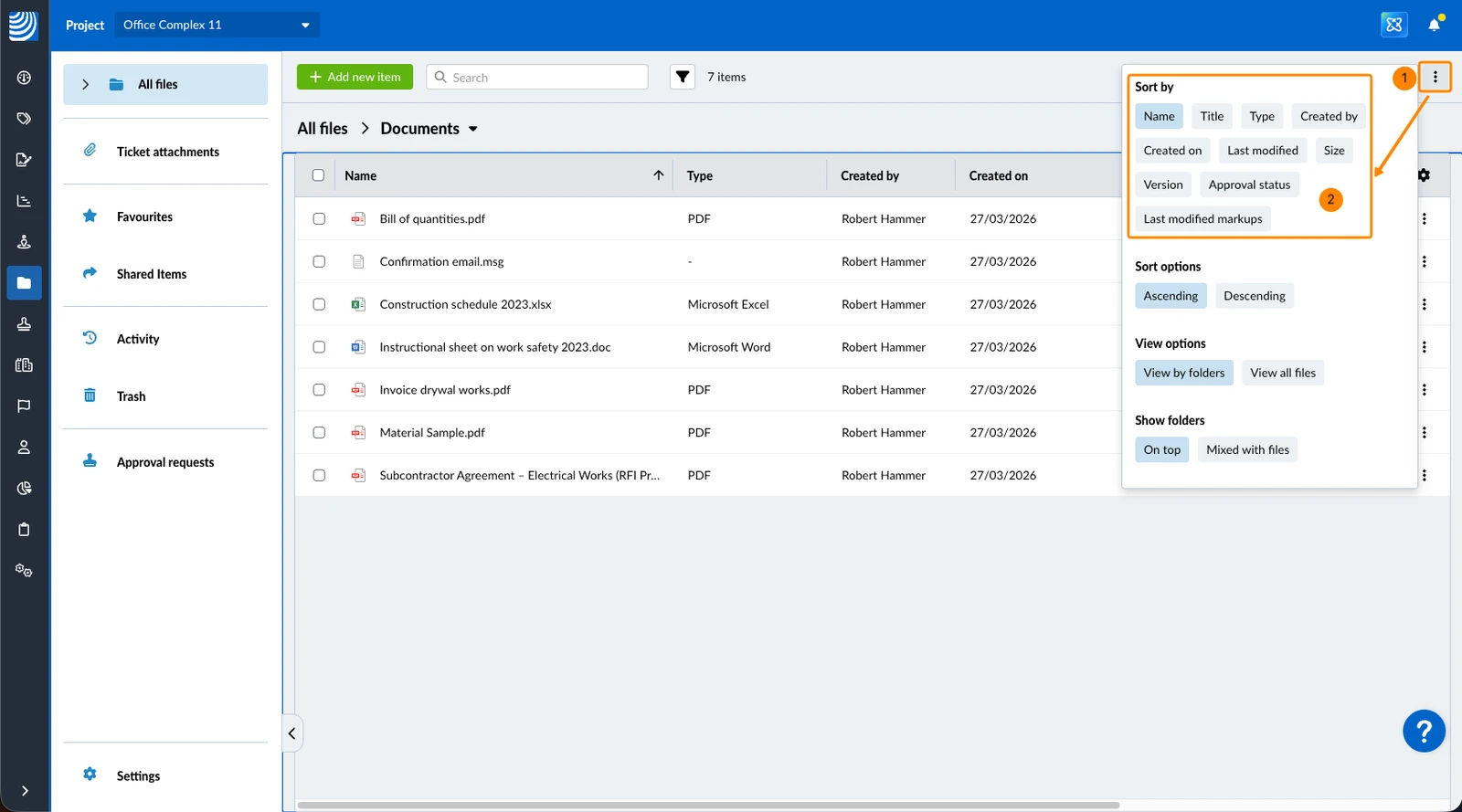
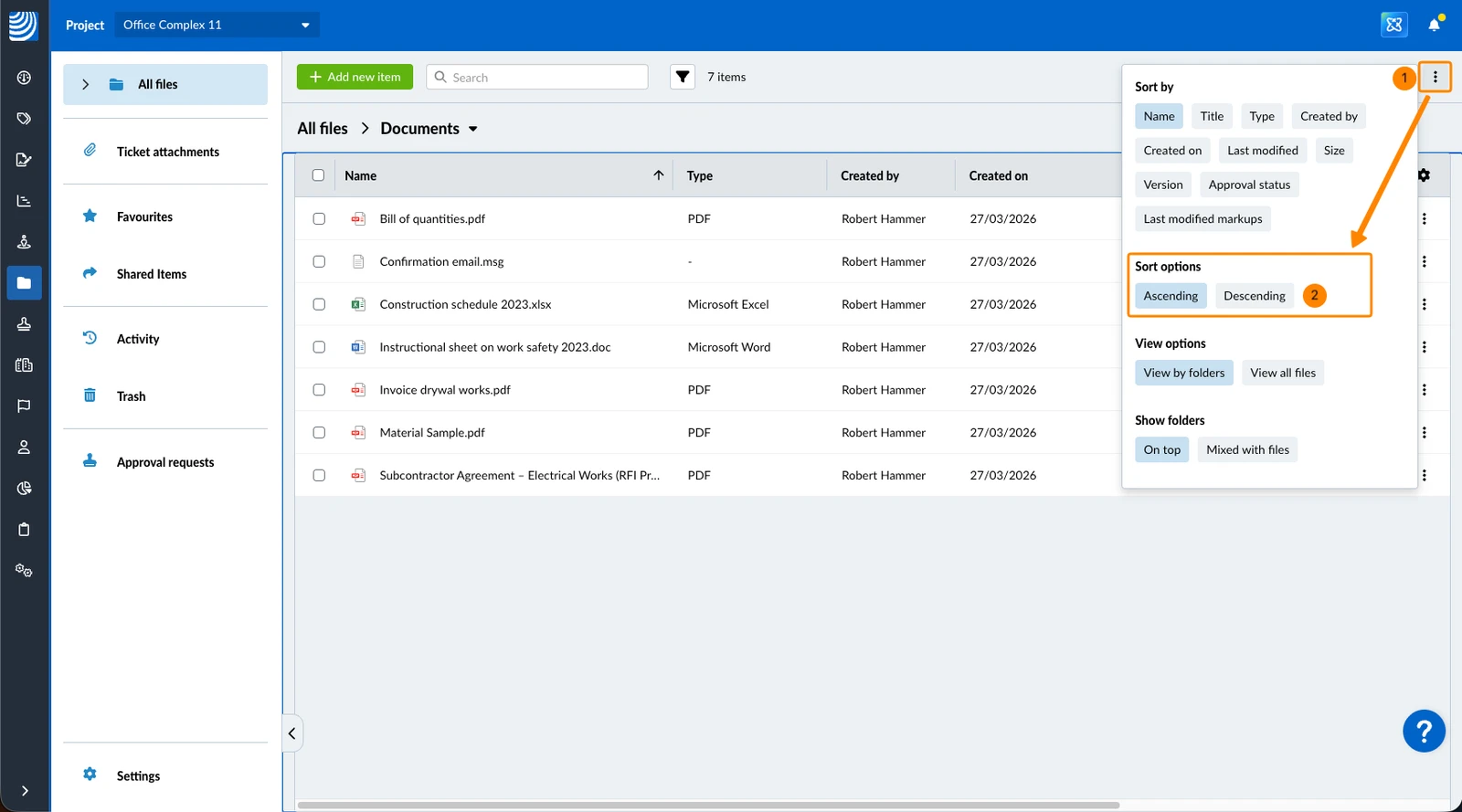
By default, items are sorted by name in ascending order.
To sort items by other attributes:
- Open the More menu
- Click on the attribute e.g. Created on under Sort by
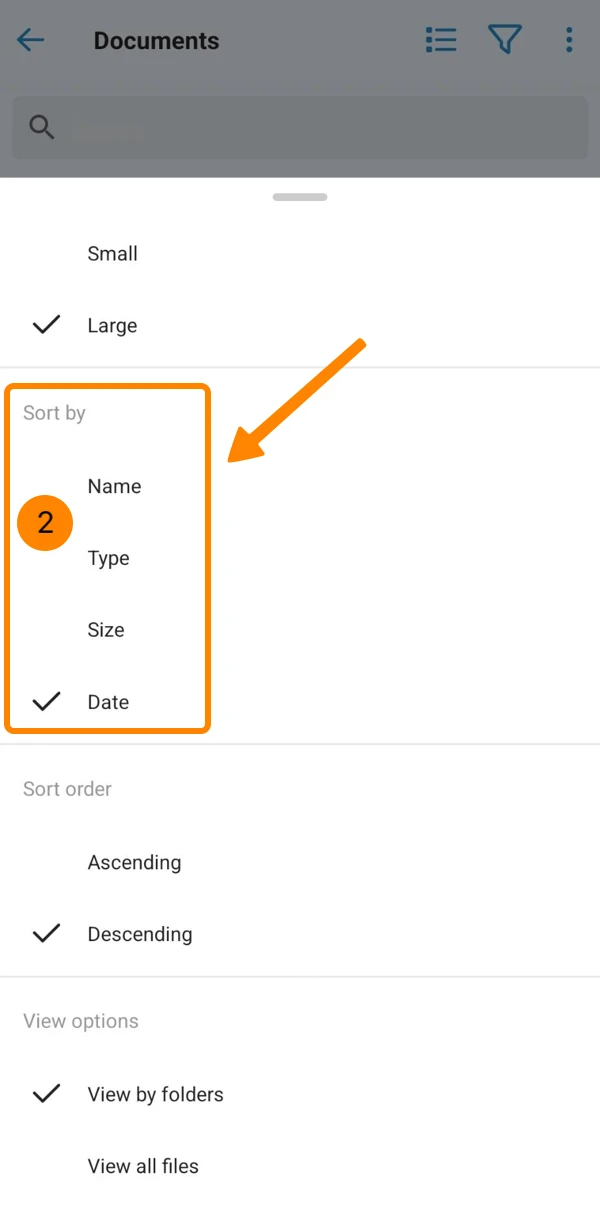
- Open the More menu
- Tap Name, Type, Size or Date
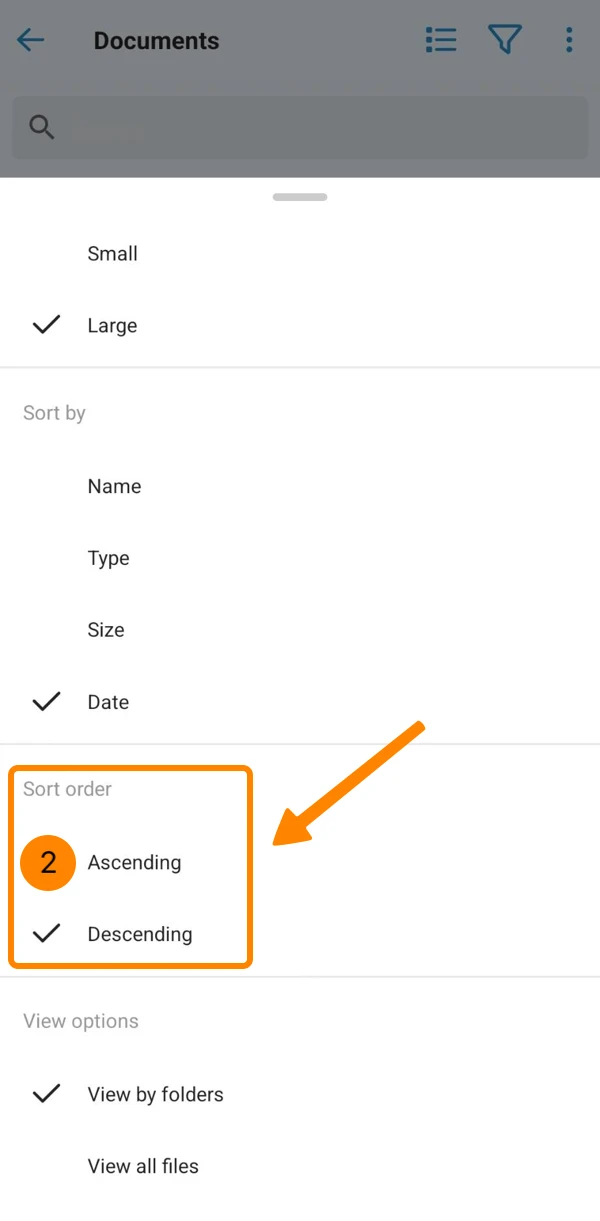
To sort in ascending or descending order:
- Open the More menu
- Click Ascending or Descending under Sort options
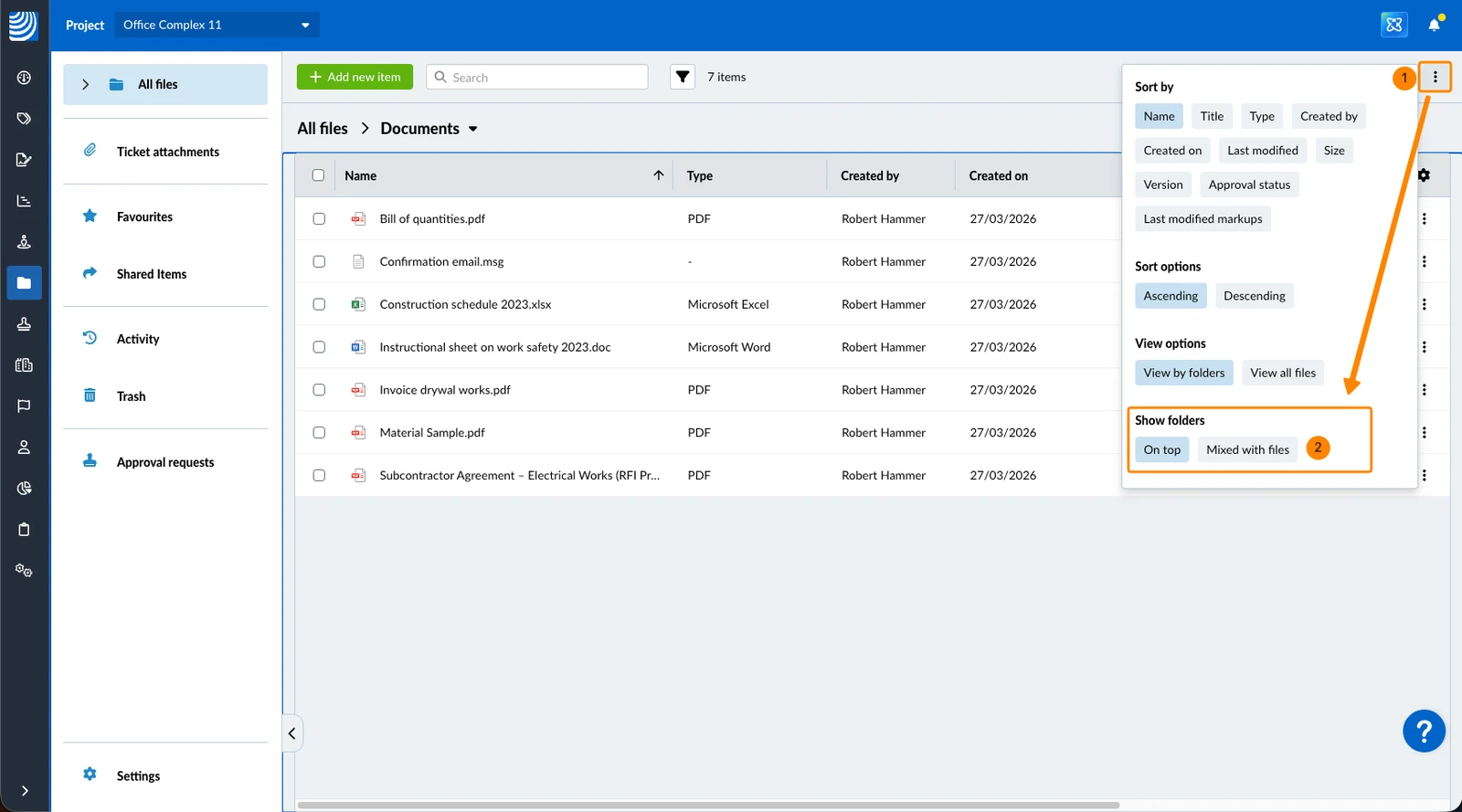
Show Folder on Top (Webapp)
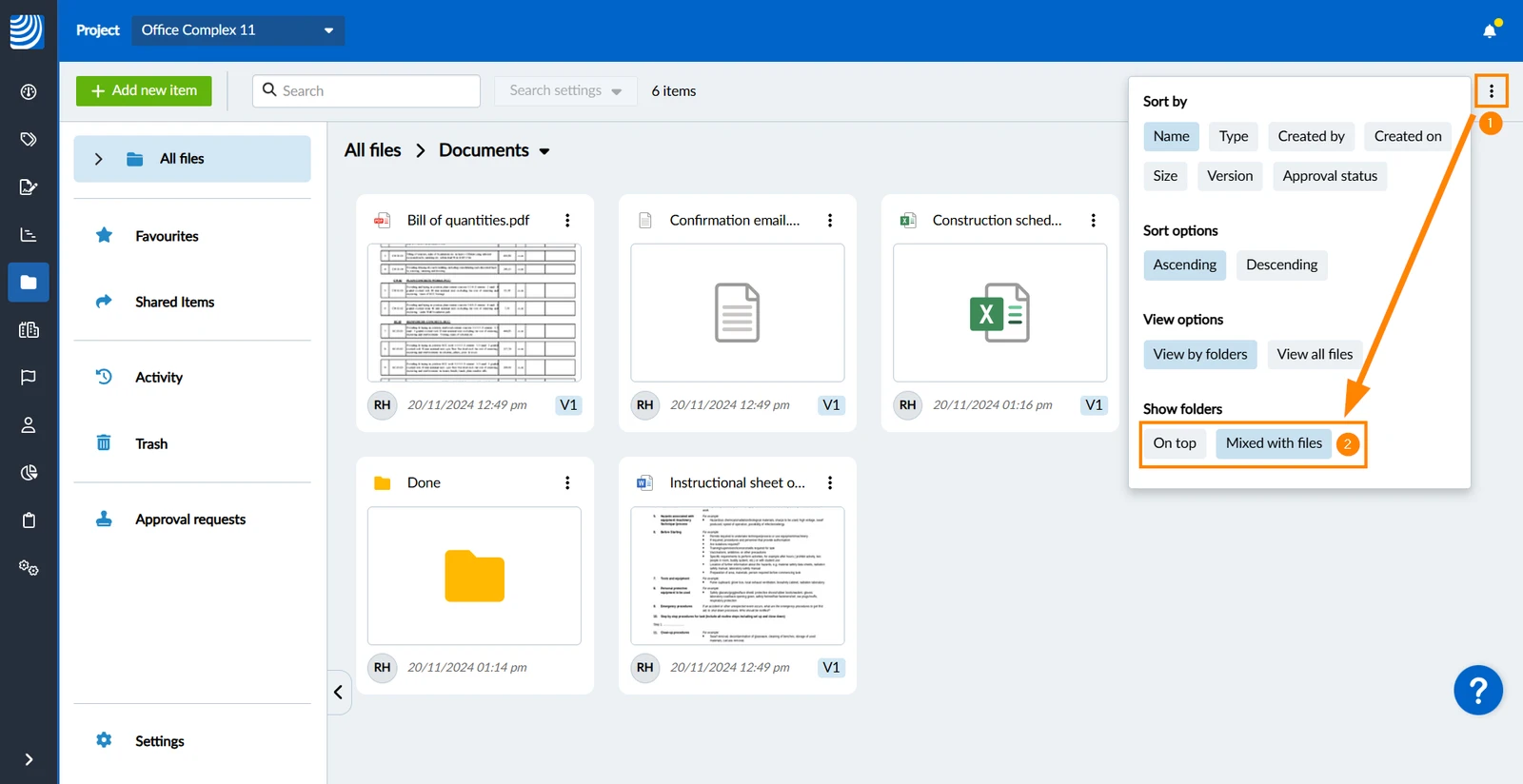
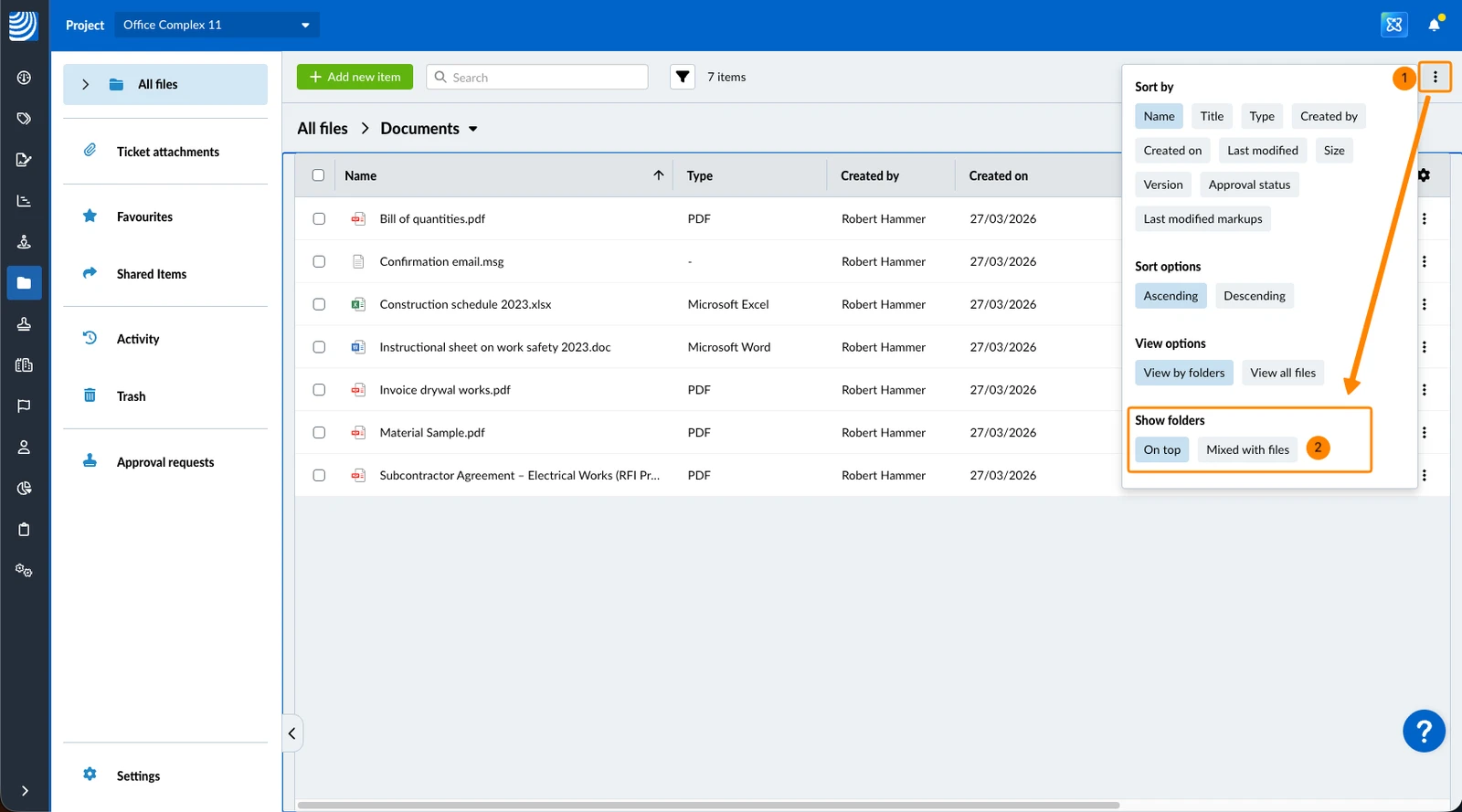
This feature is available for grid and list views in the Webapp, but only for the 'View by folders' mode explained above. You can choose to display folders at the top of the list of files. This setting is enabled by default.
To not show folders on top, but mixed with files:
- Open the More menu
- Click Mixed with files under Show folders
To show folders on top:
- Open the More menu
- Click On top under Show folders
- Open the More menu
- Tap Ascending or Descending
Search and Filter Files
Find files by using filters and/or search.
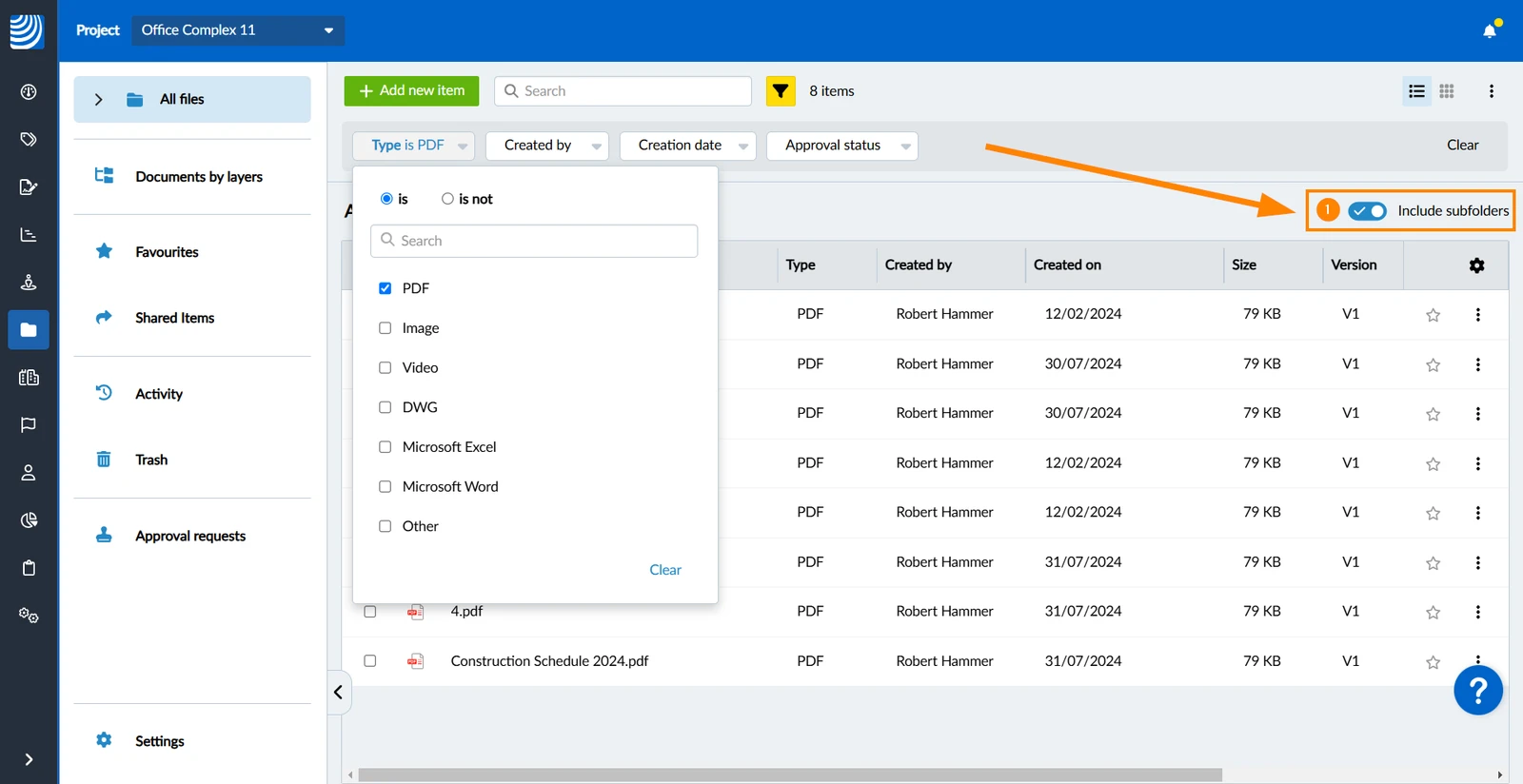
Filters and search results include subfolders by default.
To filter/search only in the current folder in the Webapp:
- Deactivate the Include subfolders toggle
Filter
Filters work in the same way as described in Filter Tickets.
The following filter criteria are available in 'Documents > All files':
- Type
- Created by
- Creation date
- Approval status
- Has markups (not added by default)
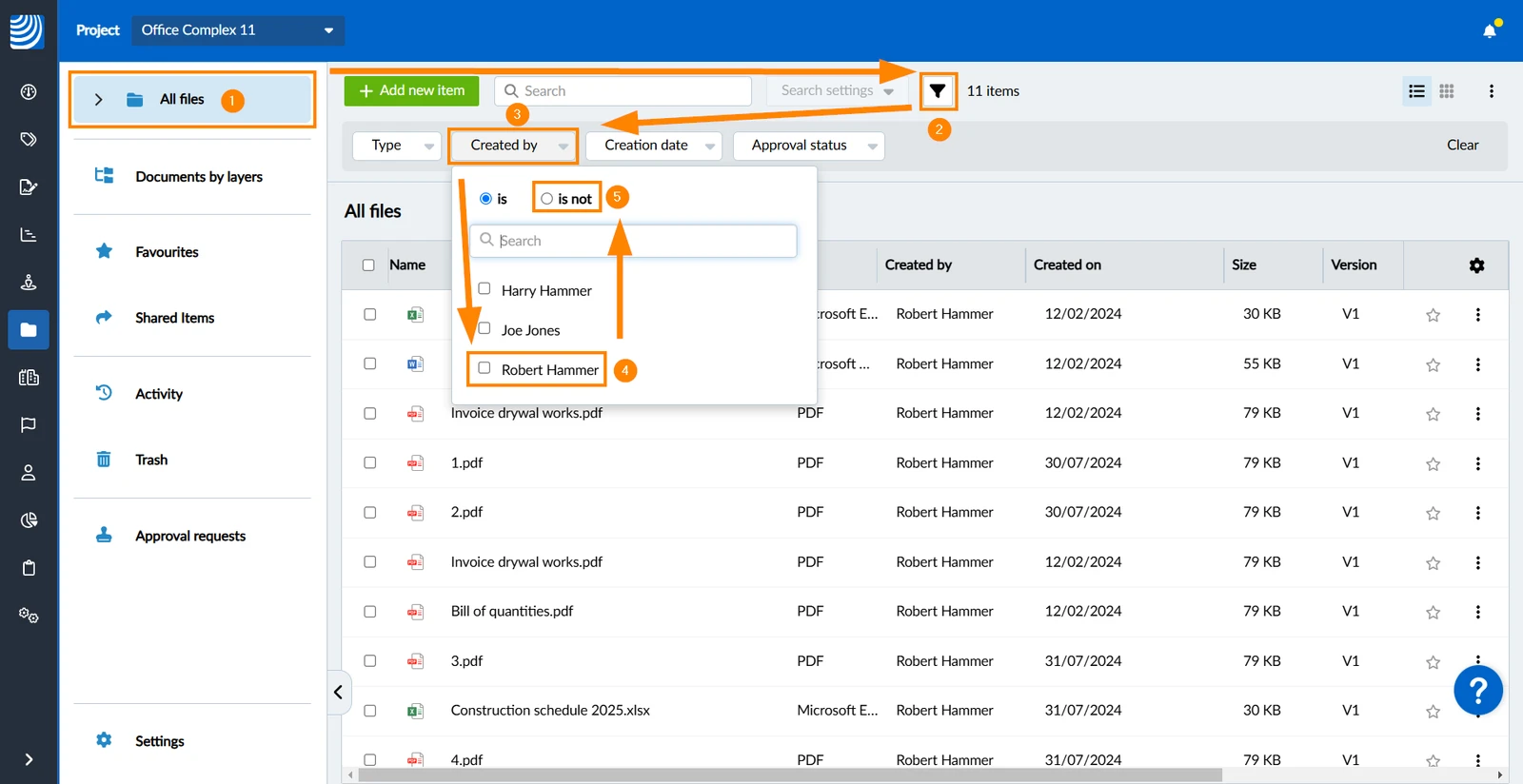
To activate a filter:
- Click All files
Optional: Navigate to a folder, if you don't want to filter all files. - Click the filter icon (it turns yellow when a filter is active)
- Click the criteria e.g. Created by
- Select one or multiple values e.g. Robert Hammer
- Optional: Change the operator e.g. to is not
- Optional: To add additional filter criteria, repeat steps 3-5
To add a filter criteria (Has markups):
- Click + Add
- Click on the filter criteria (Has markups)
To remove a filter criteria:
- Click X on the criteria
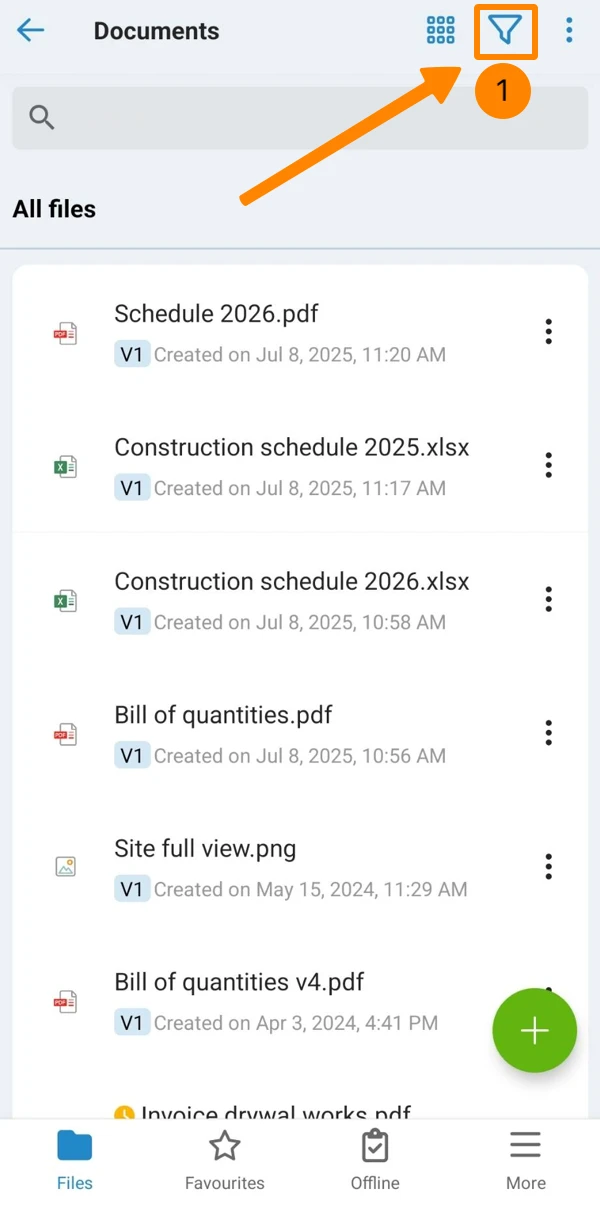
- Tap the filter icon (it shows a yellow dot when a filter is active)
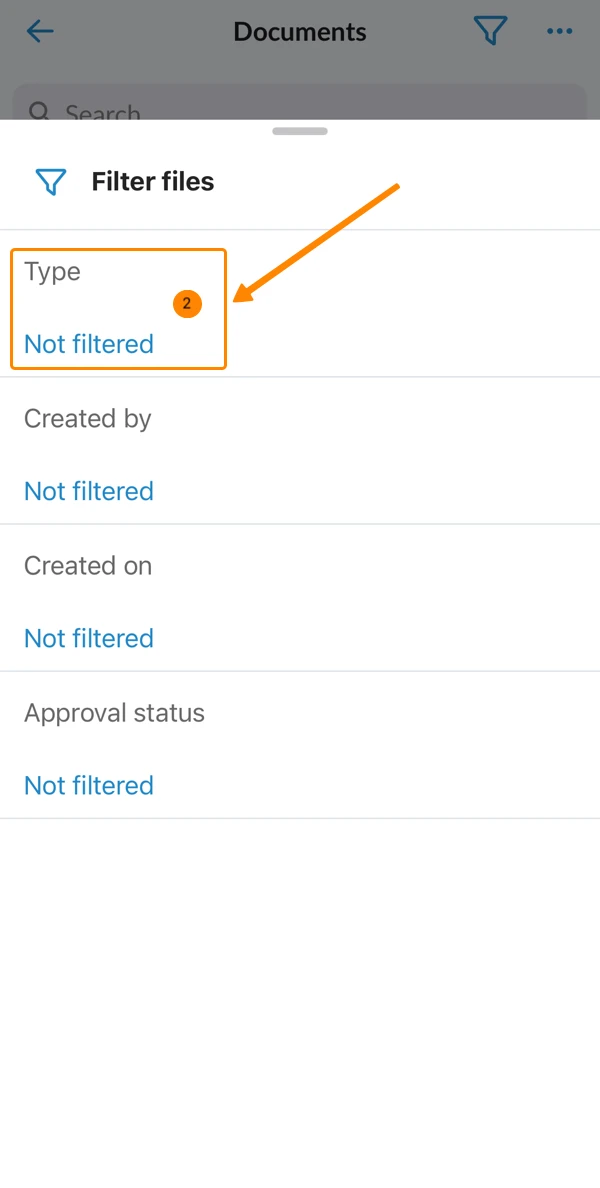
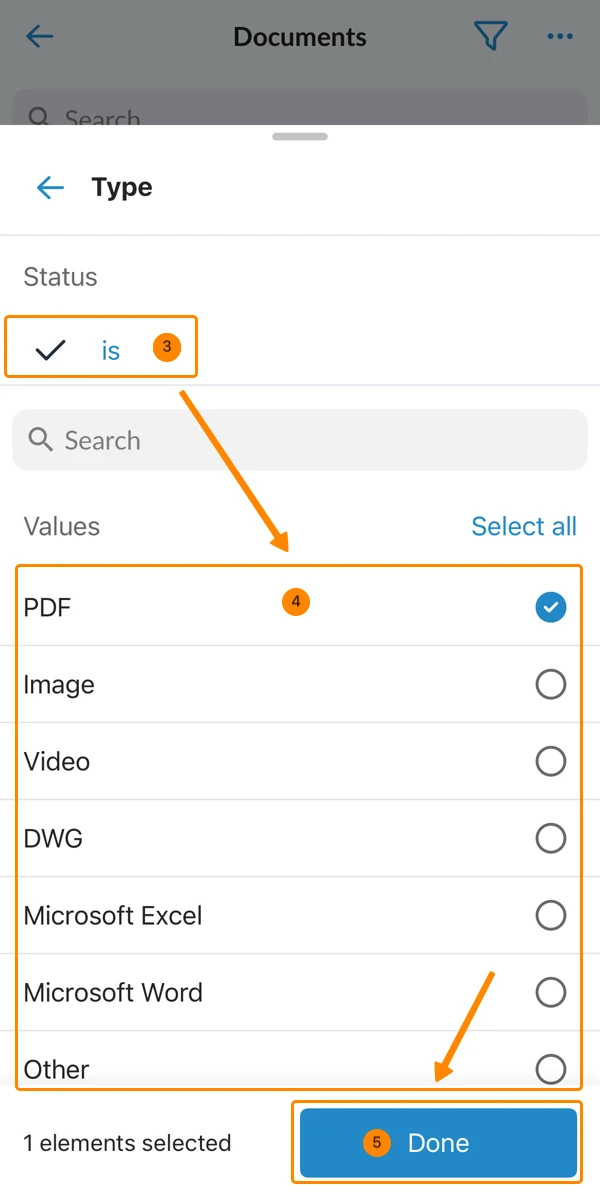
- Tap the criteria e.g. Type
- Optional: Change the operator e.g. to is not
- Select one or multiple values e.g. PDF
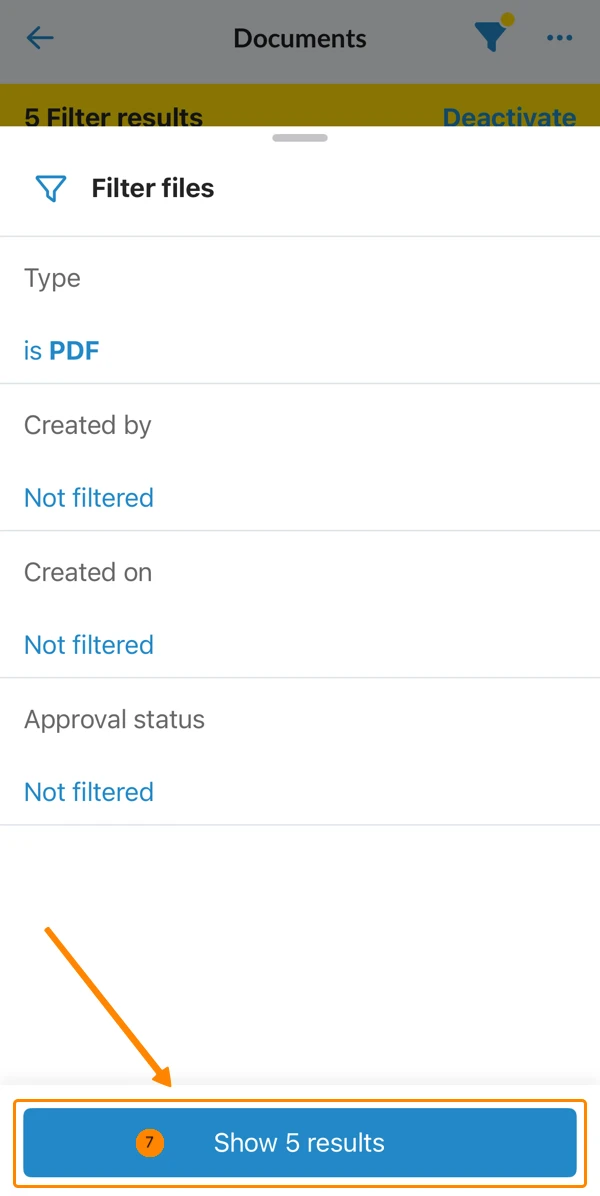
- Tap Done
- Optional: To add additional filter criteria, repeat steps 2-5
- Tap Show 5 results (button shows the number of results)
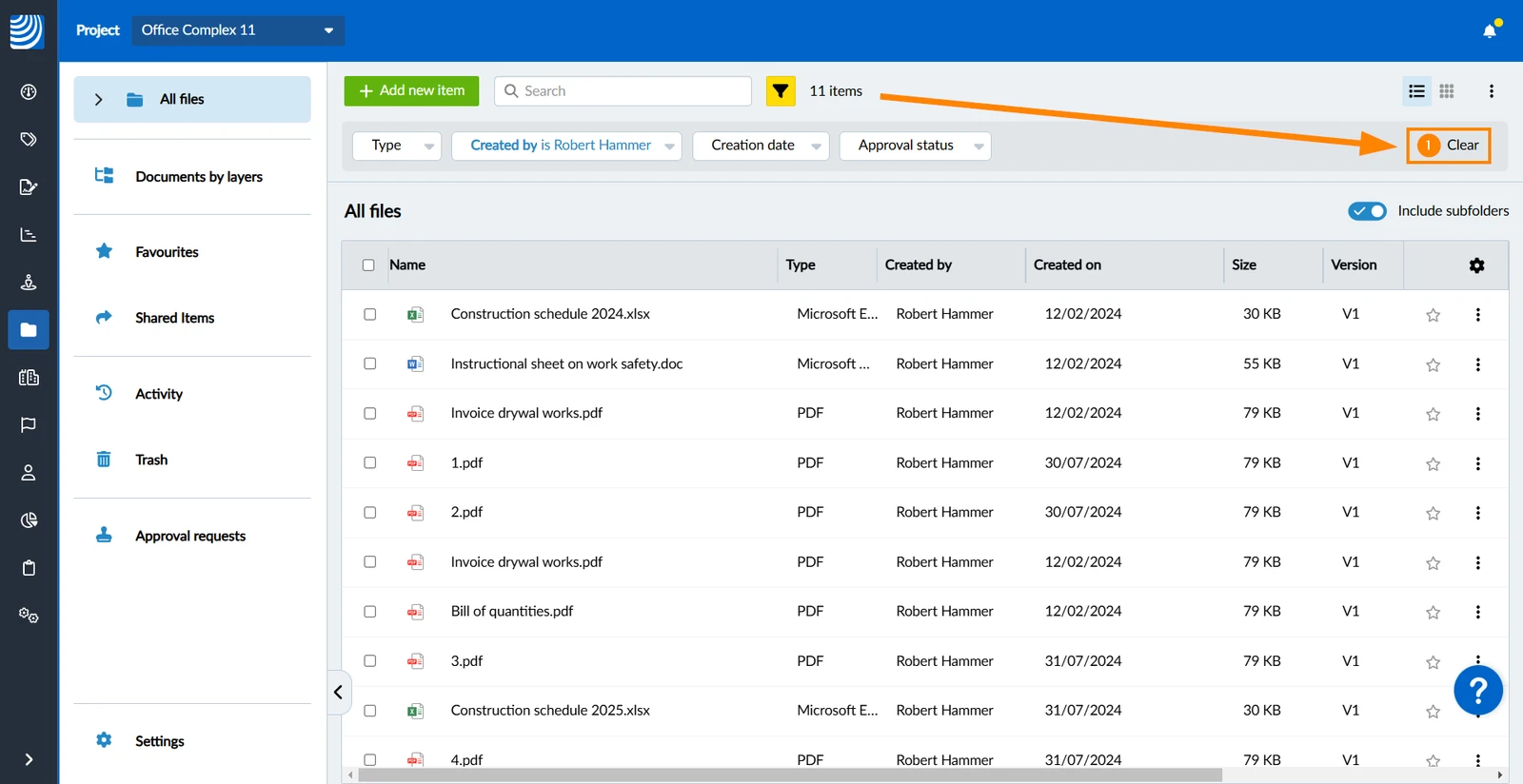
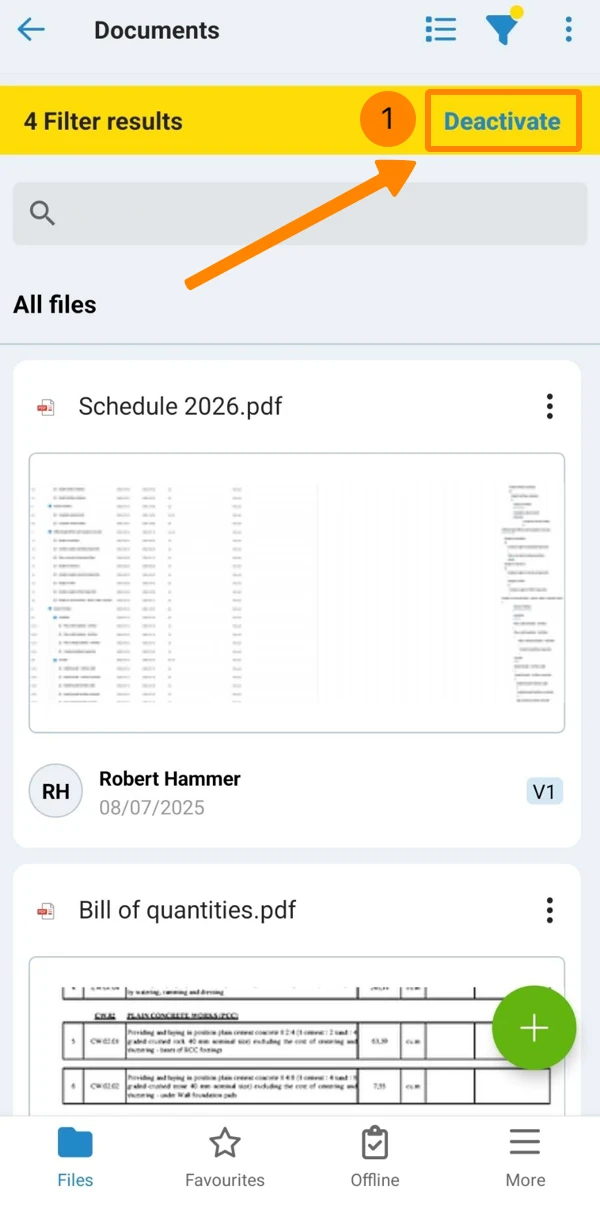
To deactivate all active filters and clear the values from the criteria:
- Click Clear
- Tap Deactivate
Search
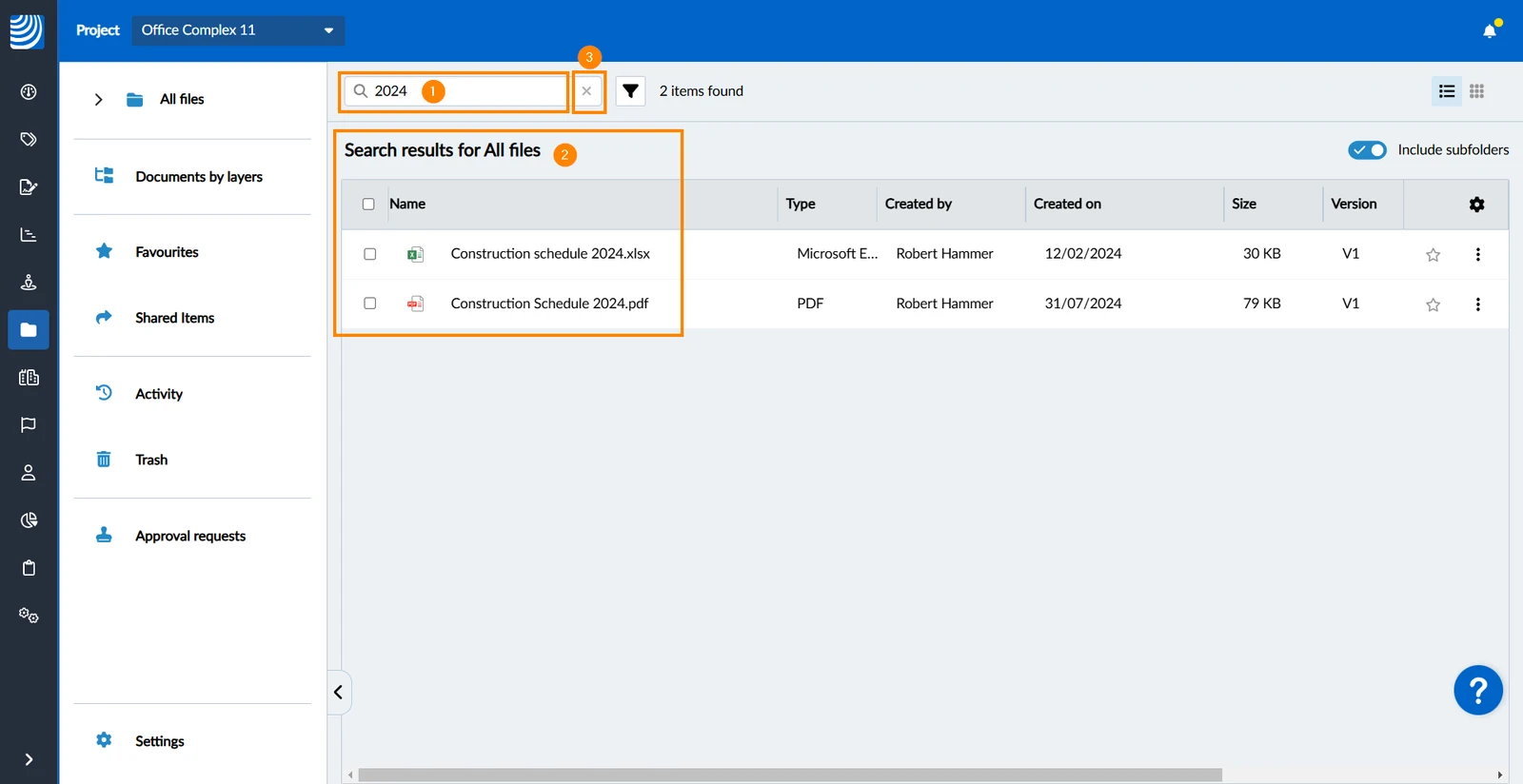
To search for files and folders by their name:
- Click in the search field and enter your search term
- See the Search results
- Optional: Click the X button to remove your search term
In the mobile app search in Documents currently only supports search in the current folder without subfolders.
To search for a file or folder:
- Tap the search field
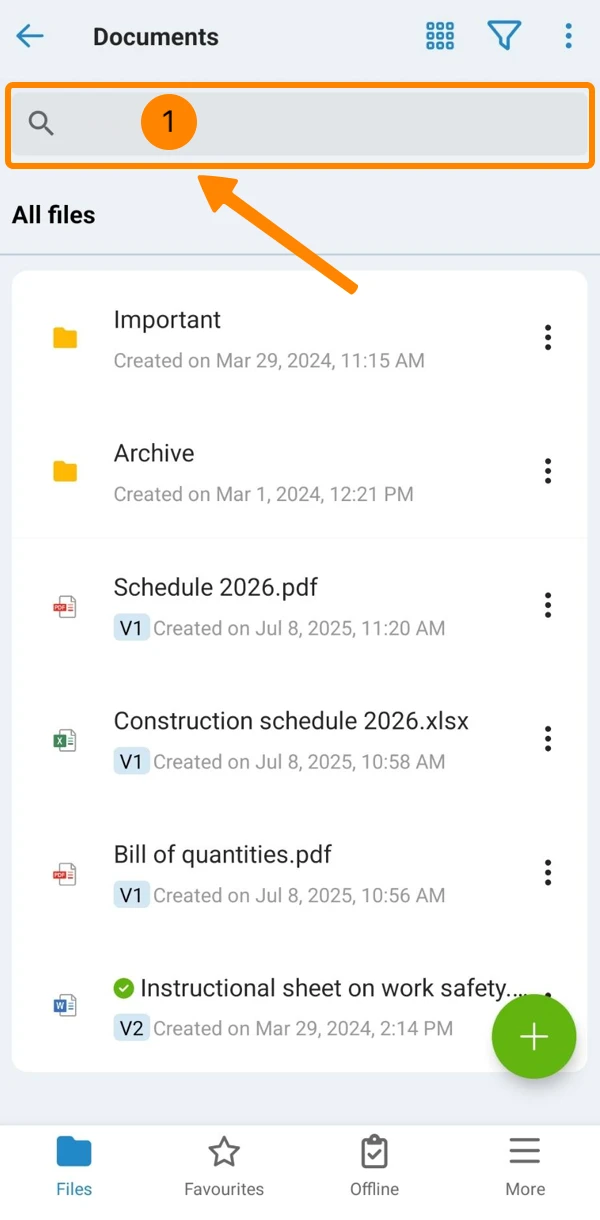
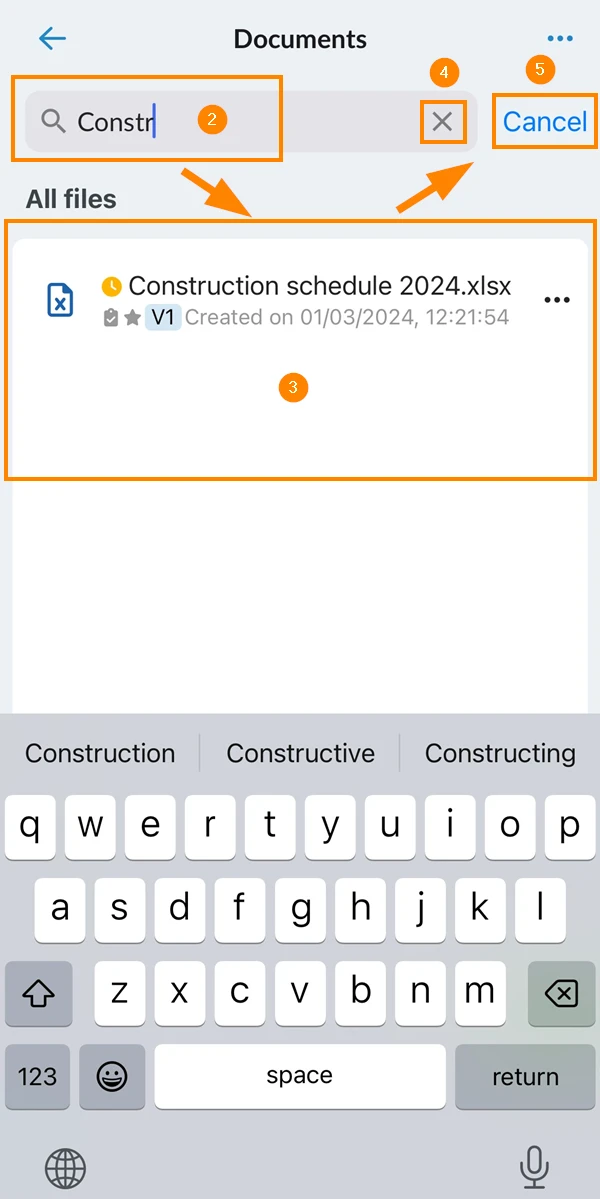
- Enter your search term
- See the results
- Optional: Tap X to remove the search term.
- Optional: Tap Cancel to close search.
Download Files and Folders
Downloading a file saves it outside of PlanRadar on your local device stroage.
Downloading PDFs does not include markups. To include markups you need to open the PDF and export it.
Read more in Create & Manage Markups on PDFs in Documents > Print & Download.
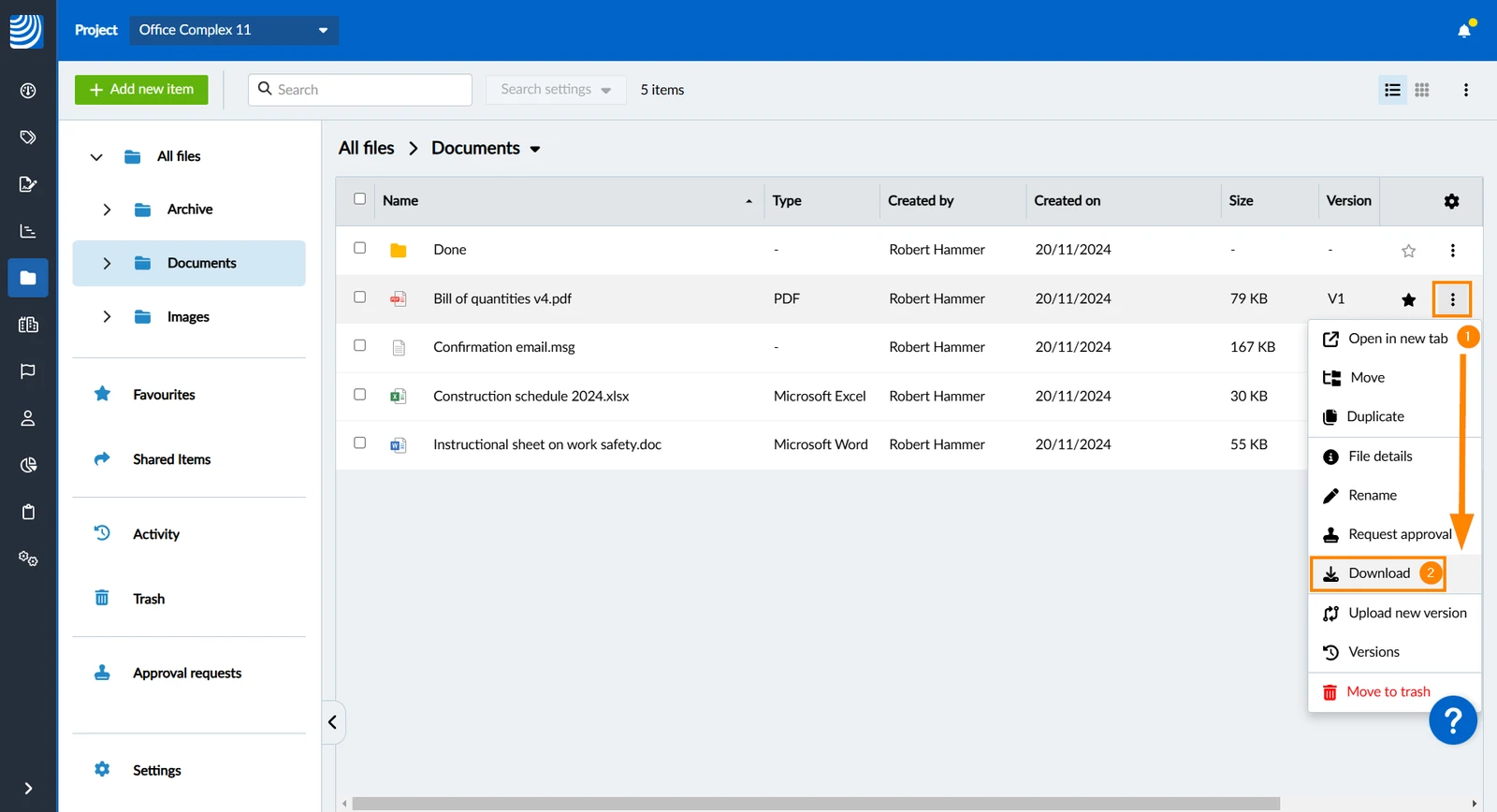
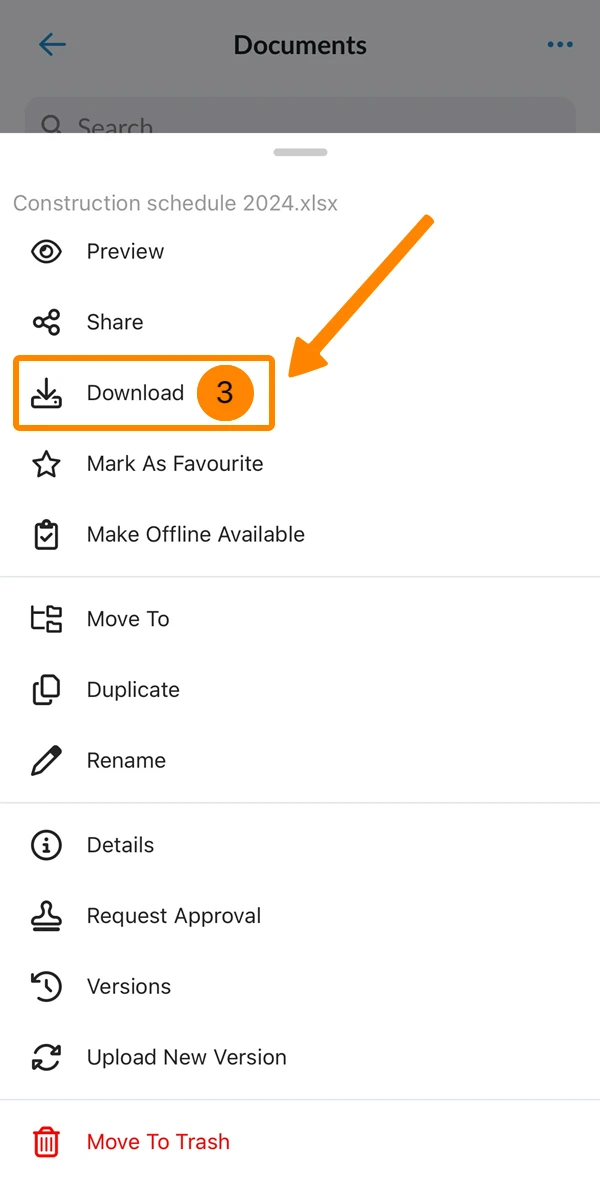
To download a single file or folder:
- Click More
- Click Download
- Navigate to the file that you want to download
- Open the More menu
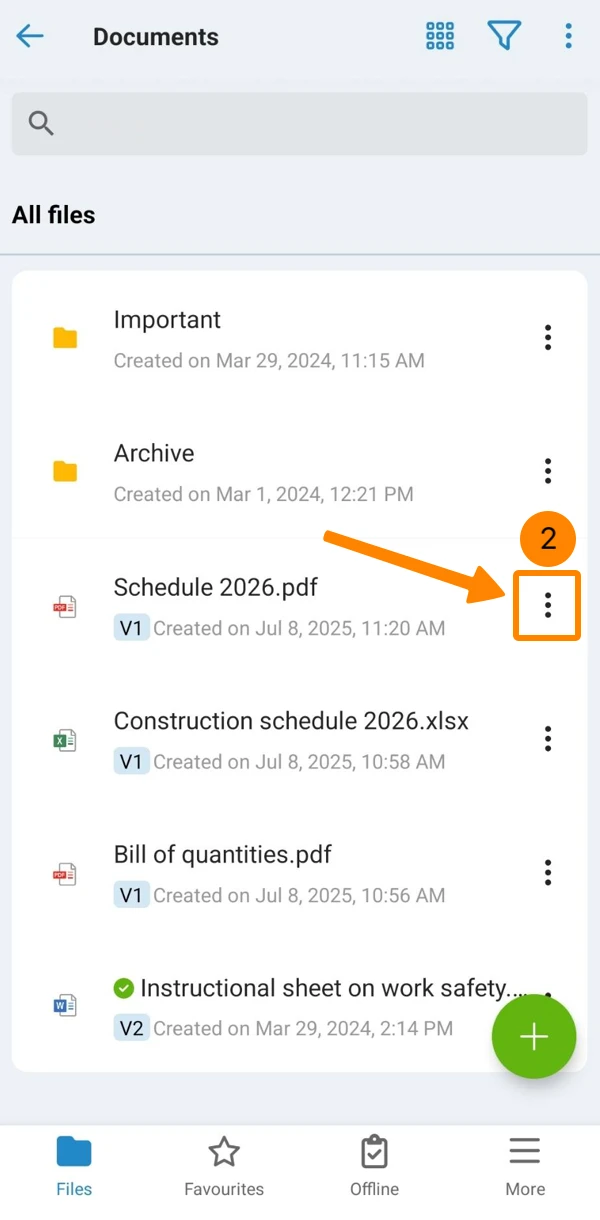
- Tap Download
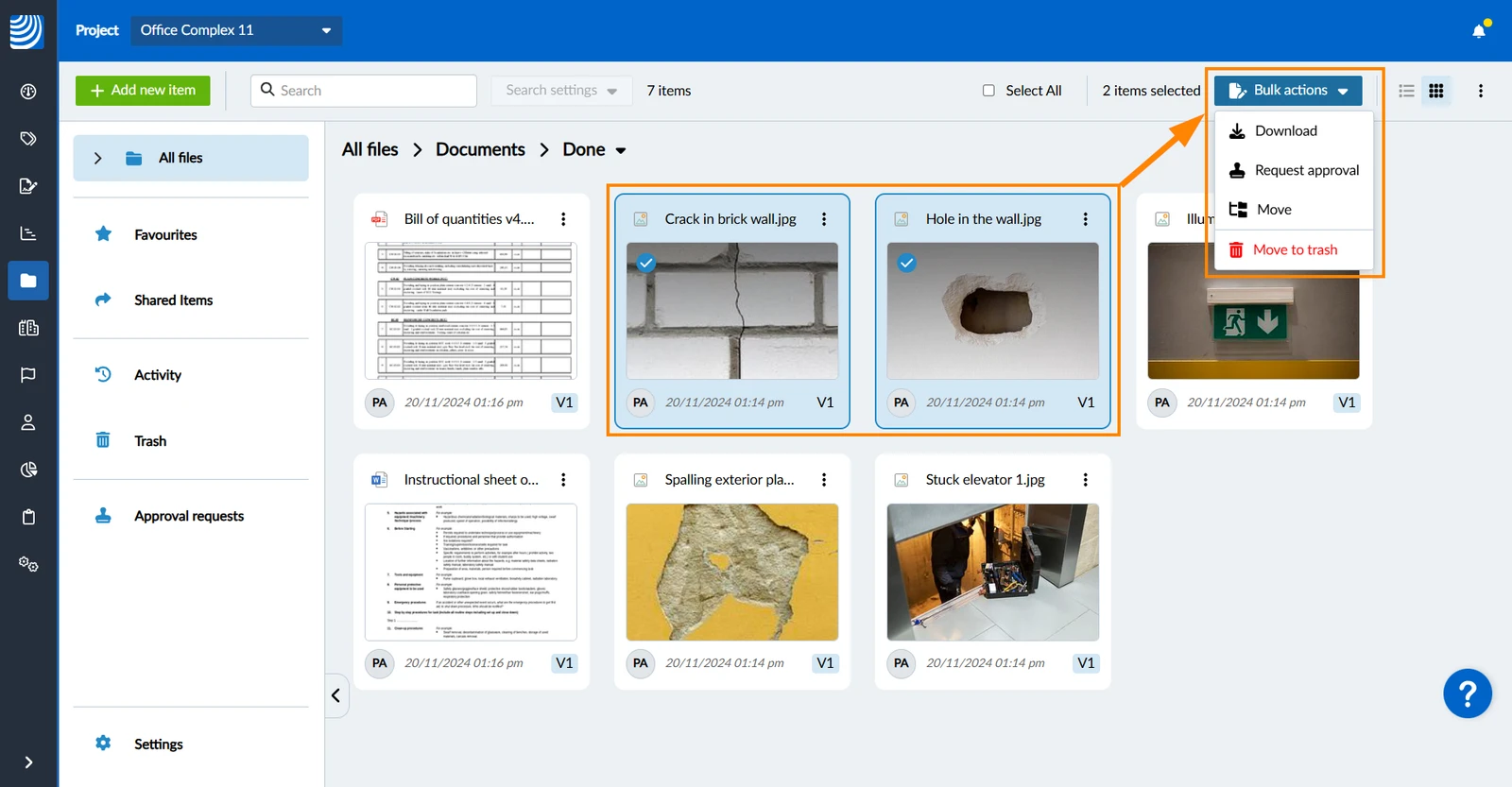
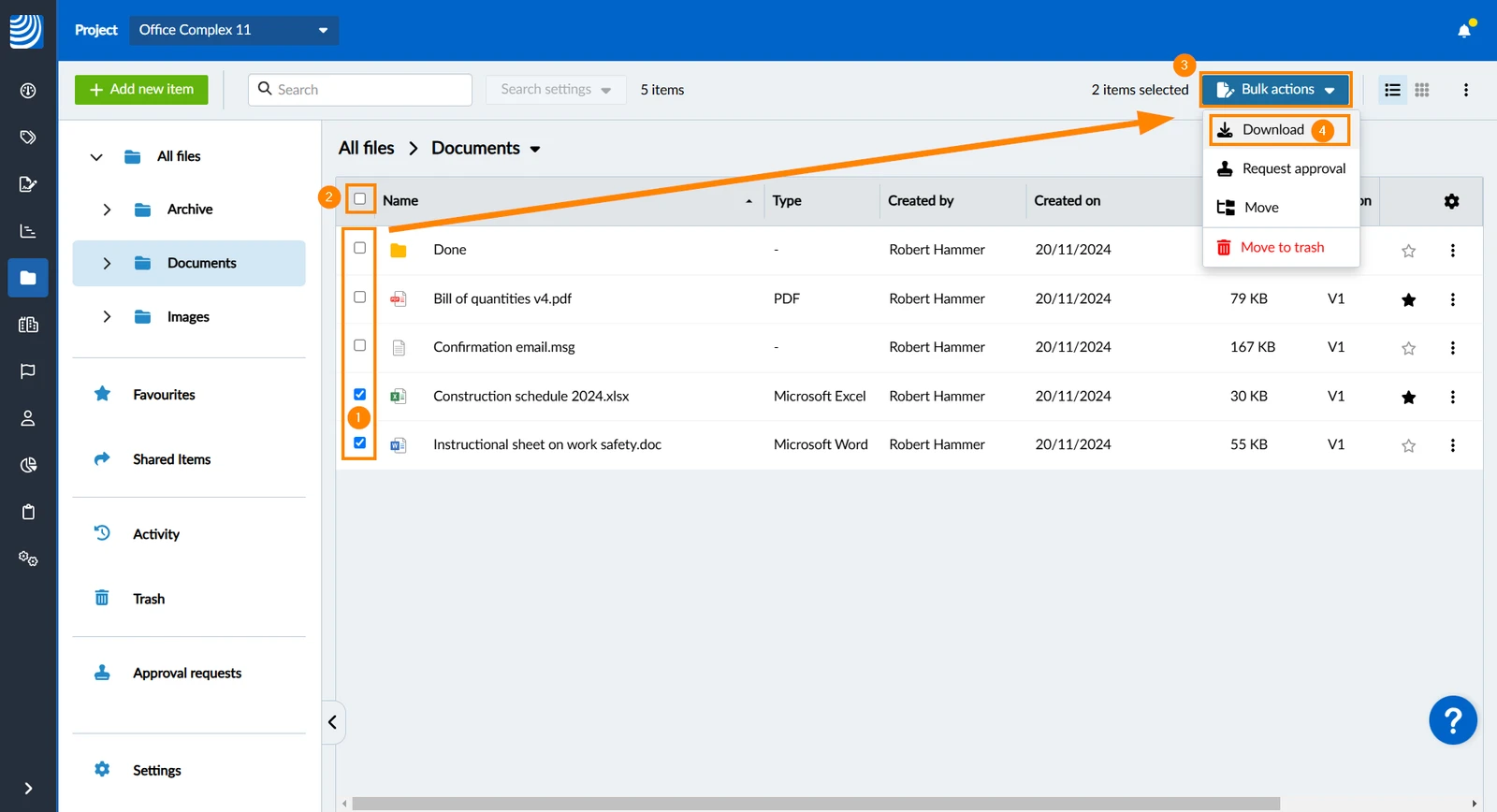
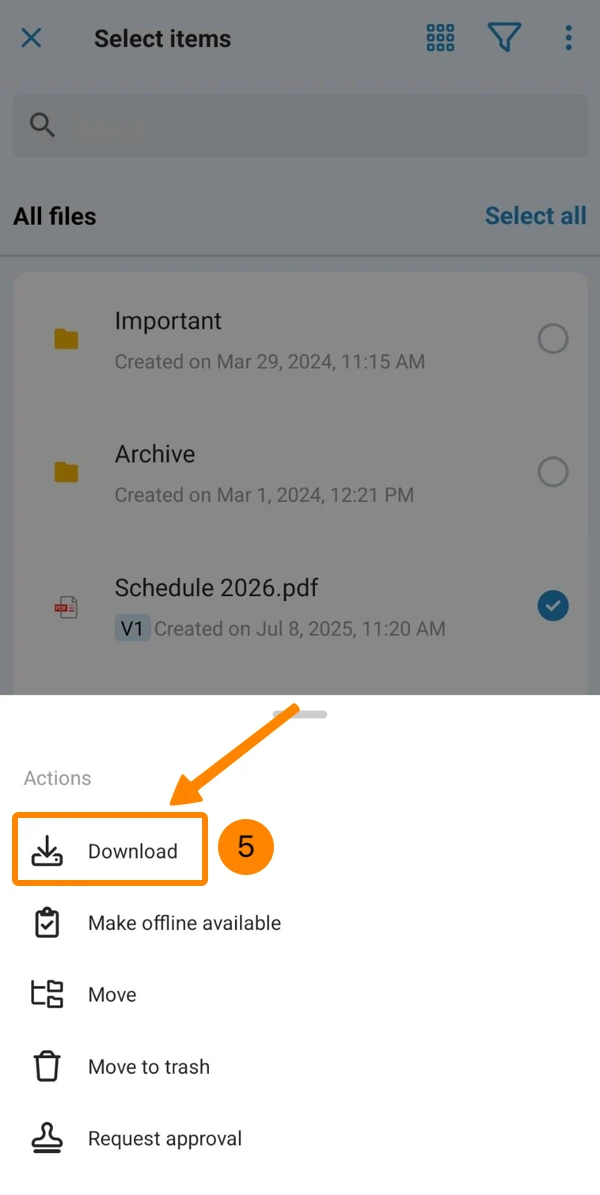
To download multiple files or folders:
- Select the checkbox for each file or folder
- Optional: Select the select all checkbox
- Click Bulk actions
- Click Download
- Open the More menu
- Tap Select items
- Tap the items to select them
- Tap Actions
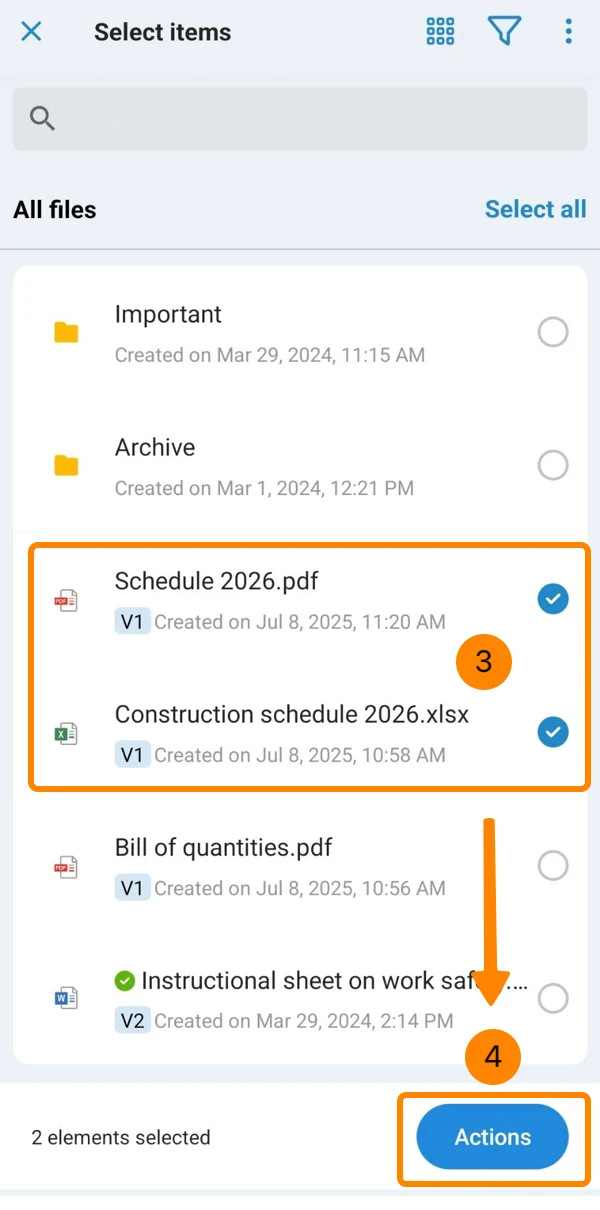
- Tap Download
View File Details
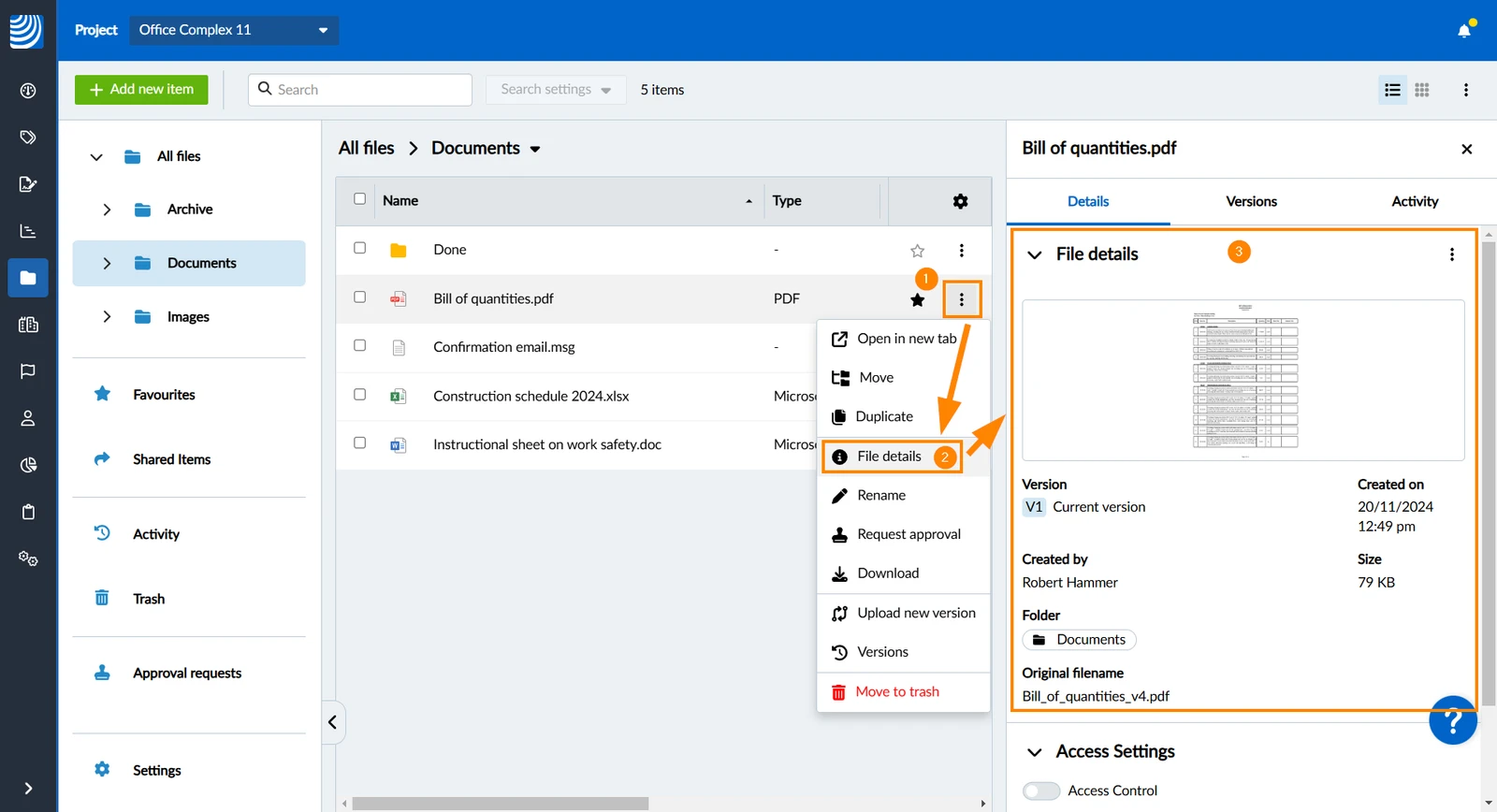
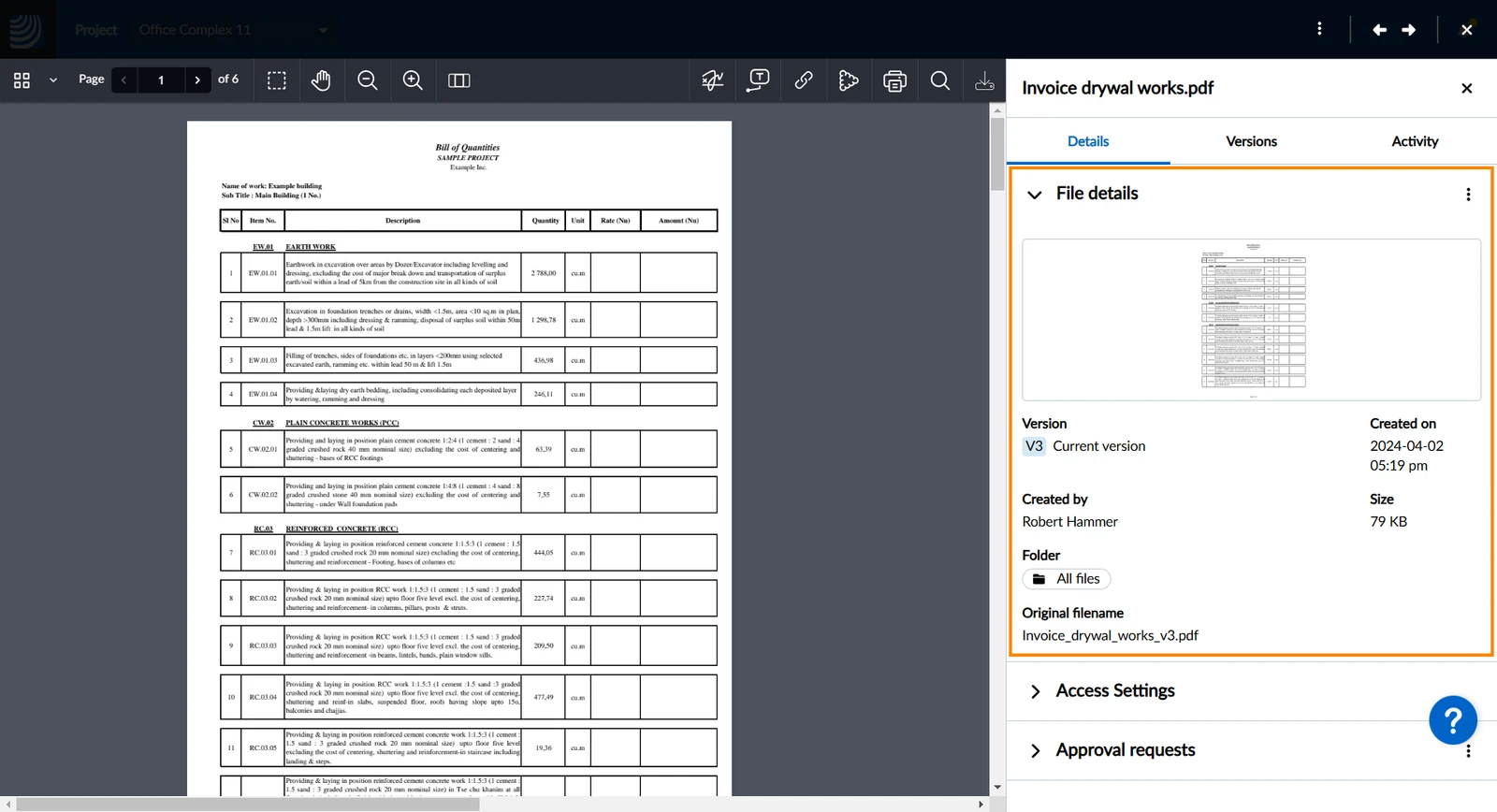
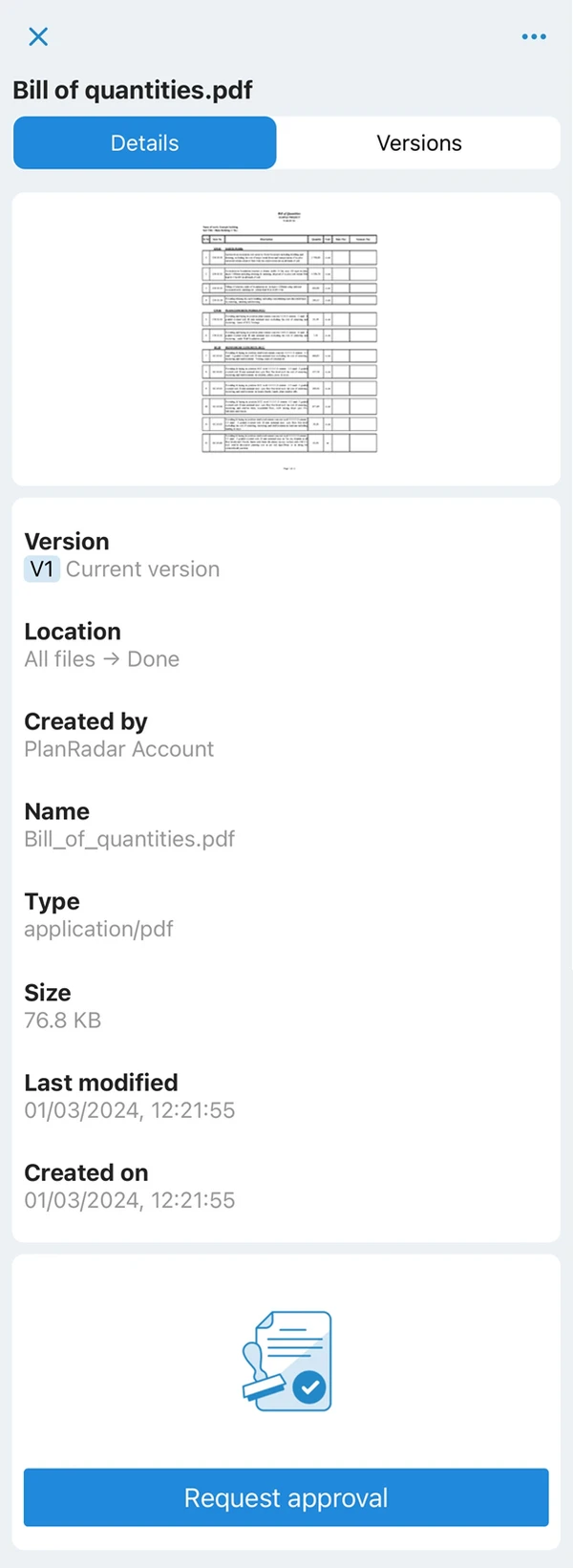
Open the file details to get more information about the file, including:
- Small preview for specific file types - see: Supported file types
- Current file version
- Created on: when the file got uploaded
- Created by: the user who uploaded the file
- Size: file size
- Folder: name of the parent folder
- Original filename: file name before upload (cannot be changed)
For folders, the following information is available in the Webapp:
- Created by: the user who created the folder
- Created on: when the folder got created
- Folder: name of the parent folder
To view file details in the file list:
- Click More
- Click File details
- See details
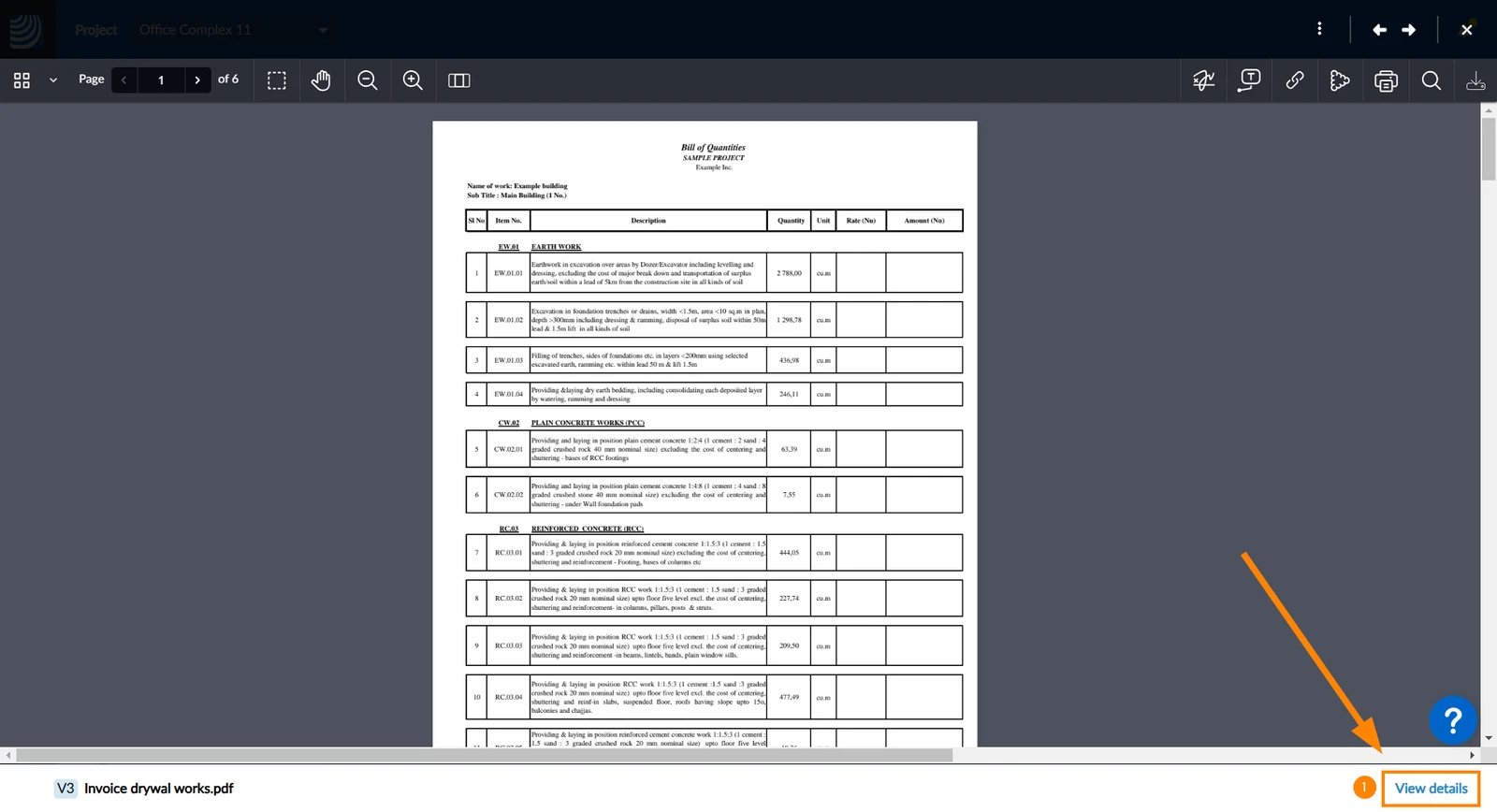
To view file details while viewing a file in the Webapp:
- Click View details
- See details
- Navigate to the file that you want to view the details of
- Open the More menu
- Tap Details
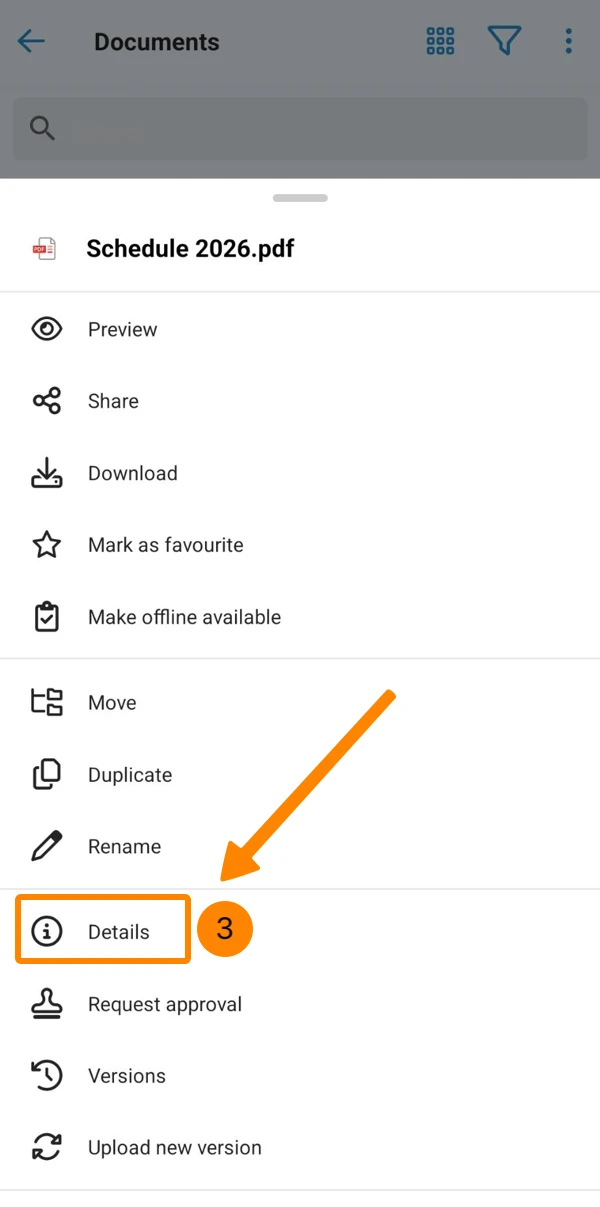
- See the details
Updated April 27, 2026