

 Deutsch
 Español
 Français
 Hrvatski
 Italiano
 Polski
 Português (BR)
View Activity Log for Files & Folders in the Webapp
Overview
View a log of all your team's activities within Document Management to receive updates and track relevant actions such as when a file was uploaded, updated, viewed or downloaded and by whom.
Access & permissions
How to Access Document Management
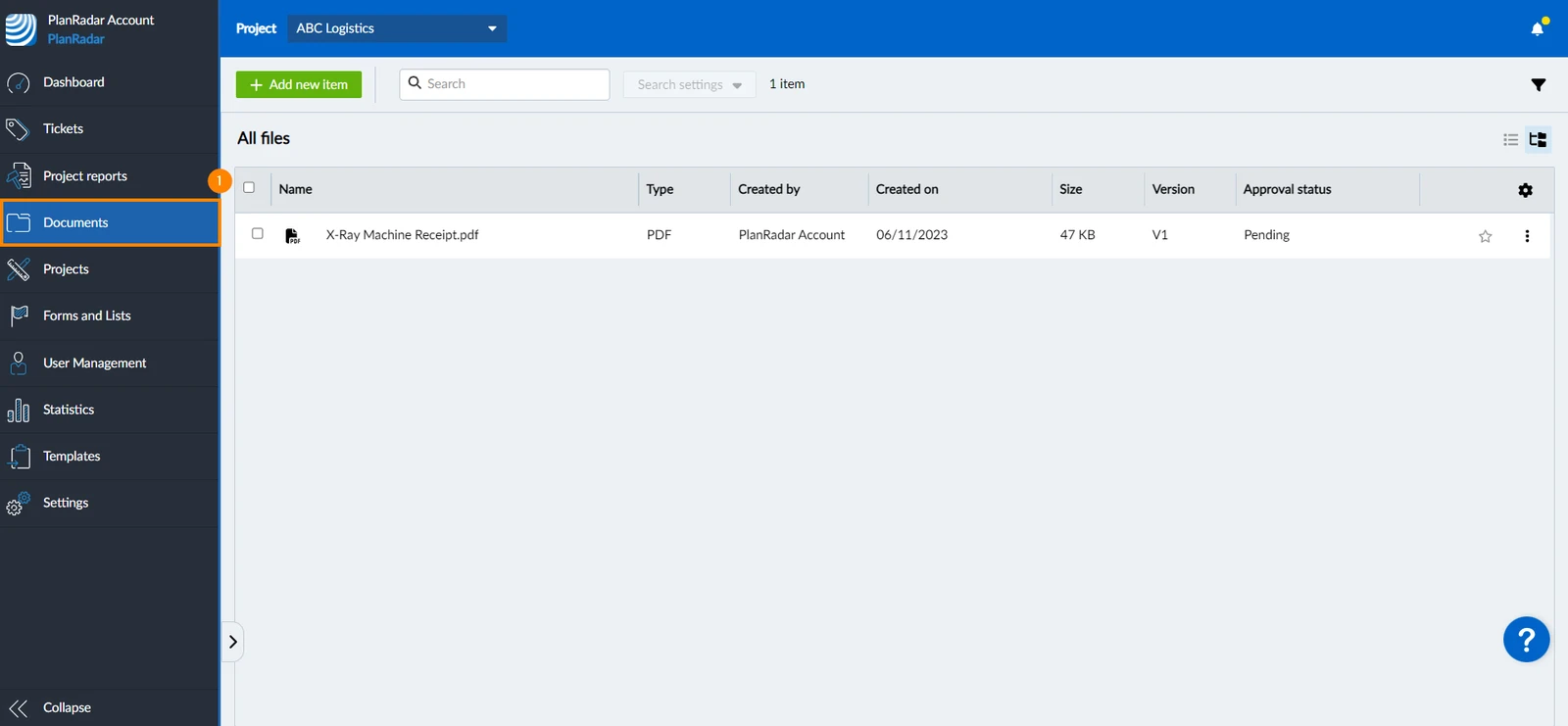
To access Document Management:
- Click Documents in the main menu
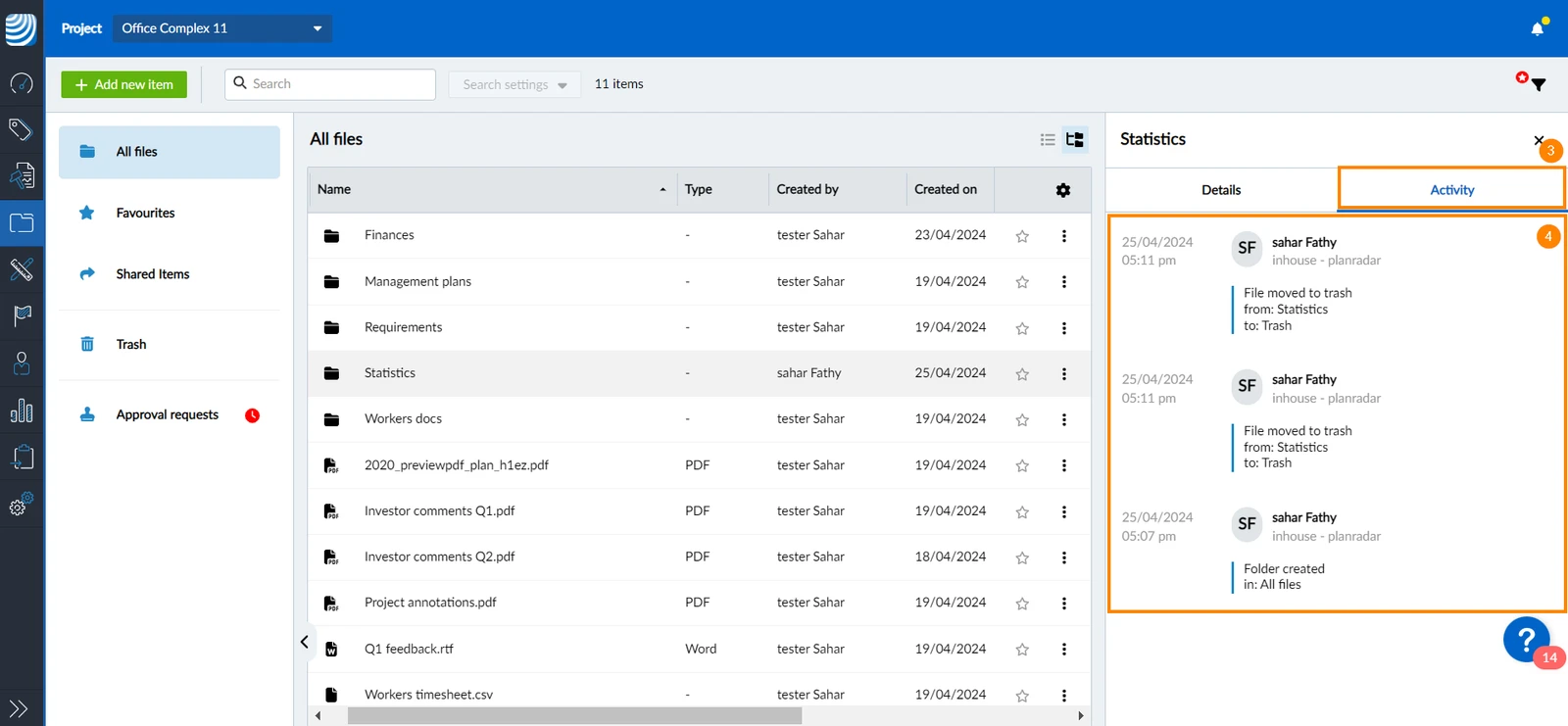
View Activity Log of a File
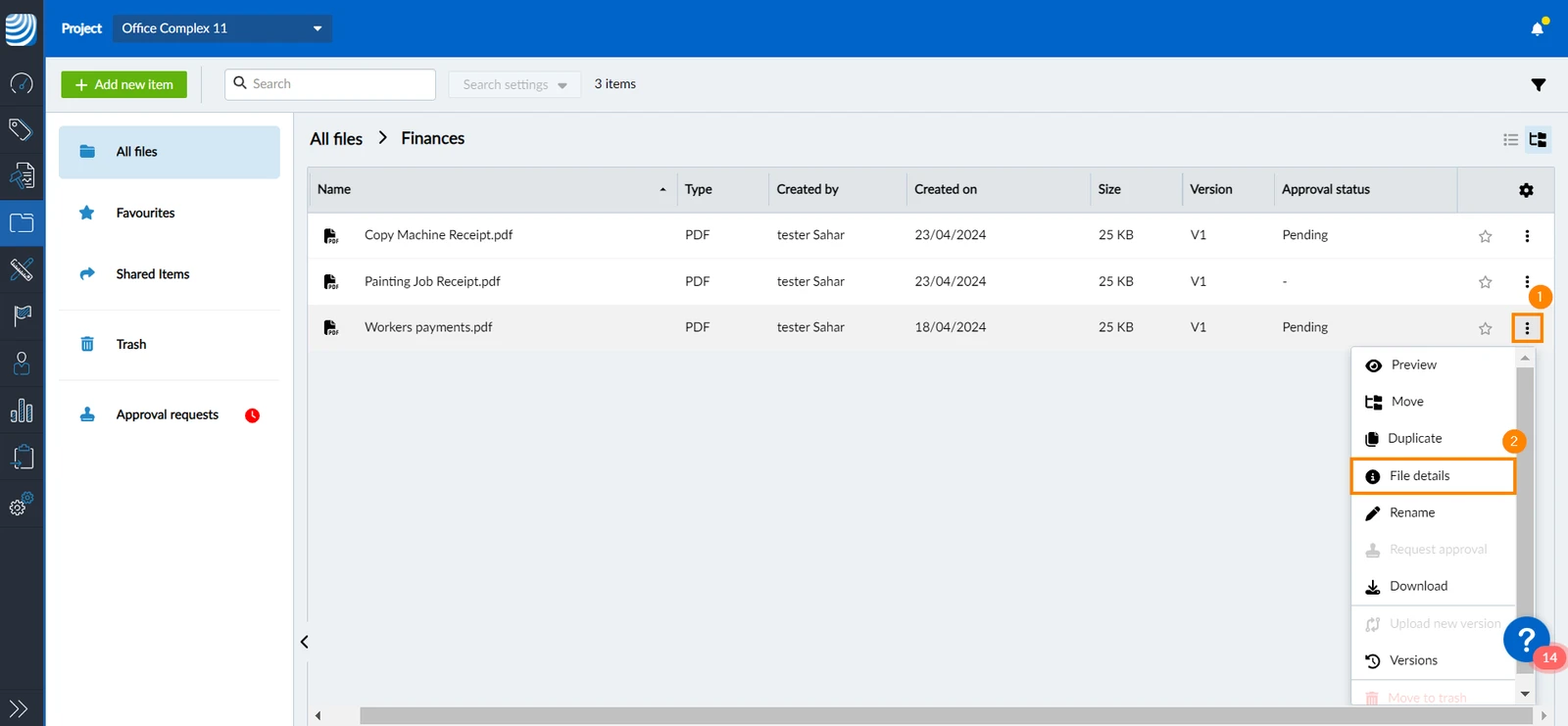
To view a file's activity log:
- Click the more menu next to the file.
- Click File details
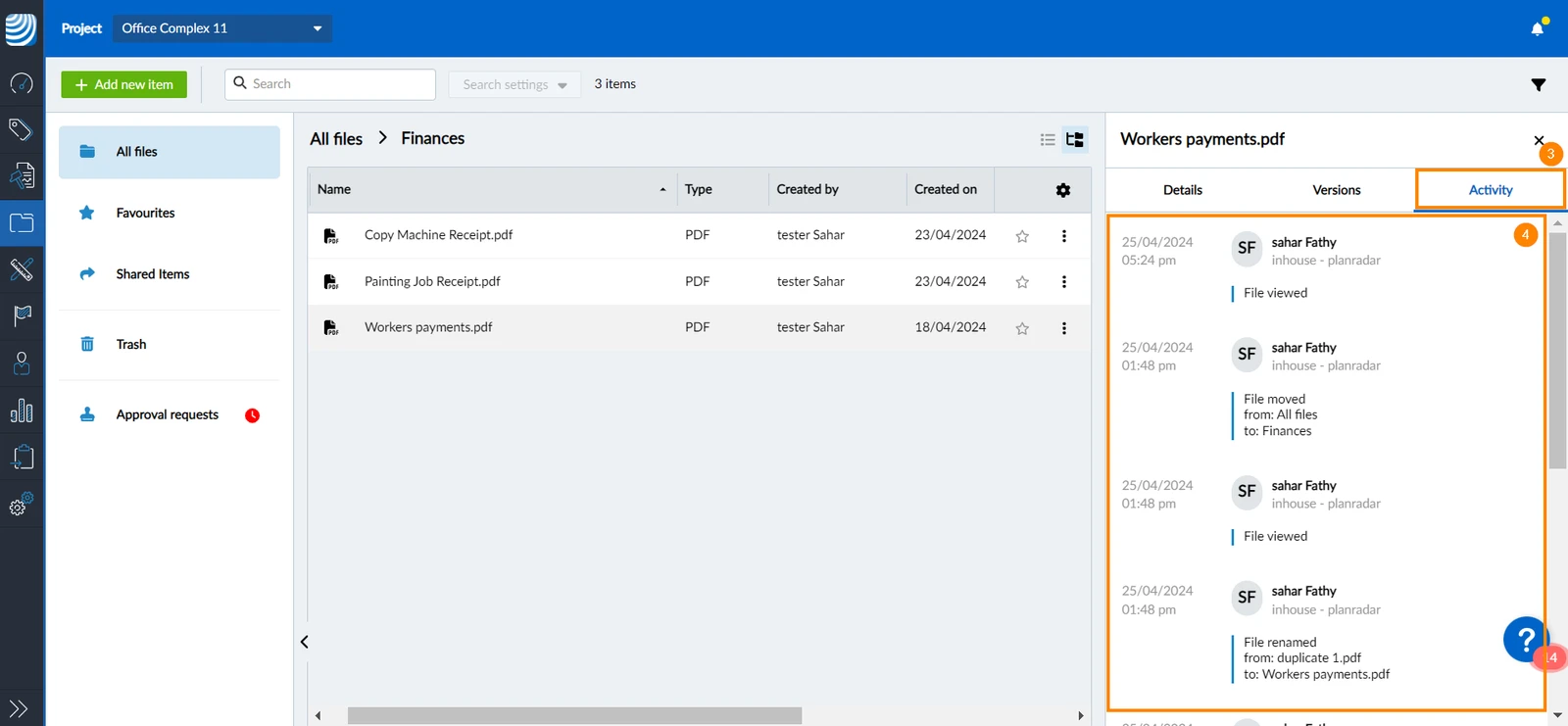
- Click on the Activity tab.
- All file activities will be listed.
View Activity Log of a Folder
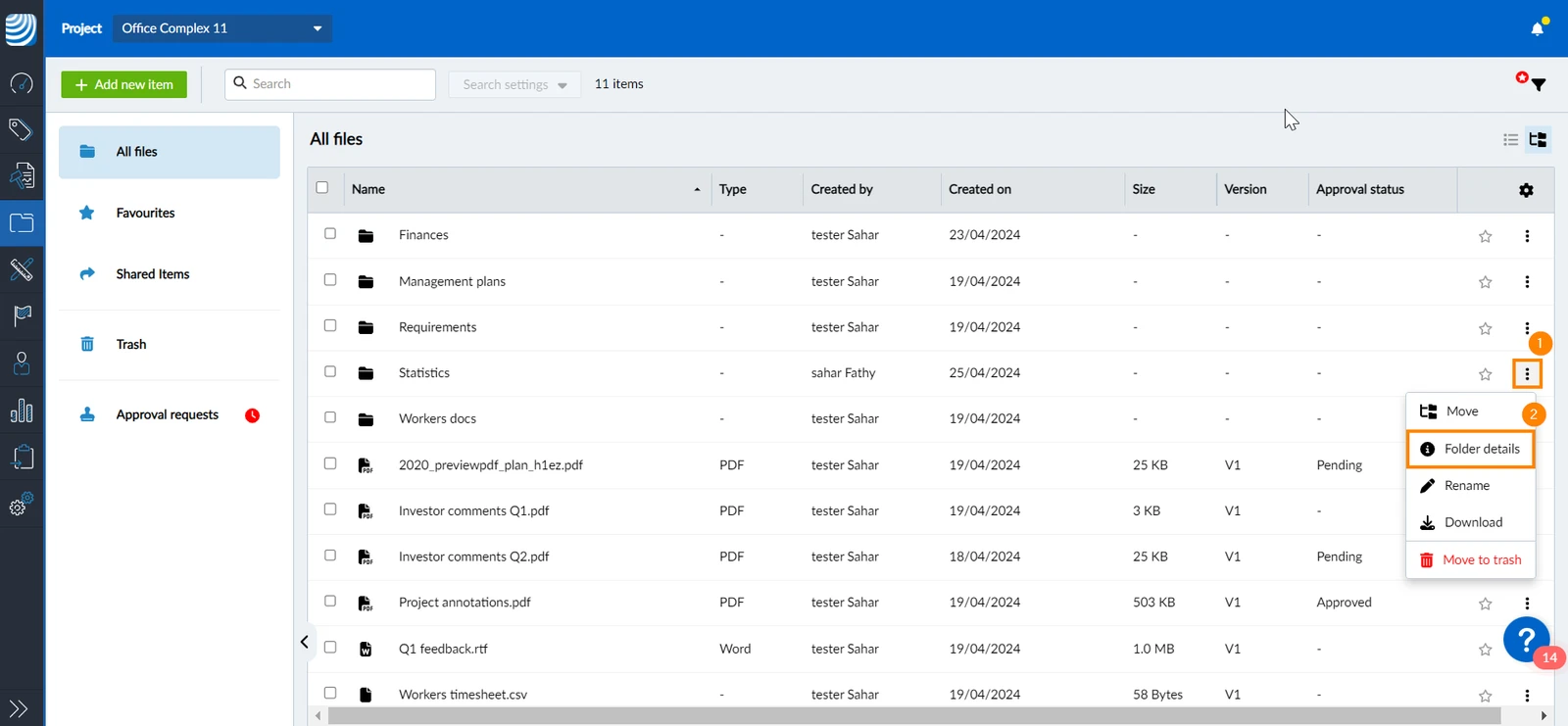
To view a folder's activity log:
- Click the more menu next to the folder
- Click Folder details
- Click on the Activity tab.
- All the activities related to the folder will be shown.
View Activity Log of All Files
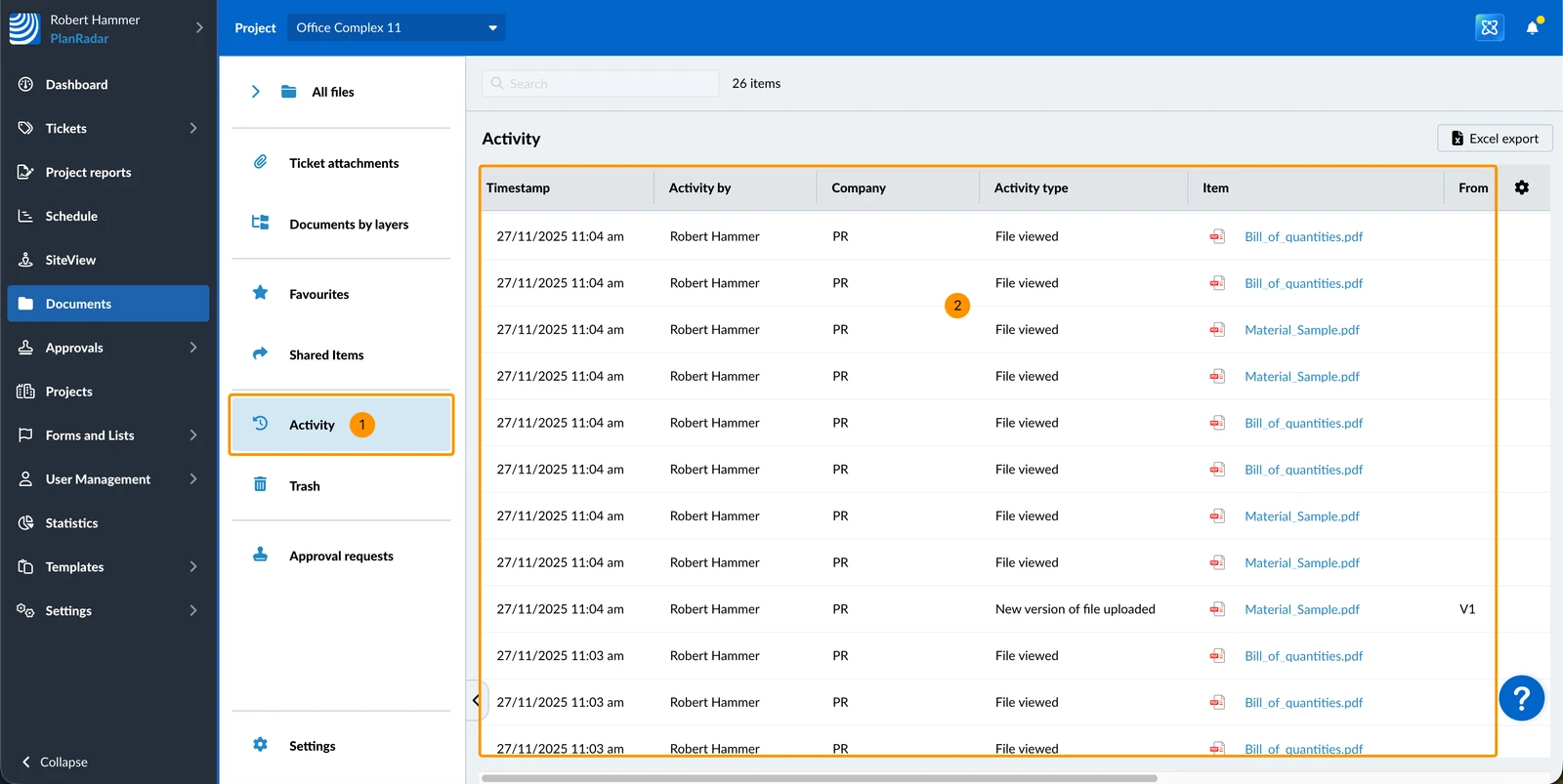
Get a complete overview of all activities across all files and folders. To view the activity log for All Files:
- Click Activity in the sidebar
- All activities will be shown in a table
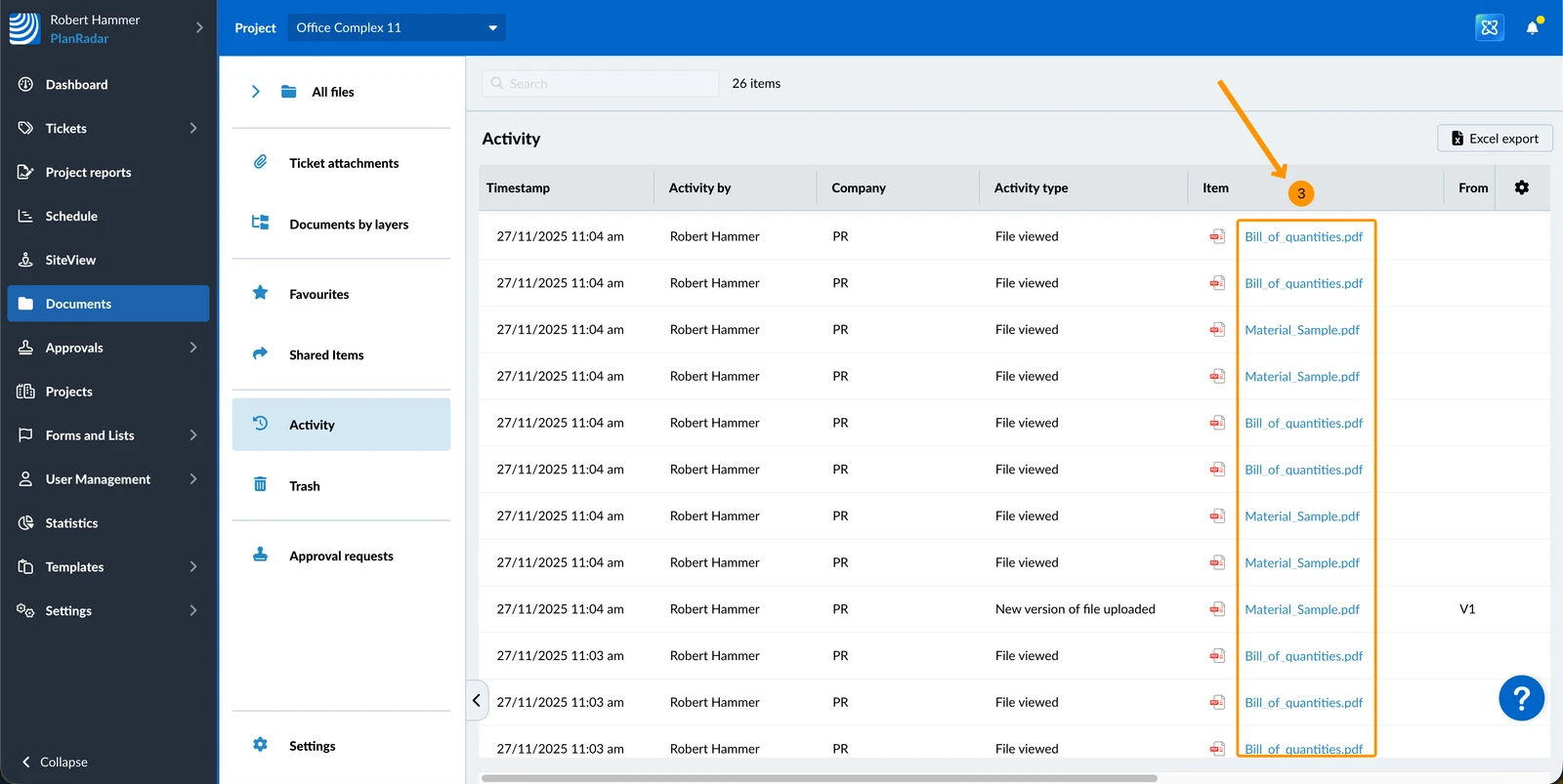
- Click a file name to open a preview of that file.
Tracked Activities
The events recorded in the activity log vary based on their level: file level or folder level.
Folder Activity Log
- Folder uploaded: The folder has been uploaded. This activity will also display for all subfolders and files within the folder.
- Folder created: The folder has been created.
- Folder downloaded: The folder has been downloaded. This activity will also display for all subfolders and files within the folder.
- Folder renamed: The folder has been renamed.
- Folder moved: The folder moved from one parent folder to another.
- Subfolder moved: A subfolder that was contained in the folder has been moved.
- File moved: A file that was contained in the folder has been moved.
- Folder moved to trash: The folder has been moved to the trash folder.
- Folder restored from trash: The folder has been restored from the trash folder.
- Access granted: Access to the folder has been granted to a user or role.
- Access revoked: Access to the folder has been revoked from a user or role.
- Access permission changed: The folder's access permission has been changed (e.g. from Manager to Viewer).
- Access control activated: Access control has been activated for the folder.
- Access control deactivated: Access control has been deactivated for the folder.
- Access control restored: Access control has been restored and the folder will inherit access control settings from its parent folder (can occur if inherited access control settings had been previously overridden with local changes for the folder).
File Activity Log
- File uploaded: The file has been uploaded.
- New version of file uploaded: A new version of the file has been uploaded.
- File created: A Microsoft Office file has been created.
- New version created: A Microsoft Office file has been edited, resulting in the creation of a new file version.
- Version of file deleted: A version of the file has been deleted.
- File renamed: The file has been renamed.
- File viewed: The file has been viewed by a user.
- File downloaded: The file was downloaded.
- File duplicated: The current file was duplicated.
- File created as duplicate: The current file is the duplicated version of another file.
- File saved to: A copy of a ticket attachment has been saved into this folder, with a reference to the source ticket.
- File moved: The file has been moved from one folder to another.
- File moved to trash: The file has been moved to the trash folder.
- File restored from trash: The file has been restored from the trash folder.
- Approval requested: Approval has been requested for the file.
- File approved: The file has been approved by a user.
- File rejected: The file has been rejected by a user.
- Approval request cancelled: The request to approve the file has been cancelled.
- Access granted: Access to the file has been granted to a user or role.
- Access revoked: Access to the file has been revoked from a user or role.
- Access permission changed: The file's access permission has been changed (e.g. from Manager to Viewer).
- Access control activated: Access control has been activated for the file.
- Access control deactivated: Access control has been deactivated for the file.
- Access control restored: Access control has been restored and the file will inherit access control settings from its parent folder (can occur if inherited access control settings had been previously overridden with local changes for the file).
- Markup created: A PDF markup was created (markup type and user name).
- Markup edited: A PDF markup was edited (markup type and user name).
- Markup deleted: A PDF markup was deleted (markup type and user name).
Updated June 19, 2026