

 Deutsch
 Español
 Français
 Hrvatski
 Italiano
 Polski
 Português (BR)
Attach Documents to Tickets via Document Management in the Webapp
Overview
Attach one or multiple files to a new ticket or to one or multiple existing tickets while working in the Documents section in the Webapp.
Access & permissions
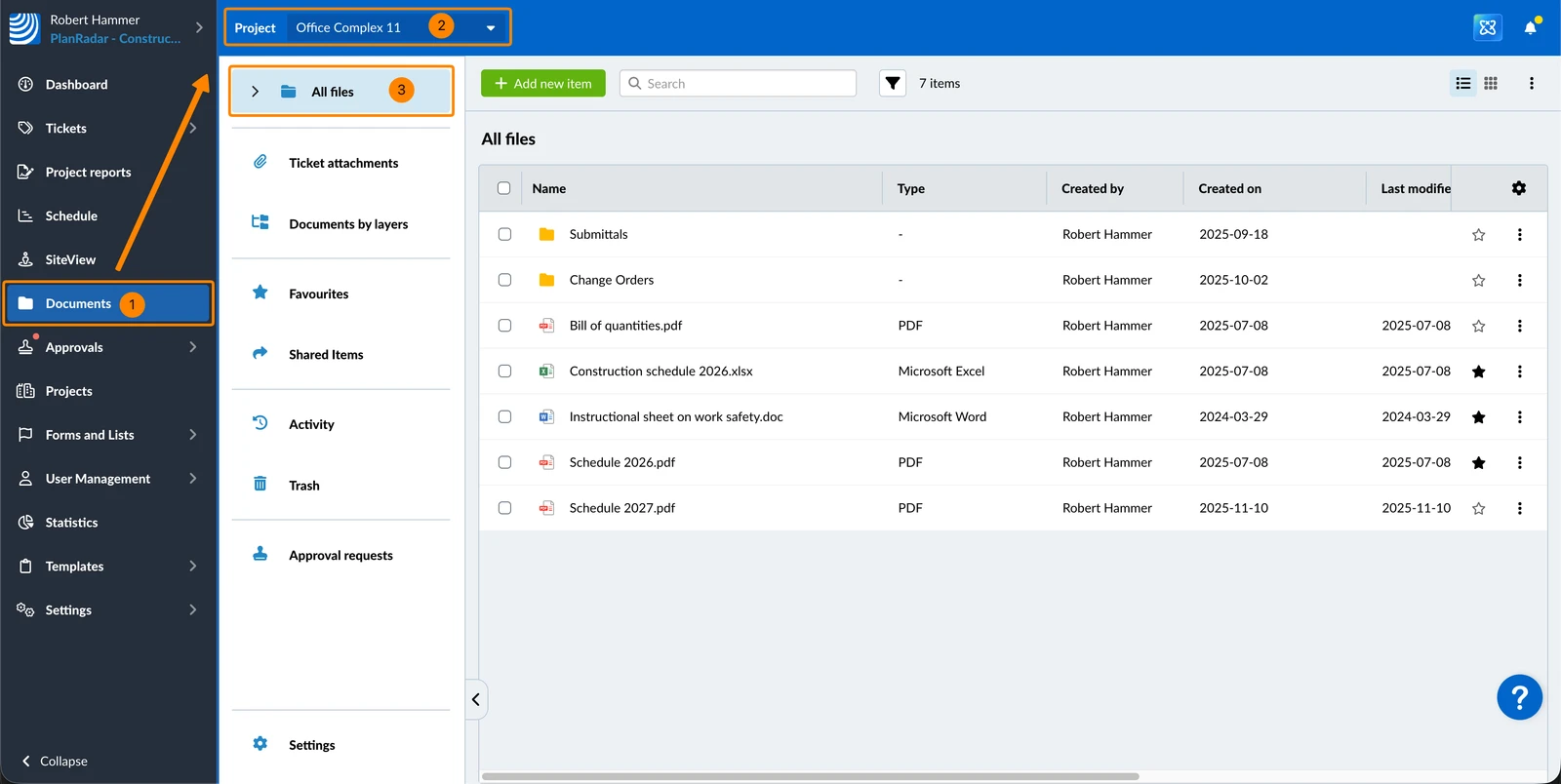
How to access Document Management
- Click Documents
- Select a project
- Click All files
Attach Documents to a New Ticket
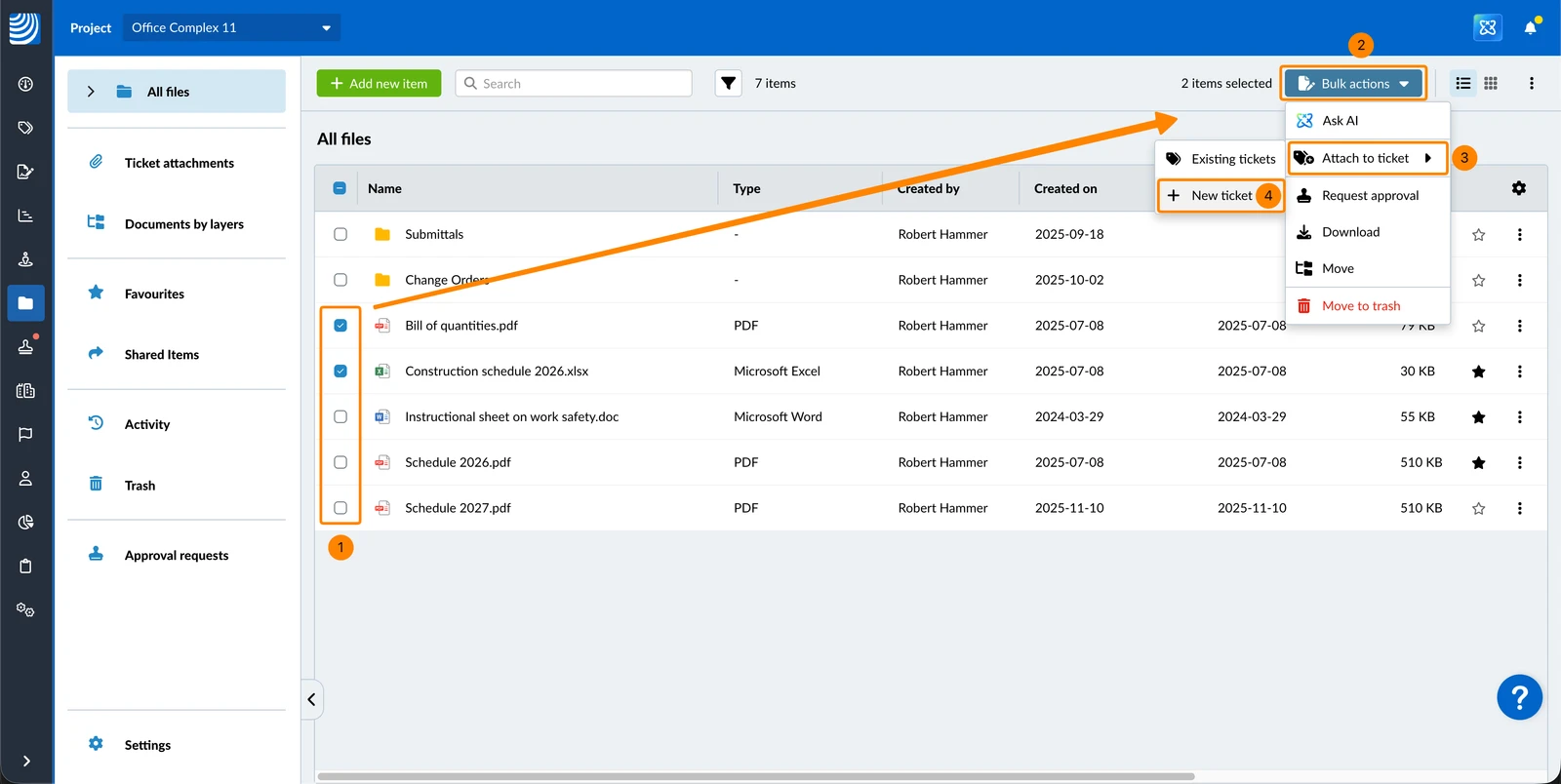
To create a new ticket with one or more files attached to it:
- Select the checkboxes for each file (maximum 10)
- Click Bulk actions
- Hover over Attach to ticket
- Click + New ticket
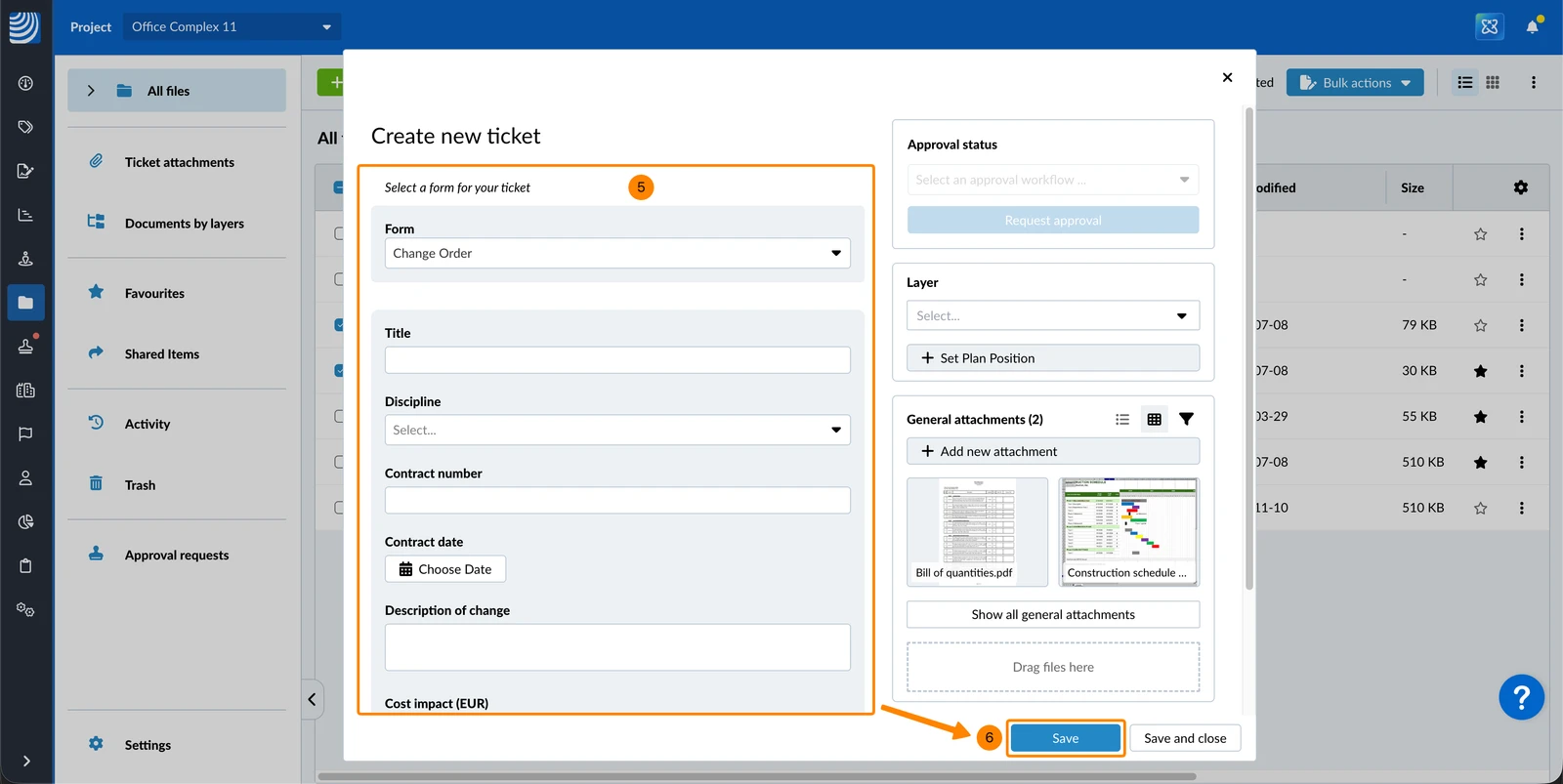
- Complete the ticket form as described in Fill in the Form of a Ticket.
- Click Save
Attach Documents to Existing Tickets
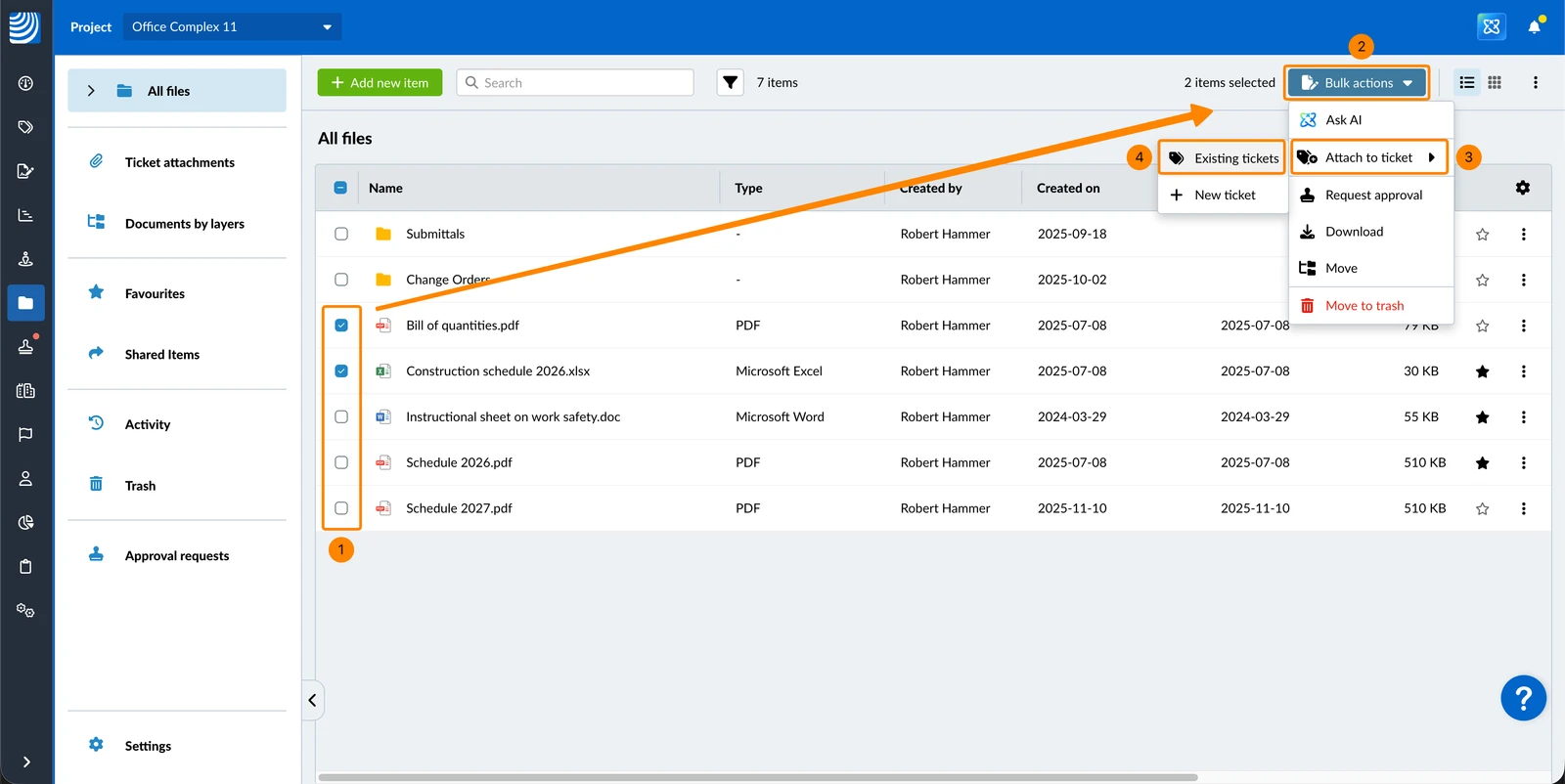
To attach one or more files to one or more existing tickets:
- Select the checkboxes for each file
- Click Bulk actions
- Hover over Attach to ticket
- Click Existing tickets
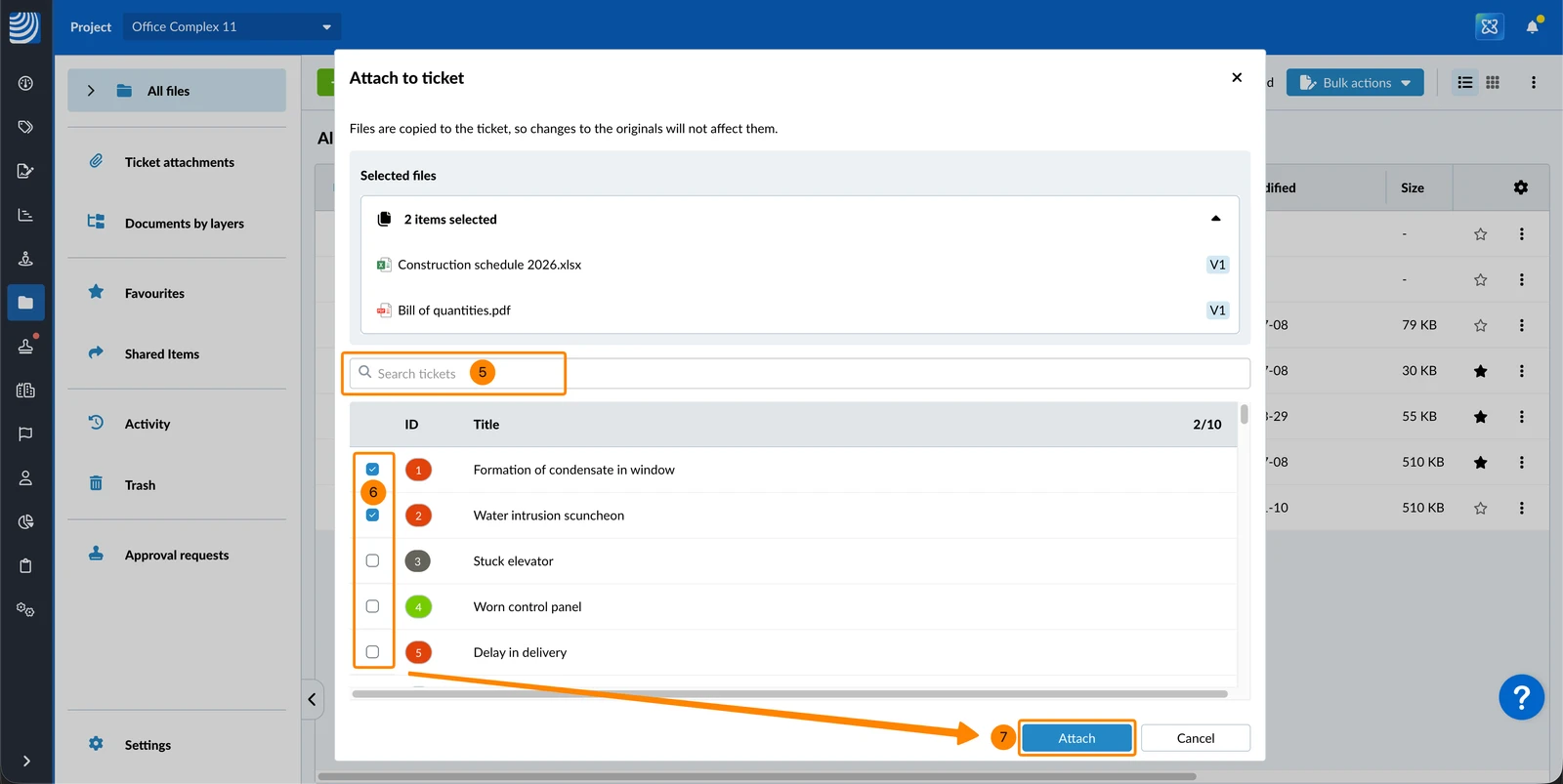
- Optional: Search tickets
- Select the checkboxes for each ticket (maximum 10)
- Click Attach
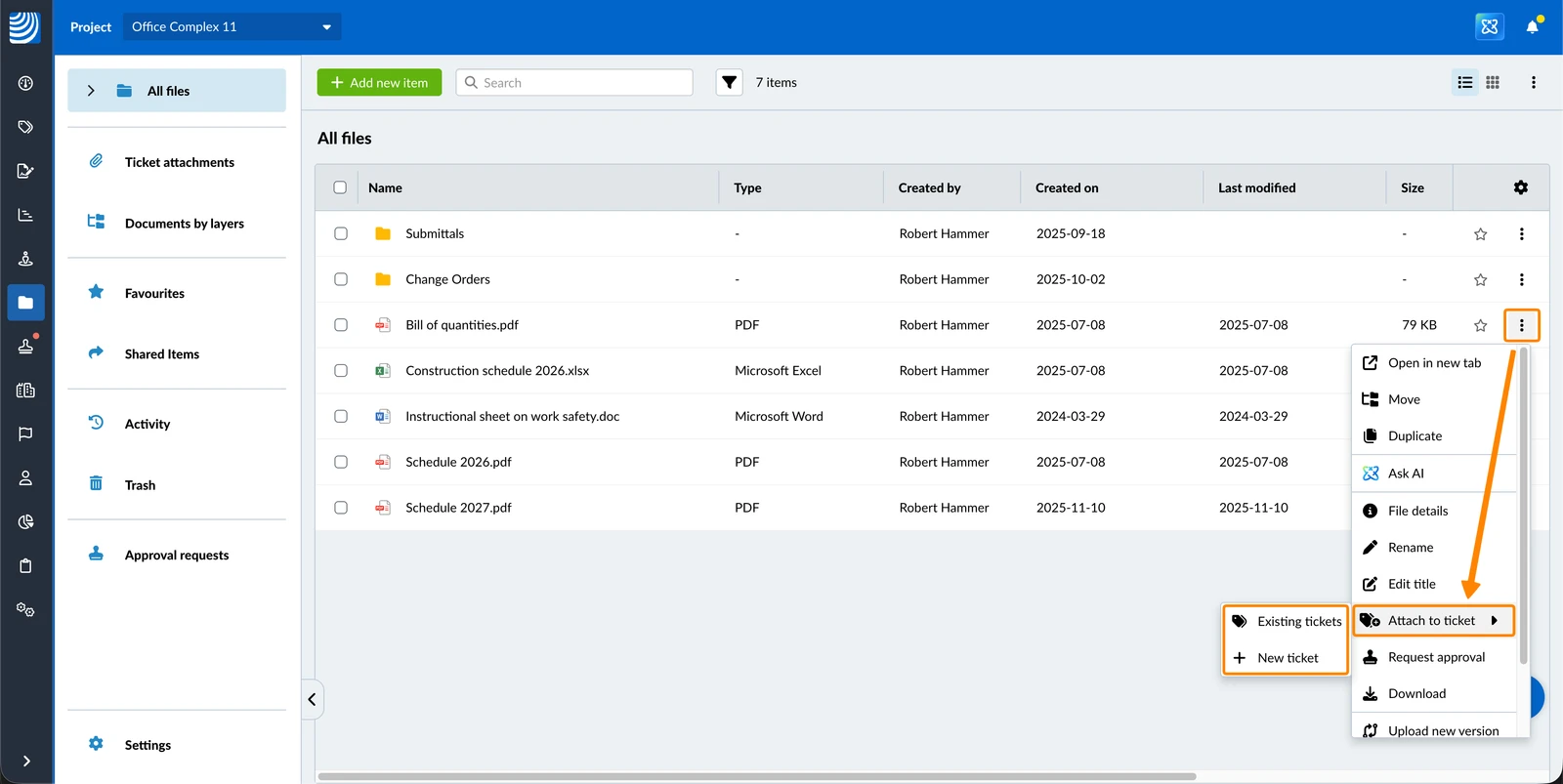
The same options for Attach to ticket are also available in the More menu of a single file:
Updated June 18, 2026