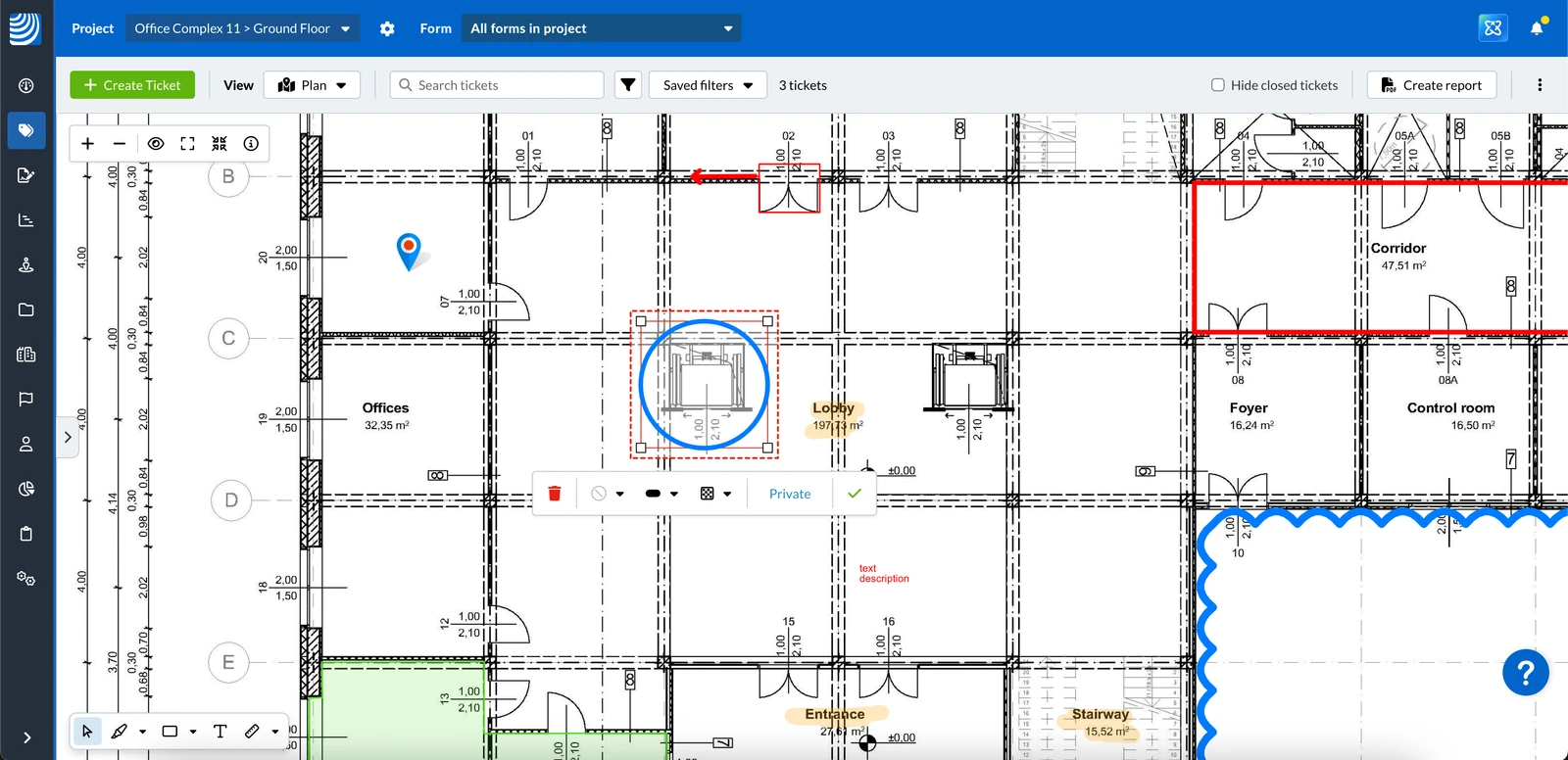
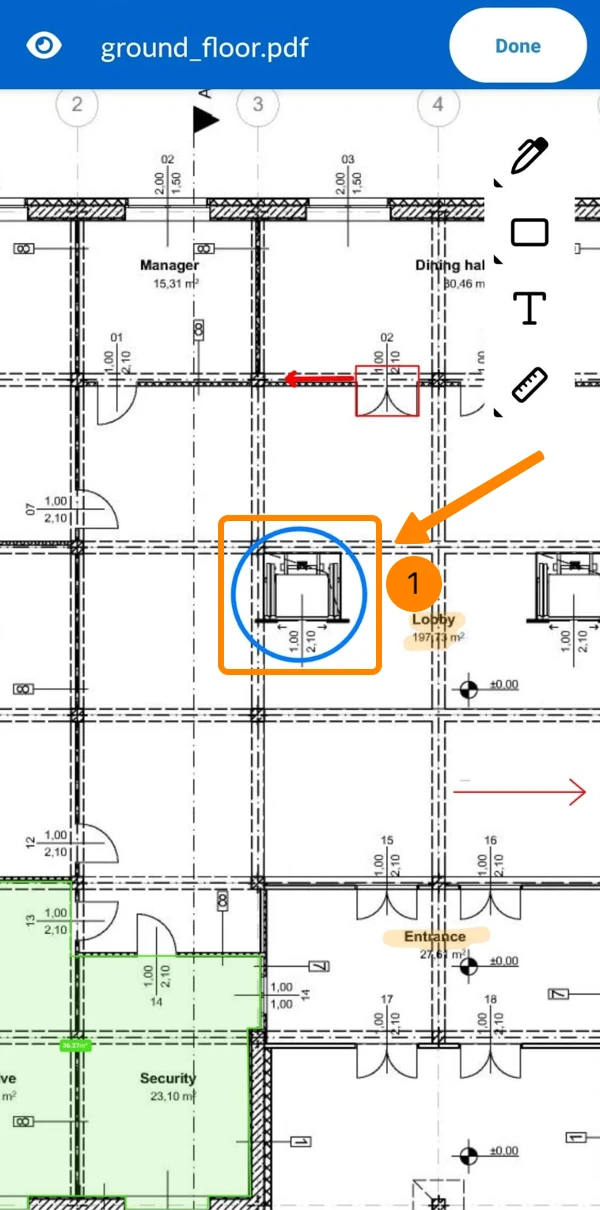
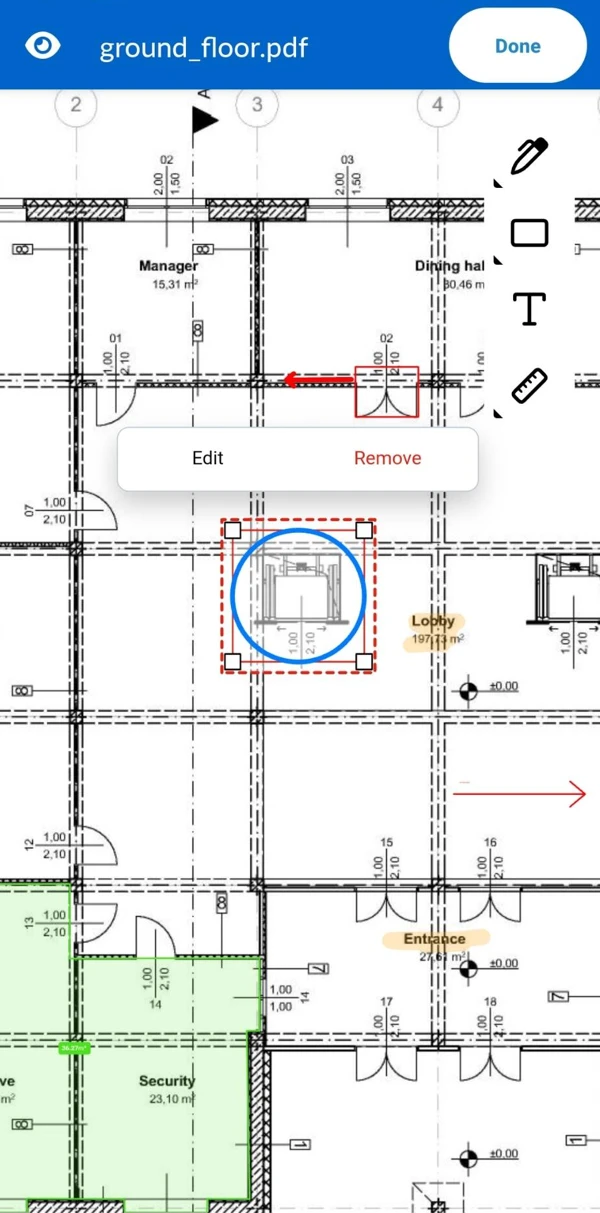
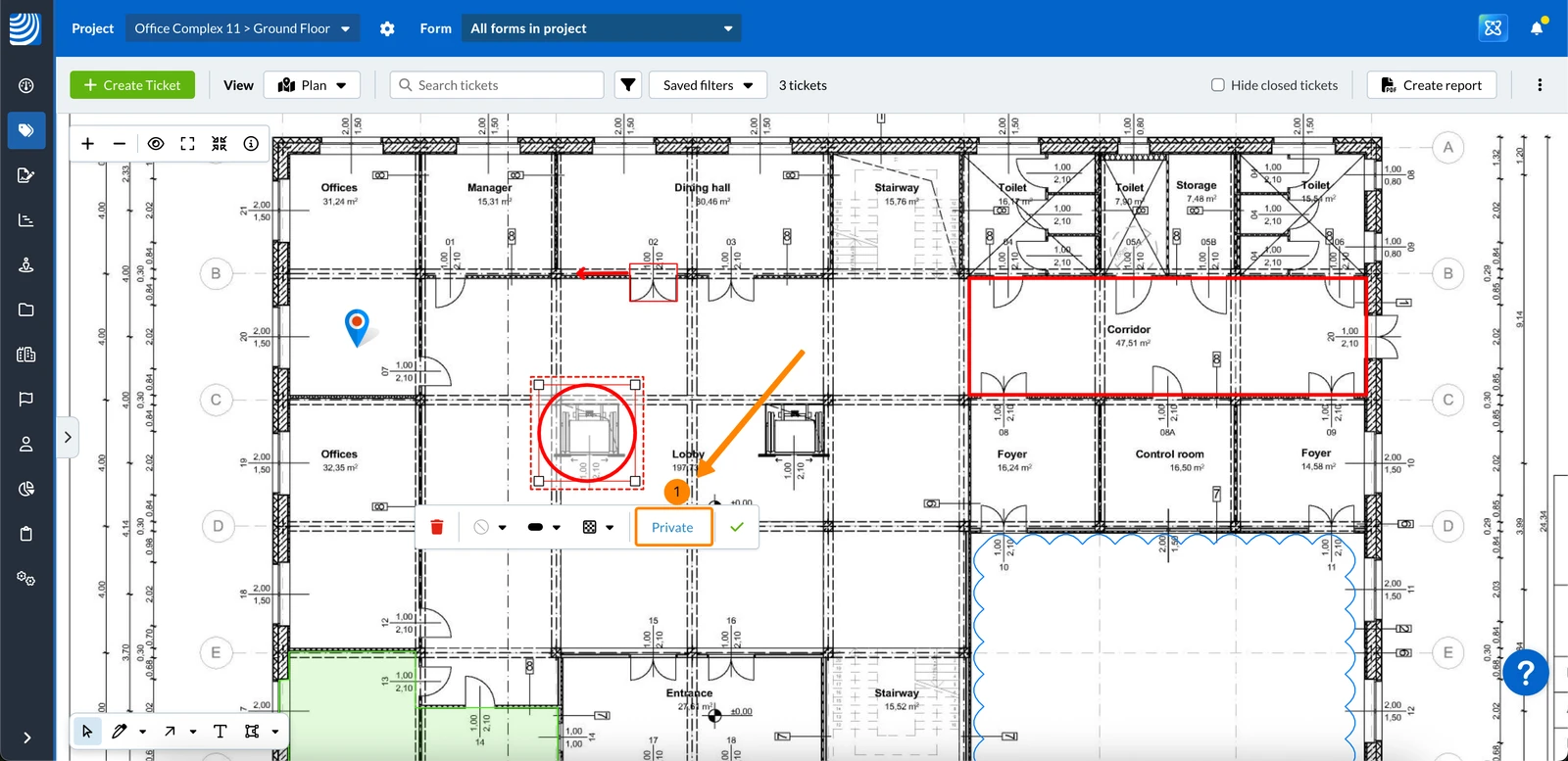
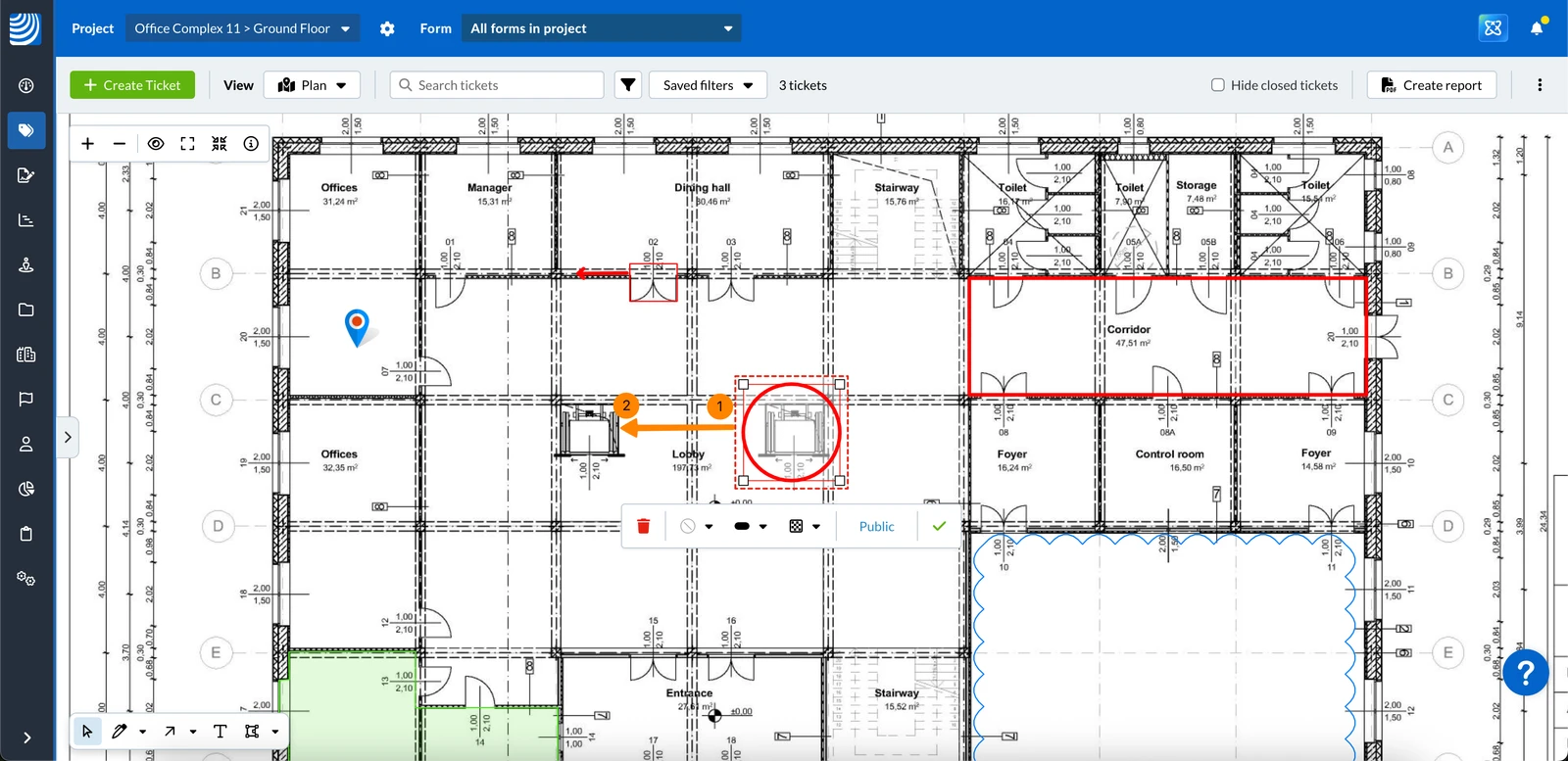
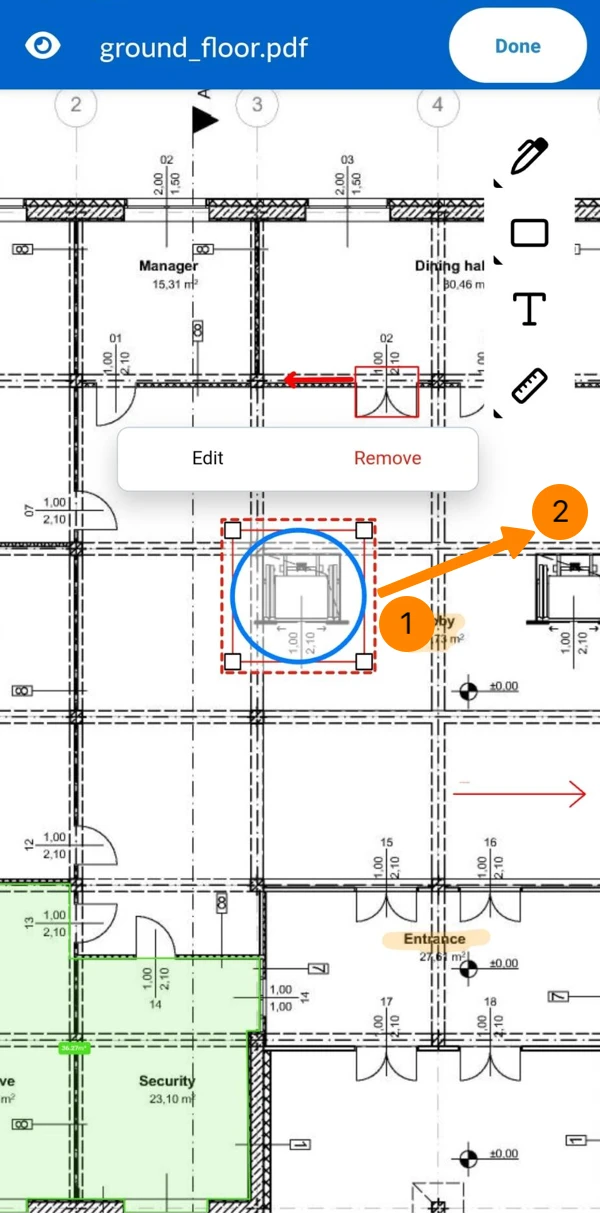
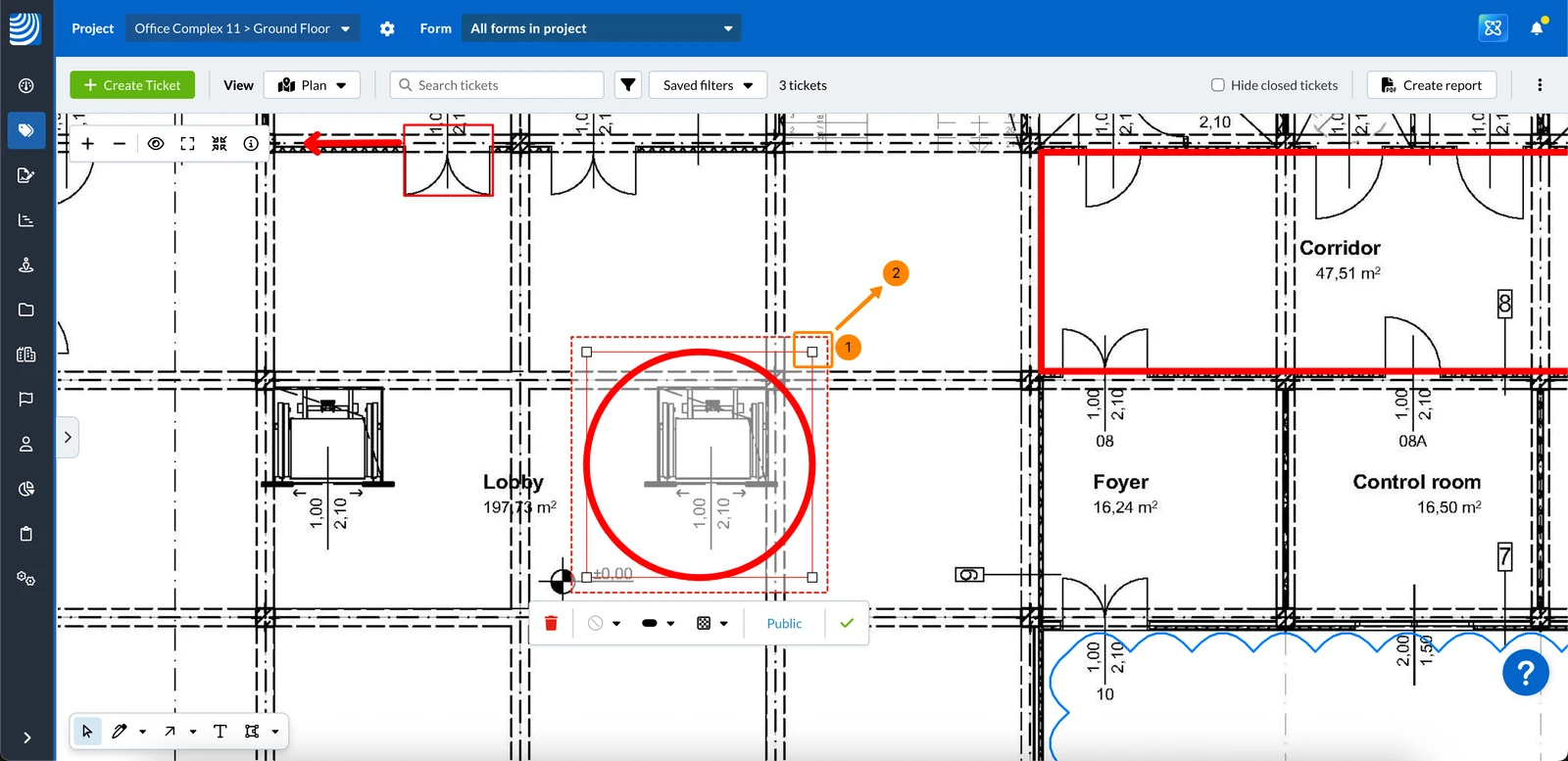
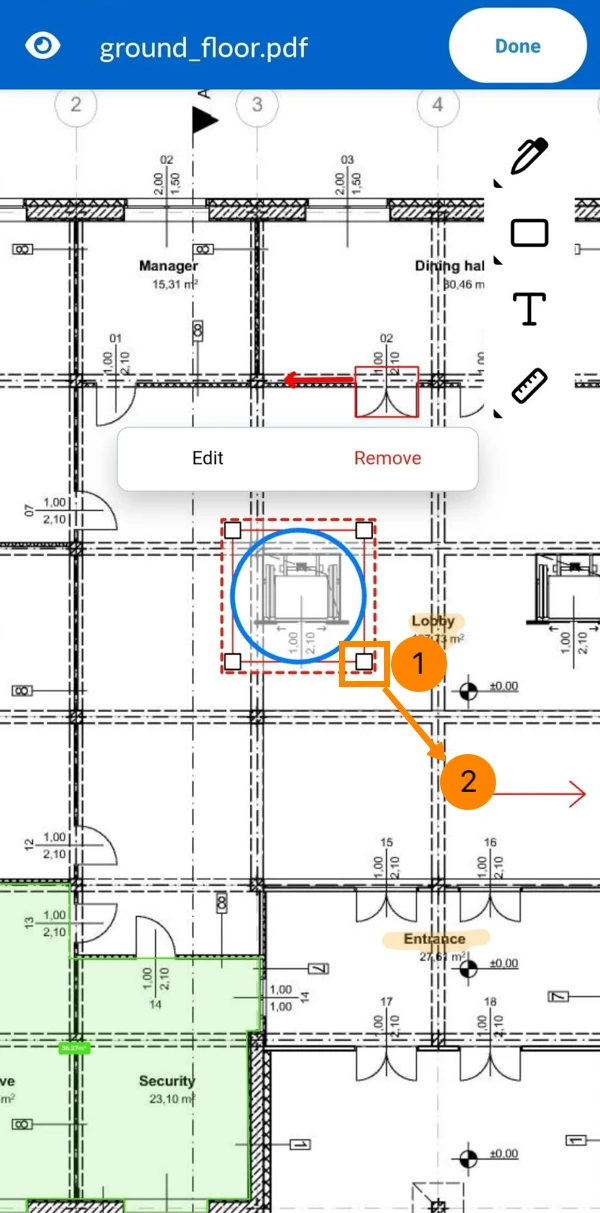
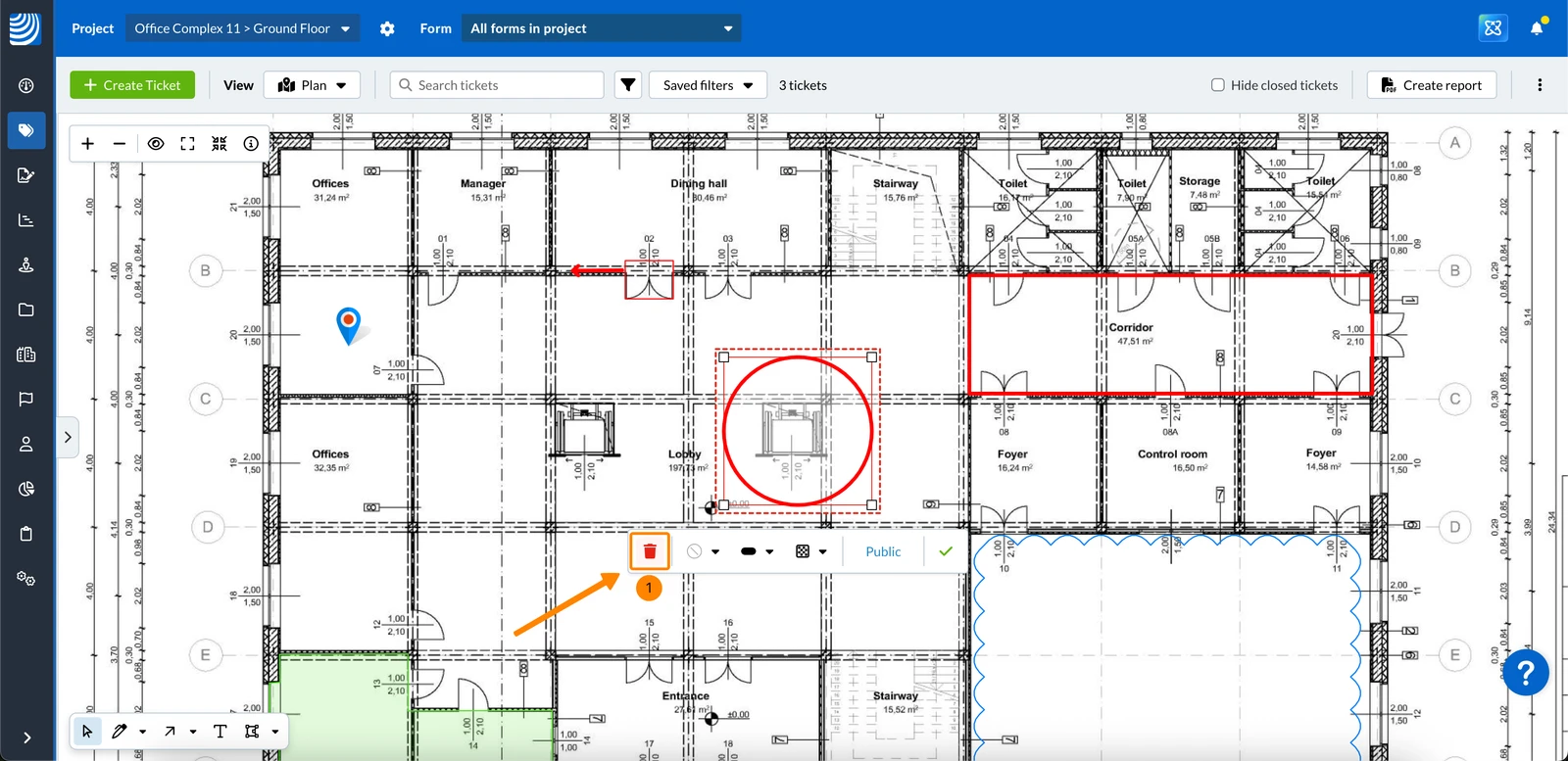
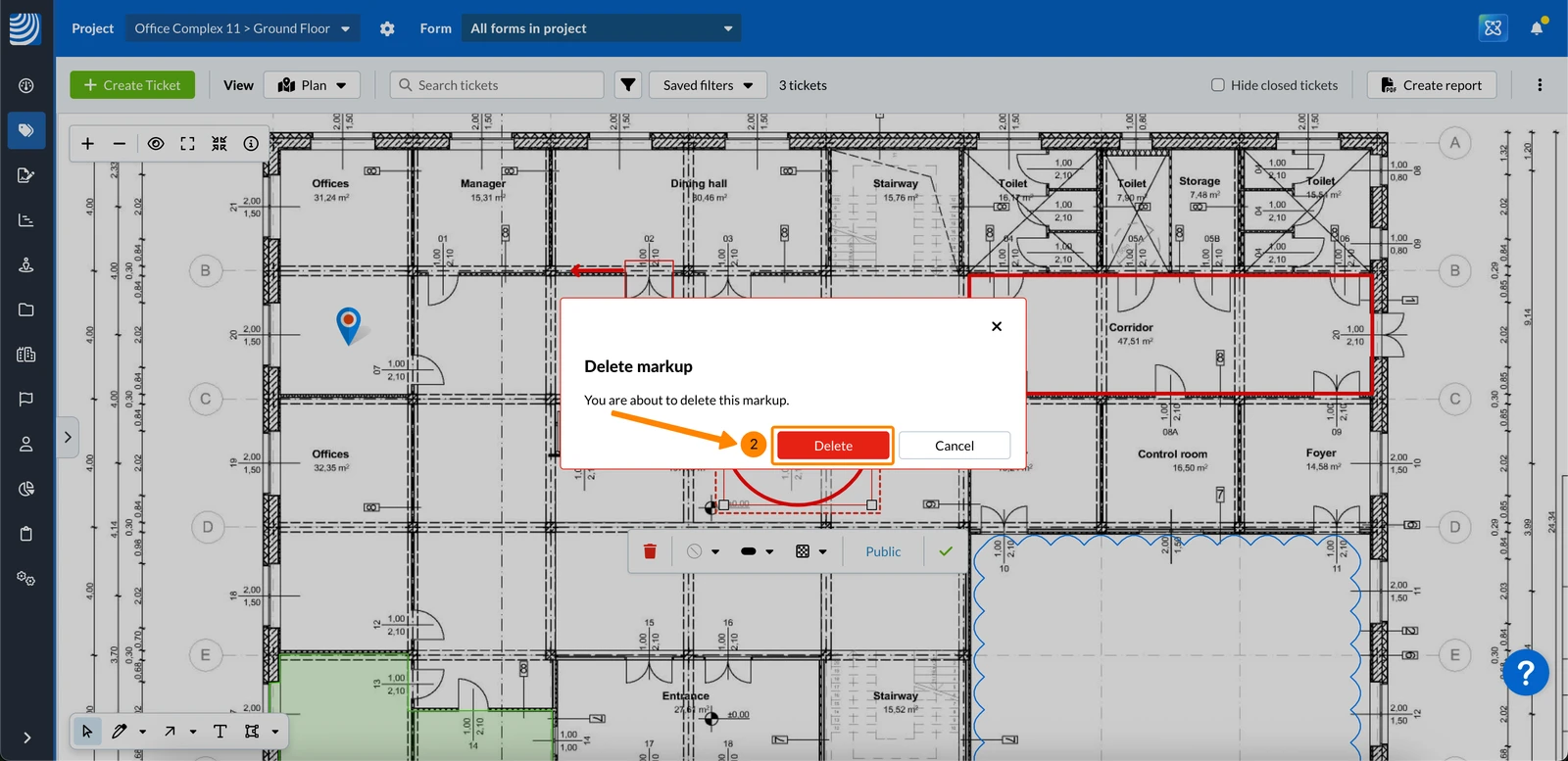
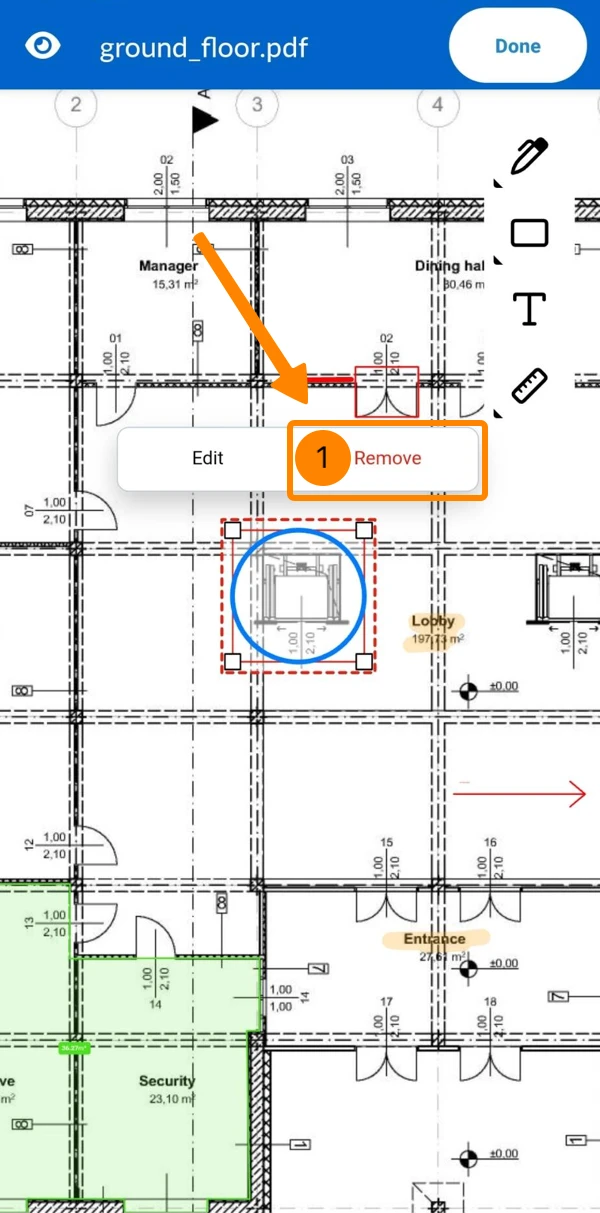
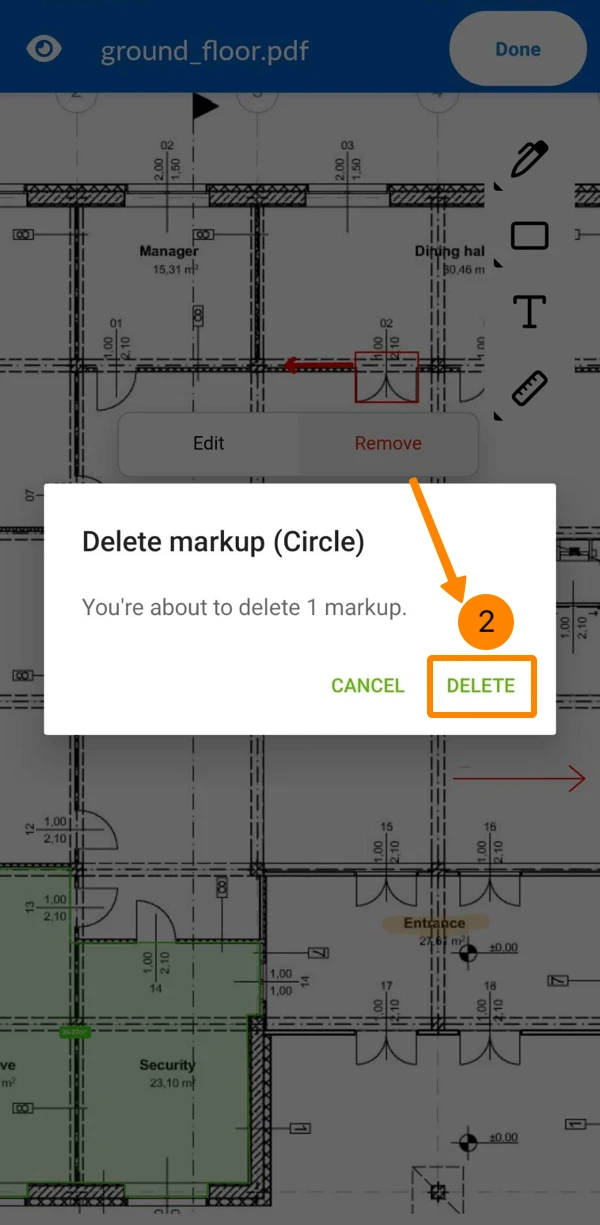
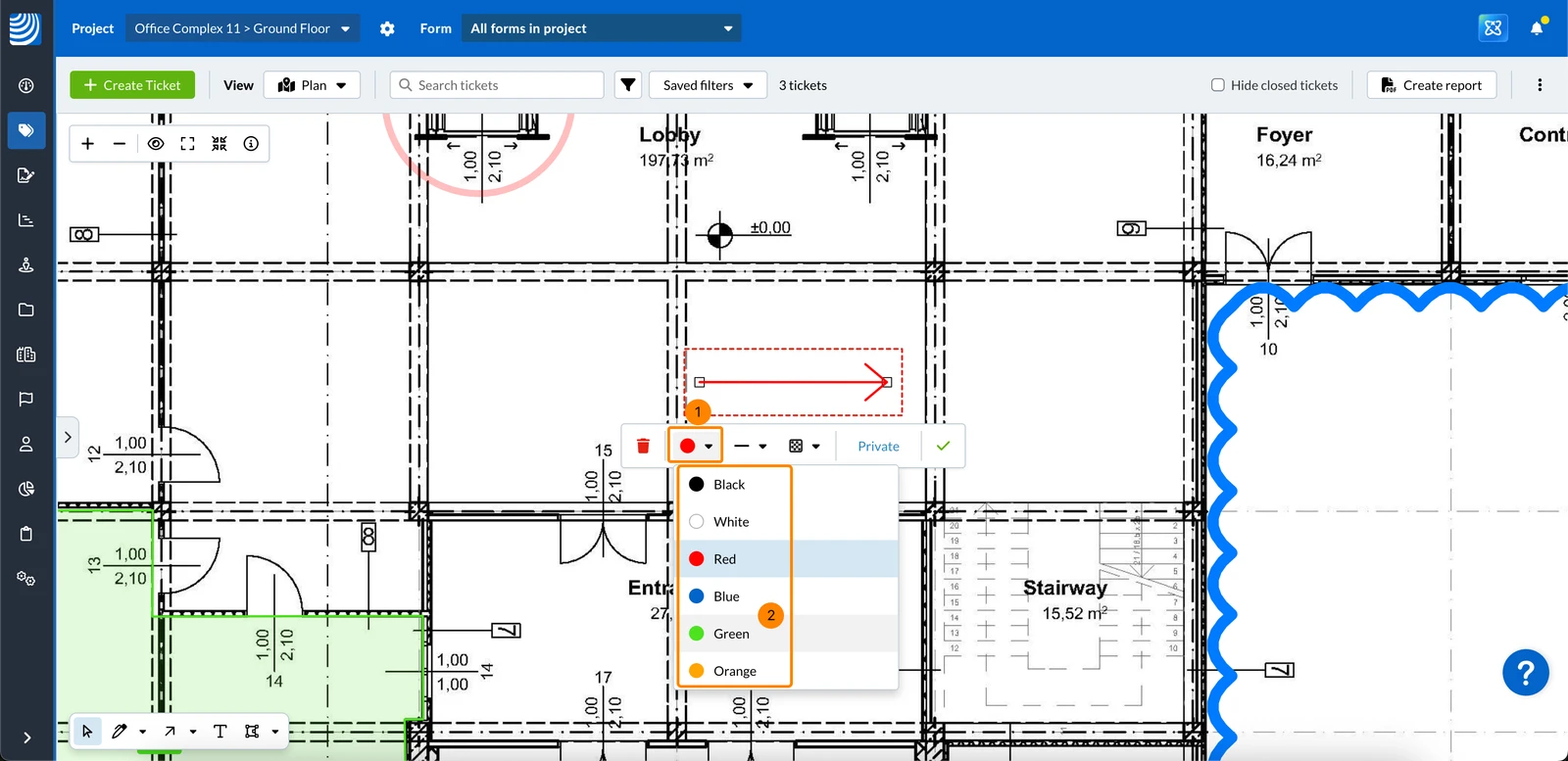
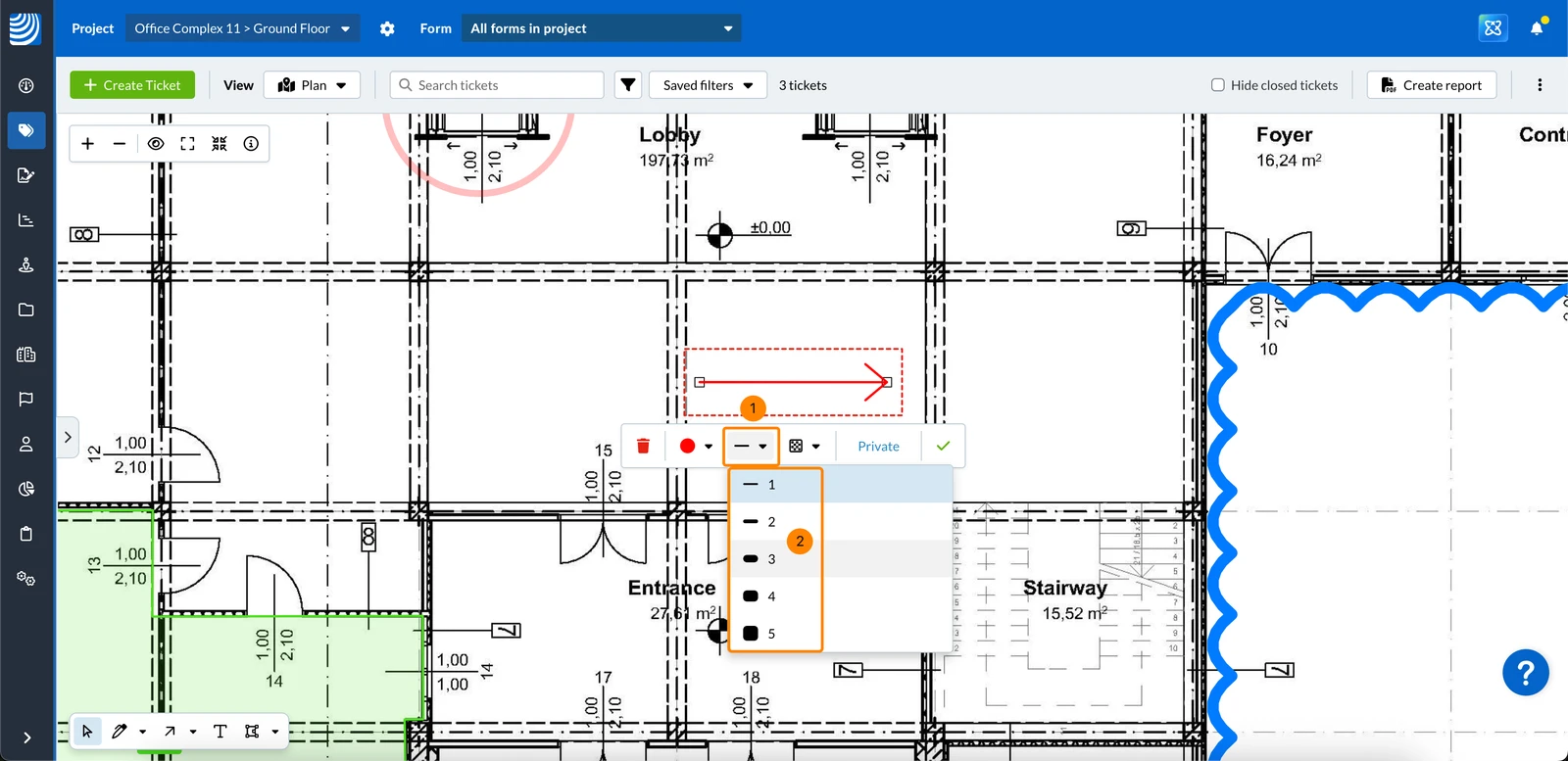
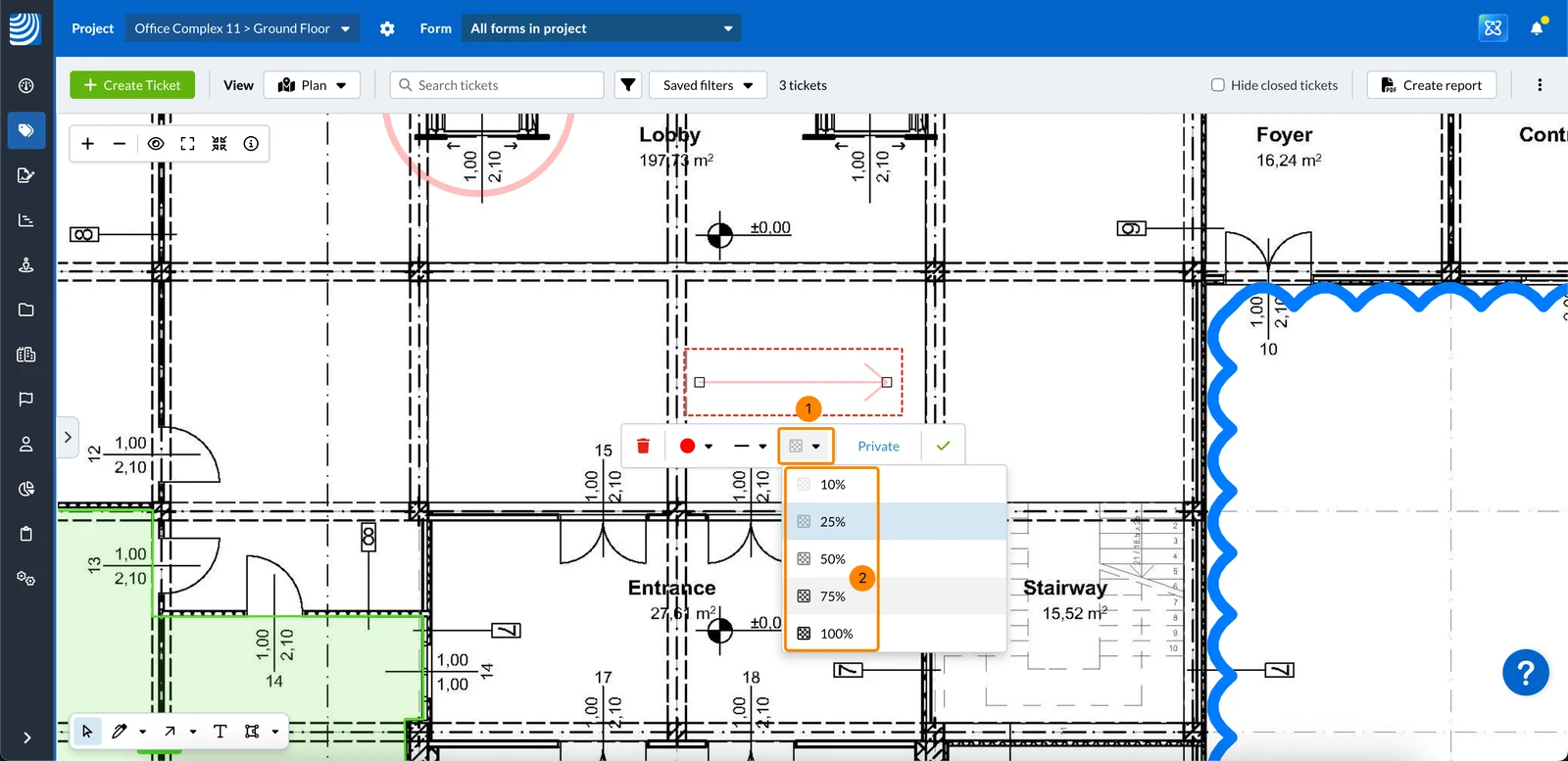
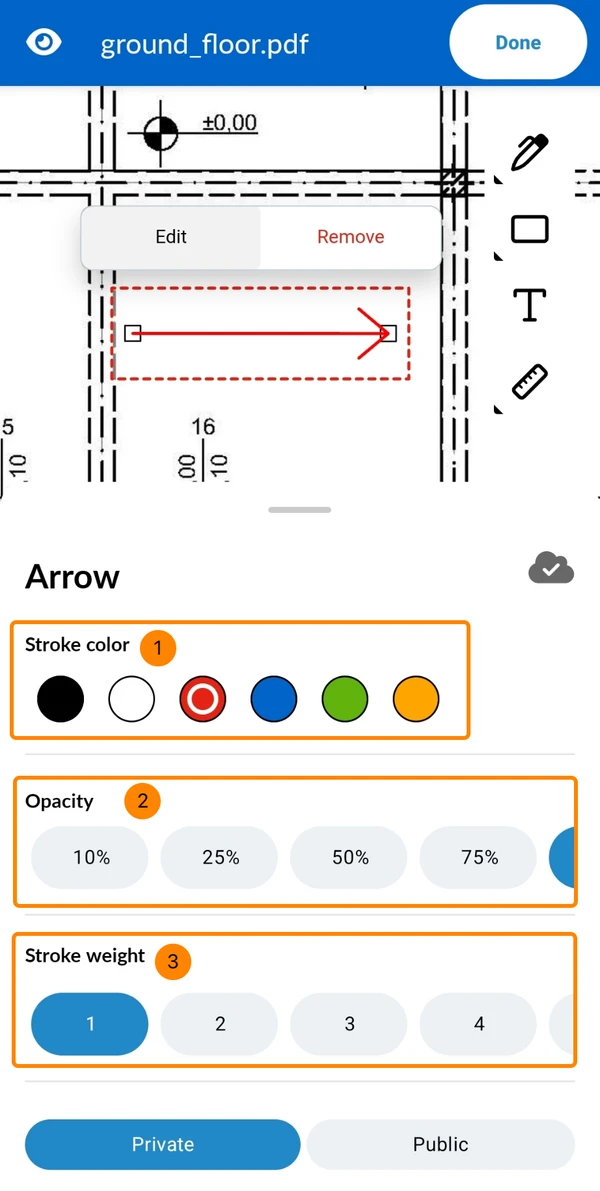
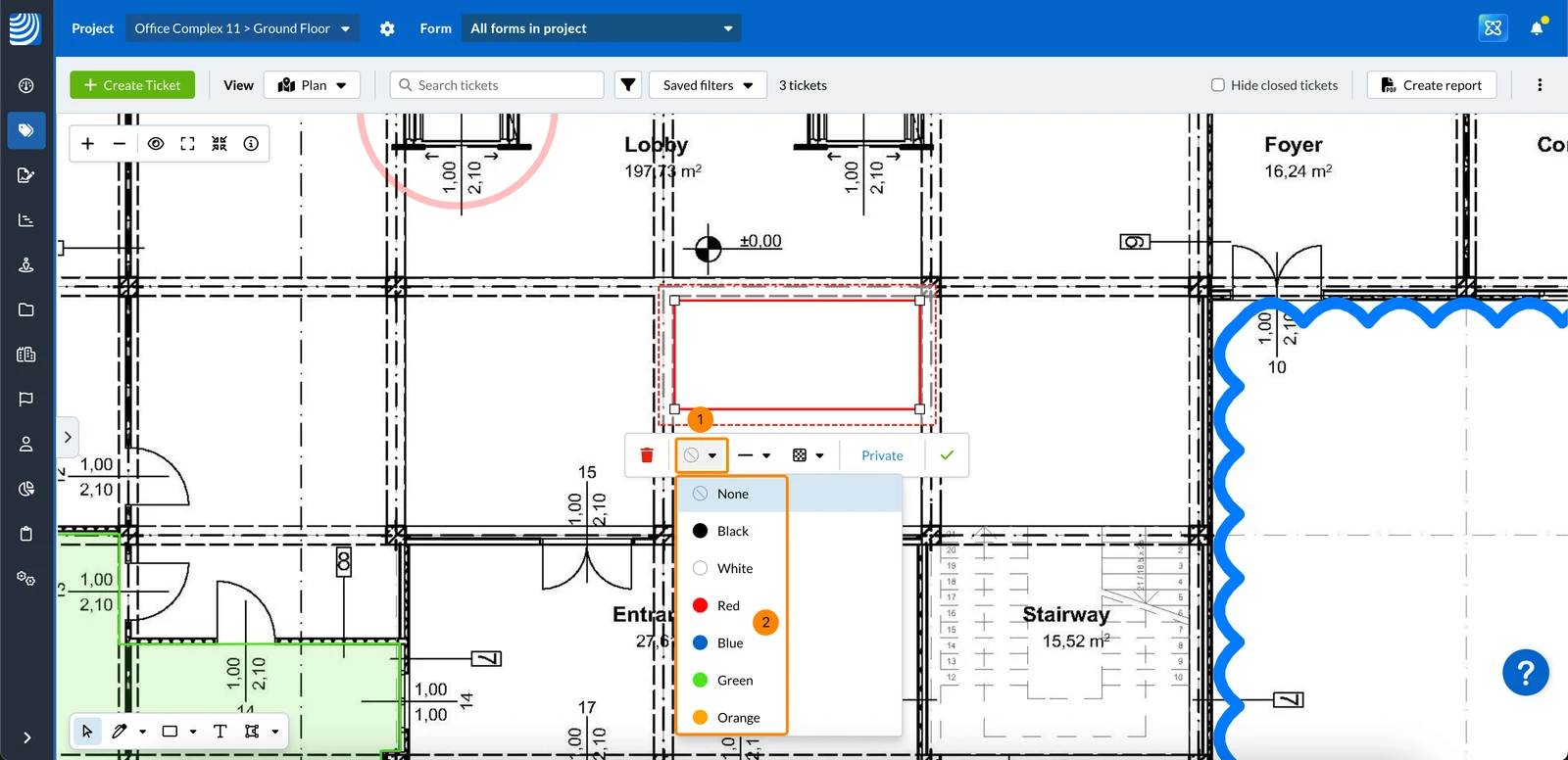
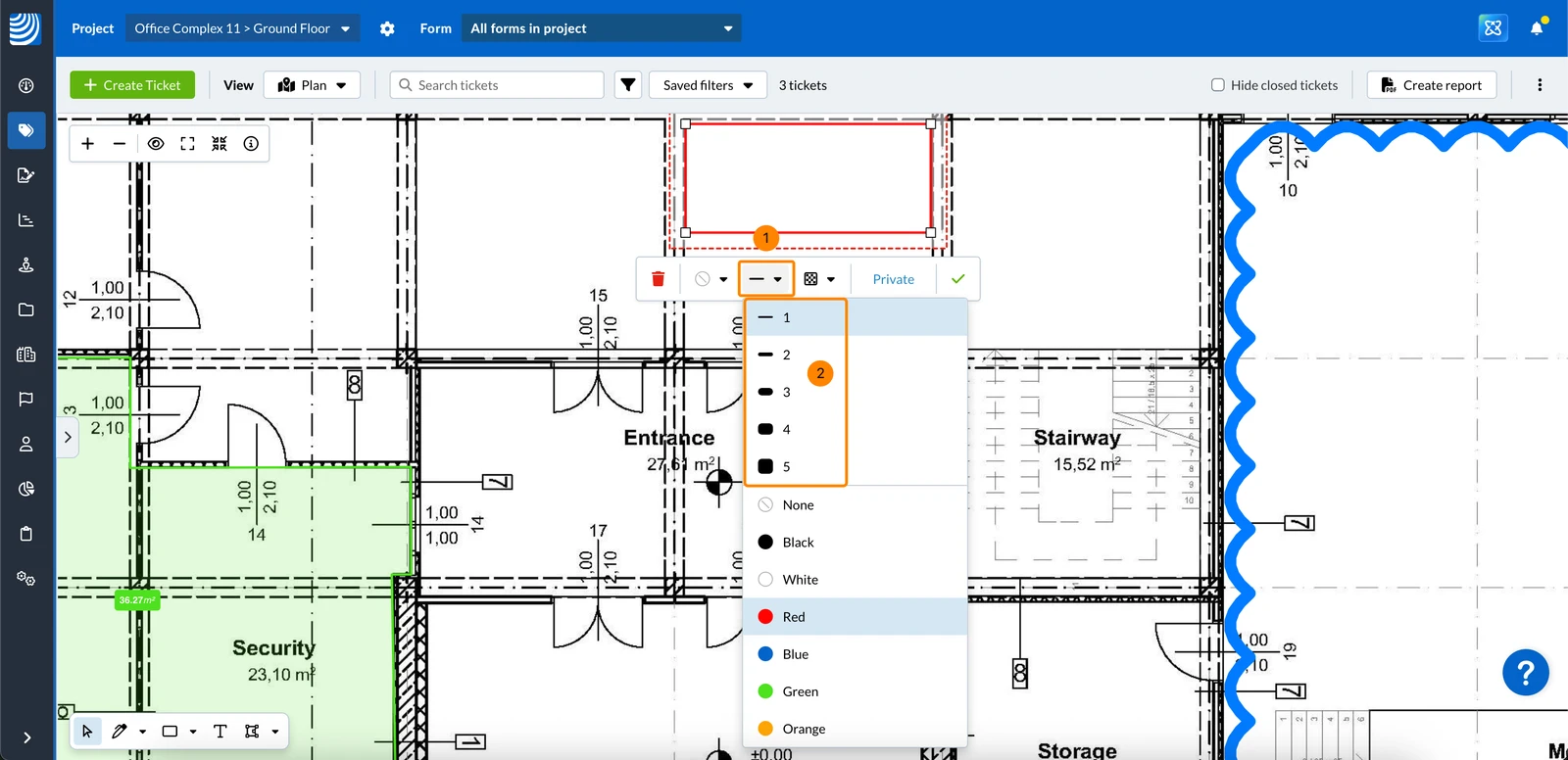
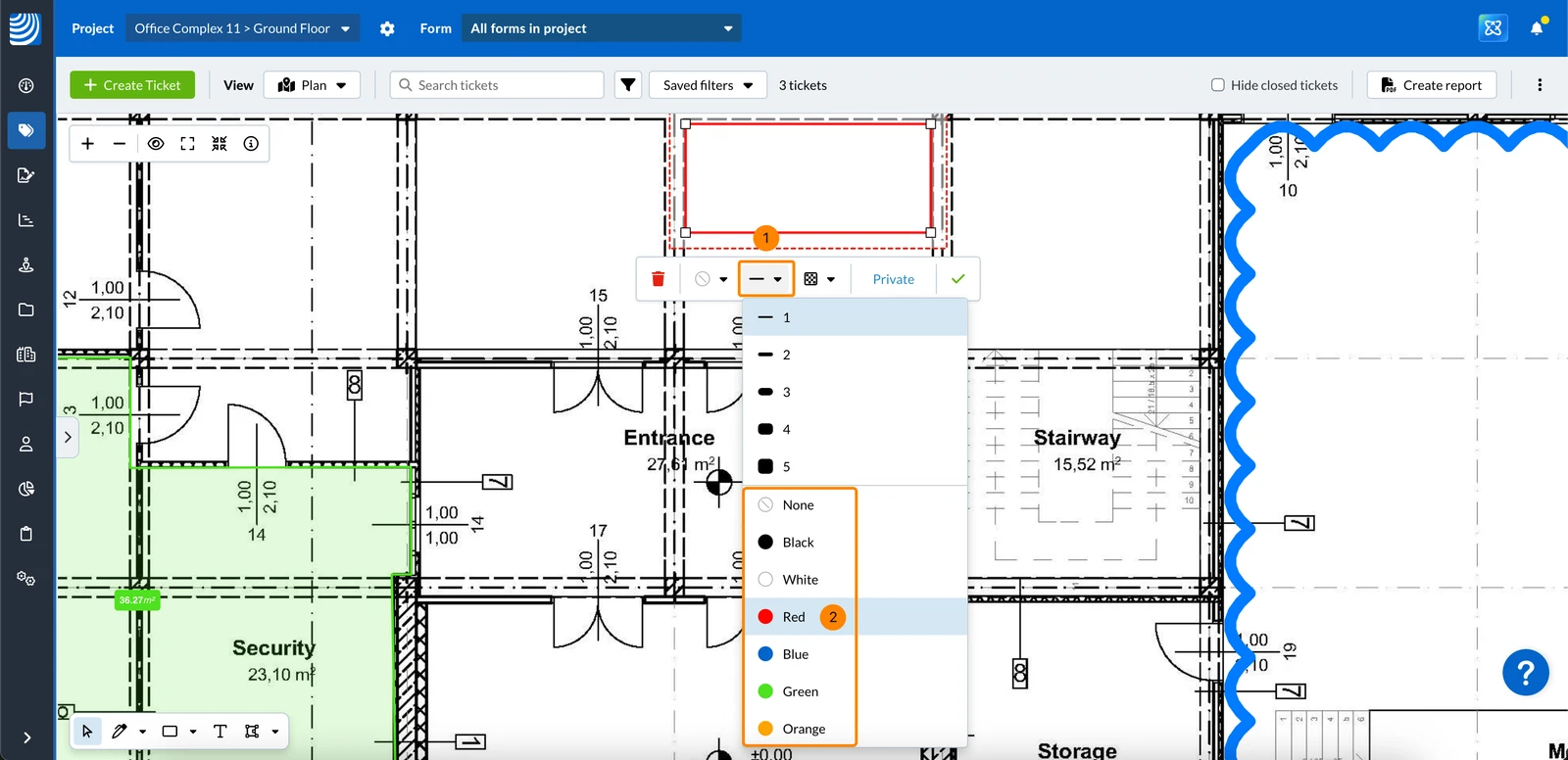
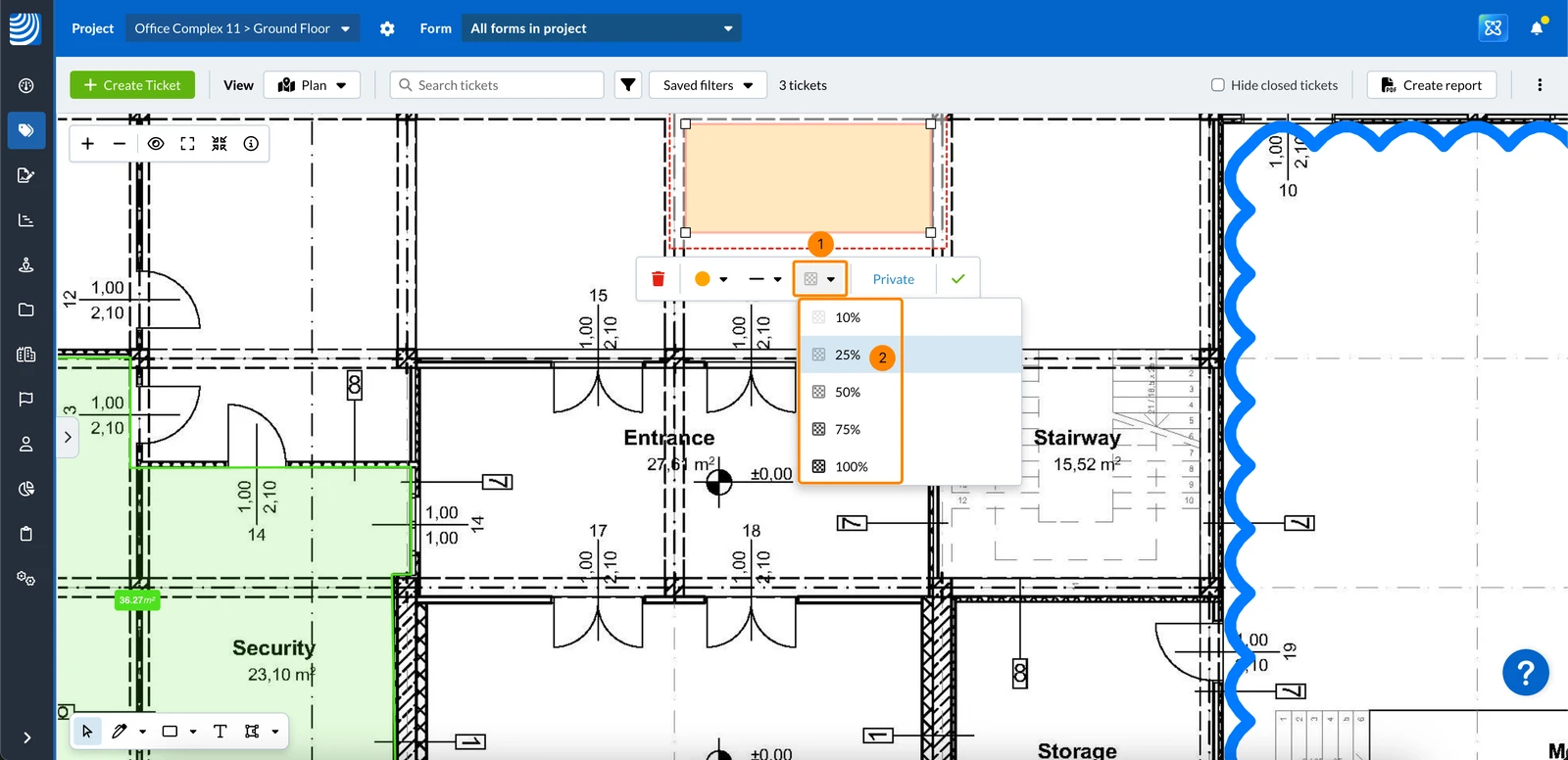
Plan markups let you visually highlight, annotate, and communicate information directly on your project plans—whether for collaboration or personal reference.
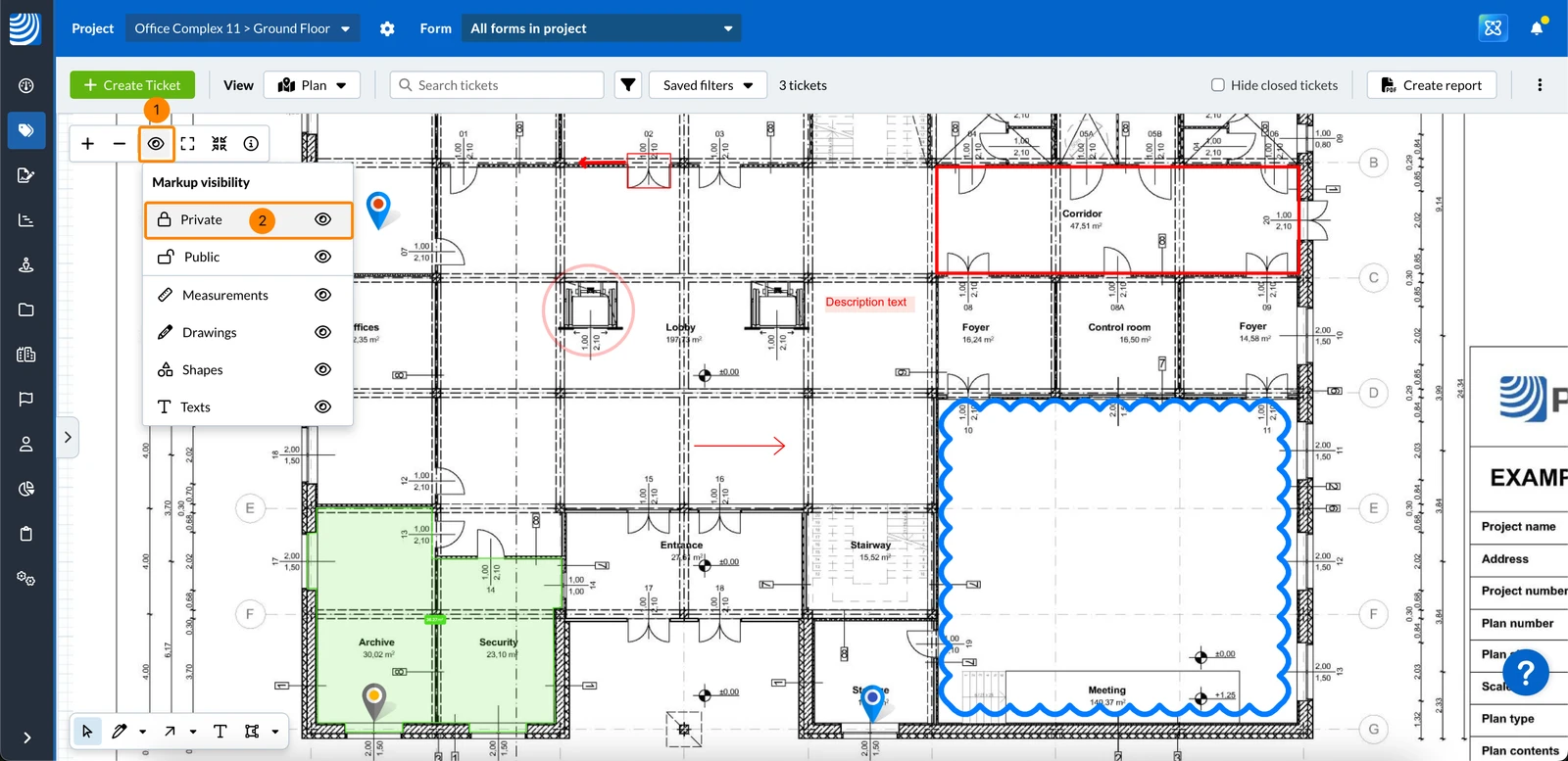
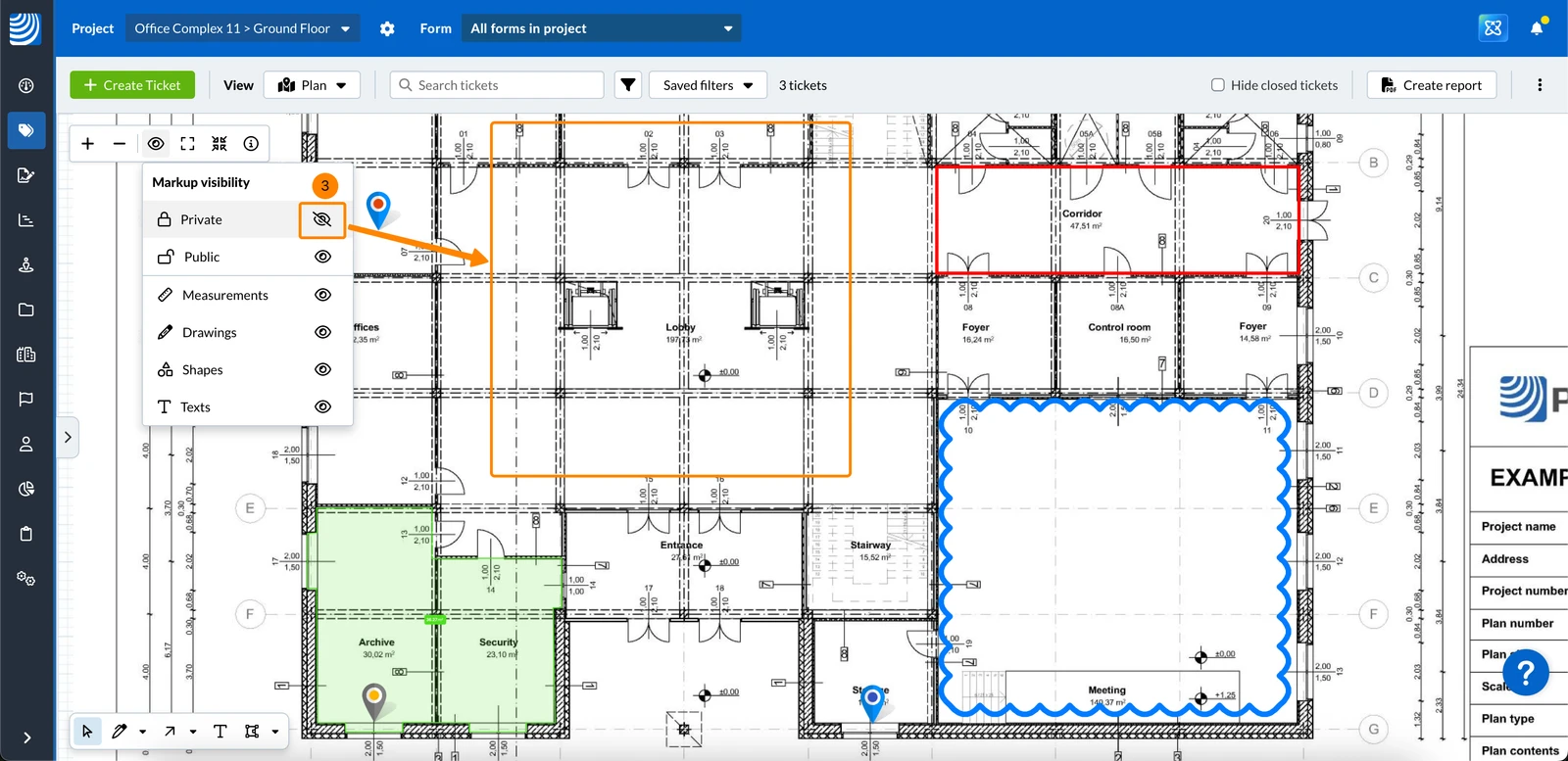
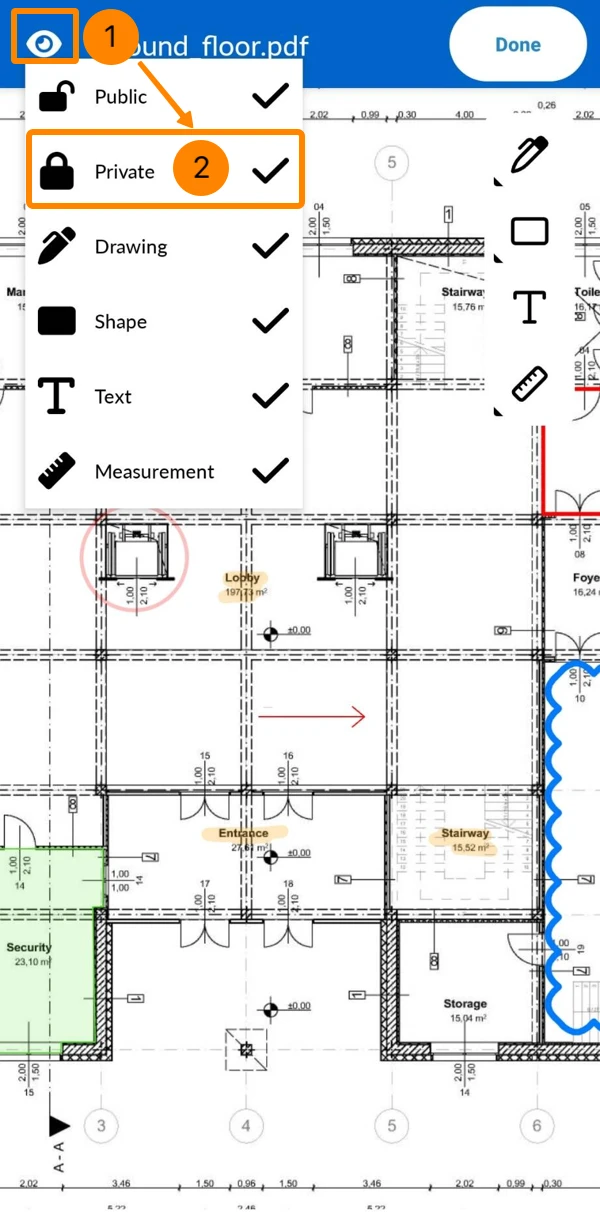
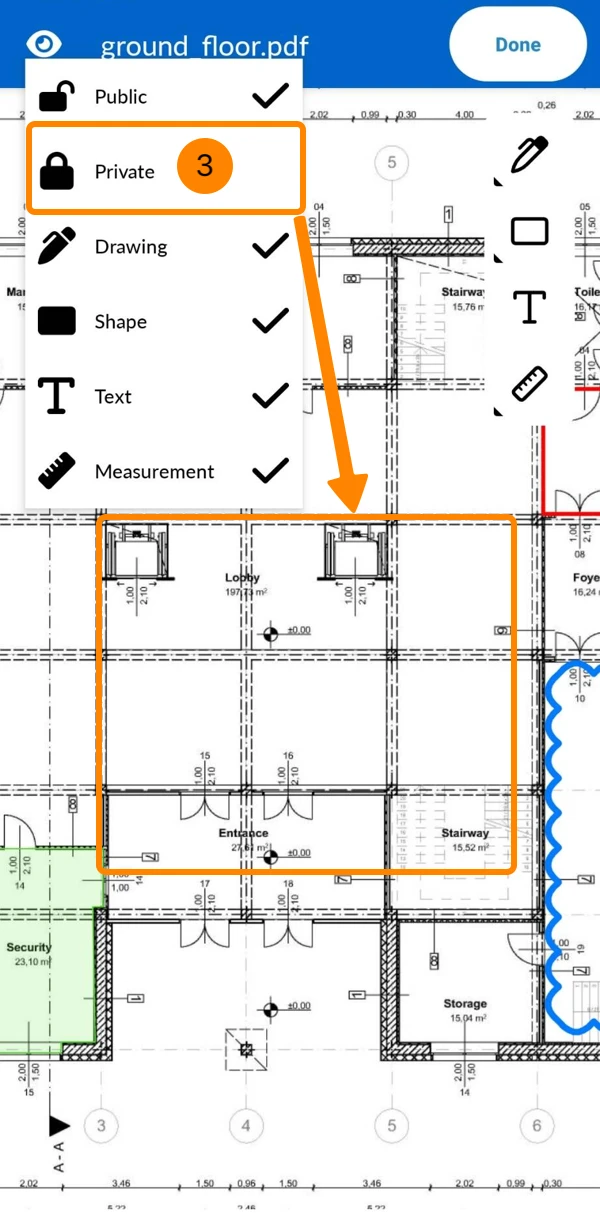
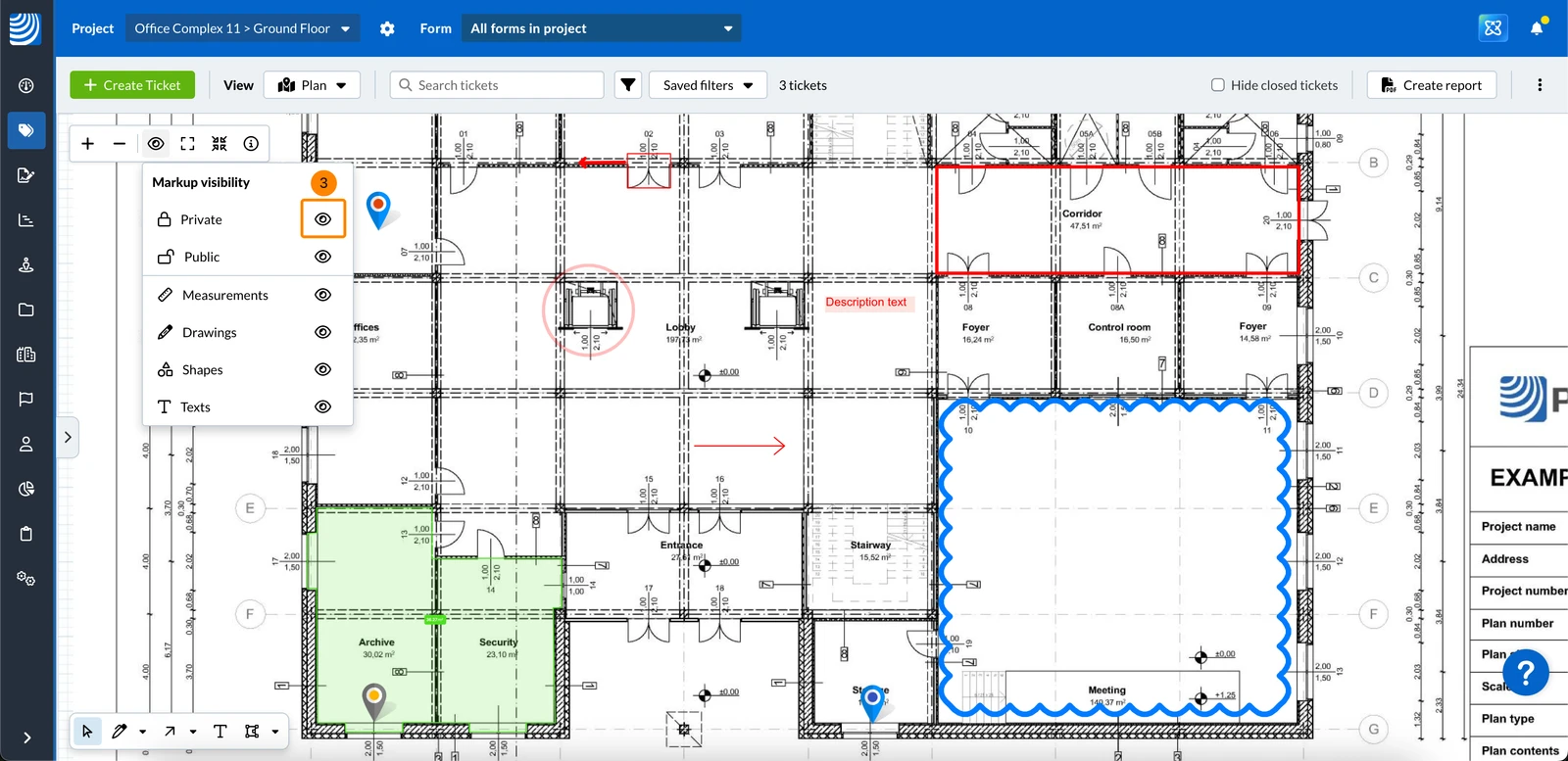
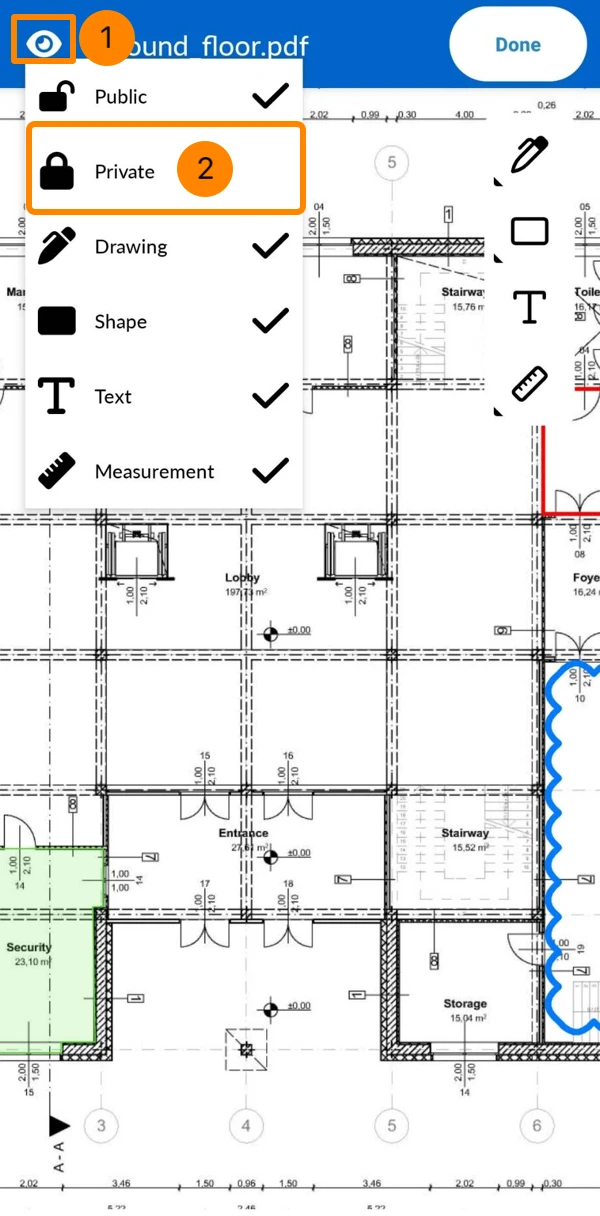
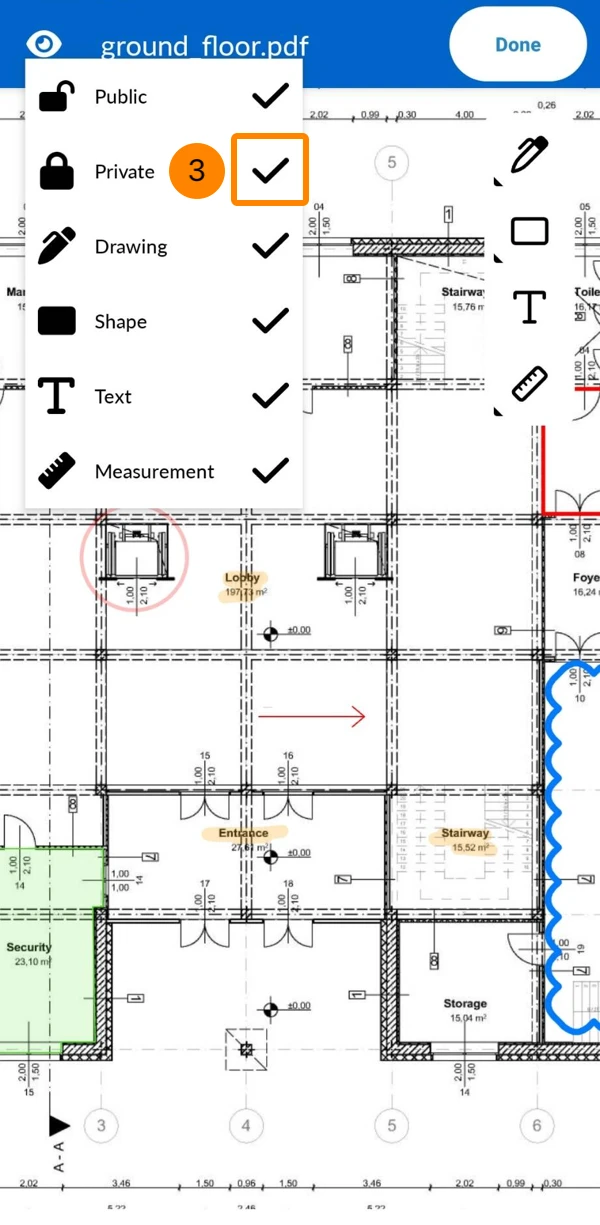
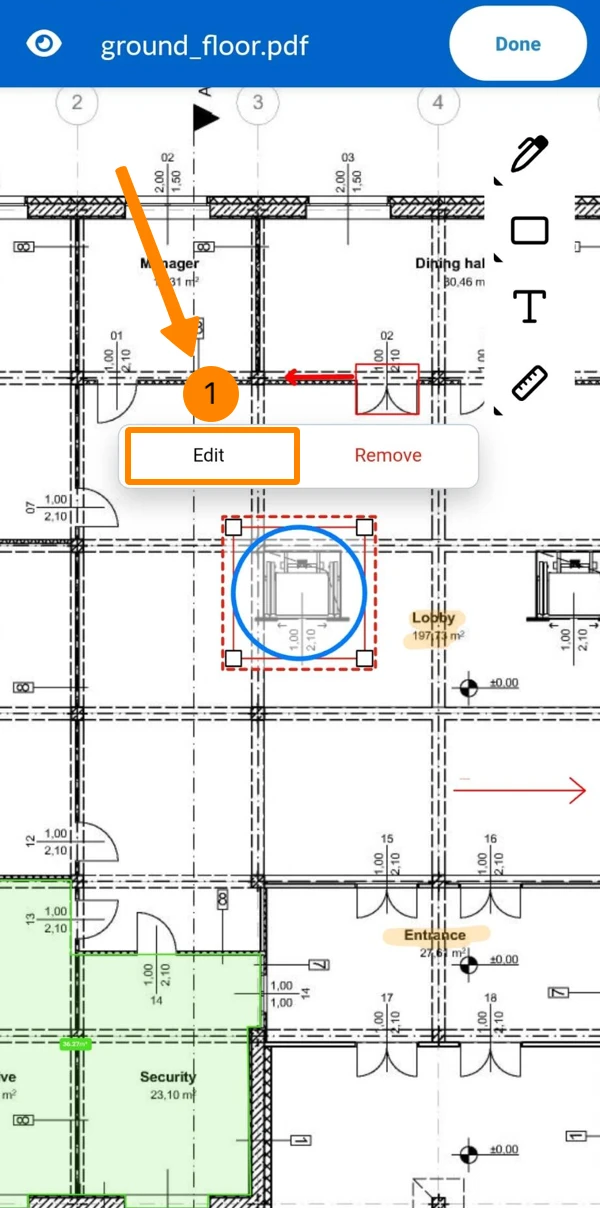
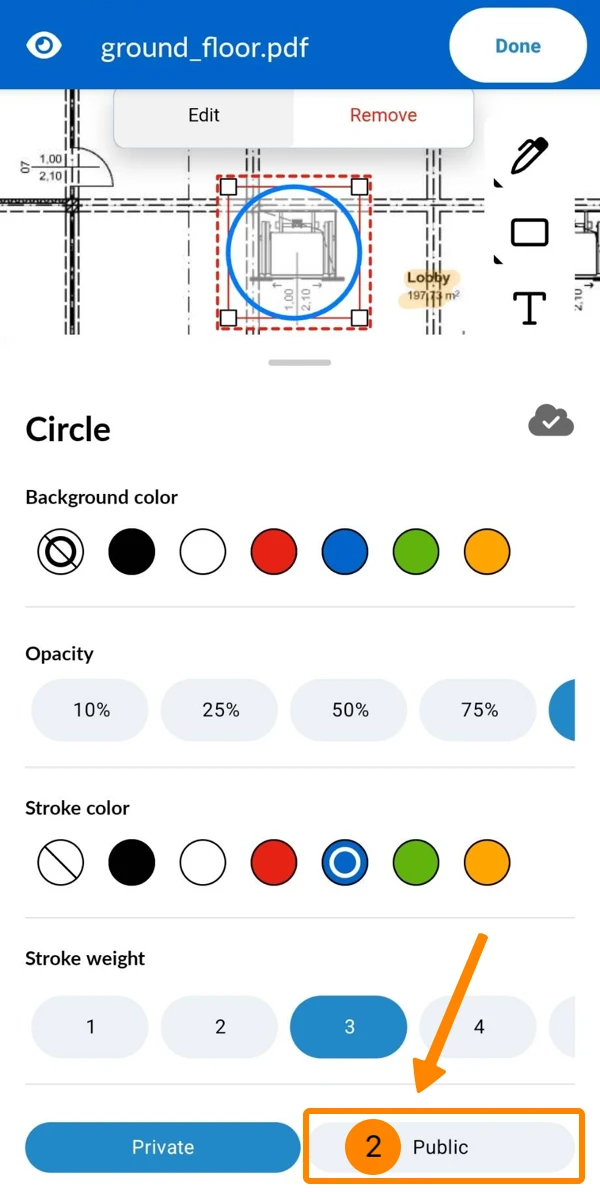
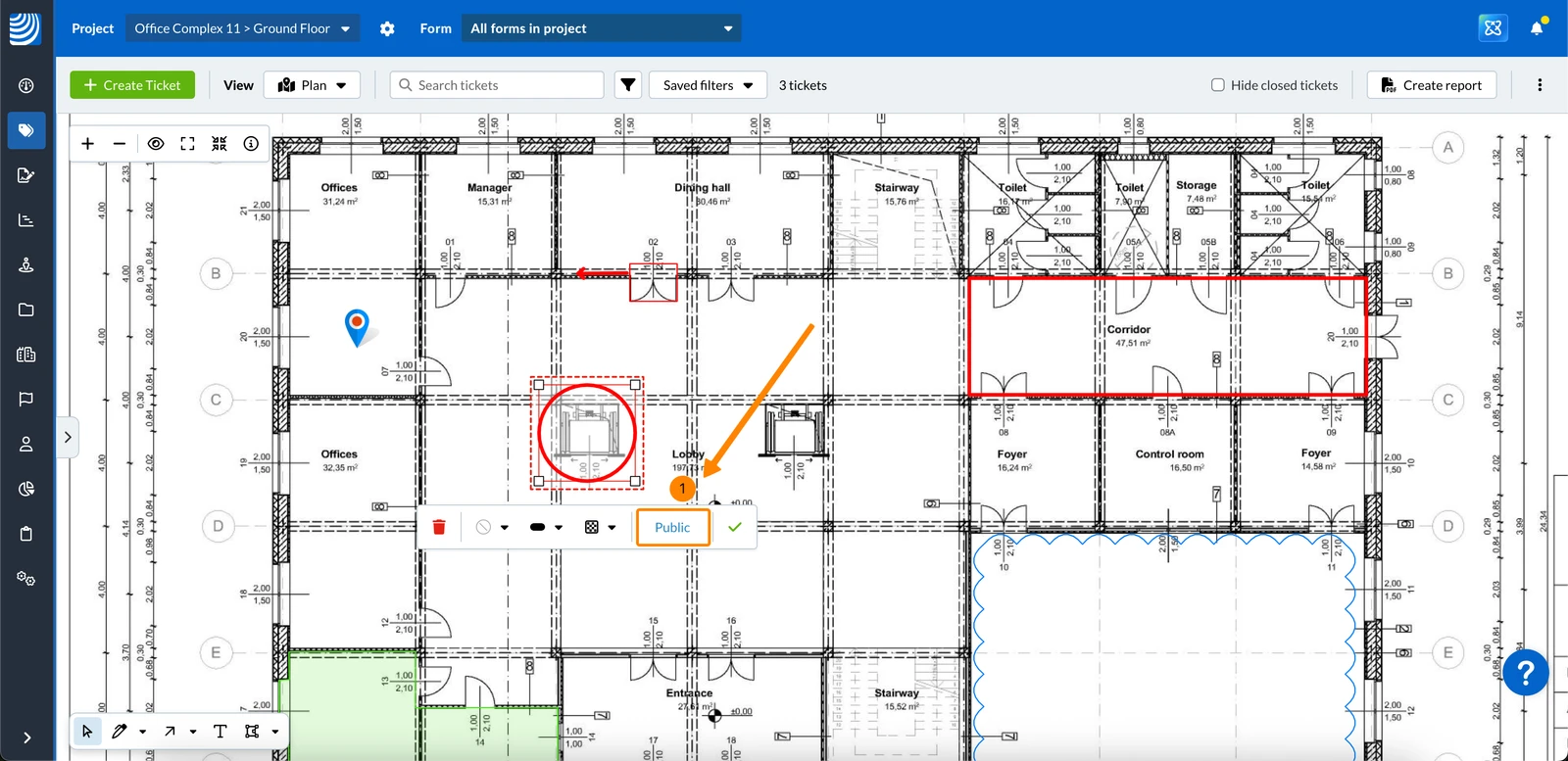
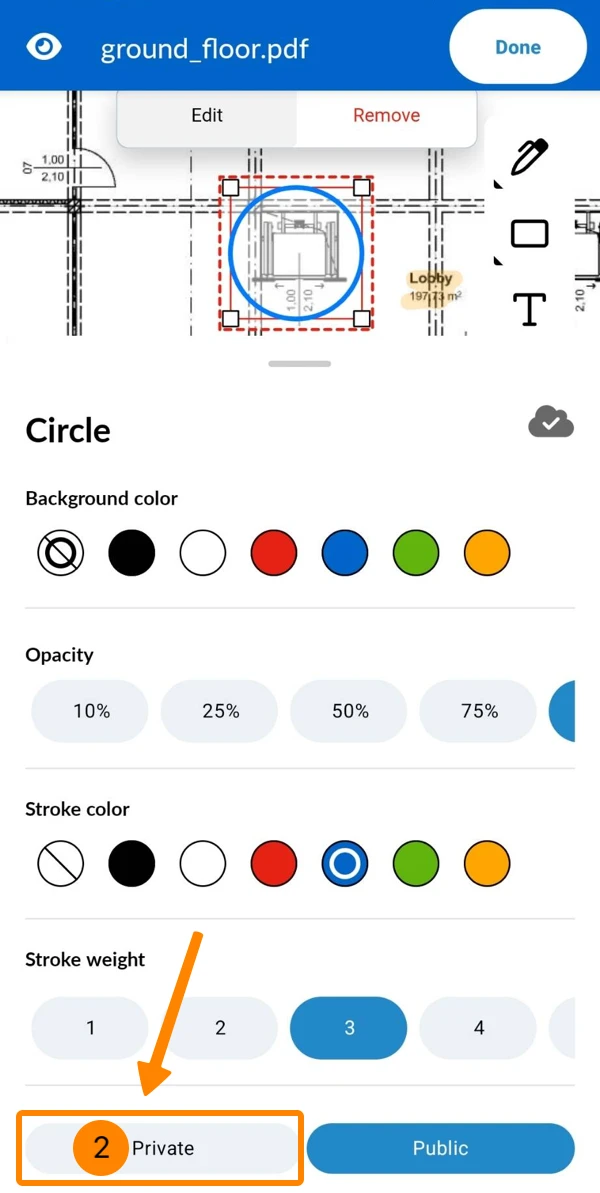
Public markups are visible to all users with plan access.
Private markups are visible only to the creator.
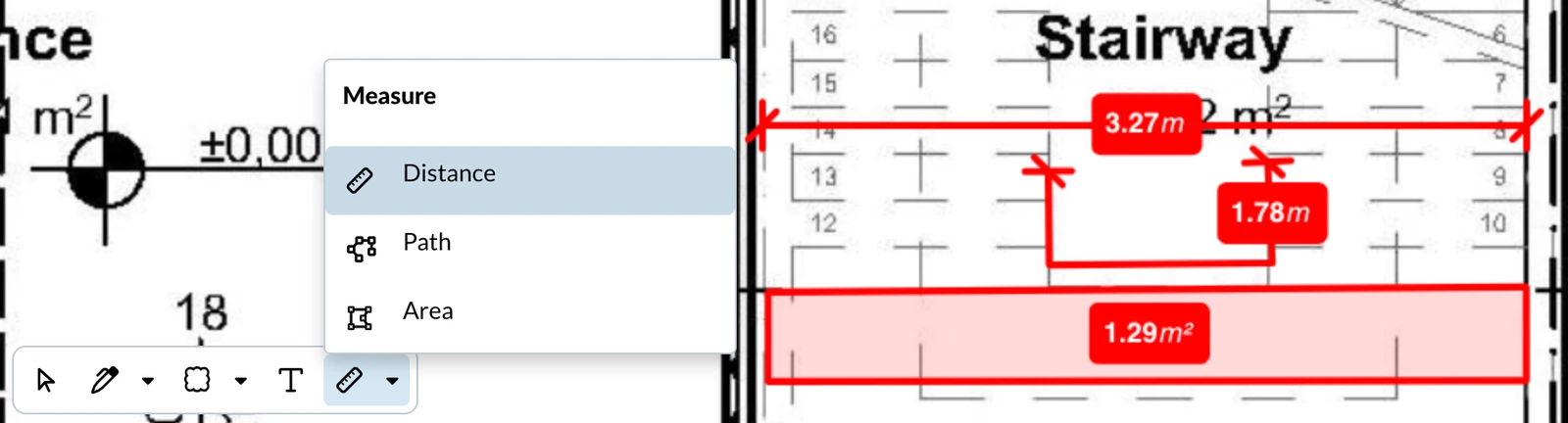
Measurements (Distance, Path and Area) work like markups and calculate the distance or area.
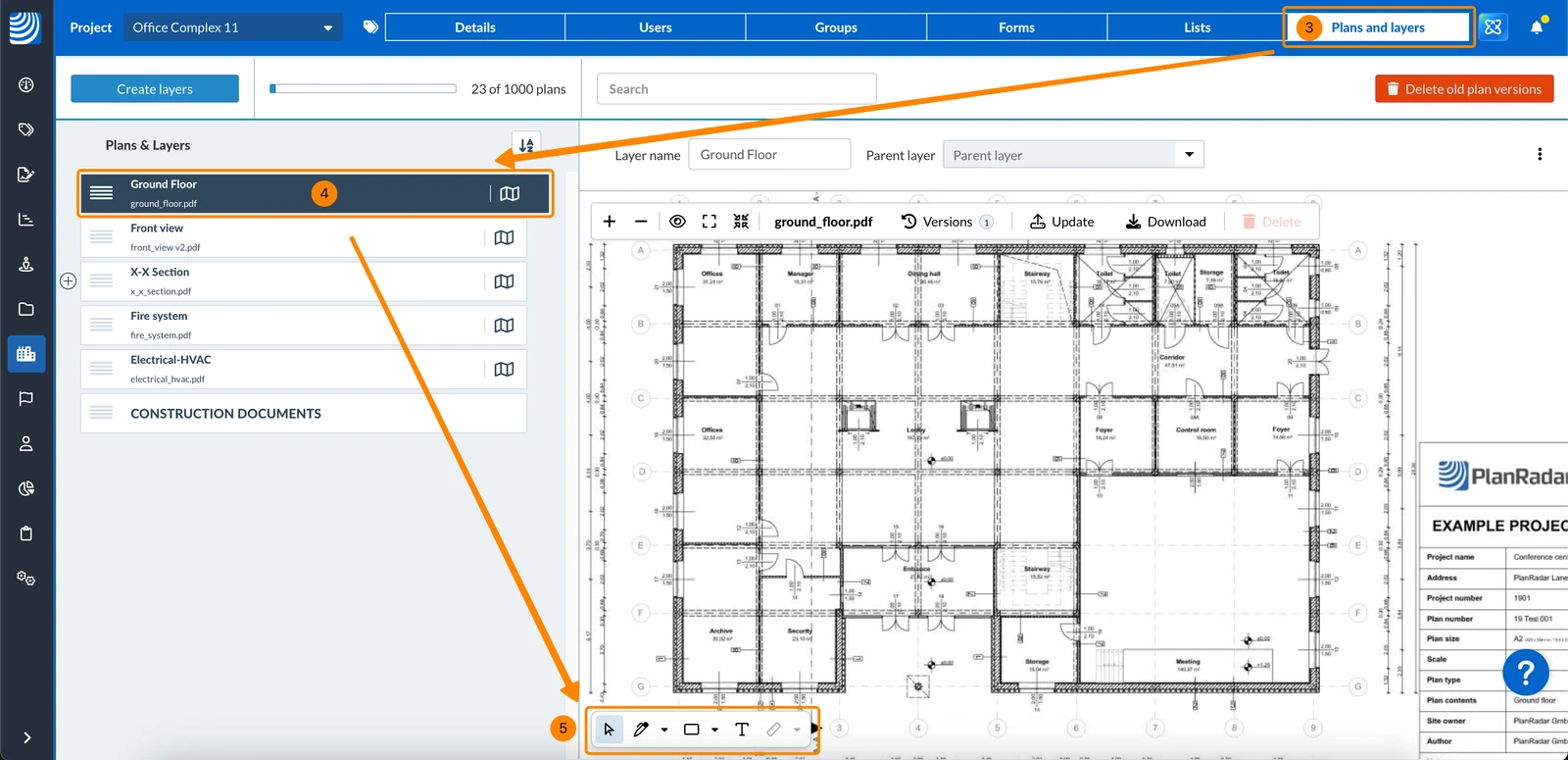
Projects > Plans & Layers — available in the Webapp only
Markups created in one view are automatically visible in the other.
Since the process is the same in both views, this article uses the tickets plan view as an example.
To access the tickets plan view:
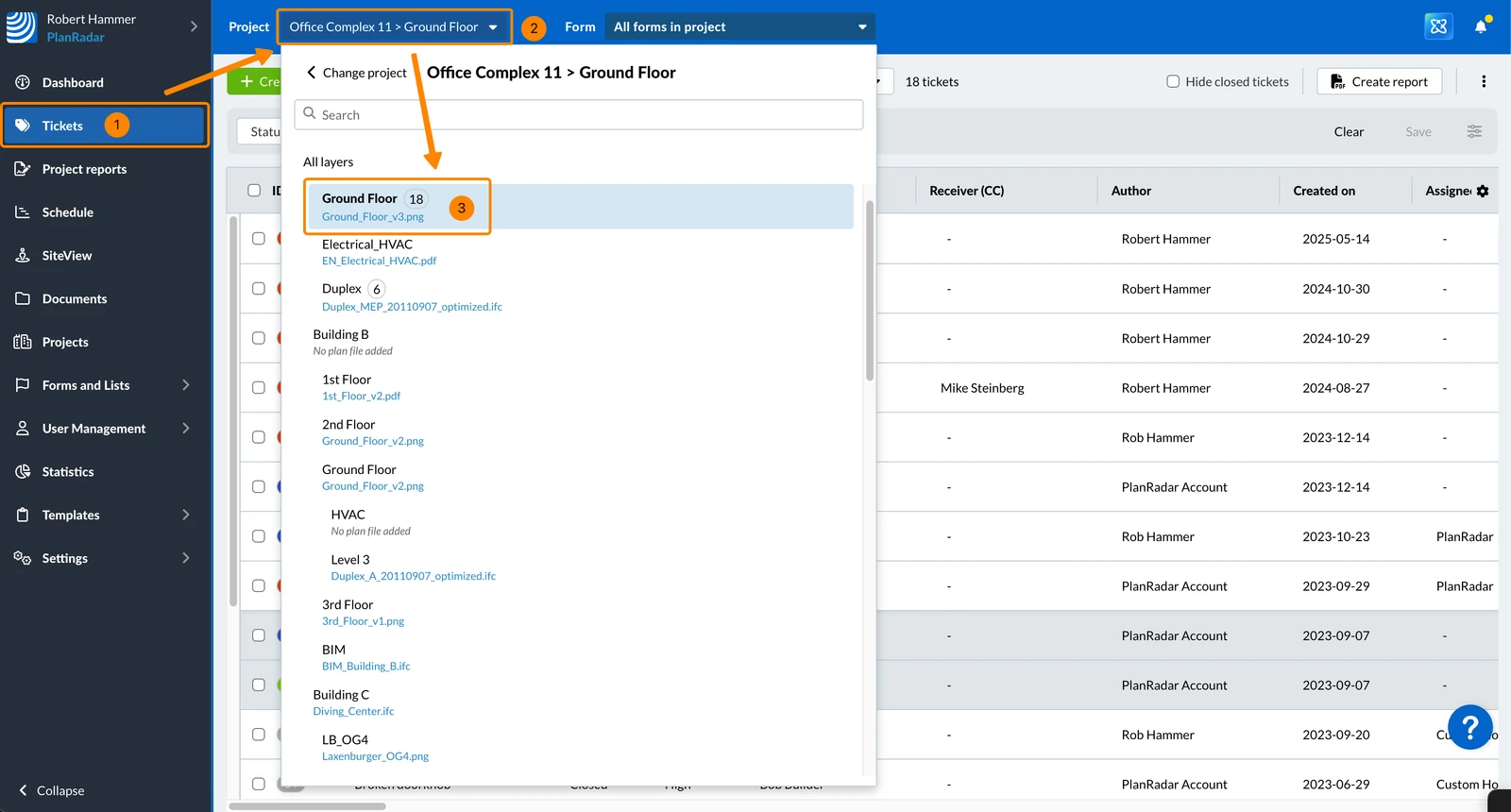
Click Tickets
Open the Project menu
Click on a layer/plan e.g. Ground Floor
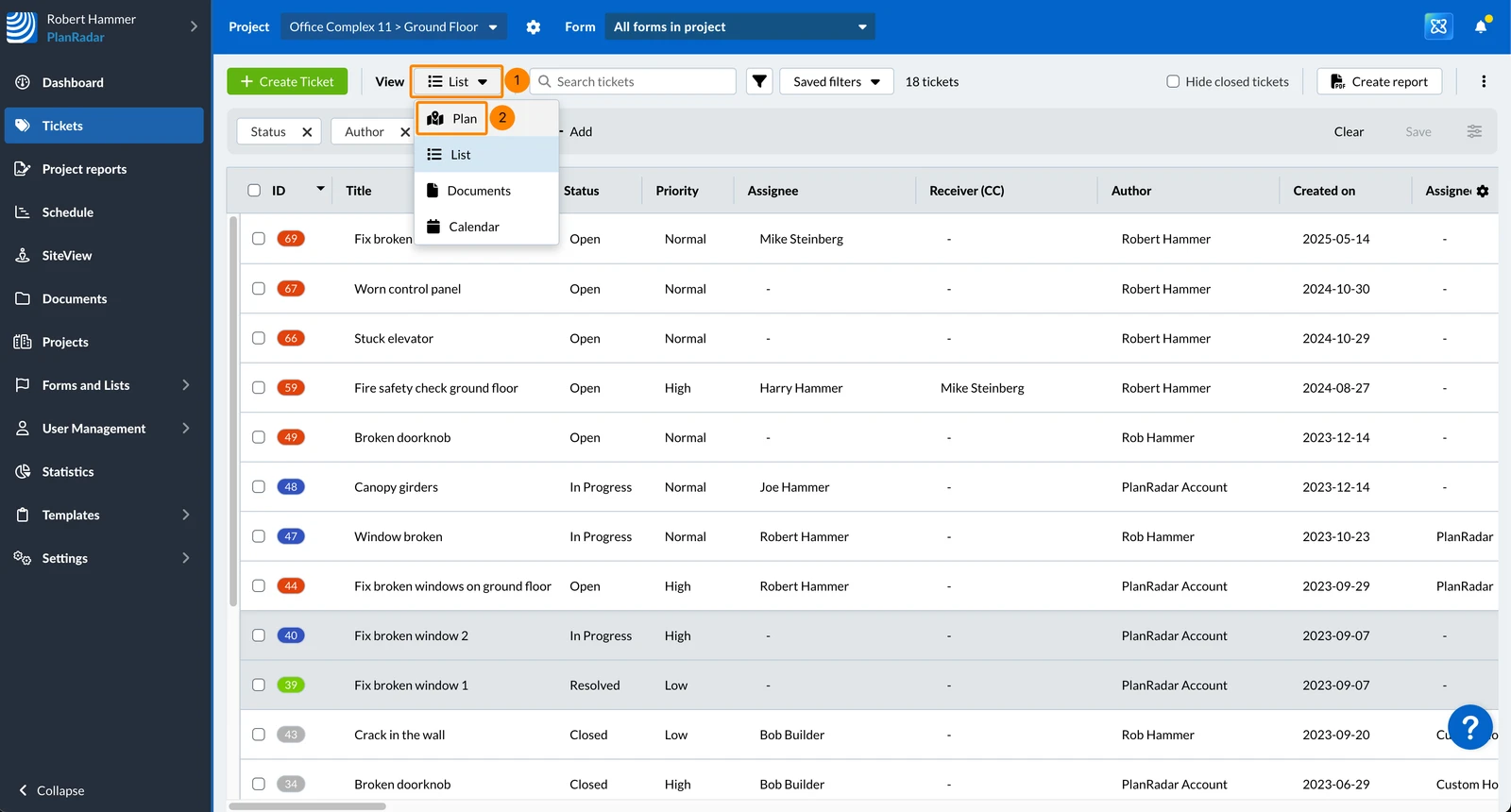
In the View drop-down select Plan
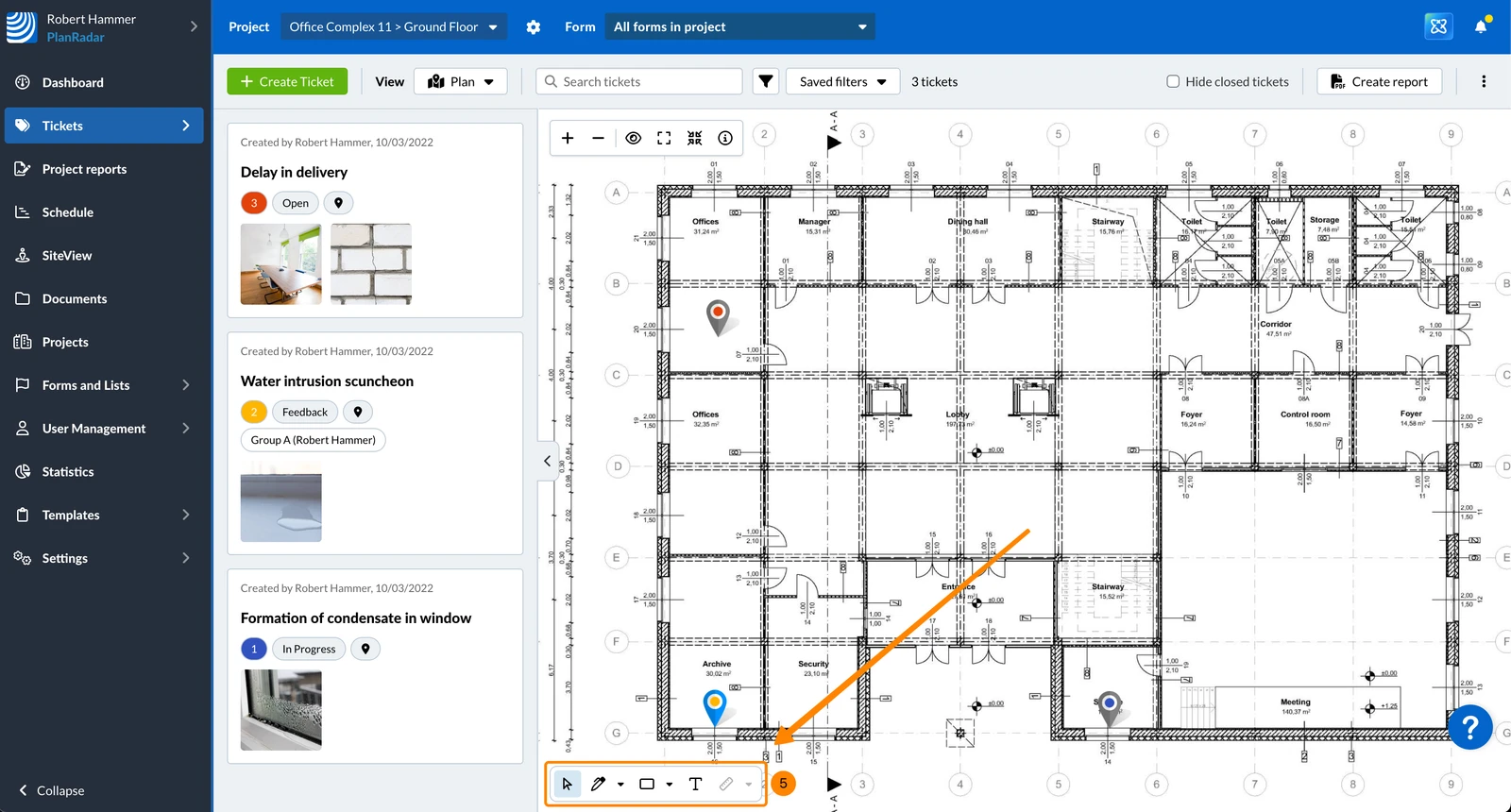
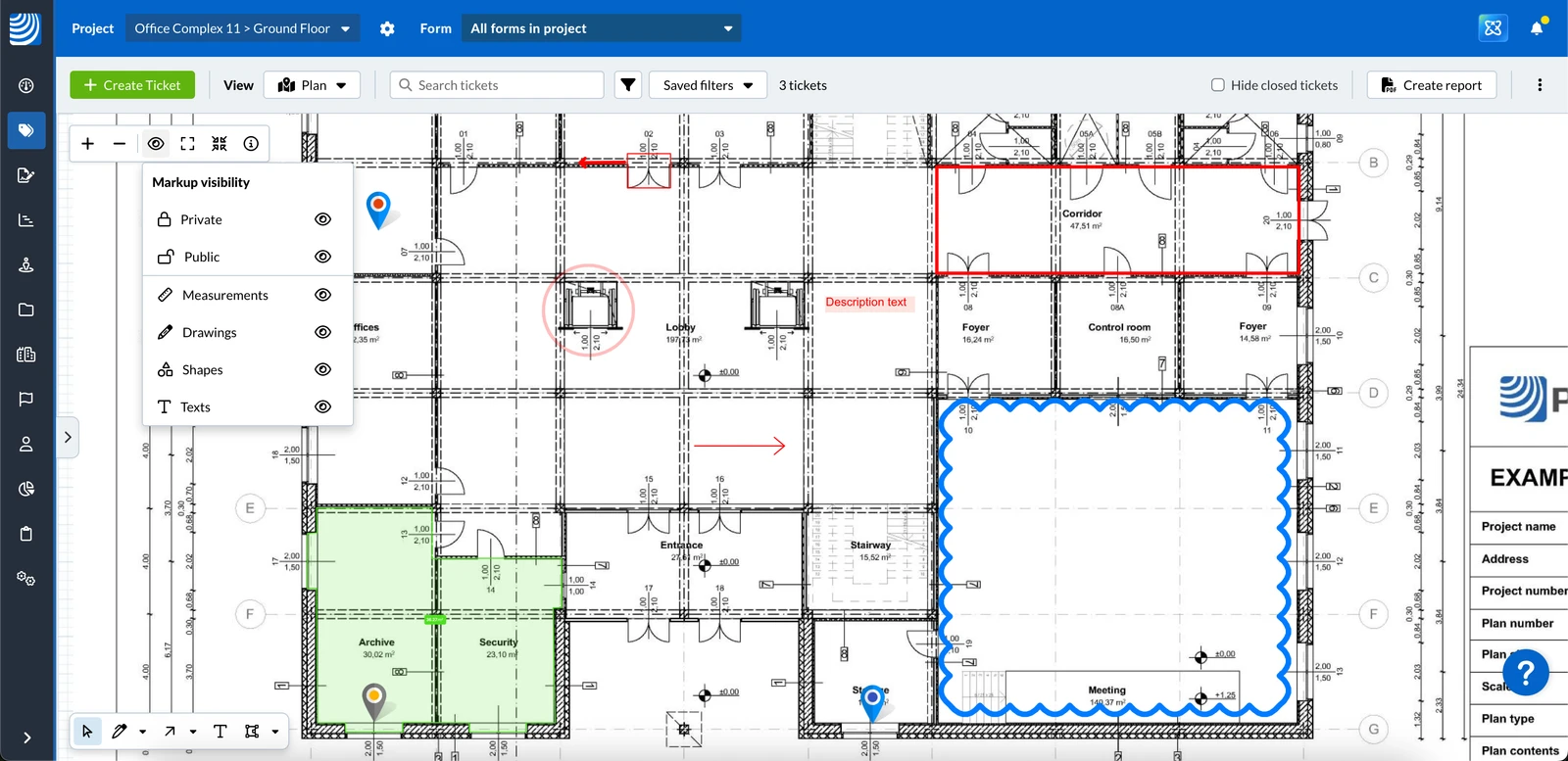
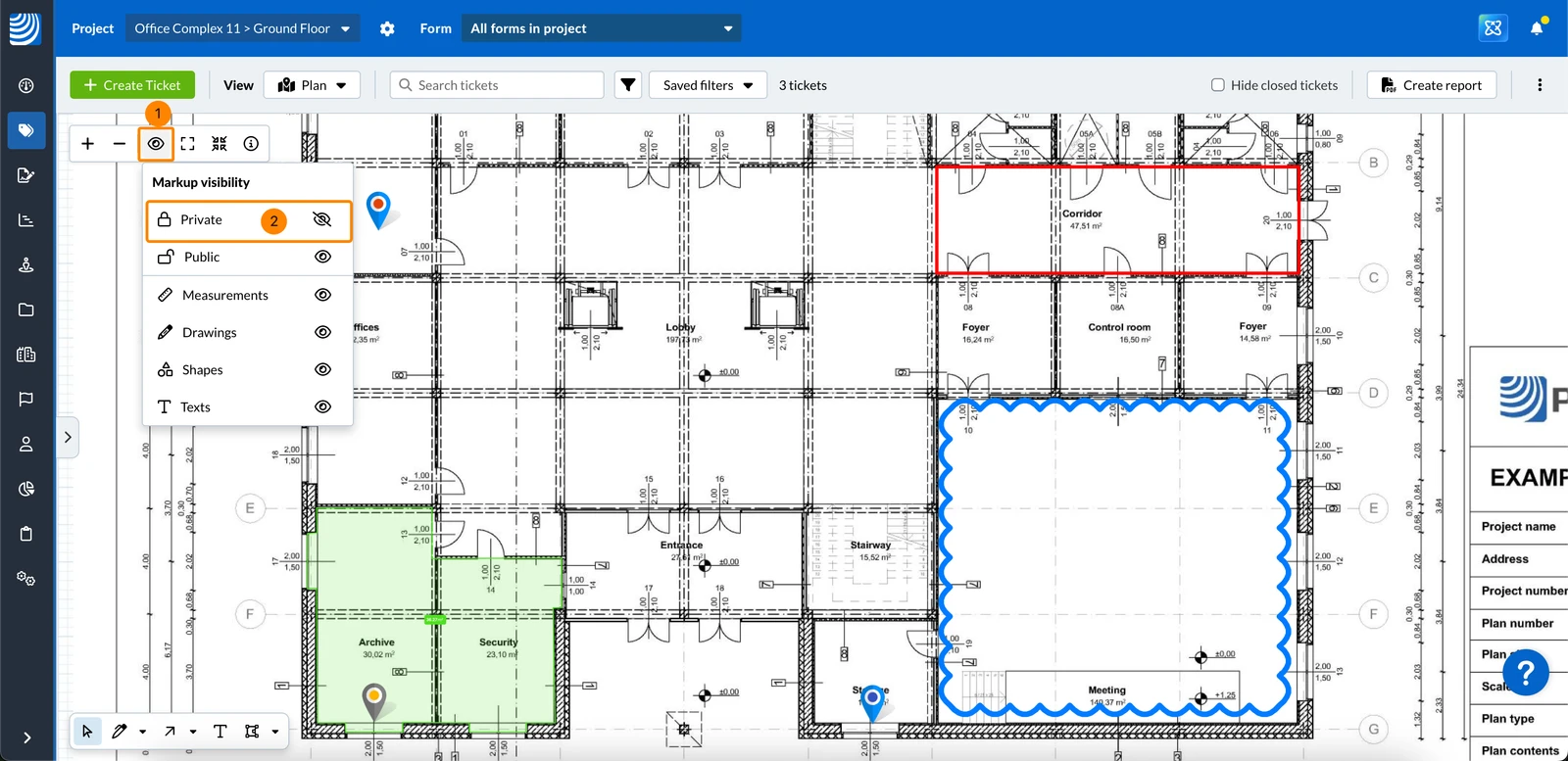
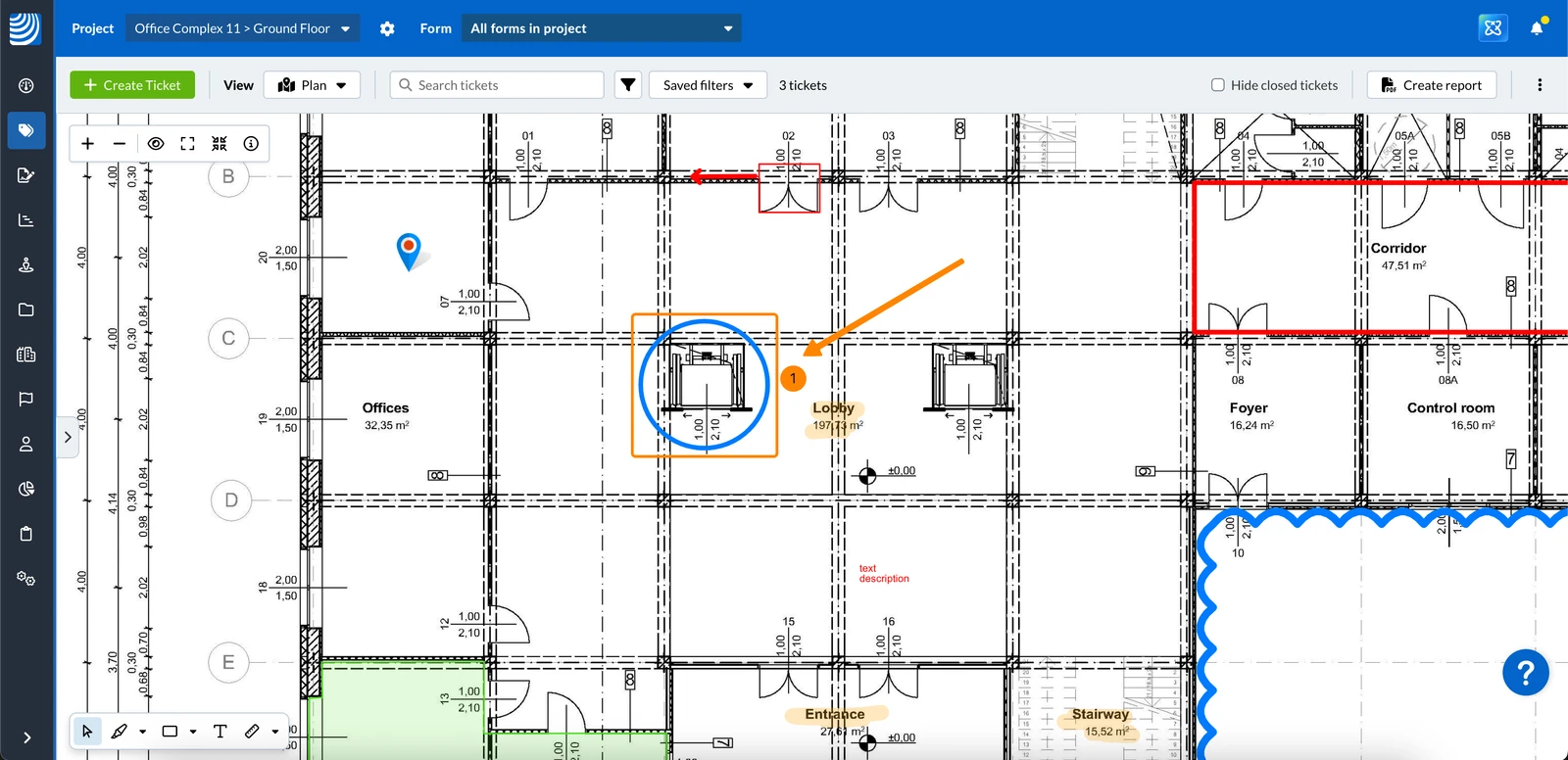
You see the tickets plan view with the plan markups toolbar
To access a plan in 'Plans and layers' of a project:
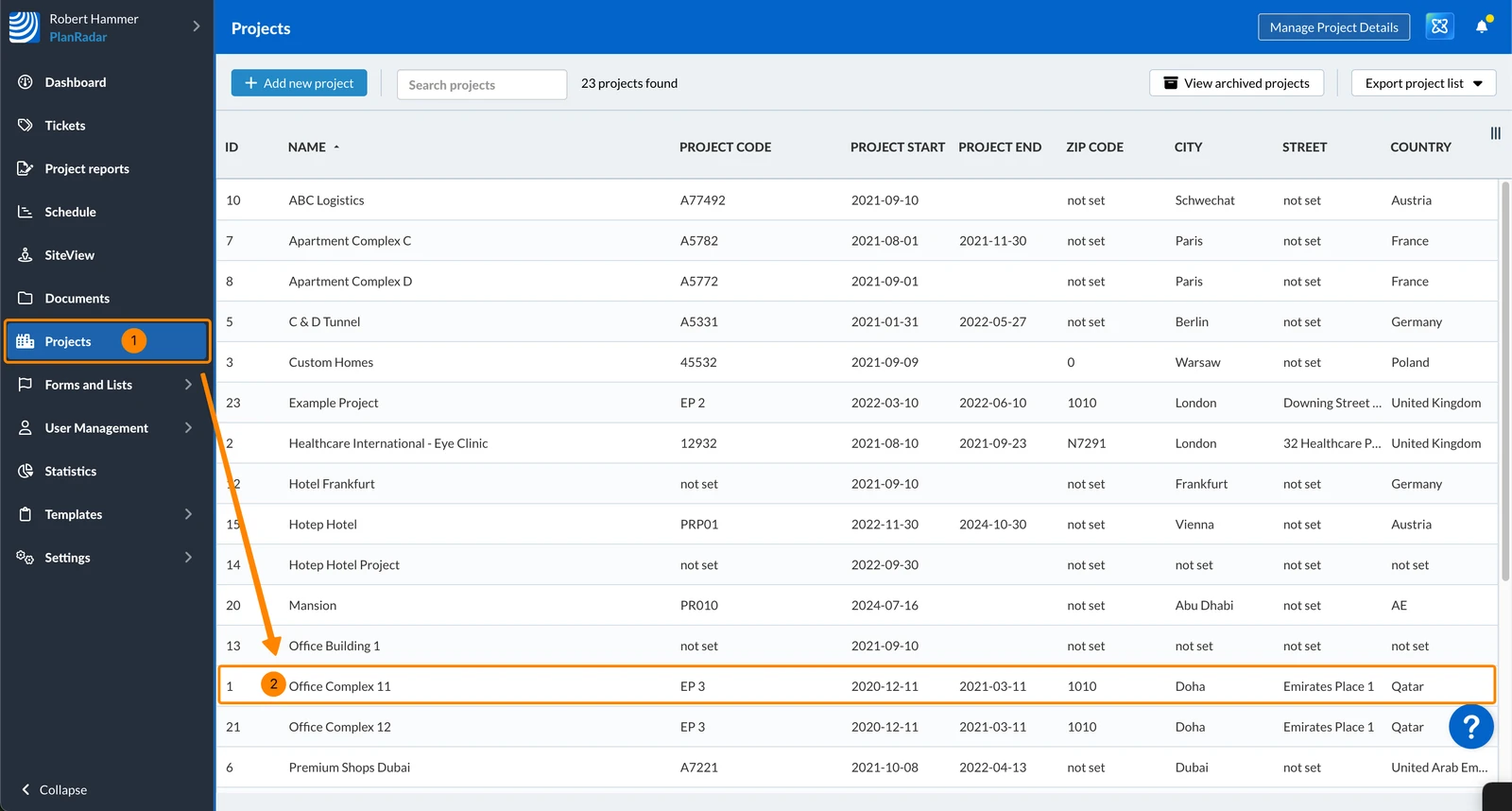
Click Projects
Click on the project to open it
Click Plans and layers
Click on the layer/plan e.g. Ground Floor
You see the plan with the plan markups toolbar
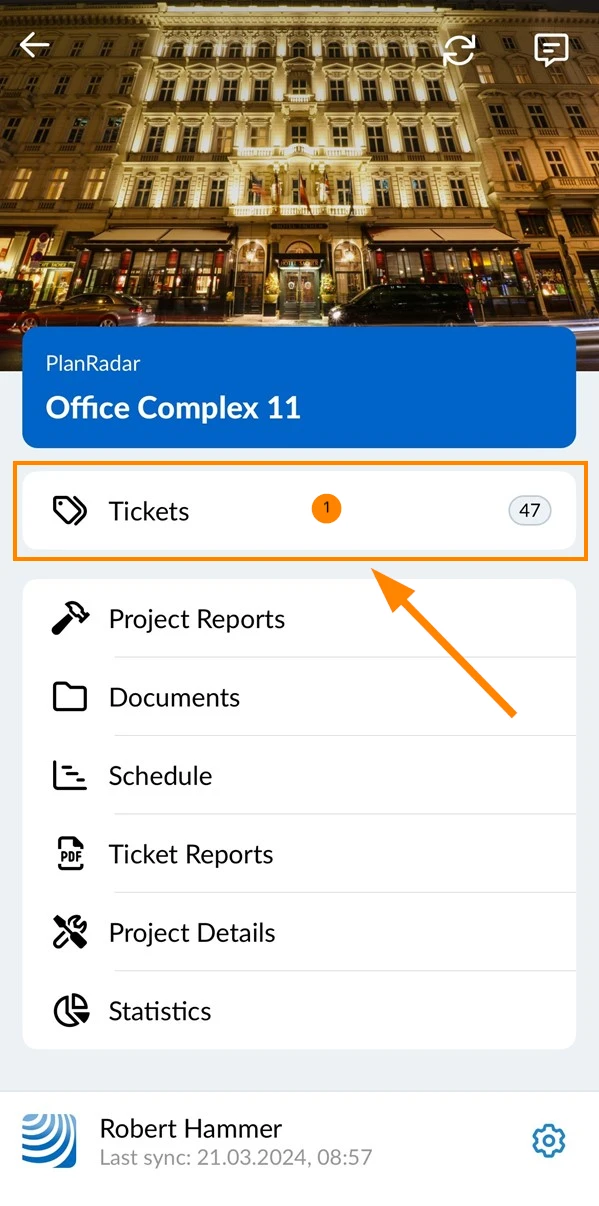
Tap Tickets in the main menu
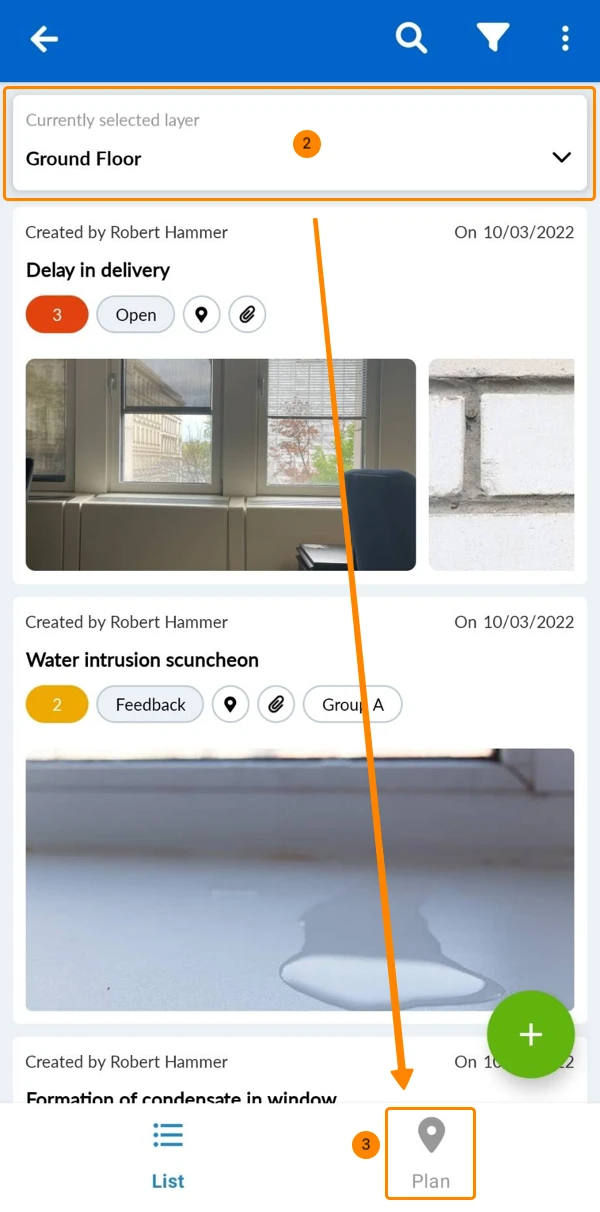
Select a layer e.g. Ground Floor
The Plan view is not available while All layers is selected.
Tap Plan
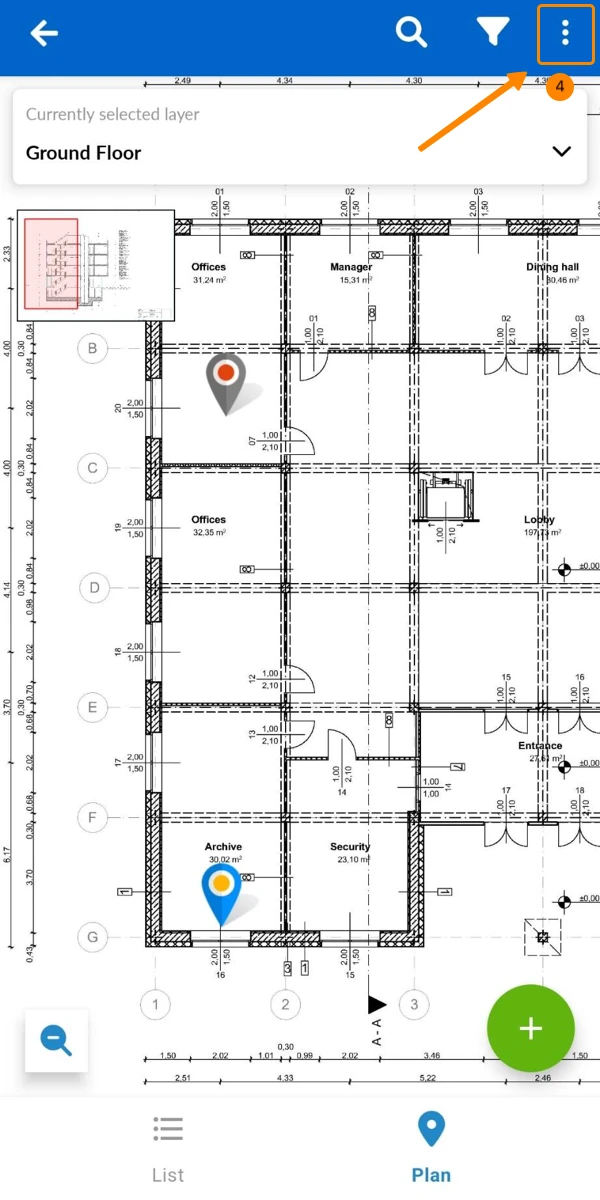
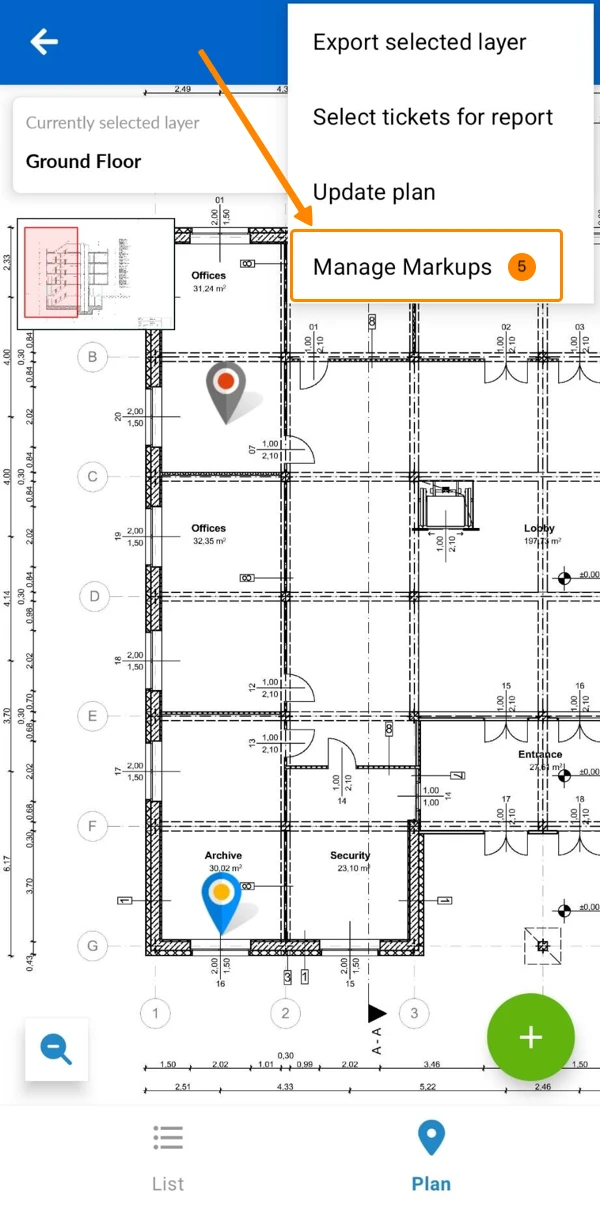
Open the More menu
Tap Manage Markups
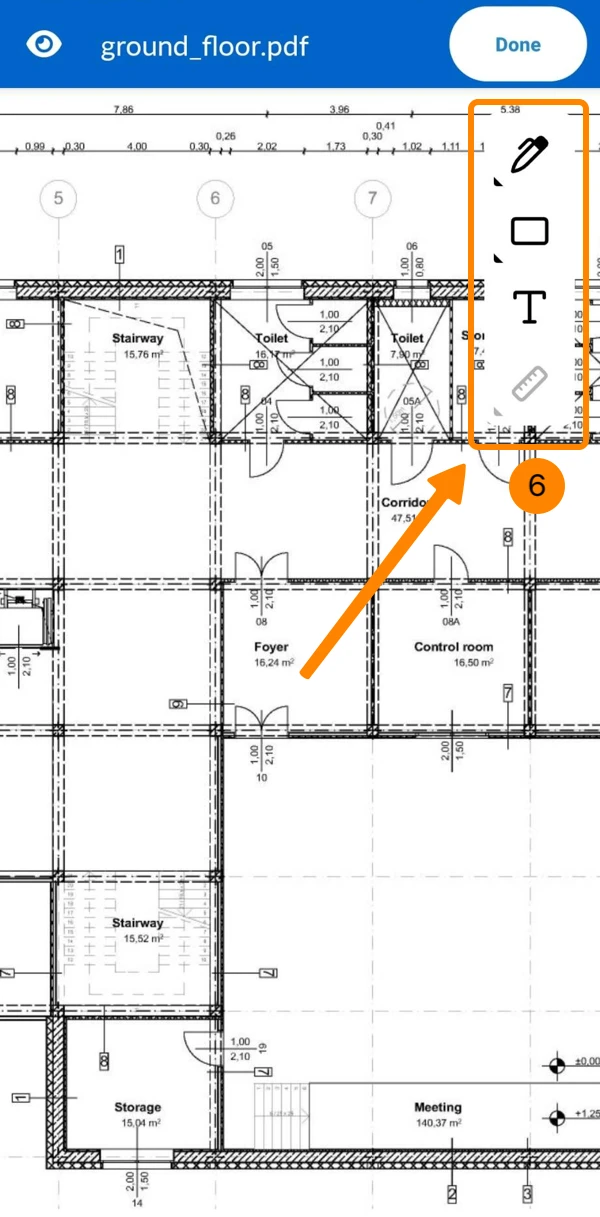
You see the plan view with the plan markups toolbar
Markup Tools (by Type)
There are different markup tools which are grouped in the following menus by markup types:
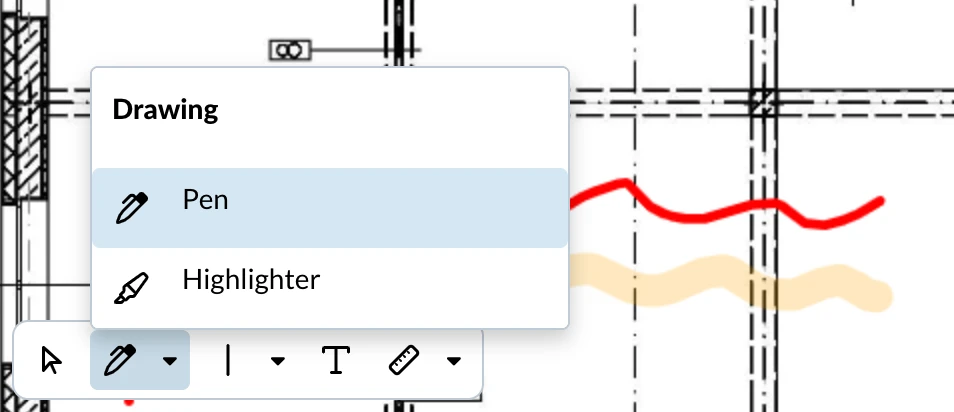
Drawing
Free hand drawings include the Pen and the Highlighter markup tools. They work the same, with the highlighter being thicker and transparent by default.
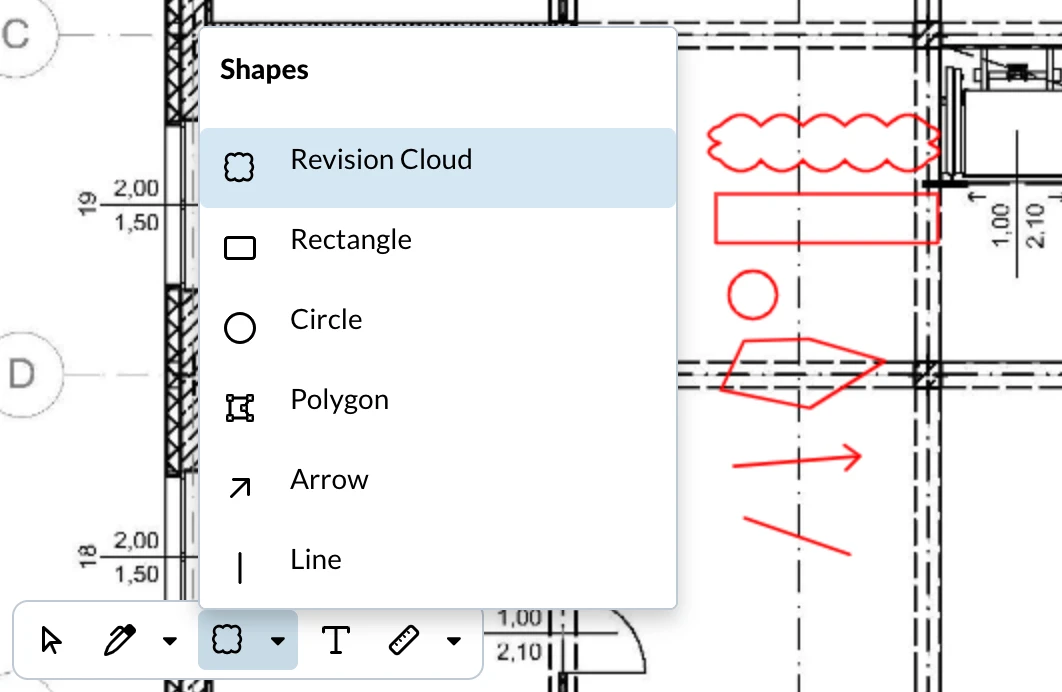
Shapes
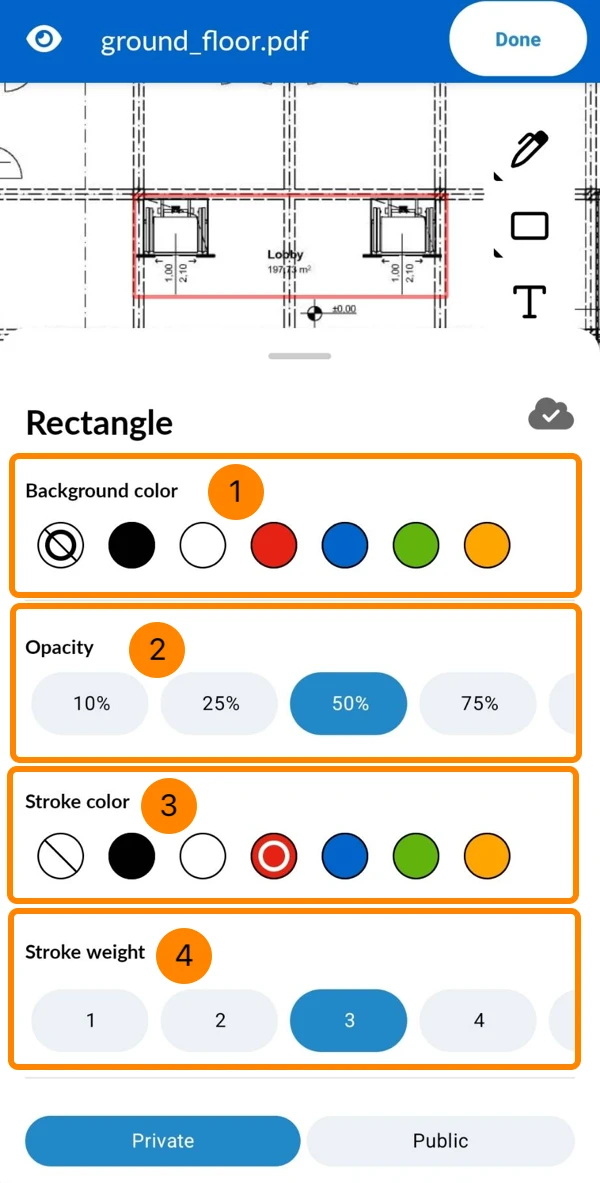
Shapes include the Revision cloud, Rectangle, Circle,Polygon, Arrow and Line markup tools.
Text
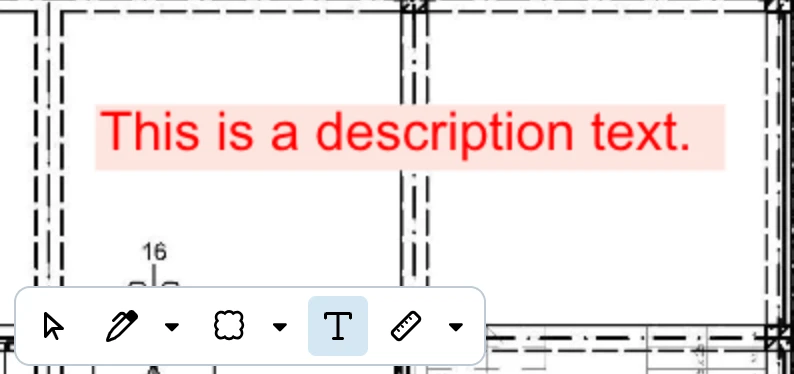
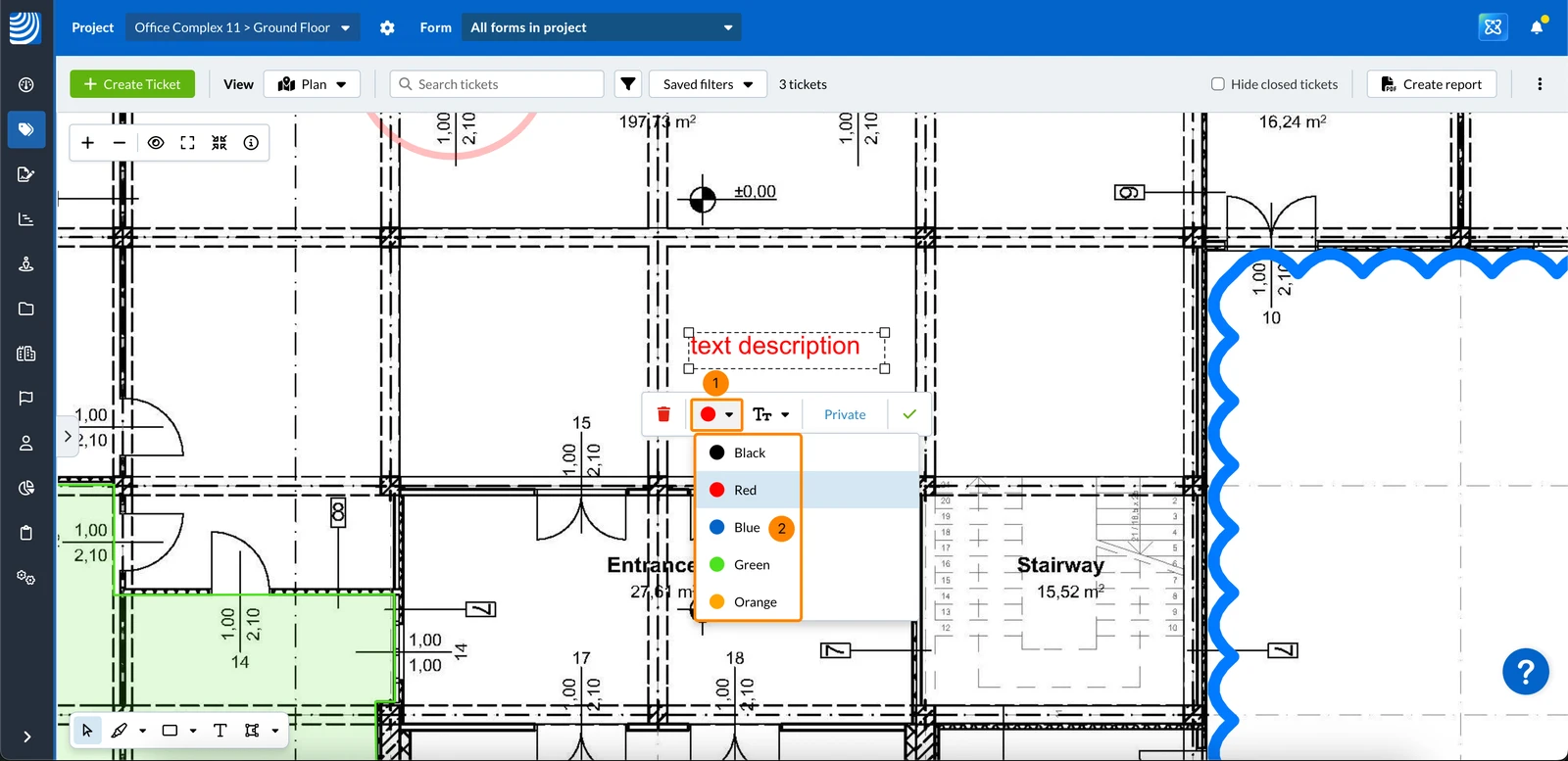
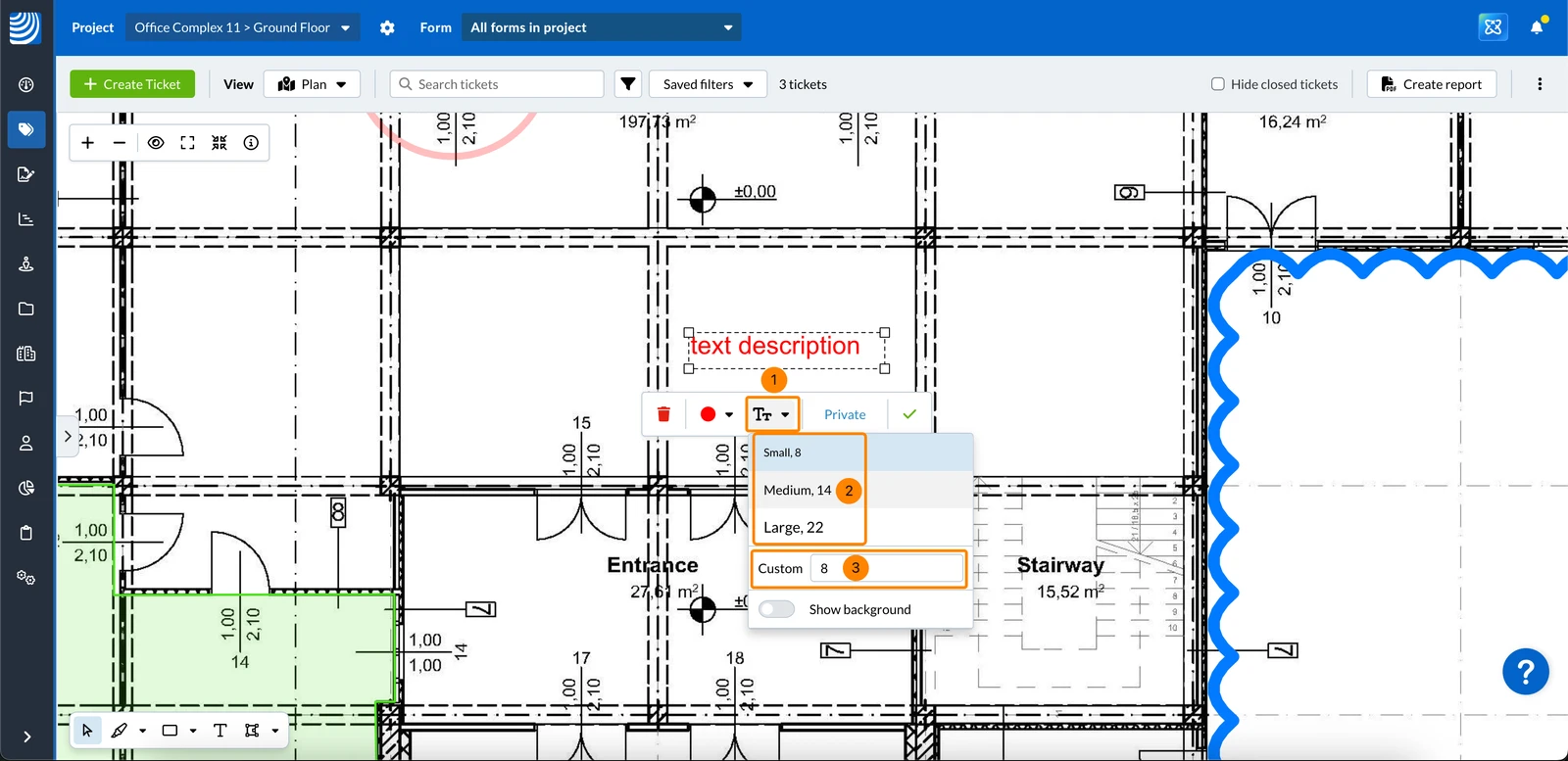
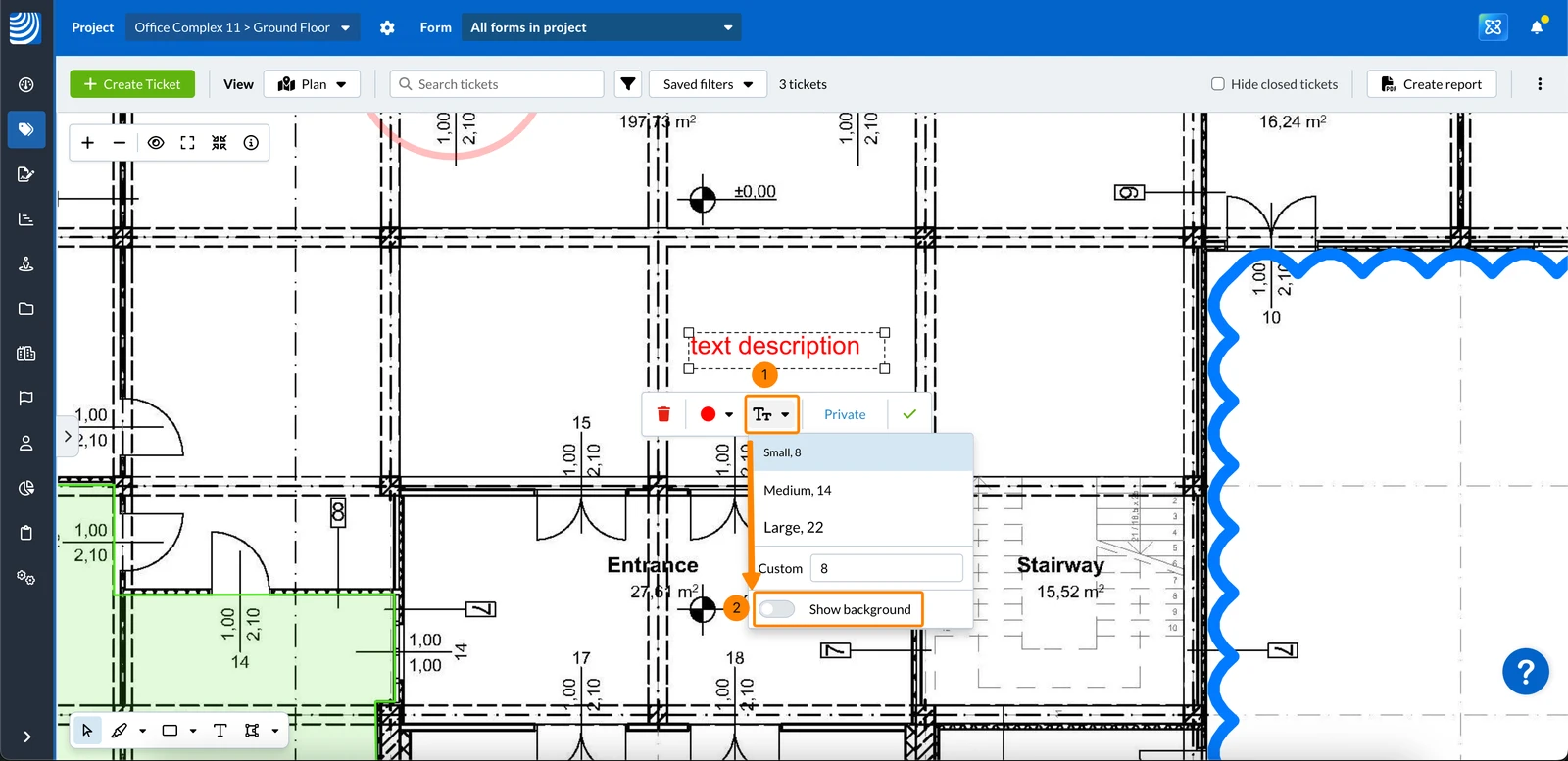
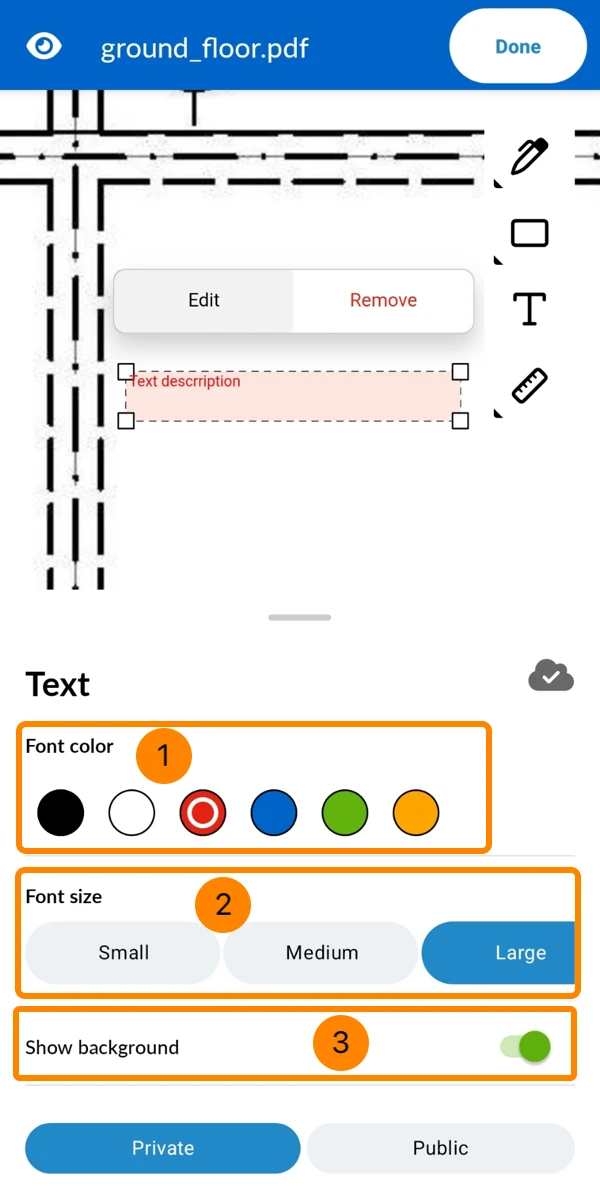
The Text markup tool lets you add written notes directly on the plan.
Measurements
Measurements include the Distance, Path and Area markup tools.
Distance measures the straight-line distance between two points in meters.
Path measures the total length between multiple points in meters.
Area measures the enclosed surface in square meters.
Create Markups
Create a Markup
When you create a new markup, it automatically inherits the formatting settings from the last markup of the same markup tool. This lets you quickly add multiple markups with consistent styling.


 Deutsch
 Español
 Français
 Hrvatski
 Italiano
 Polski
 Português (BR)