

 Deutsch
 Español
 Français
 Hrvatski
 Italiano
 Polski
 Português (BR)
Export Users
Overview
Easily export a detailed Excel file containing information for each account user, including name, email address, access permissions, custom user details and more.
Access & Permissions
How to access Users
- Hover over User Management
- Click Users
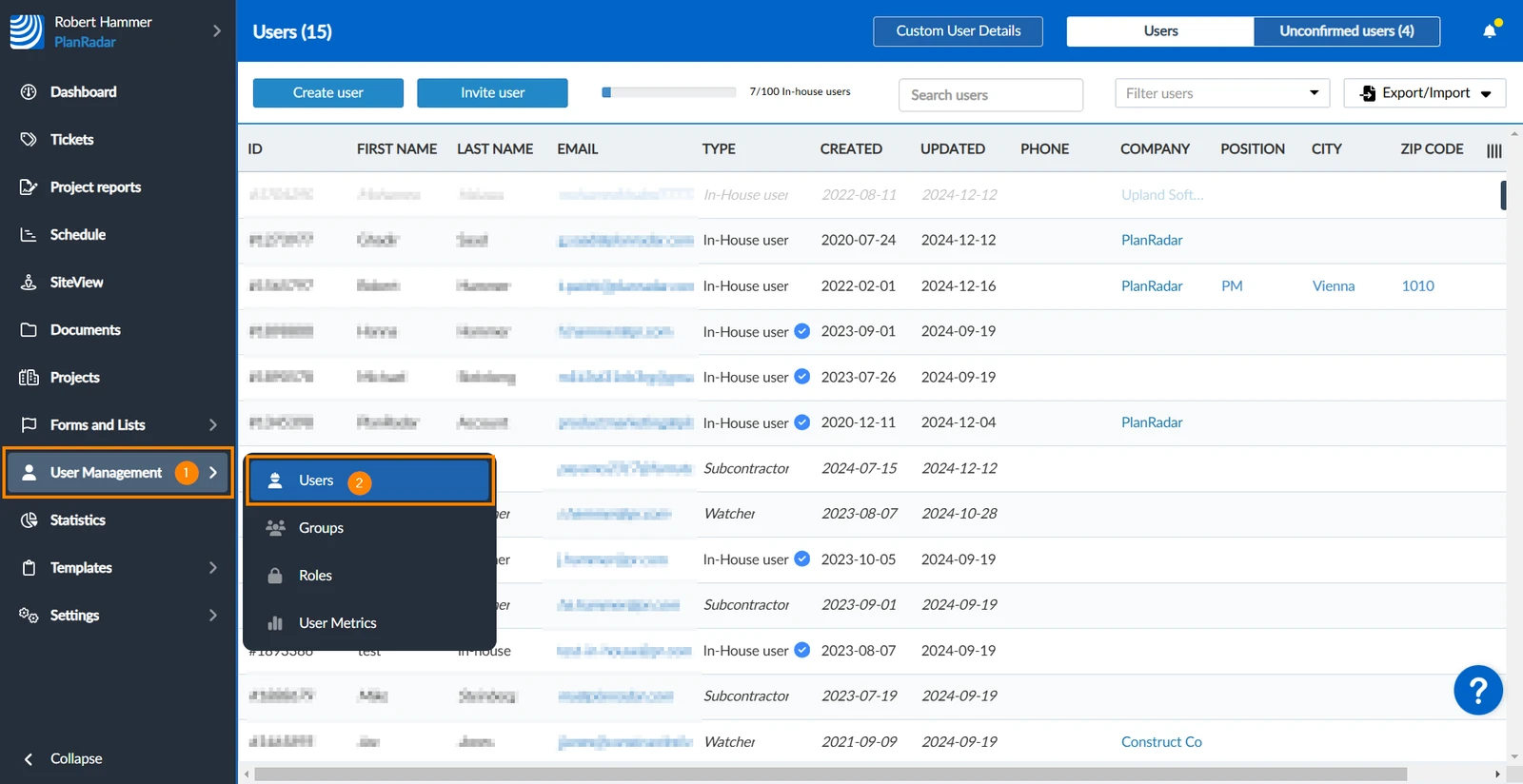
Export Users
To export all users:
- Open the Export/Import drop-down
- Click Excel export
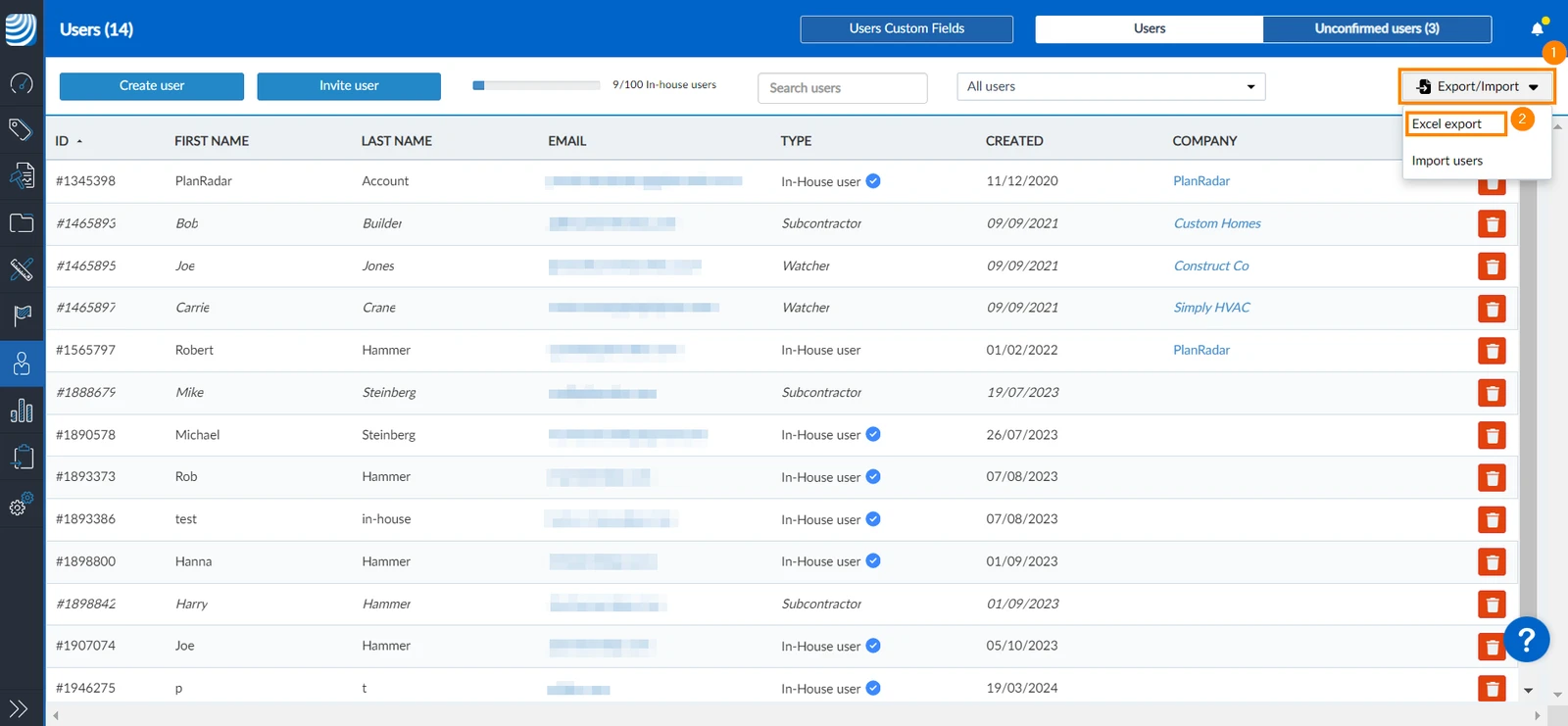
- An Excel file will be downloaded to your device
Exported Data
When exporting users, the following user data are included in the exported file:
- User ID
- First and last names
- Email address
- Phone number
- Position
- Address
- Company name
- Custom details
- Creation date
- Date of last update
- User type
- Projects they are added to
- Groups they are apart of
- Permissions
Exported Users
Only the currently visible users will be exported to the Excel file. You can modify the visible users by applying filters or using the search bar as explained in Manage Users on your Account > Search Users & Manage Users on your Account > Filter Users.
Updated December 19, 2024