

 Deutsch
 Español
 Français
 Hrvatski
 Italiano
 Polski
 Português (BR)
Manage Users on your Account
Overview
Manage users in your PlanRadar account.
Access & Permissions
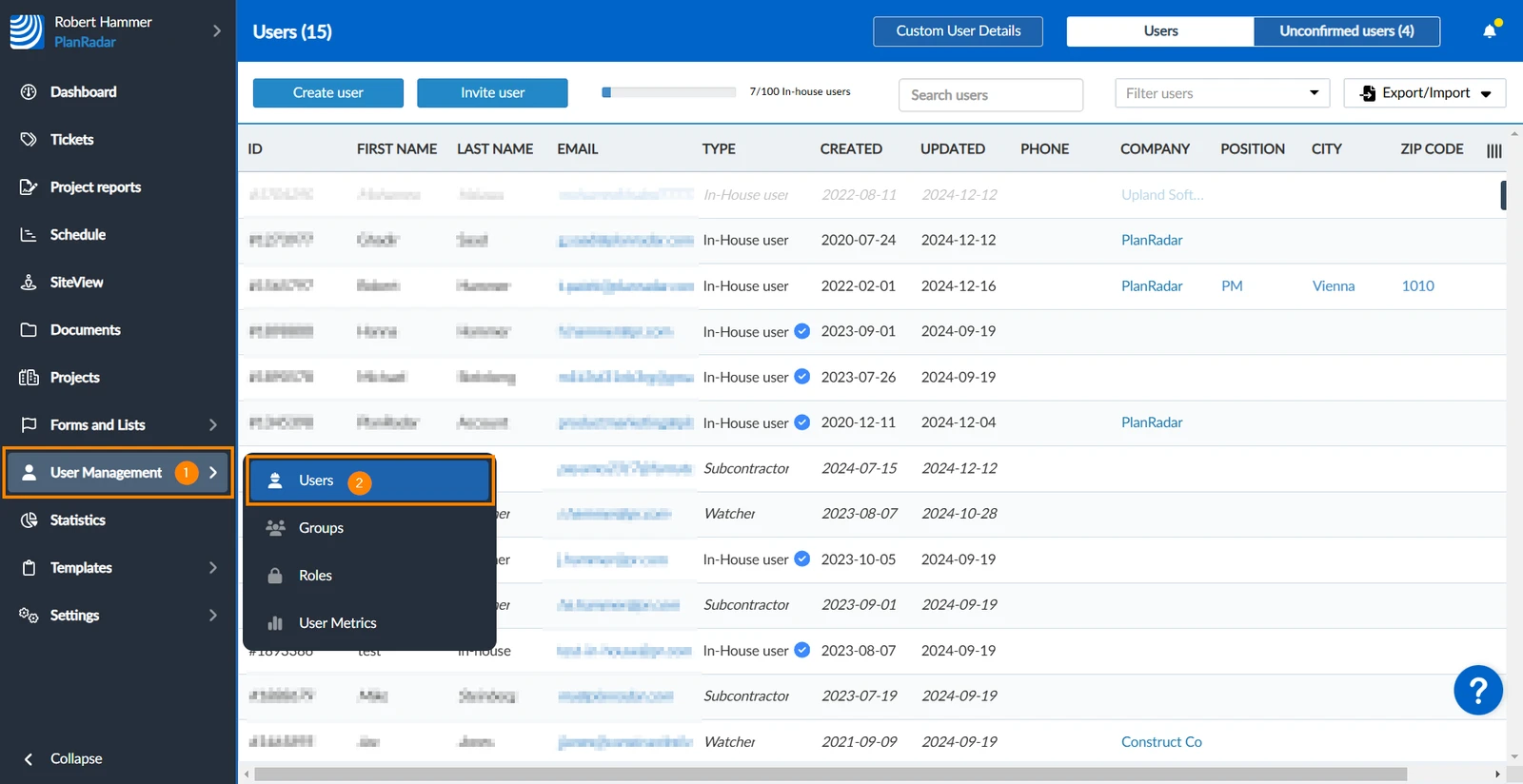
How to access Users
- Hover over User Management
- Click Users
Search Users
To search users:
- Type the search term in the search bar

When searching the user's first and last names, email address, user ID, and company name are considered.
Filter Users
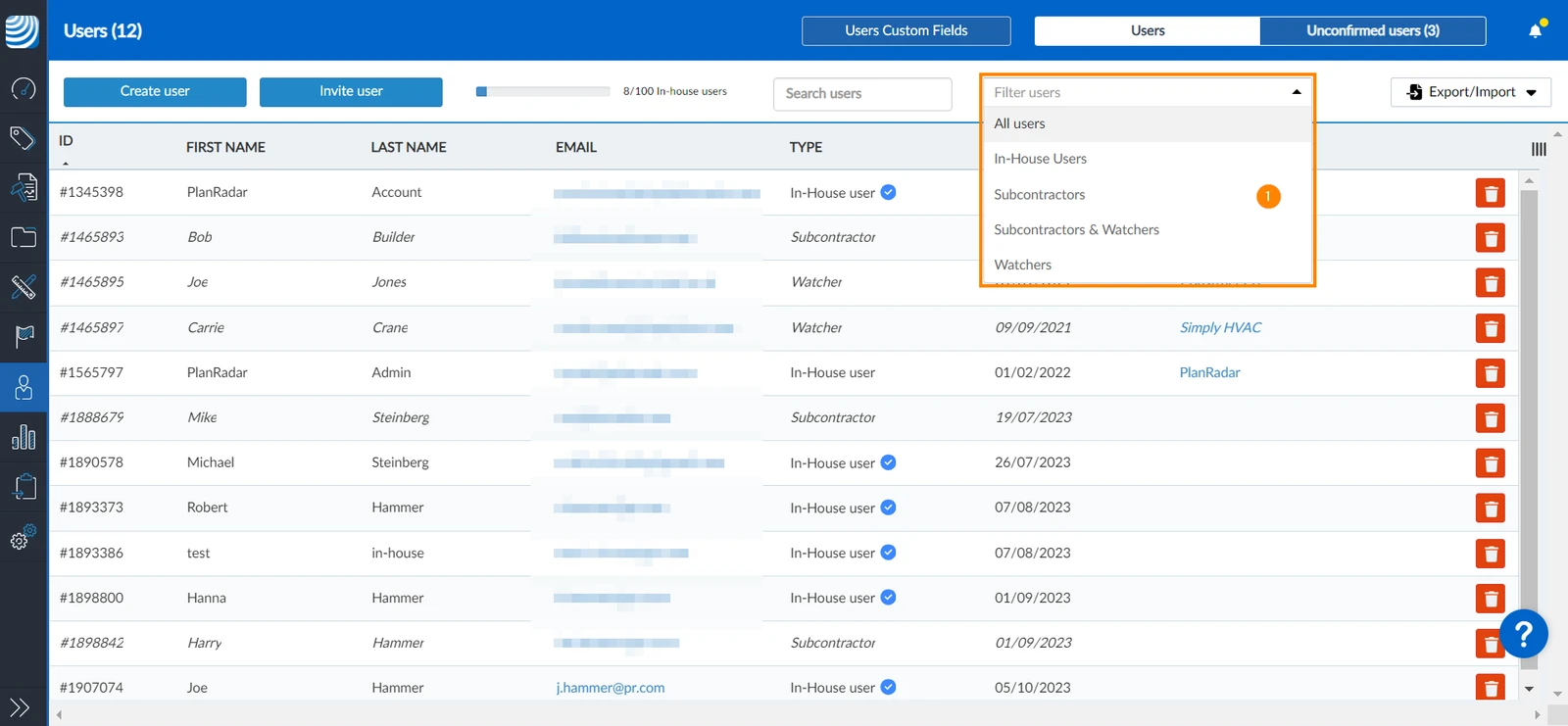
You can filter users by user type. To filter users:
- Open the filter drop-down and select the user type
Edit Users
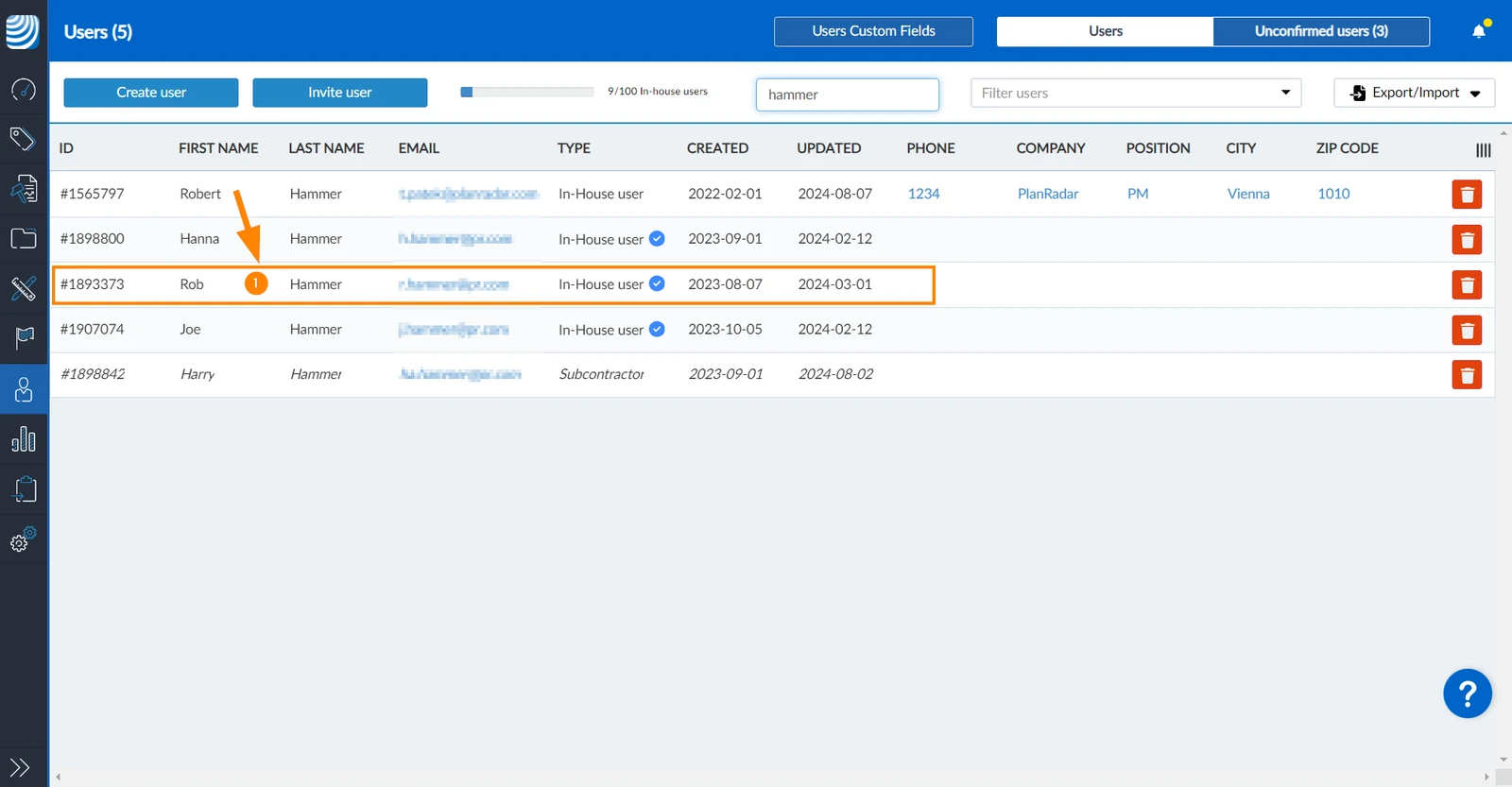
To edit a user:
- Click on the user in the list
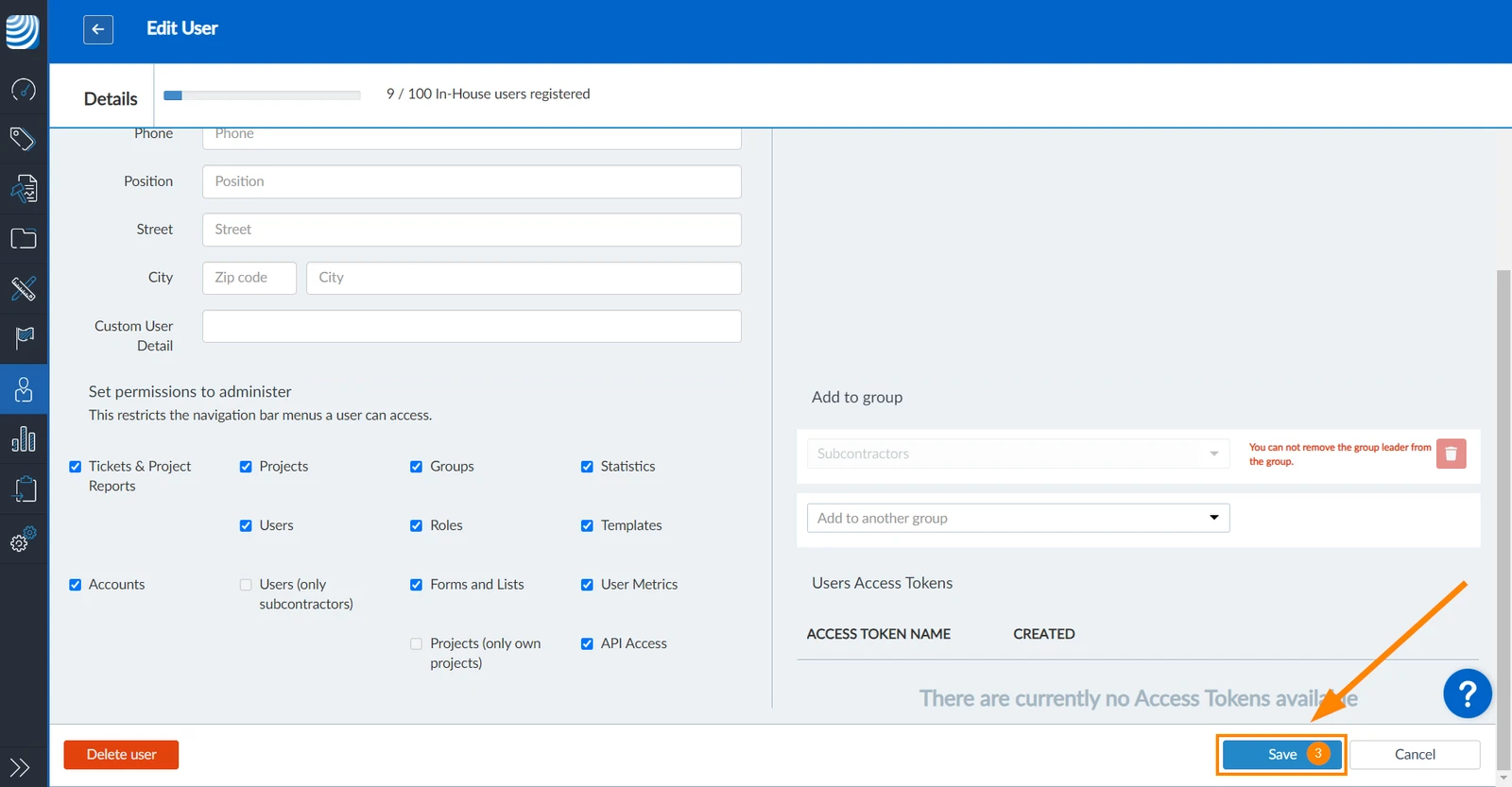
- Change user details, project memberships, group memberships and user permissions as described in Create & Invite Users.
- Scroll down and click Save
Delete Users
To be able to delete a user, make sure they are not assigned to any tickets.
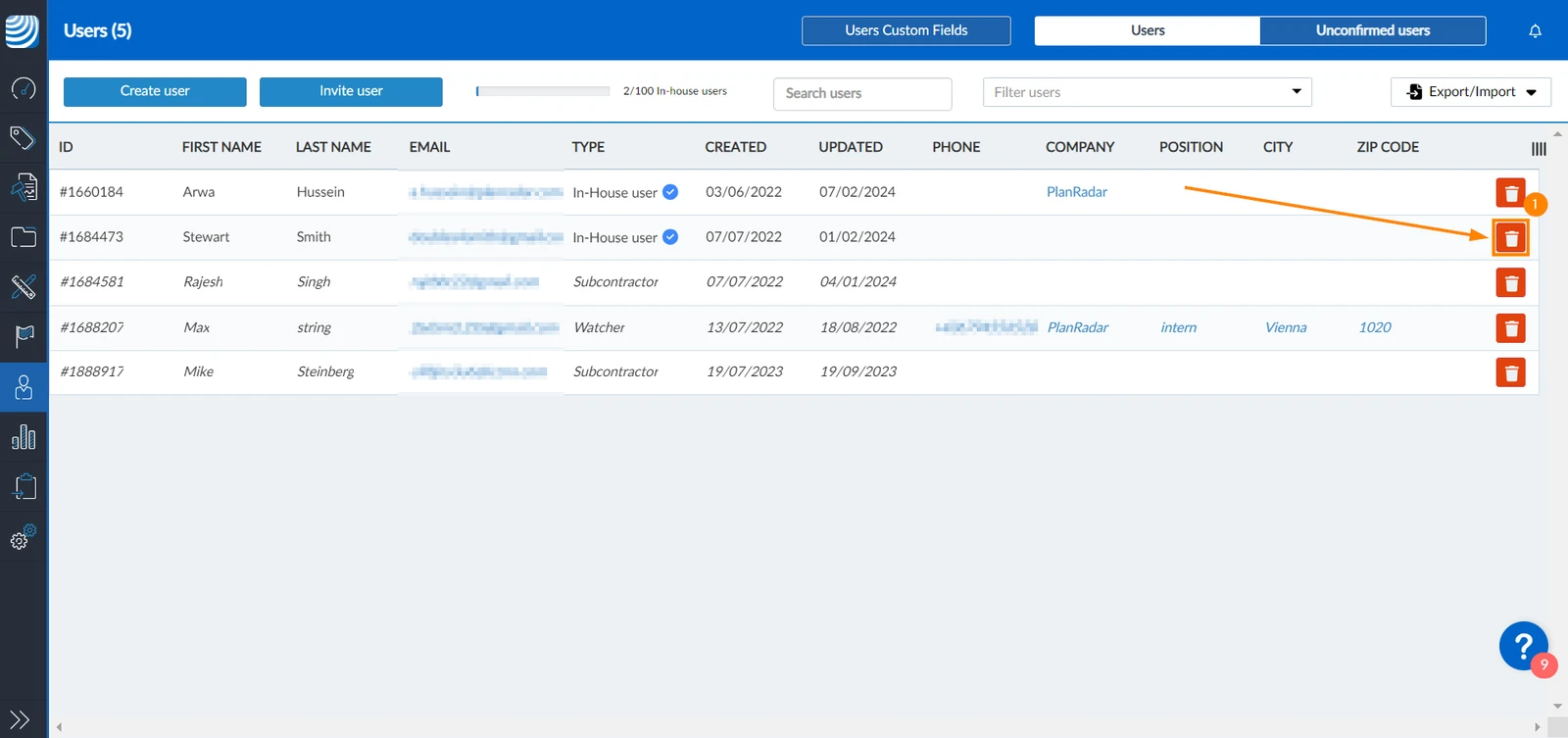
To delete a user:
- Click the trash icon
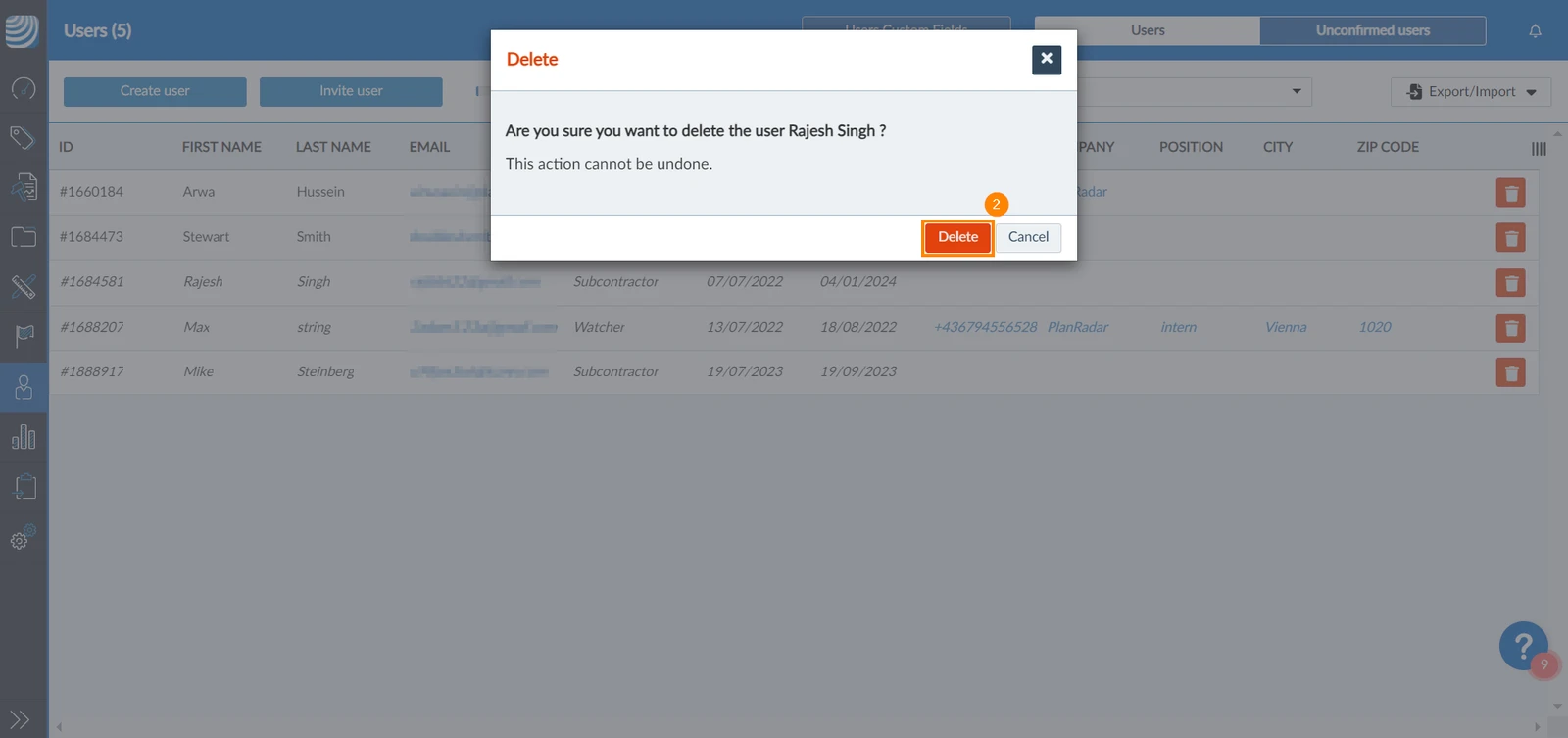
- Click Delete to confirm
Updated December 19, 2024