

 Deutsch
 Español
 Français
 Hrvatski
 Italiano
 Polski
 Português (BR)
Set or Change the Schedule Start Date
Overview
Each schedule requires a start date which is the earliest possible date for any automatically scheduled phase/ticket. Setting the start date is therefore the first step when creating a new schedule. If you change the start date later, PlanRadar can reschedule all auto-planned phases and tickets and ask you to shift manually planned ones as well.
Access & permissions
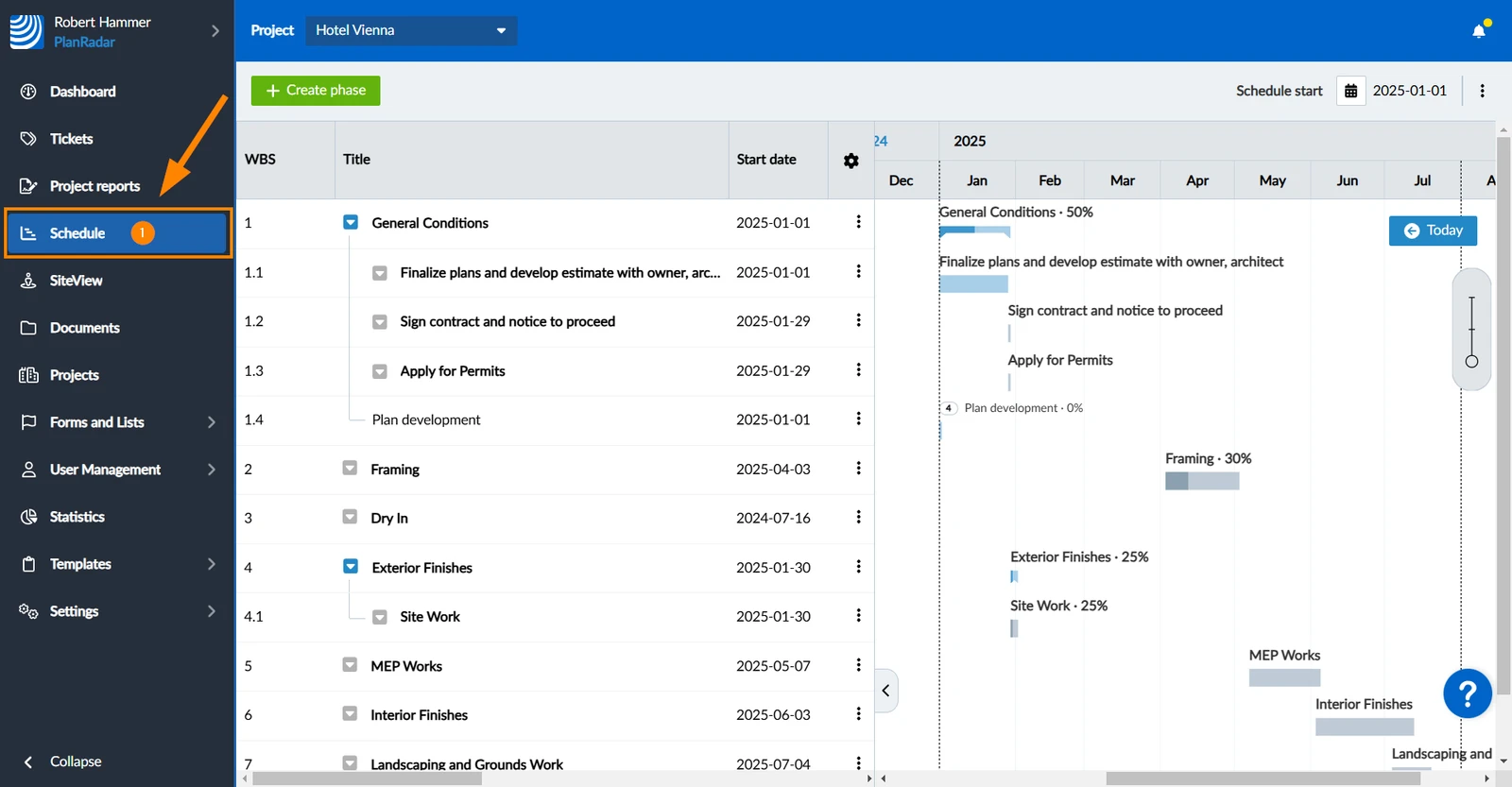
How to access Schedule
- Click Schedule
Set the Schedule Start Date
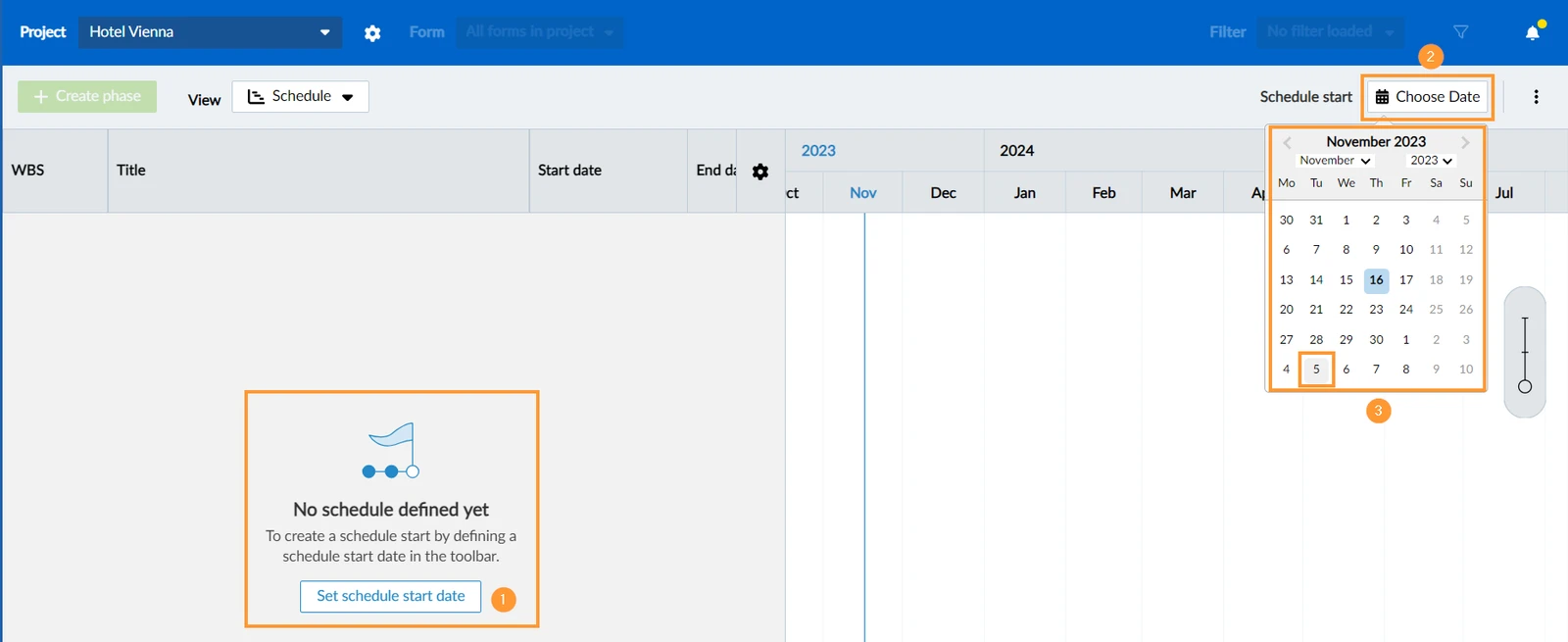
Before you can create the first phase, you need to set the schedule start date:
- Click Set schedule start date
- OR click Choose Date
- Select a date in the date picker
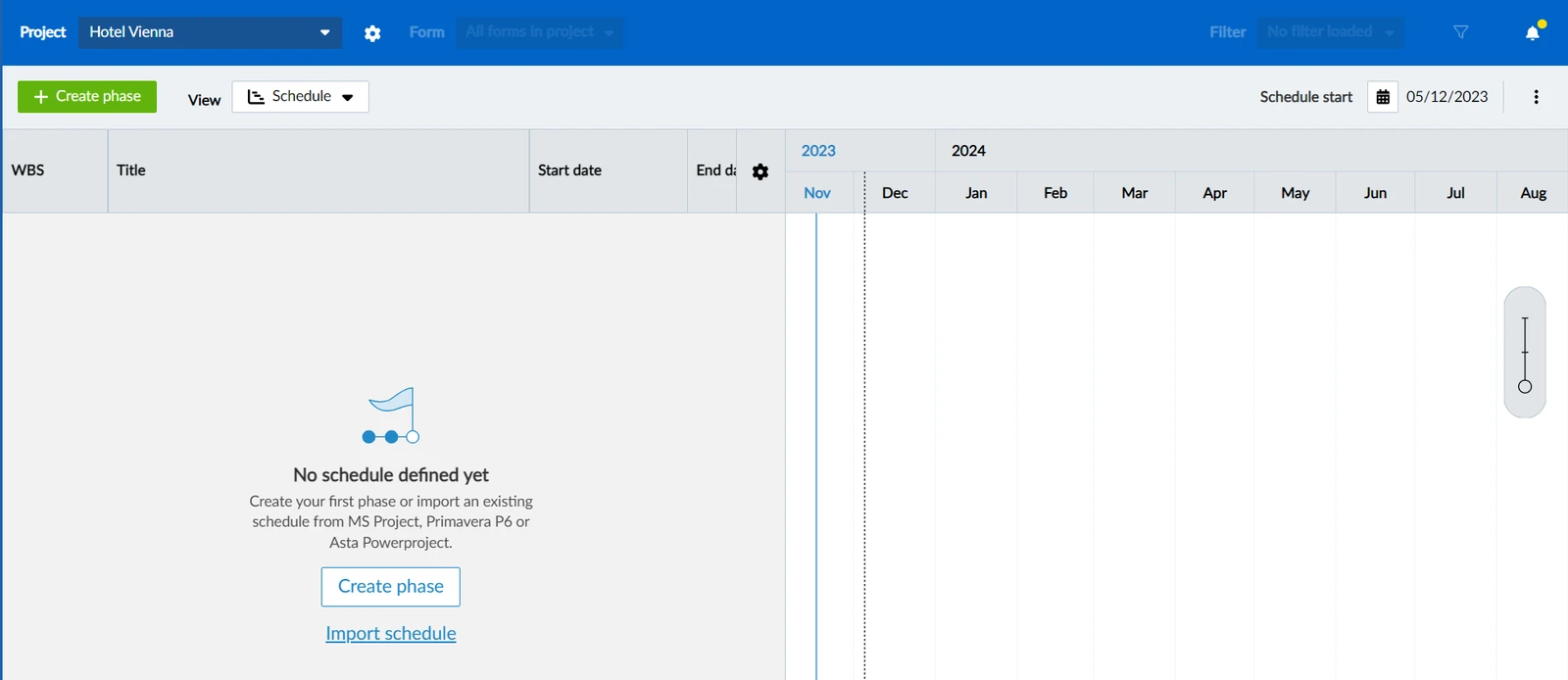
Next, you can either start creating phases directly in PlanRadar or import an existing schedule.
Change the Schedule Start Date
To change the schedule start date of an existing schedule:
- Click on the current date
- Select a new date in the date picker
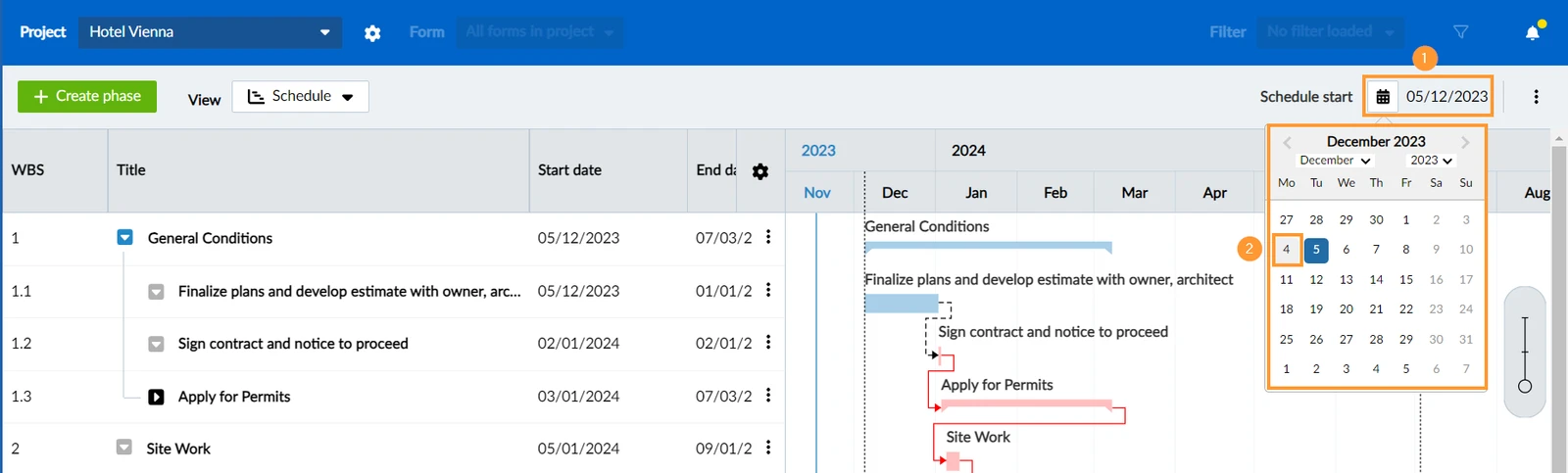
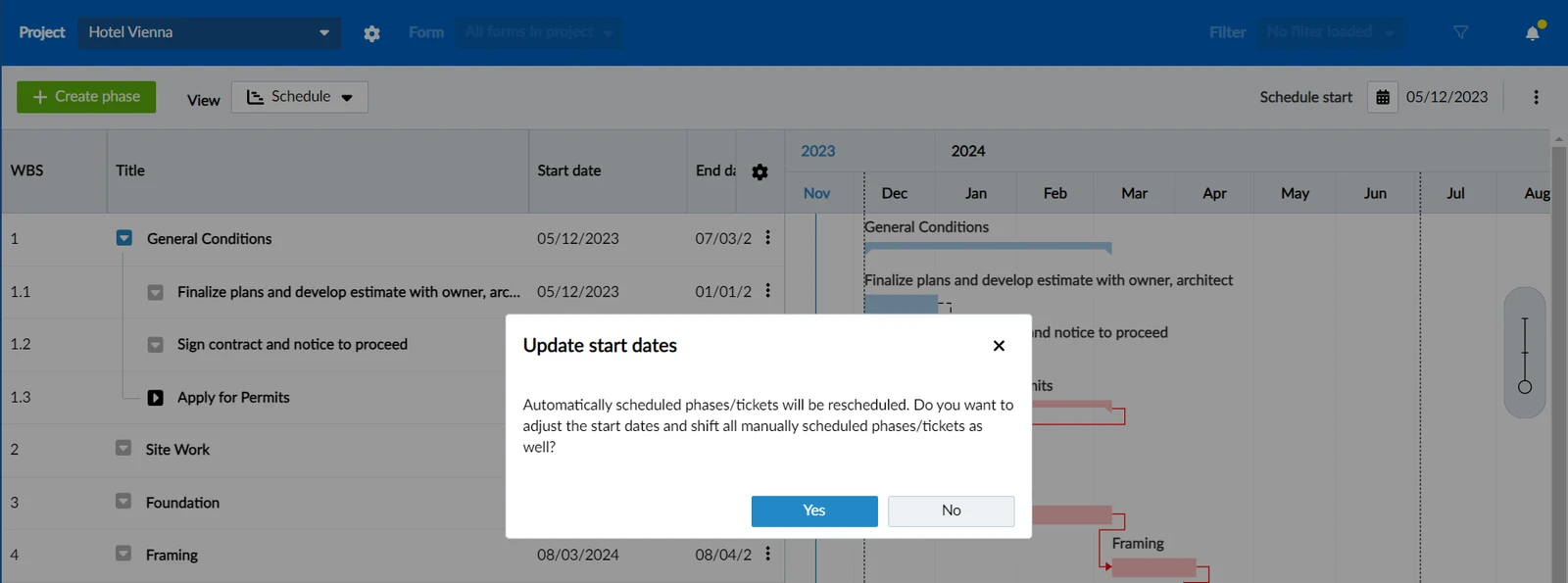
All automatically scheduled phases and tickets will be rescheduled according to the new start date. In case there are manually scheduled phases/tickets you will be asked if you want to shift them by the same amount of days the start date got changed.
Updated May 24, 2026