

 Deutsch
 Español
 Français
 Hrvatski
 Italiano
 Polski
 Português (BR)
Export Schedule as PDF
Overview
You can export a schedule to a PDF file and define how and what to include.
Access & permissions
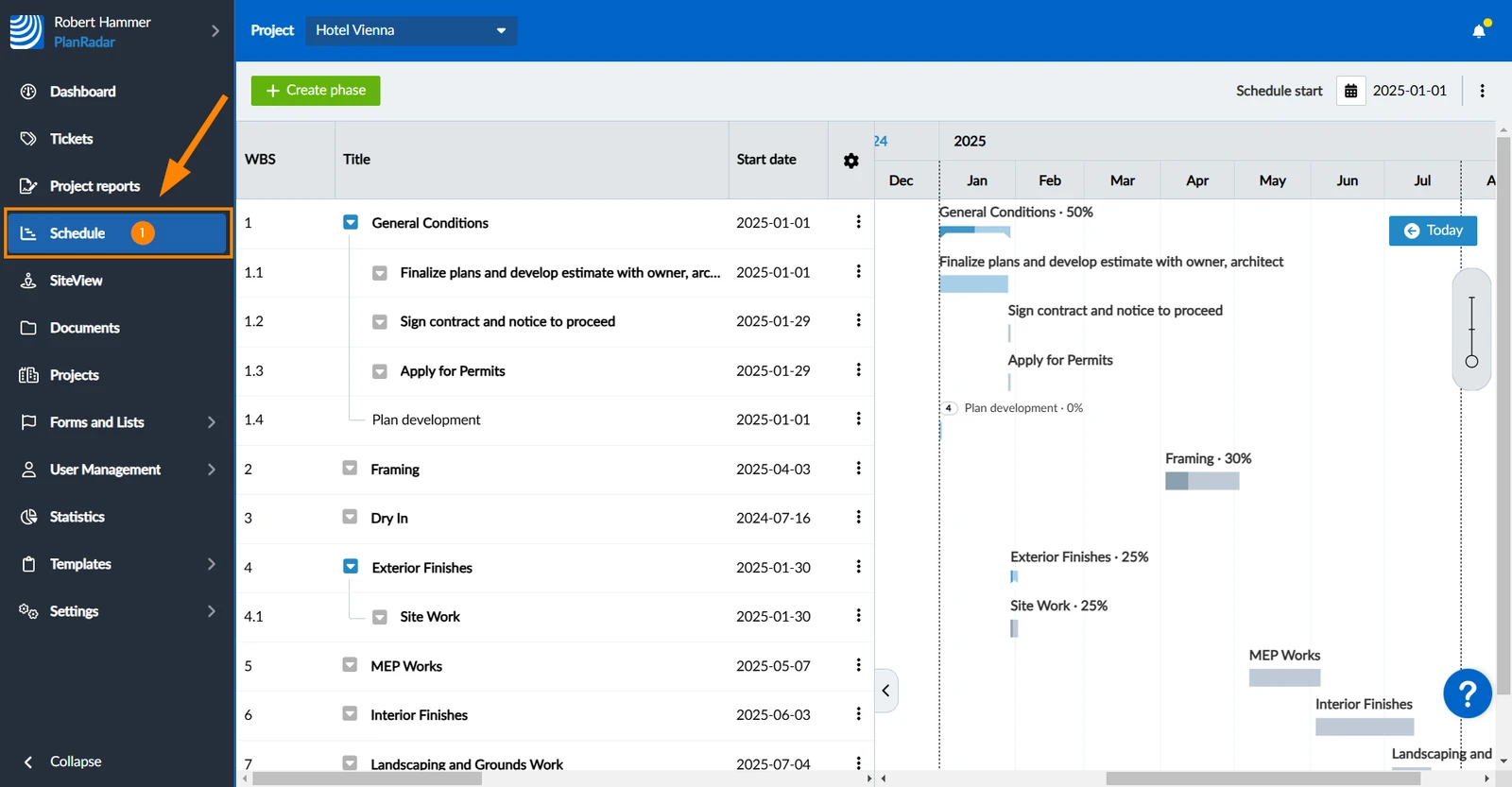
How to access Schedule
- Click Schedule
Export Schedule as PDF
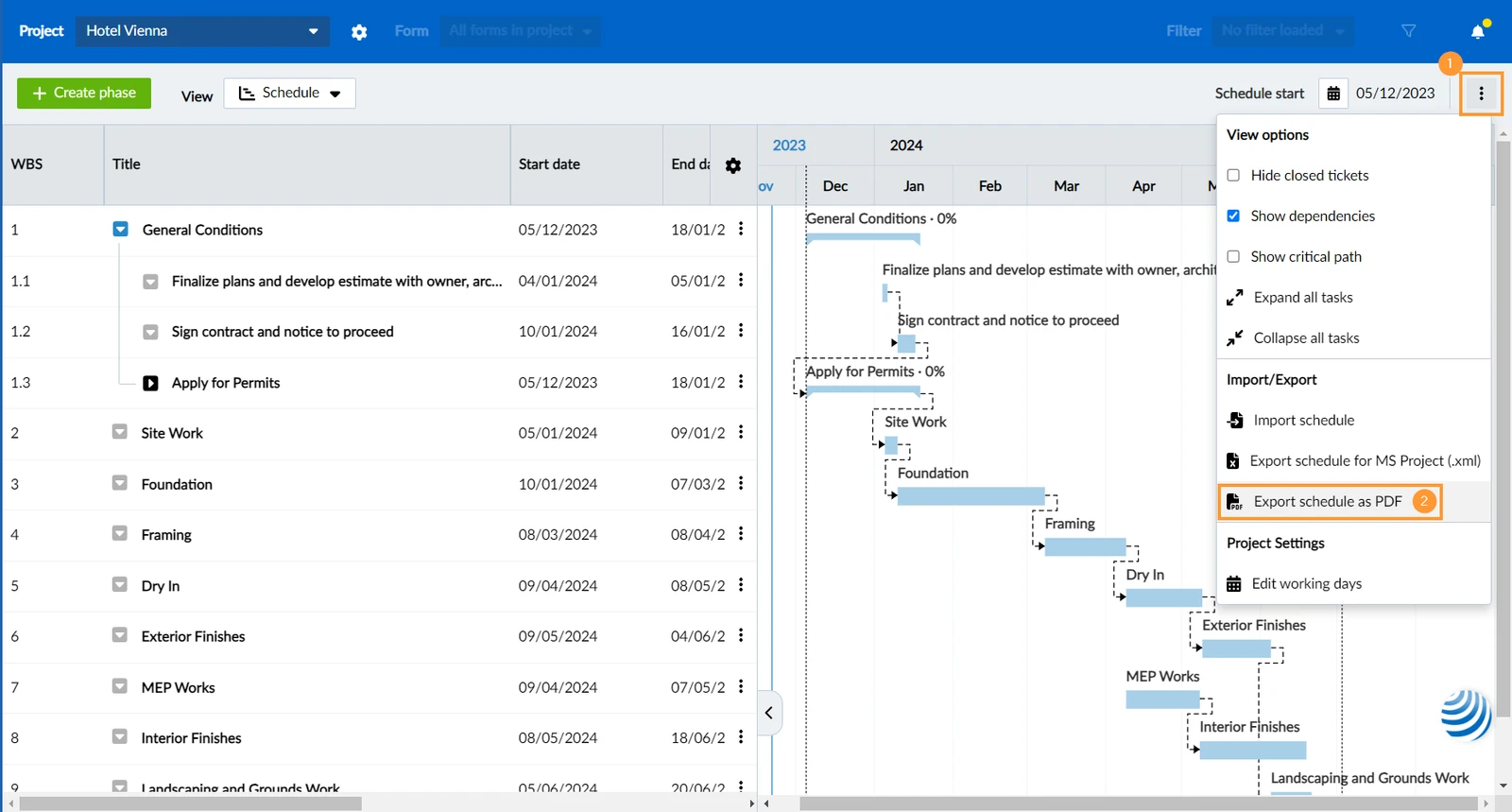
- Open the more menu
- Click Export Schedule as PDF
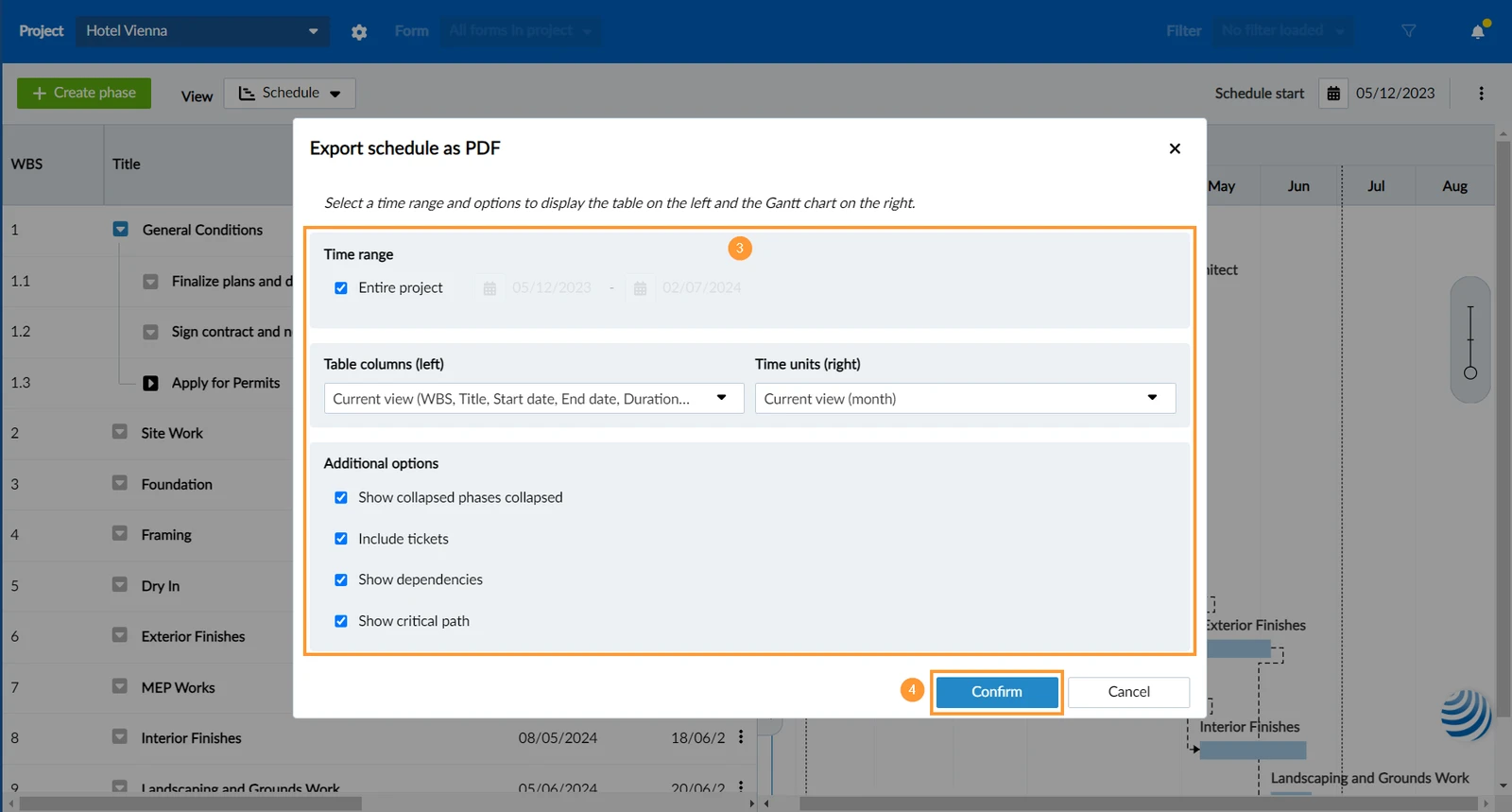
- Define how and what you want to include – read more below in Define Export Settings.
- Click Confirm
Define Export Settings
By default the entire schedule with the current view configurations for WBS and Gantt Chart is exported. Change this settings as needed.
Time Range
If you don't want to export the entire project, remove the checkbox and set a custom time range:
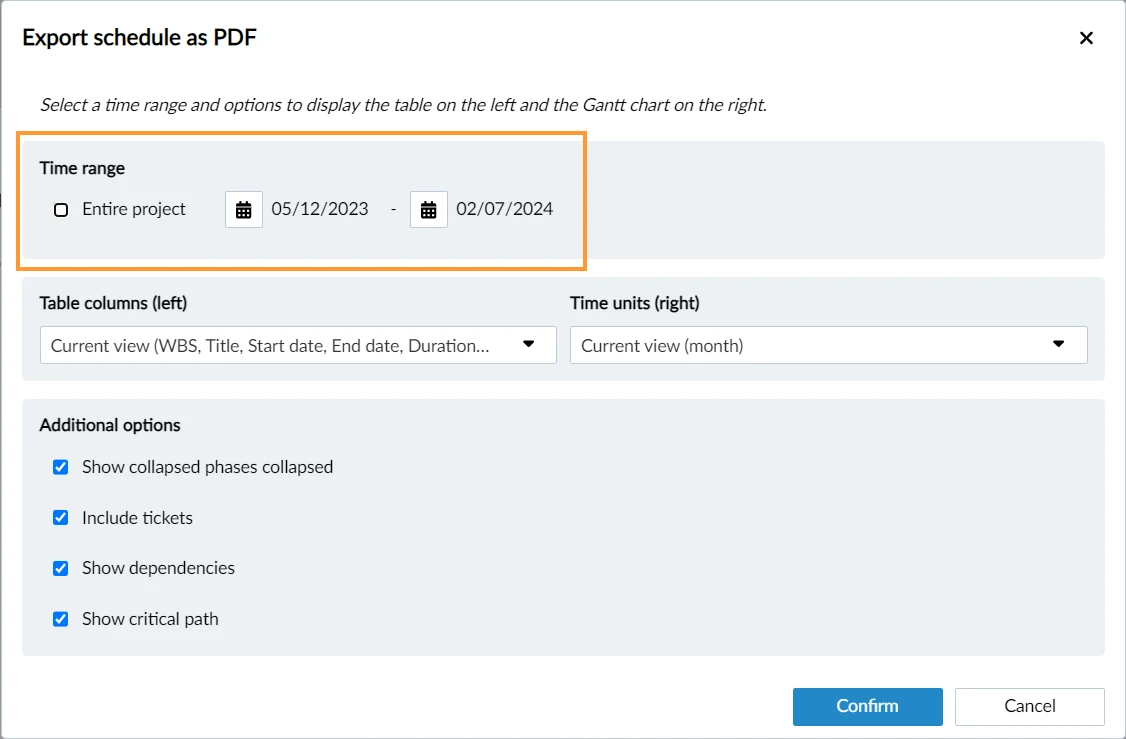
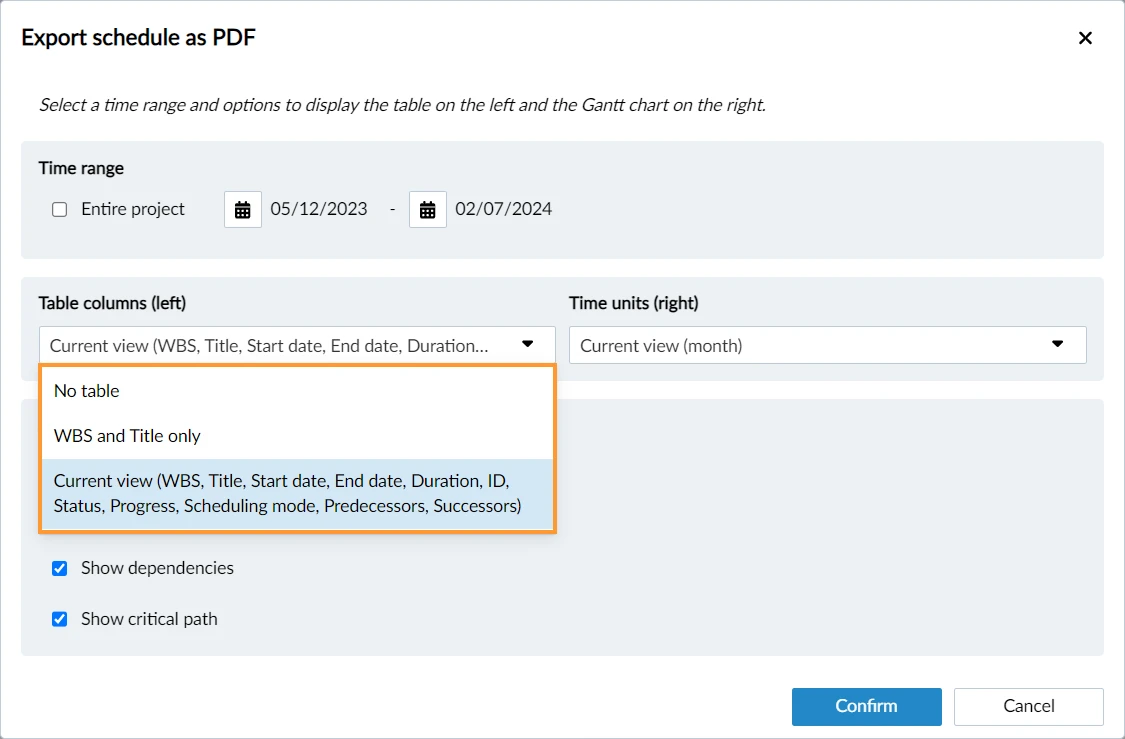
Table Columns
If you don't want to show all table columns from your current view of the Work Breakdown Structure (WBS), on the left hand side there are two more options in the drop-down:
- WBS and Title only: will print the WBS numbers and titles
- No table: omit the table and only print the Gantt Chart
Time Units
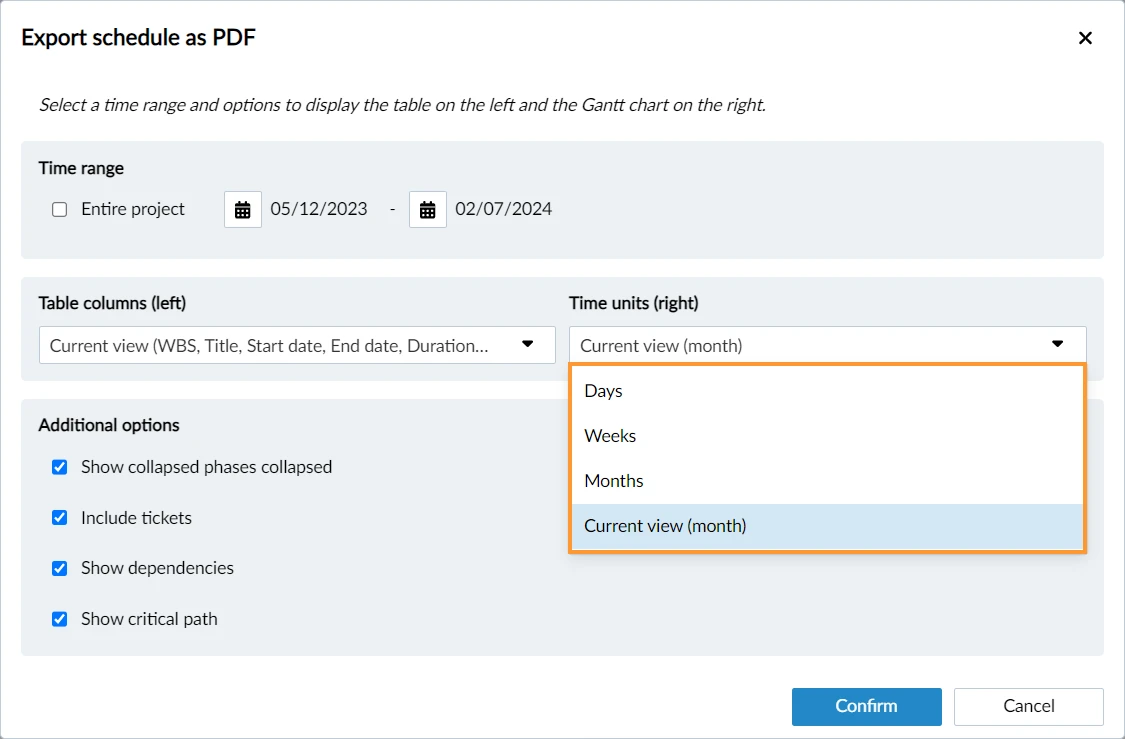
If you don't want to use the current view of your Gantt Chart, you can select a different time unit:
- Days
- Weeks
- Months
Additional Options
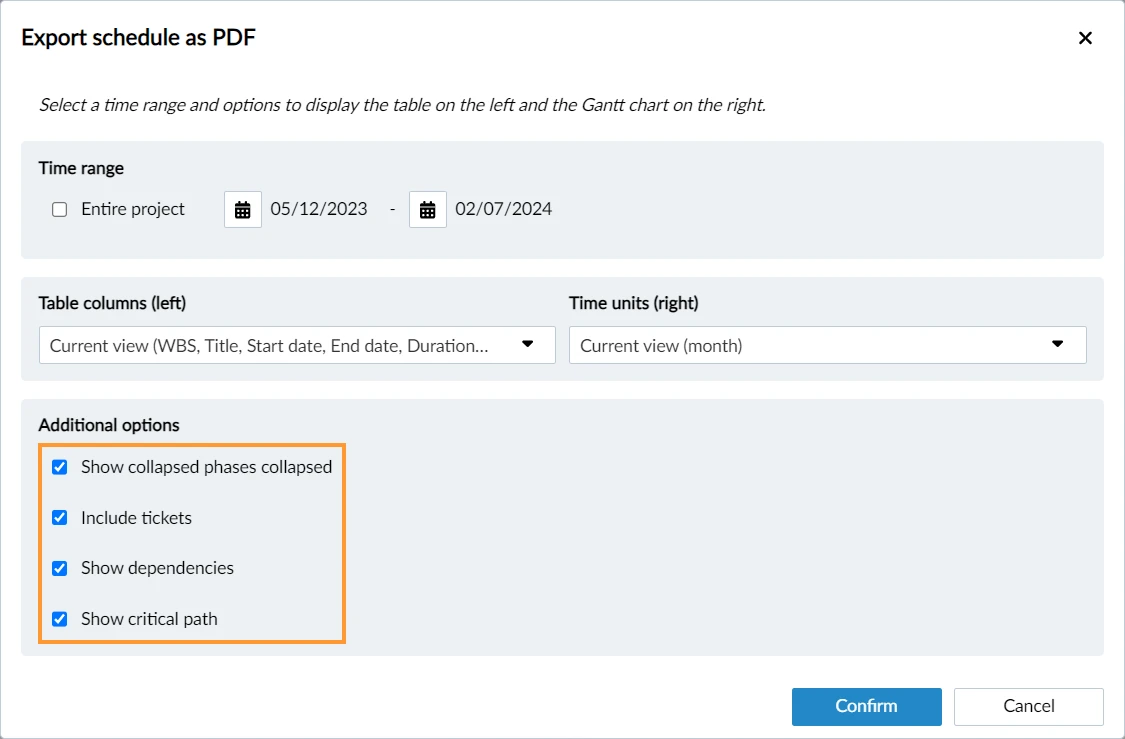
Show collapsed phases collapsed: Refers to the expanded/collapsed state of the phases in your current view.
Read more in View & Navigate a Schedule > Collapse/Expand Sub-Elements of a Phase
Include tickets: Enable to include all tickets that are linked to phases.
Read more in Create, Add or Remove Tickets from Schedules.
Show dependencies: Enable to show dependencies as dashed arrows in the Gantt chart.
Read more in Create, Edit or Delete Dependencies.
Show critical path: Enable to show the critical path in red in the Gantt chart.
Read more in View & Navigate a Schedule > Show Critical Path.
Updated October 25, 2024