

 Deutsch
 Español
 Français
 Hrvatski
 Italiano
 Polski
 Português (BR)
Schedules
Overview
Use Schedules to plan your project and keep track of it on a timeline. Use dependencies to automatically reschedule your project based on changes and visualise the critical path to be aware of the phases and tickets determining the project end date.
Key benefits of Schedules integrated into PlanRadar:
-
Works similar to popular project management tools such as Microsoft Project
-
Access your schedule onsite using our mobile apps
-
Fully collaborative: let other in-house users view or edit your schedules
-
Integrated with tickets: track progress on the project level including tickets’ progress
Access & permissions
General Concept
A schedule outlines a project as a sequence of project phases that typically depend on each other. With Schedules, PlanRadar supports two popular project management concepts:
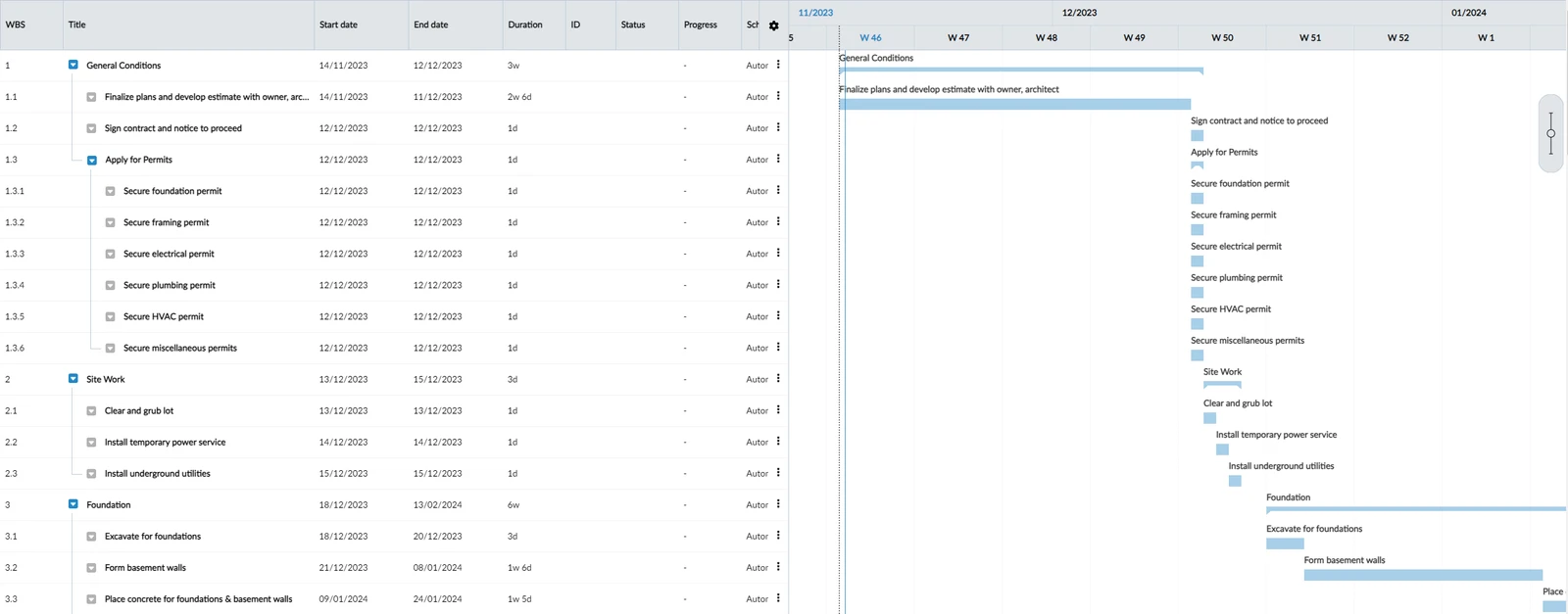
Work Breakdown Structure (WBS): phases can be divided into sub-phases to summarise parts of the project and keep the overview. They can be collapsed and expanded to drill down into more detailed planning.
Gantt Chart: phases (and optionally tickets) are visualised as bars on a timeline which is synced in real-time with the WBS. It is possible to reschedule phases automatically – read more below in Manual vs. Automatic Scheduling.
Schedule Start Date
Each schedule requires a start date. It is the earliest possible day a phase or ticket can start. Unlike other tools like Microsoft Project, PlanRadar does not allow to let phases or tickets start before the schedule start date.
Phases & Tickets
Phases and sub-phases are the basic building blocks of Schedules.

Tickets of any form can be added to the schedule below a phase and they can also have optional start dates, end dates and duration.

Phases
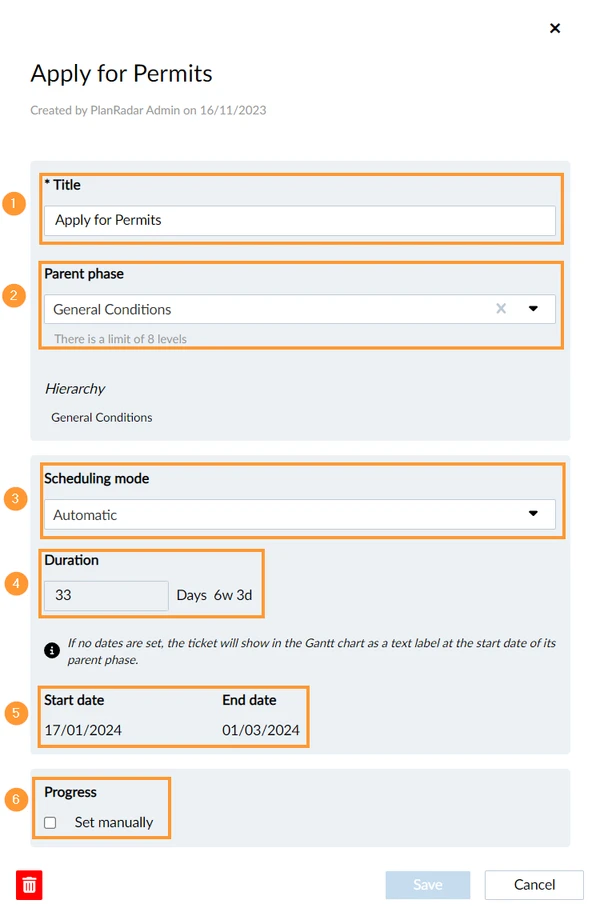
Phases consist of:
- Title is the only mandatory field.
- Parent phase is optional and used to define the hierarchy of phases and sub-phases.
- Scheduling mode defines whether you want to set dates manually or let PlanRadar auto-schedule. It is set to Automatic by default.
- Duration in working days (optional; non-editable and calculated in case of automatically scheduled phases with sub-elements).
- Start date & end date can be optionally set in case of manually scheduled phases/tickets. In automatic scheduling mode they are calculated.
- Progress is calculated from sub-elements (phases and tickets) by default or set manually.
Tickets
Tickets can be added to a schedule phase either with or without duration and schedule dates. Tickets have the same fields like phases with the following differences:
- The parent phase is mandatory.
- Tickets cannot have sub-elements (i.e. they are leaf-nodes in the hierarchy).
- The progress is always calculated from the ticket progress and/or status fields. Read more below in Progress.
Duration, Start Date & End Date
PlanRadar ensures that the duration, start date and end date stay consistent.
If two of them are specified manually, the third one is calculated automatically:
- A change of duration updates end date.
- A change of end date updates duration.
- A change of start date updates end date.
The duration, start date and end date are optional. This way it is possible to create a WBS first before setting durations and arranging them on the timeline. And sometimes you might want to add tickets without schedule dates, just to track their progress.
Phases and tickets without a duration are still visualised in the Gantt chart:
- If no duration but start date is set (or calculated in case of automatic scheduling), a title label will be shown in the chart at the start date instead of a bar.
- If no duration and dates are set at all (which is only possible with manual scheduling), a title label will be shown in the chart at the start date of the closest parent in the WBS hierarchy.
Progress
The progress of a phase can be set manually or calculated automatically based on its sub-elements (phases/tickets).
The progress of a ticket is calculated based on existing status and progress fields in the form.
Ticket has status field only
If status is "Closed" the progress in the schedule is assumed as 100% for further calculation. No progress value is shown in the table and Gantt chart in this case.
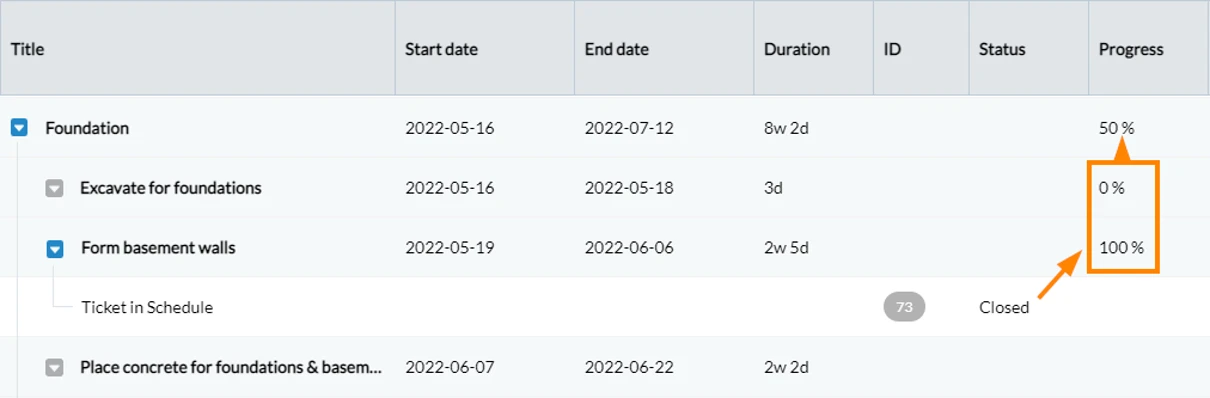
Ticket has progress and status fields
If status is "Closed" the progress in the schedule is assumed as 100% for further calculation and the ticket's progress value is ignored.
Otherwise the value of the ticket progress is used for further calculation in the schedule and the progress value is shown in the table and Gantt chart.
Ticket has progress field only
The value of the ticket progress is used for further calculation in the schedule and the progress value is shown in the table and Gantt chart.
Overdue
Overdue tickets and phases are highlighted.

Manual vs. Automatic Scheduling
Phases and tickets have a scheduling mode.
Use Manual mode if you want to control when a phase/ticket should start. The start date will then never change, even if there are dependencies. It is as if the phase/ticket is pinned to the timeline.
If a manually scheduled phase/ticket has a predecessor and its start or end date changes (e.g. a phase gets delayed), dependency issues can occur if the phase/ticket would need to start earlier or later than the manually set start/end date. Read more in Resolve Scheduling Conflicts.
Manually scheduled phases with sub-elements will never automatically entail all of their sub-elements as their start/end dates are set manually.
Use Automatic if your project will face changes and you want to benefit from automatic rescheduling of all the phases and tickets in your project. PlanRadar will determine the start date based on the general As-Soon-As-Possible (ASAP) rule while also considering:
- Dependencies – read more in Create, Edit or Delete Dependencies.
- Schedule start date
- Working days (if configured)
- Parent phases
PlanRadar supports four dependency types:
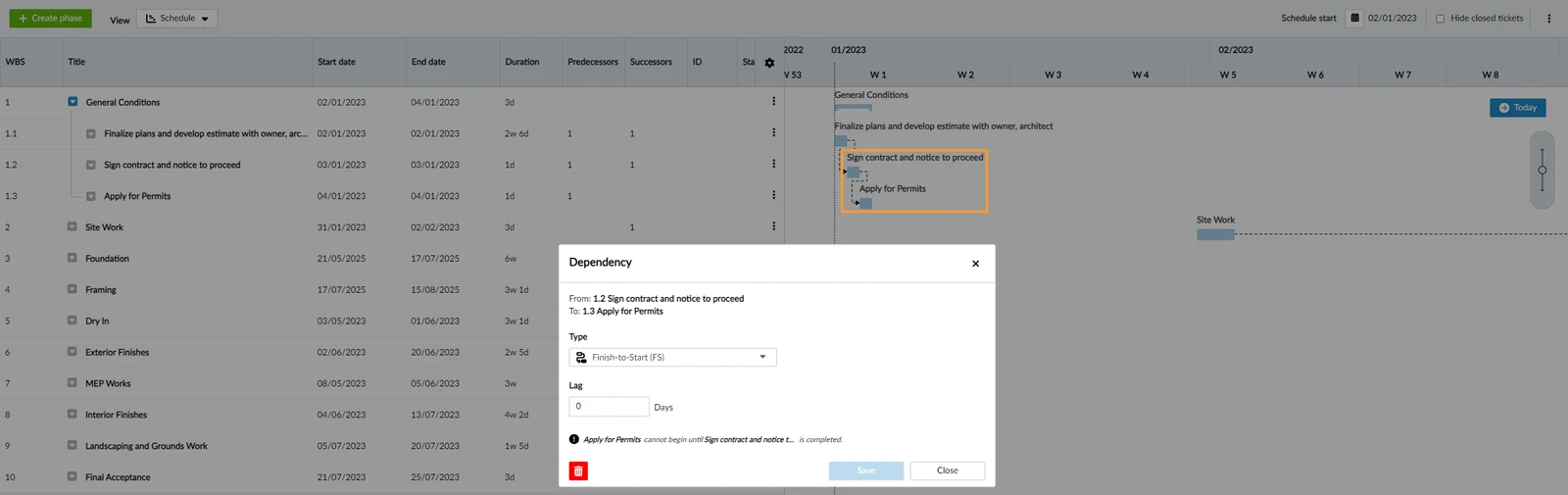
- Finish-to-Start
- Start-to-Start
- Finish-to-Finish
- Start-to-Finish
Example of a Finish-to-Start dependency:
Additional Features
Working Days
Working days is a project setting which allows you to define on which week days the project team will be working. It also allows you to select a holiday calendar for all countries and regions of the world.
If configured, it will impact your schedule and duration calculation will be based on working days not week days. For instance, a 5-day task starting on Thursday will end on Wednesday the week after if Saturday/Sunday is a weekend. Working days are also indicated in date pickers.
Import & Export Schedules
Currently you can import and export a schedule from/to Microsoft Project and import from Asta Powerproject and Primavera P6 - read more in Import & Export a Schedule from/to Microsoft Project and Other Software.
It is also possible to Export Schedule as PDF.
Updated May 24, 2026