Import & Export a Schedule from/to Microsoft Project and Other Software
Overview
You can import schedules from Microsoft Project, Asta Powerproject and Primavera P6. You can also export Microsoft Project files or use them to update your existing schedule.
Access & permissions
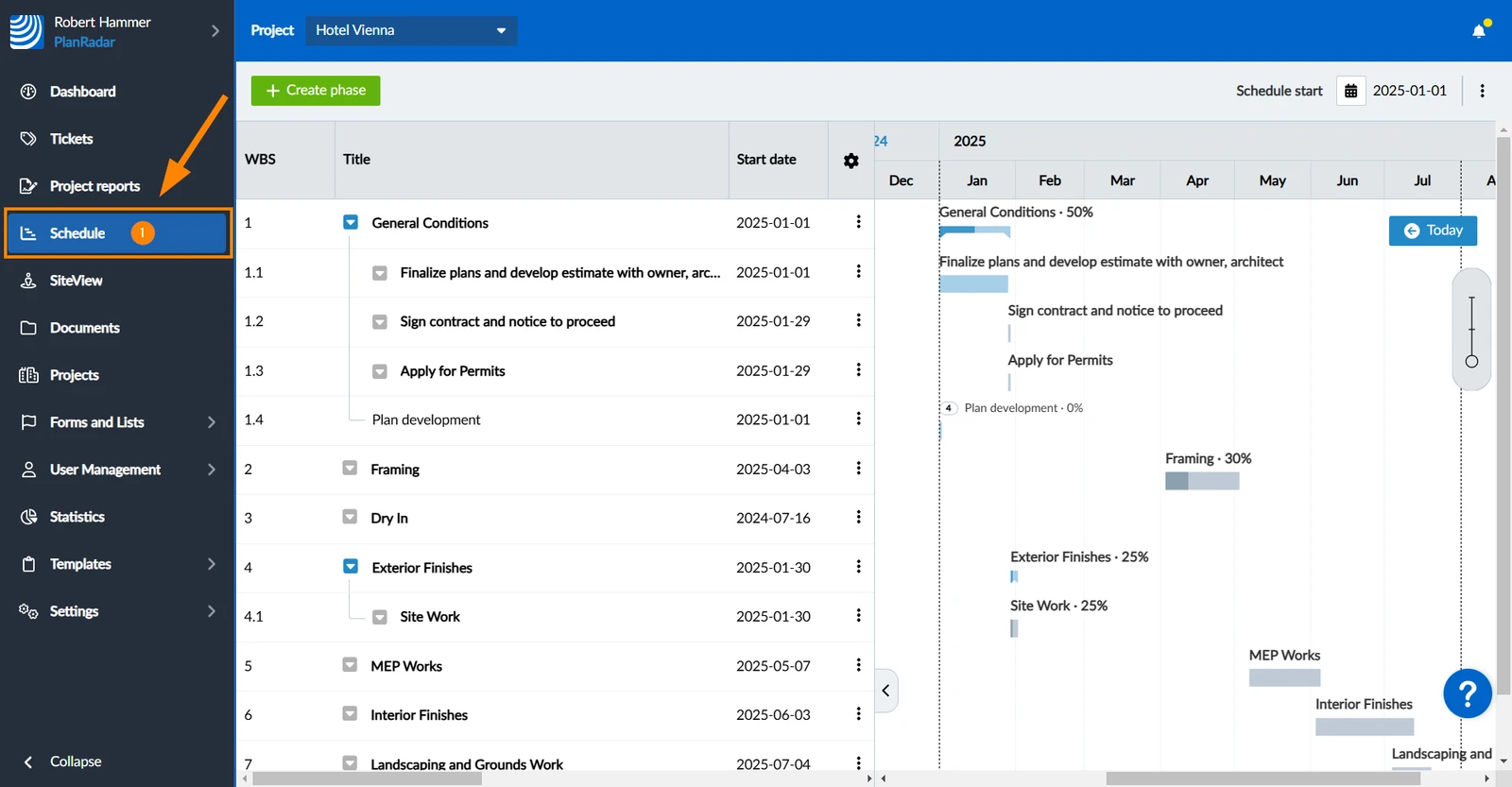
How to access Schedule
Click Schedule
Import New Schedules
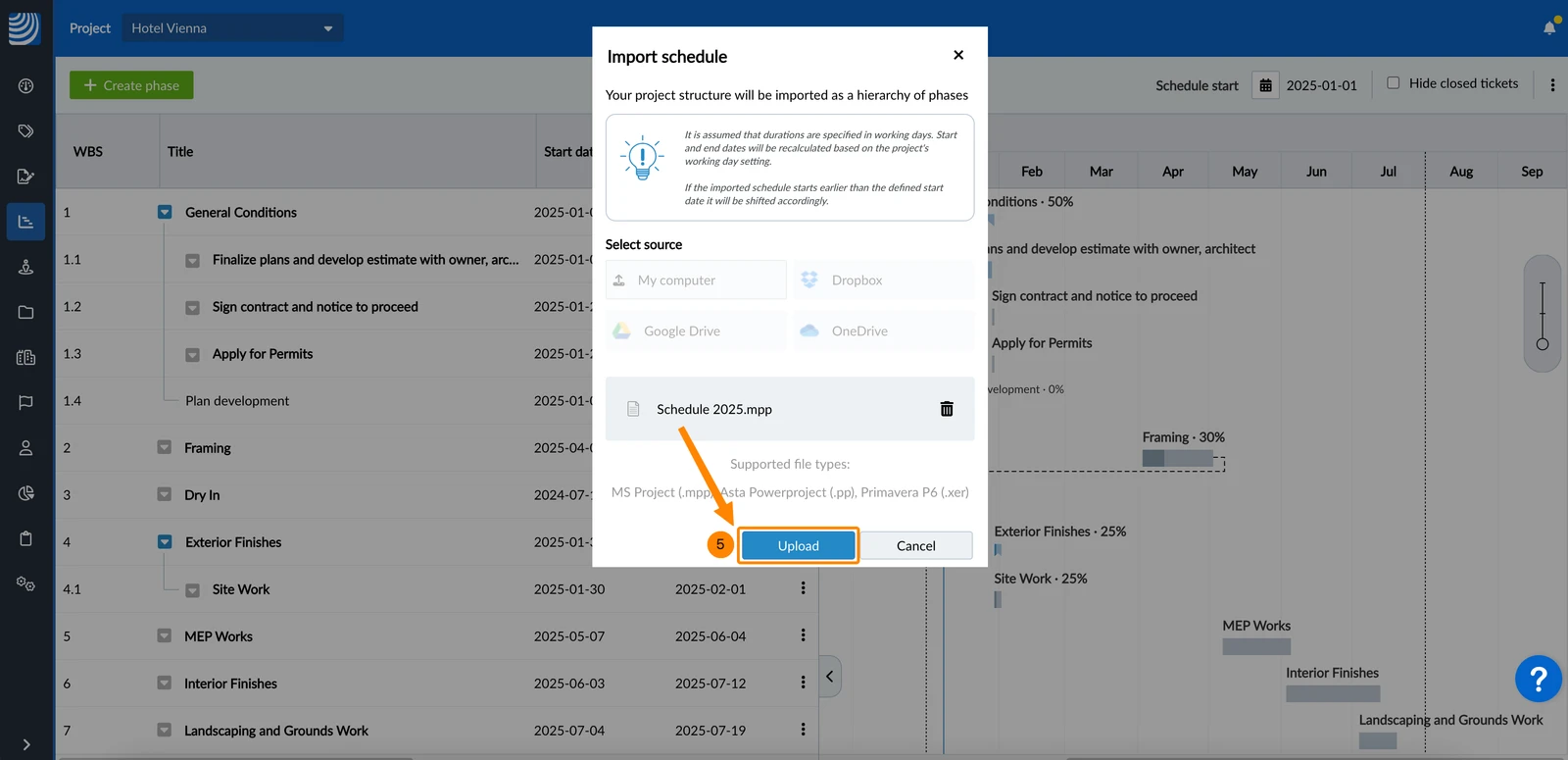
Instead of creating phases manually as describe in Create, Edit or Delete a Phase, you can start setting up your schedule in PlanRadar by importing a file from Microsoft Project (.mpp, .xml), Asta Powerproject (.pp) or Primavera P6 (.xer).
When importing schedules the duration of phases are kept as-is and start and end dates are recalculated based on the schedule start date, dependencies, and according to the working days configuration.
To import a schedule file:
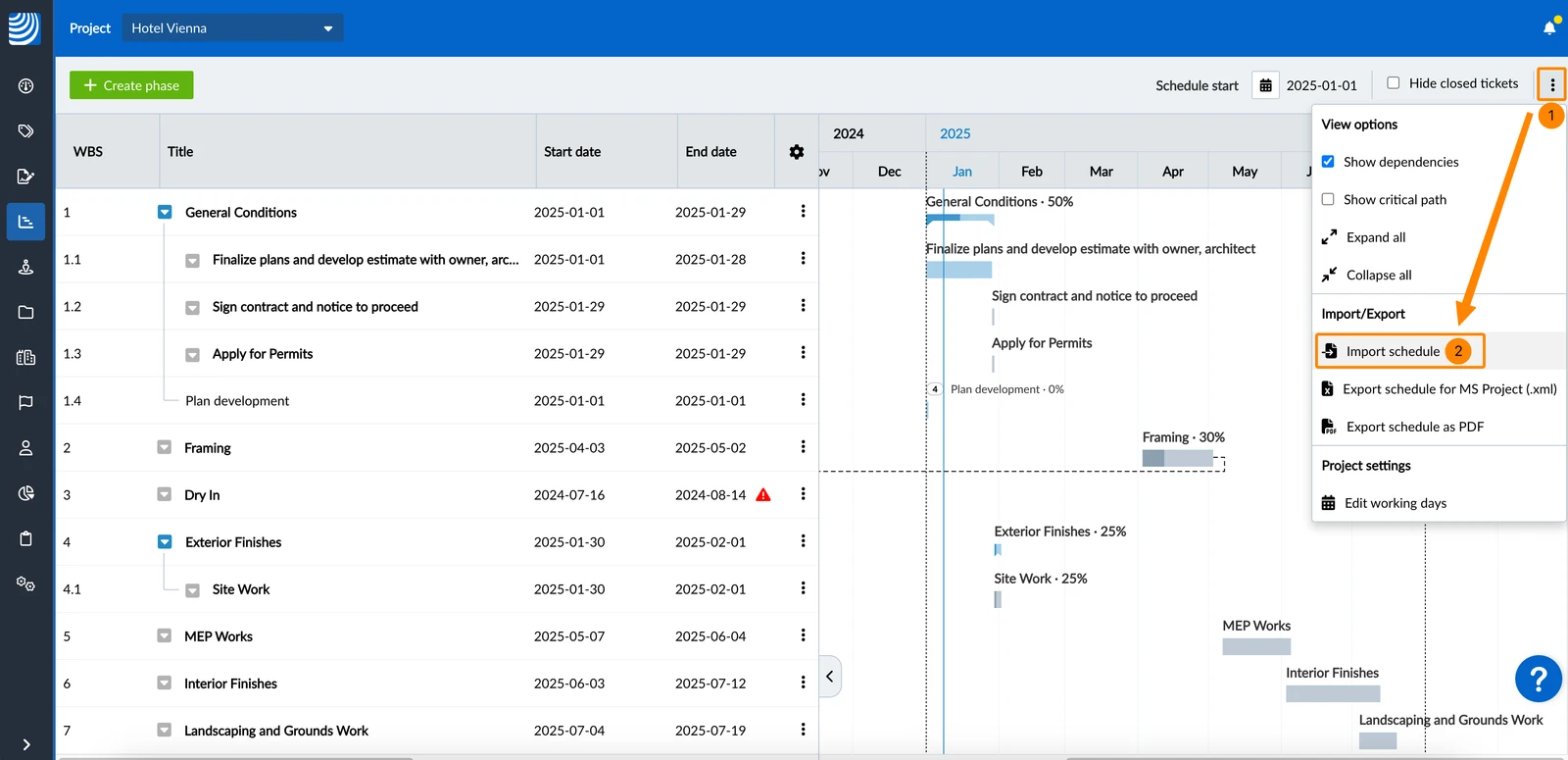
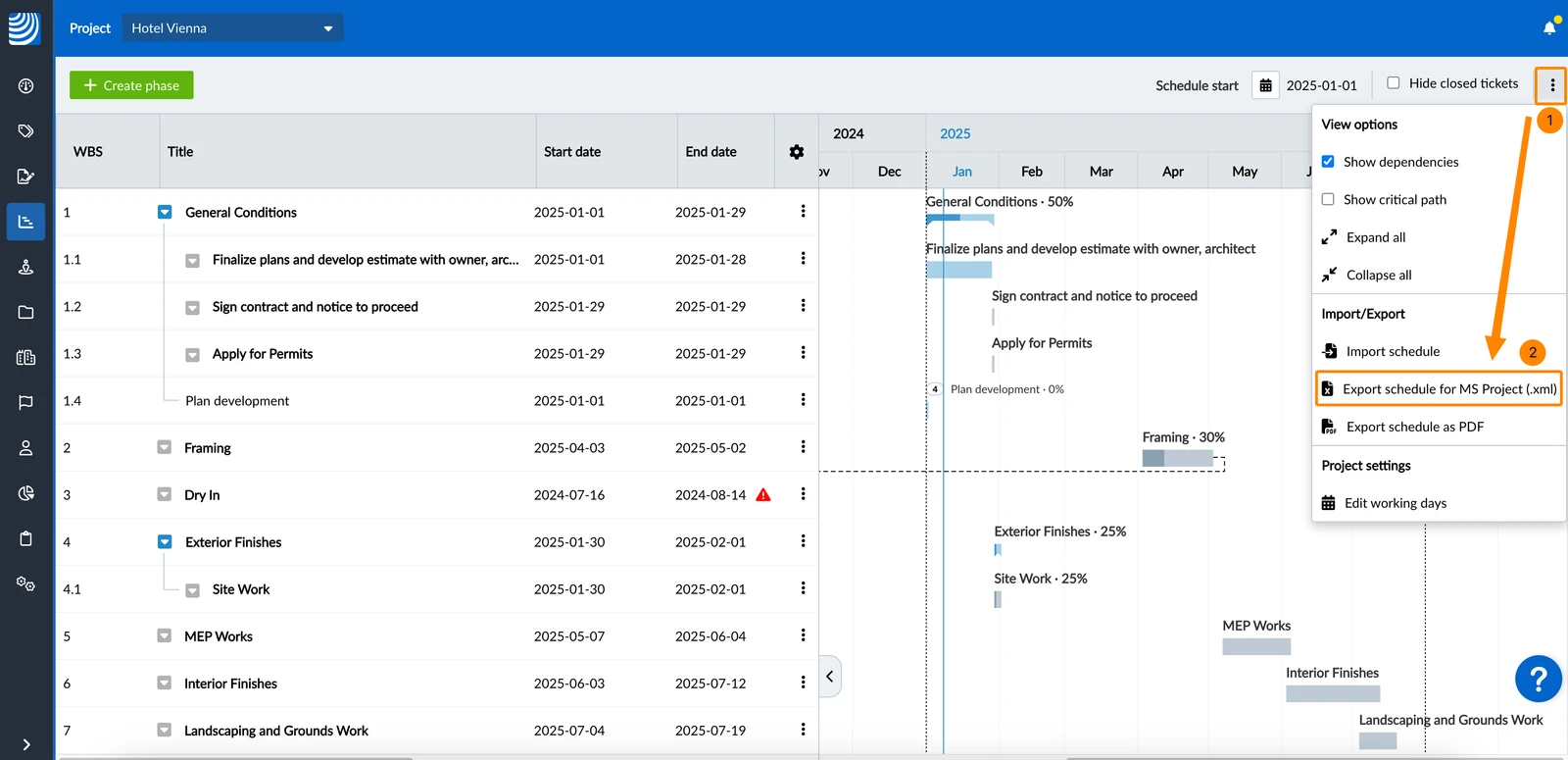
Open the More menu
Click Import schedule 

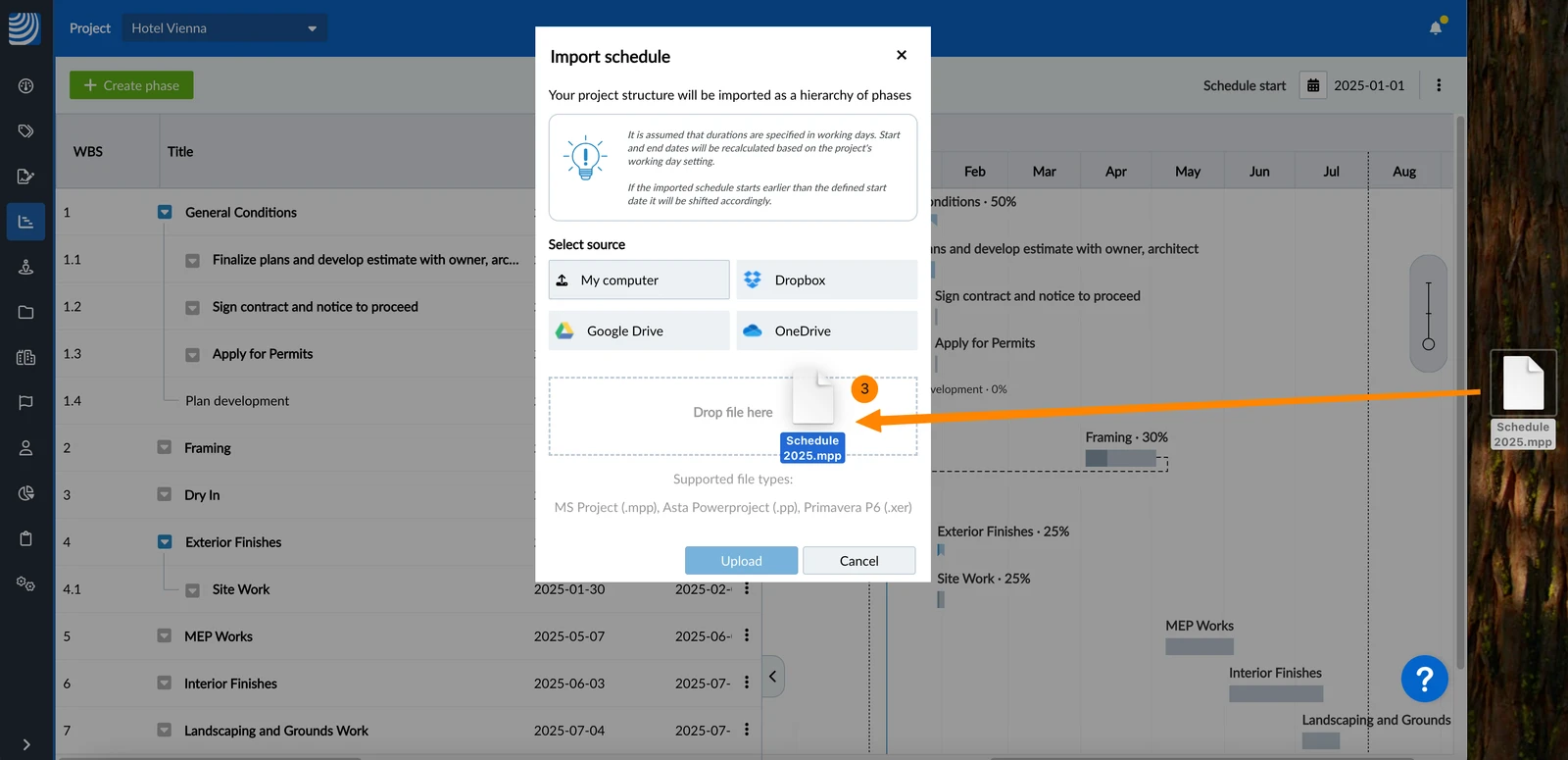
Drag & drop the file from your desktop to the Drop file here area
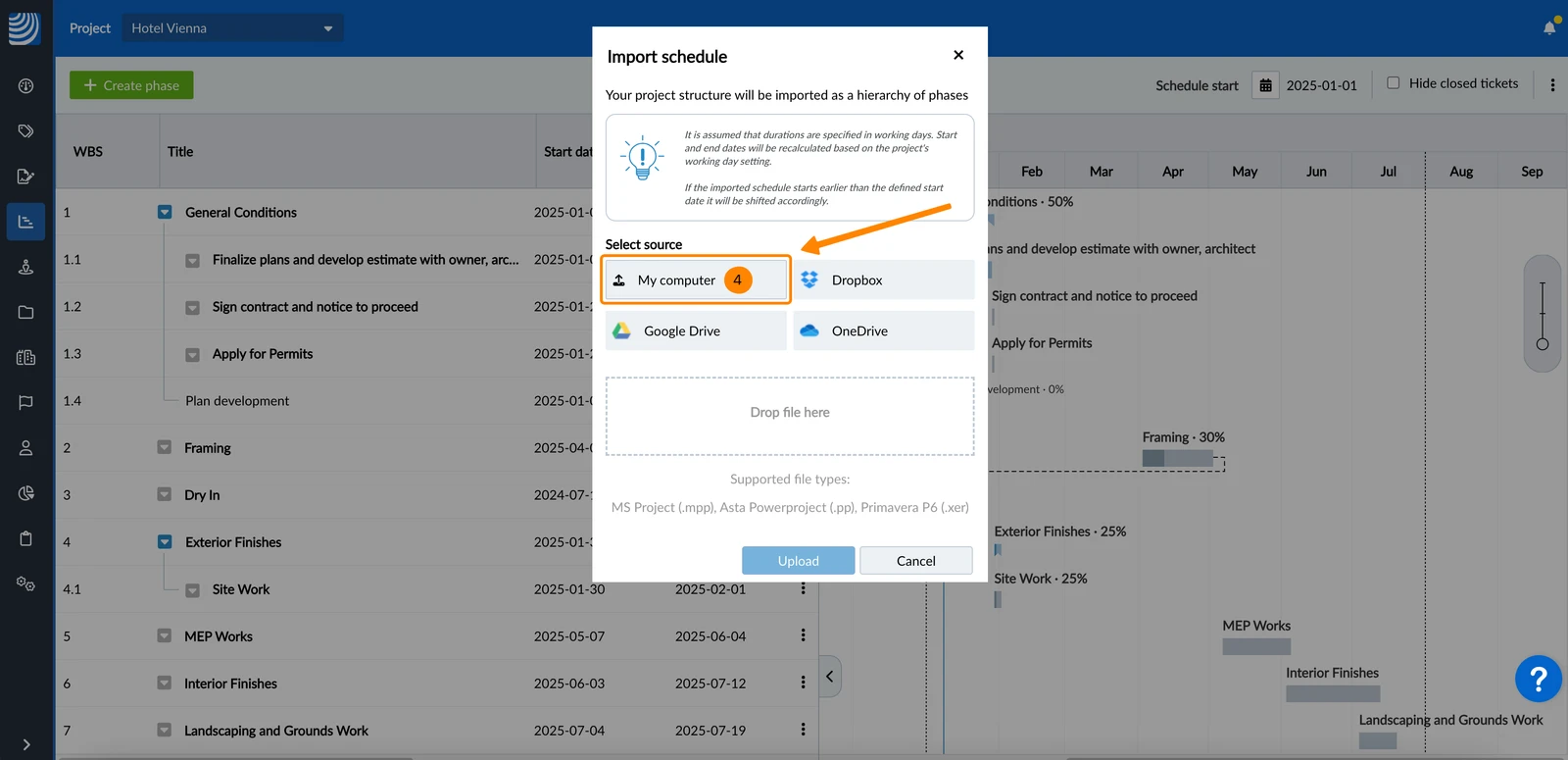
OR Click My Computer and select the file in the file browser
Click Upload 

Update Existing Schedules
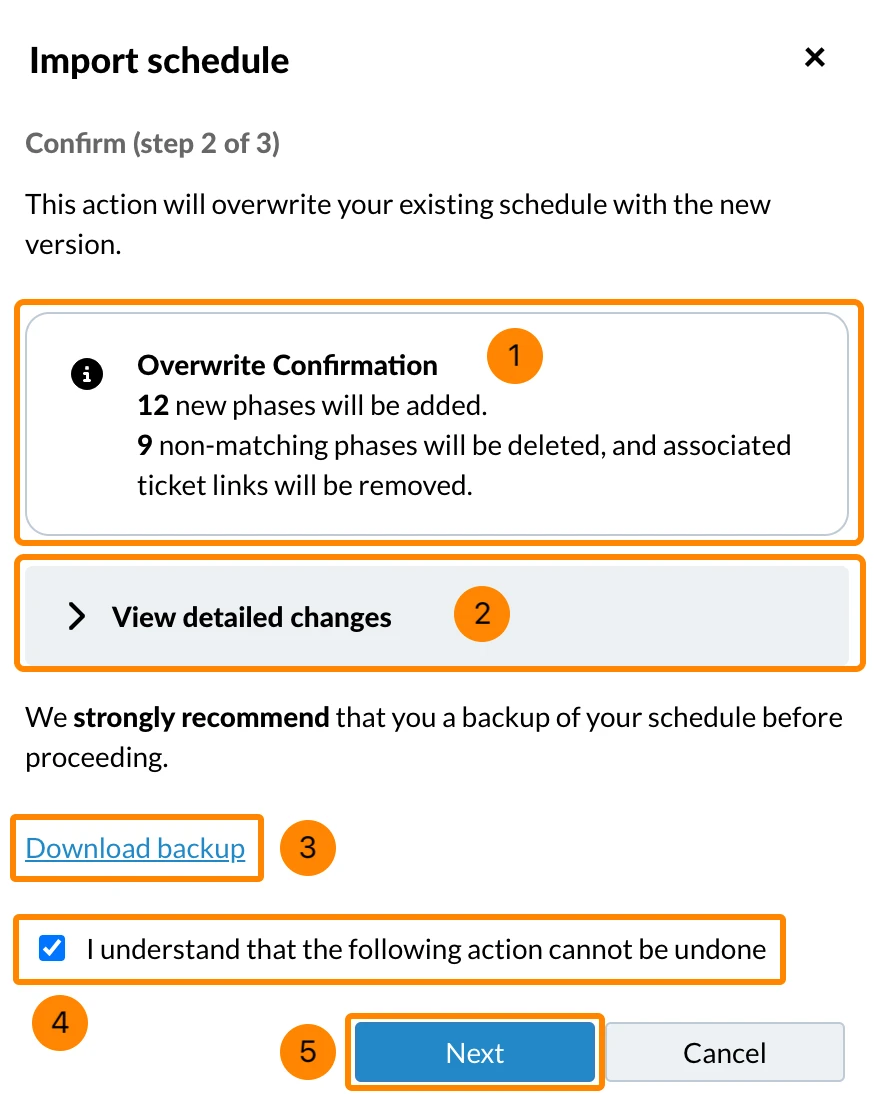
Update an existing schedule by importing an updated version of the .mpp file. This allows you to make changes while keeping all phases and progress intact. Before applying the update, you'll see a confirmation dialogue summarising the expected changes and have the option to download a backup.
Begin the update process as described above in Import New Schedules and continue with the confirmation dialogue:
Check the summary of how many phases will be added, updated and deleted.
Optional: Click View detailed changes to list all affected phases.


 Deutsch
 Español
 Français
 Hrvatski
 Italiano
 Polski
 Português (BR)