

 Deutsch
 Español
 Français
 Hrvatski
 Italiano
 Polski
 Português (BR)
Activate Two-Factor Authentication (2FA)
Overview
Two-factor authentication (2FA) is important for enhancing the security of your accounts by requiring users to provide multiple forms of verification before granting access. This additional layer of security helps mitigate the risks associated with unauthorized access, data breaches, identity theft, and other cyber threats.
Activate 2FA
To activate the 2FA:
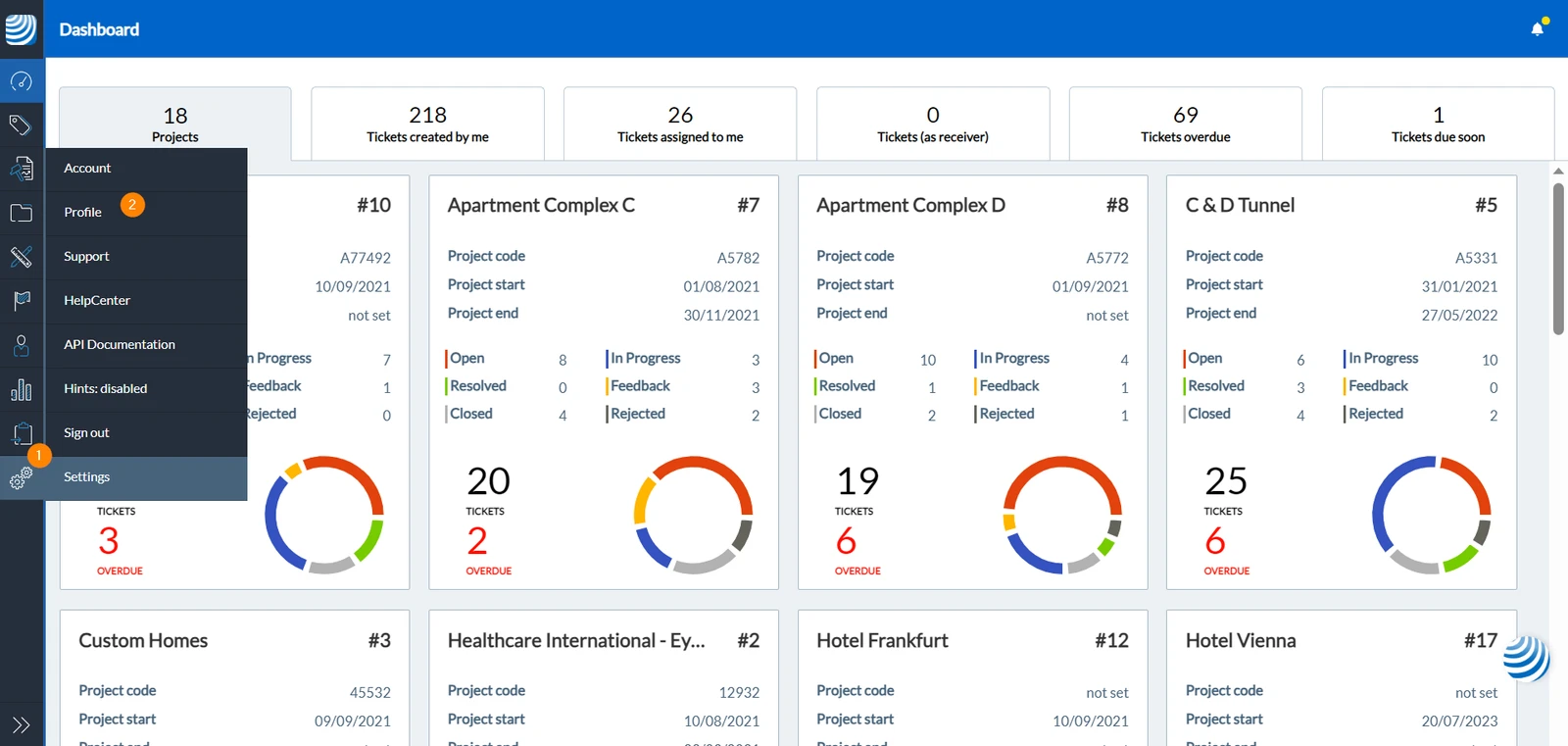
- Click Settings
- Click Profile
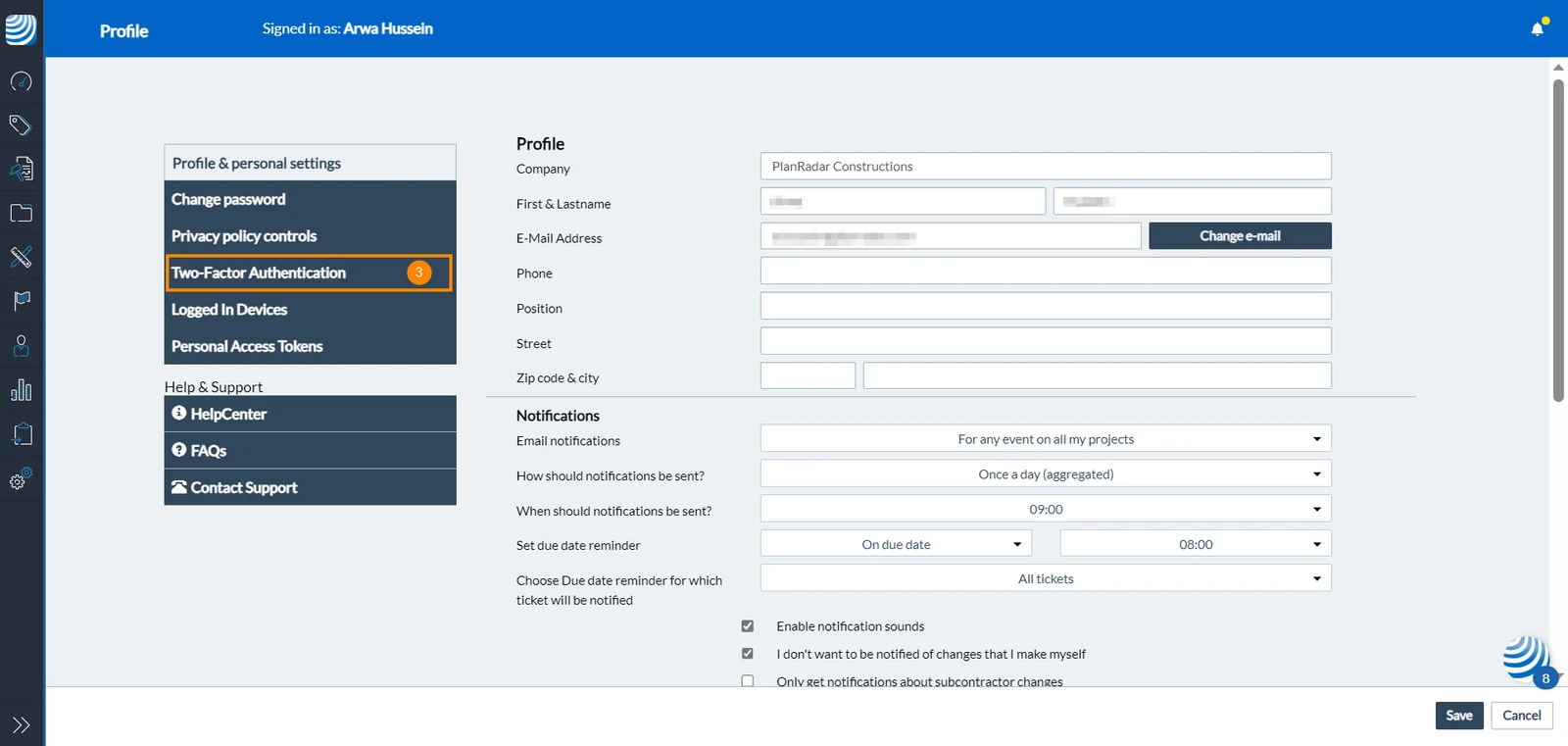
- Click Two-Factor Authentication
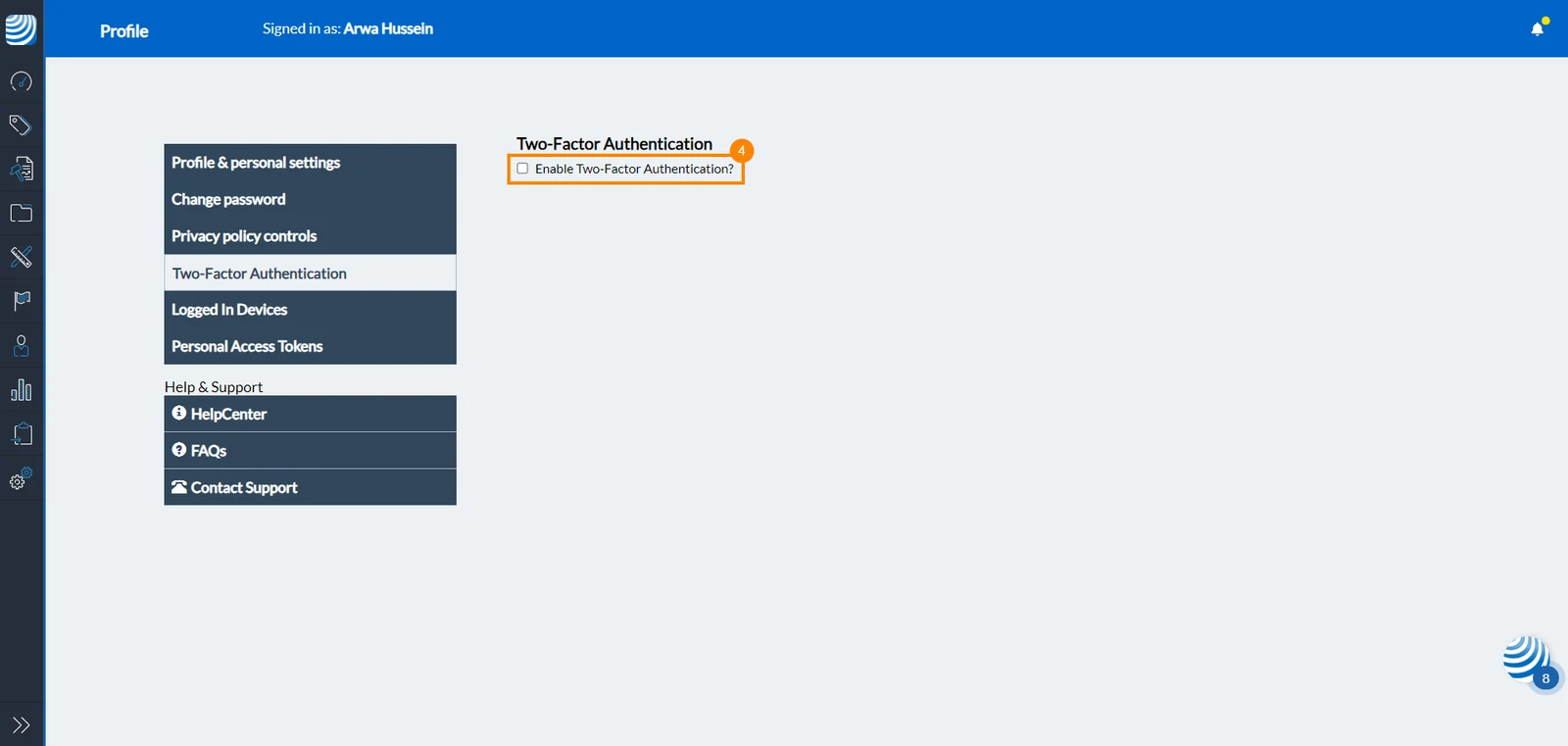
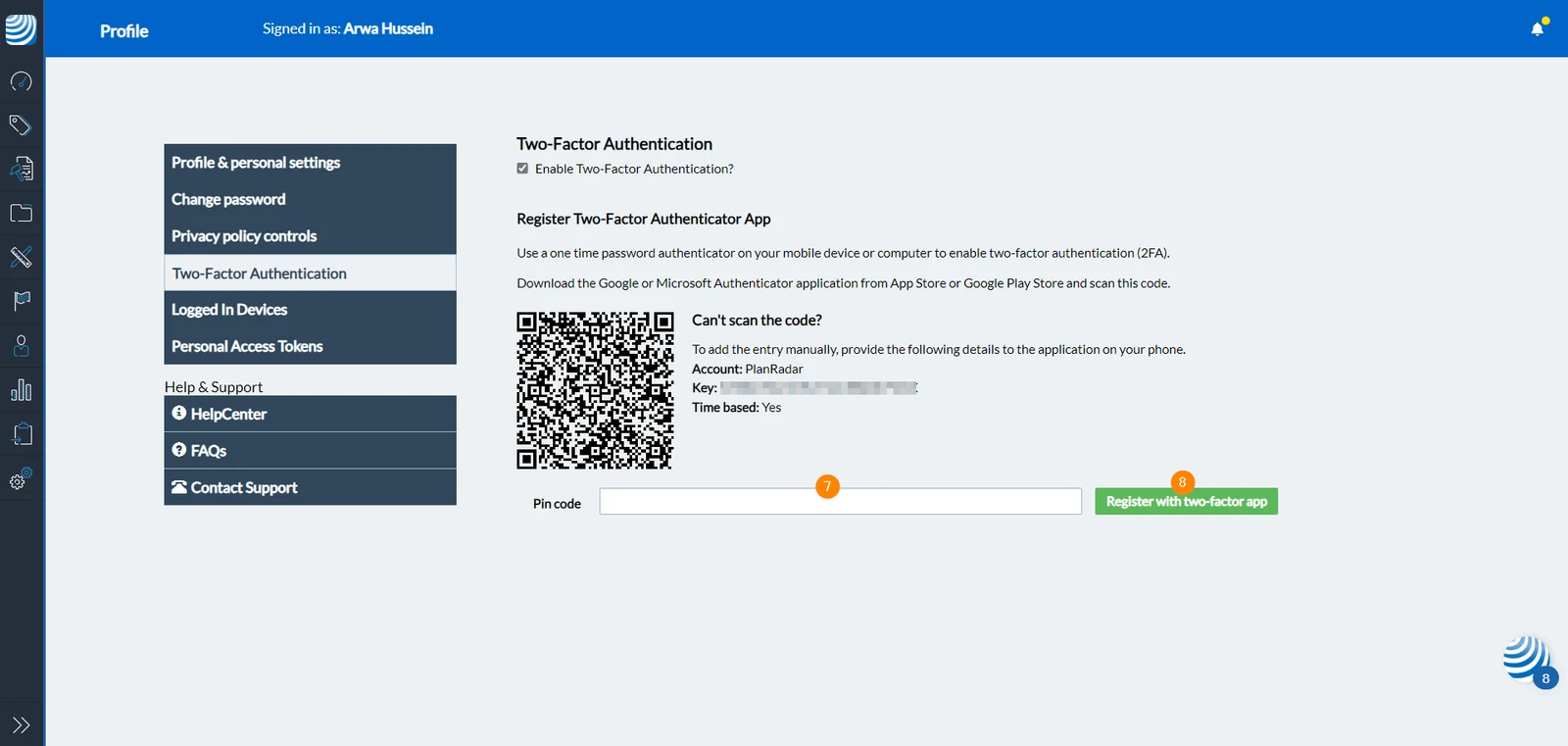
- Check the box for Enable Two-Factor Authentication?
- Download Google Authenticator App or Microsoft Authenticator App (or any other authentication app)
- Using the application, scan the QR Code to enter your PlanRadar Account details into the application
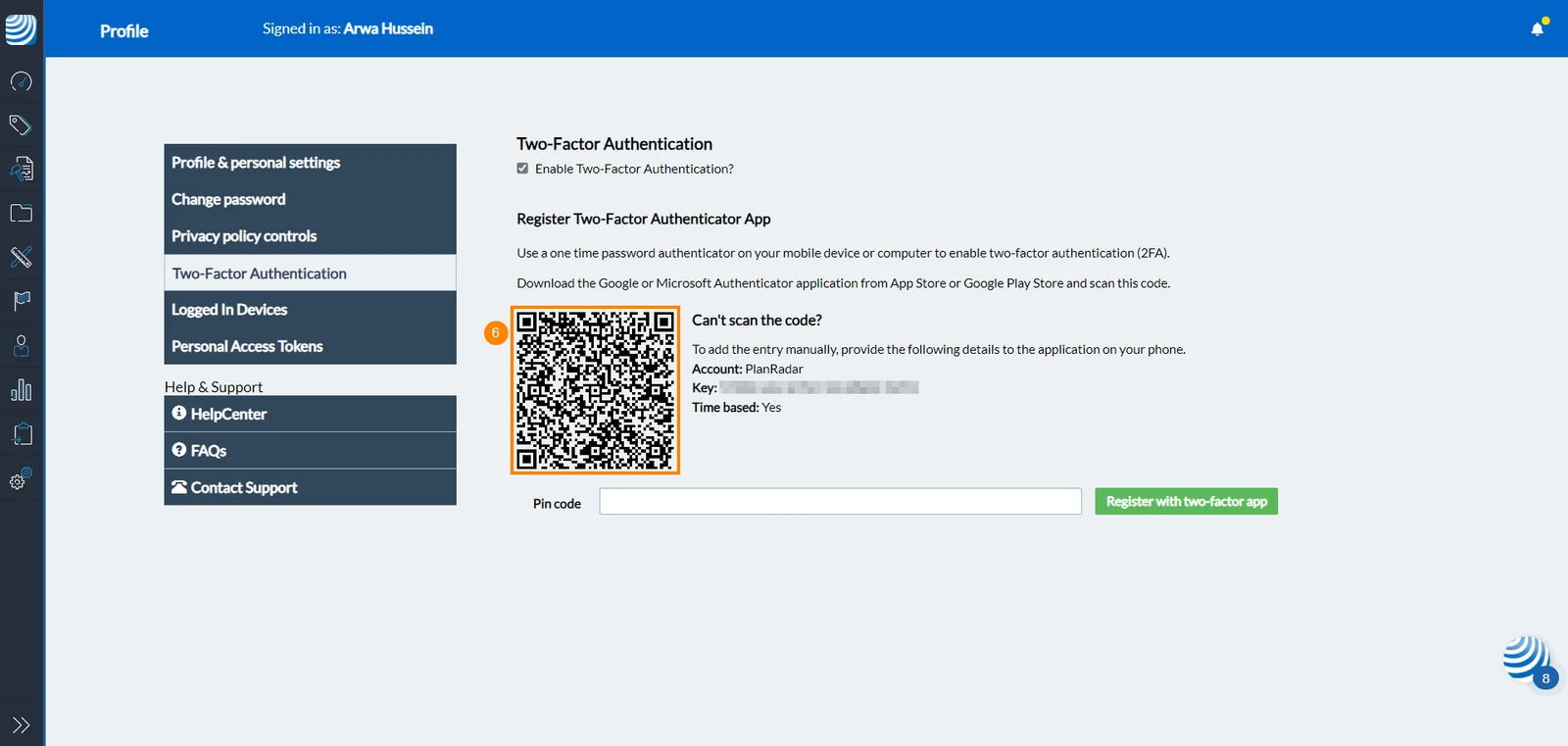
- Enter the pin code that appears on the authentication application
- Click Register with two-factor app
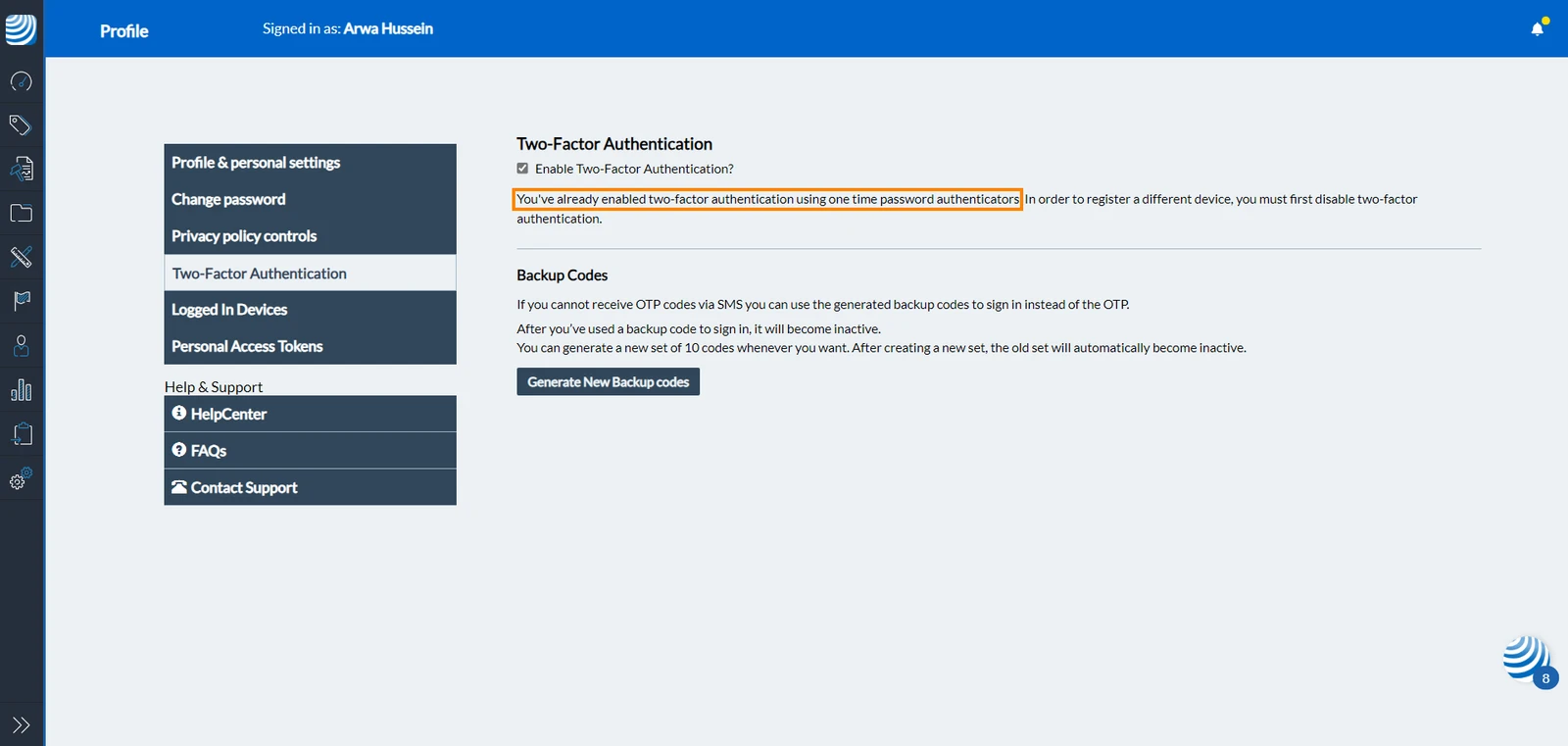
Once you've registered your PlanRadar account on the authenticator app, a success message will appear on the screen:
Login with 2FA Enabled
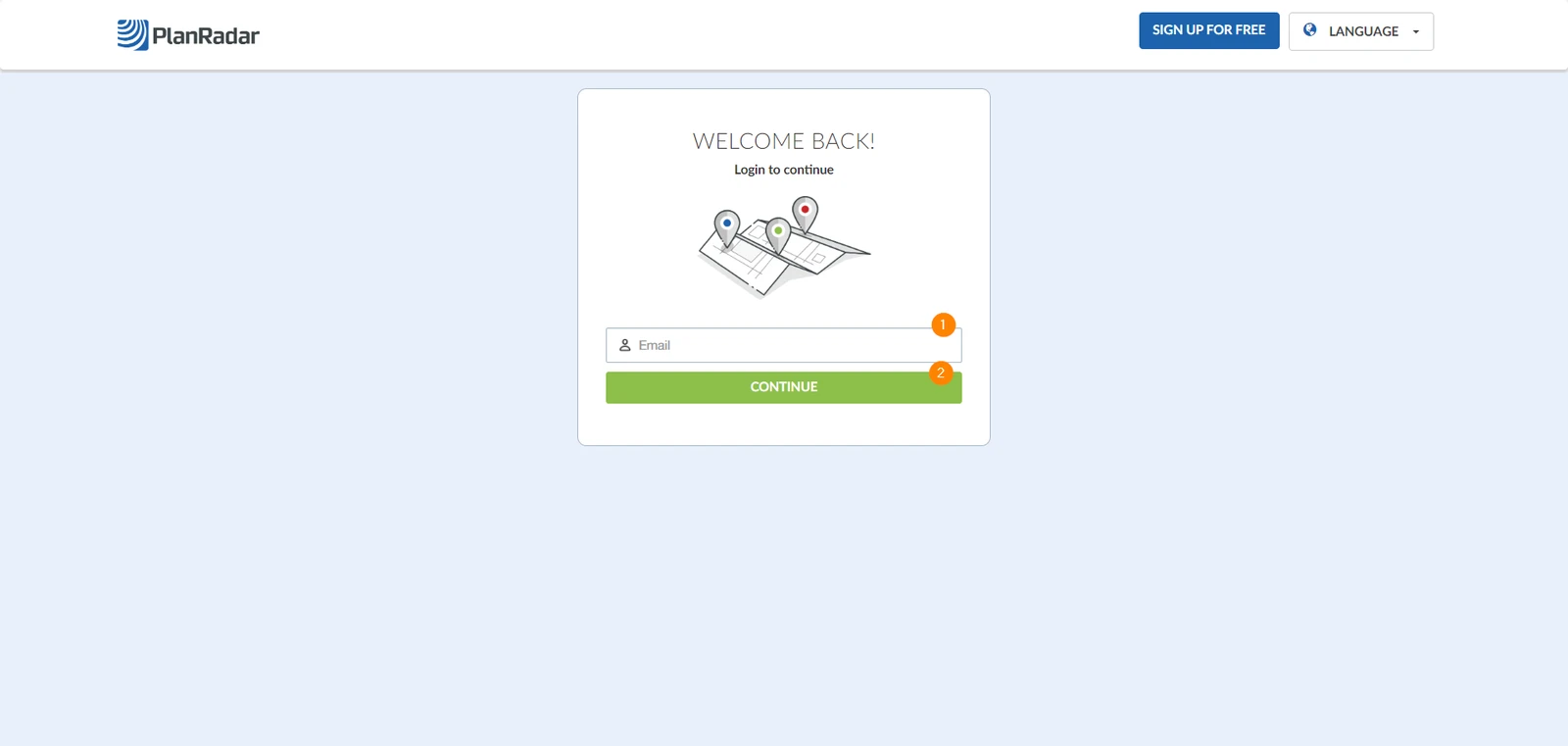
To log into your PlanRadar account, head to our log in page. Then:
- Enter your email address
- Click Continue
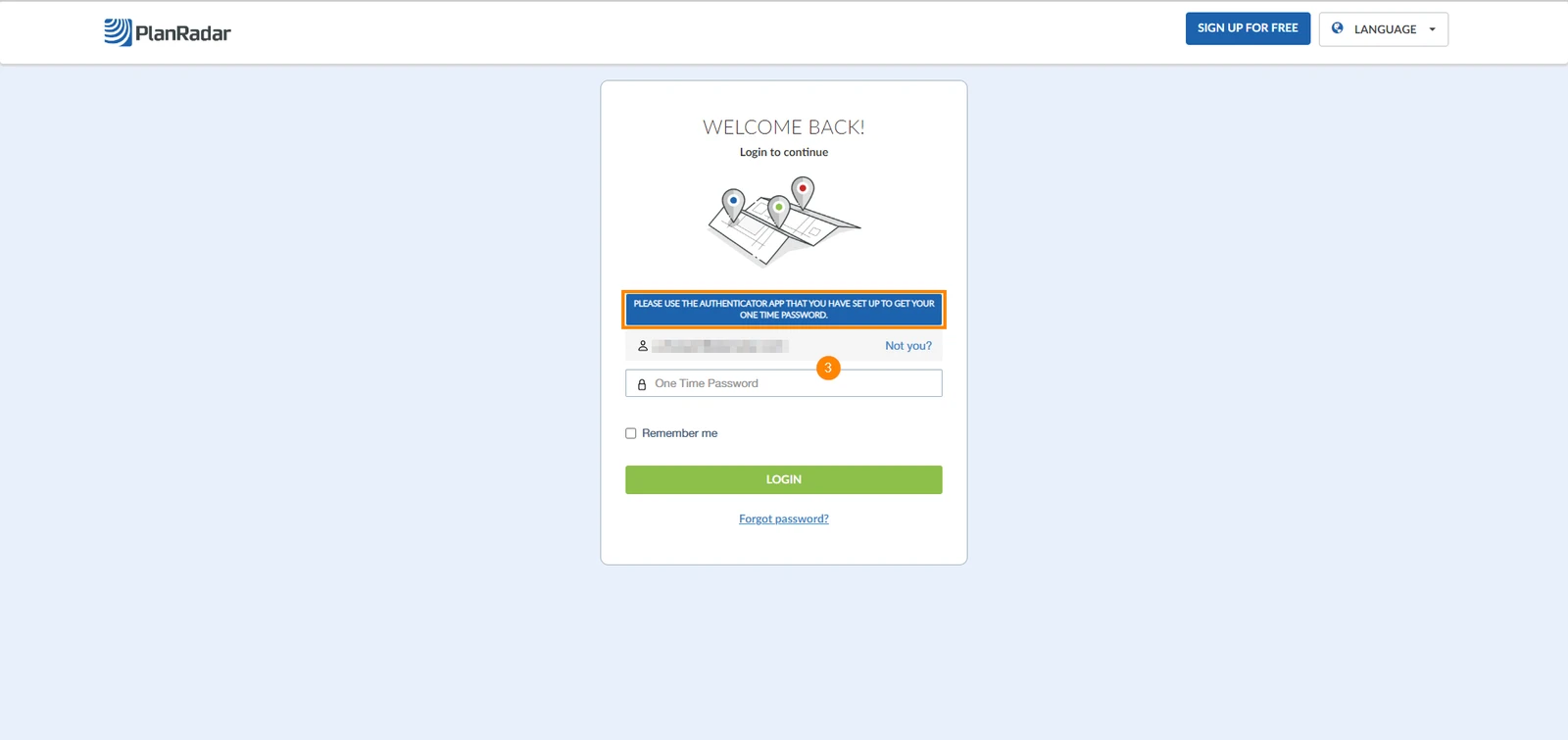
- Enter the one-time password that appears in your authenticator application
Deactivate 2FA
To deactivate the 2FA:
- Click Settings
- Click Profile
- Click Two-Factor Authentication
- Clear the check box for Enable Two-Factor Authentication?
Updated August 23, 2024