Getting Started

Login to PlanRadar

Overview

This article provides a concise guide on effortlessly navigating the PlanRadar login process, including steps to easily log in, establish auto-login preferences, and access your account with added security measures.

Log in

To get to the login page of the Webapp you have three options:

  • Follow this link: planradar.com/login
  • or go to planradar.com and click the login button in the top right corner
  • or click Sign in in your invitation email
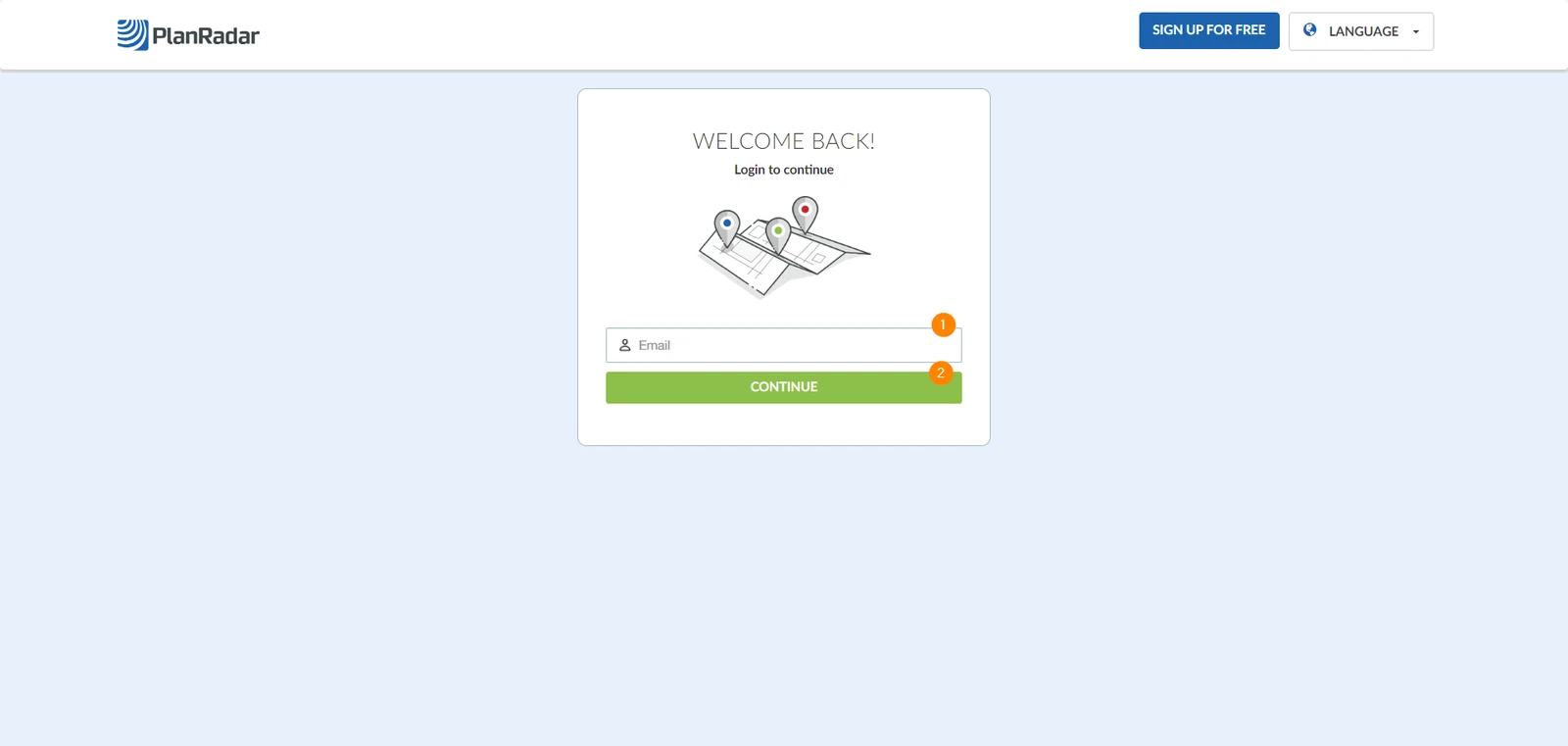
  1. Enter your email address
  2. Click Continue
    Log in Page.png
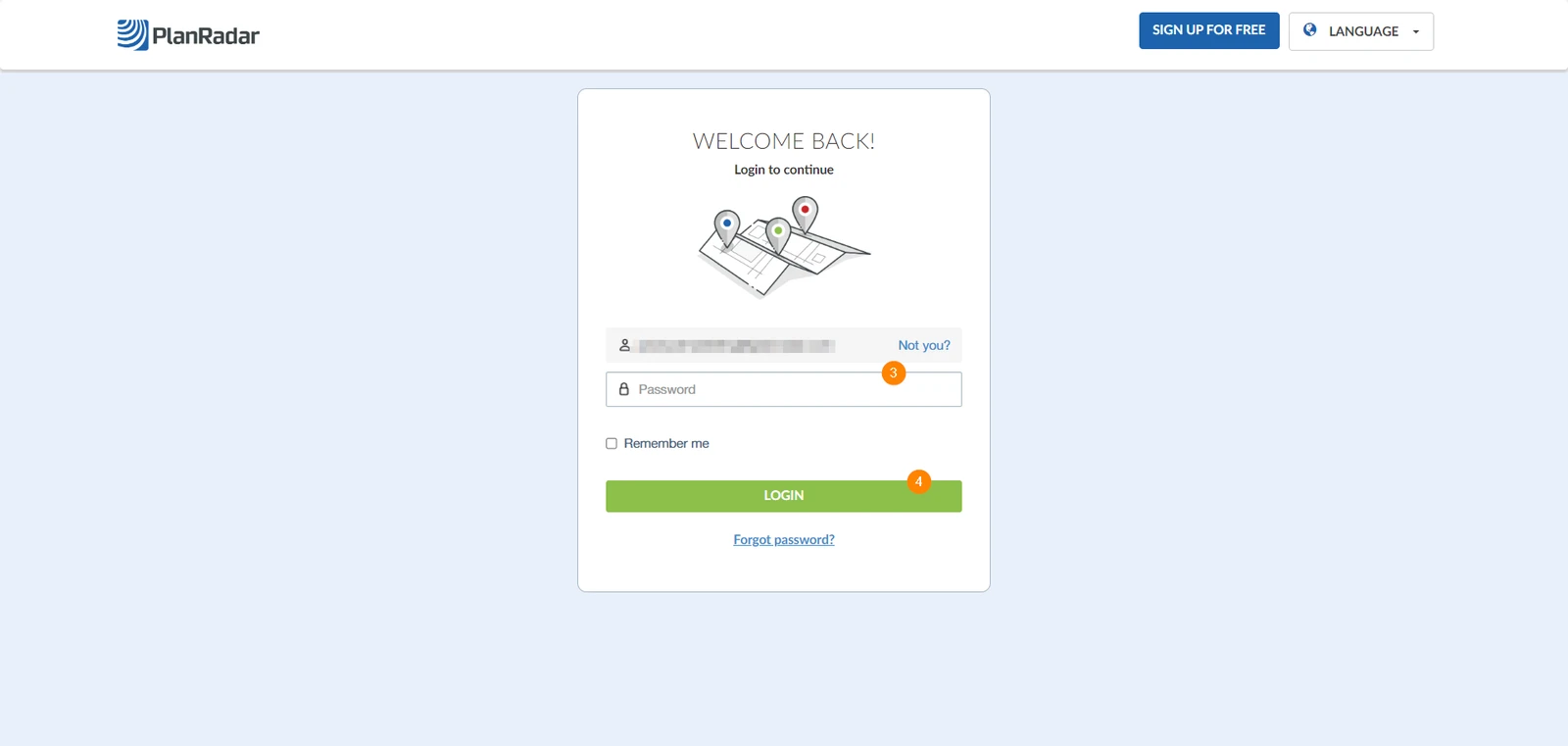
  3. Enter your password
  4. Click Log In
    Add Password.png
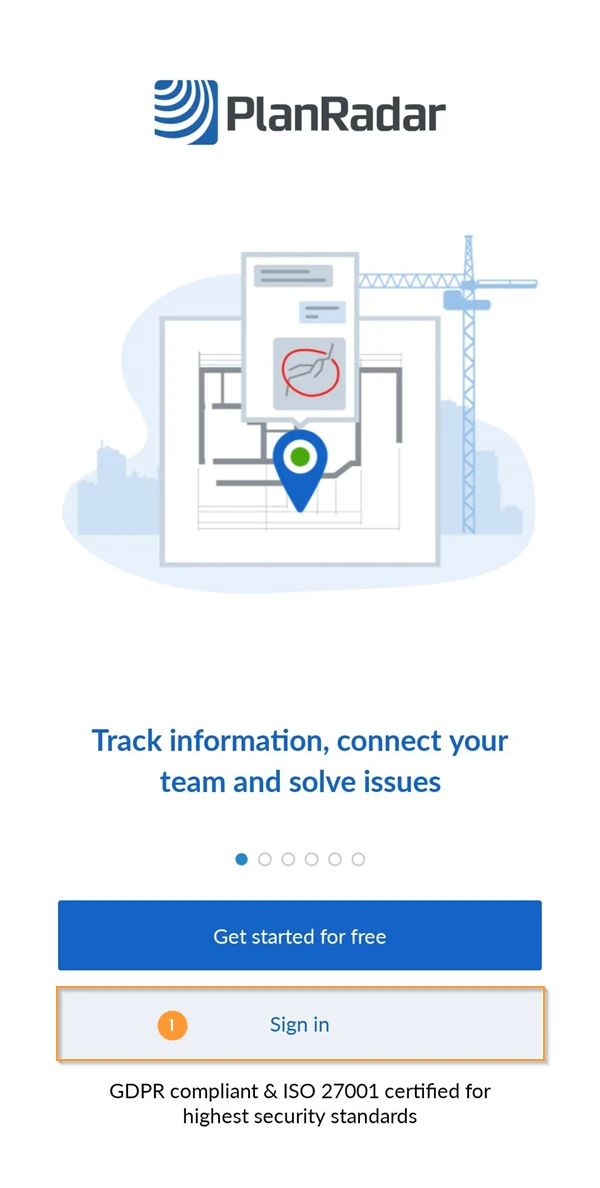
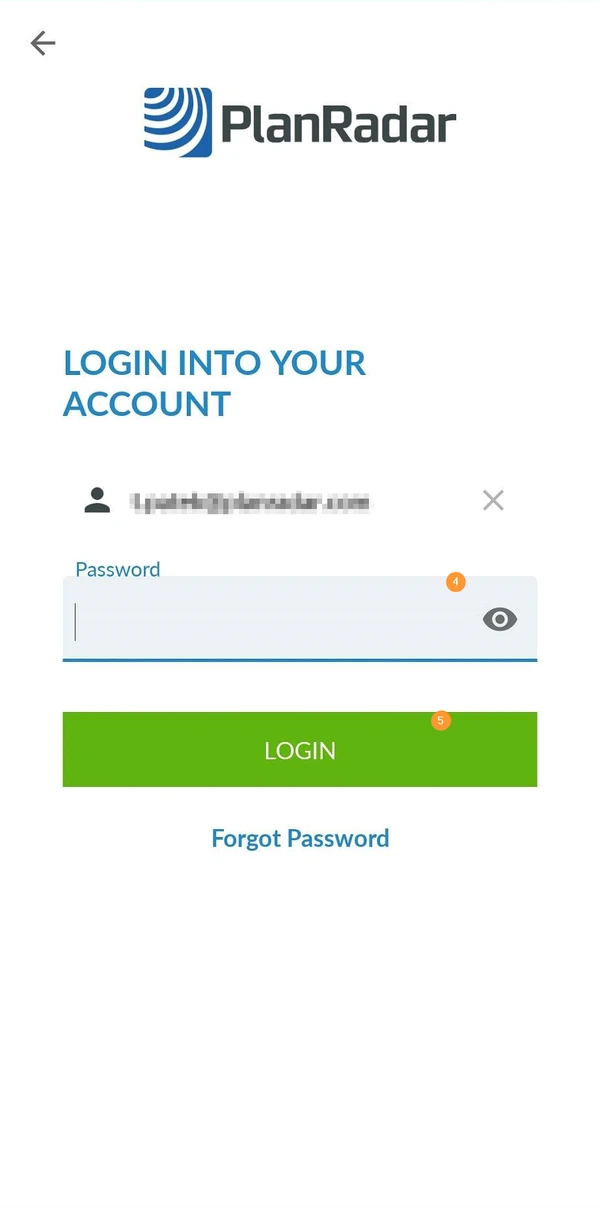
  1. After opening the App tap Sign in
    

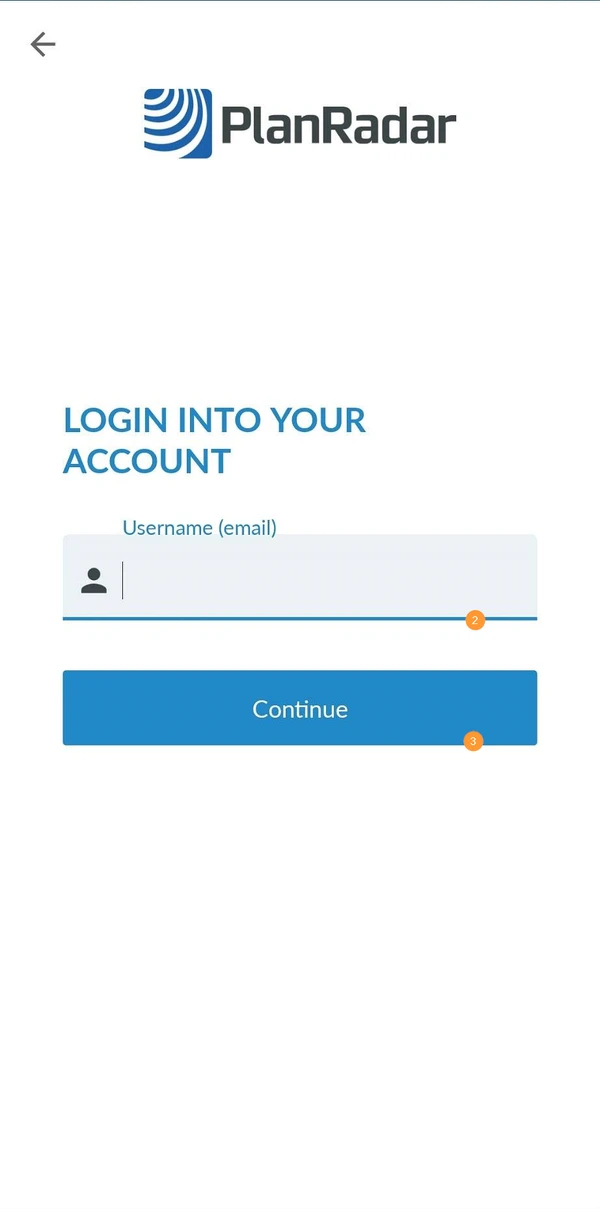
  2. Enter your email address
  3. Tap Continue
  4. Enter your password
  5. Tap Login

Login with Two-Factor Authentication Enabled

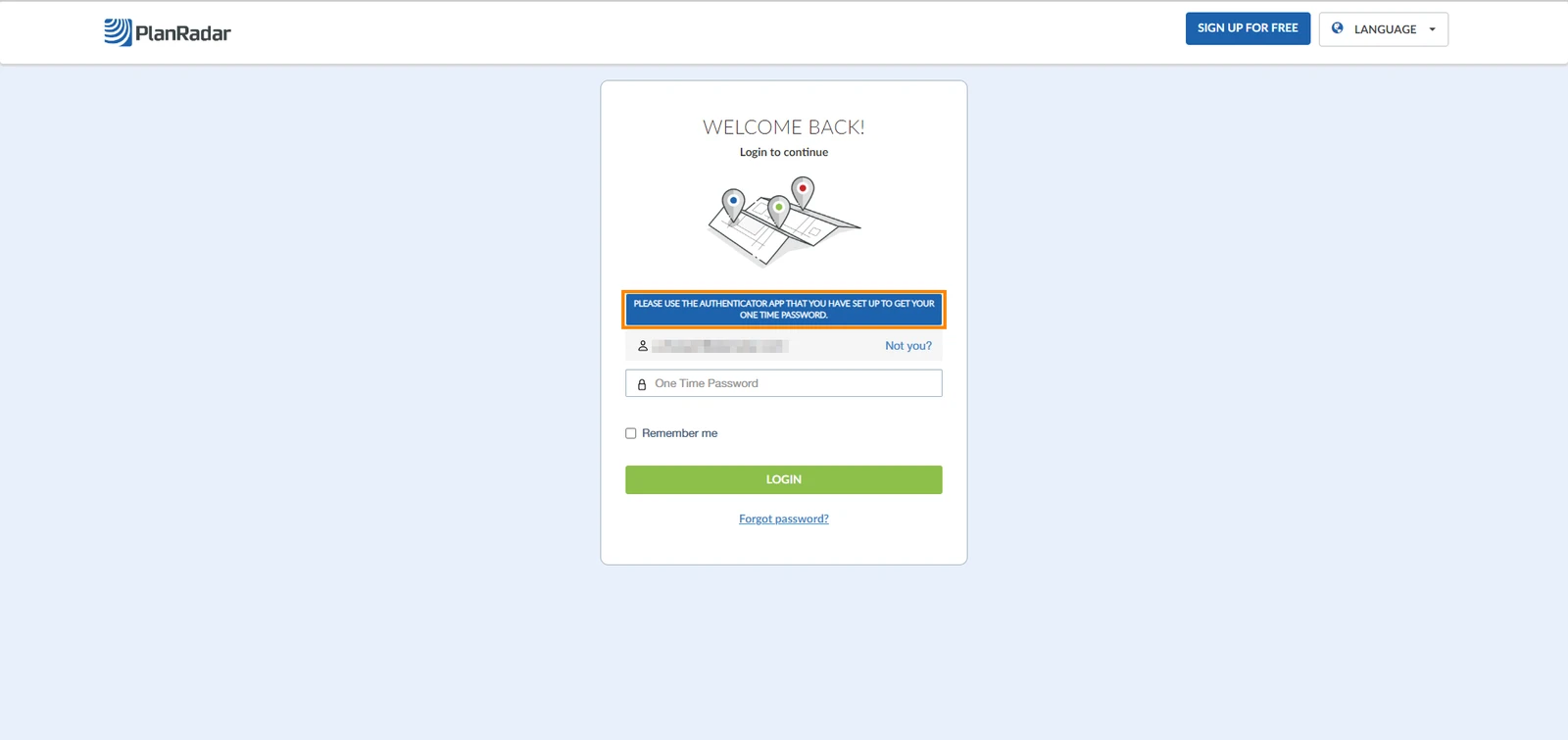
To log into your PlanRadar account, go to planradar.com/login. Then:

  1. Enter your email address
  2. Click Continue
    Log in Page.png
  3. Enter the one-time password that appears in your authenticator application
    Password.png

Login with PIN Code Activated

When logging in with the PIN code option activated, your mobile phone prioritises using the Face ID/Finger Print that are stored in your phone. You can use these options or your PIN code.

Here's how to log in with the PIN Code activated

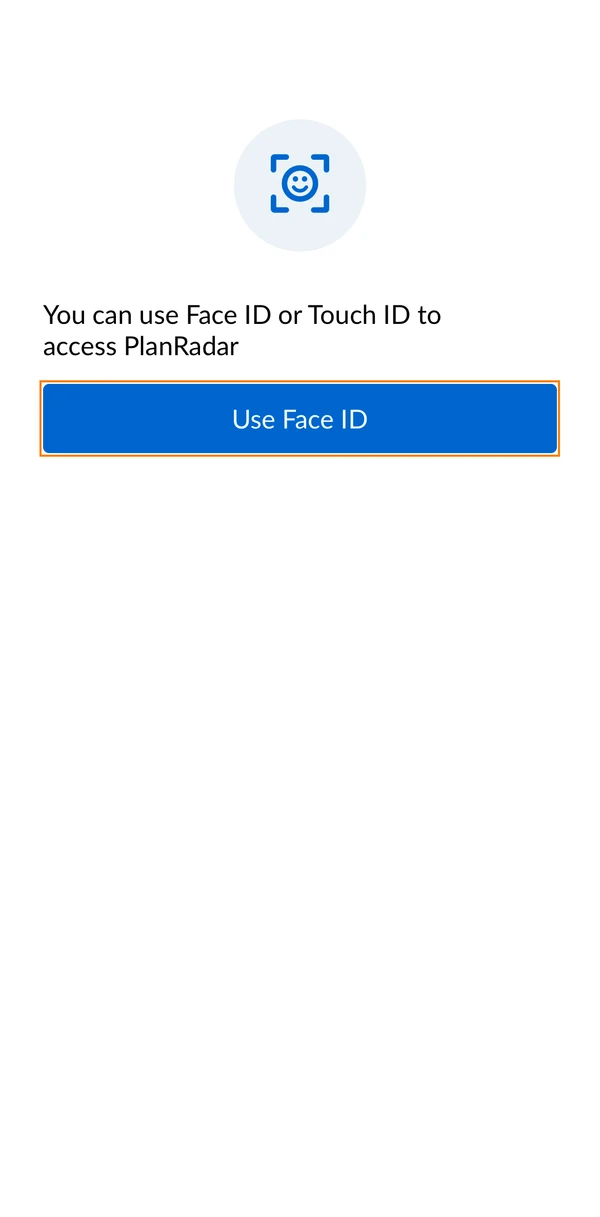
Login with Face ID

    1. Open your PlanRadar App
    2. Tap Use Face ID
      Use Face ID.jpeg

Login with PIN Code

  1. Open your PlanRadar App
  2. Tap Use Face ID
    Use Face ID.jpeg
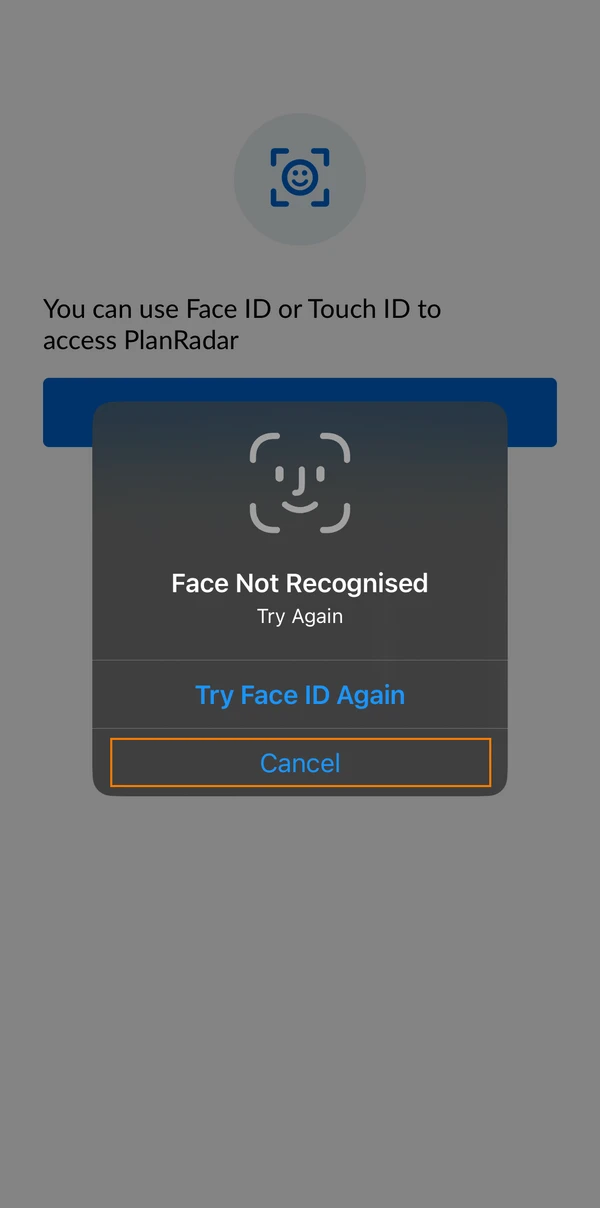
  3. Fail to provide Face ID
  4. Tap Cancel
    Face ID not Recognized.PNG
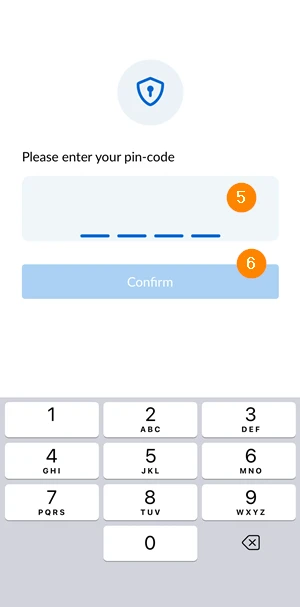
  5. Enter your PIN Code
  6. Tap Confirm
    IMG_2654.PNG

Login with Finger Print

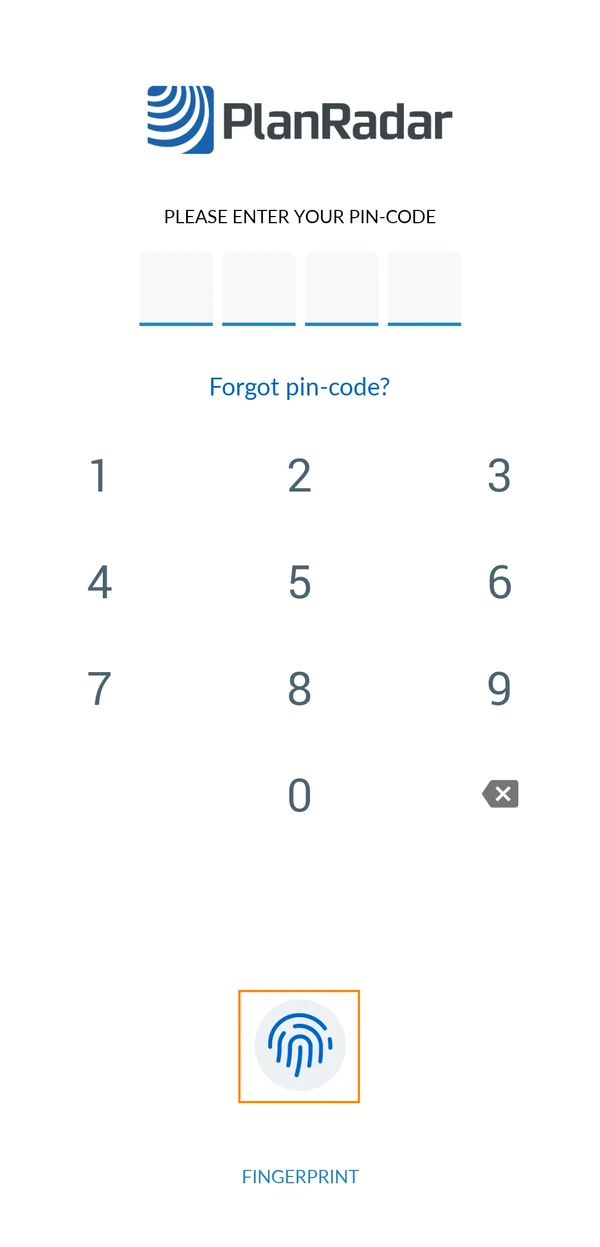
    1. Open your PlanRadar App
    2. Use your finger print
      pro-3NUamFwd - Copy.jpeg

Login with PIN Code

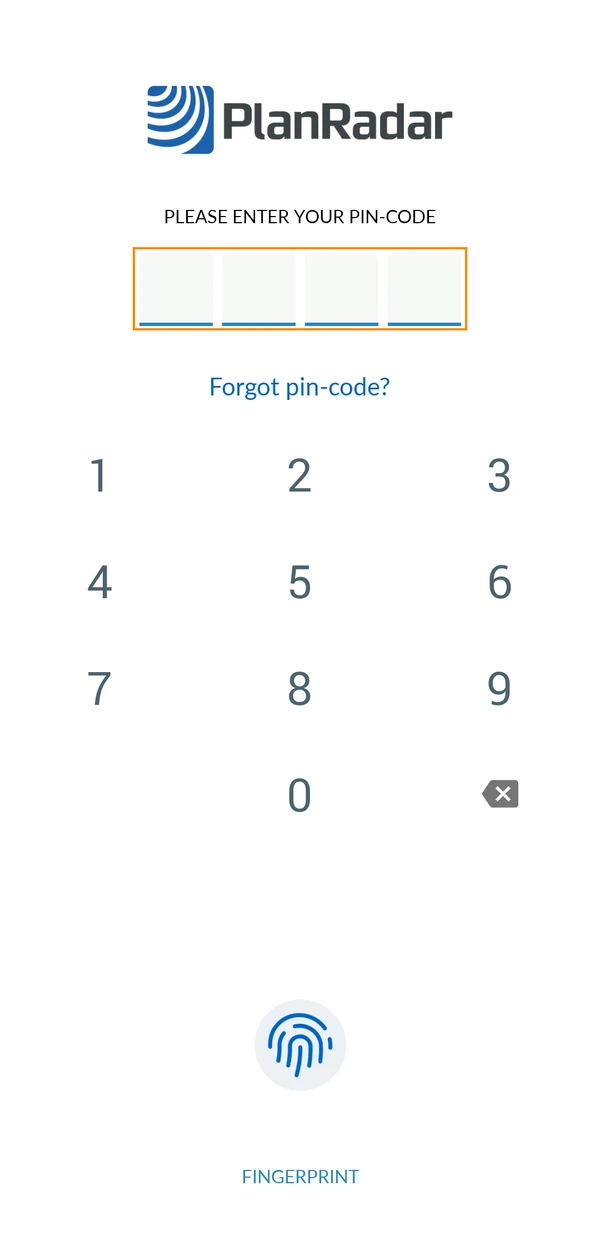
  1. Open your PlanRadar App
  2. Enter your PIN code
    pro-3NUamFwd.jpeg

Save Log in Details

To save your log in details into our platform, go to planradar.com/login. Then:

  1. Enter your email address
  2. Click Continue
    Log in Page.png
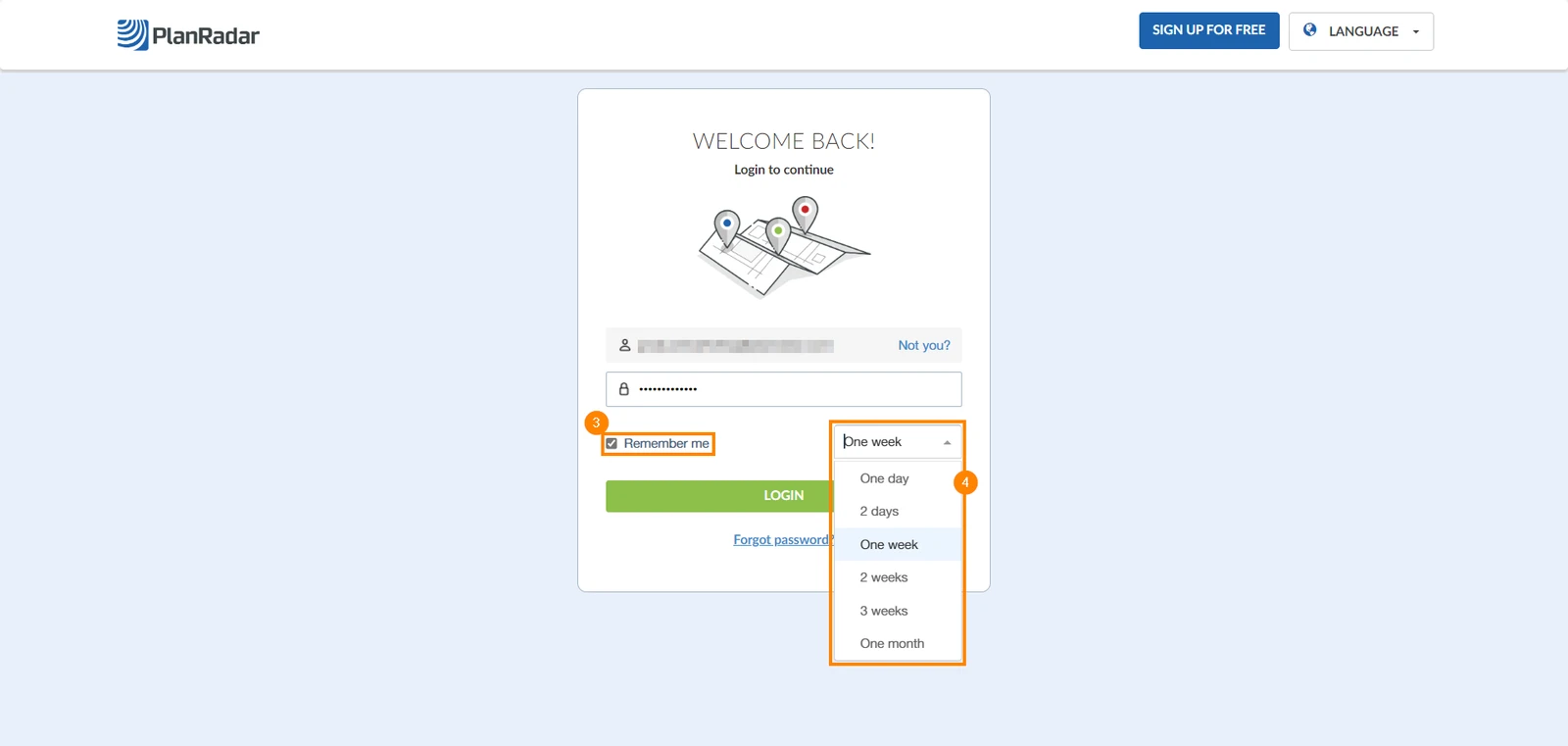
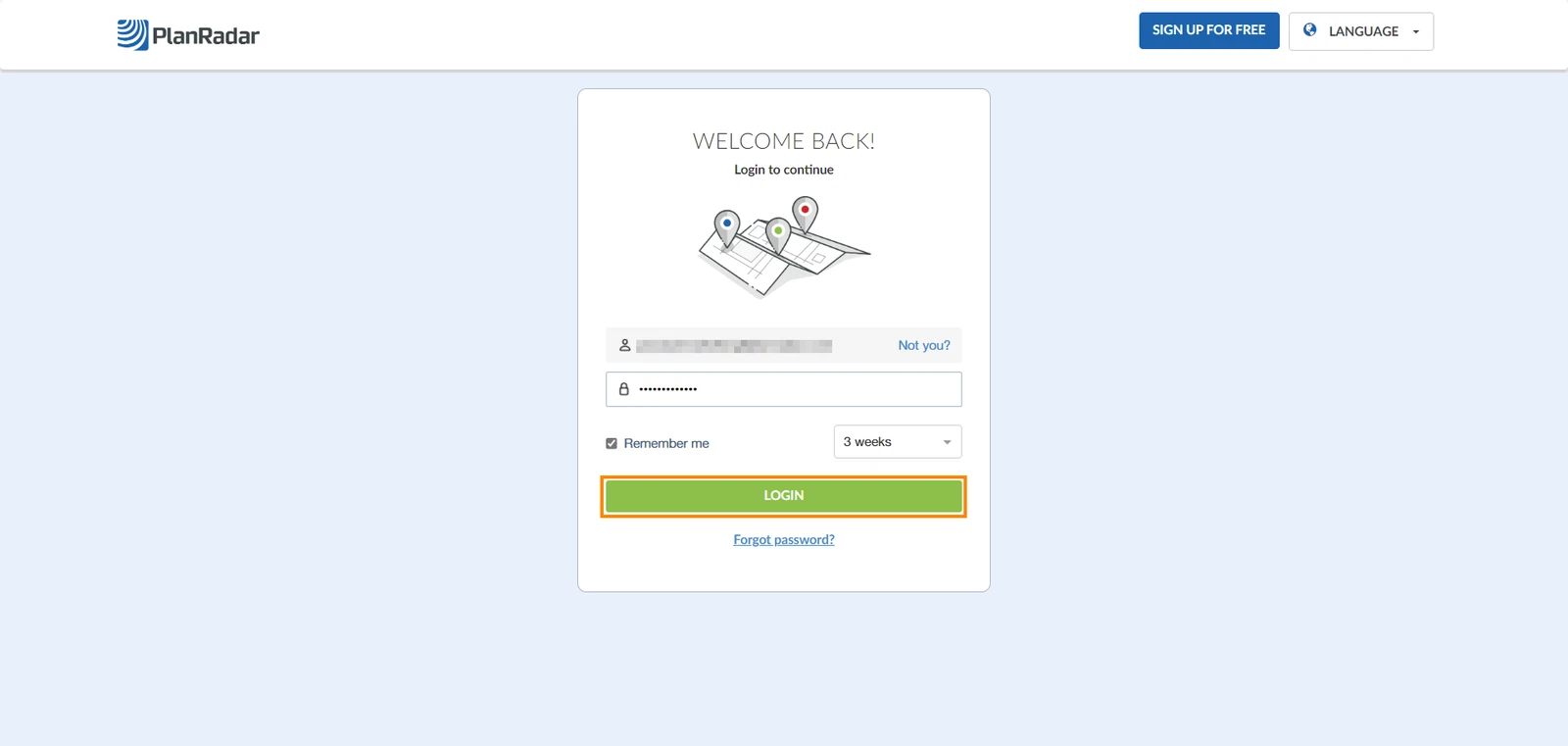
  3. Select the remember me checkbox
  4. Select a duration
    Remember me.png
  5. Click Log in
    Log in.png

Log out

To log out from your account:

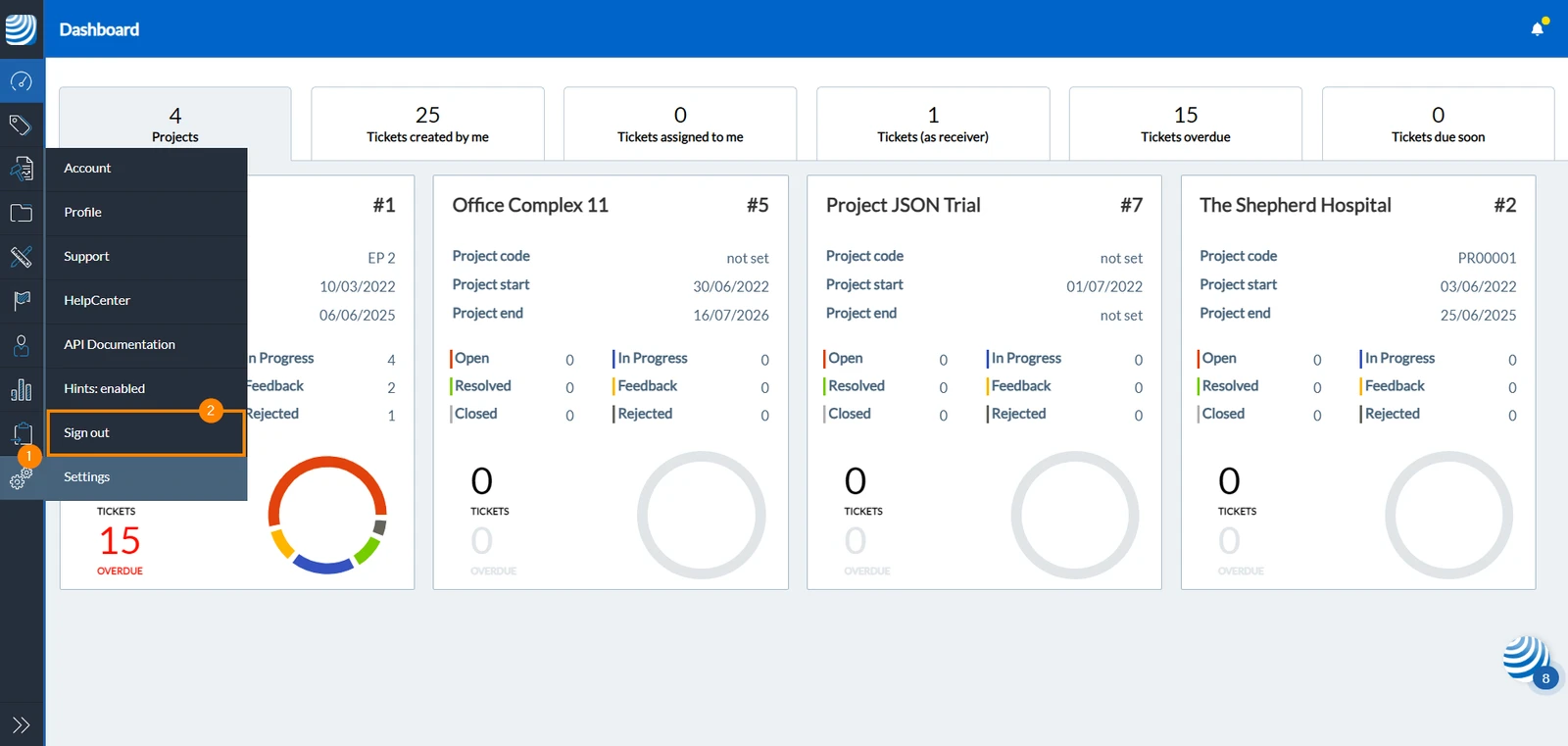
Logout

  1. Navigate to Settings
  2. Click Sign out
    Sign out.png

Logout

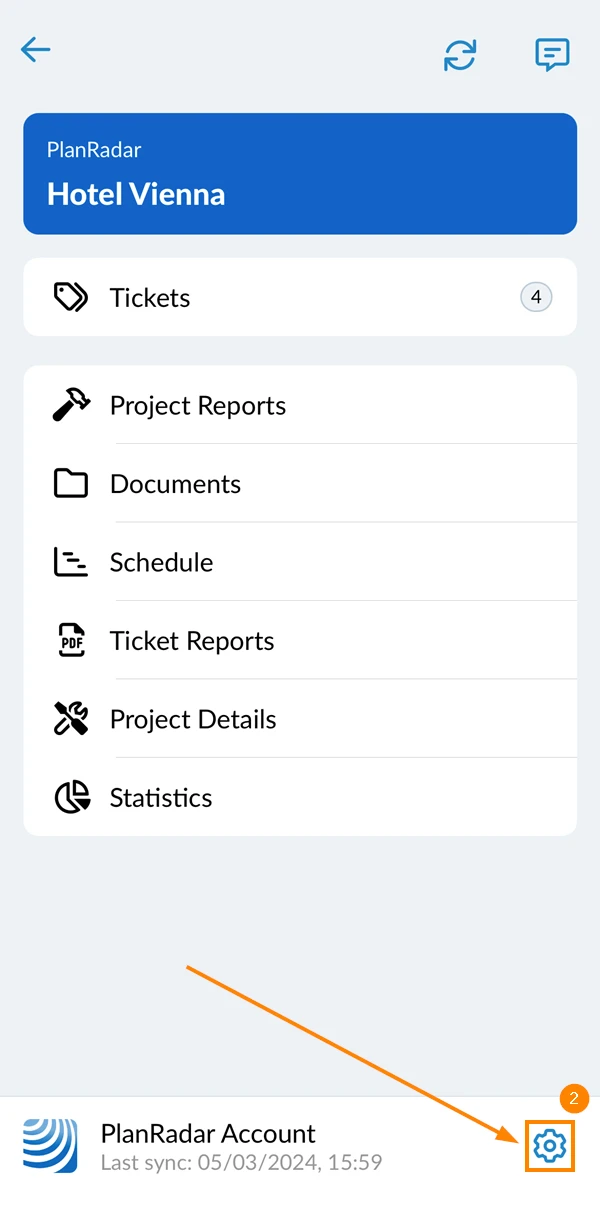
    1. Go to the main menu
    2. Tap the Settings icon
      Settings.PNG
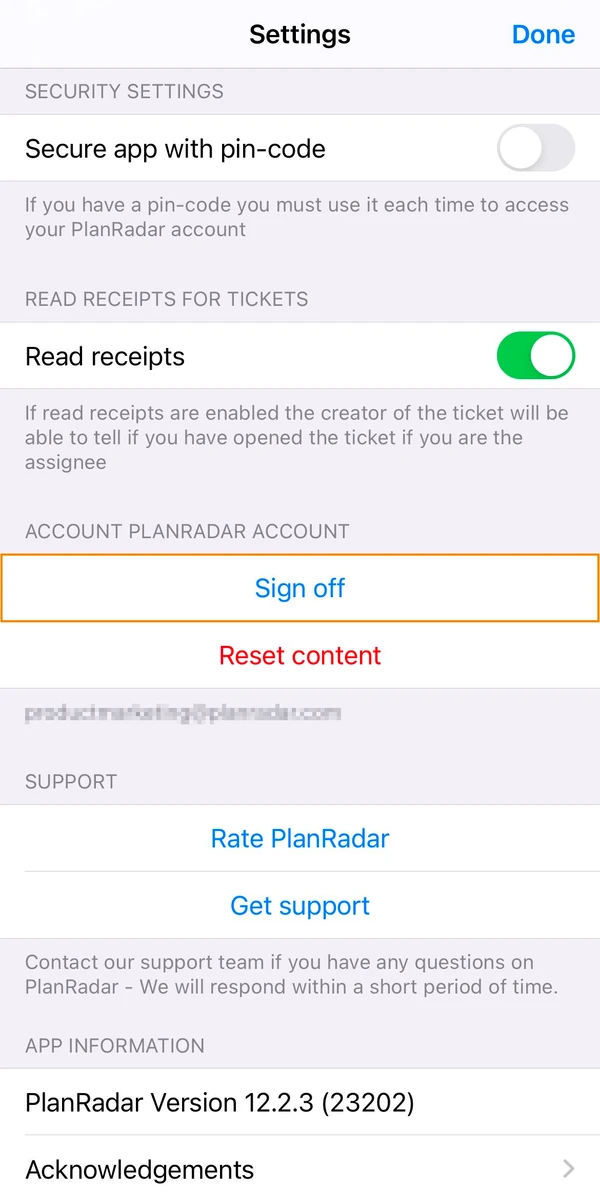
    3. Tap Sign off
      Sign Off.JPG

Logout & Delete Synced Data

    1. Go to the main menu
    2. Tap the Settings icon
      Settings.PNG
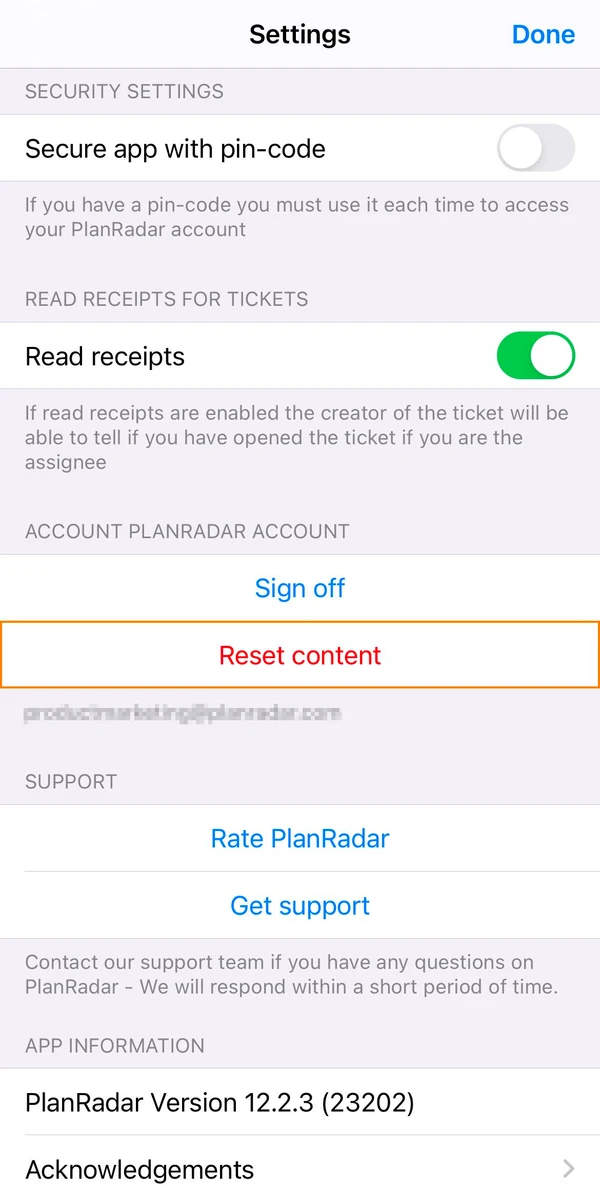
    3. Tap Reset Content
      Reset Content.JPG

Updated June 11, 2026