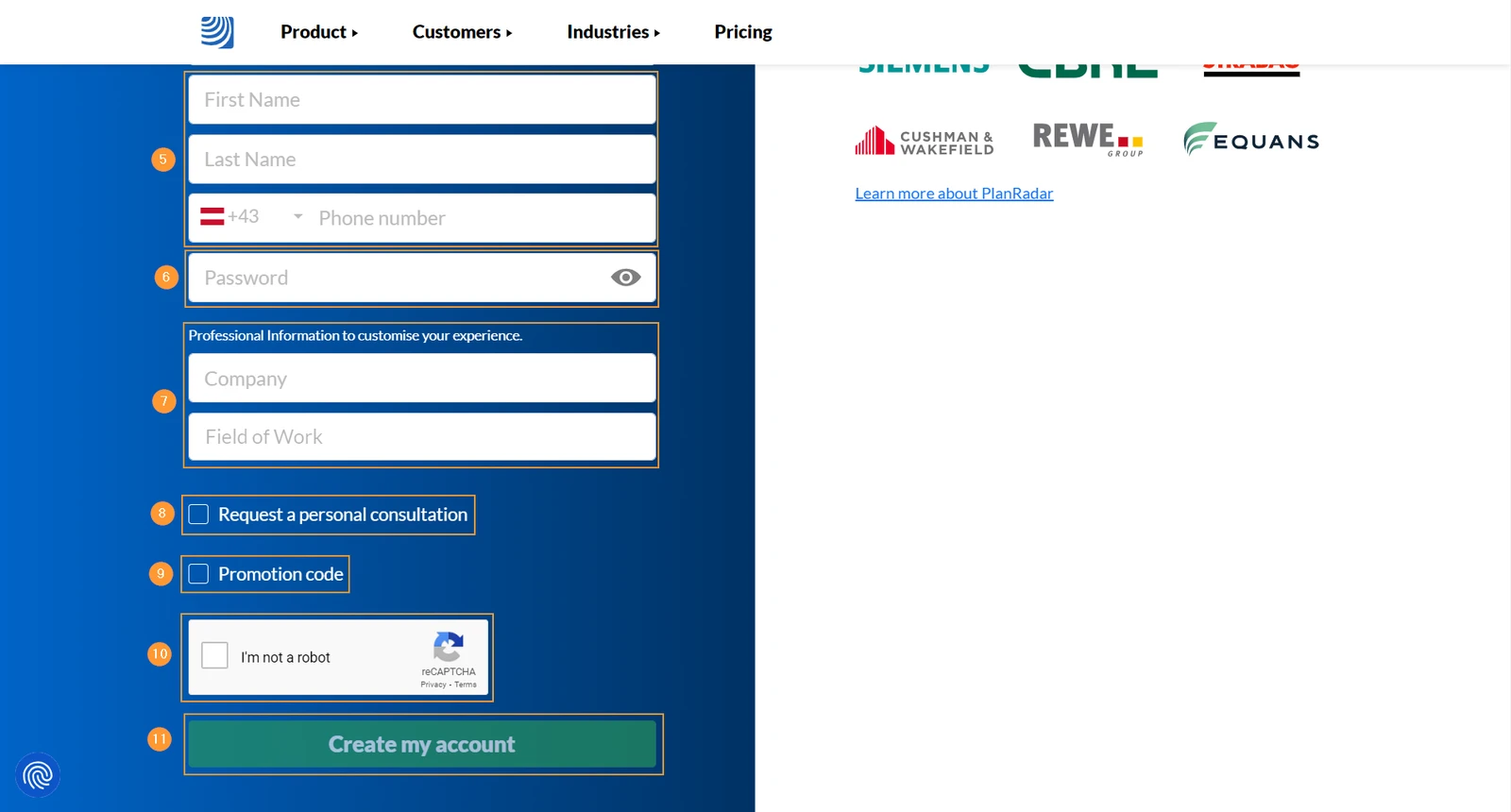
Enter your Company and Field of Work to explore PlanRadar with a more fitting demo project.
(optional): Select Request a personal consultation and select which time of the day suites you best to get contacted by a PlanRadar employee.
(optional): Select Promotion code and enter it in case you got one to gain some benefits.
Select I'm not a robot recaptcha, which is sometimes required for security reasons
Click Create my account 

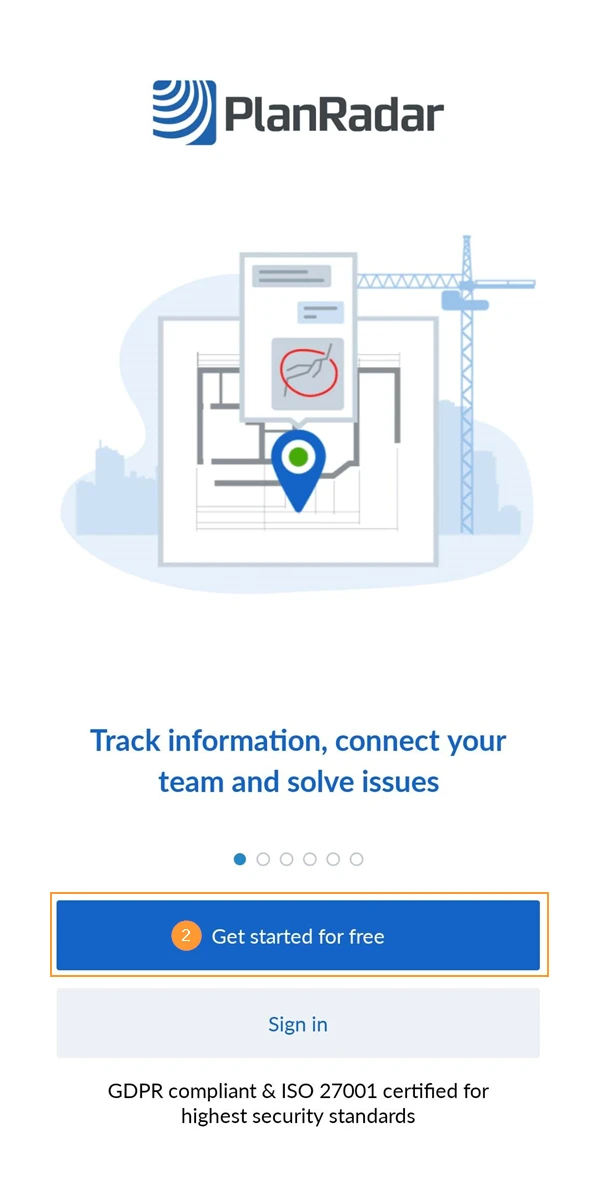
Download and open the Mobile App for iOS or Android
Tap Get started for free
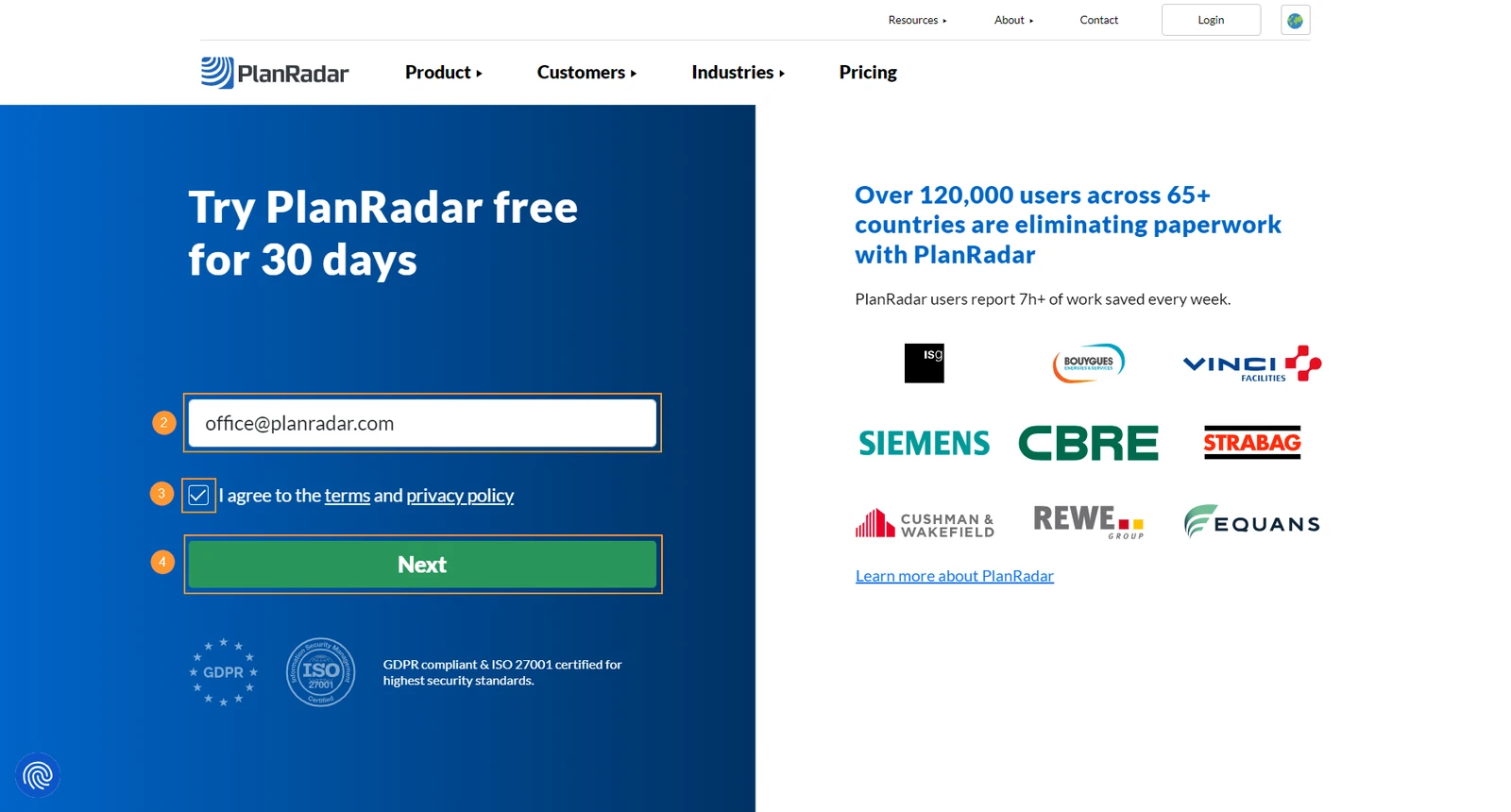
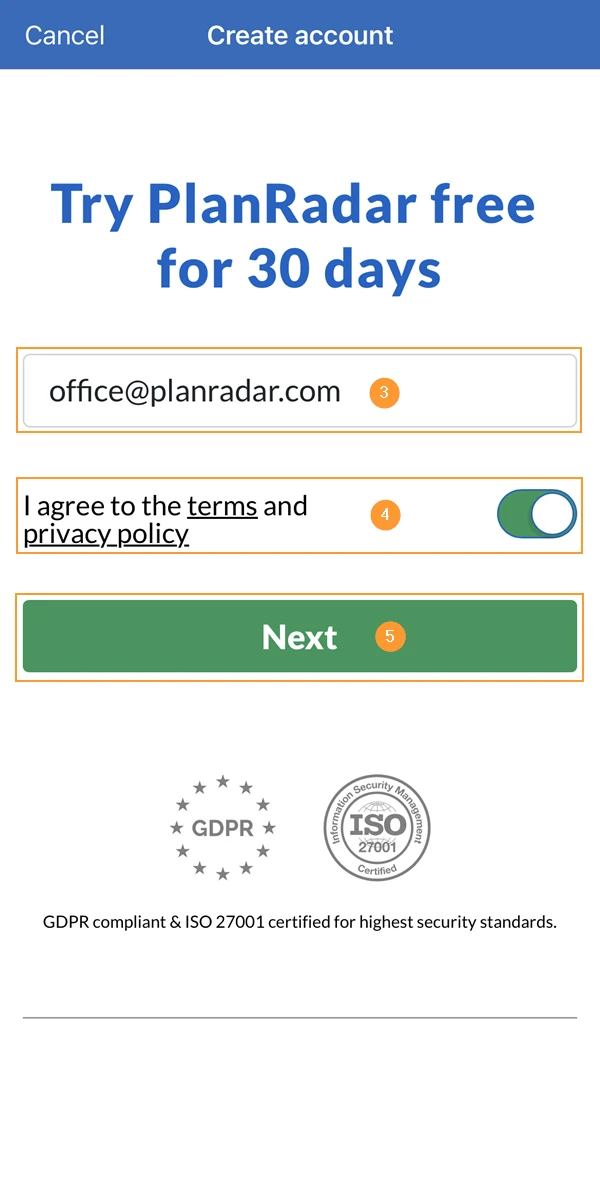
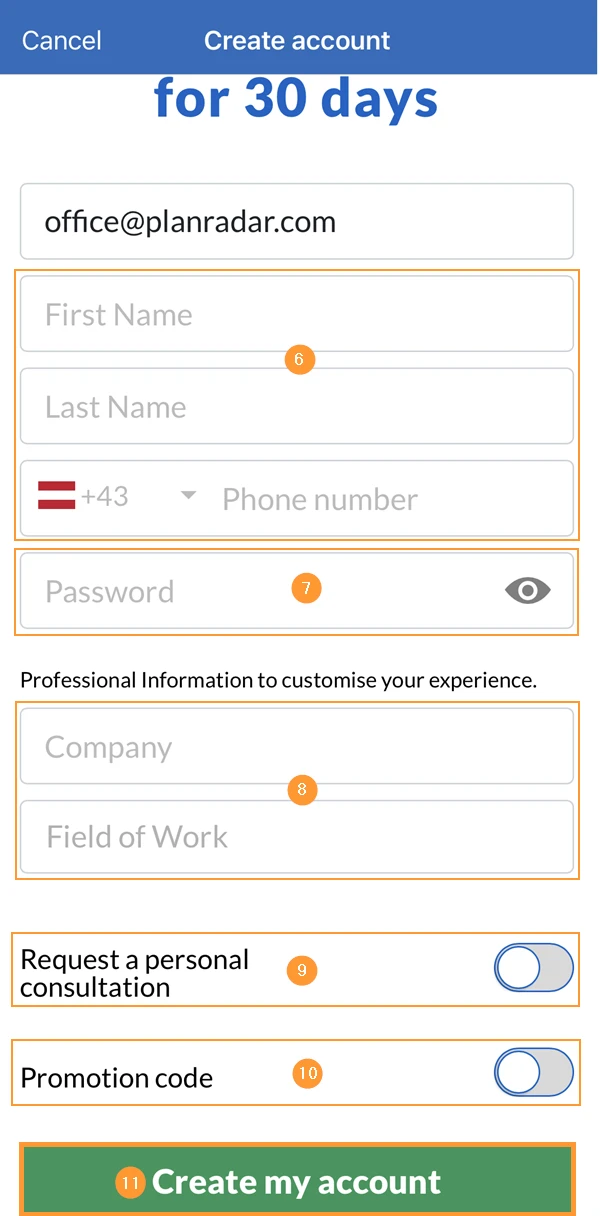
Enter your email address
Select I agree to the terms and privacy policy.
Tap Next 

Enter your First Name, Last Name and Phone number
Enter your Password with at least 7 characters
Enter your Company and Field of Work to explore PlanRadar with a more fitting demo project.
(optional): Select Request a personal consultation and select which time of the day suites you best to get contacted by a PlanRadar employee.
(optional): Select Promotion code and enter it in case you got one to gain some benefits.
Tap Create my account 

Create a Demo Project
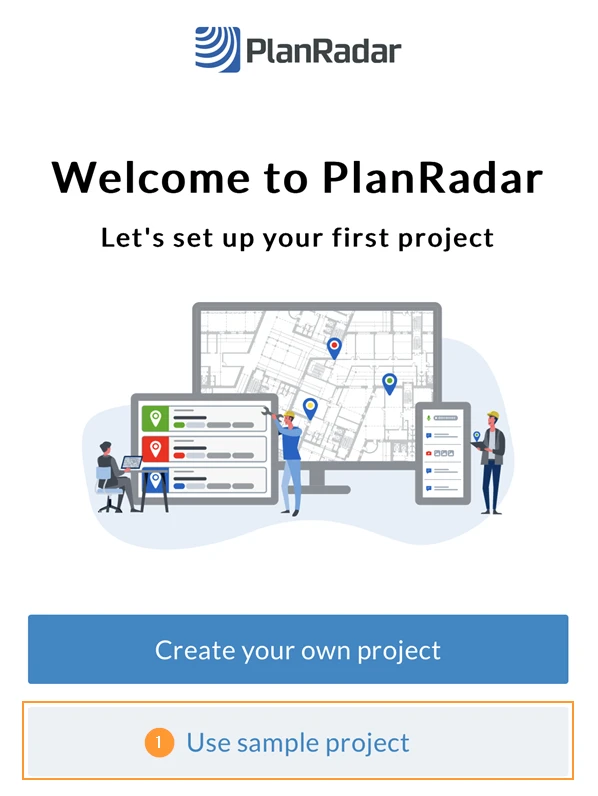
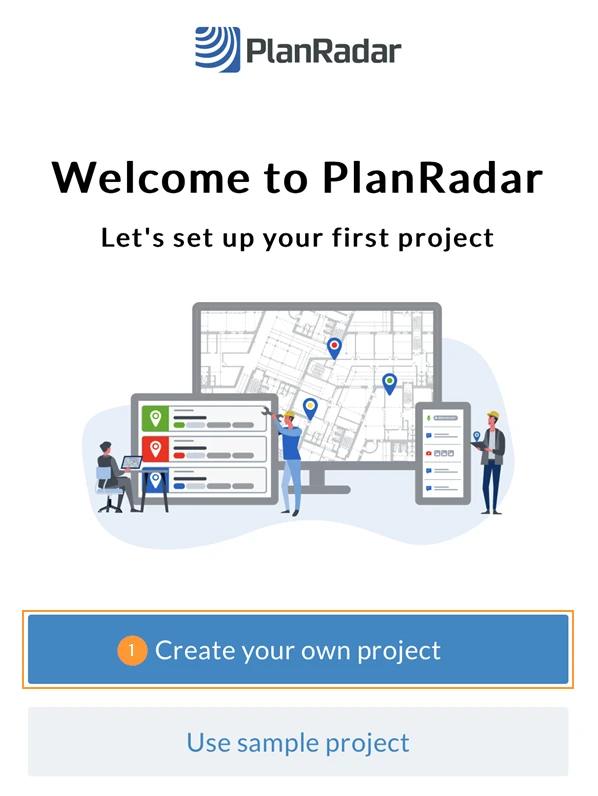
After you created your account you will be forwarded to the onboarding wizard which offers you two options:
Use a sample project
Create your own project
Both options will add a demo project to your account. It is meant to explore the possibilities of PlanRadar before you setup a real project. You can also copy or delete the demo project. Read more about Projects.
Use a Sample Project
Click Use sample project 

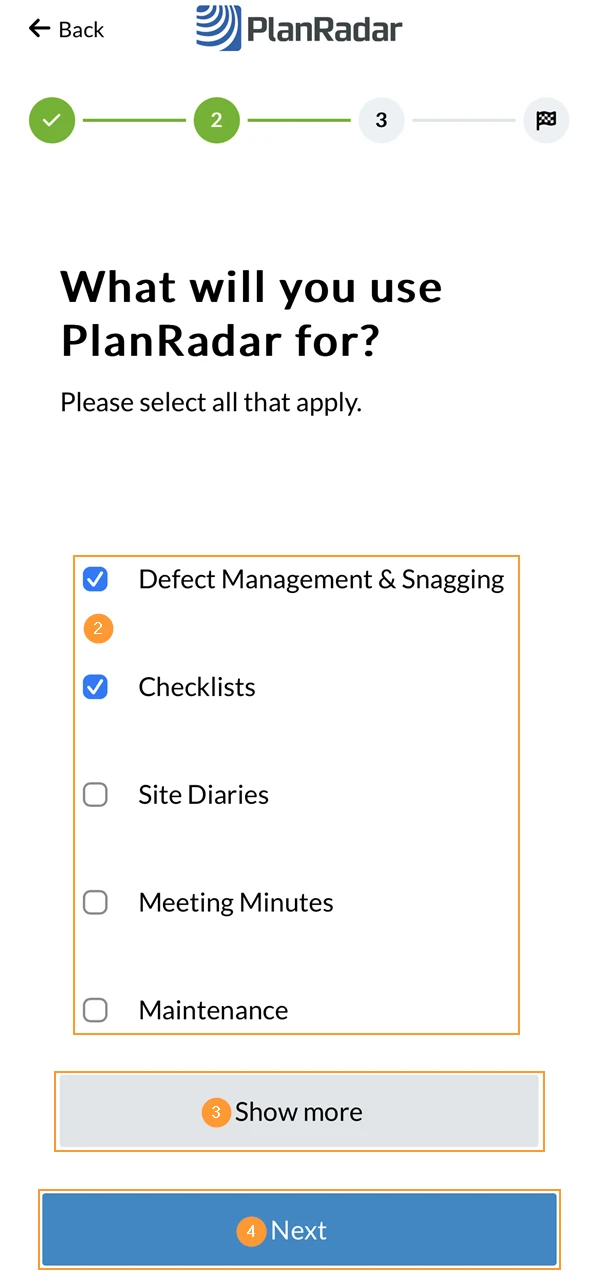
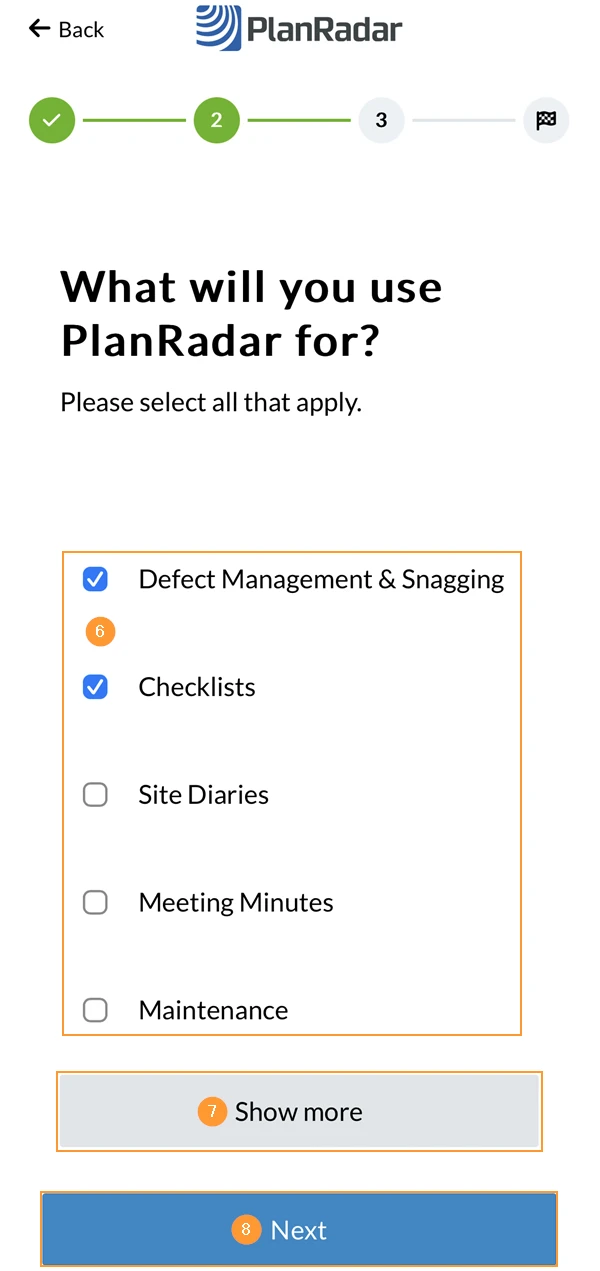
Select the checkboxes of use cases that fit for you
(optional): Click Show more to see the complete list of use cases
Click Next 

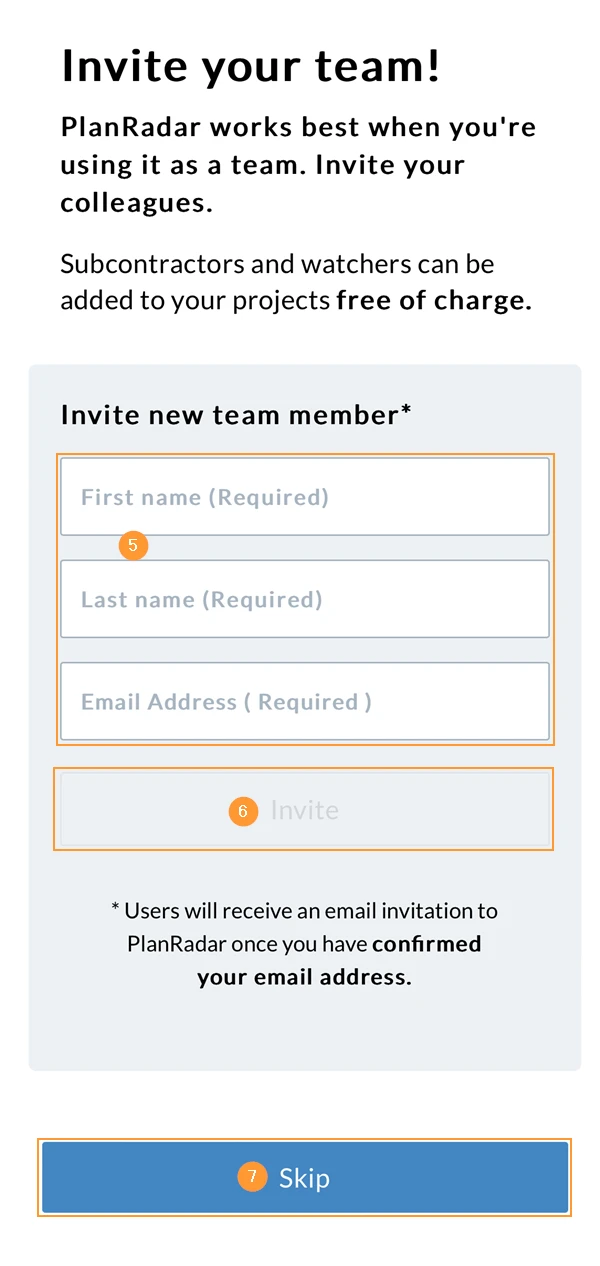
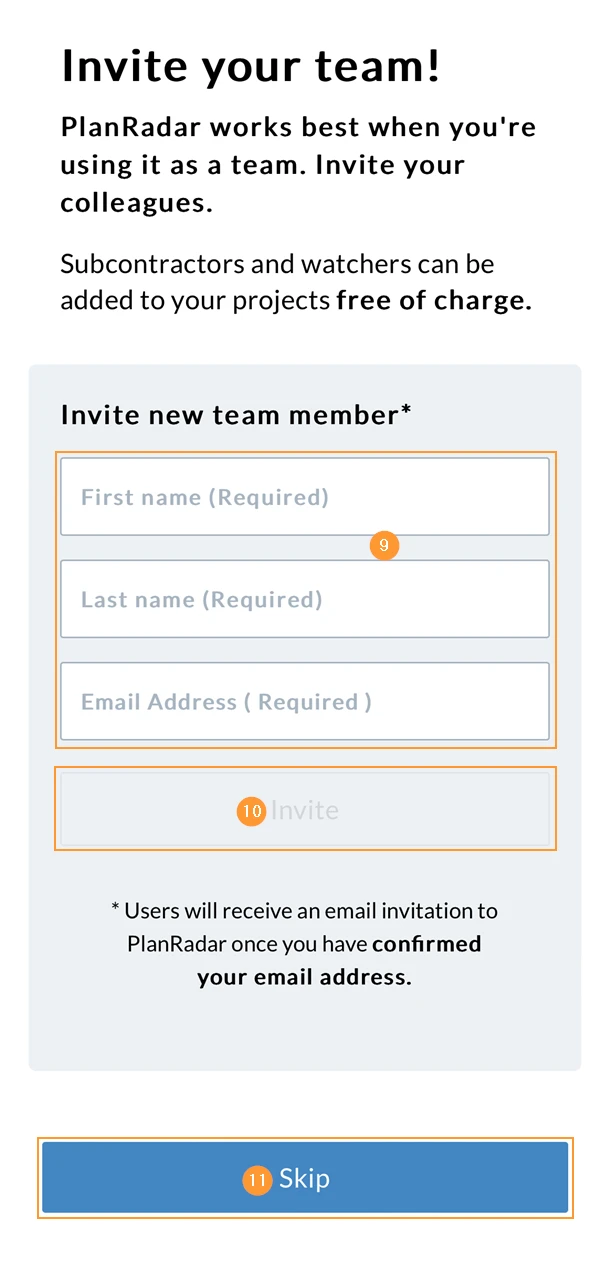
(optional): Enter First name, Last name and Email Address
(optional): Tap Invite (repeate step 5 & 6 to invite multiple team members)
Users will receive an email invitation to PlanRadar once you have confirmed your email address.
You can invite up to 9 team members in this step - later you can invite more.
Click Skip, if you do not yet want to invite team members - you can still do this later.
Create Your Own Project
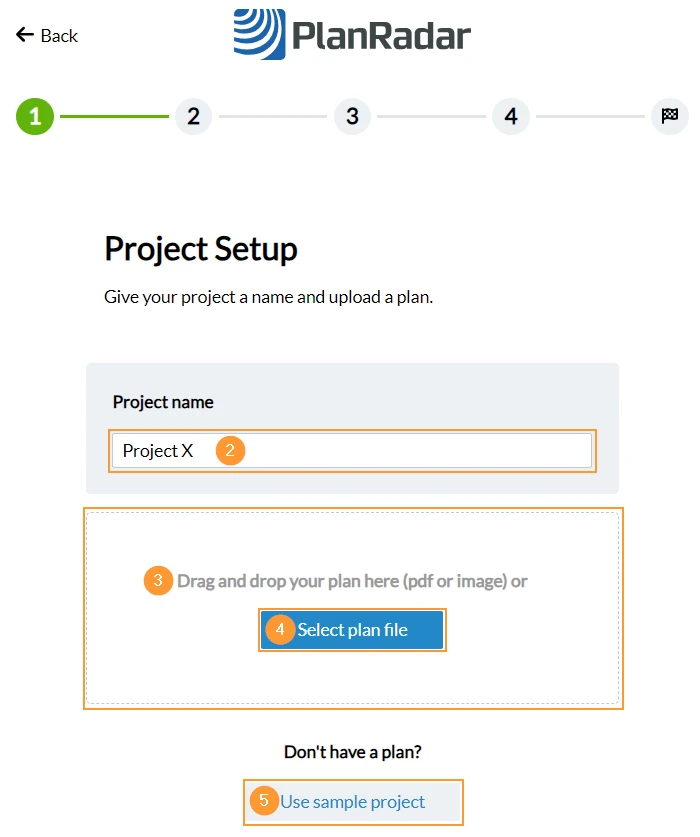
Click Create your own project
Enter your project name
Upload your plan by drag & drop
You can repeat this to upload up to 3 plans in this step. (later you can upload more)
(optional): Click Select plan file to open your file browser instead of using drag & drop
(optional): Click Use sample project if you don't have a plan and want to use the same example plans like described above in Use a Sample Project.
Select the checkboxes of use cases that fit for you
(optional): Click Show more to see the complete list of use cases
Click Next 

(optional): Enter First name, Last name and Email Address
(optional): Tap Invite (repeate step 5 & 6 to invite multiple team members)
Users will receive an email invitation to PlanRadar once you have confirmed your email address.
You can invite up to 9 team members in this step - later you can invite more.
Click Skip, if you do not yet want to invite team members - you can still do this later.
On the Webapp, you can immidiatly start working.
On mobile must sync before first use to get your data downloaded from PlanRadar servers to your device.
Validate your Email
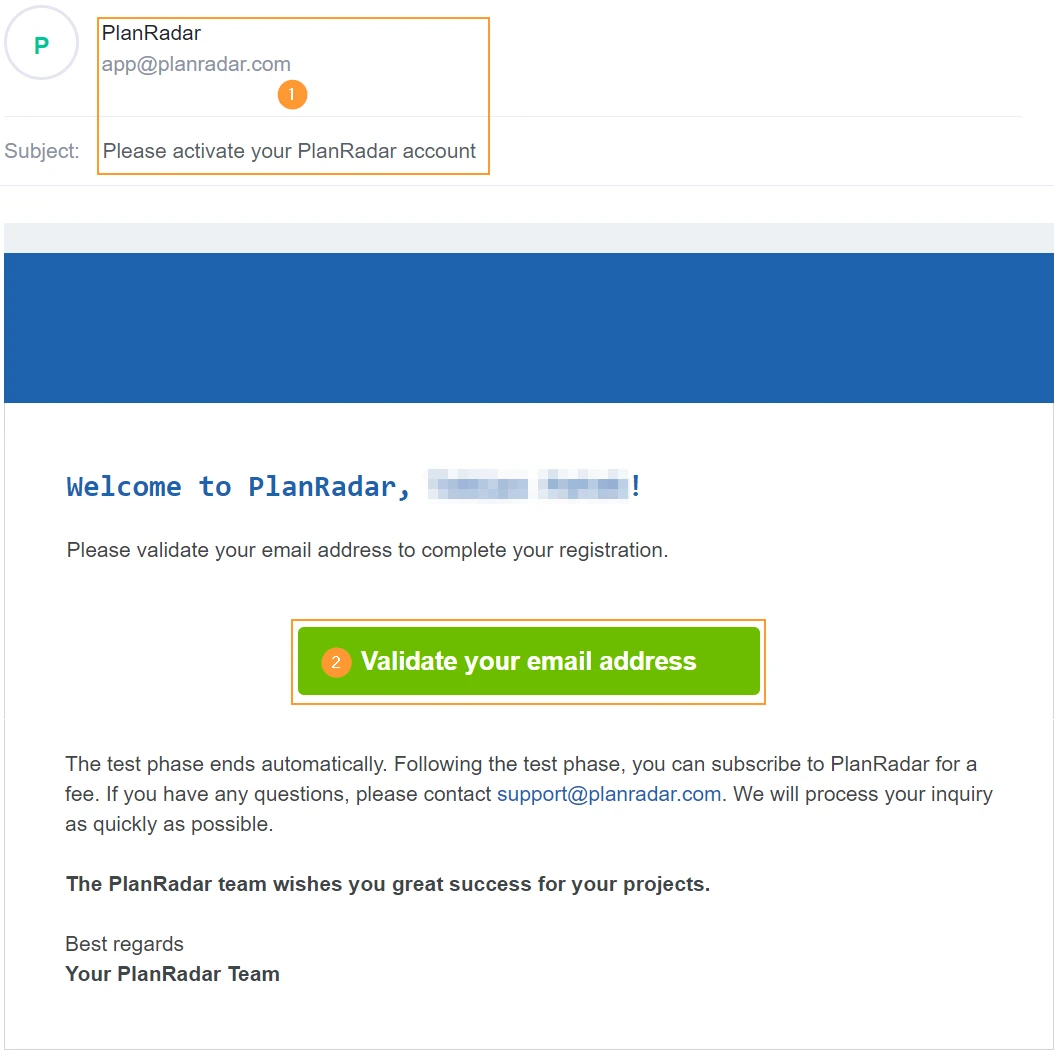
After you created your account you will receive a validation email to confirm your email address.
You can continue exploring PlanRadar without validation for a while.
To be able to invite other users into your new account, you have to click the activation link in the email first:
Check your inbox for an email from [email protected] with subject 'Please activate your PlanRadar account'.


 Deutsch
 Español
 Français
 Hrvatski
 Italiano
 Polski
 Português (BR)