

 Deutsch
 Español
 Français
 Hrvatski
 Italiano
 Polski
 Português (BR)
Create Ticket Filters with AI Assistant
Overview
Create ticket filters by describing what you're looking for. Apply the suggested criteria and adjust or save them just like filters created manually.
Access & permissions
What You Can Do
Ask the assistant to create a reusable filter for your tickets. Describe what you want to see, and it generates a filter you can apply and save.
What you can filter by
- Status and priority - one or multiple values (e.g., Open and In Progress, High and Normal)
- People - assignee, author, assignee company, signer
- Dates - created, updated, closed, due dates (specific dates or ranges), due within a number of days, overdue by a number of days, how many times the due date was changed
- Attachments and media - has or doesn't have: photos, videos, audio recordings, documents, 360-degree images, any attachment
- Ticket properties - progress percentage, seen/unseen, locked/unlocked, plan position, geolocation, scheduled (Gantt), signatures, recurring reminders
- Relationships - has sub-tickets, has a parent ticket
Examples
| What you want | Example query |
| Basic filter | "Apply filter for all open high-priority tickets assigned to me" |
| Multiple statuses | "Create a view for Open or In Progress tickets created this month" |
| Attachment conditions | "Make a filter for tickets with photos but no video" |
| Overdue tickets | "Set up a filter for overdue tickets with sub-tickets" |
| Due dates | "Create a filter for unseen tickets due within the next 7 days" |
| People combinations | "Create a filter for tickets signed by Thomas and assigned to Elena" |
How to Access the AI Assistant
To open the AI Assistant:
- Hover over the AI icon
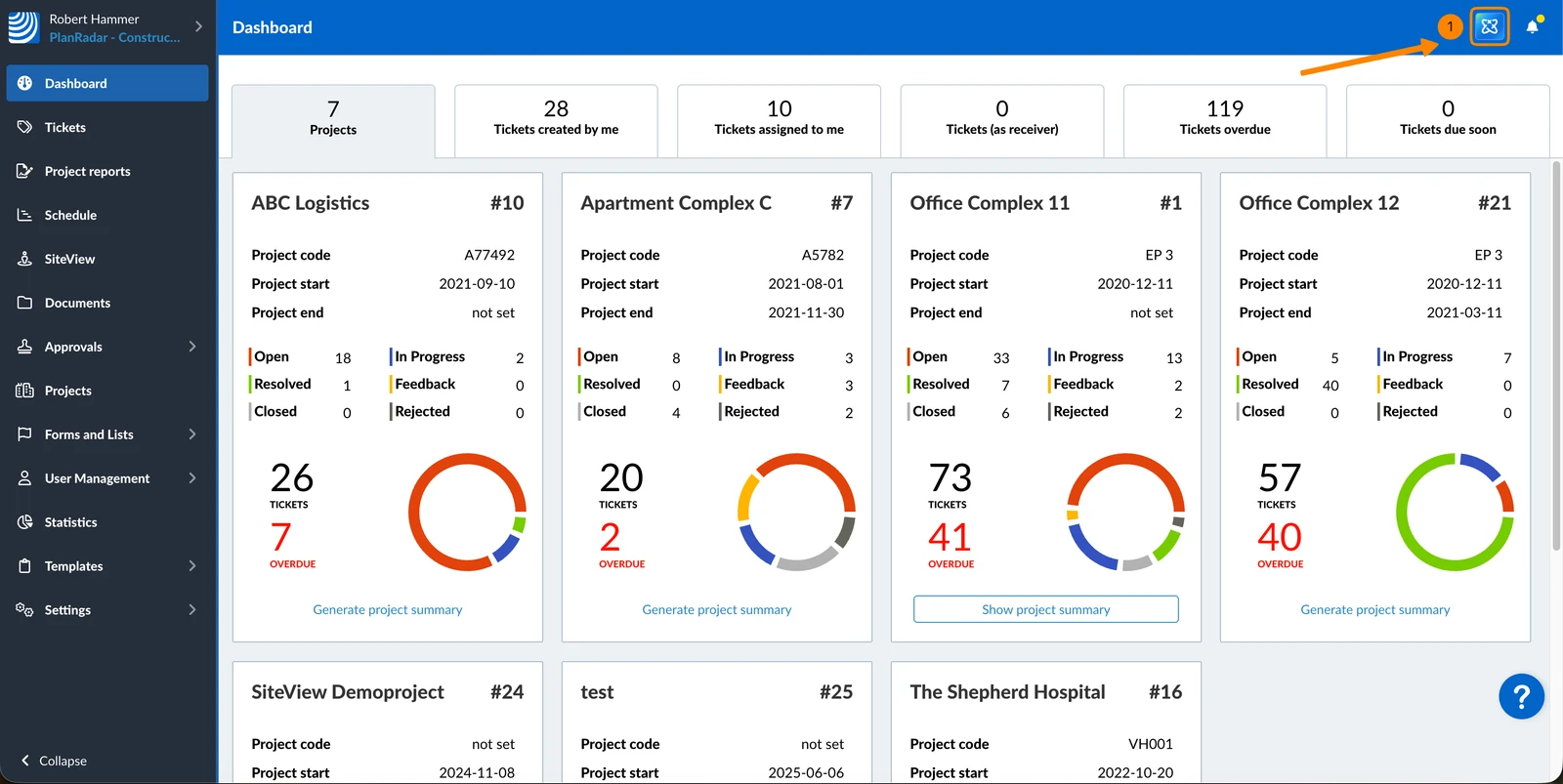
- Click AI Assistant
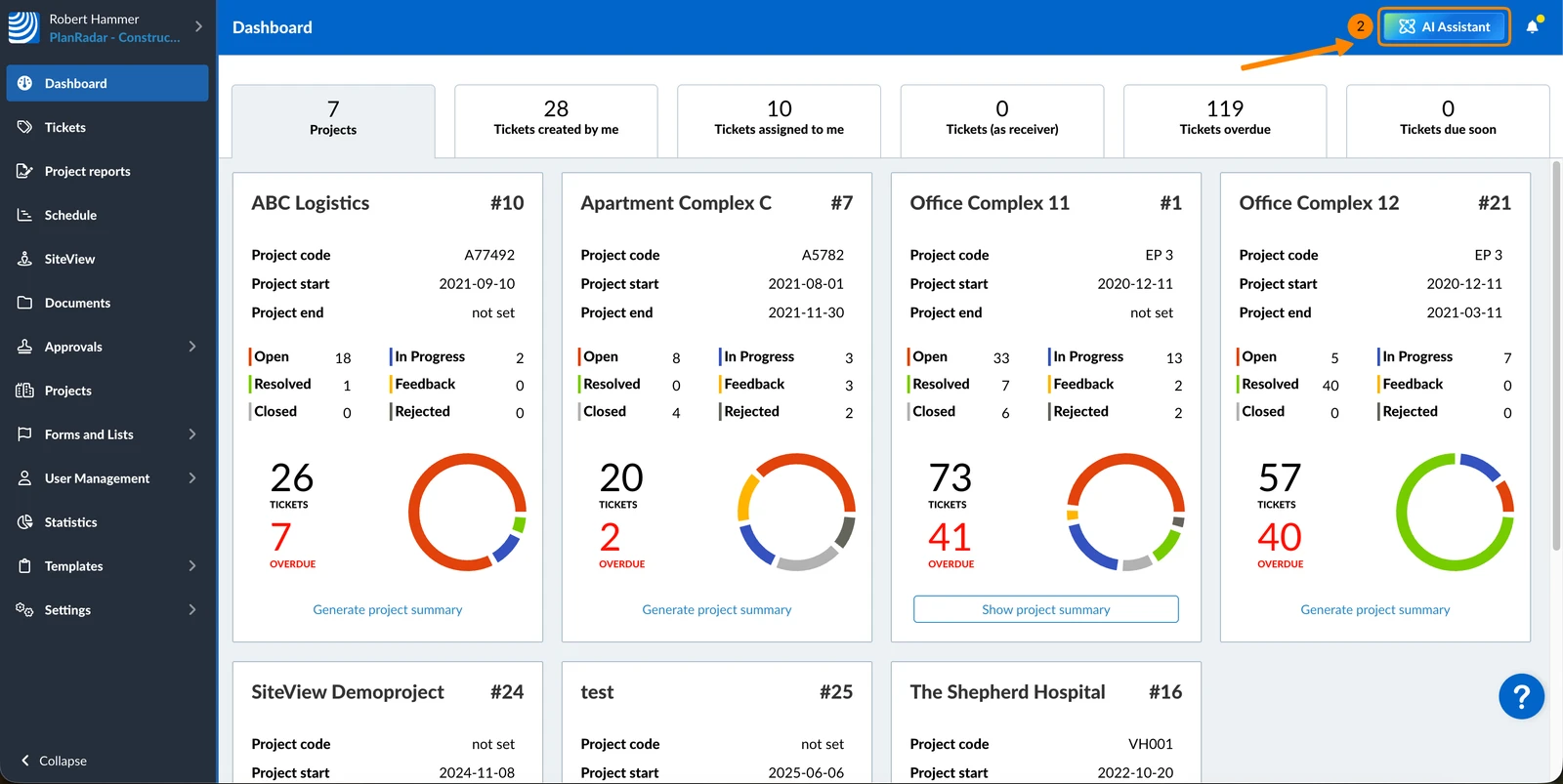
- Tap AI Assistant in the main menu
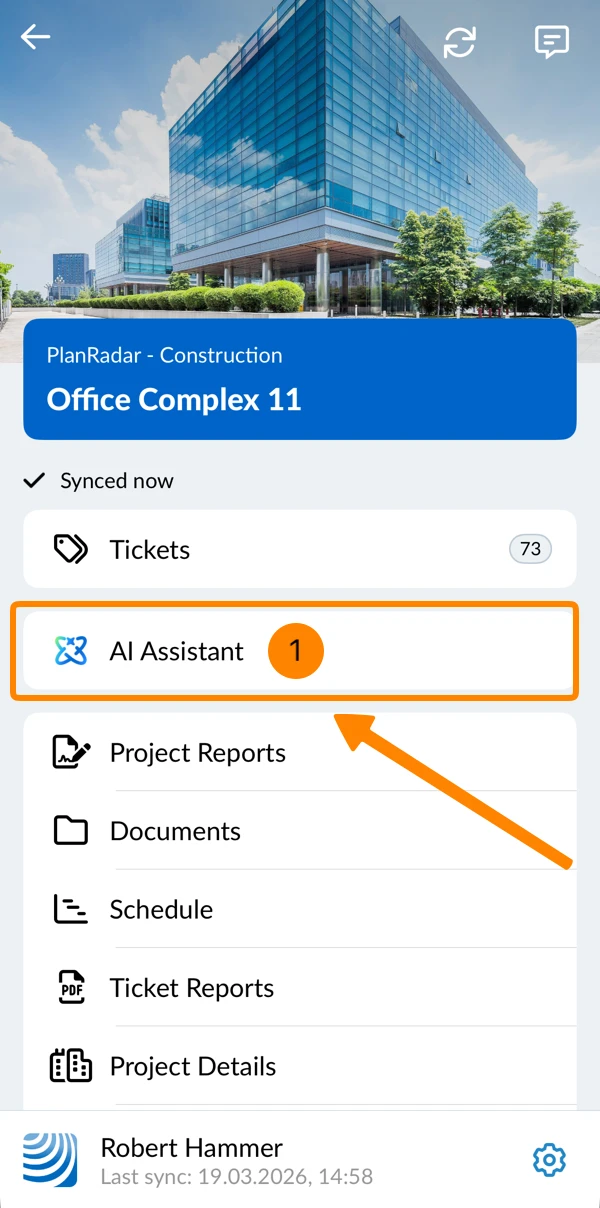
- You see the AI Assistant chat window
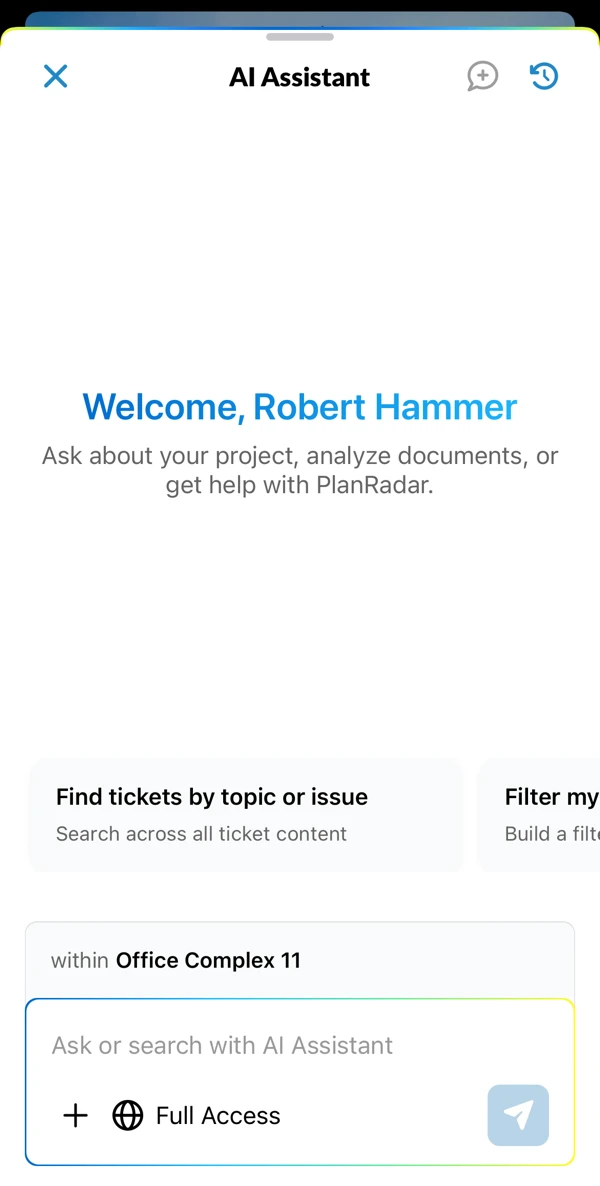
Create Ticket Filters with Natural Language
Creating filters on the mobile app works like described here for the Webapp.
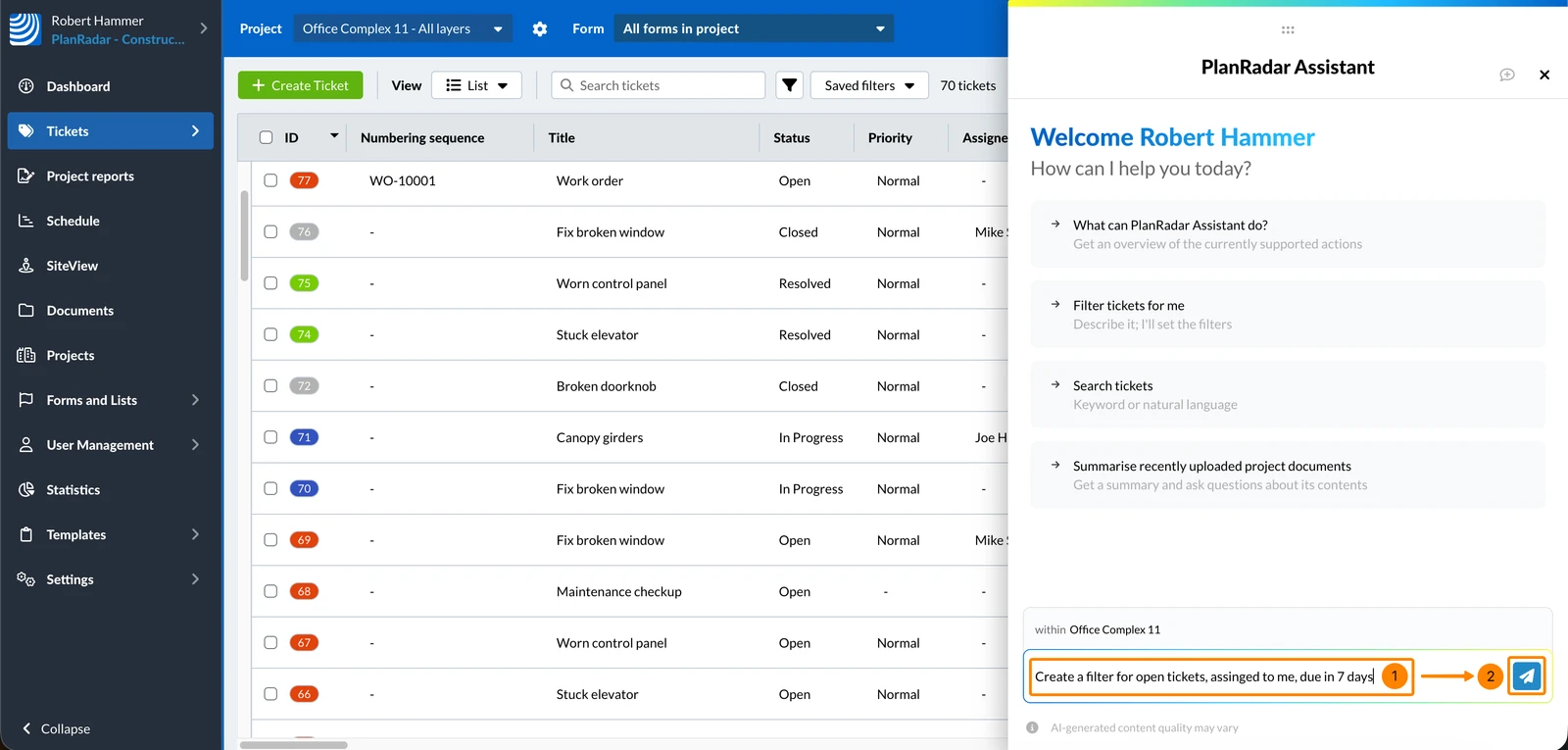
To ask the AI Assistant to prepare filters for you:
- Enter your request in the chat input field e.g., 'Create a filter for open tickets assigned to me due in 7 days'
- Click the send icon or press Enter
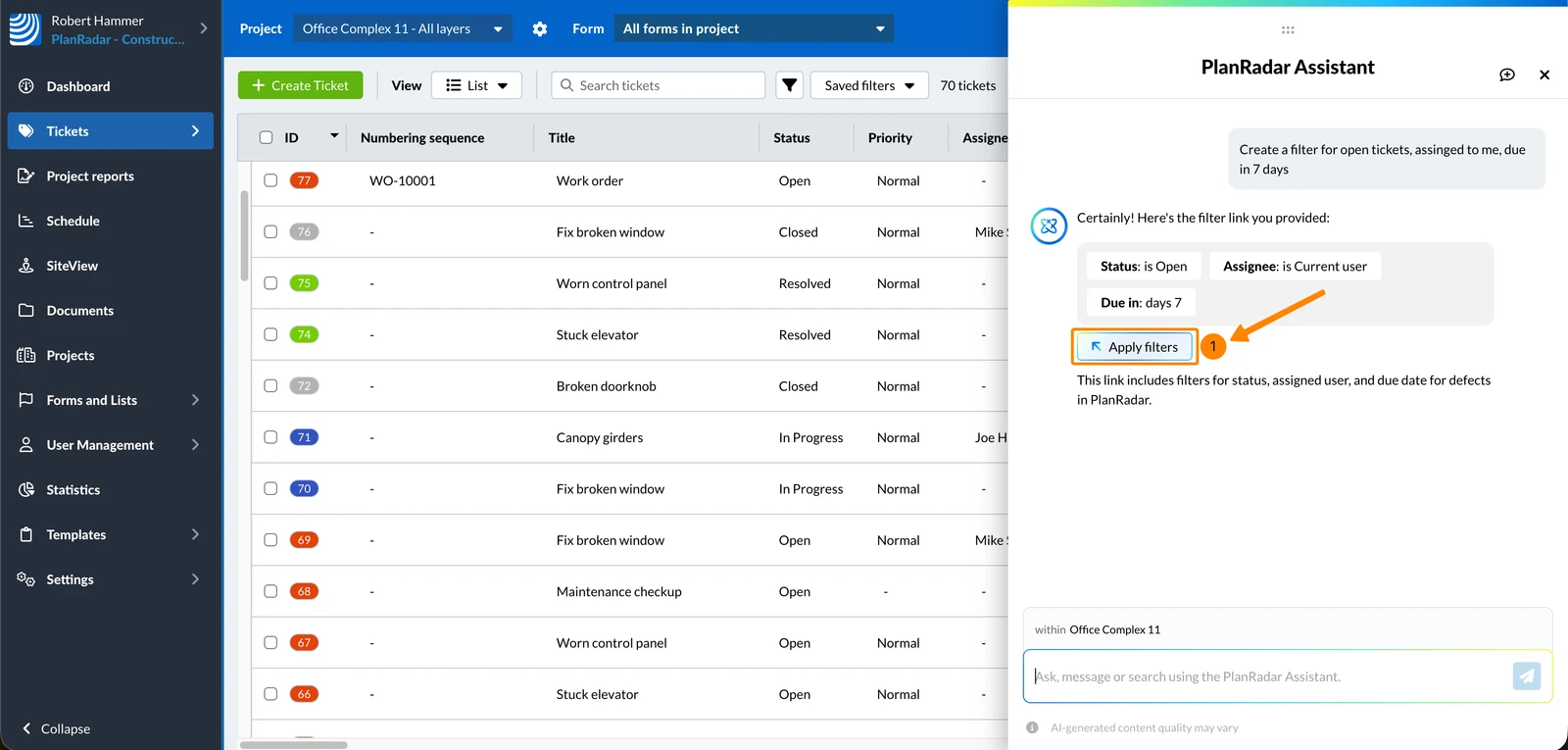
To apply the generated filters to your ticket view:
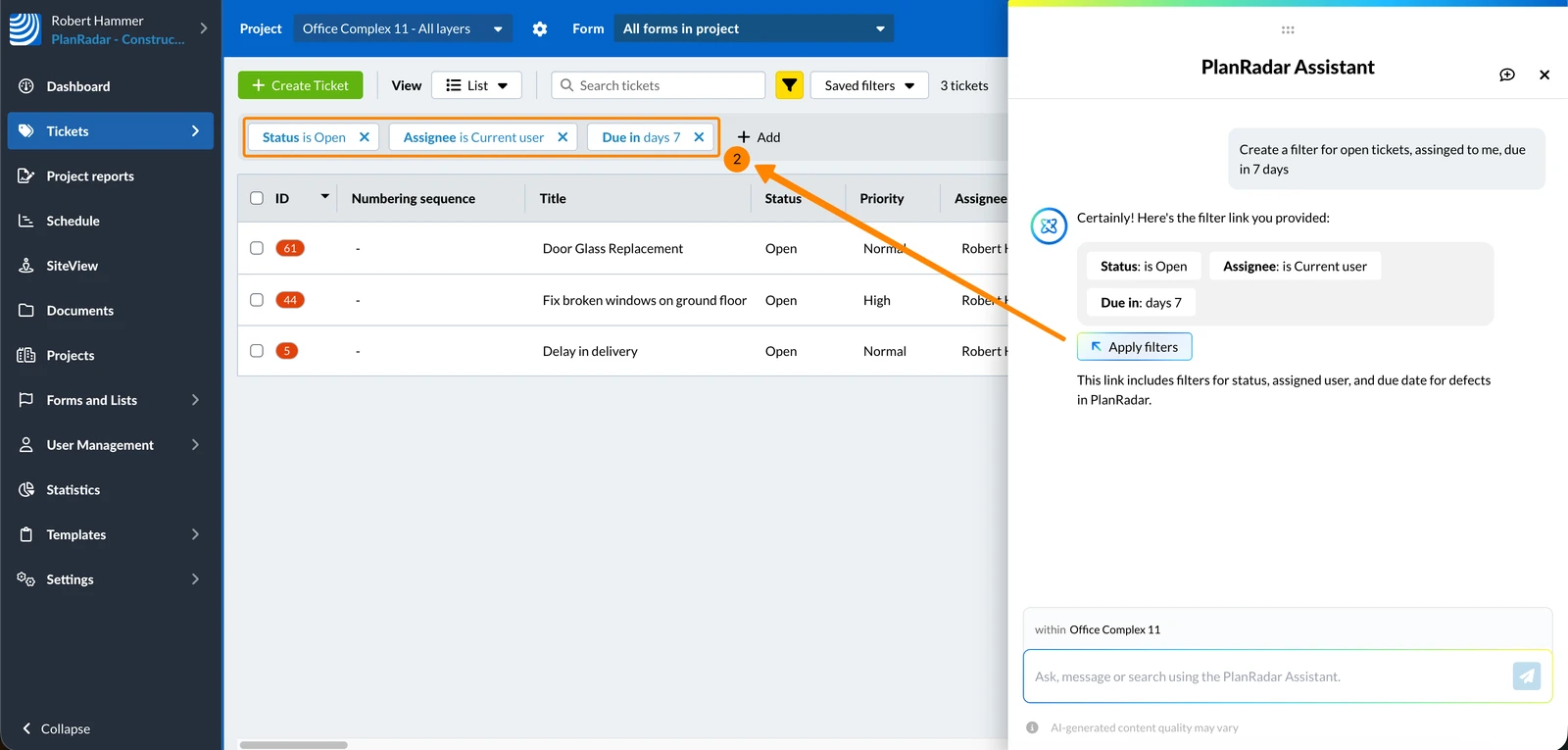
- Click Apply filters
- The filter criteria are applied just as if you had configured them manually.
Updated June 17, 2026