

 Deutsch
 Español
 Français
 Hrvatski
 Italiano
 Polski
 Português (BR)
Fill Ticket Fields with Voice
Overview
Use voice input to quickly fill ticket fields when creating or editing a ticket in the mobile app:
- Speak naturally and describe everything that you want to include in the ticket.
- Your voice recording is transcribed by AI and the text appears while you are talking.
- AI understands the context of what you say and suggests relevant ticket fields and values.
- Review the fields and choose which fields should get filled.
- Finish creating the ticket as if you had filled the fields manually.
Access & Permissions
Use Voice When Creating a Ticket
Continue after you started creating a ticket and selected a form, as described in Create a Ticket.
To fill fields of a new ticket with voice:
-
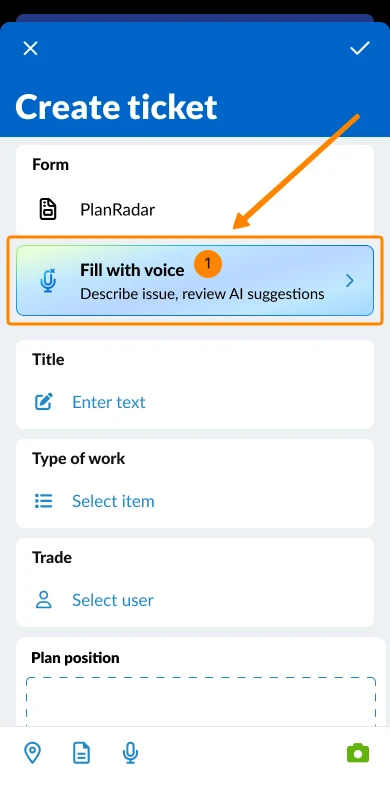
Tap Fill with voice
-
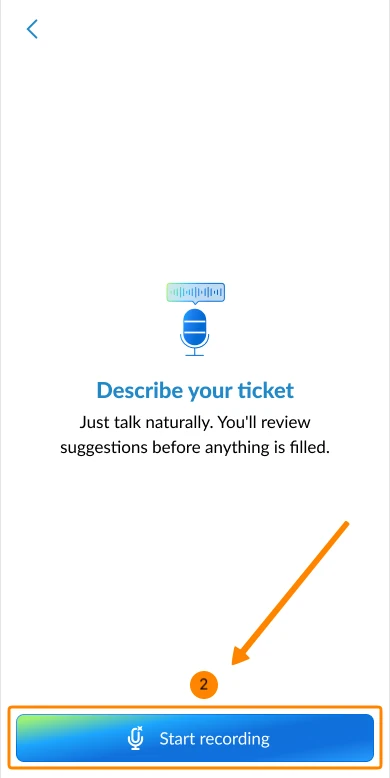
Tap Start recording and describe what you want to include in the ticket.
-
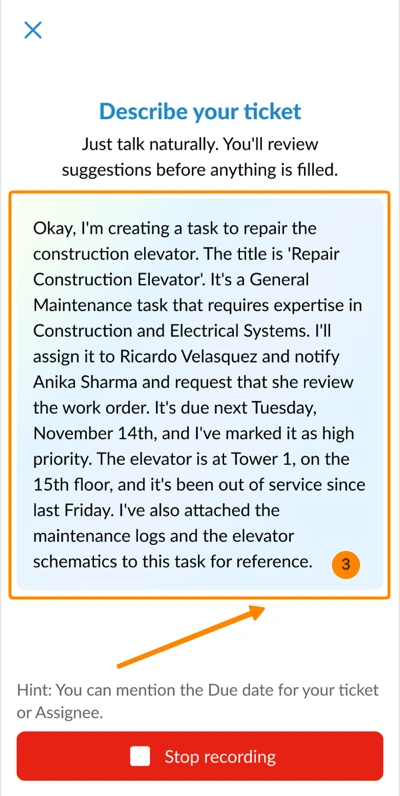
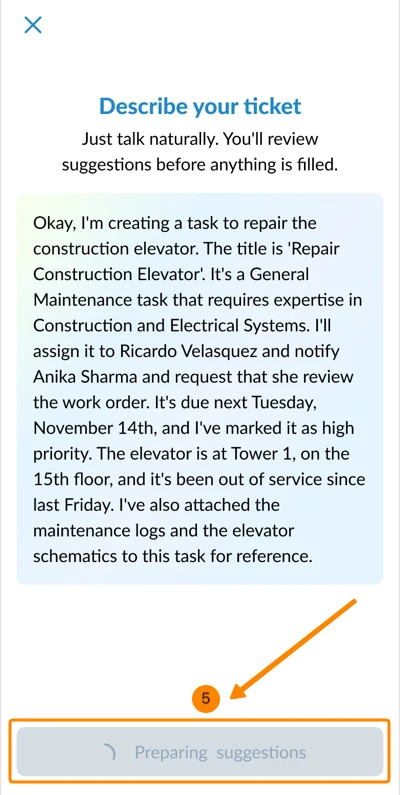
You see the live transcript of your spoken words.
-
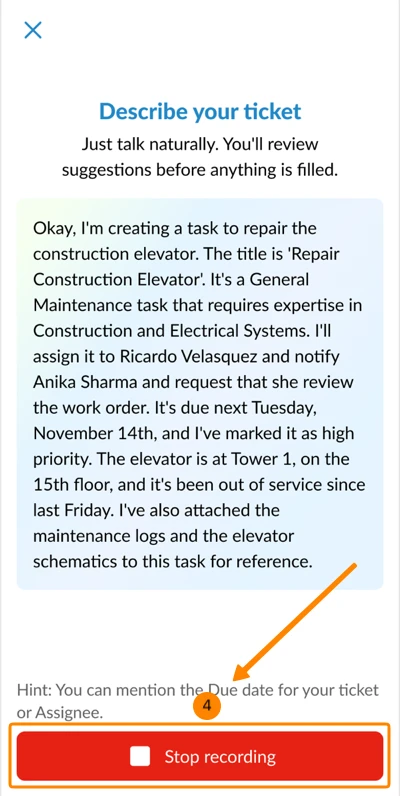
Tap Stop recording when you described everything.
-
Wait a moment while AI processes the suggested ticket fields.
-
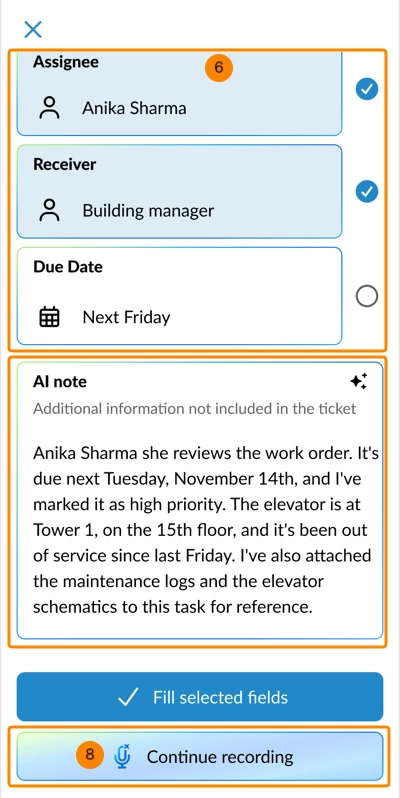
Review the suggested fields and their mapped values.
-
Under AI note, you see the recorded text that was not matched to any ticket fields. This content won't be added to the ticket.
-
Optional: Tap Continue recording to talk more and repeat the steps above.
-
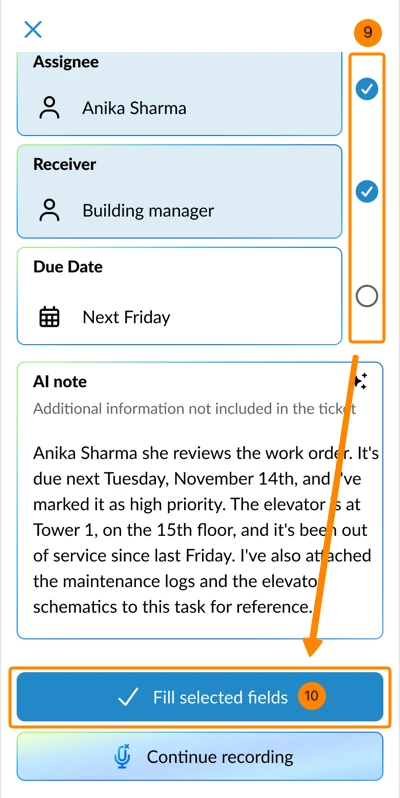
Optional: Deselect fields that you don't want to fill.
-
Tap Fill selected fields
-
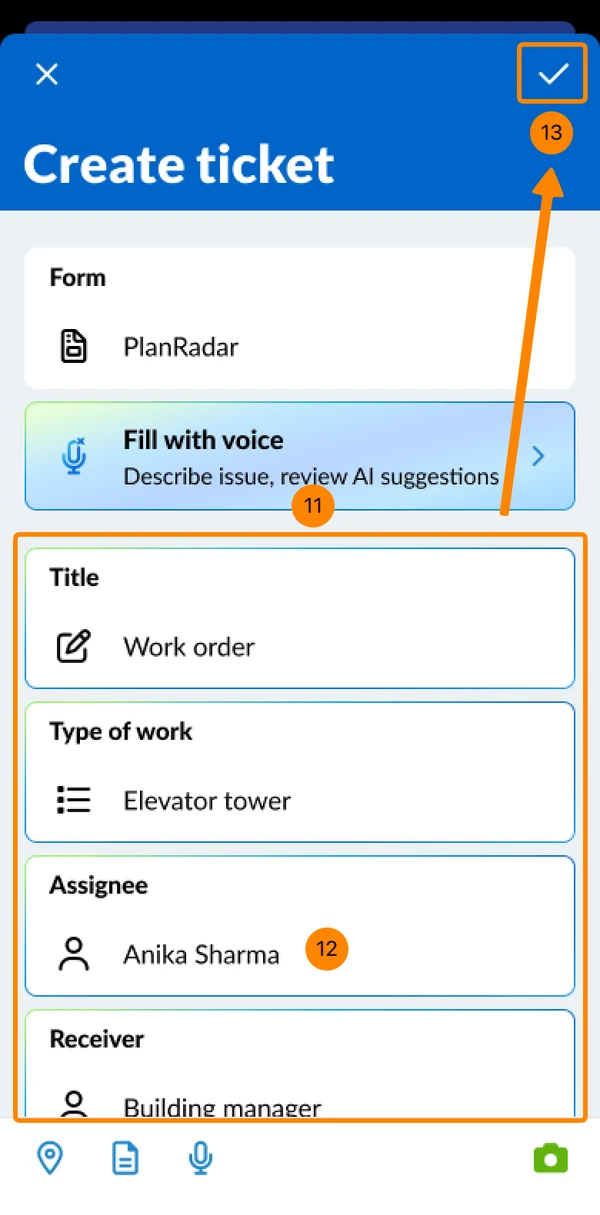
You return to the Create ticket screen with the fields filled as reviewed.
-
Optional: You can fill or edit fields as usual when you Fill in the Form of a Ticket.
-
Tap ✔ to complete the ticket creation.
Use Voice When Editing a Ticket
Using voice when editing a ticket works nearly the same as when creating a ticket. Existing values of selected ticket fields are replaced.
To fill fields of an existing ticket with voice:
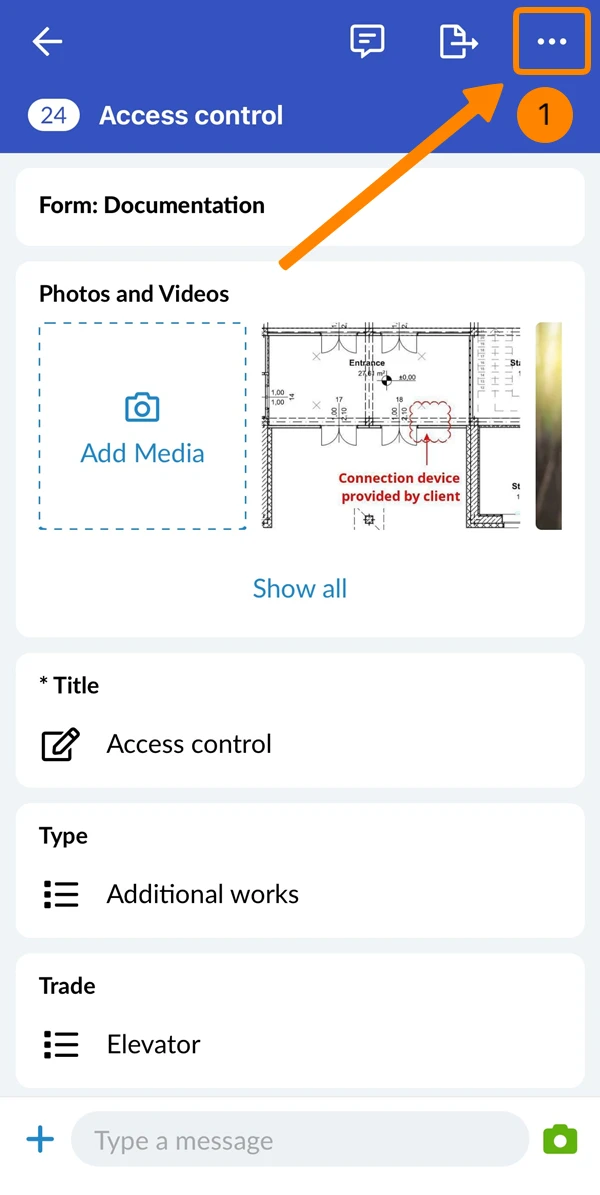
- Open the More menu
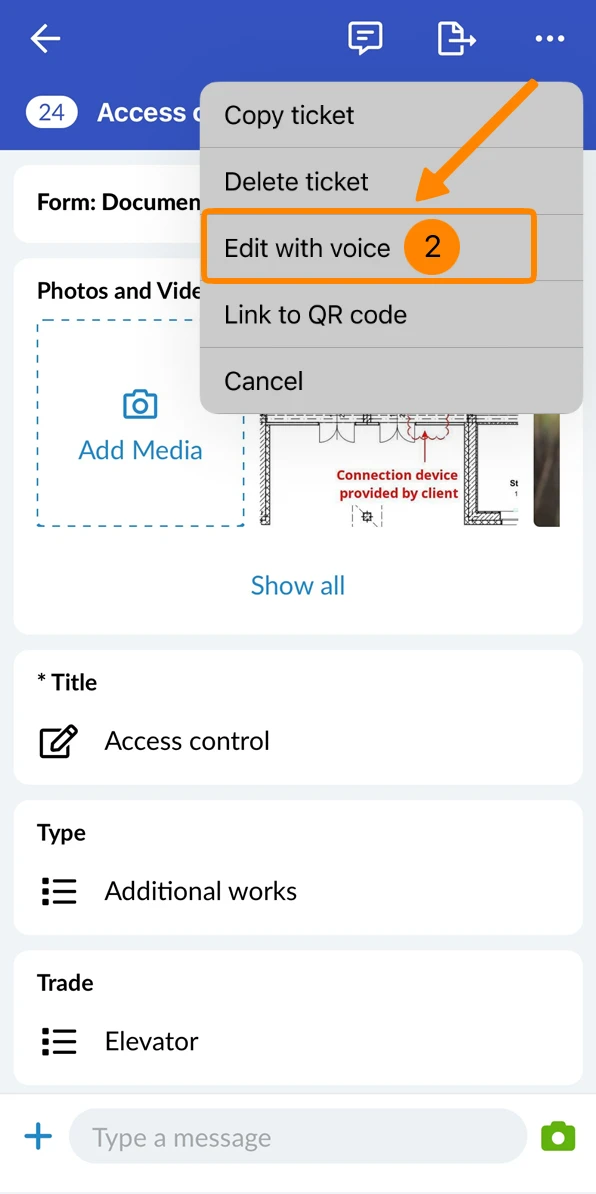
- Tap Edit with voice
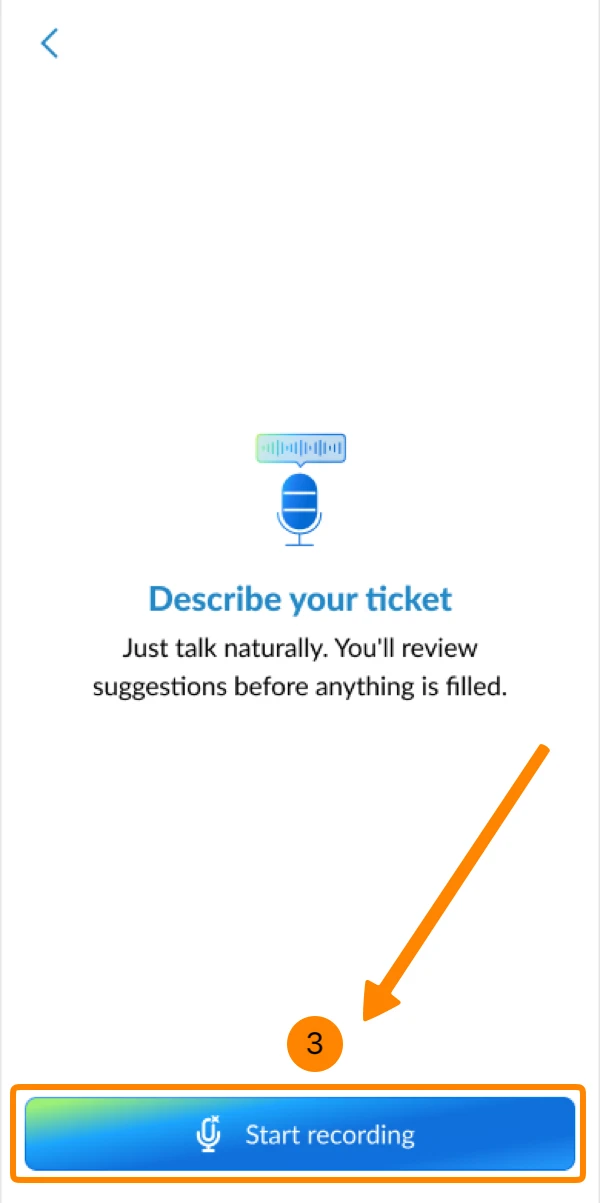
- Tap Start recording and describe what you want to include in the ticket.
Follow the other steps as described above in Use Voice When Creating a Ticket.
Updated June 17, 2026