

 Deutsch
 Español
 Français
 Hrvatski
 Italiano
 Polski
 Português (BR)
Download Project Reports
Overview
Download submitted project reports to be able to view and use them outside of PlanRadar. You can also combine multiple project reports into a consolidated single PDF file and export the data filled into project reports as an Excel file.
Access & Permissions
Download a Single Project Report
To download a single project report:
From List of Project Reports (Webapp Only)
- Click the download icon next to the project report:
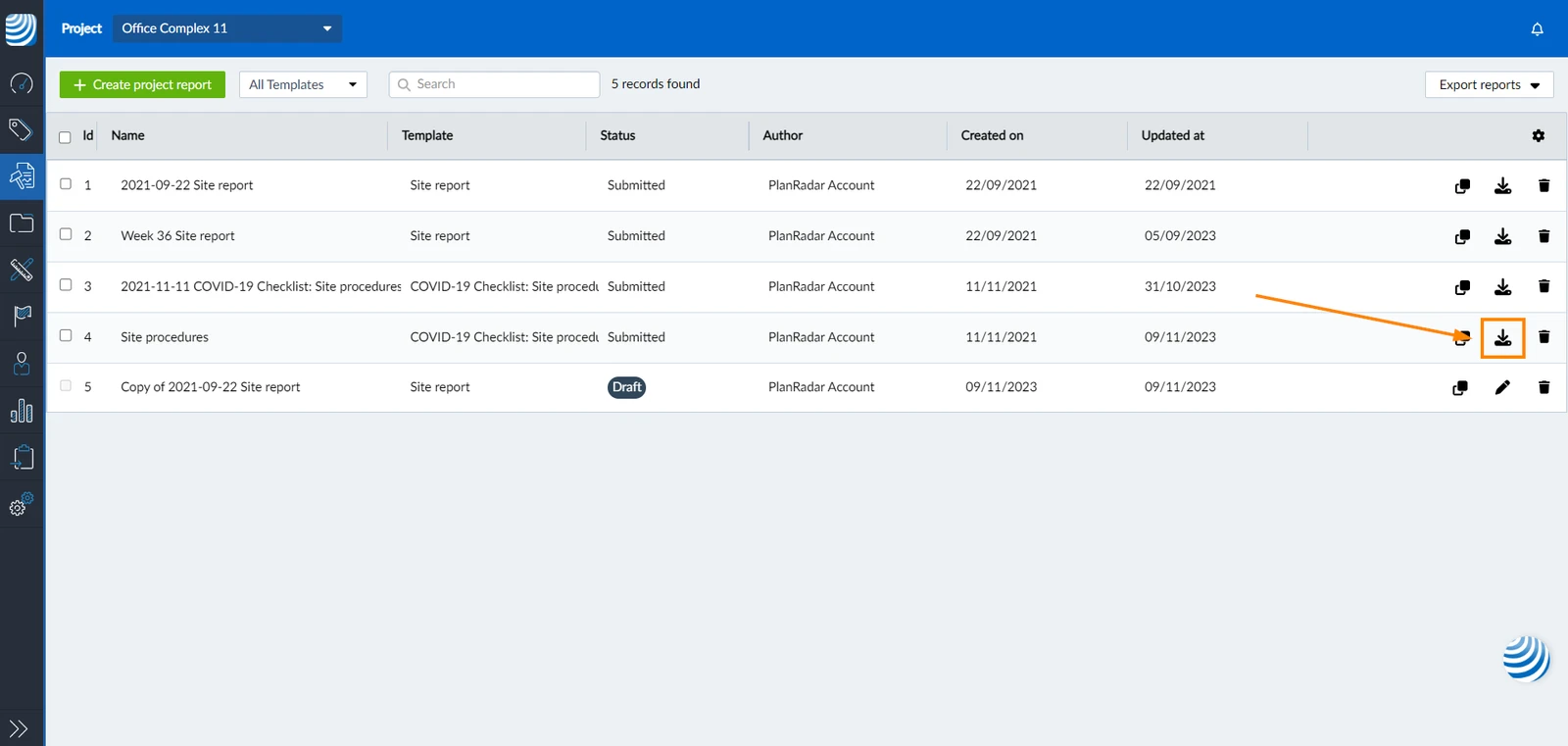
- The PDF file will start to download
From a Project Report
Another way to download a single project report is to:
- Open the project report you want to download.
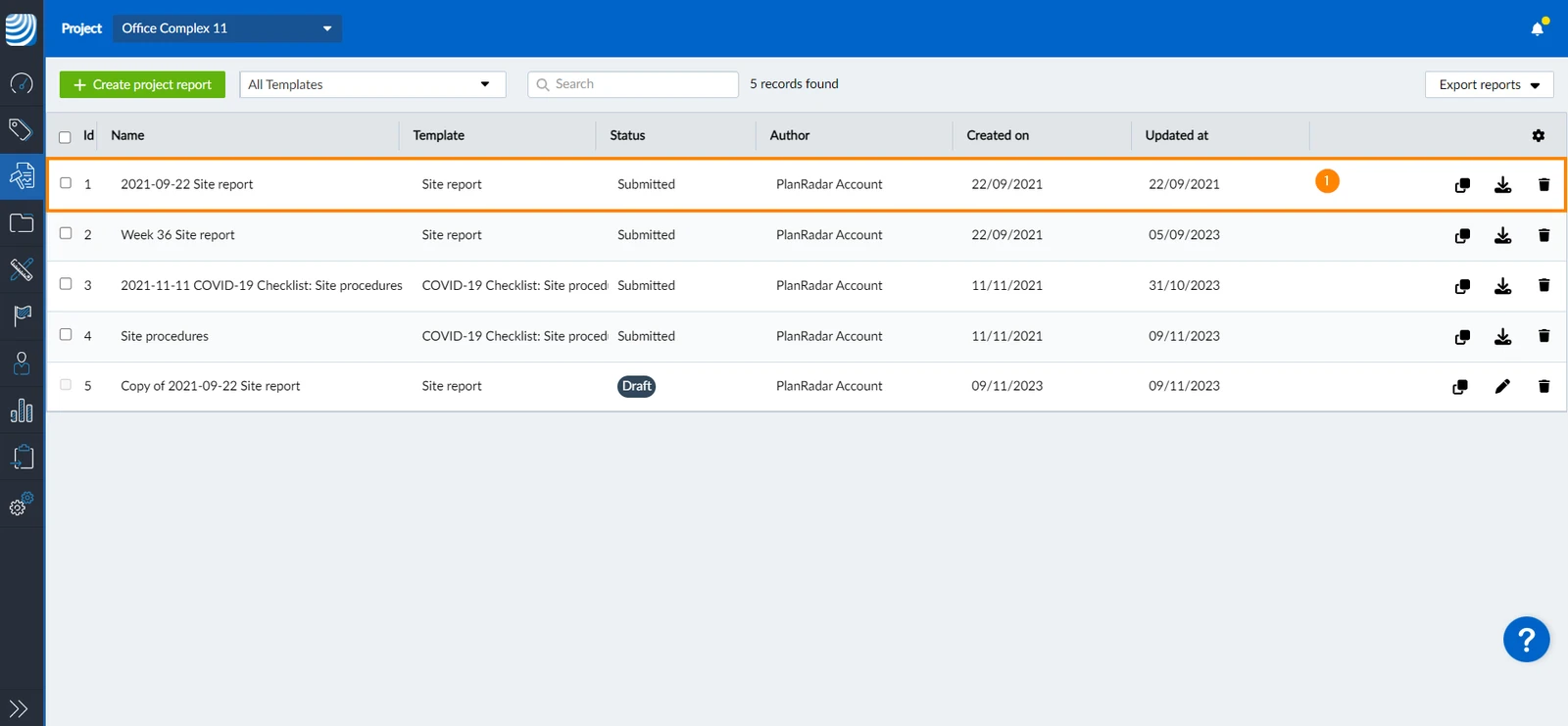
- Click the download icon
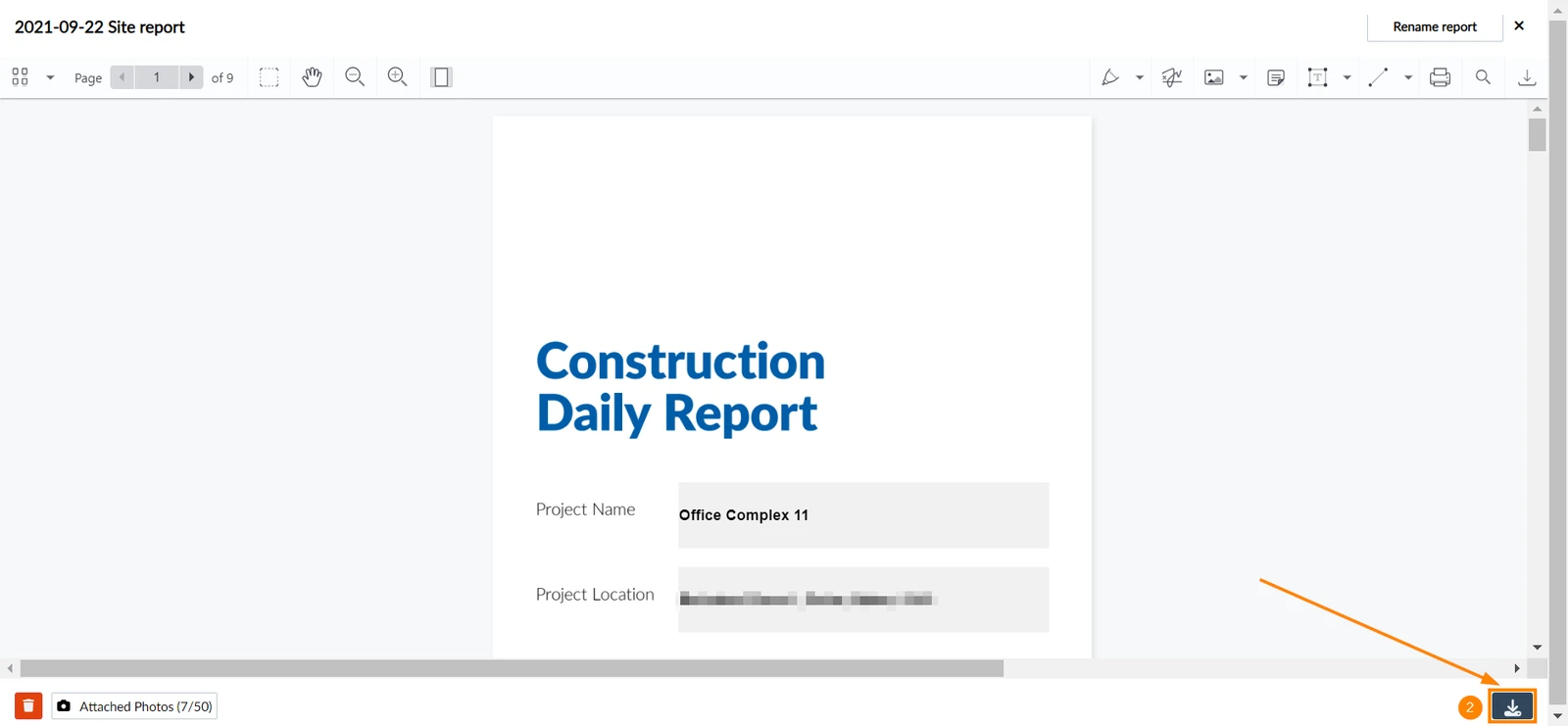
- Open the project report you want to download.
- Tap Show PDF
- Tap the share icon
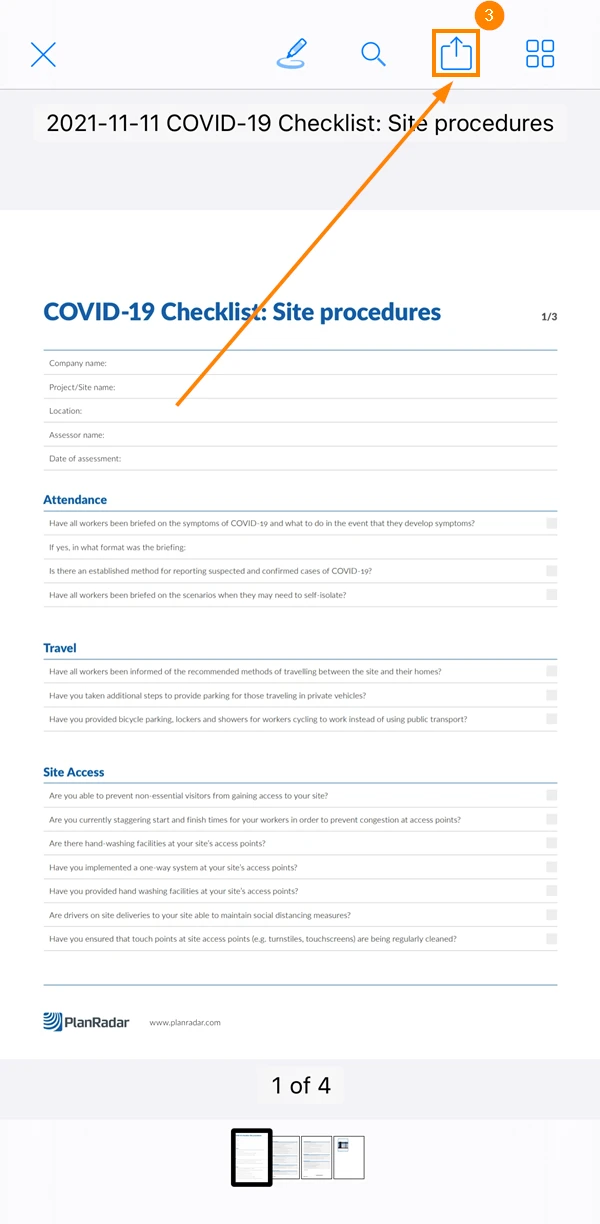
- Tap Share report
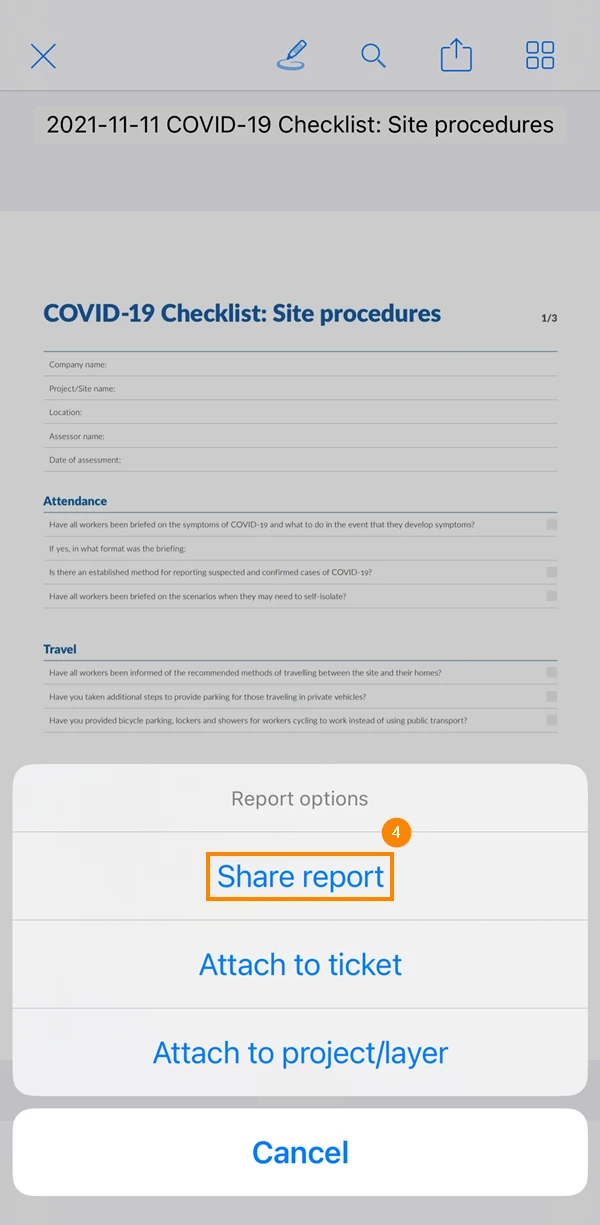
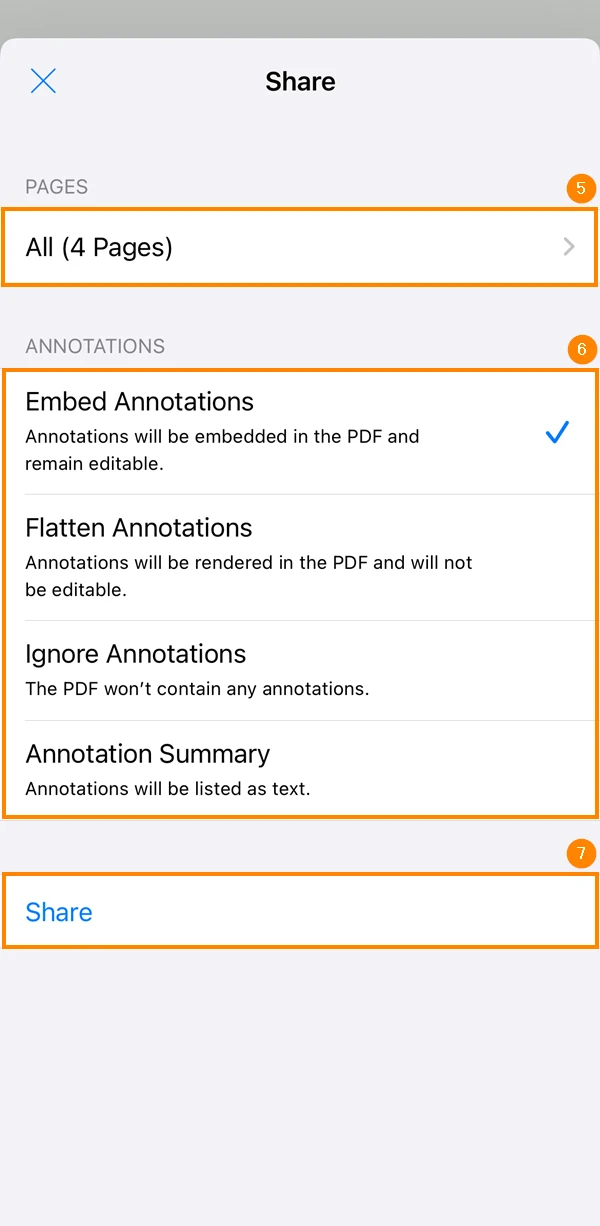
- Optional: select the pages to download
- Optional: choose whether to include annotations
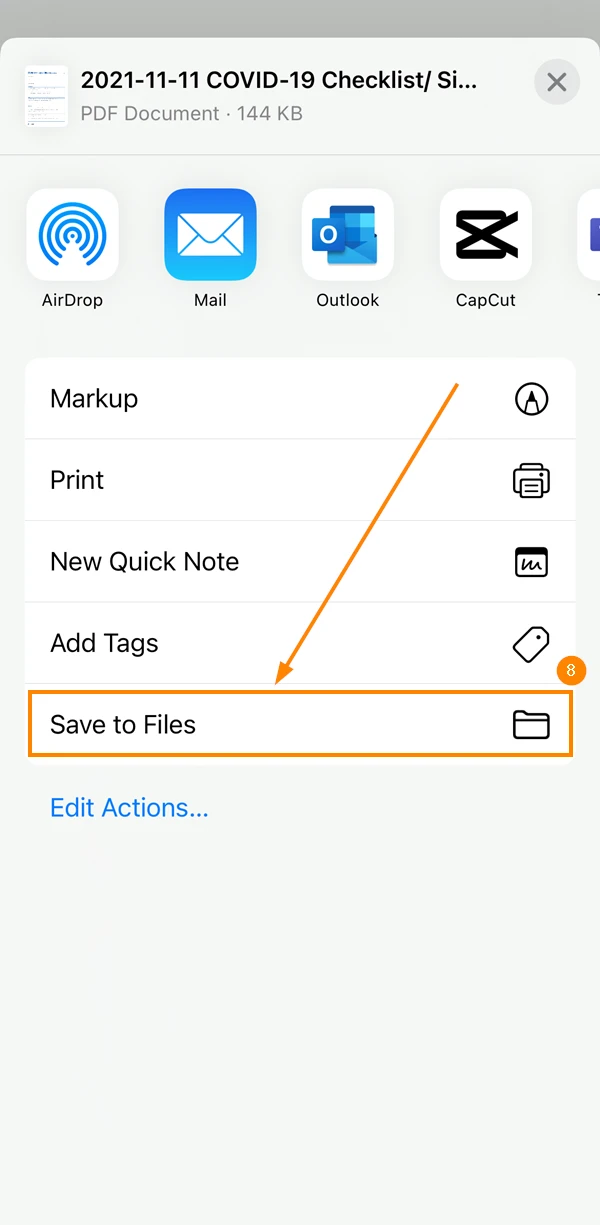
- Tap Share
- Tap Save to Files
- Open the project report you want to download.
- Tap More
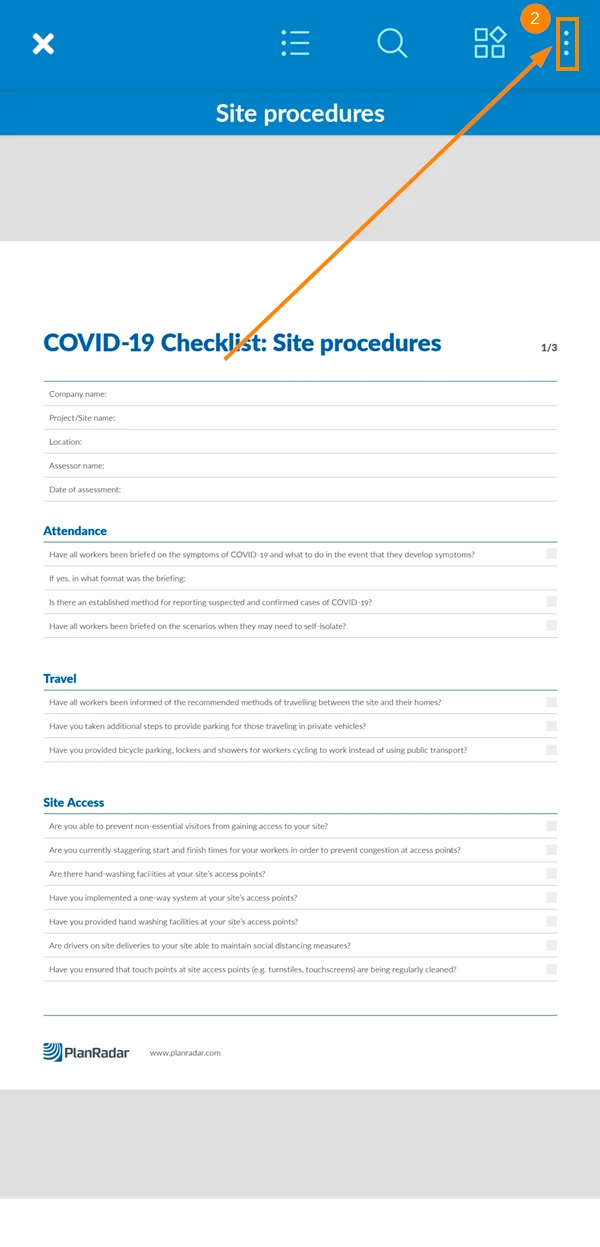
- Tap Share
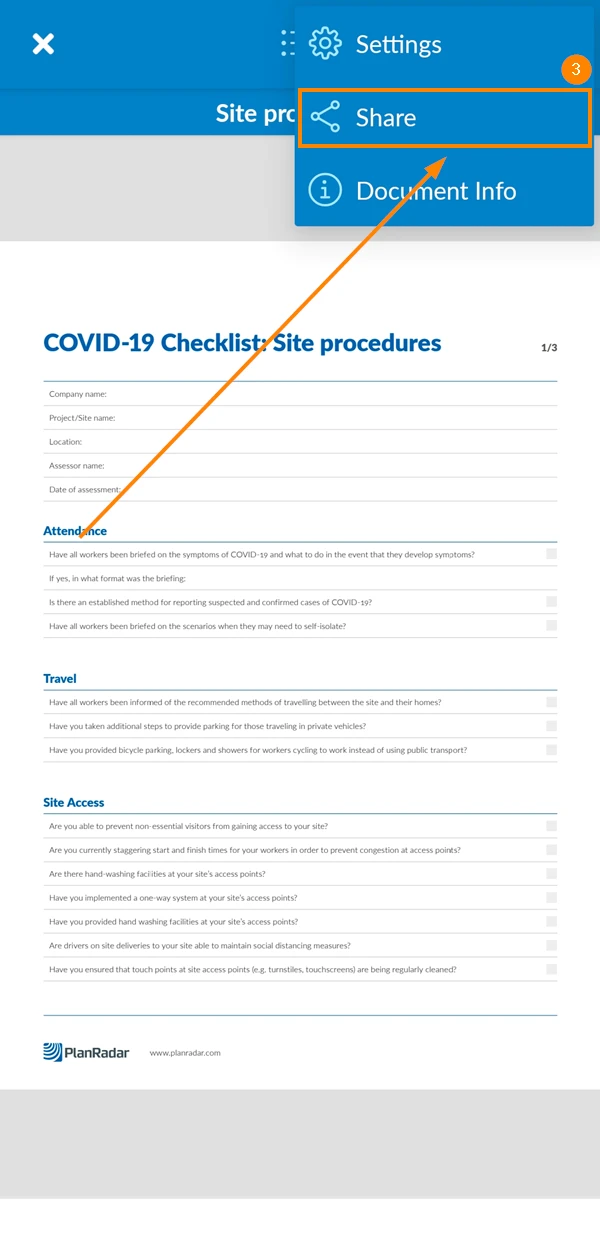
- Tap Share report
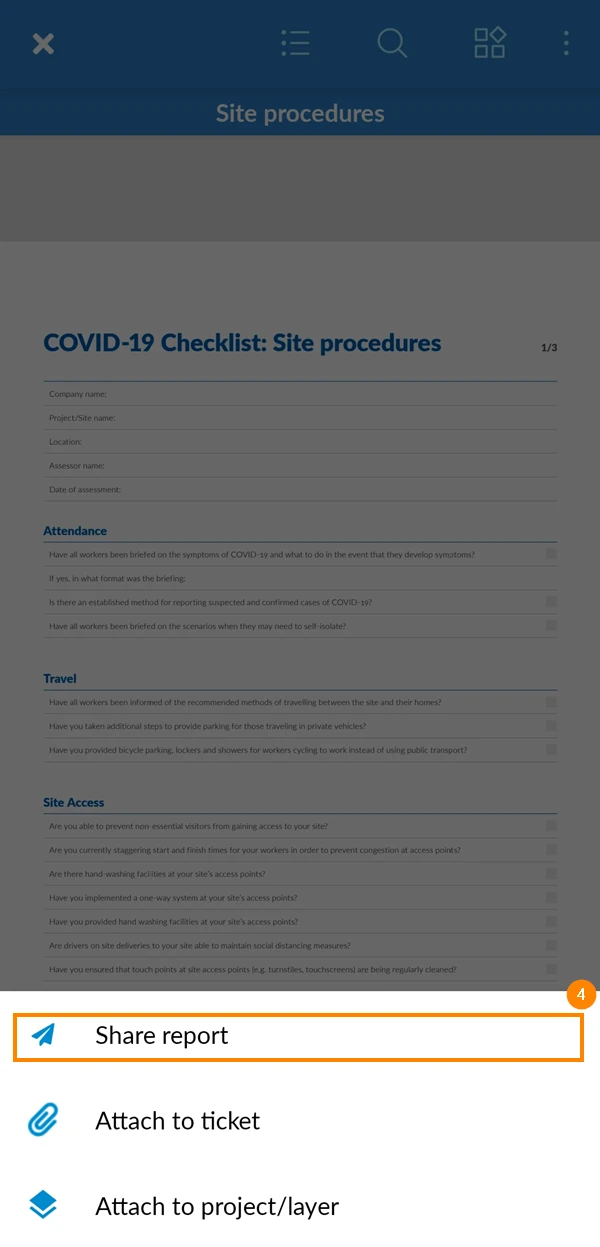
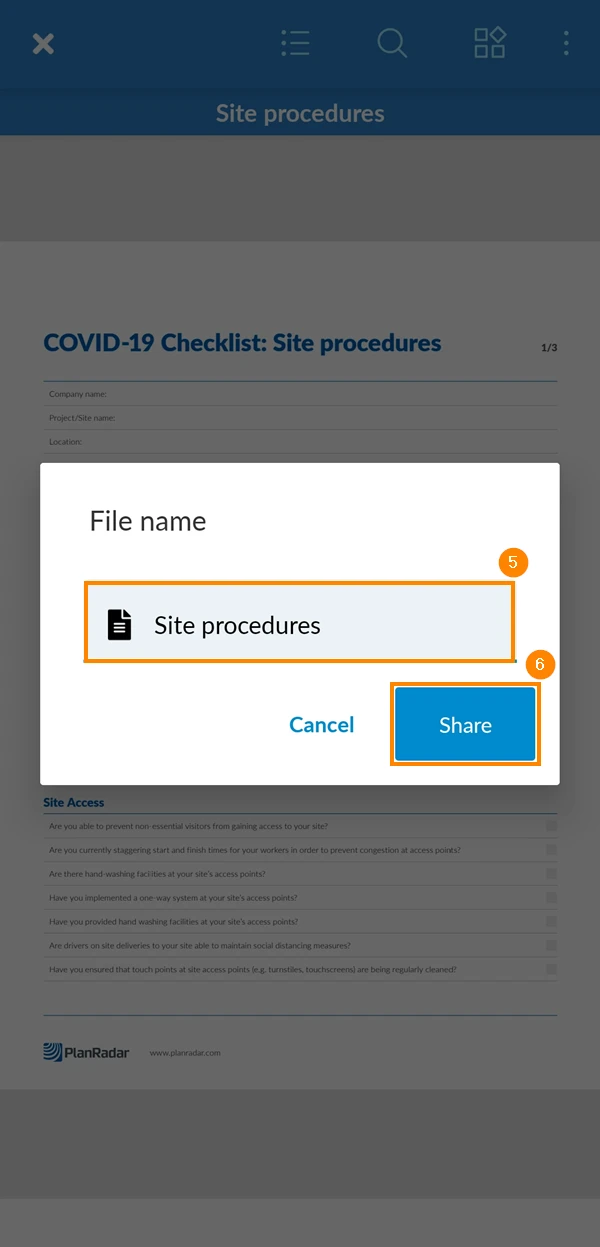
- Optional: Edit the report name.
- Tap Share
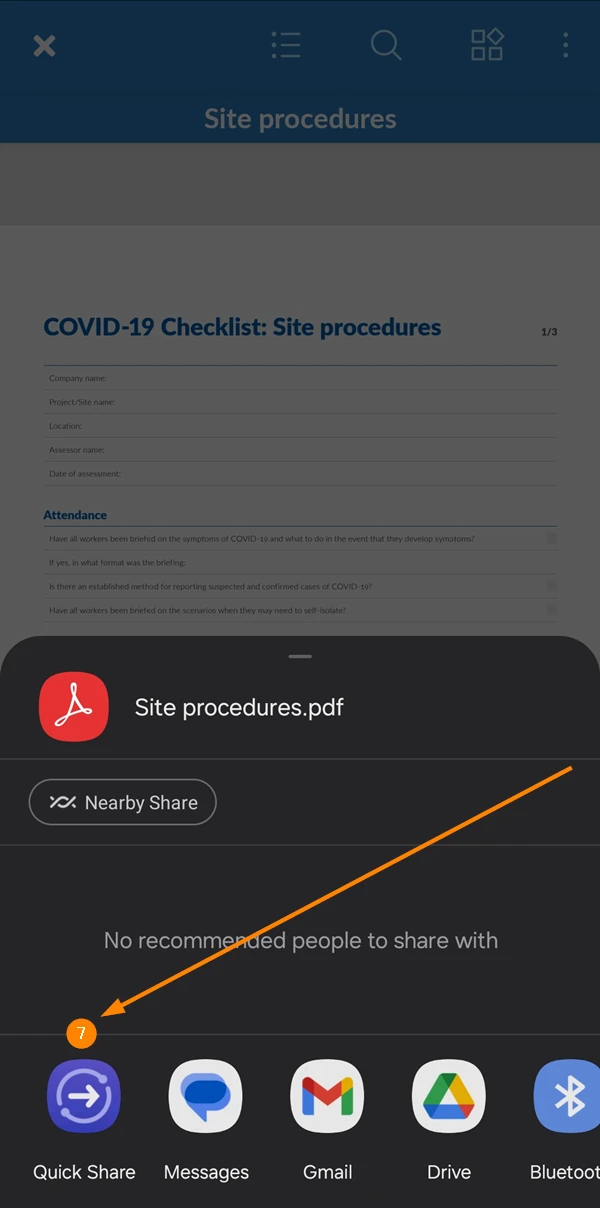
- Select an app to share the file through it
Export Multiple Project Reports (Webapp Only)
Combine multiple project reports into a consolidated single PDF file or export the data filled into project reports as an Excel file. These features are only available in the Webapp.
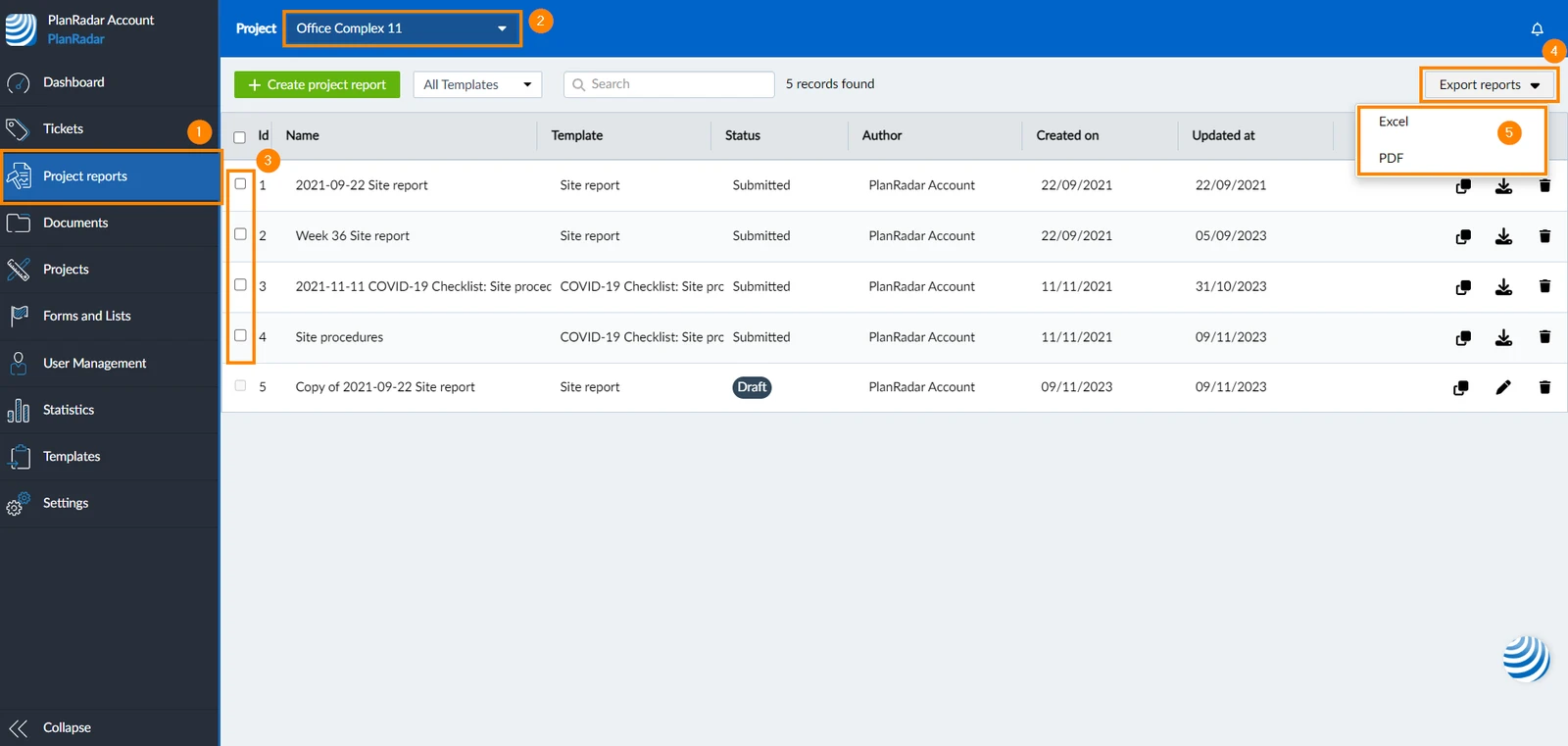
- Click Project reports in the main menu
- Select the project from Project drop-down menu, or select Show all projects
- Select the check boxes of project reports you want to export. If you do not select any report, all submitted reports shown on the screen will be included in the exported file.
- Click Export reports
- Select file format; PDF or Excel
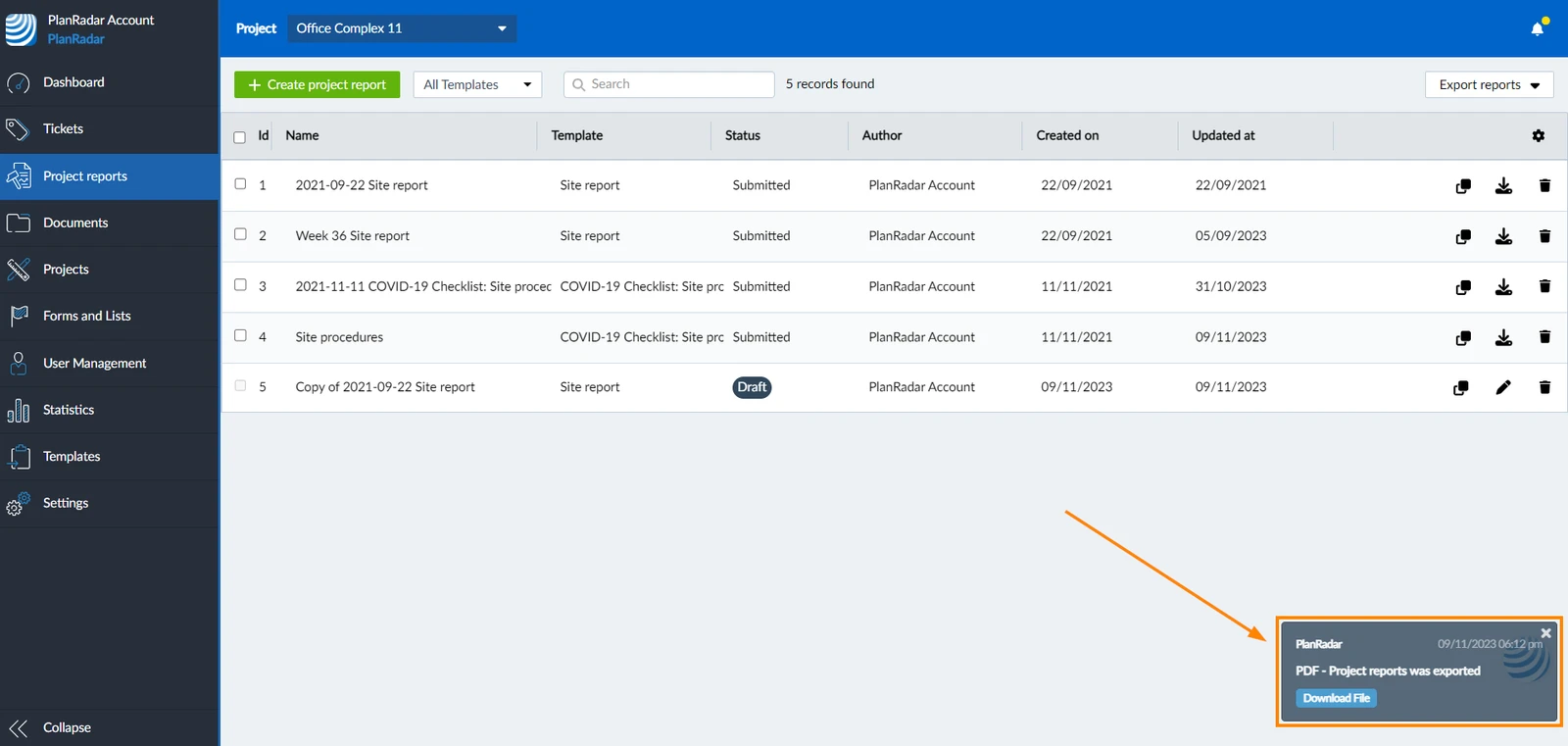
- A notification will show when the file is ready to be downloaded
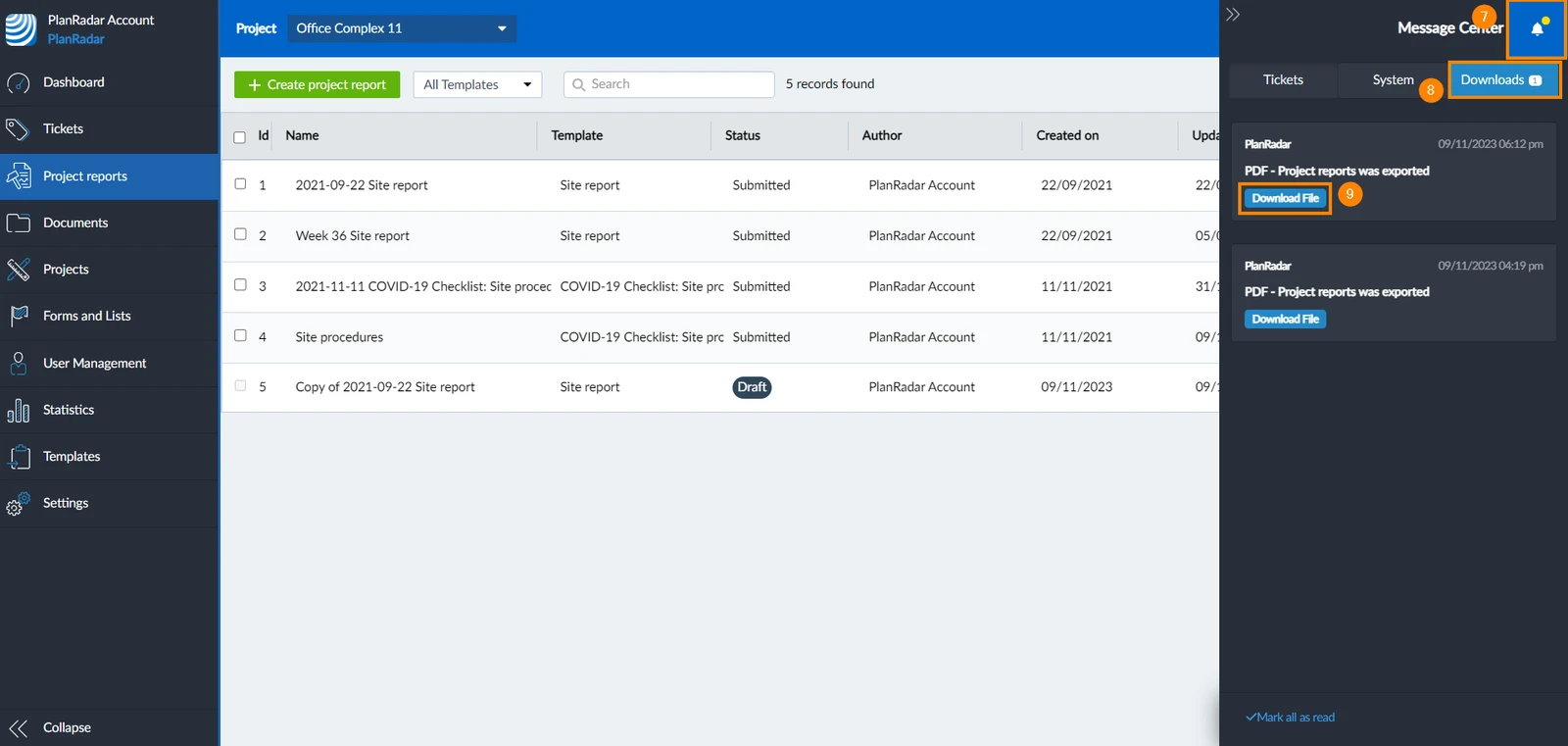
- Click the Message Center icon
- Click Downloads
- Click Download File
Related Articles
Updated January 29, 2025