

 Deutsch
 Español
 Français
 Hrvatski
 Italiano
 Polski
 Português (BR)
Attach Tickets to Project Reports
Overview
While filling project reports it is possible to attach and create tickets. This can be useful if you want to link work items that have been done or if you need to create new work items while filling a checklist in the form of a PlanRadar project report.
Access & Permissions
Attach Tickets to Project Reports
To attach tickets to a project report:
- Create or edit a project report as described in Create & Edit Project Reports
- Click Show Attachments
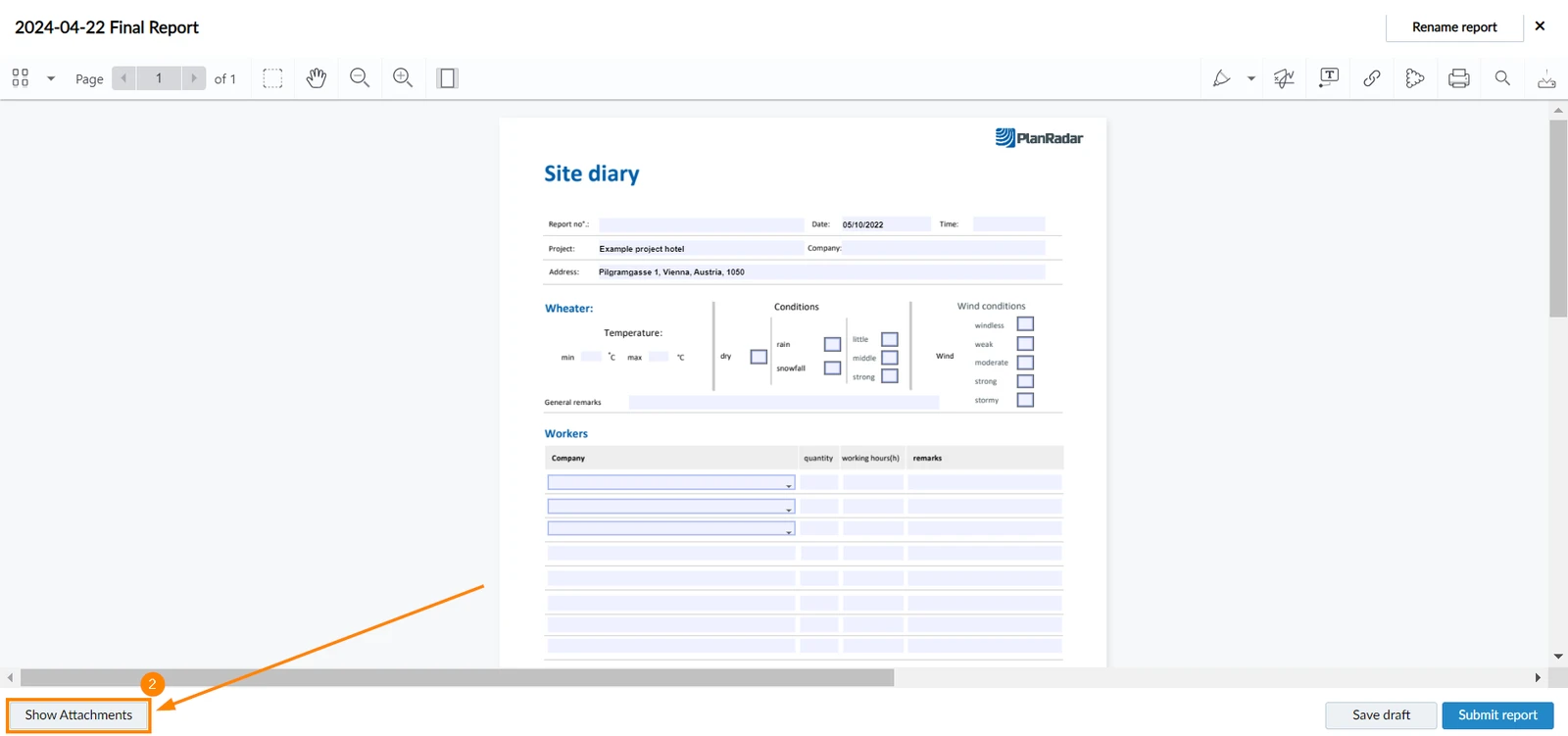
- Click Add Attachments
- Click Create Ticket to create ticket/s and attach it to the report or Add existing tickets to attach existing tickets to the report
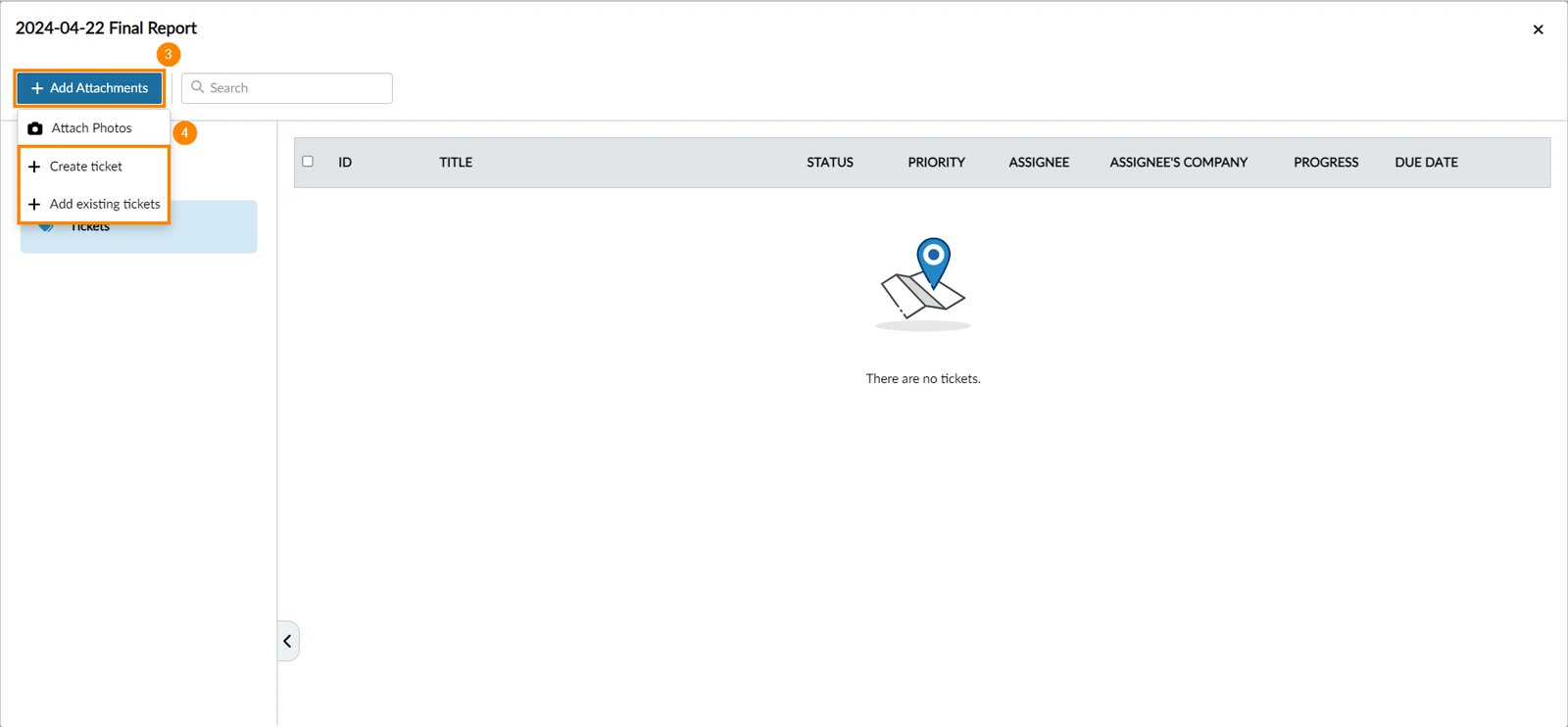
- If you select to add existing tickets, a window will open with tickets existing in the project.
- Use the check boxes to select the tickets you want to attach.
- Click Save
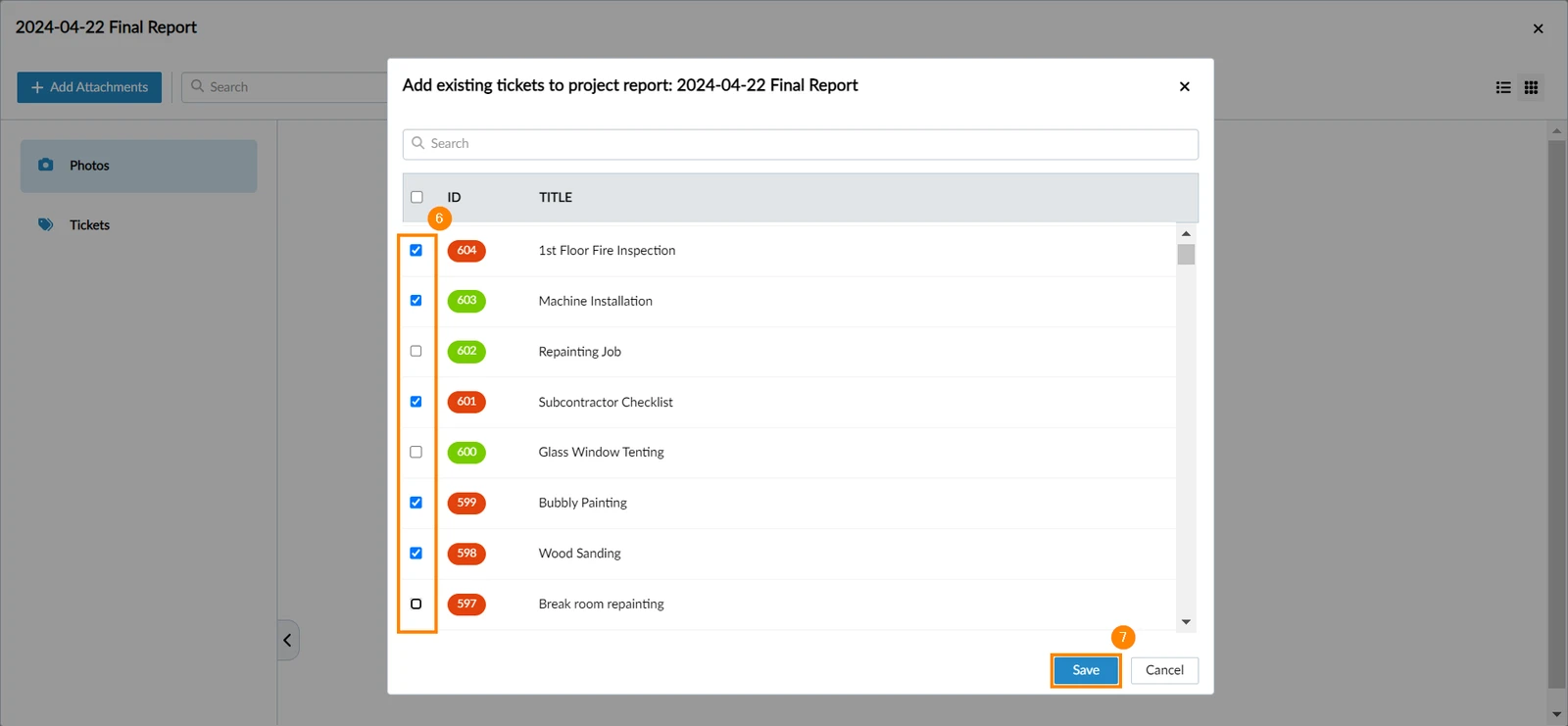
- The tickets will be attached and you can view them by clicking Show Attachments.
- Create or edit a project report as described in Create & Edit Project Reports
- Tap the paperclip icon
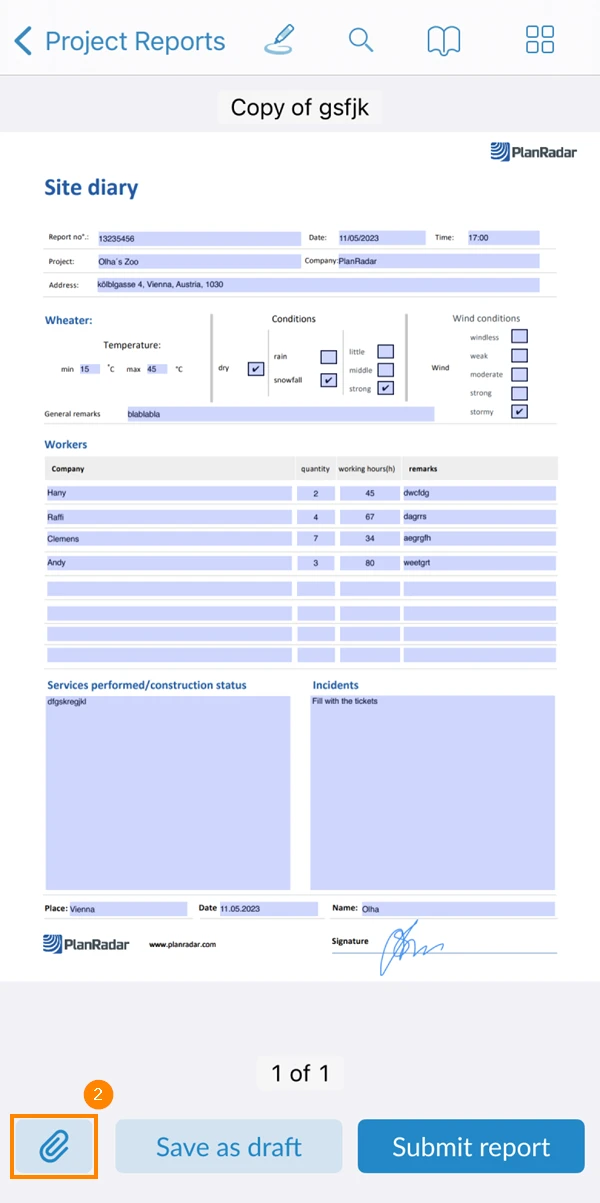
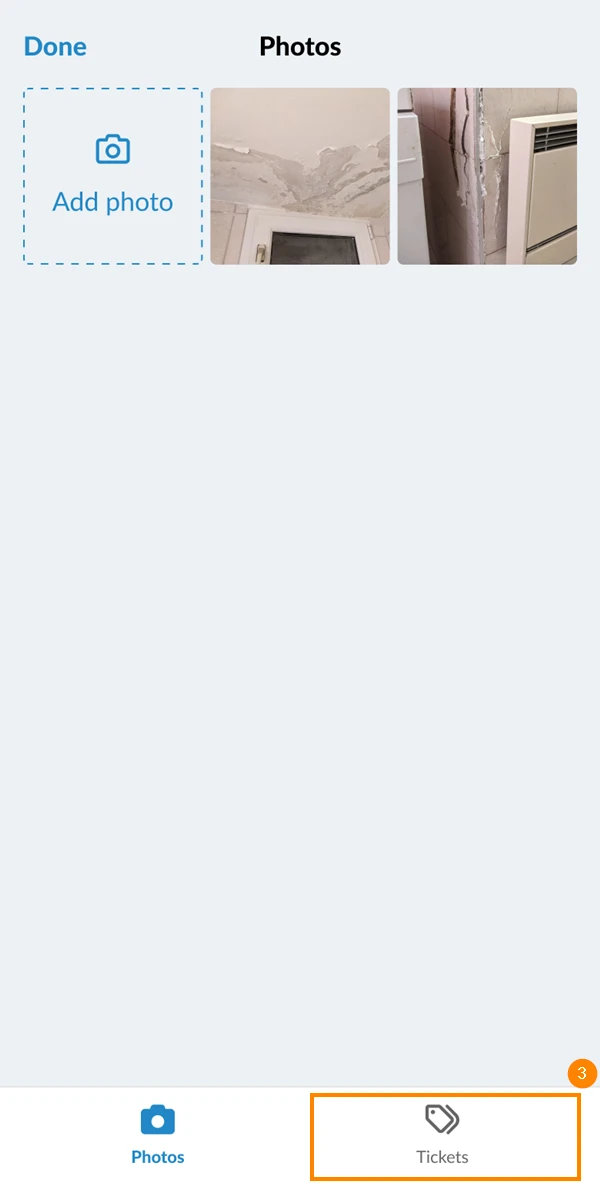
- Tap the tickets tab
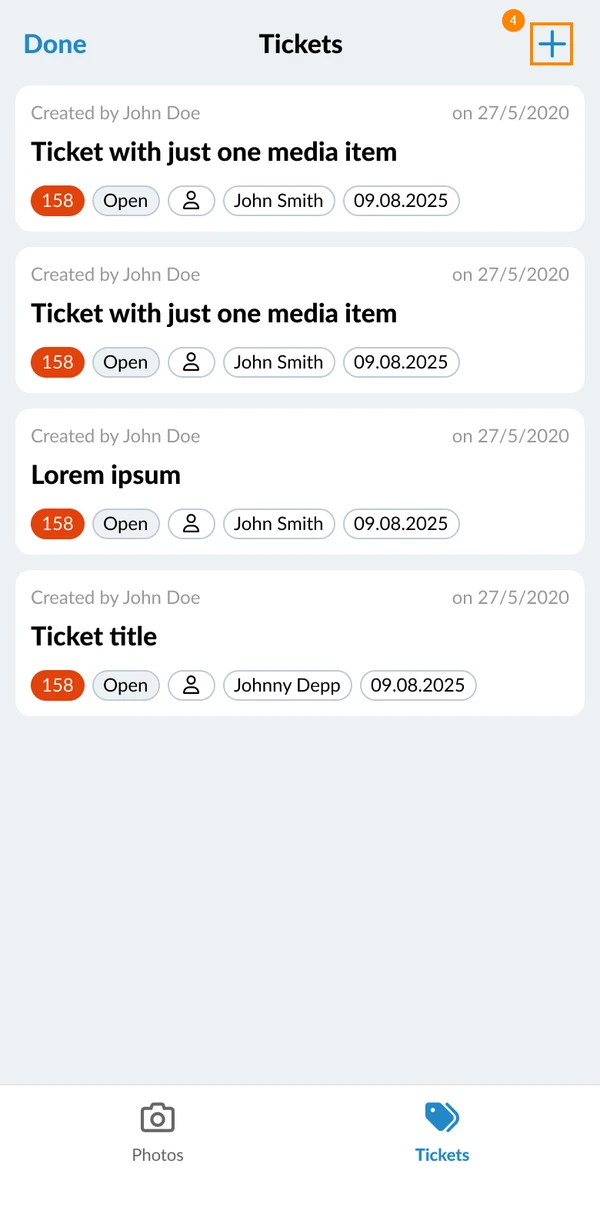
- Tap the + icon
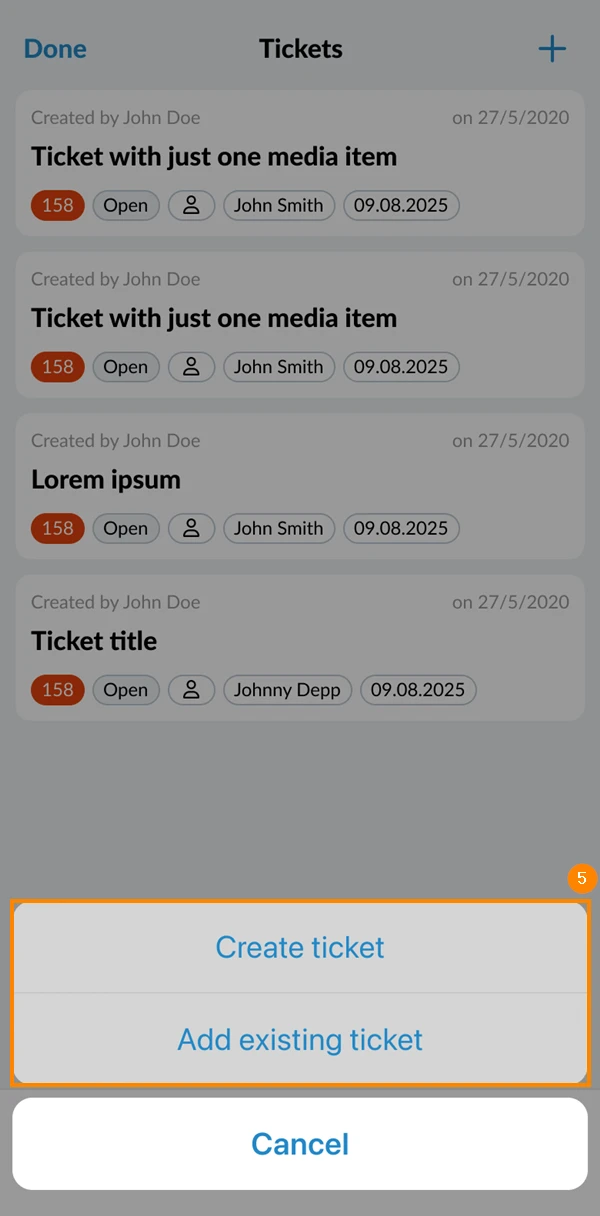
- Tap Create Ticket to create tickets and attach them to the report or Add existing ticket to attach one or more existing tickets to the report.
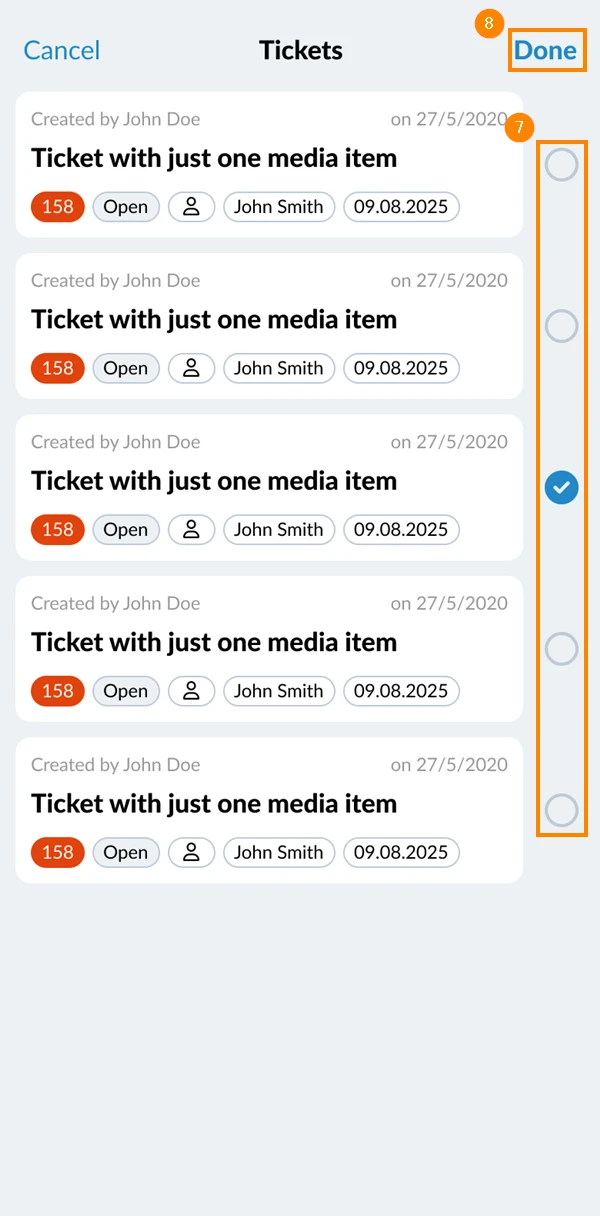
- If you select to add existing tickets, a window will open with tickets existing in the project.
- Use the check boxes to select the tickets you want to attach.
- Click Done
Submit Project Reports with Tickets in the Webapp
When submitting a project report a PDF file will be generated for the report.
If you have attached tickets and submit the report in the Webapp, you can include a ticket report appendix to the PDF.
Follow these steps:
- Open a project report draft or continue while you are creating or editing a project report with tickets attached.
- Click Submit report
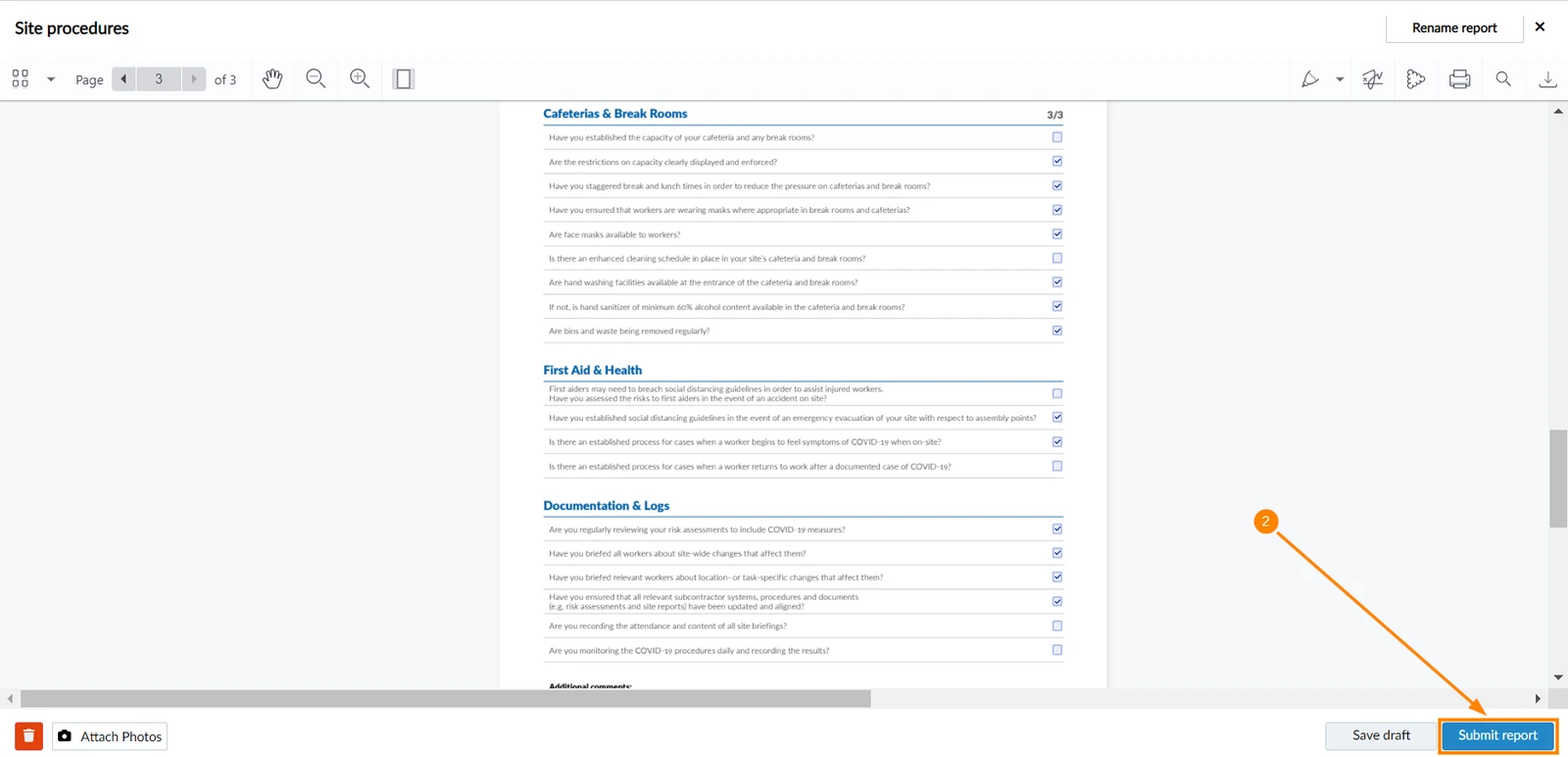
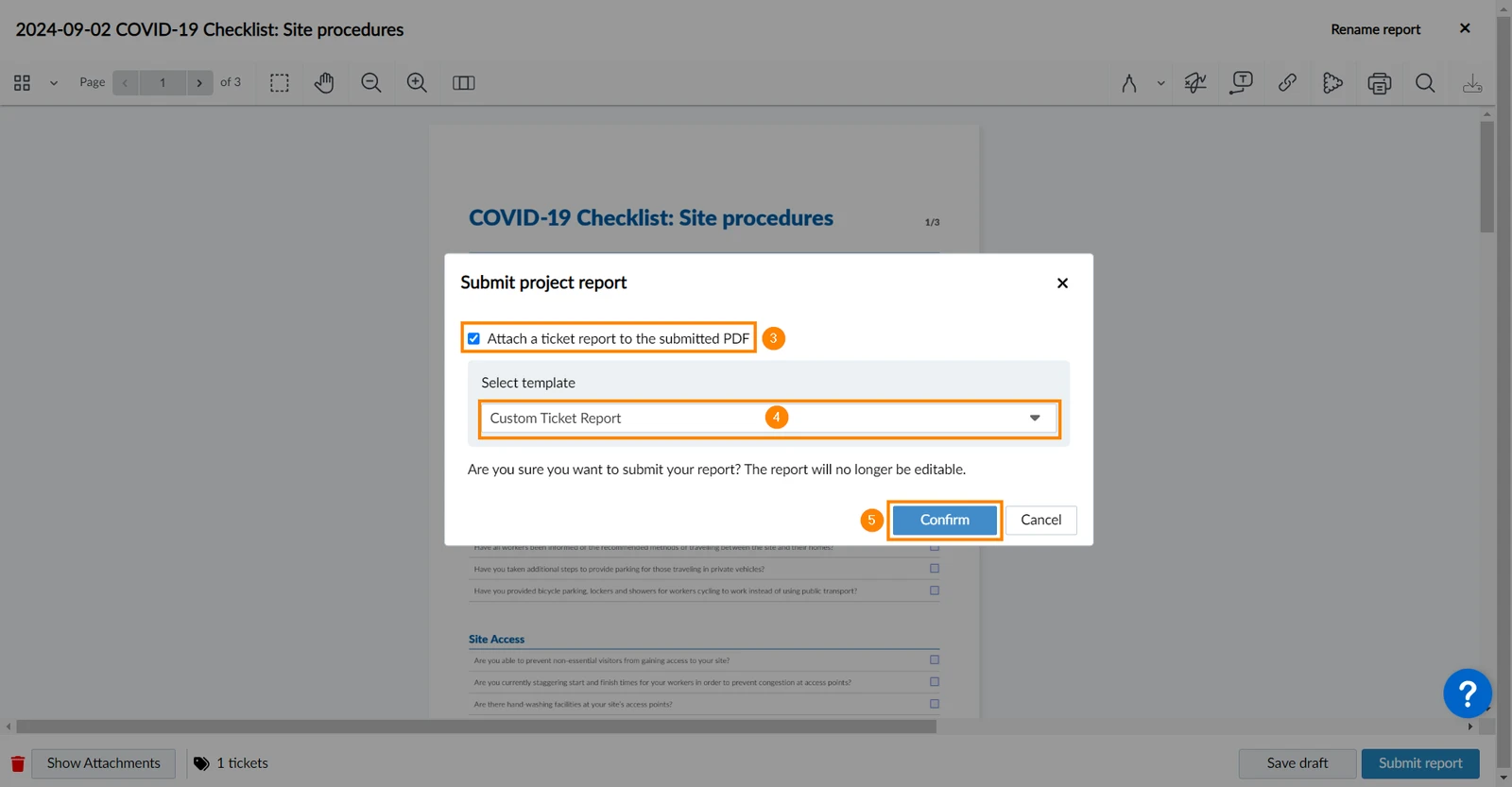
- Optional: Select the Attach a ticket report to the submitted PDF checkbox
- Optional: If the checkbox is selected, you can select a template from the drop-down.
- Click Confirm
View Attached Tickets
To view tickets attached to project reports:
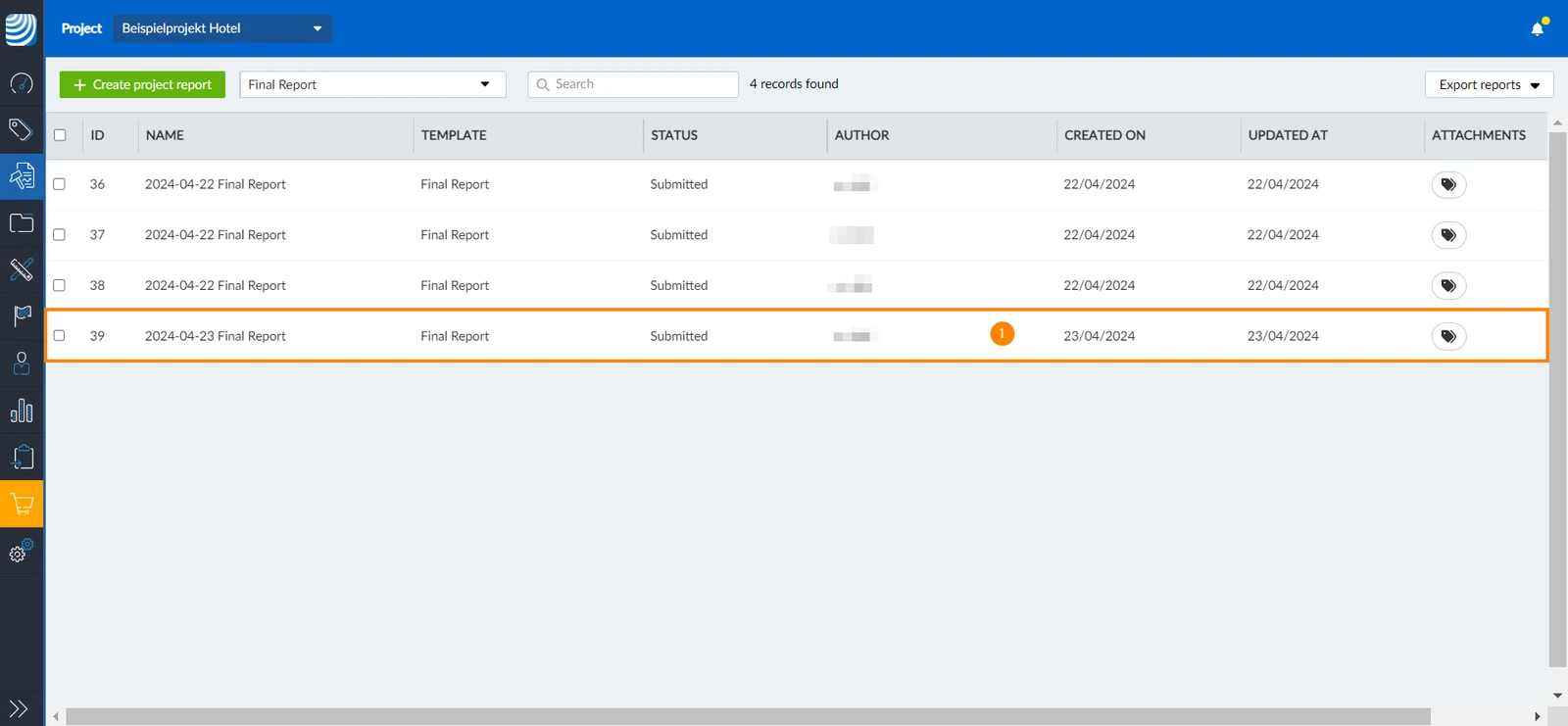
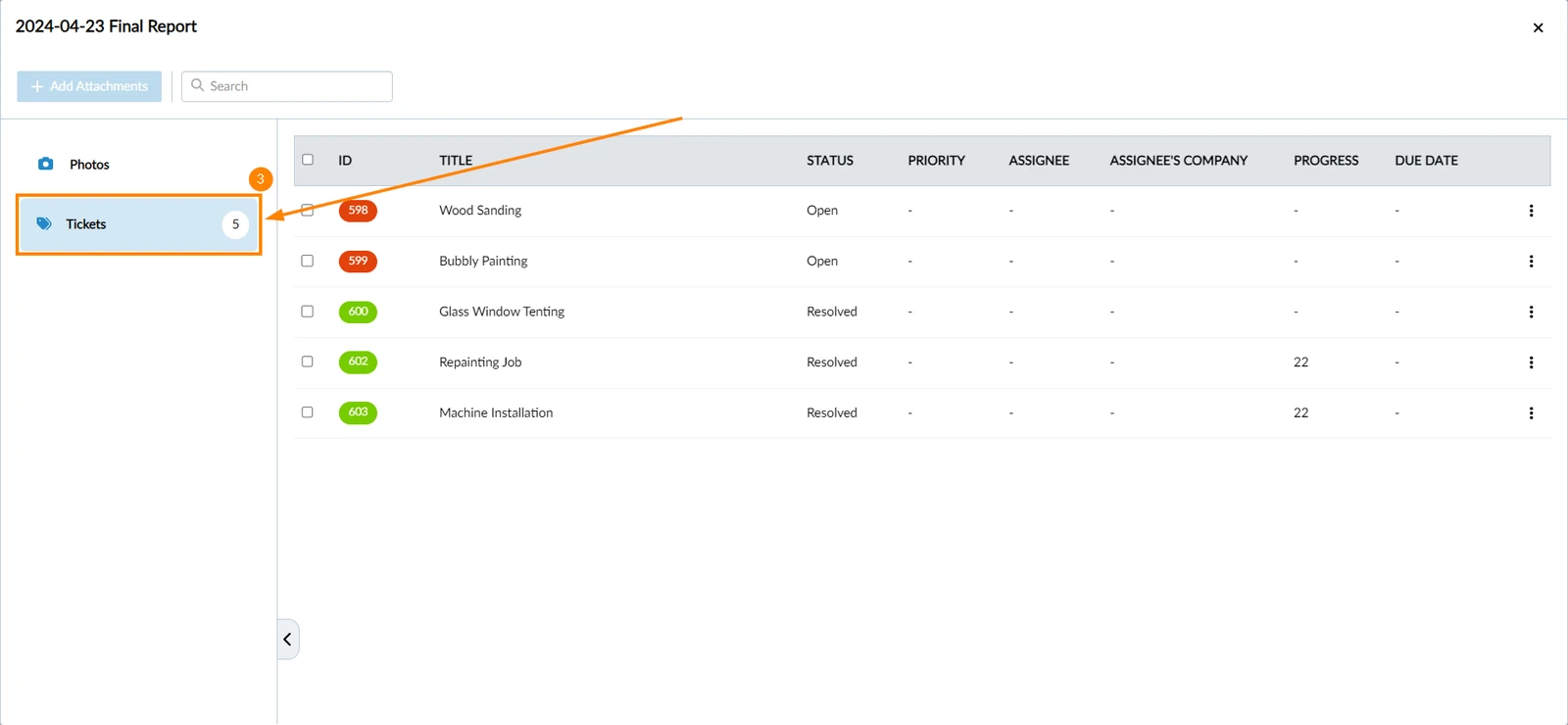
- Click on the project report whose attached tickets you want to view.
- Click Show attachments
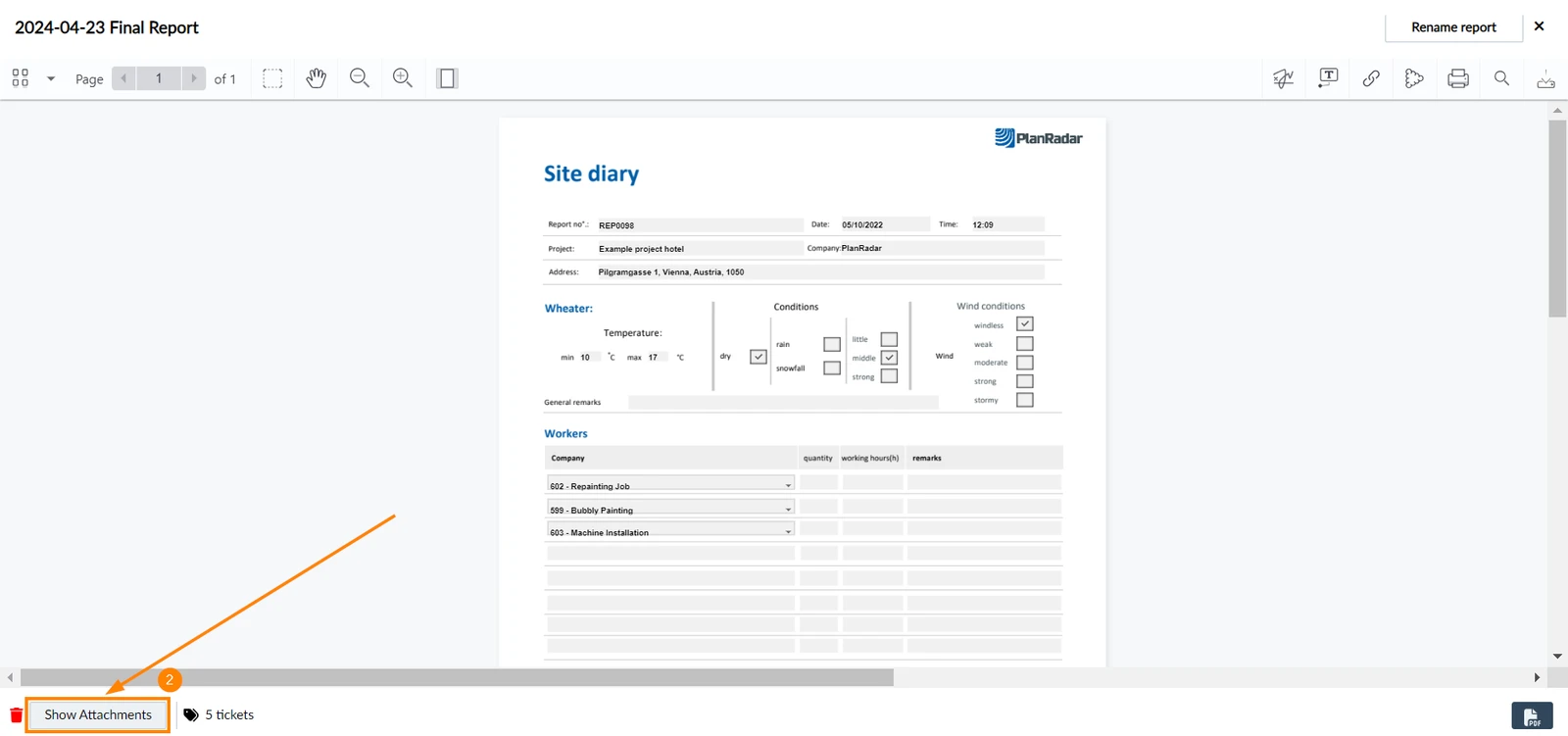
- Click Tickets
- Tap on the project report whose attached tickets you want to view.
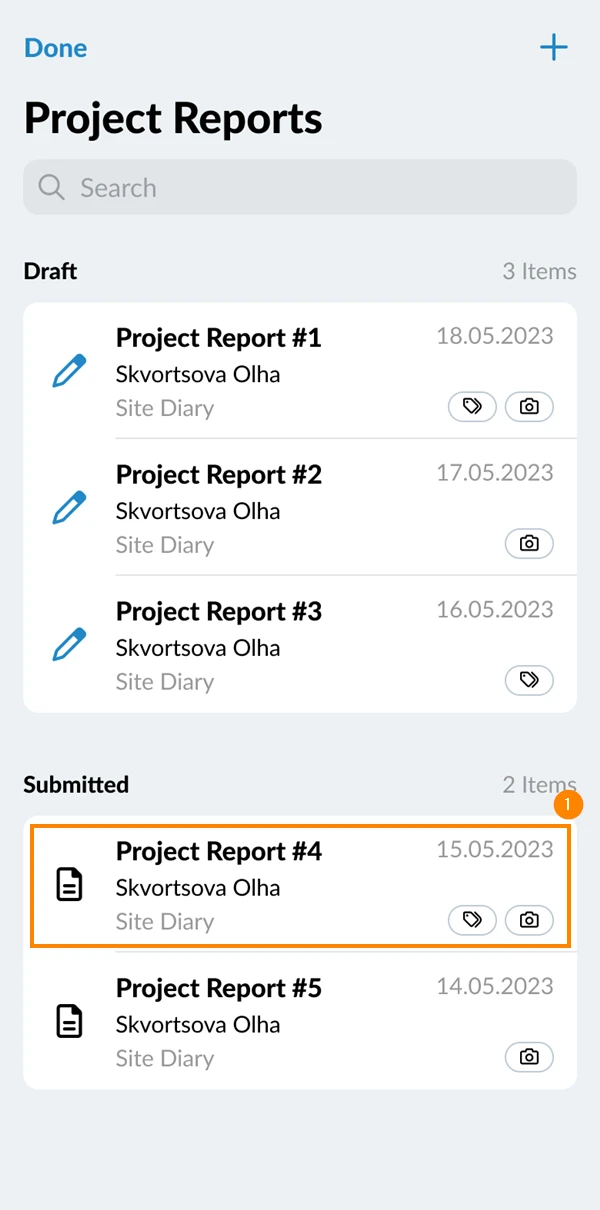
- Tap the paperclip icon
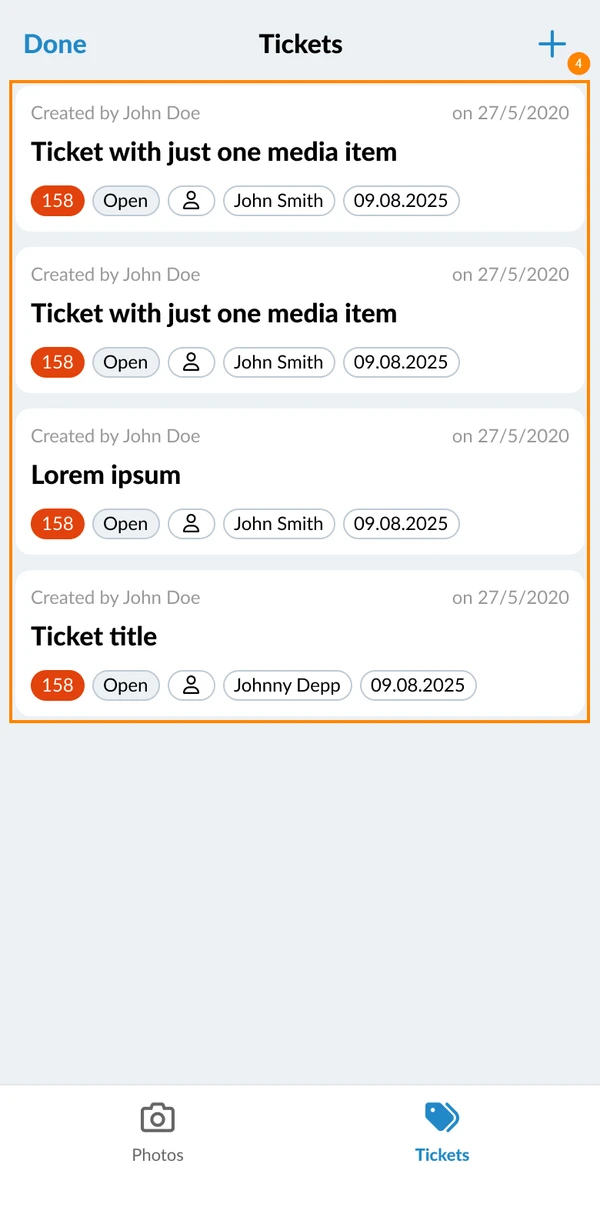
- Tap the tickets tab
- Linked tickets will be listed
Updated June 16, 2026