

 Deutsch
 Español
 Français
 Hrvatski
 Italiano
 Polski
 Português (BR)
Manage Project Details
Overview
The project details include the project name, code, address, website and more, with options to Customise Project Details as required. These details can be managed via our web and mobile apps.
Access & Permissions
How to access Project Details
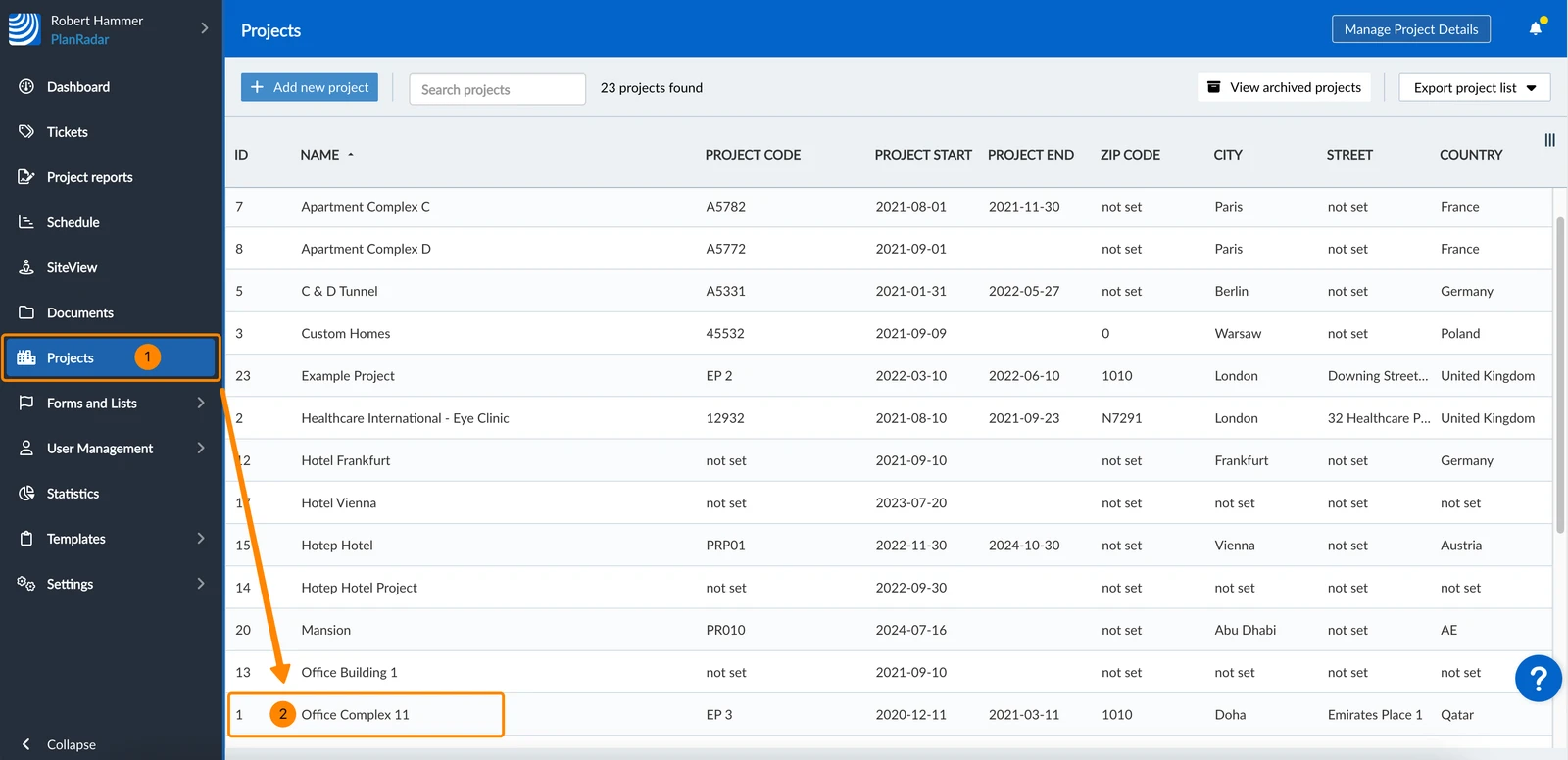
- Click Projects
- Click the project e.g. Office Complex 11
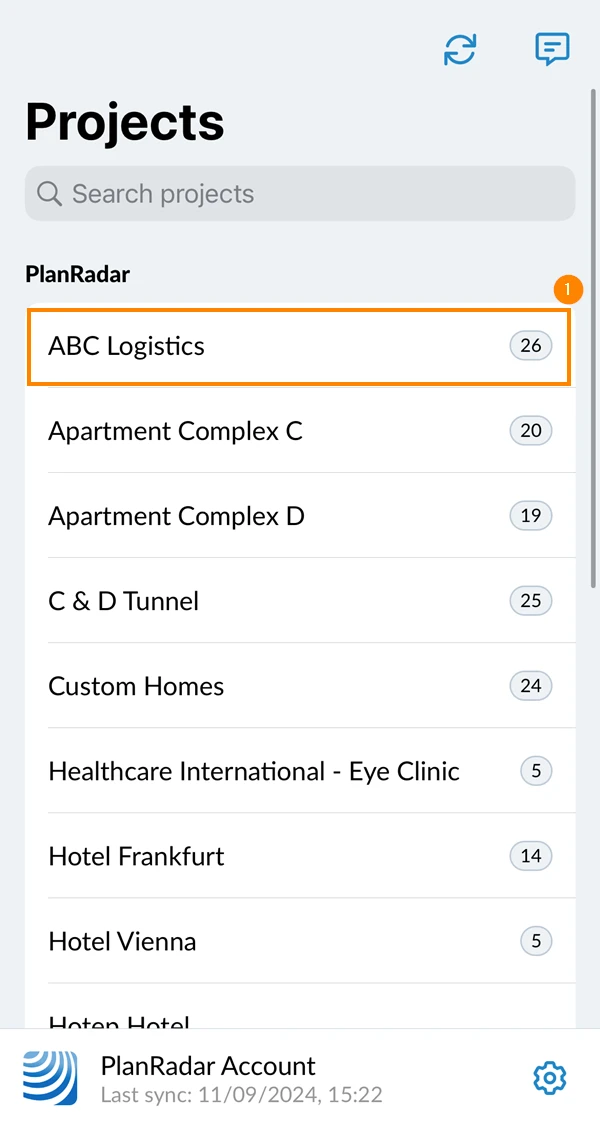
- Tap the project name e.g. ABC Logistics

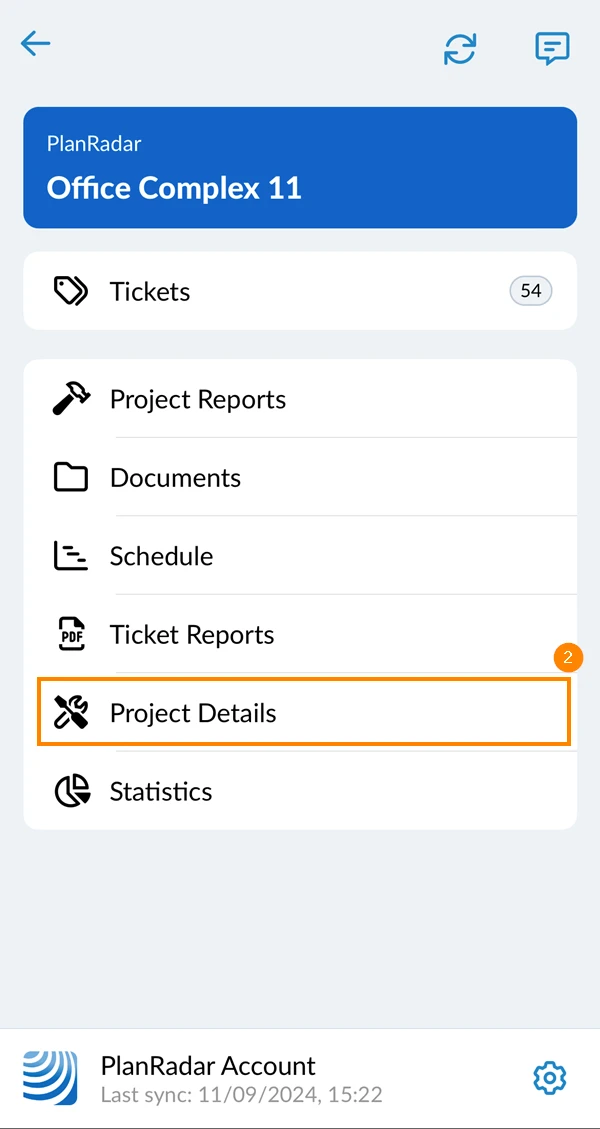
- Tap Project Details
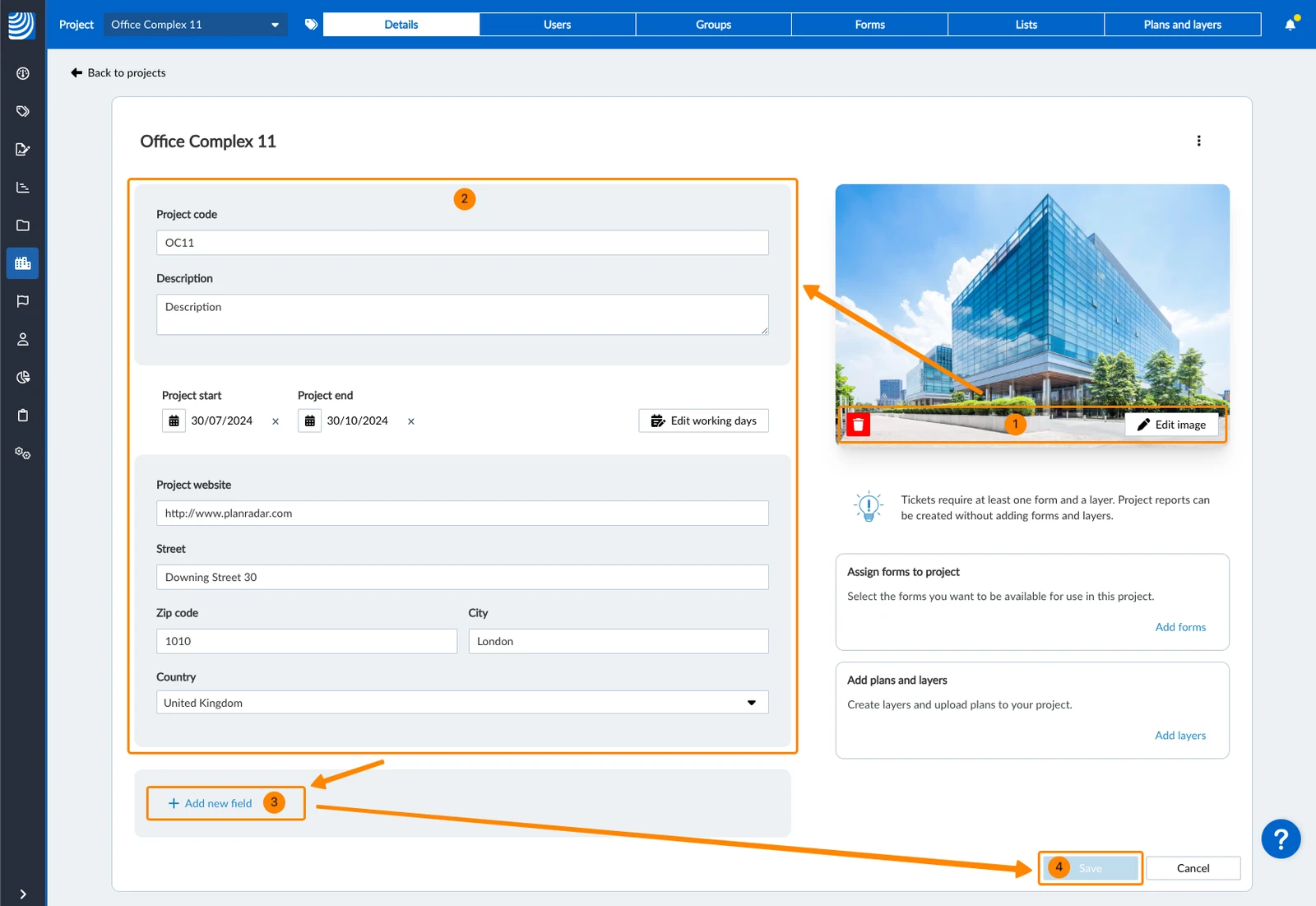
Fill in Project Details
To fill in details of a project:
- Optional: Edit or delete the project photo
- Edit the project details
- Optional: You can add custom fields as explained in Customise Project Details>Add Custom Details to a Specific Project.
- Click Save
- Tap Edit details
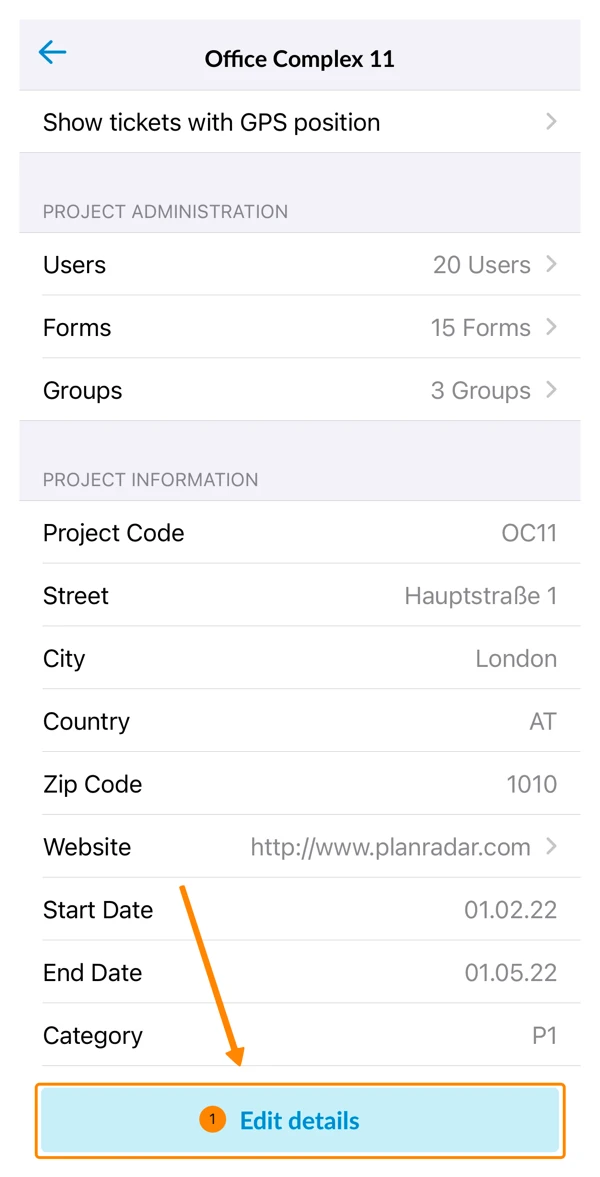
- Optional: Tap the project photo to change it
- Tap the project detail(s) you want to edit
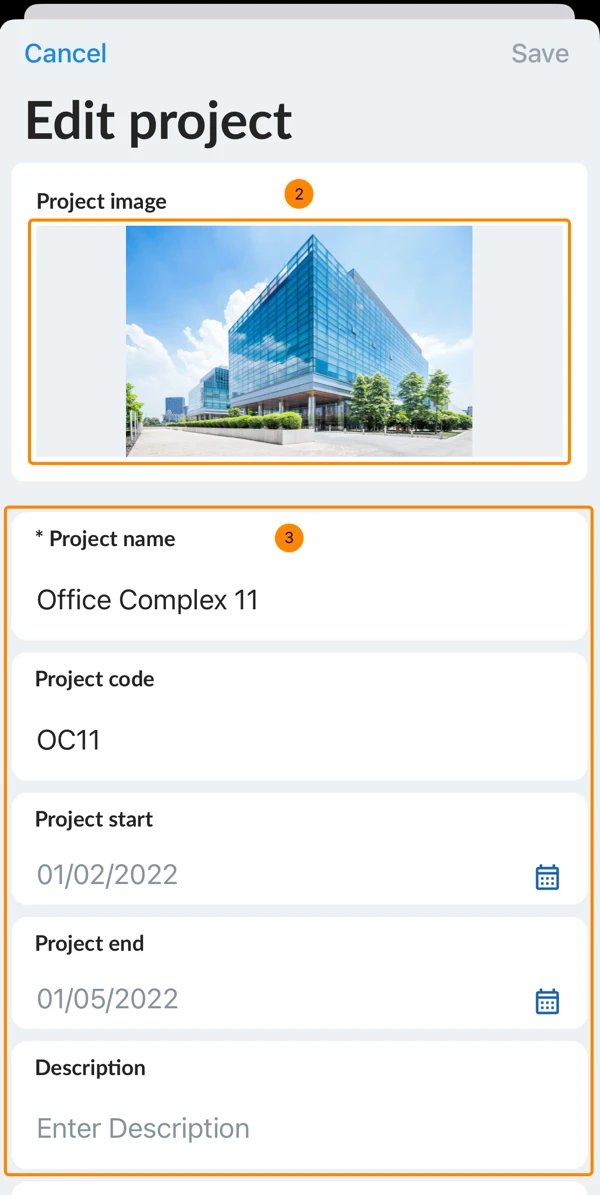
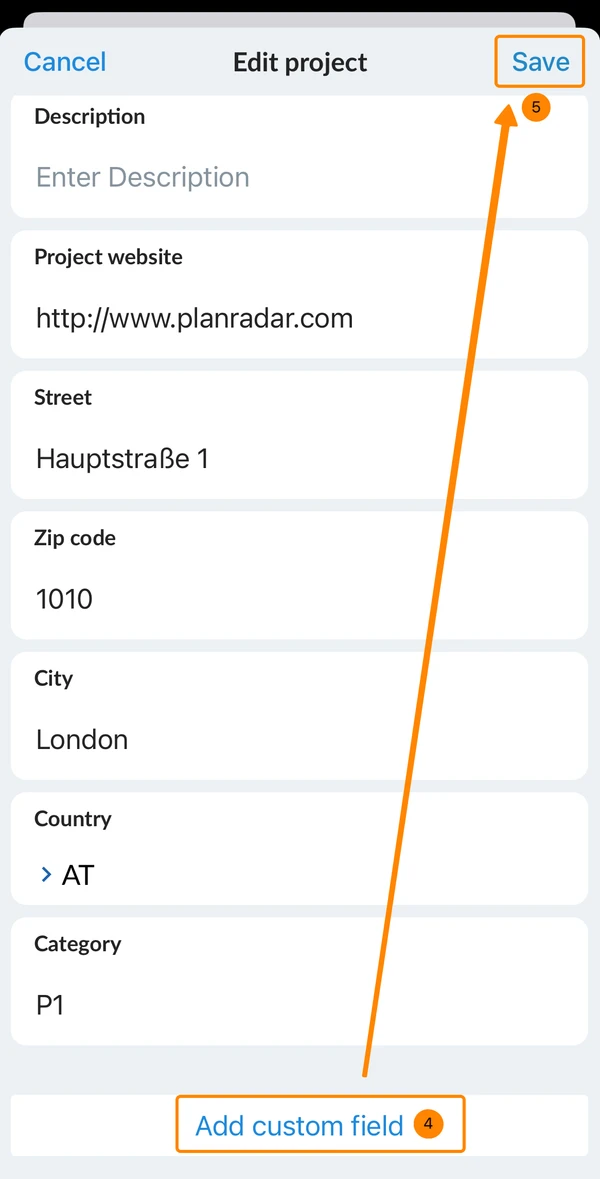
- Optional: You can add custom details as explained in Customise Project Details > Add Custom Details to a Specific Project.
- Tap Save
Updated May 11, 2026