

 Deutsch
 Español
 Français
 Hrvatski
 Italiano
 Polski
 Português (BR)
Customise Project Detail Fields
Overview
The default project detail fields are defined by PlanRadar and cannot be customised.
Add global custom project detail fields for all projects or add custom project fields for specific projects. You can edit, delete and rearrange them, as well as make global fields mandatory to fill in when creating a new project.
Access & Permissions
How to access Projects
- Click Projects
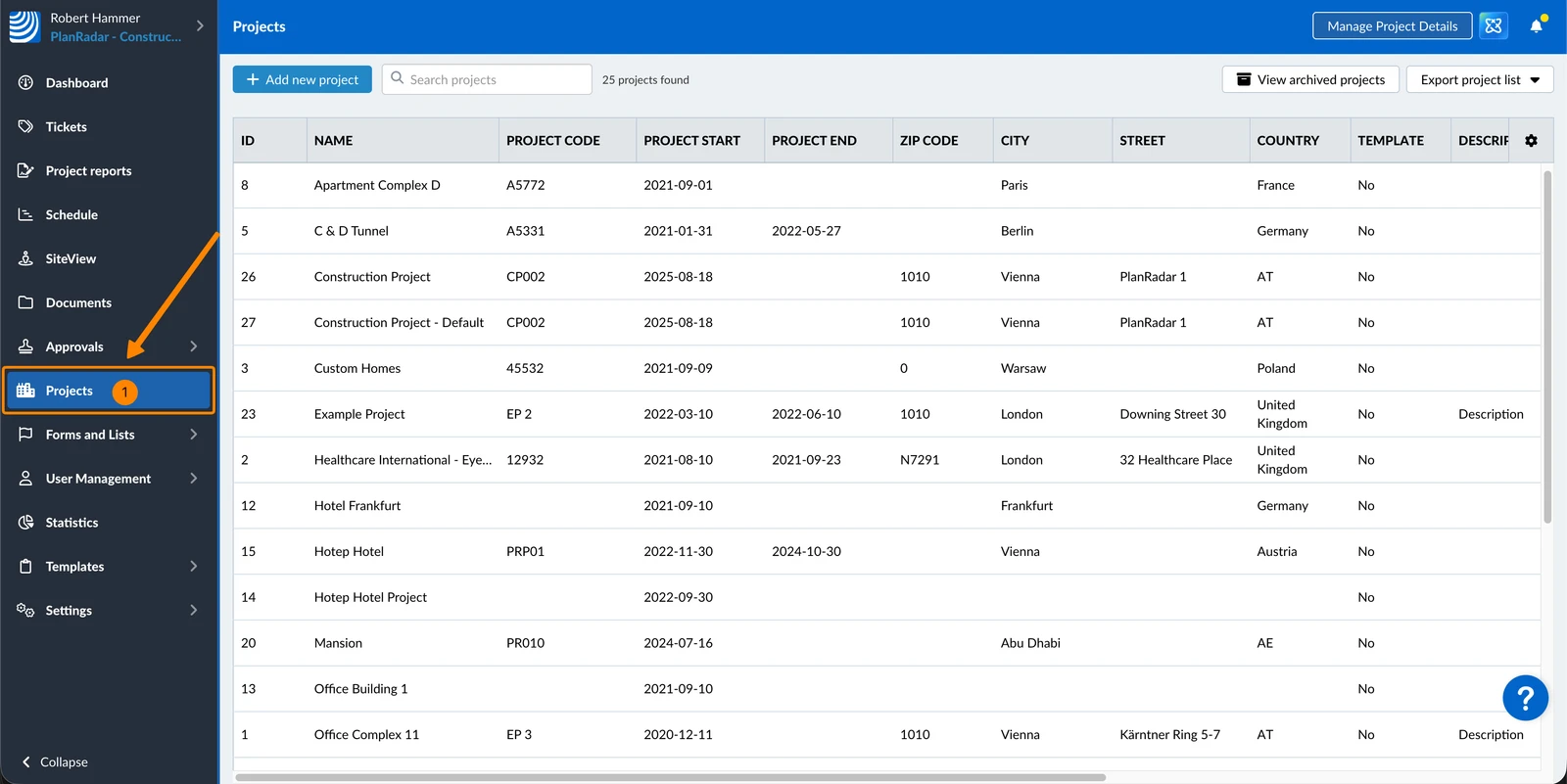
Customise Detail Fields for All Projects
Global custom detail fields for all projects can only be customied in the Webapp.
Add Global Custom Detail Fields
To add custom detail fields for all projects:
- Click Manage Project Details
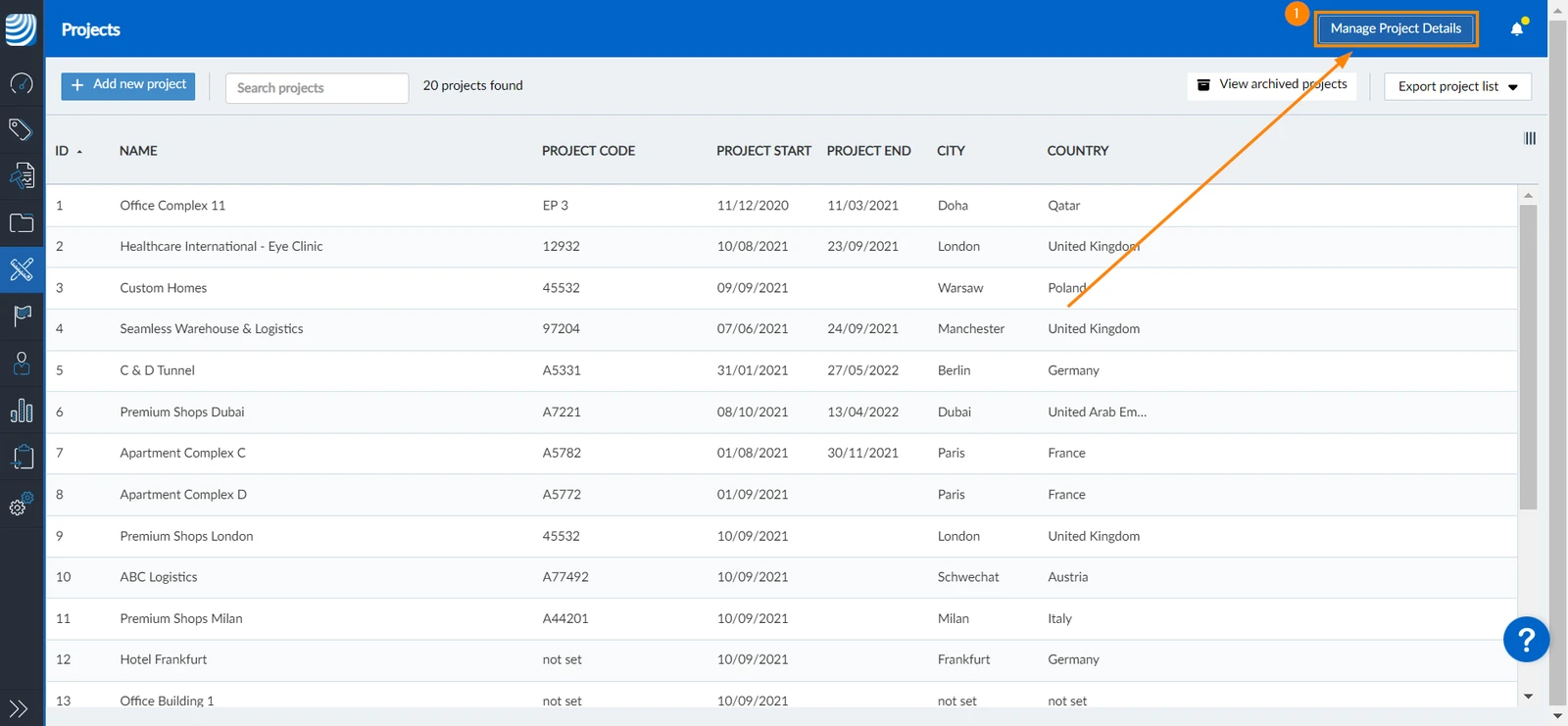
- Enter the field name for the new project detail
- Select the data type from the drop-down to define what data can be entered
- Optional: select the Required checkbox to make filling out the field mandatory
- Click ✔ to add the field
- Repeat steps 2, 3, 4, 5 to add as many fields as you want
- Click Done
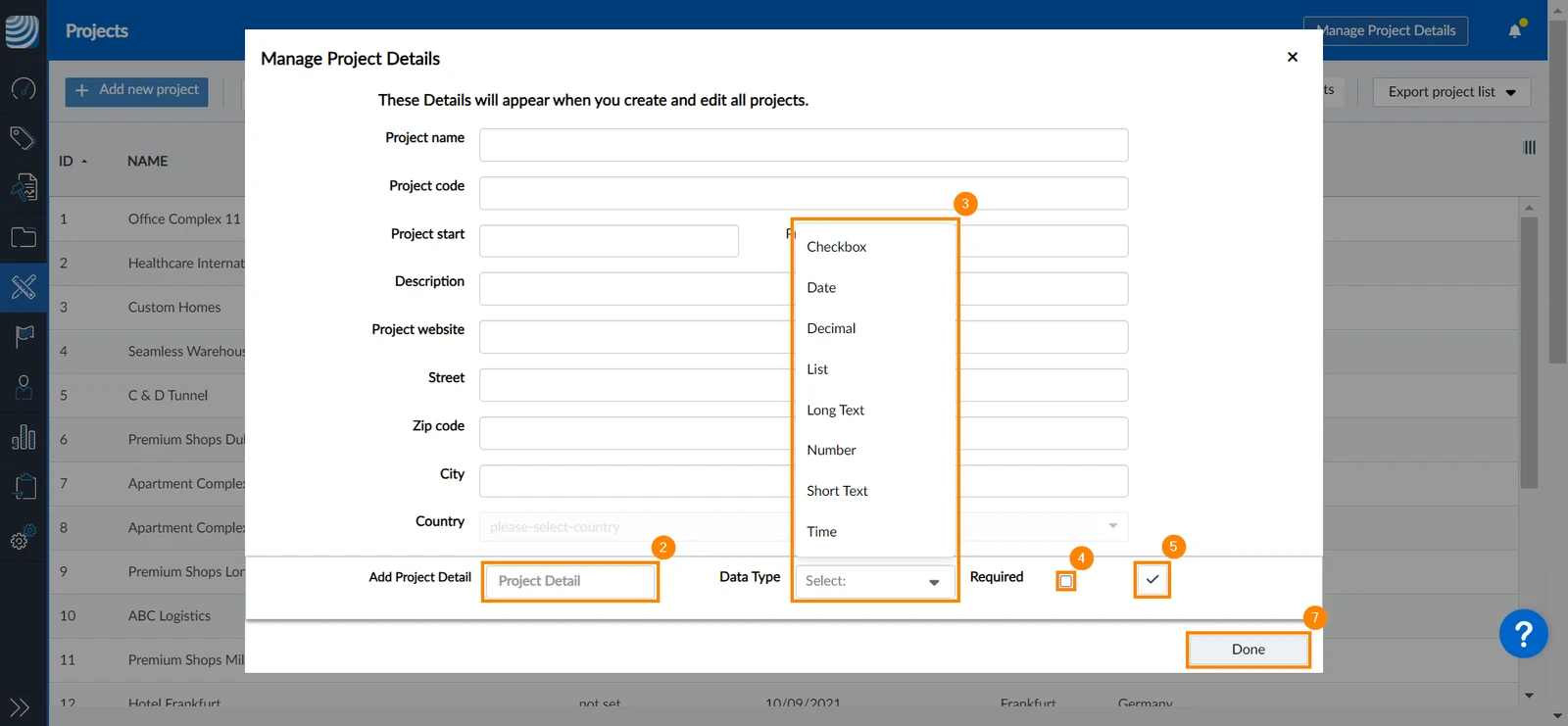
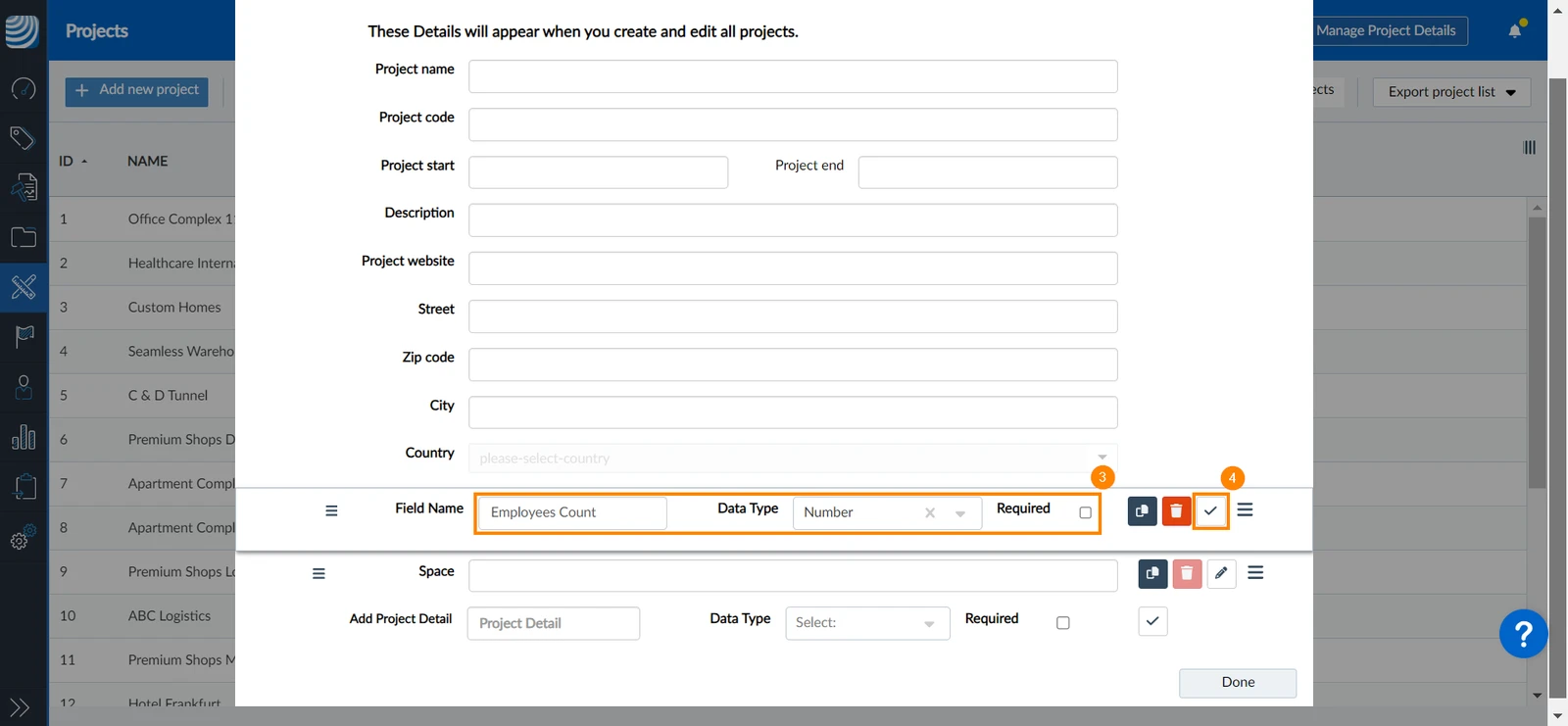
Edit Global Custom Detail Fields
To edit custom detail fields of all projects:
- Click Manage Project Details
- Click the edit icon
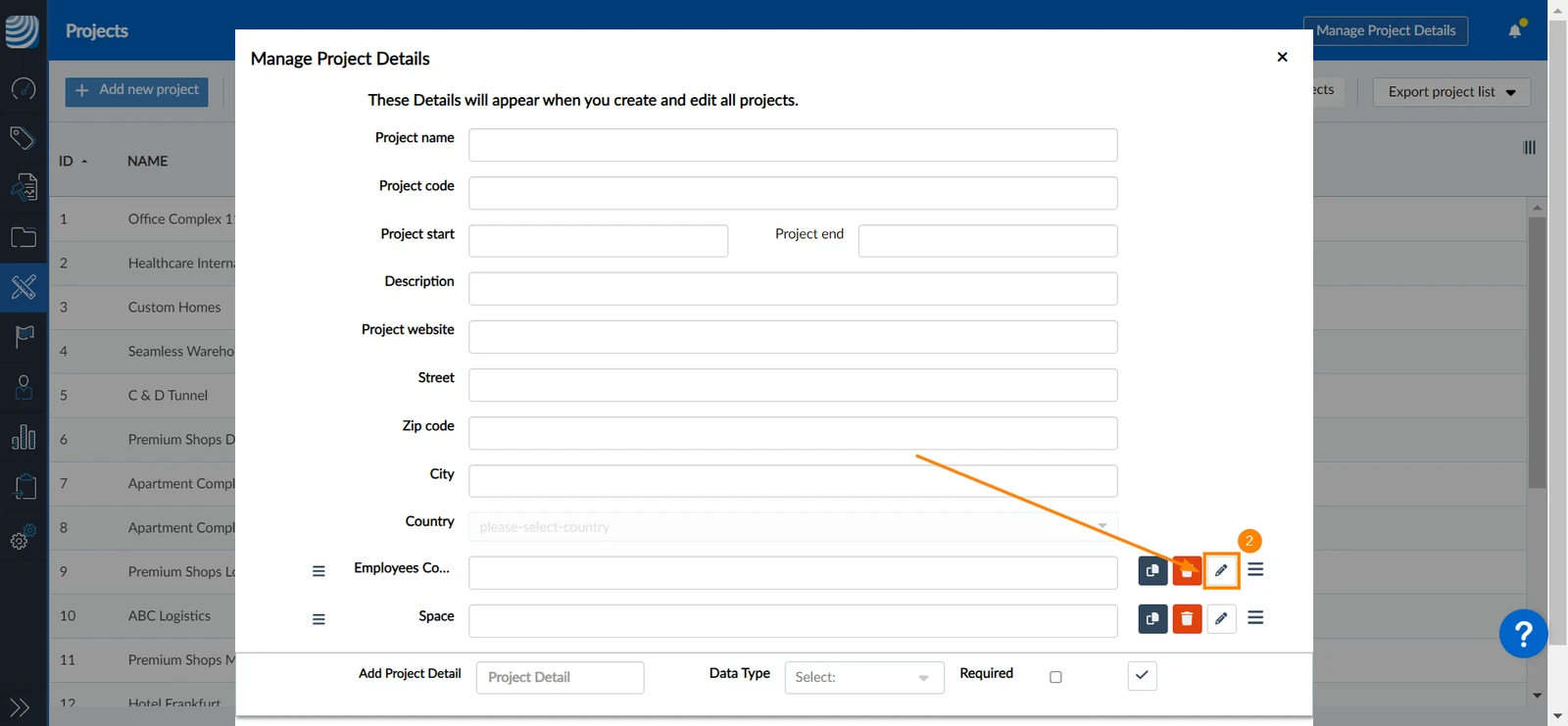
- You can modify the name, data type, and set the detail as required or optional
- Click ✔
Rearrange Global Custom Detail Fields
The default project detail fields are always listed first an cannot be rearranged.
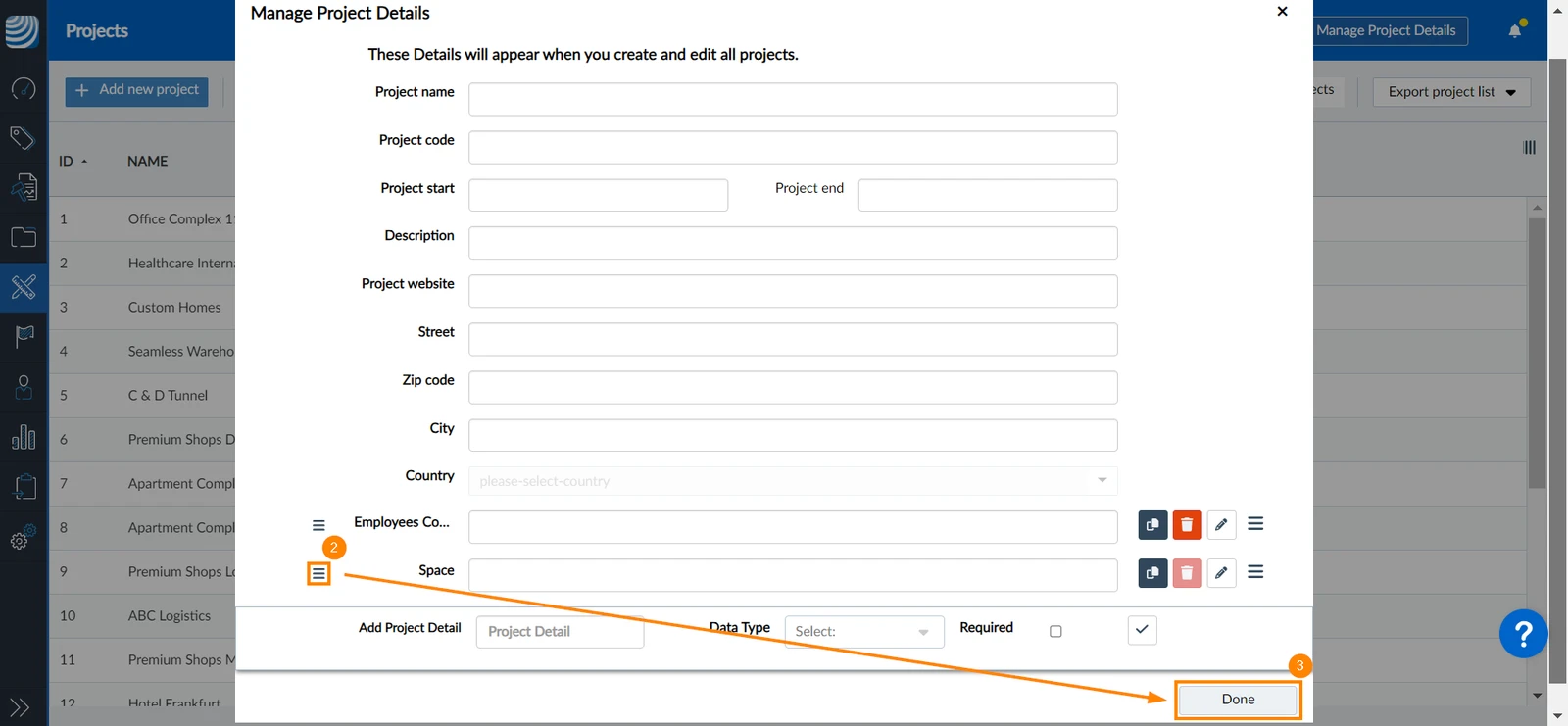
To change the order of custom detail fields of all projects:
- Click Manage Project Details
- Click and hold the order icon next to the field to move it by drag and drop
- Click Done
Delete Global Custom Detail Fields
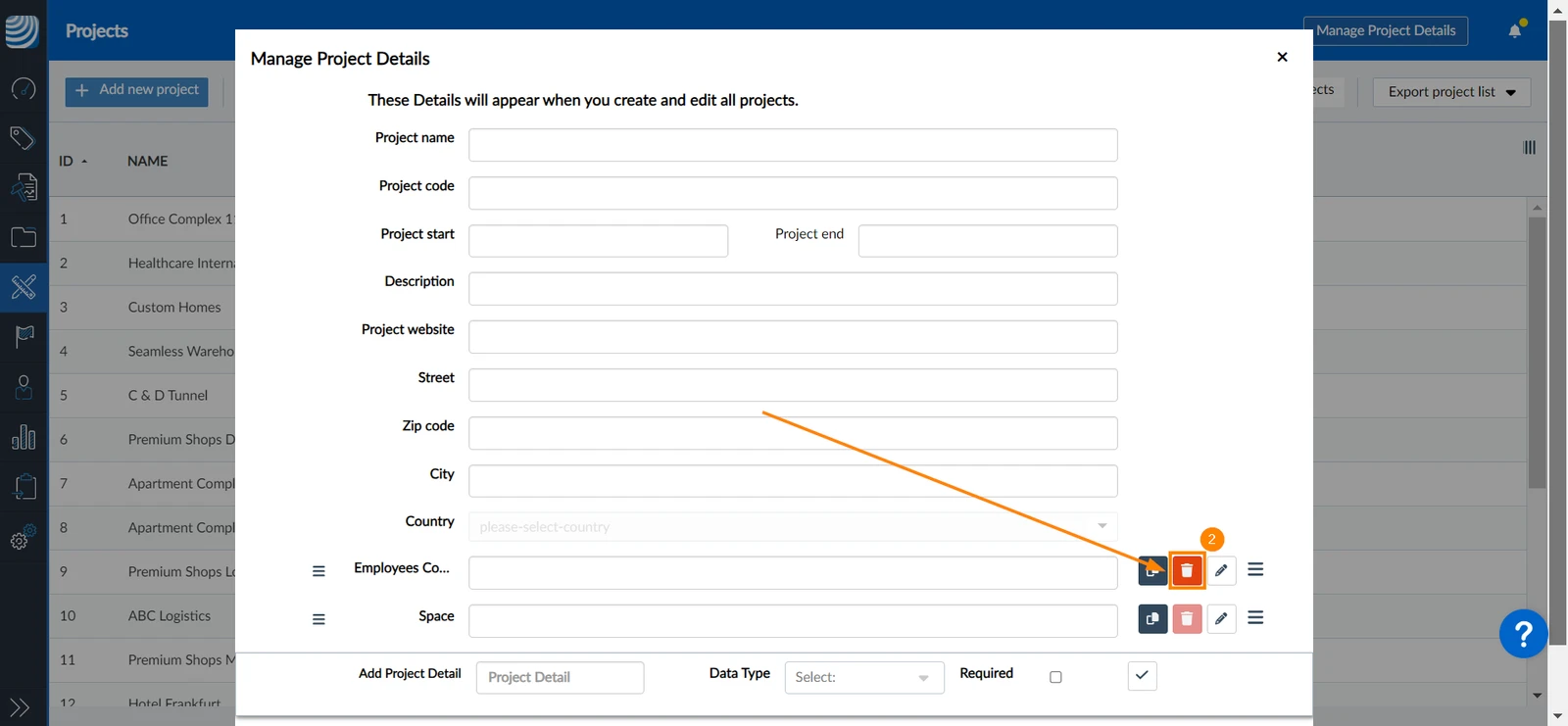
You can delete custom detail fields of all projects only if they haven't been used. To do so:
- Click Manage Project Details
- Click the Delete icon
Customise Detail Fields for a Specific Project
Add Custom Detail Fields to a Project
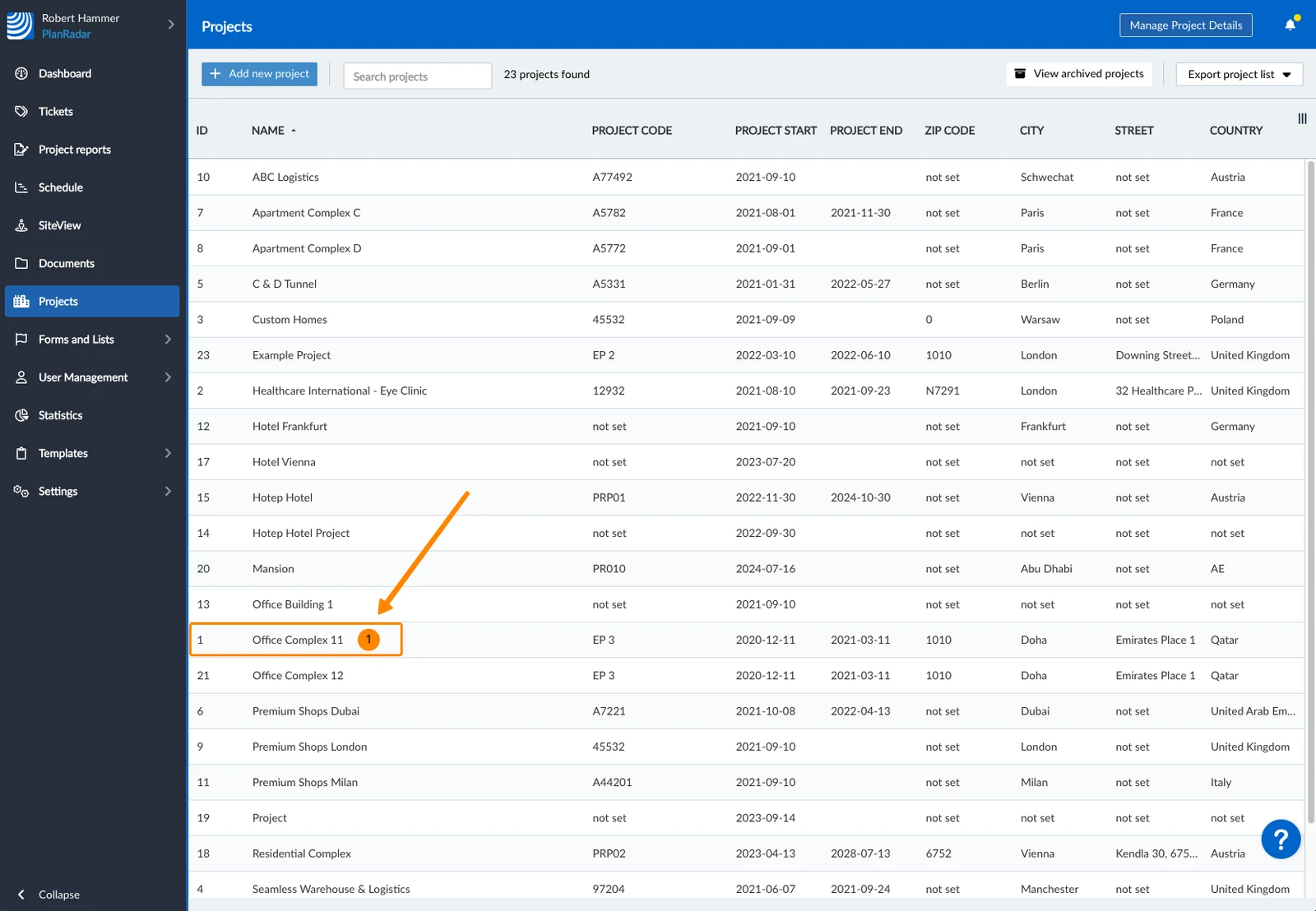
- Select the project
- Click + Add new field
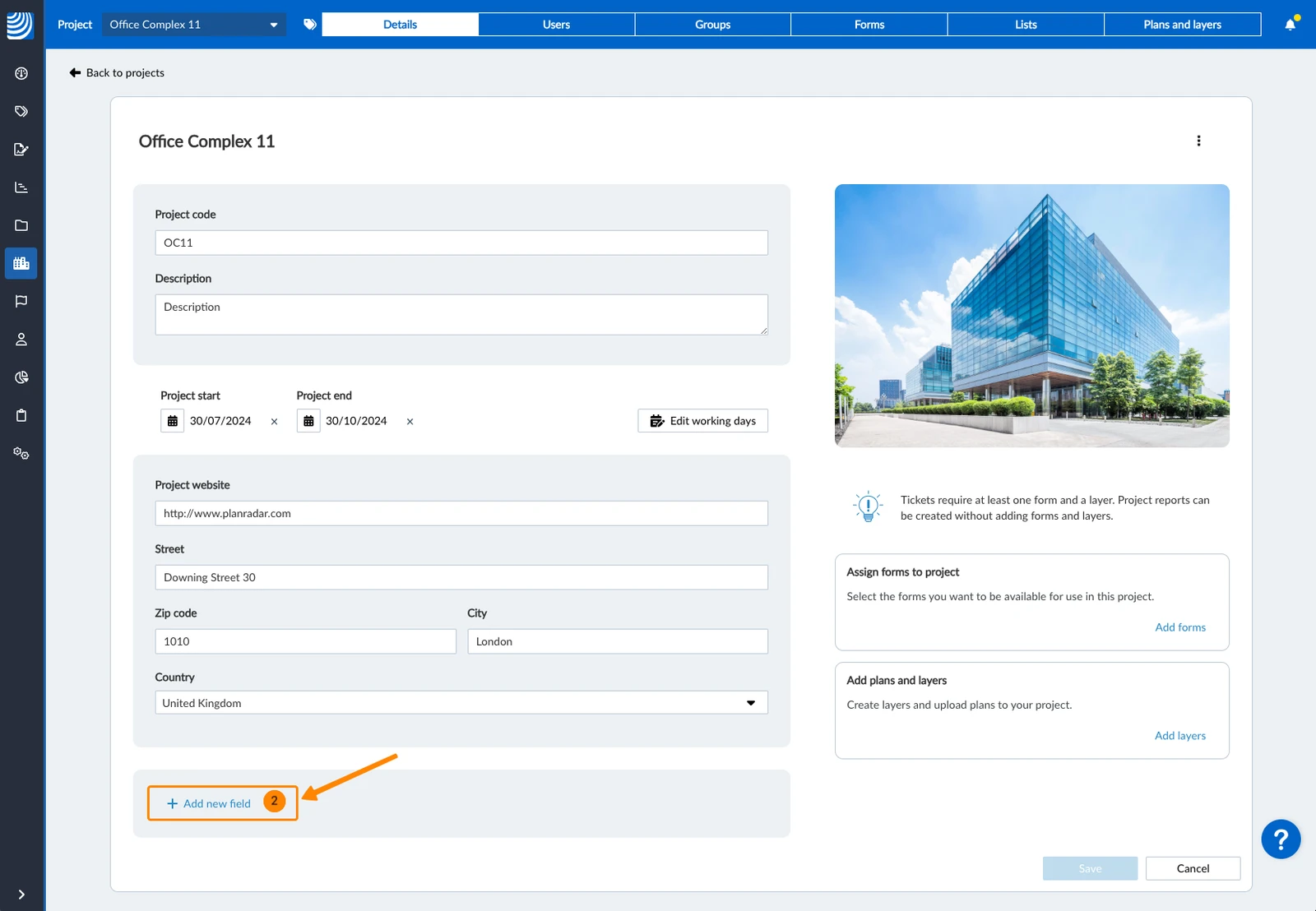
- Enter a Field Name
- Select a Data Type
- Click Create field
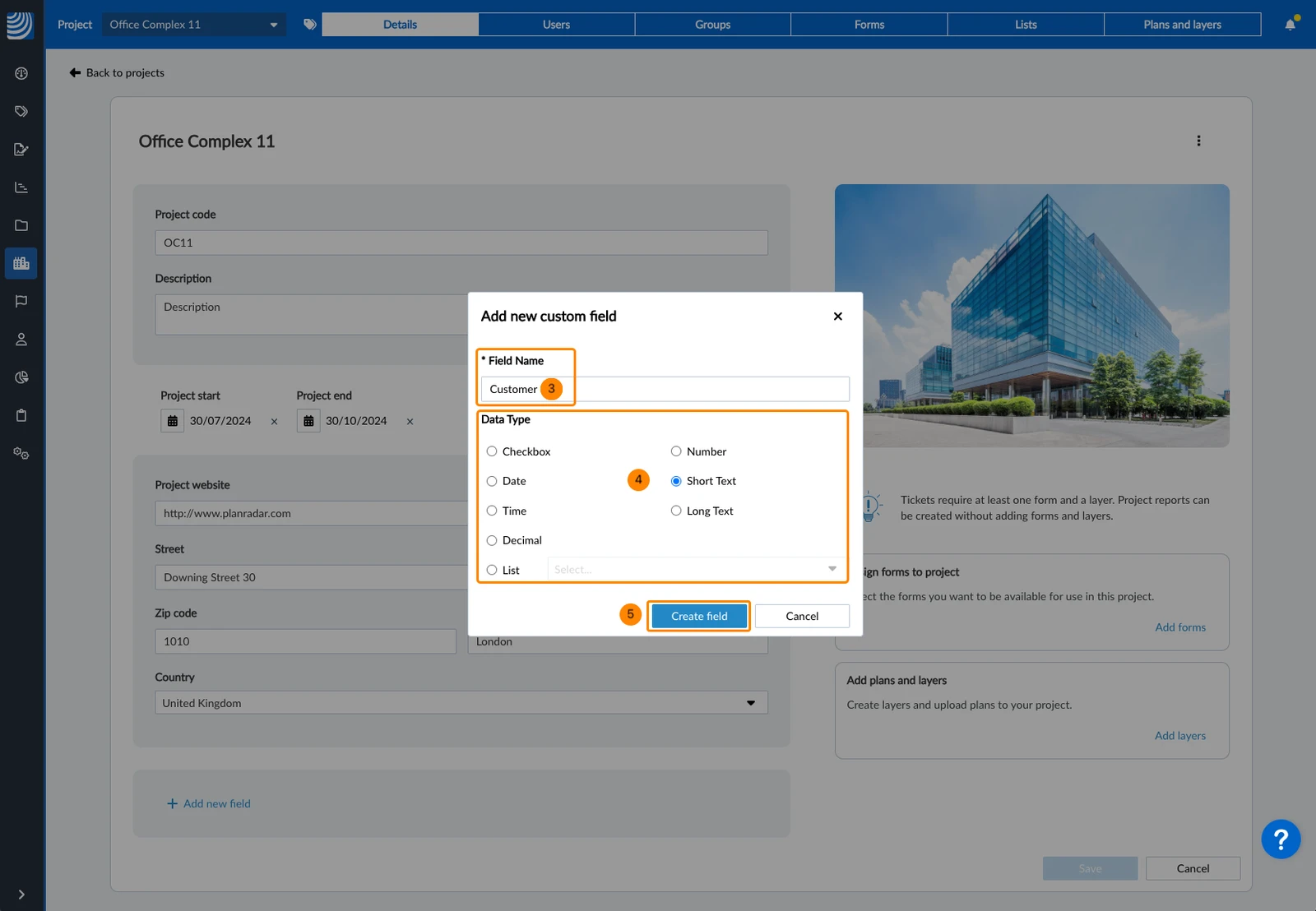
- Repeat steps 2, 3, 4 and 5 to add more fields
- Select the project
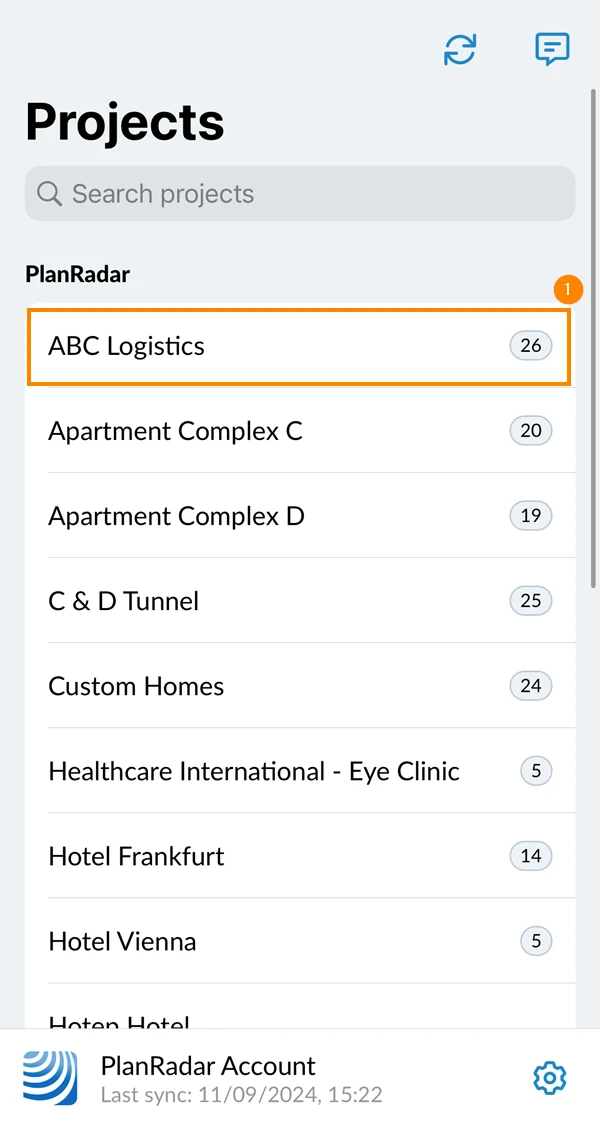
- Tap Project Details
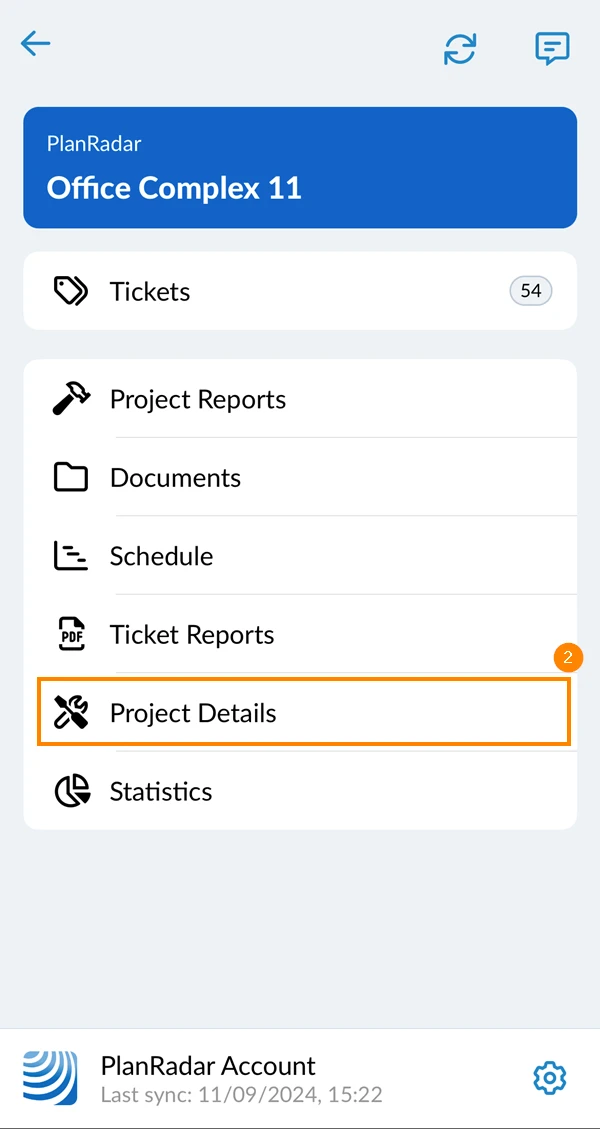
- Scroll down and tap Edit details
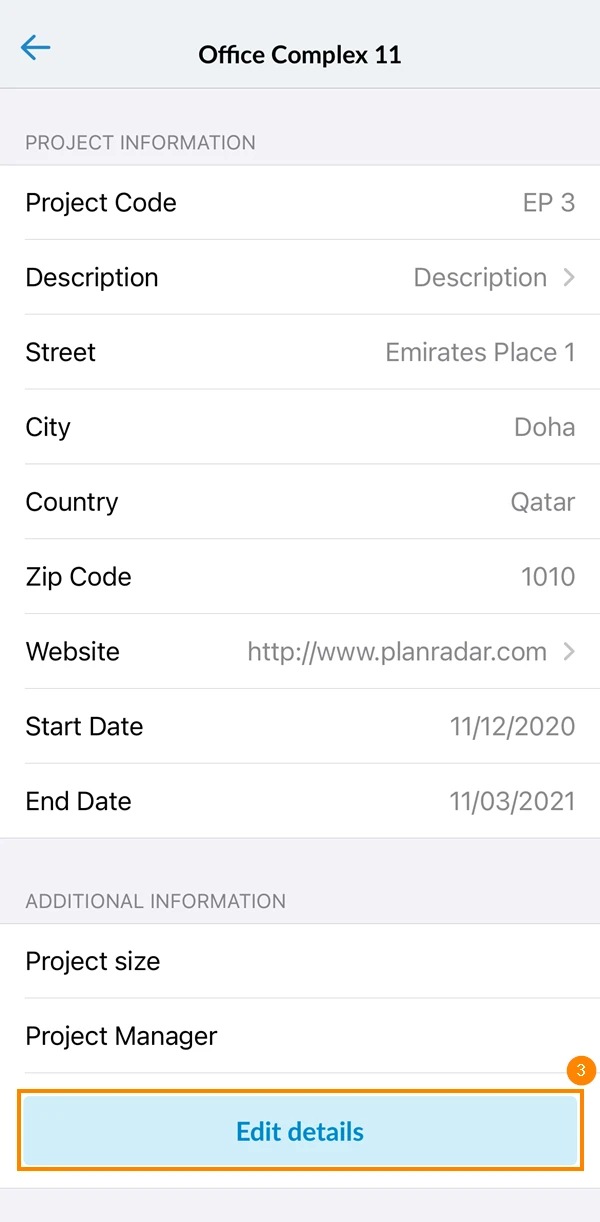
- Scroll down and tap Add custom field
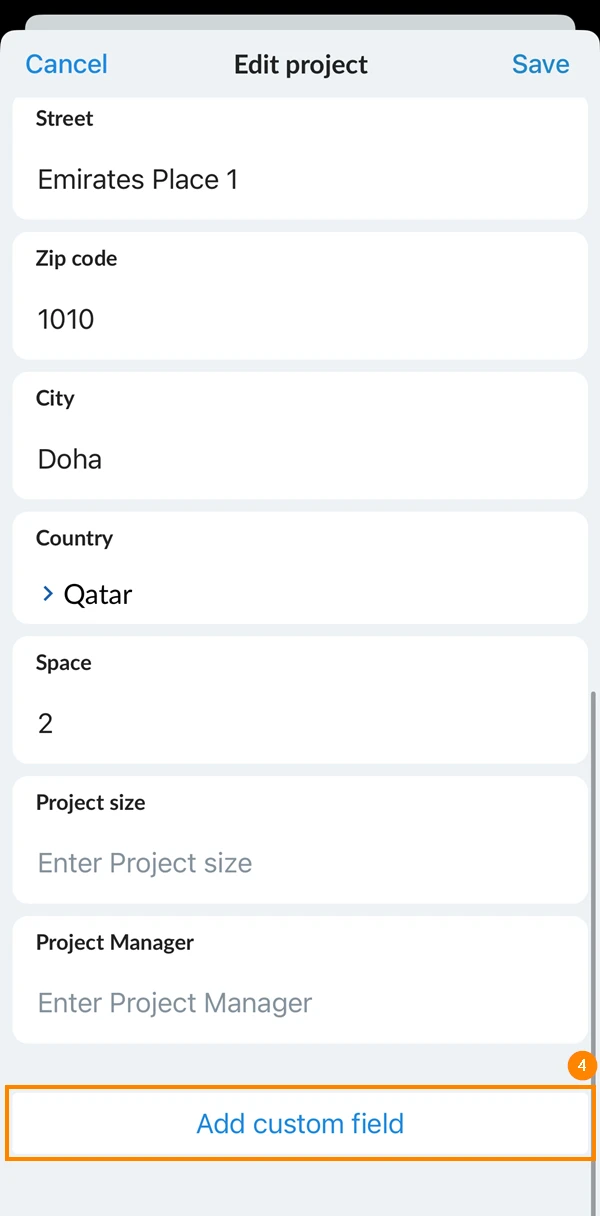
- Enter the detail name
- Select the detail's data type (short text, long text, number, list, etc.)
- Tap Add to project
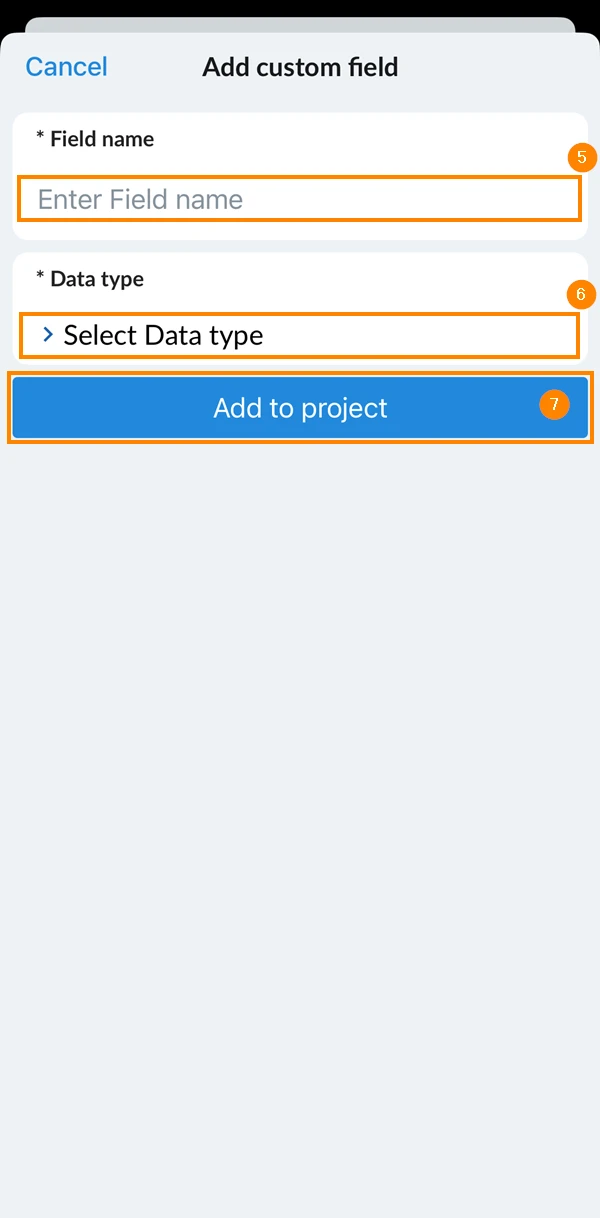
- Repeat steps 4, 5, 6, and 7 to add more custom details to your project
- Tap Save
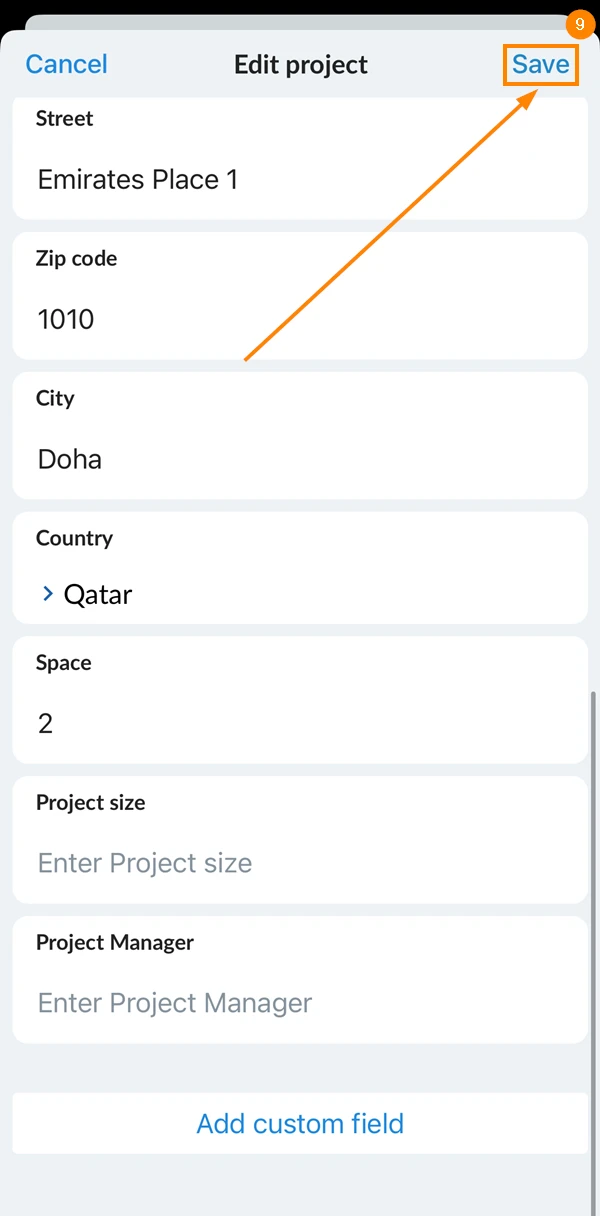
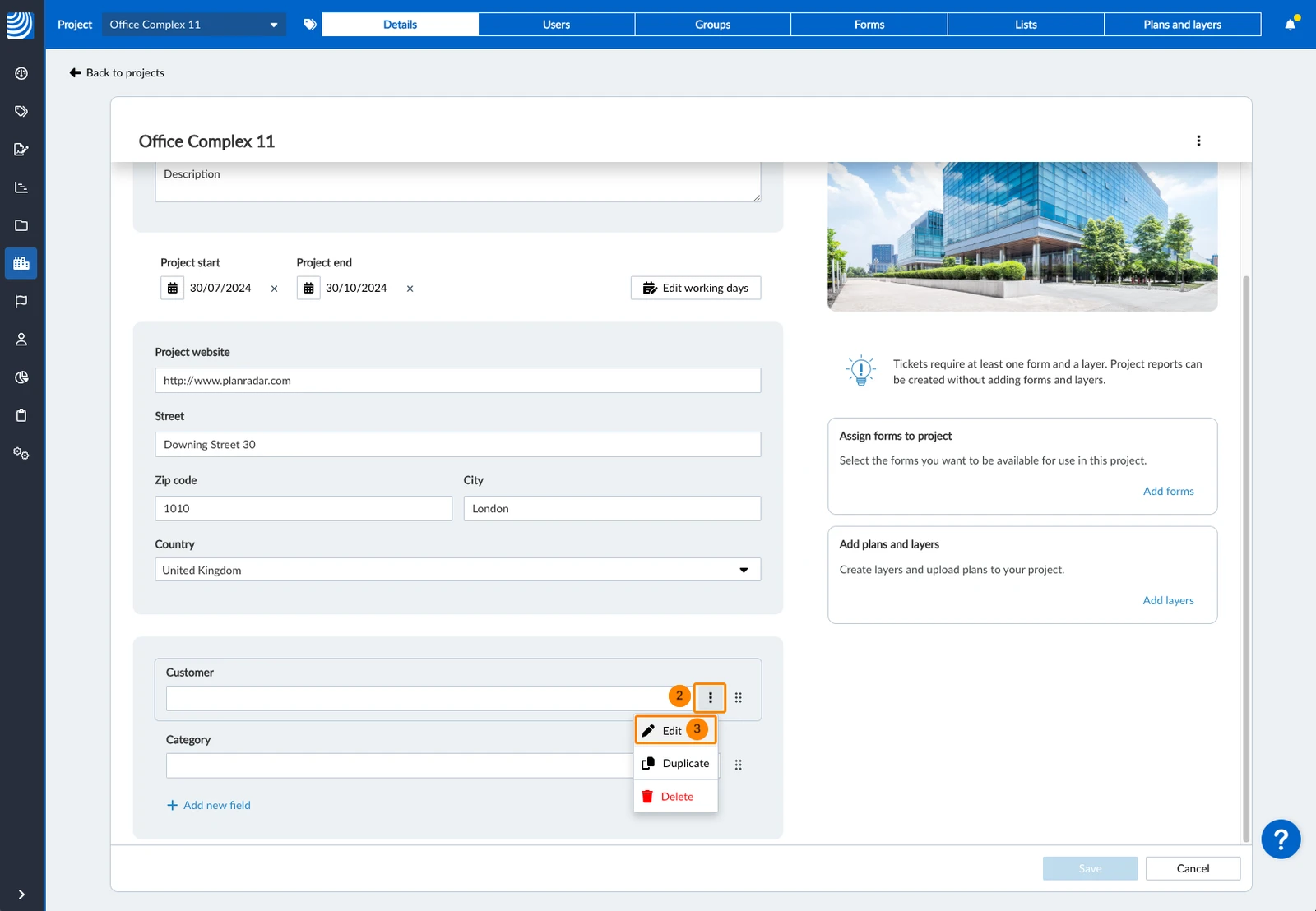
Edit Custom Detail Fields of a Project
- Select the project
- Hover over the custom field and open the more menu
- Click Edit
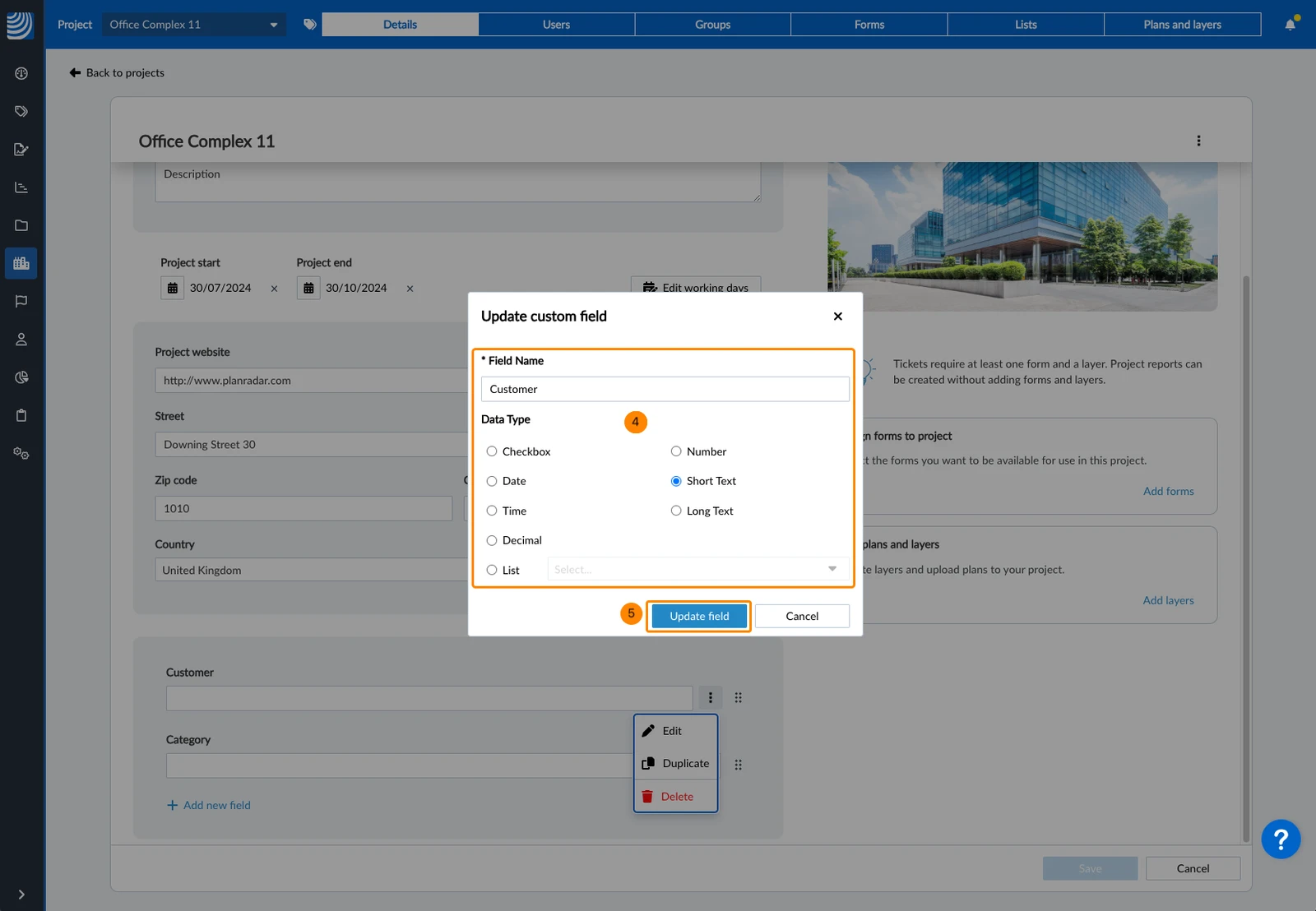
- Make your changes
- Click Update field
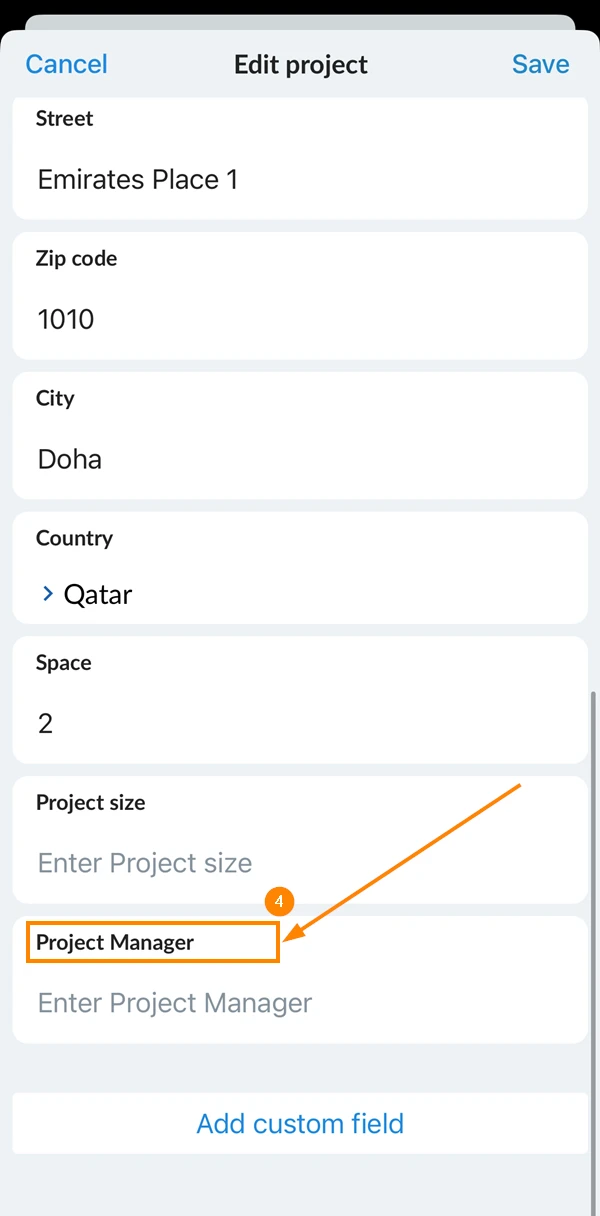
- Select the project
- Tap Project Details
- Scroll down and tap Edit details
- Scroll down and tap the name of the custom detail you want to edit
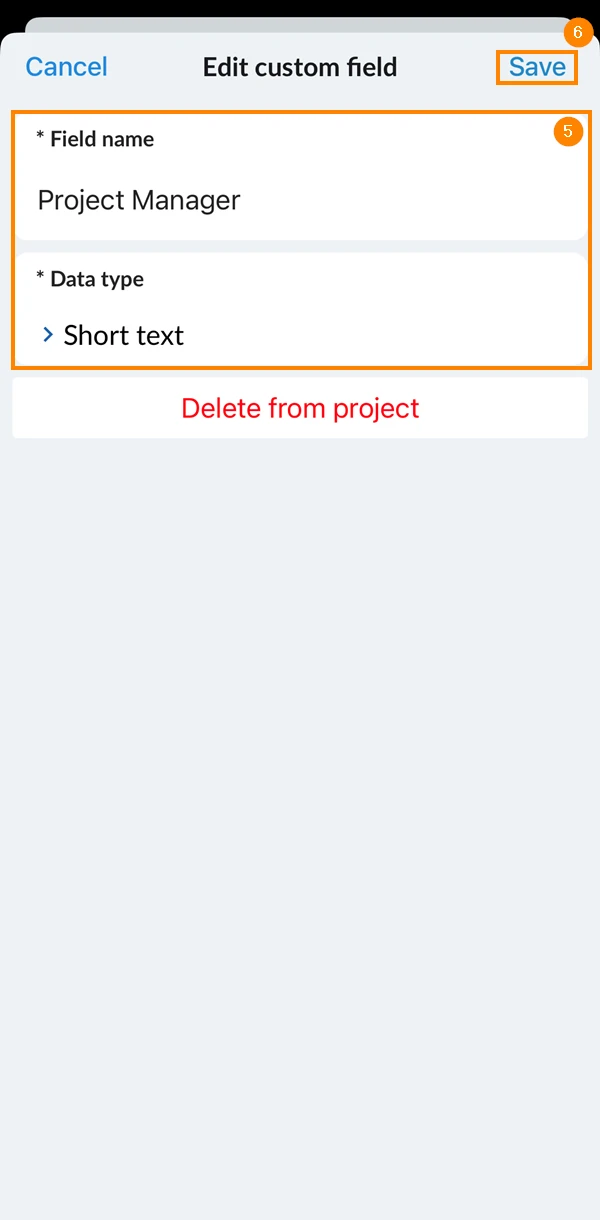
- You can modify the detail's name and data type
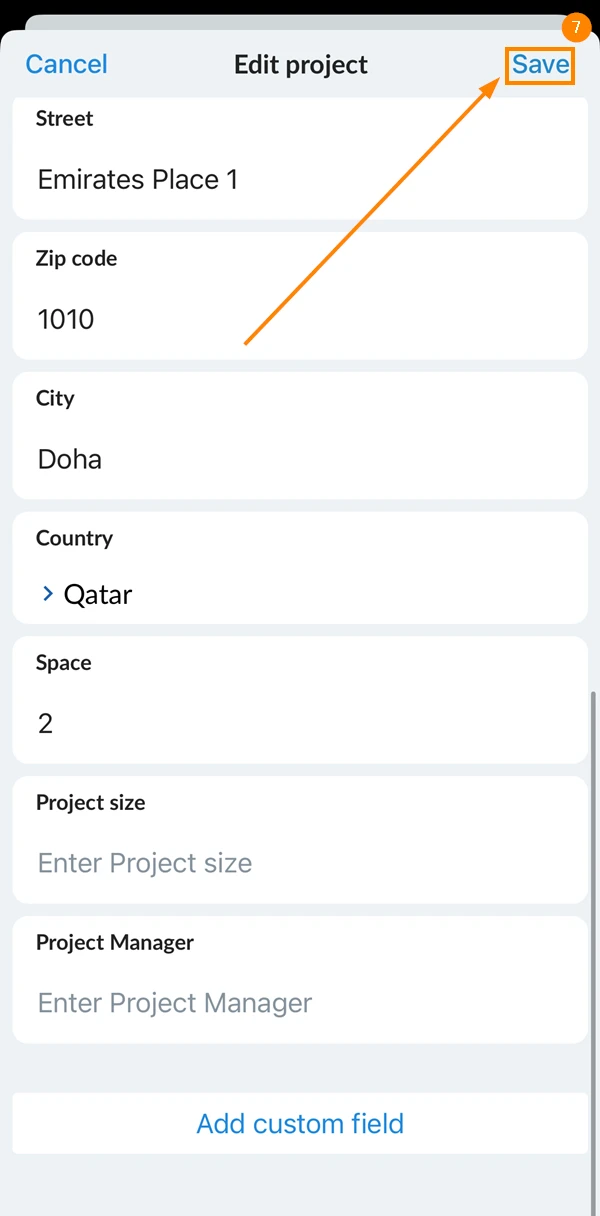
- Tap Save
- Tap Save
Delete Custom Details of a Specific Project
- Select the project
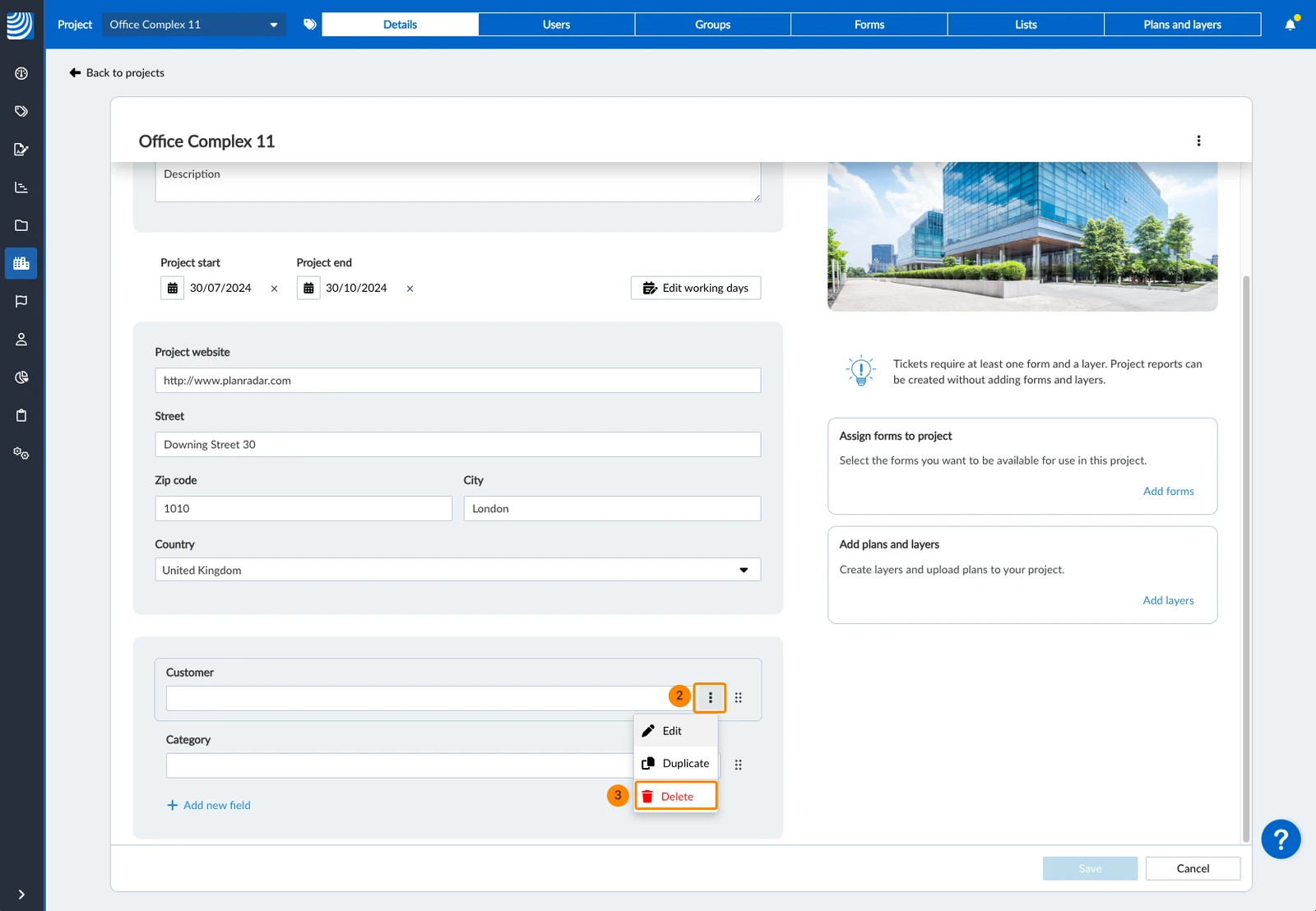
- Hover over the custom field and open the more menu
- Click the Delete icon
- Select the project
- Tap Project Details
- Scroll down and tap Edit details
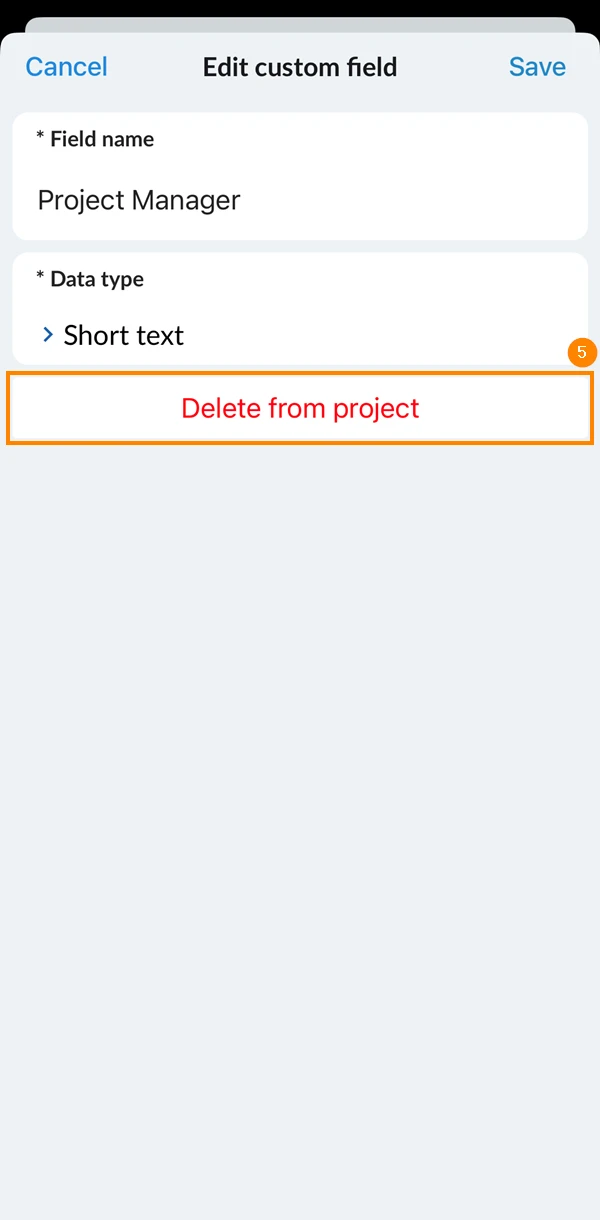
- Scroll down and tap the name of the custom detail you want to delete
- Tap Delete from project
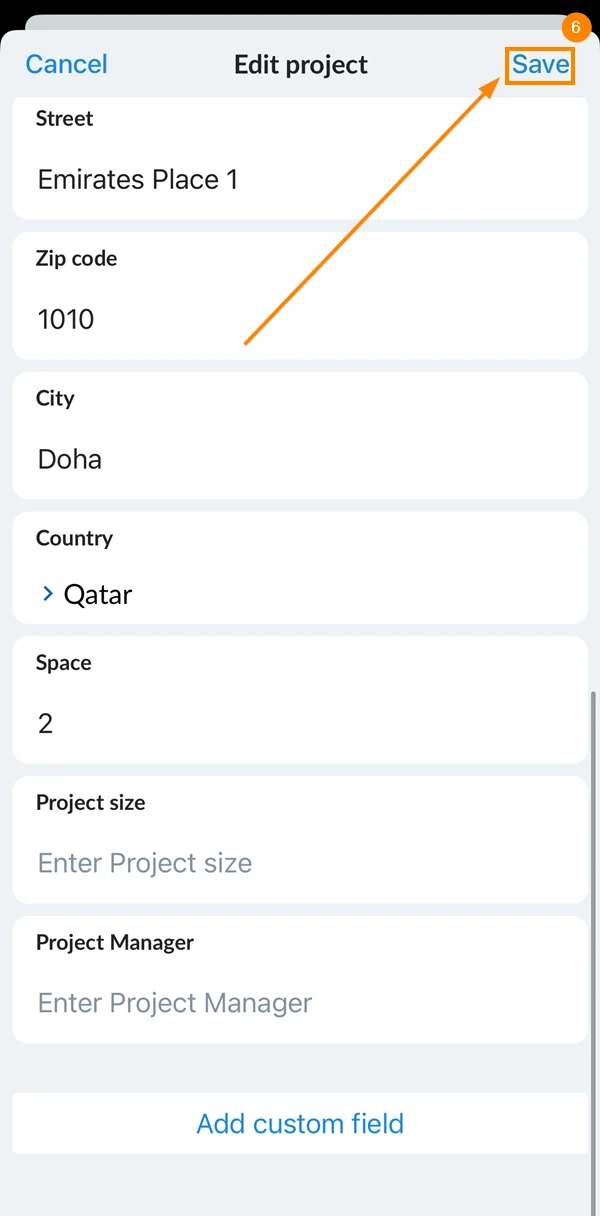
- Tap Save
Duplicate Custom Detail Fields of a Project
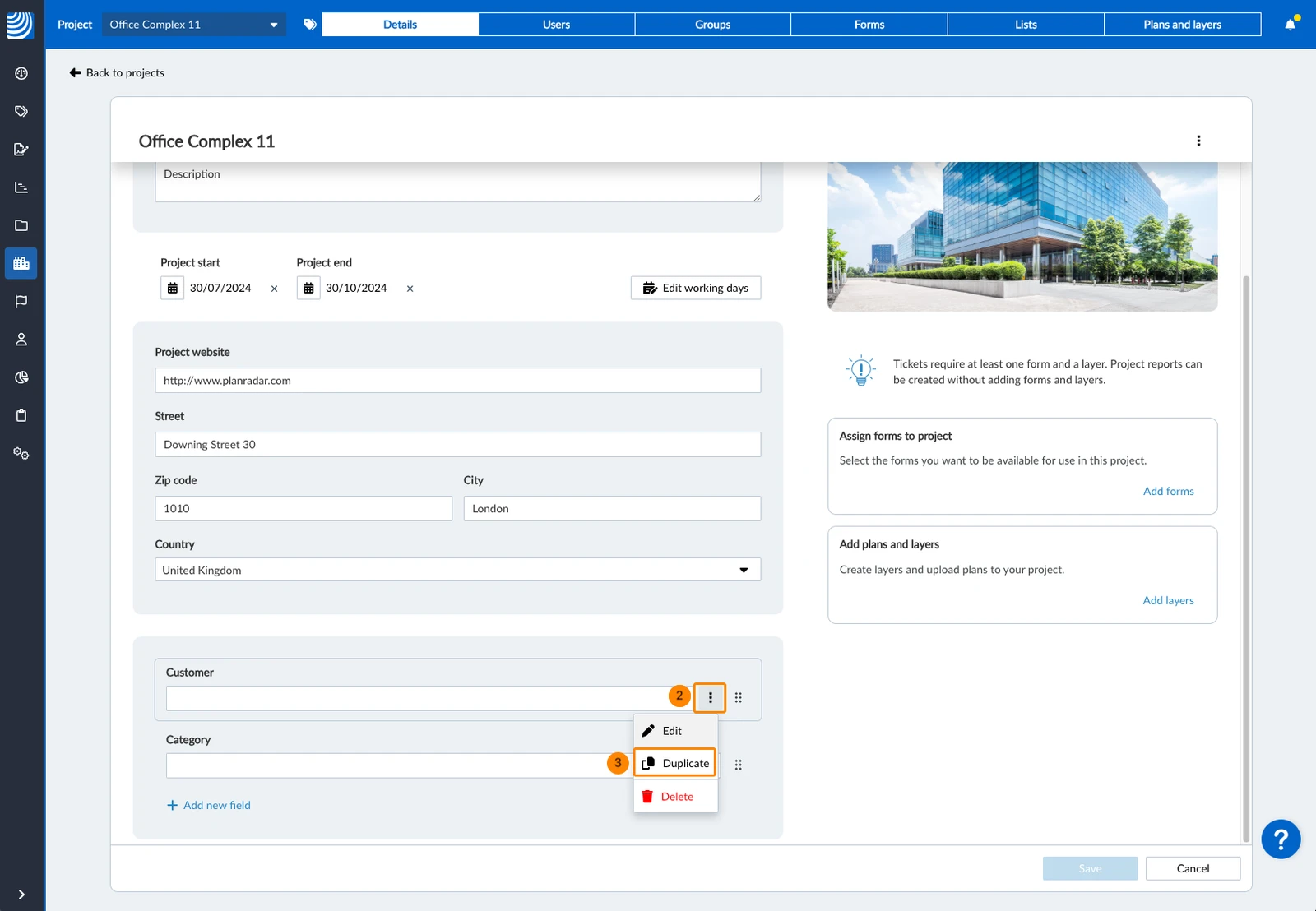
To duplicate a custom detail field of a project (only available in the Webapp):
- Select the project
- Hover over the custom field and open the more menu
- Click Duplicate

Rearrange Custom Details of a Project
The default project detail fields are always listed first and cannot be rearranged. The global custom project detail fields are next in order.
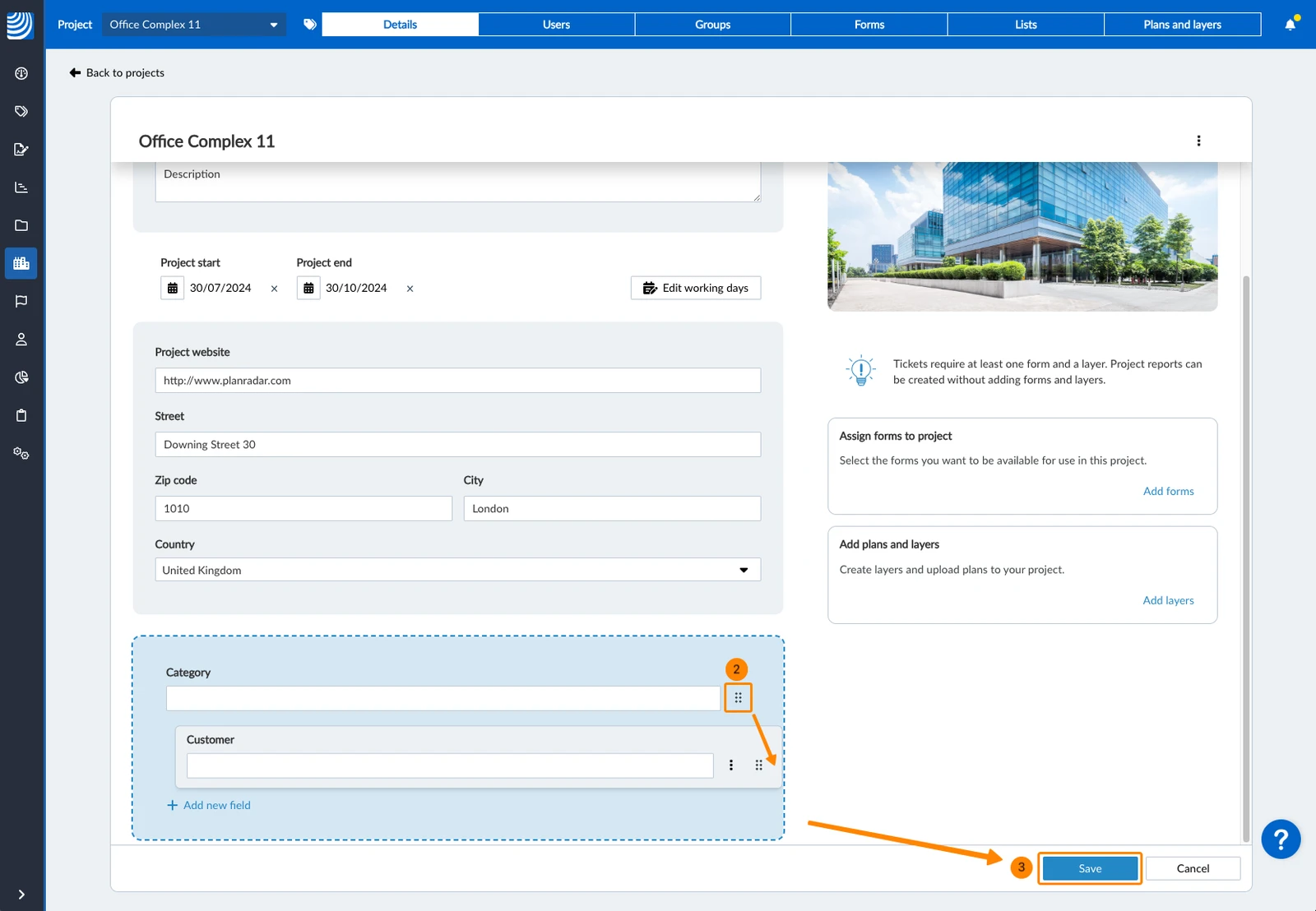
To change the order of custom detail fields of a specific project (only available in the Webapp):
- Select the project
- Click and hold the order icon next to the field you want to rearrange, drag and drop it where you want to move it
- Click Save
Updated May 11, 2026