

 Deutsch
 Español
 Français
 Hrvatski
 Italiano
 Polski
 Português (BR)
Manage Groups of a Project
Overview
Add groups to your projects, remove them, or change their role in the project.
Access & Permissions
How to access Groups
- Click Projects
- Select the project whose groups you want to manage
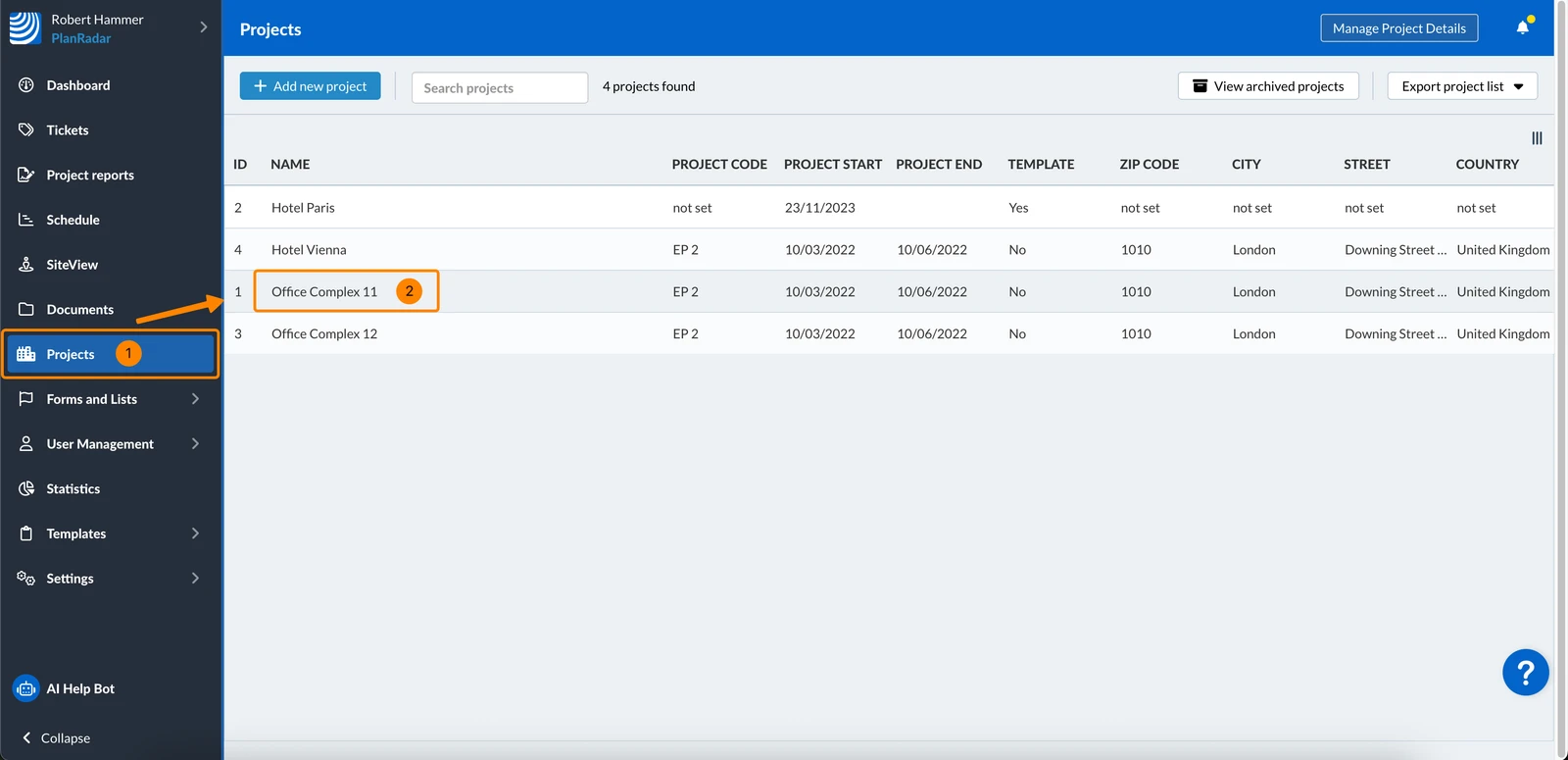
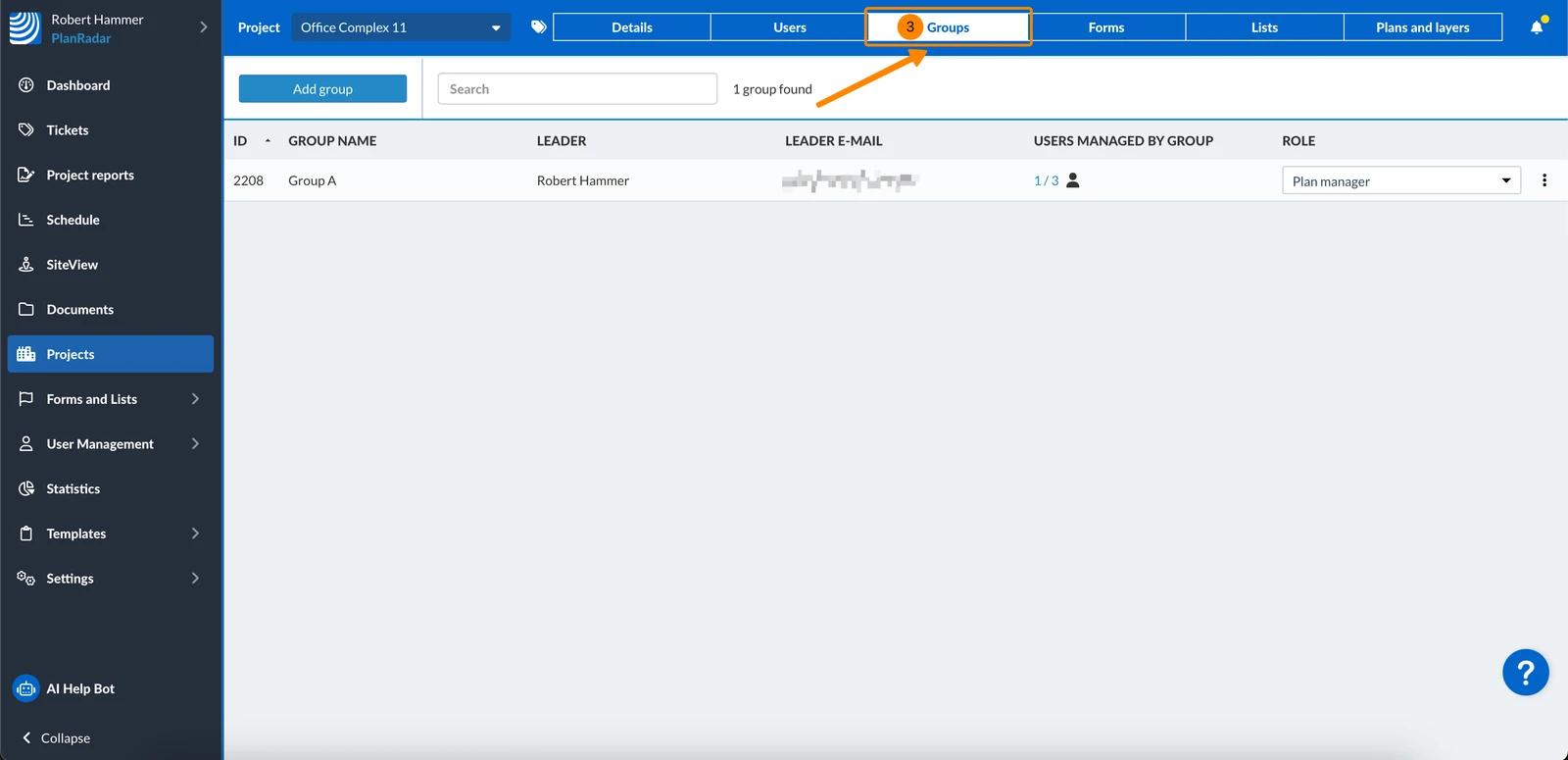
- Click Groups
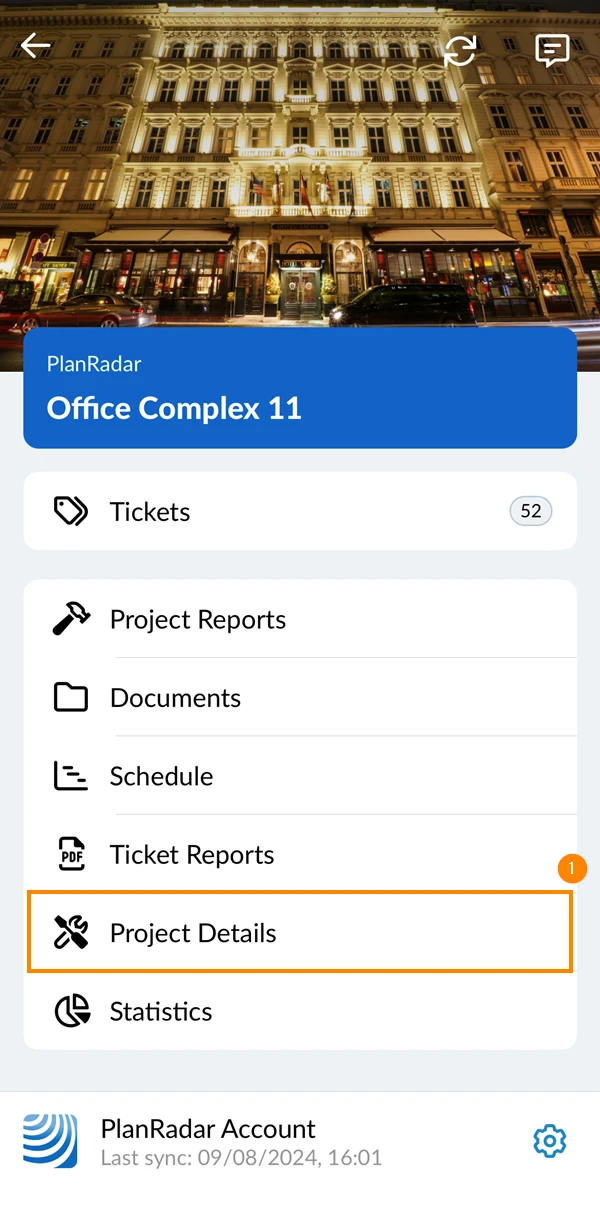
- Tap Project details
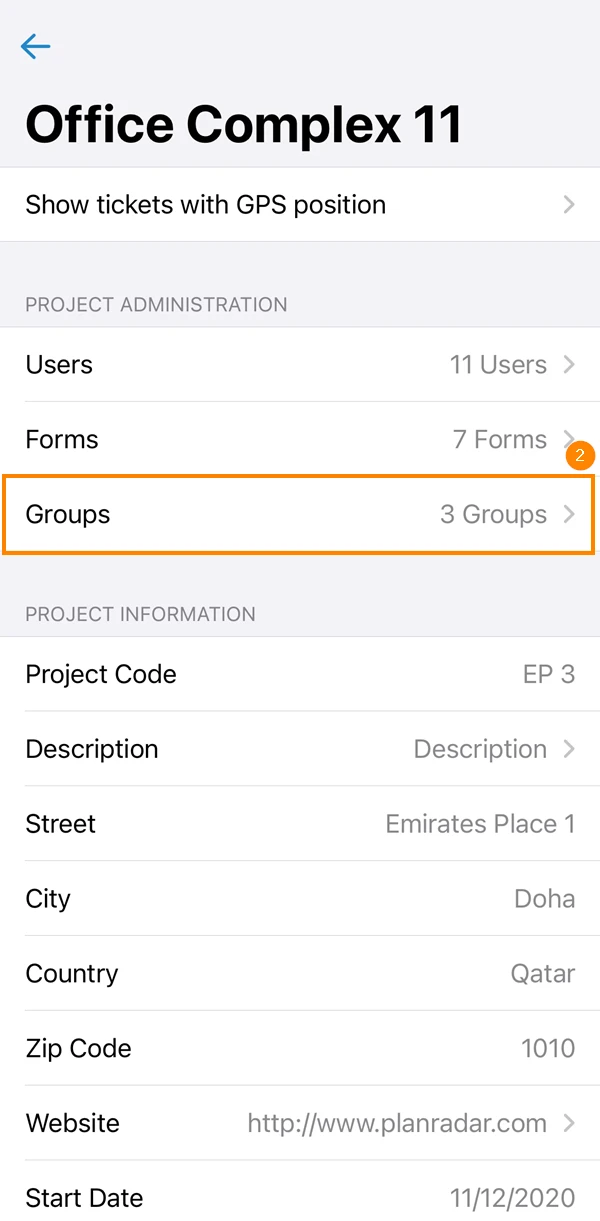
- Tap Groups
Add Group to Project
For groups to be added to projects, they must already be created in your account as explained in Create & Manage Groups.
When a group is assigned to a project, any group member who is not yet in the project is added automatically.
To add a group to a project:
-
Click Add group
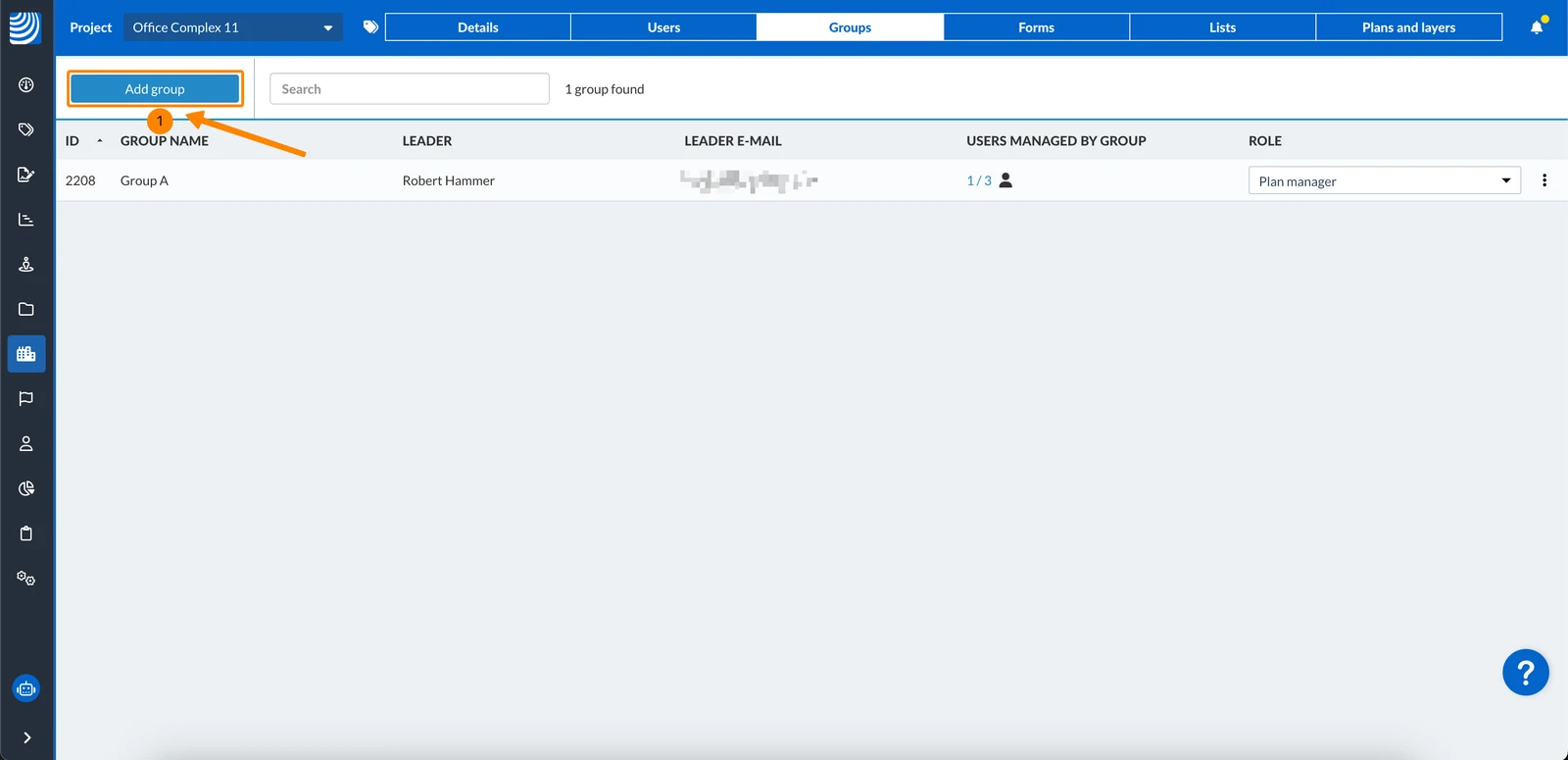
-
Select the checkbox(es) of the group(s) you want to add to the project
-
Click Next
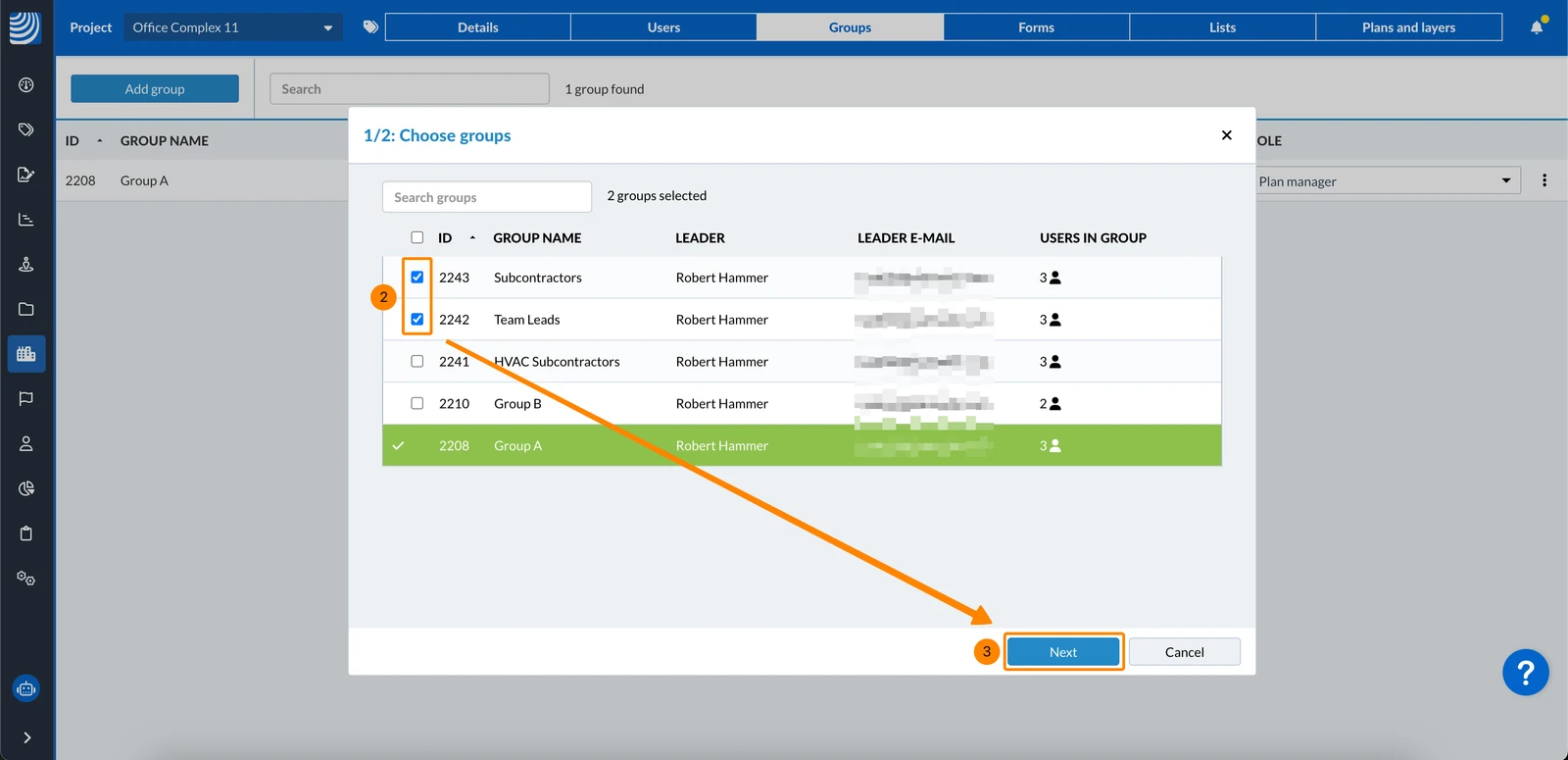
-
Select a role for the group(s). Also see Create & Manage Roles.
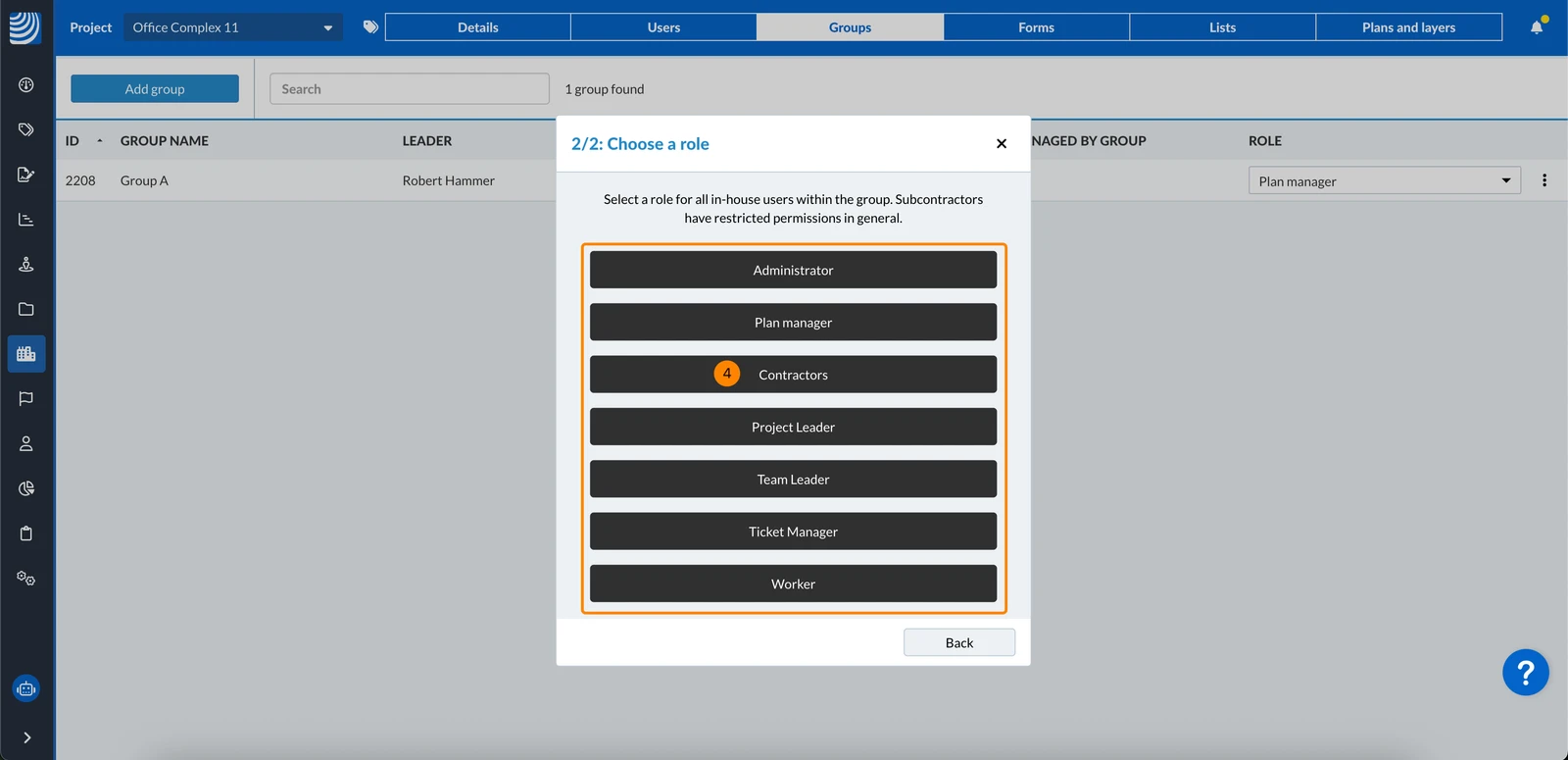
-
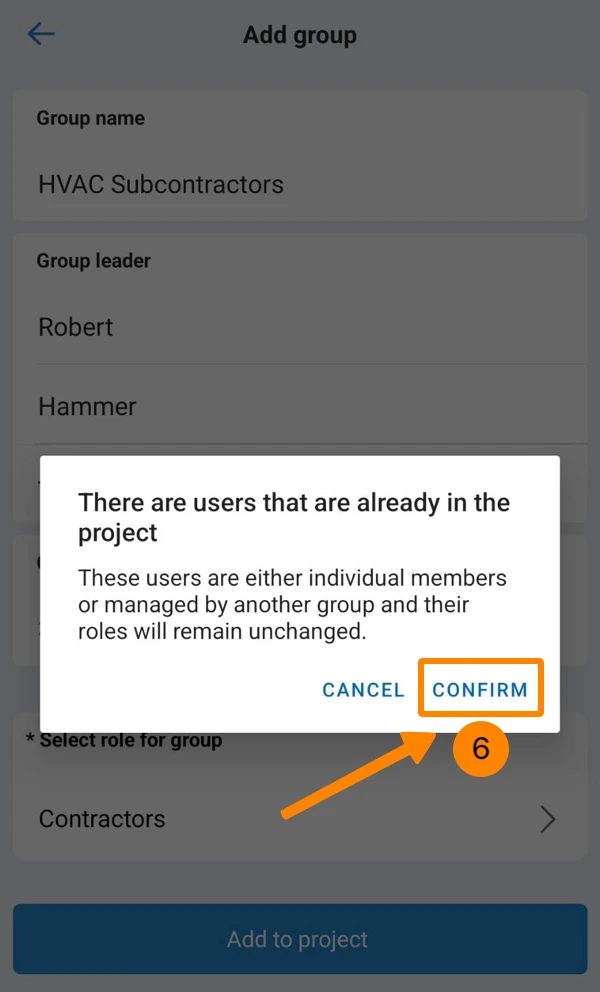
Click Confirm if there are users in the group(s) that are already in the project.
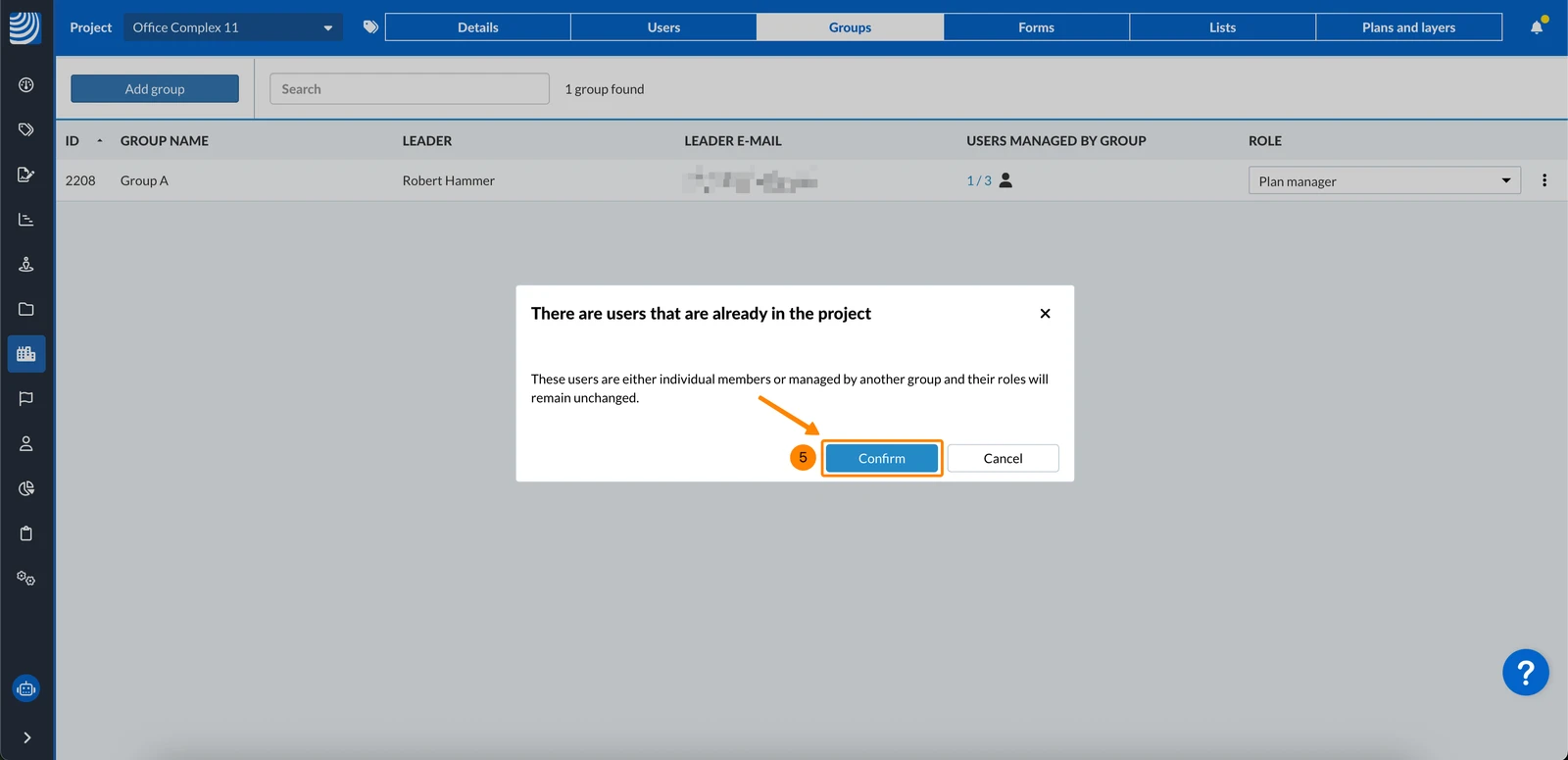
- Tap the + sign in the right top corner
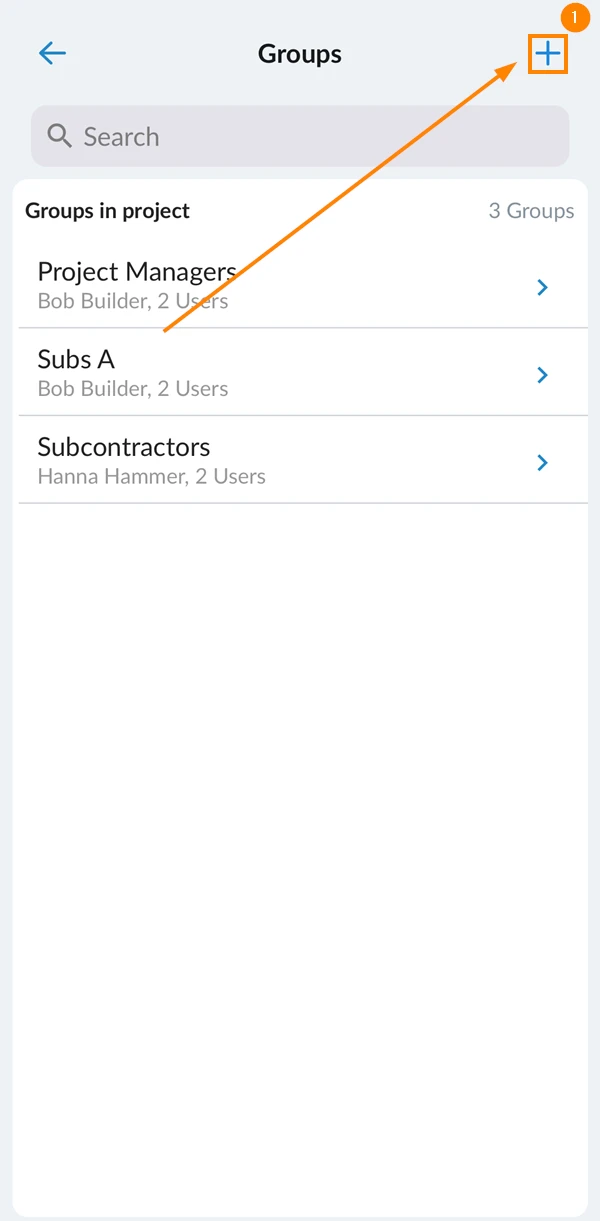
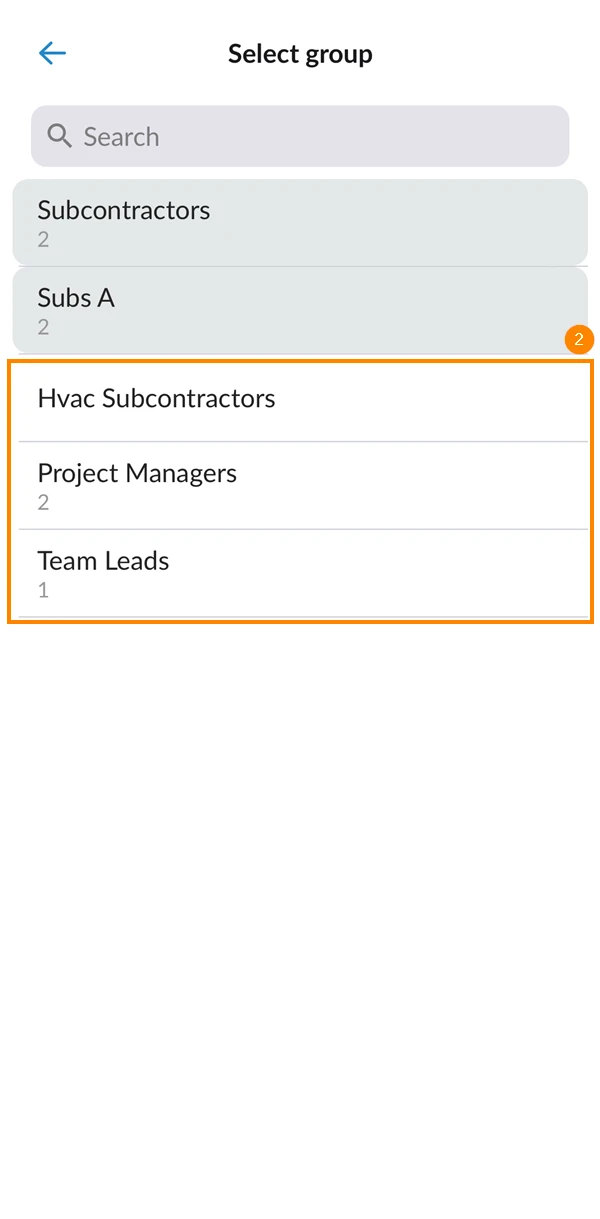
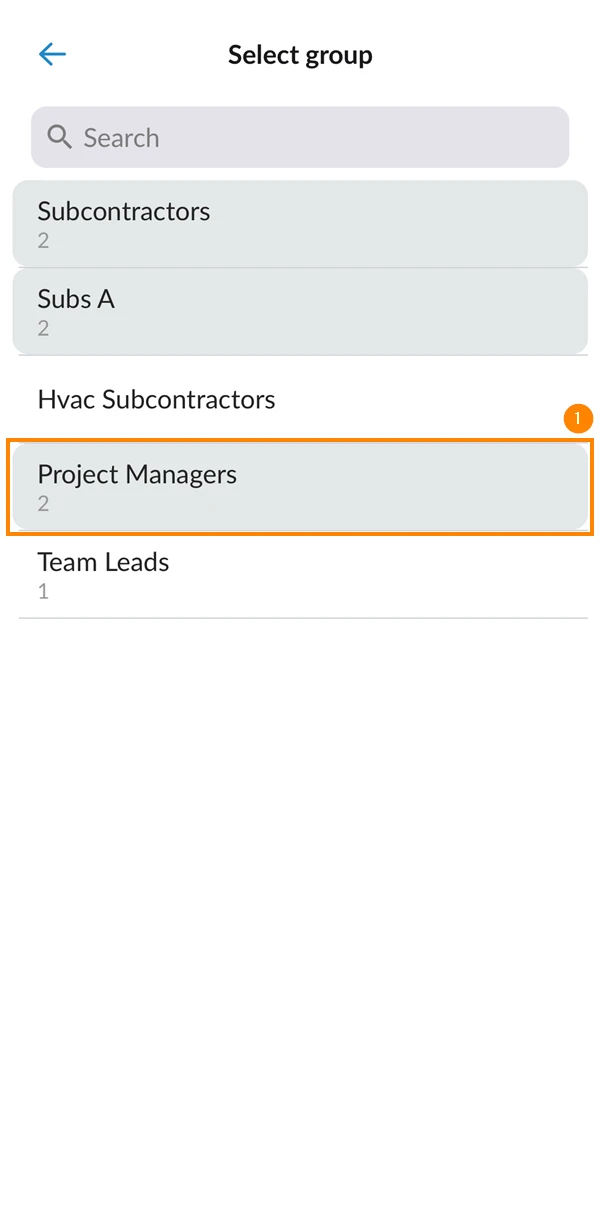
- Select the group you want to add to the project
You can add only one group at a time.
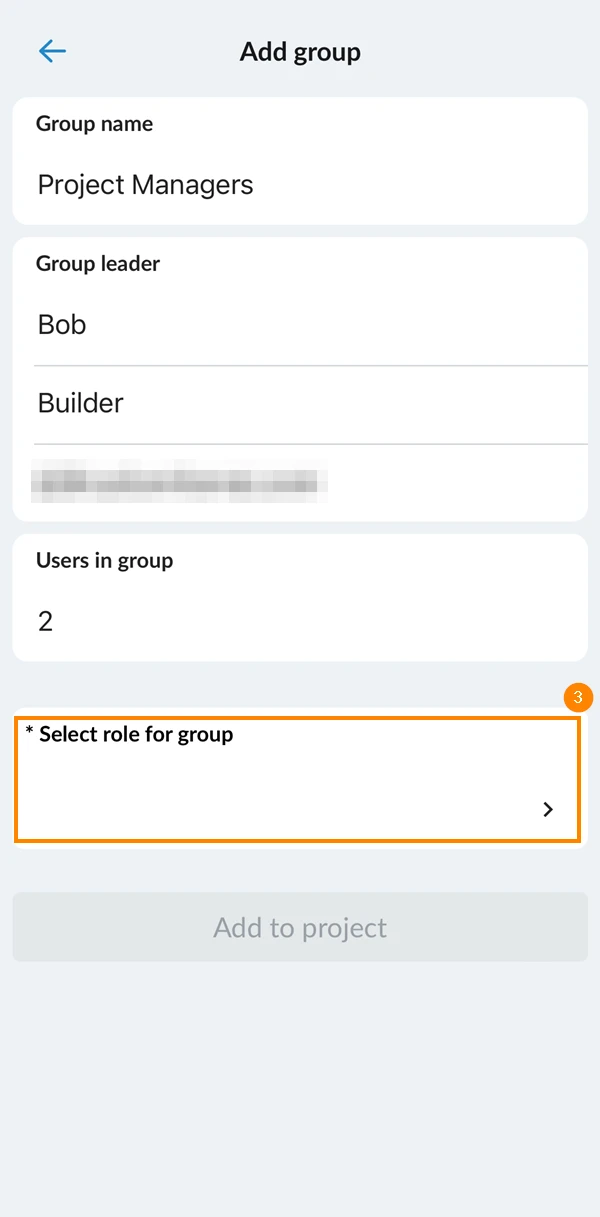
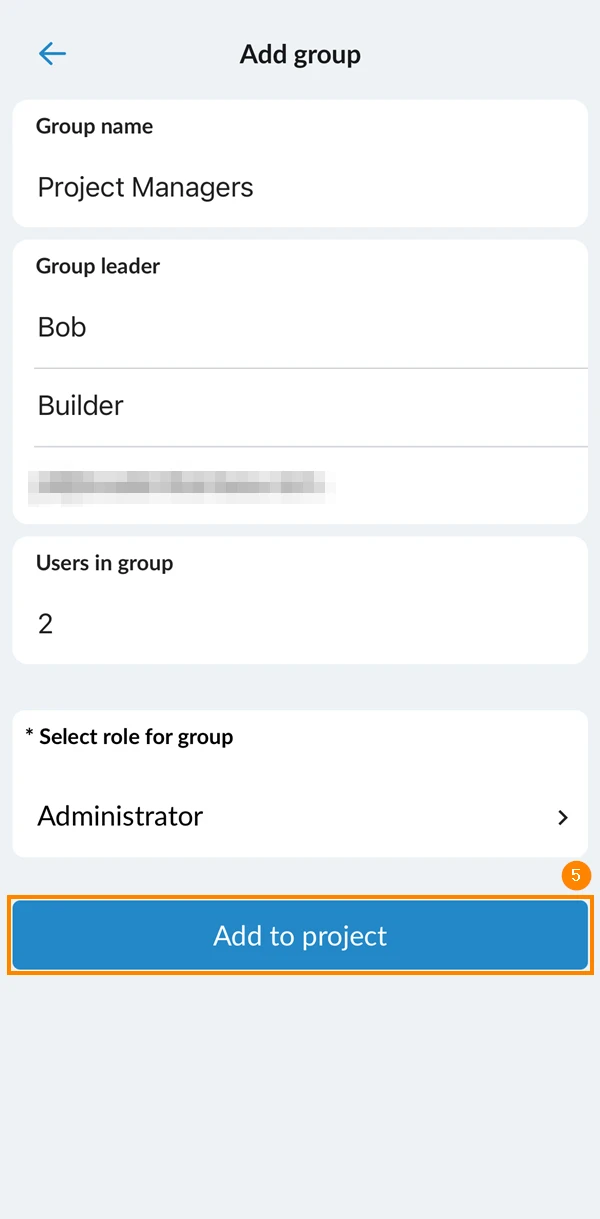
- Tap Select role for group
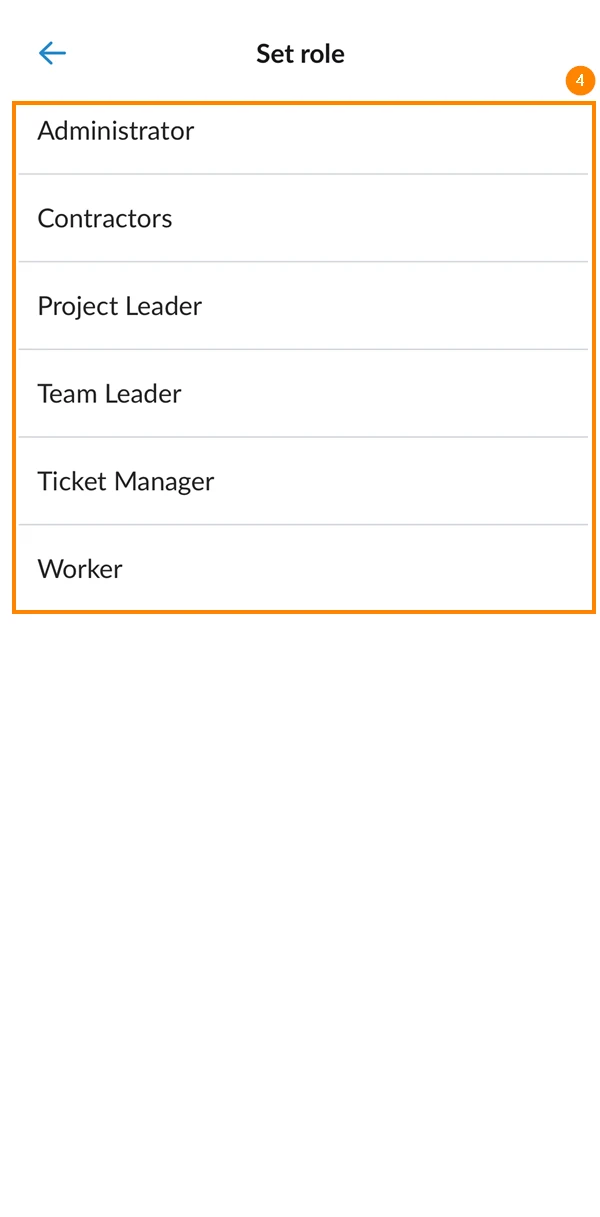
- Select a role for the group
- Tap Add to project
- Optional: Tap Confirm if there are users that are already in the project and that their roles will remain unchanged.
Change Group Role in Project
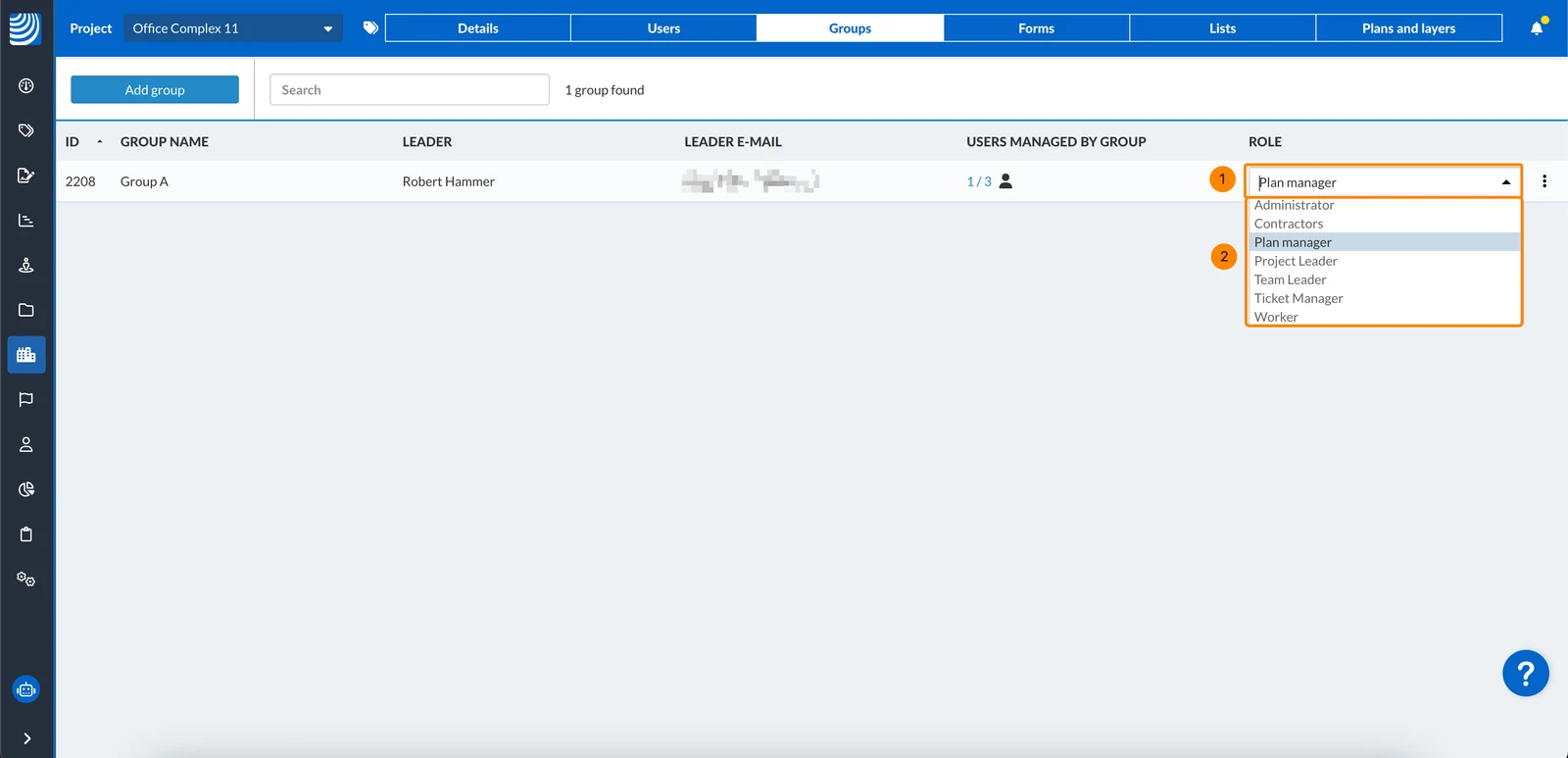
You can edit the role of a group in the project. To do so:
- Click the Role drop-down menu next to the group
- Select the new role
- Tap the group you want to edit
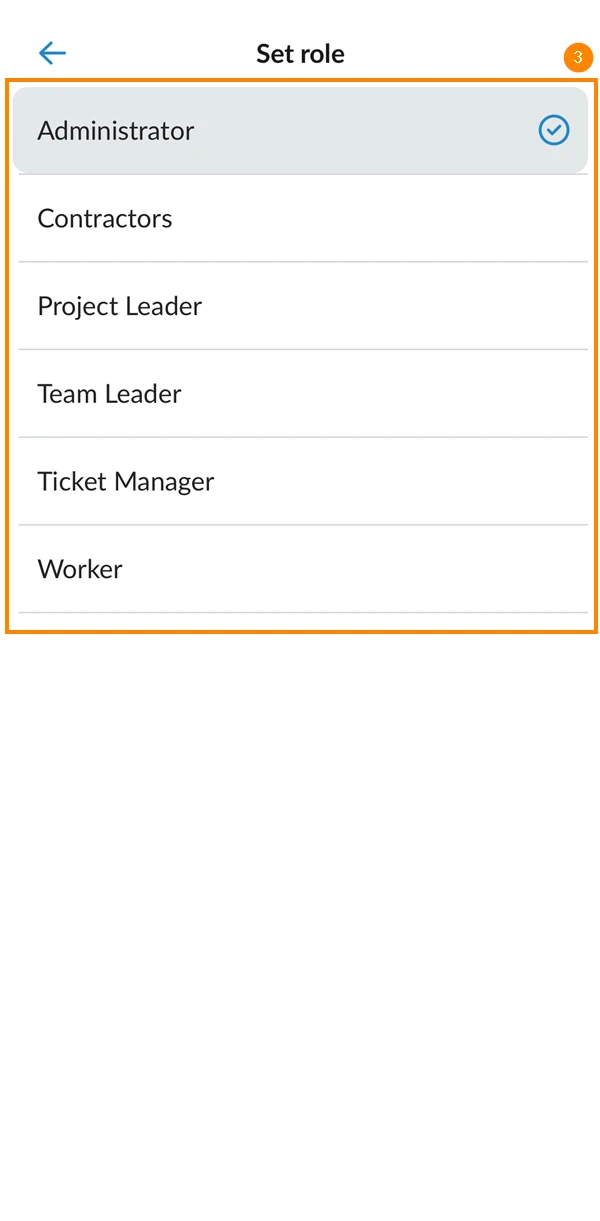
- Tap the group role
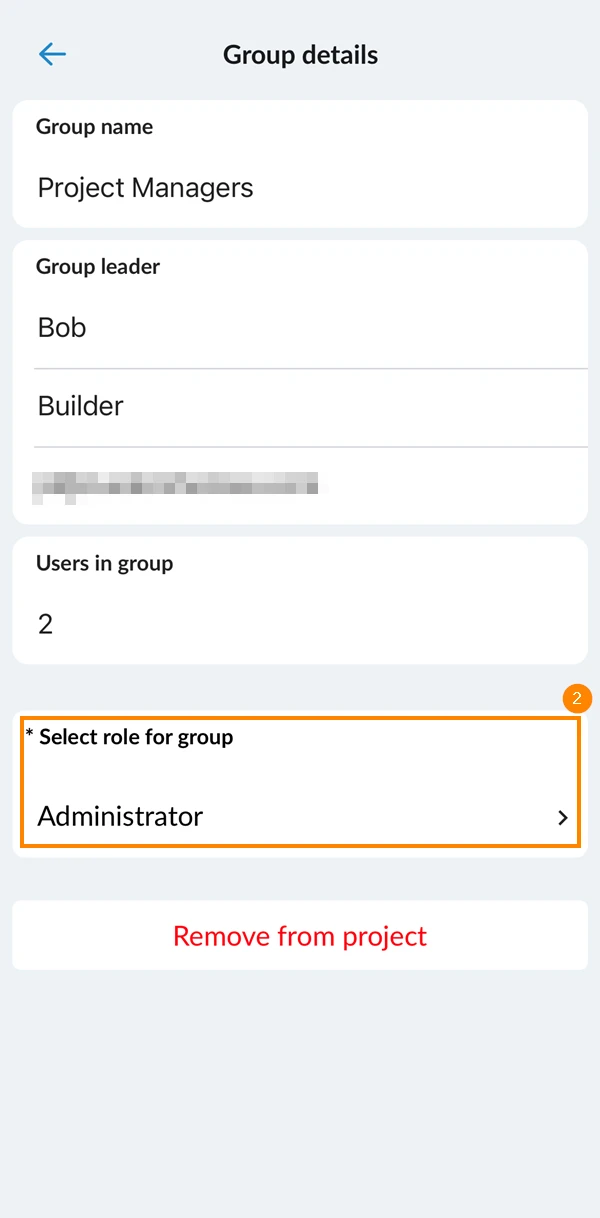
- Select a new role
Remove Group from Project
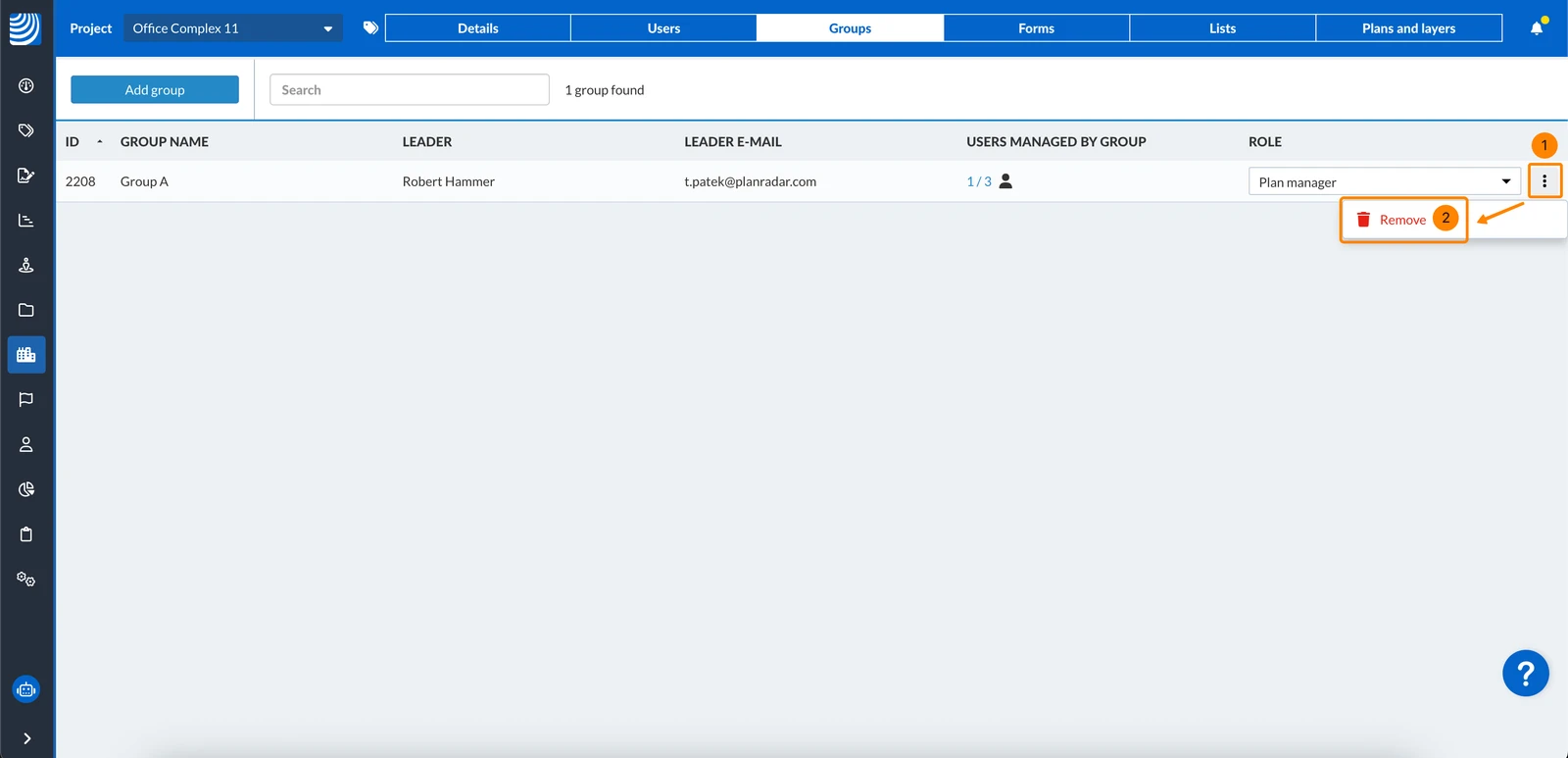
To remove a group from a project:
- Open the More menu
- Click Remove
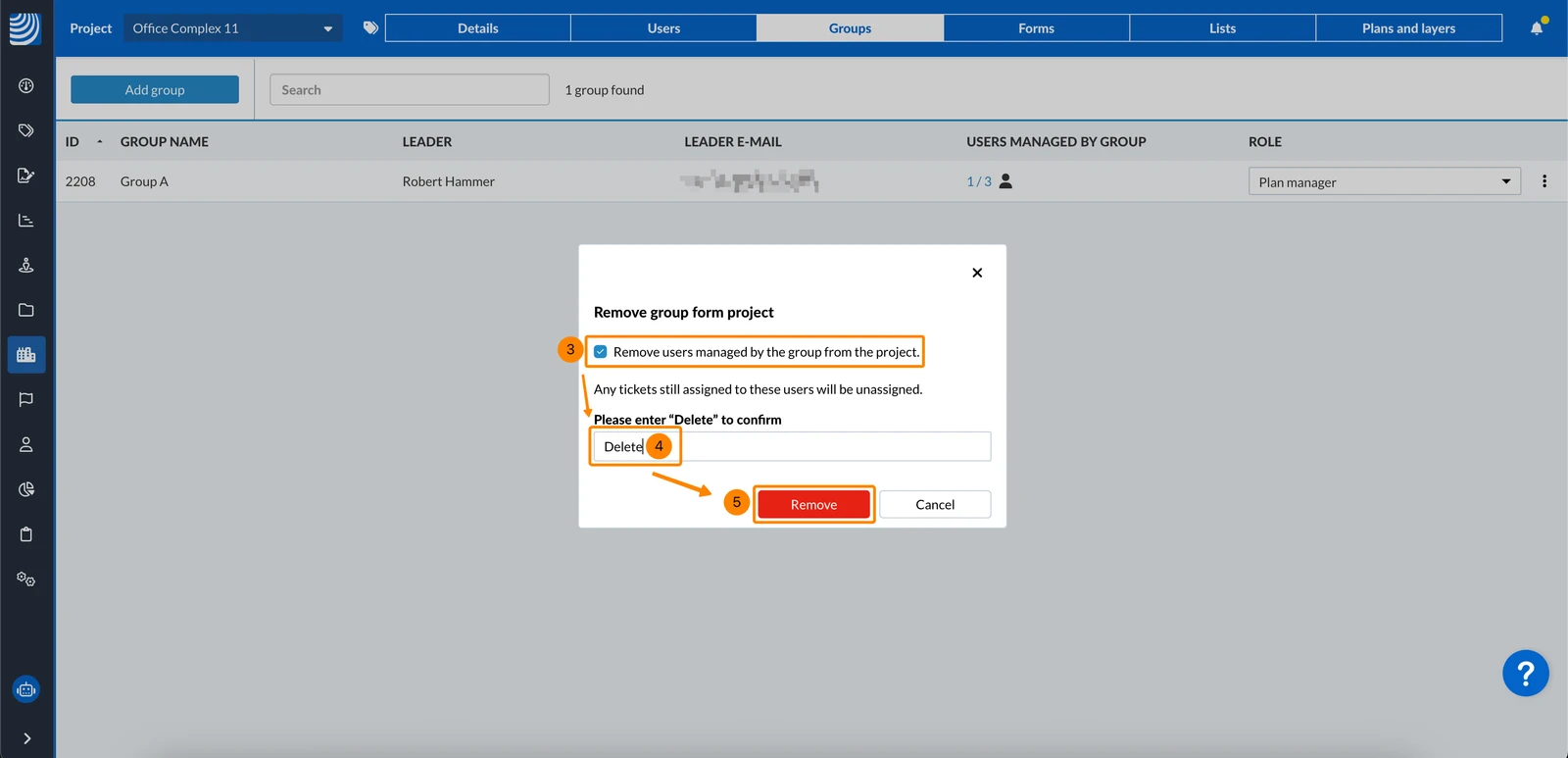
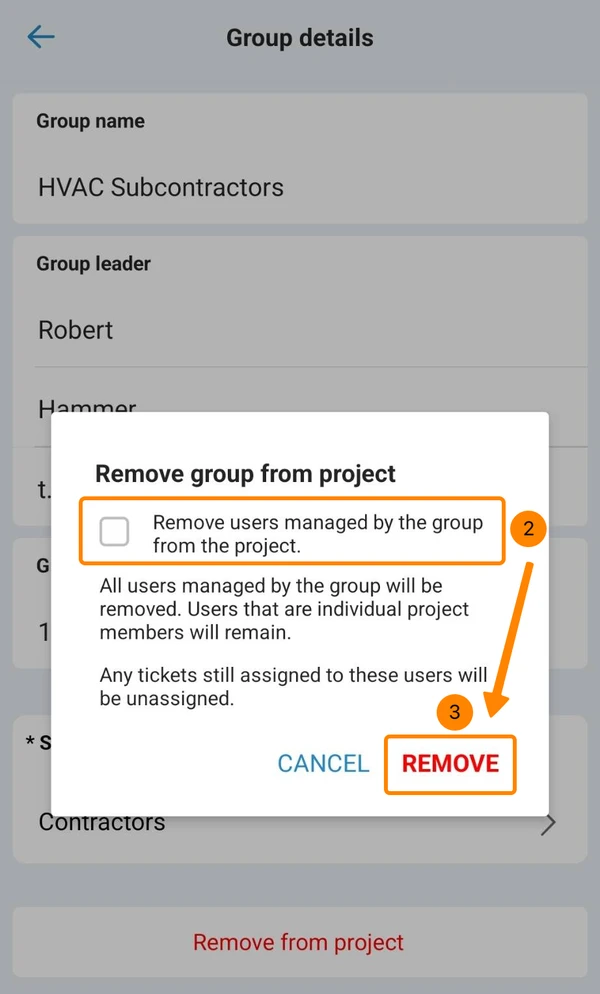
- Optional: Keep/clear the Remove users managed by the group from the project checkbox.
- Type 'Delete'
- Click Remove
- Tap Remove from Project
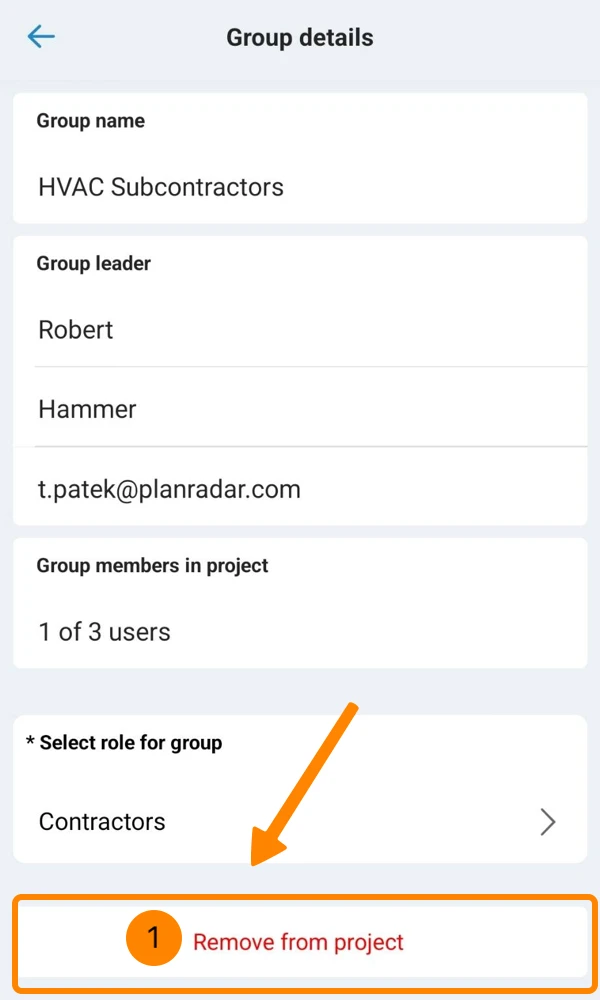
- Optional: Keep/clear the Remove users managed by the group from the project. checkbox
- Tap Remove to confirm
Users Managed by Group
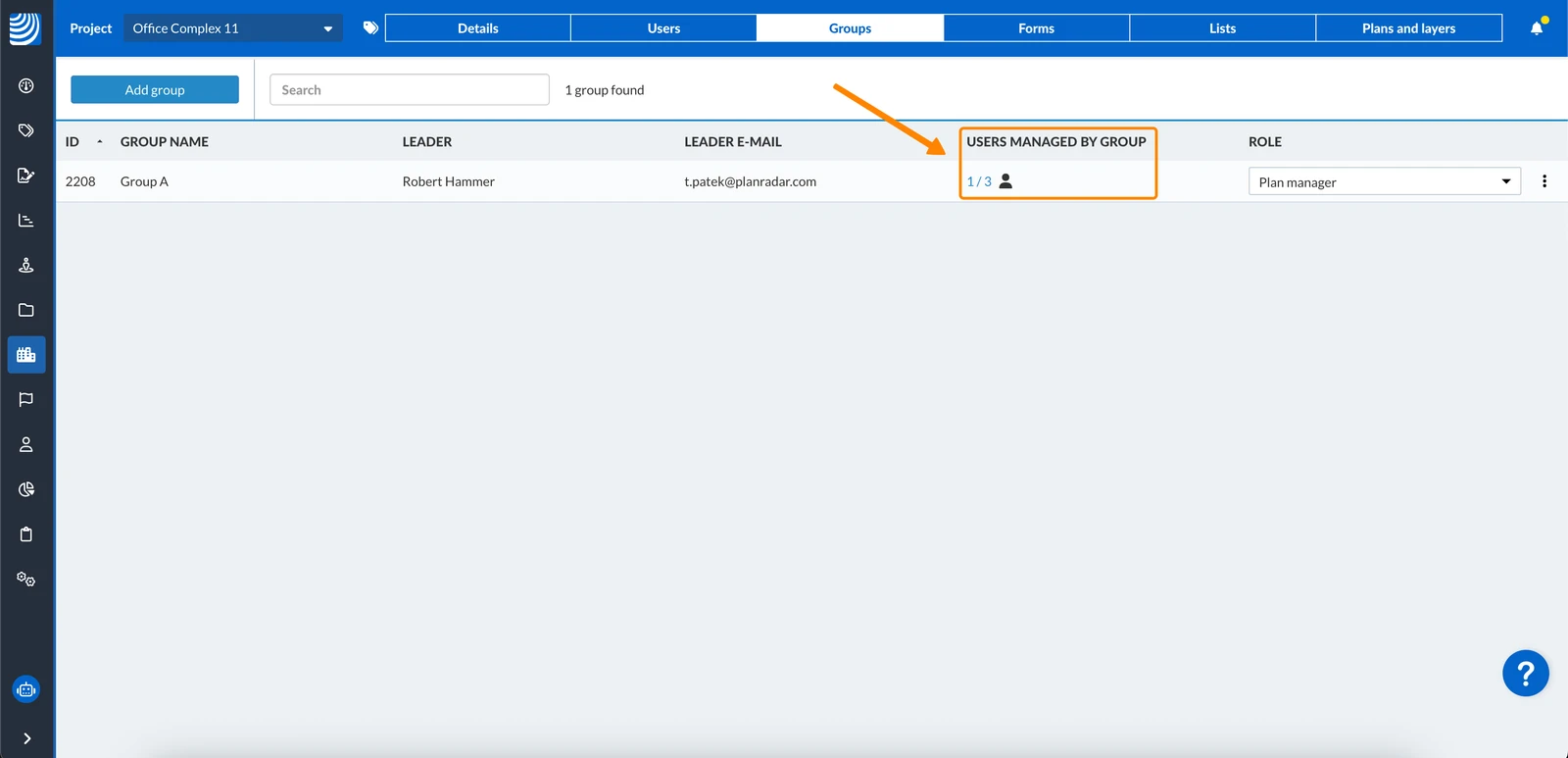
All users that are added to a project by a group, are managed by that group. Users are not managed by that group, if they are already being managed by a different group within the same project, or if they are already individual project members.
In-house users who are managed by a group also inherit the group's role. You can still assign them a different role, but then they will no longer be managed by that group for that particular project.
The column Users managed by group shows how many of the total users of this group in this project are managed by this group.
Updated May 11, 2026