

 Deutsch
 Español
 Français
 Hrvatski
 Italiano
 Polski
 Português (BR)
Delete Old Plan Versions in the Webapp
Overview
You can delete a specific old plan version or all old plan versions of all layers at once.
This can help clear out unnecessary data and reduce the number of plans that count against your subscription limits, if you're not on the Enterprise subscription plan. Also see Pricing and Subscription.
Access & Permissions
How to access Plans
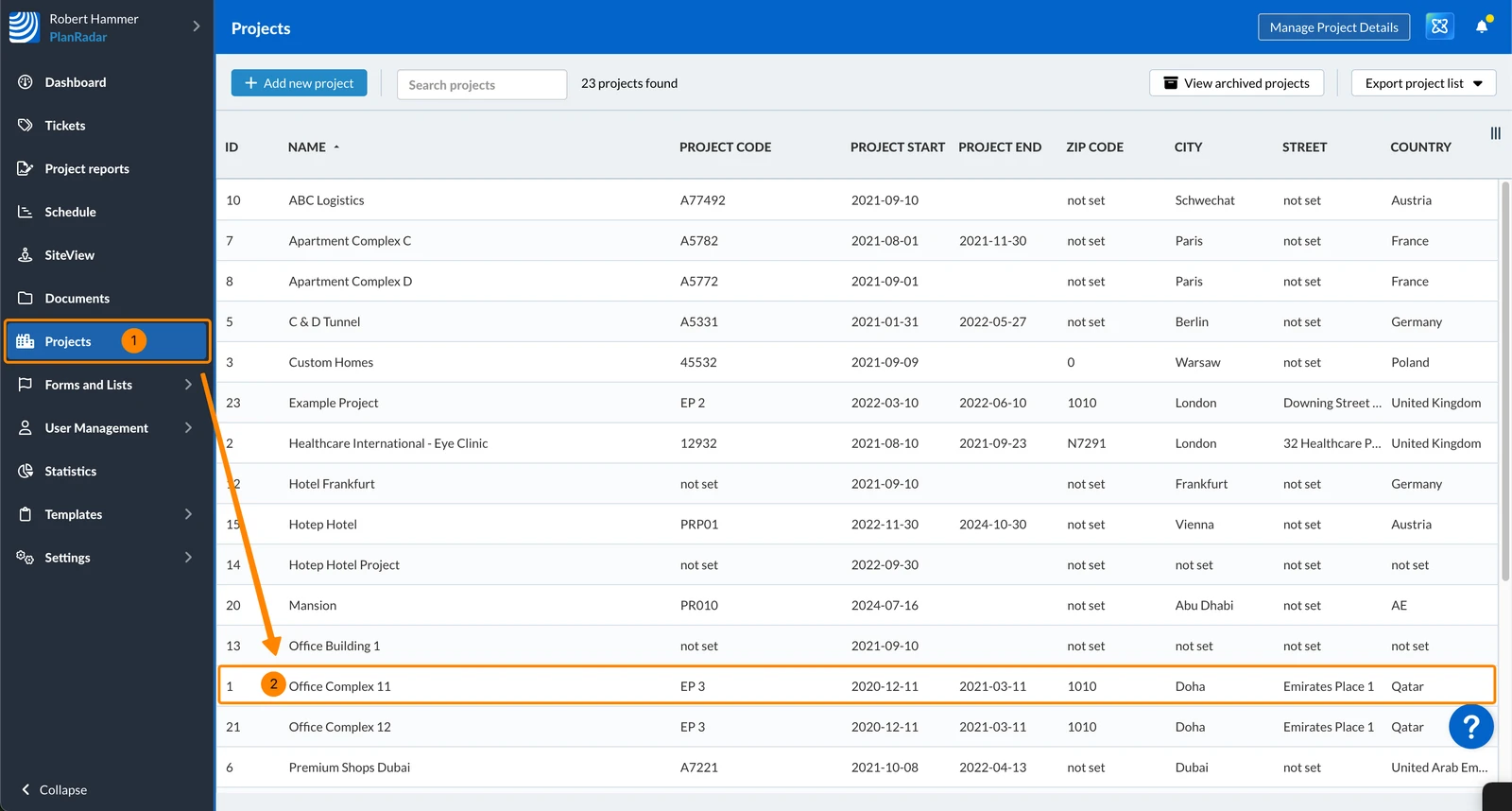
- Click Projects
- Click on the project to open it
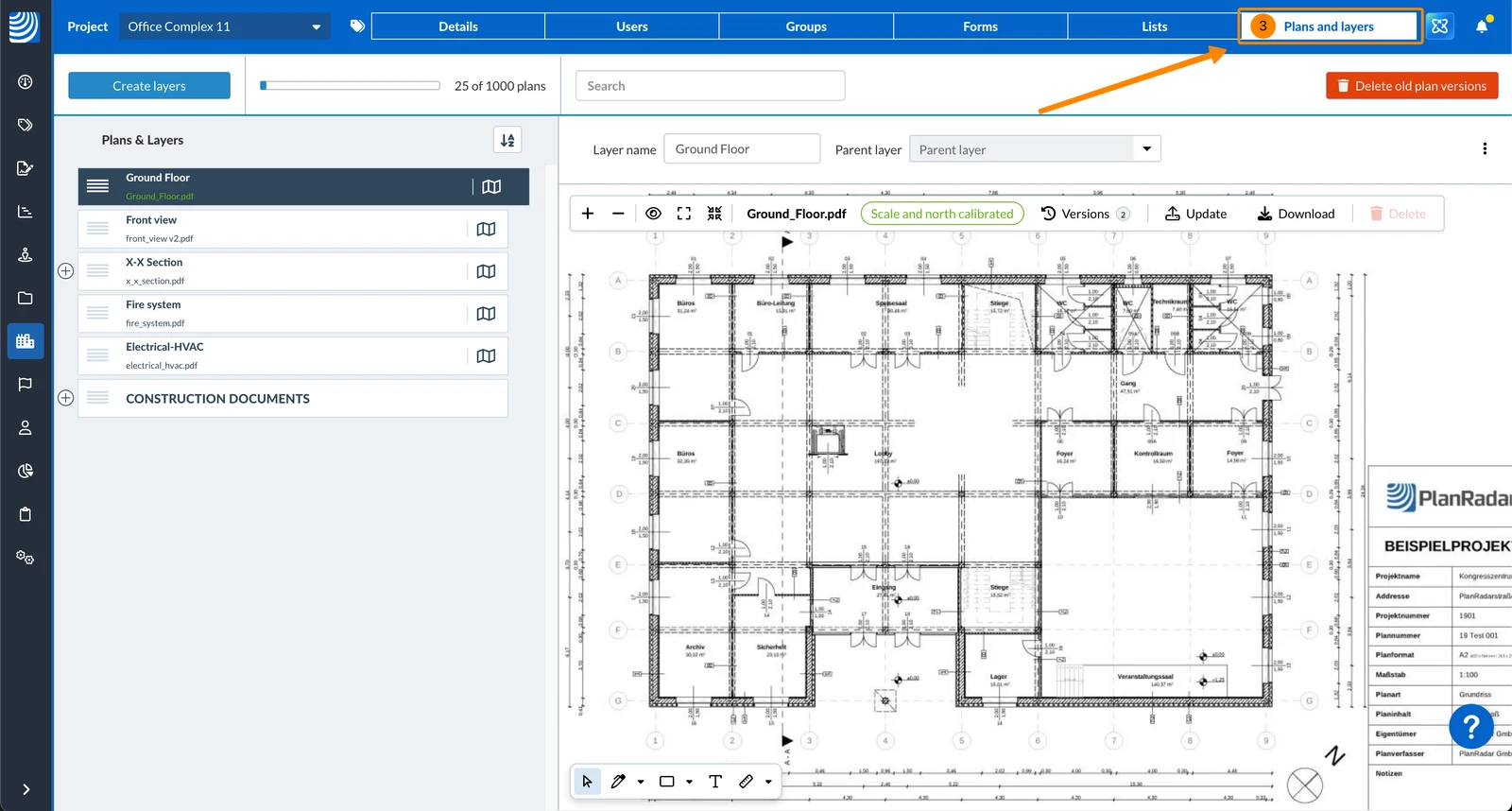
- Click Plans and layers
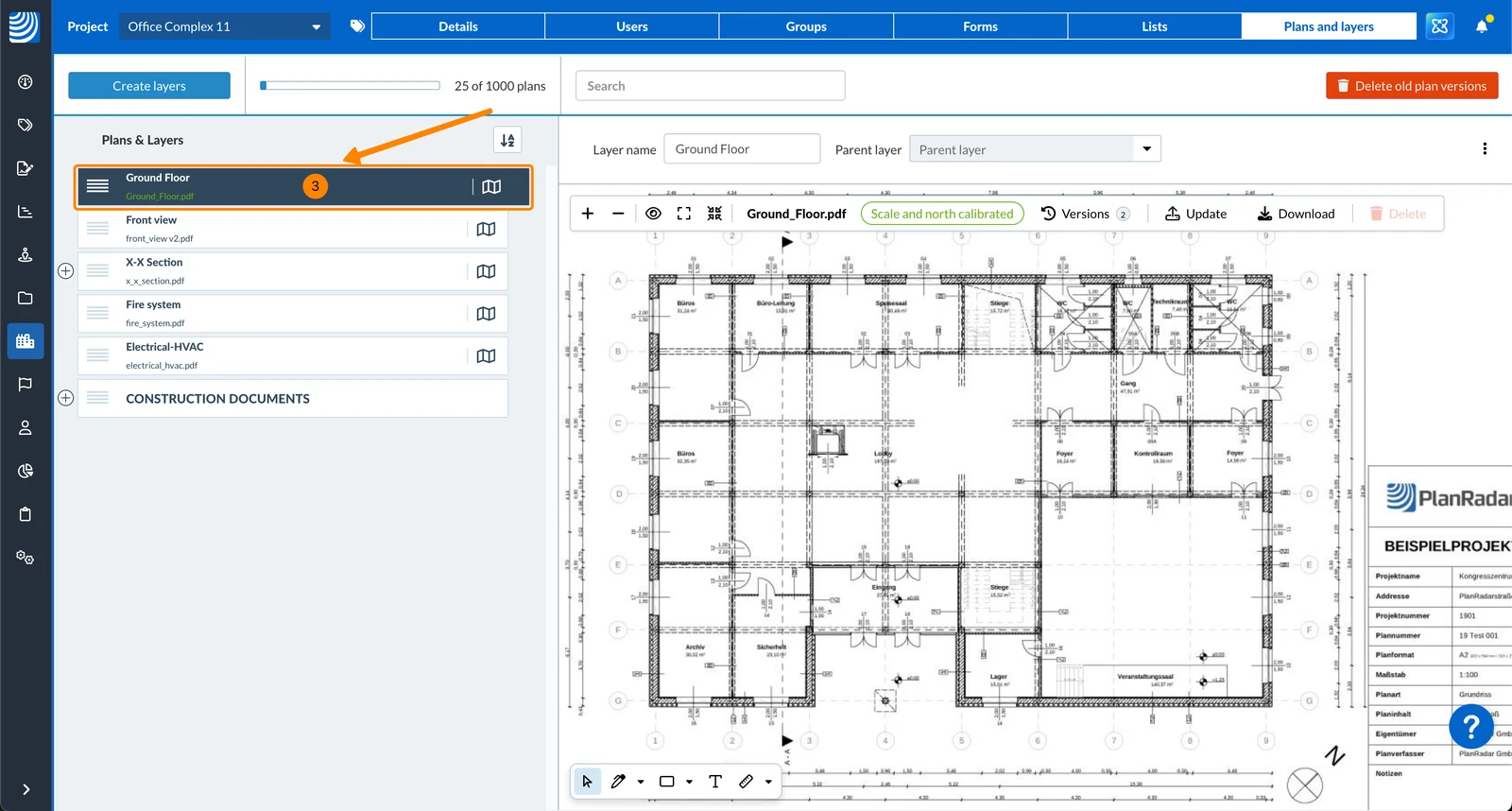
- Select a layer to view its current plan version
Delete a Specific Plan Version
You can delete one of the old plan versions, however, you cannot delete the current plan version. Also see Update Plans.
To delete a specific old plan version:
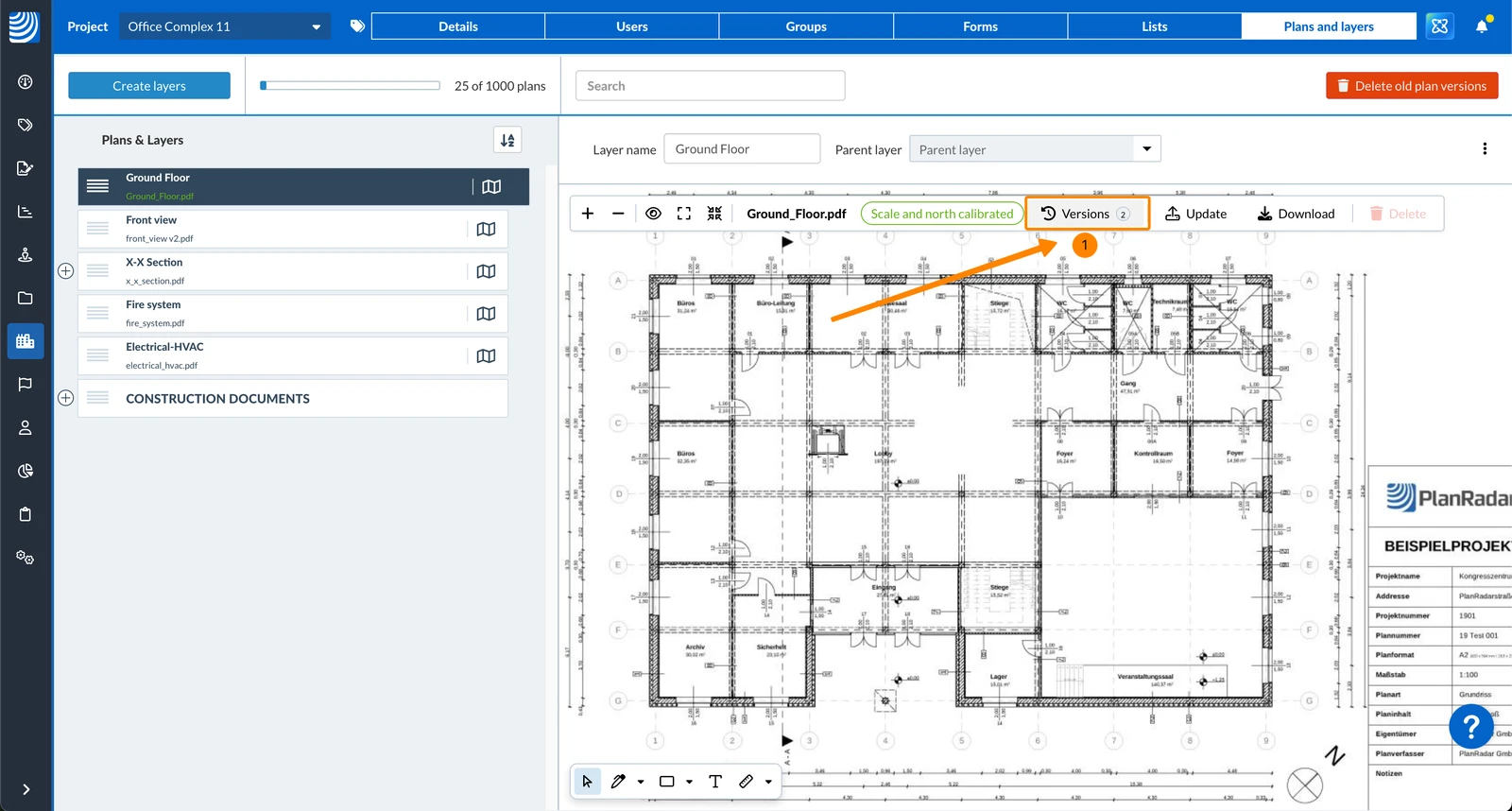
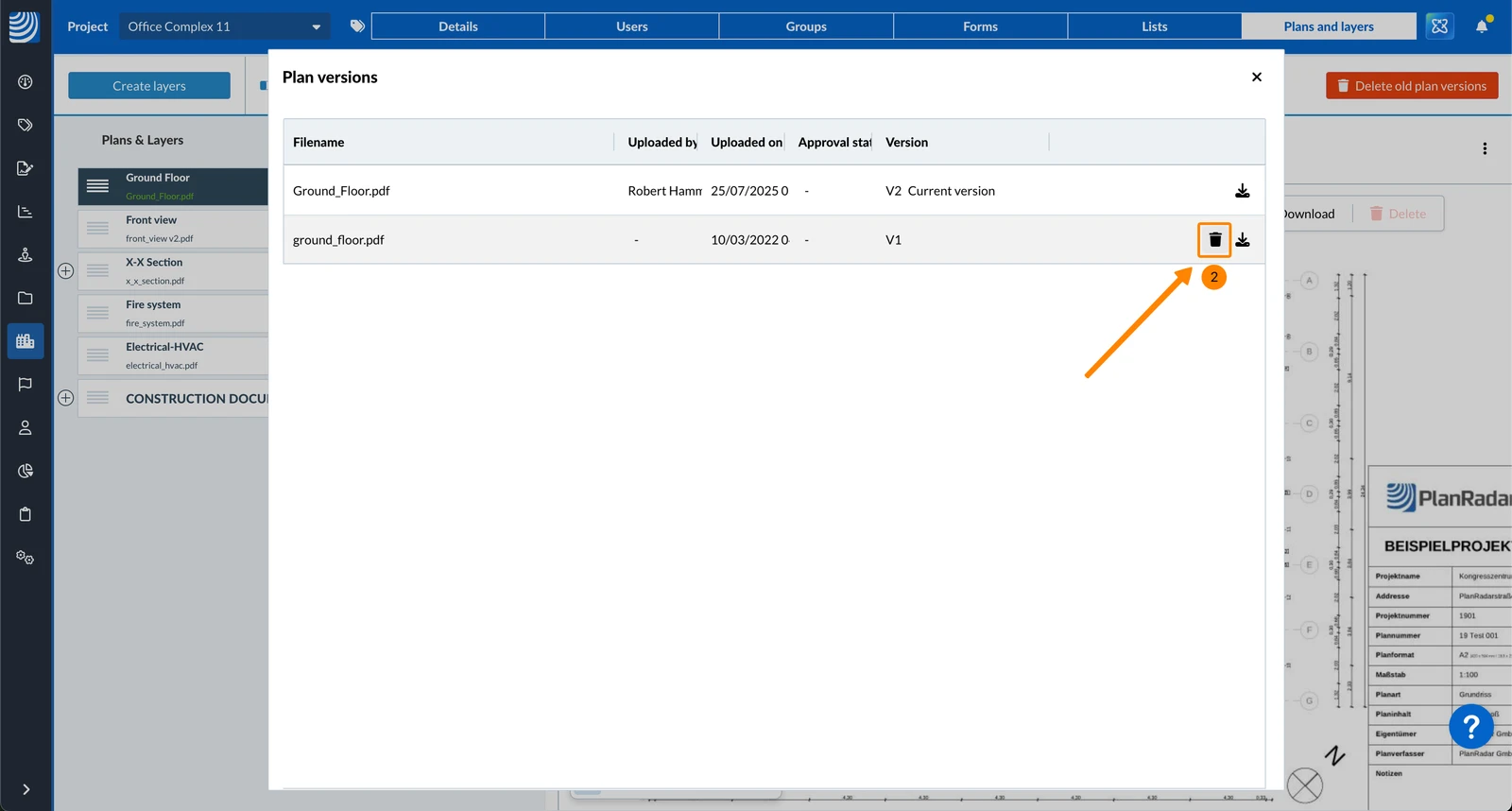
- Click Versions (2)
The number in the button shows how many plan versions there are.
- Click the Delete icon next to the plan version that you want to delete
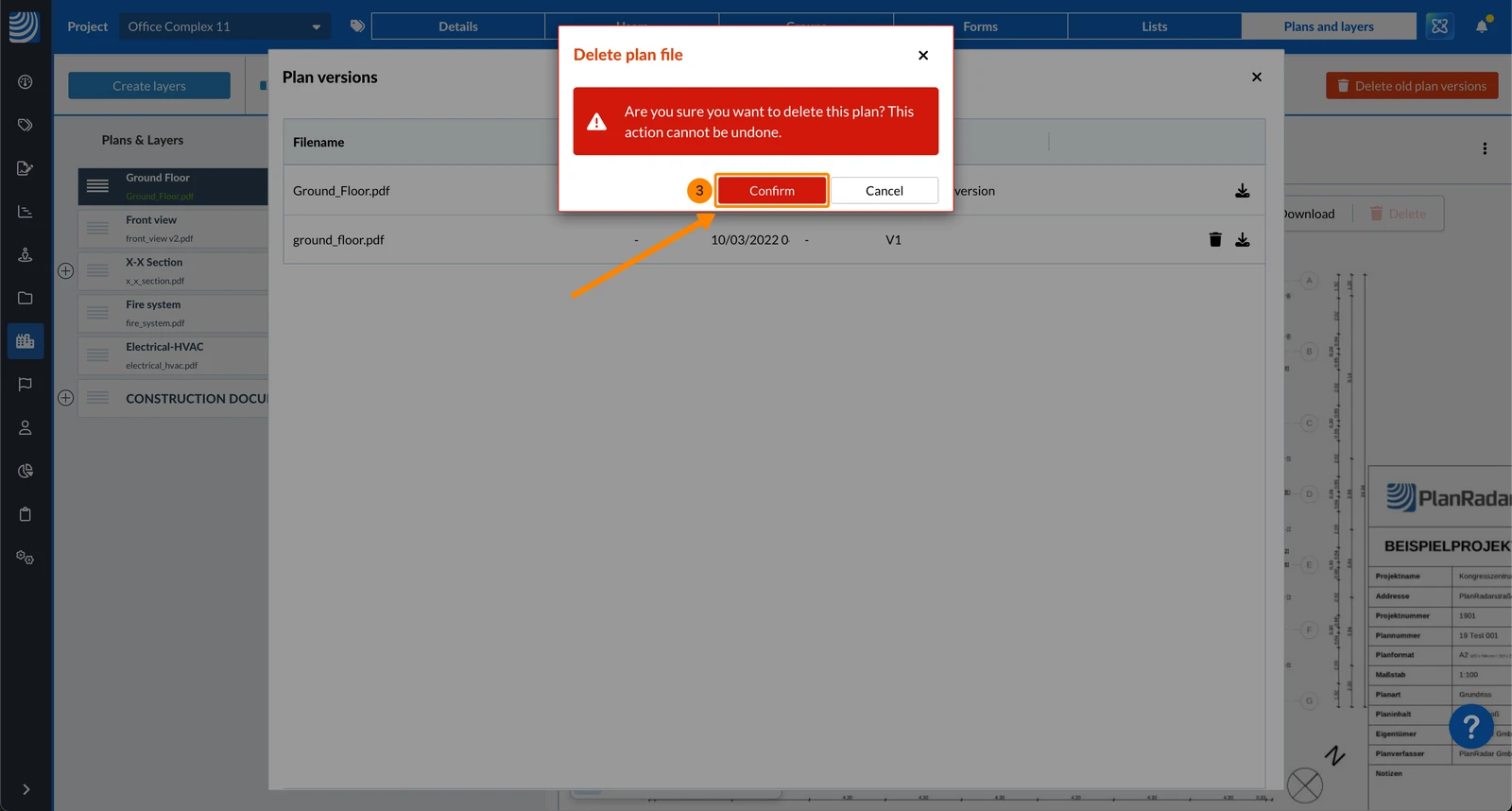
- Click Confirm
Delete All Plan Versions of an Empty Layer
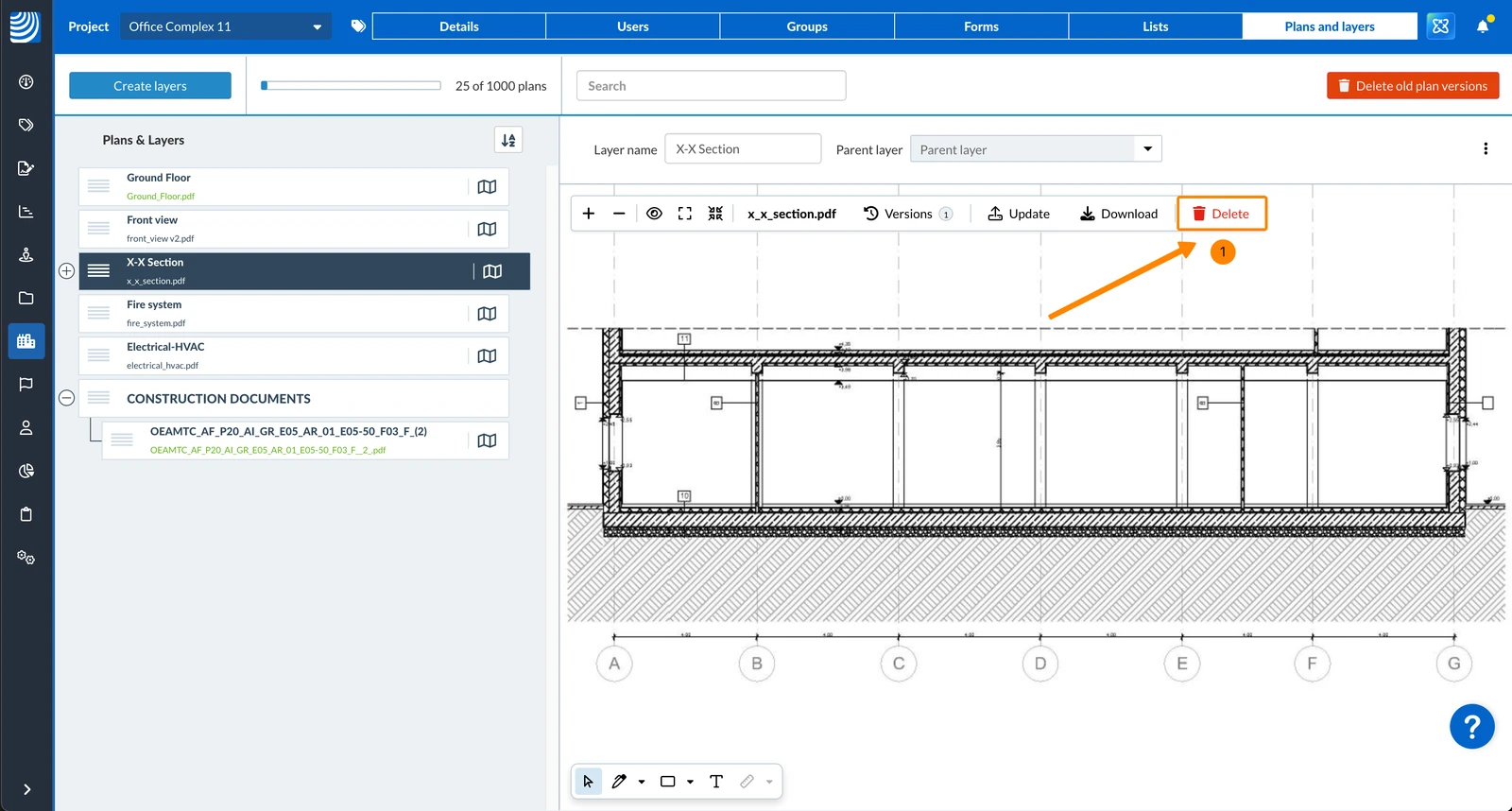
To delete all plan versions (including the current version) of a layer that doesn't have tickets yet:
- Click Delete
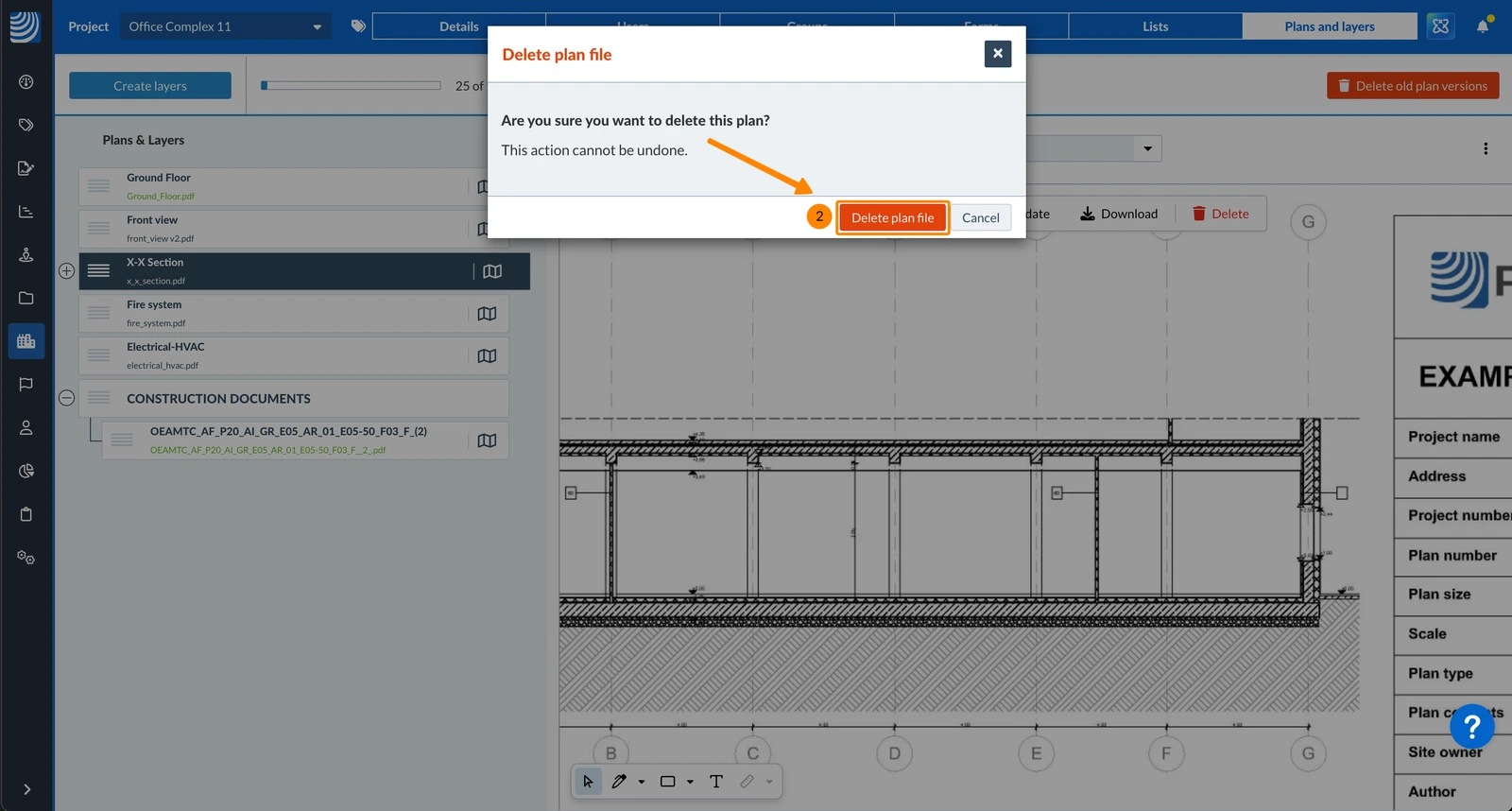
- Click Delete plan file
Delete All Old Plan Versions of All Layers
If you are sure that you don't need any old plan versions of any layers anymore, you can delete them all at once. The current version of each plan will not be deleted.
To do so:
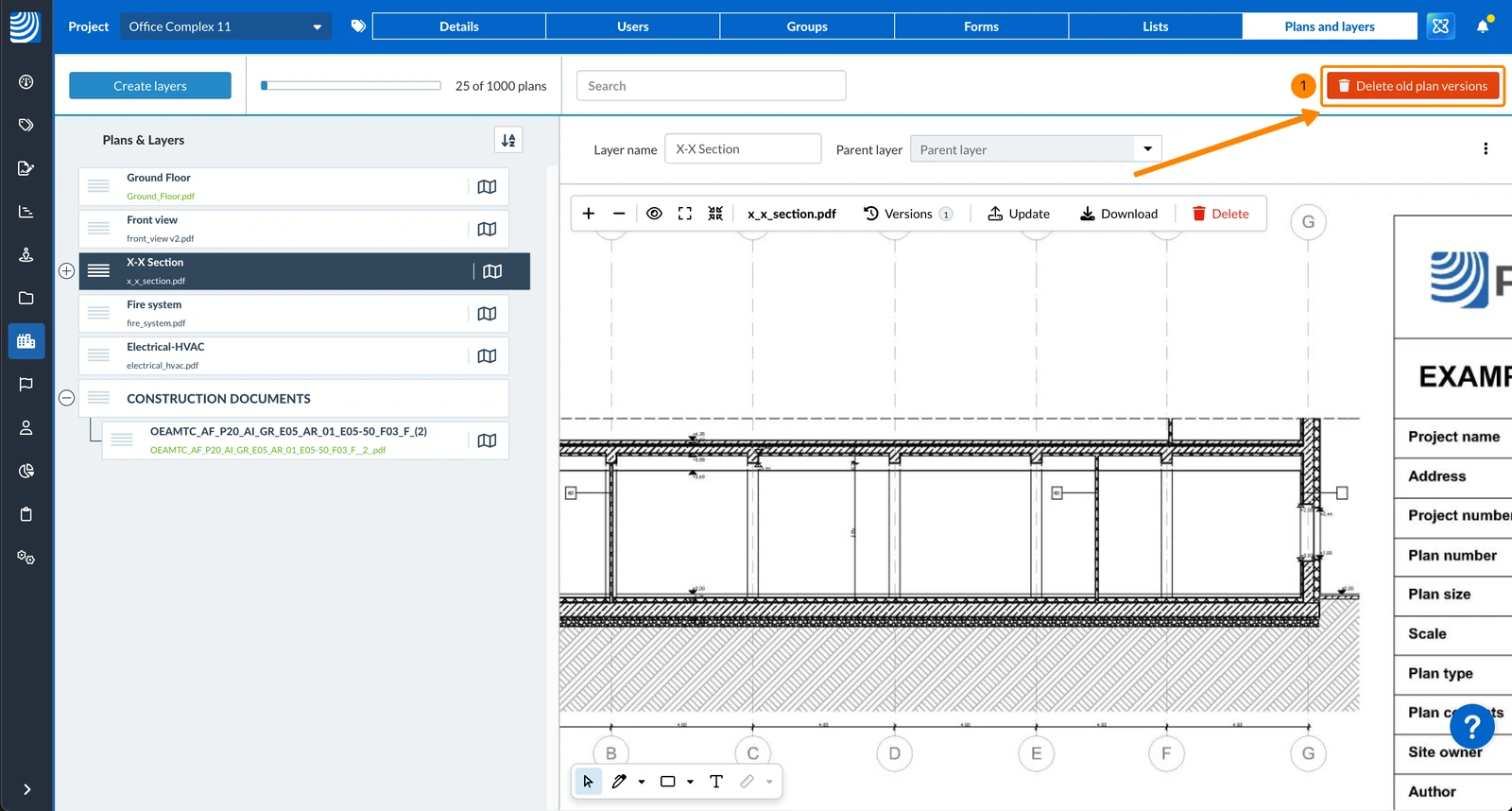
- Click Delete old plan versions
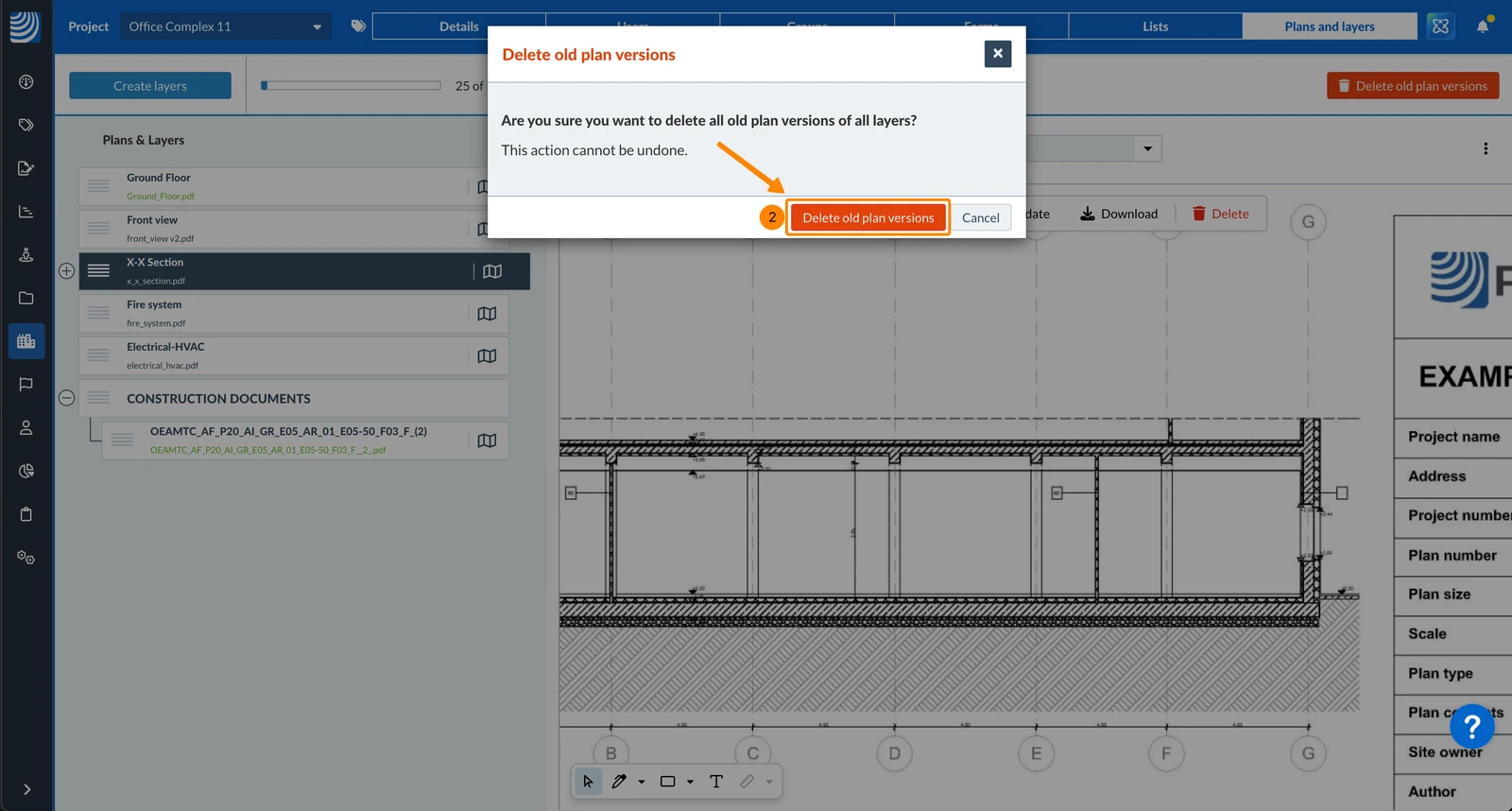
- Click Delete old plan versions to confirm
Updated May 11, 2026