

 Deutsch
 Español
 Français
 Hrvatski
 Italiano
 Polski
 Português (BR)
Manage Users of a Project
Overview
Before users can start working on a project they must first be added to the project. For in-house users, permissions in a project can be controlled in a flexible way by assigning customisable roles. Read more in Create & Manage Roles.
Access & Permissions
How to access Project Users
- Click Projects
- Select the project whose users you want to manage
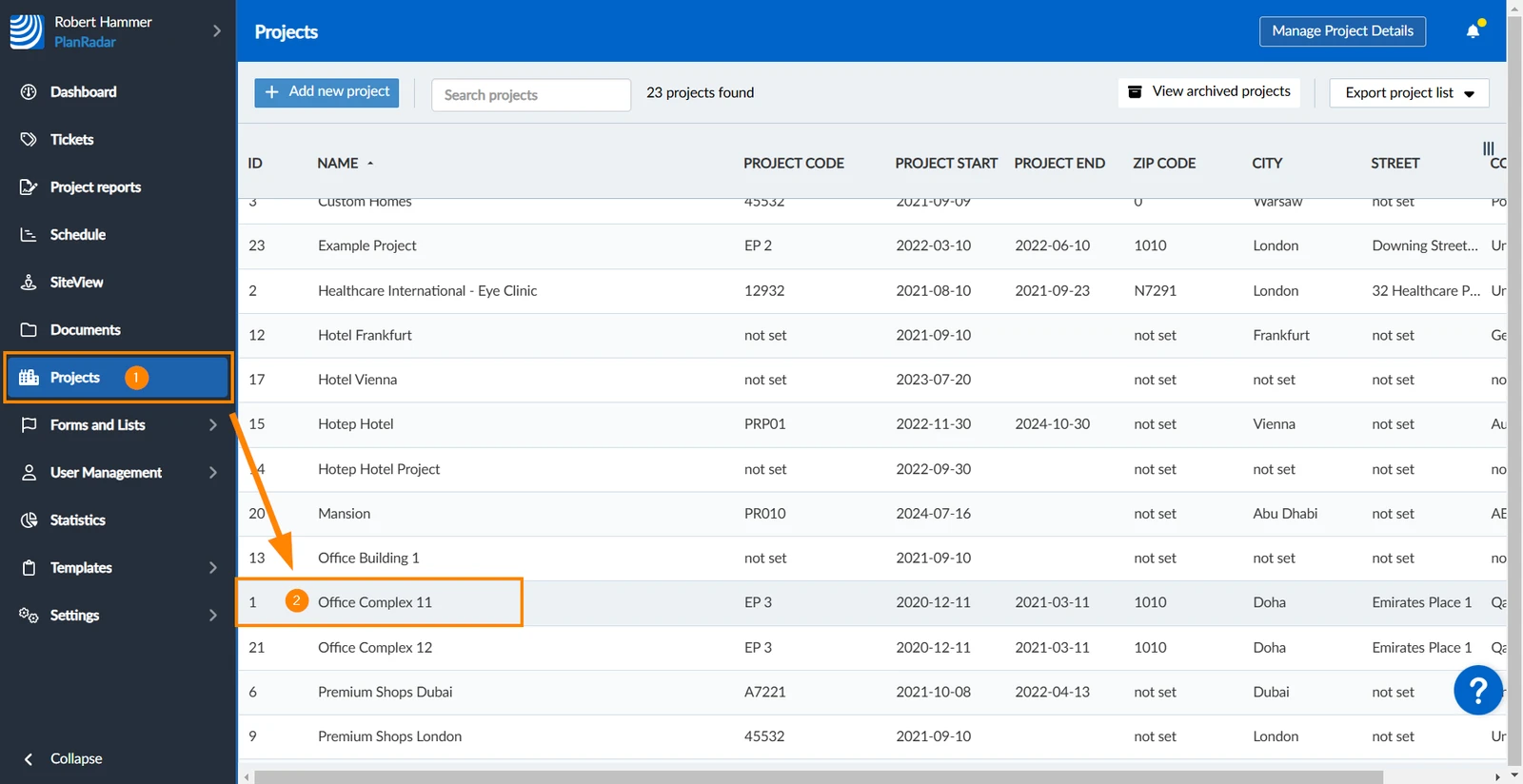
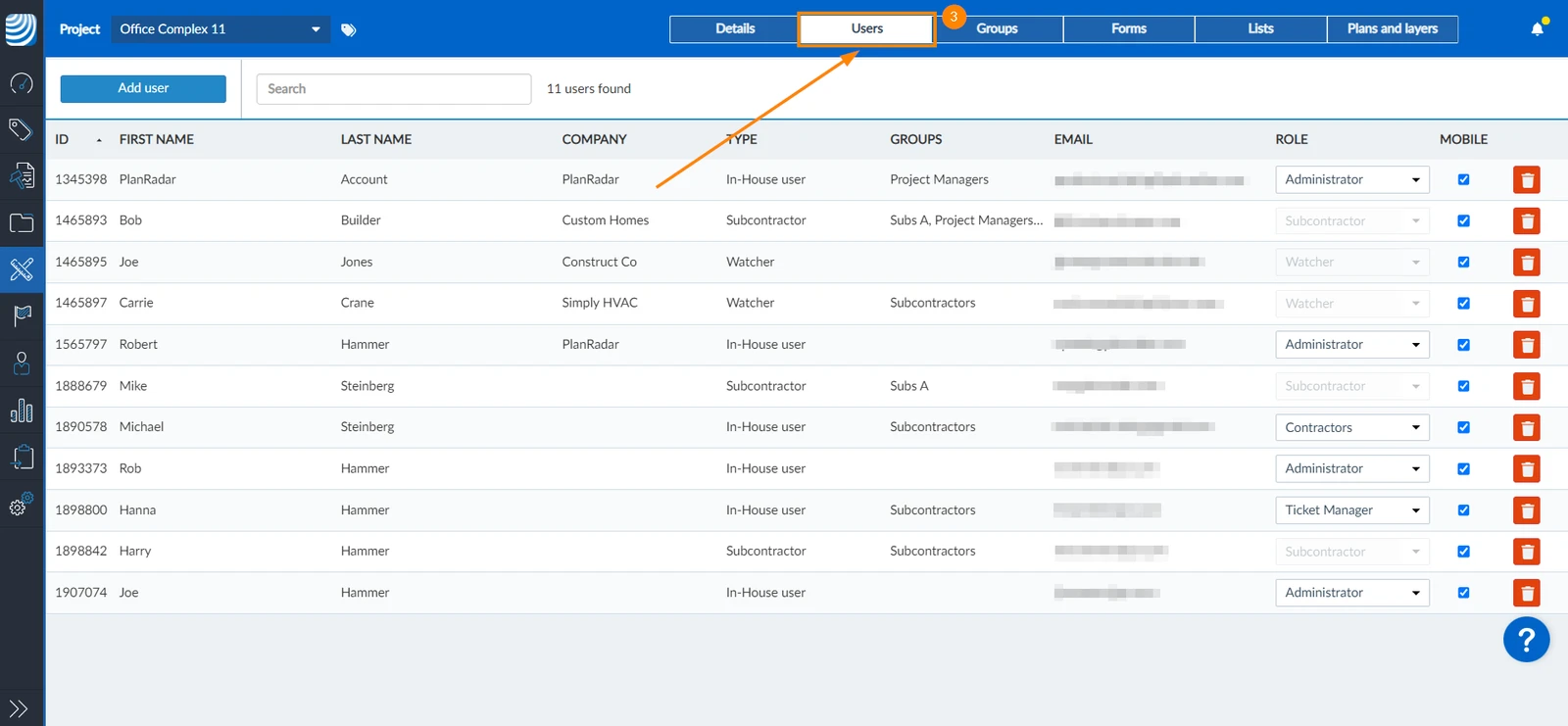
- Click Users
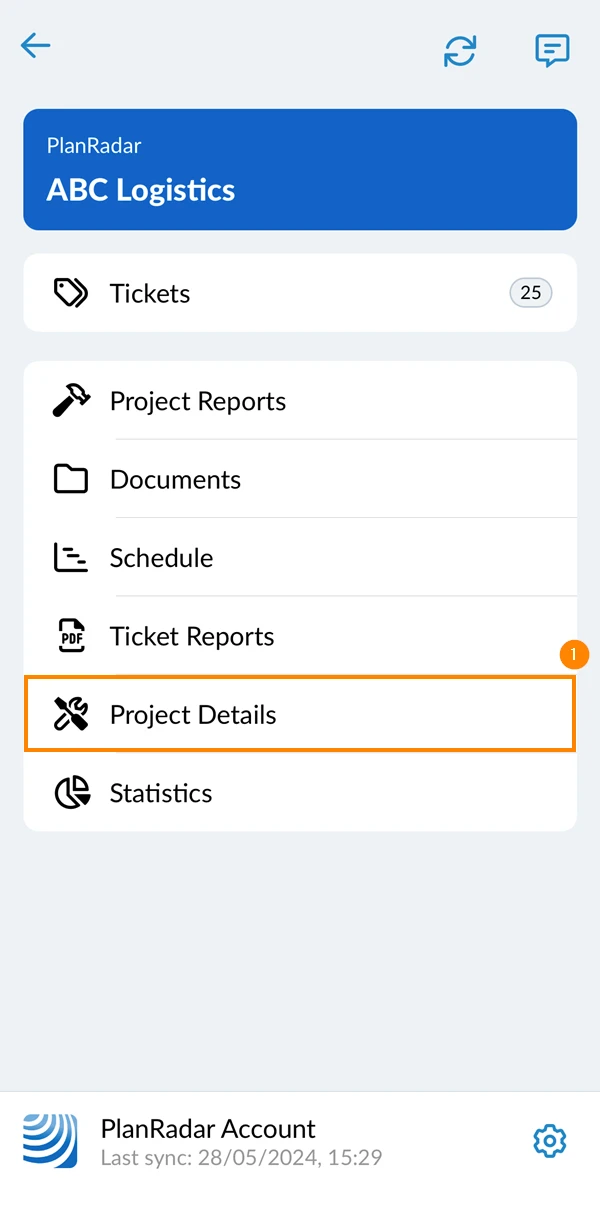
- Go to the project and tap Project Details
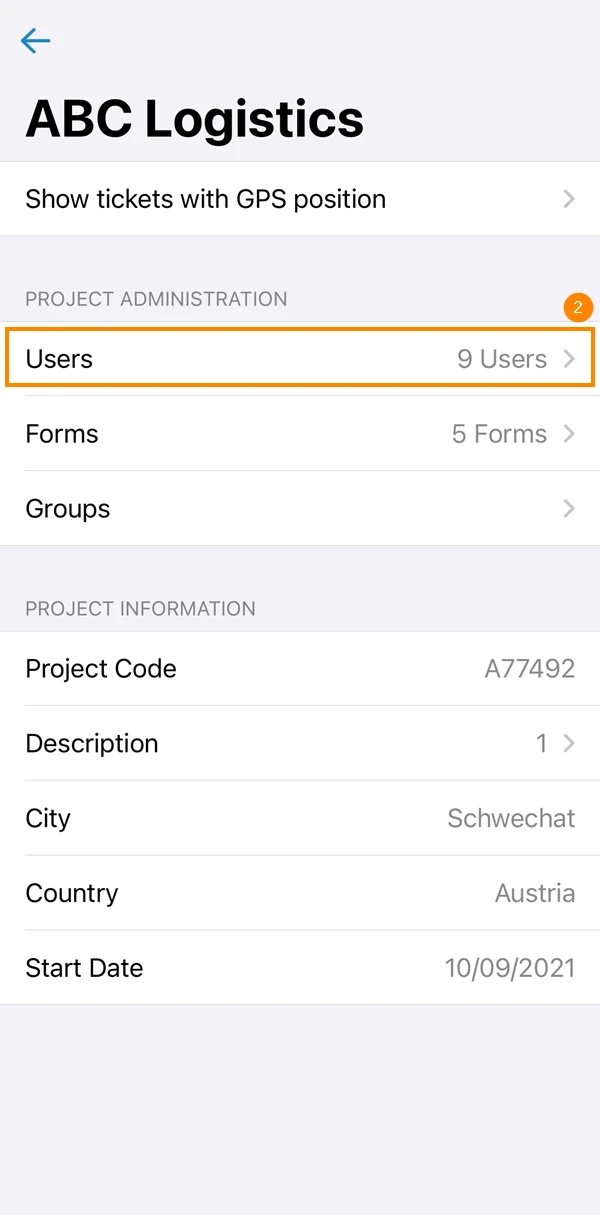
- Tap Users
Add Users to a Project
To add users to a project:
- Click Add user
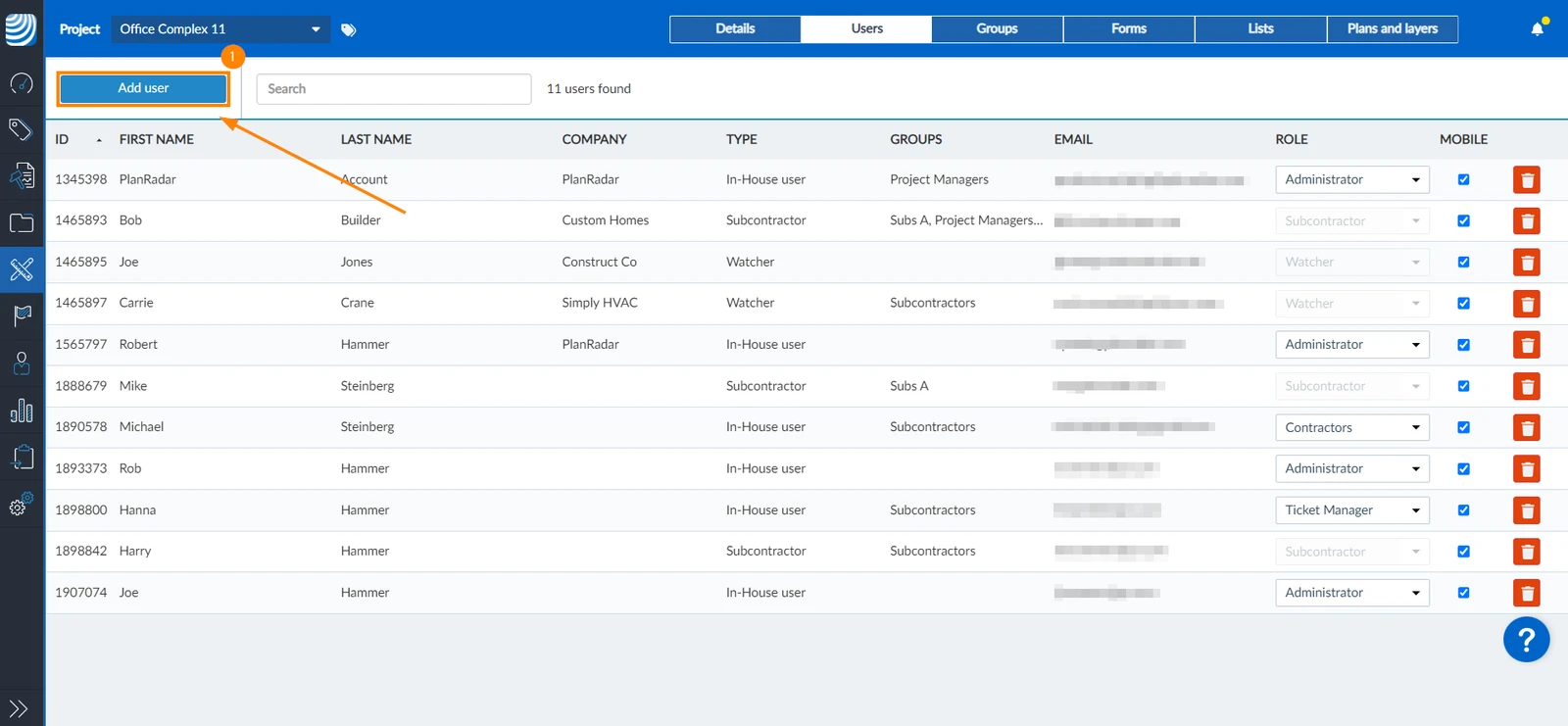
- Select the checkbox of the user(s) you'd like to add to the project
- Click Next
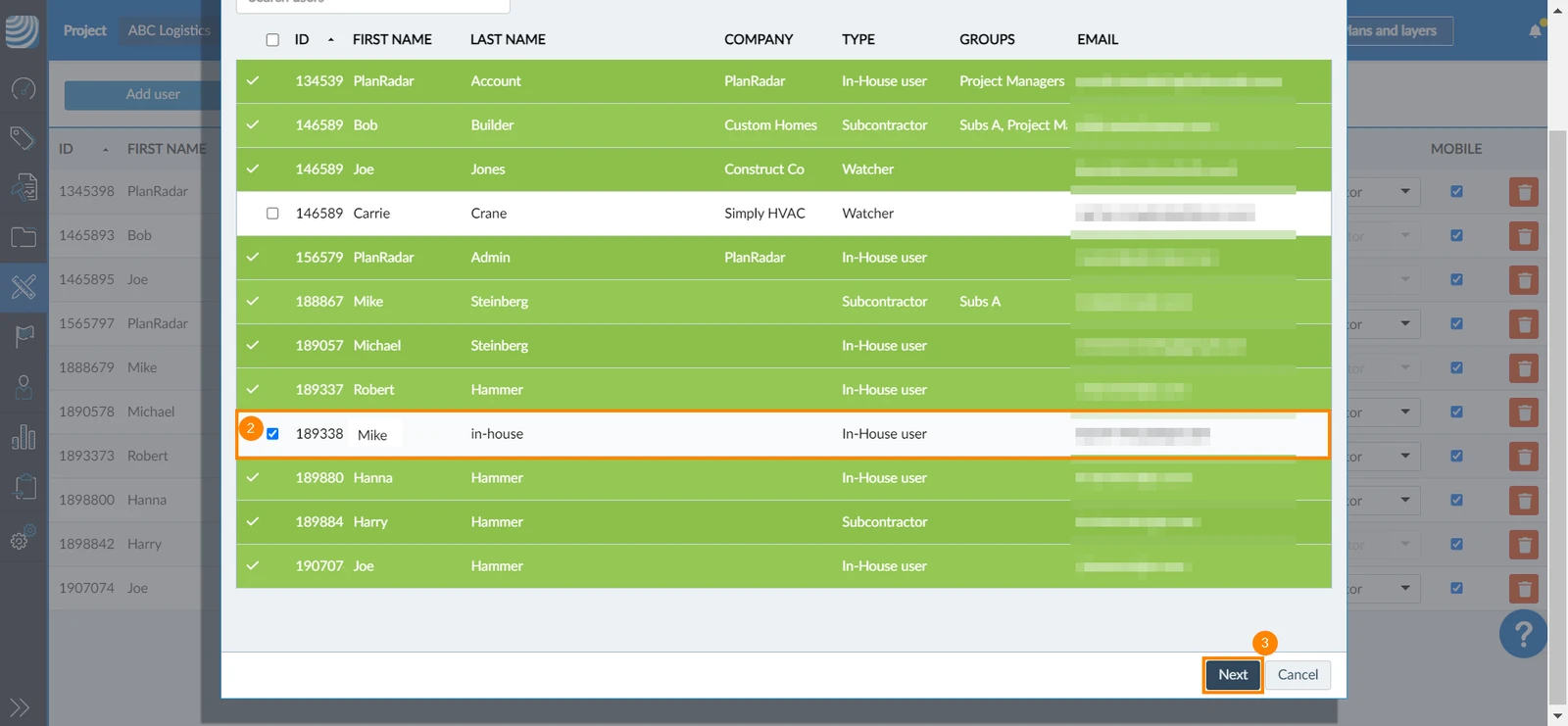
- If the user is an in-house user, select a user role
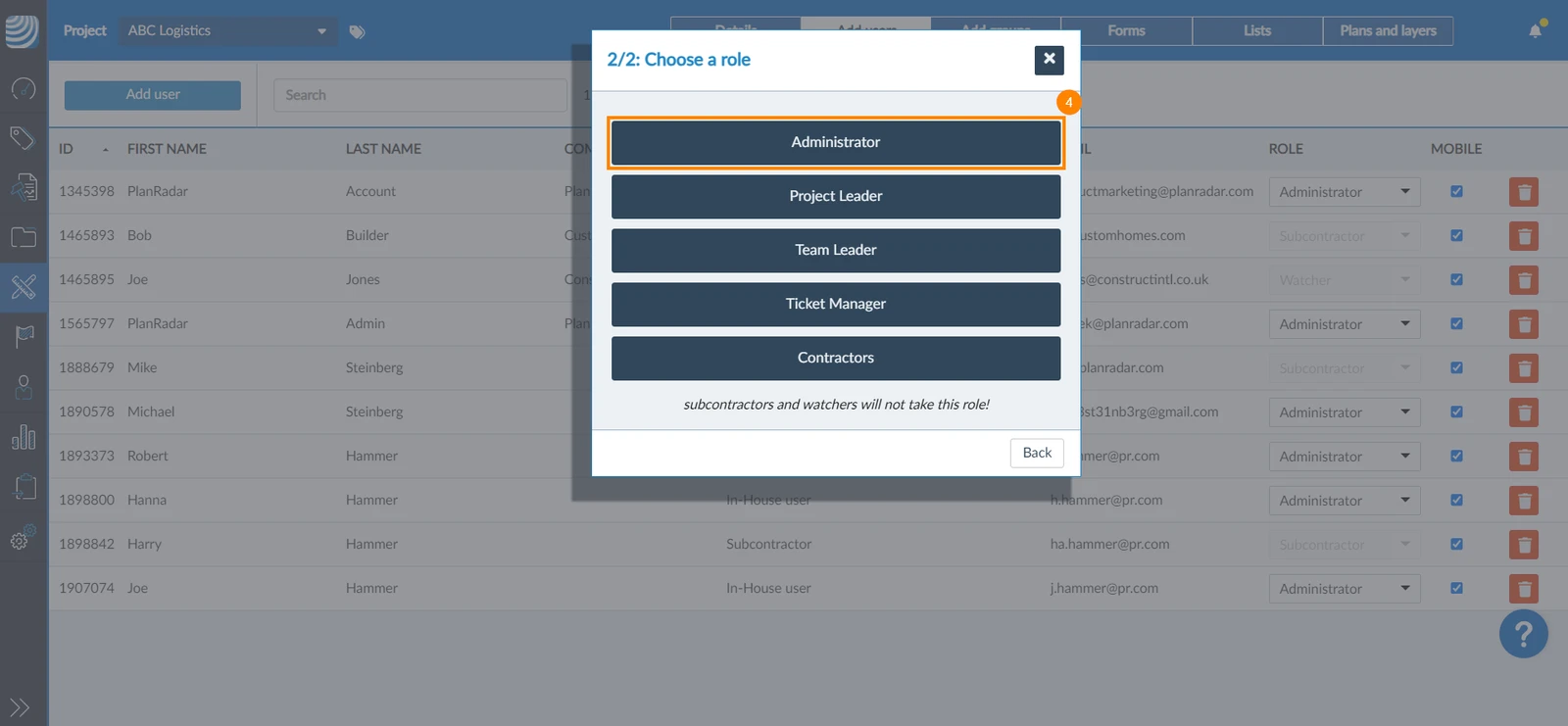
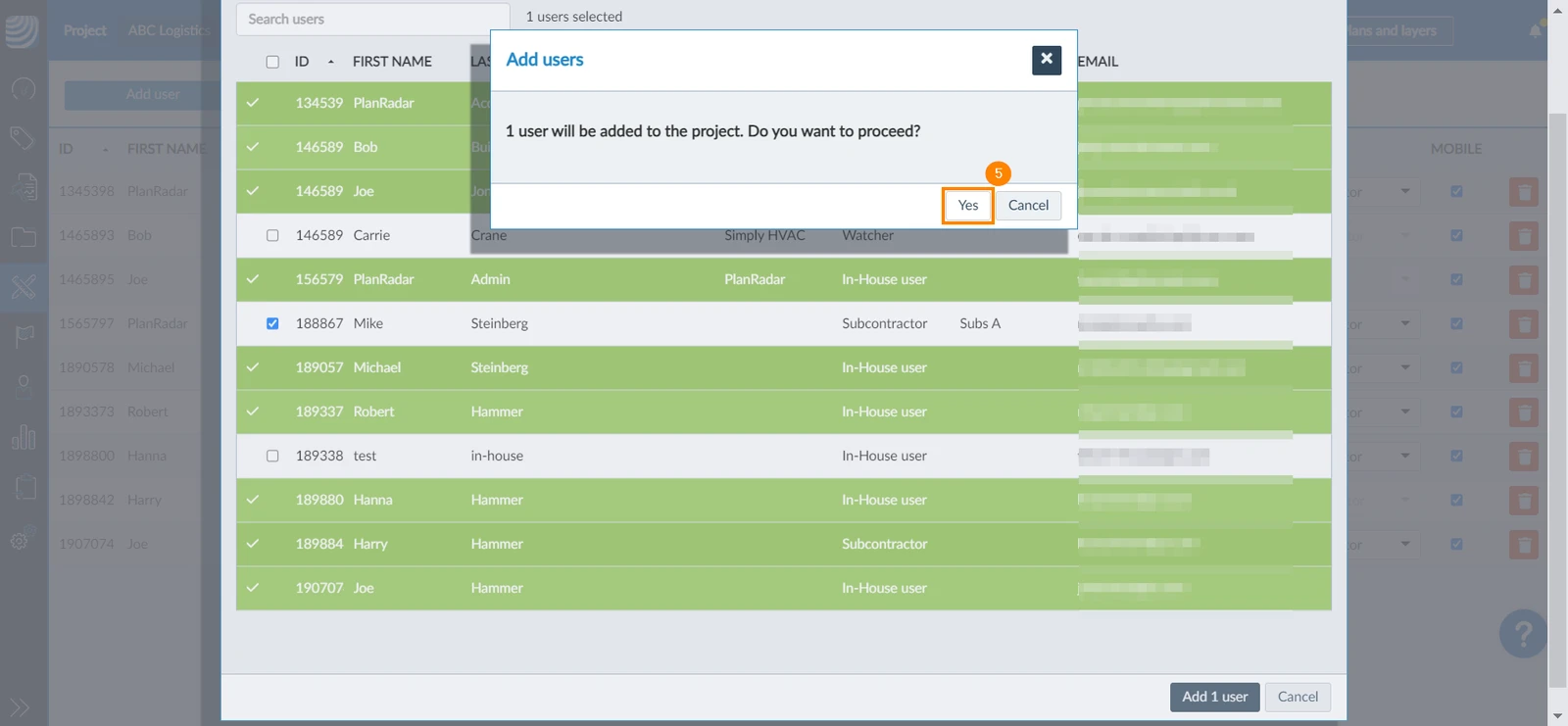
When you add in-house users to a project you need to assign a role for the project. Subcontractors and watchers have built-in permissions and, therefore, cannot have roles. If you add in-house users and subcontractors or watchers at the same time, the selected role is only applied to the selected in-house users. Read more in Create & Manage Roles. - Click Yes to confirm
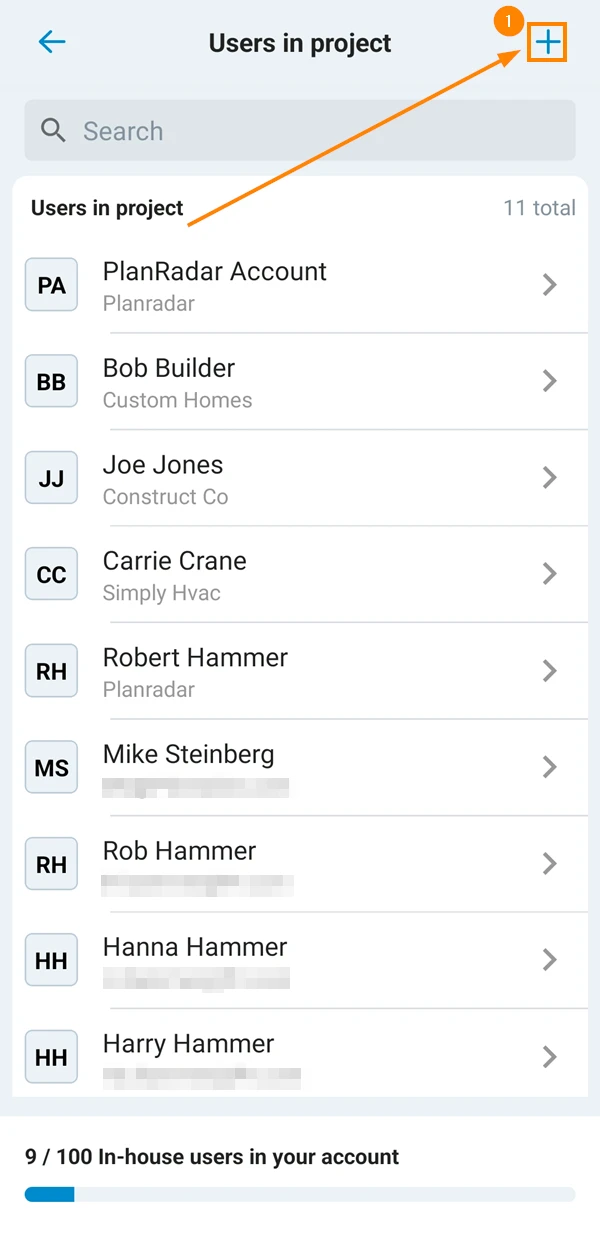
- Tap the + sign in the top right corner
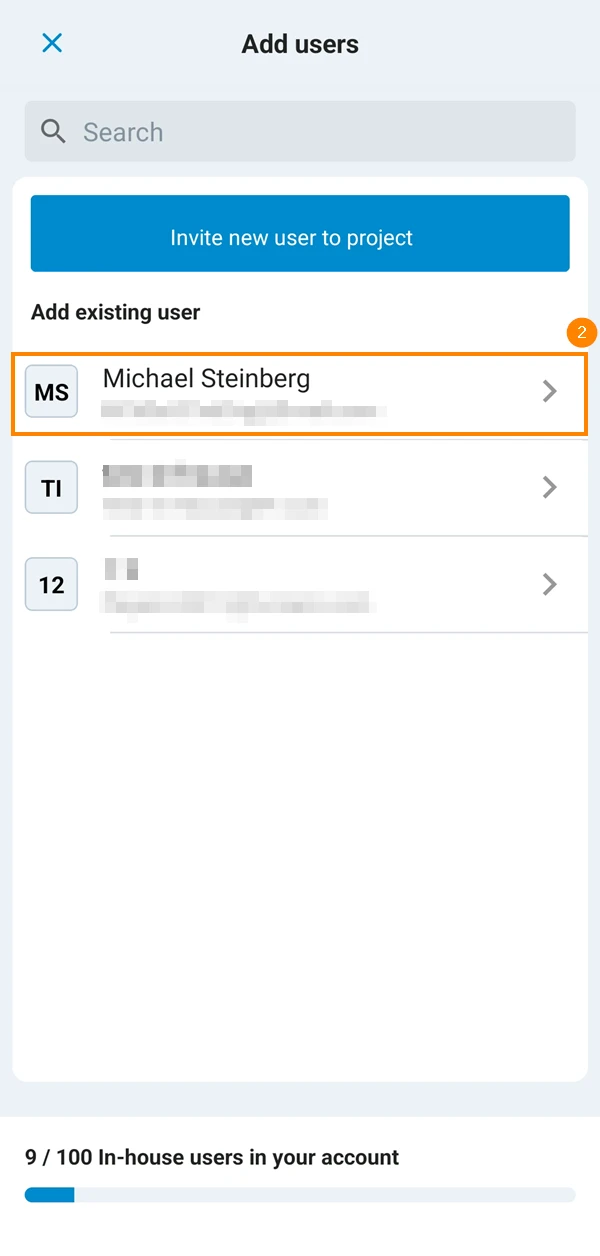
- Tap the user you want to add
- If the user is an in-house user, select a user role.
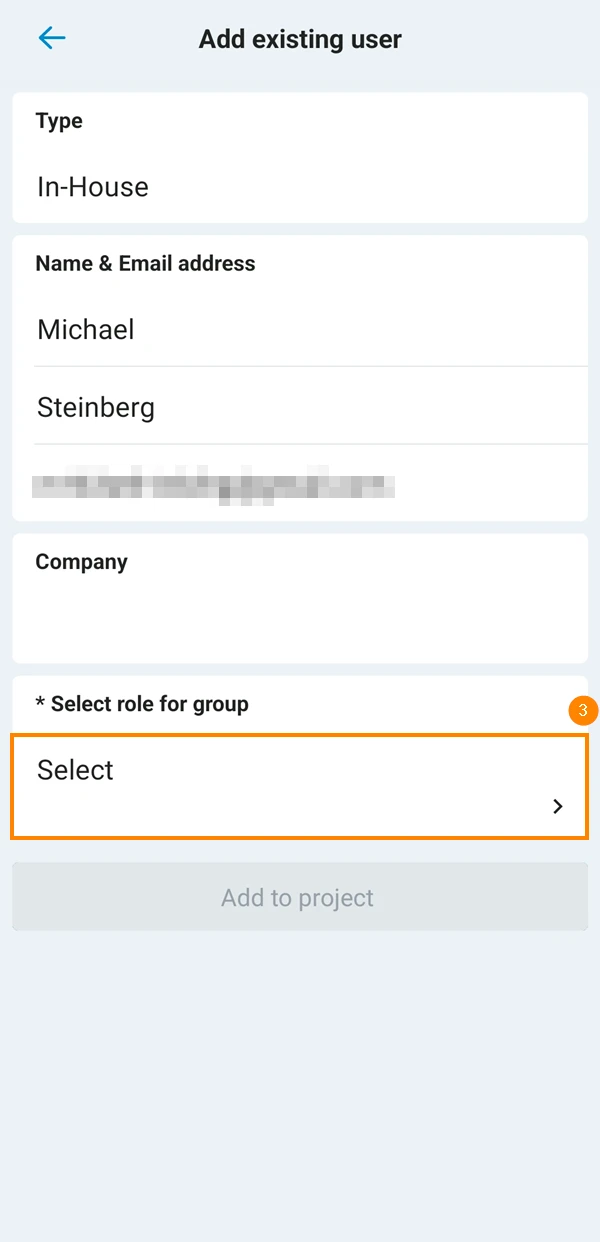
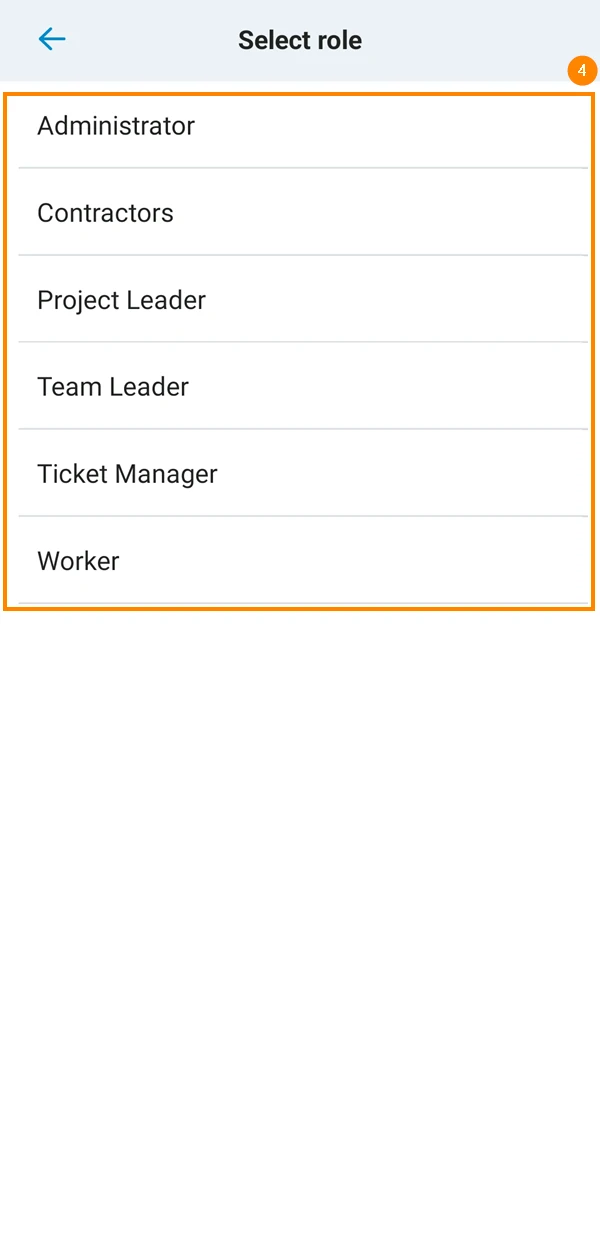
When you add in-house users to a project you need to assign a role for the project. Subcontractors and watchers have built-in permissions and, therefore, cannot have roles. If you add in-house users and subcontractors or watchers at the same time, the selected role is only applied to the in-house users. Read more in Create & Manage Roles. - Select the user role in the project
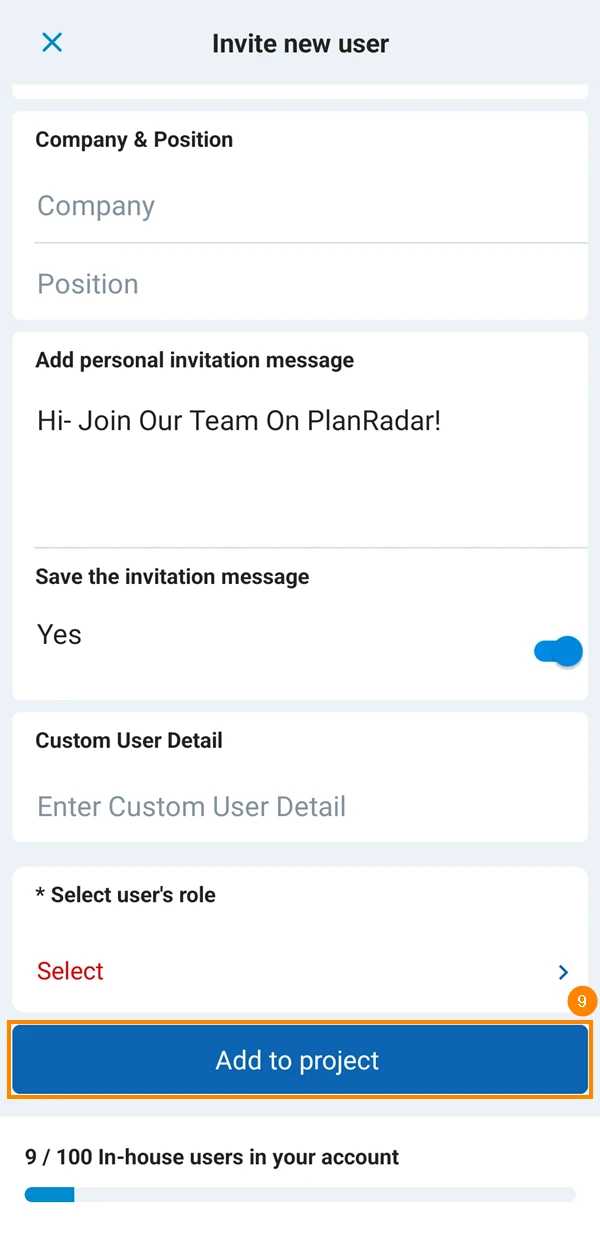
- Tap Add to Project
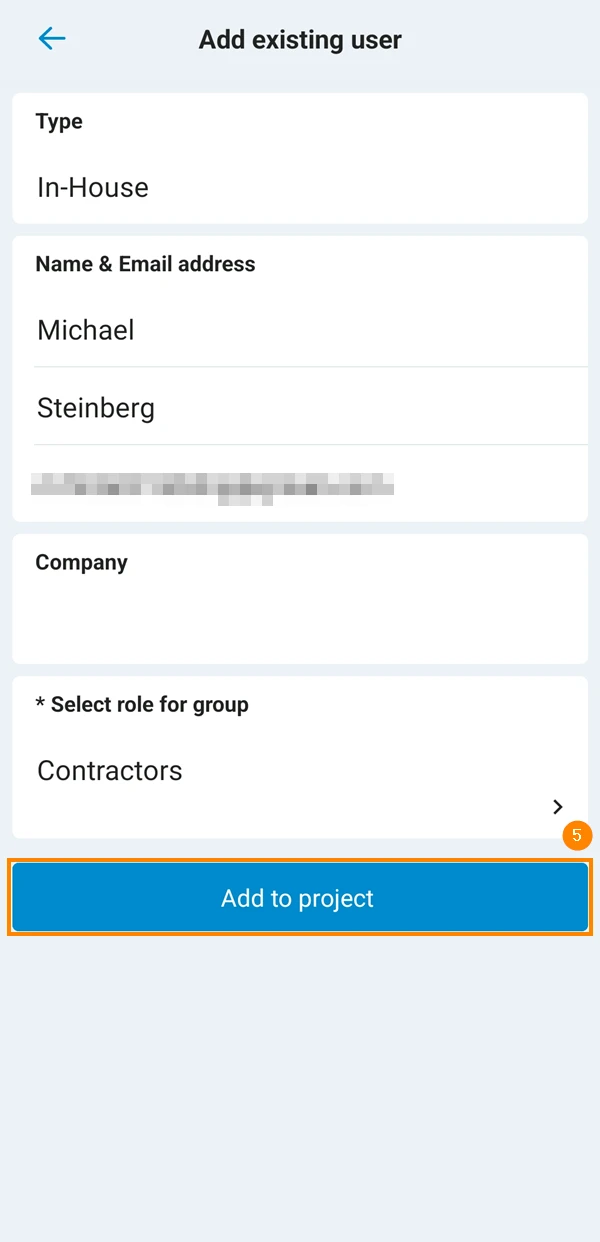
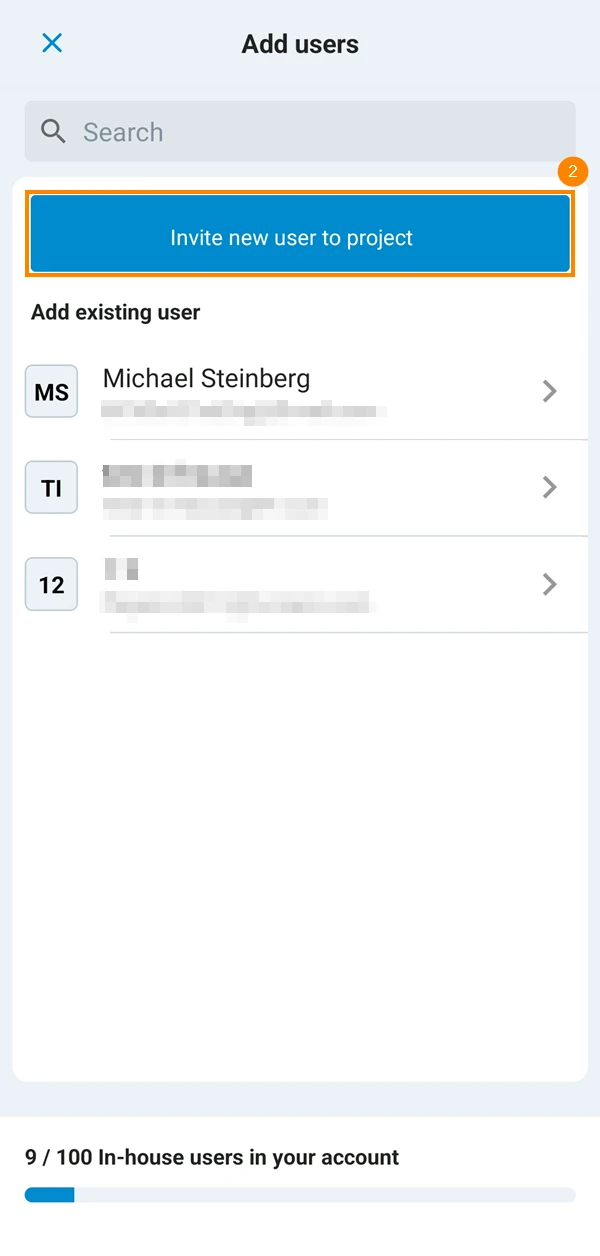
In the mobile app, you can also invite new users straight to the project.
To do so:
- Tap the + sign in the top right corner
- Tap Invite new user to project
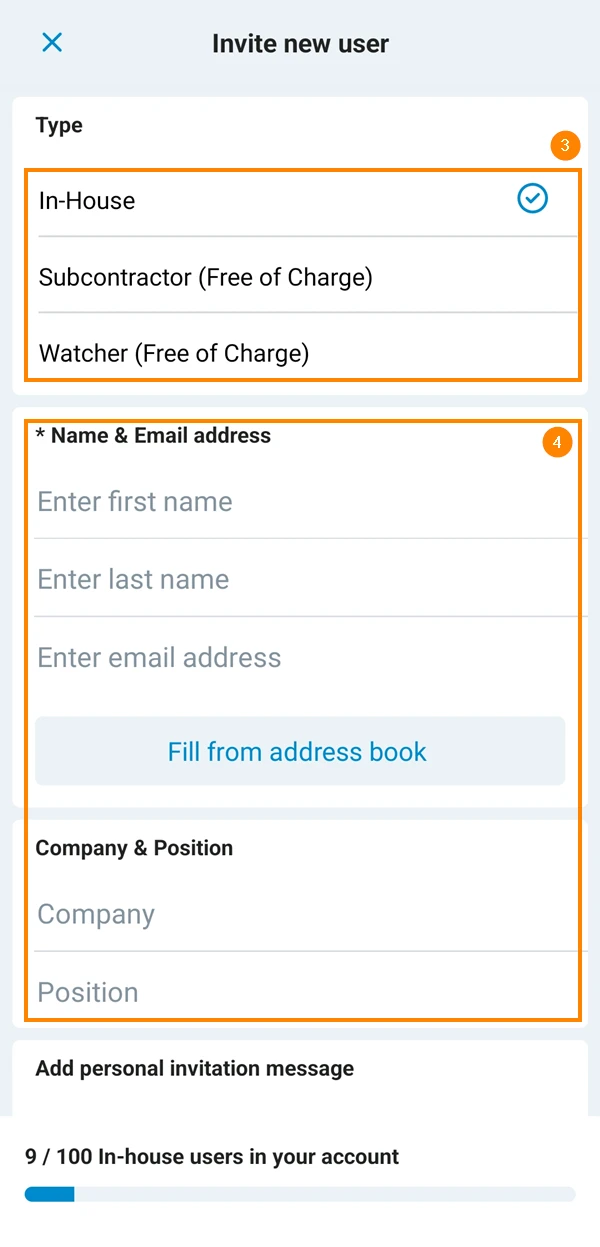
- Select the User Type
- Fill in the user details
- Optional: Add a personal message to be added to the invitation email
- Optional: Activate the Save the invitation message toggle if you want to reuse the message for the next invitation.
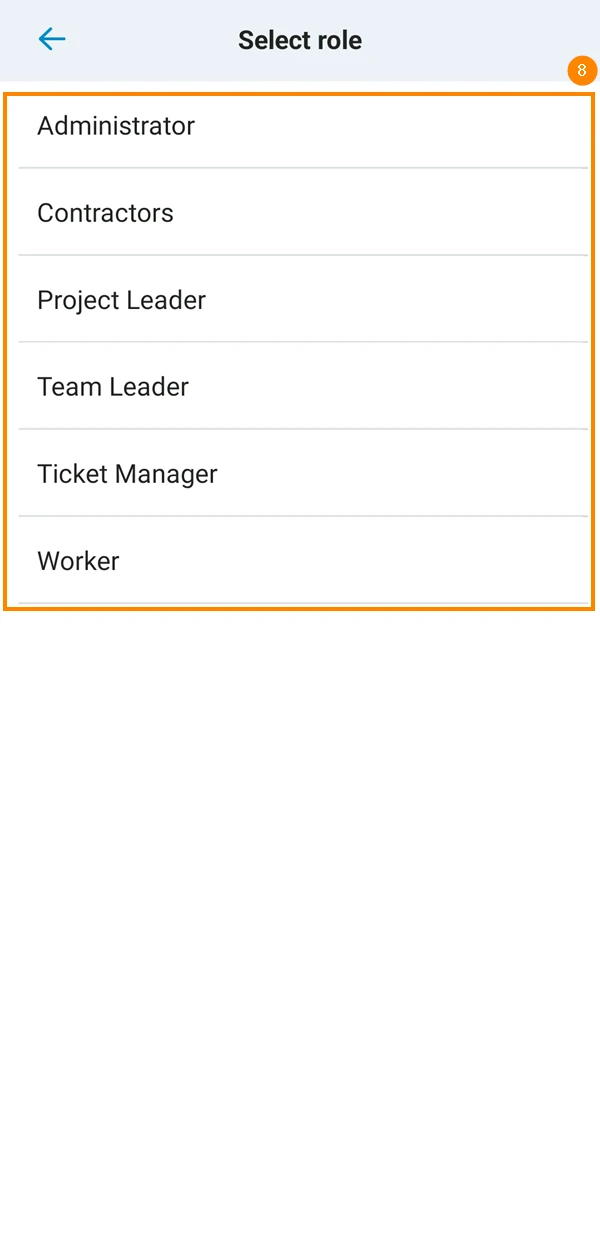
- If the user is an in-house user, select a user role
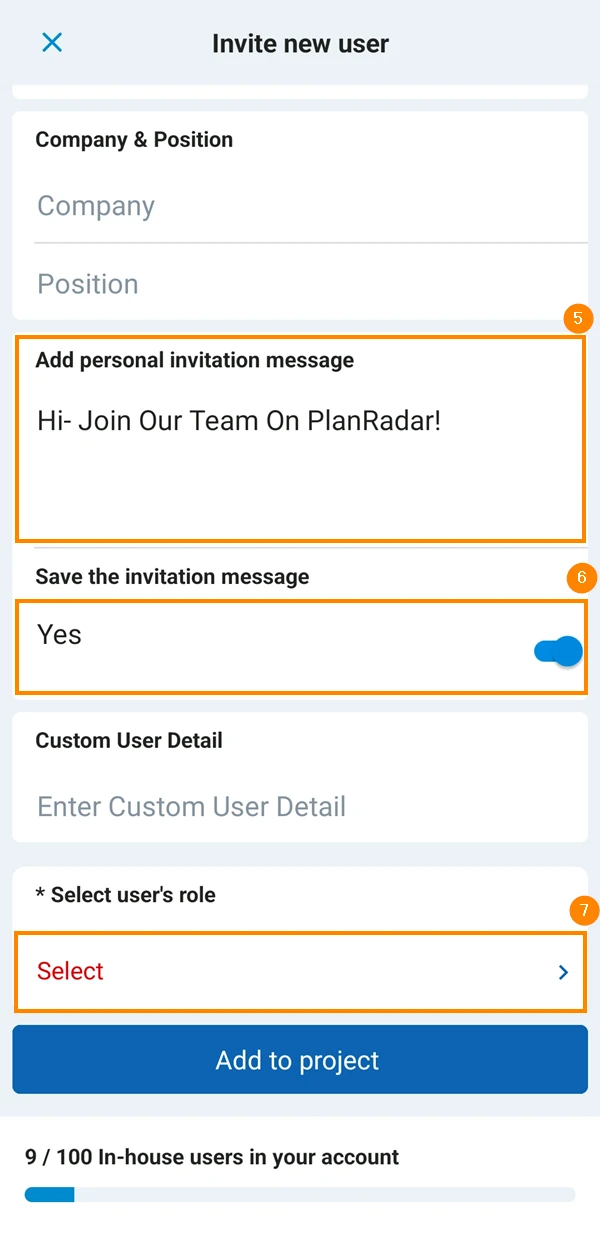
When you add in-house users to a project you need to assign a role for the project. Subcontractors and watchers have built-in permissions and, therefore, cannot have roles. If you add in-house users and subcontractors or watchers at the same time, the selected role is only applied to the in-house users. Read more in Create & Manage Roles. - Select the user role in the project
- Tap Add to Project
Change Role of a User
To change the role of a user for the current project:
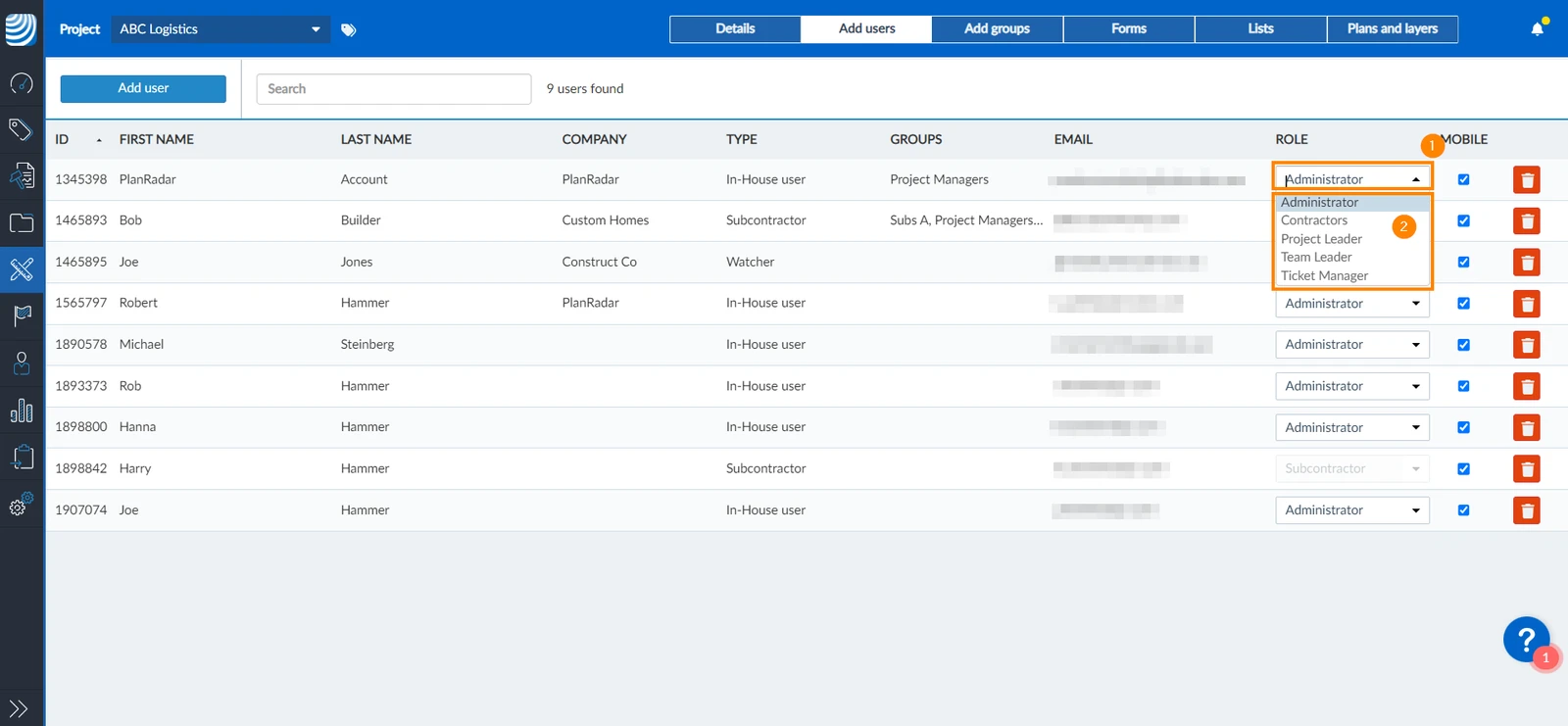
- Open the drop-down menu next to the user
- Select the new role you want to assign to the user
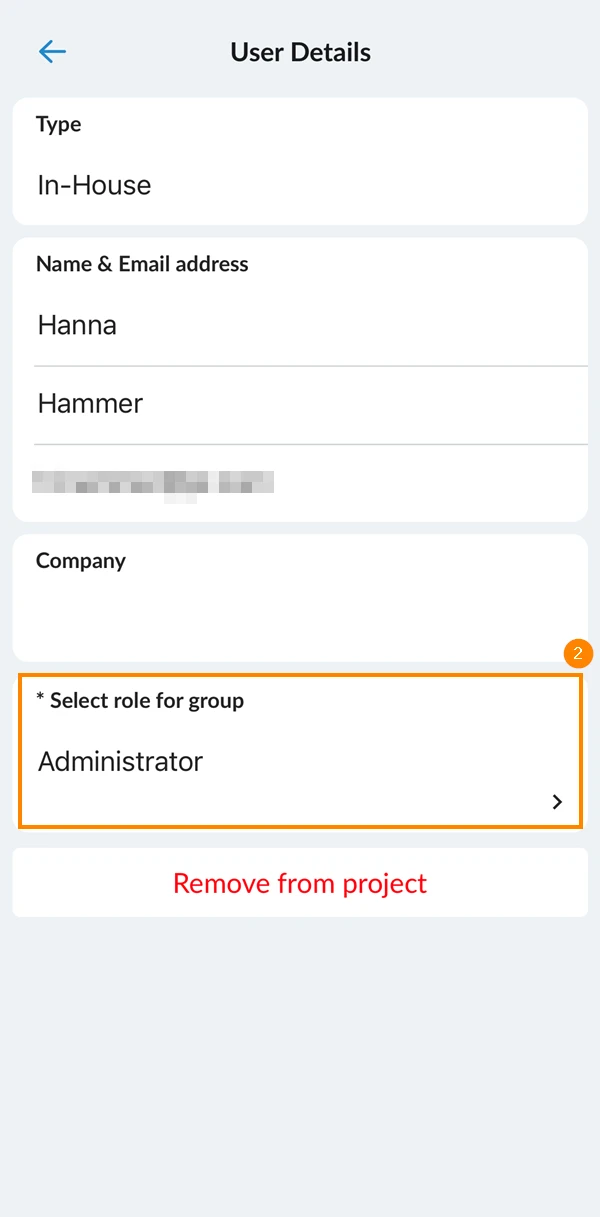
- Tap the user you want to change their role
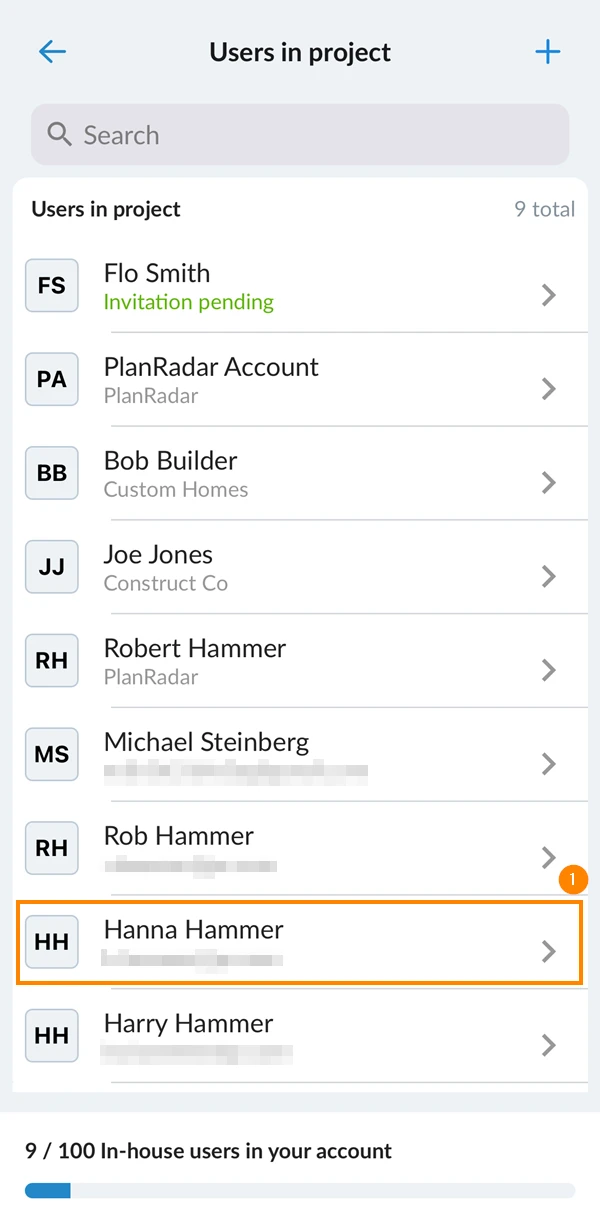
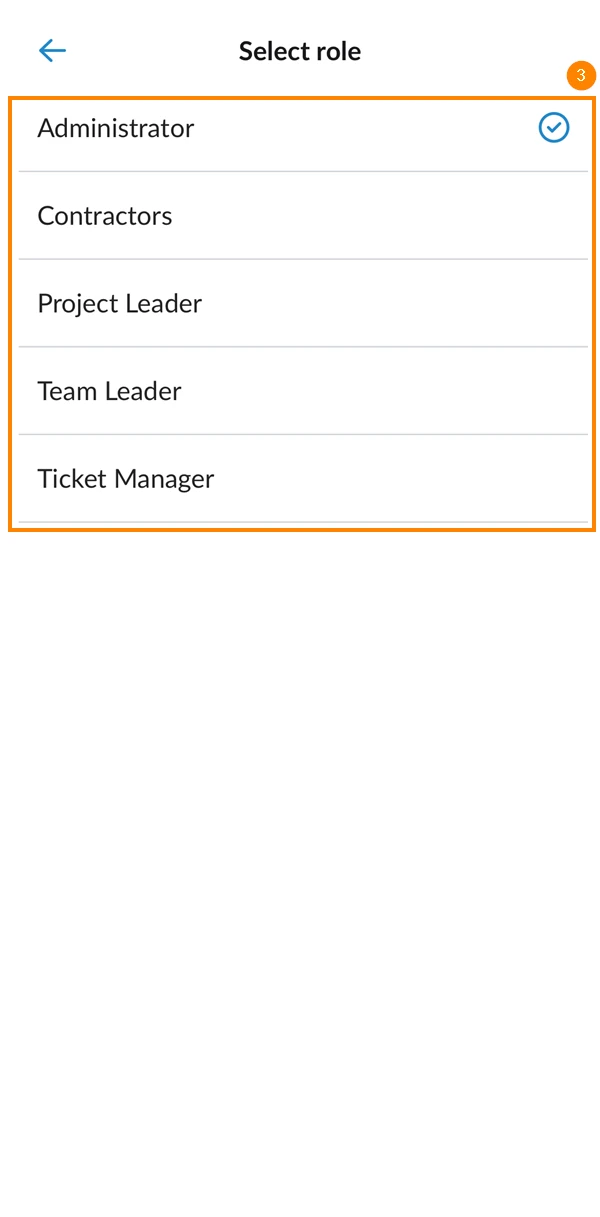
- Tap the role
- Select the new role
Make Project Available to User on Mobile Devices
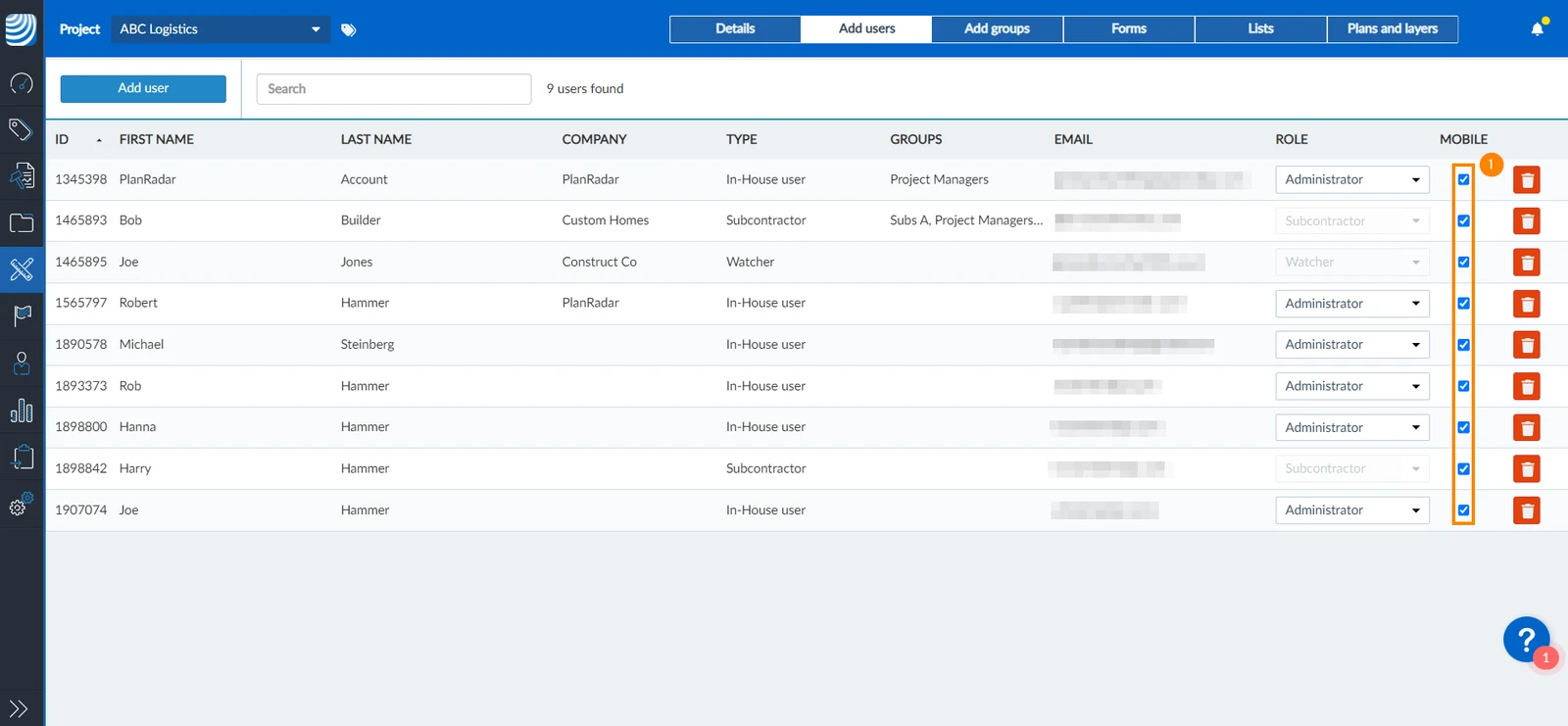
To make the project available for the user in mobile apps:
- Select the mobile checkbox next to the user's name to make the project available. Uncheck to revoke mobile access for the user.
Remove Users from Projects
To remove a user from a project:
- Click the trash icon
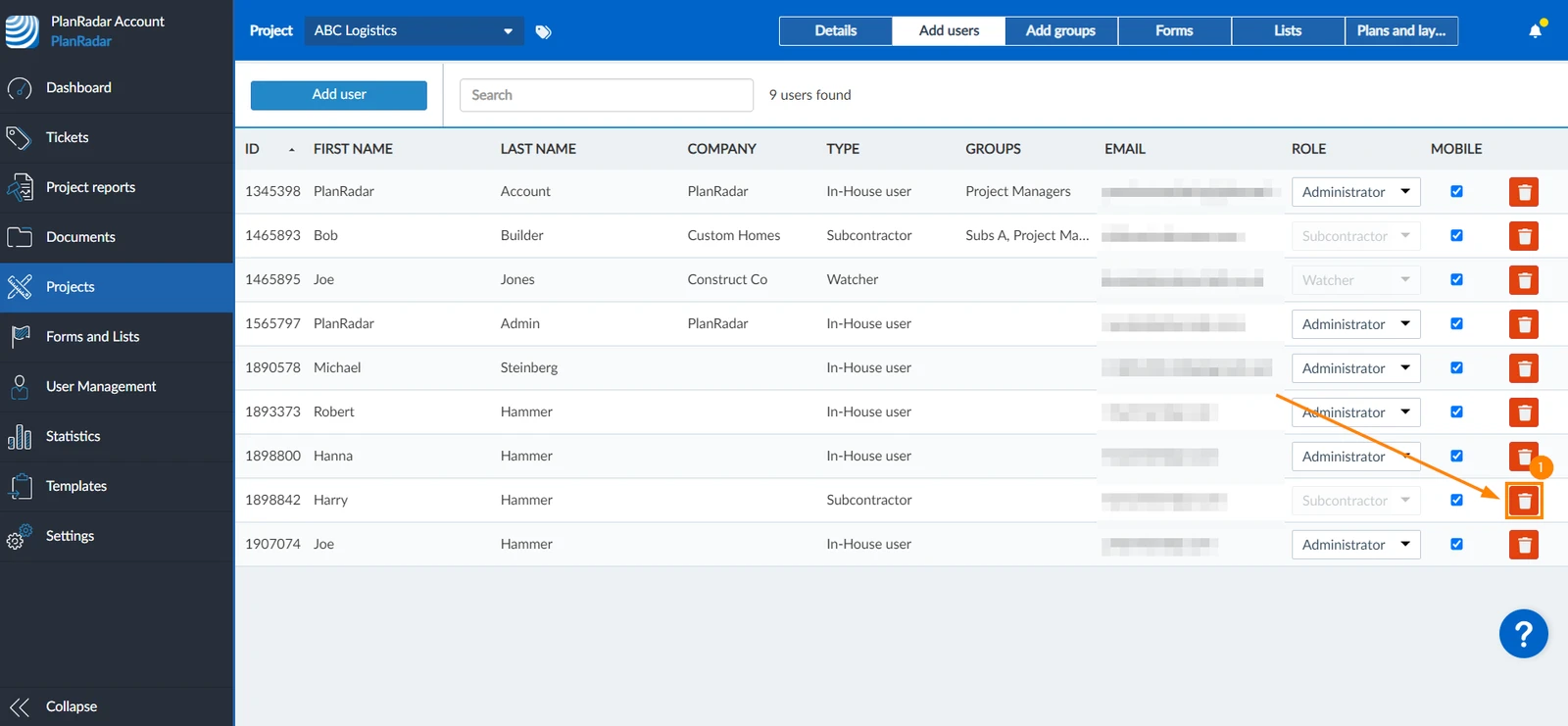
- Click Remove to confirm
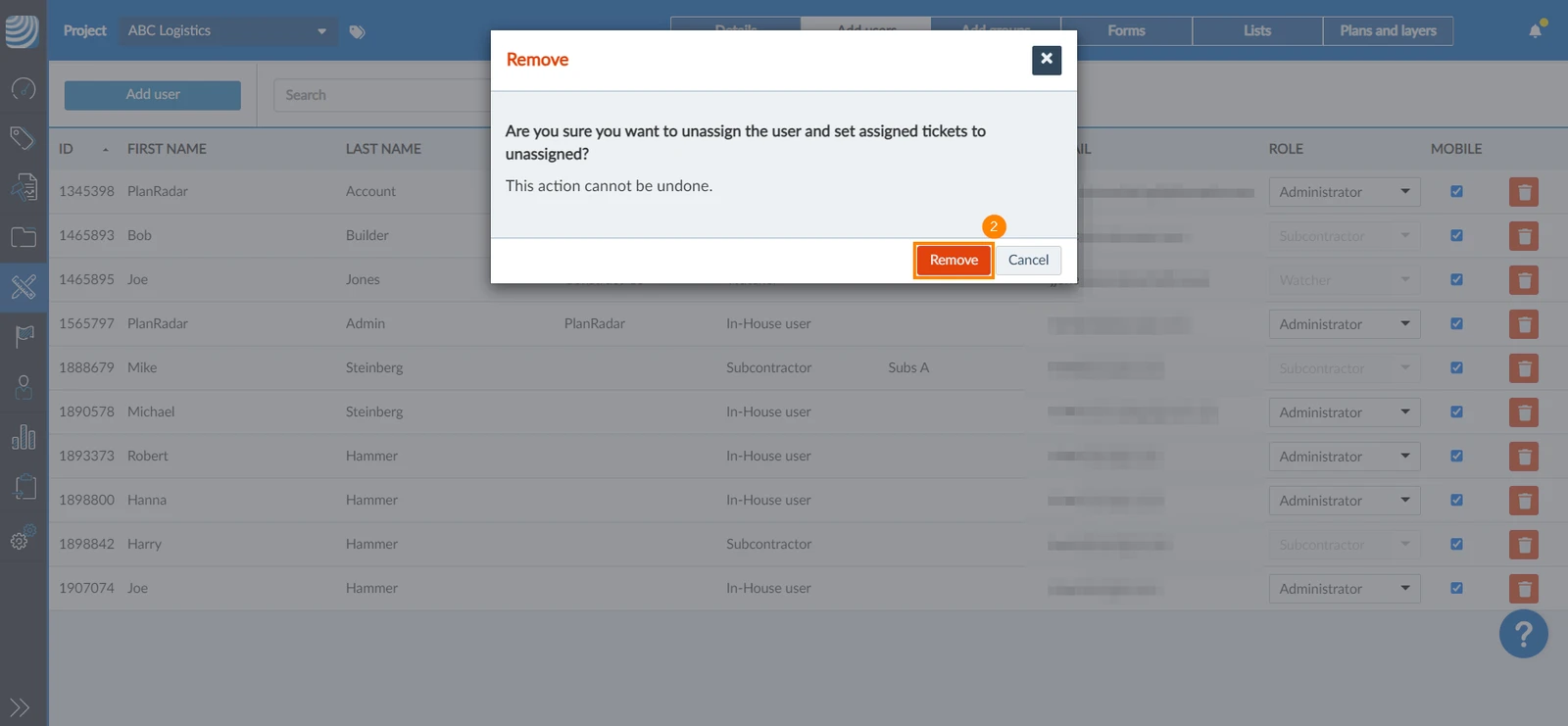
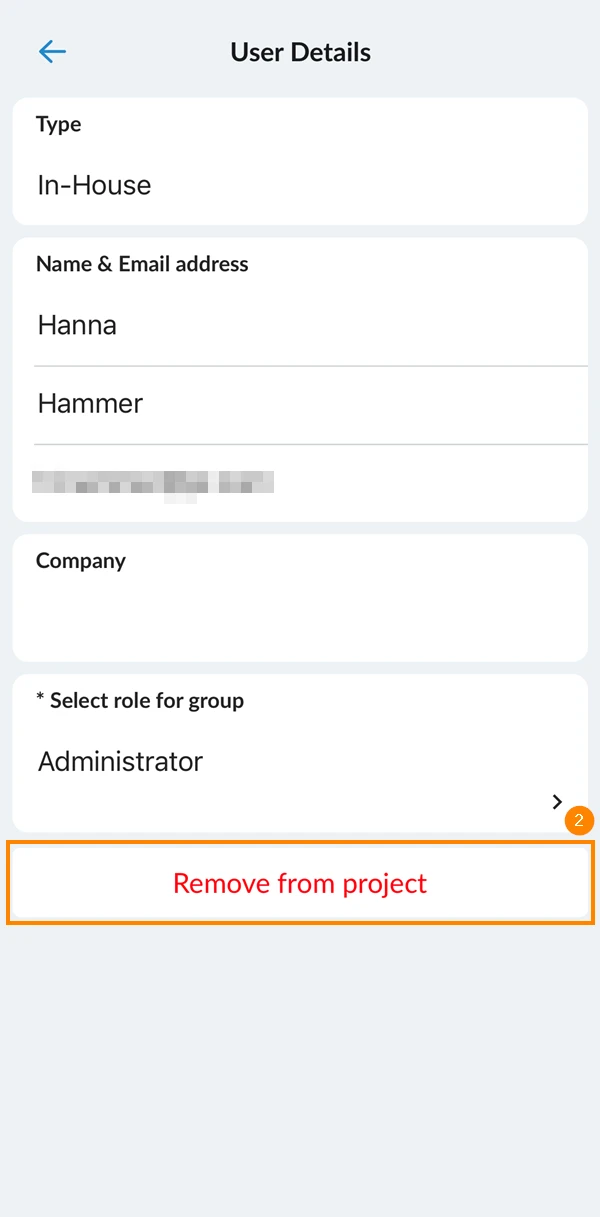
- Tap the user you want to remove from the project
- Tap Remove from project
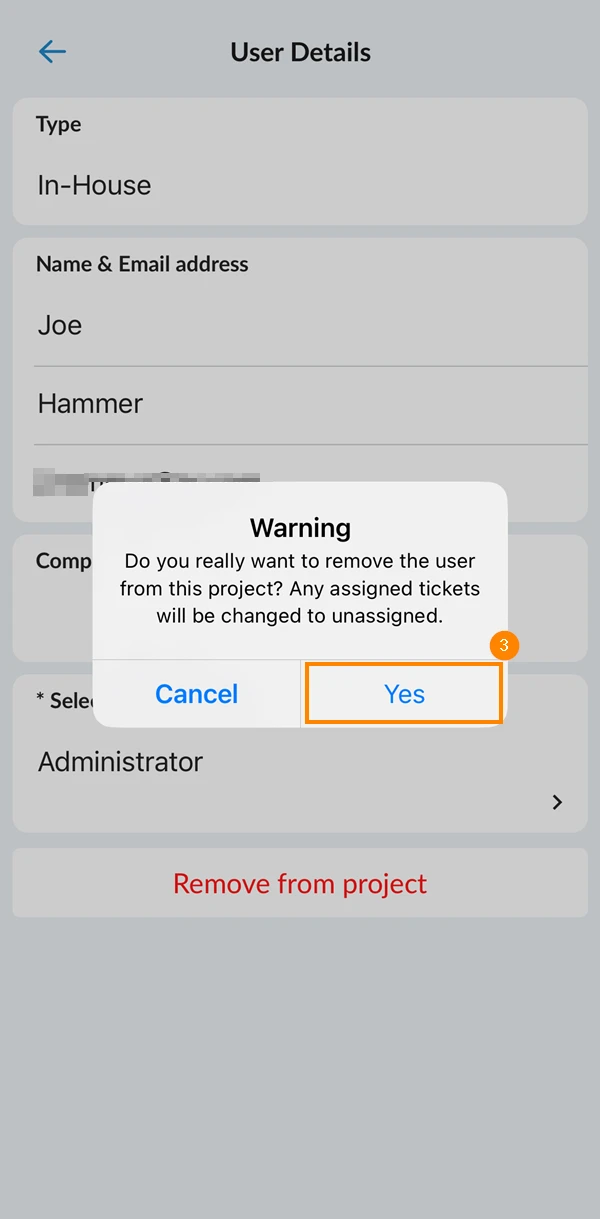
- Tap Yes to confirm removing the user from the project
Users Managed by Group
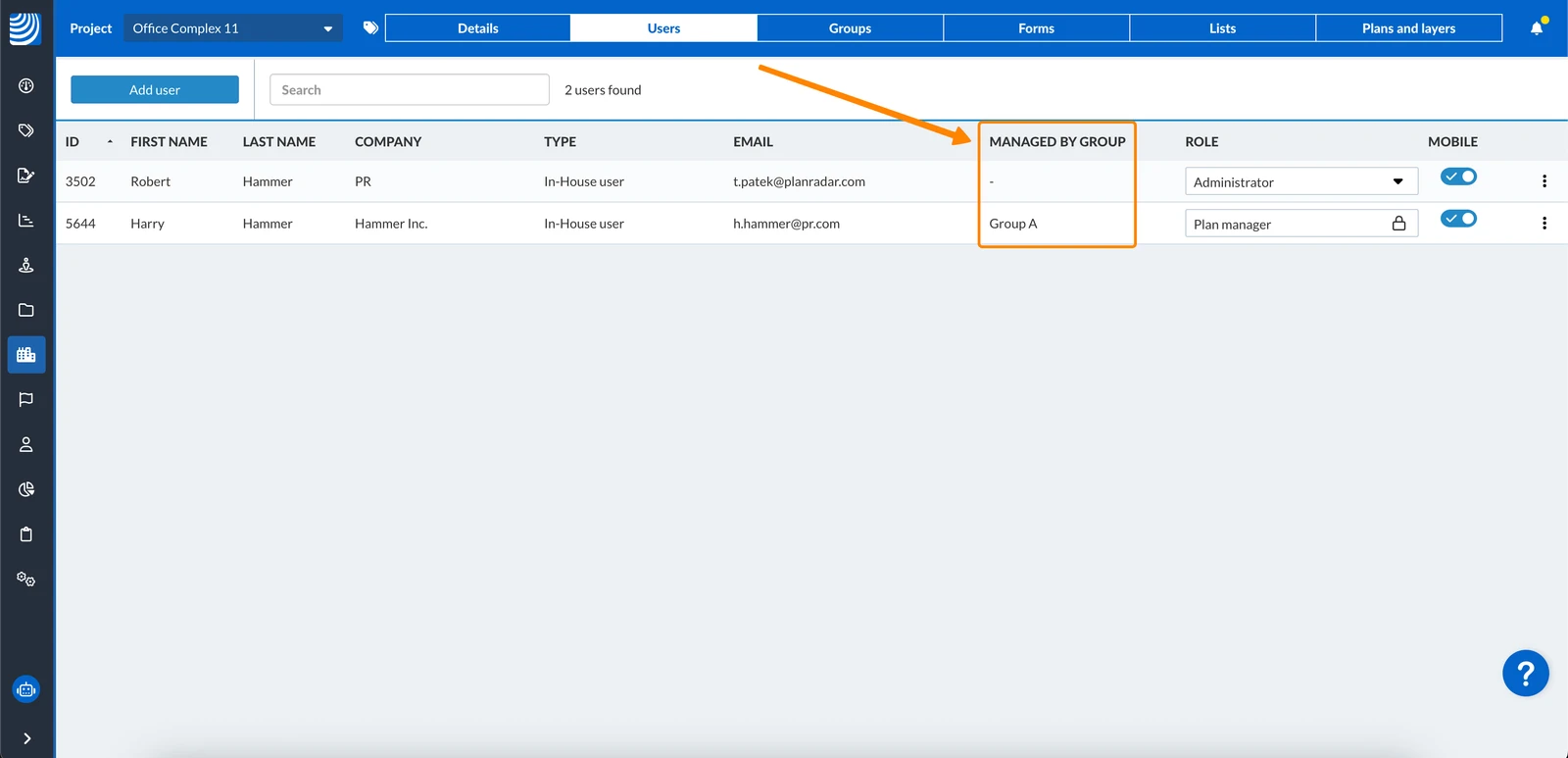
All users that are added to a project by a group, are managed by that group. Users are not managed by that group, if they are already being managed by a different group within the same project, or if they are already individual project members.
In-house users who are managed by a group also inherit the group's role. You can still assign them a different role, but then they will no longer be managed by that group for that particular project.
The column Managed by group shows by which group users are managed or if they are not managed by a group.
Updated May 11, 2026