

 Deutsch
 Español
 Français
 Hrvatski
 Italiano
 Polski
 Português (BR)
Review & Approve Plans
Overview
Review and approve or reject plans with a pending approval request. Read more in Request Approval for Plans
Access & Permissions
How to access Pending your Approval
There are multiple ways to access approvals. Read more in View & Manage Approvals.
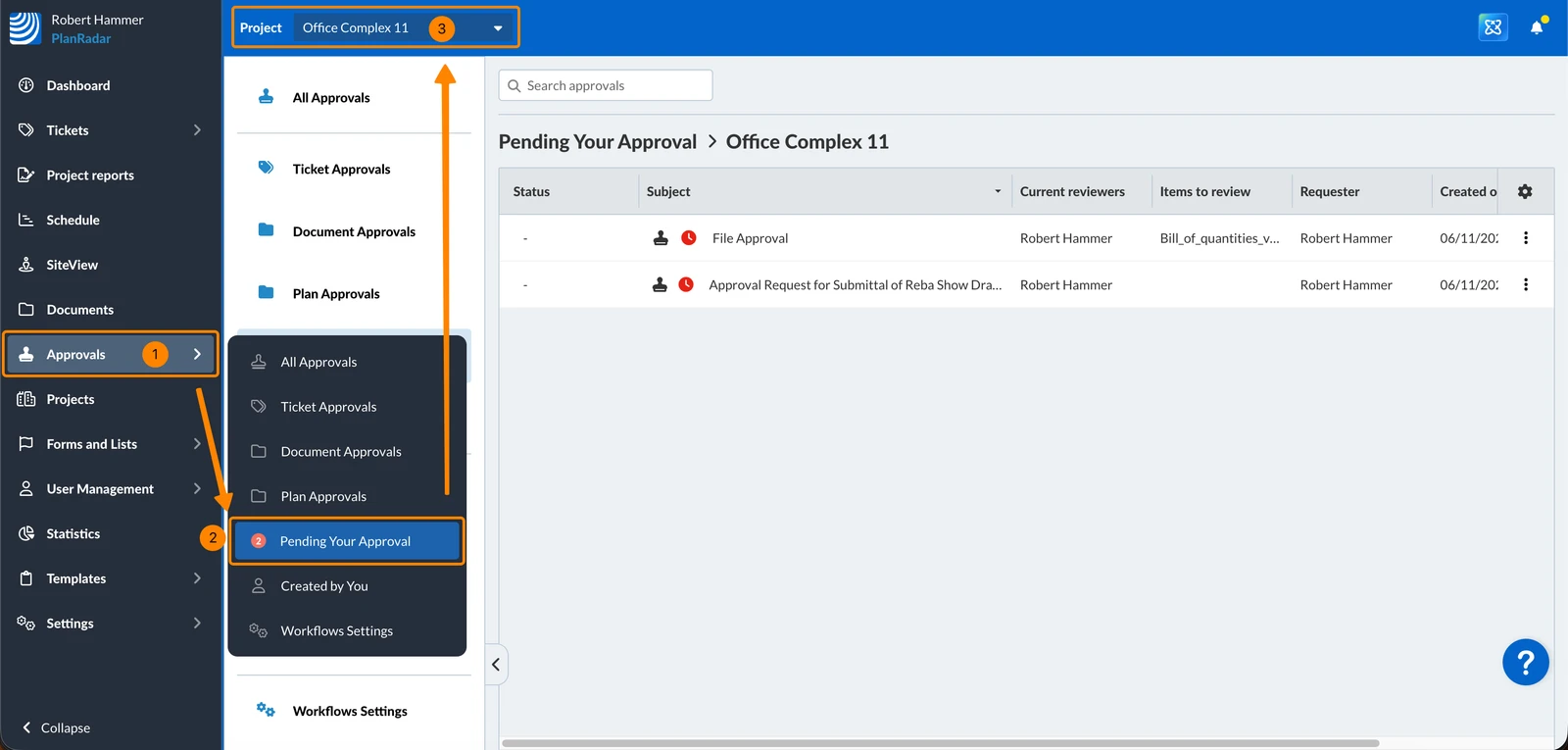
To view all approval requests that are pending your approval:
- Click Approvals
- Click Pending Your Approval
- Optional: Select a project or All projects in the Project drop-down
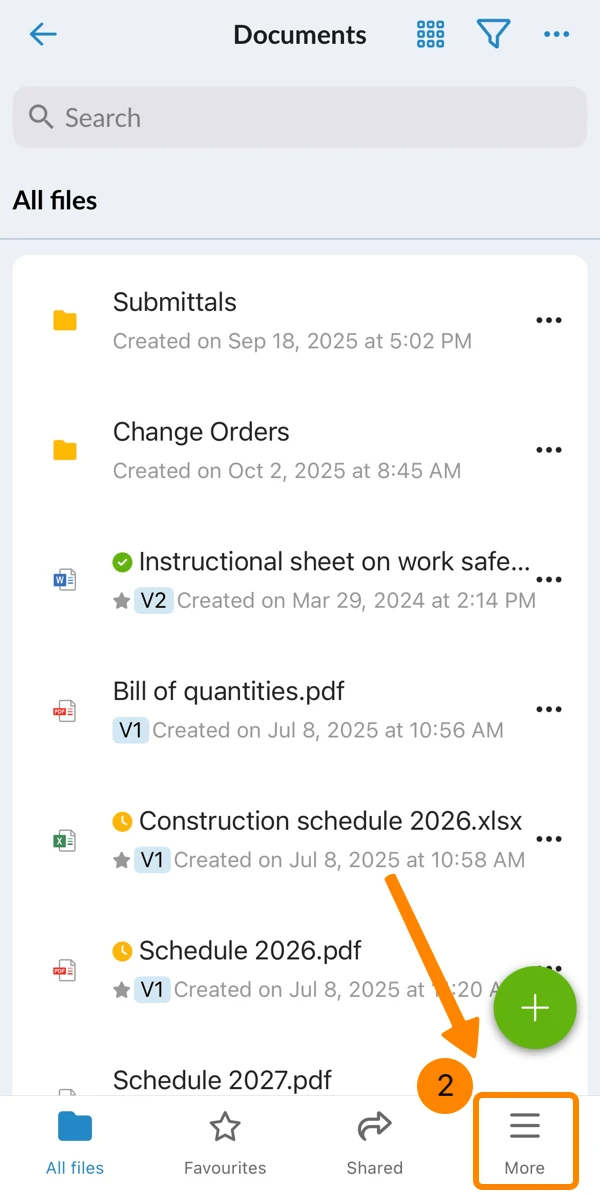
To view all pending document approval requests:
- Tap Documents in the main menu

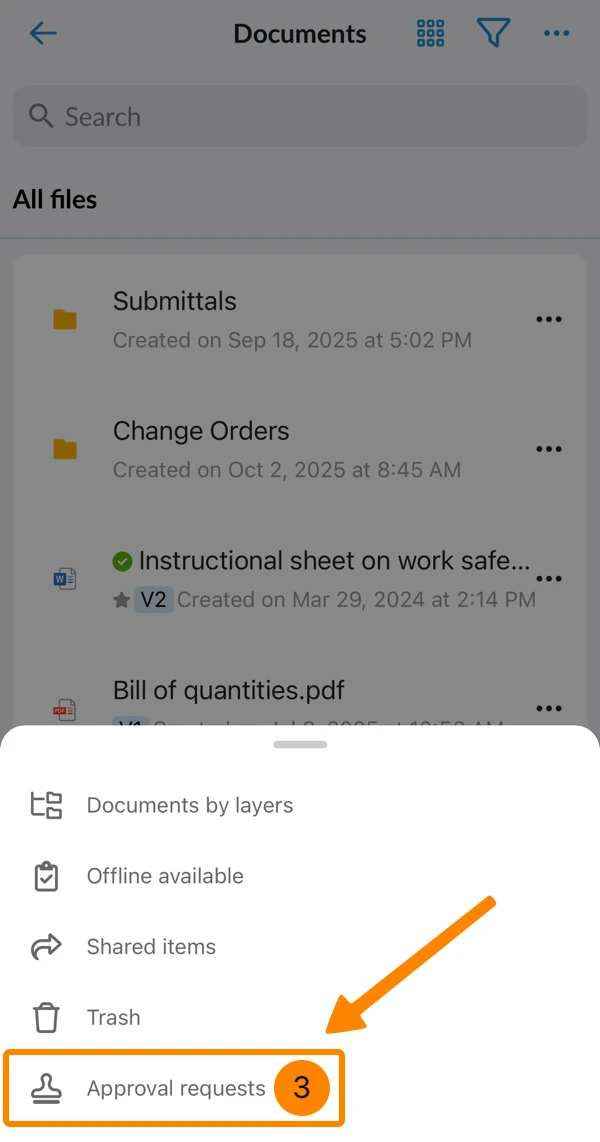
- Tap More
- Tap Approvals
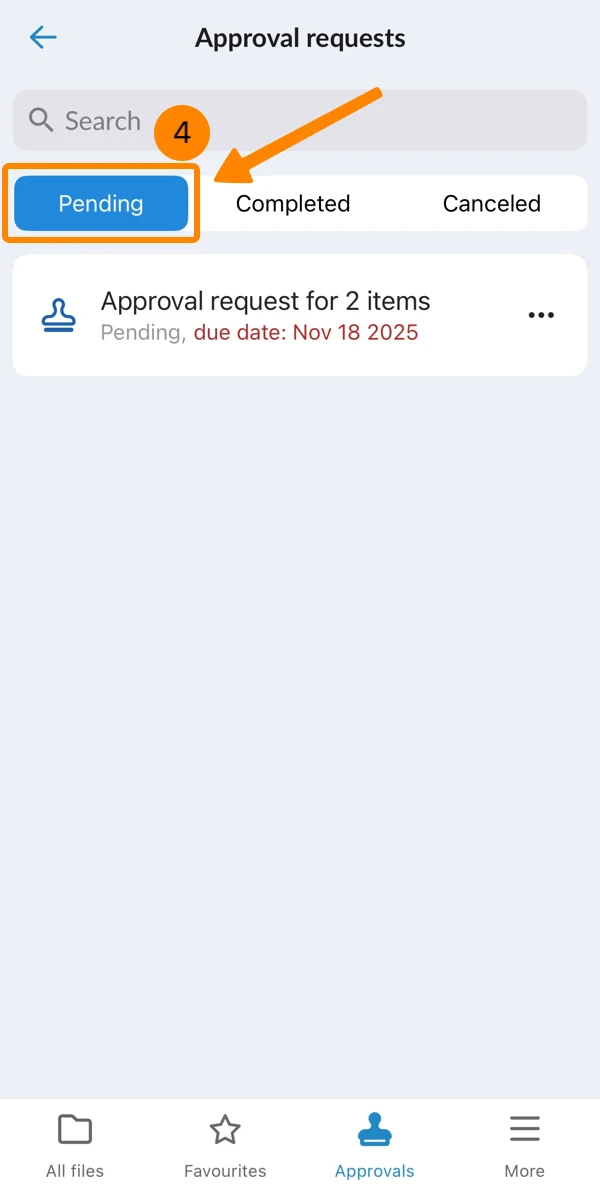
- You see all pending approval requests
Review Plans in Approval Request Details
In the case of Multi-Step Approval Requests, the current step must be approved by all reviewers, before the next step can be approved or rejected.
To approve or reject a plan:
- Click on the approval request
- Click on the file listed under Items to review
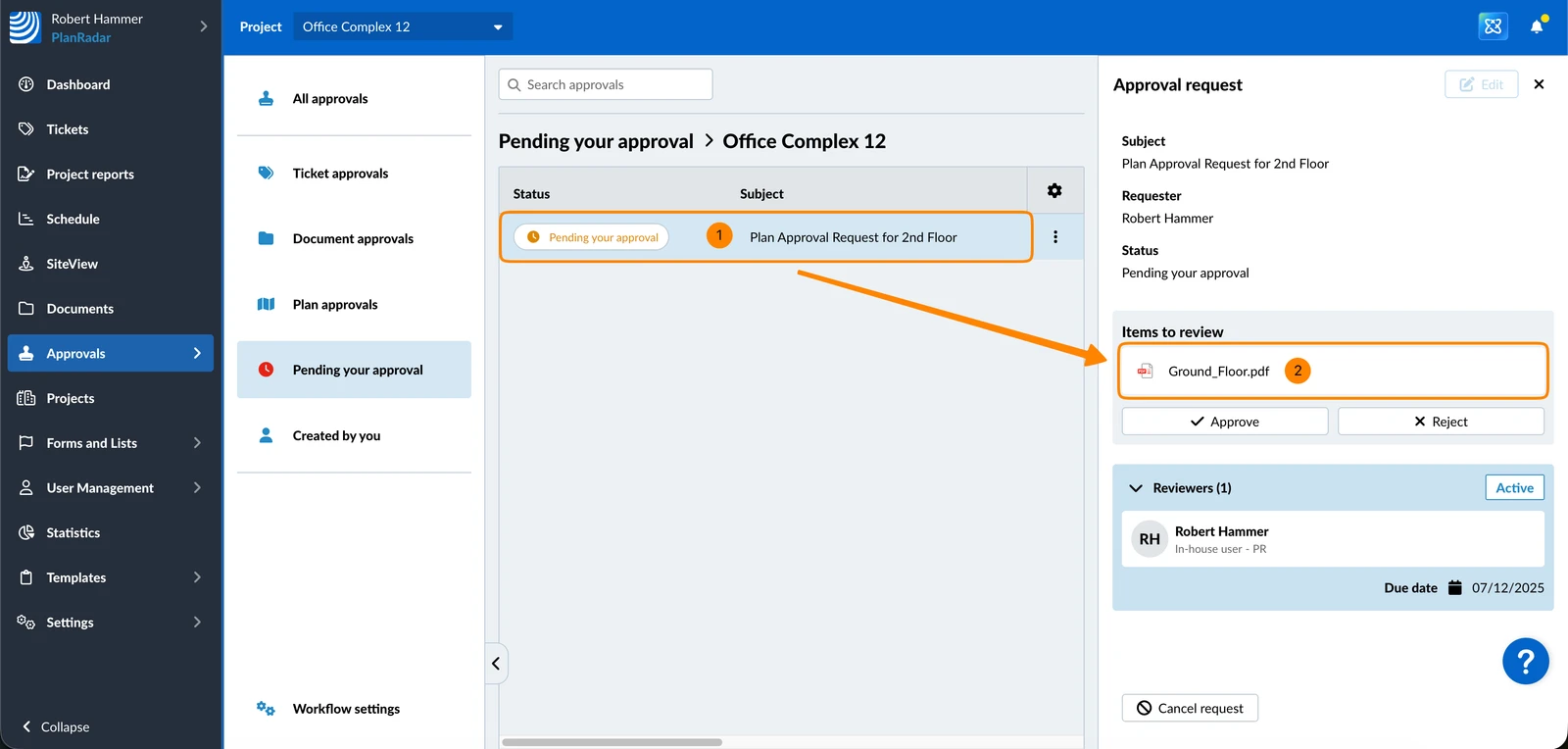
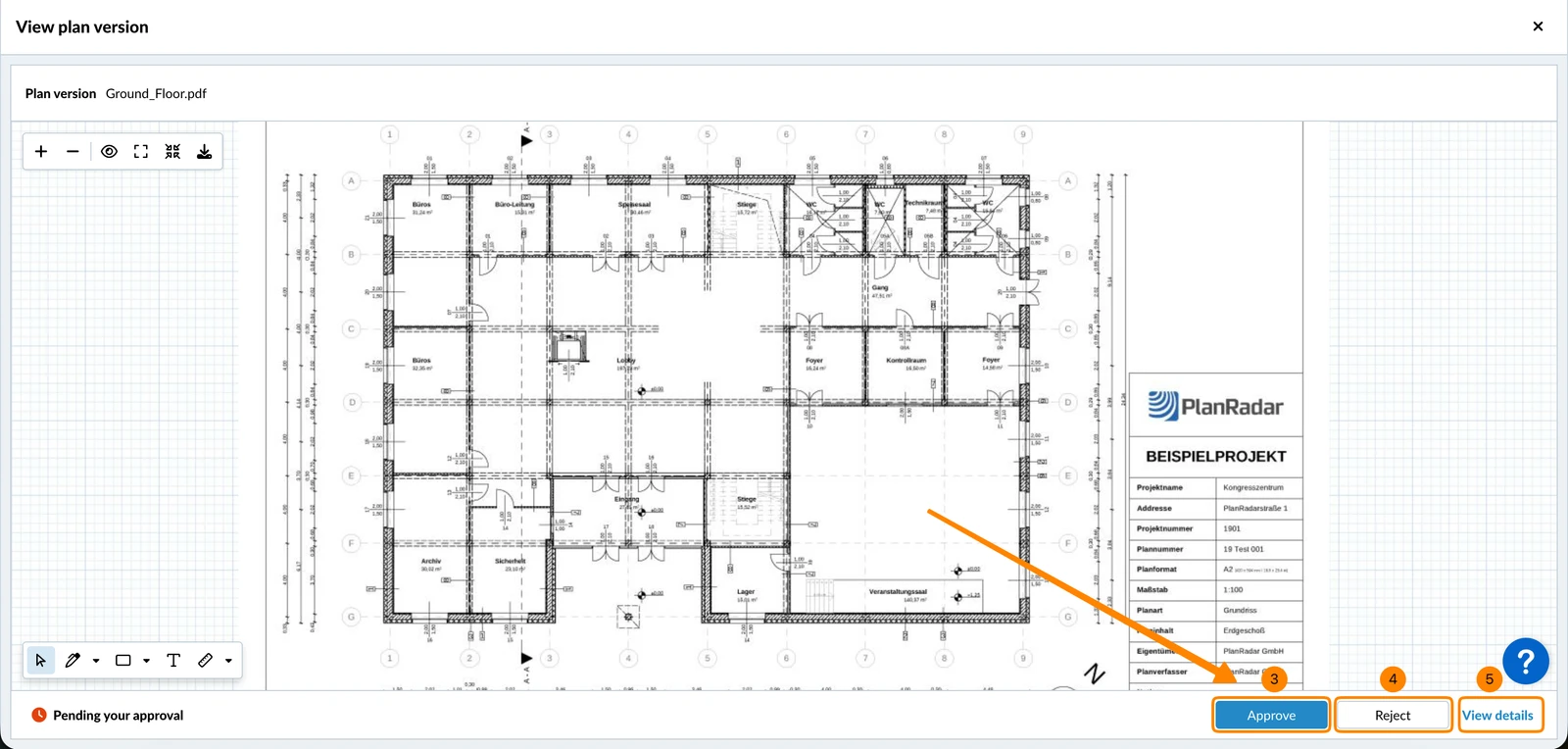
- Click Approve
- OR click Reject
- Optional: Click View details to see status of the approval request and steps.
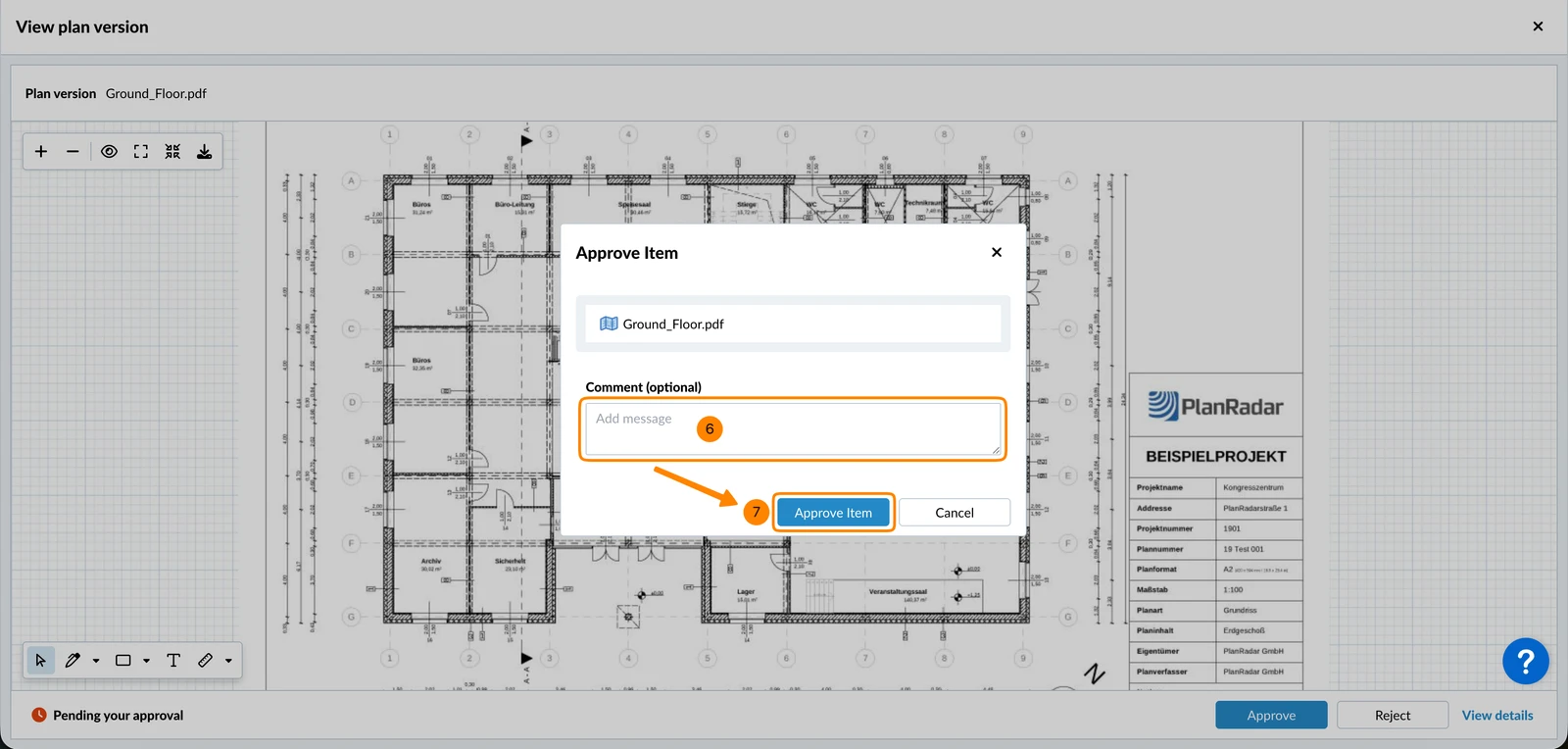
- Optional: Enter a comment
- Click Approve Item (or Reject Item) to confirm
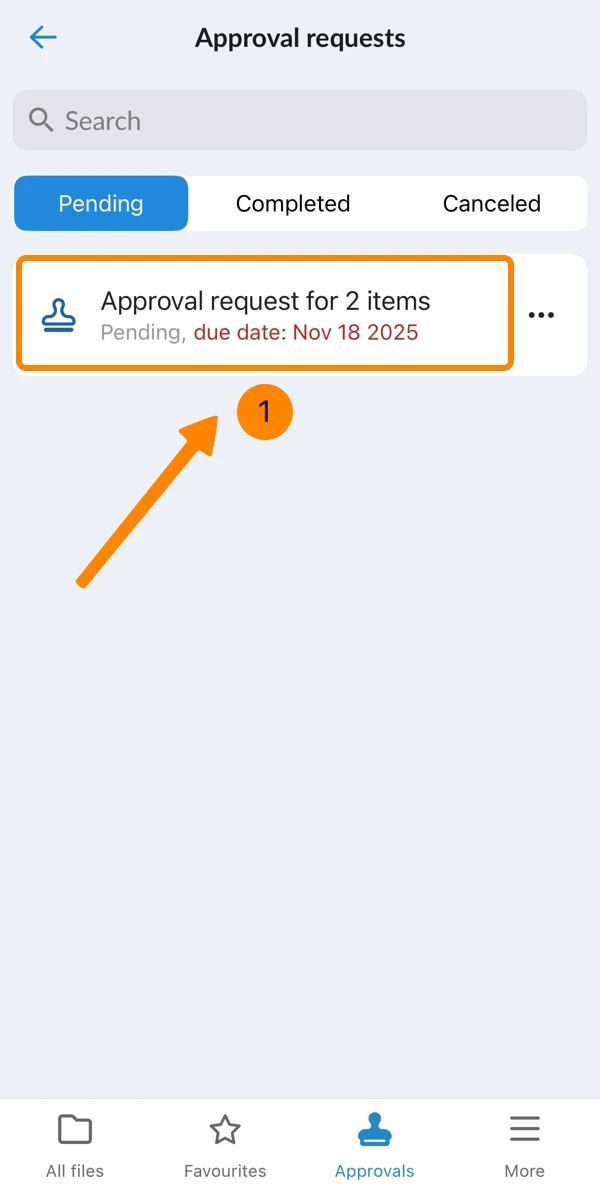
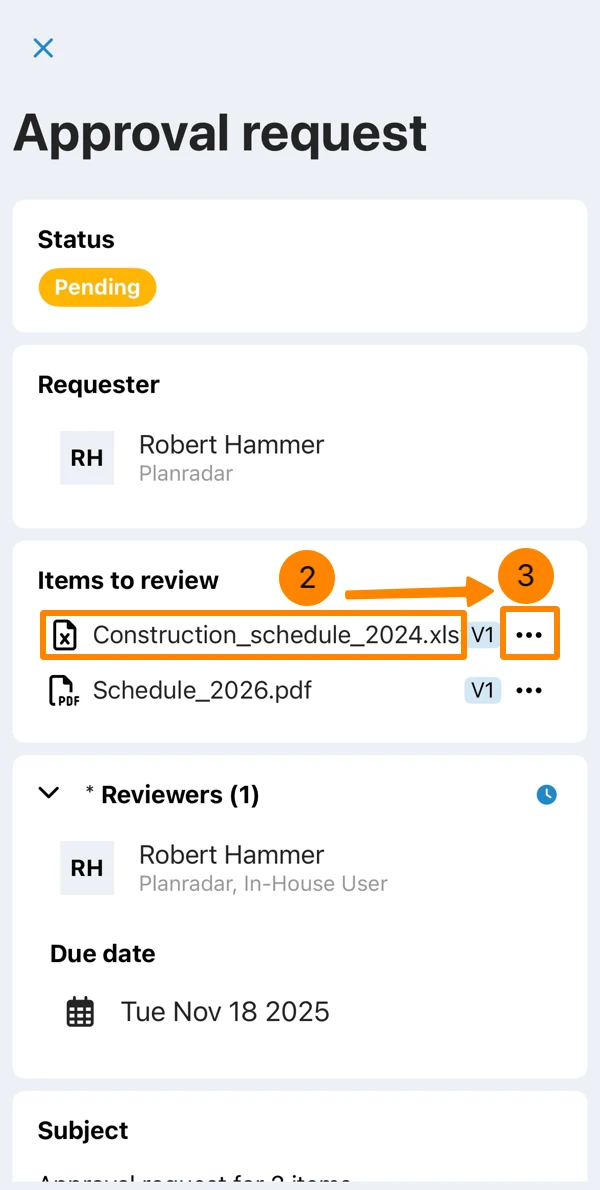
- Tap on the pending approval request
- Optional: Tap on the file to preview it (and close it again)
- Open the More menu of the file
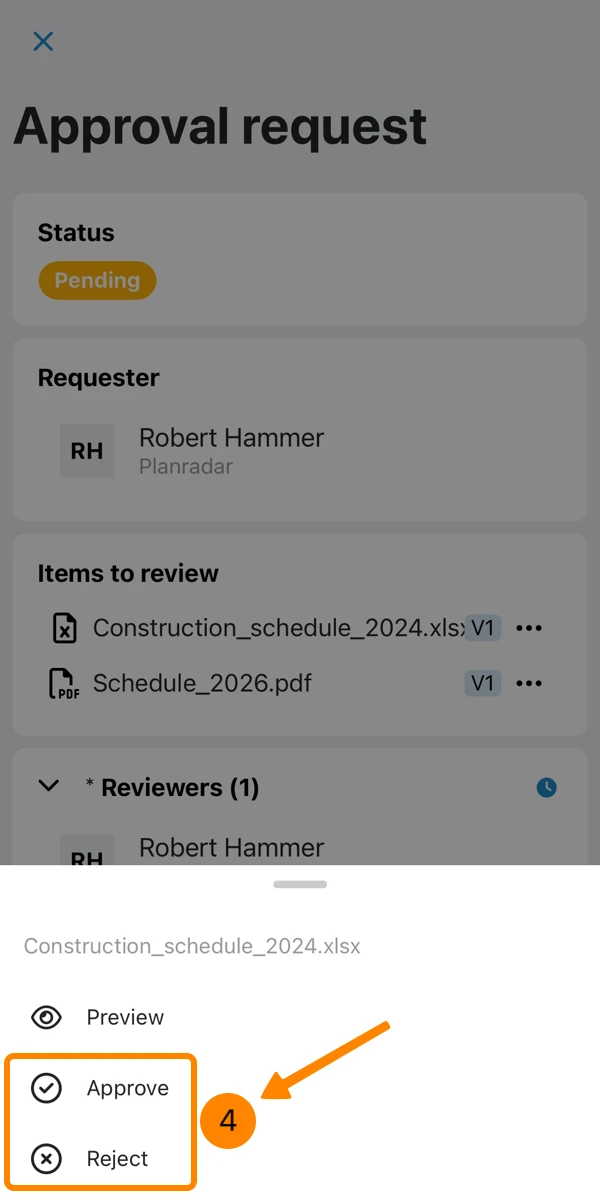
- Tap Approve or Reject
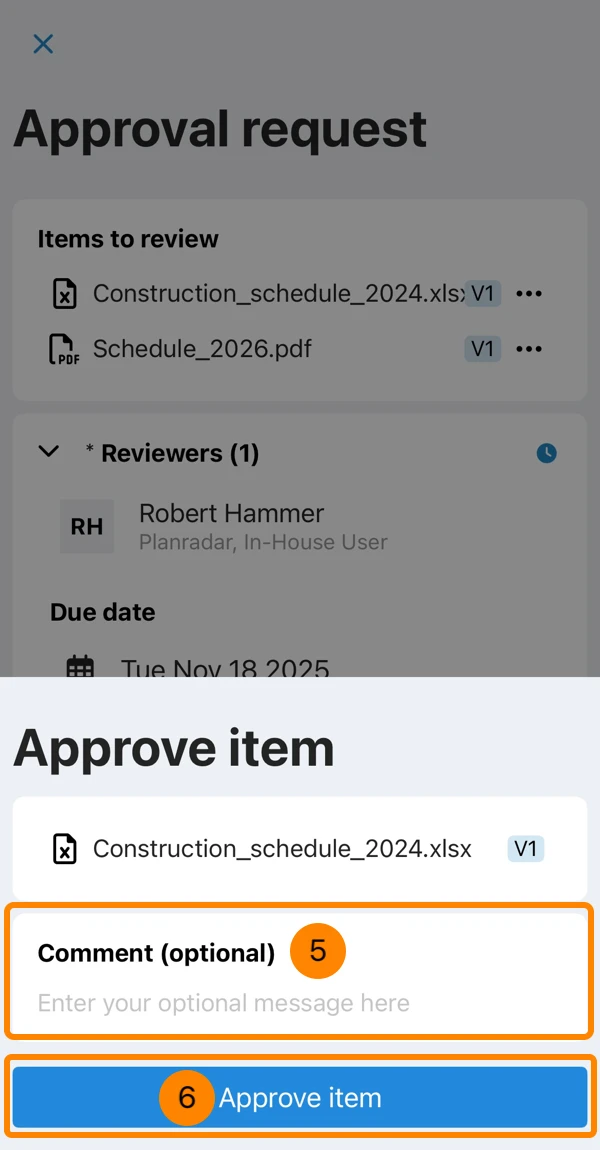
- Optional: Enter a comment
- Tap Approve item
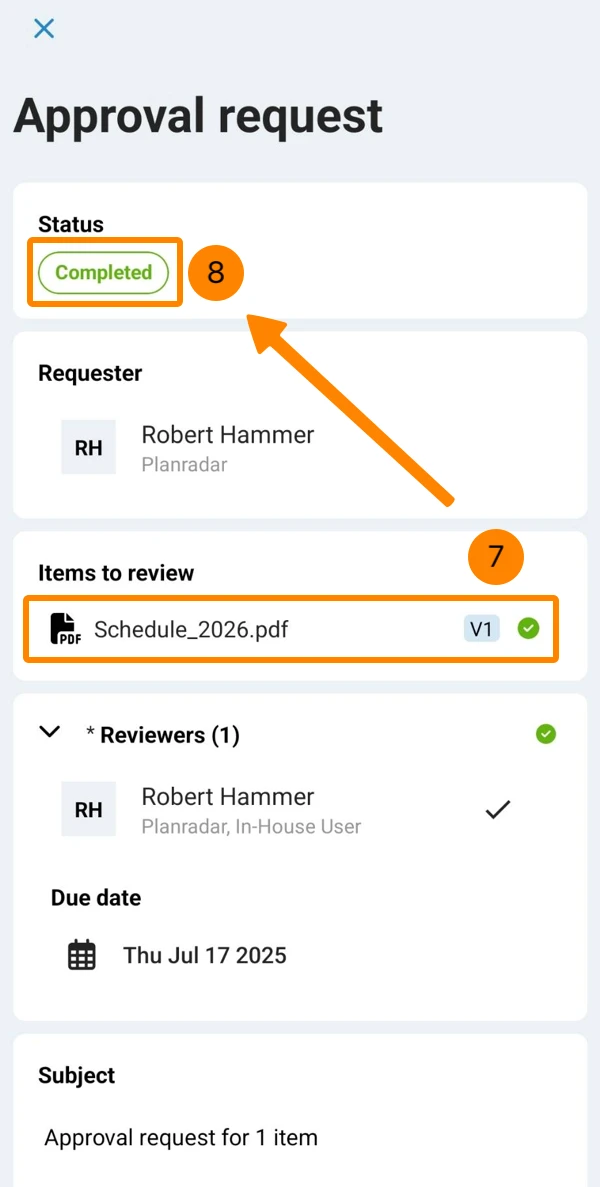
- See green ✔ for approved items.
- See Status Completed when all are approved.
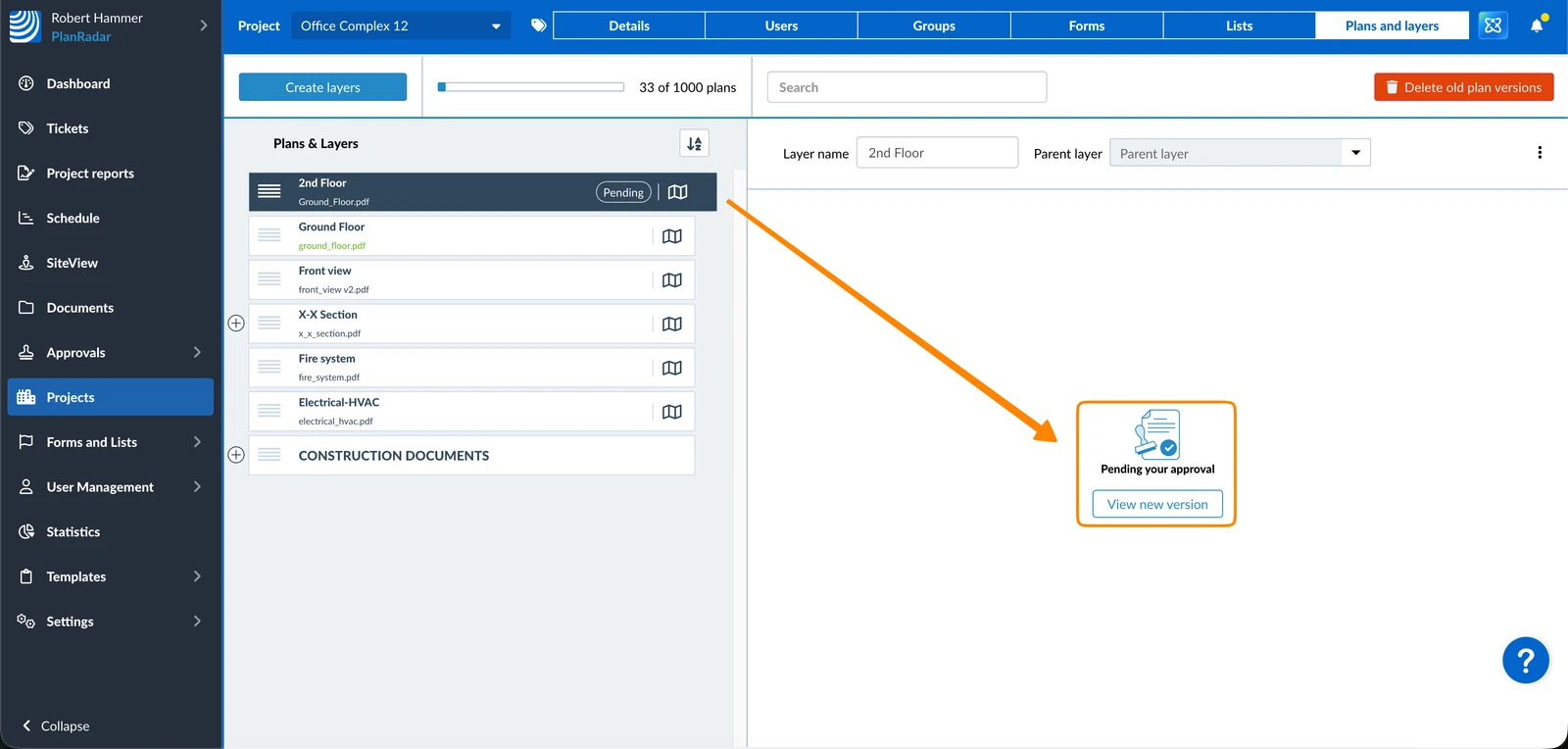
Alternatively you can also review the plan approval request in plans and layers of a project. Also see Manage Layers of a Project.
Updated February 4, 2026