

 Deutsch
 Español
 Français
 Hrvatski
 Italiano
 Polski
 Português (BR)
Request Approval for Plans
Overview
PlanRadar supports requesting approvals on new plan versions uploaded to a project, similar to document approvals. Approval requests for plan versions are created in Project > Plans & layers.
Plan approvals can be requested when:
- Creating one or more new plan layers
- Updating the plan of a layer
Access & Permissions
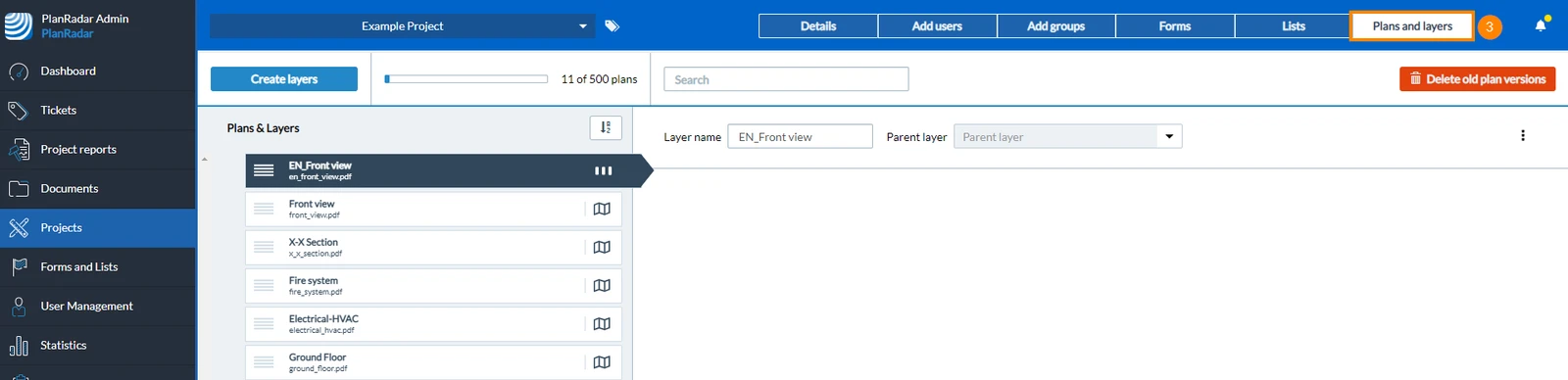
How to access Plans and Layers of a Project
Plan approval requests can be created when uploading plans in Plans and layers of a project. To get there:
- Click Projects
- Open the project in your list of projects

- Click Plans and layers
Request Plan Approvals
As long as a new plan version has not been approved yet, all users still work with the current plan version. Once a new plan version is approved, it becomes the new current version.
Request Approval when Creating a New Plan Layer
-
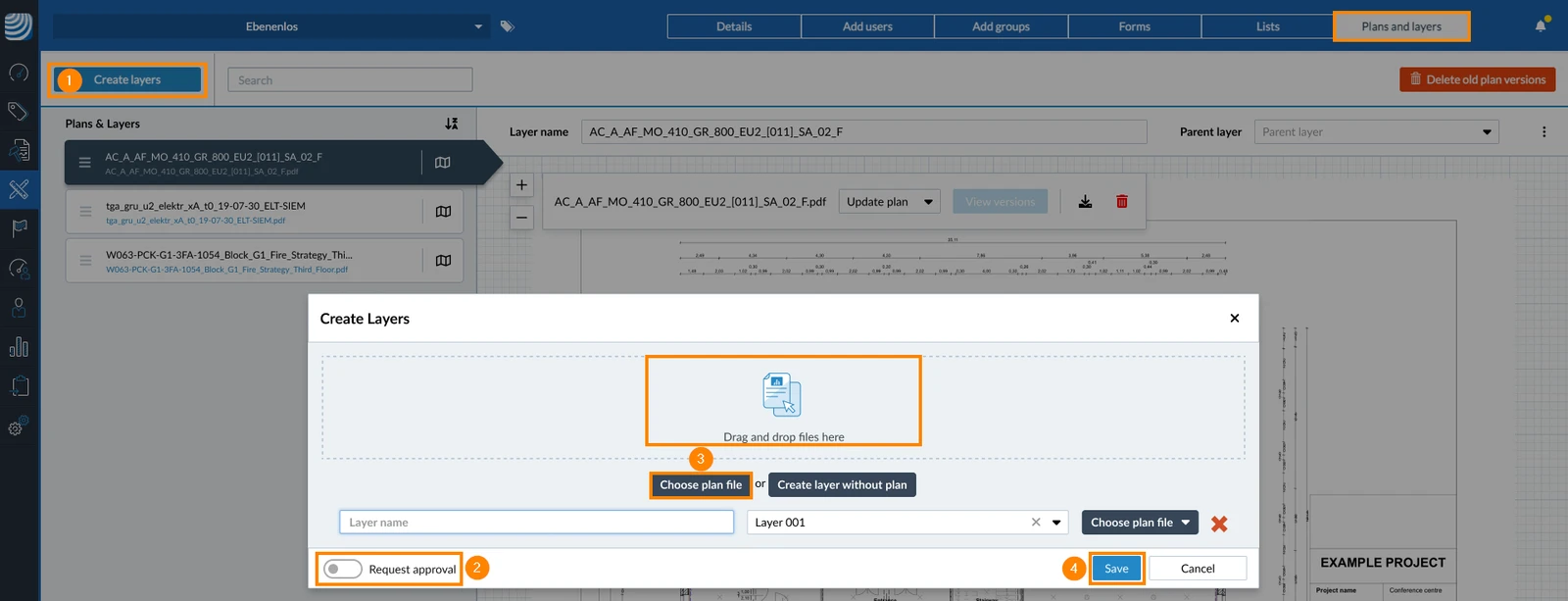
Click Create layers
-
Select the Request approval checkbox
-
Click Choose plan file (or drag & drop it) - create as many plan layers you need
-
Click Save
-
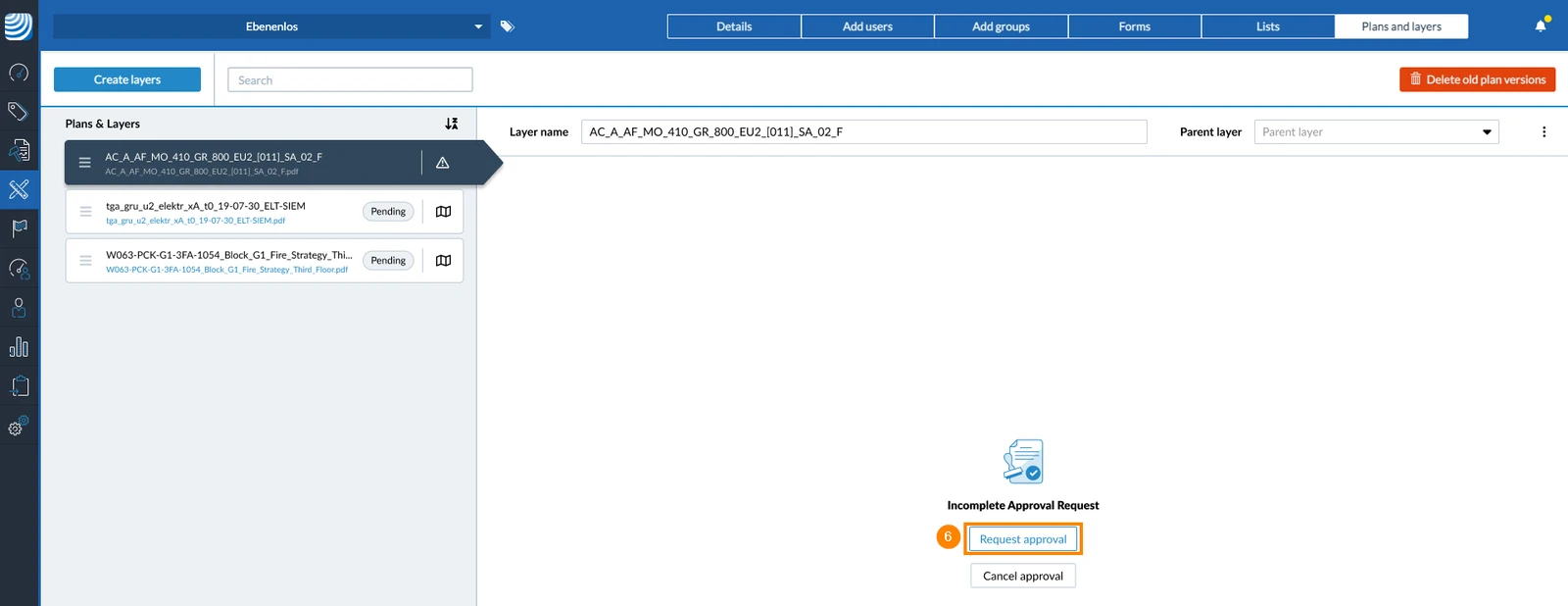
Wait until your plan has been processed.
-
Now click Request approval
-
Continue as described in Request Approval for Documents > Fill and Send an Approval Request.
Request Approval for a Plan Update
You can update an existing plan with a new version. First, access Plans & layers of your project.
-
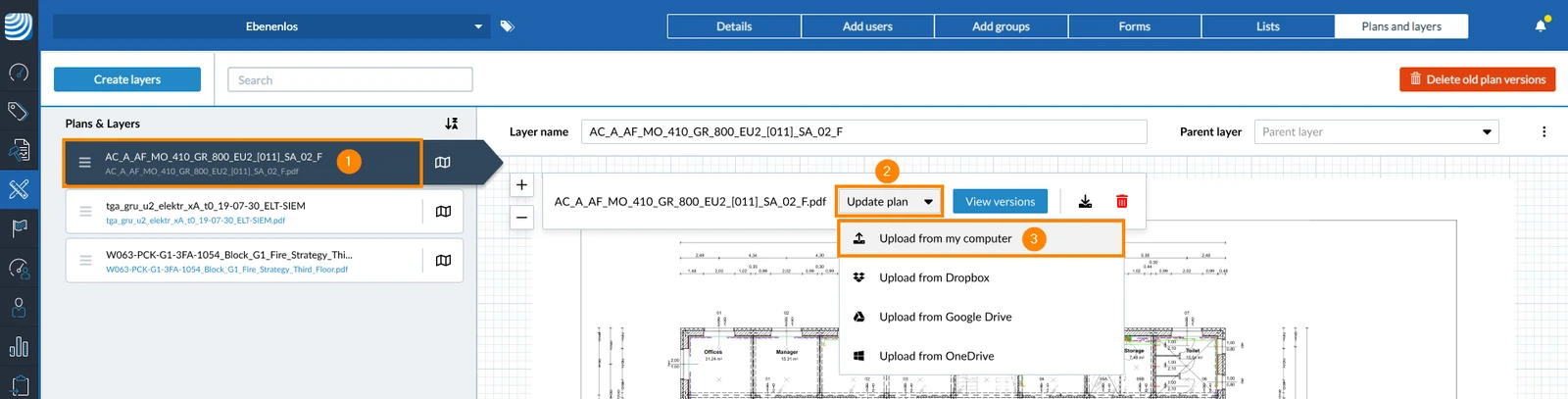
Select an existing layer
-
Click Update plan dropdown
-
Click Upload from my computer or from a cloud storage service
-
Select the Request approval checkbox
-
Click Save
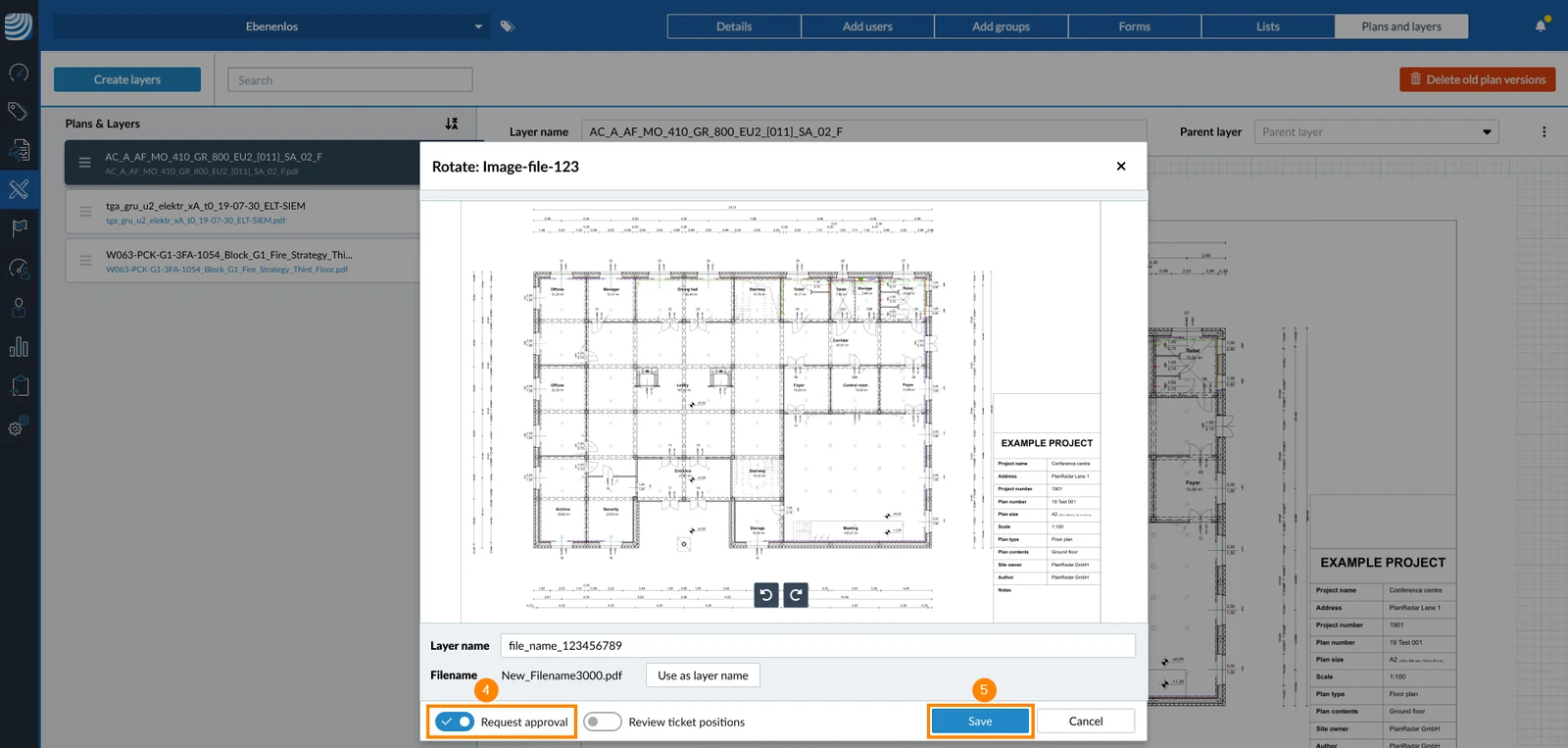
-
Wait until your new plan version has been processed.
-
Click Request approval
-
Continue as described in Request Approval for Documents > Fill and Send an Approval Request.
After a plan approval request has been sent it has the status Pending and can be reviewed. All reviewers will get an email notification.
Cancel an Incomplete Plan Approval Request
If you uploaded a plan with the Request approval checkbox selected, after the plan is processed, you can choose to cancel the approval request. You have decide to either:
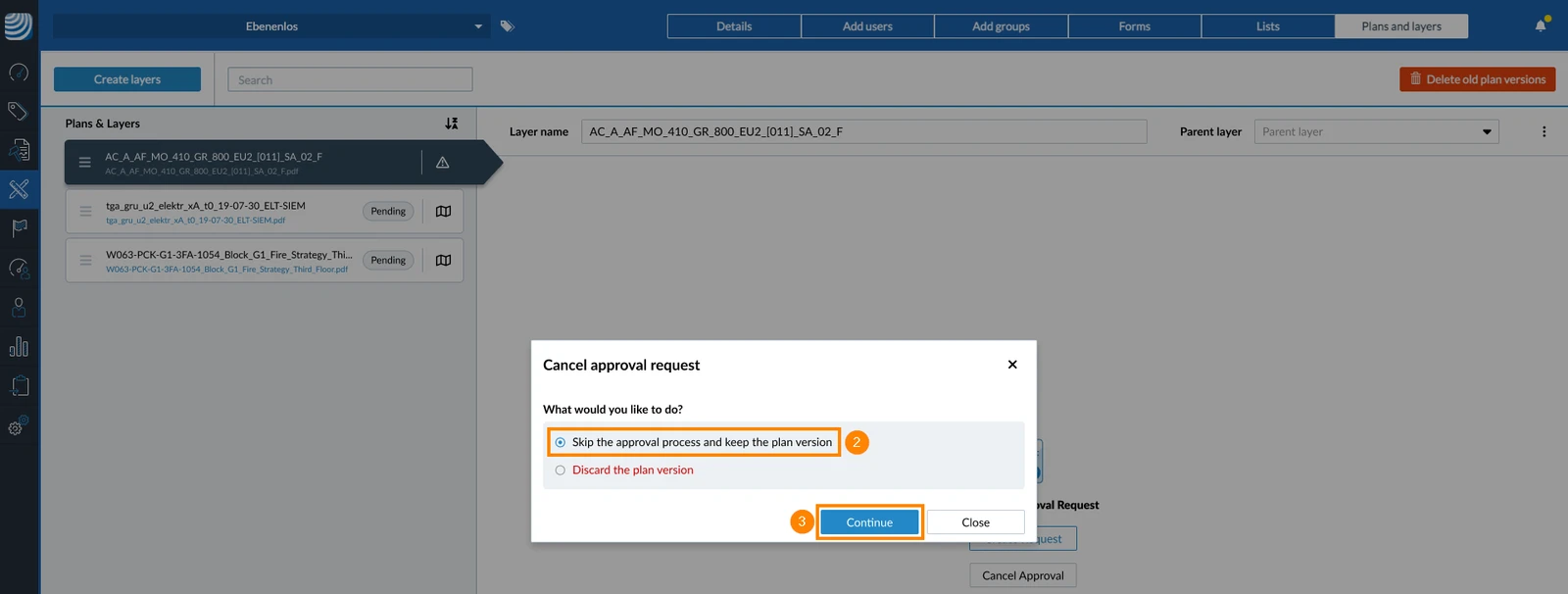
- Skip the approval process and keep the new plan version without approval
- Discard the plan version.
- Click Cancel approval
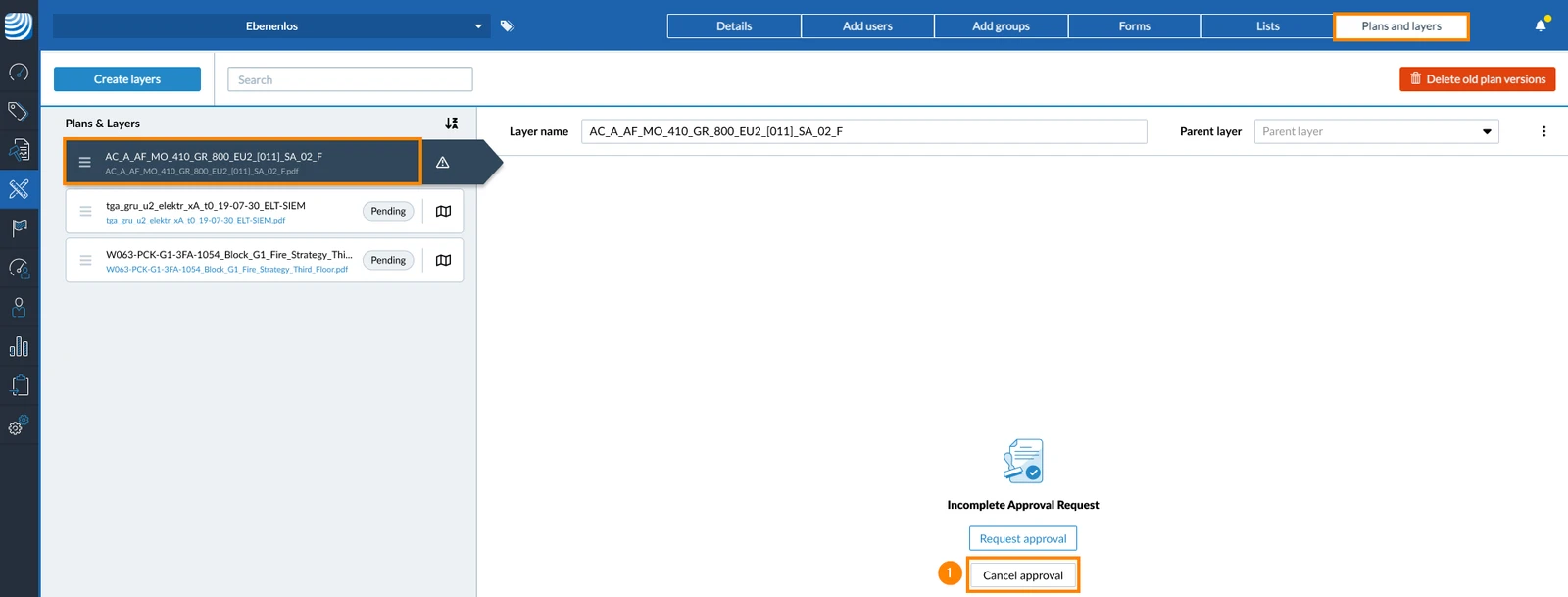
- Select Skip the approval process and keep the plan version OR Discard the plan version
- Click Continue
Updated February 4, 2026