

 Deutsch
 Español
 Français
 Hrvatski
 Italiano
 Polski
 Português (BR)
Review & Approve Documents
Overview
Review and approve or reject documents with a pending approval request. Read more in Request Approval for Documents.
Document approval requests may contain one or multiple files. Each file is approved or rejected separately and will have it's own approval status once the approval request is completed.
Access & permissions
How to access
There are multiple ways to access approvals. Read more in View & Manage Approvals.
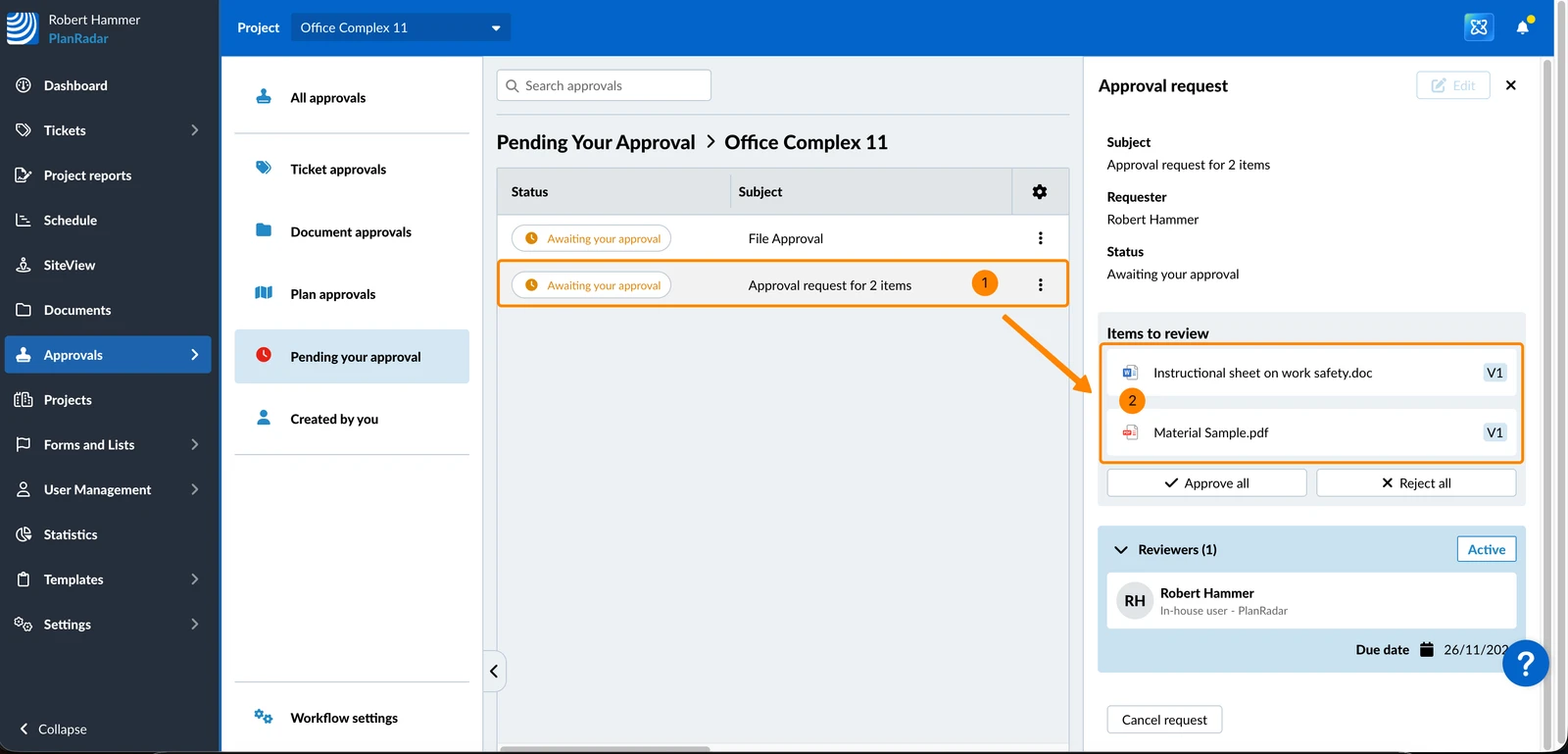
To view all approval requests that are pending your approval:
- Click Approvals
- Click Pending Your Approval
- Optional: Select a project or All projects in the Project drop-down
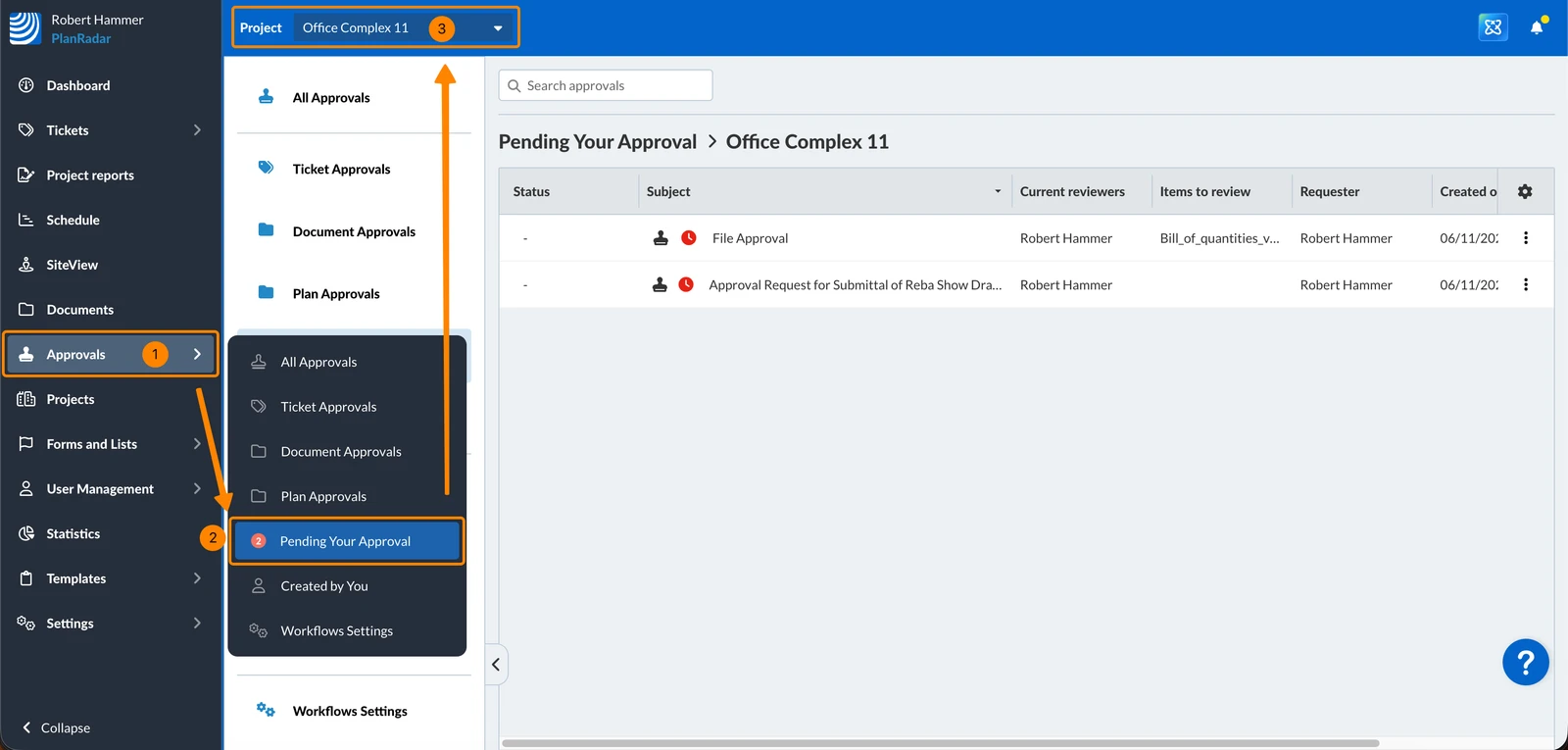
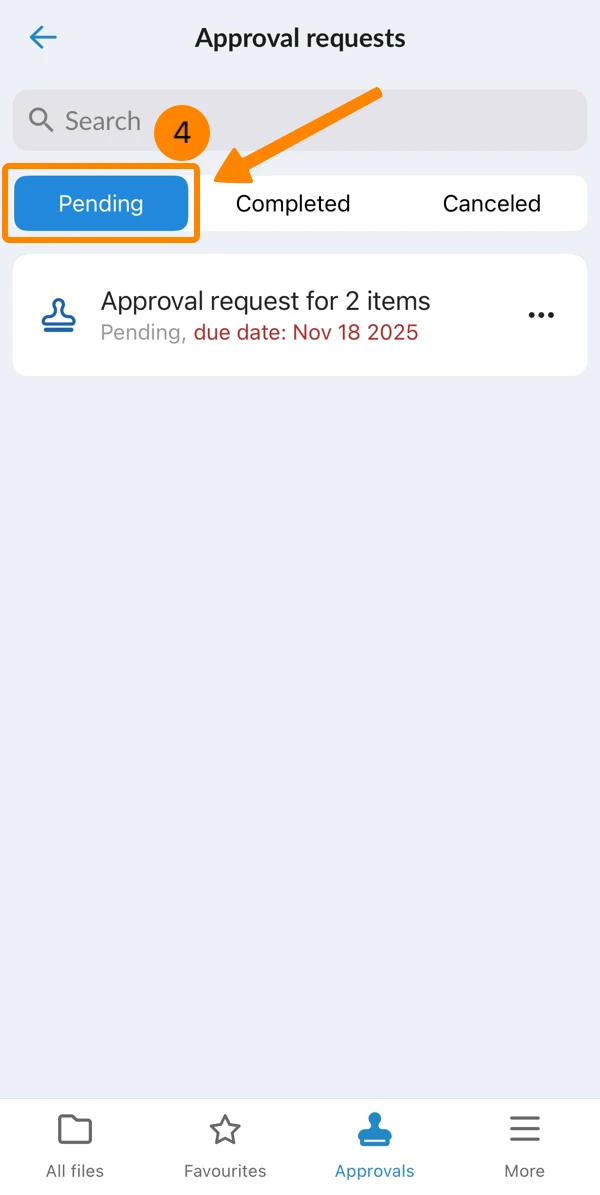
To view all pending document approval requests:
- Tap Documents in the main menu
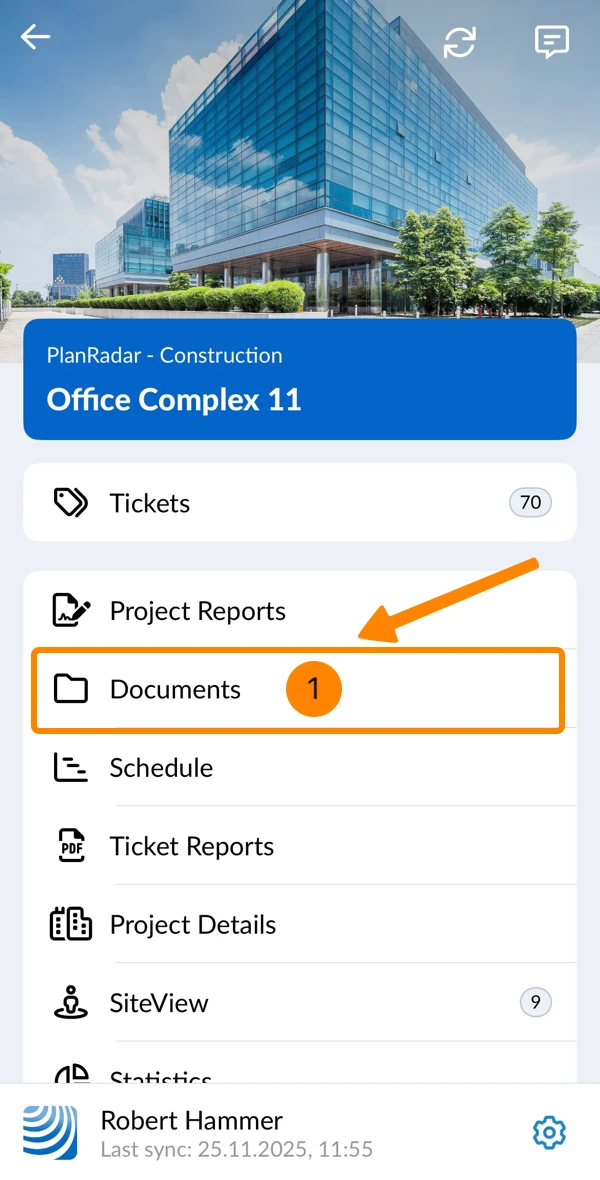
- Tap More
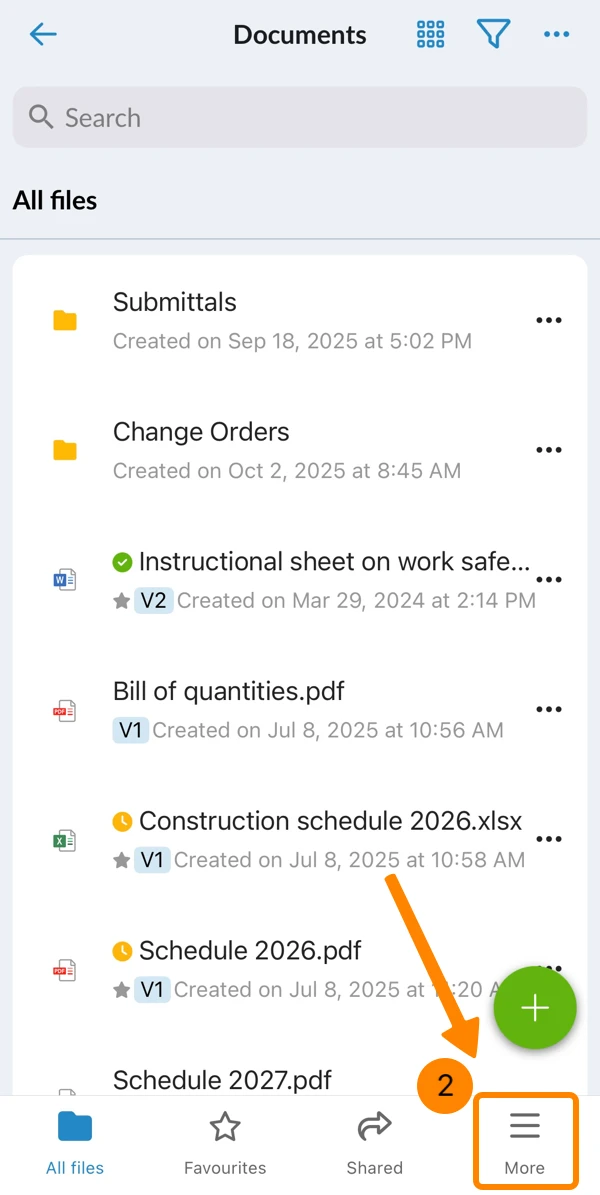
- Tap Approvals
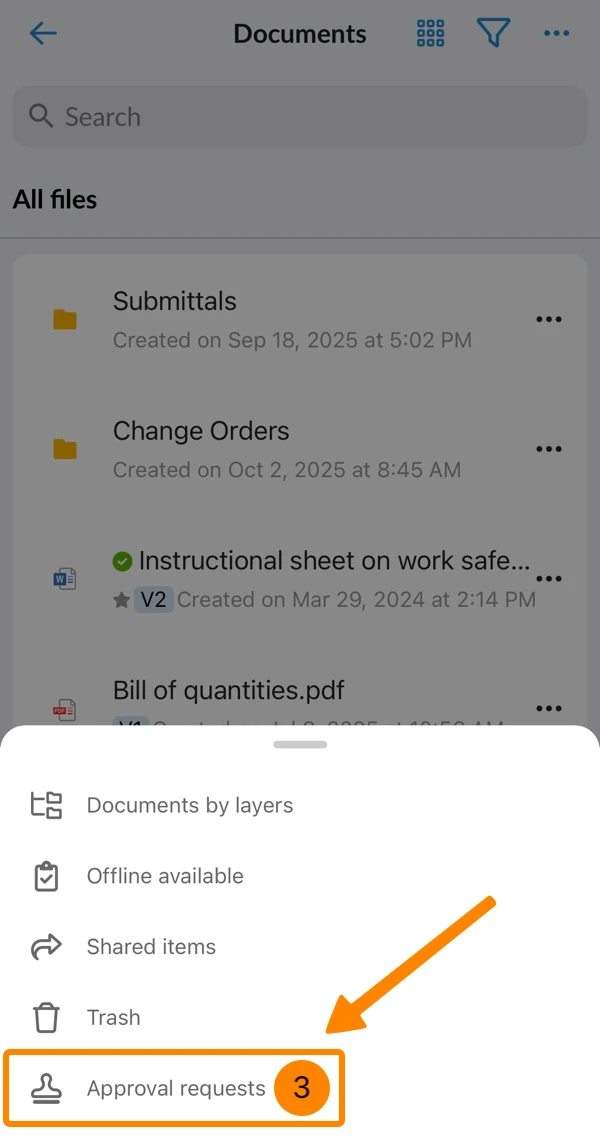
- You see all pending approval requests
Review Files in Approval Request Details
You can review and approve or reject all files in a request at once or individual files (items) one by one.
In the case of Multi-Step Approval Requests, the current step must be approved by all reviewers, before the next step can be approved or rejected.
Approve or Reject Individual Items
To approve or reject individual files (items) in an approval request:
- Click on the approval request
- Click on one of the files listed under Items to review
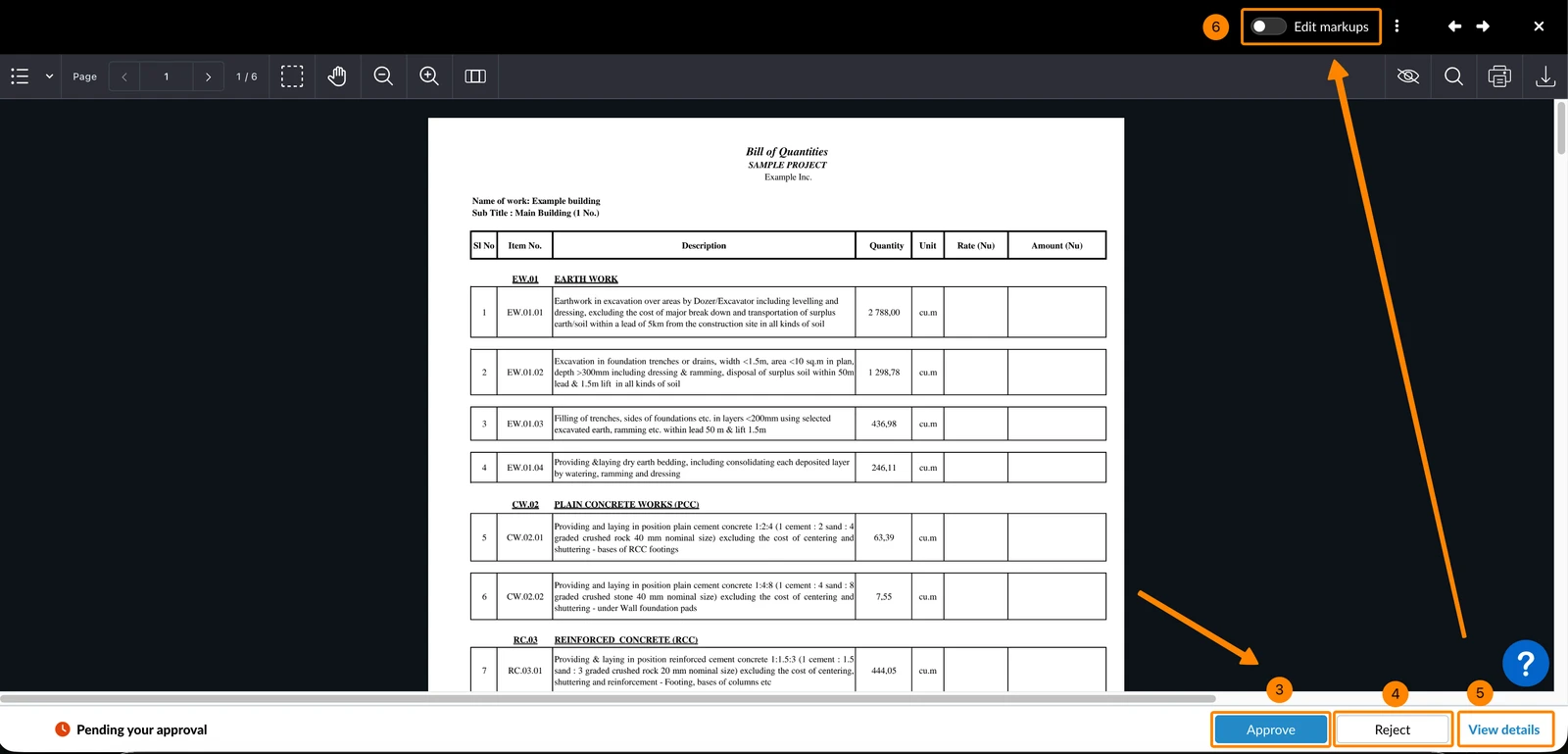
- Click Approve
- OR click Reject
- Optional: Click View details to see status of the approval request and steps.
- Optional: Enable the Edit Markups toggle to add markups.
Read more in Create & Manage Markups on PDFs in Documents.
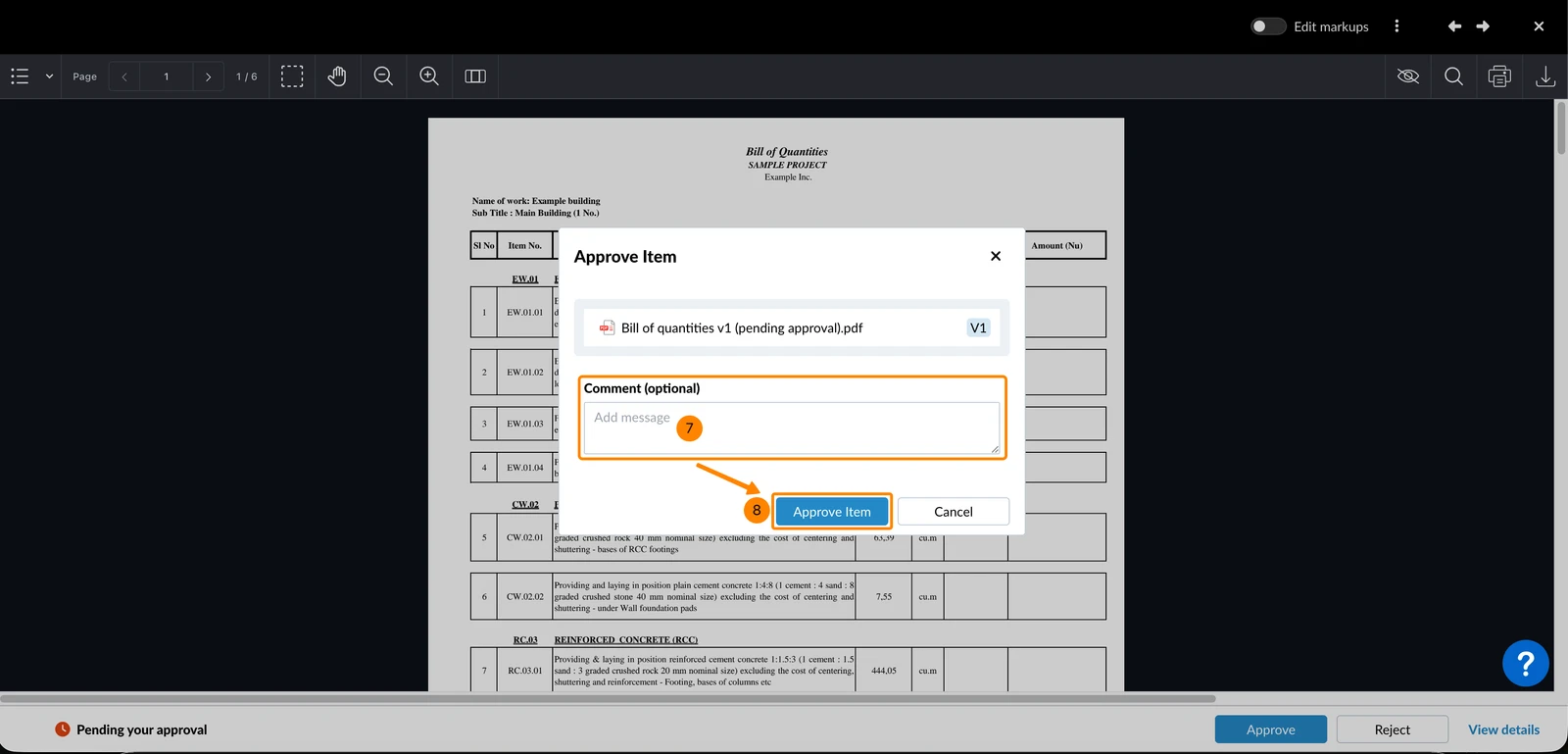
- Optional: Enter a comment
- Click Approve Item (or Reject Item) to confirm
- Tap on the pending approval request
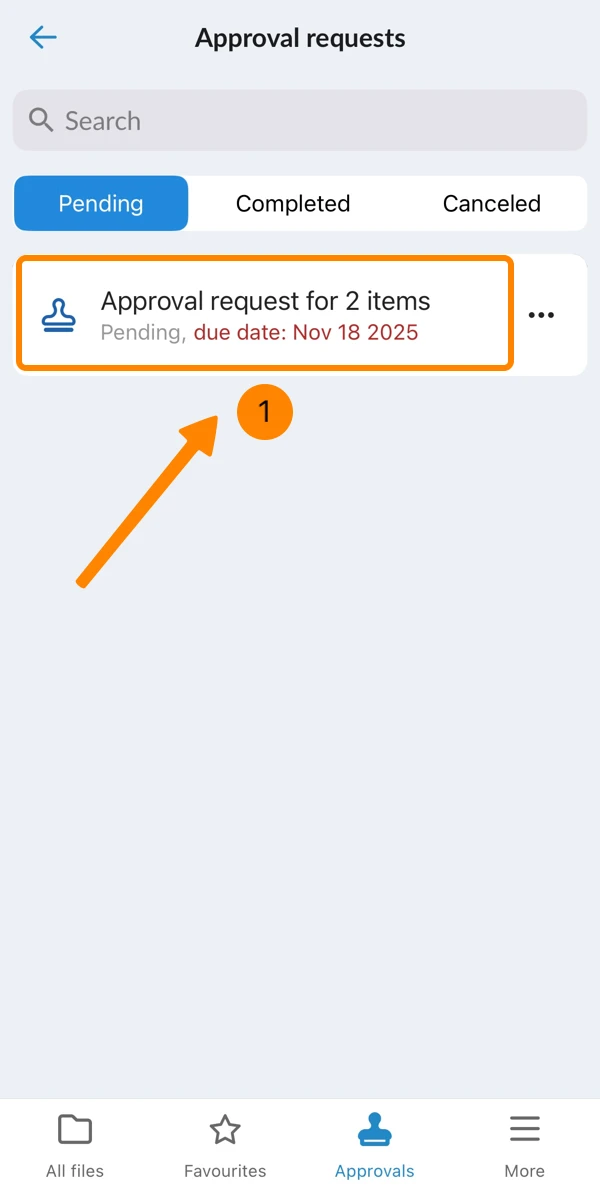
- Optional: Tap on the file to preview it (and close it again)
- Open the More menu of the file
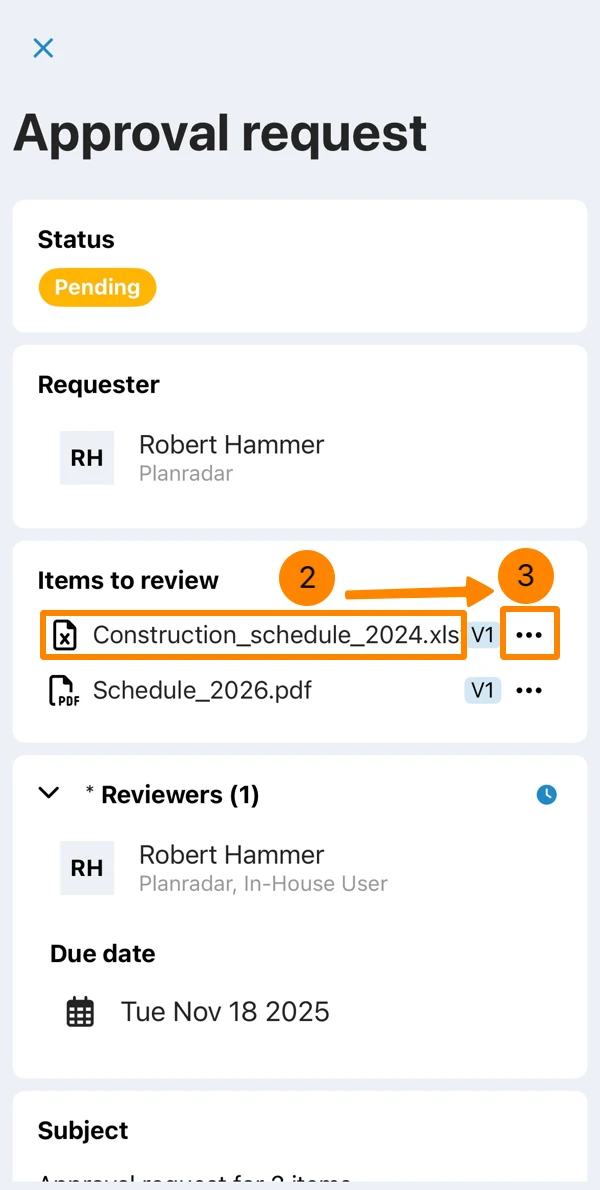
- Tap Approve or Reject
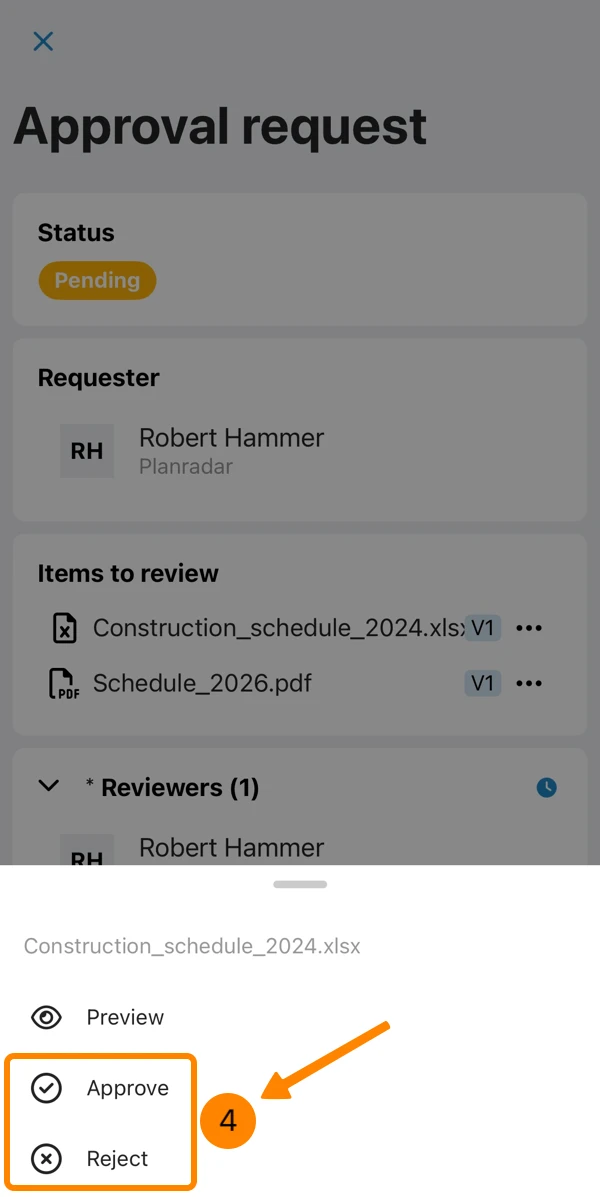
- Optional: Enter a comment
- Tap Approve item
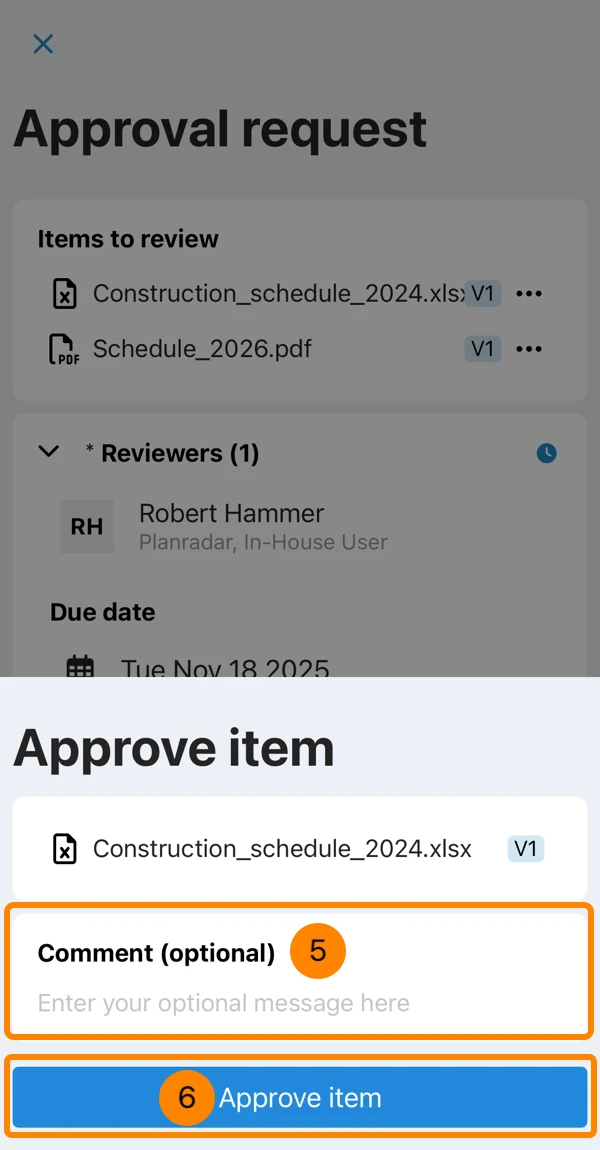
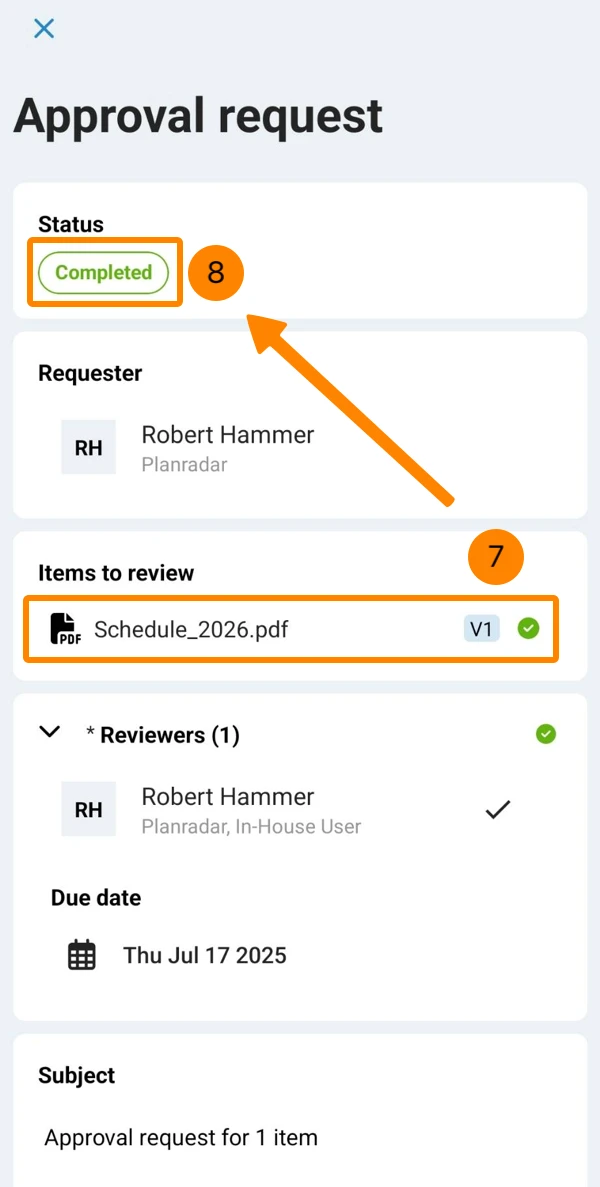
- See green ✔ for approved items.
- See Status Completed when all are approved.
Approve or Reject All Remaining Items
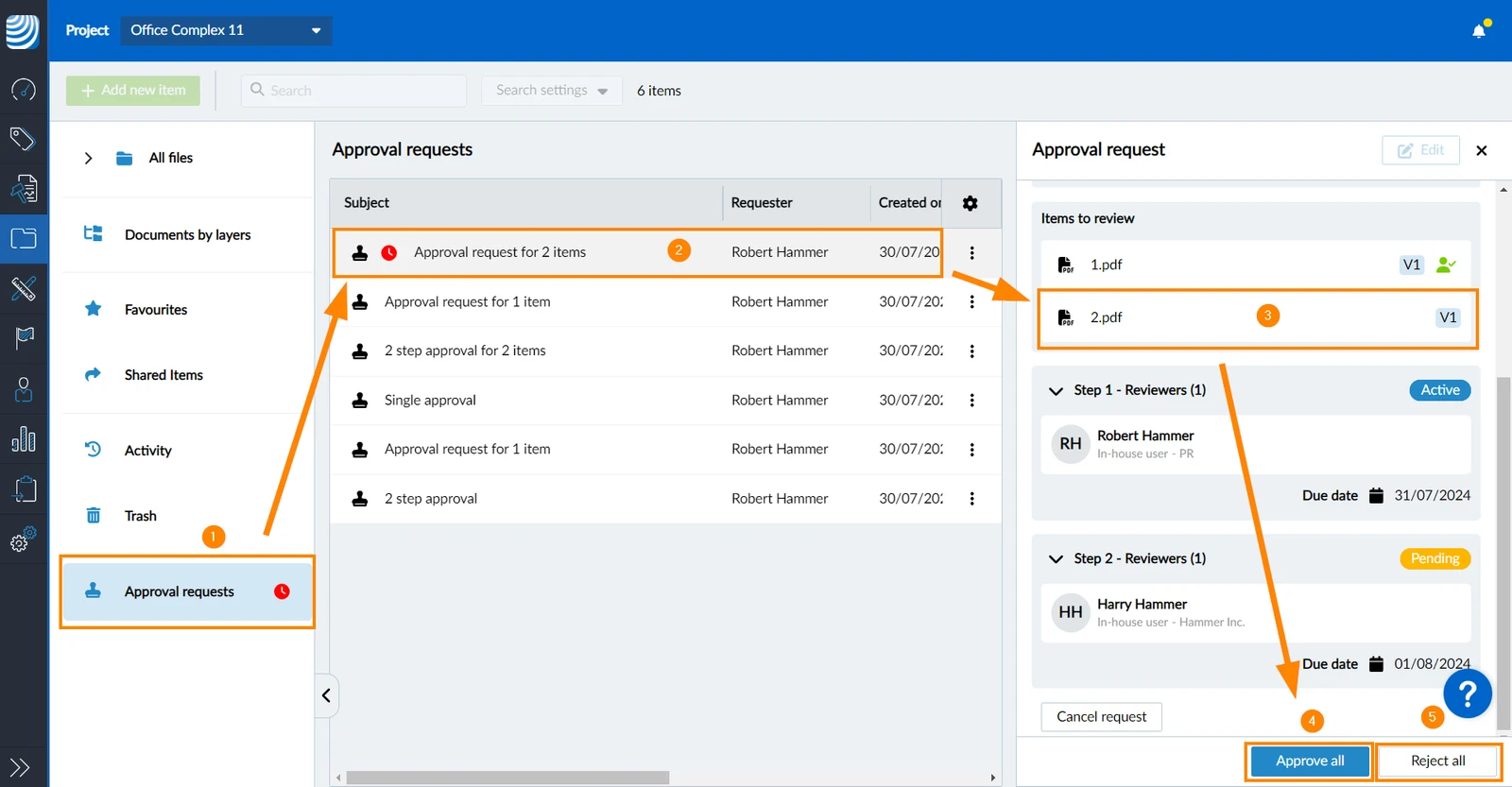
- Click Approval requests
- Click on an approval request requiring your action (indicated with a red clock icon)
- Click on items to review (to preview or download them)
- Click Approve all
- OR click Reject all
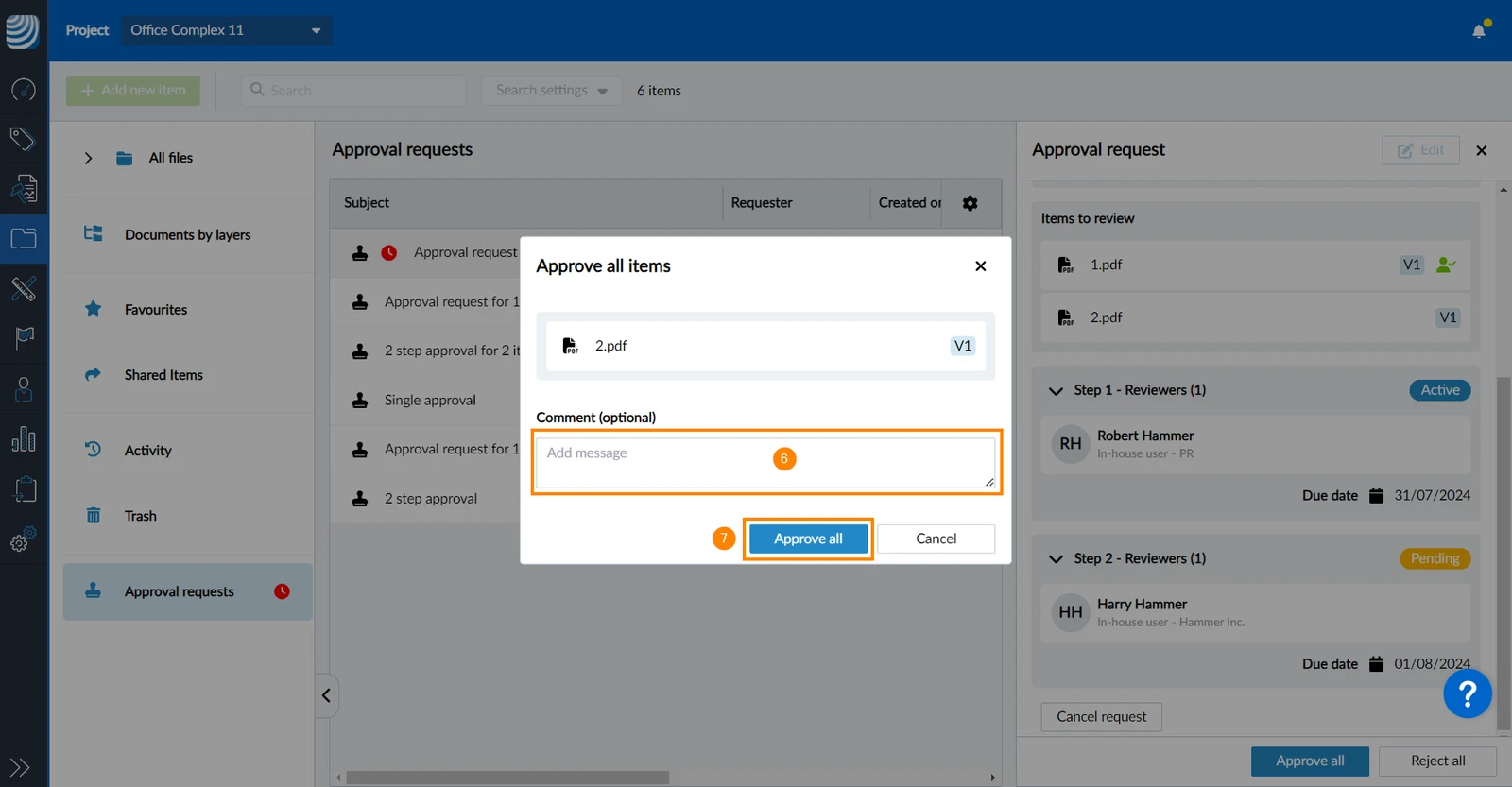
- Optional: Enter a comment
- Click Approve all to confirm
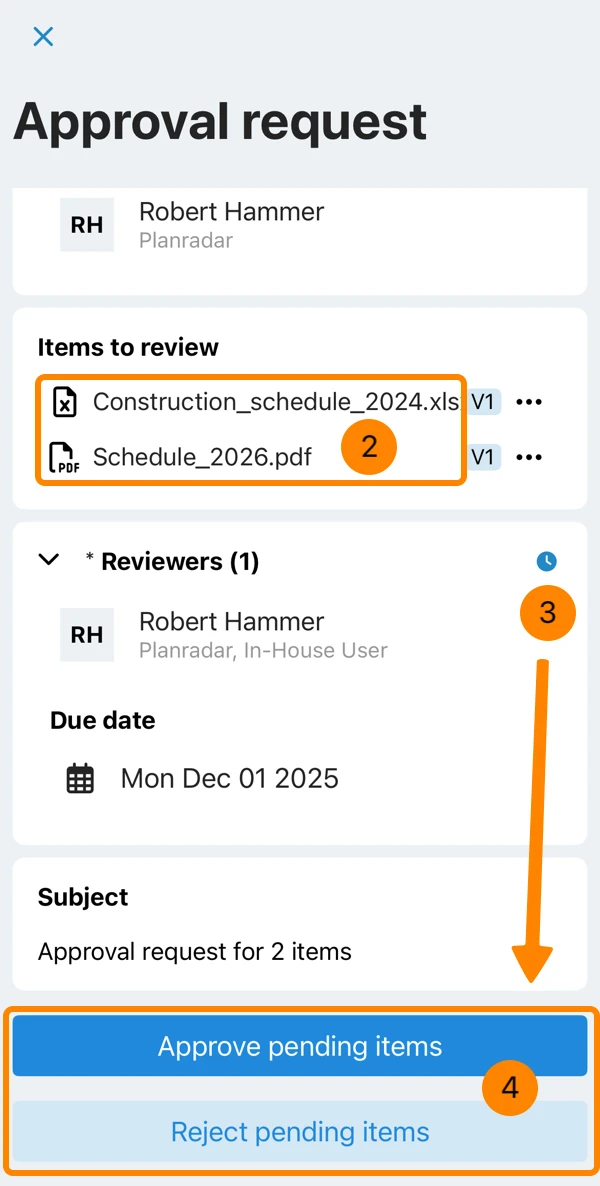
- Tap on the pending approval request
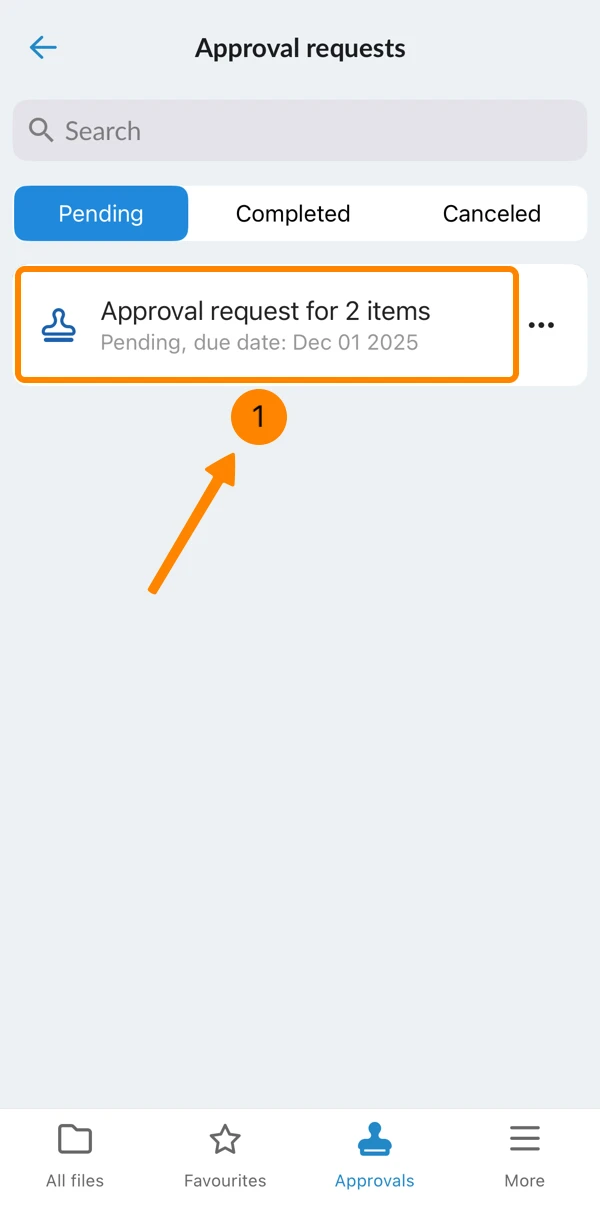
- Optional: Tap on a file to preview it (and then close it)
- Scroll down
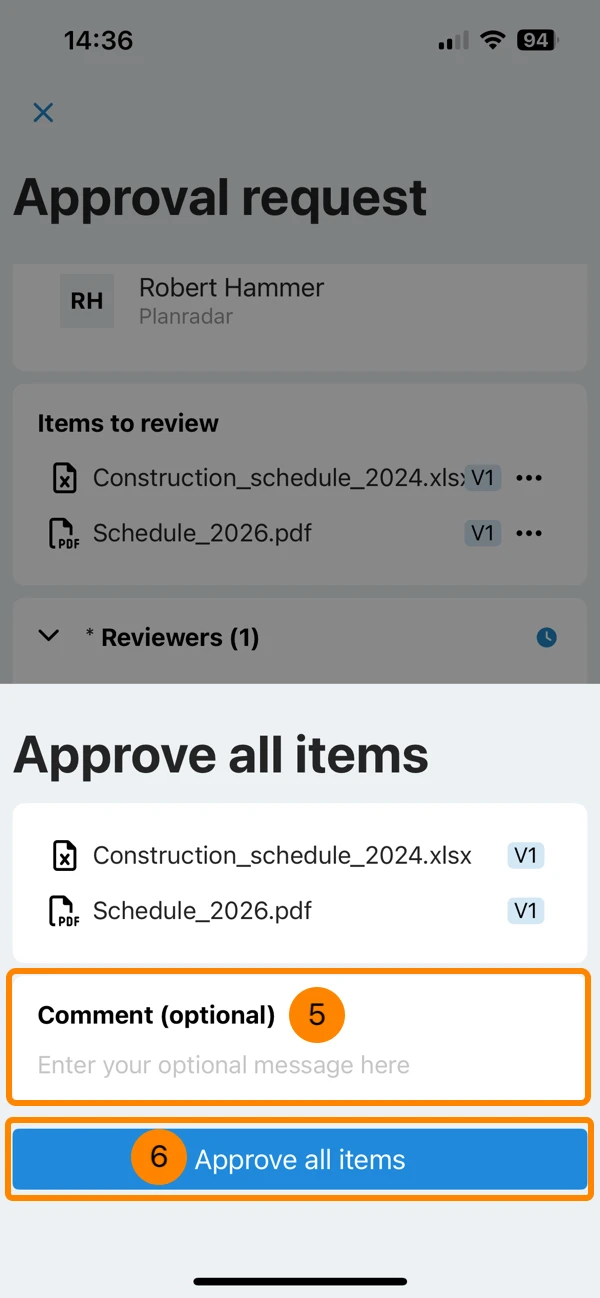
- Tap Approve pending items or Reject pending items
- Optional: Enter a comment
- Tap Approve all items (or Reject all items) to confirm
Review Files in File Details
In-house users can review files either from the Approvals section (as described above) or from the Documents section, and for each file individually from the file details (as described here).
Subcontractors can only review and approve files from the Approvals section as they do not have access to 'All files'.
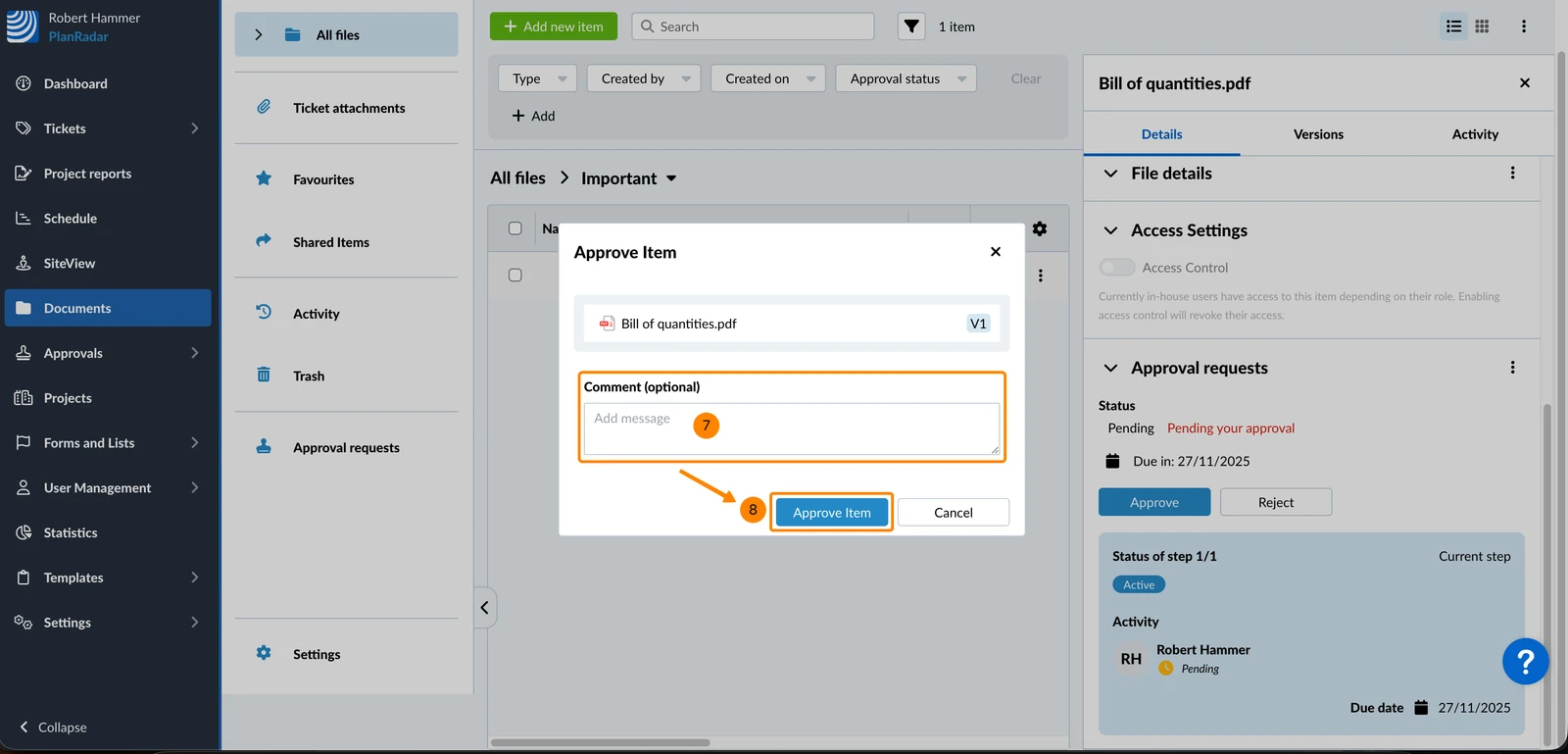
To approve or reject files from the file details:
- Click Documents
- Click All files
- Open the More menu of a file
- Click File details
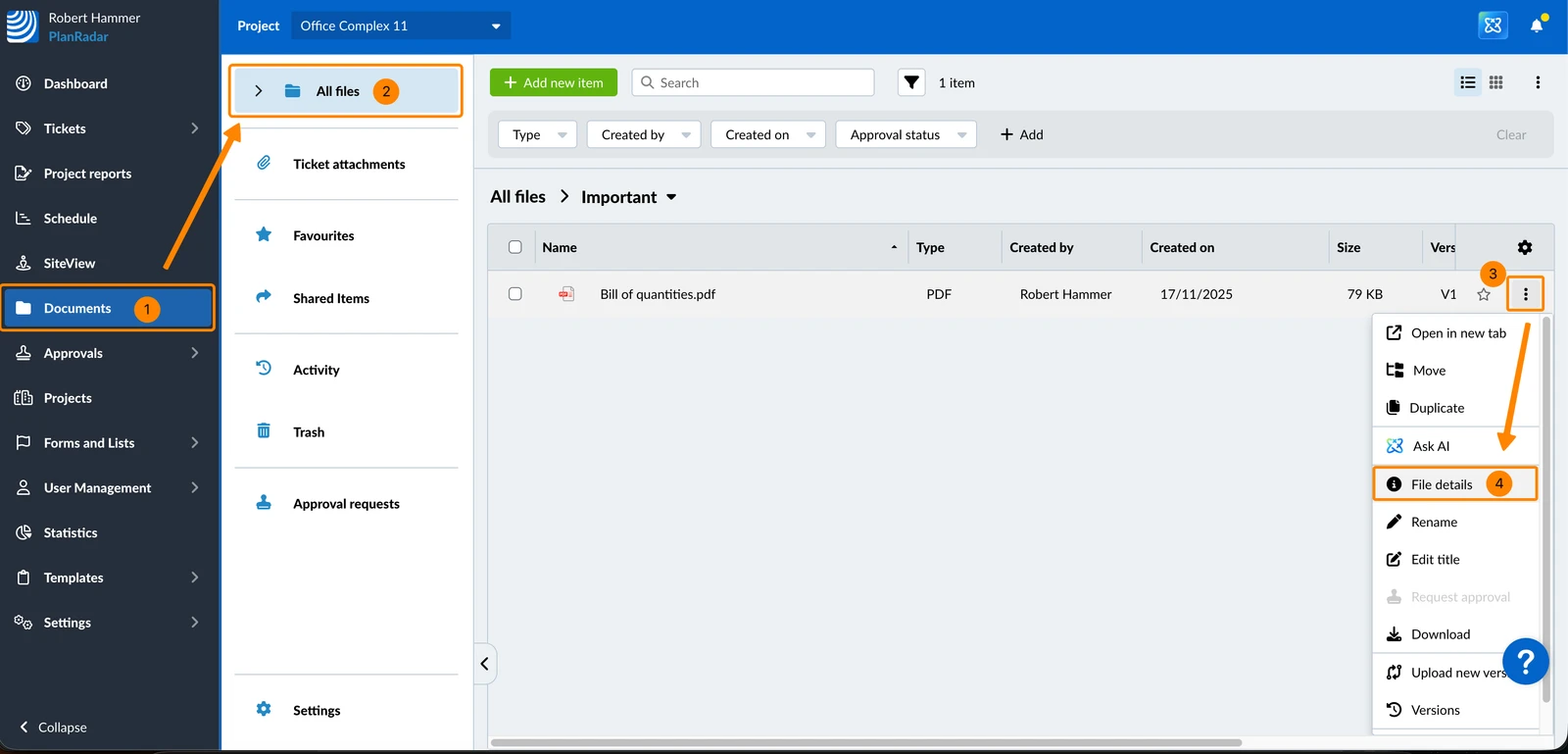
- Scroll down to Approval requests
- Click Approve or Reject
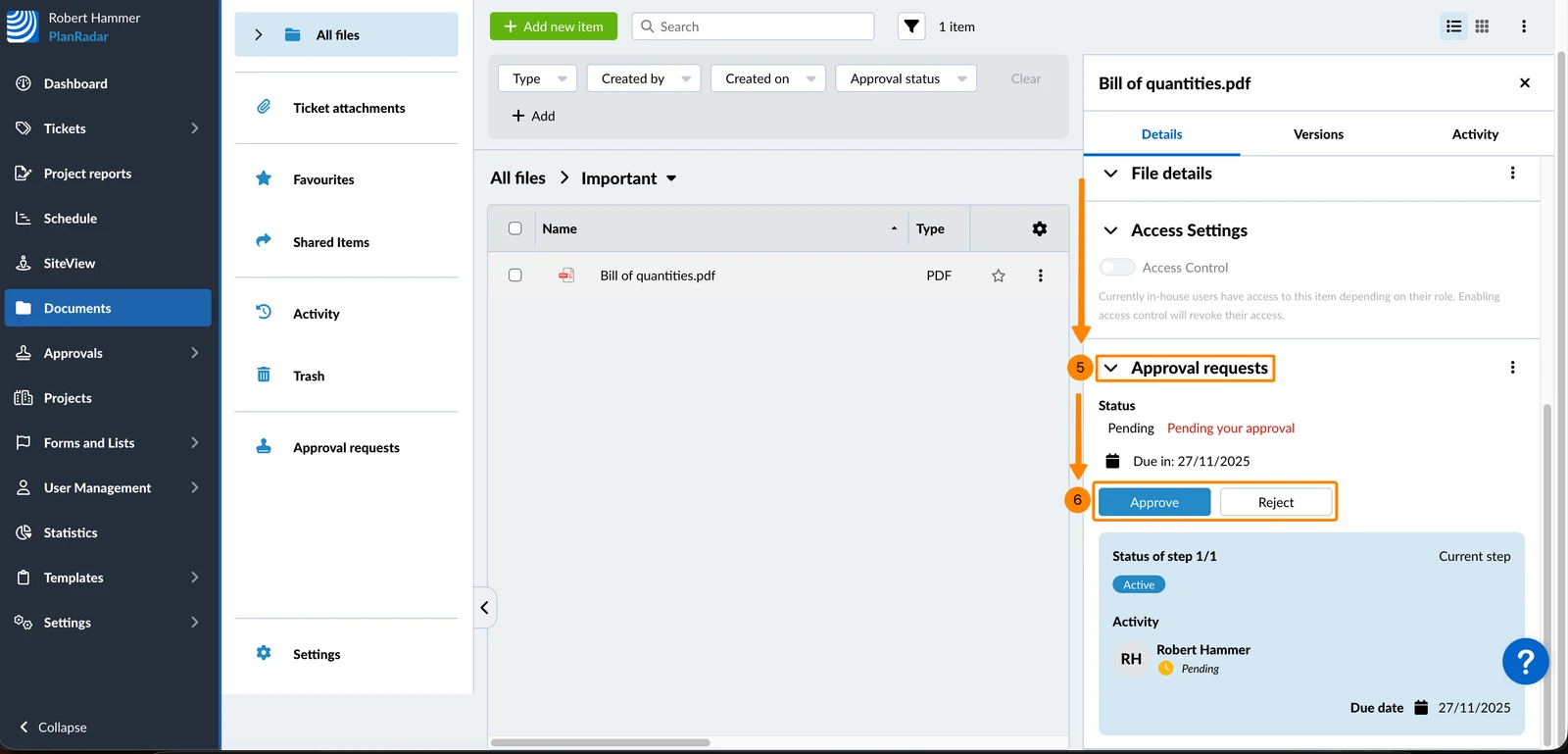
- Optional: Enter a comment
- Click Approve Item
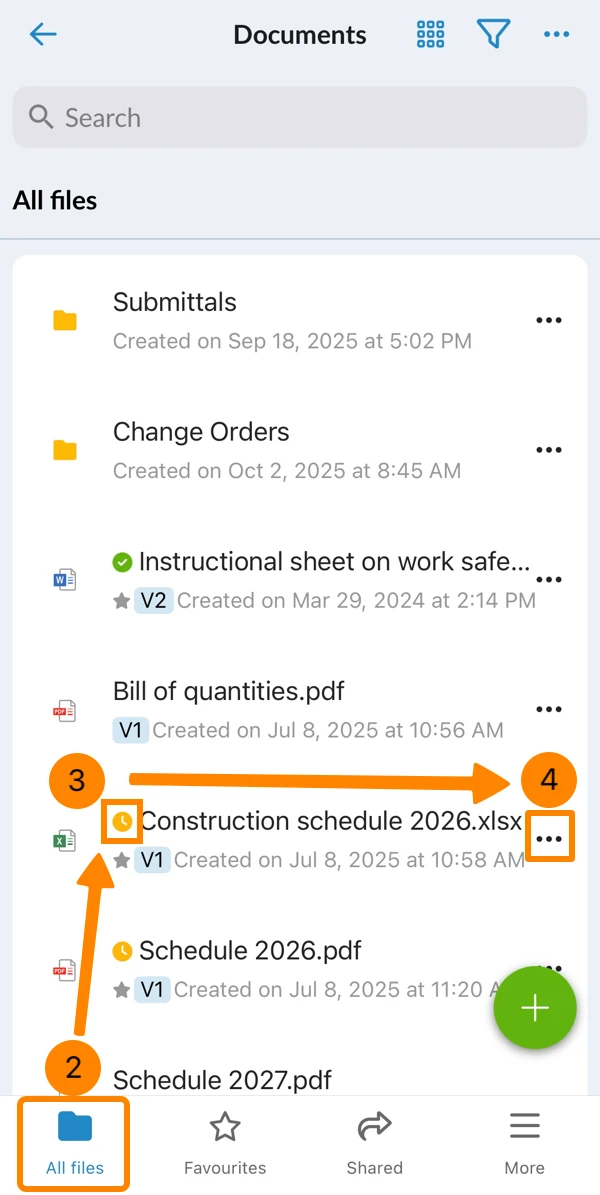
- Tap Documents in the main menu
- Tap All files
- See the yellow icon indicating a pending approval.
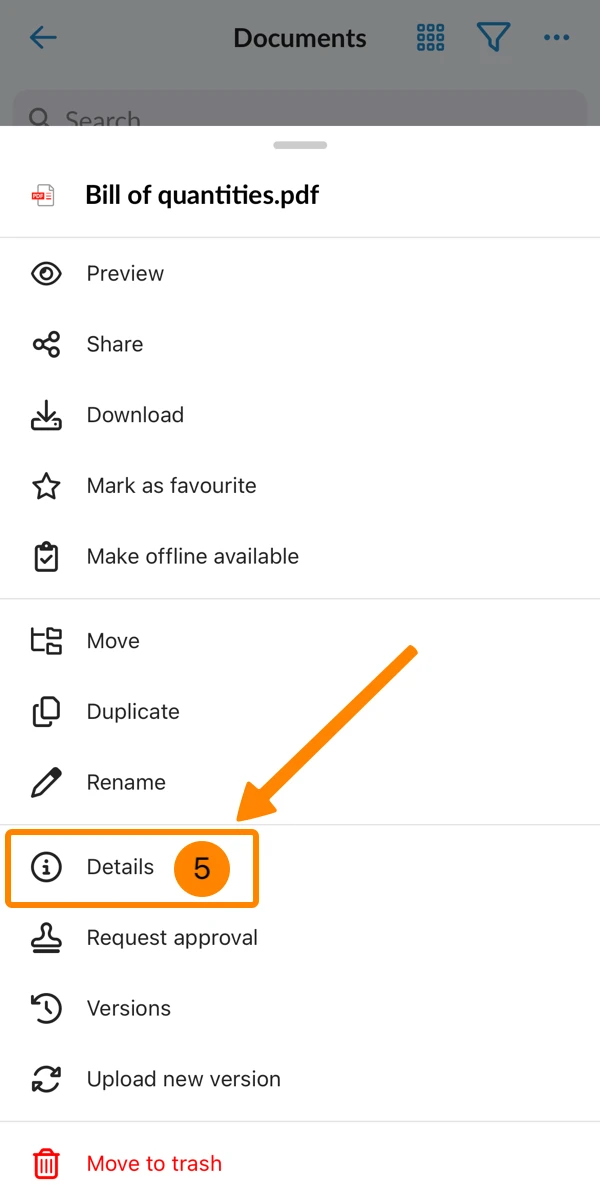
- Open the More menu of the file
- Tap Details
- Scroll down in the details
- Tap View request
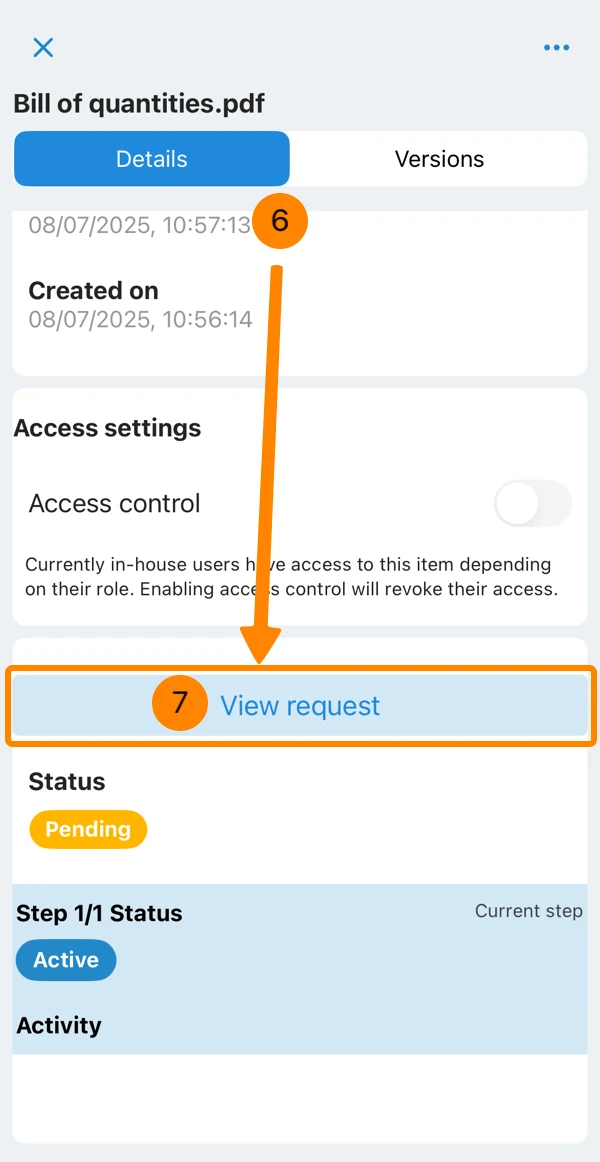
- Continue as described above and approve/reject.
Updated February 4, 2026