

 Deutsch
 Español
 Français
 Hrvatski
 Italiano
 Polski
 Português (BR)
View & Manage Approvals
Overview
Find, view, edit, cancel, or delete approval requests (or short 'approvals').
The new Approvals page that shows all approvals requests of all types in one place is available only in the Webapp.
In the mobile app you find approvals either in Documents or in Tickets depending on their type.
Access & Permissions
How to access
Approvals
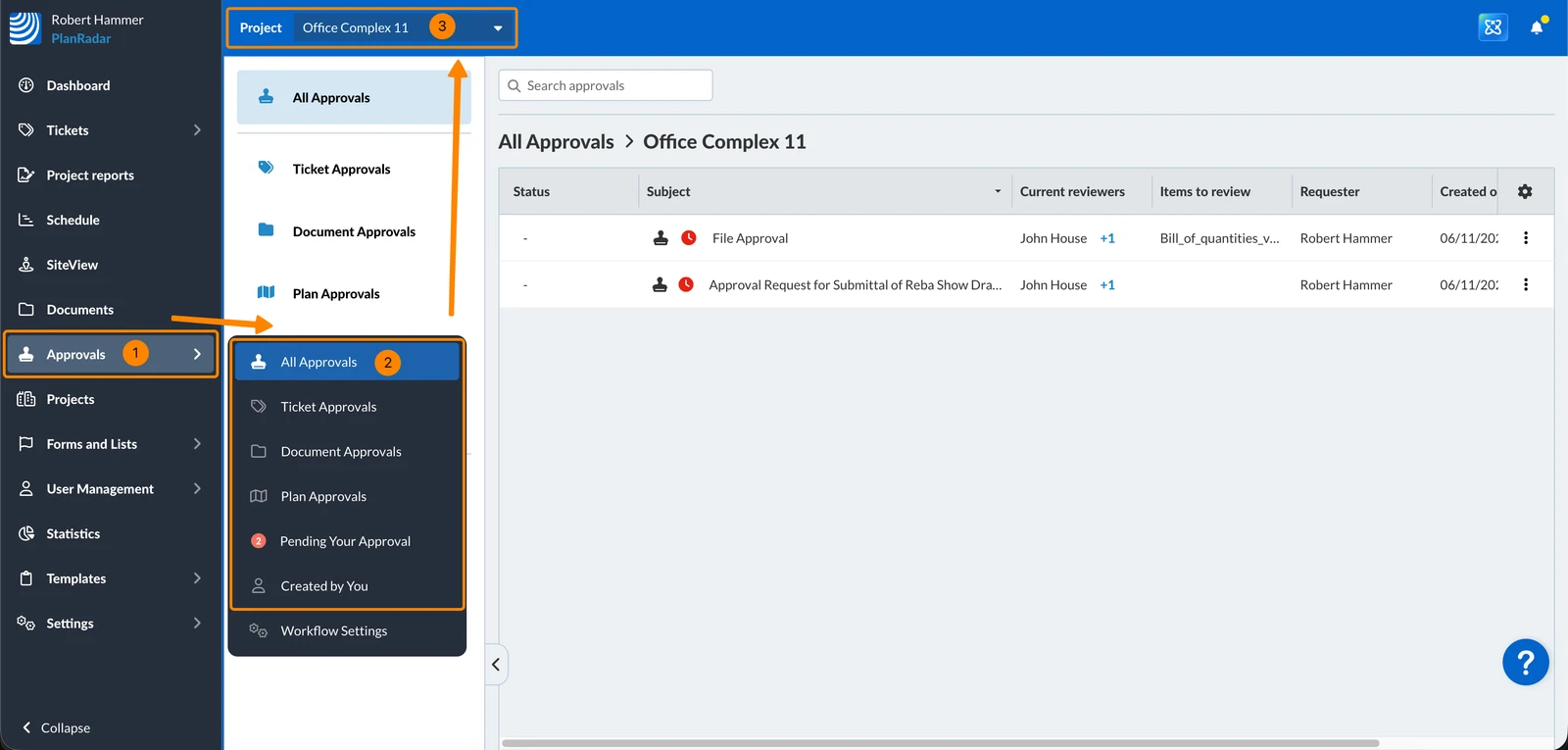
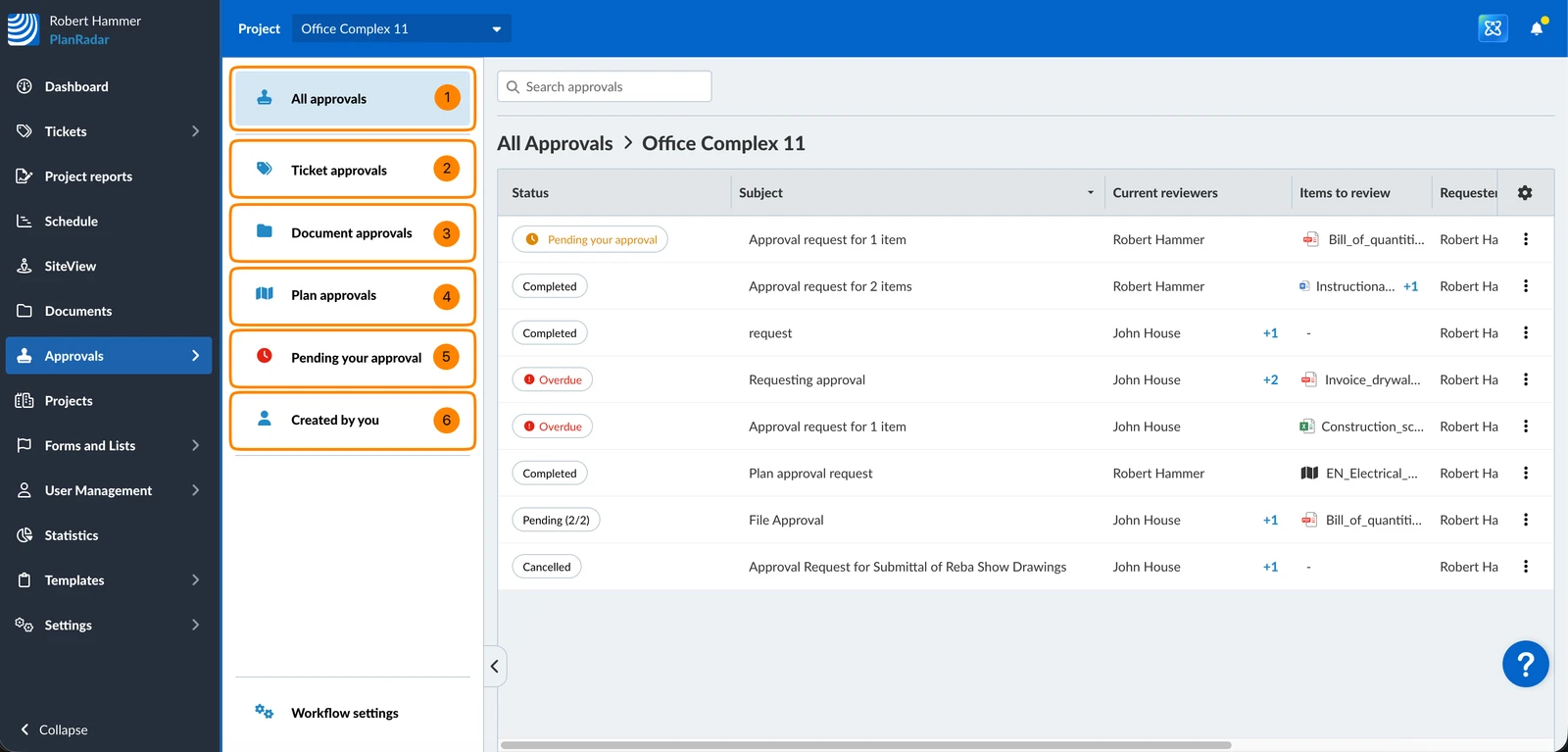
To access Approvals, where you find all pending, completed and cancelled approval requests for tickets, documents and plans:
- Click Approvals
- Click All Approvals (or select one of the filtered views)
- Optional: Select a project or All projects in the Project drop-down to view the corresponding approvals.
Find & View Approval Requests
To quickly find the right approval request, use:
View Approval Request Details
To view the details of an approval request:
- Click on the approval request
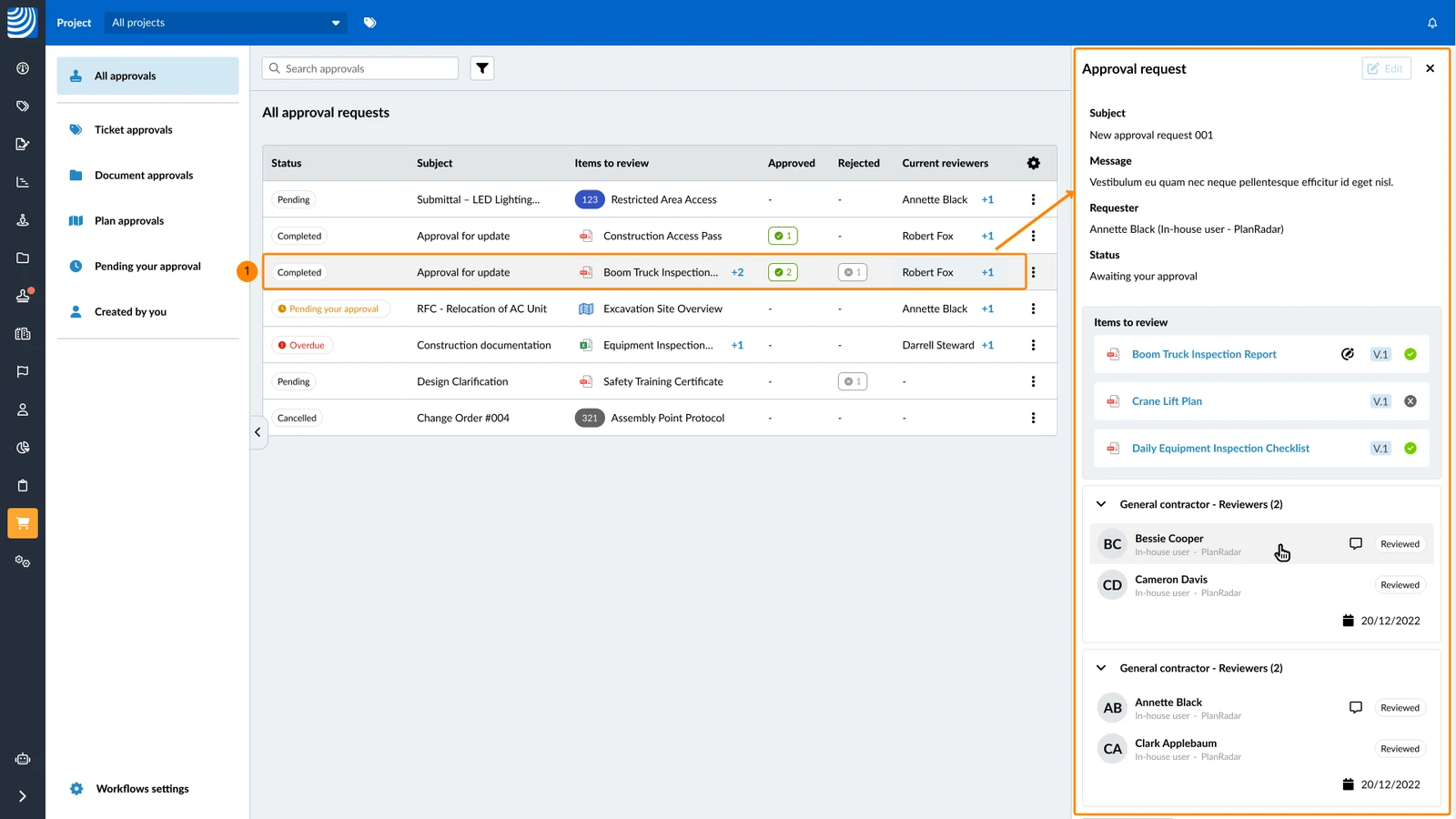
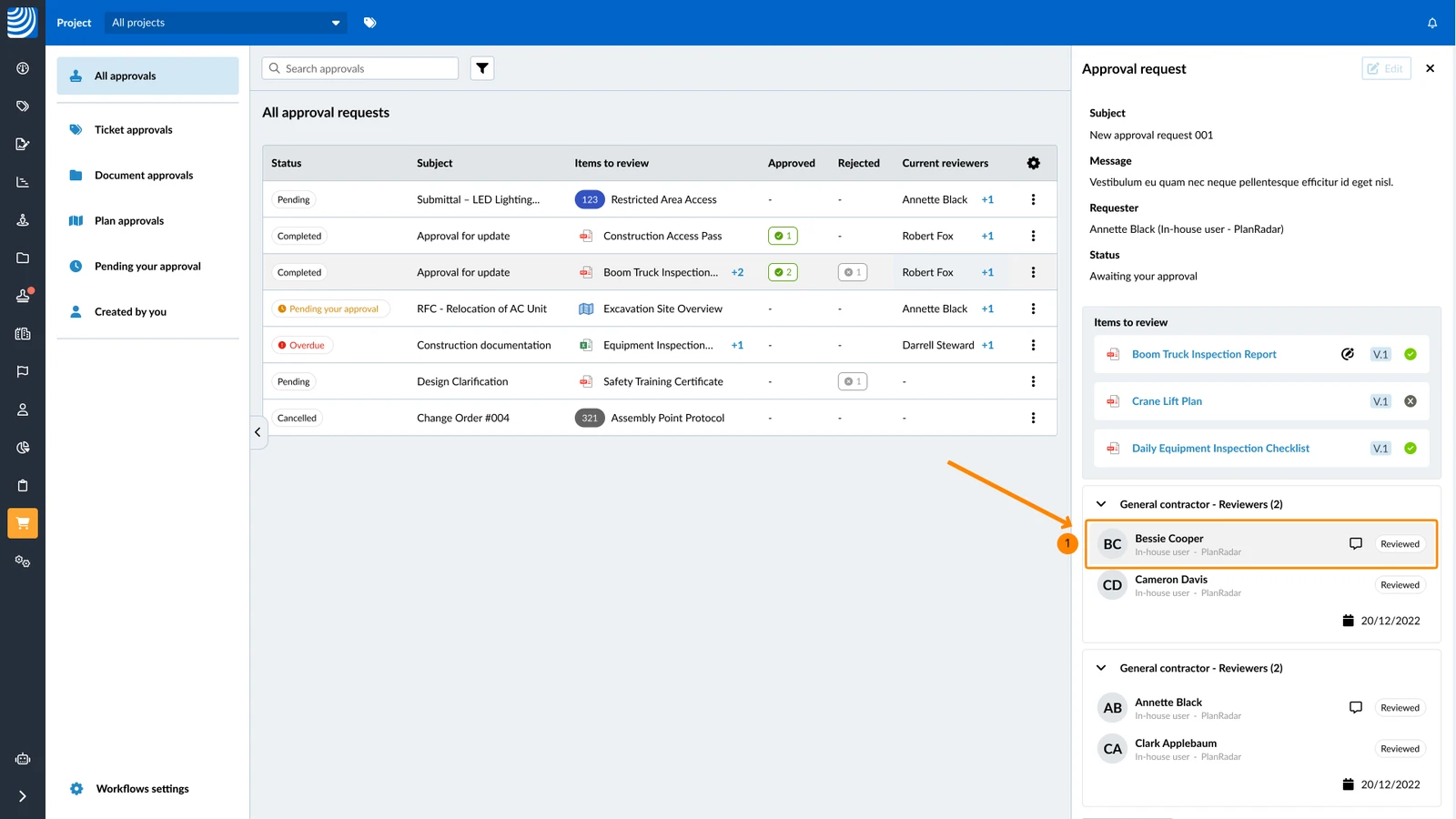
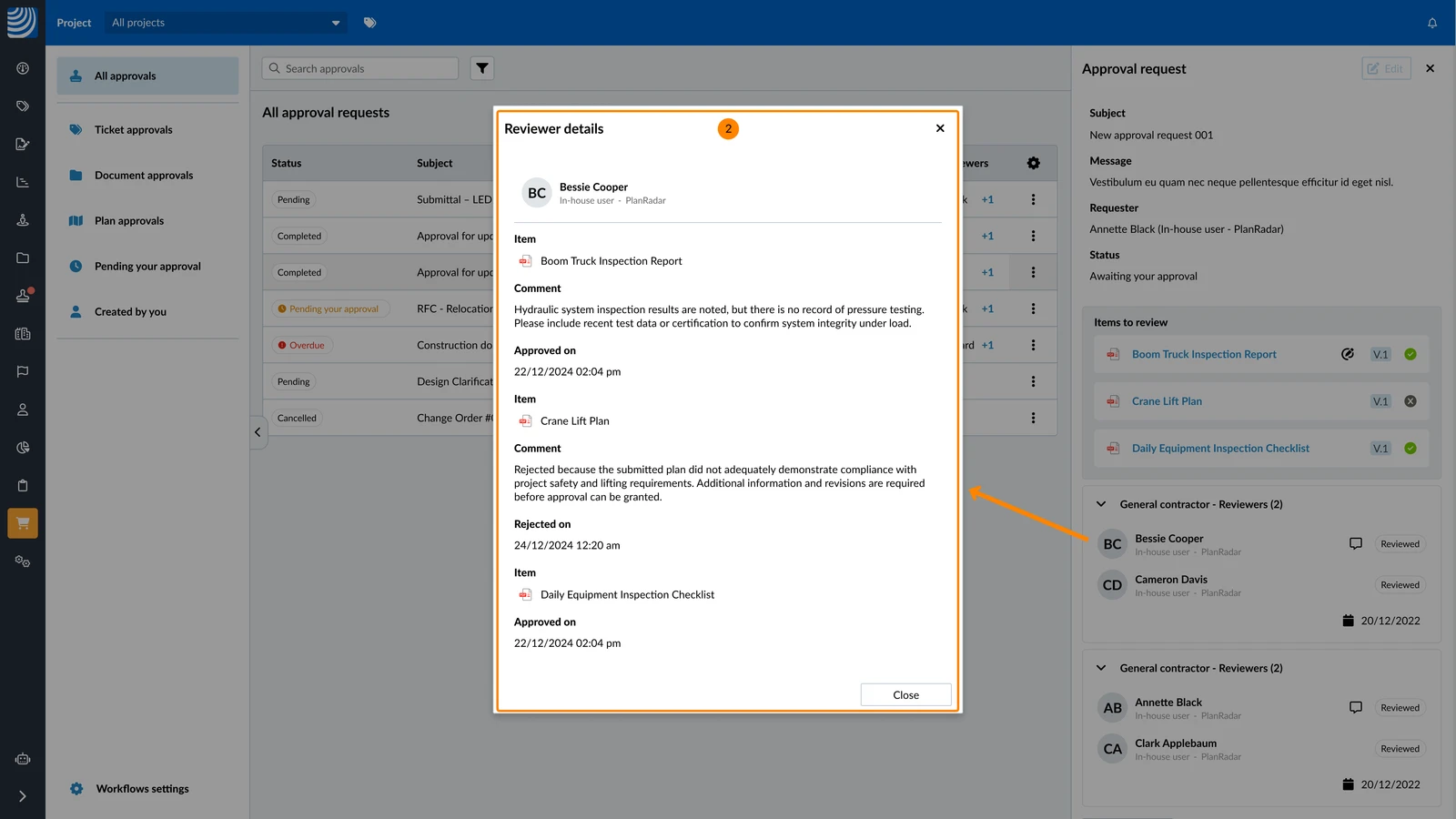
To see everything one reviewer approved or rejected, with dates and comments:
- Click on the reviewer
- You see the Reviewer details
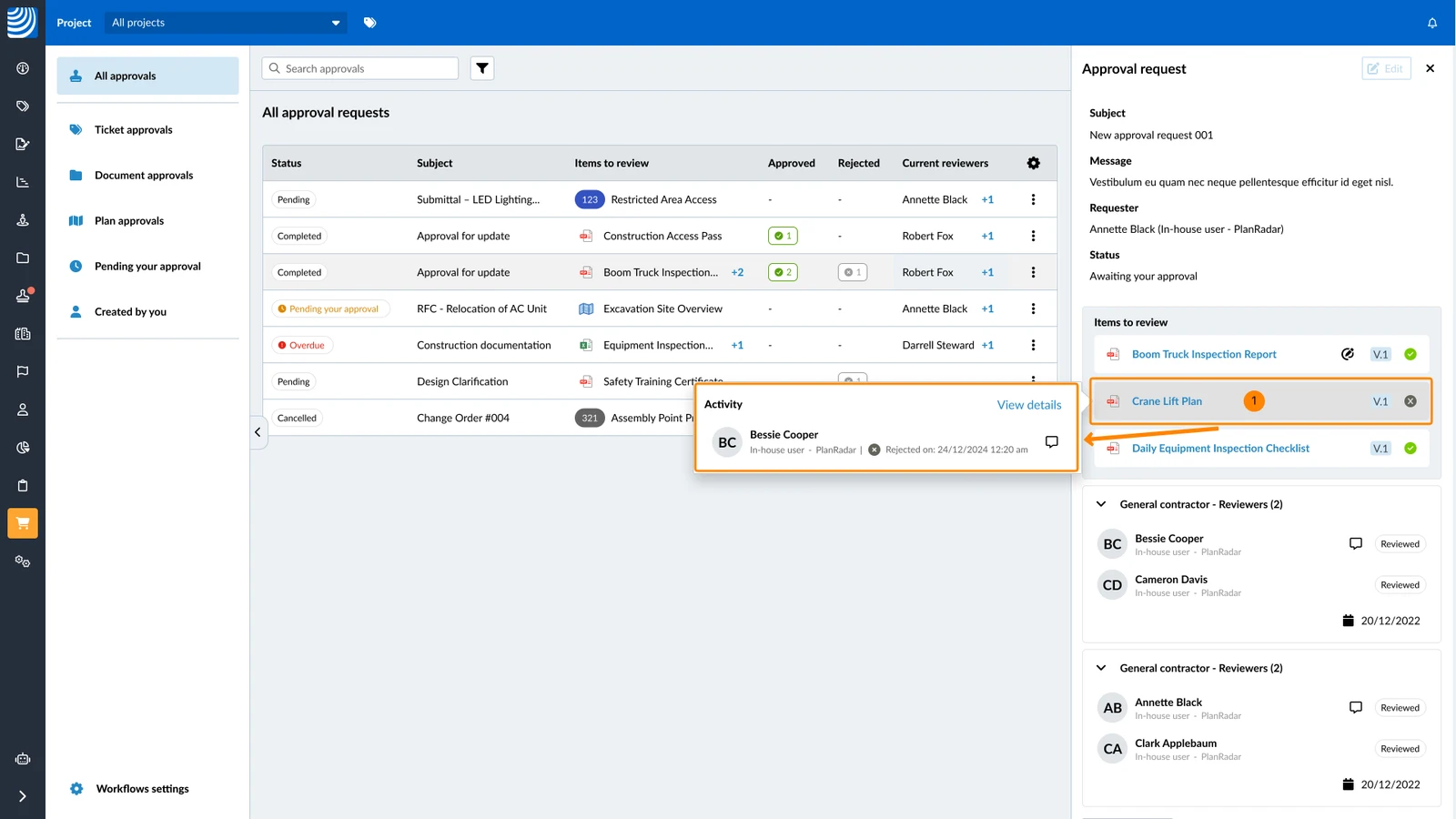
To quickly see who approved or rejected each item, when and if they left comments:
- Hover over the item
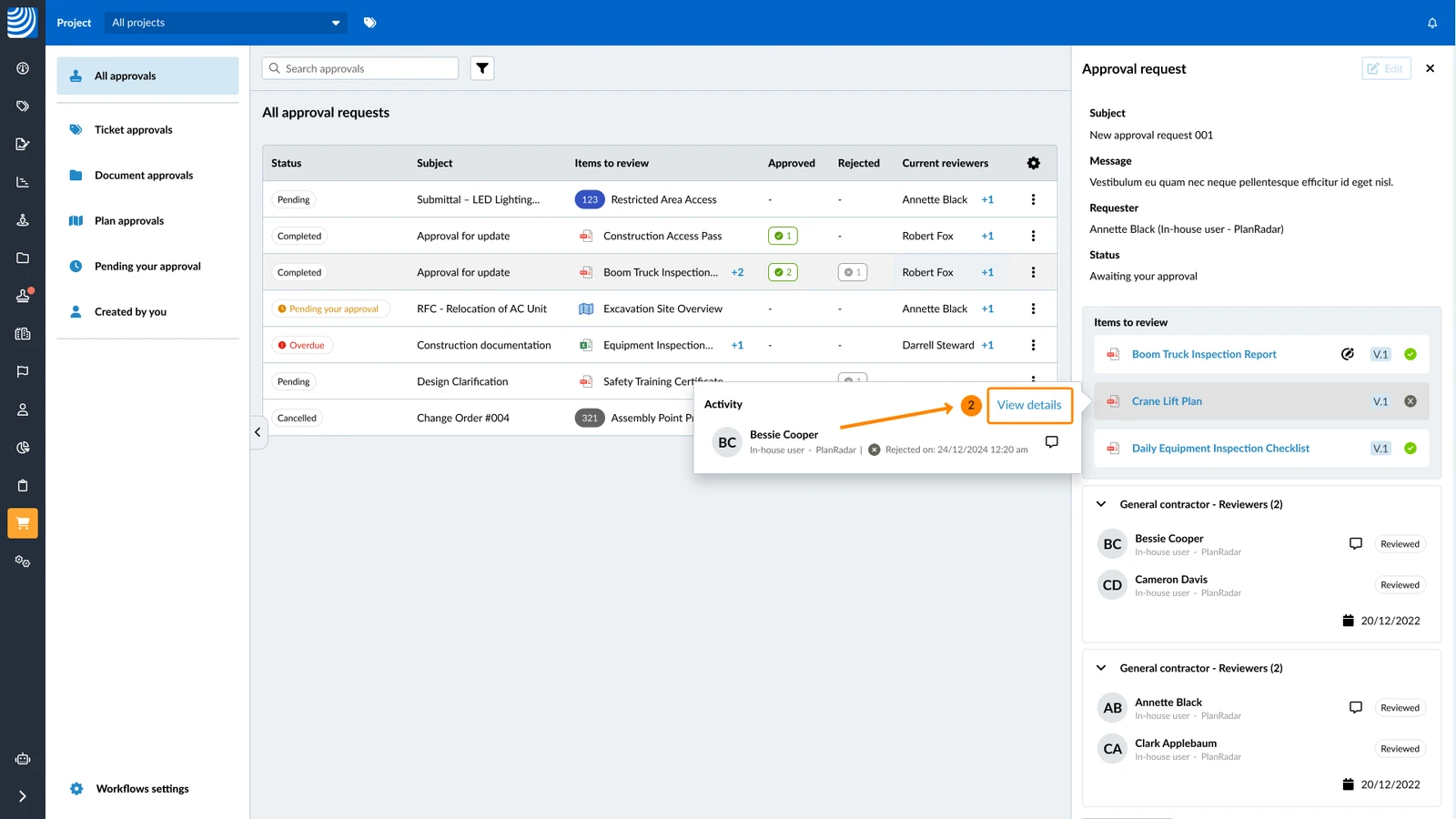
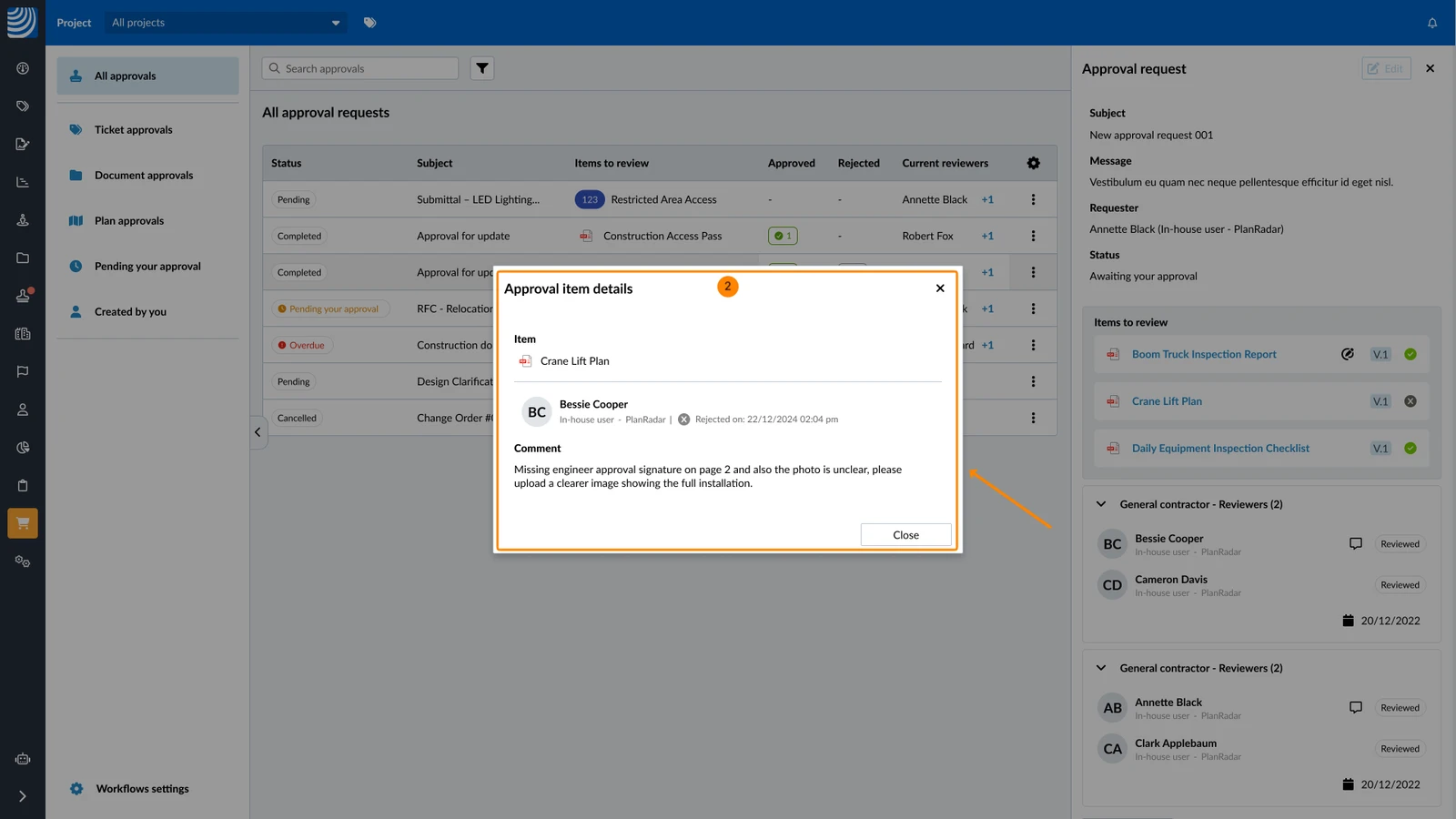
To view details of an approval item including all comments:
- Click View details
- You see the Approval item details
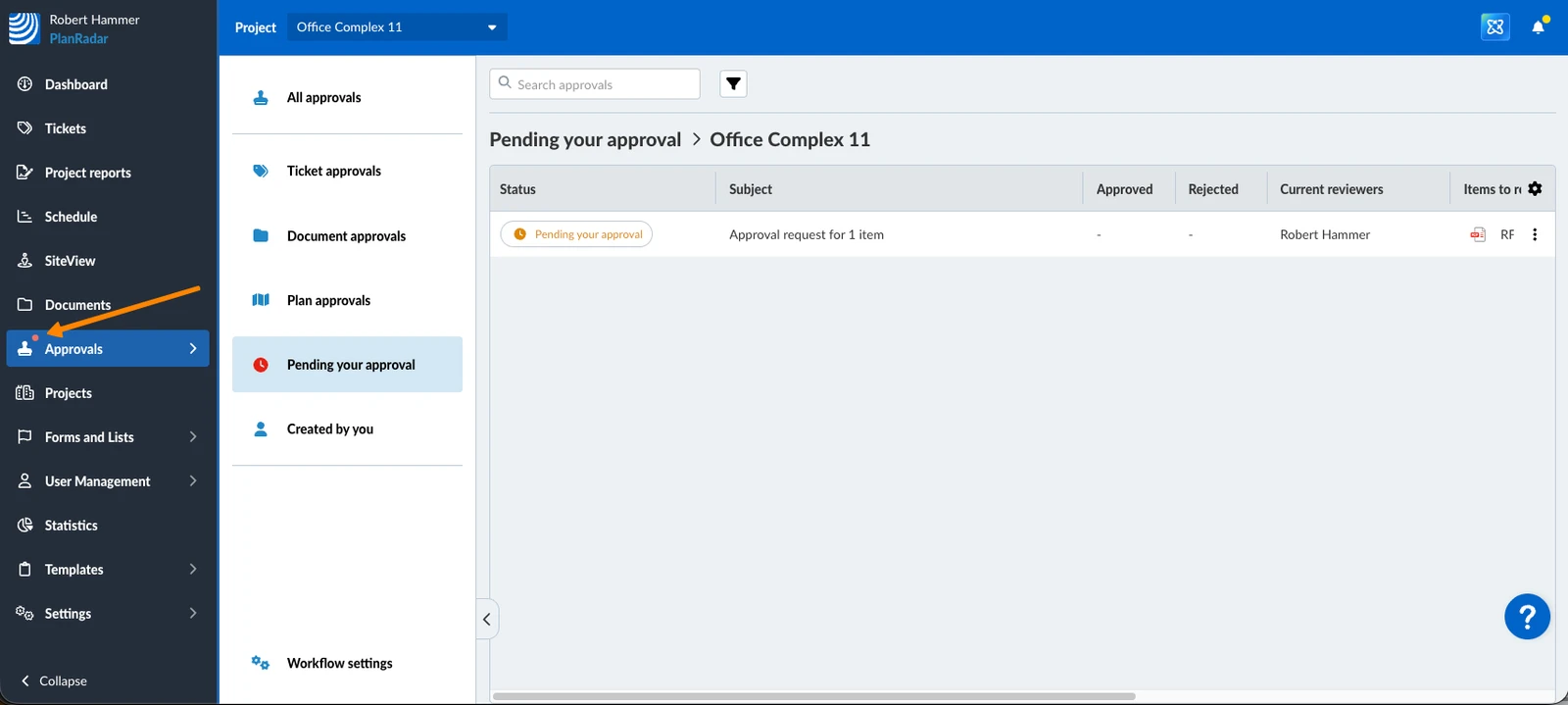
If requests are pending your approval, an orange badge on Approvals in the main menu indicates this.
Filtered Views
While you are on the Approvals page, you can quickly select one of the filtered views from the sidepanel:
- All approvals
- Ticket approvals
- Document approvals
- Plan approvals
- Pending your approval
- Created by you
Filter by Status and More
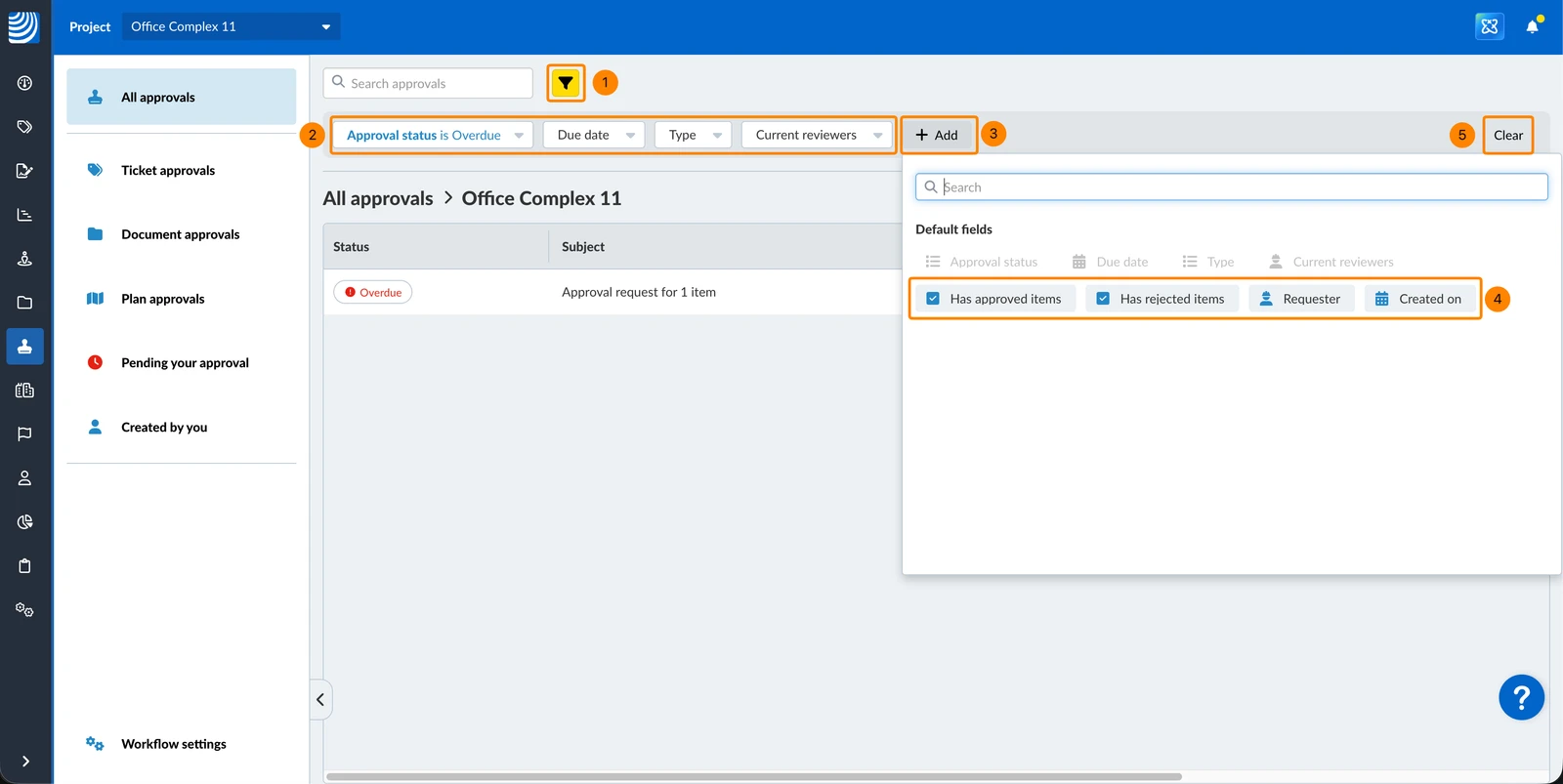
In addition to the Filtered Views, you can filter approvals by the following criteria. Some criteria are visible by default others can be added.
Criteria visible by default:
-
Status (is / is not):
- Pending
- Pending your approval
- Overdue
- Completed
- Cancelled
-
Due date (works like any date filter as for ticket filters)
-
Type (is / is not):
- Ticket approvals
- Document approvals
- Plan approvals
-
Current reviewers (is / is not):
- Current user
- or select any specific user
Criteria available to add:
- Has approved items (yes / no)
- Has rejected items (yes / no)
- Requester (works like 'Current reviewers' or any other user filter)
- Created on (works like any date filter as for ticket filters)
To use approval filters you can:
- Click on the filter icon to view the filter panel
- Define visible filter criteria e.g. Approval status is Overdue
- Click + Add to add more filter criteria
- Click on the additional filter criteria to add them
- Click Clear to reset all active filter criteria
Sort by Column
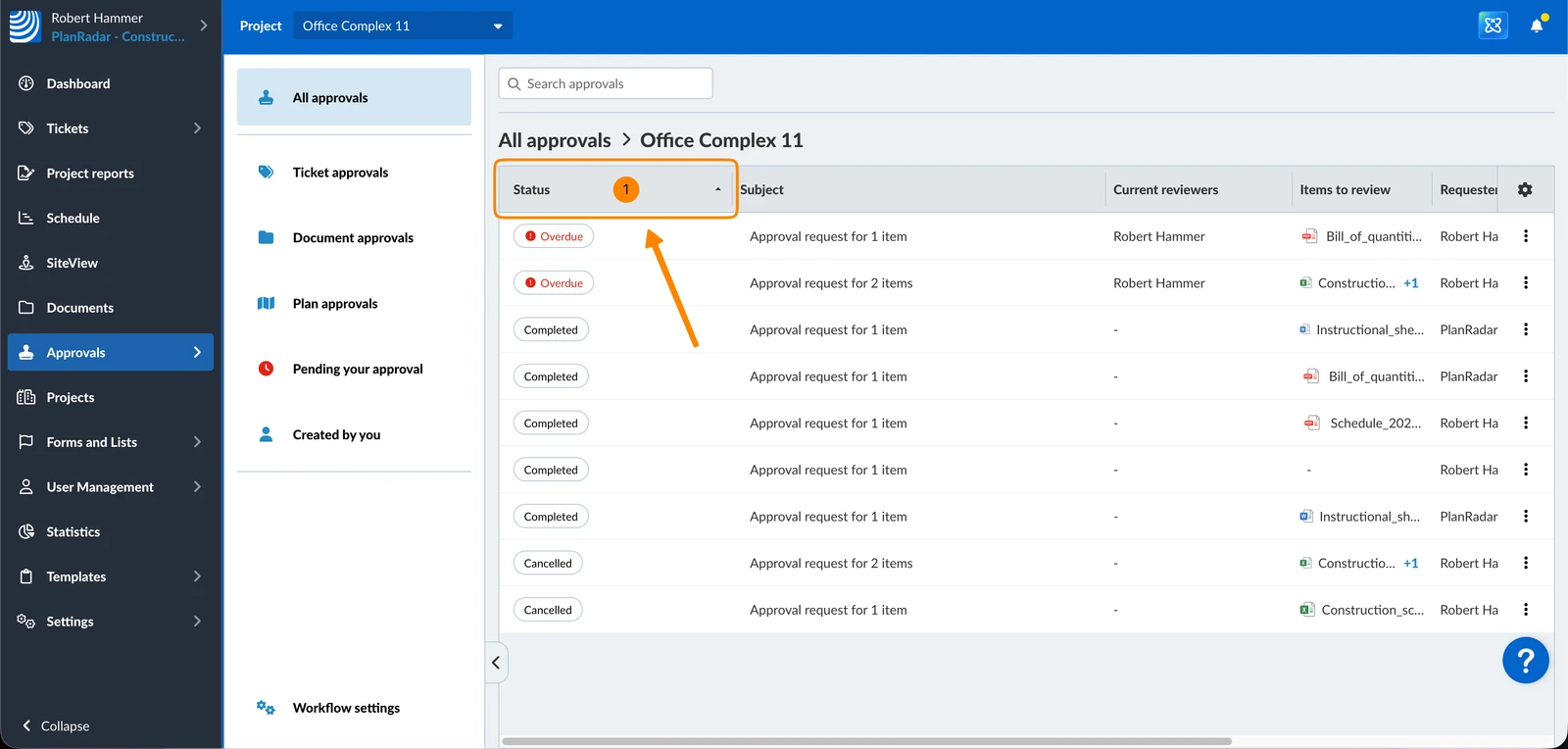
If you are e.g. in the Document Approvals View, you might want to sort the list by status (or other columns) to see all pending or completed document approval requests at once.
To sort the list by a column:
- Click on the column header e.g. Status
Approved/Rejected Columns for Completed Approvals
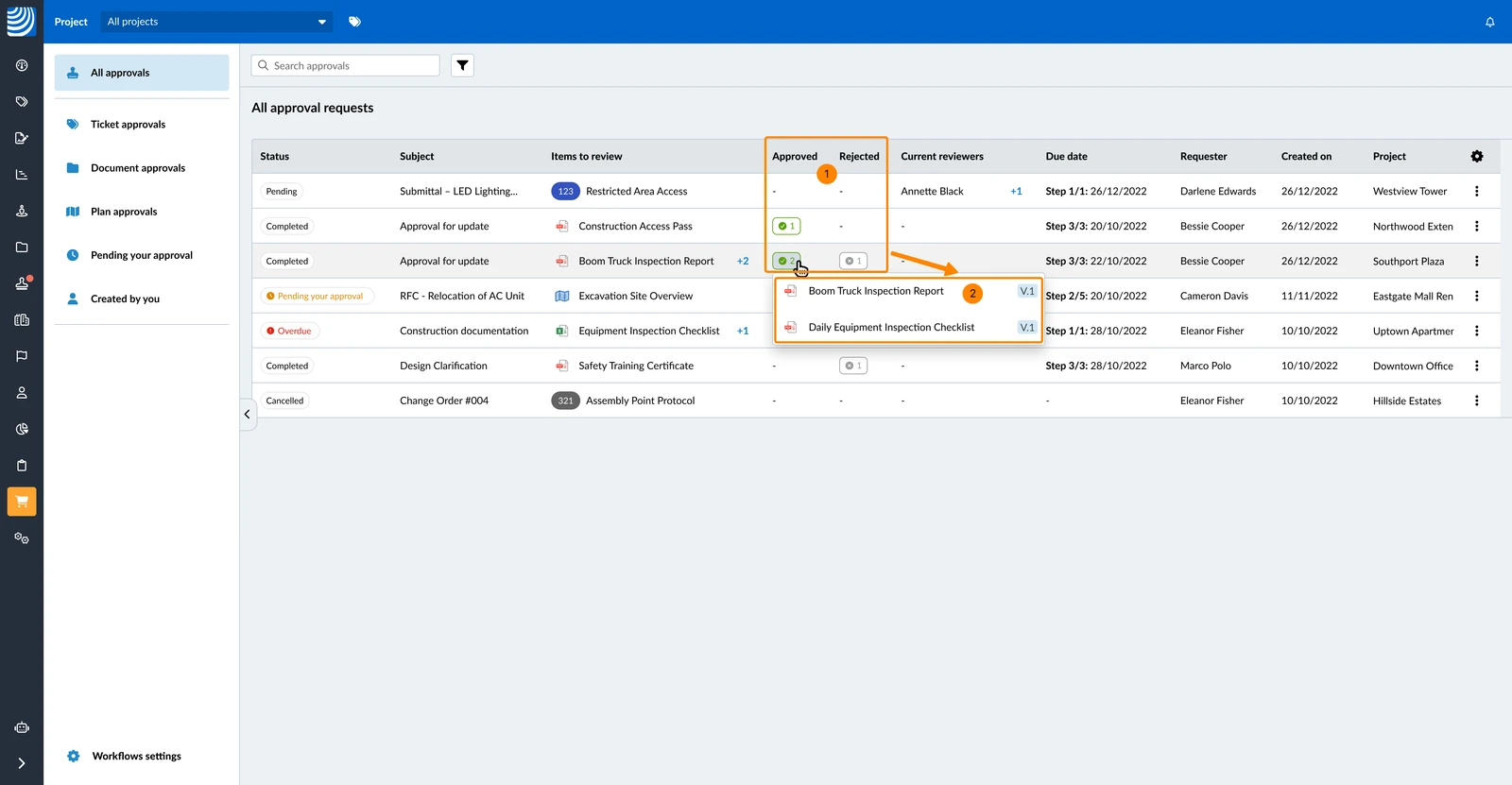
- You see the number of Approved or Rejected items in the columns for completed approval requests.
- Click the number to see a list of the approved or rejected files.
In the mobile app there is no overview to find all approval requests in one place. For further actions you need to go to the details of an approval request as described below for Ticket Approvals and Document & Plan Approvals.
Ticket Approvals
To access the details of a ticket approval request:
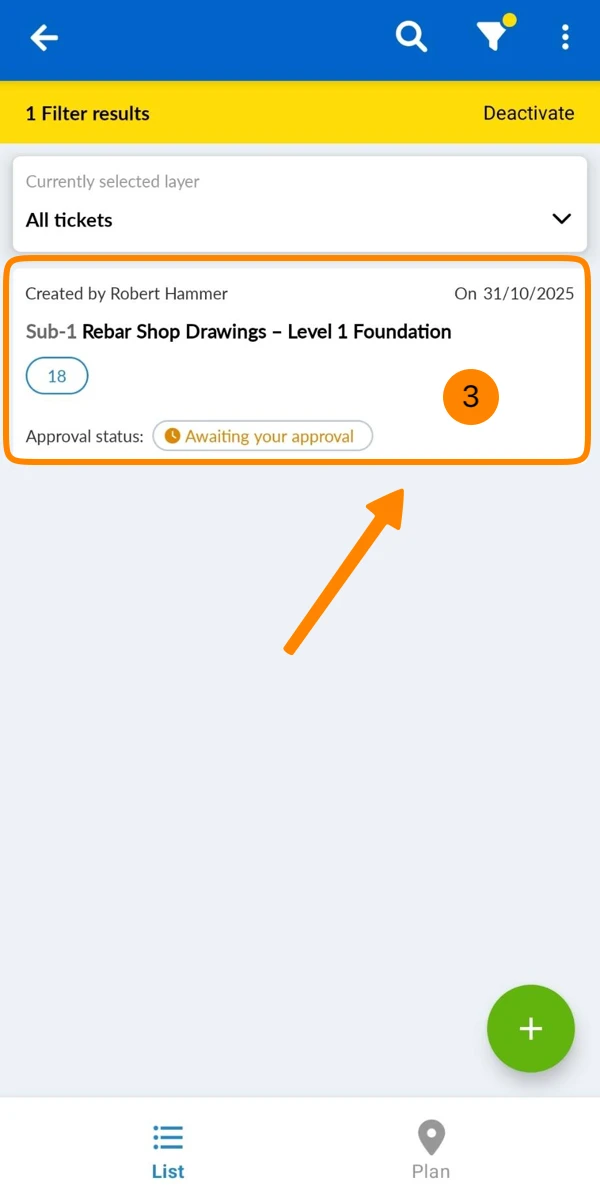
- Tap Tickets
- Filter the ticket list by Approval status: Pending your approval.
Read more in Filter Tickets. - Tap on the ticket
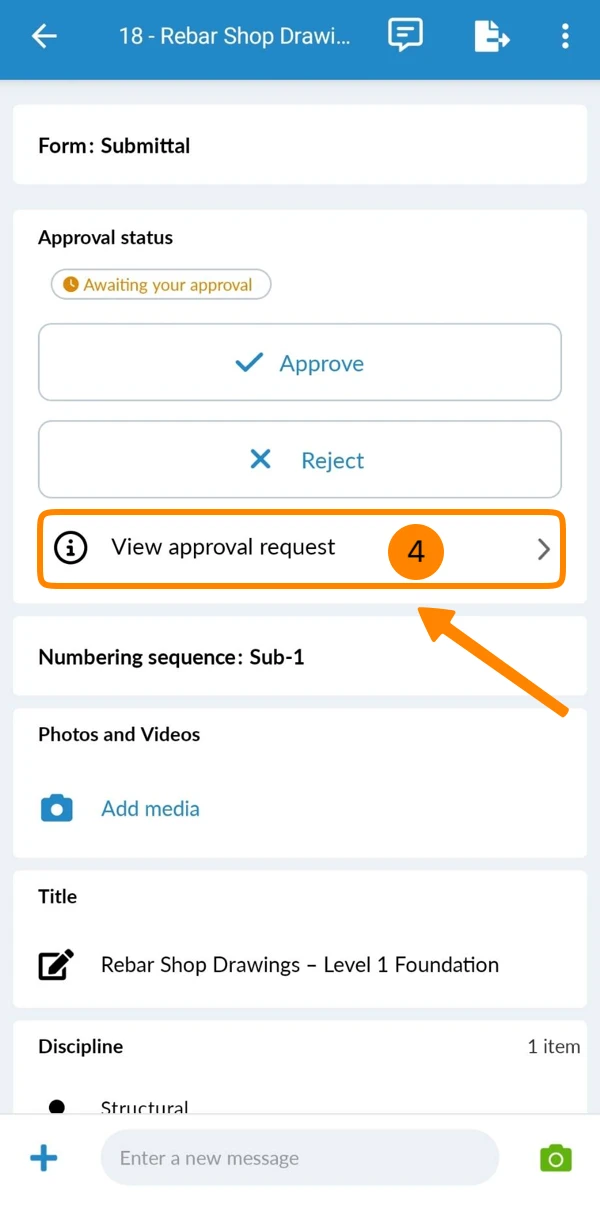
- Tap View approval request
Document & Plan Approvals
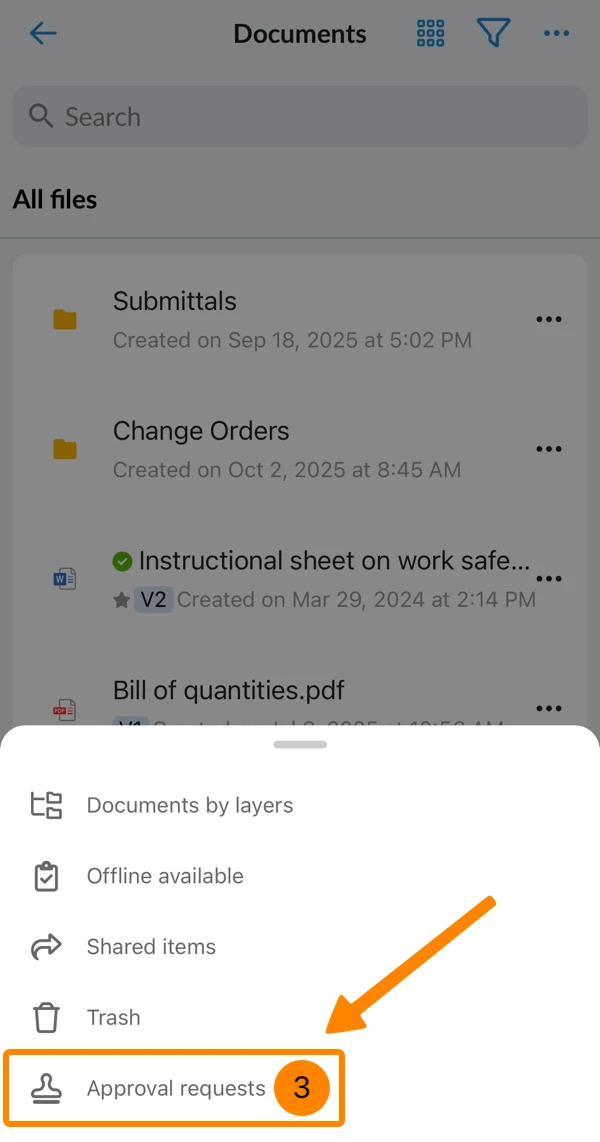
To access the details of a document or plan approval request:
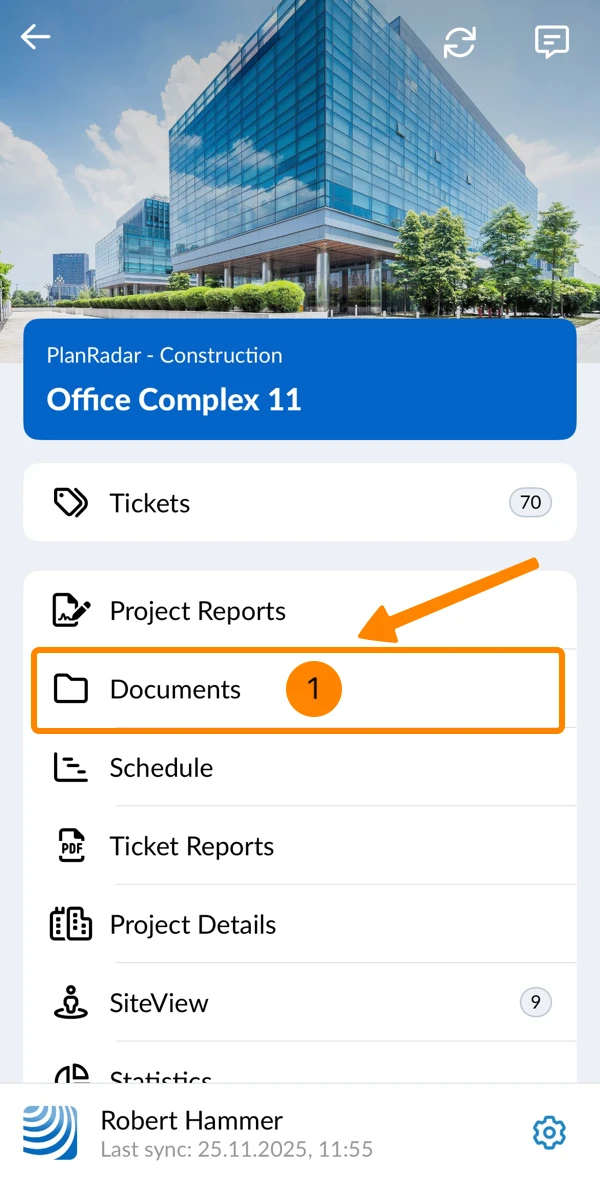
- Tap Documents in the main menu
- Tap More
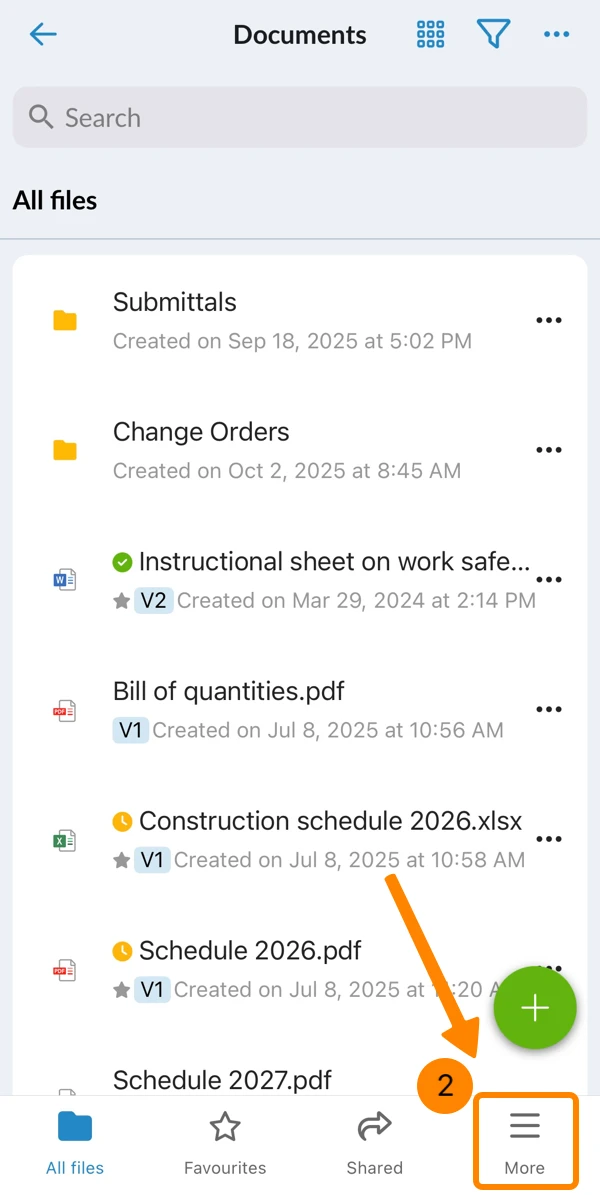
- Tap Approvals
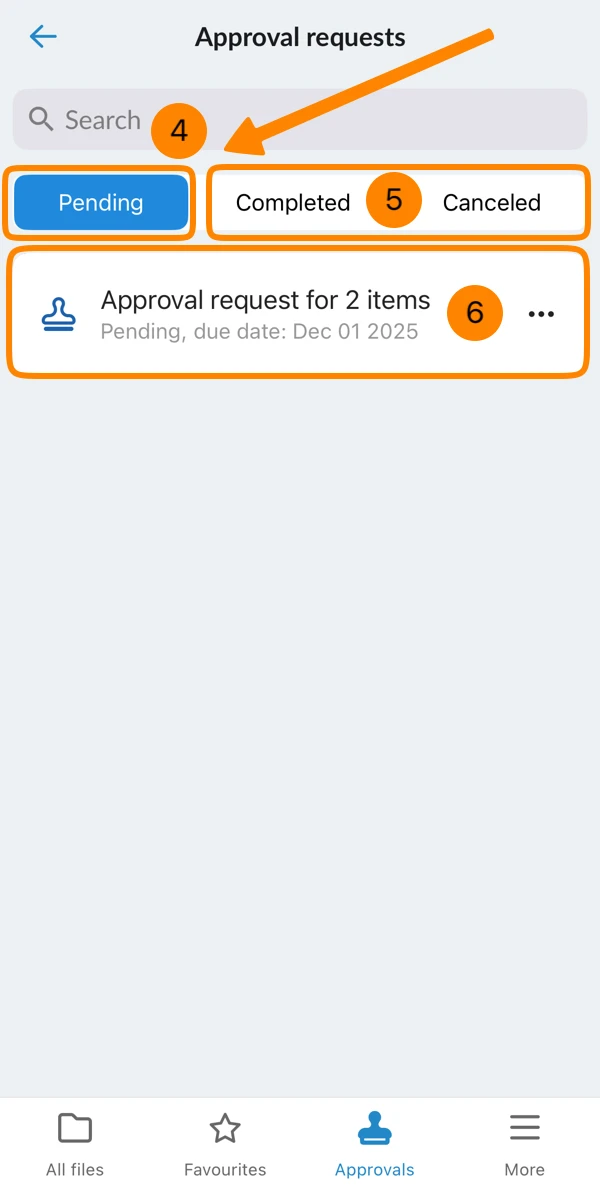
- You see all Pending approval requests
- Tap Completed or Cancelled to filter the list for that status
- Tap on the approval request to view the details
Edit Approval Requests
- Pending approval requests cannot be edited.
- If a pending approval request becomes obsolete, you need to cancel it and if necessary create a new one.
- Only completed Document Approval Requests can be edited to add additional steps.
Read more in Request Approval for Documents > Add Steps to a Completed Approval.- Editing is not possible for ticket or plan approvals.
Cancel Pending Approval Requests
If an approval request becomes obsolete after sending, it is possible to cancel it.
After cancelling a ticket approval request, the ticket will be unlocked automatically and it is possible to request approval again. The cancelled request will still be visible in the approvals view with the status 'Cancelled'.
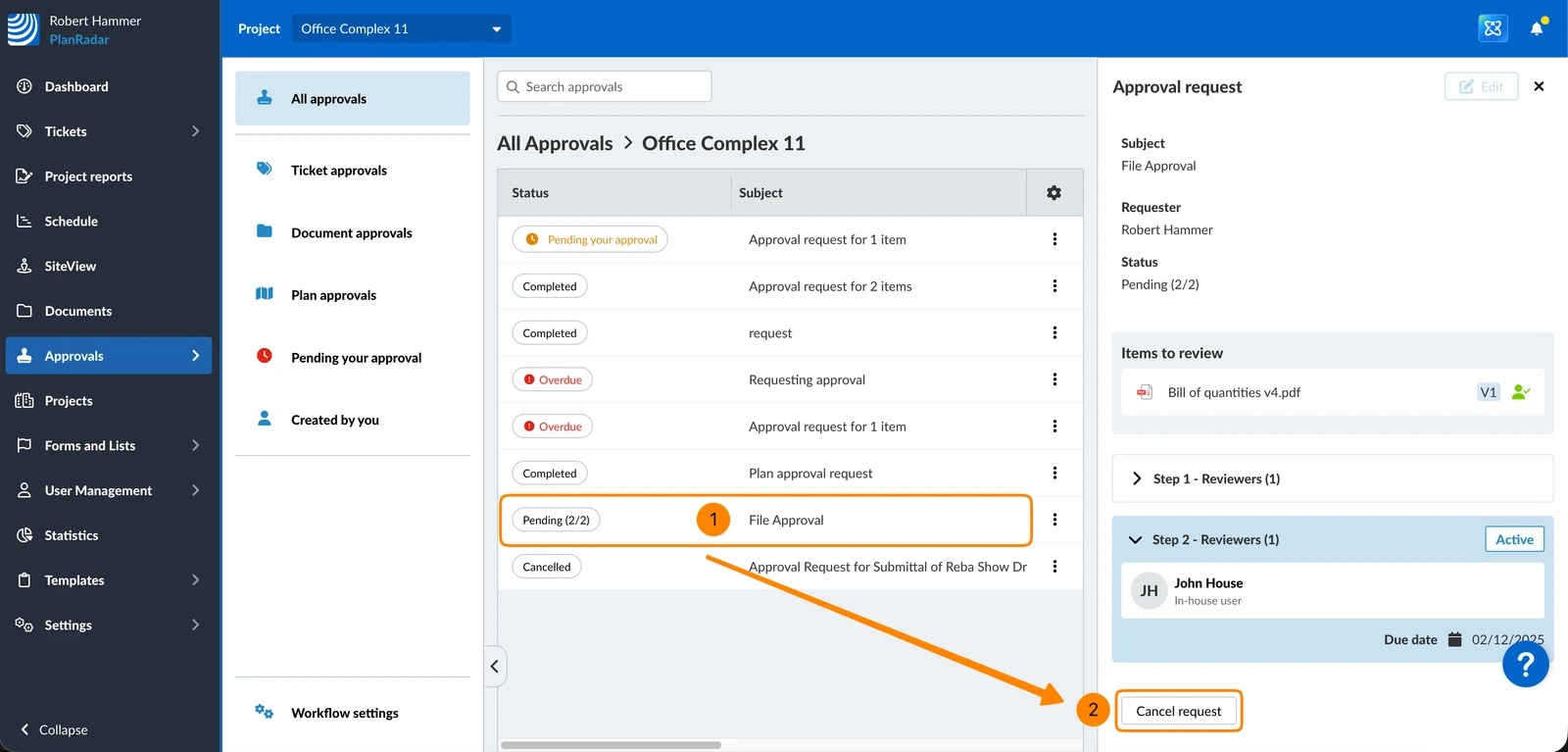
To cancel a pending approval request:
- Click on the approval request in the list to open it
- Click Cancel request
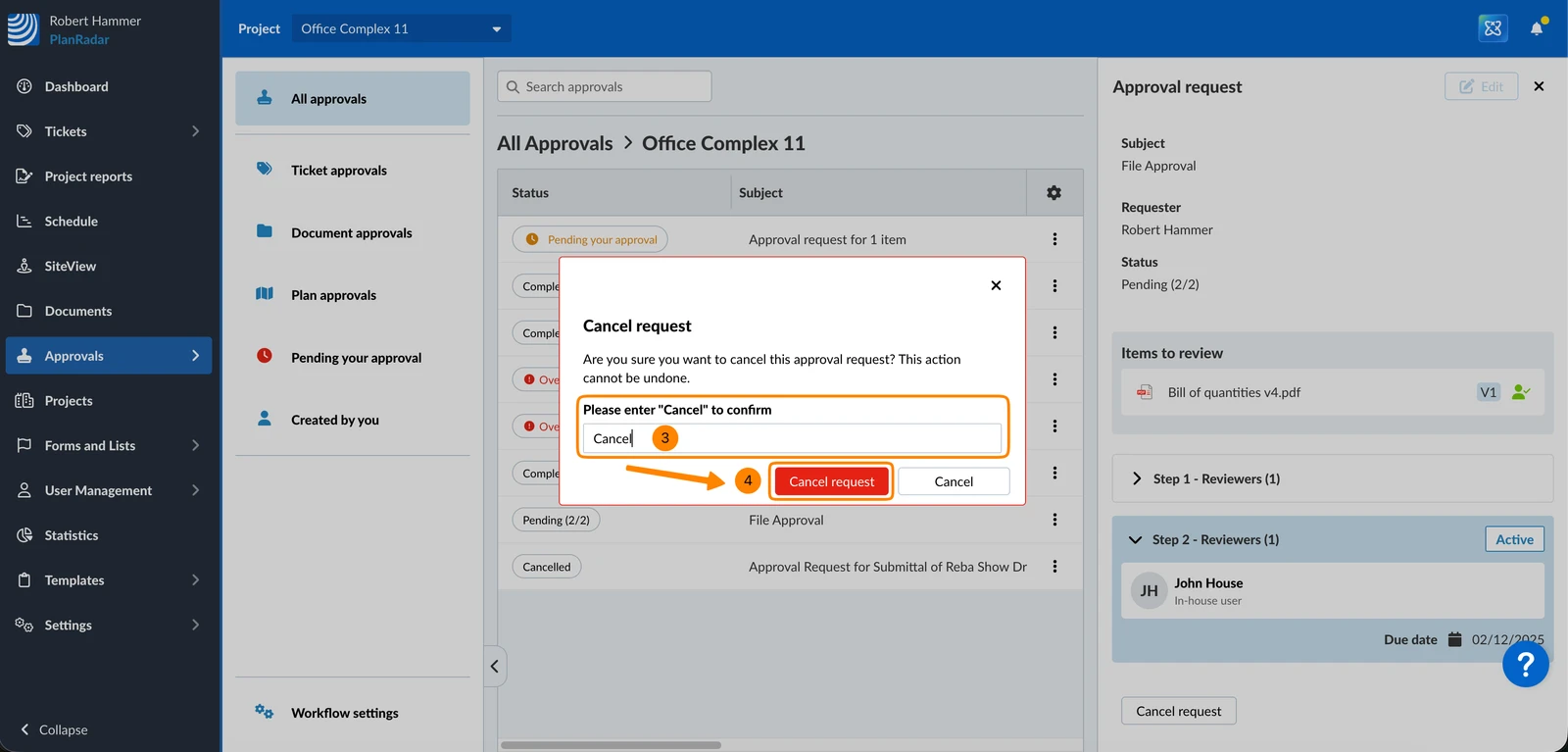
- Type "Cancel" to confirm
- Click Cancel request
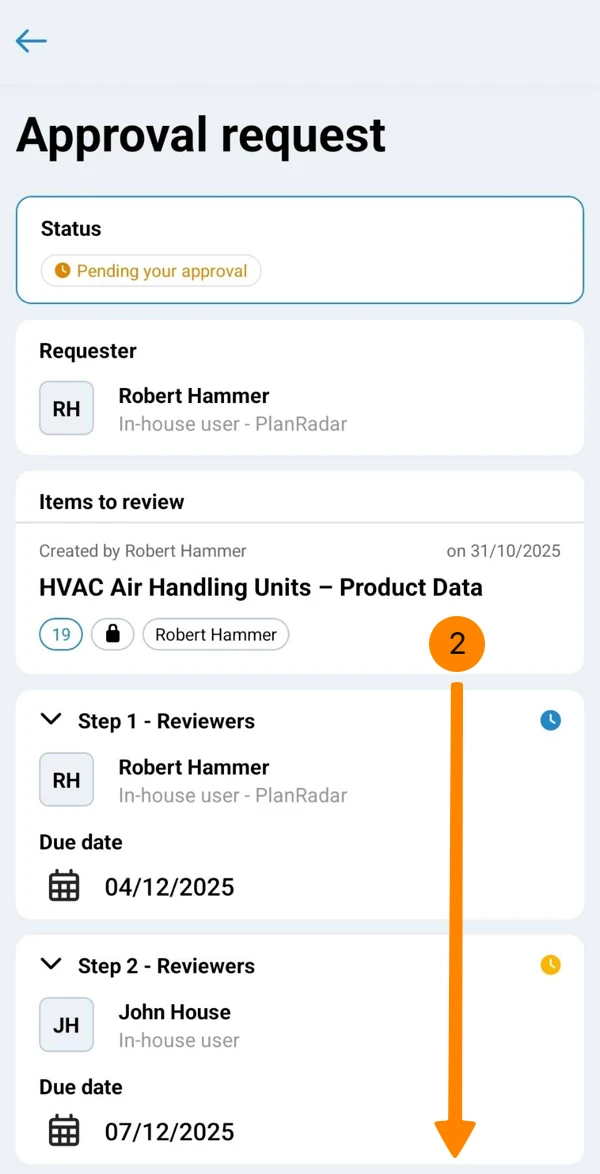
- Go to the details of an approval request – as described above in How to access.
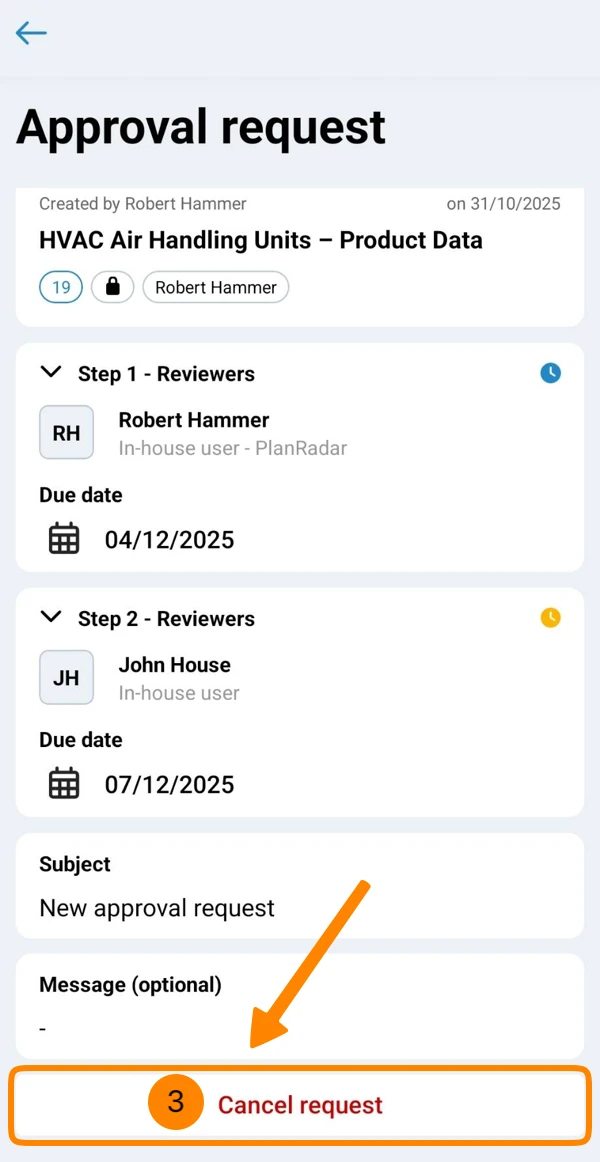
- Scroll down
- Tap Cancel request
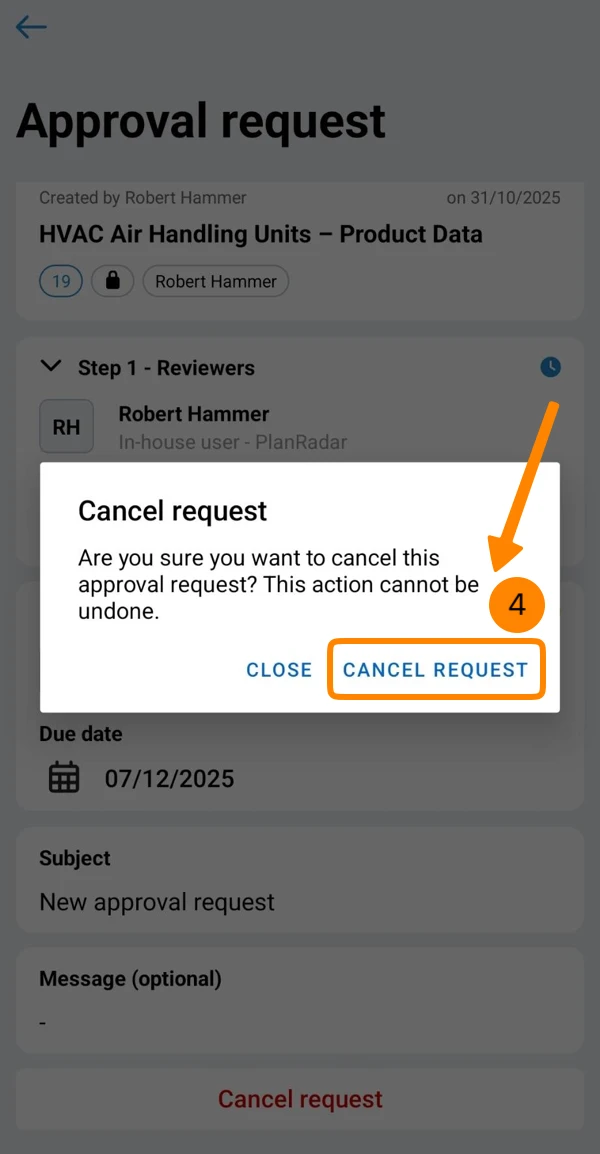
- Tap Cancel Request
Delete Approval Requests
Delete an approval request to permanently remove it from the list of approval requests. Recommended only for cancelled approval request and if you do not need the information in the request anymore.
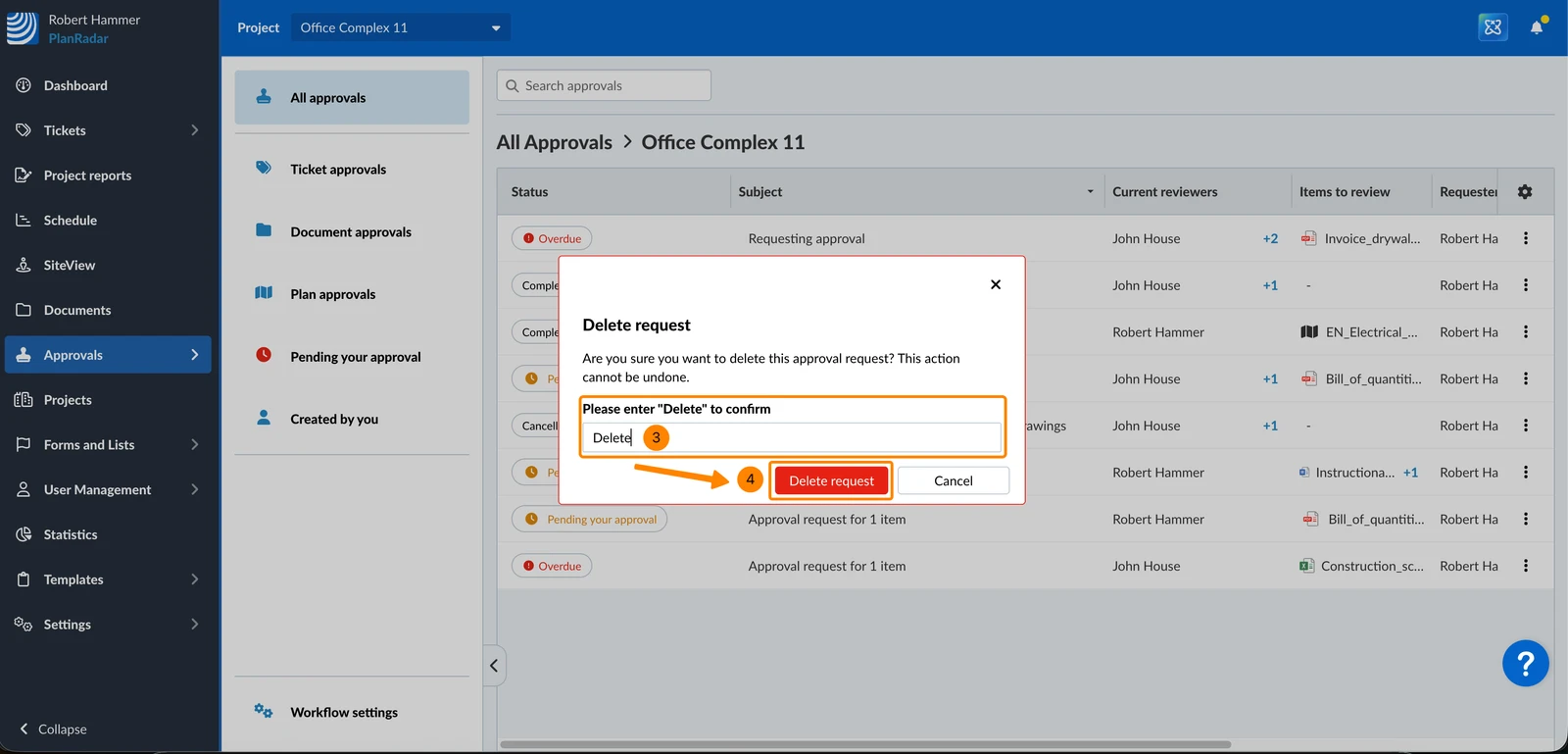
To delete an approval request:
- Open the More menu of the approval request
- Click Delete
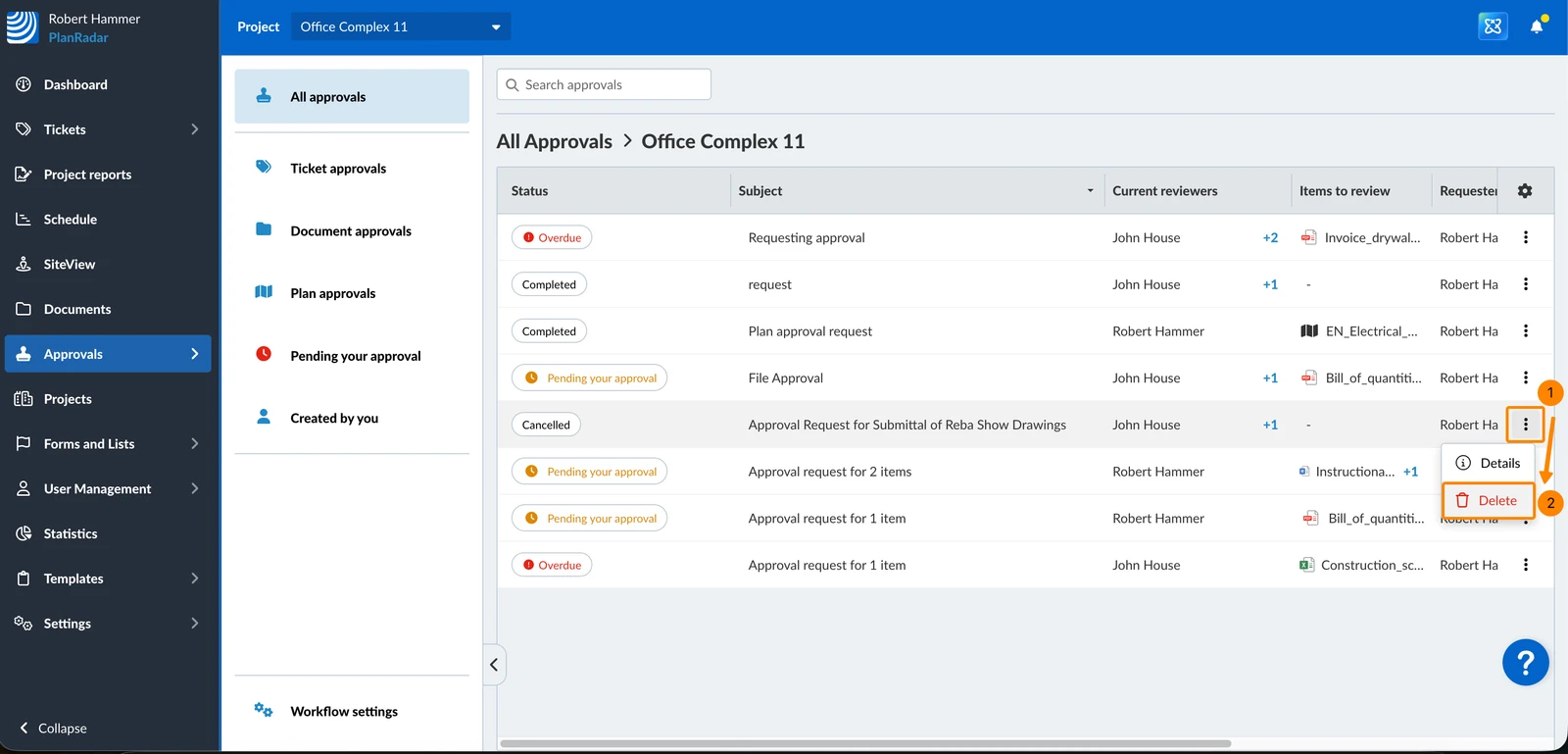
- Type "Delete" to confirm
- Click Delete request
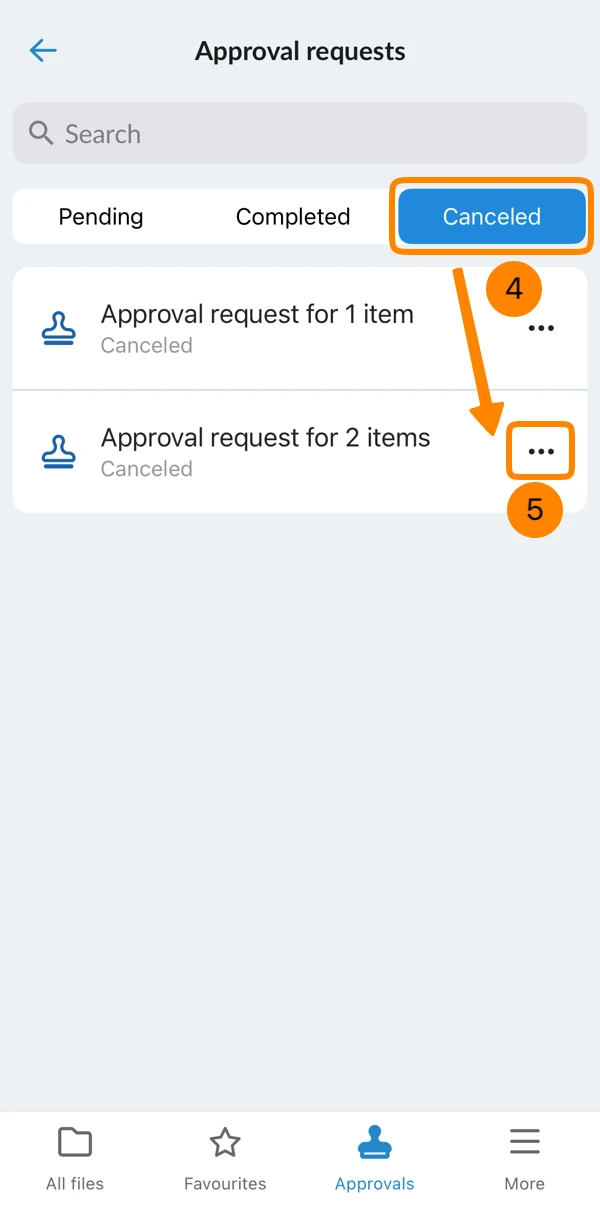
In the mobile app you can only delete approval requests for documents, but not for tickets. To do so:
- Tap Documents in the main menu
- Tap More
- Tap Approvals
- Tap Cancelled
- Open the More menu
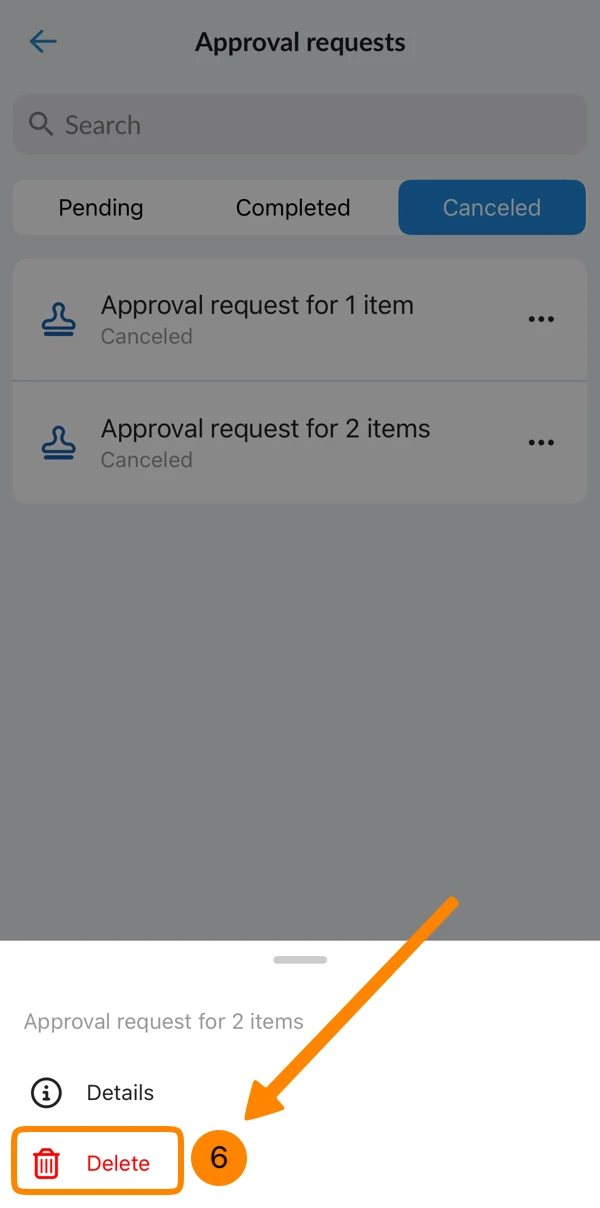
- Tap Delete
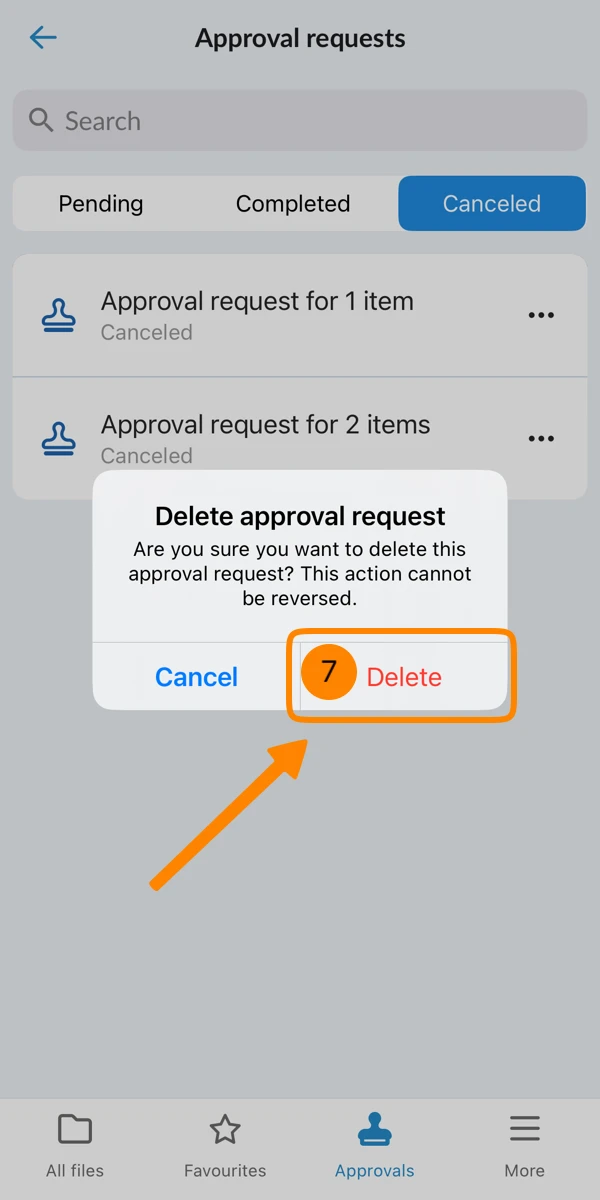
- Tap Delete
Updated June 11, 2026