

 Deutsch
 Español
 Français
 Hrvatski
 Italiano
 Polski
 Português (BR)
Change the Layer of a Ticket
Overview
Changing the layer of a ticket may be necessary if the ticket was created on the wrong layer.
Access & Permissions
Change the Layer
To change the layer of a ticket:
- Open the ticket
- In the Layer drop-down, select a different layer.
- Click Save or Save and close
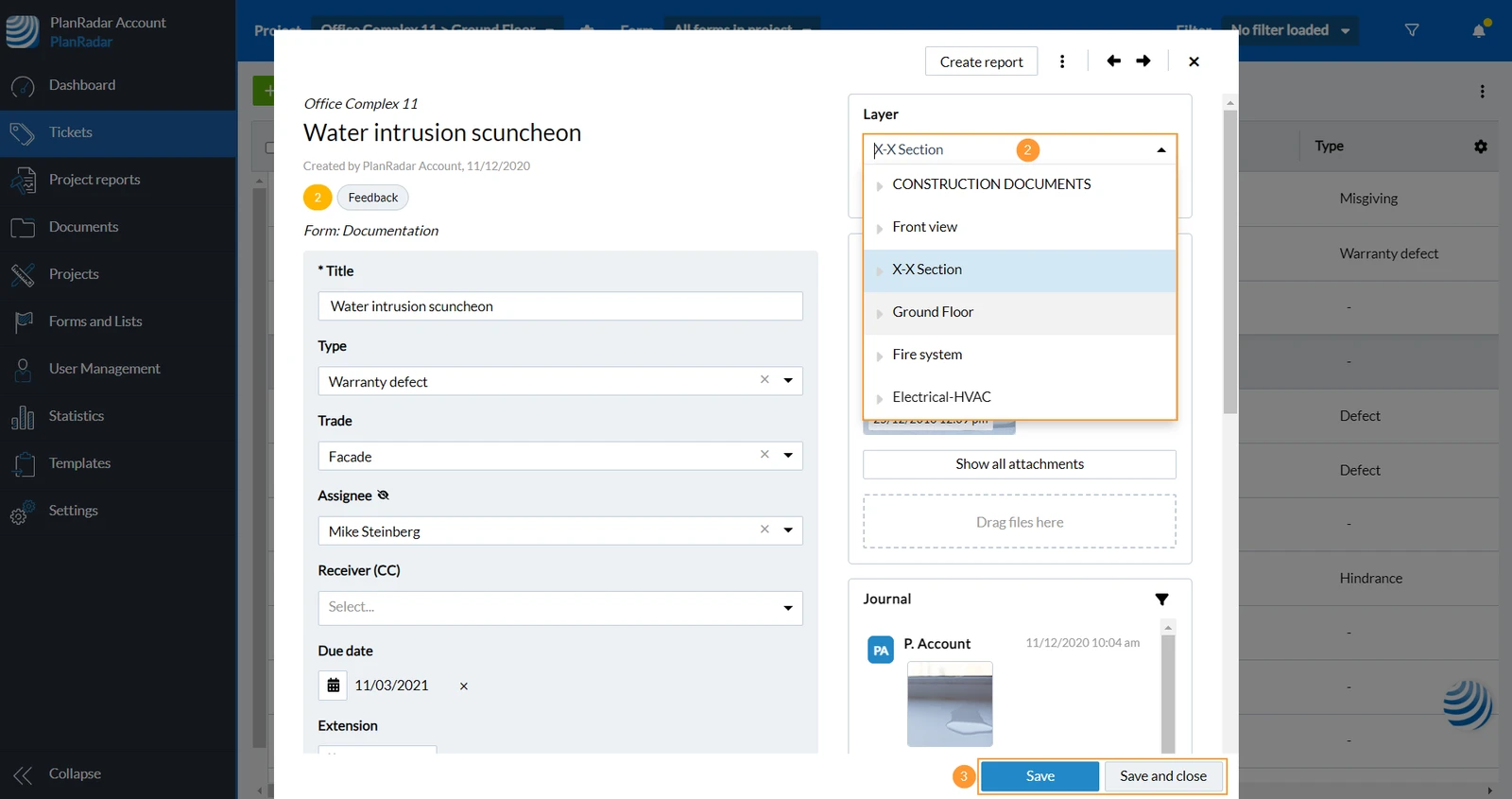
- Open the ticket
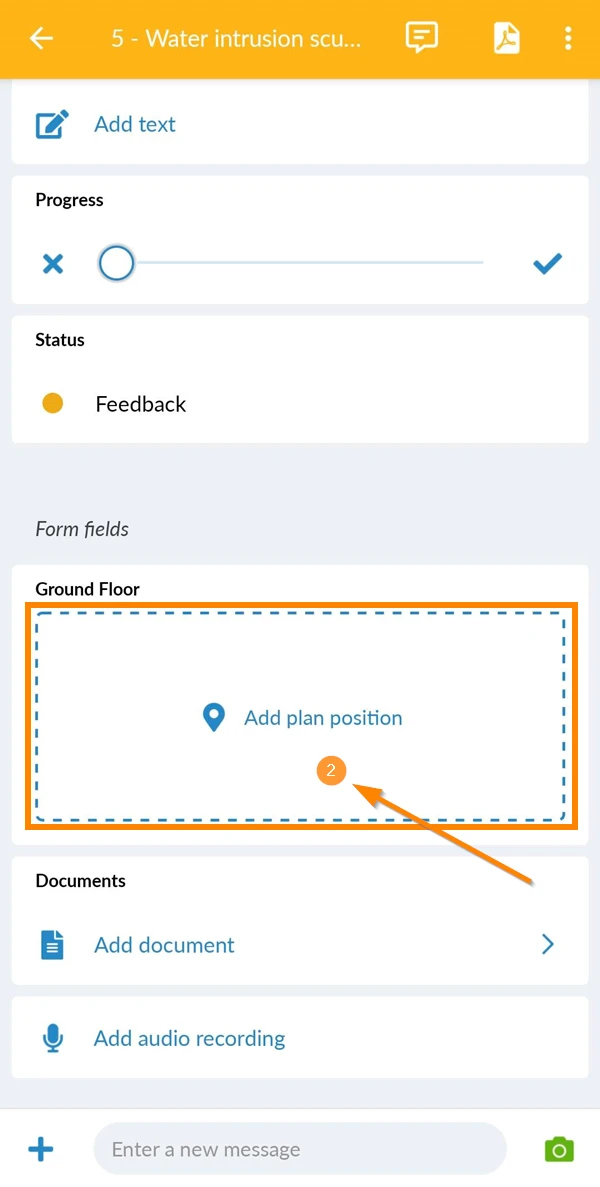
- Tap Add plan position OR on the preview of the plan position if one is set already.
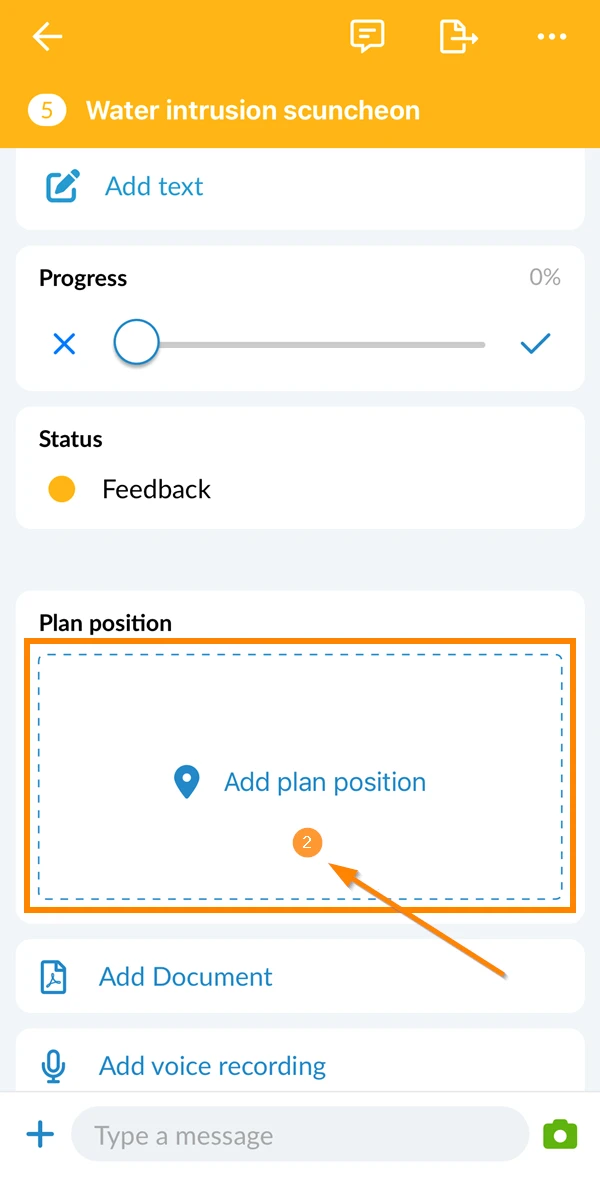
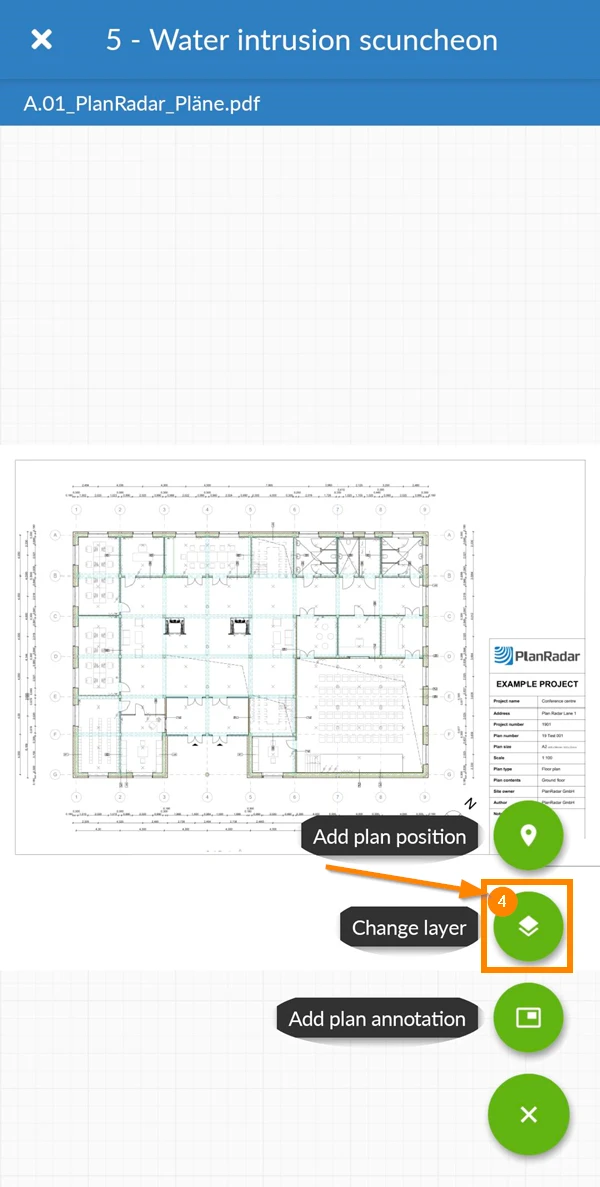
- Tap Change Layer
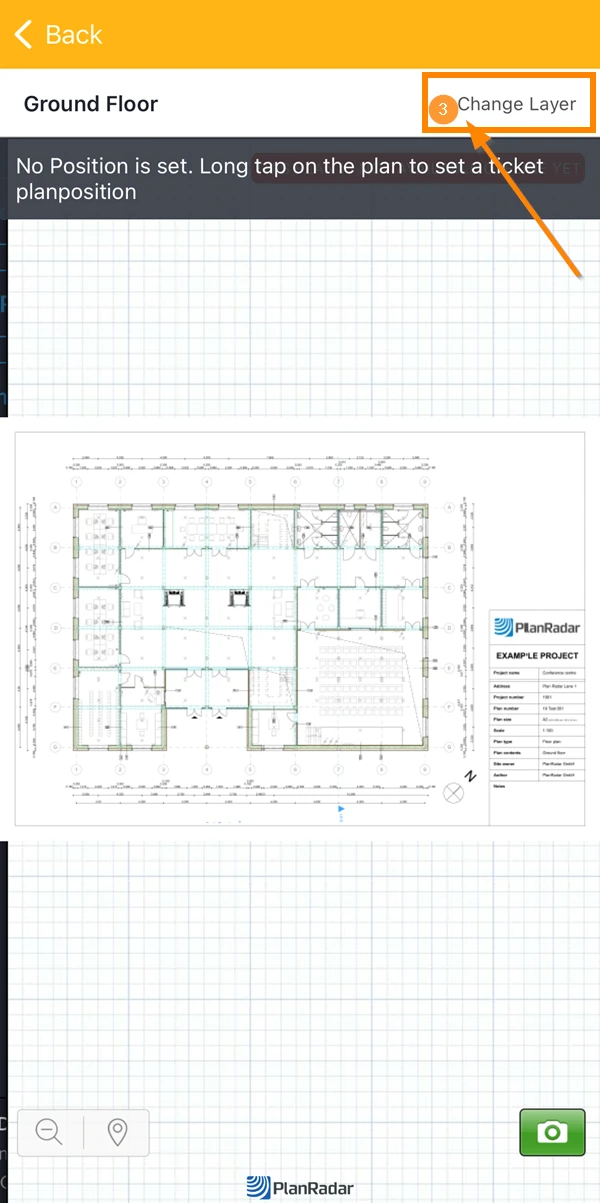
- Tap Change Layer to confirm the action. (the plan position will be lost after the change)
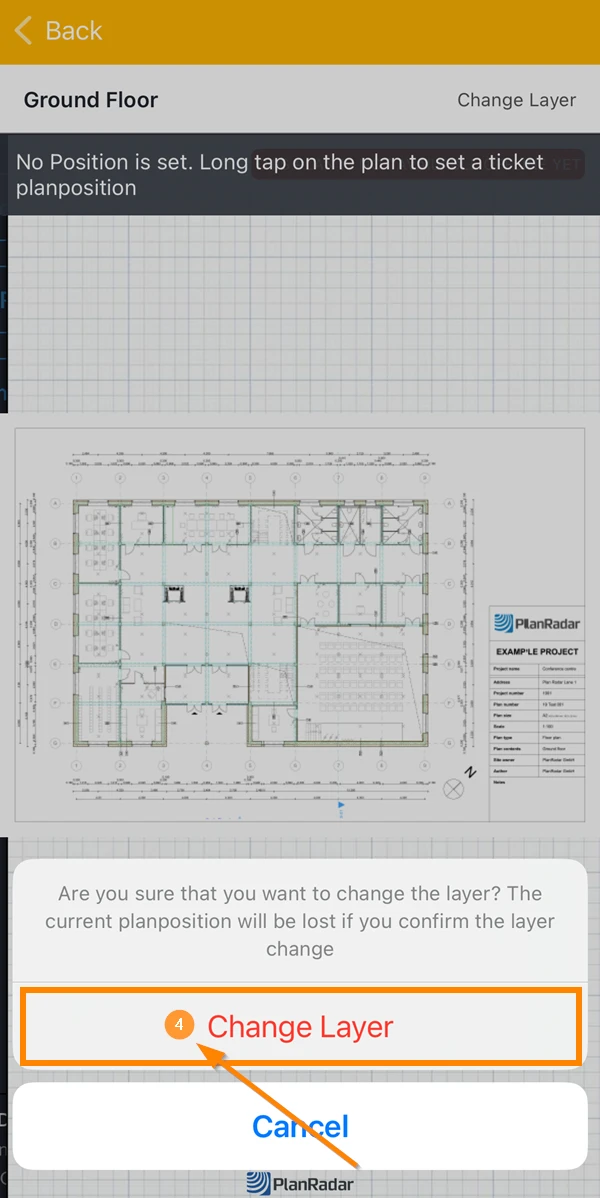
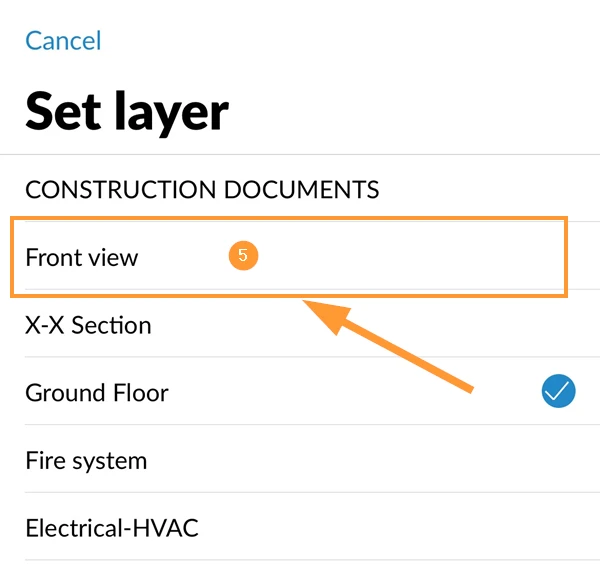
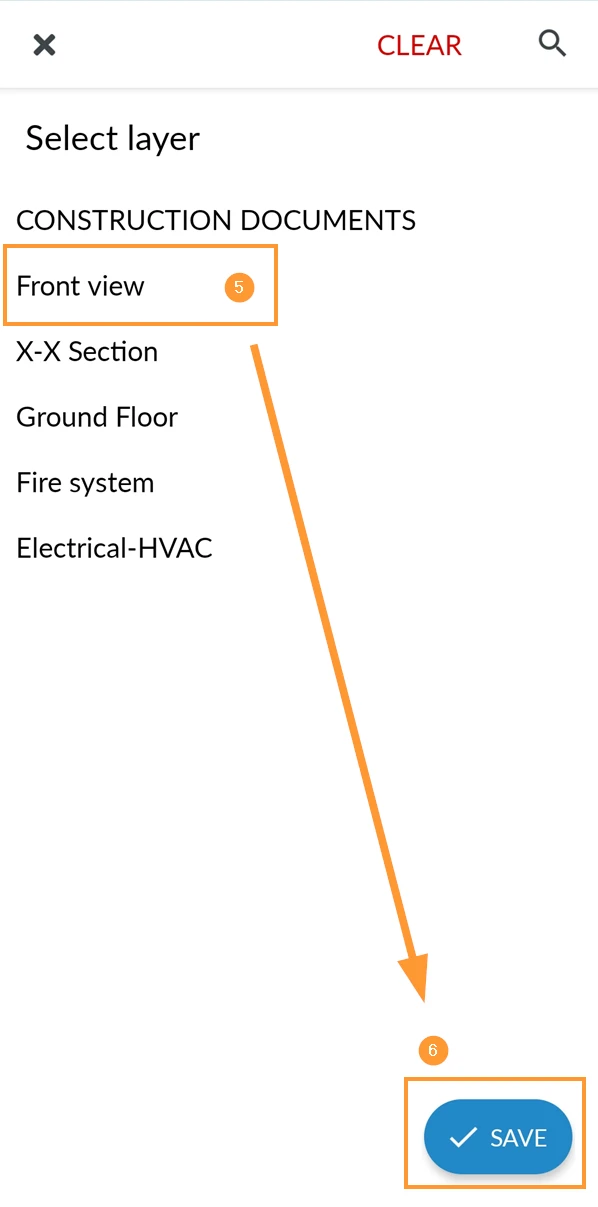
- Select the layer you want to move the ticket to.
- Open the ticket
- Tap Add plan position OR on the preview of the plan position if one is set already.
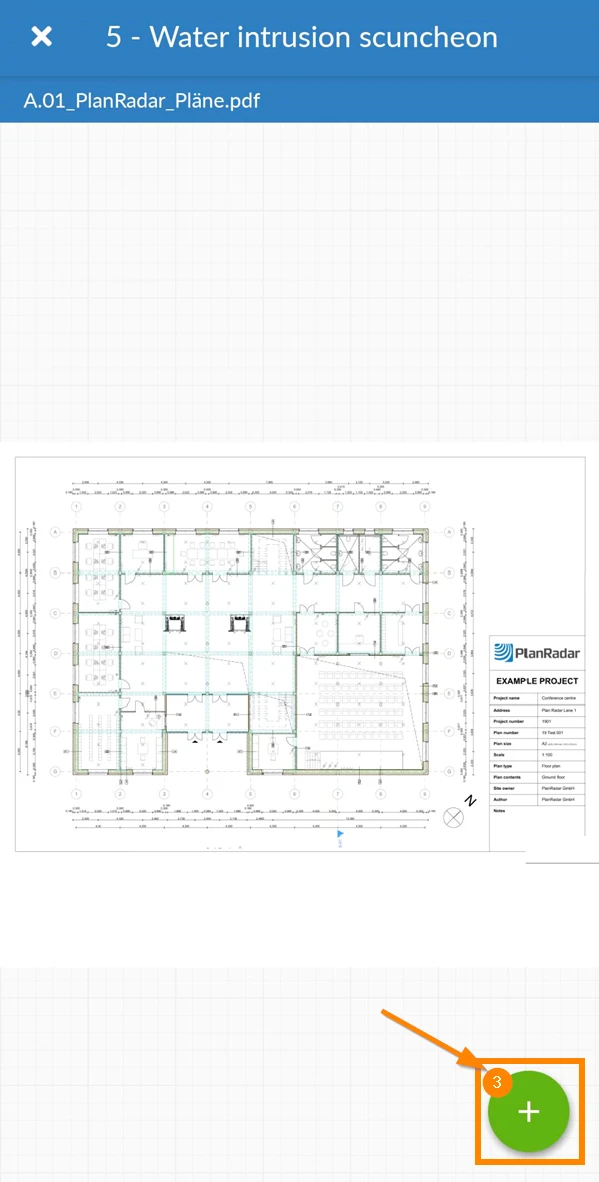
- Tap the + icon
- Tap Change layer
- Select the layer you want to move the ticket to
- Tap Save
Updated February 17, 2025