

 Deutsch
 Español
 Français
 Hrvatski
 Italiano
 Polski
 Português (BR)
Lock a Ticket
Summary
Lock a ticket to prevent users from editing it.
Tickets are locked automatically when you:
Access & Permissions
Locked Tickets
When you View & Edit a Ticket, you can lock or unlock it.
The only way to edit a locked ticket is to unlock it, which automatically removes all signatures. You can then make the required changes, lock the ticket again, and sign it.
For locked tickets, you can still edit the assignee, receiver, progress, status and add comments. This allows you to assign the next signer or communicate when multiple signatures are required.
| Field | Can be edited while locked | Cannot be edited while locked |
| Assignee | ✔ | |
| Receiver | ✔ | |
| Progress | ✔ | |
| Status | ✔ | |
| Comments | ✔ | |
| Any other fields & attachments | × |
Lock a Ticket
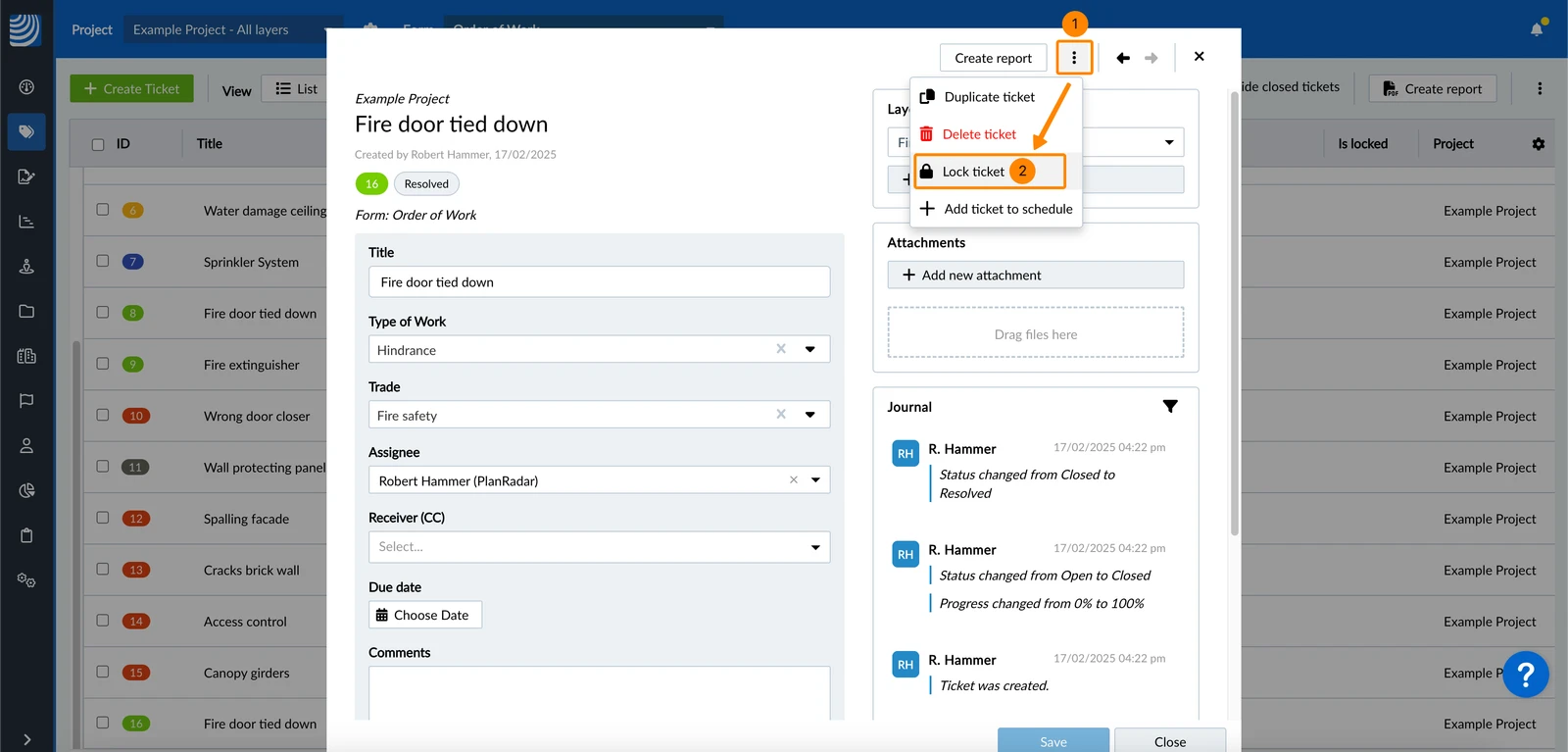
To lock a ticket:
- Open the More menu
- Click Lock ticket
Unlock a Ticket
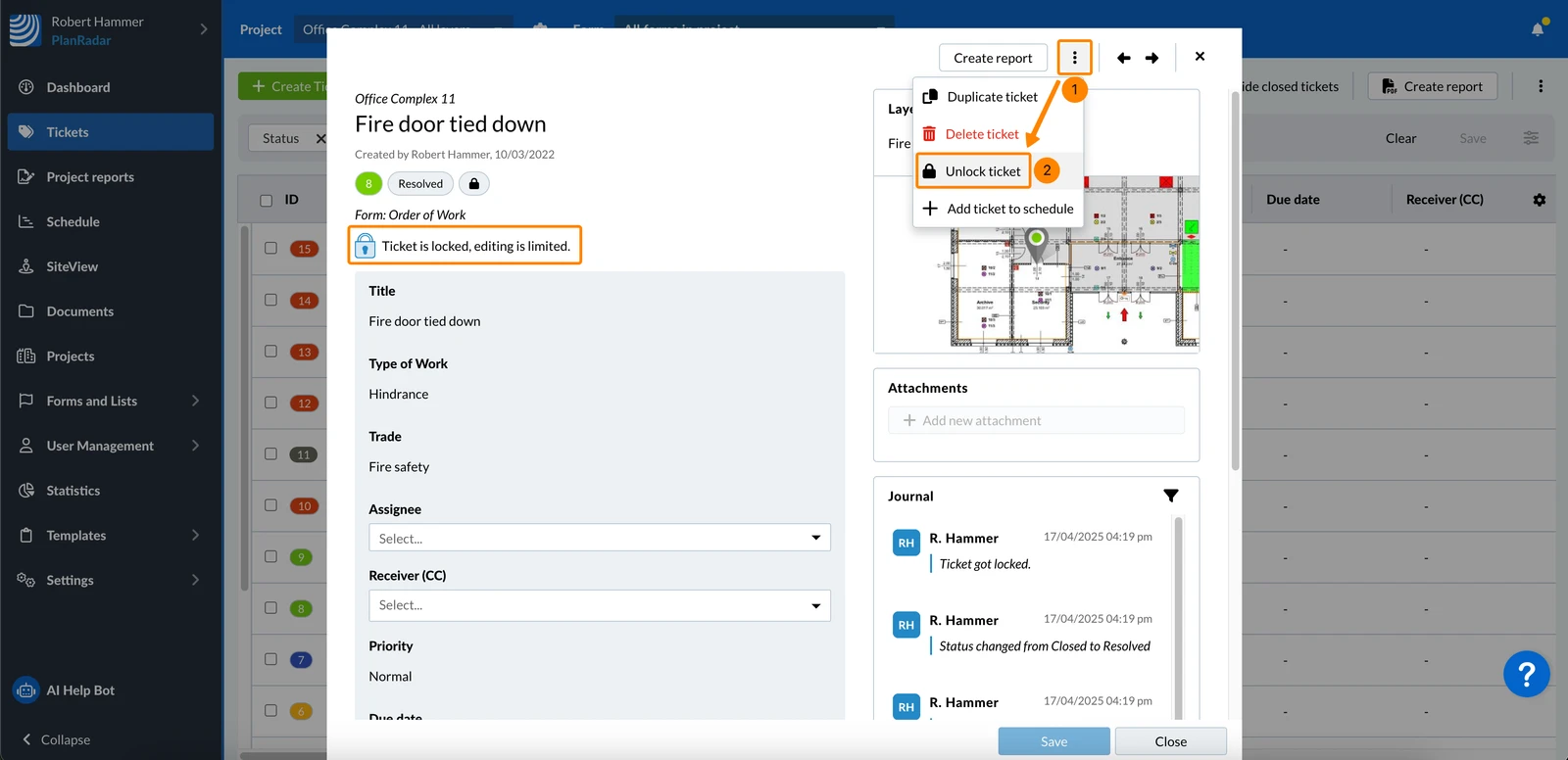
To unlock a ticket:
- Open the More menu
- Click Unlock ticket
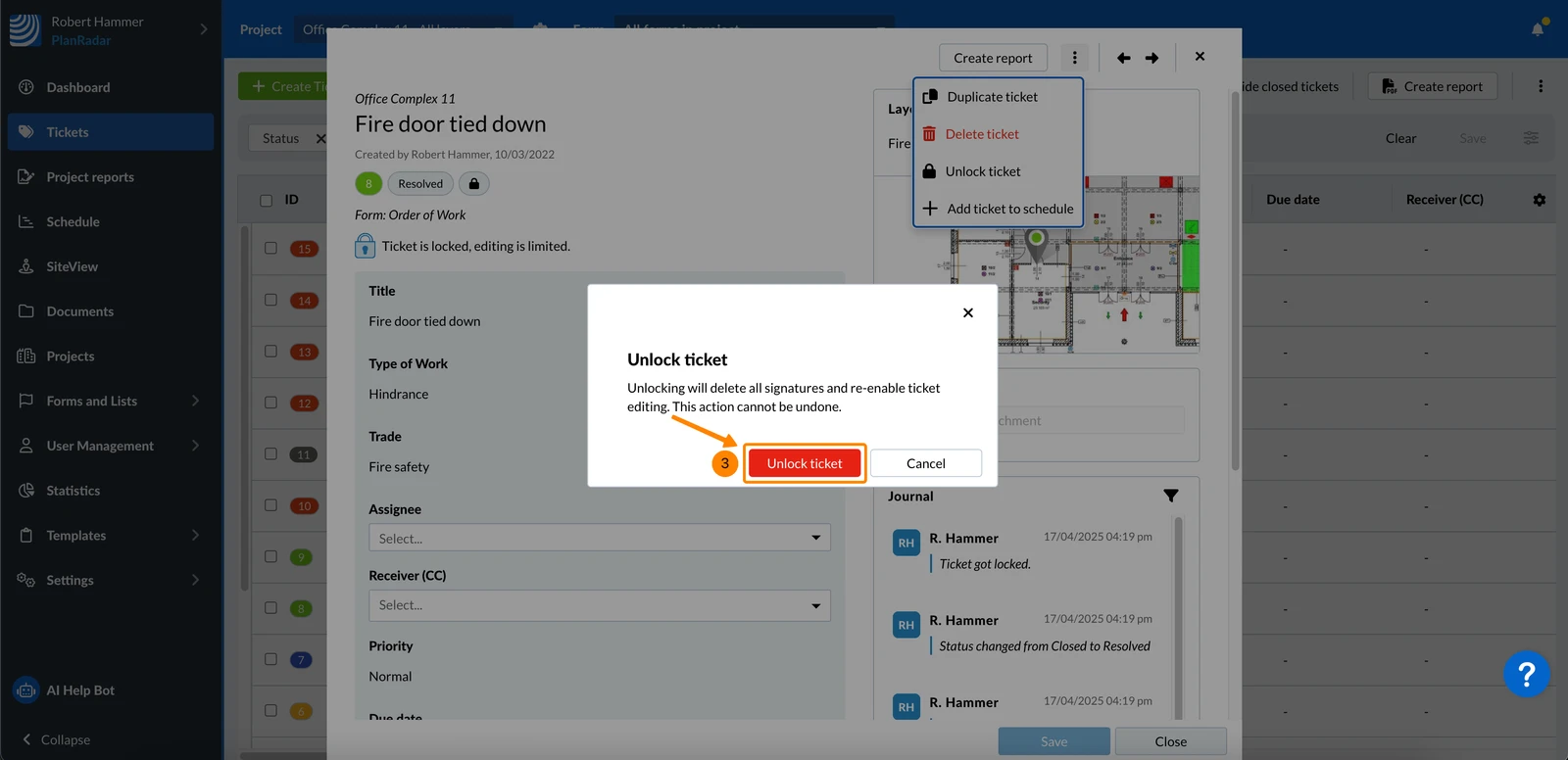
- Click Unlock ticket to confirm that all signatures will be deleted.
Updated February 20, 2026