

 Deutsch
 Español
 Français
 Hrvatski
 Italiano
 Polski
 Português (BR)
Set the Assignee & Receivers of a Ticket
Overview
Assign a ticket to a user to show who is responsible for resolving it.
Set one or multiple users as receivers to keep them informed about activities in the ticket.
Access & Permissions
Assign a Ticket
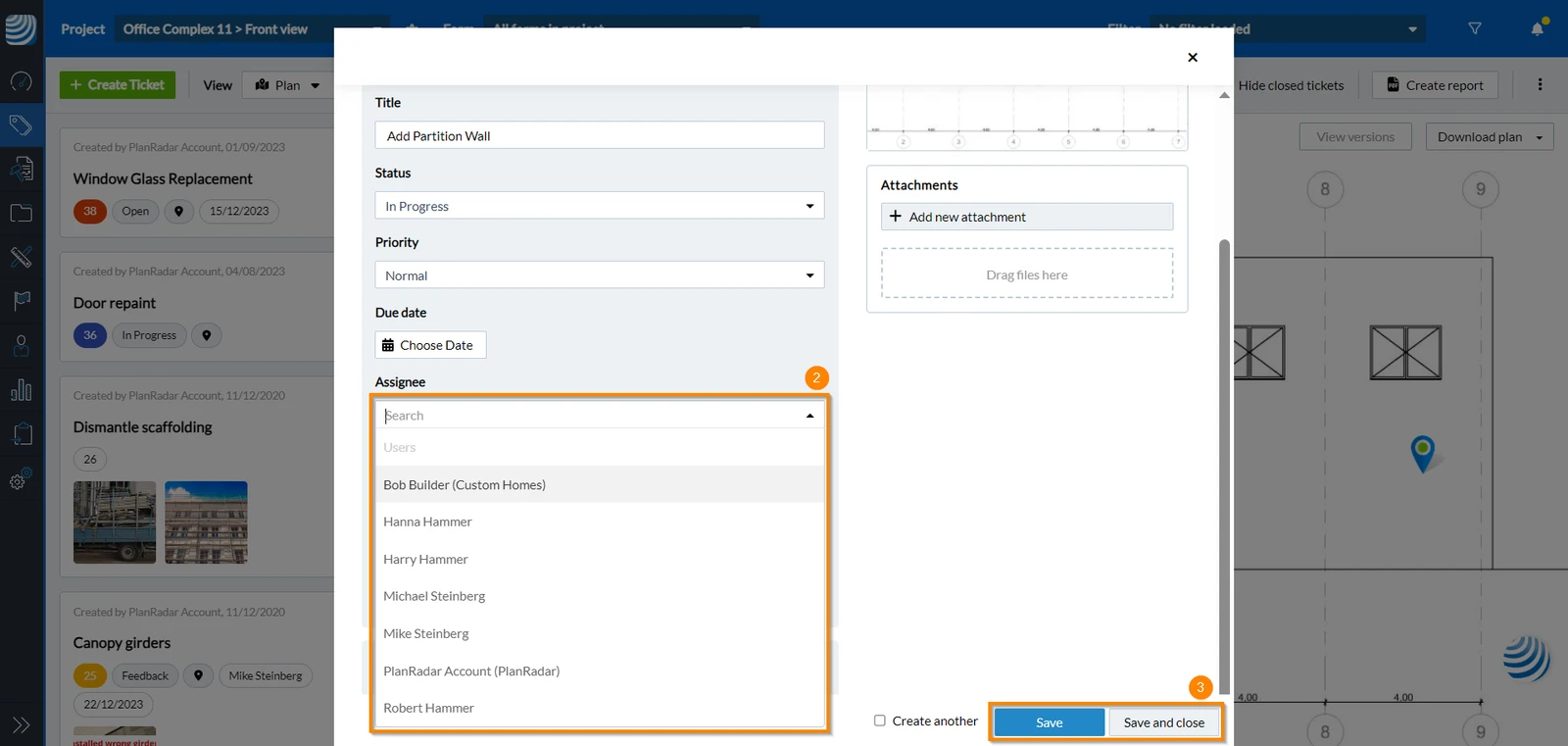
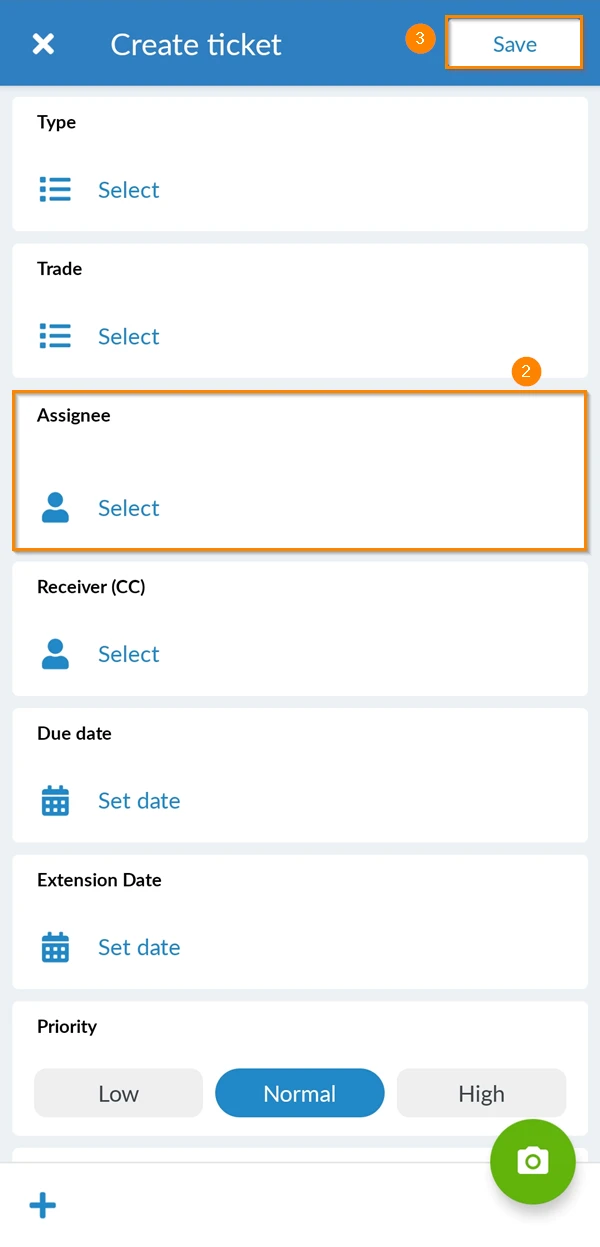
To add an assignee to a ticket (you can select only one assignee):
- Open a ticket or continue when you Create a Ticket.
- Select the Assignee from the drop-down menu
- Click Save or Save and close
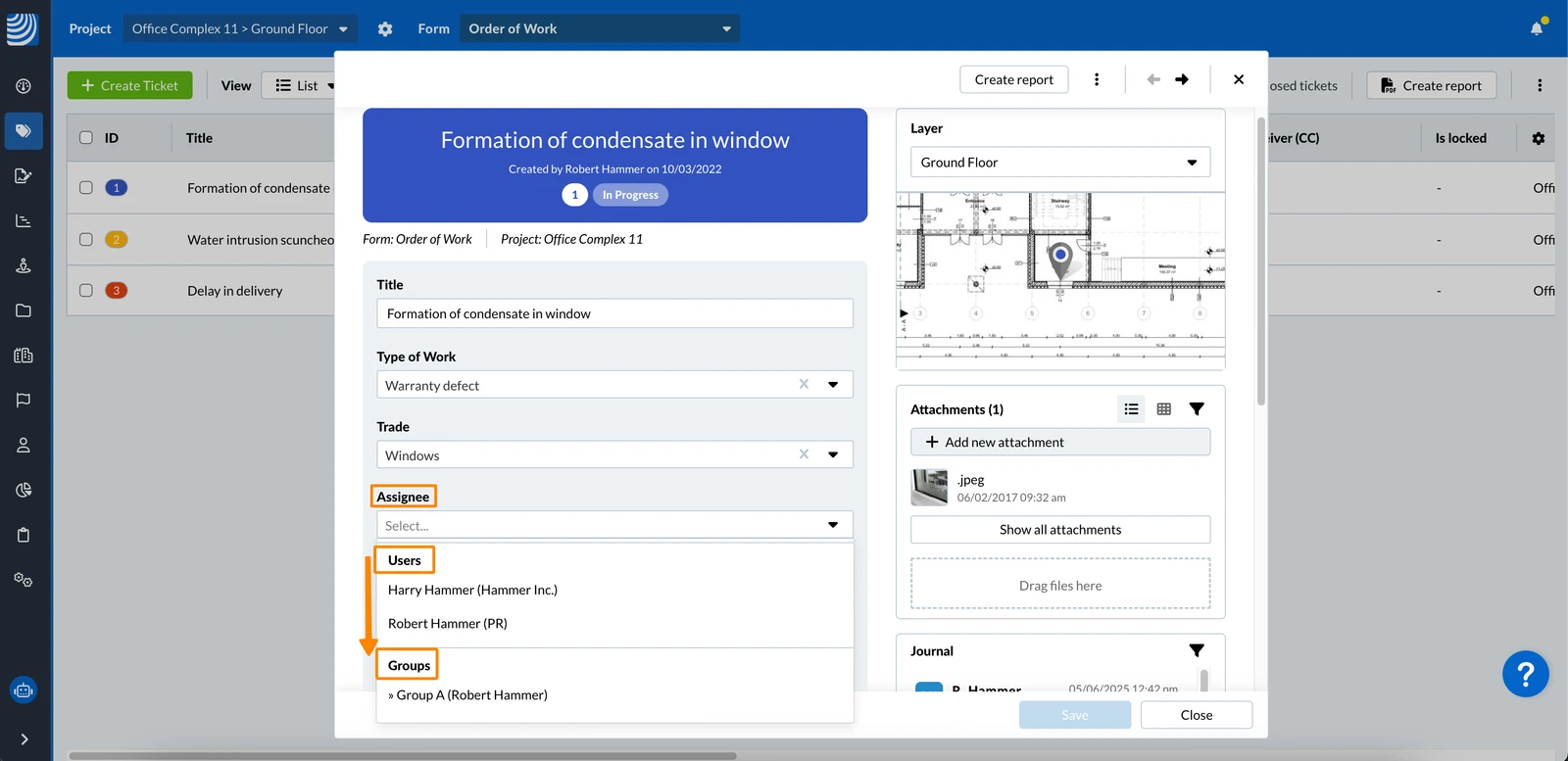
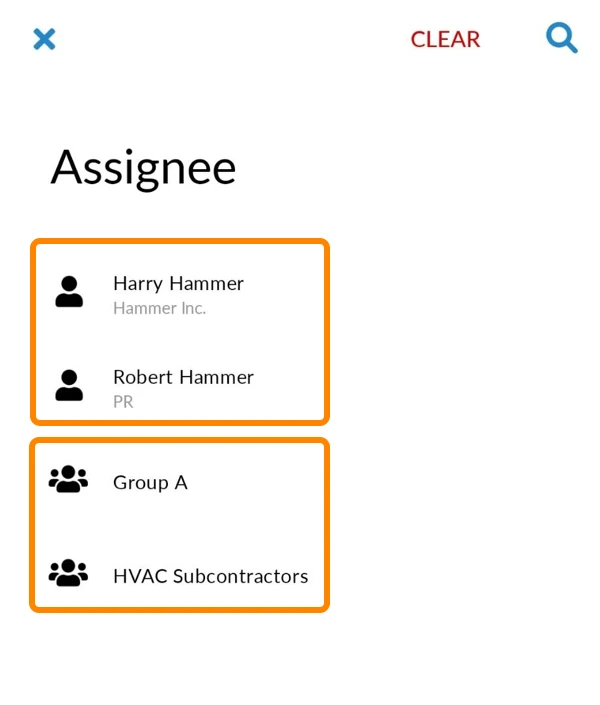
If your project contains groups, the 'assignee' and 'receiver' drop-down menus will first list the users, followed by the groups:
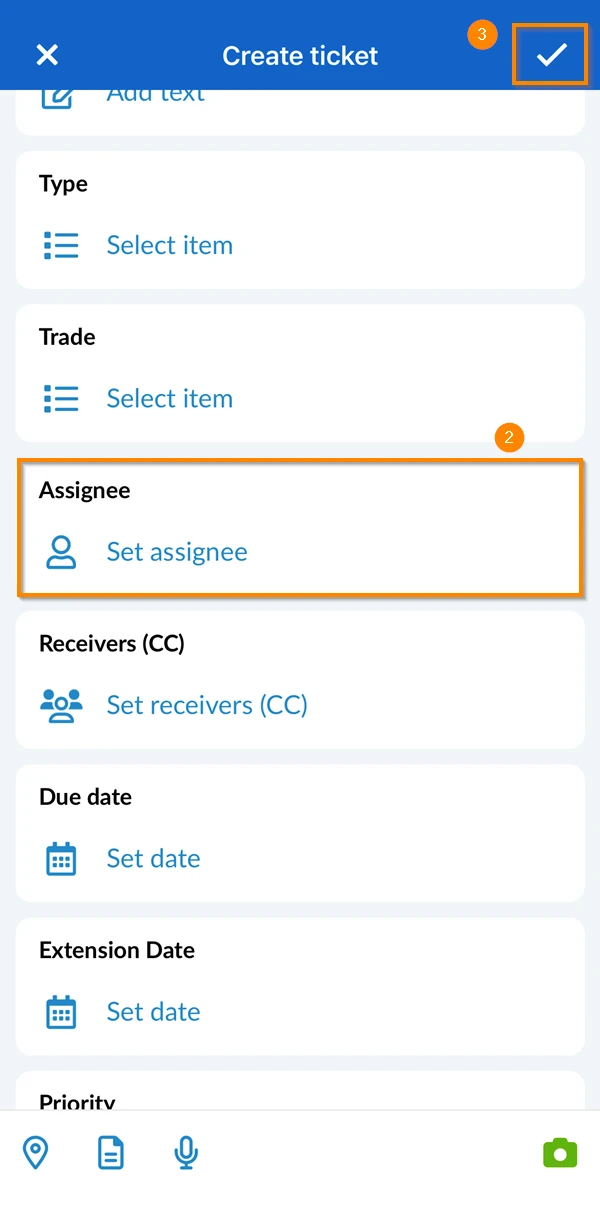
- Open a ticket or continue when you Create a Ticket.
- Tap Set assignee and select the assignee
- Tap ✔
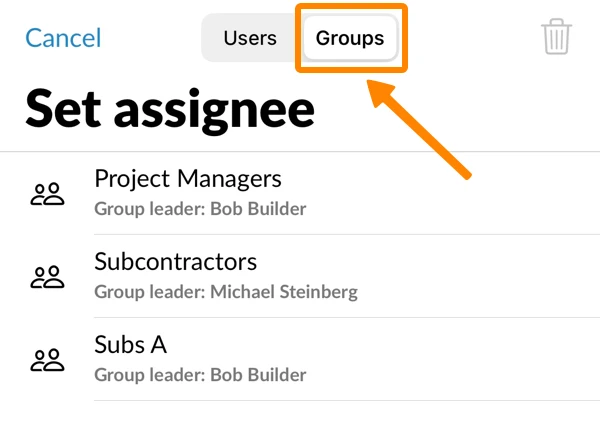
Tap Groups to assign a ticket to a group:
- Open a ticket or continue when you Create a Ticket.
- Tap Select in the Assignee field and select the assignee
- Tap Save
If your project contains groups, the 'assignee' and 'receiver' menus will first list the users, followed by the groups:
Assignment Notifications
Once a ticket is assigned to a user or a user group, they will get a push notification as well as receive an email notifying them of the assignment.
Set Ticket Receivers
To set ticket receiver(s):
- Open a ticket or continue when you Create a Ticket.
- Select the receiver/s from the drop-down menu
- Click Save or Save and close
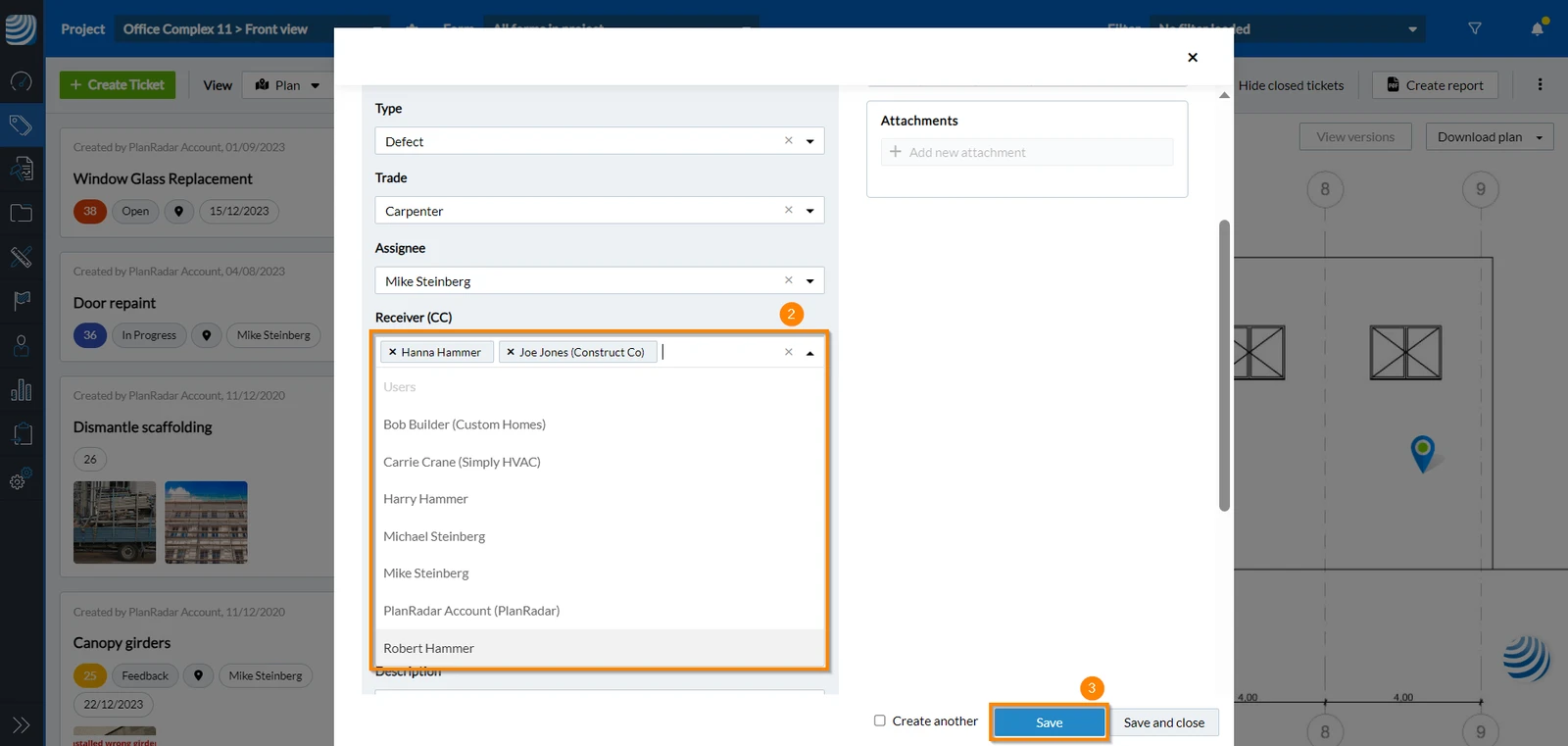
- Open a ticket or continue when you Create a Ticket.
- Tap Set receivers (CC) and select the receiver(s)
- Tap ✔
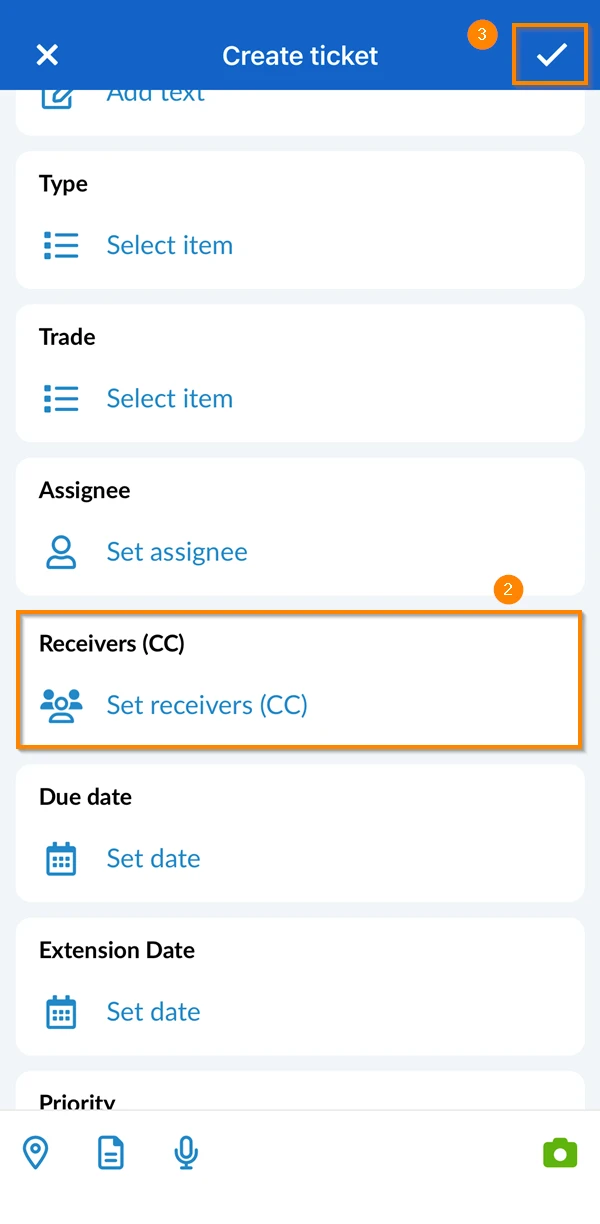
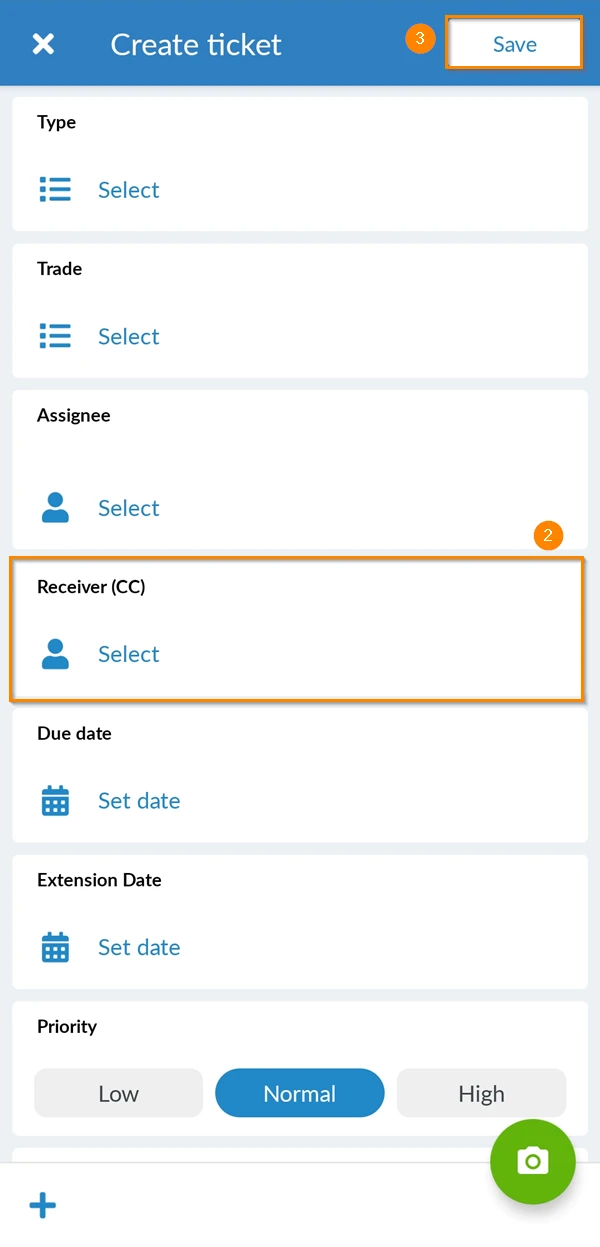
- Open a ticket or continue when you Create a Ticket.
- Tap Select in the Receiver (CC) field and select the receiver(s)
- Tap Save
Receivers Notifications
Ticket receivers get notified of all ticket edits and updates.
Due Date Notifications
Both assignees and receivers get notifications in advance of the ticket's due date to prevent any missed deadlines. The timing of the notification depends on each users notifications settings. Users can specify the notification period before the due date by navigating to Settings > Profile.
Related Articles
Updated September 16, 2025